Weather Station With I2C LCD and DHT11
by 808174 in Circuits > Arduino
60 Views, 1 Favorites, 0 Comments
Weather Station With I2C LCD and DHT11
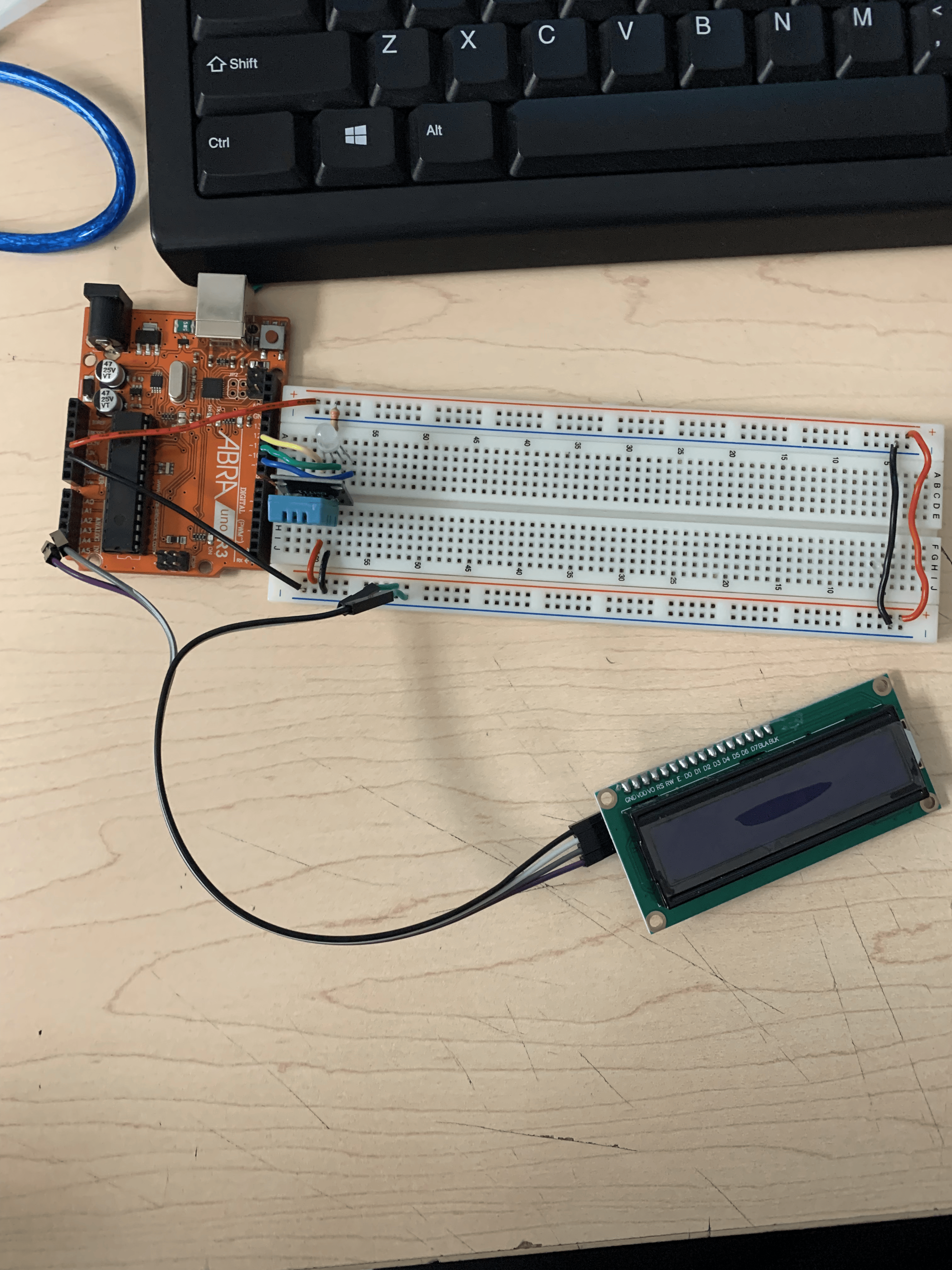
I have created a circuit with an Arduino Uno to monitor the temperature and humidity of a room, whilst displaying it onto an I2C LCD.
Supplies
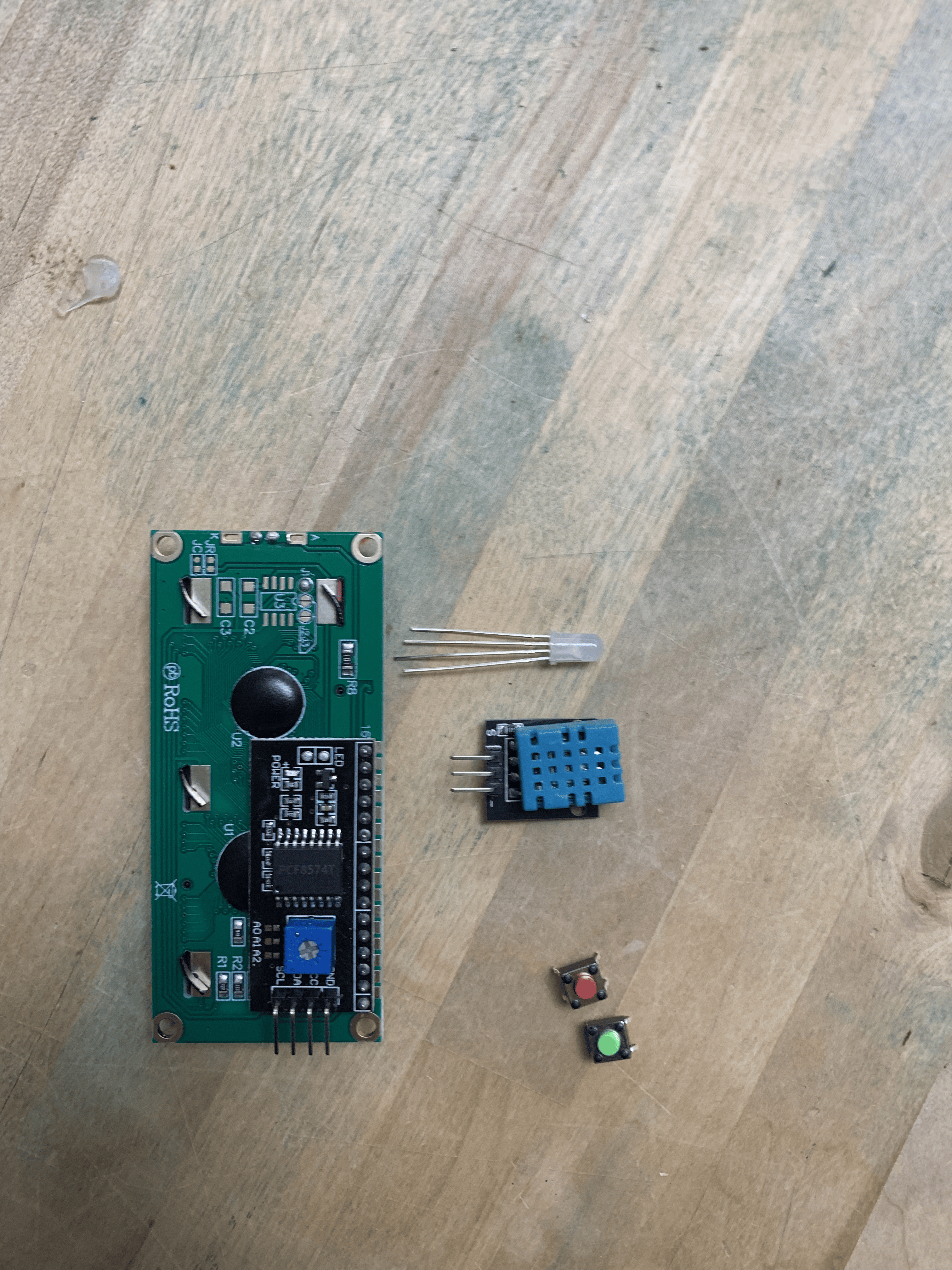
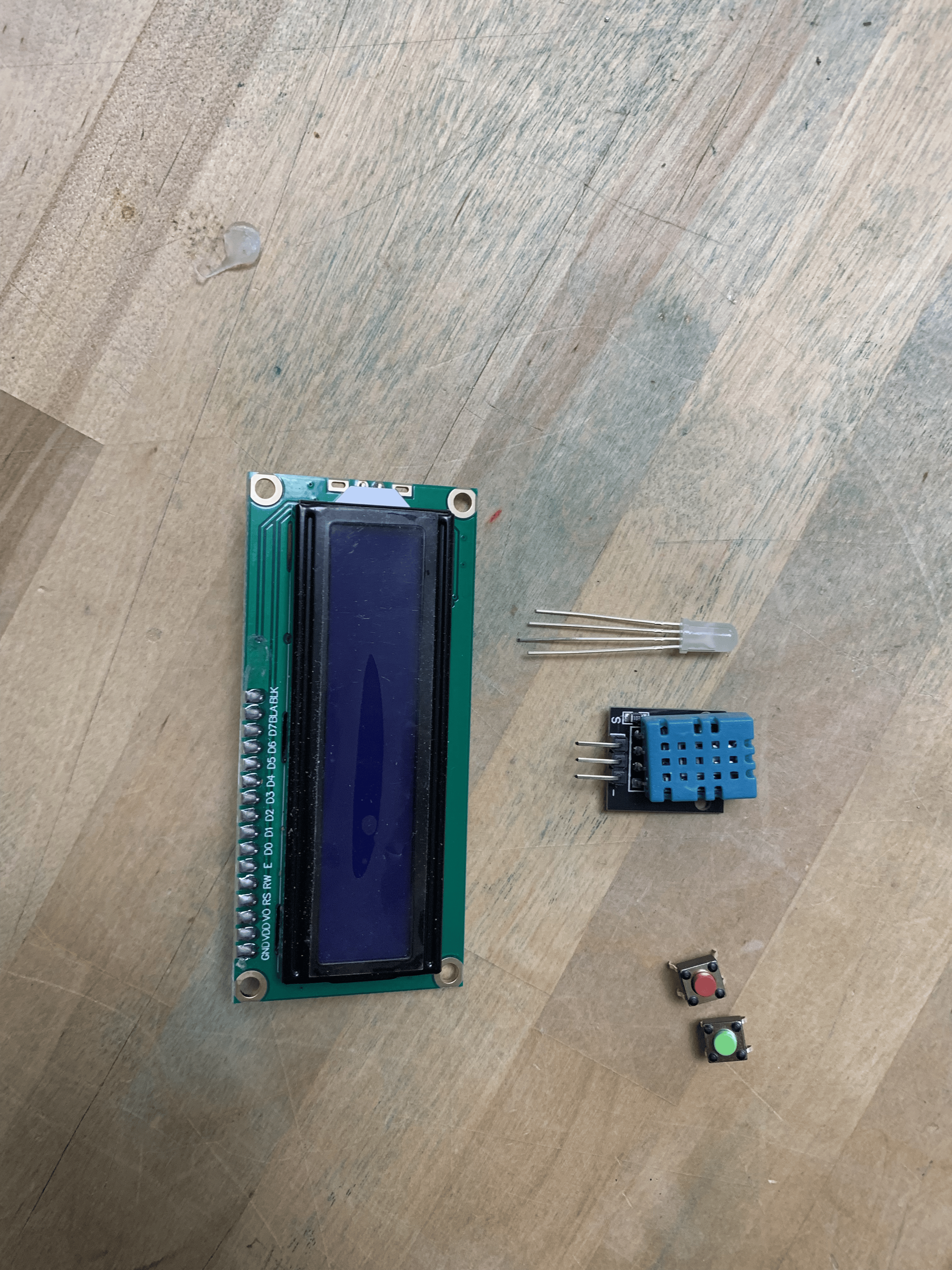
- 1 Full or Half Sized Breadboard
- 1 Arduino Uno
- 1 16 x 2 I2C LCD Display
- 1 DHT11 sensor
- 1 Common Anode RGB LED
- 1 330Ω Resistor (must be bought in bulk)
- 2 Push Buttons (have to be bought in bulk)
- 4 Male/Female Wires
- Jumper Wires
- A way to connect to the Arduino IDE software (download here), preferably a computer of some sort
Setting Up the RGB LED
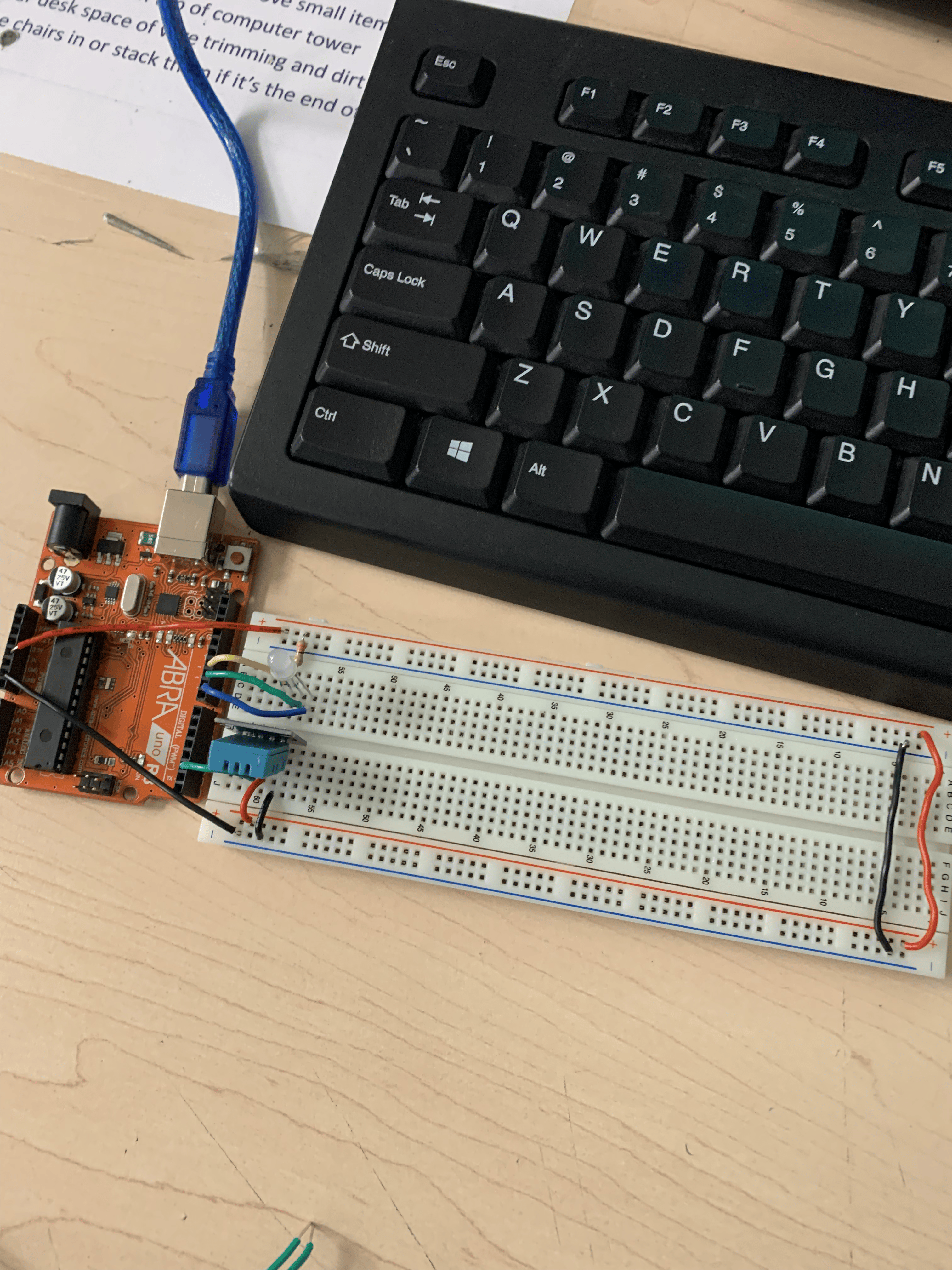
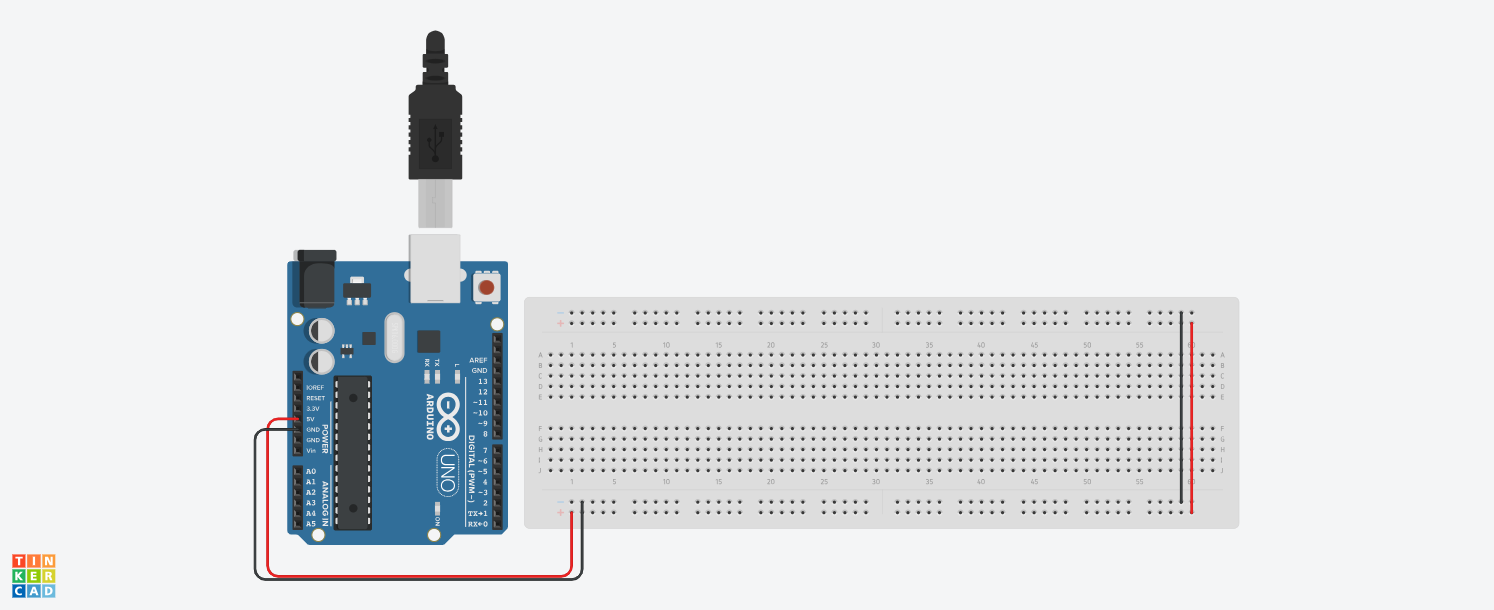
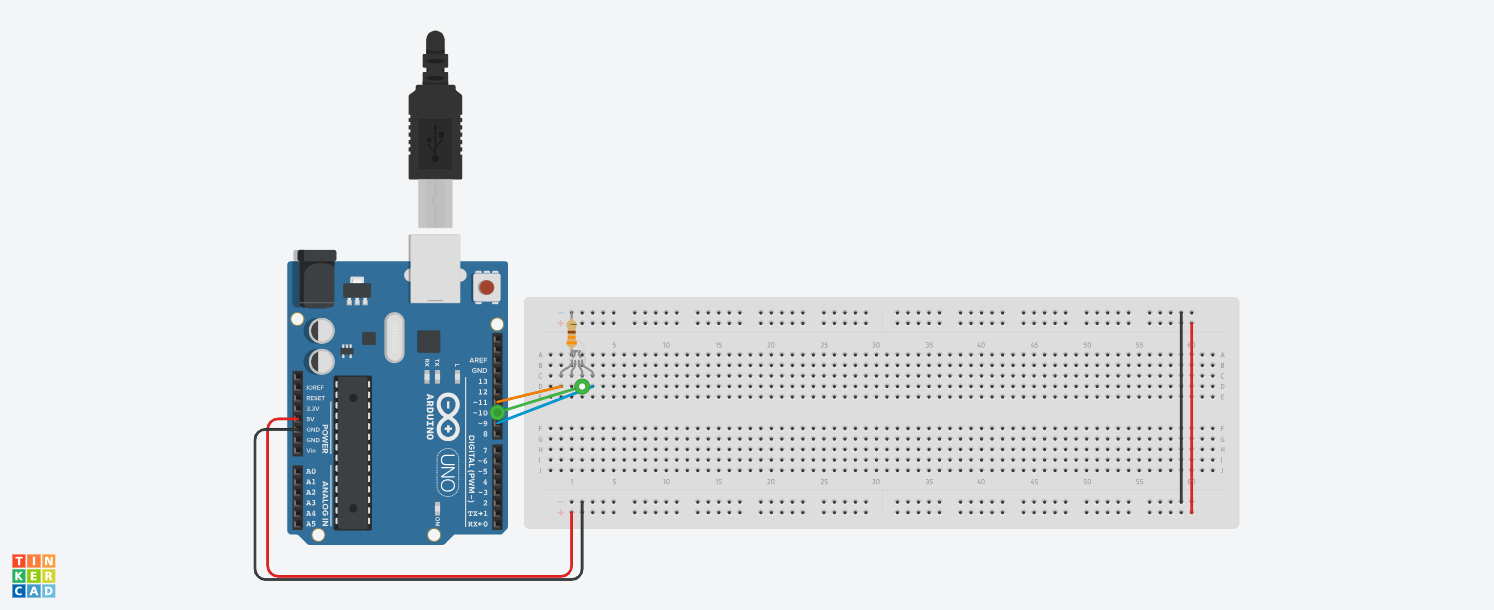
In this step, we add the RGB LED, as well as the DHT11 sensor to the breadboard and connect it to our Arduino Uno.
- Start by connecting the breadboard to the 5V and GND pins of the Arduino as shown in the pictures.
- Make sure to also jump the power and ground over to the other side of the breadboard as you can see on the right side of the breadboard in the pictures.
- Now, connect the RGB LED as shown. The TinkerCAD design is a common cathode LED, so instead of the resistor going to ground as shown in the design, connect the resistor to power as it is common anode.
- Make sure to wire each leg of the RBG LED to a PWM (Pulse Width Moderation) pin. These are marked with the little "~" symbol next to the number I have the red pin in pin #11, green in #10, and blue in #9
Setting Up the DHT11
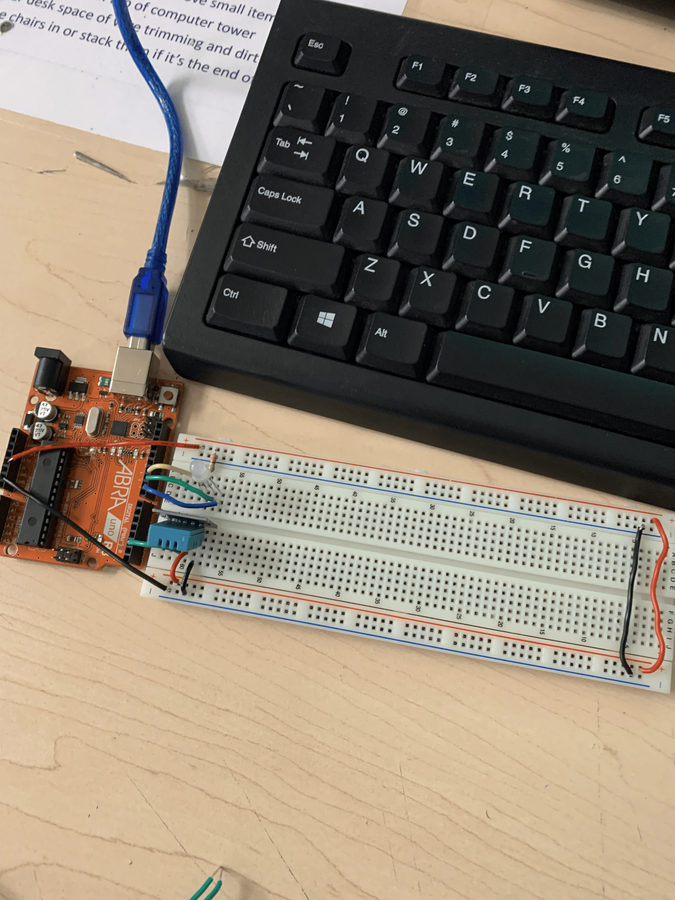
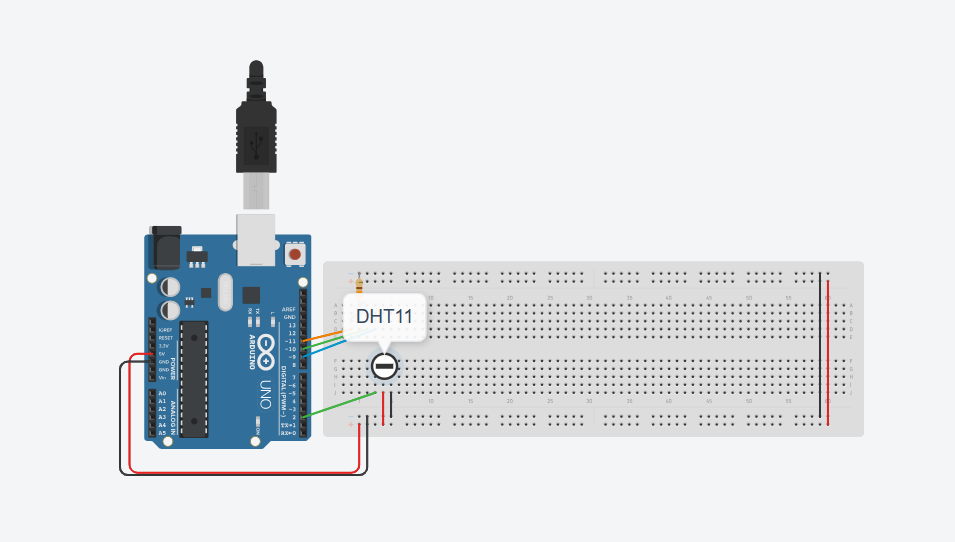
- Next, wire the DHT11, I am unable to show you a circuit diagram in TinkerCAD, as the DHT11 does not exist, so look at the note.
- Wire the left most pin of the DHT11 to pin #2.
- Wire the middle to power.
- Wire the right to ground.
Wiring the I2C LCD
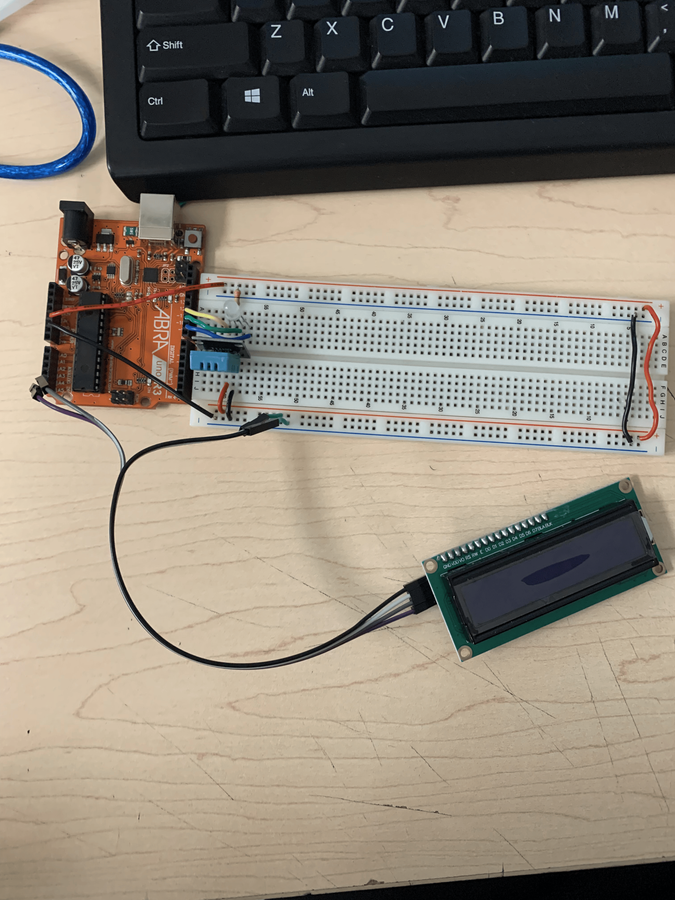
The I2C LCD is different from a regular LCD, as it requires less connections. The I2C just has 4 pins, labeled SDA, SCL, Power, and Ground.
- Connect your 4 Male/Female connectors on the female side to the 4 pins on the I2C.
- Connect the power and ground pins of the LCD on the breadboard.
- Connect the SDA pin to the A4 pin.
- Connect SCL to the A5 pin.
The Code (Downloading Libraries)
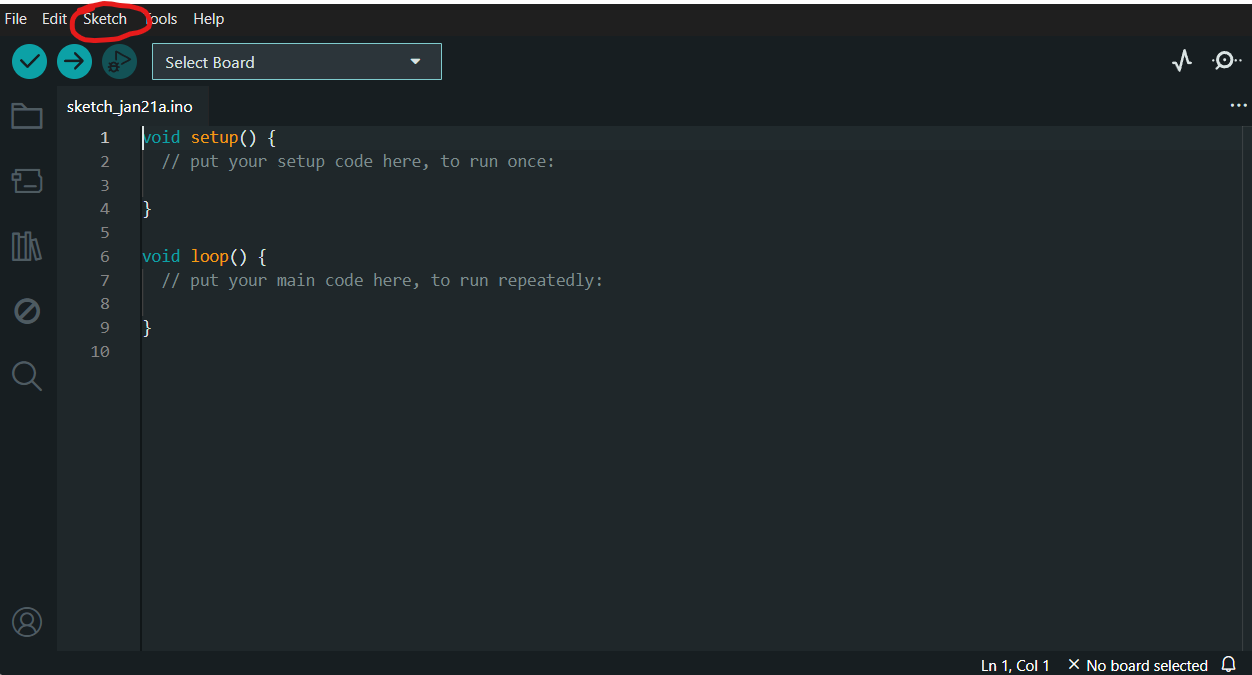
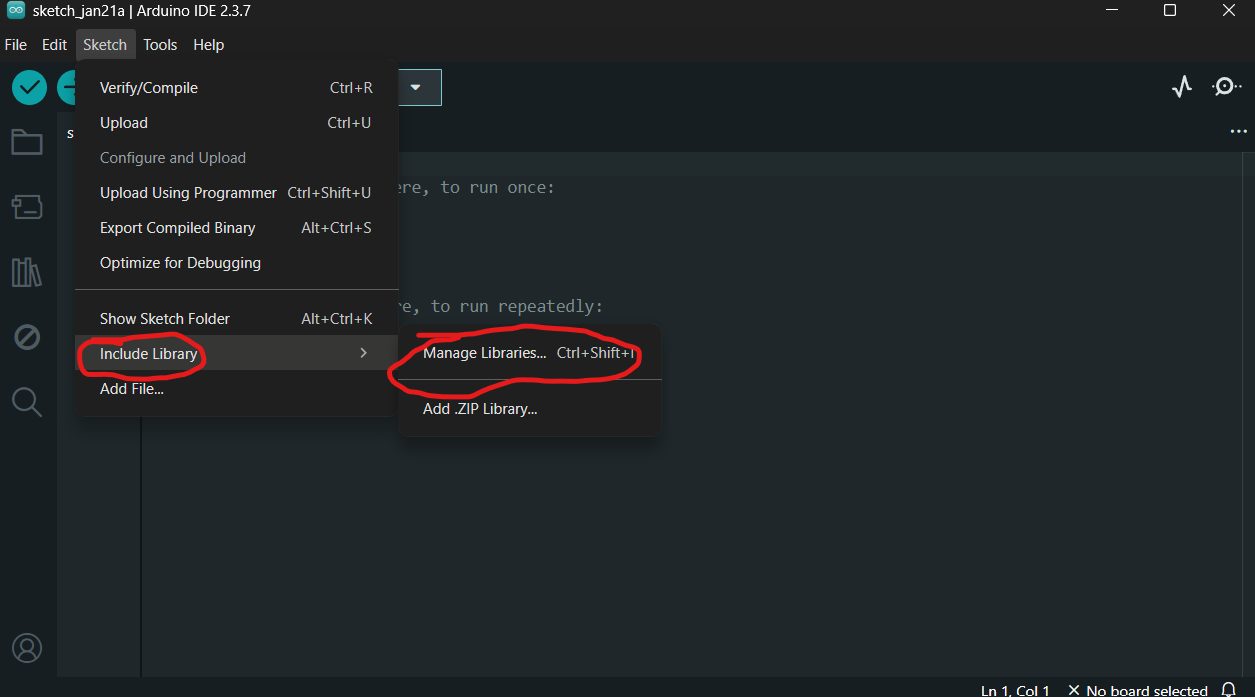
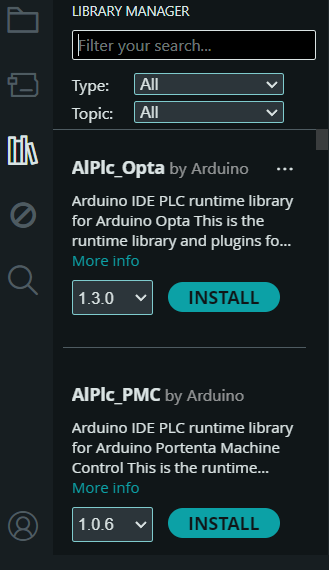
For this code, you will need 4 libraries, 1 comes with the Arduino IDE software. It is called Wire, and can be accessed through pressing Sketch and going to Include Library, or simply typing "#include <Wire.h>". You can find the other libraries in the Arduino IDE software.
- Press the Sketch button in the top menu as shown in the first picture.
- Then, as shown in the second picture, go to Include Library and Manage Libraries.
- You will now see a menu similar to the third picture.
- In the search box type "Adafruit Unified Sensor" and download the one that fits your software version
- You can now find it in the same place you found the Wire library, or you can type #include <Adafruit_Sensor.h>
- You can now repeat this process for the last two libraries
- For the LCD, you will need the LiquidCrystal_I2C. Make sure it is the I2C version as your circuit won't work without it.
- Download the one by Frank de Brabander.
- To download the DHT11 library, search for "DHT sensor library", which is published by Adafruit.
The Code
Here is what the code should look like
What Should Happen
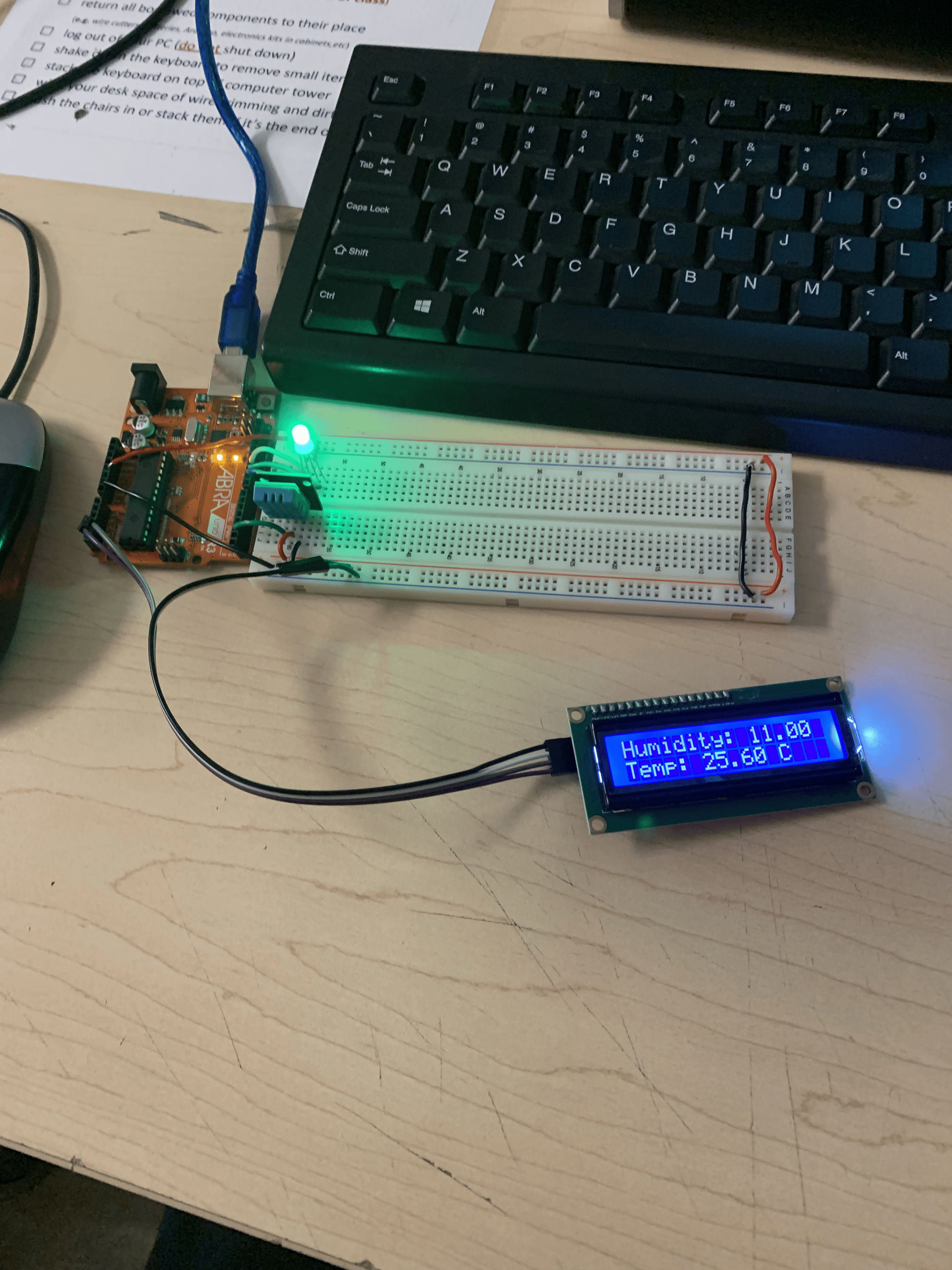
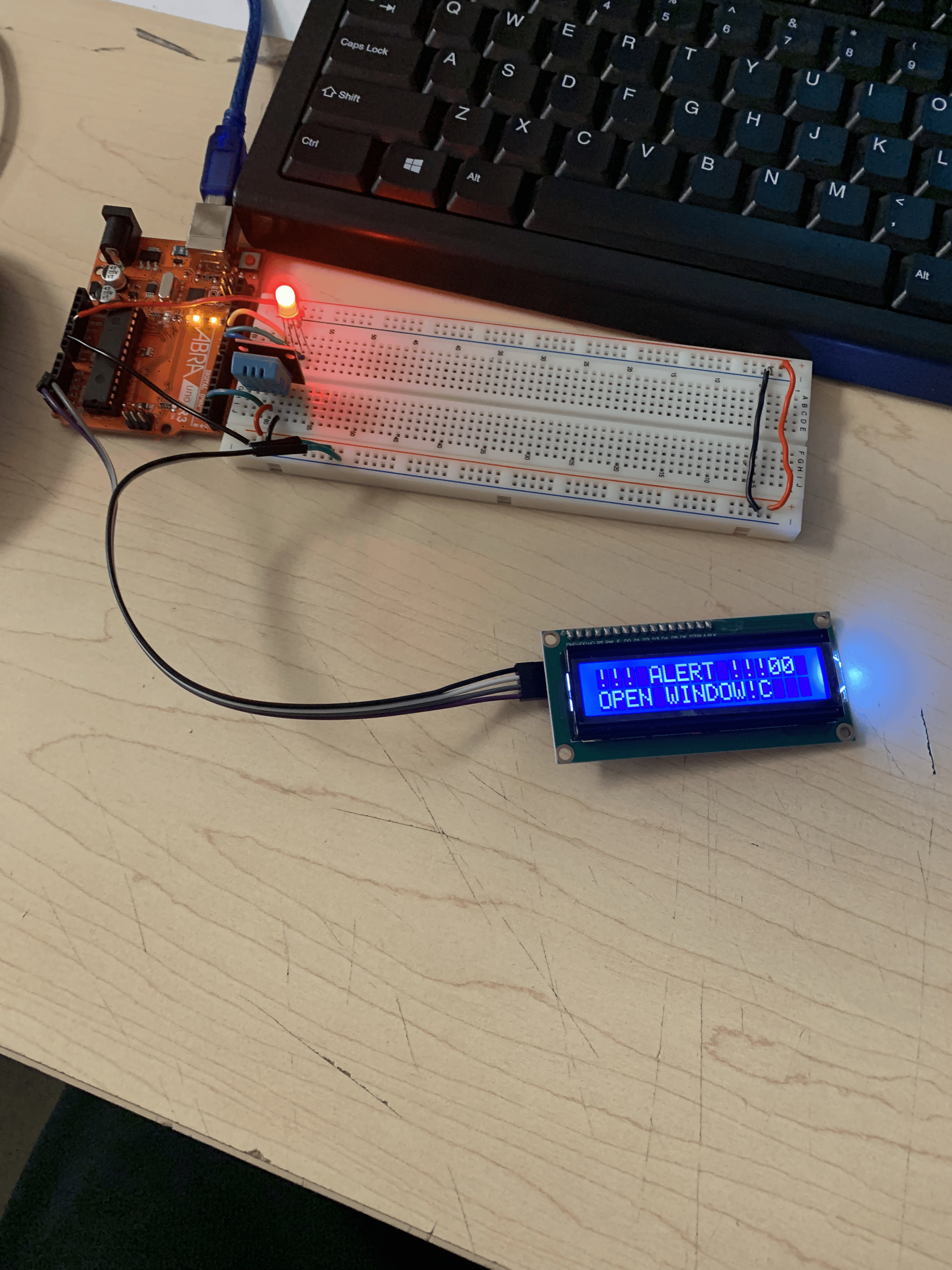
When the LCD is displaying the temperature and humidity, the RGB LED is green. If the temperature and humidity pass a certain threshold which is declared by the value in float threshTemp and float threshHum. When the value gets passed, the LED turns red and the LCD says "!!! ALERT !!! OPEN WINDOW".