Wearable AI = Xℝ = EXtended (intelligent) Reality
by SteveMann in Teachers > University+
138 Views, 2 Favorites, 0 Comments
Wearable AI = Xℝ = EXtended (intelligent) Reality
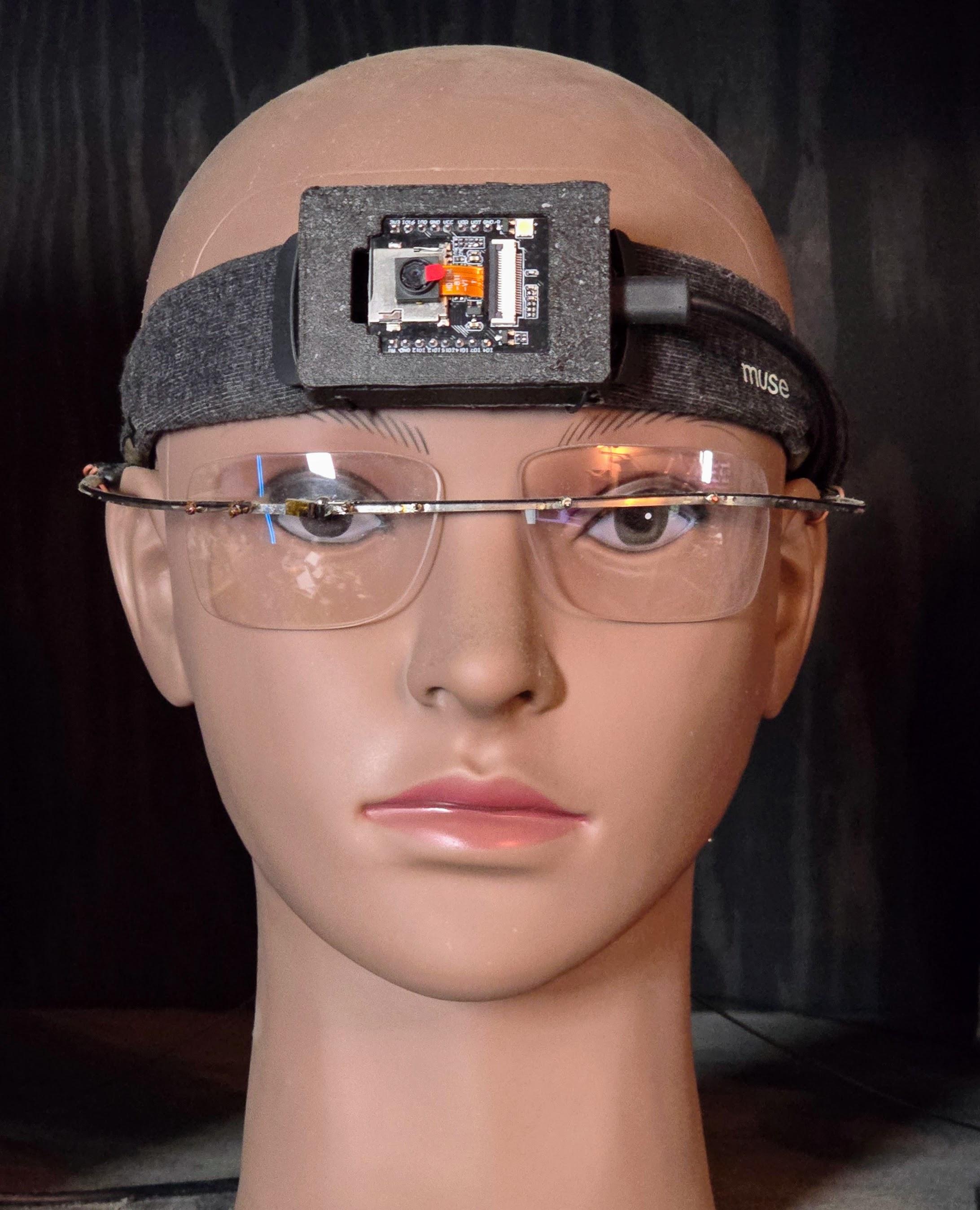
Let's build a simple super low-cost device that gives us superhuman intelligence.
Wearable AI, also known as Mersivity or Xℝ = eXtended ℝeality or eXtended intelligent Reality or eXtended intelligence reality or simply eXtended Intelligence (XI) is more than just an umbrella term for the dizzying alphabet soup of jargon: VR (Virtual Reality), AR (Augmented Reality), MR, DR (Diminished or Digital Reality), IR (Intelligent or Internet Reality), Metaverse, etc., but more importantly it is a simple way to interpolate between and extend beyond this mess of jargon.
Supplies
We're going to use a simple very low-cost camera board,
ESP32-CAM-MB, Aideepen ESP32-CAM W BT Board ESP32-CAM-MB Micro USB to Serial Port CH340G with OV2640 2MP Camera Module Dual Mode
Brand
Aideepen
Model name
ESP32-CAM-MB
RAM memory installed size
8.52 MB
Memory storage capacity
8 MB
CPU model
ARMv7
Test Camera


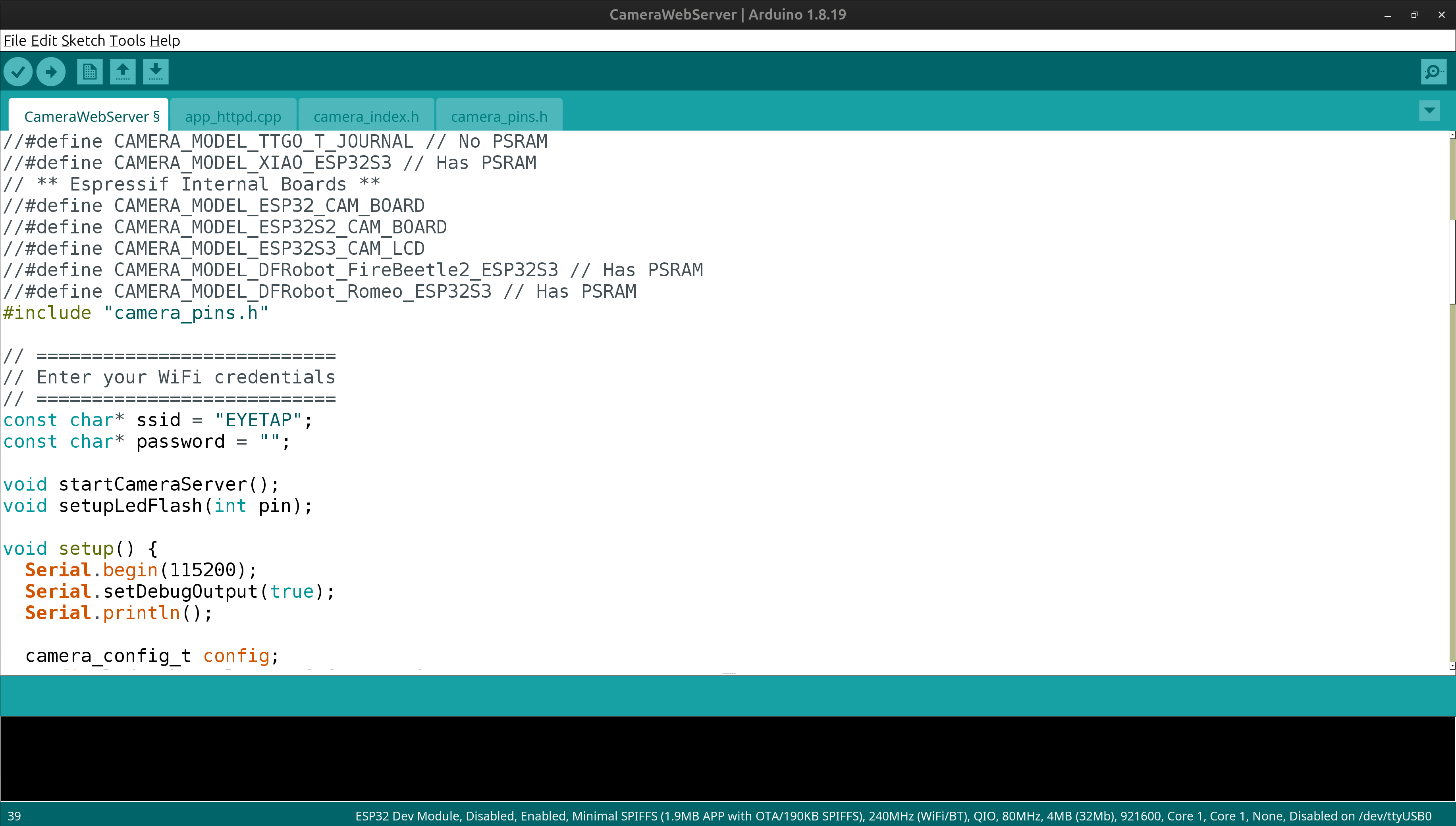


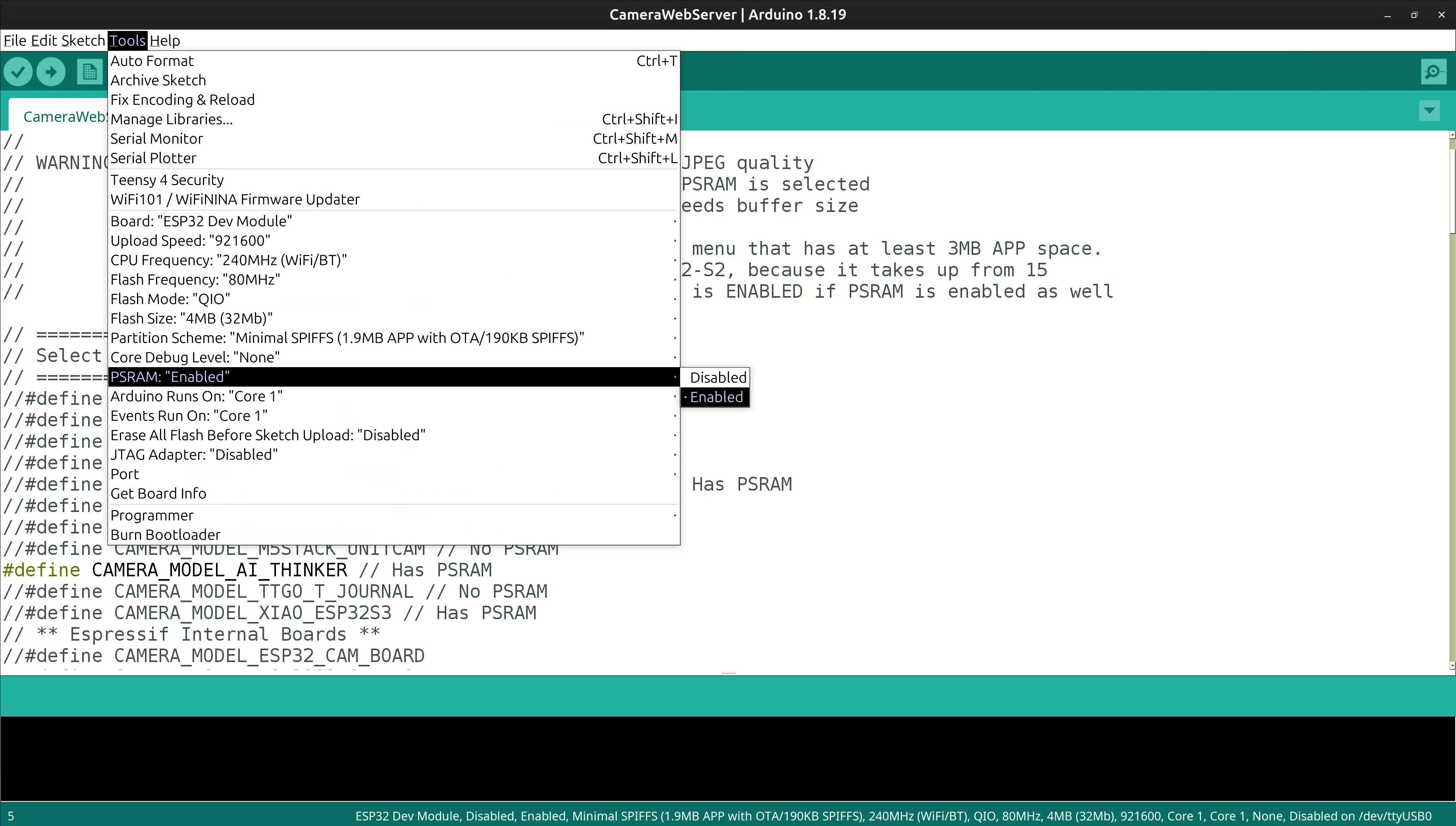
First plug in a USB cable and test the camera, e.g. using webcam sample code. Select a high-contrast scene, e.g. here a light bulb, with some dark areas around it, in an otherwise dark room. The affix the camera to a fixed object so it can't move between exposures. Then acquire a series of pictures that differ only in exposure. This will facilitate comparametric analysis of the camera (e.g. using comparametric equations). The screenshots provided here may help you with settings while you modify the code to set the IP address, board type, etc., as indicated.
Build Camera Housing
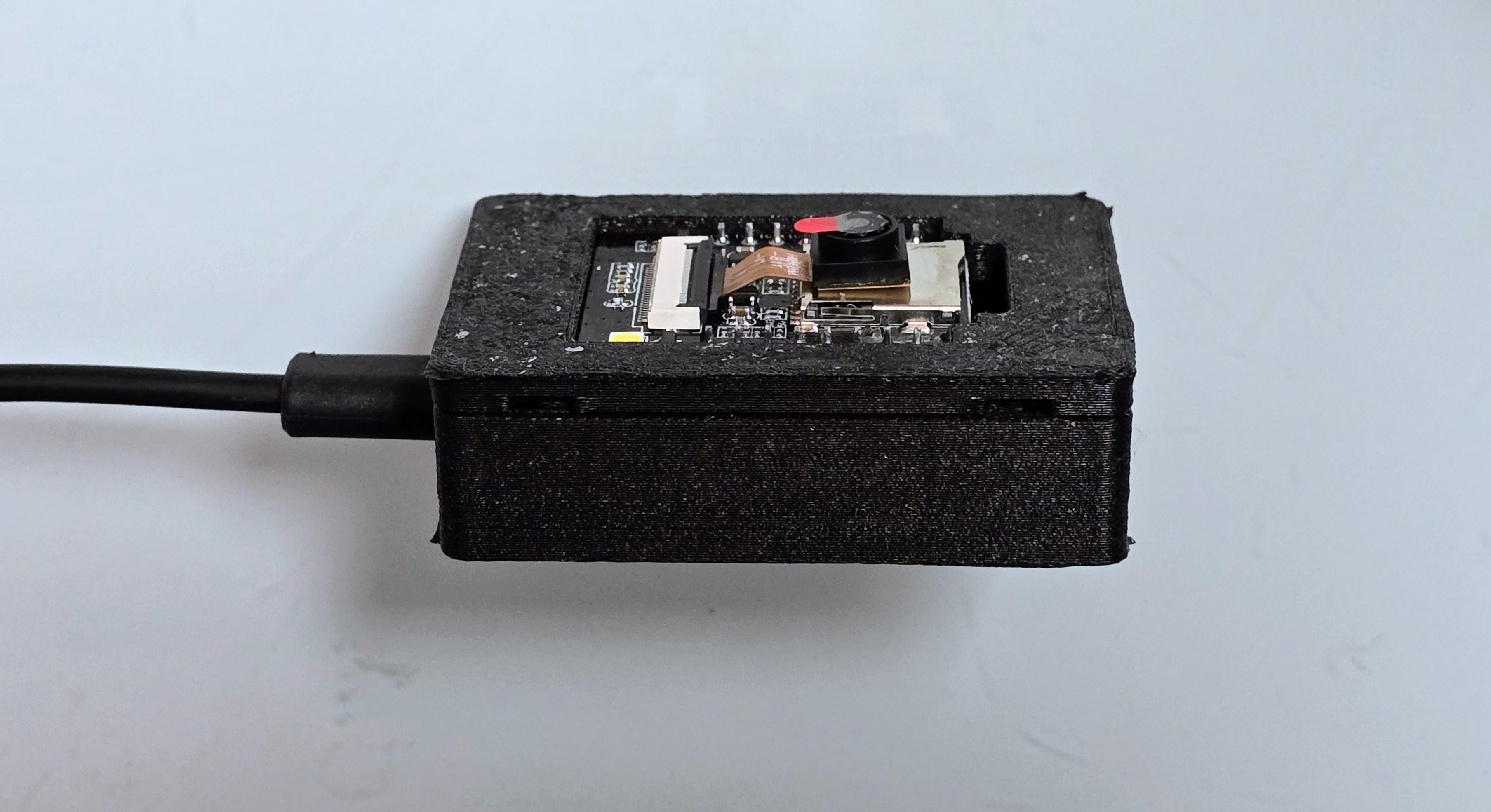

You can 3D print a housing of your own design, or download a design from a site like Thingiverse, or make a housing from lasercut plywood, or other material, or you can hand-cut the material to make a housing.
Mount the Housing
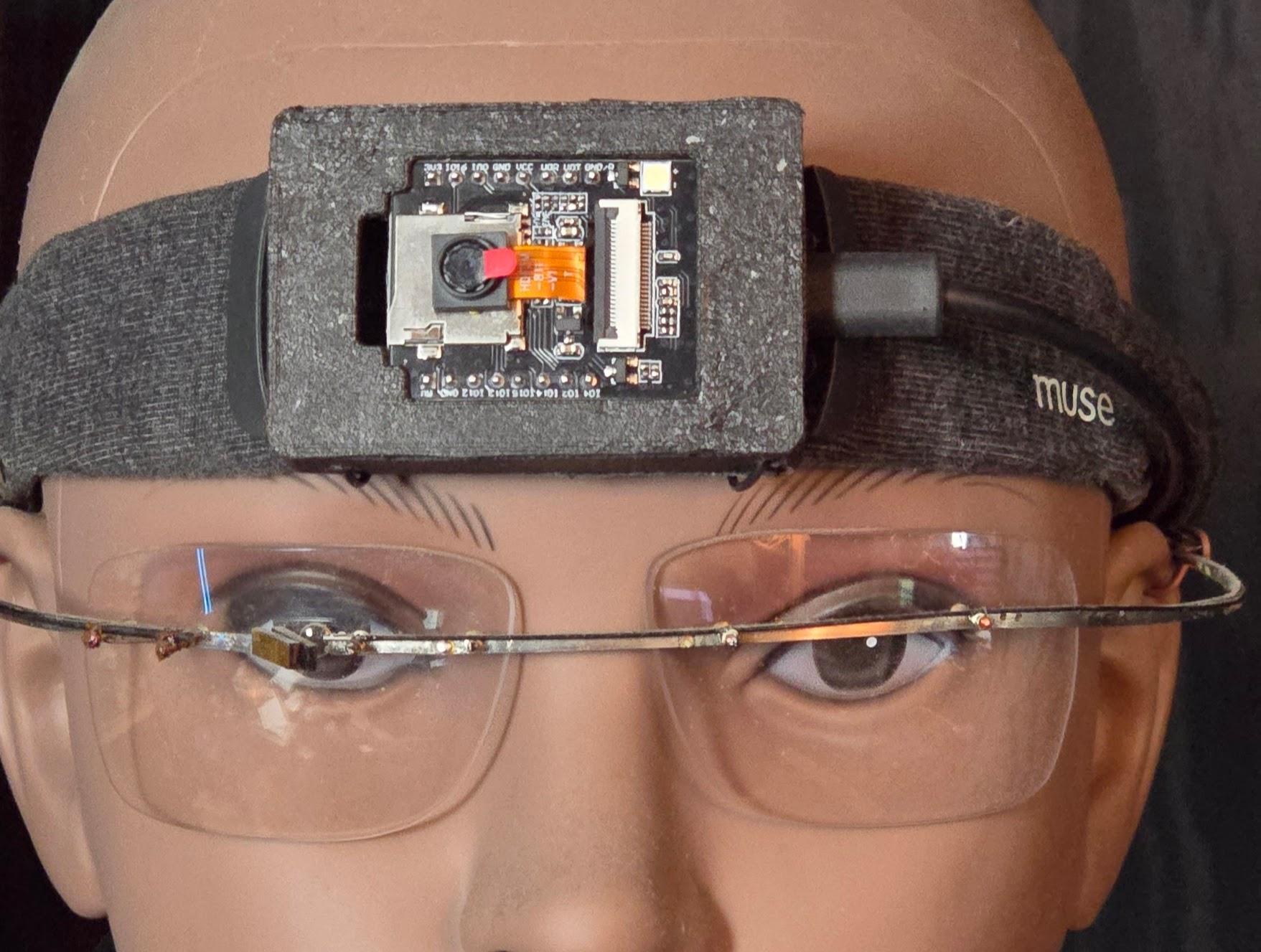
Mount the housing to a headband for easy wearability. Now we're ready to test out the system. For testing, it needs to be mounted securely e.g. in a vise, on a tripod, or otherwise affixed for a static scene. For wearability once testing is done, it can be worn on the headband.
Capture Some Test Data, Such As Wyckoff Sets Using Known Exposure
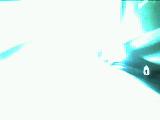
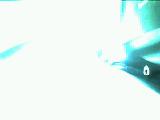
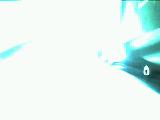


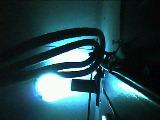
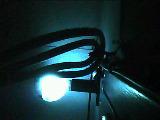
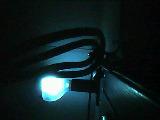
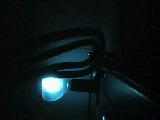
The webcam code is wonderful, but with the GUI (Graphical User Interface) slider, it is hard to do science.
What we want to do now is a scietific exploration of the camera, using known-exposures!
Calibrate the camera by capturing some Wyckoff sets. Capture sets of differently exposed pictures while the camera is affixed to a secure stable location such as in a vice, clamped to a desk, or the like. You can also affix it to a tripod or other stable structure. You can use the sample code in http://wearcam.org/ECE516/ECE516cam/
When you run the .ino file you'll be prompted for a number to enter, and it will output data to the serial monitor and you can cut-and-paste into a file as ASCII PNM, which you can name e.g. ECE516cam001.ppm is the result of entering 1. ECE516cam064.ppm is the result of entering 64, and so on.
The numbers are entered logarithmic base 2 scaling, i.e. each one twice the one before it. This gives you a comparametric ratio of k=2.
You can also begin by using the sample PPM images in http://wearcam.org/ECE516/ECE516cam/
The jpg images in that directory were captured using the webcam program (using the graphical user-interface), not the program in this directory, so the exposure relationship is not precisely known.
Here we're going to run the ECE516cam.ino sample program which is an improvement over the the webcam program, when we wish to know the exact exposure.
You can calculate the exact exposure as follows:
ExposureTime = NumberYouEnter * LineTime.
This is aec_value (0-1200) which is a 20-bit value that controls the exposure, with lower values producing darker images and higher numbers giving you lighter images, up to a point, e.g. there's a maximum especially with small-size images (e.g. horizontal width defines a maximum exposure time).
Explore and understand this relationship.
See the above 14 examples captured as follows:
999
600
512
256
128
64
32
16
8
4
2
1
0
You can see in this example that beyond 512, the images don't get any lighter! Also 0 is not much darker than 1, i.e. 0 does not mean the exposure is 0!
Compute Pairwise Comparagrams
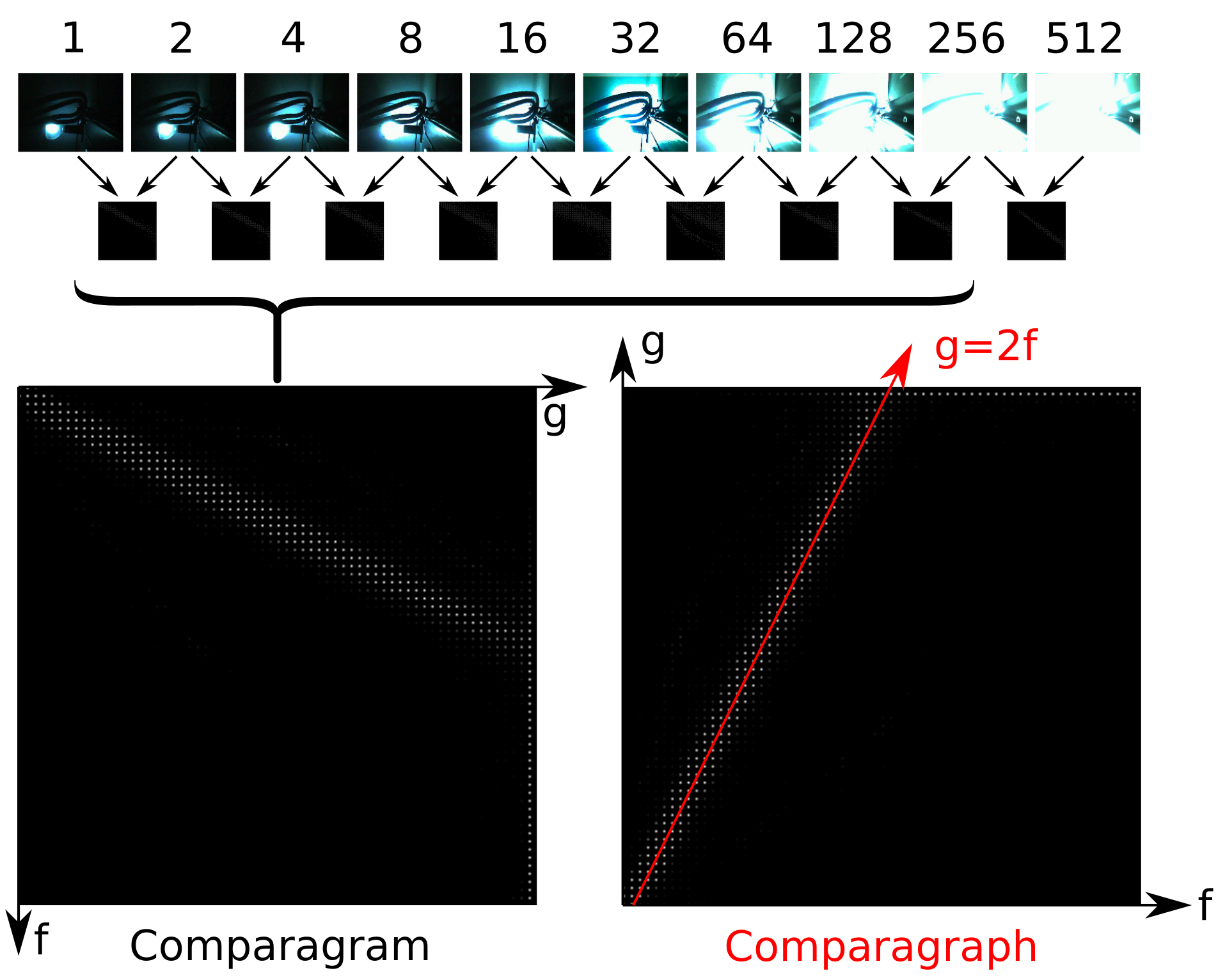
Take the images over which they change reasonably and compute pairwise comparagrams.
We're doing this using Octave.
sudo apt-get install liboctave-dev
mkoctfile comparagram.cc
which you can get from http://wearcam.org/comparagram.cc
Optionally you can also take a look at http://wearcam.org/pnmwyckoffcorrected.c
In this example I captured 10 images to generate 9 pairwise comparagrams and noticed clipping on the highest exposed image, so I summed only the first 8 comparagrams to get the comparasum shown.
I think estimated the comparagraph approximately g=2f which indicates an approximately linear response function, i.e. f=q to within a scalar constant.
Now try something fun and creative with this miniature calibrated camera system, e.g. wearable AI