Viber Messages Backup and Restore on Android and IPhone
by JocelynPhoto in Circuits > Mobile
2538 Views, 0 Favorites, 0 Comments
Viber Messages Backup and Restore on Android and IPhone
Similar to WhatsApp and Facebook Messenger, Viber is a popular social chatting app, but Viber itself will not create backup for your chat history automatically. While sometimes it often occurs that you need to change your phone to a new one, or just hit the DELETE button by mistake and want to restore the deleted Viber messages on Android/iPhone. In such case, you may be in need of the following solutions to backup and restore Viber messages on Android and iPhone.
How to Recover Deleted Viber Messages on Android
Option 1. Recover Lost Viber Messages on Android without backup
Most of the users don’t have the habit to make Viber backup, then to restore deleted Viber messages on Android in an effective way, Jihosoft Android data recovery software must play an important role.
Even you don’t have a backup, don’t worry, because this recovery method enables you to recover deleted Viber directly from Android phone memory. Why? Actually, when the messages are just deleted, they won’t be completely erased from your phone memory at once. Instead, they still exists in somewhere of the phone memory, but you can’t access to them unless you make use of recovery tool.
Option 2. Android Viber Backup and Restore from Backup
Another option to backup and restore Viber messages on Android devices is by using Google drive. First, make sure your phone has connected to cellular data/Wi-Fi connection, and then begin your backup job.
1. Backup Viber on Android
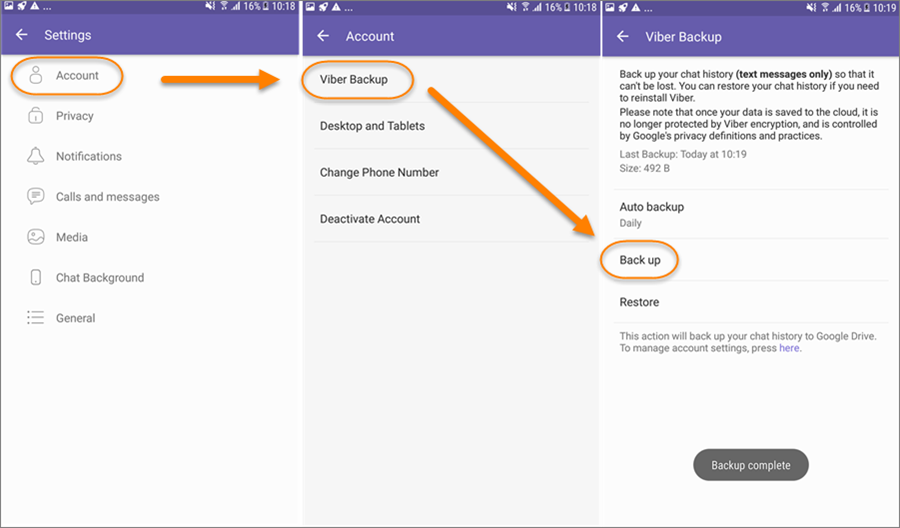
On the Viber main interface, tap the three lines on the top side to get more options. Then scroll down to look for the Settings > Account > Viber Backup. When you hit the Viber Backup, you will go to the Backup page, on which you can tap on the Back up button to start the process of backing up Viber messages to Google account. It’s recommended to set the Auto backup into Daily backup mode in case of unexpected data loss.
If you didn’t selected the Google account before, the app will require you to add one. To do that, you just need to go to the phone Settings to add your Google account.
2. Restore Viber to Android
As you can see on the above picture, the Restore button is under the Back up button. When you want to restore Viber messages, just enter the Viber Backup page again and click on the Restore button. Once a pop up window appears, hit Restore Now to confirm your option.
NOTE: Please remember that Viber only backup and restore your text history, if you want to backup and recover Viber photos, videos, and all the chat history on Android, you have to find other ways.
How to Backup and Restore Viber on IPhone?

Option 1. Backup and Restore iPhone Viber with FoneDog
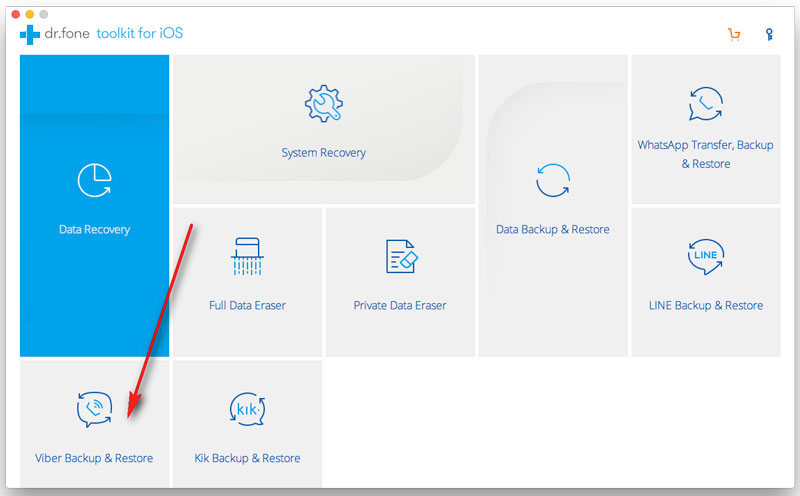
This is an essential tool for iOS Apps Backup & Restore. It allows you to choose only the Viber chat messages you need to backup and restore with just one click. To use this tool, follow the steps below:
1. Backup iPhone Viber to Computer
Launch the tool on a computer, and click on “Viber Backup & Restore” option. Then connect your iPhone to the computer, when the tool detects your phone, click “Backup”. After the backup process finishes, you shall be notified.
2. Restore Viber to Device or Computer
On the Restore page, you can find a list of all the Viber backups you created before. Select the backup file you need, and click “Next” to let the tool scan the backup file. After that, you have the option to preview the Viber messages inside the backup. Finally, choose “Restore to Device” or “Restore to Computer”.
Option 2. Auto Backup and Restore iPhone Viber with iCloud
Provided you had backed up Viber to iCloud previously, you have the option of restoring Viber messages from iCloud to iPhone device. Let’s see how to perform it.
1. Create a Viber iCloud backup
Creating an iCloud backup is quite a simple task like this: go to iPhone Settings, and click iCloud. Sign in to iCloud and enable the iCloud Drive. Scroll down to switch on Viber option.
Another way to backup Viber manually is: on the Viber, go to Settings > Account > Viber backup > tap on “Back up now”.
2. Restore Viber from iCloud
Go to Settings > General > Reset, then tap "Erase all content and settings" to make your device back to its original state. On the Apps & Data screen, tap "Restore from iCloud Backup" and then sign in to iCloud. Mark the backup files that you want to restore from iCloud and choose "Restore". After the restoration, your Viber messages will be on your iPhone again.
If you manually backup Viber before, you just need to go to the Viber Settings again, and find the Restore button to begin the restoration.