Turn Your Old Phone Into an Interactive Whiteboard for Under $30
by MrMemory in Circuits > Reuse
113 Views, 0 Favorites, 0 Comments
Turn Your Old Phone Into an Interactive Whiteboard for Under $30
.png)
Remember when the Nintendo Wii came out and people realized you could use Wiimotes to create cheap interactive whiteboards?
Refurboard brings that magic back - using hardware you likely have gathering dust in a drawer!
Commercial interactive whiteboards cost $1,000-$5,000+. Many schools have projectors but can't afford these upgrades. With Refurboard, you can add touch/pen interactivity to ANY projected display using:
- A USB webcam (or your old smartphone)
- An infrared (IR) pen (~$10-15)
- An IR-pass filter for a camera or GoPro (~$5-10)
- Free software
Total cost: Under $30 if you already have a webcam, or under $60 with a budget webcam included.
I originally built Wiimote whiteboards for schools back in high school. Now I've created Refurboard to make this accessible to anyone — no soldering, no Wiimotes, no Bluetooth pairing headaches. Just install the app, connect your phone or camera, and start teaching.
Refurboard is beta software, and I hope to make it better over time. I think it's ready today to help you give presentations and play educational games. Let's jump into how you can set up yours!
Supplies
.jpg)
Supplies
Required
Smartphone as Webcam
Don't have a spare webcam? Your phone works great! Many of us have old phones that are gathering dust in drawers and boxes that can be given a new life in the classroom. In fact, 45% of Americans report they still have their old phones! These apps turn your smartphone into a USB webcam:
- Android 14+: Built-in! Simply go to Settings → Connected devices → USB → Webcam
- Camo (iOS/Android): Very reliable, USB or Wi-Fi
- DroidCam (Android): Free option
- Other apps that can turn your phone into a webcam, assuming they come with a program you install that makes them available to your computer like a camera for Zoom calls, video conferencing, etc.
USB Webcam (if you're not using your old phone)
$0-30
720p+ recommended. Many laptops have built-in cameras that work.
IR Pen
$10-15
Search "interactive whiteboard IR pen" or "Wii whiteboard pen"
IR-Pass Filter
$5-10
Blocks visible light, passes infrared. Search "Infrared Cold Mirror", "IR pass filter" or "720nm filter"
Computer
(existing)
Windows, Mac, or Linux — connected to your projector
Projector/Large Display
(existing)
Your classroom projector or TV
Optional but Helpful
Tripod or mount
Keeps camera stable and aimed at screen
I used a tripod-mountable cell-phone holder like this one
USB extension cable
Positions camera away from computer
Pro tip: USB connection is more responsive than Wi-Fi, generally.
Prepare Your Camera
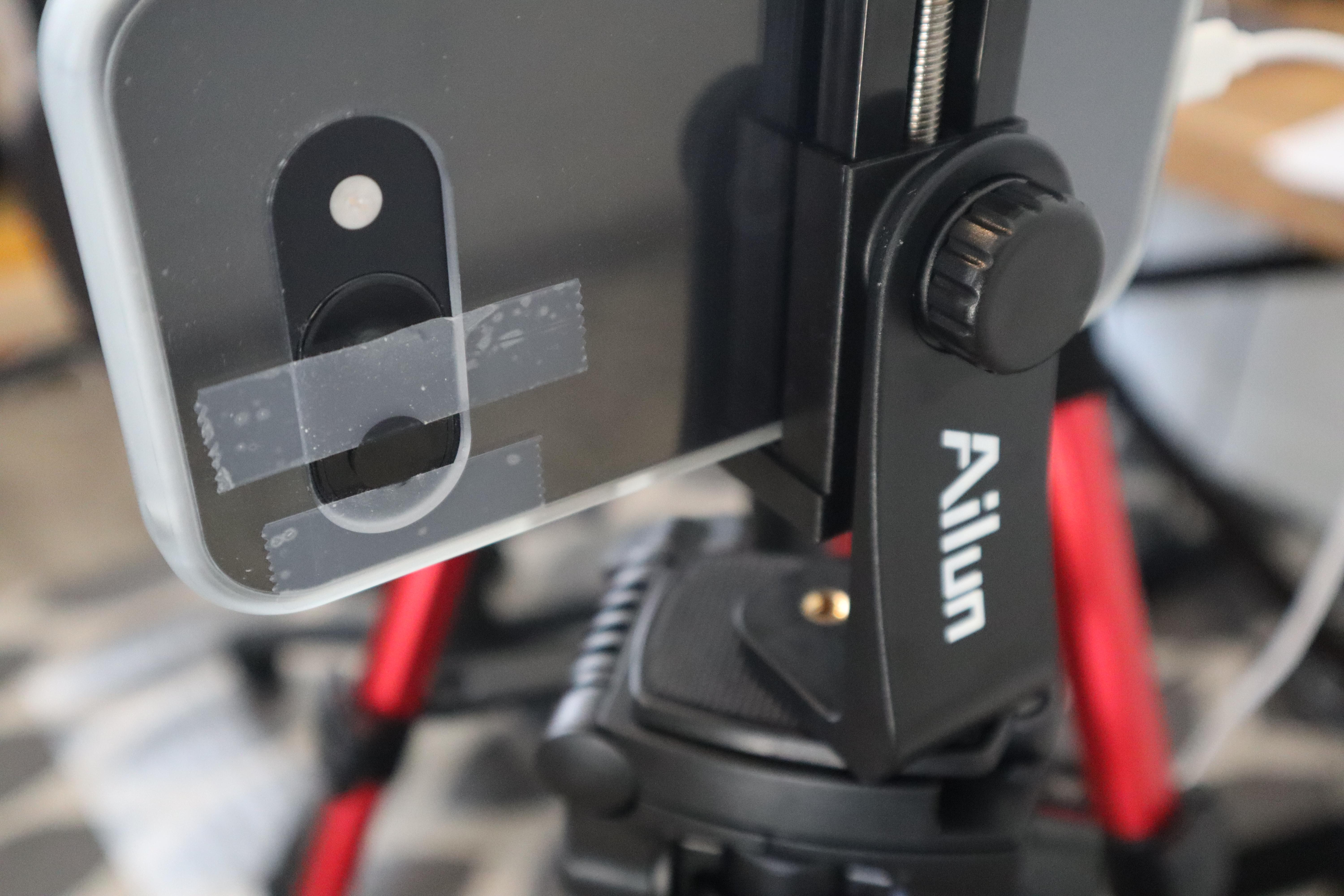
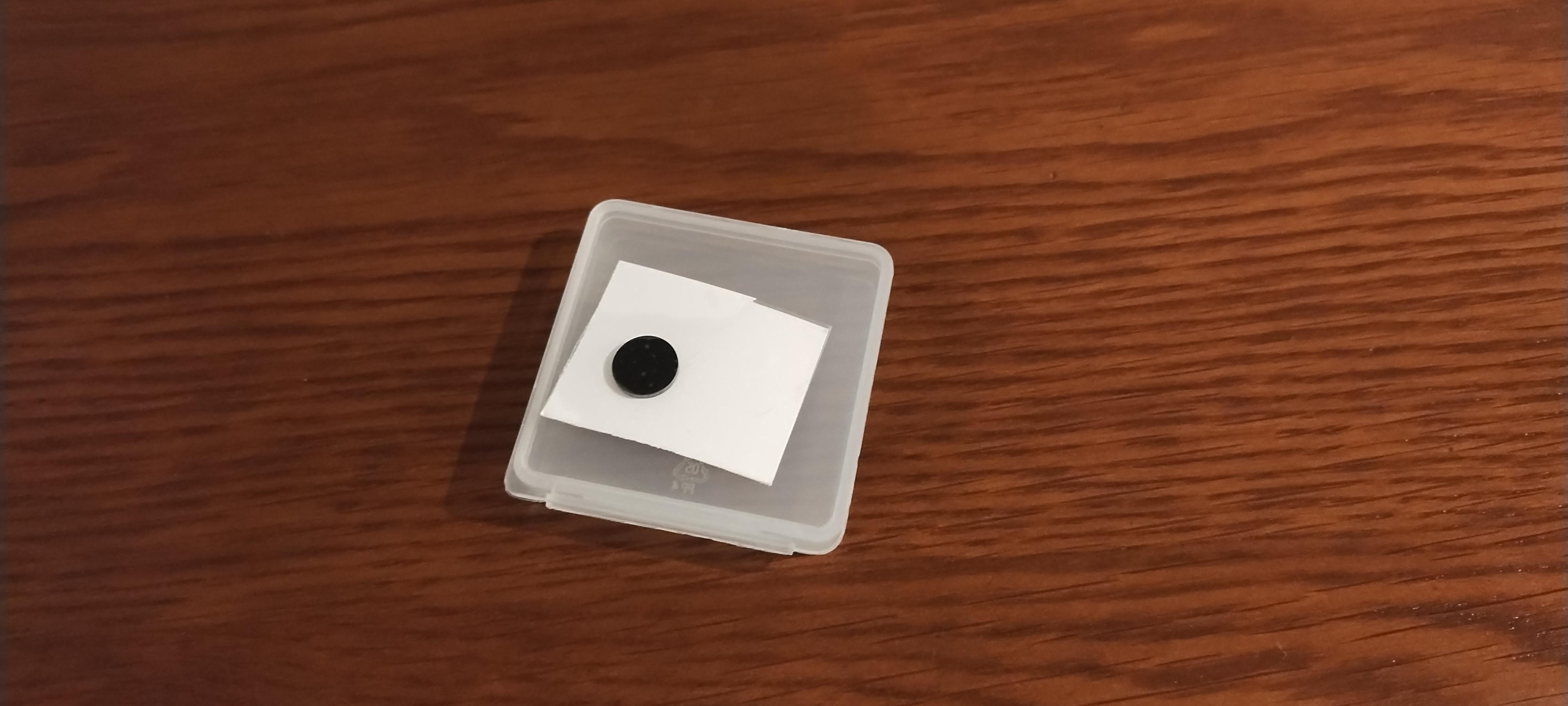
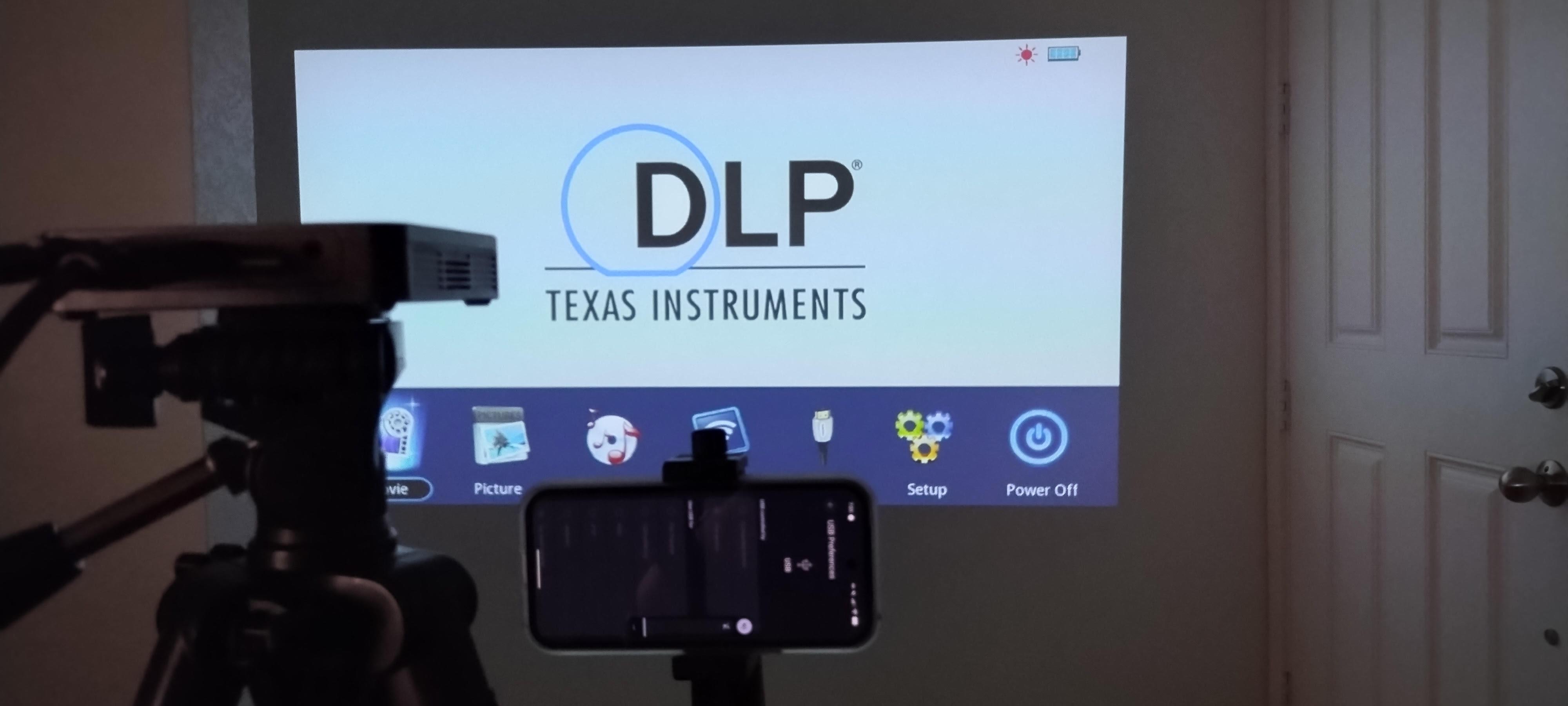
The key to Refurboard is that your camera needs to see infrared light clearly while ignoring visible light. This is what lets it track your IR pen even with a bright projector image.
Adding the IR-Pass Filter
1. Get an IR-pass filter — These are small glass or plastic filters that block visible light but allow IR through. Common options:
- 720nm or 850nm IR-pass filters (photography suppliers)
- "IR cold mirror" filters, especially for cameras like GoPros since they are small (example)
- Cut from exposed/developed camera film (free but less effective)
2. Attach it to your camera lens — Methods that work:
- Tape it over the lens (quick and dirty, this is what I did)
- 3D-print a holder that clips on
- Use a rubber band
- Buy a filter sized for your camera or case if it has threads
3. Test it — With the filter attached, your camera should show mostly darkness with regular lighting. IR sources (like your pen or a TV remote) will glow bright white or purple.
Camera Positioning
Your camera needs to see the entire projection surface:
- Mount it on a tripod, shelf, or desk
- Angle it so that it can see all four corners of your display
- Keep it stable — movement causes calibration drift
- Distance: far enough to see everything, close enough for good resolution
Common positions:
- On a tripod pointed at the display. This can work with a standalone tripod or on a cart. A good rule of thumb is that if it is on the same cart or table as your projector, it can likely see your whole screen.
- Mounted above
- Clamped to a desk or podium
Get an IR Pen
.png)

An IR pen is simply a stylus with a battery-powered infrared LED that lights up when you press it (like a mouse click). When you touch the screen, Refurboard sees the bright IR dot and moves your cursor there.
⚠️ Important: You need an active IR pen - one with a battery and LED inside. Passive stylus pens (the cheap plastic ones sold for existing SMART Boards) do NOT emit light and will not work with Refurboard.
Option A: Buy an Off-the-Shelf IR Pen
These pens were originally made for the Wiimote interactive whiteboard community. Stock is dwindling as the Wii era fades, so grab one while they're available! They are sometimes available on Amazon and eBay, as well as from other resalers. This list is not exahustive, many manufacturers made infrared pens and may be available from different sources on the internet.
- OptoSurfer M (~$20) — The gold standard. 940nm LED, tip + side button activation, AA battery, power indicator. Purpose-built for IR whiteboard projects.
- Slim Marker IR Pen (~$15) — Tip-activated with push button backup, compact marker form factor, long battery life. This is what I used for this project.
- Super Smooth IR Pen (~$15) — Pressure switch activated, classic Wiimote whiteboard pen.
What to look for when shopping: The listing must mention a IR LED, batteries, and tip or button activation. If it doesn't mention an LED or batteries, it's a passive stylus and won't work.
Option B: Build Your Own (~$5)
Since off-the-shelf IR pens are getting harder to find, building your own is a great fallback — and it's a fun classroom project in itself! The circuit is dead simple: battery → switch → LED.
Parts list:
- 940nm IR LED (5mm) — Adafruit #387 or bulk packs on Amazon (~$1)
- Momentary pushbutton switch — Any electronics supplier (~$1)
- 33Ω resistor — Any electronics supplier (~$0.10)
- AAA battery holder (2×AAA) — Amazon, Adafruit, electronics stores (~$1)
- Pen housing — Dead dry-erase marker, old pen, or marker tube (Free)
Assembly: Wire the LED in series with the resistor, switch, and battery pack. Press the button = LED on = click! Use a dead dry-erase marker as the body - the LED pokes out the tip, the switch goes where your finger naturally rests, and the batteries fit inside.
Detailed build tutorials:
- Infrared Pen (Instructables) — Flashlight-based build with step-by-step photos
- Terracode IR Pen Guide — Clean walkthrough with parts from your local electronics store
- Wiimote Whiteboard IR Saber (Make Magazine) — Fun toy lightsaber build for kids
Test your pen: Point it at any phone camera and press the button. You should see a bright purple/white glow on screen — that's the IR LED. If you don't see it, check your wiring.
Install Refurboard
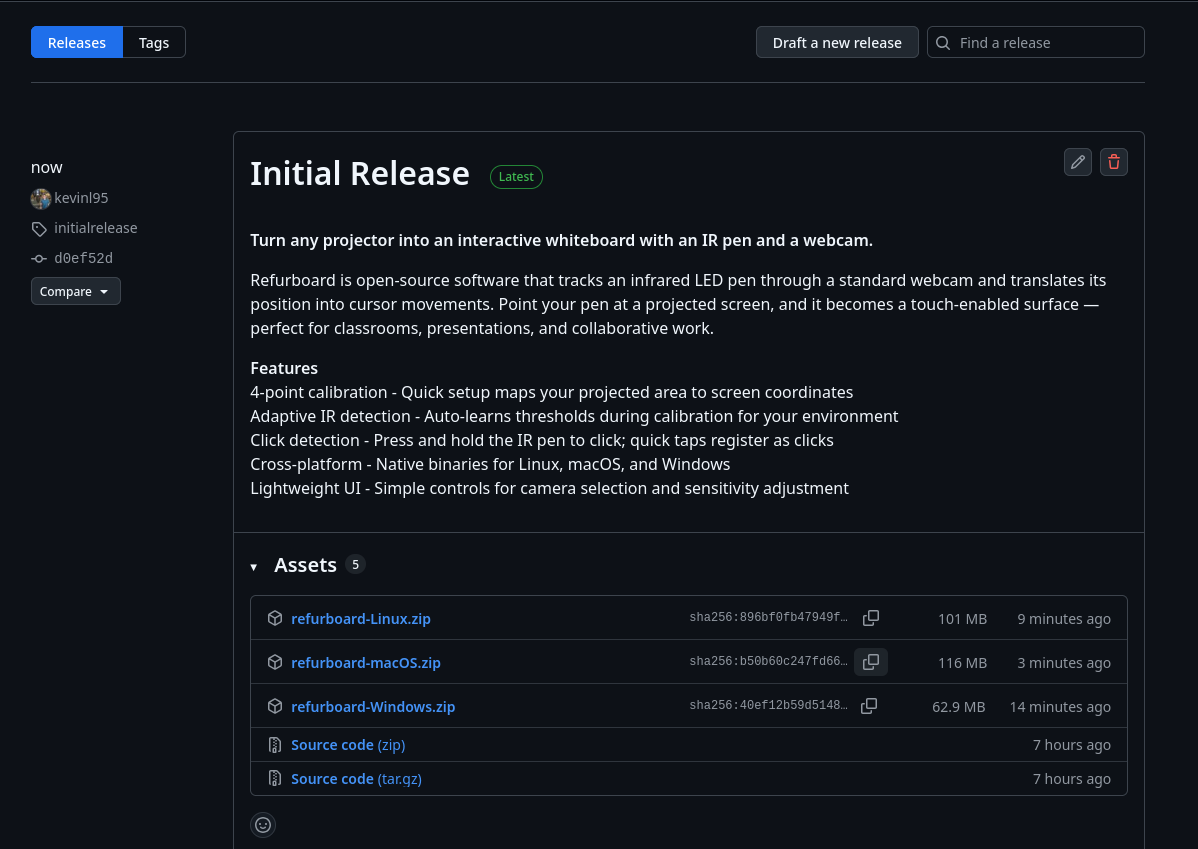
Download
Get the latest release for your OS from: github.com/kevinl95/Refurboard/releases
Find the zip file that corresponds with your chosen operating system and unzip it to a location on your machine.
Mirror Your Display

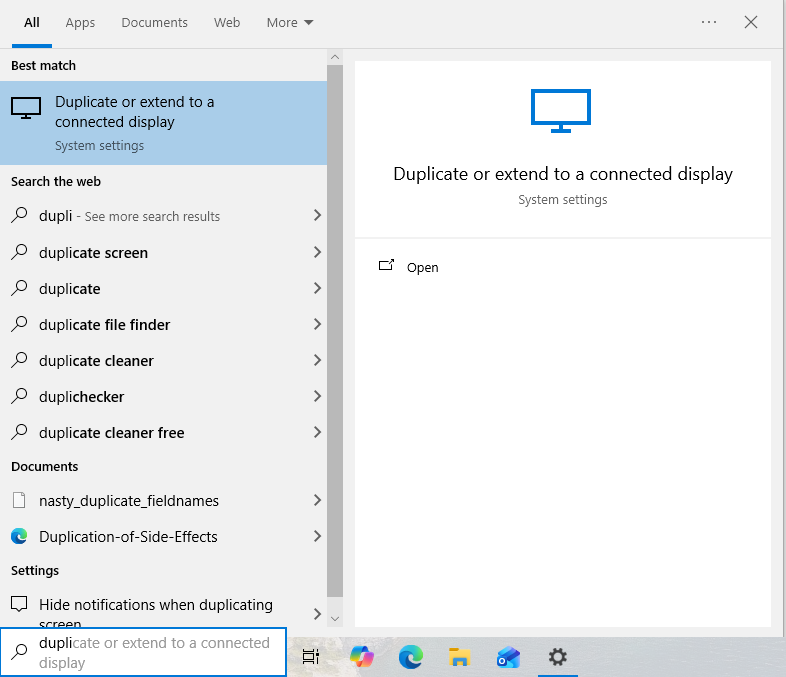
Important: Refurboard works best in mirrored display mode, where your projector shows the same content as your computer screen.
Setting Up Mirror Mode
GNOME (Linux):
Settings → Displays → Select your projector → Choose "Mirror"
Windows:
Settings → System → Display → Multiple displays → "Duplicate these displays", or from the start menu search for duplicating your display.
macOS:
System Preferences → Displays → Arrangement → Check "Mirror Displays"
Calibrate

This is where the magic happens! Calibration teaches Refurboard how your camera's view maps to your screen.
Launch Refurboard
- Open the Refurboard application
- A control panel appears with camera selection, sensitivity sliders, and a calibration button
Select Your Camera
- Use the dropdown to select your webcam (with IR filter attached)
- Click "Refresh Cameras" if you just plugged it in
Run Calibration
- Click "Start Calibration"
- A fullscreen window appears with a blue target in one corner
- Touch the target with your IR pen — hold steady for about 1 second until it locks
- The target moves to the next corner — repeat for all 4 corners
- Done! Check the "Calibration Quality" indicator
What Good Calibration Looks Like
- Excellent/Good: You're ready to go!
- Fair: Usable, but consider recalibrating
- Poor: Recalibrate — make sure all corners are visible and camera is stable
The "Calibration Preview" shows the quadrilateral your camera captured. It should roughly match your screen's aspect ratio.
Fine-Tune Detection
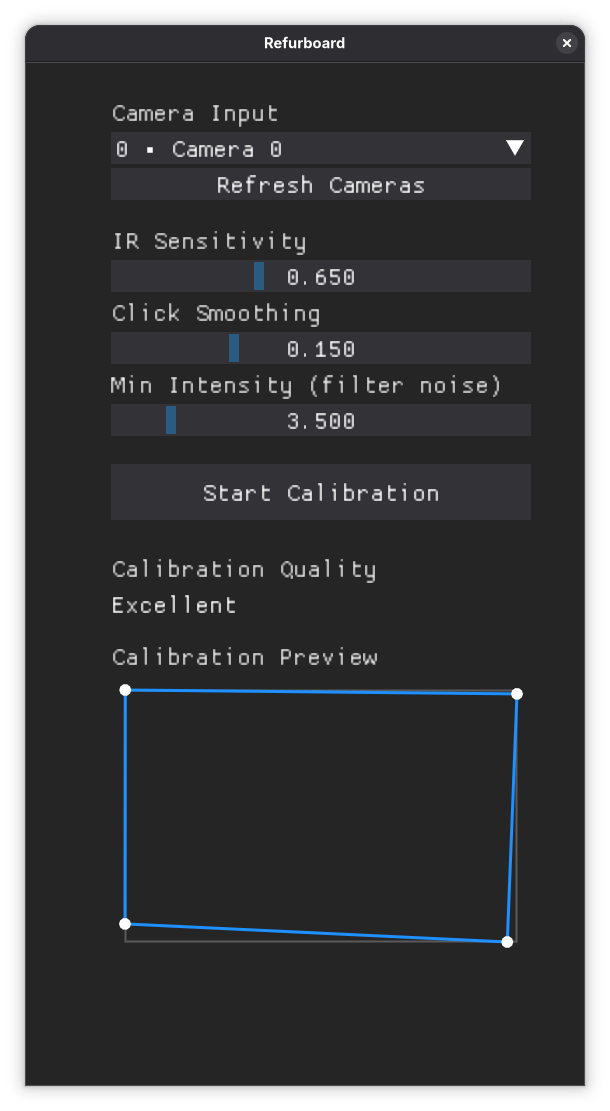
If your pen isn't tracking smoothly, adjust these settings:
IR Sensitivity
Controls how bright an IR source needs to be to register.
- Too low: Pen may not be detected
- Too high: Ambient IR (sunlight, some lights) may cause false triggers
Click Smoothing
Reduces jitter for smoother lines when drawing.
- Higher: Smoother but slightly laggy
- Lower: More responsive but may be jittery
Min Intensity
Filters out dim IR sources (reflections, ambient light).
- Raise this if you see phantom clicks or cursor jumping
- Lower this if your pen isn't being detected
Start with defaults — they work well for most setups. Adjust only if needed.
Start Using Refurboard!
Your IR pen now controls your cursor:
- Touch = Click
- Touch and drag = Draw/drag
- Lift pen = Release click
Great Software to Use
- PowerPoint/Google Slides: Annotate presentations live
- Microsoft Whiteboard / Google Jamboard: Freeform whiteboard
- OpenBoard: Free, open-source whiteboard software for education
- Any web browser: Interactive websites, educational games
- Paint/drawing apps: Digital art with students
Classroom Ideas
- Interactive lessons: Annotate diagrams, highlight text, work through problems
- Student participation: Pass the pen to students for board work
- Educational games: Jeopardy-style reviews, matching games, interactive maps
- Collaborative art: Class murals, diagram building
- Math practice: Step-by-step problem solving visible to everyone
Troubleshooting
Pen not detected
Check battery, make sure button is pressed, verify IR filter is attached to camera
Cursor jumps around
Increase "Min Intensity" slider, reduce ambient IR light (close blinds), ensure camera is stable
Cursor on wrong screen
Re-run calibration on the correct display. You should move the Refurboard window to your desired display, then click "Start Calibration". Remember, Refurboard works best if you mirror your dispaly (that is, both your laptop and display are showing the same thing)
Calibration error too high
Recalibrate with camera aimed to clearly see all 4 corners
Lag/delay
Use USB instead of Wi-Fi for phone-as-webcam, close other camera apps
Works sometimes, not others
Check for reflective surfaces that might create false IR spots
Testing Your IR Setup
To verify your camera sees IR:
- Point a TV remote at your camera (with IR filter)
- Press any button on the remote
- You should see a bright flash on camera — that's the IR LED
If you don't see it, your filter might be blocking too much, or your camera might have an IR-cut filter (common in newer phone cameras).
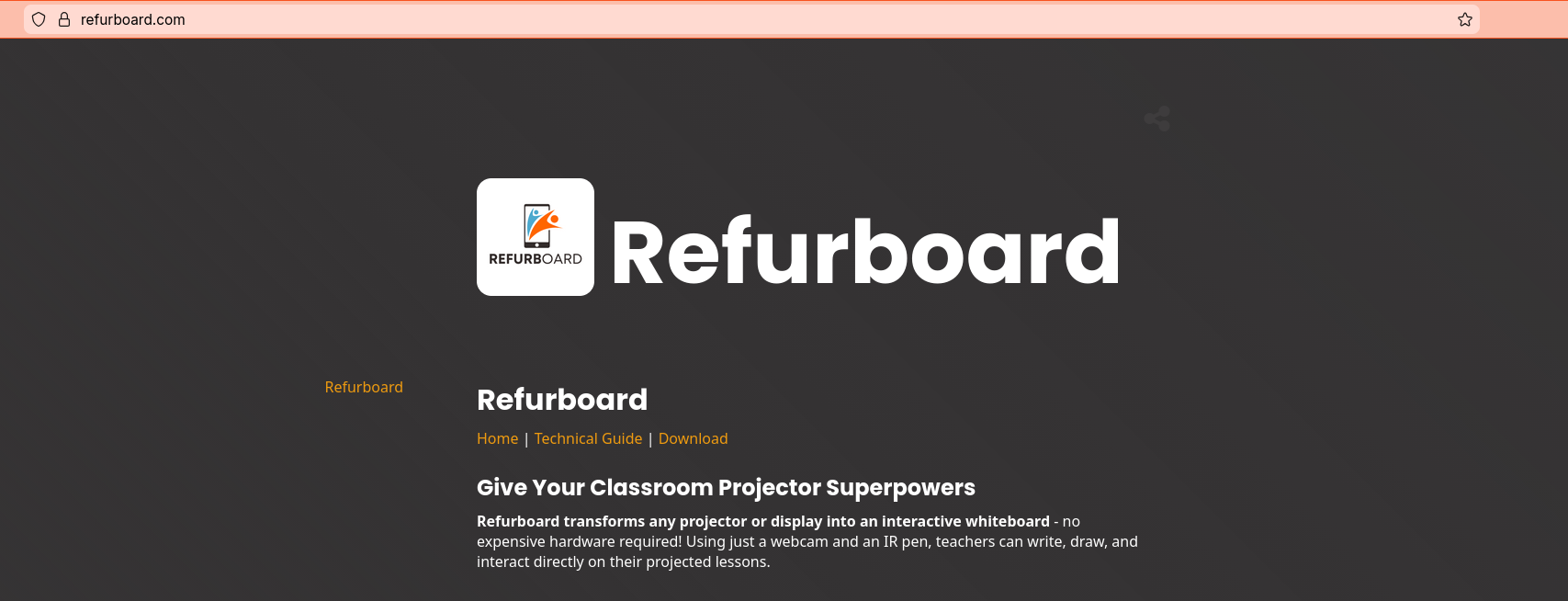
Learn More About Refurboard (Optional)
Tips for Best Results
Environment
- Reduce ambient IR: Close blinds (sunlight has lots of IR), avoid incandescent bulbs
- Matte screen surface: Glossy surfaces cause IR reflections
- Stable camera mount: Even small vibrations affect accuracy
Hardware
- Higher resolution camera = better accuracy: 1080p > 720p > 480p
- Fresh batteries in pen: Dim IR = unreliable detection
- Quality IR filter: Cheap film works but dedicated filters are better
Usage
- Hold pen perpendicular: Angled pens can have dimmer IR from the camera's perspective
- Deliberate movements: Fast swipes may outpace tracking
- Recalibrate if you move the camera: Even slight bumps require recalibration
How It Works (For the Curious)
- Camera captures IR: With visible light filtered out, the camera mostly sees darkness — except for IR sources
- Blob detection: OpenCV finds bright spots (blobs) in each frame
- Filtering: Refurboard ignores blobs outside the calibrated region and below the intensity threshold
- Homography transform: The 4-point calibration creates a mathematical mapping from camera pixels → screen pixels
- Cursor control: Refurboard moves your system cursor to match the IR pen's position
- Click detection: Pen visible = mouse down, pen hidden = mouse up
The One-Euro Filter provides smooth, low-latency tracking that adapts to movement speed — responsive for fast gestures, smooth for careful drawing.
Resources
- Website: refurboard.com
- Source code: github.com/kevinl95/Refurboard
- Issues/Help: GitHub Issues
Refurboard is free and open source under the Apache 2.0 license. Contributions welcome!