Turn Your Bambu Lab X1 Carbon Into a Pen Plotter in 45 Minutes (No Mods Required)
by Rose Samaras in Design > 3D Design
88 Views, 1 Favorites, 0 Comments
Turn Your Bambu Lab X1 Carbon Into a Pen Plotter in 45 Minutes (No Mods Required)

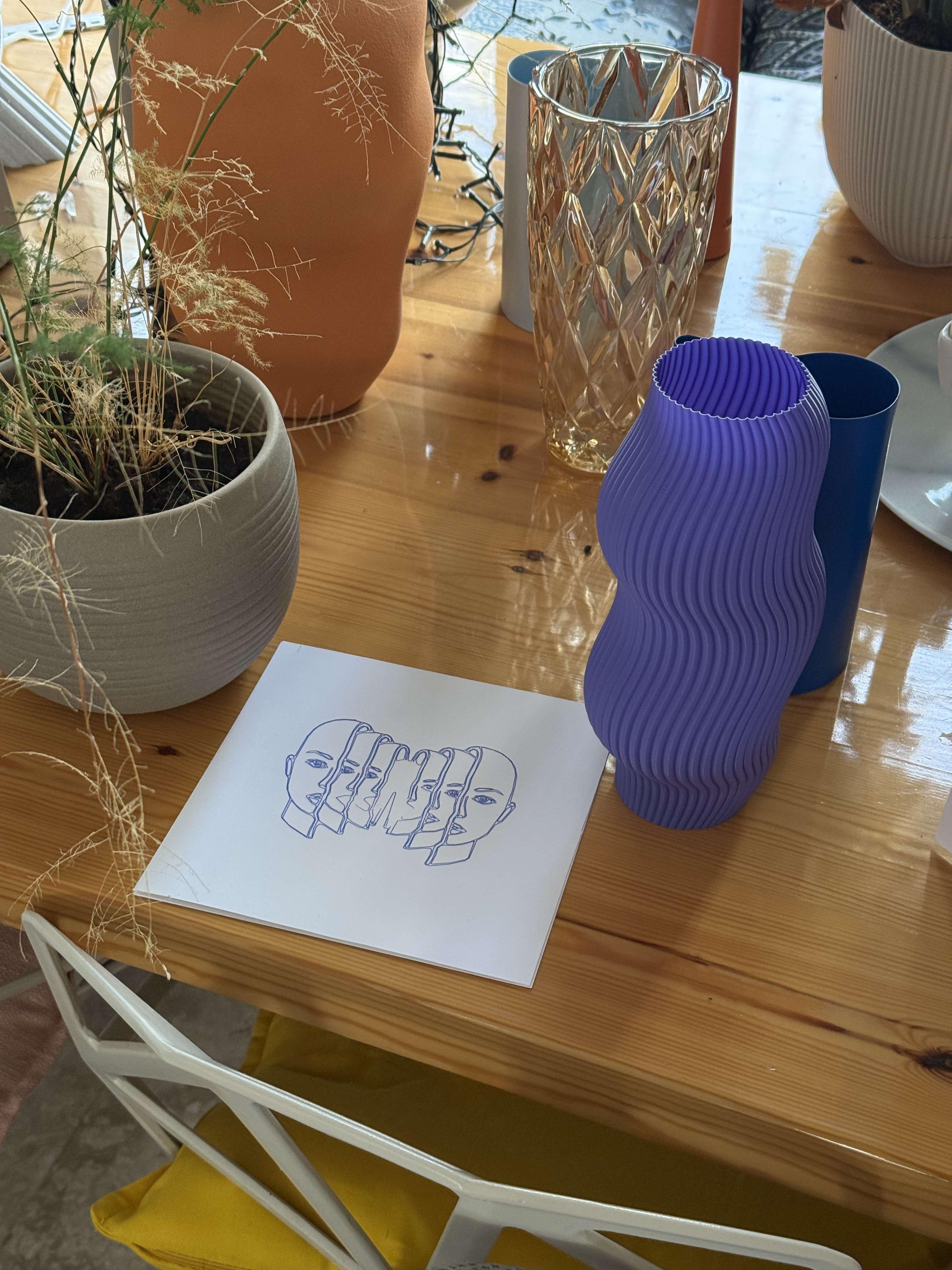
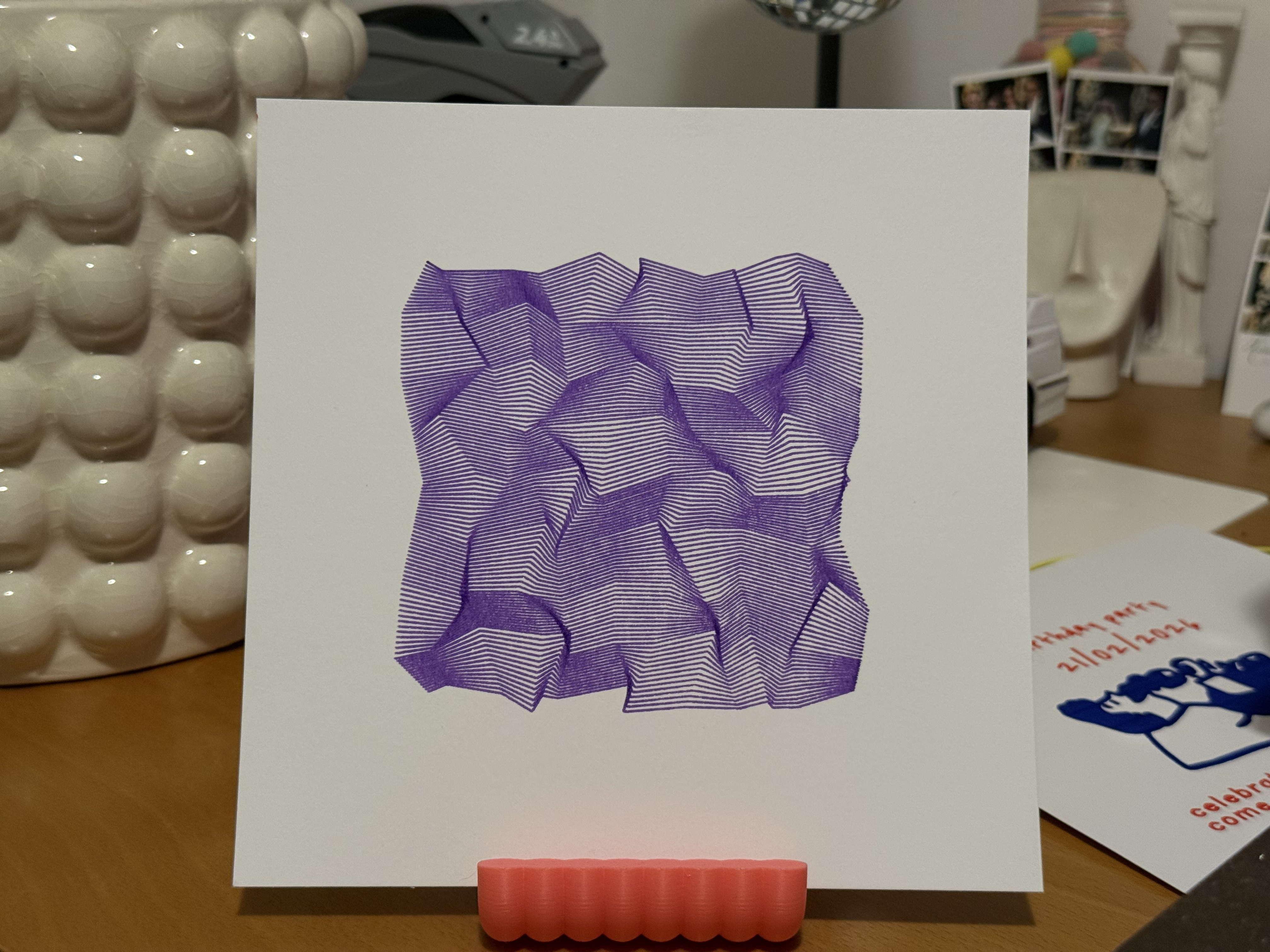
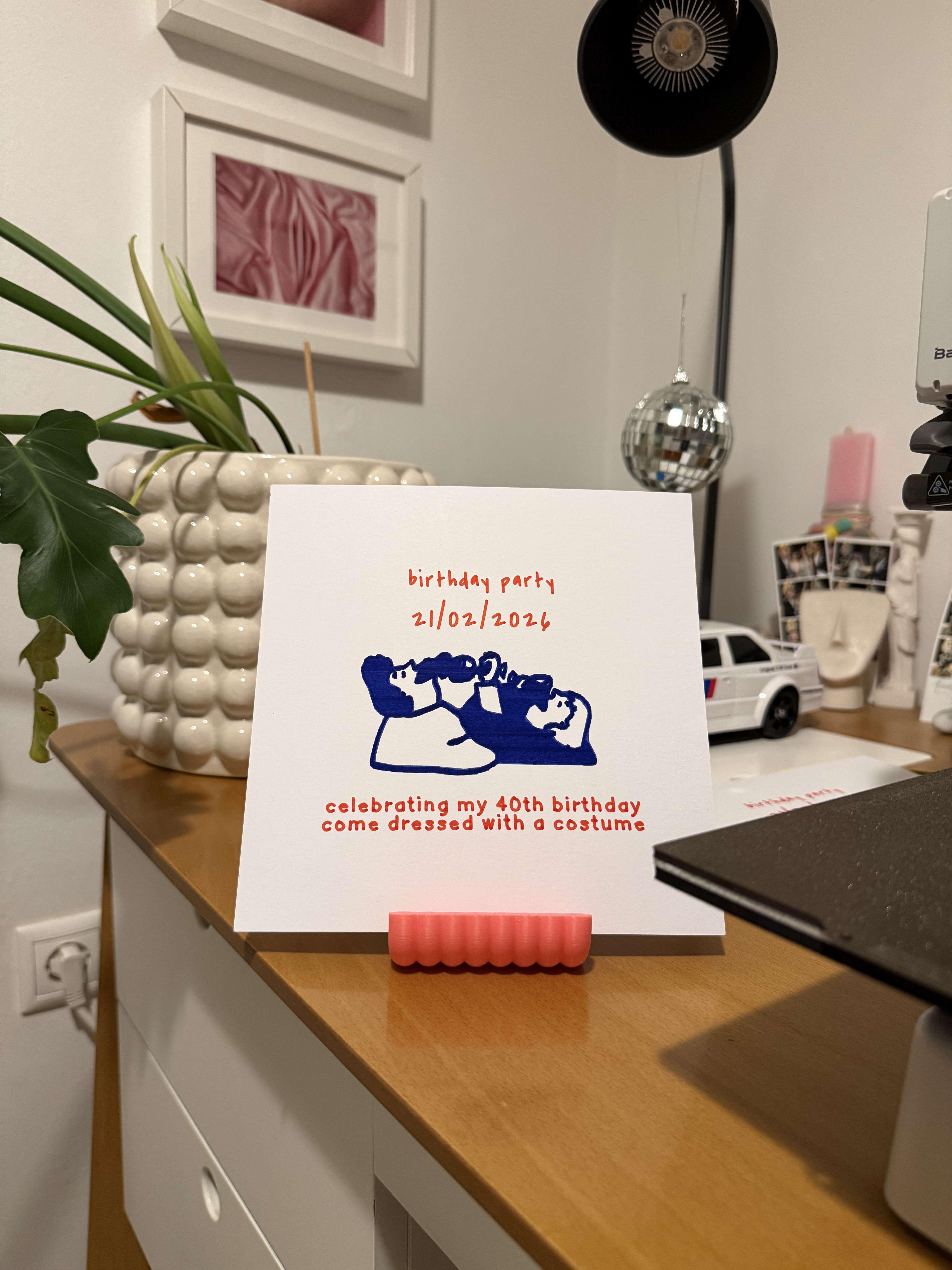
Learn how to convert your Bambu Lab X1 Carbon 3D printer into a fully functional pen plotter in less than 45 minutes—without any firmware modifications, soldering, or permanent alterations to your printer.
What You'll Create
- Line art drawings with professional precision
- Custom maps and diagrams directly on paper
- Greeting cards and invitations with unique designs
- Technical illustrations and architectural sketches
- Calligraphy and custom lettering projects
Why This Method Works
Unlike other pen plotter conversions that require:
- ❌ Firmware modifications
- ❌ Soldering components
- ❌ Permanent hardware changes
- ❌ Complex calibration procedures
This method uses:
- ✅ A simple 3D-printed pen mount (Falu design)
- ✅ Standard ballpoint pens
- ✅ Web-based G-code generation
- ✅ Reversible installation
- ✅ Zero technical expertise required
Supplies
Hardware Components
- Bambu Lab X1 Carbon - Your existing 3D printer
- Standard Ballpoint Pen - 0.5mm to 0.7mm tip diameter (recommended brands: Stabilo Fineliner Point 88, Pilot G2, Uni-ball Signo)
- Falu Pen Mount - 3D-printed attachment for X/P series (STL file provided)
- Paper - A4 (210 × 297mm) or Letter size (8.5 × 11 inches)
- Painter's Tape - Blue or green masking tape for securing paper
- Precision Tools - Scissors or craft knife for tape cutting
Software Requirements
- 3dplotter.xyz Web App - Online G-code generator optimized for pen plotting with Bambu Lab, Elegoo, Creality and other 3D Printers
- SD Card Reader - For transferring files to your Bambu Lab printer
- Web Browser - Chrome, Firefox, Safari, or Edge (latest versions)
Estimated Costs
- Pen Mount: 50-170g - 6oz of Filament around $2 (3D print yourself)
- Ballpoint Pens: $2-5 per pack
- Painter's Tape: $1-2 per roll
- 3dplotter license: $29.9 lifetime (limited time offer)
Total Project Cost: $30-40
Create Your Account and Select Your Printer
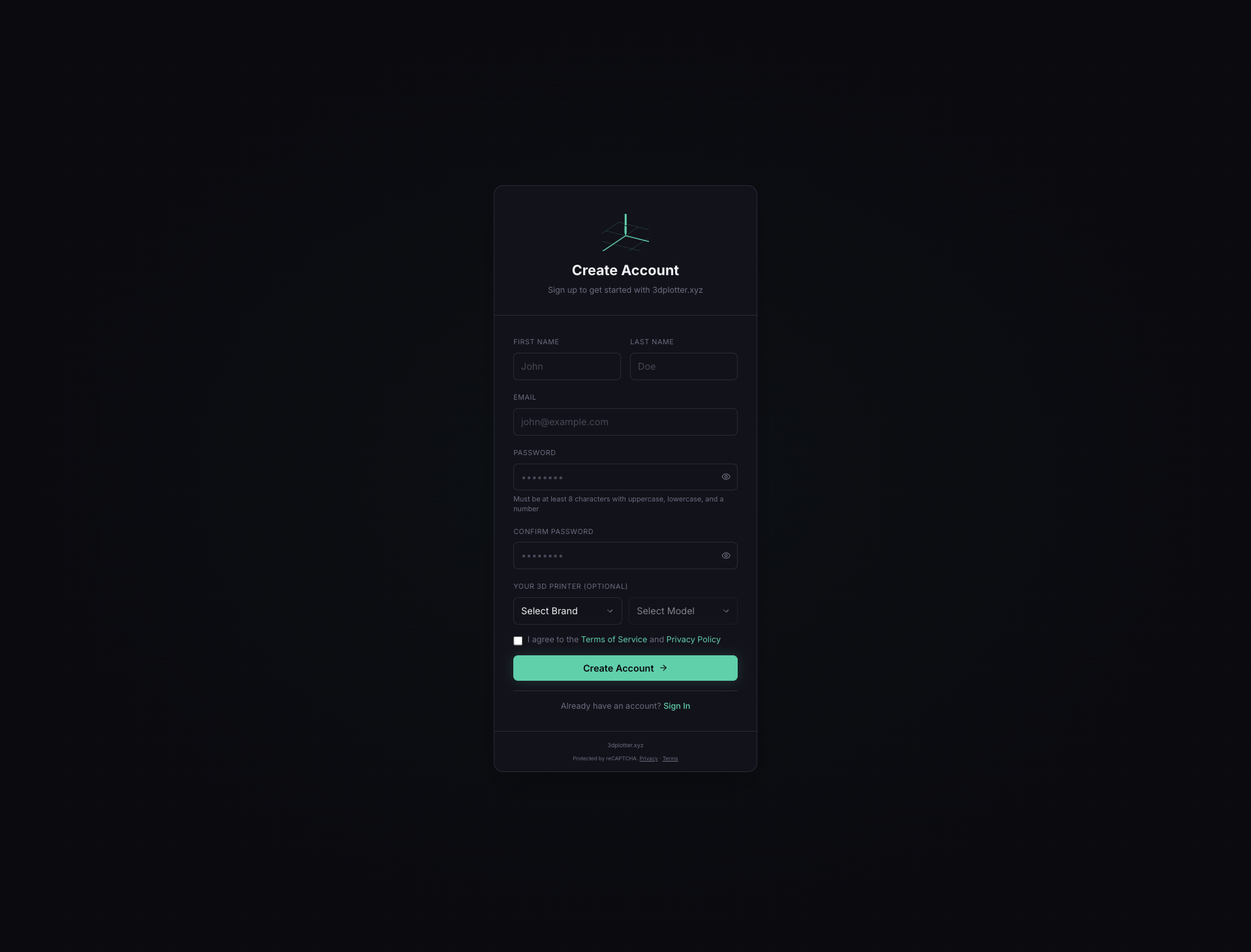
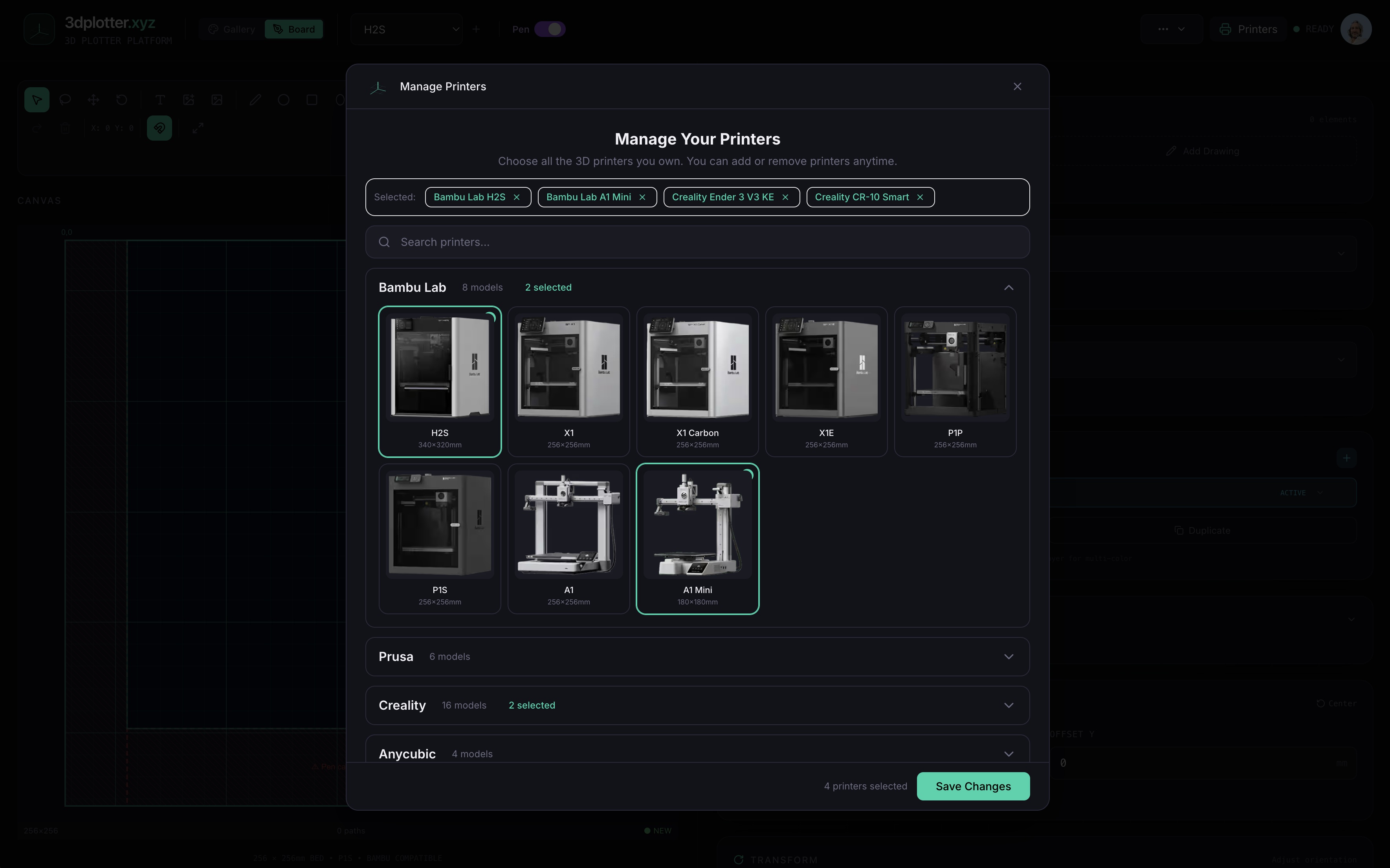
Setting Up 3dplotter.xyz
Why 3dplotter.xyz? 3dplotter.xyz is a specialized web application designed specifically for converting 3D printers into pen plotters. Unlike generic G-code generators, it provides:
- Printer-specific profiles with pre-calibrated settings
- Visual canvas for real-time design preview
- Offset compensation for pen mount positioning
- One-click G-code generation optimized for drawing
- No installation required - works in any modern browser
Account Setup Instructions
- Navigate to https://3dplotter.xyz
- Click "Get Started" in the top right corner
- Create your account using:
- Email address and password
- Verify your email (check spam folder if needed)
- Continue to Checkout to complete your payment
- Login to start designing
Selecting Your Printer Profile
- Select Bambu Lab X1 Carbon from the onboarding modal
- Select it as your active printer from the dropdown at the top:
- Build volume dimensions (256 × 256 × 256mm)
- Pen offset coordinates (28mm right, 35mm forward)
- Drawing area boundaries
- Default Z-axis heights
- Enable the pen toggle next to the dropdown
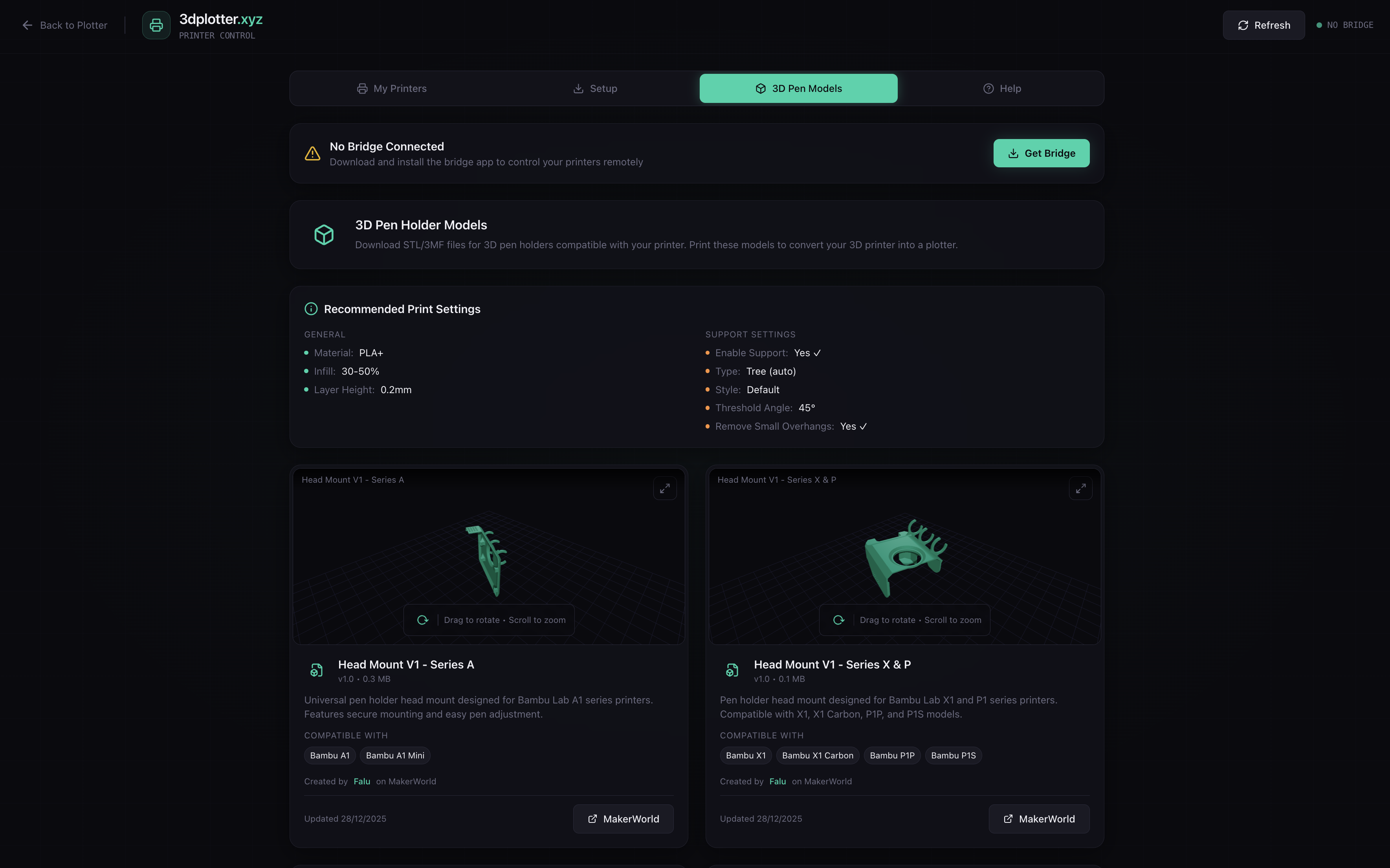
Downloading the Pen Mount STL
- Press the "Printers" button in the top right
- Navigate to the "3D Models" tab within the printer settings
- Locate "Head Mount V1 - Series X & P" in the models list (Falu design)
- Download the STL file to your computer
- Alternative: Visit the direct MakerWorld link provided in the app
Print the Pen Mount
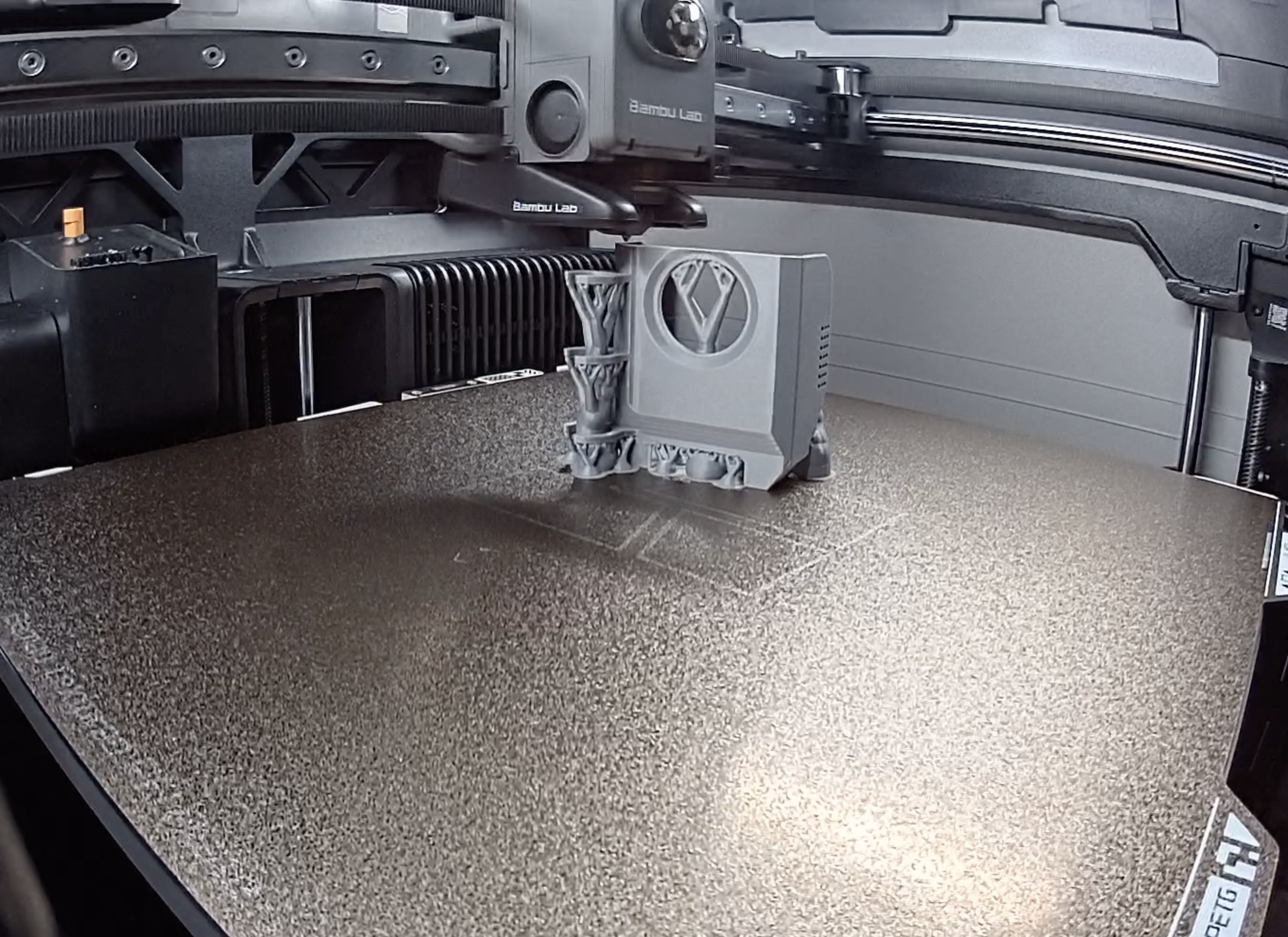
Preparing Your Slicer
Recommended Slicer Settings for Bambu Studio:
Support Placement Guide
Critical support areas:
- Pen holder opening (horizontal overhang)
- Mounting clip underside
- Any angles exceeding 45° from vertical
Support removal tip: Remove supports gently with needle-nose pliers, working from the bottom up to avoid breaking the pen holder walls.
Post-Processing Steps
- Remove all support material carefully
- Test fit your pen - it should slide smoothly without binding
- Check mounting clips - they should be flexible but not loose
Recommended Pens (Tested Compatibility)
Pen BrandModelTip SizePerformance
Stabilo
Fineliner Point 88
0.4mm
⭐⭐⭐⭐⭐ Excellent
Pilot
G2 Gel
0.5mm
⭐⭐⭐⭐ Very Good
Uni-ball
Signo
0.5mm
⭐⭐⭐⭐ Very Good
Sakura
Pigma Micron
0.45mm
⭐⭐⭐⭐⭐ Excellent
Staedtler
Triplus Fineliner
0.3mm
⭐⭐⭐⭐ Very Good
Note: The Stabilo Fineliner Point 88 (0.4mm) is recommended for beginners due to consistent ink flow and optimal line weight.
Install the Pen Mount Assembly
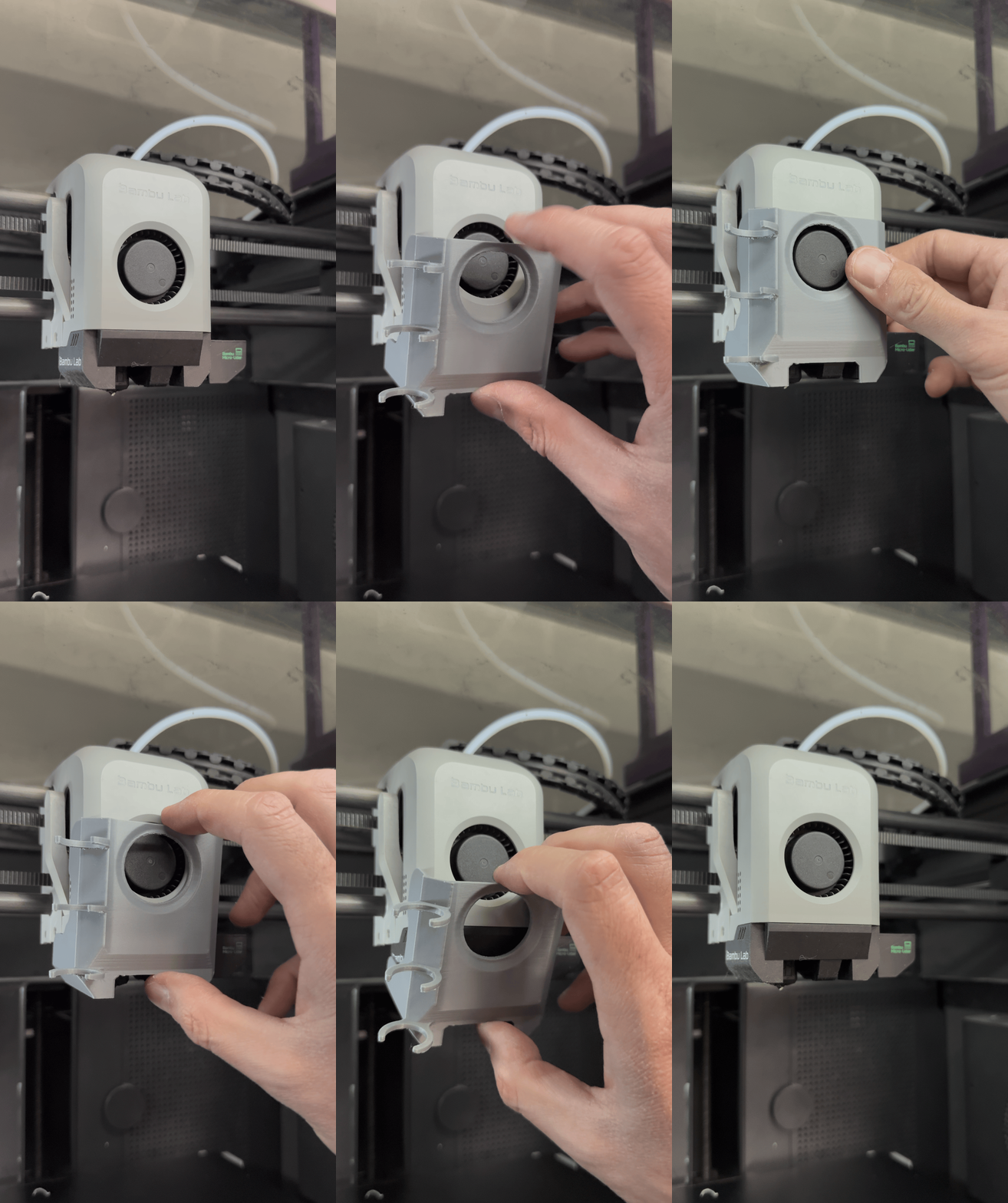
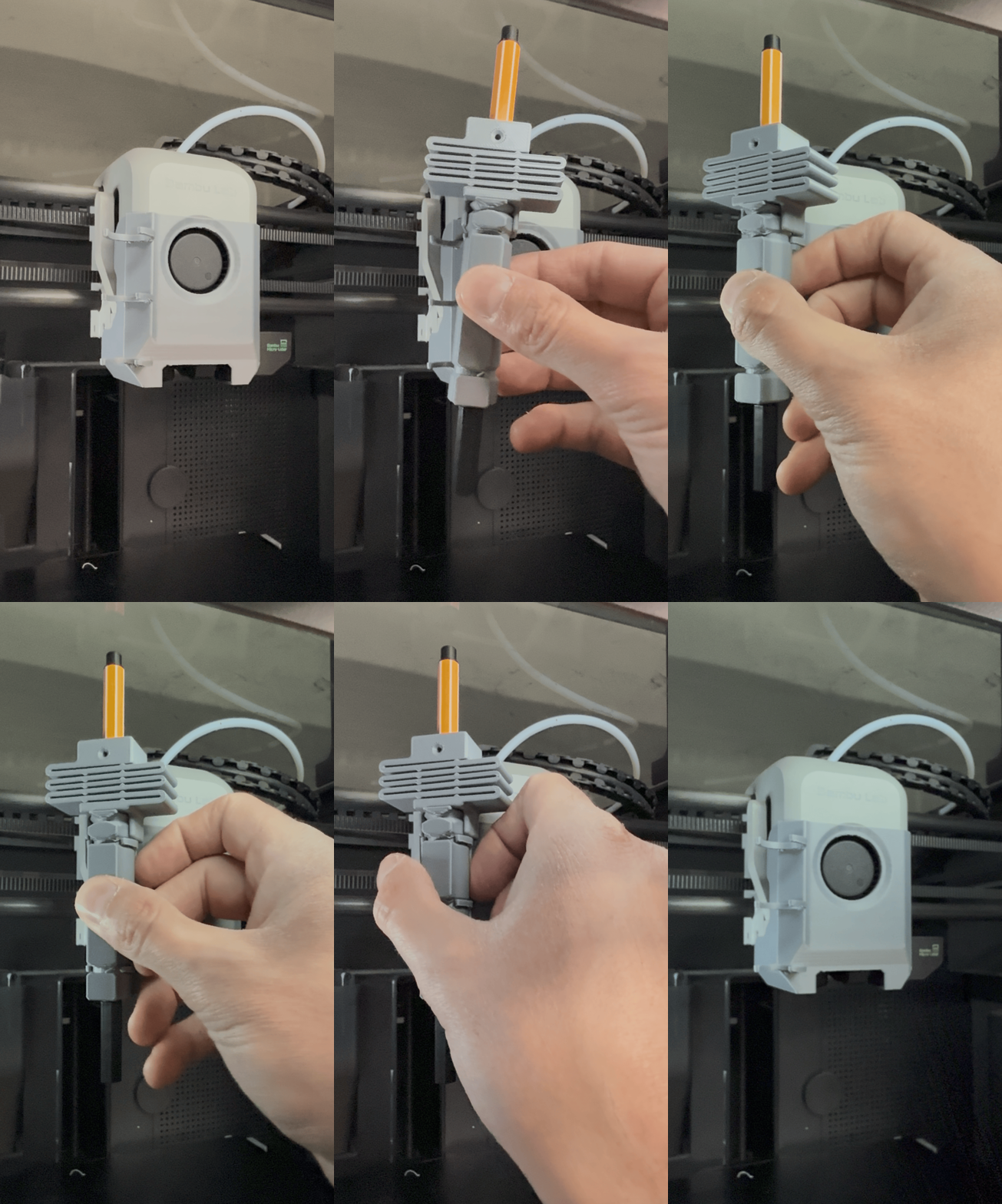
Safety Precautions
- ⚠️ Power off your Bambu Lab X1 Carbon before installation
- ⚠️ Allow to cool if recently used (wait 10-15 minutes)
Removing the Extruder Cap
Step-by-step removal process:
- Locate the extruder cap - This is the plastic cover on top of the hotend assembly
- Gently pull out and upward - The cap is held by friction clips
- Do not force - If it doesn't release easily, wiggle gently side-to-side
- Set aside safely - Store the original cap for later reinstallation
- Inspect mounting area - Ensure no dust or debris on the mounting surface
Photo reference points:
- Cap is located at the top of the toolhead carriage
- Two small alignment tabs on the sides
- Smooth plastic surface with Bambu Lab logo
Installing the Falu Pen Mount
Installation procedure:
- Orient the pen mount correctly:
- Pen holder faces forward (toward the front of the printer)
- The Falu design has a distinctive offset position
- Put from the bottom up until you hear/feel a click
- Apply even pressure on both sides
- The mount should sit completely flush
- No gaps should be visible around the edges
- Test stability by gently wiggling the mount
- Should not move or rotate
- Should feel as secure as the original cap
- If loose, remove and reinstall
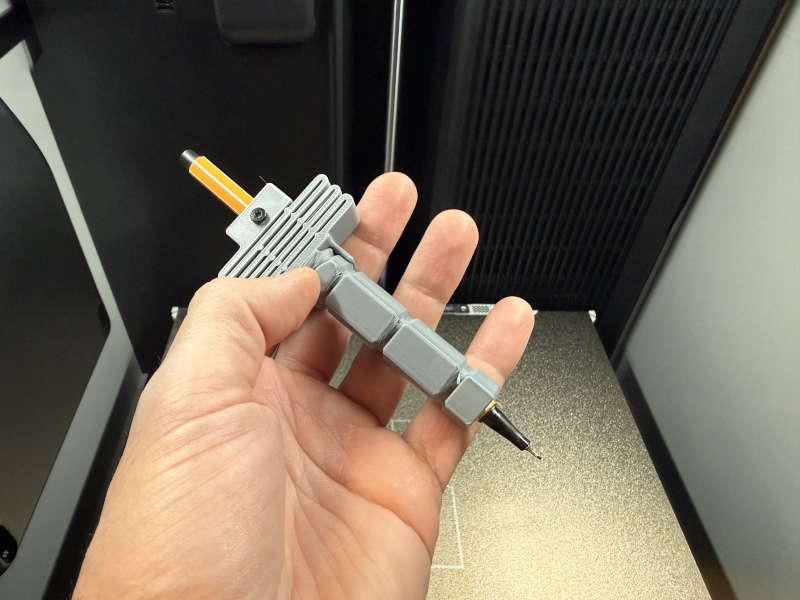
Loading the Pen
Proper pen installation technique:
- Insert the pen from the side into the Falu pen holder
- Adjust pen height so the tip extends to the correct position
- Secure with the integrated clip mechanism
Height adjustment tips:
- Too low: Pen will drag and potentially tear paper
- Too high: Pen won't make contact with paper
- Perfect height: Pen tip just touches paper with minimal pressure
Create Your First Plot in 3dplotter.xyz
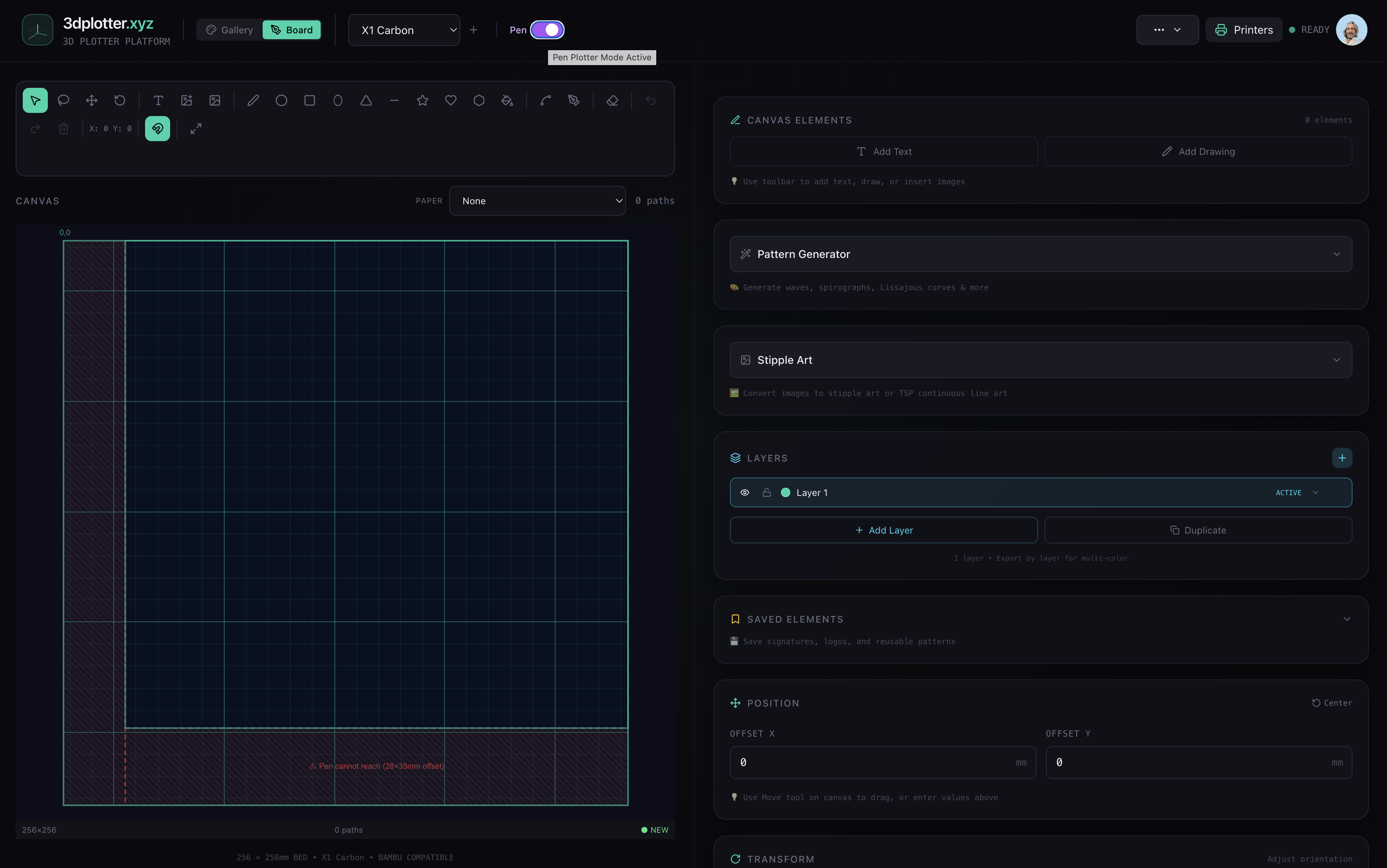
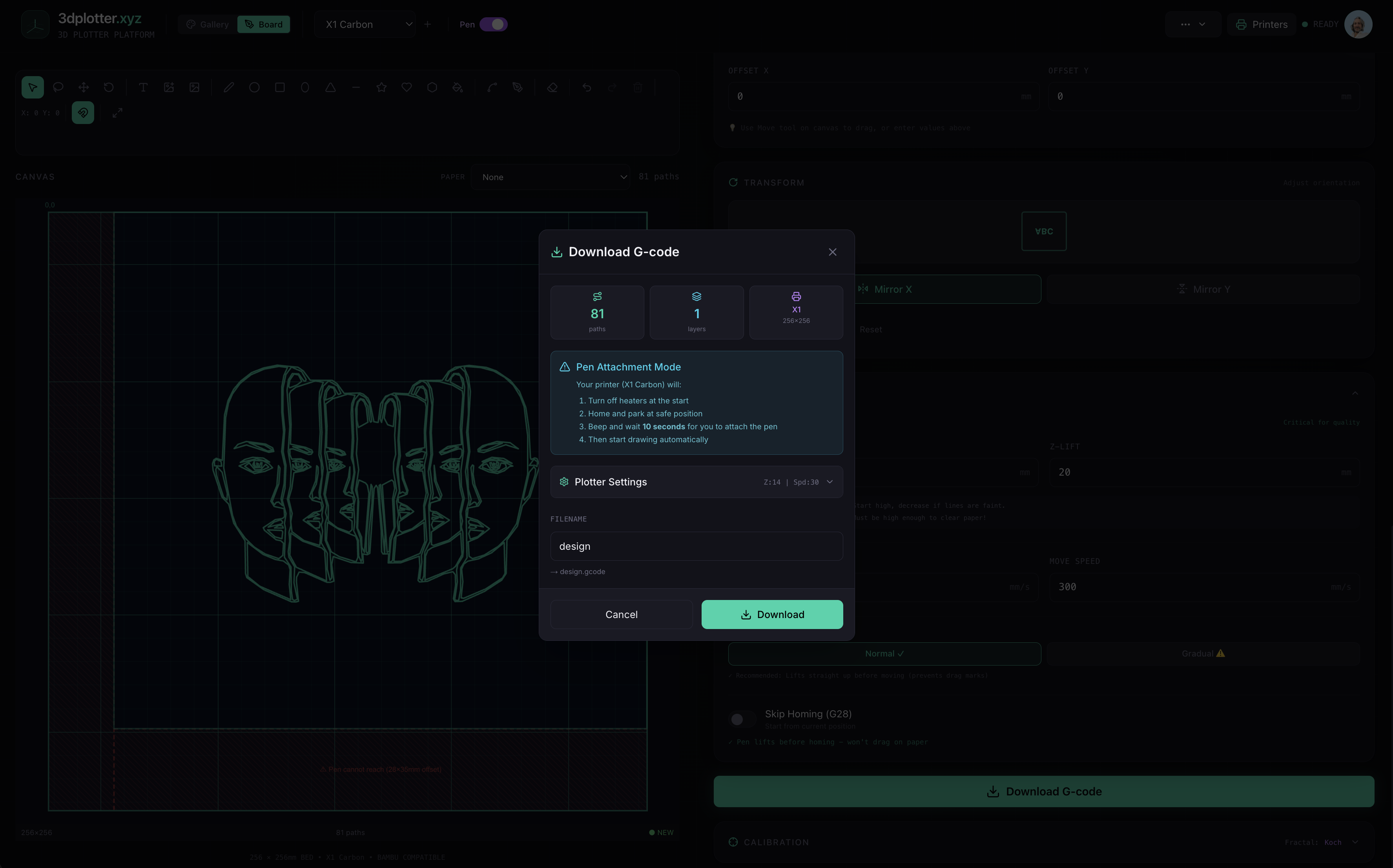
Activating the Pen Plotter Interface
- Log into 3dplotter.xyz with your account
- Locate the printer selection dropdown in the top toolbar
- Find the "Pen" toggle switch next to the printer name
- Click to enable - the interface will update to show:
- Drawing canvas with pen-safe area
- Pen-specific tools (line, curve, text)
- G-code generation optimized for 2D plotting
Understanding the Drawing Canvas
Visual indicators on the canvas:
- Black area: Safe drawing zone (fully accessible)
- Red area: Restricted zone (pen mount offset prevents access)
- Grid lines: 10mm spacing for precise positioning
Why is there a red restricted area? The Falu pen mount offsets the pen position from the original hotend location. The red zone marks areas the pen physically cannot reach due to:
- Pen mount geometry extending beyond the toolhead (28mm right, 35mm forward)
- Mechanical limits of the gantry system
- Safety margins to prevent collisions
Usable drawing area dimensions:
- Bambu Lab X1C total bed: 256 × 256mm
- Pen plotter usable area: ~221 × 228mm (accounting for offset)
- Safe margin from edges: 10mm on all sides
Design Creation Methods
Method 1: Drawing Tools
- Line tool: Click points to create connected line segments
- Curve tool: Drag to create smooth bezier curves
- Shape tools: Rectangles, circles, polygons
- Eraser: Remove unwanted elements
Method 2: Text Input
- Click the "Add Text" button
- Type your desired text (supports Unicode characters)
- Choose font (options include Hershey fonts optimized for single-line drawing)
- Adjust size and position
- Text is converted to continuous line paths
Method 3: Pattern Generation
- Geometric patterns: Select from pre-made designs
- Hatch patterns: Adjust density and angle
- Parametric designs: Spirals, waves, fractals
- Grid patterns: Customizable spacing and line weight
Method 4: Image Import
- Click "Import Image" button
- Upload a line art image (PNG, JPG, SVG formats supported)
- Recommended image types:
- Line drawings with clear edges
- High contrast black and white images
- Vector graphics (SVG) for best results
- Coloring book pages
- Technical diagrams
- Adjust image-to-path conversion settings:
- Threshold: Controls which pixels become lines
- Simplification: Reduces number of points (faster plotting)
- Edge detection: Finds outlines in photos
- Position and scale your imported design
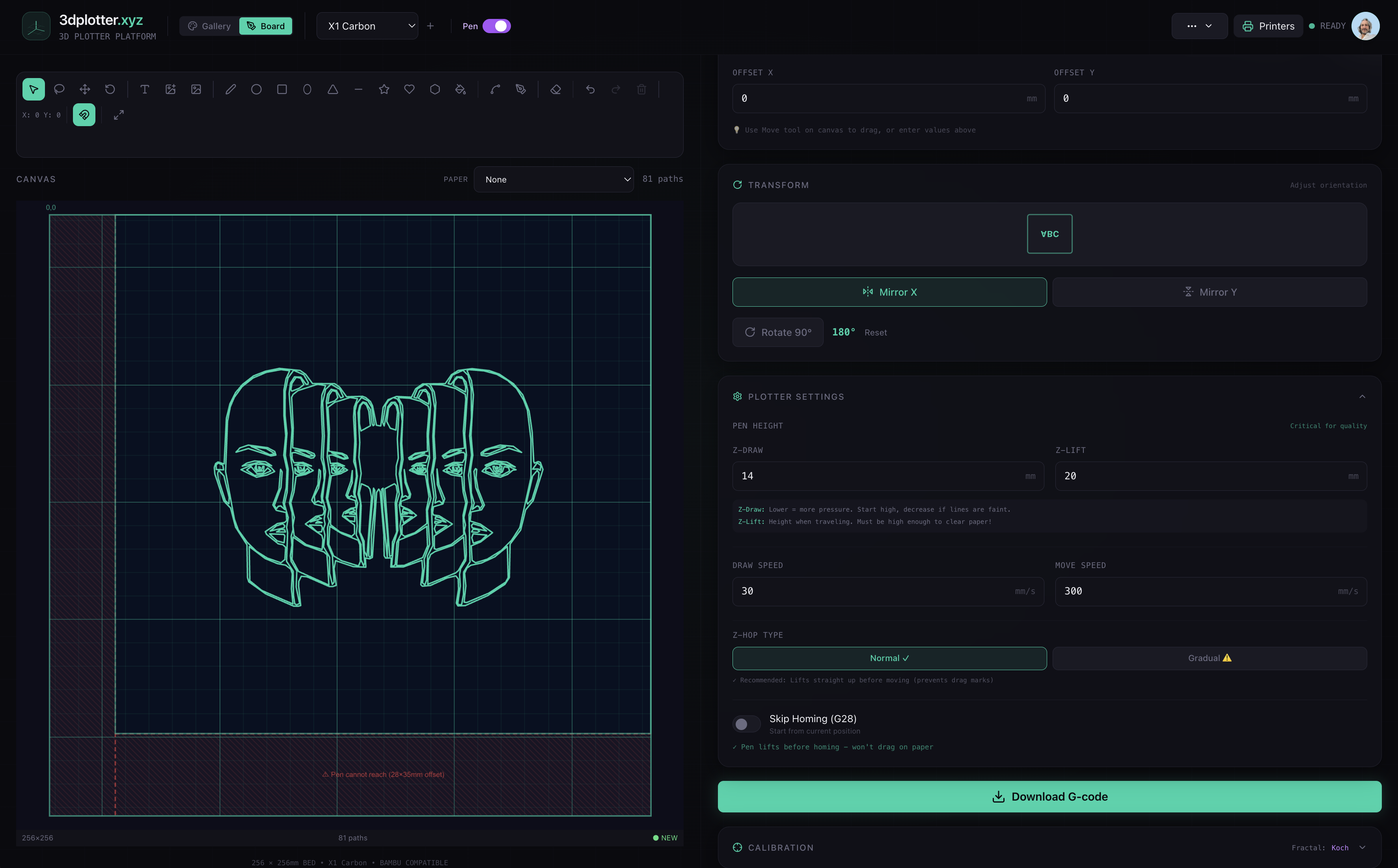
Critical Plotter Settings
Z-Axis Configuration (MUST be correct):
What these settings mean:
- Z-Draw (14mm): Height where pen tip touches paper and draws
- Lower values = more pressure (darker lines, risk of tearing)
- Higher values = less pressure (lighter lines, may skip)
- 14mm is calibrated for standard ballpoint pens on regular paper
- Z-Lift (20mm): Height where pen lifts during travel moves
- Must be high enough to clear the paper completely
- Prevents accidental marks during repositioning
- 20mm provides safe clearance for most setups
How to verify settings:
- Navigate to "Plotter Settings"
- Confirm Z-Draw = 14 and Z-Lift = 20
- If values differ, update them and click "Save"
Downloading Your G-code
Step-by-step download process:
- Review your design on the canvas
- Check that all elements are within the white (safe) area
- Verify text is readable and oriented correctly
- Ensure no overlapping lines that would double-draw
- Click "Download G-code" button (bottom-right)
- G-code preview modal appears showing:
- Paths
- Layers
- Plate Size
- Plotter Settings
- Pen Attachment Mode instructions (important for X1C!)
- Final checks before download:
- ✅ Printer profile: Bambu Lab X1 Carbon
- ✅ Pen mode: Enabled
- ✅ Z-heights: 14mm draw, 20mm lift
- ✅ Design fits within safe area
- Click "Download" in the modal
- Save to a memorable location on your computer
For Multicolor Pen Plotting
Create layers - each layer is exported as a single G-code file. Choose a different pen color for each G-code file.
Transfer and Run Your Plot
SD Card File Transfer
Preparing the SD card:
- Remove the SD card from the printer's SD card slot
- Location: Right Side
- Push gently to eject
- Insert SD card into your computer
- Use built-in SD card reader
- Or external USB SD card adapter
- Open the SD card drive in your file explorer
- Windows: Shows as removable drive (E:, F:, etc.)
- Mac: Appears in Finder sidebar
- Linux: Usually auto-mounts to /media/
Transferring the G-code file:
- Locate your downloaded .gcode file
- Copy (don't move) the file to the SD card root directory
- Don't place in subfolders
- Keep the filename readable
- Safely eject the SD card:
- Windows: Right-click drive → "Eject"
- Mac: Drag drive icon to Trash
- Linux: Right-click → "Unmount"
- Reinsert SD card into the Bambu Lab X1C
- Push until it clicks into place
Preparing Your Paper
Paper securing technique for best results:
- Choose your paper:
- Standard printer paper (80gsm): Good for practice
- Cardstock (200-300gsm): Better for finished pieces
- Watercolor paper: Textured effects
- Avoid glossy paper: Ink may smudge
- Position paper on the print bed:
- Align with the front-left corner
- Use scissors to cut the excess
- Secure with painter's tape:
- Place tape strips on all four sides
- Smooth out any bubbles or wrinkles
- Press tape firmly to prevent paper movement
Understanding X1C Pen Attachment Mode
⚠️ IMPORTANT: X1C-Specific Behavior
The X1 Carbon has advanced LIDAR and firmware that runs extensive startup routines before executing your G-code. To accommodate this, 3dplotter.xyz automatically adds a PAUSE command (M400 U1) at the start of your G-code.
What happens when you start a plot:
- Printer calibrates - Runs firmware startup routines including LIDAR scan
- Toolhead moves to left corner position
- PAUSES and displays "Resume" button on screen
- Waits for you to press Resume - This is your window to attach the pen holder
- Plotting begins after you press Resume
Running Your First Plot (Dry Run Recommended)
Dry Run - WITHOUT Pen Holder (Recommended First):
- Tap "Print files" on the touchscreen display
- Navigate to "SD Card" section
- Find your G-code file in the list
- Tap "Print" to start
- DO NOT attach the pen holder yet
- Watch the printer:
- It will calibrate (including LIDAR scan)
- Move to left corner
- Display "Resume" button
- Press "Resume" to continue
- Watch the toolhead trace through all the paths
- Verify the paths look correct - the toolhead should stay within your paper area
Real Plot - WITH Pen Holder:
- Start the print again
- Wait for calibration to complete (including LIDAR)
- When the printer pauses at left corner:
- The screen will show "Resume" button
- Carefully clip the pen holder onto the toolhead
- Ensure the pen is inserted and secure
- Check that the pen tip is at the correct height
- Press "Resume" on the touchscreen
- Printer starts plotting immediately
- Watch the magic happen!
What to Expect During Plotting
Normal operation indicators:
- Smooth X/Y movements: Pen glides across paper
- Regular pen lifts: Between disconnected lines
- Consistent line quality: Even ink flow
- Quiet operation: Stepper motors at low speed
- LIDAR may scan periodically: This is normal X1C behavior
Troubleshooting Common Issues
Problem: Forgot to Attach Pen Holder Before Pressing Resume
Solution:
- Cancel the print
- Restart from the beginning
- Be ready at the left corner position with pen holder in hand
Problem: Pen Not Drawing
Symptoms:
- Pen moves but leaves no marks
- Intermittent line gaps
- Very faint lines
Solutions:
- Check pen functionality:
- Test pen on scrap paper by hand
- Replace if ink flow is poor
- Try a different pen brand
- Adjust Z-Draw height (lower the pen):
- In 3dplotter.xyz settings, try: 13mm, 12mm, 11mm
- Download new G-code and test
- Find the sweet spot where lines are consistent
- Verify pen installation:
- Pen should be vertical
- Pen tip extends beyond mount
- No wobble or movement
- Check paper surface:
- Some papers resist ink better than others
- Try different paper types
- Ensure paper is clean and dry
Problem: Paper Moving During Plot
Symptoms:
- Paper shifts mid-plot
- Lines don't align correctly
- Wrinkles or buckling
Solutions:
- Add more tape:
- Tape all four corners securely
- Add strips every 30-50mm along edges
- Use wider tape (2-inch painter's tape)
- Improve tape adhesion:
- Clean print bed with isopropyl alcohol first
- Press tape down firmly
- Reduce paper size:
- Use smaller paper for complex plots
- Center smaller paper on the bed
- More tape contact points = more stability
- Check for bed level issues:
- Run printer's auto-leveling routine
- Ensure bed is clean and flat
- Inspect for warping or damage
Problem: Printer Not Moving / G-code Not Running
Symptoms:
- Display shows file but nothing happens
- Error messages
- Toolhead doesn't move
Solutions:
- Verify printer profile:
- Log into 3dplotter.xyz
- Confirm "Bambu Lab X1 Carbon" is selected
- Re-download G-code with correct profile
Problem: Pen Dragging or Tearing Paper
Symptoms:
- Paper tears or punctures
- Heavy pen pressure marks
- Paper lifts off bed during travel moves
Solutions:
- Raise Z-Draw height:
- Increase from 14mm to 15mm or 16mm
- Test with shorter plots first
- Find balance between contact and pressure
- Use heavier paper:
- Switch to cardstock (200-300gsm)
- Thicker paper resists tearing better
- More stable during plotting
- Adjust pen in holder:
- Retract pen slightly in the Falu mount
- Less leverage = less pressure
- Adjust until tip just makes contact
- Check for pen mount misalignment:
- Reinstall pen mount - ensure it's straight
- Pen should be properly positioned
- No angle should be visible
Problem: LIDAR Interference
Symptoms:
- Printer pauses unexpectedly during plotting
- Error messages about LIDAR
Solutions:
- Ensure the pen holder doesn't obstruct the LIDAR sensor
- The Falu mount is designed to avoid LIDAR interference
- If issues persist, check that the mount is properly installed
Advanced Calibration Guide
Running the Calibration G-code
Why calibrate? Every printer has slight variations in:
- Bed levelness
- Z-axis offset
- Pen holder manufacturing tolerance
- Pen tip length variation
Calibration procedure:
- Download the Full or Compact calibration test G-code from 3dplotter.xyz:
- Navigate to the bottom of the right section
- Click "Full or Compact calibration test G-code"
- Or click Fractal Patterns
- Transfer to SD card (same process as your plots)
- Prepare calibration paper:
- Use A4/Letter white paper
- Tape down securely
- Mark with your name/date for reference
- Run the calibration G-code:
- Select from SD card menu
- Remember: Wait for left corner pause, attach pen holder, then press Resume
- Calibration draws a series of test patterns:
- Straight lines (horizontal and vertical)
- Diagonal lines (45° angles)
- Circles (various sizes)
- Grid pattern (spacing accuracy)
- Text (legibility test)
- Inspect the results
Evaluating Line Quality
Line QualityZ-Draw AdjustmentAction
Too light / invisible
Decrease 0.5-1mm
Lower pen closer to bed
Perfect / consistent
No change
Current height is ideal
Too dark / tearing
Increase 0.5-1mm
Raise pen away from bed
Inconsistent
Check bed level
Run auto-level, check pen mount
Calibration Interpretation
✅ Good calibration result:
- All lines are visible and consistent
- Corners are clean (no overrun)
- Circles are round (not oval)
- Text is legible at small sizes
- No ink blobs or skipping
❌ Poor calibration - needs adjustment:
- Lines fade in/out
- Gaps in continuous lines
- Extreme pressure (paper dents)
- Misaligned corners
- Oval circles (indicates axis issue)
Fine-tuning Steps
- Adjust Z-Draw by 0.5mm increments
- Download new G-code with updated settings
- Re-run calibration plot
- Compare results - keep the best performing height
- Document your ideal setting for future reference
Tips for Best Results
Paper Selection Guide
Paper TypeWeightBest ForInk QualityCost
Standard Printer
80gsm
Practice, drafts
Good
$
Premium Printer
100-120gsm
General plotting
Very Good
$$
Cardstock
200-300gsm
Final pieces, cards
Excellent
$$$
Bristol Board
270gsm
Professional work
Excellent
$$$
Watercolor
190-300gsm
Artistic effects
Variable
$$$$
Kraft Paper
70-120gsm
Rustic aesthetic
Good
$
Pen Selection by Project Type
Text and lettering projects:
- Stabilo Point 88 (0.4mm) - Clean, professional look
- Pilot Precise V5 (0.5mm) - Consistent ink flow
Design Best Practices
Optimizing designs for pen plotting:
- Use single-line fonts (Hershey fonts) rather than filled fonts
- Plots 10x faster
- Cleaner results
- Less pen wear
Frequently Asked Questions (FAQ)
General Questions
Q: Will this damage my 3D printer? A: No. This is a completely reversible modification that doesn't alter firmware, electronics, or mechanical components. The pen mount simply replaces the extruder cap and can be removed in seconds.
Q: Can I still use my printer for 3D printing after installing the pen mount? A: Yes! Simply remove the pen mount and reinstall the original extruder cap. Takes less than 30 seconds to switch between modes.
Q: What if my printer isn't a Bambu Lab X1 Carbon? A: 3dplotter.xyz supports multiple printer brands and models. Check the website for your specific printer's pen mount design and profile.
Q: Do I need to modify firmware or install custom software? A: No firmware modifications required. All G-code is generated by the web app and is standard-compliant G-code that any 3D printer can read.
Q: Why does the X1C use a pause instead of a timed wait? A: The X1 series has advanced LIDAR and more complex startup routines. Using M400 U1 (pause/resume) gives you full control over when plotting starts, ensuring the pen holder is properly attached.
Technical Questions
Q: What G-code flavor does 3dplotter.xyz generate? A: Standard RepRap/Marlin/and other G-code, compatible with virtually all FDM 3D printers.
Q: What's the maximum plotting area? A: For the Bambu Lab X1 Carbon, usable plotting area is approximately 221 × 228mm after accounting for pen mount offset. Total bed is 256 × 256mm.
Q: Can I plot on materials other than paper? A: Yes! Users have successfully plotted on wood veneer, fabric, cardboard, plastic sheets, leather, canvas, and whiteboard surfaces.
Q: How do I plot in multiple colors? A: Plot each color separately with individual G-Code per layer. You'll need to attach the pen holder with a different pen for each layer. The pause/resume system makes pen swaps easy!
Q: Does the LIDAR interfere with plotting? A: The Falu pen mount is designed to avoid LIDAR interference. The X1C may perform occasional LIDAR scans during plotting, but this is normal behavior.
Conclusion
Congratulations! You've successfully transformed your Bambu Lab X1 Carbon into a precision pen plotter. This opens up a world of creative possibilities:
✅ Draw custom artwork without buying a dedicated plotter ✅ Create professional-looking cards and invitations ✅ Plot maps and diagrams for presentations ✅ Experiment with generative art and algorithmic designs ✅ Produce educational materials and worksheets ✅ Personalize gifts with custom lettering
What's Next?
- Experiment with different pen types and paper combinations
- Join the 3dplotter.xyz community to share your creations
- Try multi-color plots with the easy pause/resume system
- Explore generative art scripts and algorithmic designs
- Push the boundaries of what's possible with your converted plotter
Remember: The pen mount is completely reversible. Switch back to 3D printing anytime by simply reinstalling the original extruder cap. Your X1 Carbon is now a two-in-one machine!
Last Updated: February 5, 2026 Guide Version: 1.0 Compatible Printers: Bambu Lab X1 Carbon, X1, X1E Software Version: 3dplotter.xyz (latest)
Ready to create your first plot? Head over to 3dplotter.xyz and start transforming your ideas into physical drawings!