Turn Your Bambu Lab A1 Into a Pen Plotter in 30 Minutes (No Mods Required)
by Rose Samaras in Design > 3D Design
234 Views, 1 Favorites, 0 Comments
Turn Your Bambu Lab A1 Into a Pen Plotter in 30 Minutes (No Mods Required)
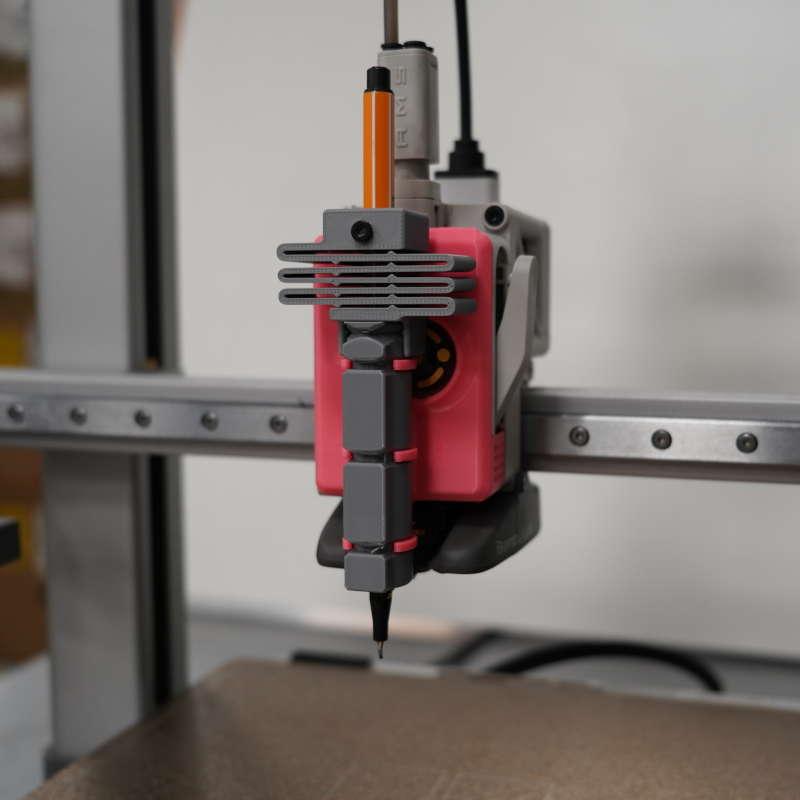
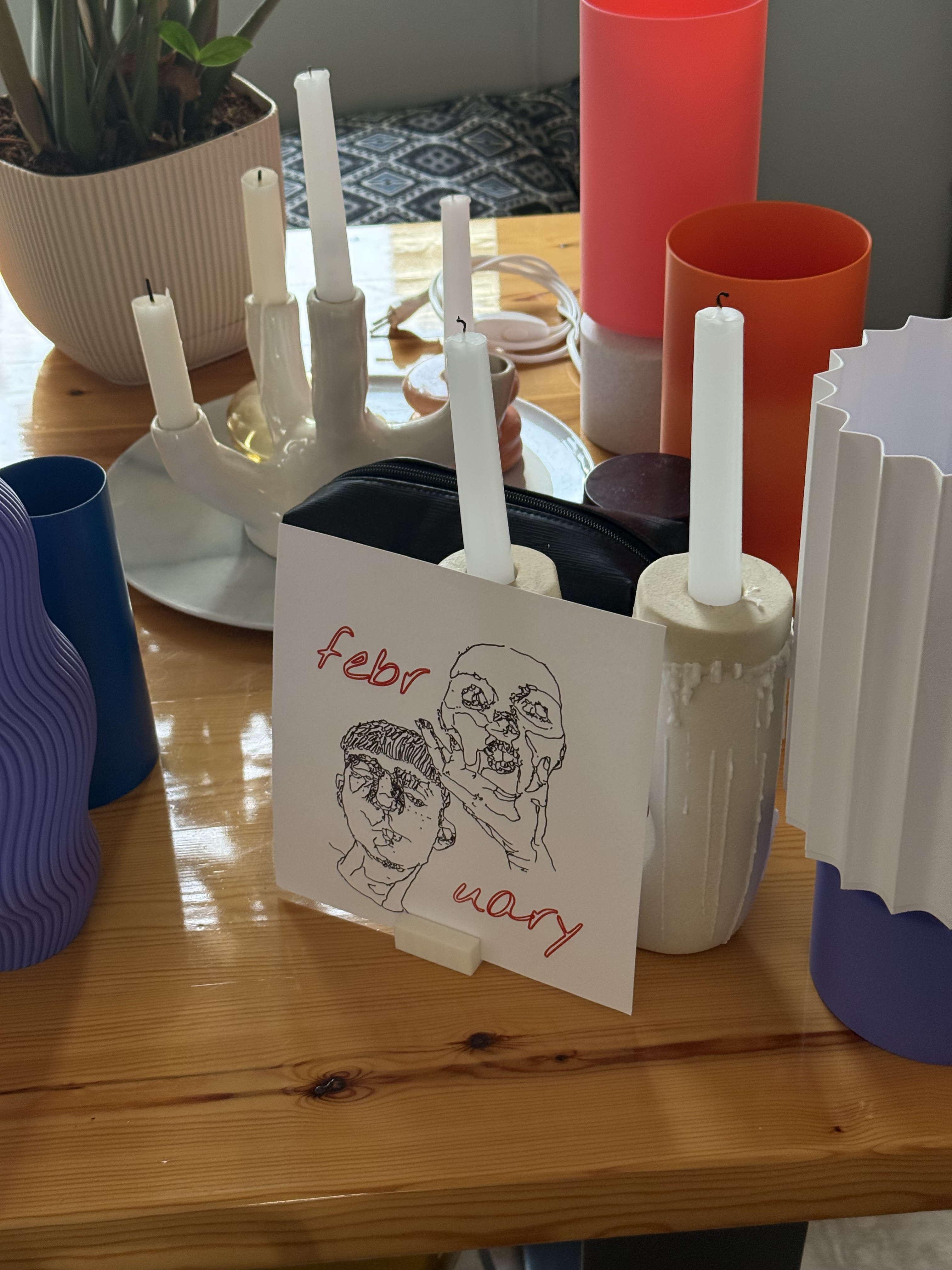

Learn how to convert your Bambu Lab A1 3D printer into a fully functional pen plotter in less than 30 minutes—without any firmware modifications, soldering, or permanent alterations to your printer.
What You'll Create
- Line art drawings with professional precision
- Custom maps and diagrams directly on paper
- Greeting cards and invitations with unique designs
- Technical illustrations and architectural sketches
- Calligraphy and custom lettering projects
Why This Method Works
Unlike other pen plotter conversions that require:
- ❌ Firmware modifications
- ❌ Soldering components
- ❌ Permanent hardware changes
- ❌ Complex calibration procedures
This method uses:
- ✅ A simple 3D-printed pen mount
- ✅ Standard ballpoint pens
- ✅ Web-based G-code generation
- ✅ Reversible installation
- ✅ Zero technical expertise required
Supplies
Hardware Components
- Bambu Lab A1 - Your existing 3D printer
- Standard Ballpoint Pen - 0.5mm to 0.7mm tip diameter (recommended brands: Stabilo Fineliner Point 88, Pilot G2, Uni-ball Signo)
- Pen Mount - 3D-printed attachment (STL file provided)
- Paper - A4 (210 × 297mm) or Letter size (8.5 × 11 inches)
- Painter's Tape - Blue or green masking tape for securing paper
- Precision Tools - Scissors or craft knife for tape cutting
Software Requirements
- 3dplotter.xyz Web App - Online G-code generator optimized for pen plotting with Bambu Lab, Elegoo, Creality and other 3D Printers
- SD Card Reader - For transferring files to your Bambu Lab printer
- Web Browser - Chrome, Firefox, Safari, or Edge (latest versions)
Estimated Costs
- Pen Mount: 50-170g - 6oz of Filament around $2 (3D print yourself)
- Ballpoint Pens: $2-5 per pack
- Painter's Tape: $1-2 per roll
- 3dplotter license: $29.9 lifetime (limited time offer)
- Total Project Cost: $30-40
Create Your Account and Select Your Printer
Setting Up 3dplotter.xyz
Why 3dplotter.xyz? 3dplotter.xyz is a specialized web application designed specifically for converting 3D printers into pen plotters. Unlike generic G-code generators, it provides:
- Printer-specific profiles with pre-calibrated settings
- Visual canvas for real-time design preview
- Offset compensation for pen mount positioning
- One-click G-code generation optimized for drawing
- No installation required - works in any modern browser
Account Setup Instructions
- Navigate to https://3dplotter.xyz
- Click "Get Started" in the top right corner
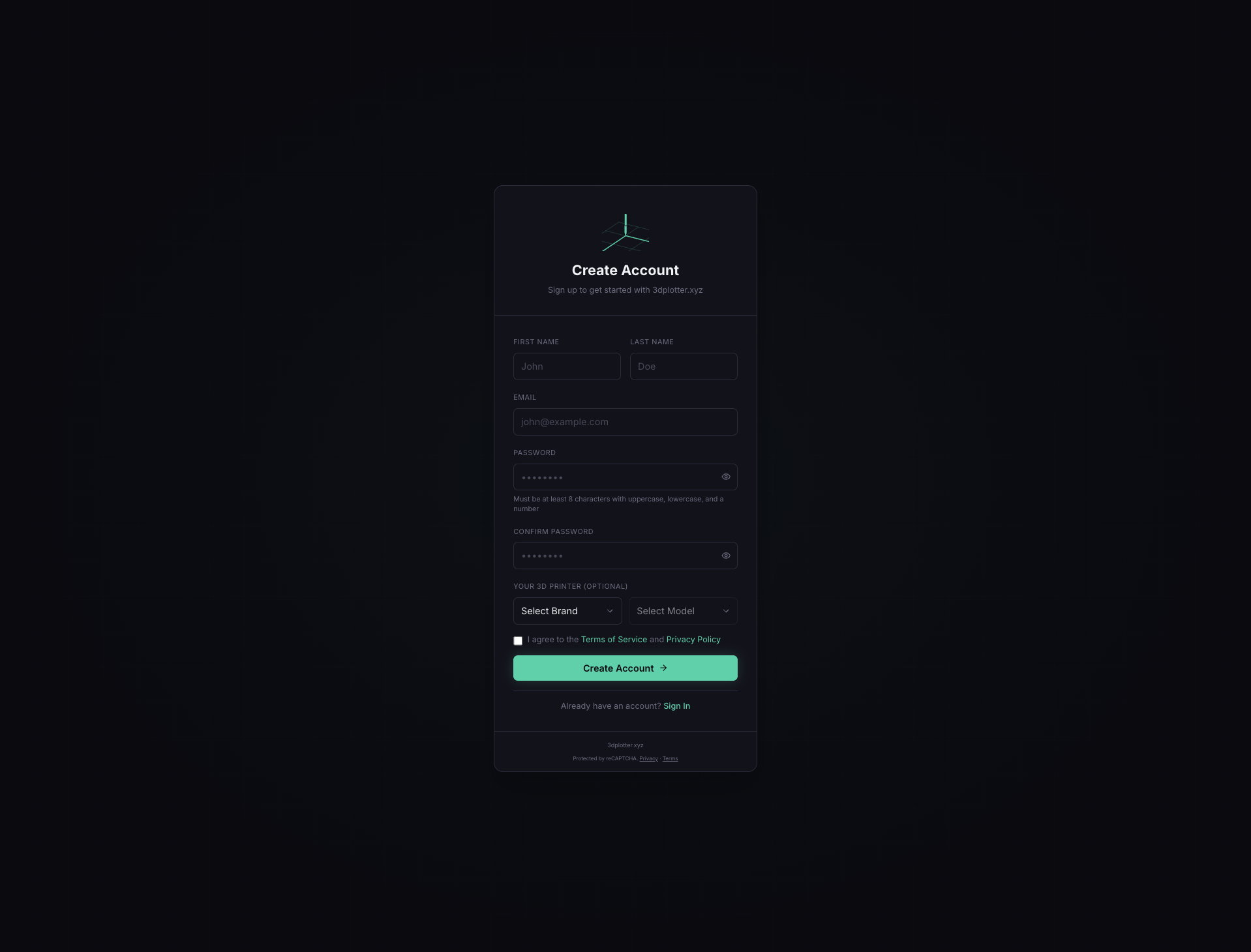
- Create your account using:
- Email address and password
- Verify your email (check spam folder if needed)
- Continue to Checkout to complete your payment
- Login to start designing
Selecting Your Printer Profile
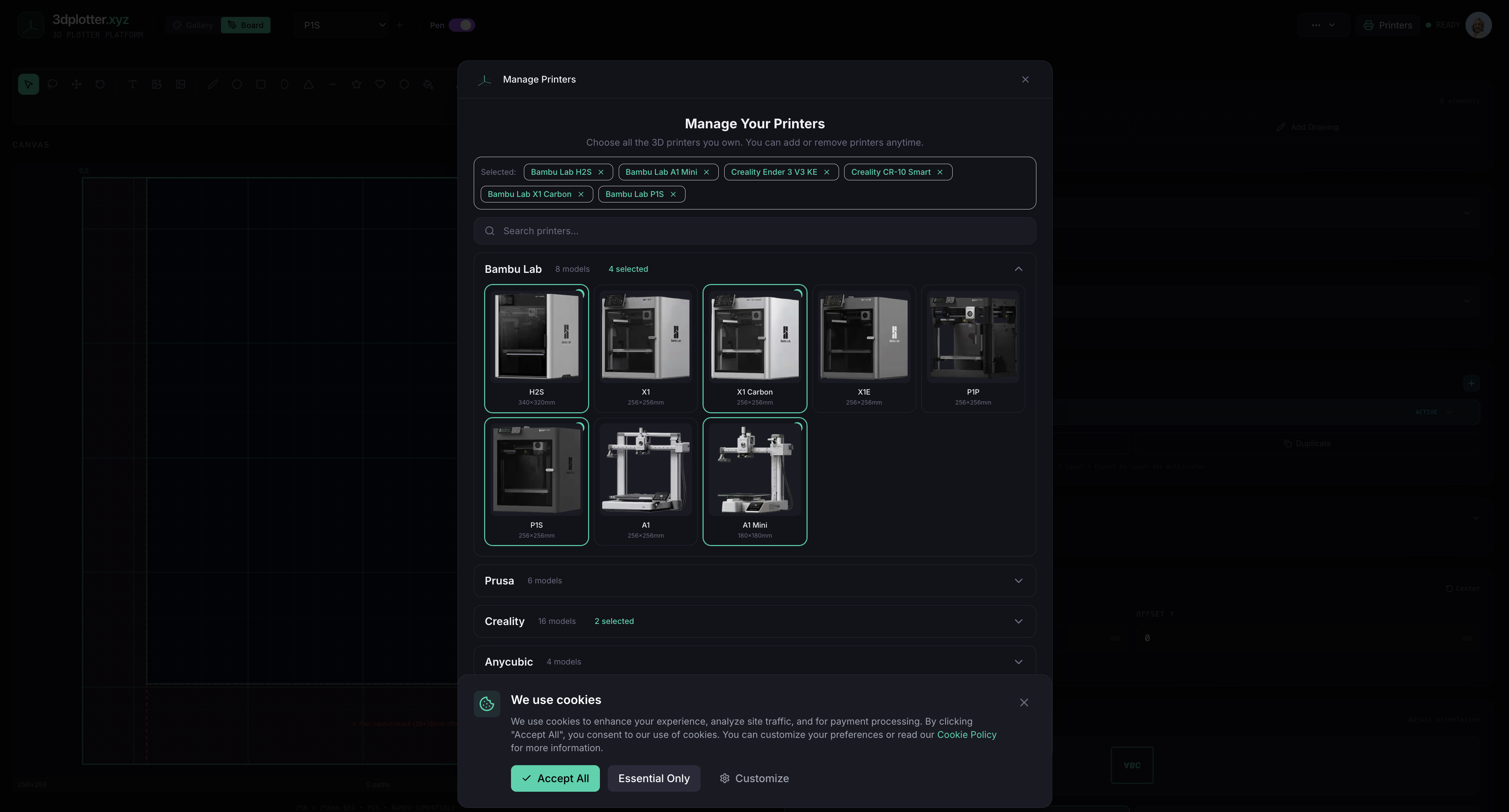
- Select Bambu Lab A1 from the onboarding modal
- Select it as your active printer from the dropdown at the top:
- Build volume dimensions (256 × 256 × 256mm)
- Pen offset coordinates
- Drawing area boundaries
- Default Z-axis heights
- Enable the pen toggle next to the dropdown
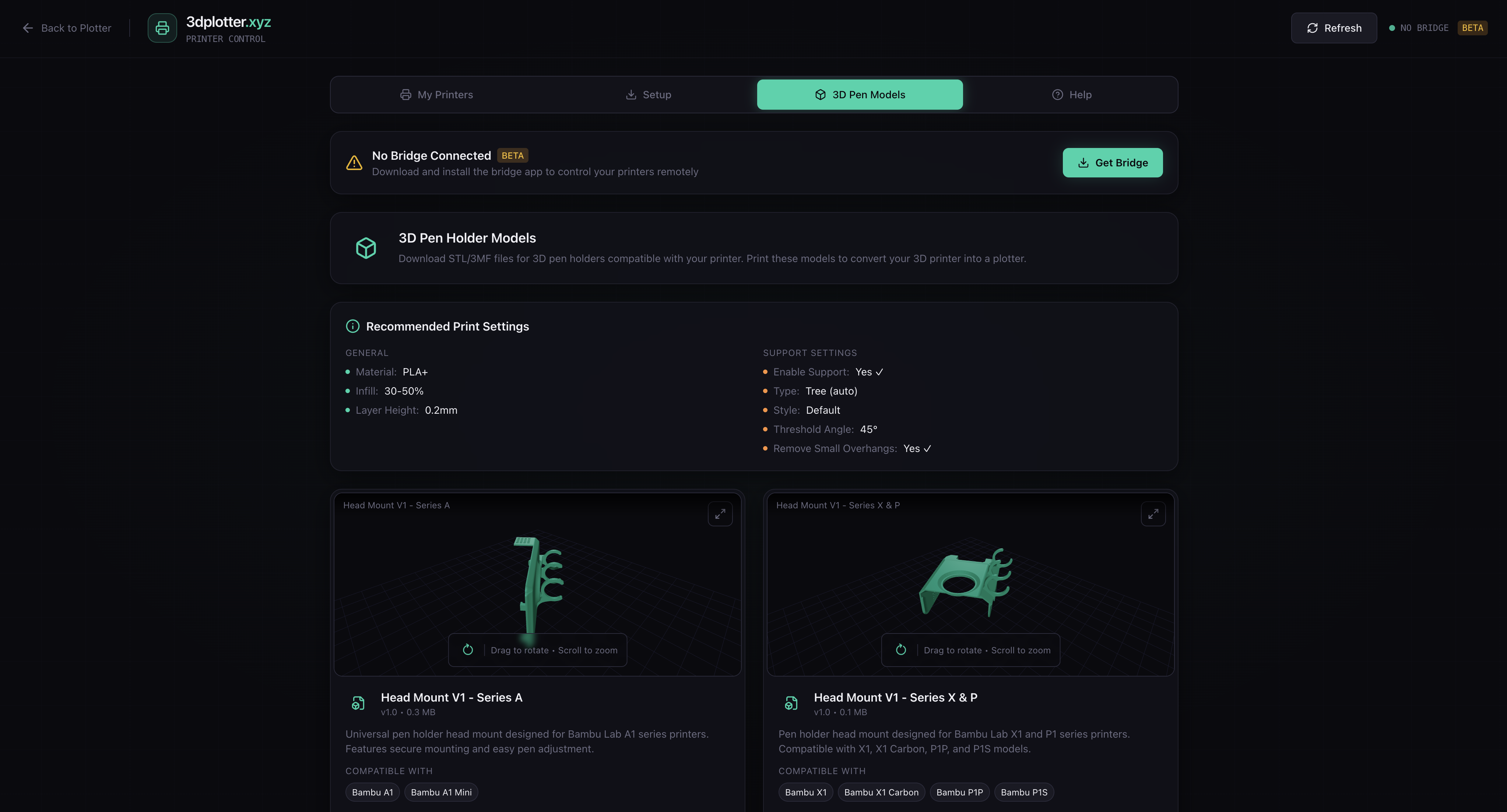
Downloading the Pen Mount STL
- Press the "Printers" button in the top right
- Navigate to the "3D Models" tab within the printer settings
- Locate "Head Mount V1 - Series A" in the models list
- Download the STL file to your computer
- Alternative: Visit the direct MakerWorld link provided in the app
Print the Pen Mount
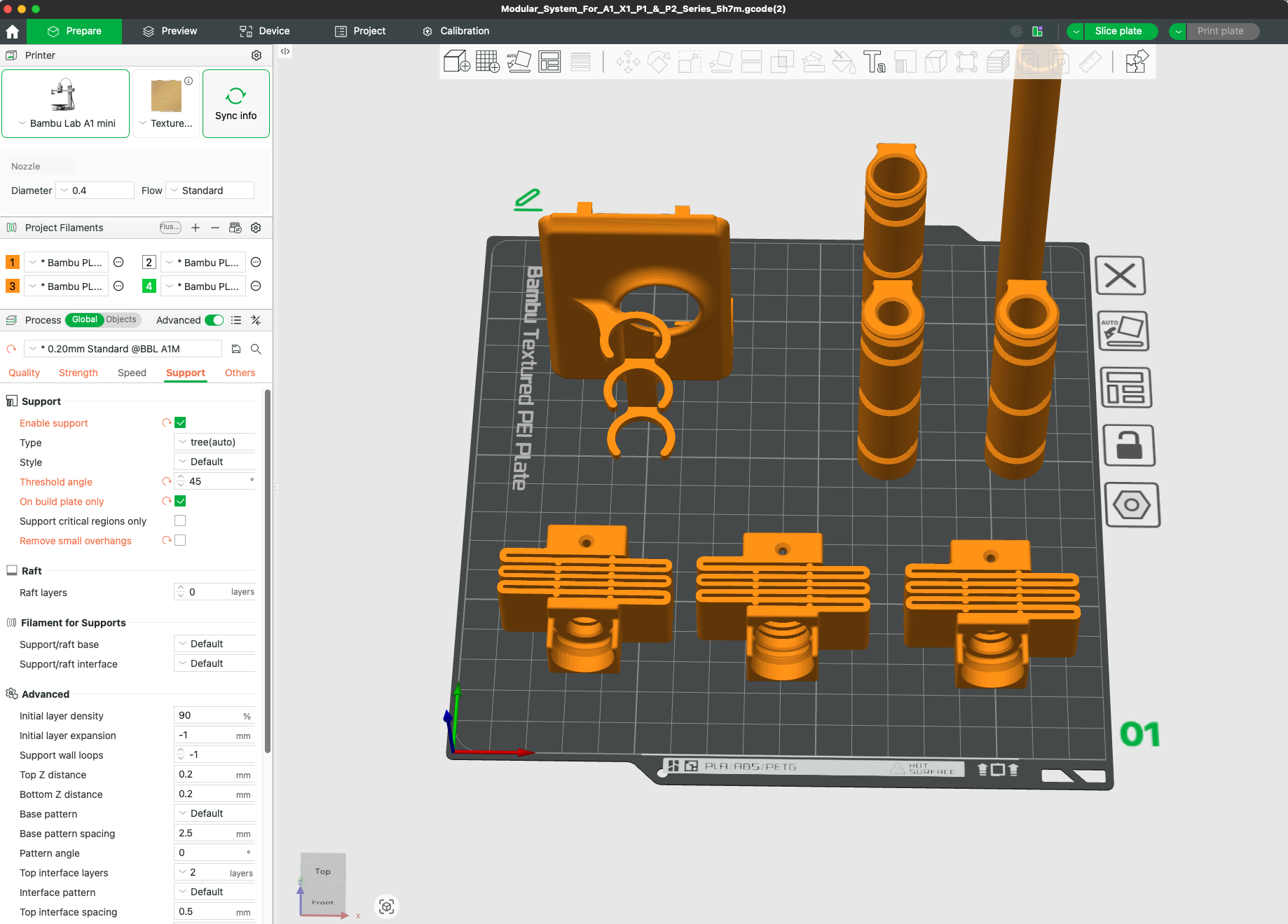
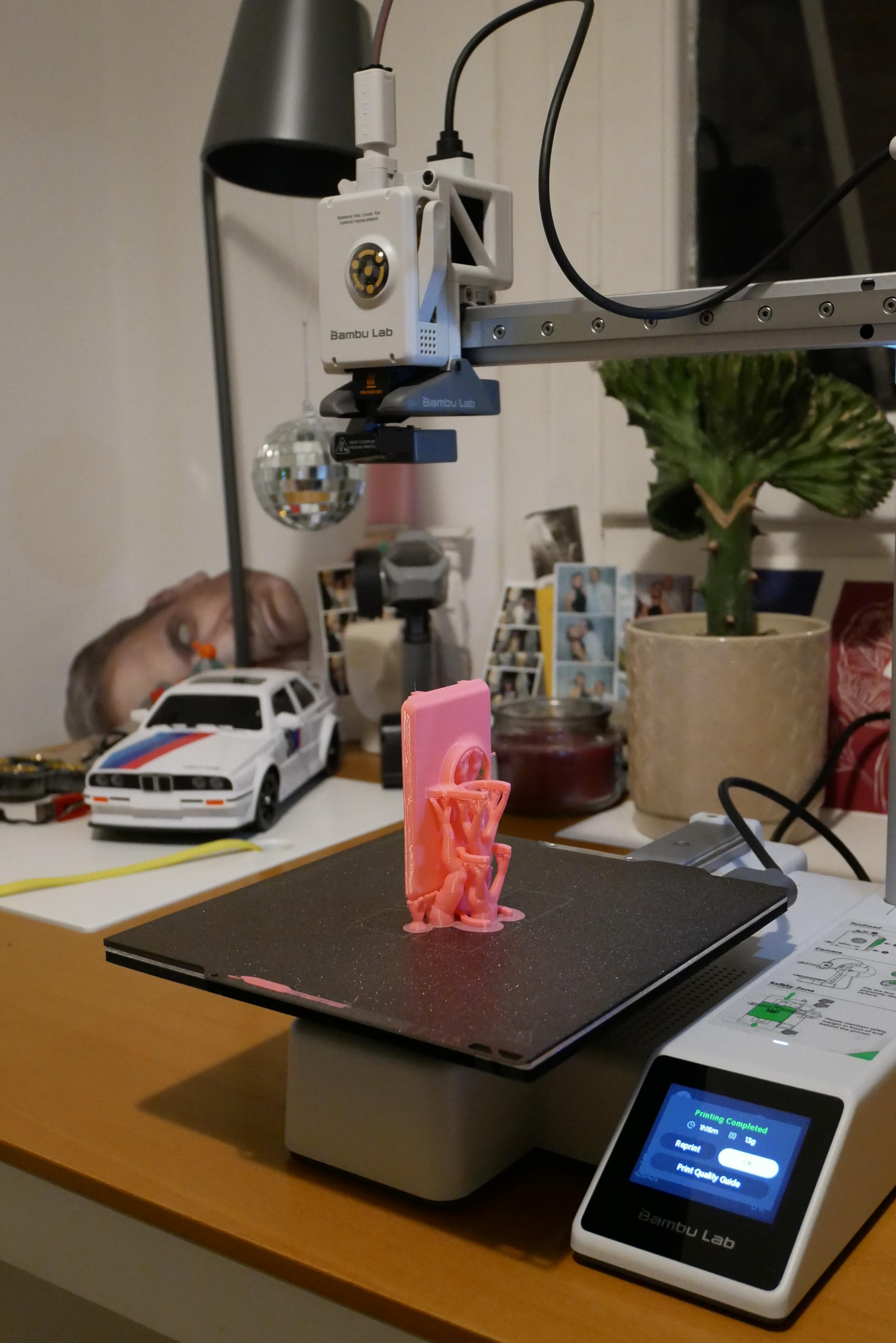
Preparing Your Slicer
Recommended Slicer Settings for Bambu Studio:
Support Placement Guide
Critical support areas:
- Pen holder opening (horizontal overhang)
- Mounting clip underside
- Any angles exceeding 45° from vertical
Support removal tip: Remove supports gently with needle-nose pliers, working from the bottom up to avoid breaking the pen holder walls.
Post-Processing Steps
- Remove all support material carefully
- Test fit your pen - it should slide smoothly without binding
- Check mounting clips - they should be flexible but not loose
Recommended Pens (Tested Compatibility)
Pen BrandModelTip SizePerformance
Stabilo
Fineliner Point 88
0.4mm
⭐⭐⭐⭐⭐ Excellent
Pilot
G2 Gel
0.5mm
⭐⭐⭐⭐ Very Good
Uni-ball
Signo
0.5mm
⭐⭐⭐⭐ Very Good
Sakura
Pigma Micron
0.45mm
⭐⭐⭐⭐⭐ Excellent
Staedtler
Triplus Fineliner
0.3mm
⭐⭐⭐⭐ Very Good
Note: The Stabilo Fineliner Point 88 (0.4mm) is recommended for beginners due to consistent ink flow and optimal line weight.
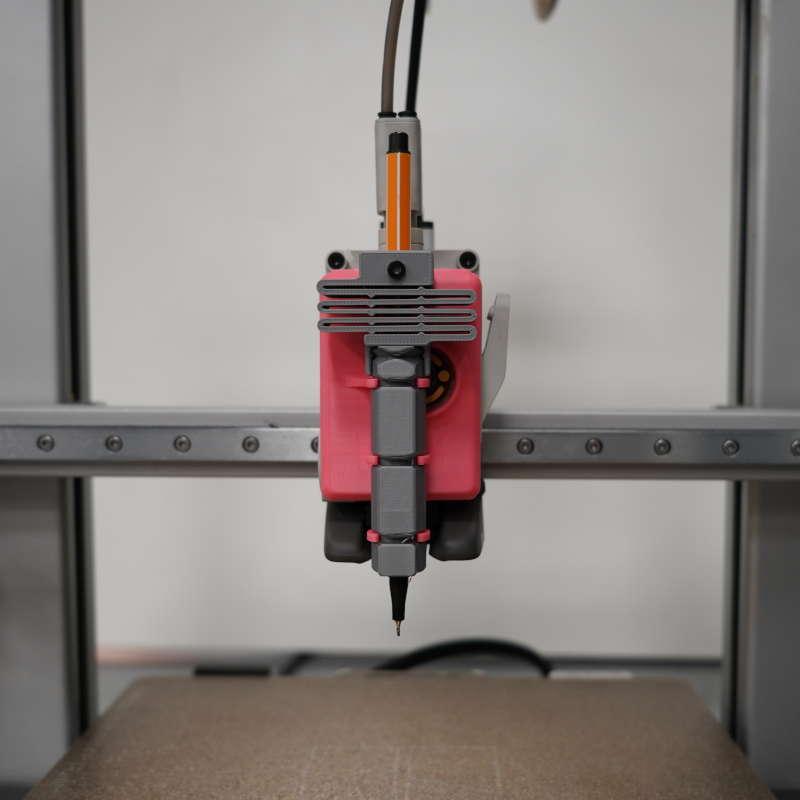
Install the Pen Mount Assembly
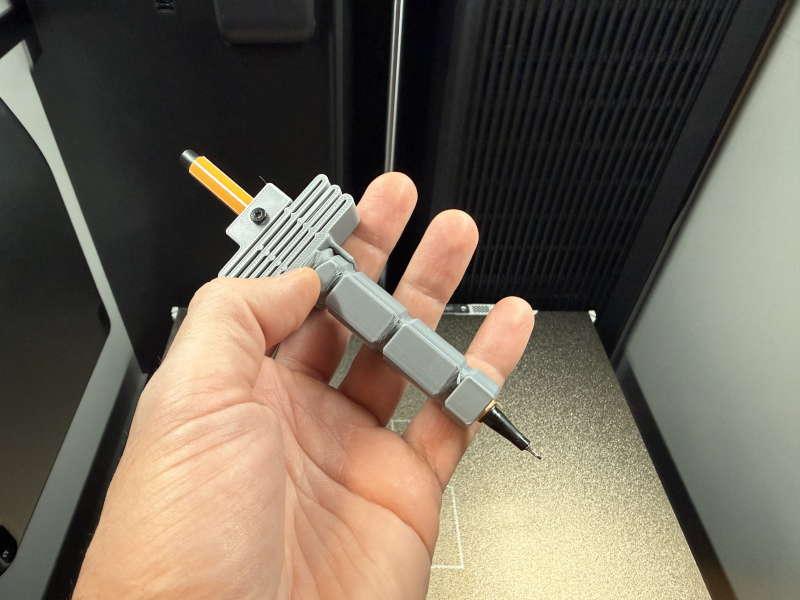
Safety Precautions
- ⚠️ Power off your Bambu Lab A1 before installation
- ⚠️ Allow to cool if recently used (wait 10-15 minutes)
Removing the Extruder Cap
Step-by-step removal process:
- Locate the extruder cap - This is the plastic cover on top of the hotend assembly
- Gently pull out and upward as shown in the video - The cap is held by friction clips
- Do not force - If it doesn't release easily, wiggle gently side-to-side
- Set aside safely - Store the original cap for later reinstallation
- Inspect mounting area - Ensure no dust or debris on the mounting surface
Photo reference points:
- Cap is located at the top of the toolhead carriage
- Two small alignment tabs on the top and on the center of the head
- Smooth plastic surface with Bambu Lab logo
Installing the Pen Mount
Installation procedure:
- Orient the pen mount correctly:
- Pen holder clamps face forward (toward the front of the printer)
- Mounting clips align with the toolhead slots
- Flat mounting surface sits flush against the extruder body
- Press down and in firmly until you hear/feel a click
- Apply even pressure on both sides
- The mount should sit completely flush
- No gaps should be visible around the edges
- Test stability by gently wiggling the mount
- Should not move or rotate
- Should feel as secure as the original cap
- If loose, remove and reinstall
Loading the Pen
Proper pen installation technique:
- Insert the pen from the bottom of the pen holder
- For Stabilo pens: where the cap touches the bottom of the pen holder is the ideal height
- Secure with a screw at the top of the pen holder
Height adjustment tips:
- Too low: Pen will drag and potentially tear paper
- Too high: Pen won't make contact with paper
- Perfect height: Pen tip just touches paper with minimal pressure
Create Your First Plot in 3dplotter.xyz
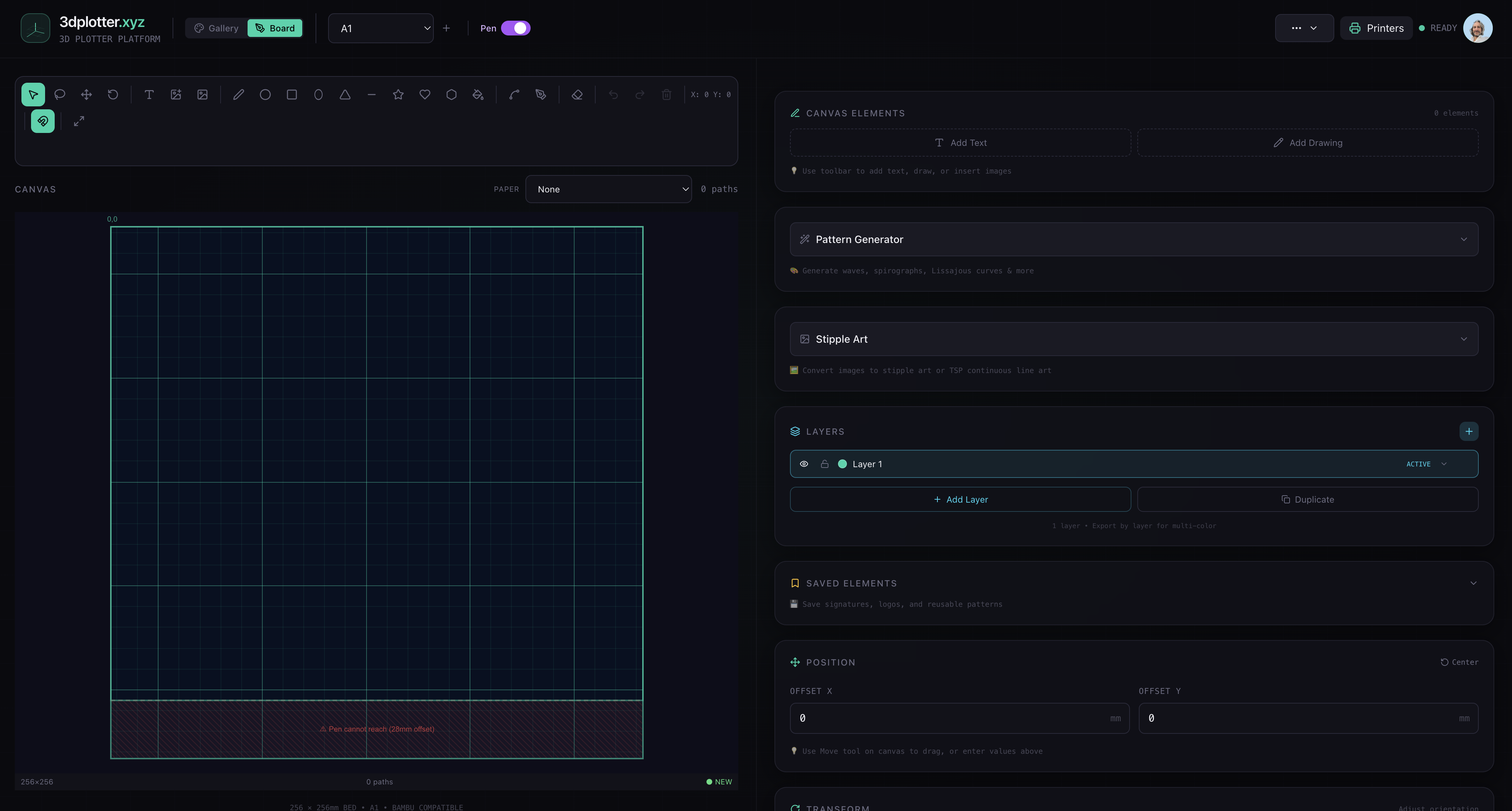
Activating the Pen Plotter Interface
- Log into 3dplotter.xyz with your account
- Locate the printer selection dropdown in the top toolbar
- Find the "Pen" toggle switch next to the printer name
- Click to enable - the interface will update to show:
- Drawing canvas with pen-safe area
- Pen-specific tools (line, curve, text)
- G-code generation optimized for 2D plotting
Understanding the Drawing Canvas
Visual indicators on the canvas:
- Black area: Safe drawing zone (fully accessible)
- Red area: Restricted zone (pen mount offset prevents access)
- Grid lines: 10mm spacing for precise positioning
Why is there a red restricted area? The pen mount offsets the pen position from the original hotend location. The red zone marks areas the pen physically cannot reach due to:
- Pen mount geometry extending beyond the toolhead
- Mechanical limits of the gantry system
- Safety margins to prevent collisions
Usable drawing area dimensions:
- Bambu Lab A1 total bed: 256 × 256mm
- Pen plotter usable area: ~228 × 228mm (accounting for offset)
- Safe margin from edges: 10mm on all sides
Design Creation Methods
Method 1: Drawing Tools
- Line tool: Click points to create connected line segments
- Curve tool: Drag to create smooth bezier curves
- Shape tools: Rectangles, circles, polygons
- Eraser: Remove unwanted elements
Method 2: Text Input
- Click the "Add Text" button
- Type your desired text (supports Unicode characters)
- Choose font (options include Hershey fonts optimized for single-line drawing)
- Adjust size and position
- Text is converted to continuous line paths
Method 3: Pattern Generation
- Geometric patterns: Select from pre-made designs
- Hatch patterns: Adjust density and angle
- Parametric designs: Spirals, waves, fractals
- Grid patterns: Customizable spacing and line weight
Method 4: Image Import
- Click "Import Image" button
- Upload a line art image (PNG, JPG, SVG formats supported)
- Recommended image types:
- Line drawings with clear edges
- High contrast black and white images
- Vector graphics (SVG) for best results
- Coloring book pages
- Technical diagrams
- Adjust image-to-path conversion settings:
- Threshold: Controls which pixels become lines
- Simplification: Reduces number of points (faster plotting)
- Edge detection: Finds outlines in photos
- Position and scale your imported design
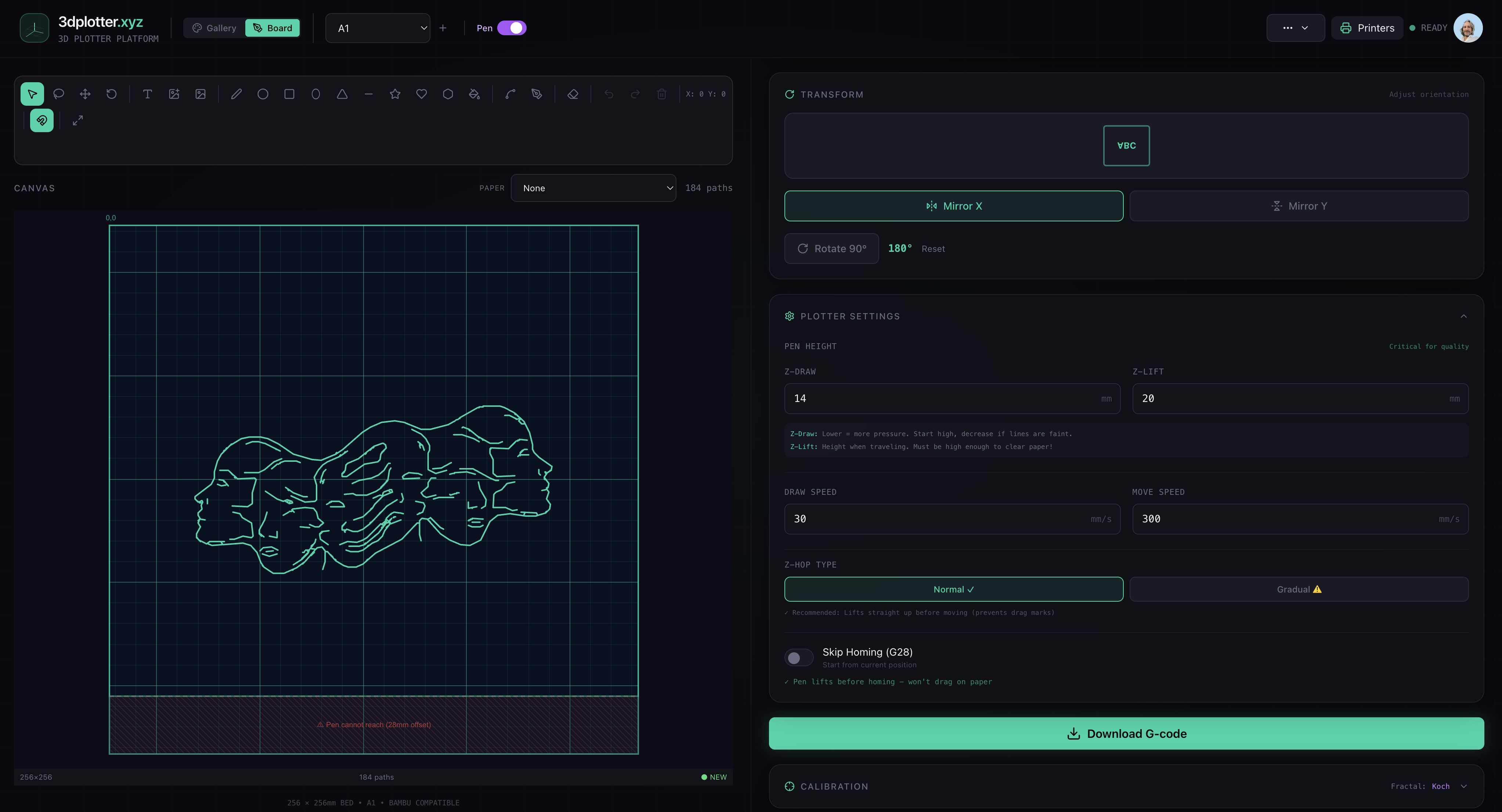
Critical Plotter Settings
Z-Axis Configuration (MUST be correct):
What these settings mean:
- Z-Draw (14mm): Height where pen tip touches paper and draws
- Lower values = more pressure (darker lines, risk of tearing)
- Higher values = less pressure (lighter lines, may skip)
- 14mm is calibrated for standard ballpoint pens on regular paper
- Z-Lift (20mm): Height where pen lifts during travel moves
- Must be high enough to clear the paper completely
- Prevents accidental marks during repositioning
- 20mm provides safe clearance for most setups
How to verify settings:
- Navigate to "Plotter Settings"
- Confirm Z-Draw = 14 and Z-Lift = 20
- If values differ, update them and click "Save"
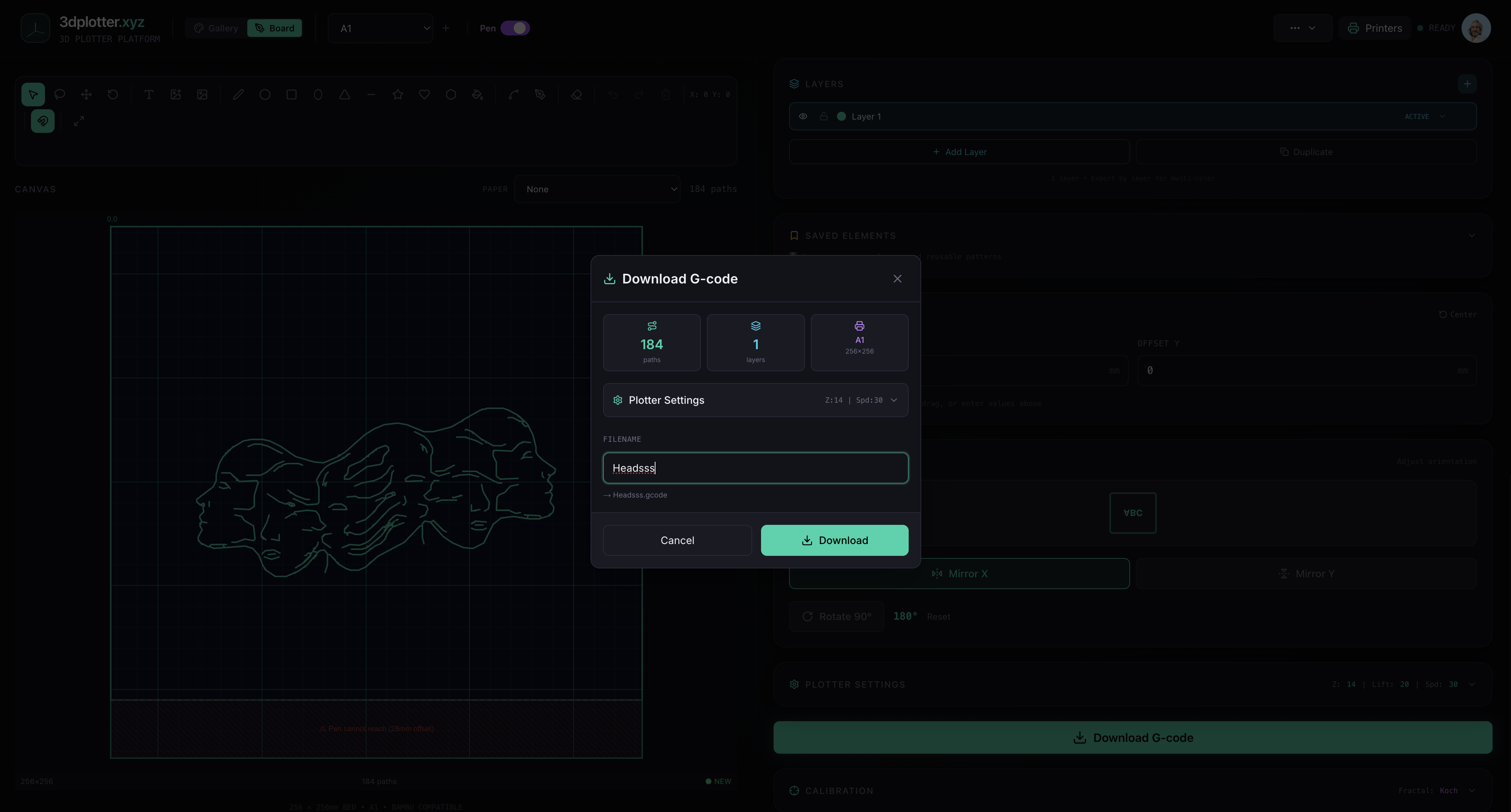
Downloading Your G-code
Step-by-step download process:
- Review your design on the canvas
- Check that all elements are within the white (safe) area
- Verify text is readable and oriented correctly
- Ensure no overlapping lines that would double-draw
- Click "Download G-code" button (bottom-right)
- G-code preview modal appears showing:
- Paths
- Layers
- Plate Size
- Plotter Settings
- Final checks before download:
- ✅ Printer profile: Bambu Lab A1
- ✅ Pen mode: Enabled
- ✅ Z-heights: 14mm draw, 20mm lift
- ✅ Design fits within safe area
- Click "Download" in the modal
- Save to a memorable location on your computer
For Multicolor Pen Plotting
Create layers - each layer is exported as a single G-code file. Choose a different pen color for each G-code file.
Transfer and Run Your Plot
SD Card File Transfer
Preparing the SD card:
- Remove the SD card from the printer's SD card slot
- Location: Right Side
- Push gently to eject
- Insert SD card into your computer
- Use built-in SD card reader
- Or external USB SD card adapter
- Open the SD card drive in your file explorer
- Windows: Shows as removable drive (E:, F:, etc.)
- Mac: Appears in Finder sidebar
- Linux: Usually auto-mounts to /media/
Transferring the G-code file:
- Locate your downloaded .gcode file
- Copy (don't move) the file to the SD card root directory
- Don't place in subfolders
- Keep the filename readable
- Safely eject the SD card:
- Windows: Right-click drive → "Eject"
- Mac: Drag drive icon to Trash
- Linux: Right-click → "Unmount"
- Reinsert SD card into the Bambu Lab A1
- Push until it clicks into place
Preparing Your Paper
Paper securing technique for best results:
- Choose your paper:
- Standard printer paper (80gsm): Good for practice
- Cardstock (200-300gsm): Better for finished pieces
- Watercolor paper: Textured effects
- Avoid glossy paper: Ink may smudge
- Position paper on the print bed:
- Align with the front-left corner
- Use scissors to cut the excess
- Secure with painter's tape:
- Place tape strips on all four sides
- Smooth out any bubbles or wrinkles
- Press tape firmly to prevent paper movement
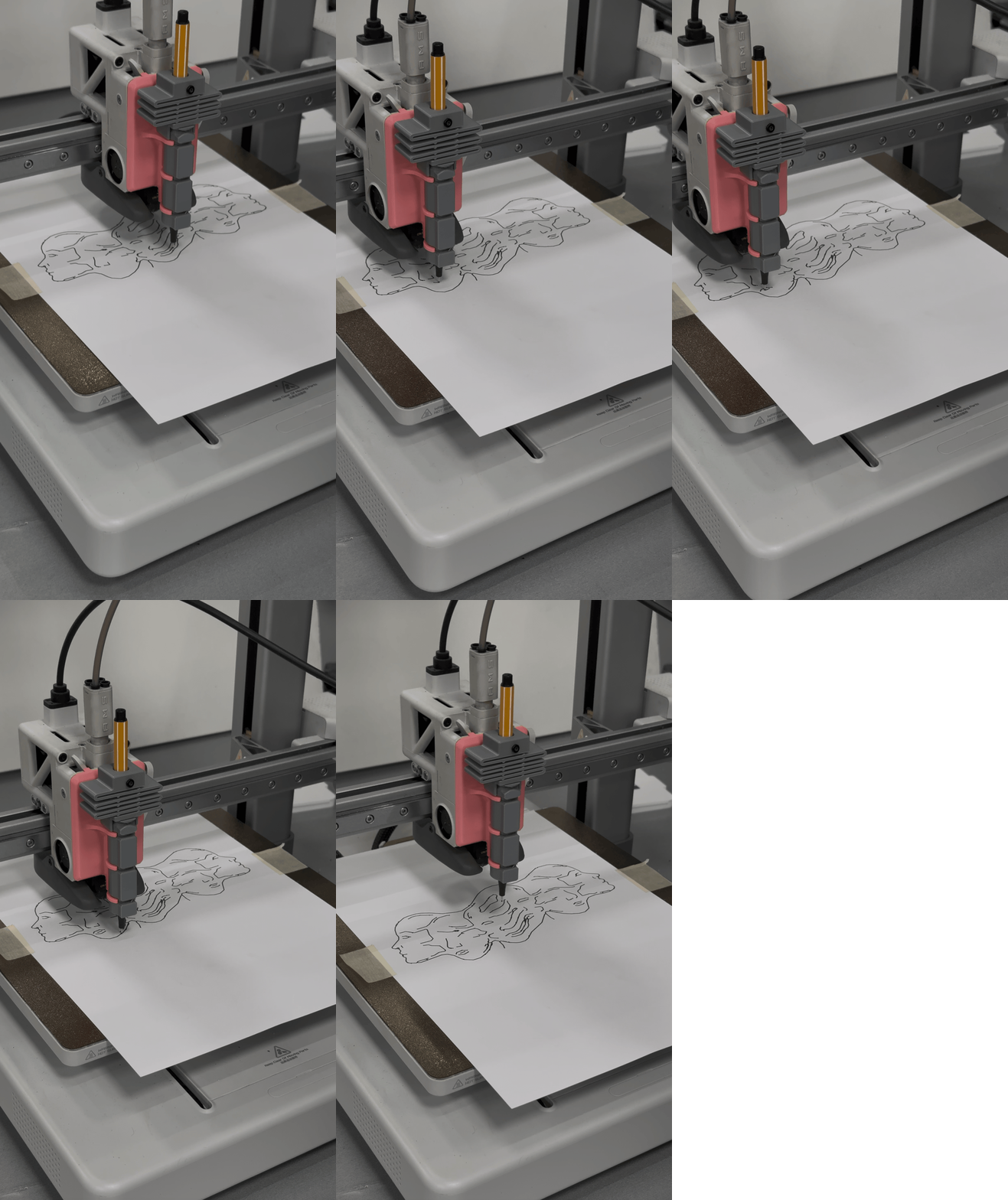
Running Your First Plot
Startup procedure:
- Tap "Print files" on the touchscreen display
- Navigate to "SD Card" section
- Find your G-code file in the list
- Look for the filename you created
- Important: Select the file WITHOUT an underscore prefix
- Files with "_" prefix are thumbnails/metadata
- Preview appears showing file info:
- Filename
- File size
- (No print time estimate for custom G-code)
- Tap "Print" to start
- Printer will begin homing - toolhead moves to corners
- Pen will lift to Z-Lift height (20mm)
- Plotting begins - watch the magic happen!
What to Expect During Plotting
Normal operation indicators:
- Smooth X/Y movements: Pen glides across paper
- Regular pen lifts: Between disconnected lines
- Consistent line quality: Even ink flow
- Quiet operation: Stepper motors at low speed
Troubleshooting Common Issues
Problem: Pen Not Drawing
Symptoms:
- Pen moves but leaves no marks
- Intermittent line gaps
- Very faint lines
Solutions:
- Check pen functionality:
- Test pen on scrap paper by hand
- Replace if ink flow is poor
- Try a different pen brand
- Adjust Z-Draw height (lower the pen):
- In 3dplotter.xyz settings, try: 13mm, 12mm, 11mm
- Download new G-code and test
- Find the sweet spot where lines are consistent
- Verify pen installation:
- Pen should be vertical (use a level)
- Pen tip extends beyond mount
- No wobble or movement
- Check paper surface:
- Some papers resist ink better than others
- Try different paper types
- Ensure paper is clean and dry
Problem: Paper Moving During Plot
Symptoms:
- Paper shifts mid-plot
- Lines don't align correctly
- Wrinkles or buckling
Solutions:
- Add more tape:
- Tape all four corners securely
- Add strips every 30-50mm along edges
- Use wider tape (2-inch painter's tape)
- Improve tape adhesion:
- Clean print bed with isopropyl alcohol first
- Press tape down firmly
- Reduce paper size:
- Use smaller paper for complex plots
- Center smaller paper on the bed
- More tape contact points = more stability
- Check for bed level issues:
- Run printer's auto-leveling routine
- Ensure bed is clean and flat
- Inspect for warping or damage
Problem: Printer Not Moving / G-code Not Running
Symptoms:
- Display shows file but nothing happens
- Error messages
- Toolhead doesn't move
Solutions:
- Verify printer profile:
- Log into 3dplotter.xyz
- Confirm "Bambu Lab A1" is selected
- Re-download G-code with correct profile
Problem: Pen Dragging or Tearing Paper
Symptoms:
- Paper tears or punctures
- Heavy pen pressure marks
- Paper lifts off bed during travel moves
Solutions:
- Raise Z-Draw height:
- Increase from 14mm to 15mm or 16mm
- Test with shorter plots first
- Find balance between contact and pressure
- Use heavier paper:
- Switch to cardstock (200-300gsm)
- Thicker paper resists tearing better
- More stable during plotting
- Reduce pen extension:
- Retract pen slightly in the mount
- Less leverage = less pressure
- Adjust until tip just makes contact
- Check for pen mount misalignment:
- Reinstall pen mount - ensure it's straight
- Pen should be perfectly vertical
- No angle should be visible
Advanced Calibration Guide
Running the Calibration G-code
Why calibrate? Every printer has slight variations in:
- Bed levelness
- Z-axis offset
- Pen holder manufacturing tolerance
- Pen tip length variation
Calibration procedure:
- Download the Full or Compact calibration test G-code from 3dplotter.xyz:
- Navigate to the bottom of the right section
- Click "Full or Compact calibration test G-code"
- Or click Fractal Patterns
- Transfer to SD card (same process as your plots)
- Prepare calibration paper:
- Use A4/Letter white paper
- Tape down securely
- Mark with your name/date for reference
- Run the calibration G-code:
- Select from SD card menu
- Calibration draws a series of test patterns:
- Straight lines (horizontal and vertical)
- Diagonal lines (45° angles)
- Circles (various sizes)
- Grid pattern (spacing accuracy)
- Text (legibility test)
- Inspect the results
Evaluating Line Quality
Line QualityZ-Draw AdjustmentAction
Too light / invisible
Decrease 0.5-1mm
Lower pen closer to bed
Perfect / consistent
No change
Current height is ideal
Too dark / tearing
Increase 0.5-1mm
Raise pen away from bed
Inconsistent
Check bed level
Run auto-level, check pen mount
Calibration Interpretation
✅ Good calibration result:
- All lines are visible and consistent
- Corners are clean (no overrun)
- Circles are round (not oval)
- Text is legible at small sizes
- No ink blobs or skipping
❌ Poor calibration - needs adjustment:
- Lines fade in/out
- Gaps in continuous lines
- Extreme pressure (paper dents)
- Misaligned corners
- Oval circles (indicates axis issue)
Fine-tuning Steps
- Adjust Z-Draw by 0.5mm increments
- Download new G-code with updated settings
- Re-run calibration plot
- Compare results - keep the best performing height
- Document your ideal setting for future reference
Tips for Best Results
Paper Selection Guide
Paper TypeWeightBest ForInk QualityCost
Standard Printer
80gsm
Practice, drafts
Good
$
Premium Printer
100-120gsm
General plotting
Very Good
$$
Cardstock
200-300gsm
Final pieces, cards
Excellent
$$$
Bristol Board
270gsm
Professional work
Excellent
$$$
Watercolor
190-300gsm
Artistic effects
Variable
$$$$
Kraft Paper
70-120gsm
Rustic aesthetic
Good
$
Pen Selection by Project Type
Text and lettering projects:
- Stabilo Point 88 (0.4mm) - Clean, professional look
- Pilot Precise V5 (0.5mm) - Consistent ink flow
Design Best Practices
Optimizing designs for pen plotting:
- Use single-line fonts (Hershey fonts) rather than filled fonts
- Plots 10x faster
- Cleaner results
- Less pen wear
Frequently Asked Questions (FAQ)
Frequently Asked Questions (FAQ)
General Questions
Q: Will this damage my 3D printer? A: No. This is a completely reversible modification that doesn't alter firmware, electronics, or mechanical components. The pen mount simply replaces the extruder cap and can be removed in seconds.
Q: Can I still use my printer for 3D printing after installing the pen mount? A: Yes! Simply remove the pen mount and reinstall the original extruder cap. Takes less than 30 seconds to switch between modes.
Q: What if my printer isn't a Bambu Lab A1? A: 3dplotter.xyz supports multiple printer brands and models. Check the website for your specific printer's pen mount design and profile.
Q: Do I need to modify firmware or install custom software? A: No firmware modifications required. All G-code is generated by the web app and is standard-compliant G-code that any 3D printer can read.
Q: How accurate is the pen plotting compared to professional plotters? A: Modern 3D printers like the Bambu Lab A1 have positioning accuracy of ±0.1mm, which matches or exceeds many consumer pen plotters.
Technical Questions
Q: What G-code flavor does 3dplotter.xyz generate? A: Standard RepRap/Marlin/and other G-code, compatible with virtually all FDM 3D printers.
Q: What's the maximum plotting area? A: For the Bambu Lab A1, usable plotting area is approximately 228 × 228mm after accounting for pen mount offset. Total bed is 256 × 256mm.
Q: Can I plot on materials other than paper? A: Yes! Users have successfully plotted on wood veneer, fabric, cardboard, plastic sheets, leather, canvas, and whiteboard surfaces.
Q: How do I plot in multiple colors? A: Plot each color separately with individual G-Code per layer.
Conclusion
Congratulations! You've successfully transformed your Bambu Lab A1 into a precision pen plotter. This opens up a world of creative possibilities:
✅ Draw custom artwork without buying a dedicated plotter ✅ Create professional-looking cards and invitations ✅ Plot maps and diagrams for presentations ✅ Experiment with generative art and algorithmic designs ✅ Produce educational materials and worksheets ✅ Personalize gifts with custom lettering
What's Next?
- Experiment with different pen types and paper combinations
- Join the 3dplotter.xyz community to share your creations
- Try multi-color plots with manual pen swaps
- Explore generative art scripts and algorithmic designs
- Push the boundaries of what's possible with your converted plotter
Remember: The pen mount is completely reversible. Switch back to 3D printing anytime by simply reinstalling the original extruder cap. Your A1 is now a two-in-one machine!
Last Updated: February 5, 2026 Guide Version: 1.0 Compatible Printers: Bambu Lab A1 Software Version: 3dplotter.xyz (latest)
Ready to create your first plot? Head over to 3dplotter.xyz and start transforming your ideas into physical drawings!