Tech Rockstar Academy Crash & Go Bots
by Tech Rockstar Academy in Teachers > 6
280 Views, 5 Favorites, 0 Comments
Tech Rockstar Academy Crash & Go Bots

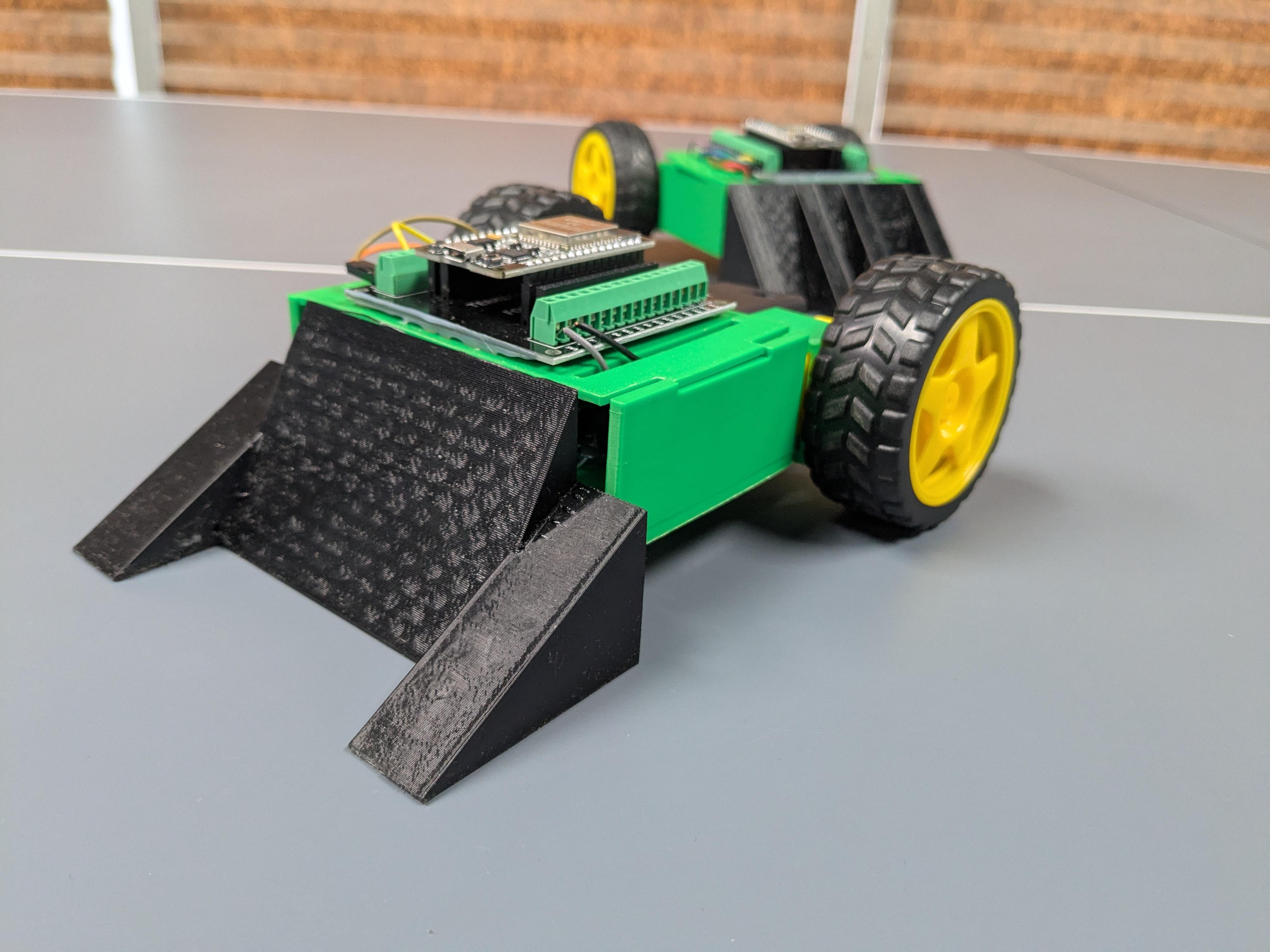


In this Instructable I will show you how to make ESP32 based wrestling robots, upload code, connect to a web server, and how you can implement these bots into a STEM program.
The Tech Rockstar Academy Crash & Go Bots are wrestling robots controlled by one button from a web app. Once the robot is connected to the app and the user presses the button it will begin to spin in place. Hold the button down and the robot will charge forward. Release the button and the robot will return to spinning. The object of the game is to push opposing robots out of the arena. The arena can be made using any hard surface with objects that signify the boundaries where an opposing robot needs to be pushed passed to be considered defeated. This game sounds easy but watch out a robot spinning is hard to catch! You can also invent your own games for these bots like robot soccer or tag.
If you have any questions please comment below. I'd love to help you make a robot or a fleet of them!
Supplies
Tools:
Soldering Iron with solder
3D printer
Wire cutter and stripper. Scissors work well too
Hot glue gun
Plastic Nippers
Flathead screw driver
Voltmeter
Components:
TRA Crash & Go Bot 3D printed parts
PLA filament of your choice
Optional: TPU filament
Downloads
3D Print Parts and Remove Supports
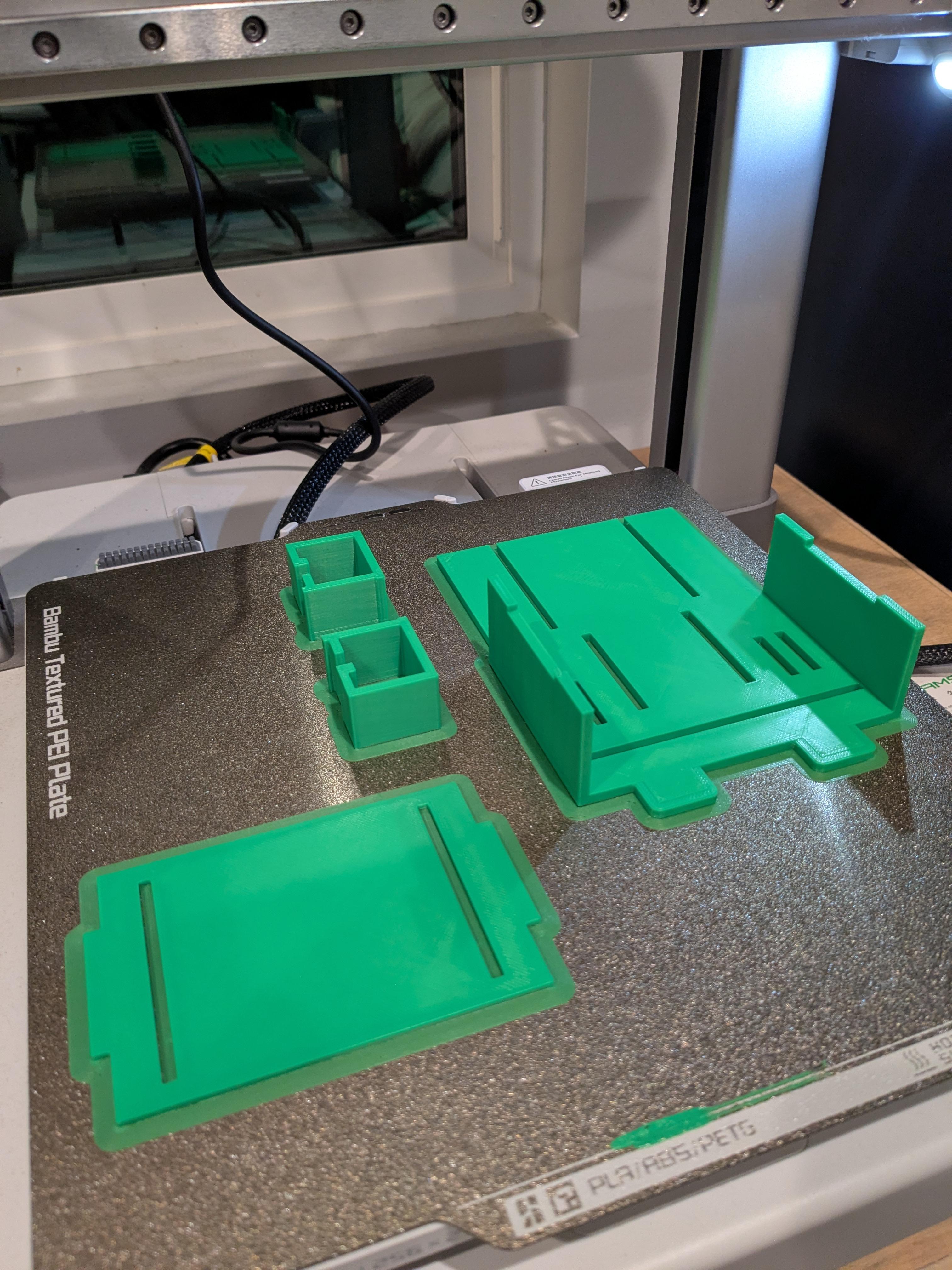
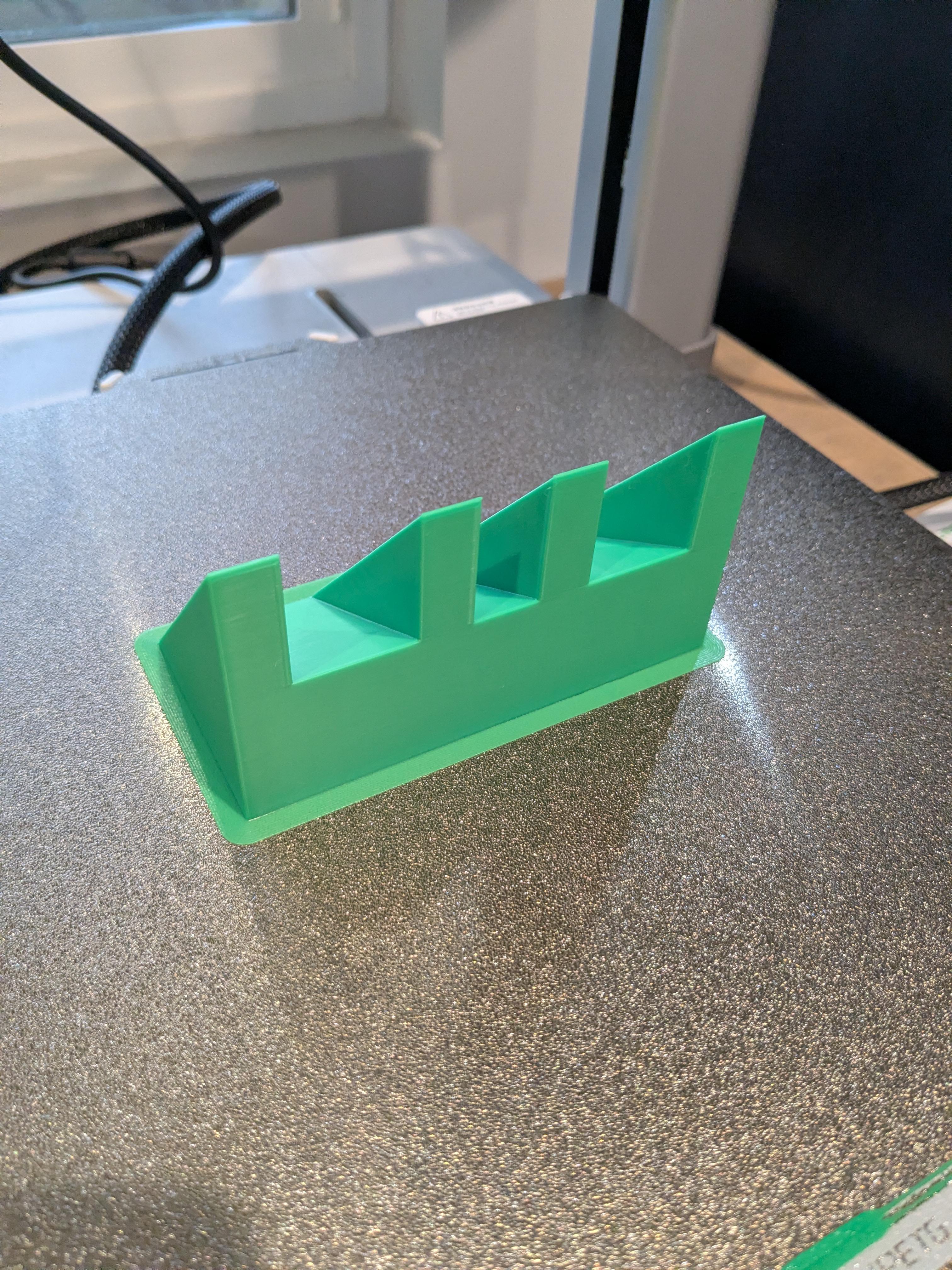
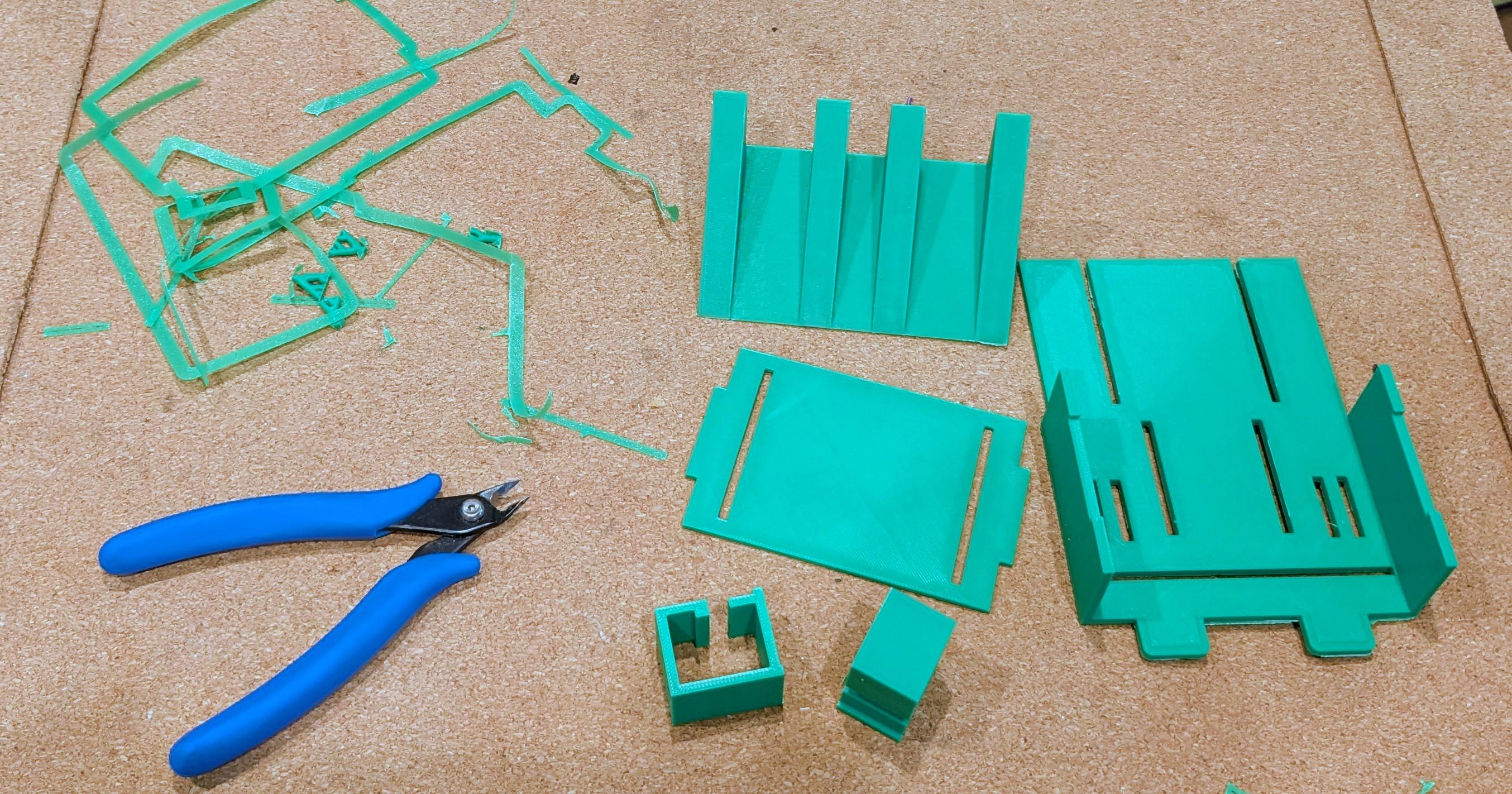
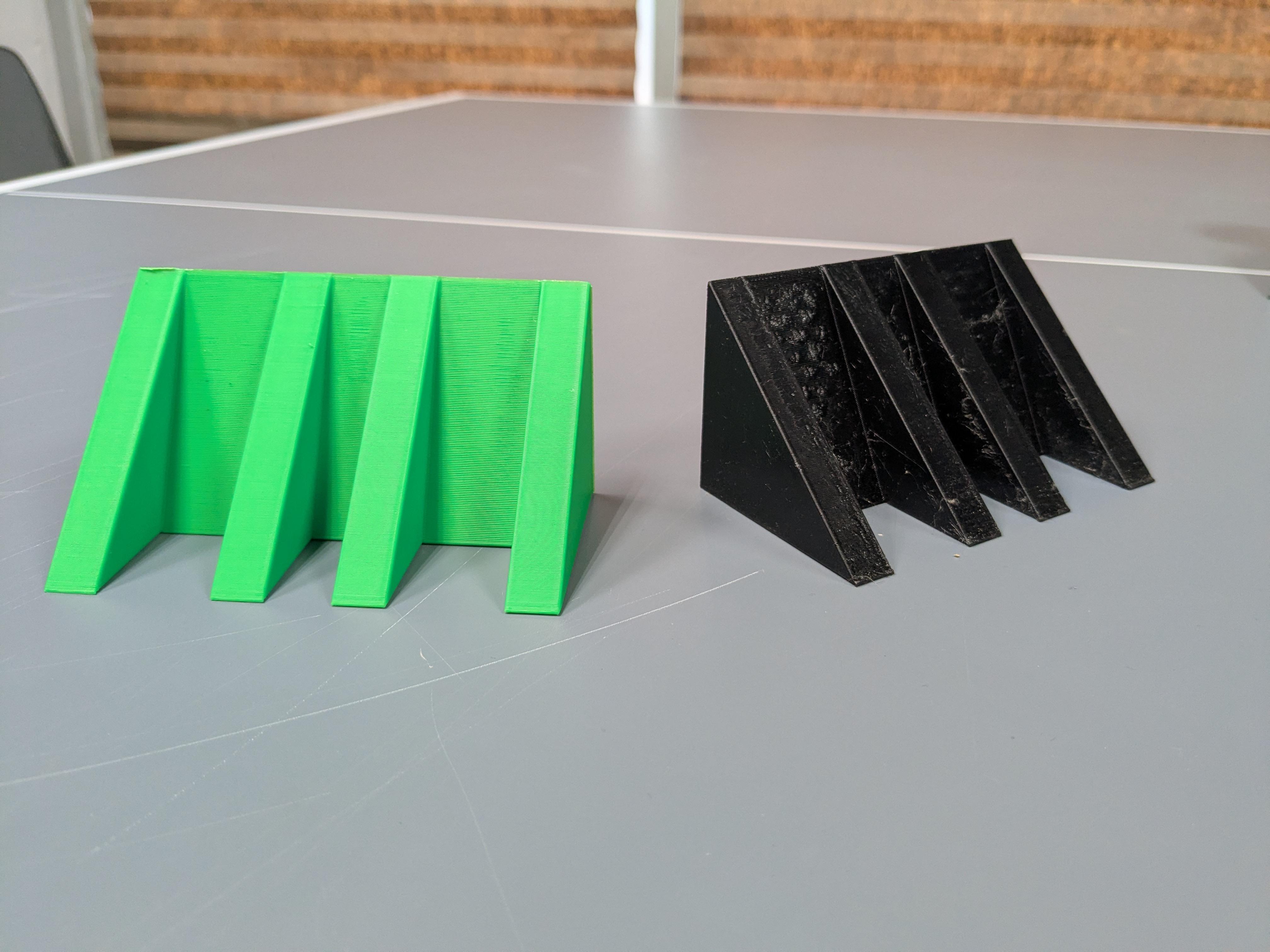
Download the STL file from the link in the components section. Print the Chassis kit with PLA at 15% infill. I used a Bambu A1 for my print but you can use any FDM printer. If your printer needs more adhesion, enable brim. For the wedge do 10% infill with supports enabled. I used natural supports, the regular setting will work too. I suggest TPU for the wedge due to it's flexibility and durability. PLA will work well too. Using plastic nippers or scissors to remove any brim or supports from the print.
Solder and Construct Electronic Components
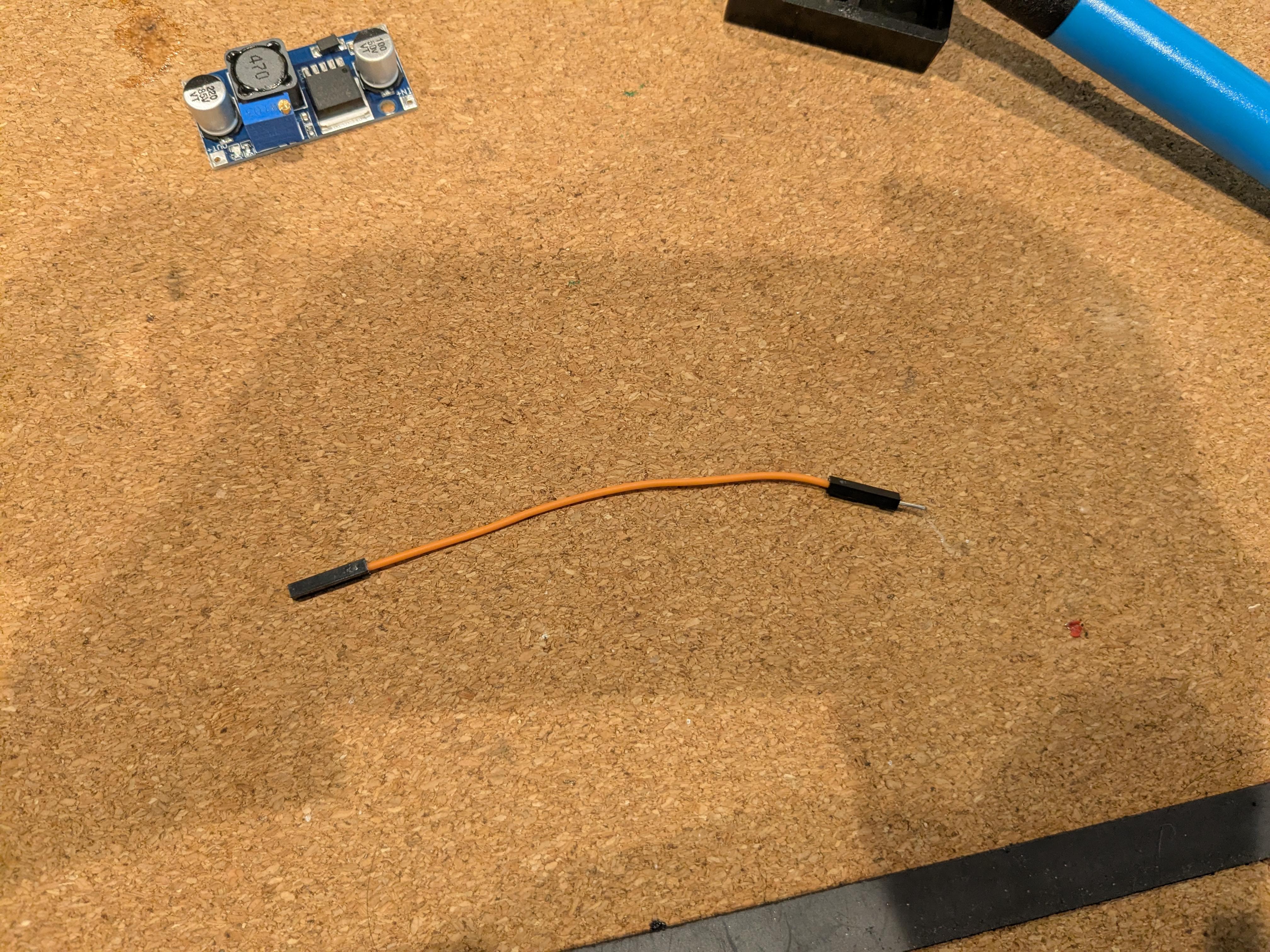
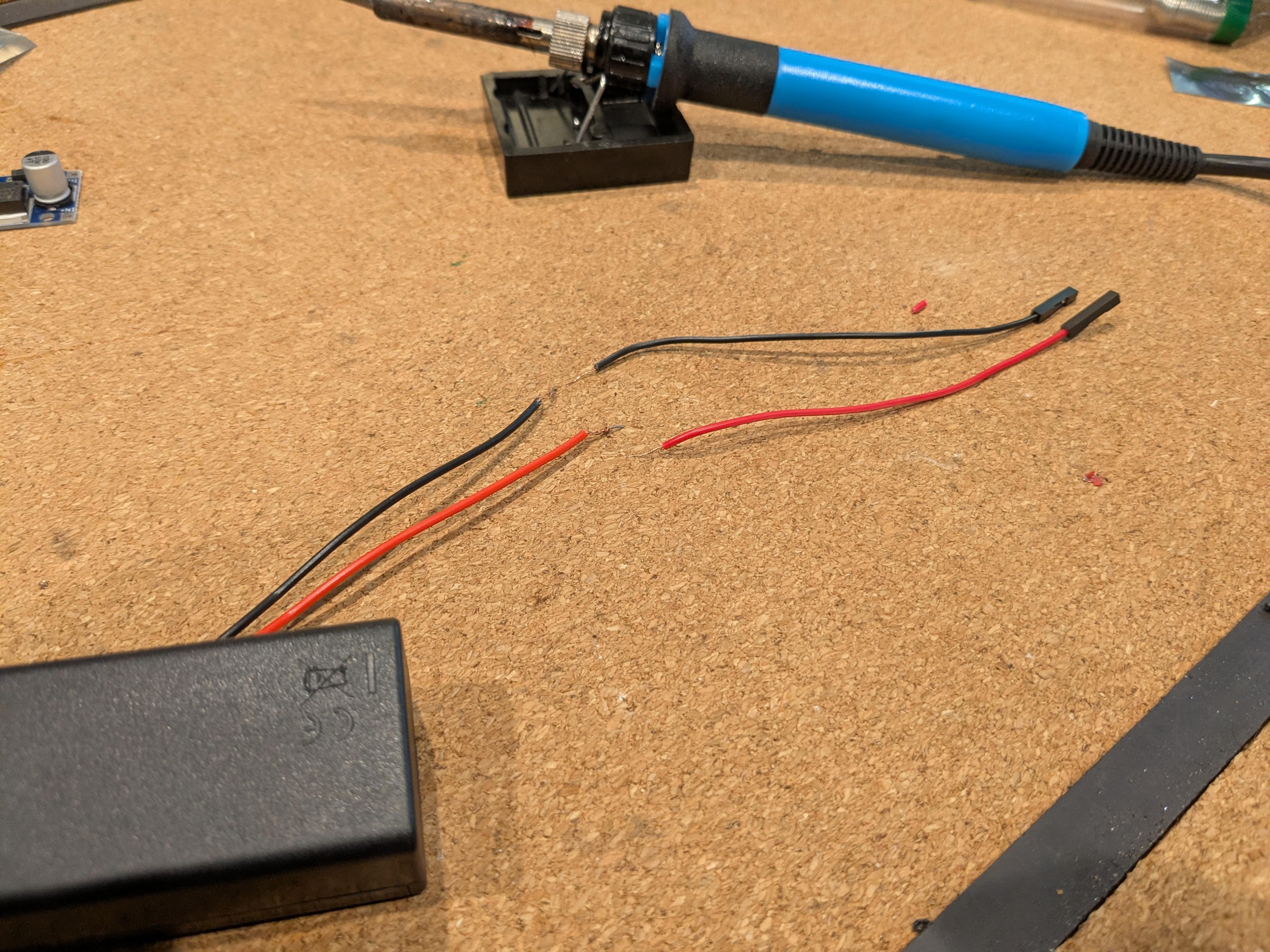
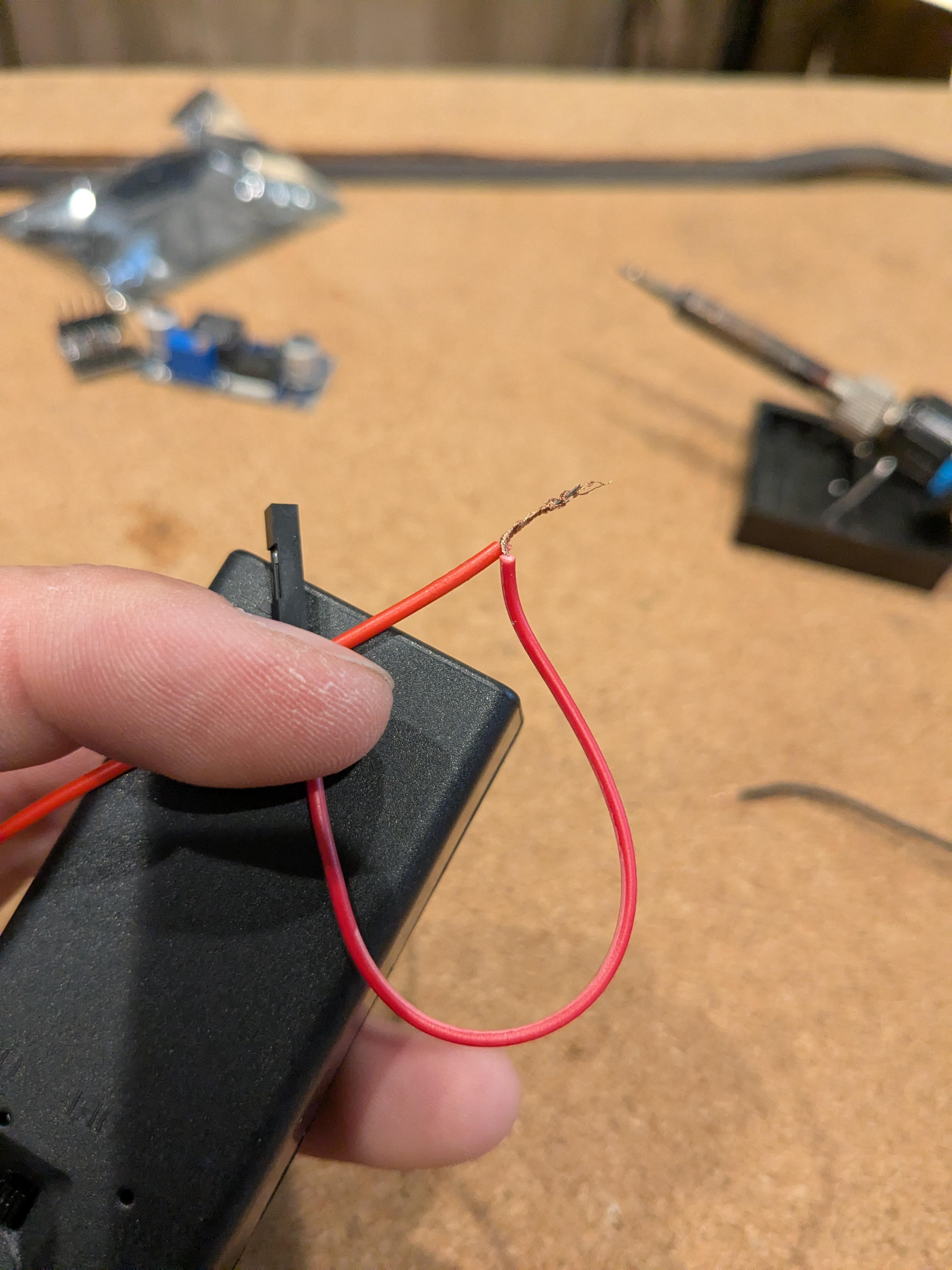
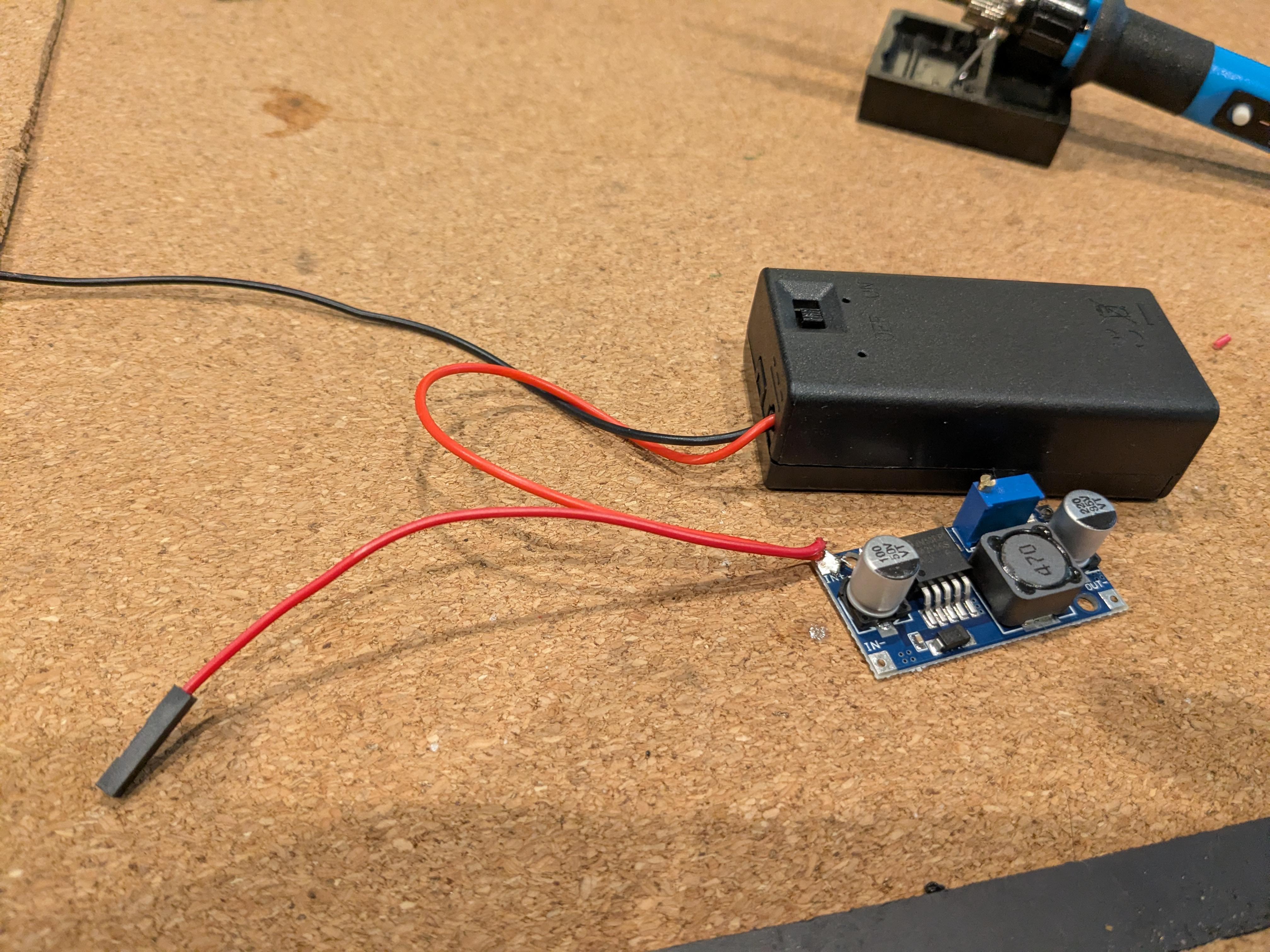
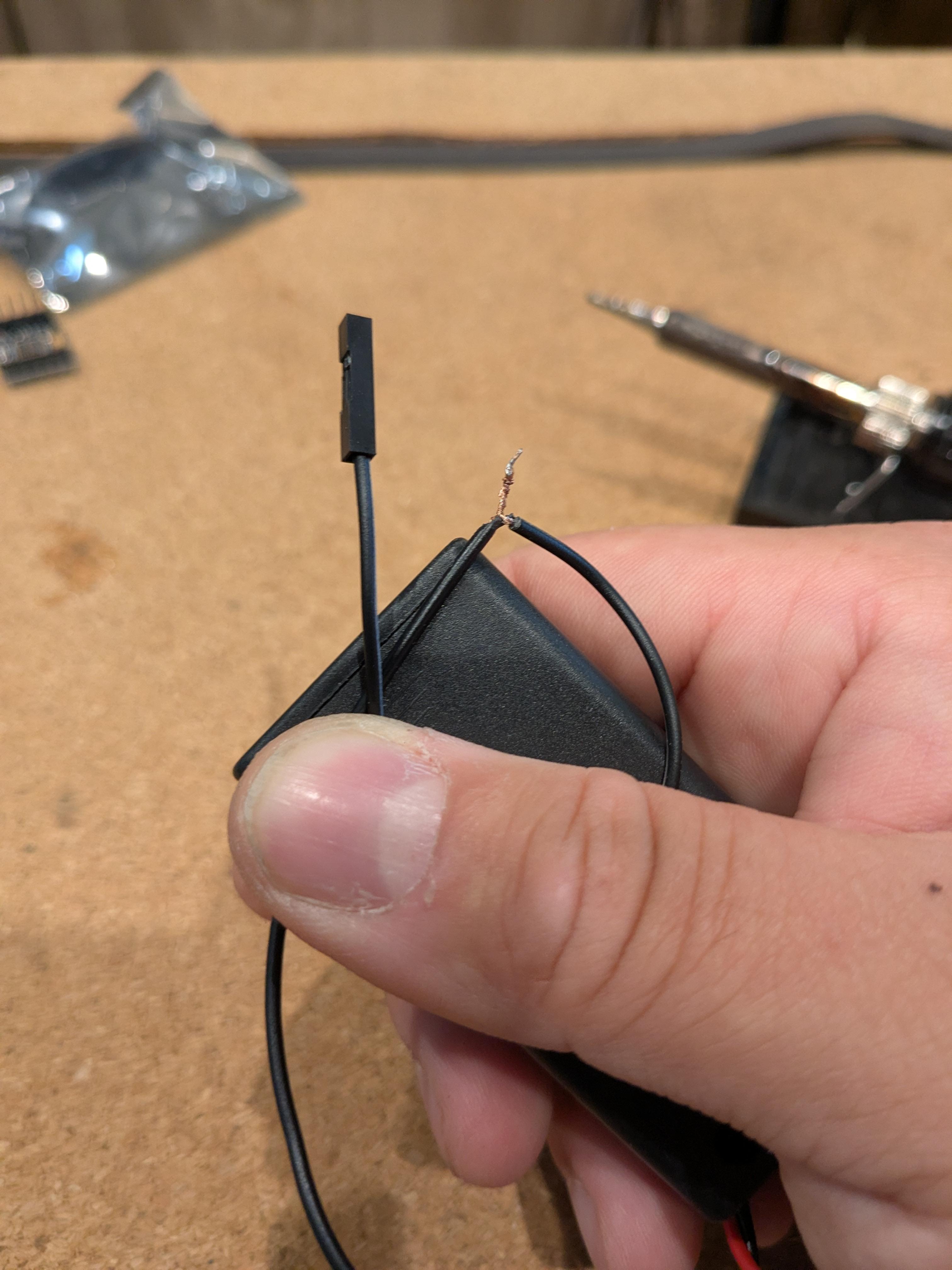

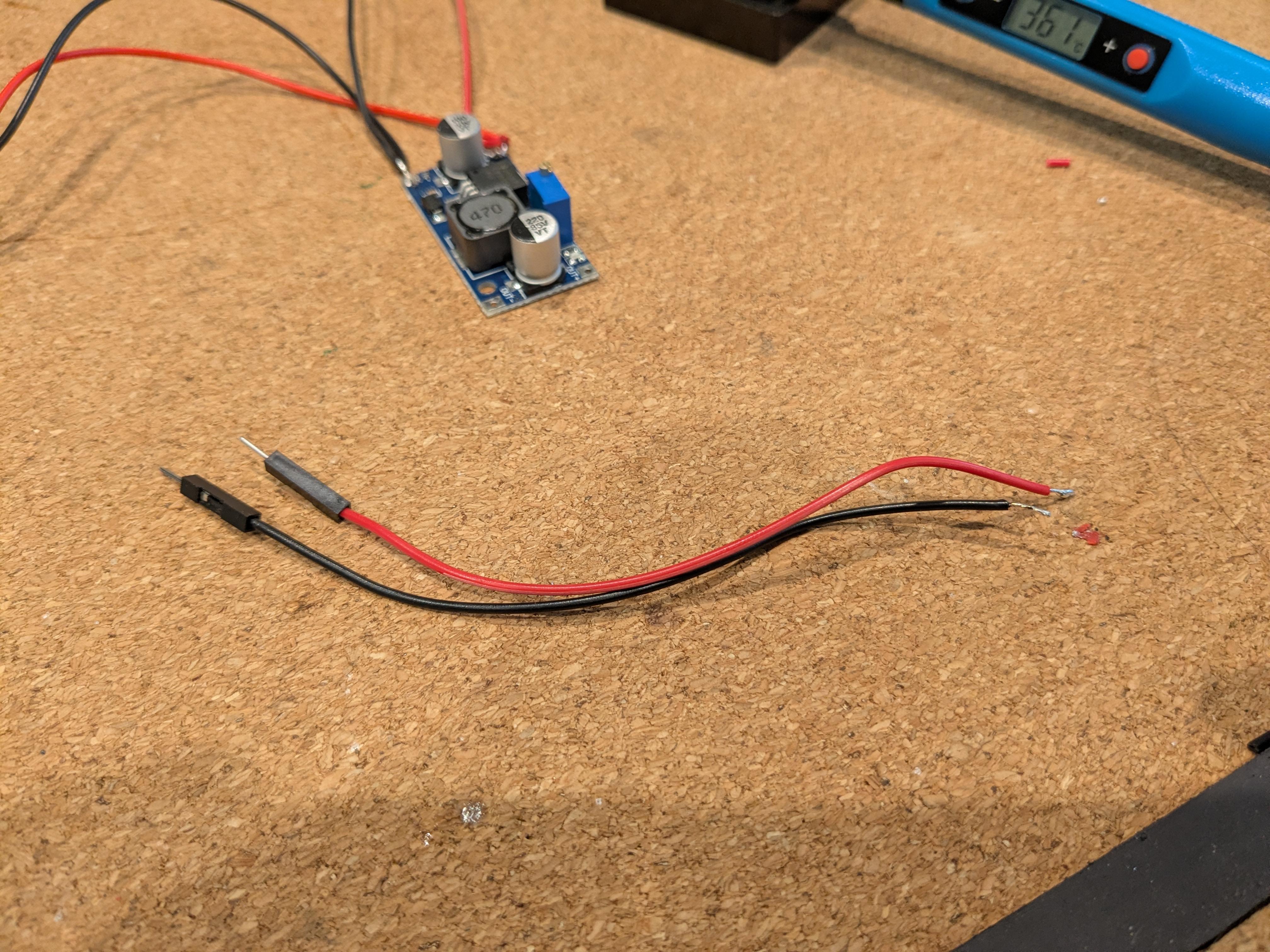
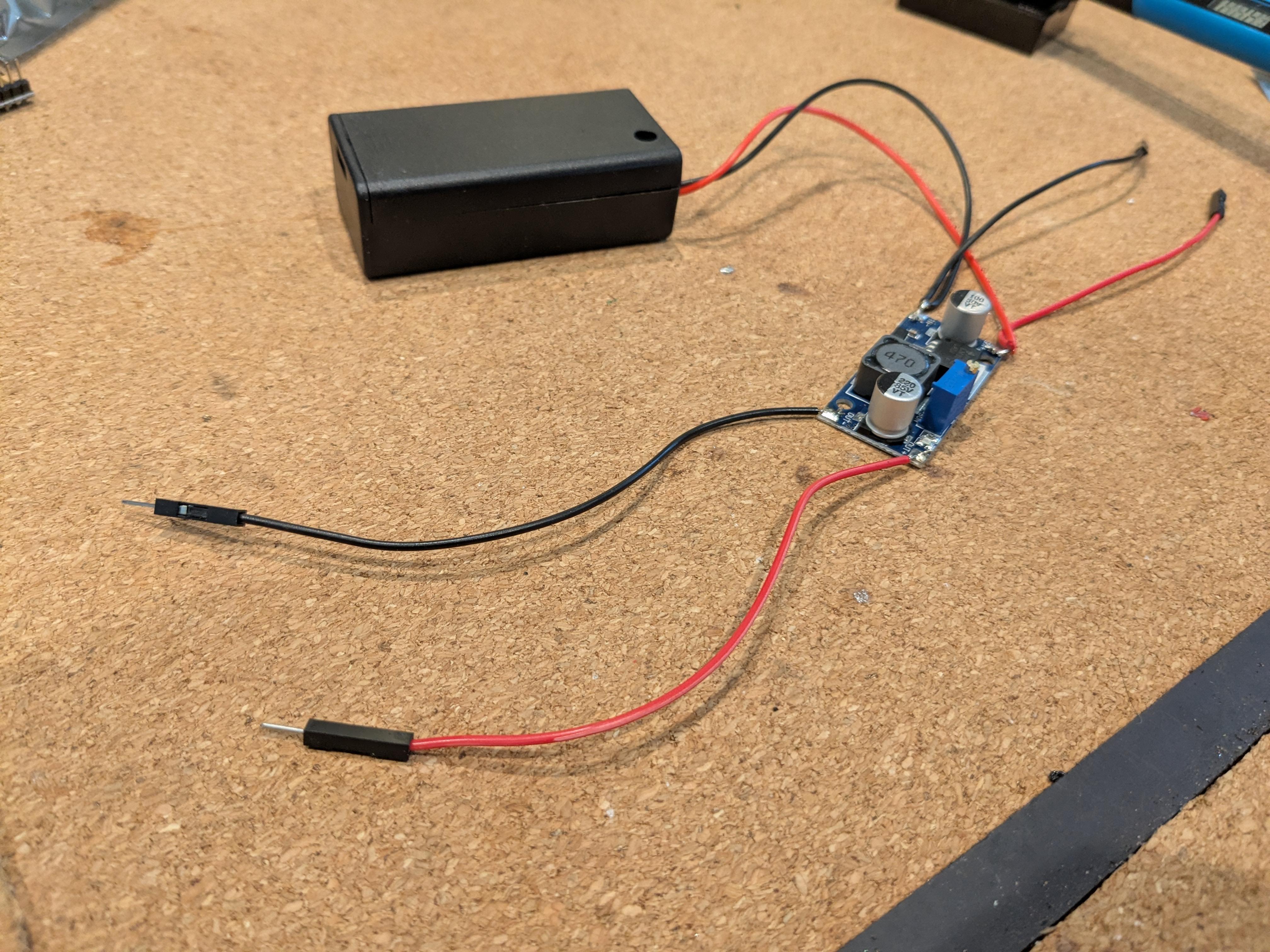

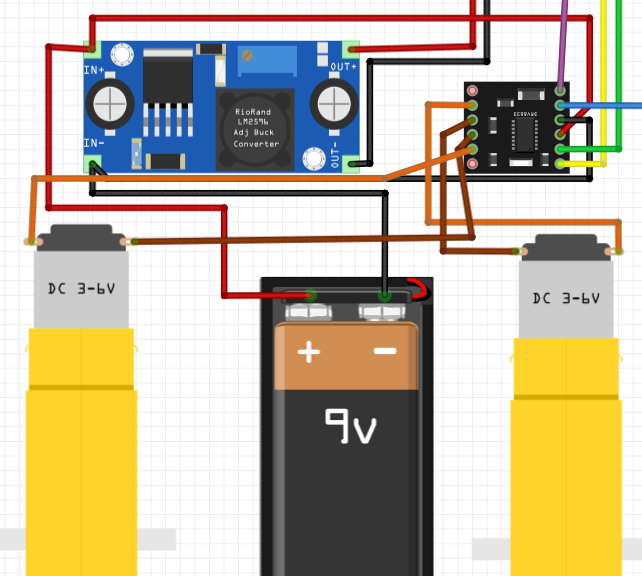
Start with the 9v Battery case, a red M to F wire, a black M to F wire, and the LM2596 DC to DC Buck Converter. Cut the M side of each wire off( the side with a metal pin) and strip each one. Take the positive lead from the 9V battery case, strip it, and twist the red wire to it. Solder the twisted side of the red wire and 9v Battery case to the IN+ pad on the LM2596 module. Next, strip the black wire of the 9v battery case and twist the strip end of the black wire to it. Solder the twisted end of the black wires to the IN- pad on the LM2596. Now take a M to F red and black wire. This time cut the M side off of each wire and strip it. Solder the stripped end of the red F wire to the OUT + pad. Solder the stripped end of the black F wire to the Out - pad. Insert the charged 9v battery and use a voltmeter to adjust the voltage down to five volts. If you haven't used a voltmeter before here's a good tutorial: link
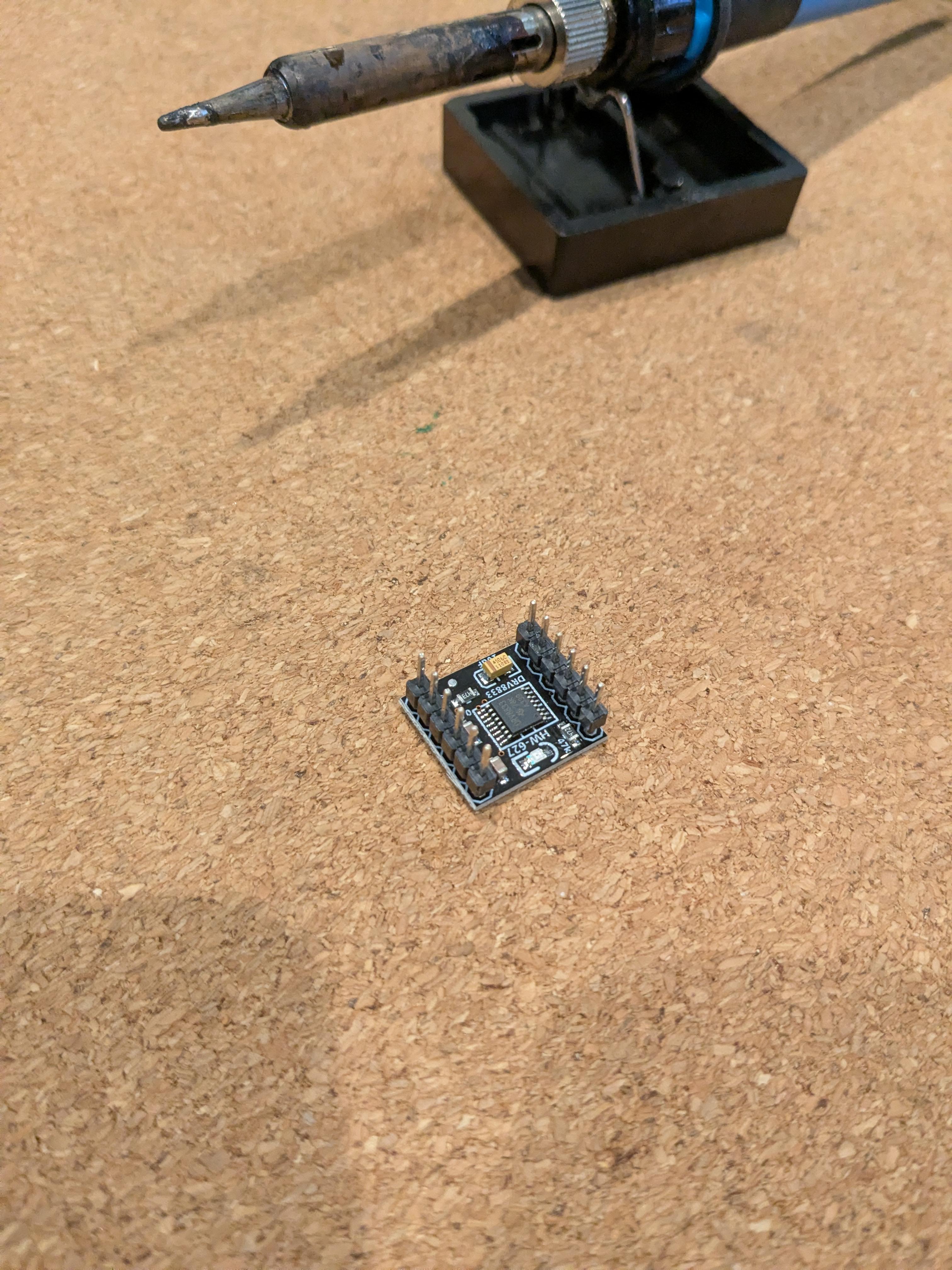
Solder the pins facing up on the DRV8833 Motor Driver.
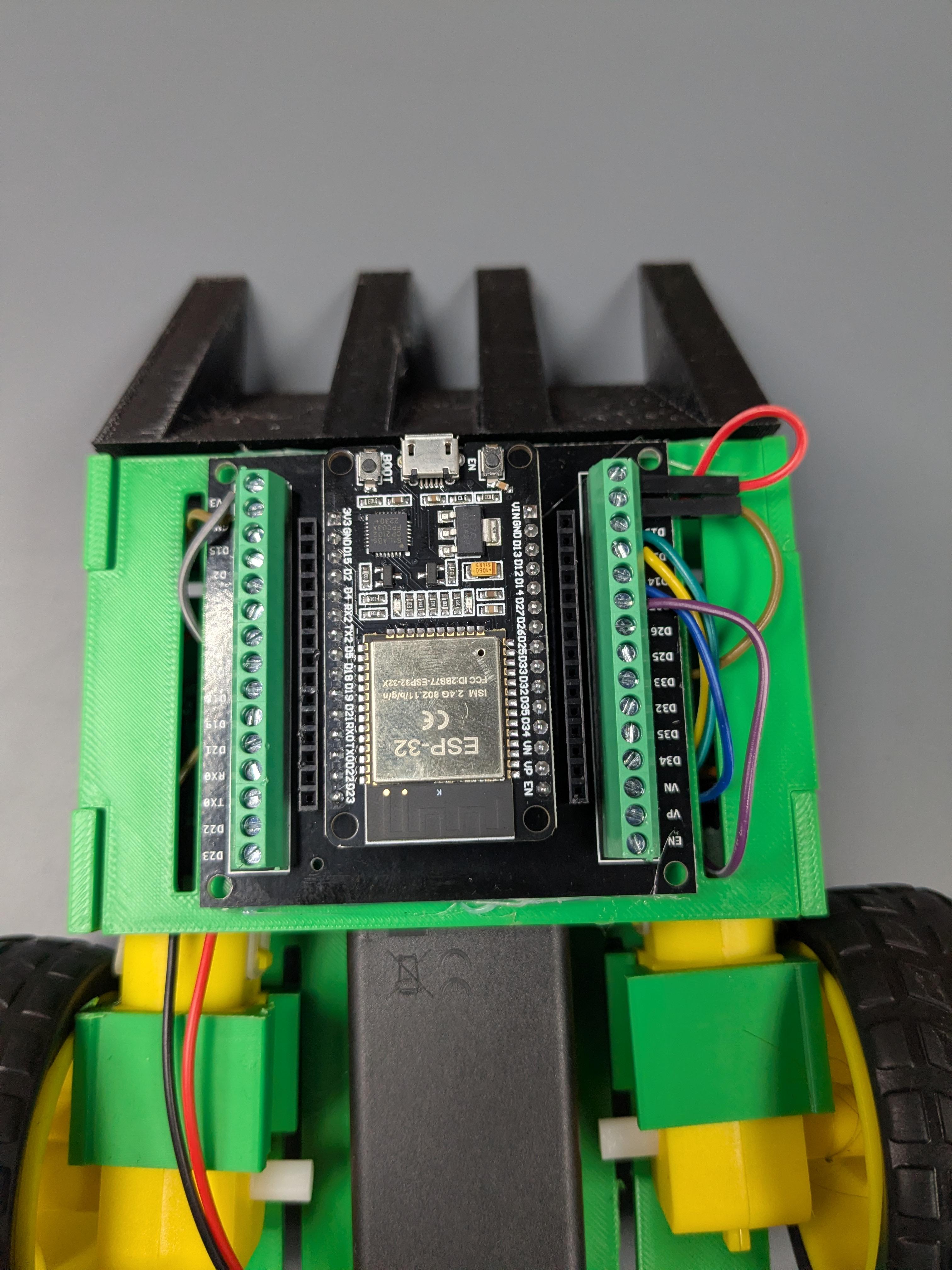
Take the ESP32 and the breakout board. Line up the 3v3 pin on the ESP32 and insert it into the breakout board pin labeled 3v3. This will align the ESP32 pins with the breakout board screw down inserts.
Take two orange and two brown M to F wire. Cut the M side off and strip each. Solder an orange and brown wire to each TT Motor.
Construct the Robot
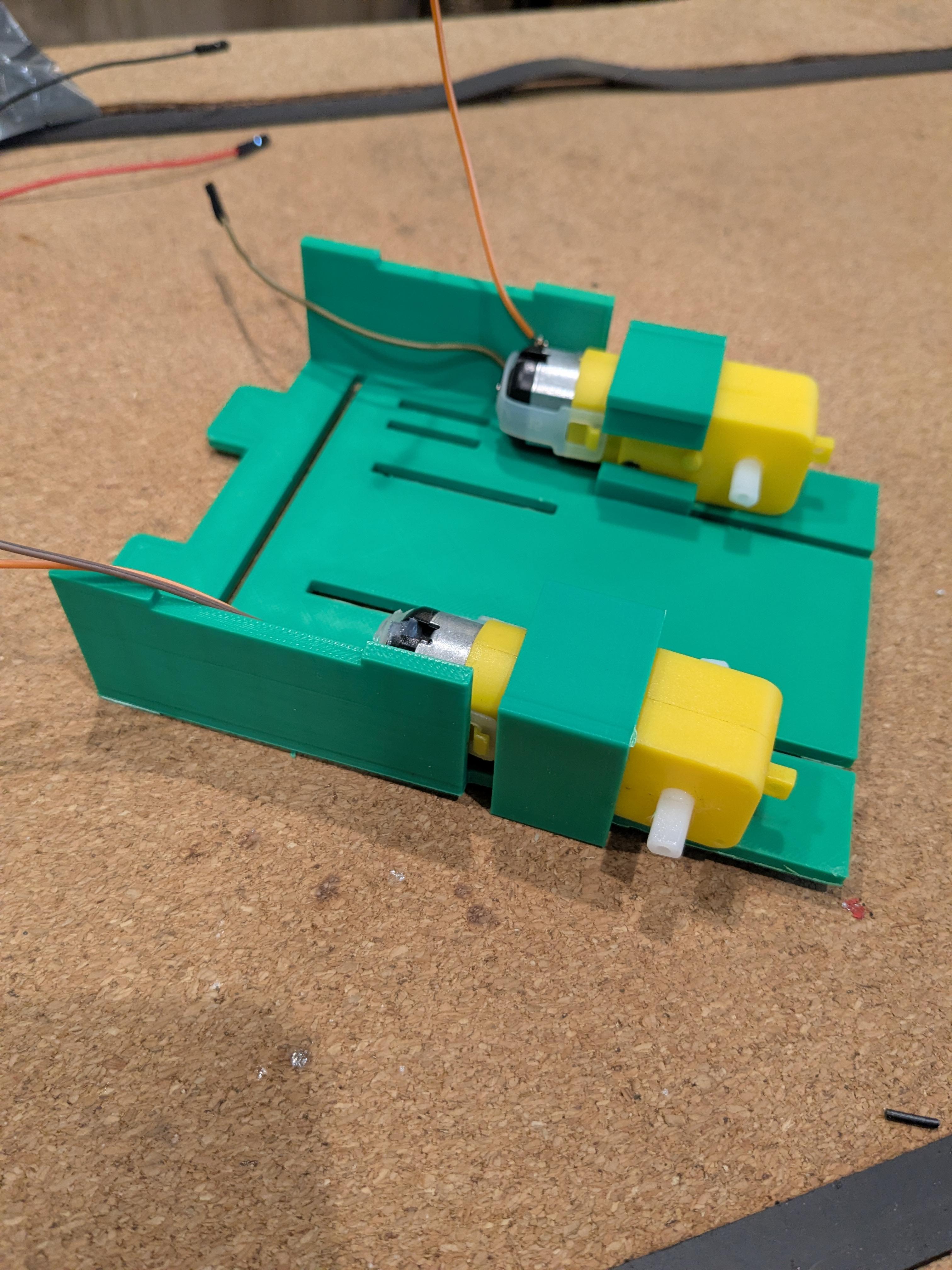
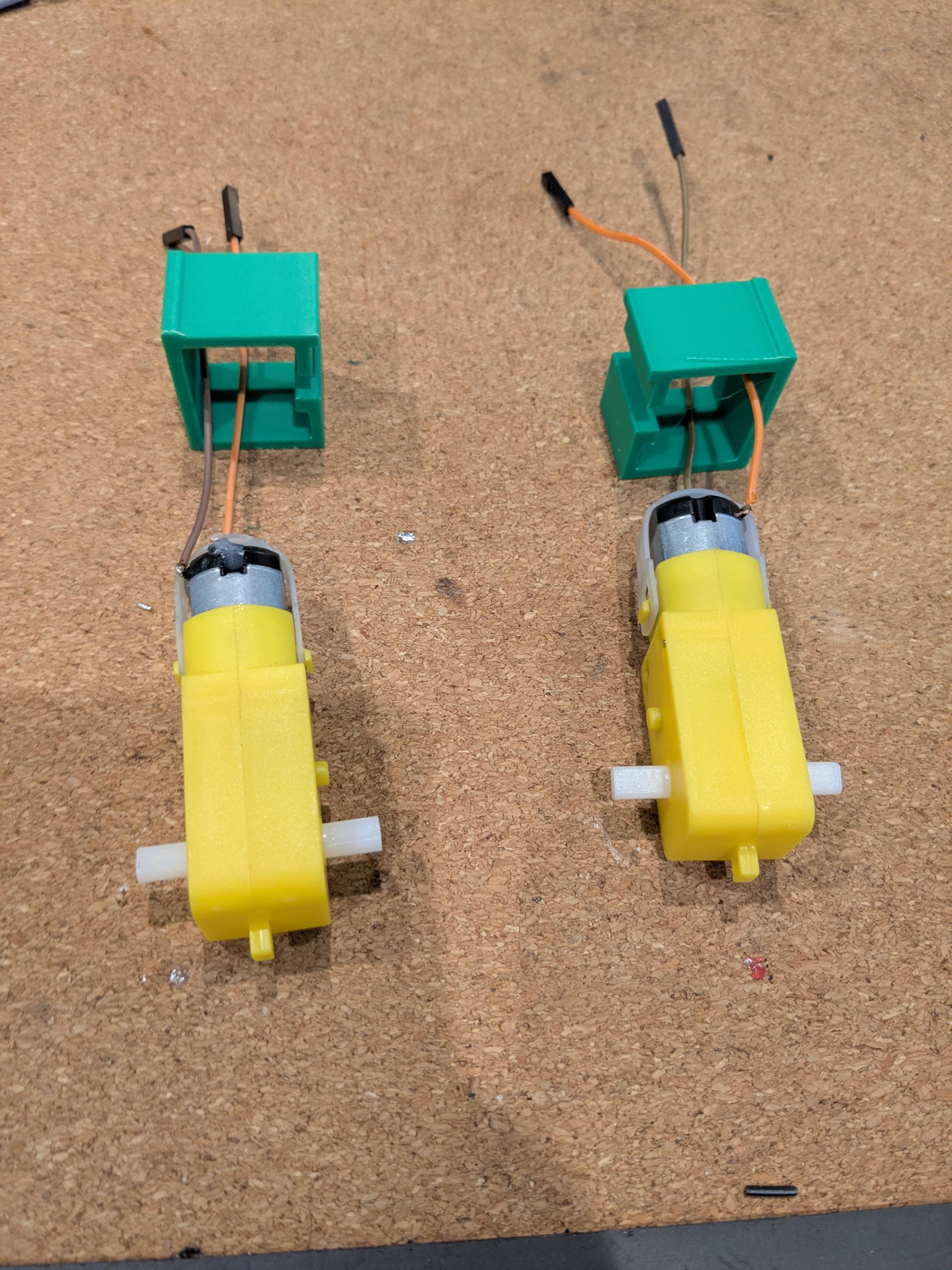
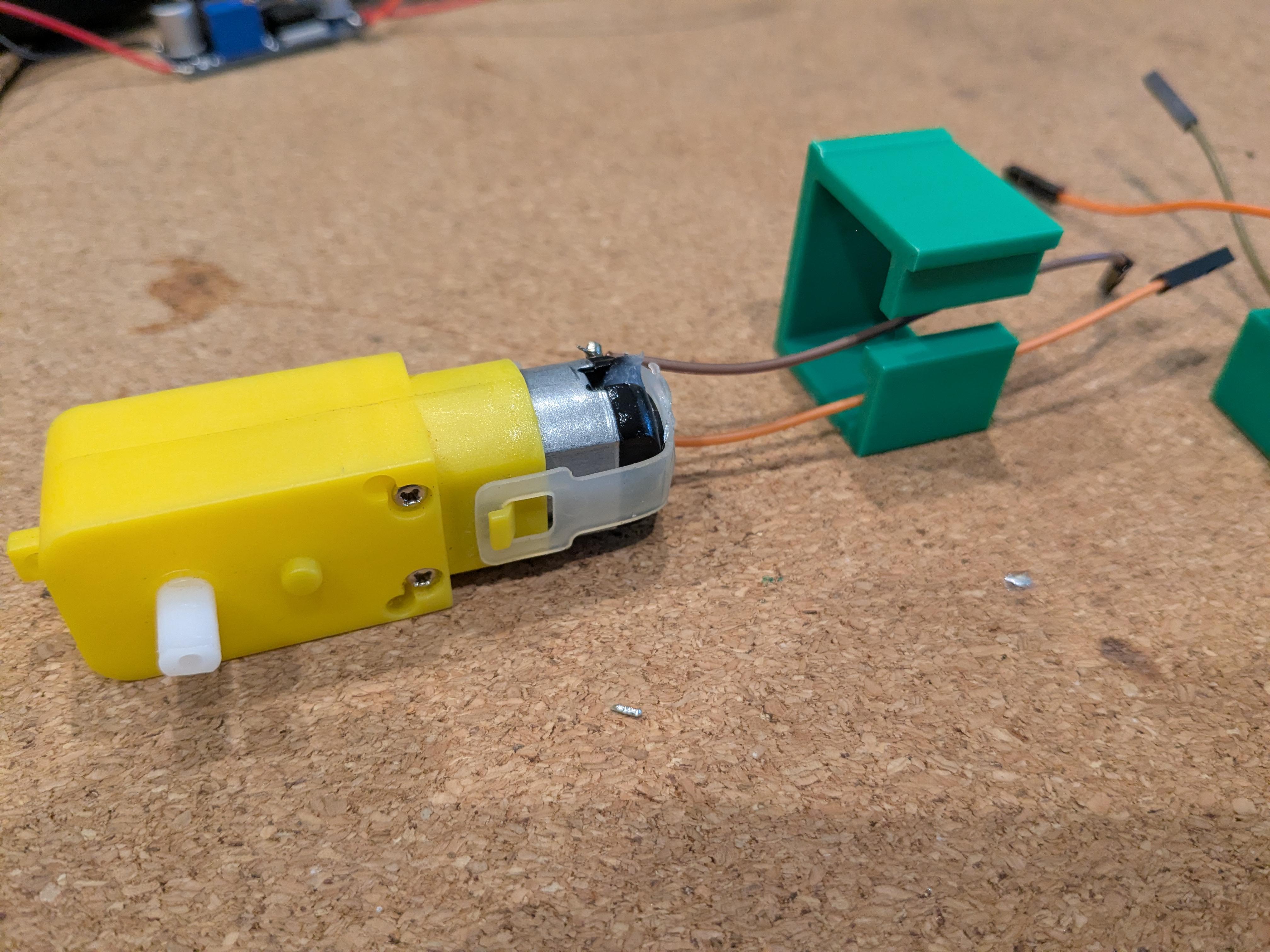
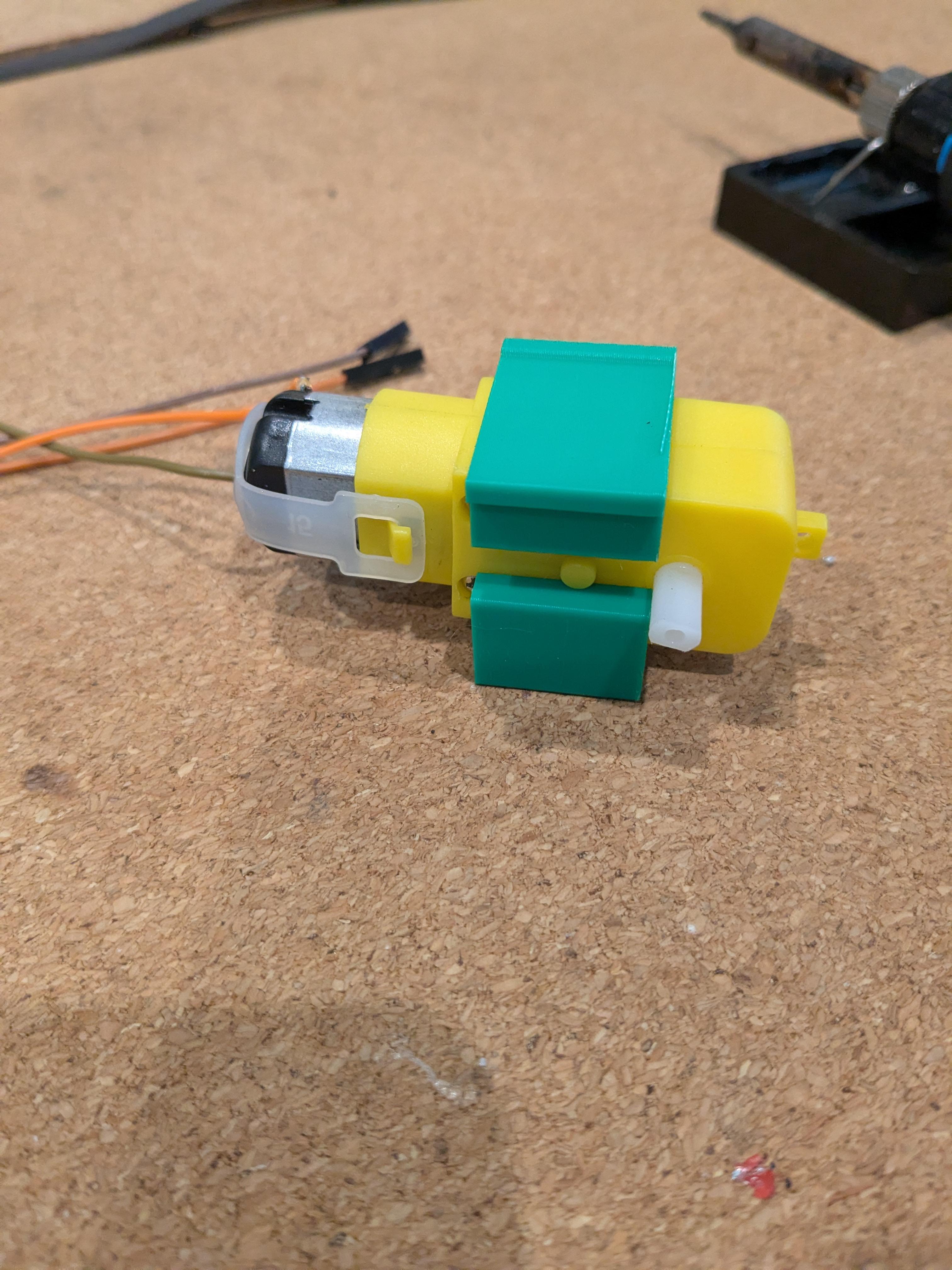
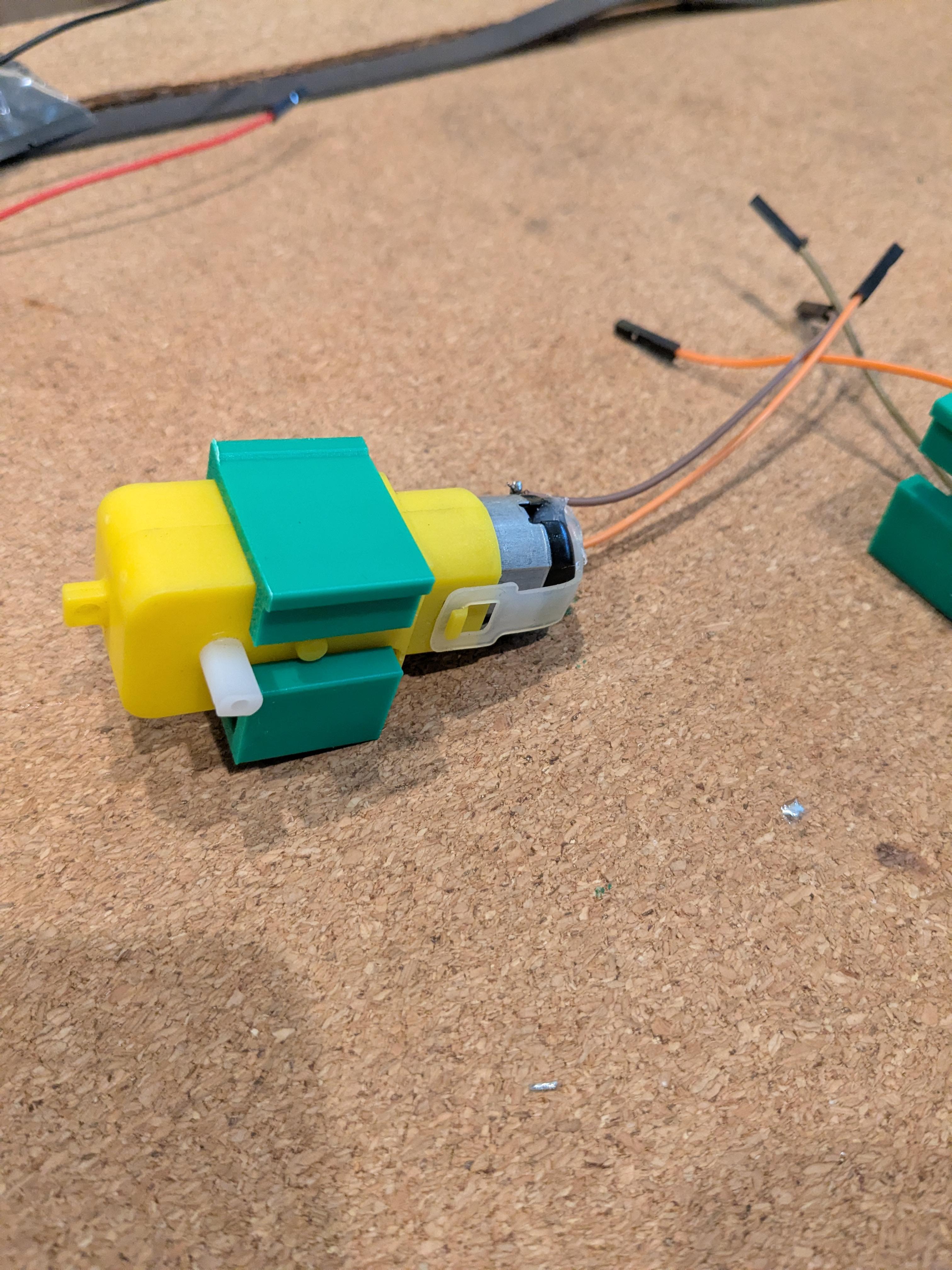


Take the two clips and slide them onto the motors. Please see picture 2 -5 for reference. Slide the motors onto the chassis as far forward as they will go.
Hot glue the 9v battery holder with the switch facing the back of the robot. See picture 6 for orientation.
Hot glue the LM2596 to the left of the robot at the front of the chassis.
Hot glue the DRV8833 to the right op the LM2596.
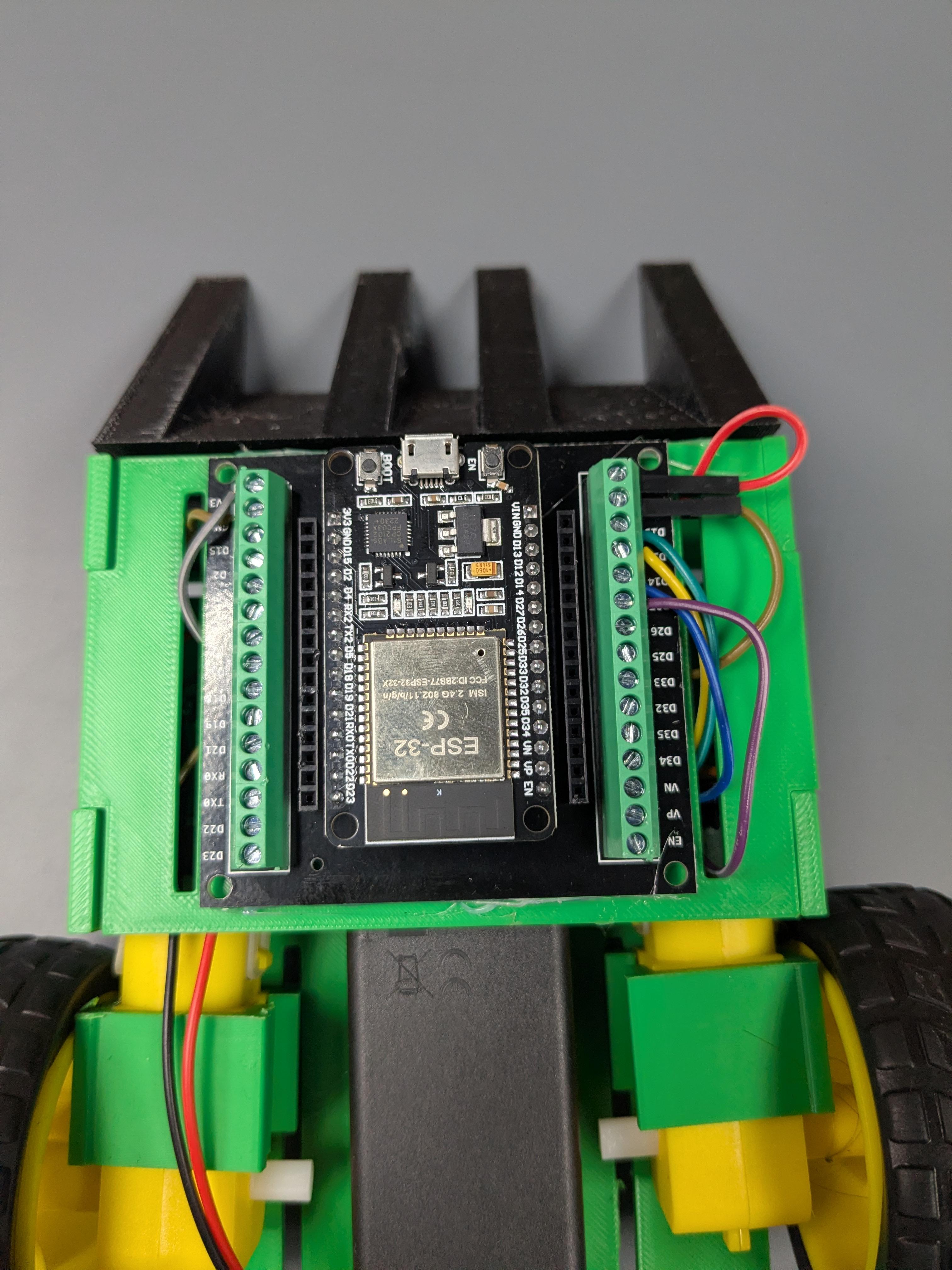
Attach the top plate to the robot chassis. Hot glue the breakout board with the ESP32 USB port facing the front of the robot.
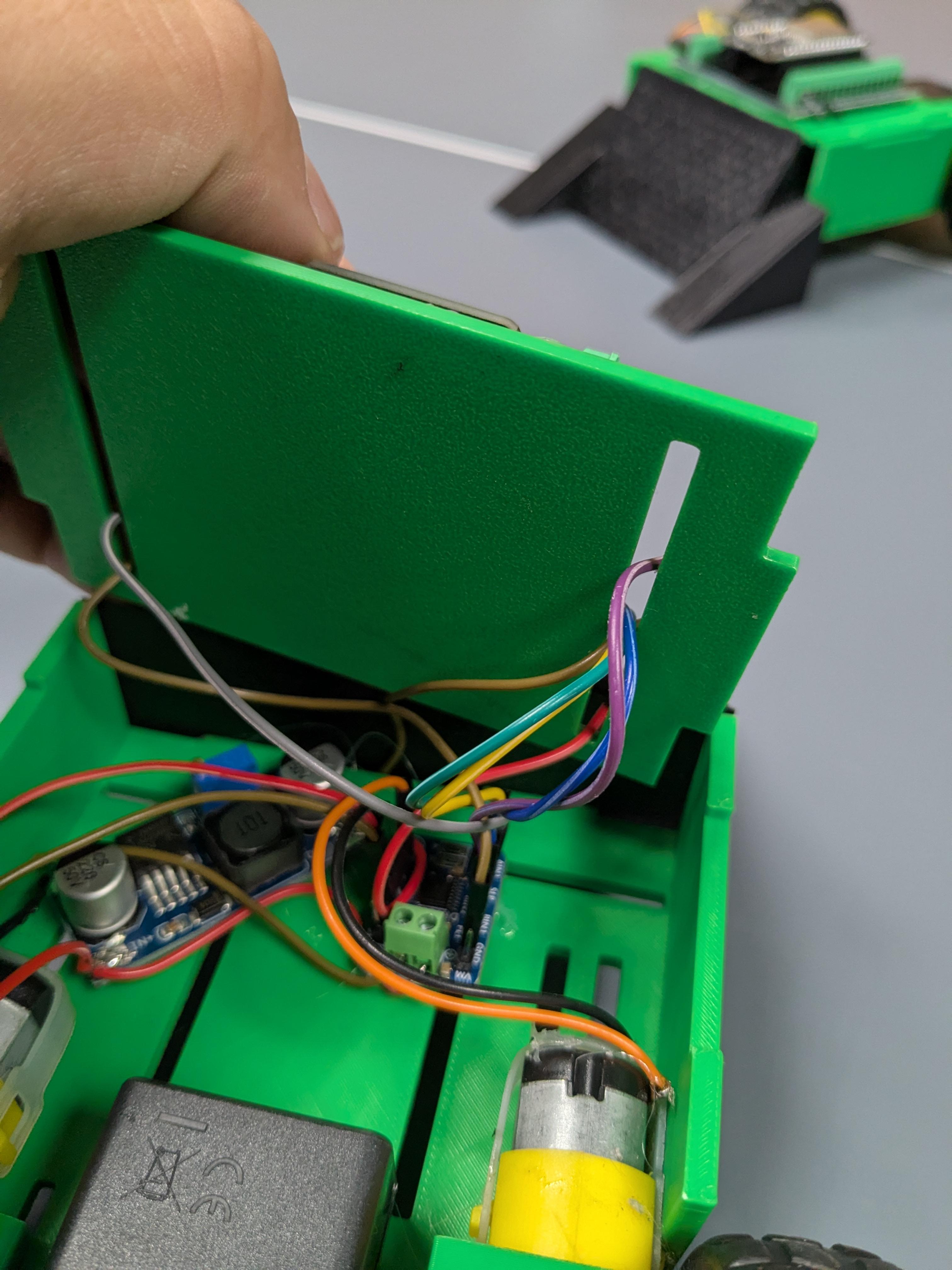
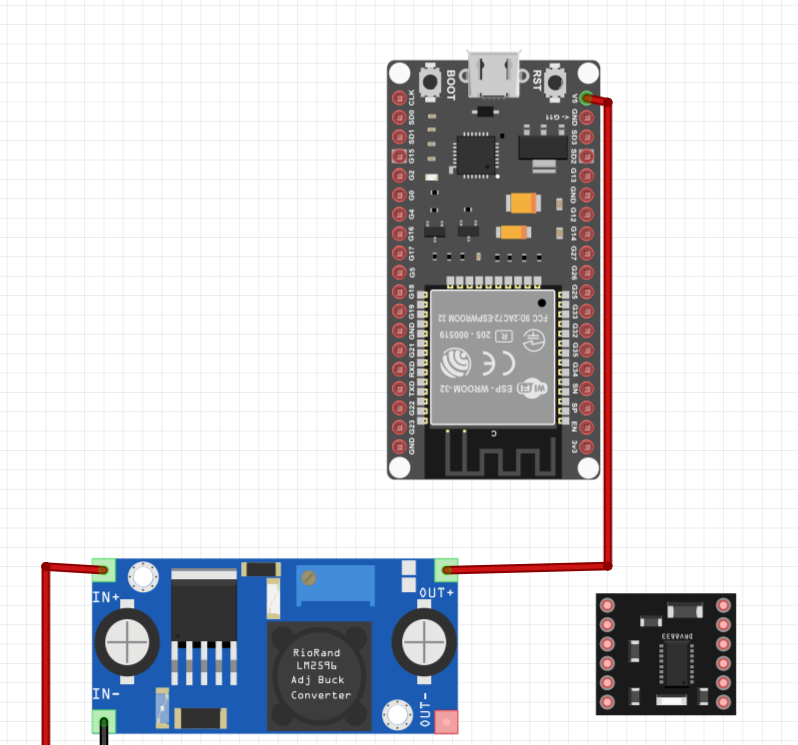
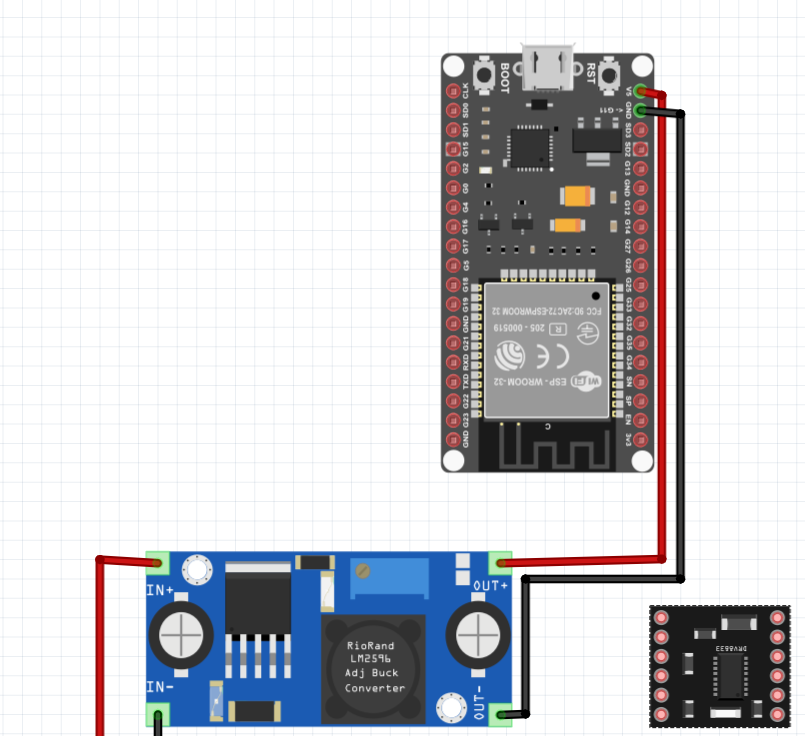
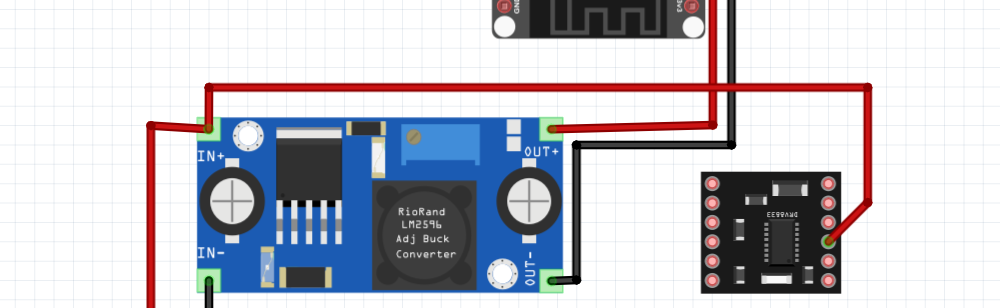
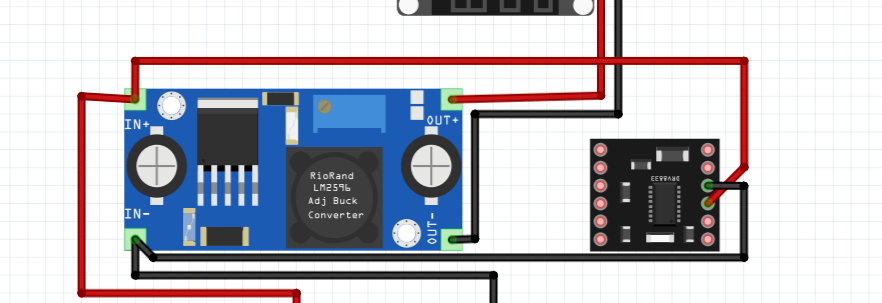
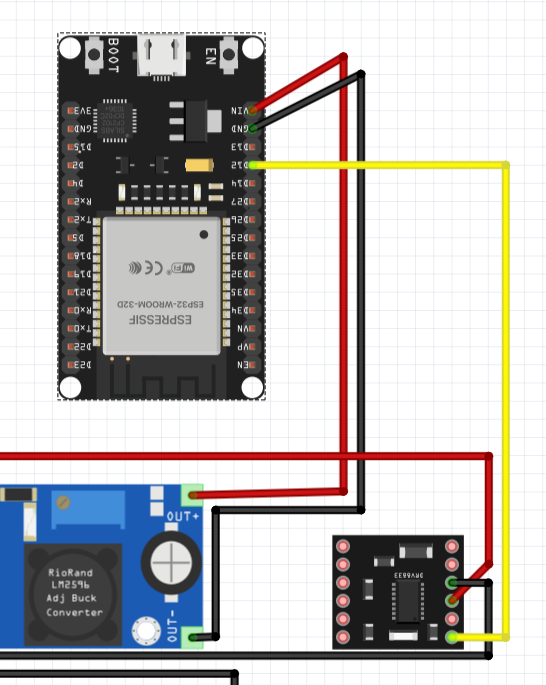
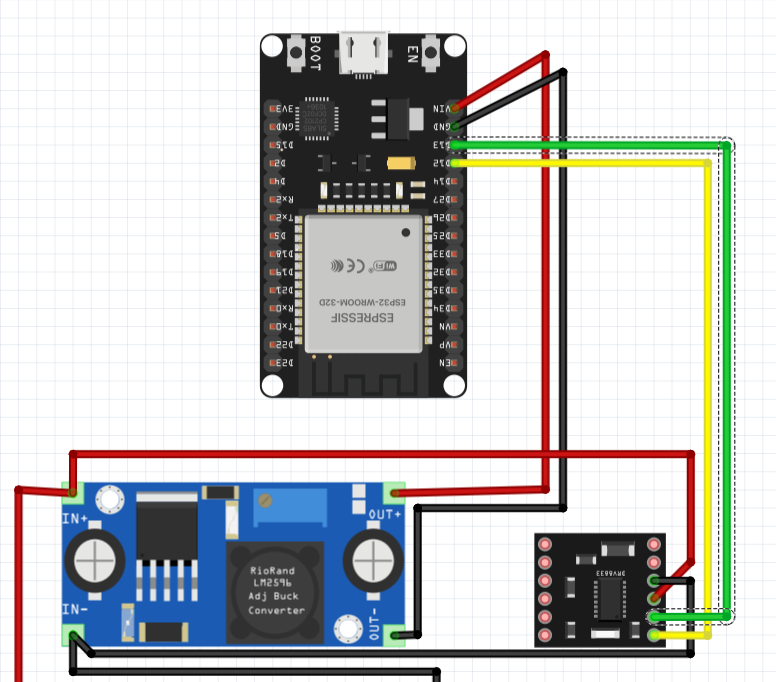
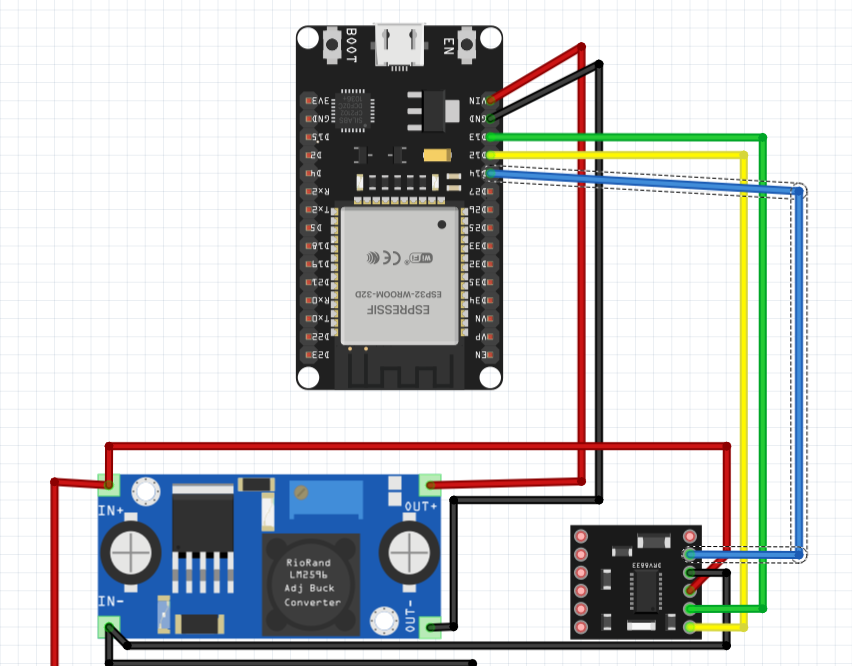
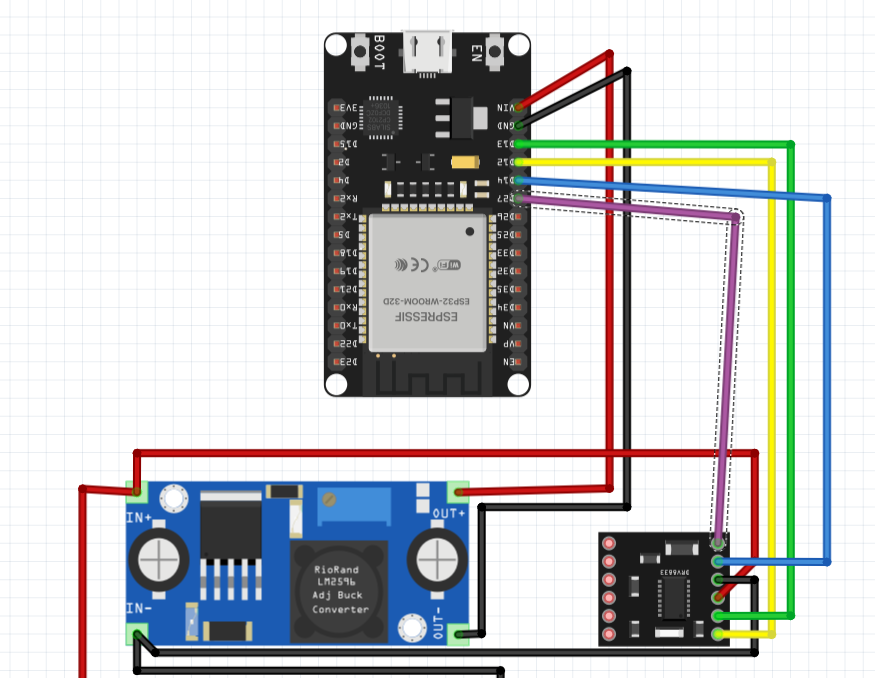
Wire the following connections using M to F wire colors shown below. I remove the top plate and attach the wires to the motor driver. I then thread the wires up through the top plate and screw them down on the breakout board. The F side is inserted over the pins on the driver and the M side are pushed into the breakout board and tightened down.
- LM2596 OUT+ to ESP32 VIN
- LM2596 OUT- to ESP32 GND
- LM2596 IN + to DRV8833 VCC
- LM2596 IN - to DRV8833 GND
- DRV8833 IN1 to ESP32 D12
- DRV8833 IN2 to ESP32 D13
- DRV8833 IN3 to ESP32 D14
- DRV8833 IN4 to ESP32 D27
- Motors to DRV8833 OUT1 OUT2 OUT3 OUT4 (See second to last photo notes). Don't worry about which motor wire goes to what IN pin on the driver. We'll correct this once we upload the code.
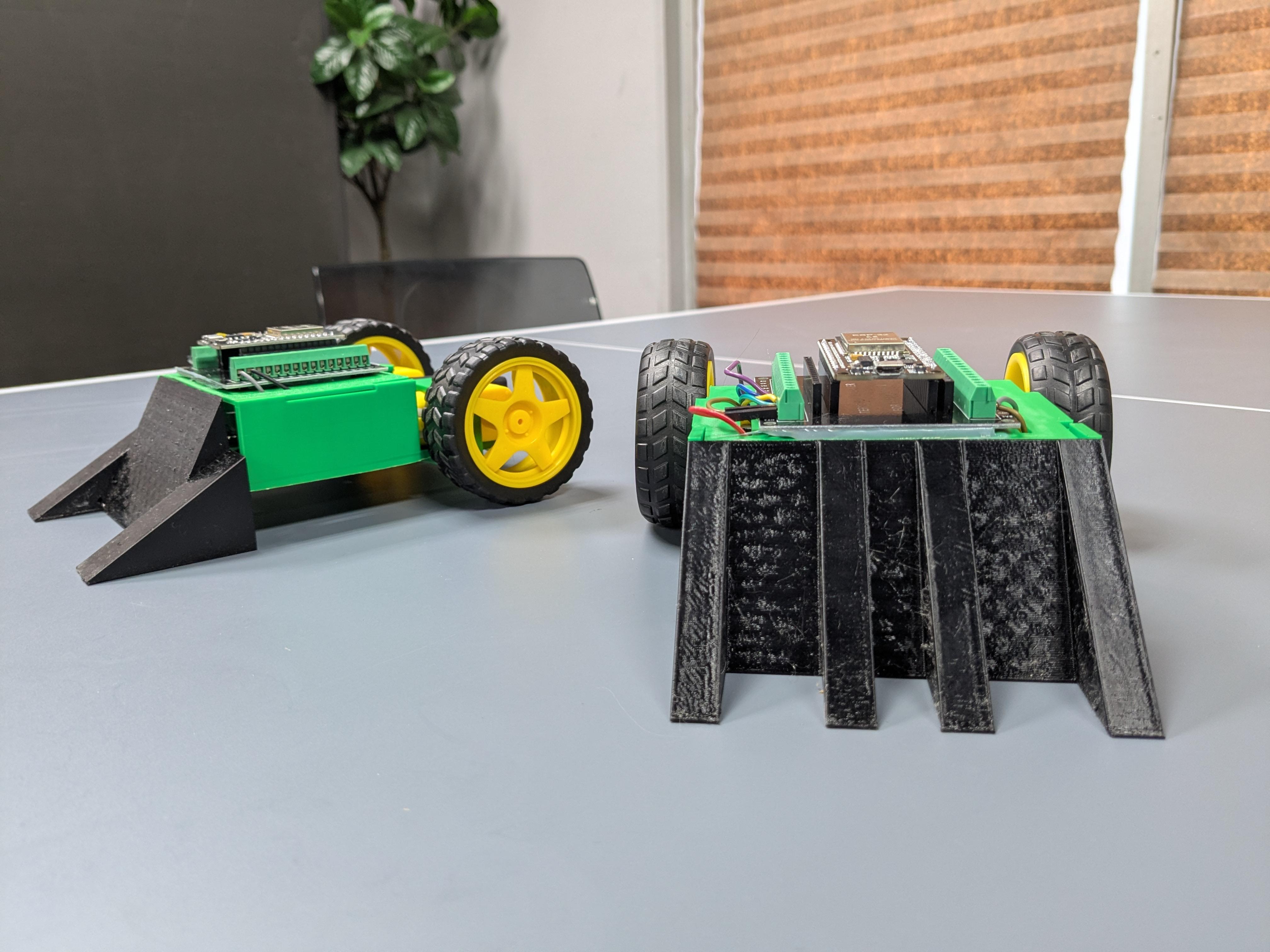
Once the wiring is complete attach the wheel and wedge.
Upload the Code and Edit
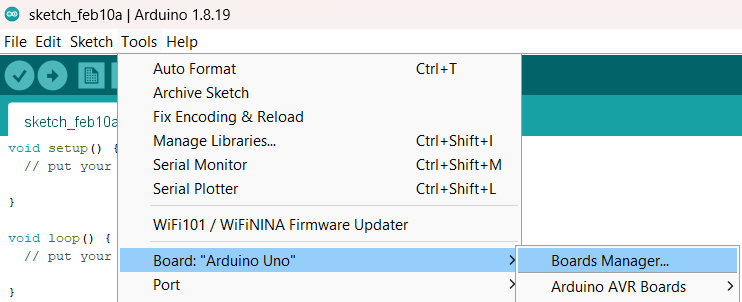
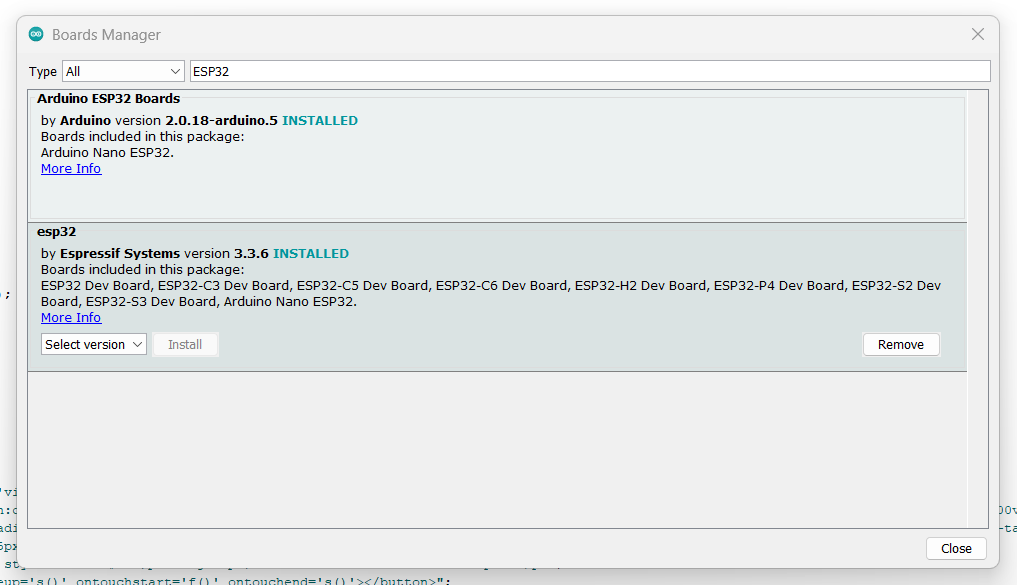

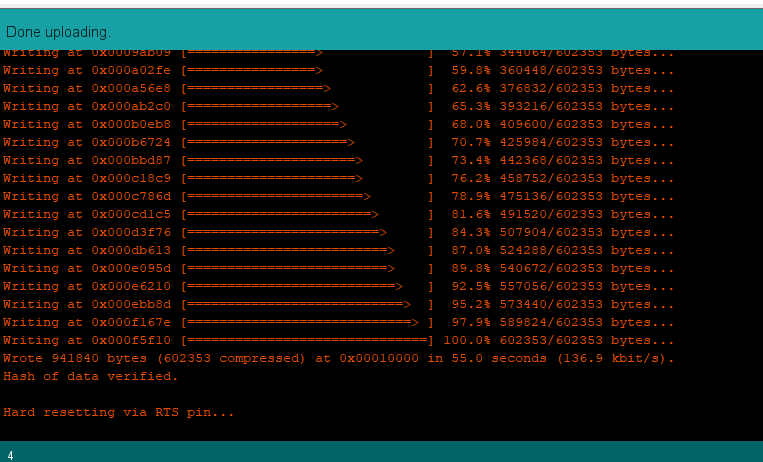
Download the code from the Supplies section in this Instructable. Install the Arduino IDE, you can find it at this link. Open you Arduino IDE and go to Tools then Boards. Under Board Manager Install ESP32 from Expressif Systems. Next go back to boards, then ESP32 select the DOIT ESP32 DEVKIT V1 from the Boards lists under tools. You may have to scroll down pretty far to find it. Connect the ESP32 to your computer through the micro USB. Open Device Manger(you can find this by typing the Windows key and using the search bar) and navigate to Ports to see where the ESP32 is connected. Select this port number under tools. Note, your port number might be different to the one shown in the picture. Click upload until you see orange text saying connected. Hold down the boot button until it loads to 100%. Remove the robot from the USB cable. Incase there is an error and you can’t upload the code. Copy the link of where you purchased the ESP32 into Google Gemini or Chat GPT and ask, "what board should I use?". You can see from the list there are a lot of different ones.
If you want to change the speed you can set the variable to any whole number between 0 - 255 (0 completely off and 255 full speed).
You can change the appearance of the app by changing the values of the HTML attributes of color or background. Here's a site where you can find HTML color codes: link. For example:
html += "<style>body{font-family:sans-serif;text-align:center;background:#121212;color:white;display:flex;flex-direction:column;align-items:center;justify-content:center;height:100vh;margin:0;overflow:hidden;}";
Change the input to desired color after color:
Important!
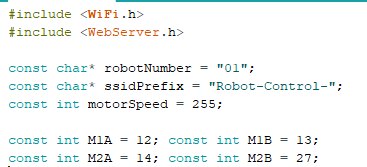
If you are building multiple robots please give them each a unique id number. To do this change the 01 of const char* robotNumber = "01"; to a different whole number. This changes the Wi-Fi name so you know which robot to connect too.
Battle
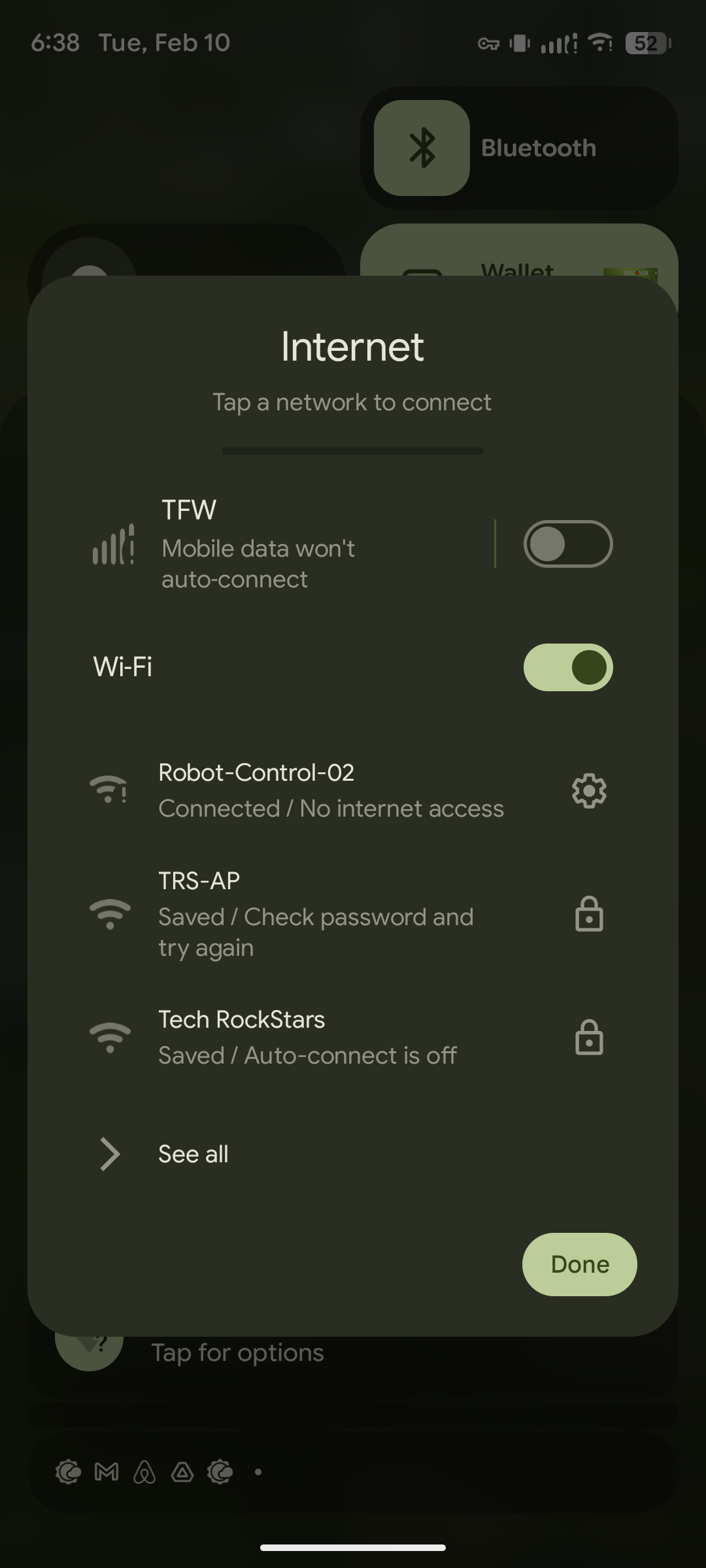
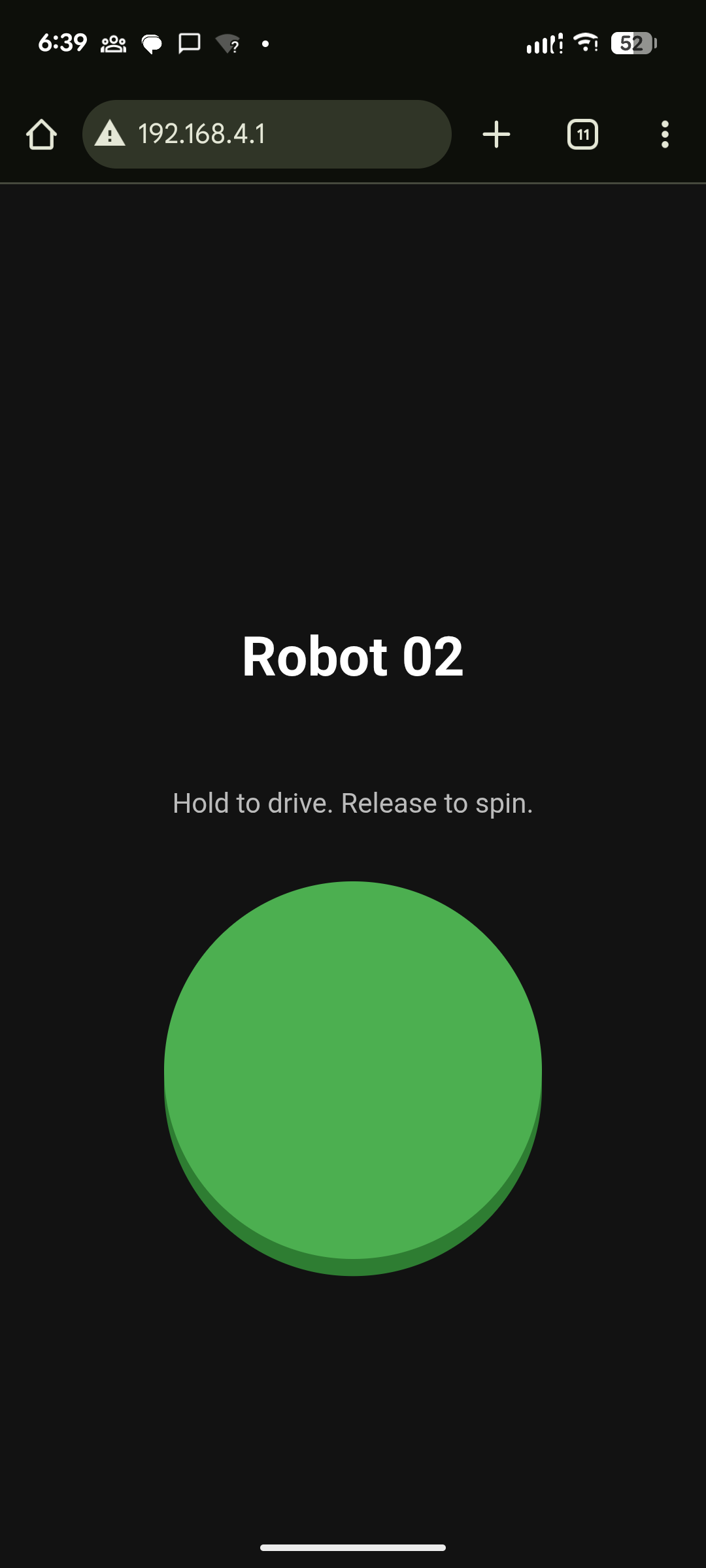

When you are ready to battle power on the robot and open your the Wi-Fi settings on the device you wish to use as the controller. Connect to that robots Wi-Fi SSID, the name of the Wi-Fi. For example in the second picture its Robot-Control-02. Open the browser and type 192.168.4.1 to open the web app. Place the robot on the floor then tap the button once to start the spinning motion. Hold the button down and the robot will charge forwards. You can setup the an arena on any hard surface using any items around you as boundary markers. Once both wheels of a robot is pushed passed the boundary it’s considered defeated. In the video we used the camera frame to decide where the boundaries were. The robot with the green wedge won by pushing the other bot out of frame. Have fun and experiment with different ways to make an arena.
Note: if your robot doesn't spin right or charges in the wrong direction swap the motor connections on the DRV8833.
For example if the robot is driving straight when it should be spinning power it off. Swap the right motor two wires, Wire 1 connected to A1 move it to A2 and take the wire that was in A2 move it to A1. This will reverse the motor and correct it's driving direction.
Teacher Guide to the Robotics Program
The following are two scaffolding for STEM programing:
3 Week Crash & Go Robot class
Age Range: 8 - 12, 13 - 17, and Young Adult/ Adults
Time frame: once a week for 2 hours, for example every Saturday from 9 - 11am.
Space required: A room 8' or greater with a hard surface that's at least 4'x4'.
Number of Participant: 8 - 10
Setting: Classroom, Community Center, Library, Home-School Group, etc.
Topics Covered:
- Arduino C++
- HTML, CSS, and JavaScript
- Wi-Fi and Webservers
- 3D Printing and Tinkercad
Week 1:
- 10 minutes: Arrival and ice breaker: What do you think of when you hear the word robot?
- 45 minutes: Building a crash and go robot. We pre-solder the component to save time and make sure it's approachable for most age groups. If you want to teach soldering I would suggest doing just the power system with the 9v Battery and LM2596 Buck Converter. The LM2586 has large and clearly labeled soldering pads.
- 5 minutes: Break
- 30 minutes: Learning the Arduino IDE and uploading the code. Arduino IDE can take up to 15 minutes to compile ESP32 code.
- 20 minutes: Learning how to drive, test battle, and brainstorming how the bots can be improved.
- 5 minutes: Homeward bound.
Week 2:
- 10 minutes: Arrival and icebreaker: What kind of robot would you want to build after this class?
- 45 minutes: Learning Tinkercad and designing a custom wedge with template. Template can be found here: link.
- 5 minutes: Break
- 10 minutes: 3D printer demo, student's designs will need to be printed outside the class time due to them taking and hour each.
- 45 minutes: Adjusting the PWM speed by creating a variable for charging forward and spin left or right.
- 5 minutes: Homeward bound.
Week 3:
- 10 minutes: Arrival and icebreaker: So what is this thing we call Wi-Fi?
- 45 minutes: Adjusting the web apps HTML and CSS to customize each students app. Discussing how JavaScript Affects the button for smooth driving.
- 5 minutes: Break.
- 45 minutes: Robot wrestling tournament. Points based:
- 3 points for pushing and opposing robot out of the arena.
- 1 point for both players if 2 minutes have passed and no robot is pushed outside the arena. The battle ends in a draw.
- The player with most points after 45 minutes wins
- 5 minutes Students take their robots home and additional resources are given out.
See Step 7 for 3 Week Class resources.
Demo days
Age Range: All ages
Time frame: 4 - 6 hours
Space required: A place for an 8' table and a hard surface that is at least 4'x4'.
Number of Participant: 2 -4 at the table
Setting: Tradeshows, Maker Fairs, Library Conferences, etc.
During demos visitors can try out the robots out and learn about the project(s) and/or what your organization is offering for STEM. Each robot can drive for about 20minutes so having extra batteries is a must.