Smart Stick Project (powered by an Arduino) - Vunsh
by 811322 in Circuits > Arduino
31 Views, 0 Favorites, 0 Comments
Smart Stick Project (powered by an Arduino) - Vunsh
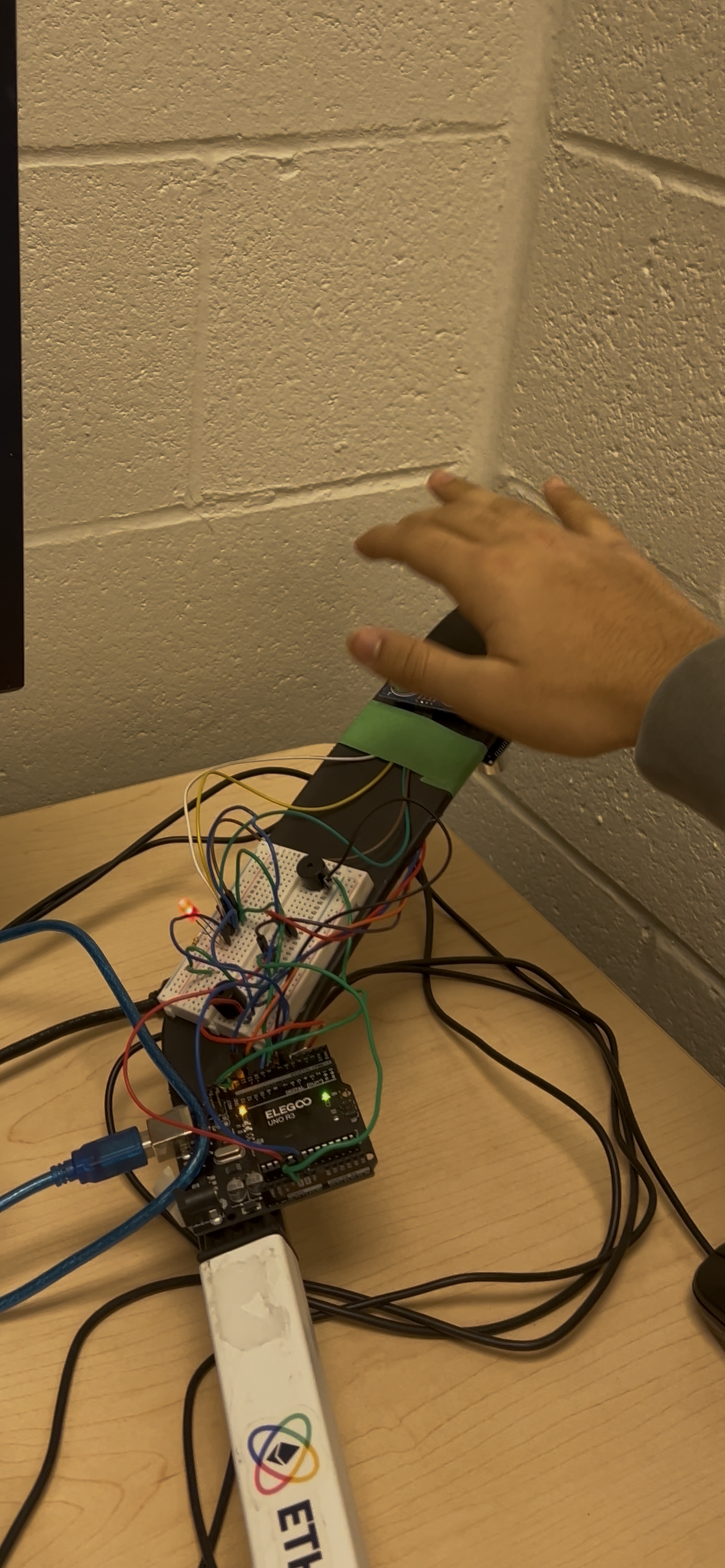
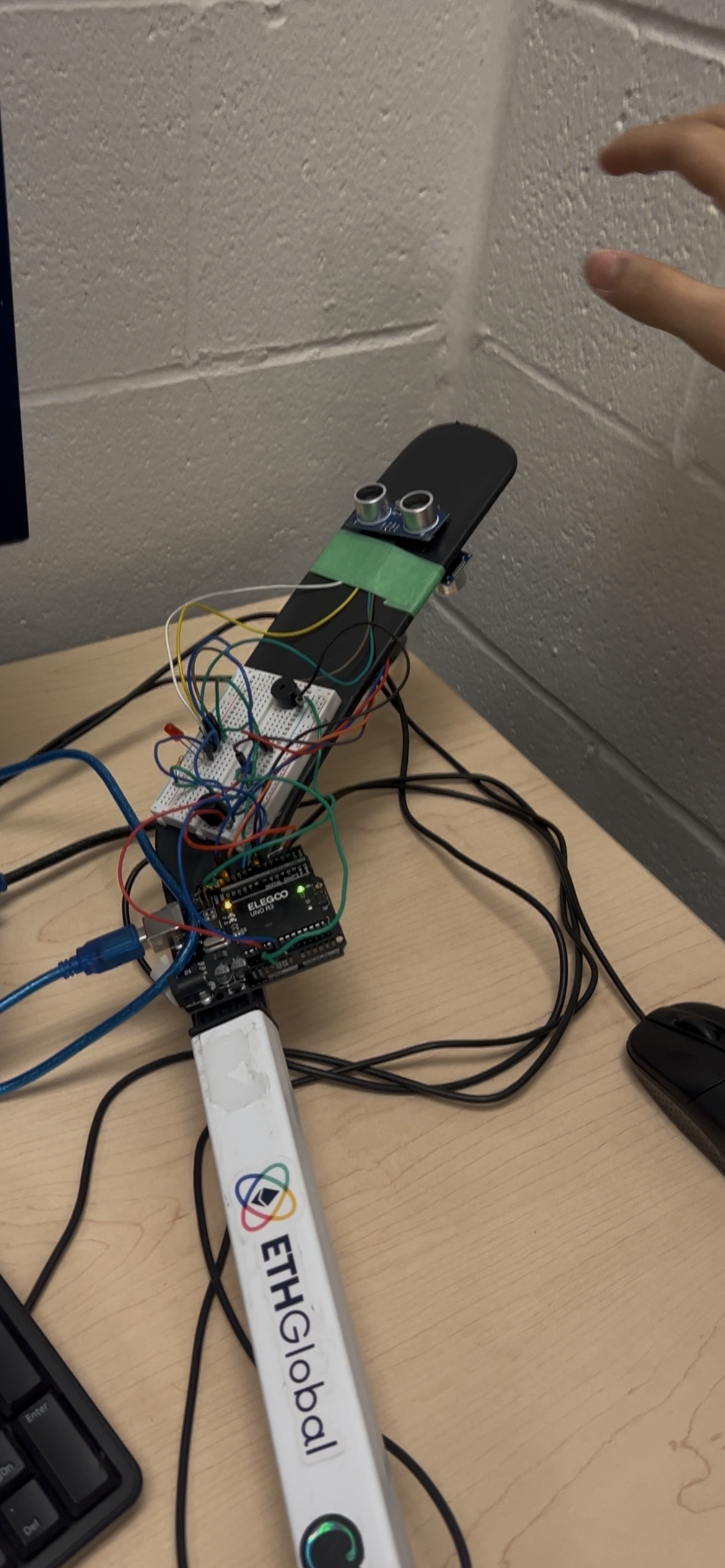
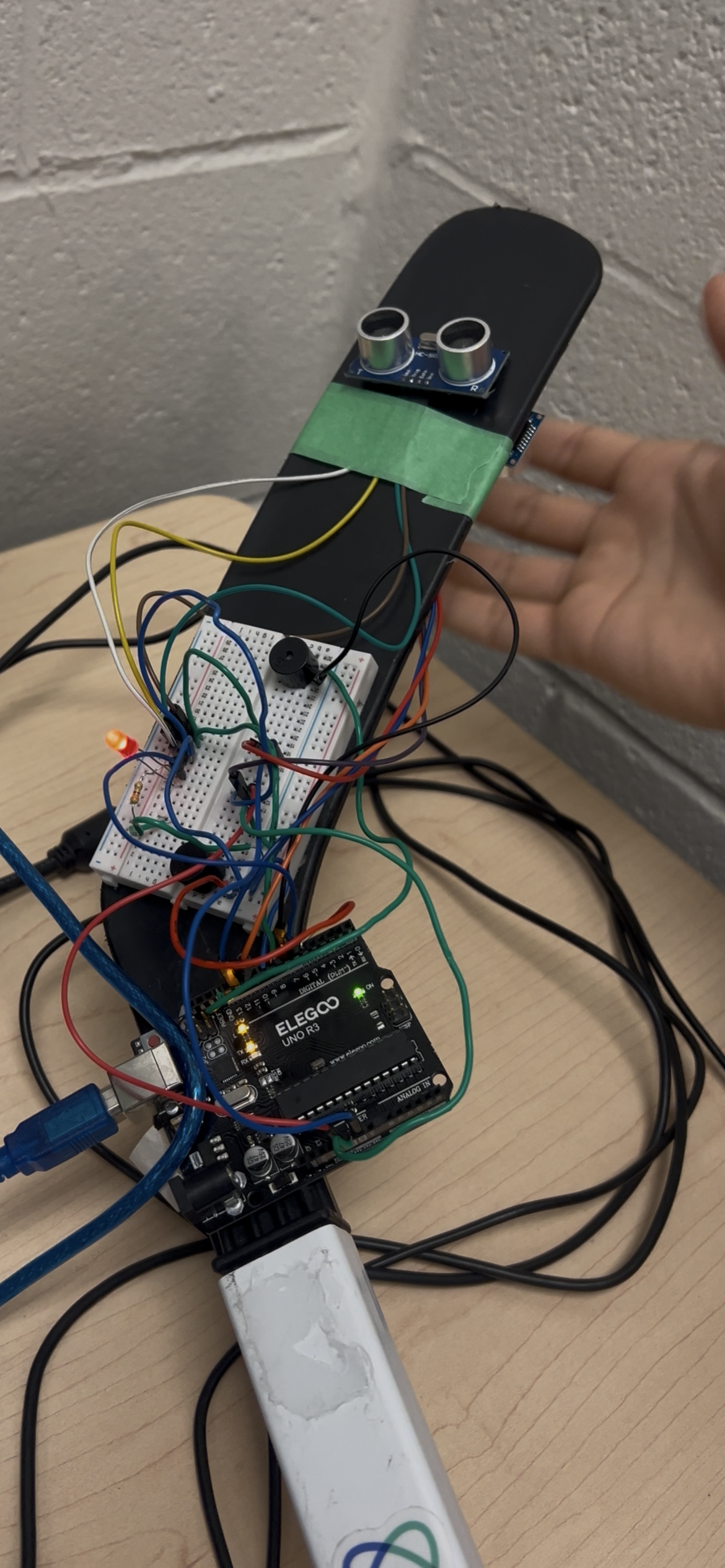
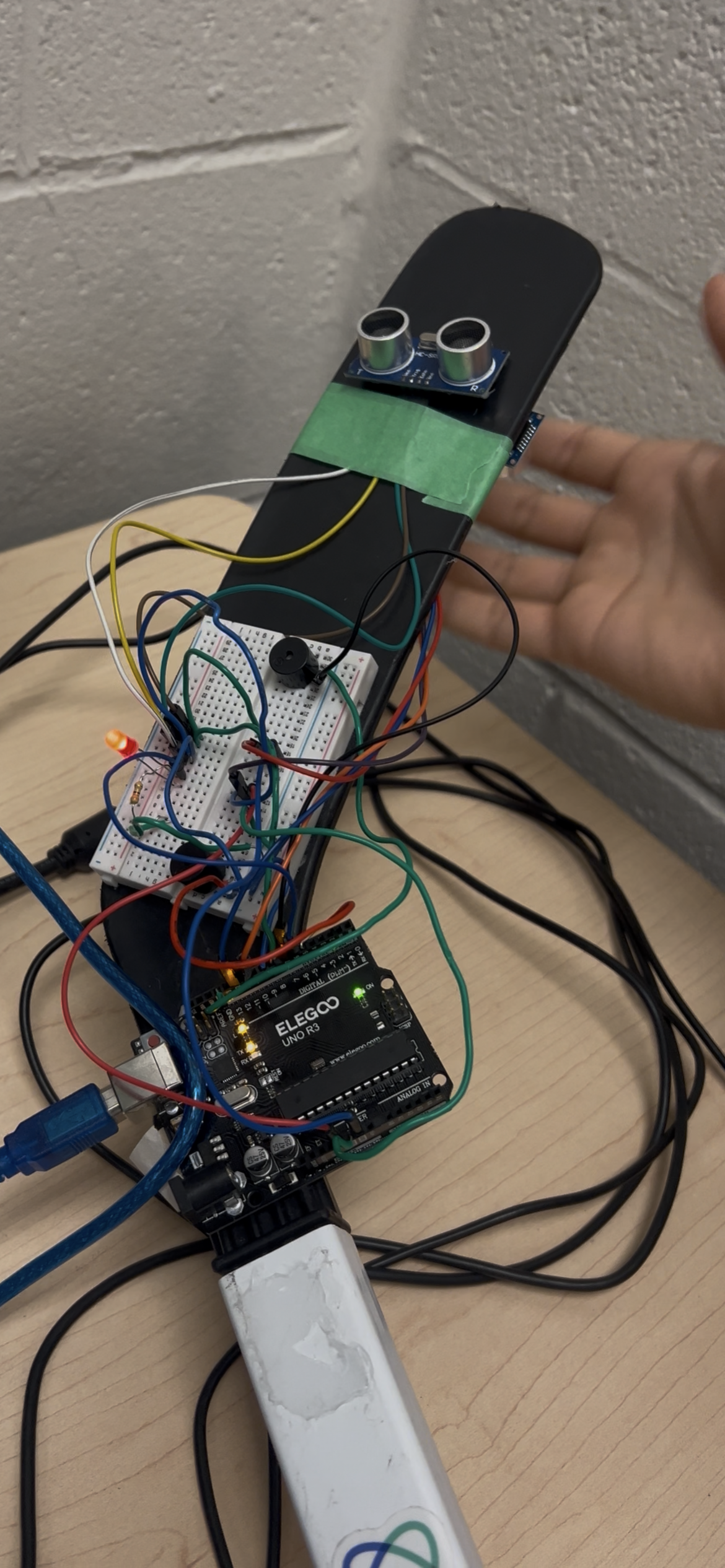
This project is a “Smart Stick” designed to help people who are visually impaired detect nearby obstacles while walking. The stick uses two ultrasonic sensors (one aimed slightly left and one aimed slightly right) to measure the distance to objects in front of the user. Based on how close an obstacle is, the system provides feedback using an LED and two buzzers.
The feedback changes depending on distance:
• Within 40 cm: LED turns on as a visual warning
• Within 20 cm: LED and active buzzer turn on for a stronger warning
• Within 10 cm: LED, active buzzer, and a tone from the passive buzzer indicate a very close obstacle
I chose to use a hockey stick as the base because it is durable, easy to hold, and already the correct length for navigation. The overall goal of this project was to create an assistive device that is affordable, easy to build, and simple to understand, while still being effective in real-world use.
Supplies
Supplies
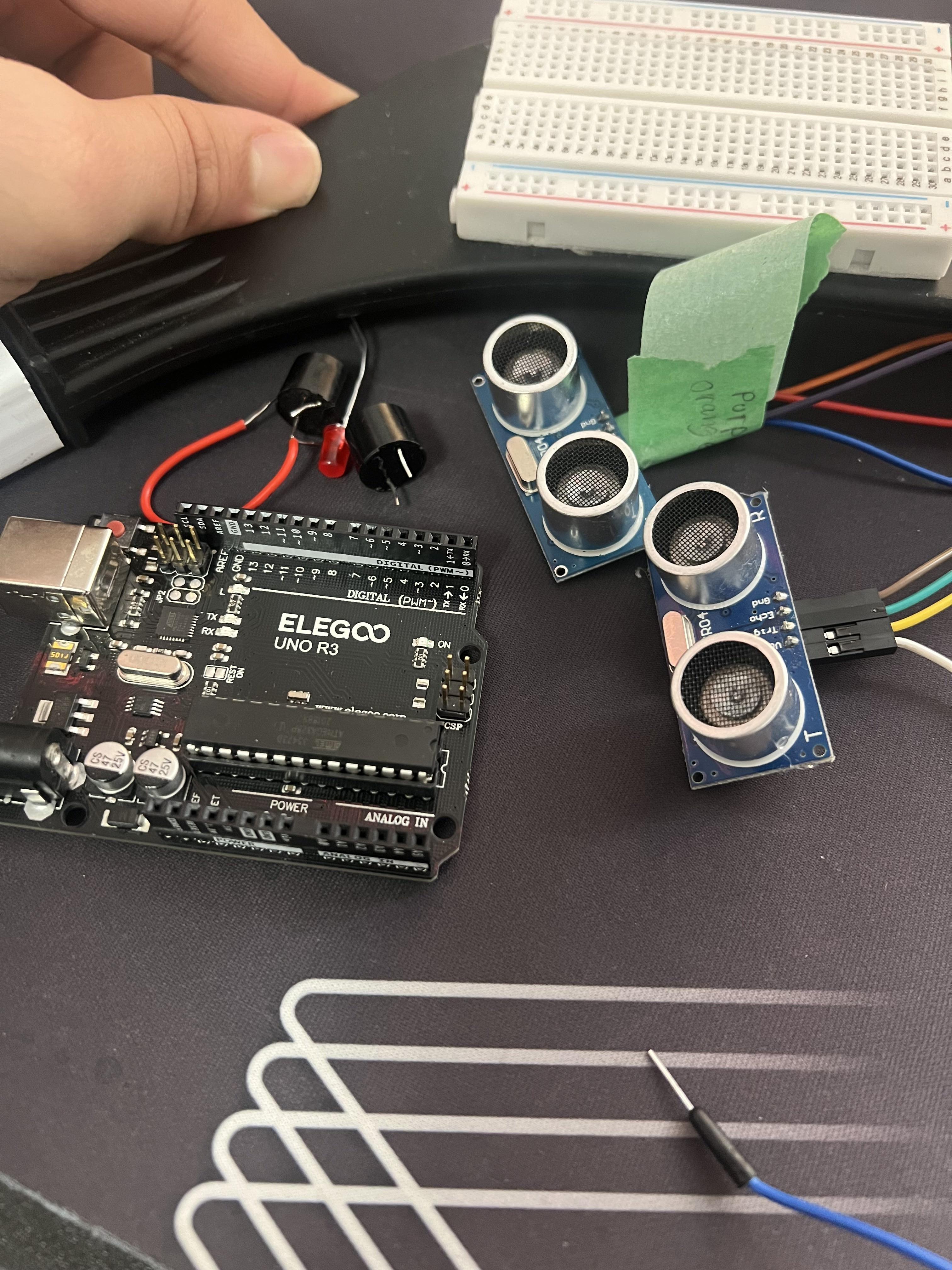
Electronics
• Elegoo Arduino Uno
• 2× HC-SR04 Ultrasonic Sensors
• 2× Active buzzer
• 1× LED
• 1× Resistor
• Slide switch / toggle switch (ON/OFF)
◦ 9V battery + battery cap adapter
Build Materials
Plan the Layout
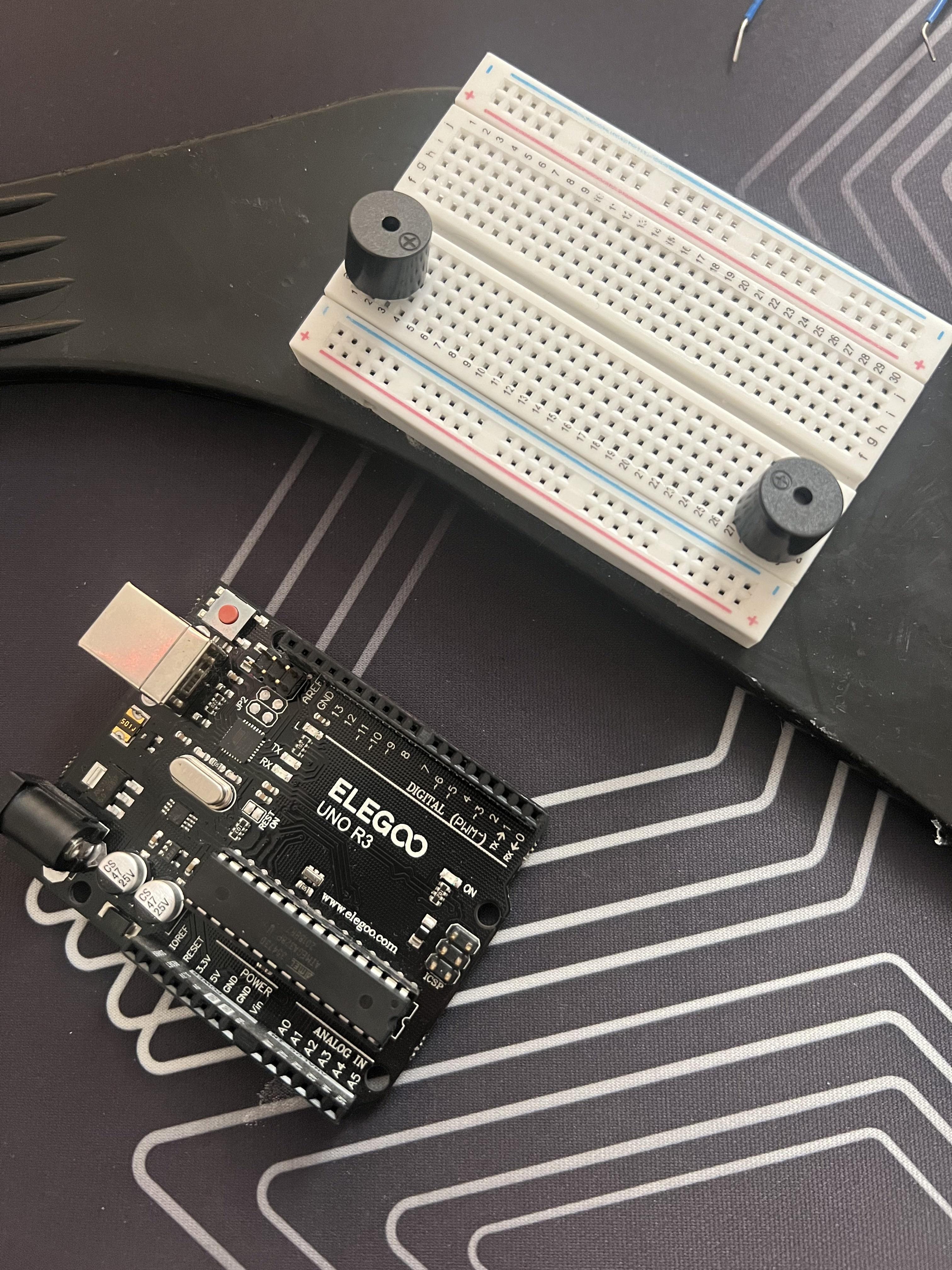
What I Did:
Before connecting any electronics, I planned where each component would be placed on the hockey stick. I positioned the ultrasonic sensors near the top of the stick so they could “see” obstacles ahead. I also planned where the Arduino, breadboard, and battery would sit so the wiring could stay organized.
Why:
Planning the layout ahead of time helped prevent messy wiring and made sure the sensors were placed in effective positions. Angling the sensors slightly outward reduces ultrasonic interference and allows the stick to detect obstacles on both sides of the walking path.
Set Up Power Rails on the Breadboard
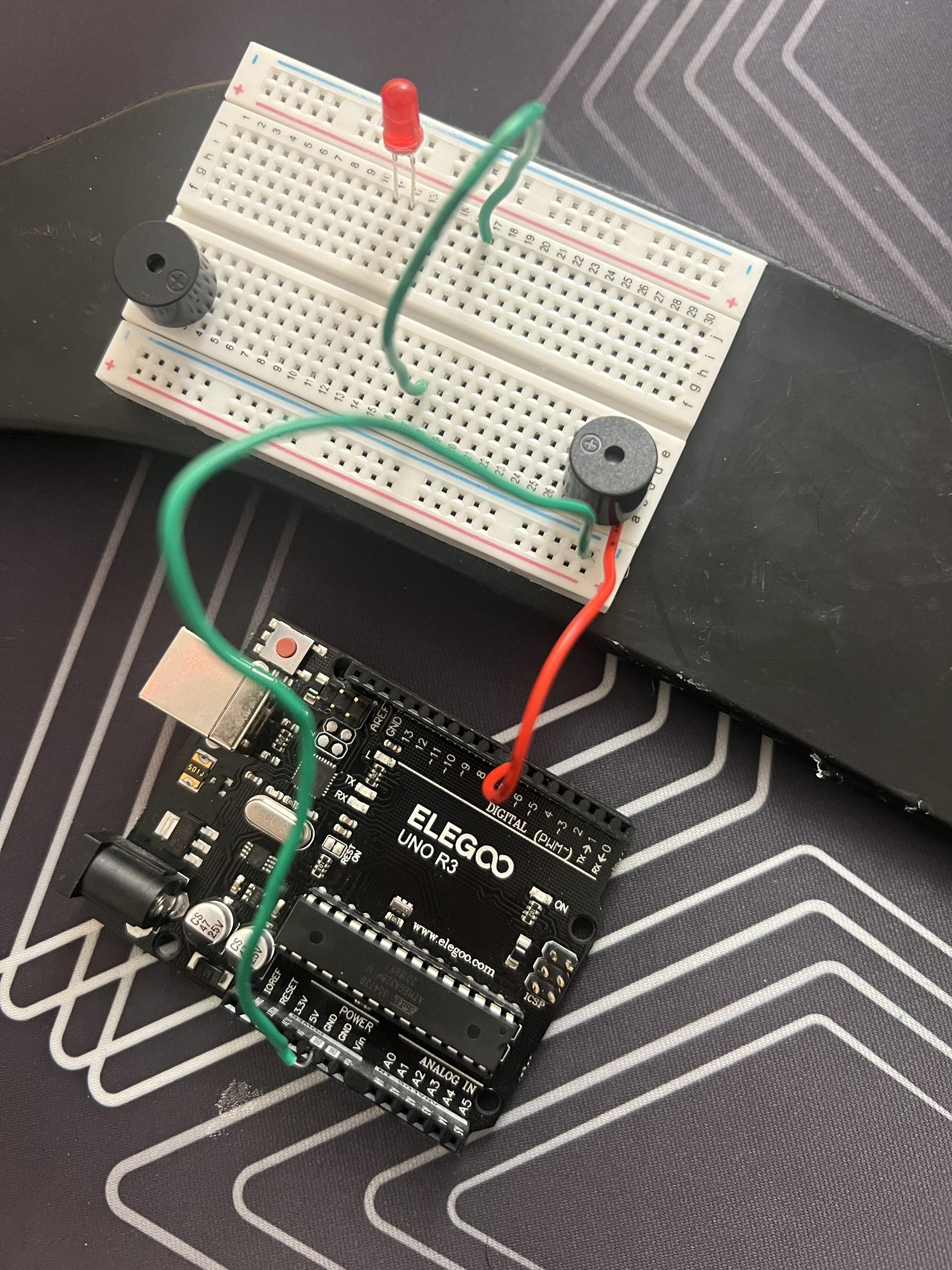
What I Did:
I connected the Arduino’s 5V pin to the positive rail on the breadboard and the GND pin to the negative rail. Since the breadboard power rails were split, I added jumper wires to connect the left and right sides so power would be shared across the entire board.
Why:
All components must share a common ground for the circuit to work correctly. Setting up the power rails first ensures that sensors, LEDs, and buzzers receive consistent power and prevents unpredictable behaviour.
Add the LED Indicator (with Resistor)
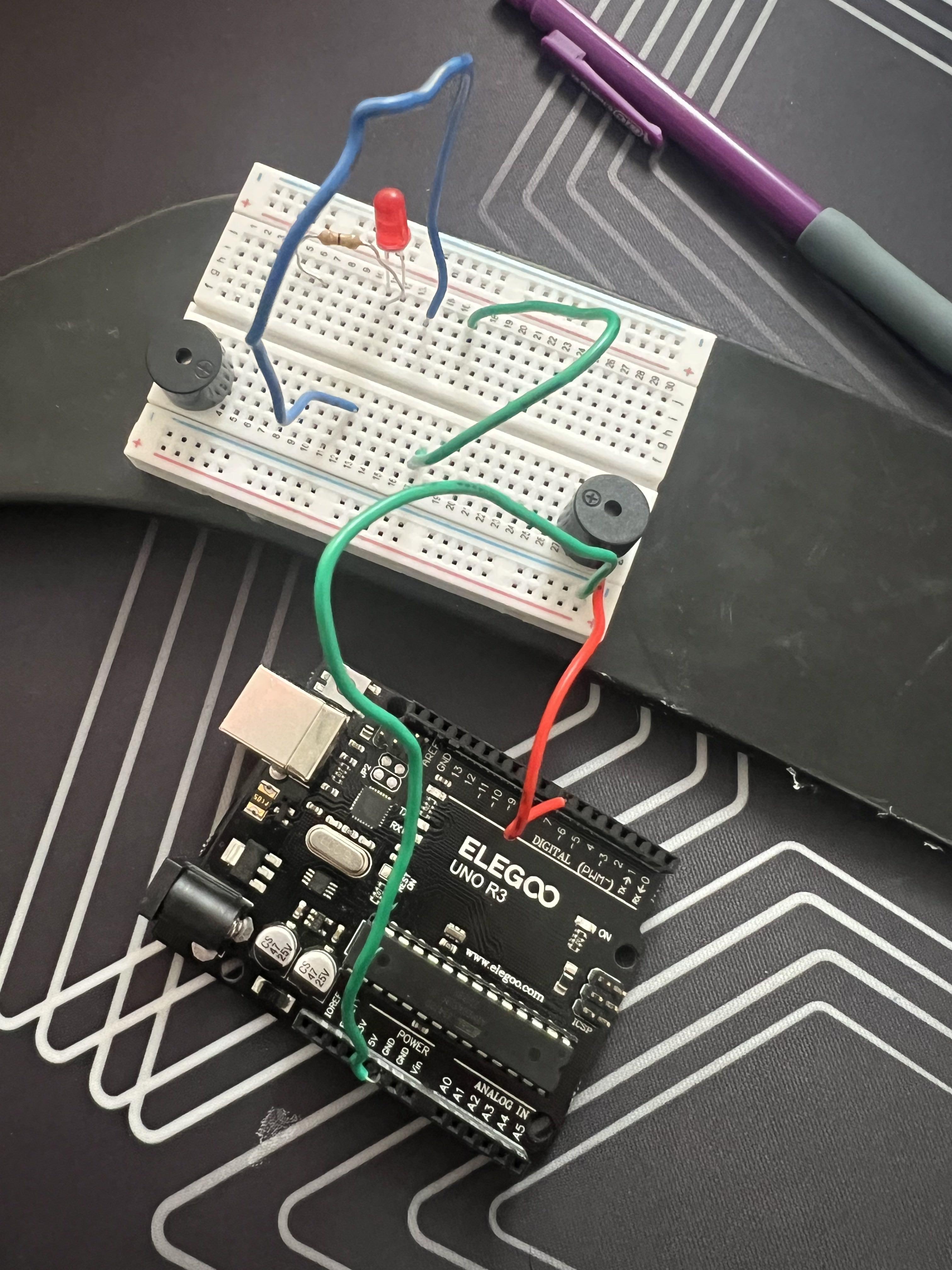
I connected an LED to the Arduino using a resistor:
• Arduino D6 → resistor (220–330Ω) → LED long leg
• LED short leg → GND rail
Why:
The resistor limits current and protects the LED from damage. The LED provides a clear visual warning when an obstacle is detected, which is useful for testing and debugging the system.
Wire Ultrasonic Sensor 1 (left Side)

What I Did:
I wired the first ultrasonic sensor as follows:
• VCC → 5V rail
• GND → GND rail
• TRIG → Arduino D9
• ECHO → Arduino D8
Why:
The ultrasonic sensor needs power and two signal pins so the Arduino can send a trigger pulse and measure the echo time. This allows the Arduino to calculate the distance to nearby objects.
Wire Ultrasonic Sensor 2 (right Side)
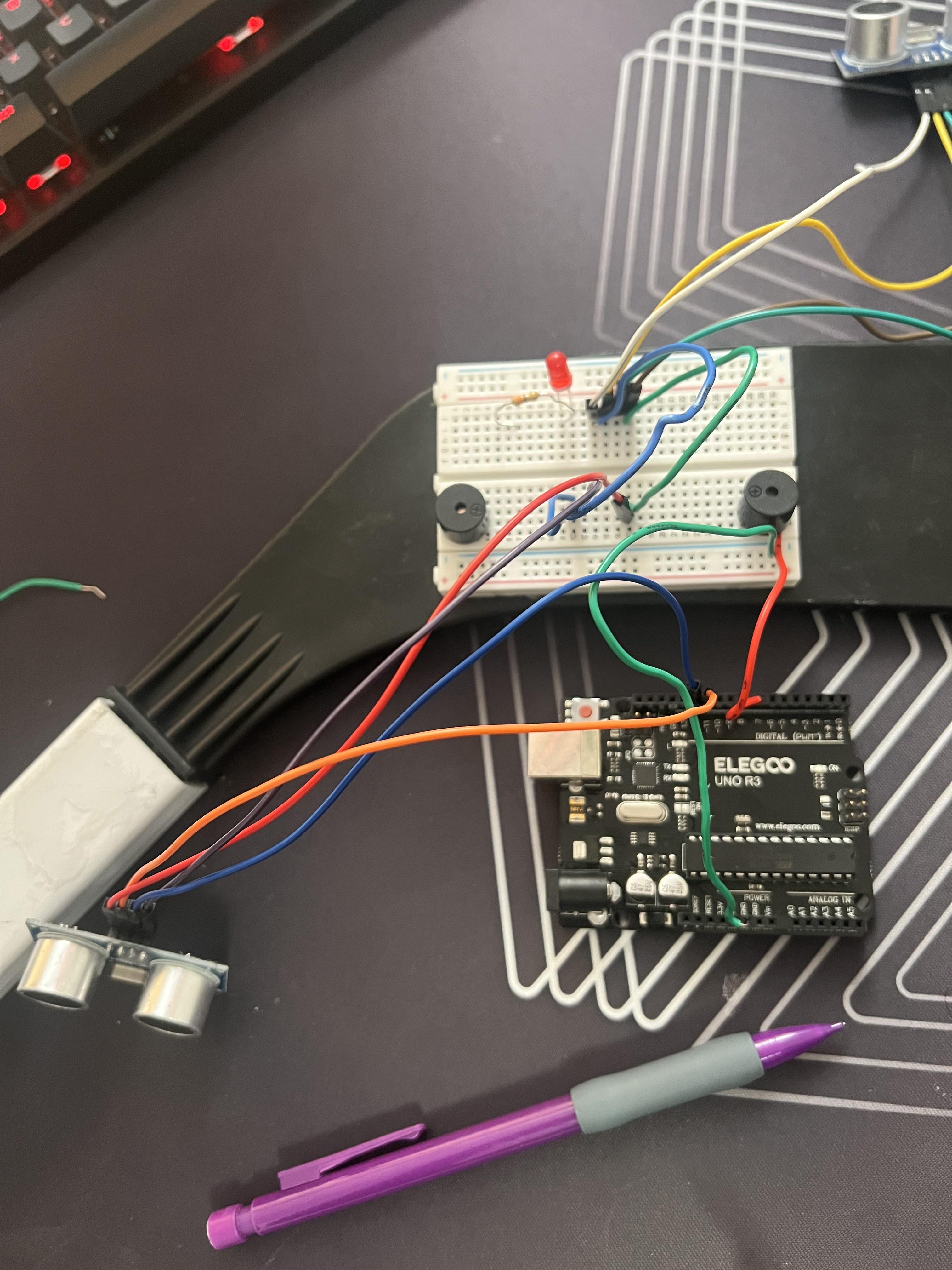
What I Did:
I wired the second ultrasonic sensor:
• VCC → 5V rail
• GND → GND rail
• TRIG → Arduino D12
• ECHO → Arduino D11
Why:
Using two sensors allows the stick to detect obstacles in more than one direction. The Arduino compares both readings and responds based on the closest detected object.
Add the Active Buzzer
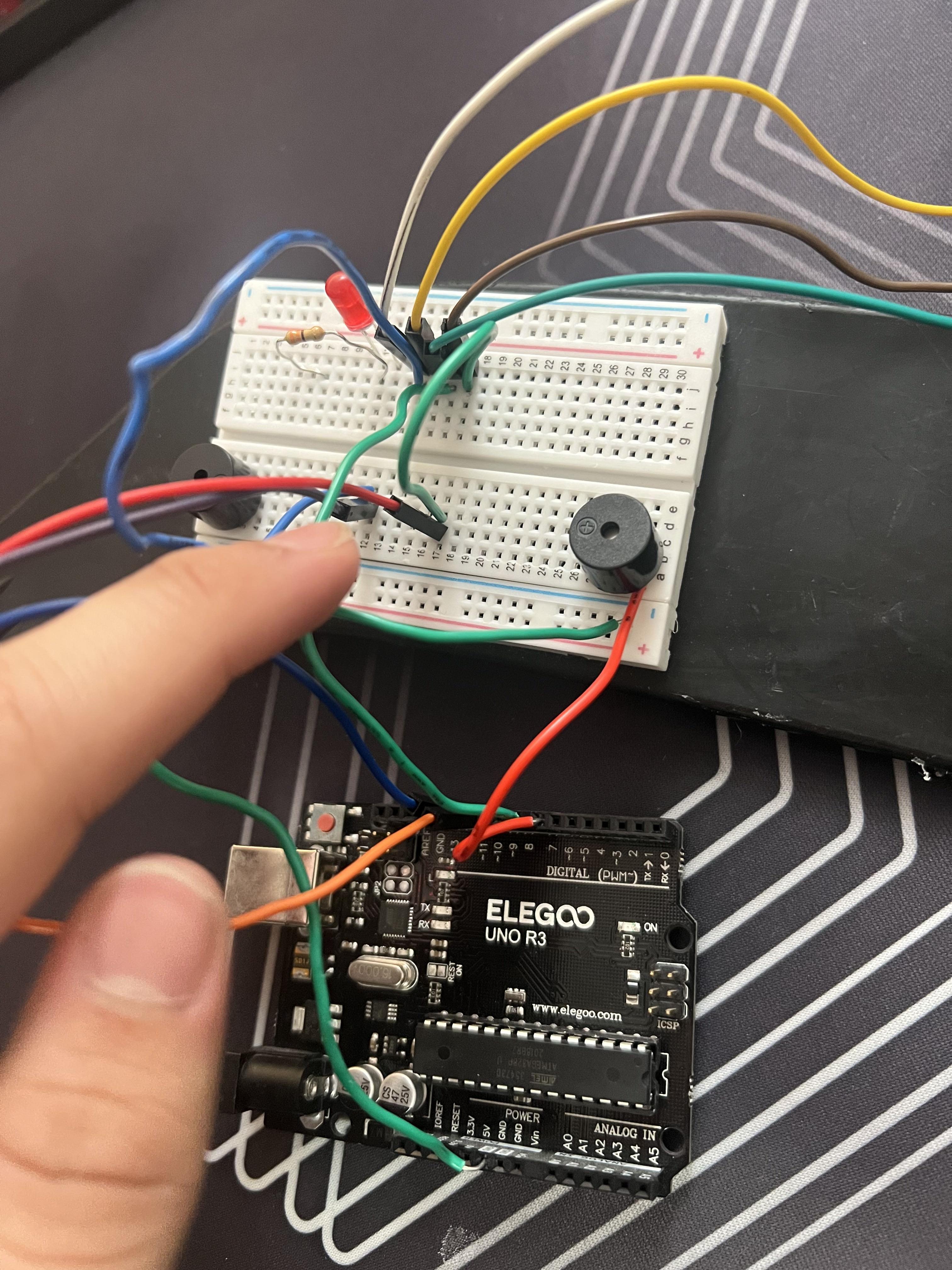
I connected the active buzzer:
• Positive → Arduino D5
• Negative → GND rail
Why:
An active buzzer only needs a HIGH signal to make sound. This buzzer provides an audible warning when an obstacle is within a medium distance.
Add the Passive Buzzer
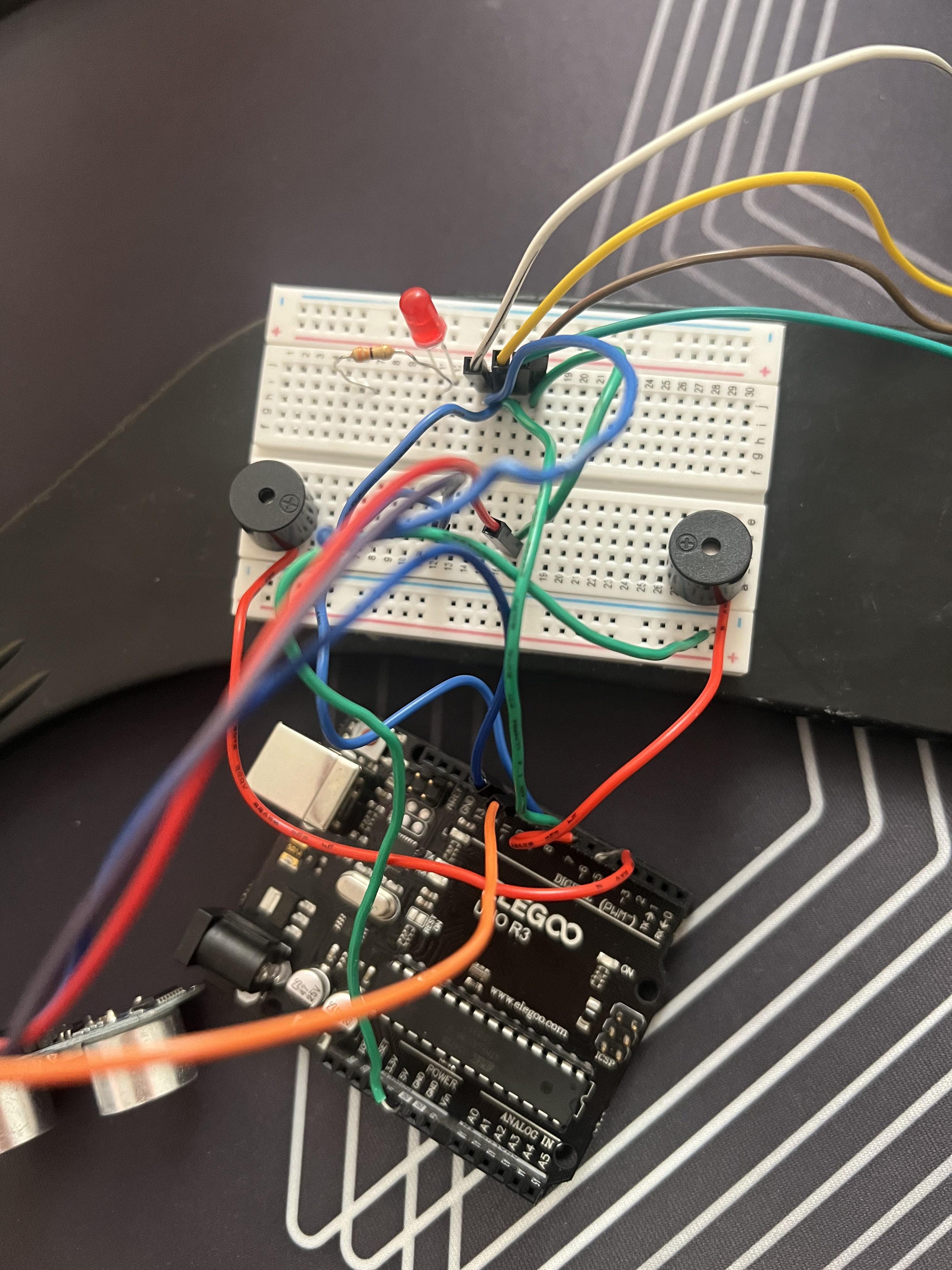
What I Did:
I connected the passive buzzer:
• Positive → Arduino D7
• Negative → GND rail
Why:
A passive buzzer requires a frequency signal using the tone() function. This allows the system to produce a stronger alert sound when an object is very close.
Upload the Code + Test Distances

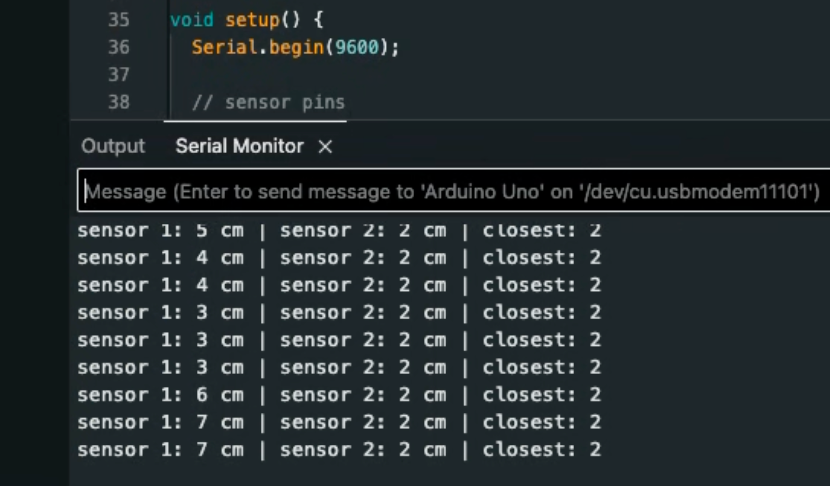
I uploaded my Arduino code and opened the Serial Monitor to view distance readings from both ultrasonic sensors. I tested the system by moving my hand closer and farther away from the sensors to confirm the readings changed correctly.
Why:
The Serial Monitor helps verify that the sensors are working properly before relying on LEDs and buzzers for feedback. This step ensured that the logic in the code was correct.
Video Explanation (Step by Step)
)
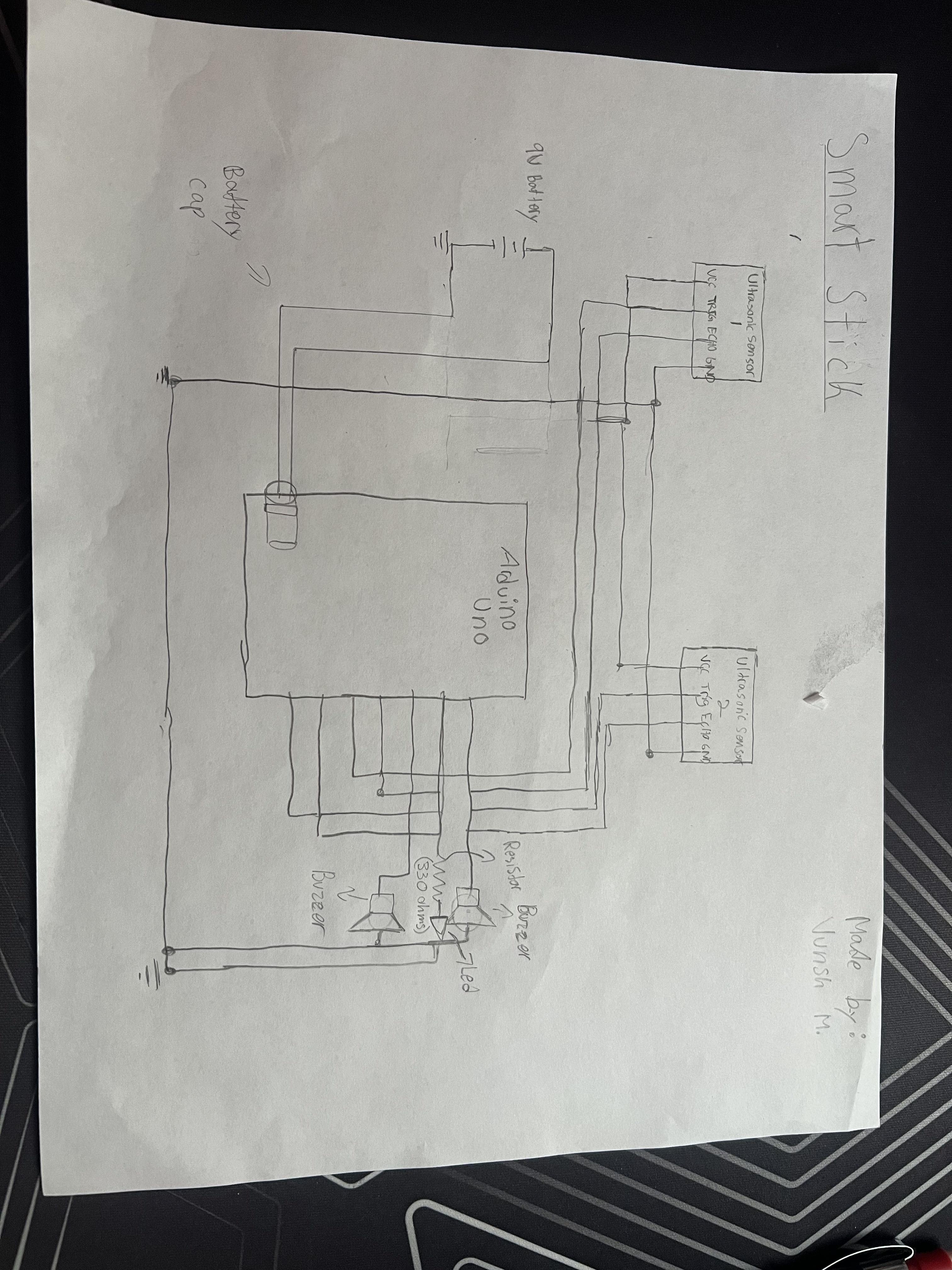
I recorded a video explaining each part of the project, including the wiring, sensor placement, and how the system responds to obstacles at different distances.
Why:
The video demonstrates that the project works and clearly explains how each component contributes to the overall design.
Code/Final Product
// ultrasonic sensor 1 pins
const int trig1 = 9;
const int echo1 = 8;
// ultrasonic sensor 2 pins
const int trig2 = 12;
const int echo2 = 11;
// output devices
const int buzzer1 = 5; // active buzzer
const int buzzer2 = 7; // passive buzzer
const int led1 = 6; // LED / vibration motor
// on/off switch pin (software switch)
const int powerSwitch = 2;
bool systemOn = true;
// function to measure distance in cm
long readDistance(int trigPin, int echoPin) {
digitalWrite(trigPin, LOW);
delayMicroseconds(2);
digitalWrite(trigPin, HIGH);
delayMicroseconds(10);
digitalWrite(trigPin, LOW);
long duration = pulseIn(echoPin, HIGH, 25000);
if (duration == 0) {
return 999;
}
return duration * 0.034 / 2;
}
void setup() {
Serial.begin(9600);
pinMode(trig1, OUTPUT);
pinMode(echo1, INPUT);
pinMode(trig2, OUTPUT);
pinMode(echo2, INPUT);
pinMode(buzzer1, OUTPUT);
pinMode(buzzer2, OUTPUT);
pinMode(led1, OUTPUT);
pinMode(powerSwitch, INPUT_PULLUP); // switch to GND
}
void loop() {
// read switch state
if (digitalRead(powerSwitch) == LOW) {
systemOn = !systemOn;
delay(300); // debounce
}
// if system is OFF, turn everything off and do nothing
if (!systemOn) {
digitalWrite(led1, LOW);
digitalWrite(buzzer1, LOW);
noTone(buzzer2);
return;
}
// read both sensors
long distance1 = readDistance(trig1, echo1);
delay(60);
long distance2 = readDistance(trig2, echo2);
long distance = min(distance1, distance2);
Serial.print("sensor 1: ");
Serial.print(distance1);
Serial.print(" cm | sensor 2: ");
Serial.print(distance2);
Serial.print(" cm | closest: ");
Serial.println(distance);
// turn everything off first
digitalWrite(led1, LOW);
digitalWrite(buzzer1, LOW);
noTone(buzzer2);
if (distance < 40) {
digitalWrite(led1, HIGH);
}
if (distance < 20) {
digitalWrite(led1, HIGH);
digitalWrite(buzzer1, HIGH);
}
if (distance < 10) {
digitalWrite(led1, HIGH);
digitalWrite(buzzer1, HIGH);
tone(buzzer2, 2000);
}
delay(150);
}