IR Control of JTD-0801 HDMI Switch & Upscaler (Arduino)
by bm_00 in Circuits > Electronics
16 Views, 0 Favorites, 0 Comments
IR Control of JTD-0801 HDMI Switch & Upscaler (Arduino)
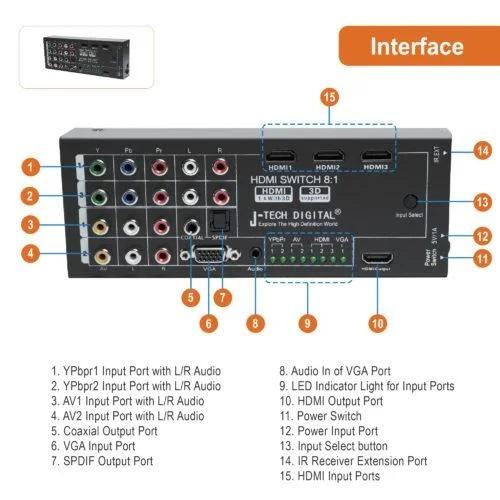
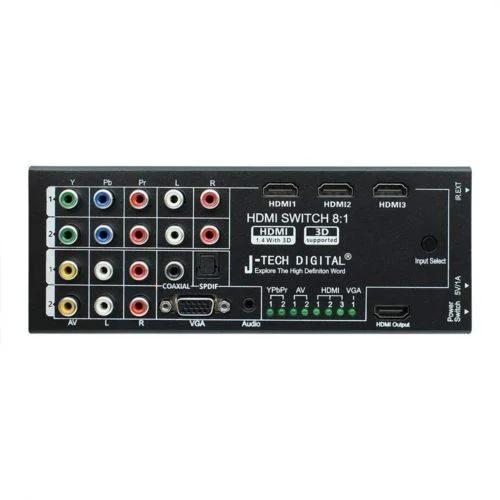
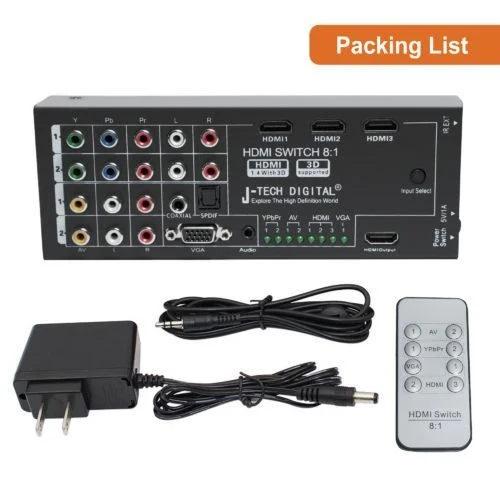
The J-Tech Digital JTD-0801 HDMI Switch, Upscaler, & Audio Extractor is a nice piece of equipment for a home media center setup at a reasonable price.
The Switch has 3 HDMI, 1 VGA, 2 Component, & 2 AV Inputs with 1 HDMI output. Inputs are upscaled to 1080p. Optical & Coaxial SPDIF audio out are a plus.
The switch can be operated by an onboard button or external IR remote & receiver. Unfortunately the remote & receiver are not always available or not the best match for a specific setup. Thankfully this is easily fixed with an Arduino.
This Instructable will cover how to control the JTD-0801 using an Arduino via an IR Blaster, optocoupler, or old fashioned button presses.
Supplies
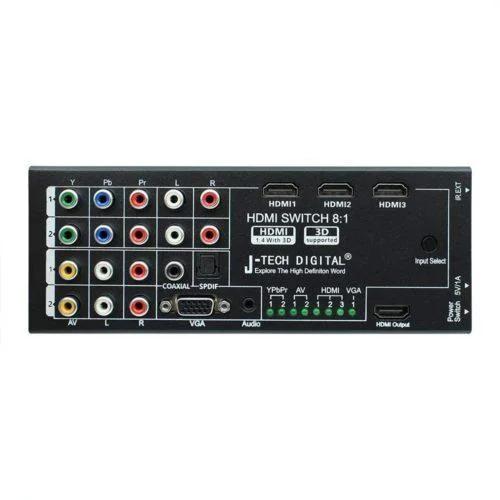

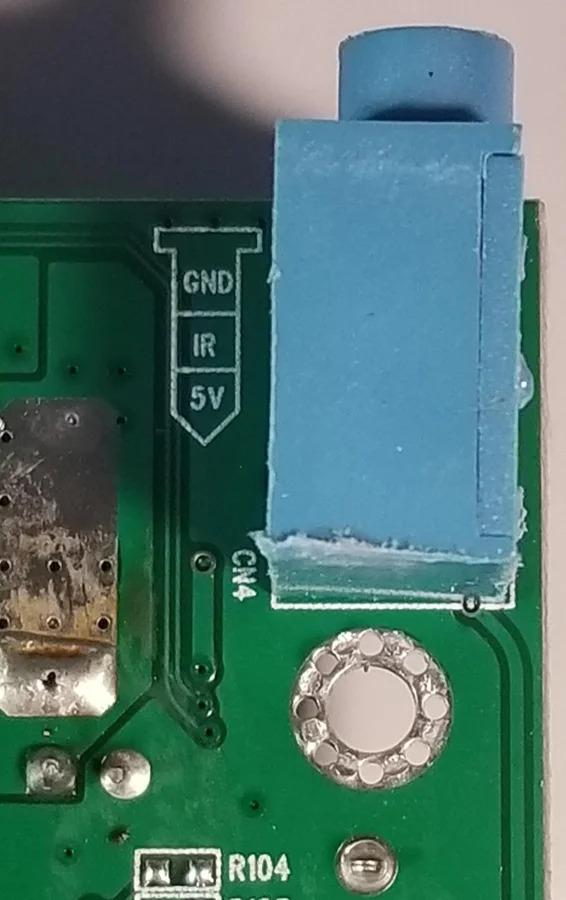
- JTD-0801 HDMI Switch/Upscaler
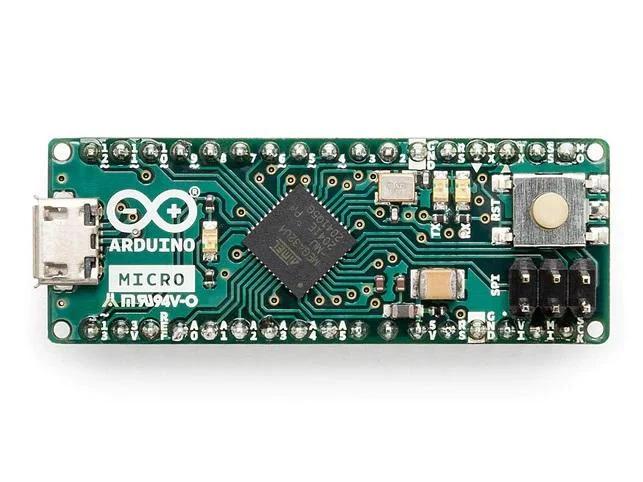
- Arduino Board (Any Atmega type)
- IR Blaster or Optocoupler
- Some connecting/scrap wire
- Solder Iron & Solder
- 3.5mm male plug(If using Optocoupler)
- Arduino IDE with IRremote Library installed
Any Atmega based Arduino or clone will work. A Micro or Nano is recommended due to size/power consumption.
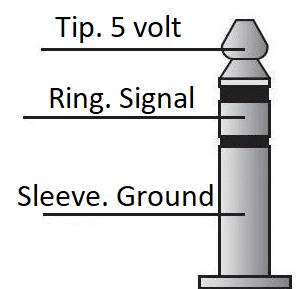
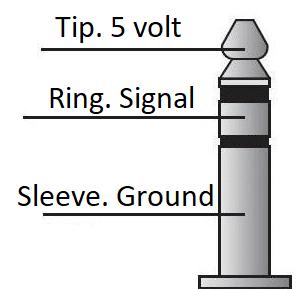
Either an IR Blaster & IR Receiver or an Optocoupler can be used. The IR Receiver should have came with the JTD-0801. If not the pinout is as follows:
Ring: Signal
Tip: 5 volt
Sleeve: Ground
The Switch/Upscaler website is:
Figure How You Are Going to Connect the Arduino
Pick the desired method to connect the Arduino to the JTD-0801:
Method 1: IR Blaster
- Easiest & least wiring. No need to open the JTD-0801.
- Requires Original or replacement IR Receiver & IR Blaster LED for Arduino.
- Arduino powered by external source (USB)
Method 2: Optocoupler
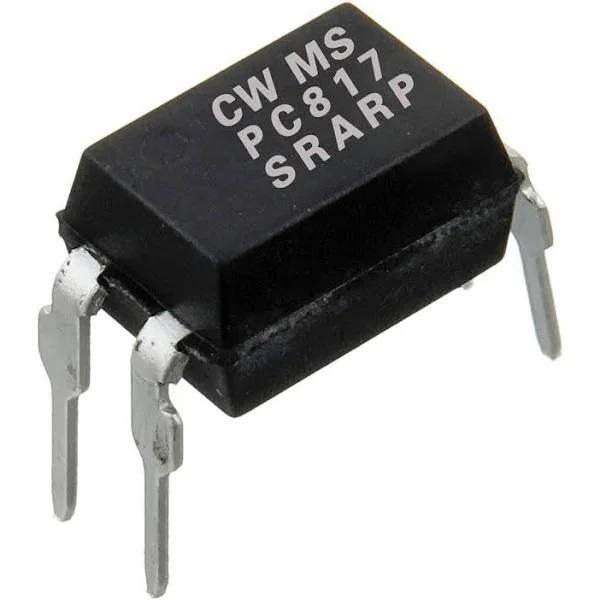
- Requires Optocoupler & 3.5mm male jack(TRS)
- Can be soldered internally if desired.
- Arduino powered by external source or JTD-0801.
Method 1 & 2 are essentially the same. Method 2 just replaces the IR Blaster & Receiver with an Optocoupler.
Arduino can either be powered externally(USB) or from the 5v line present in the JTD-0801. If using internal method connect the Arduino 5v pin to a 5v source on the JTD-0801 and GND to Groud
IR Blaster
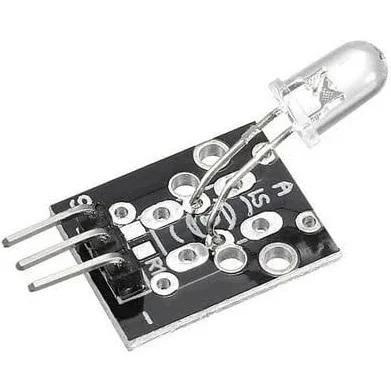
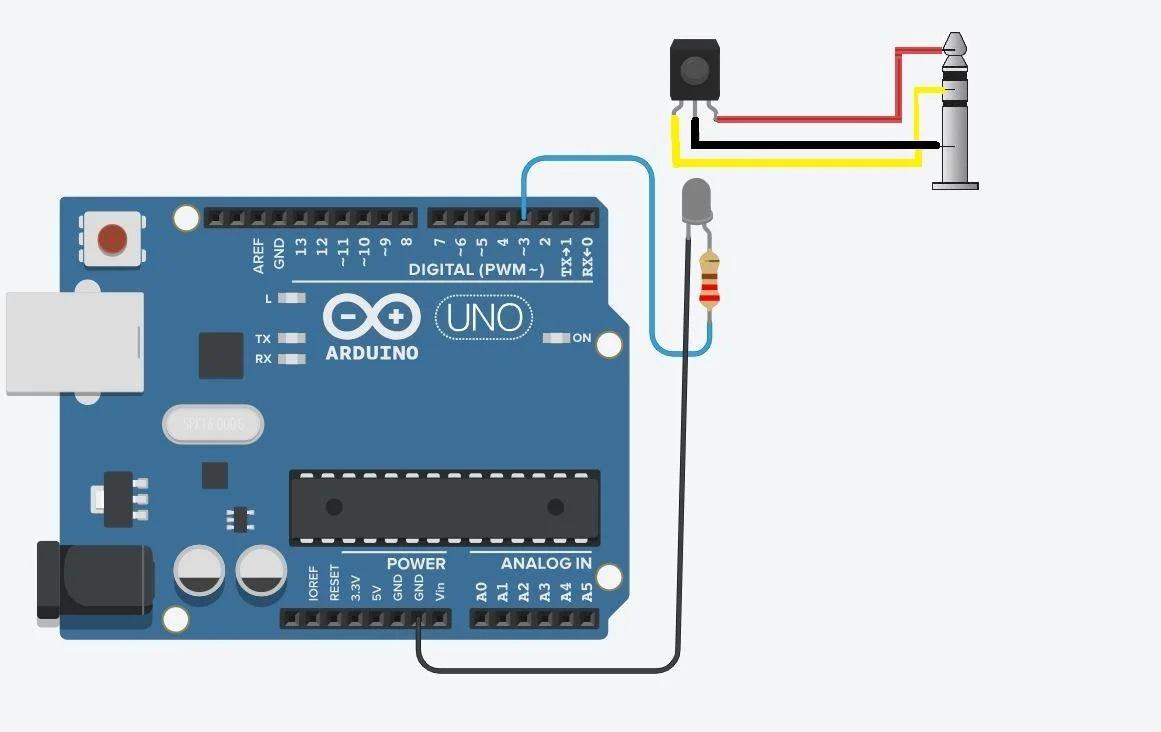
- Connect the IR Receiver to the JTD-0801. Is a simple 3.5mm jack. Either use the factory one or make your own using pinout from the supplies step.
- Connect an IR blaster to your Arduino. You can either use a ready made module or a bare IR LED & resistor. The blaster gets connected between Arduino Ground & Pin 3 via a resistor. 20 ohm is used here.
- Upload the attached Sketch JTDSerialControl.ino to the Arduino
- Place the IR Receiver & Blaster in direct line of site of one another.
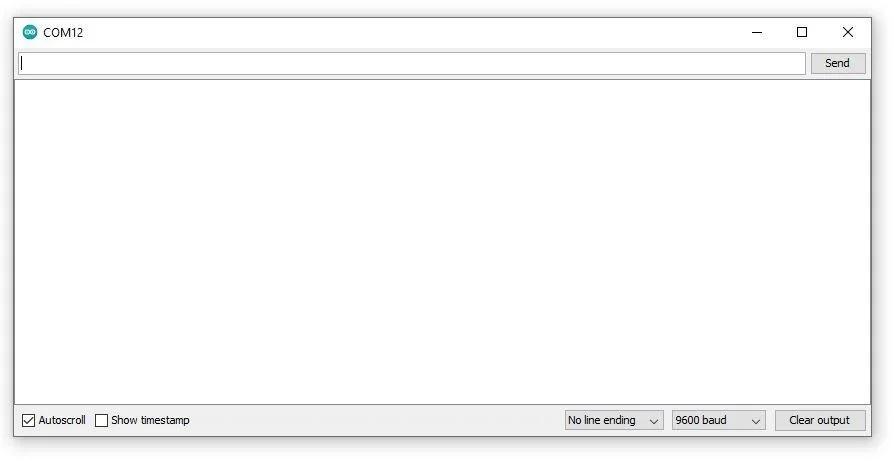
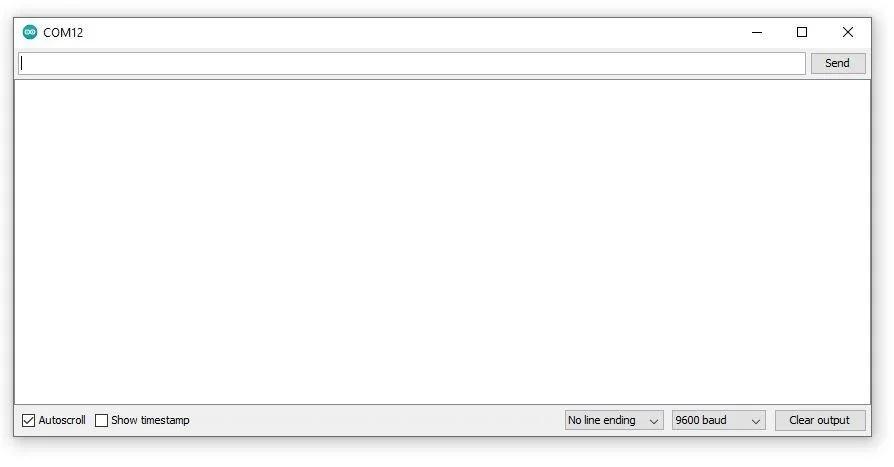
- Open the Arduino IDE Serial Monitor & enter the corresponding number to the input you wish to change to. Consult the chart below for inputs.
Input Number Entered:
VGA 0
HDMI_1 1
HDMI_2 2
HDMI_3 3
AV_2 4
AV_1 5
Component_2 6
Component_1 7
Standby Mode s
Downloads
Optocoupler
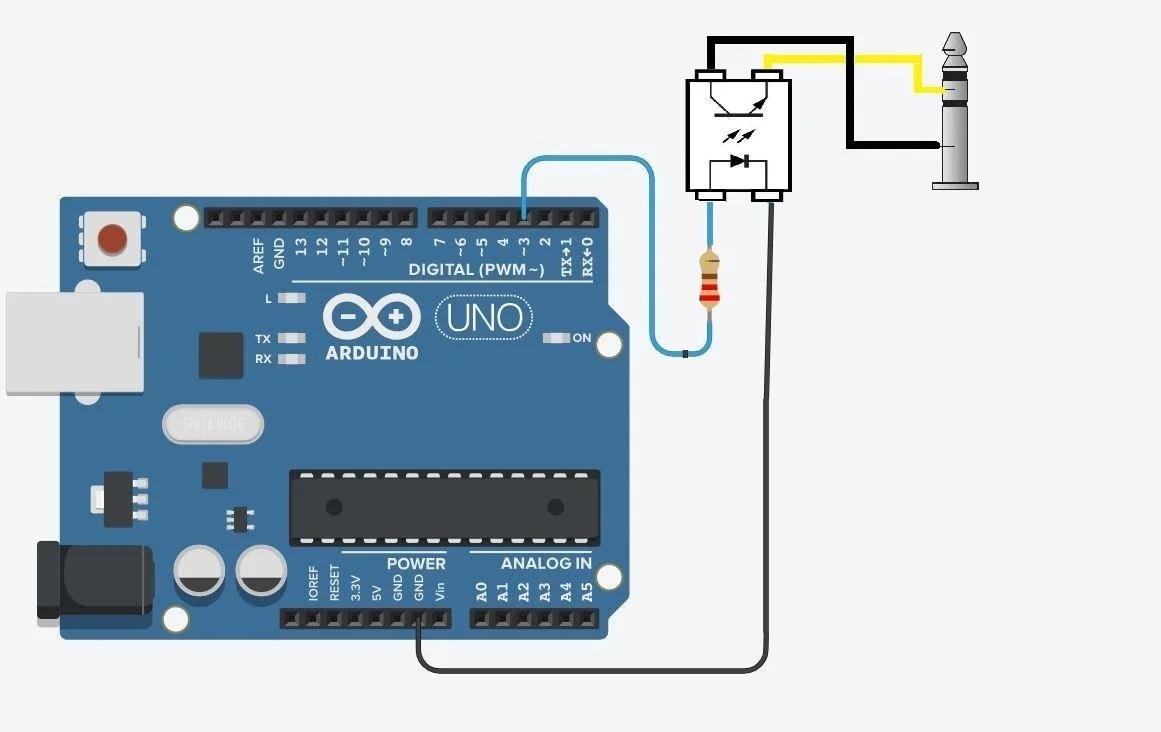
- Connect a 3.5mm male plug to the 3.5mm IR receiver jack on the JTD-0801.
- Connect the Sleeve pin of the 3.5mm male plug to the corresponding pin on the Optocoupler.
- Connect the Ring pin of the 3.5mm male plug to the corresponding pin on the Optocoupler.
- Connect corresponding pin(opposite of input) on optocoupler to Arduino GND
- Connect corresponding pin(opposite of input) on optocoupler to Arduino Pin #3
- Upload the attached Sketch JTDSerialControl.ino to the Arduino
- Open the Arduino IDE Serial Monitor & enter the corresponding number to the input you wish to change to. Consult the chart below for inputs.
Input Number Entered:
VGA 0
HDMI_1 1
HDMI_2 2
HDMI_3 3
AV 2_ 4
AV_1 5
Component_2 6
Component_1 7
Standby Mode s
Downloads
Additional Info
The above sketches just give a basic idea of what's possible using an Arduino & the JTD-0801 Switcher. This tutorial should give a great basis for creating some home automations using the switcher.
In my Instance I used a spare remote to control the JTD-0801. The process to configure this is a bit more advanced but I will include the sketch for those interested. The remote I used utilized the Sanyo protocol which is no longer supported in the IRRemote library. An IR receiver connected to the Arduino is needed.
Downloads
Conclusion
Hopefully you found this useful! If there are any issues or if you have any questions leave a comment. Will try to help out.