Sensea: DIY Underwater Explorer With Raspberry Pi, Camera & Temperature Sensor
by Unboxed_STEM in Workshop > Science
110 Views, 4 Favorites, 0 Comments
Sensea: DIY Underwater Explorer With Raspberry Pi, Camera & Temperature Sensor
.jpeg)
.jpeg)
.jpeg)

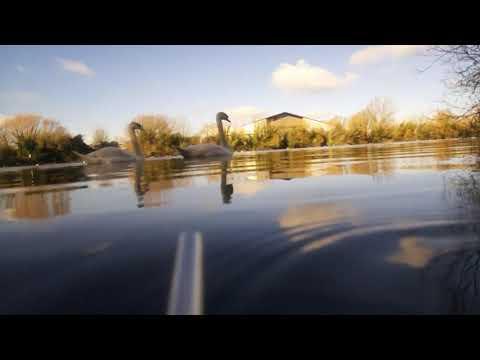
We talk a lot about protecting oceans and rivers — but how do we actually measure what's going on below the surface? Sensea is a DIY underwater explorer built with a Raspberry Pi, camera, and simple modular sensors that brings citizen science within reach of any STEM club or classroom.It captures underwater video and logs time-stamped water temperature data—even in remote locations without internet access.
Field Deployment: Daylight Pond Test
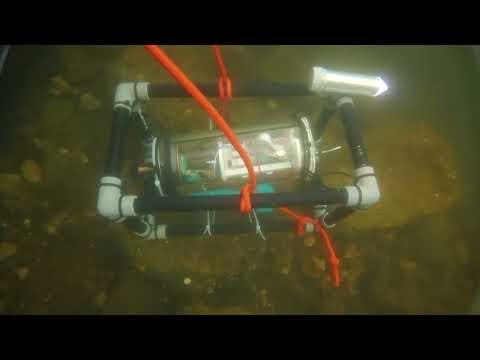
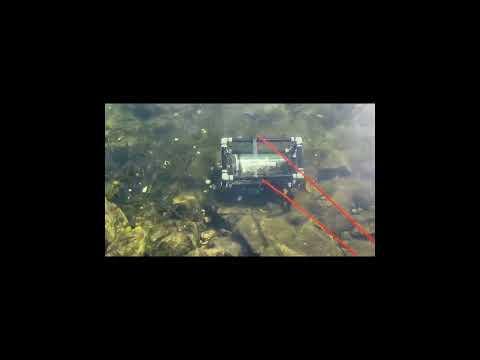
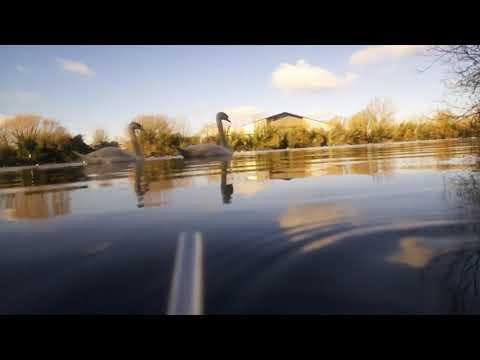
To validate the system, Sensea was deployed in a local freshwater pond under daylight conditions. The relatively clear water allowed visible underwater detail to be captured while the temperature sensor logged real-time environmental data.
The system was lowered gently into the pond and allowed to operate autonomously, recording 10-second video clips and time-stamped temperature measurements.
What You Will Learn
• How to waterproof electronics for field deployment
• Connecting and coding sensors (temperature, camera, RTC)
• Writing Python scripts to log environmental data
• Thinking like a scientist: designing experiments and analysing results
• Ideas for extending Sensea with more sensors and AI
Who Is This For?
• STEM clubs and school groups (age 12+)
• Makers and hobbyists curious about environmental monitoring
• Teachers looking for a cross-disciplinary project (science + coding + engineering)
Supplies
Below is the complete bill of materials with approximate costs. Prices will vary by region and supplier.
Electronics
Component Est. Cost (GBP)
Raspberry Pi 3B+ ~£35
Camera Module v3 ~£25
DS18B20 Temperature Sensor ~£5
DS3231 RTC Module ~£3
5V USB Battery Pack ~£15 Min.
4.7kΩ Resistor <£1 Pull-up for 1-Wire data line
Waterproofing & Structure
Item Est. Cost (GBP) Notes
Acrylic Tube (10cm OD, 25cm long) ~£12. Central electronics bay
Acrylic Disc (10.5cm diameter) ~£4 Permanent sealed end
Marine Epoxy / Waterproof Glue. ~£6. For disc and cable gland
Waterproof Cable Gland. ~£2. Critical — prevents leaks
Expanding Drain Test Plug (94–100mm) ~£4. Access end — removable
PVC Pipe 20mm (roll cage) ~£5. Cut to 18cm × 35cm frame
3-Way PVC T-Joints. ~£4 Corner connectors
PVC Solvent Cement ~£3 Structural bonding
Ballast (2kg dumbbell) ~£5 Sinks the platform
Zip Ties. <£1 Securing tube to cage
Retrieval Rope (5m minimum). ~£3 Safety tether
3D Printed Parts
Electronics bay casing (STL file attached to this project)
Designed in Tinkercad — fully modifiable
Print in PETG or ASA for better temperature resistance (PLA also works for indoor testing)
Estimated Total Build Cost
Electronics: ~£79
Hardware & waterproofing: ~£49
3D printing filament: ~£3
TOTAL: ~£130 (costs reduce if you already own a Raspberry Pi or printer)
Safety & Permission
Before deploying Sensea in any body of water, work through this checklist with an adult or teacher.
Water Safety
⚠️ Never deploy Sensea alone near open water. Always work in pairs or groups with adult supervision.
- Choose shallow, calm water for first deployments (max 0.5 m depth recommended for beginners)
- Wear appropriate footwear and clothing — riverbanks can be slippery
- Attach a retrieval rope to Sensea before every deployment
- Test the seal in a bucket of water before going into the field
Regulatory & Environmental Permissions
Deploying equipment in rivers, ponds, and lakes may require permission from landowners or local authorities. Check the following before heading out:
- Contact the landowner or river authority if the water is on private land
- In England and Wales, check with the Environment Agency regarding watercourse monitoring
- Avoid disturbing wildlife, nests, or vegetation when placing and retrieving Sensea
- Do not leave Sensea unattended for extended periods without permission
Electrical Safety
⚠️ All wiring and electronics must be assembled and checked before sealing the waterproof tube. Never open the housing while near water.
- Use a 5V USB battery pack — no mains power near water
- Double-check all connections are secure before sealing
- Perform a dry-land functional test before every deployment
Assembly
Build the Roll Cage
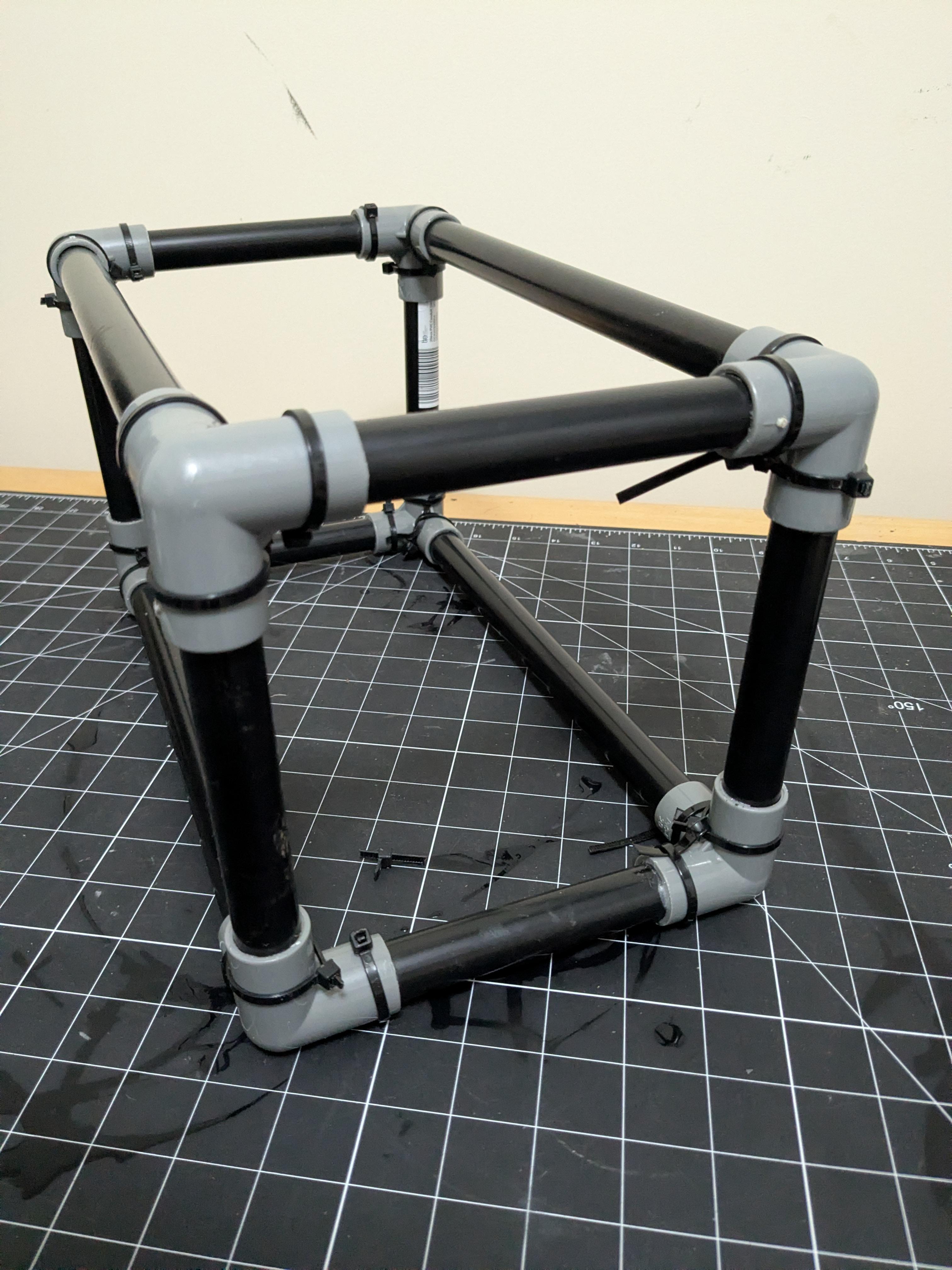
The roll cage protects the electronics tube from impact and provides a stable platform on the riverbed. It is built from standard 20mm PVC pipe and 3-way T-joints.
What You're Building
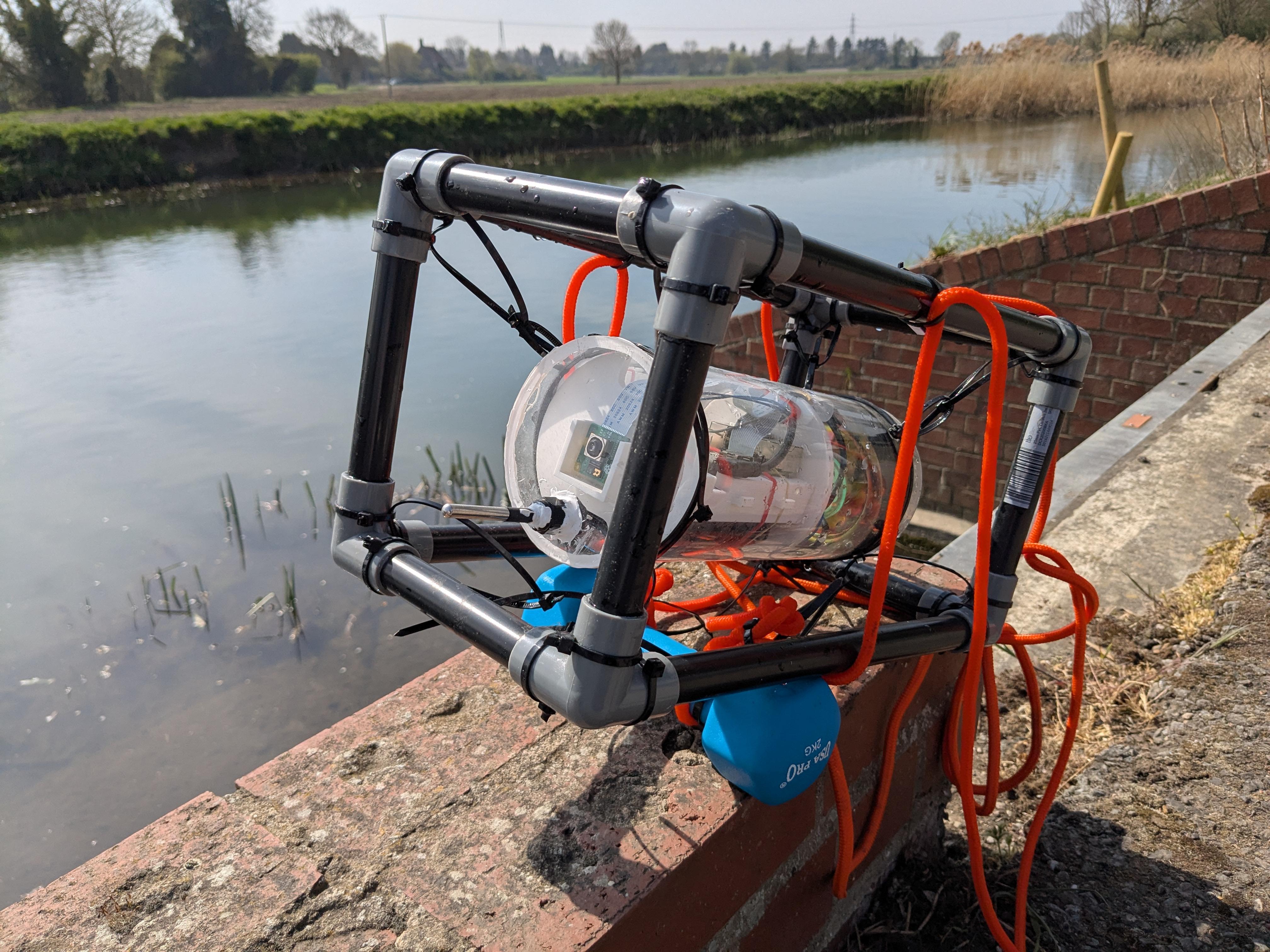
A rectangular frame approximately 18 cm wide × 35 cm long. The tube housing sits horizontally inside the frame, secured by zip ties.
Instructions
- Cut the PVC pipe into sections: eight × 18 cm lengths and four × 35 cm lengths.
- Dry-fit the frame using the 3-way T-joints at each corner to check sizing before gluing.
- Apply PVC solvent cement to each joint and press firmly. Hold for 30 seconds per joint.
- Allow the full frame to cure for at least one hour before applying any load.
- Once cured, loop zip ties through the frame to create four anchor points for the acrylic tube (two on each side).
⚠️ PVC solvent cement is fast-curing and produces fumes. Work outdoors or in a well-ventilated space.
Prepare the Acrylic Tube

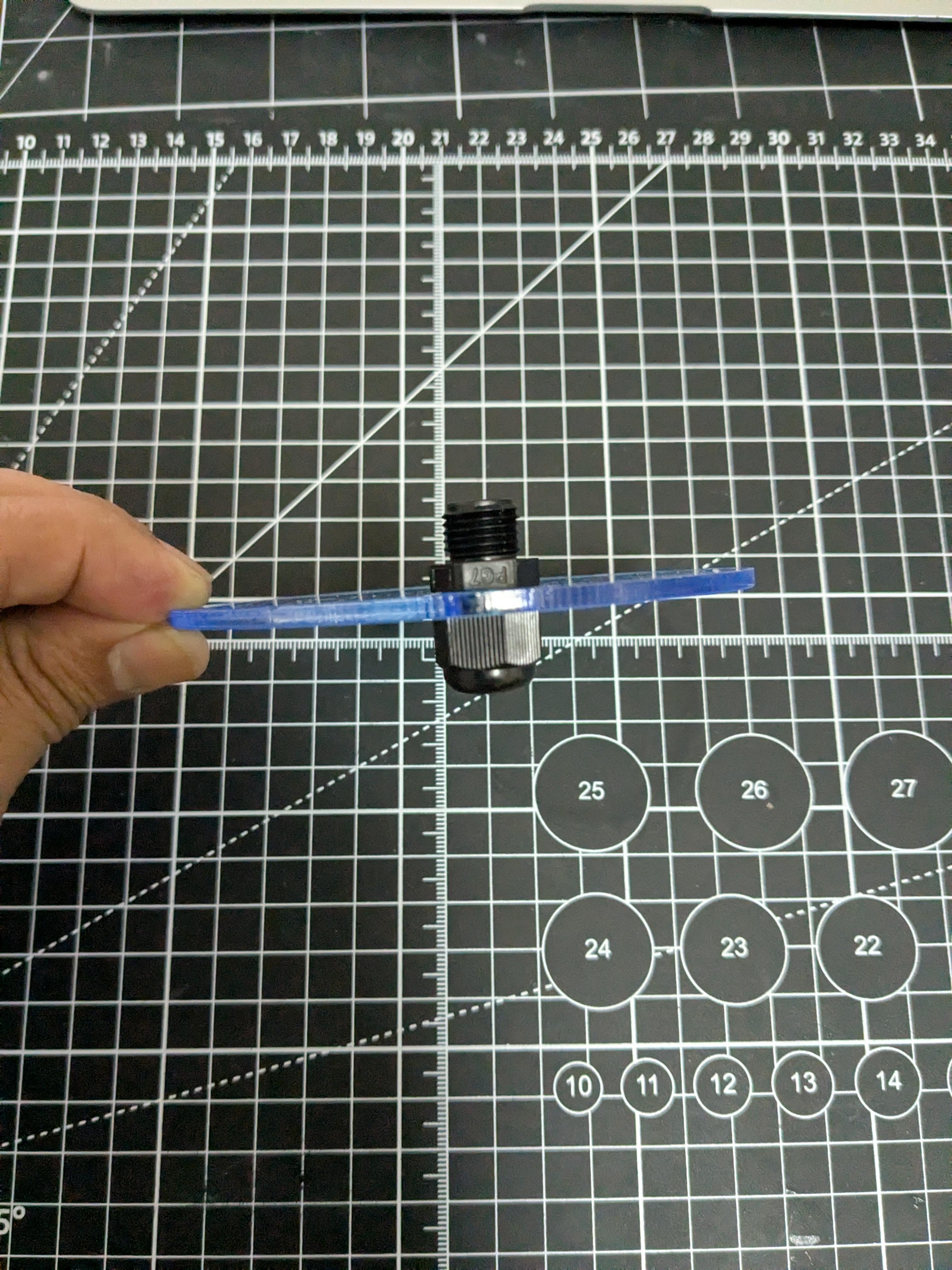
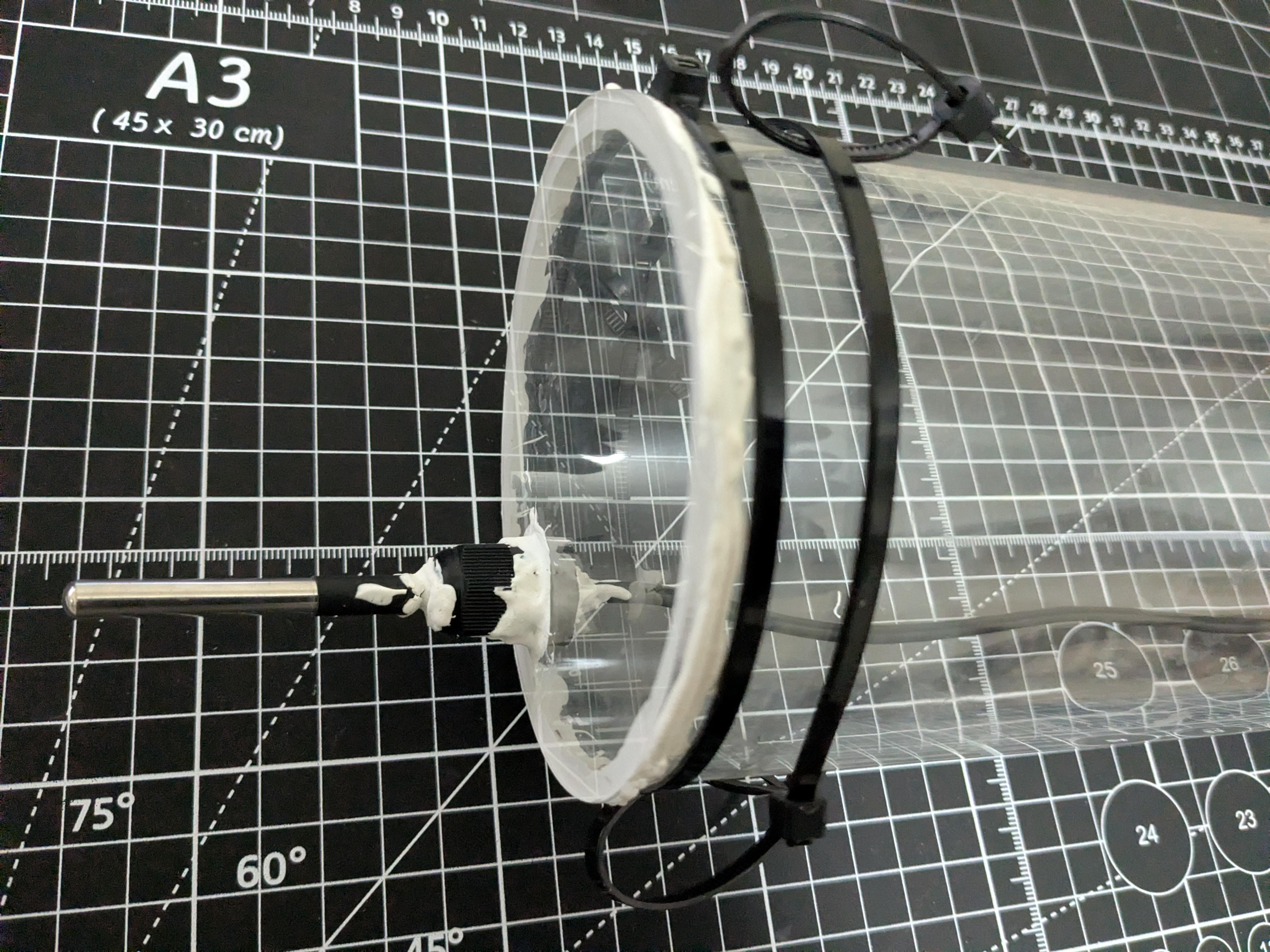
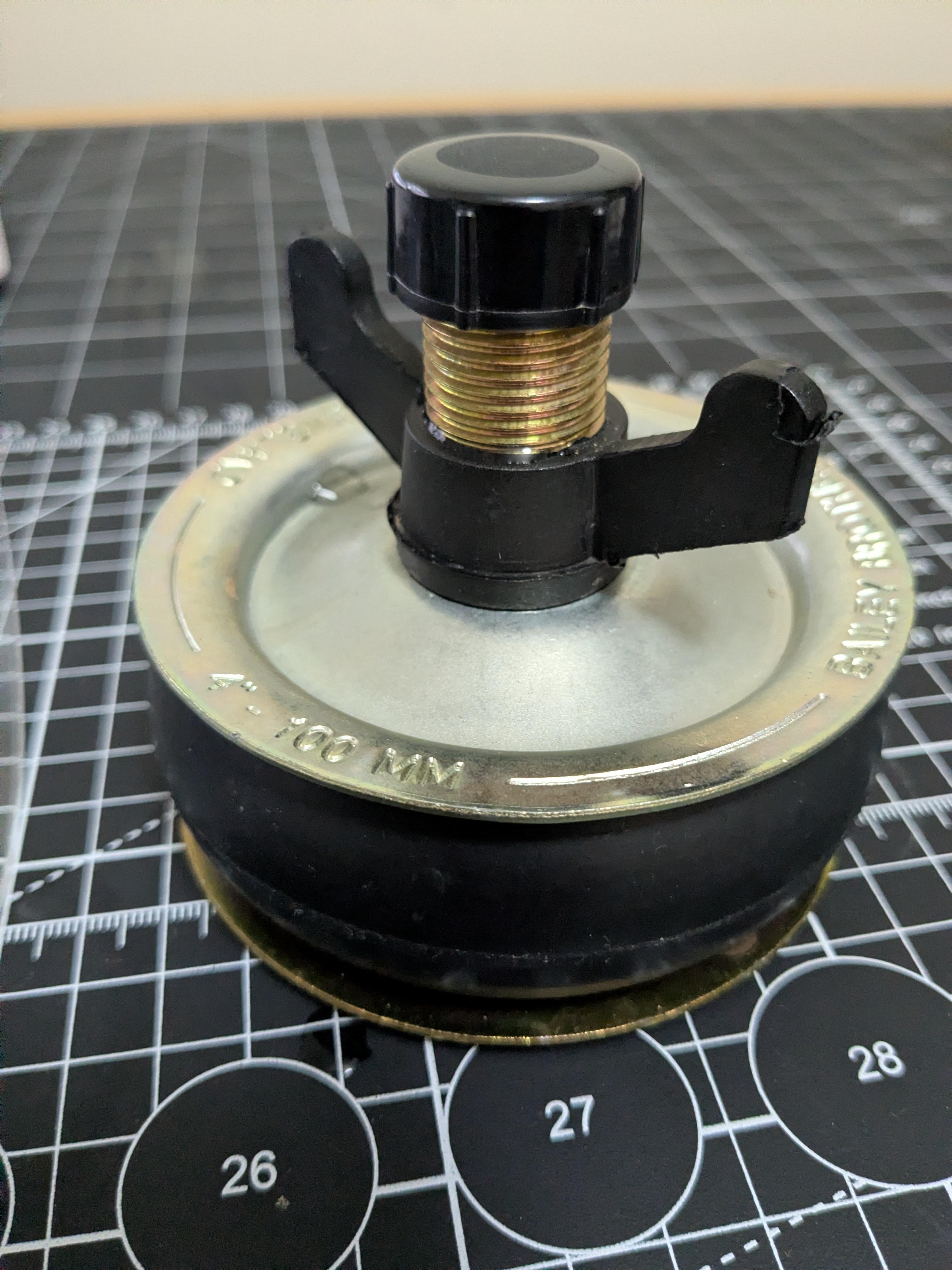
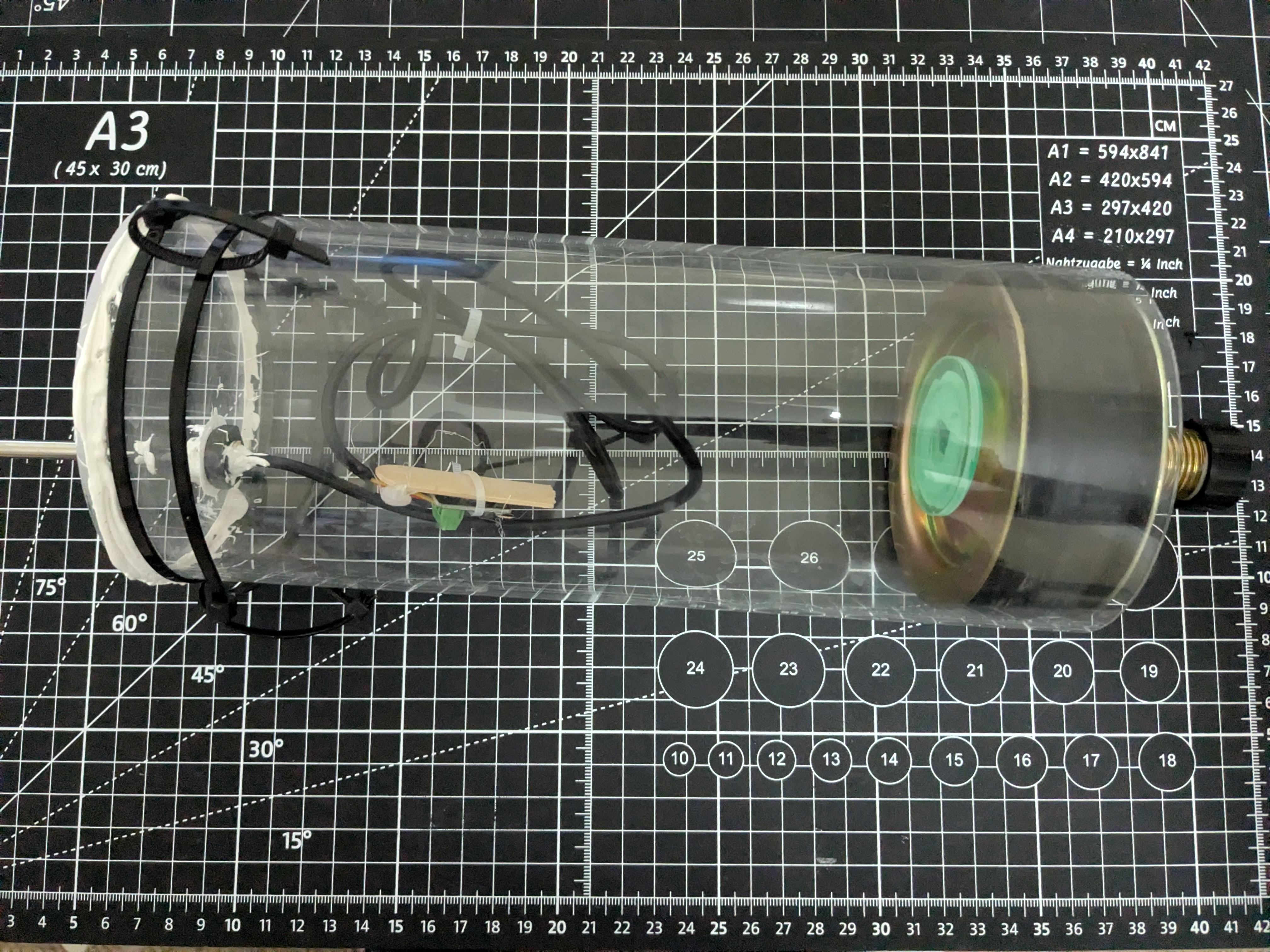
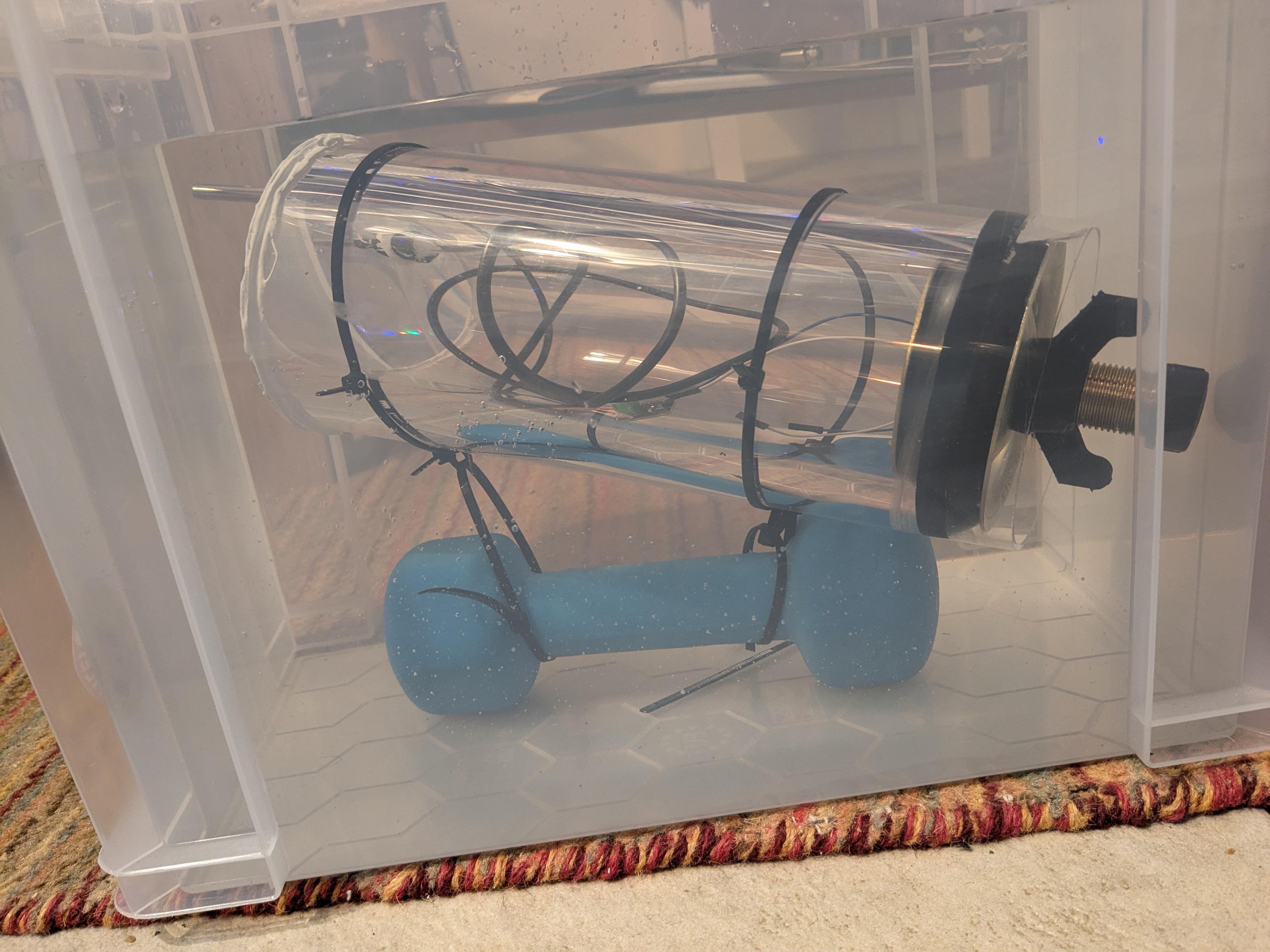
The acrylic tube is the heart of Sensea — a sealed, transparent pressure chamber that keeps your electronics dry while allowing the camera to see through the end cap.
Sealing the Permanent End (Camera End)
- Centre the 10.5 cm acrylic disc over one end of the tube and mark the overlap with a pen.
- Drill one 13 mm hole off-centre in the disc for the cable gland (this is how the DS18B20 probe cable passes through).
- Roughen the mating surfaces lightly with fine sandpaper to improve adhesion.
- Apply marine epoxy around the tube rim and press the disc firmly into place. Clamp or tape and allow to cure fully (check epoxy manufacturer's time — typically 24 hrs).
- Thread the cable gland into the drilled hole and apply additional marine epoxy around the outside of the gland for extra leak protection.
- Route the DS18B20 sensor cable through the cable gland in the acrylic disc.
Sealing the Access End
- Insert the expanding drain test plug (94–100 mm) into the open end of the tube.
- Tighten the central bolt until the rubber expands and grips the inside of the tube firmly.
- Test: hold the sealed tube upside down over a sink and pour water on the sealed end — no seepage should occur.
⚠️ Do NOT use the drain plug as the camera-end seal. The glued disc must be permanent. The drain plug is only for the access end where you insert and remove electronics.
Leak Test Protocol (Do This Before Every Deployment)
- Submerge the fully sealed tube (with electronics inside) in a bucket of water for 5 minutes
- Look for any bubbles rising from seams or the cable gland
- After removing, open the access end and check the interior with a tissue for any trace moisture
- If moisture is found: dry completely, identify the leak, re-seal, and re-test before field use
Mount Tube in Roll Cage

With the tube sealed and the cage assembled, the two are joined using zip ties. This keeps the assembly modular — the tube can be removed for maintenance without tools.
- Orient the tube so the camera-end acrylic disc faces toward the 'open' end of the cage (the end that will face downward in water).
- Lay the tube across the four zip tie loops prepared in Step 1.
- Thread each zip tie through its loop and tighten firmly. The tube should not move when you shake the cage.
- Trim excess zip tie tails with scissors.
- Attach the 2 kg ballast weight to the underside of the cage frame using zip ties or cable. Position it below the camera end so Sensea sinks camera-first.
- Attach the retrieval rope to the top of the cage frame — use a secure knot (bowline recommended).
3D Print the Electronics Bay Casing
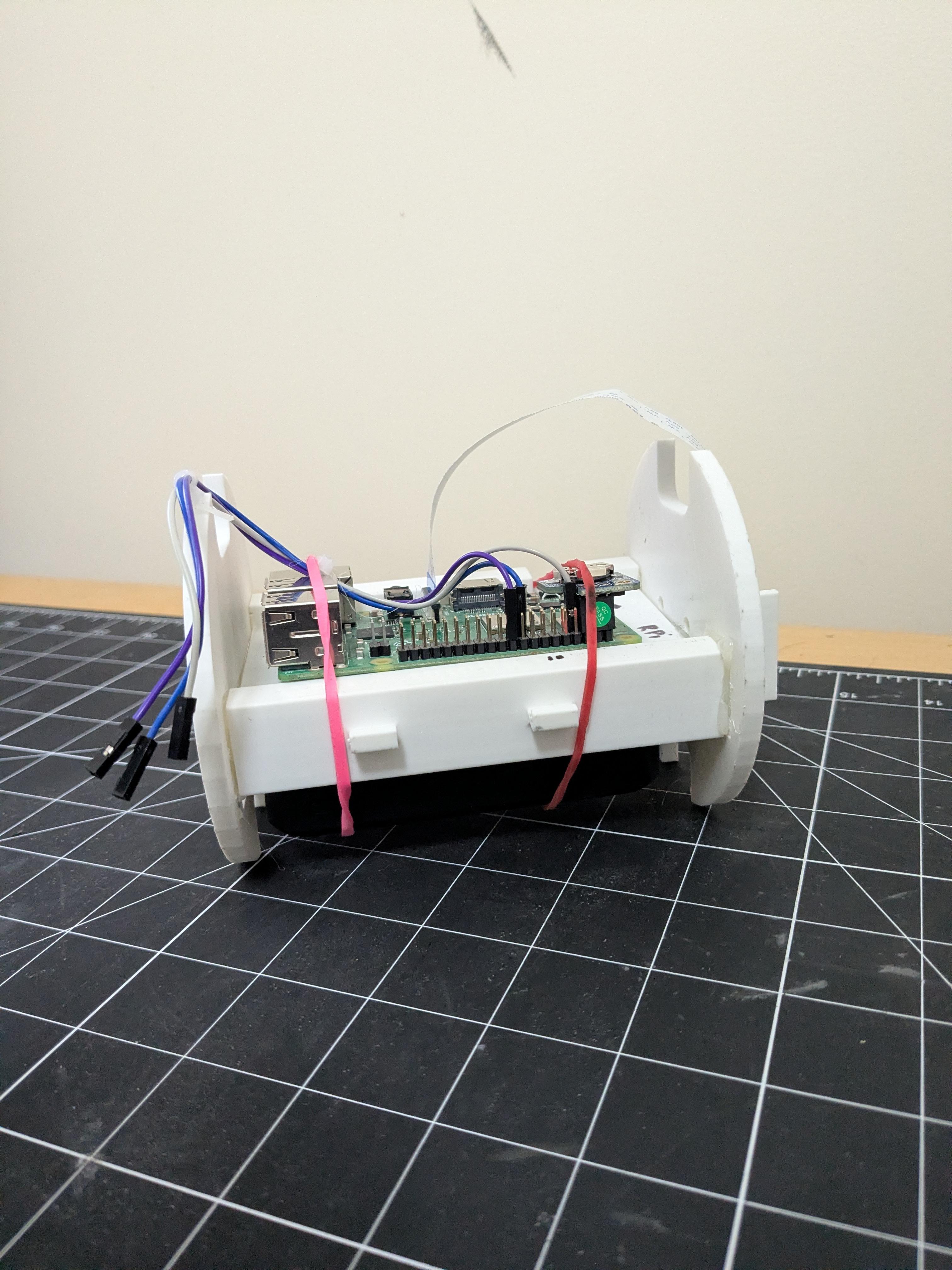
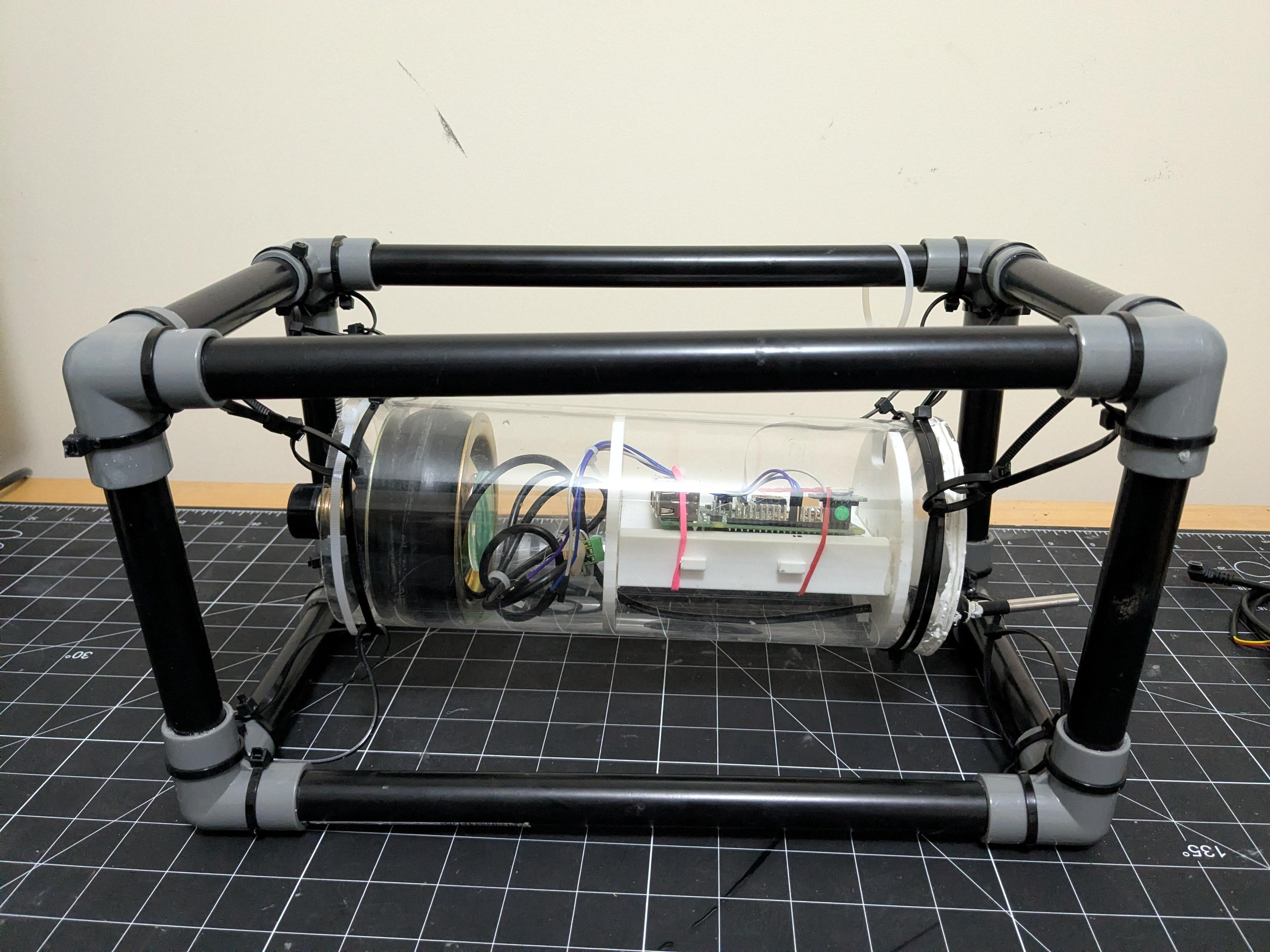
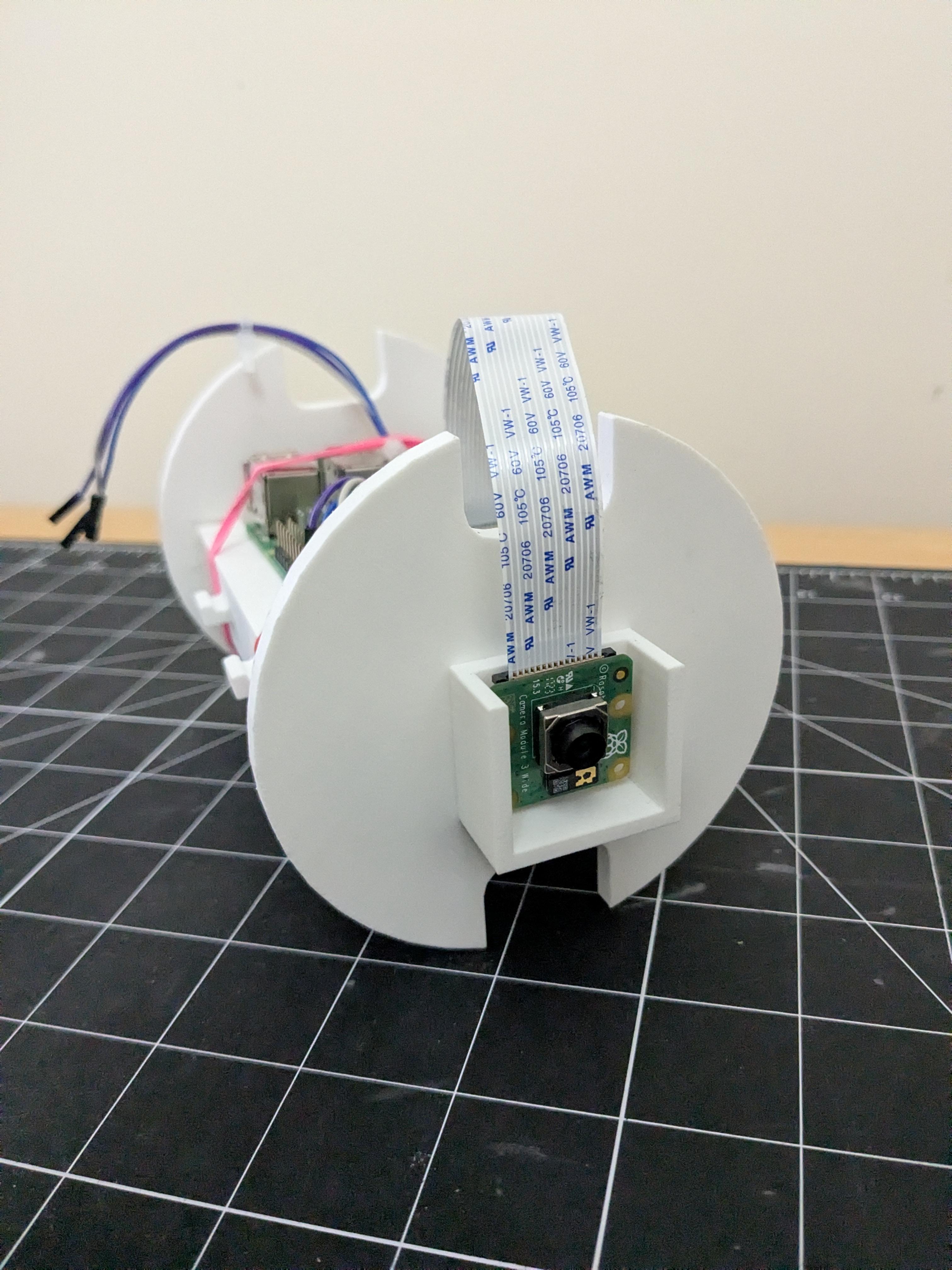
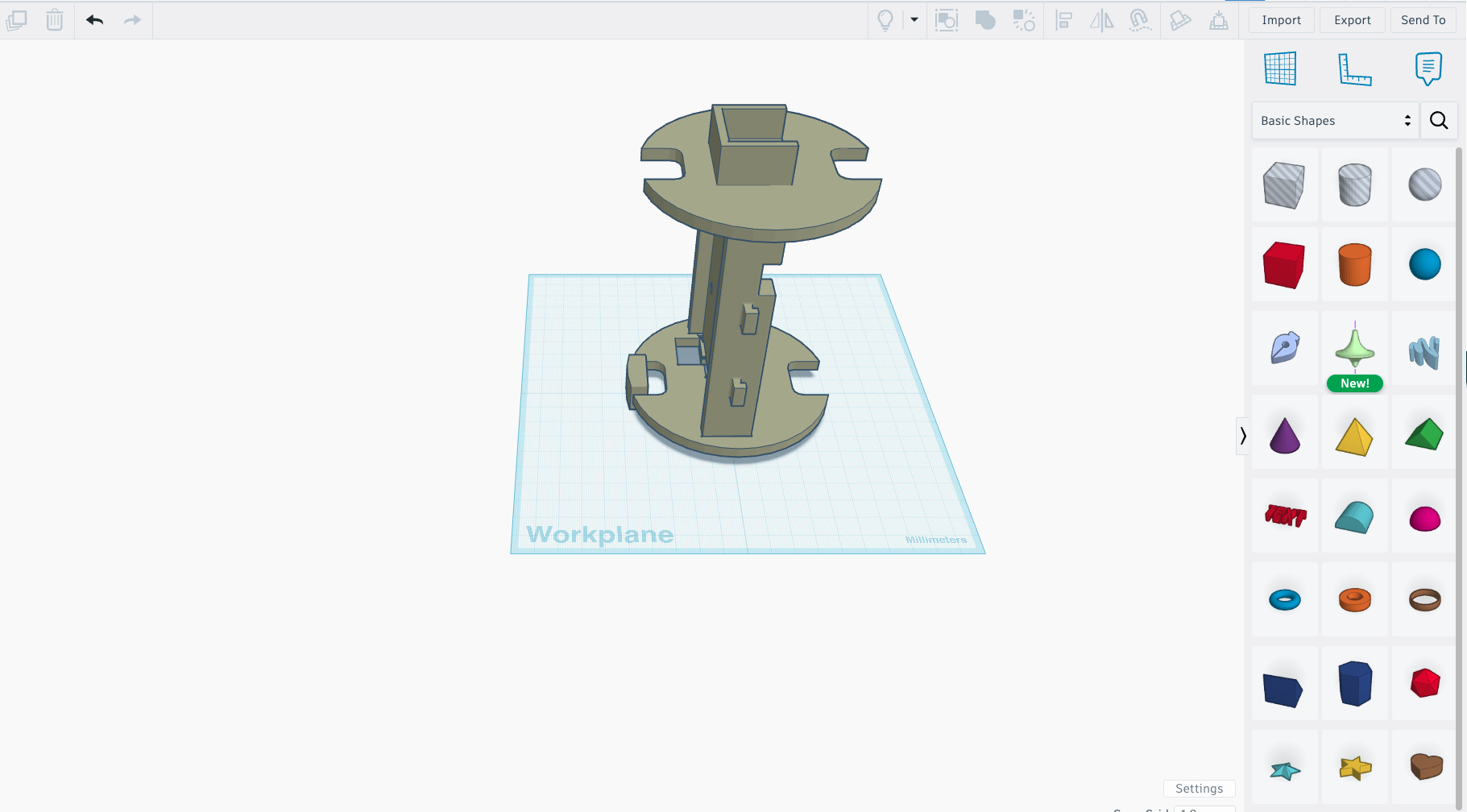
A custom 3D-printed casing holds all the electronics securely inside the acrylic tube. Loose components can strain cables, rotate the camera, or rattle until something breaks — this casing prevents all of that.
Printing the Casing
- Download the STL file attached to this project
- Recommended settings: 20% infill, 0.2 mm layer height, 2 perimeter walls
- Material: PLA is fine for most uses
- Print time: approximately 3–4 hours depending on your printer
Assembling Electronics into the Casing
- Mount the Raspberry Pi onto the base plate of the casing using M2.5 screws.
- Attach the Camera Module v3 into its dedicated bracket and connect the CSI ribbon cable to the Pi.
- Connect the DS3231 RTC module to the Pi using the I²C pins (see Step 5 for wiring).
- Connect the preinstalled DS18B20 data line, power, and ground to the Pi (see Step 5 for wiring).
- Place the battery pack into the casing and connect the USB power cable to the Pi.
- Carefully slide the assembled casing into the acrylic tube, camera-end first.
- Seal the access end with the drain test plug.
💡 Before sliding the casing into the tube, power up the Pi and confirm all sensors are detected. It's much easier to fix wiring before it's sealed inside.
Wiring the Electronics
This step covers all three sensor connections: the RTC module, the temperature sensor, and the camera. Work methodically and double-check each connection before powering on.
1. DS3231 Real-Time Clock (RTC) — I²C Interface
The DS3231 keeps accurate time even when the Pi is powered off, using its own CR2032 coin-cell battery. This is essential for timestamping your underwater data correctly.
Component Pin Raspberry Pi Pin Notes
VCC 3.3V (Pin 1) 3.3V power — NOT 5V
GND GND (Pin 6) Ground
SDA GPIO2 (Pin 3) I²C data line
SCL GPIO3 (Pin 5) I²C clock line
After wiring, enable I²C in raspi-config (Interface Options → I2C → Enable).
Verify the module is detected:
sudo i2cdetect -y 1
You should see address 0x68 appear in the grid.
2. DS18B20 Temperature Sensor — 1-Wire Interface
The DS18B20 uses a single data wire. A 4.7kΩ pull-up resistor between the data line and 3.3V is required for reliable communication — do not skip this.
Component Pin Raspberry Pi Pin Notes
VCC (Red wire) 3.3V (Pin 17) Also valid: Pin 1/ in our case RTC is using Pin 1
GND (Black wire) GND (Pin 20) Ground
DATA (Yellow wire) GPIO4 (Pin 7) With 4.7kΩ pull-up to 3.3V
⚠️ The 4.7kΩ resistor must connect between the DATA line and 3.3V. Without it, the sensor will not respond or will give incorrect readings.
Enable 1-Wire in raspi-config (Interface Options → 1-Wire → Enable).
Verify the sensor appears:
ls /sys/bus/w1/devices/
You should see a folder beginning with 28- followed by the sensor's unique ID. Read the temperature with:
cat /sys/bus/w1/devices/28-*/w1_slave
3. Camera Module v3 — CSI Interface
The Camera Module v3 connects via the ribbon cable to the Pi's CSI (Camera Serial Interface) port — no GPIO wiring needed.
- Locate the CSI port on the Pi (between HDMI and audio jack).
- Gently lift the plastic locking tab.
- Insert the ribbon cable with metal contacts facing toward the HDMI side.
- Press the locking tab down firmly to secure the cable.
Enable the camera in raspi-config (Interface Options → Camera → Enable). Test with:
libcamera-still -o test.jpg
💡 View the captured image on the Pi with: eog test.jpg or transfer to your computer with SCP.
Data Logging Script
This is where it all comes together. The Python script runs automatically on the Pi, captures 10-second H264 video clips at regular intervals, reads the water temperature, and logs everything with accurate timestamps. Unlike a simple photo approach, video clips give you far more chance of capturing aquatic life as it swims past the lens.
Prerequisites
- Raspberry Pi OS (Bullseye or later) — fully updated: sudo apt update && sudo apt upgrade
- 1-Wire enabled in raspi-config (Interface Options → 1-Wire → Enable)
- Camera interface enabled in raspi-config (Interface Options → Camera → Enable)
- picamera2 library installed: sudo apt install -y python3-picamera2
Script: sensea_logger.py
📎 The full script file is attached to this project. Each section is explained below.
Section 1 — Imports and Temperature Sensor Setup
The script uses picamera2 — the modern Python library for the Camera Module v3 — along with libcamera’s autofocus controls. The temperature sensor is found automatically by searching for any device in the 1-Wire bus folder beginning with 28- (the DS18B20’s unique identifier prefix).
Section 2 — Camera Setup and Manual Focus
The camera is configured for H264 video recording at 10 Mbps — a good balance of quality and file size for a 10-second clip. Crucially, autofocus is disabled and the lens is set to a fixed position. Underwater, autofocus struggles with murky water or particles in suspension and tends to hunt continuously, wasting power and producing blurry footage. A fixed focus distance of 0.35 (on the Camera Module v3’s lens scale) works well for subjects roughly 0.3–1 m from the lens — ideal for fish passing in front of the camera.
Section 3 — Output Folders and CSV Log
The script creates two output folders automatically if they don’t already exist: videos/ for the H264 clips, and logs/ for the CSV temperature log. The CSV is opened in append mode so that data is never overwritten if the script restarts — useful if the battery runs low and the Pi reboots mid-deployment.
Section 4 — Main Logging Loop
Each cycle of the loop reads the temperature, records a 10-second H264 video clip named with a timestamp, then waits 60 seconds before the next cycle. The try/finally block ensures the camera and CSV file are always closed cleanly — even if you stop the script with Ctrl+C or a power cut occurs.
Running the Script at Boot
So that Sensea starts logging automatically the moment it powers on in the field, add a crontab entry to launch the script at boot.
- Copy sensea_logger.py to your Pi home directory: /home/pi/sensea_logger.py
- Open crontab for editing: crontab -e
- Add this line at the bottom of the file:
@reboot sleep 15 && python3 /home/pi/sensea_logger.py >> /home/pi/sensea.log 2>&1 &
- Save and exit, then reboot the Pi to verify: sudo reboot
💡 The sleep 15 delay gives the Pi time to fully initialise the camera and 1-Wire drivers before the script starts. Without it, picamera2 may fail to open on first boot.
💡 After rebooting, SSH into the Pi and check the log to confirm everything started correctly: ssh pi@raspberrypi.local then: tail -f /home/pi/sensea.log
💡 H264 files can be played back on your laptop after conversion: ffmpeg -i video_file.h264 -c copy video_file.mp4
Downloads
Pre-Deployment Testing
Never skip Pre-Deployment Testing.
A systematic test on dry land (and in a bucket) catches 95% of problems before they become a flooded, broken build.
Pre-Deployment Checklist
☐ Pi boots and connects to SSH
☐ RTC detected at i2cdetect address 0x68
☐ DS18B20 detected in /sys/bus/w1/devices/
☐ Temperature reading is plausible (room temp ≈ 20–22°C)
☐ Camera working: run python3 sensea_logger.py manually and confirm a video file appears in videos/
☐ Logging script runs and creates CSV file
☐ Crontab entry tested: reboot Pi and confirm script starts automatically
☐ Tube sealed — bucket soak test passed (5 minutes, no moisture inside)
☐ Retrieval rope securely attached to cage
☐ Ballast attached — platform sinks correctly in bucket
☐ Battery pack charged — estimated runtime noted
💡 Take a smartphone photo of your completed build before heading to the field — you'll want it for your Instructable and for troubleshooting if anything looks different after a deployment.
Field Deployment
You've built and tested Sensea — now it's time to put it to work. This step covers how to deploy safely and get the best possible data.
Choosing a Location
- Start with a pond or slow-moving river section — calm water is easier to work in and reduces the risk of Sensea being swept away
- Look for areas with interesting features: reeds, overhanging vegetation, underwater structures
- Avoid locations with heavy boat traffic or strong currents for your first deployment
- Check water depth — Sensea should sit on the bottom in 0.3–1.5 m of water ideally
Deployment Procedure
- At your chosen location, power on the Pi (it will start logging automatically if you set up crontab in Step 6).
- Give it 60 seconds to boot and begin logging — you'll see the LED activity slow to a steady pattern.
- Hold the retrieval rope and gently lower Sensea camera-first into the water.
- Allow it to sink to the bottom. If it floats, add more ballast.
- Secure the retrieval rope to the bank or a stable anchor point.
- Note your deployment time, location, and any relevant conditions (weather, water appearance, etc.) in a field notebook.
During Deployment
- Check on Sensea every 30 minutes if possible — in rivers, check more frequently
- Typical deployment: 30 minutes to 2 hours for a first session
Retrieval
- Use the retrieval rope to gently pull Sensea back to the surface.
- Do not open the tube while standing in the water.
- Carry Sensea back to dry land, rinse the outside with fresh water if it was in a river.
- Open the access end with the drain plug and check for any moisture inside before removing the electronics.
Your Data

.jpeg)
Analysing Your Data
The data you've collected is only useful if you analyse and visualise it. This step shows you how to turn your CSV log and images into real scientific insights.
Viewing Your Temperature Data
Transfer your sensea_log.csv from the Pi to your laptop (using SCP, a USB drive, or SD card). Open it in a spreadsheet like Google Sheets or LibreOffice Calc.
- Plot temperature (°C) on the Y axis against time on the X axis
- Look for patterns: does temperature change through the day? Is it warmer near the surface?
- Compare readings from different deployment locations: In our deployment we could see the difference in the temperature of River Cam ( blue marker) and a lake ( red markers)
Simple Python Plot
If your STEM club uses Python, this snippet generates a temperature chart from your CSV:
import pandas as pd
import matplotlib.pyplot as plt
df = pd.read_csv('sensea_log.csv')
df['timestamp'] = pd.to_datetime(df['timestamp'])
plt.plot(df['timestamp'], df['temperature_c'], marker='o')
plt.title('Water Temperature — Sensea Deployment')
plt.xlabel('Time')
plt.ylabel('Temperature (°C)')
plt.xticks(rotation=45)
plt.tight_layout()
plt.savefig('sensea_temp_plot.png')
Reviewing Your Images
Browse the captured images and note what you observe:
- What aquatic life (fish, invertebrates, plants) did the camera capture?
- How does water clarity change over time or between locations?
- Is there visible algae or debris — and does this correlate with temperature readings?
Going Further: Extensions & Improvements
Sensea is designed to grow. Here are ideas for your next build — from easy upgrades to advanced features. Perfect for STEM clubs looking for follow-on projects.
Extension Difficulty Description
Timelapse Mode ⭐ Easy Modify the script to capture an image every 10 seconds for a timelapse of underwater life
LED Lighting ⭐ Easy Add a waterproof LED strip inside the tube to illuminate dark or murky water
Turbidity Sensor. ⭐⭐ Medium. Add a turbidity sensor to measure water clarity — correlate with temperature and images
pH Sensor. ⭐⭐ Medium. Monitor water acidity, an important indicator of pollution and ecosystem health
Depth Sensor ⭐⭐ Medium Add a pressure/depth sensor to log the exact depth of each reading
AI Species ID. ⭐⭐⭐ Hard. Run a YOLO-based image classifier i to automatically identify fish and invertebrates
Share Your Build
Sensea is an open project — the whole point is that you build it, improve it, and share what you find. If your STEM club extends the design, discovers something interesting underwater, or finds a better way to build any part of this, please share your version on Instructables.
Together, data collected by Sensea platforms in ponds and rivers across the country builds a picture of local water health that would otherwise be invisible.
Good luck, and enjoy exploring below the surface.