Rotary Dial Project
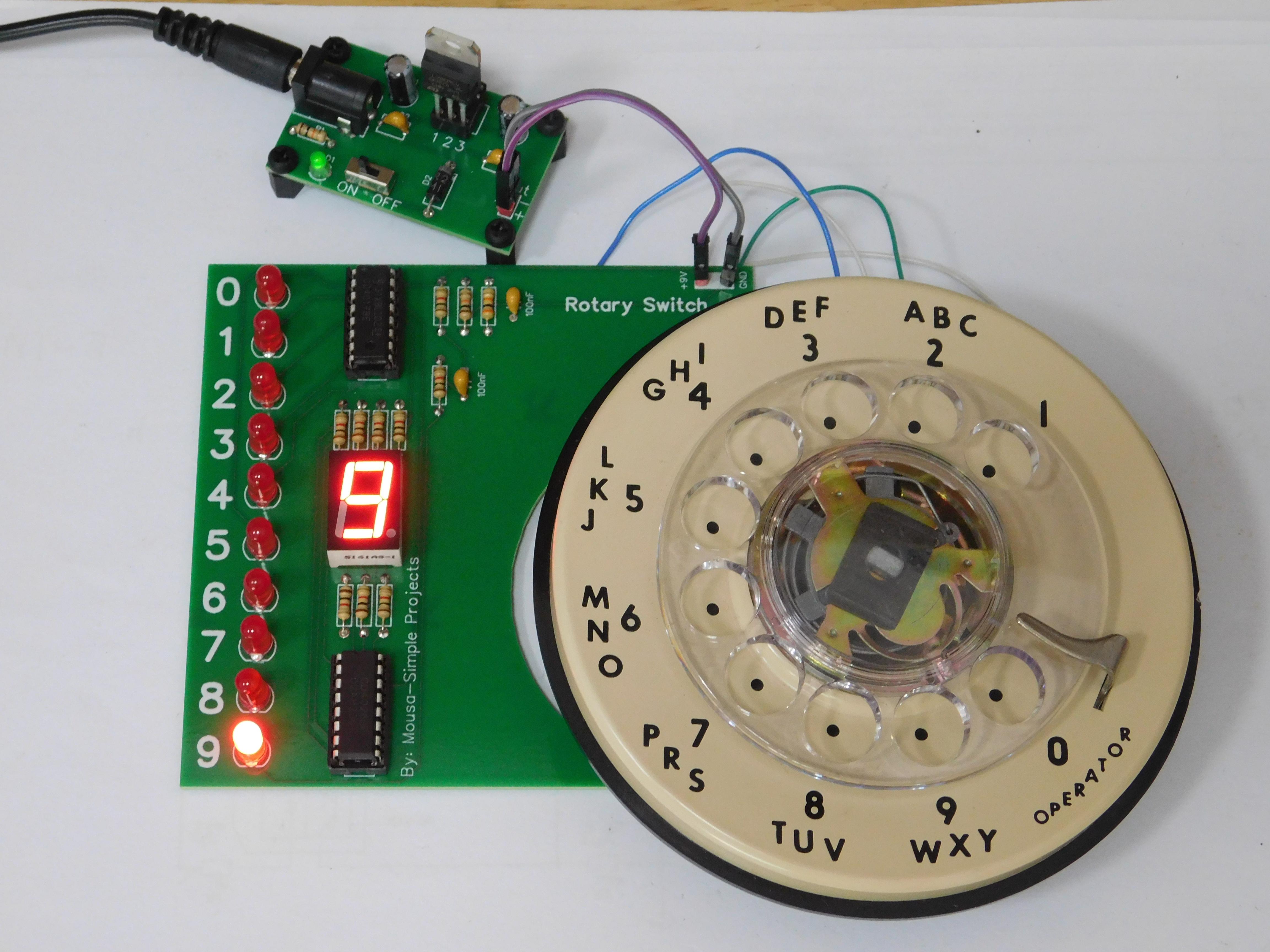
I came across this circuit on my fabricators website and this struck my curiosity, using a rotary dial phone pad to indicate numbers on a PCB. I thought this was quite ingenious so I ordered the board and here is my Instructable on getting this together and testing it out.
Full credit to Mousa Simple Projects for the circuit design and implementation of the phone dial pad.
For the Arduino enthusiasts, there will also be a step to connect your rotary dial pad to an Arduino and a 16x2 LCD display, and that does not use this circuit board.
To make this, you need to download the Gerber file and send to any PCB fabricator you use.
You will need just basic soldering skills and able to use a multimeter.
Supplies
Parts Required:
PCB, Gerber file is located here, and you can order the PCB from that link as well (not affiliated).
Resistors are all 1/4 watt 5%.
CD4017, decade counter, x1
CD4016, decade counter, x1
LED, 5mm, x10, red
5161AS, common cathode 7 segment display, x1
100 nF disc capacitor, x2
1K resistor, x9
10K resistor, x1
30K resistor, x1
DIP-16 socket, x2
1x1P header pin, x2, or if you have a 9 volt battery snap with wires you want to use, feel free to use that
telephone rotary dial pad
9 volt battery or power supply, for operation
Tools:
soldering iron and solder
solder wick and liquid flux, if mistakes are made
tape
flush cutters
isopropyl alcohol, to clean the board afterwards
The Rotary Dial Pad
The most important part of this project, is of course the dial rotary dial pad. The wiring colors can vary between brands and even models. The most common no frills rotary dial pad will have 4 or 5 wires.
The dial pad the author used had 5 wires; orange, pink, blue, gray, and he did not specify the 5 wire color. My rotary dial had 4 wires; blue, green, and two whites.
Only 4 wires needed for this project, and to sort out the "magic" of the wires, you can search for an online manual for your dial pad, or use a multimeter, sent to continuity test setting.
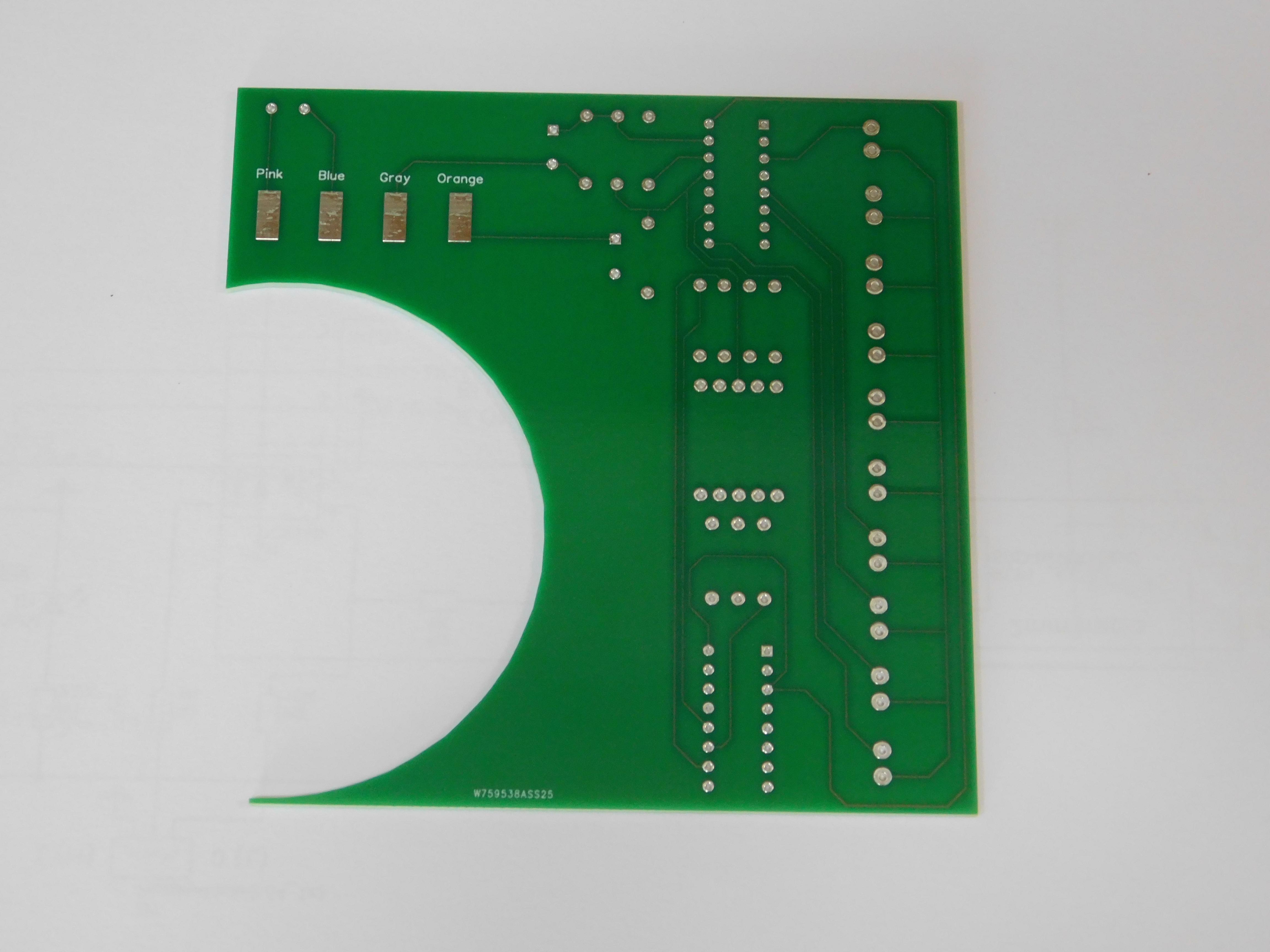
If you have a dial pad with orange, pink, blue, and gray wires; the blue & gray is on a normally open (NO) switch, and orange & pink are on a normally closed NC switch. Keep this in mind, as the PCB has pads for the wires and they are labeled as Pink, Blue, Gray, Orange, so you need to know how your wires correspond to these colors.
If you have a dial pad with blue, green, and two white wires; the white & white are on a NO switch, and the blue & green is on a NC switch.
If you have a dial pad with different colored wires, this is where the meter comes into play. Get a pencil and paper ready and take notes.
Set your meter to continuity mode and connect one lead to a wire and connect the other lead to another wire, is it open (no beep) or closed (continuous beep)? Does dialing a 0 make pulses (beeps) you can hear with your meter? If nothing, connect one lead to another wire, and repeat to determine which two wire are NO and which two wire are NC. One you have that determined, you can write on your notes, orange and pink for NC and blue and gray for NO.
PCB Assembly
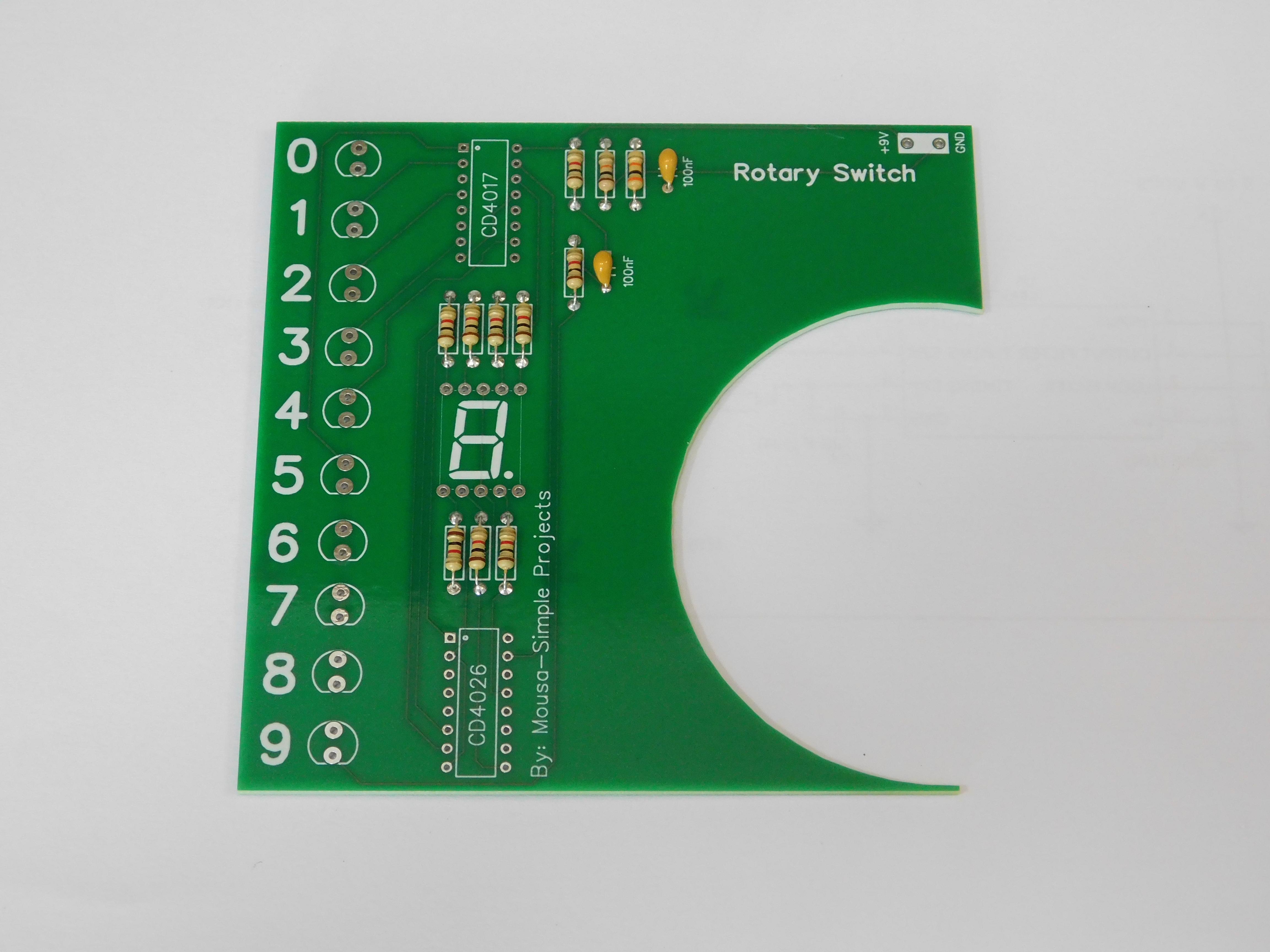
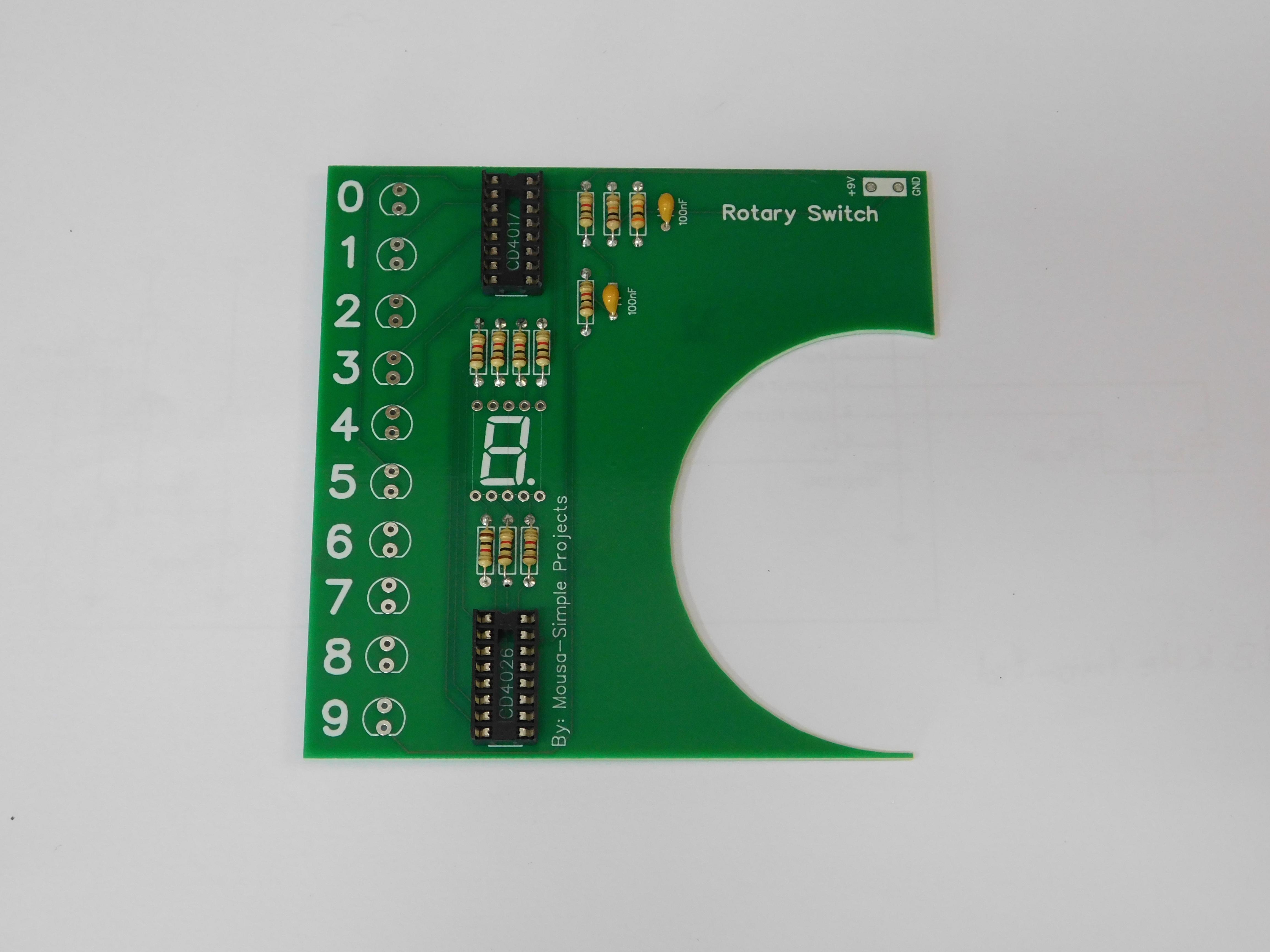
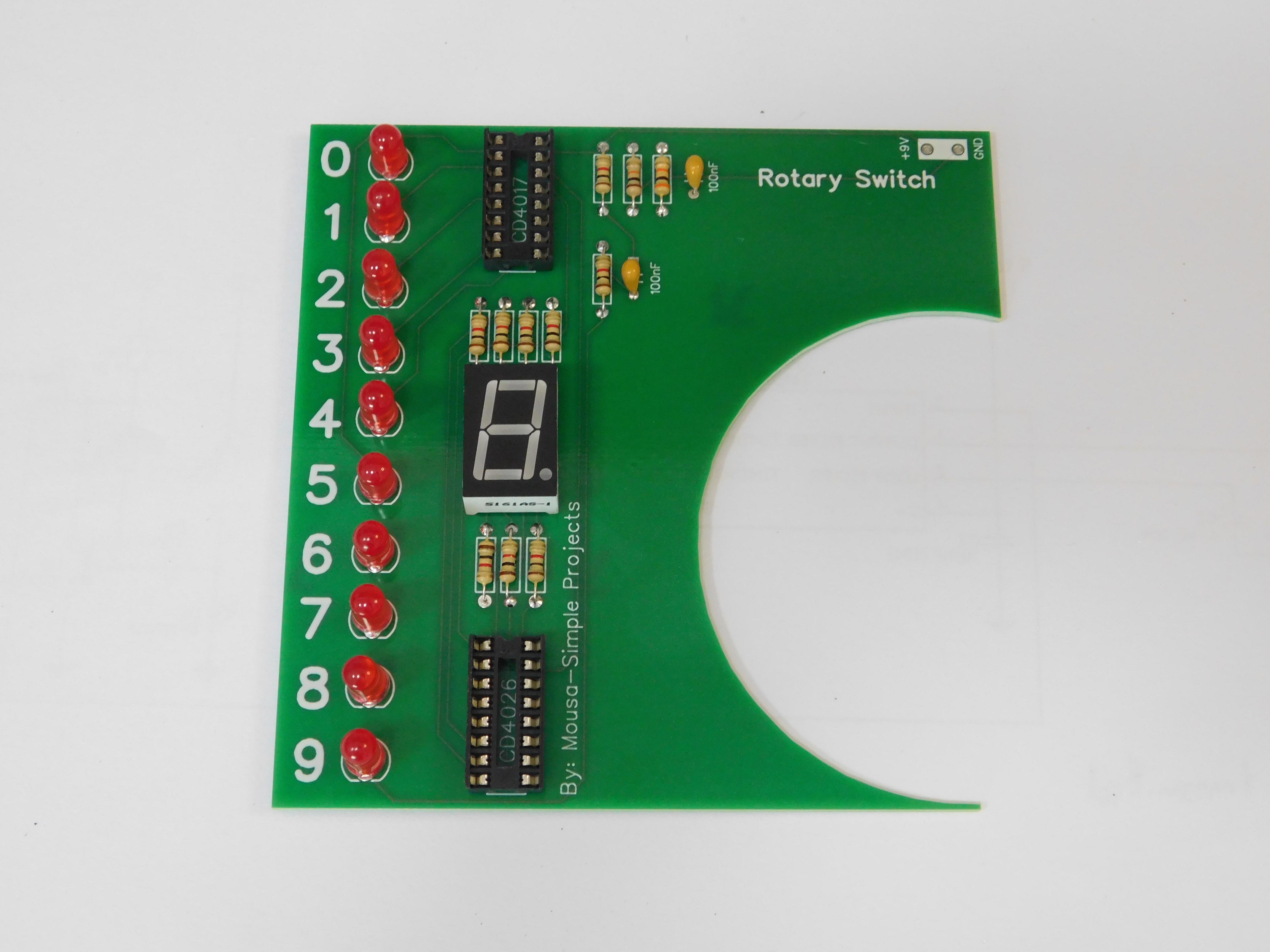
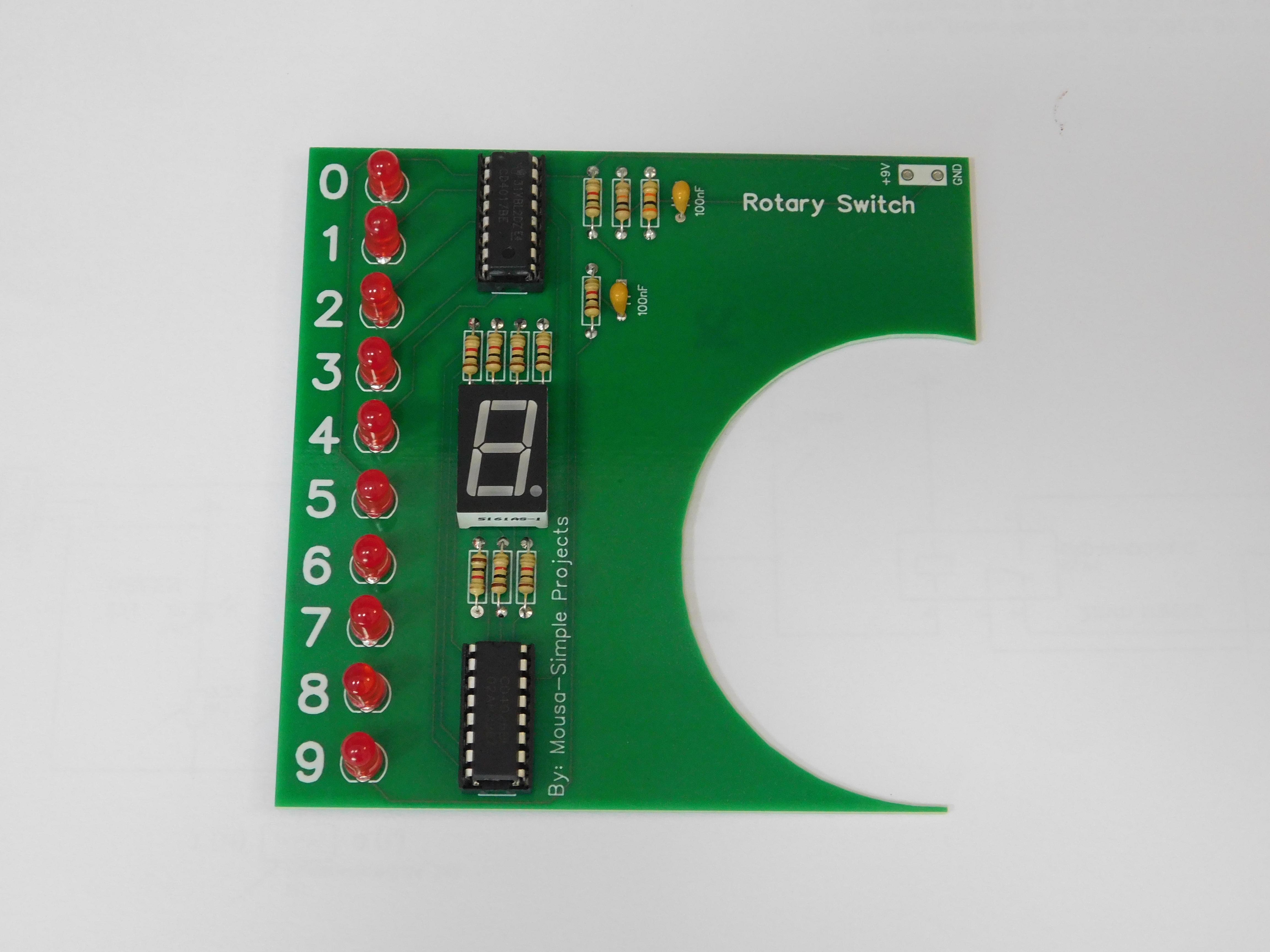
Have your PCB and all the parts laid out. You are going to assemble this from lowest profile parts to tallest profile parts, this will come together fairly fast. The general steps for assembly is insert part, tape in place, solder, remove tape, trim leads, move on to the next part.
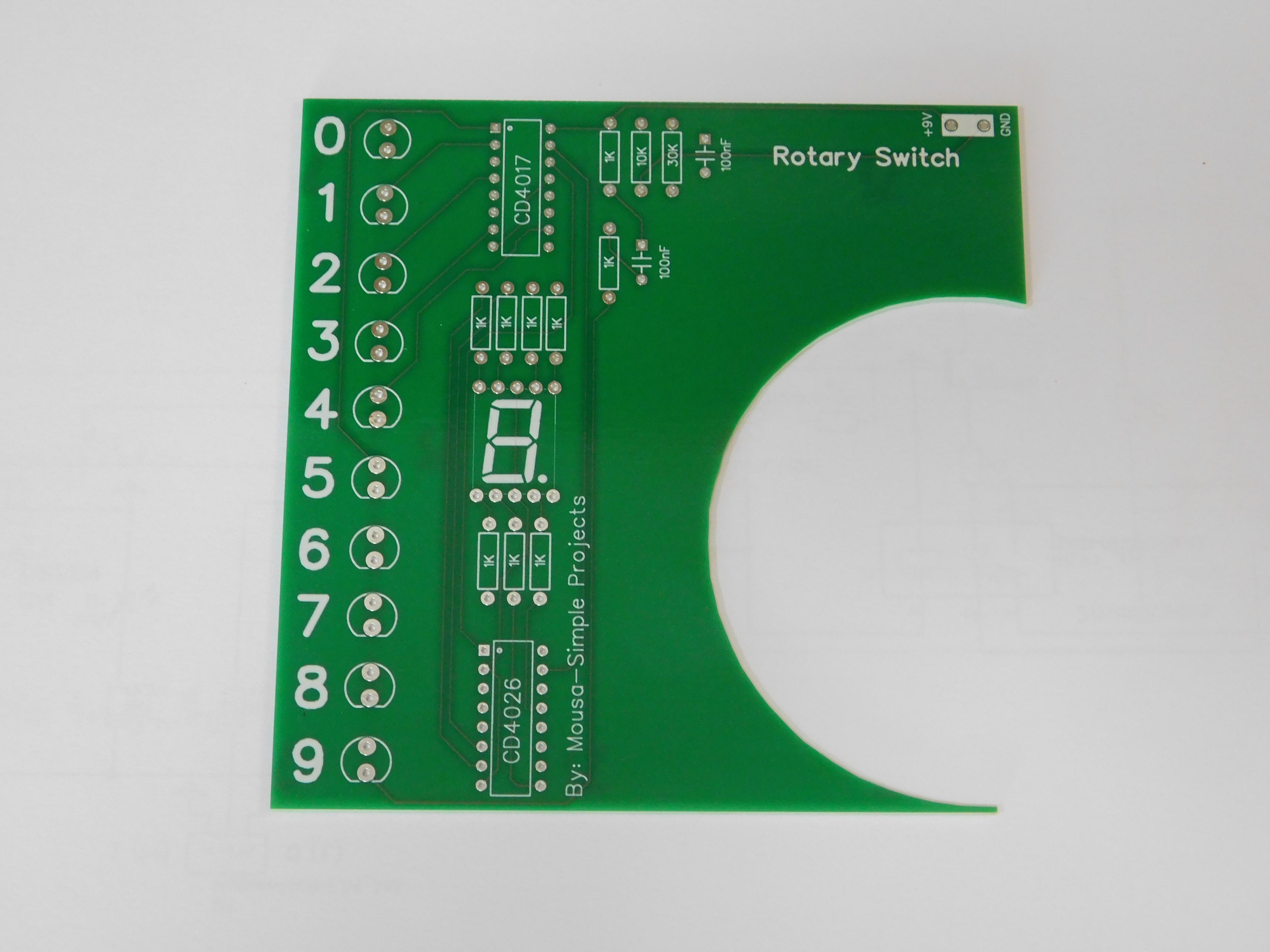
1st photo. Resistors are first parts to go in, bend leads for proper spacing, since they are laid out quite nicely, you can solder 3-4 at a time. Next in is the disc capacitors.
2nd photo. Sockets go in next. Make sure the notch on the socket is aligned correctly, pin 1 on the silkscreen is indicated with a dot, also the hole for pin 1 is square. Insert a socket, solder a pin in opposite corners, then check to make sure the socket is flat on board, reflow either pin while pressing down on the socket to settle it flush to the board, then solder all remaining pins. Repeat with the second socket.
3rd photo. Now install and solder in the LEDs, ensuring the flat side of each LED goes to the flat side on the silkscreen. Now install the 7 segment display. You can install this directly on the board, or if you want it removeable, install two 5P machined pin female headers and simply insert the display into those.
No photo. Install and solder a single male header pin for +9V and another one for GND at the top right of the board above the word Switch. Al alternative is if you have a 9 volt battery snap with leads, you can simply solder those wires into the correct holes as well.
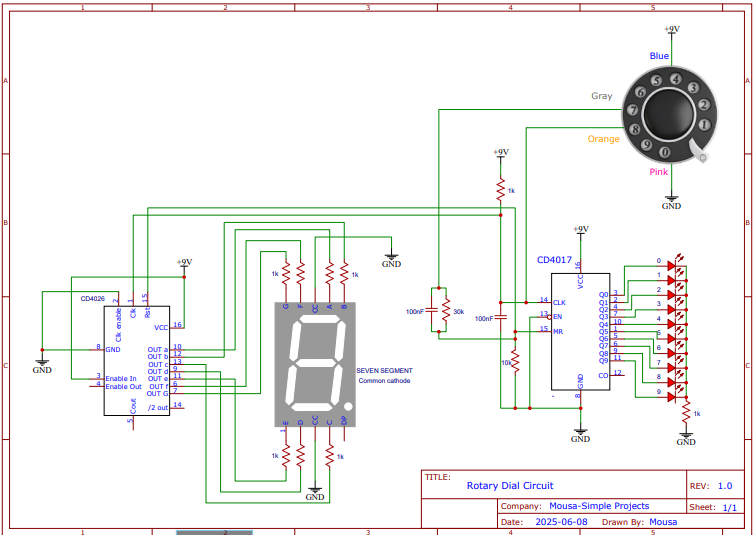
4th photo. Insert the ICs CD4017 and CD4026 into the correct sockets, ensuring the notch on the IC lines up with the notch on the socket.
No photo. Now you can connect the dial pad wires to the backside of the board. Using your notes when you determined the NO and NC switches on the dial pad, solder the NC pair of wires to the pads labeled Orange and Pink, then solder the wires NO pair of wires to the pads labeled Blue and Gray.
Operation
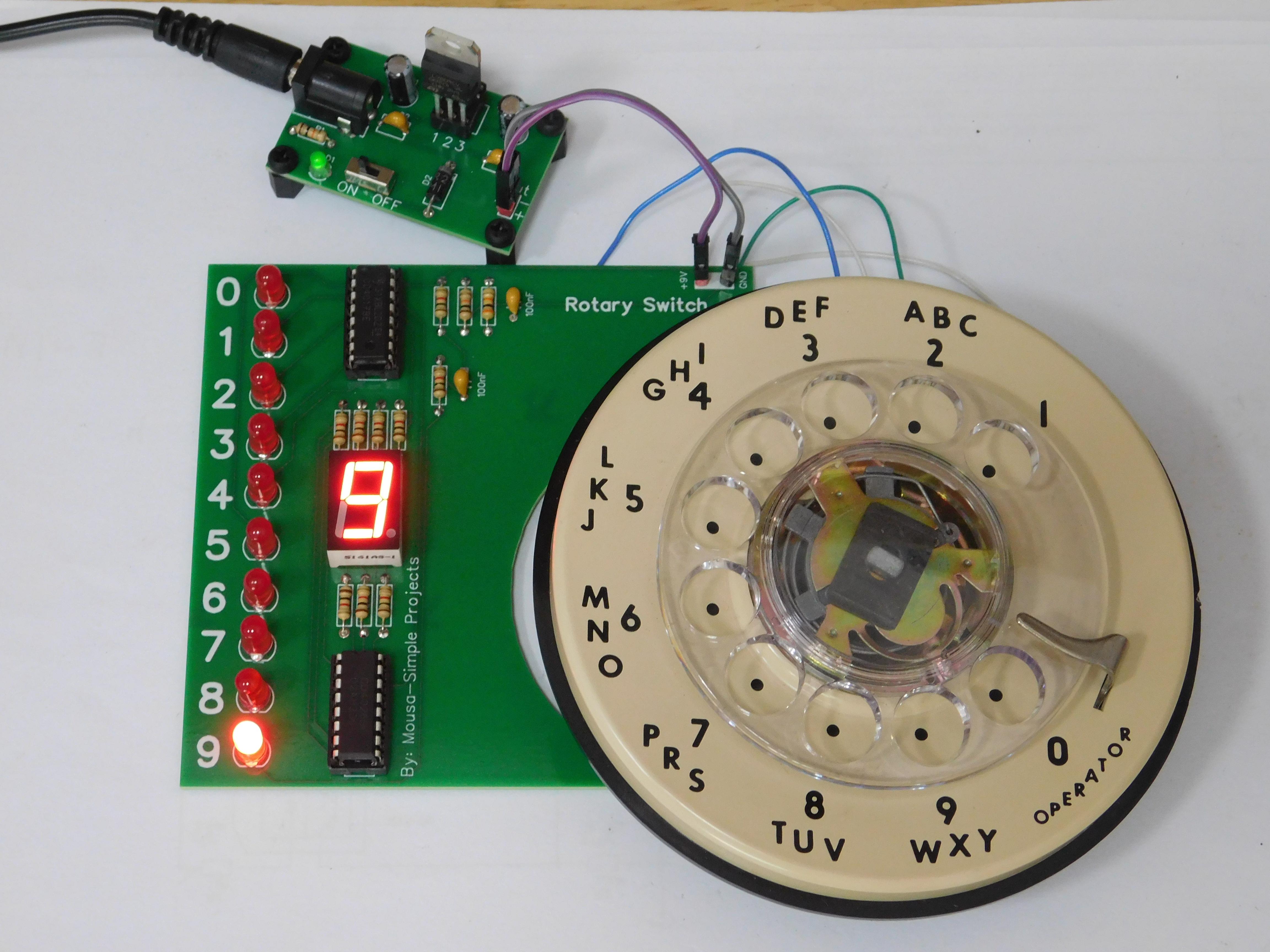
To test the circuit, install a 9 volt battery in the batter snap or attach a 9 volt power supply (I used my power supply module).
Hold the dial pad dial a number, the red LEDs should cycle through showing pulses, and the 7 segment display will cycle through numbers as well, when dial stops, the number you dial will be indicated by a red LED and will also be shown on the 7 segment display. Dial another number, and the same will happen.
With an Arduino
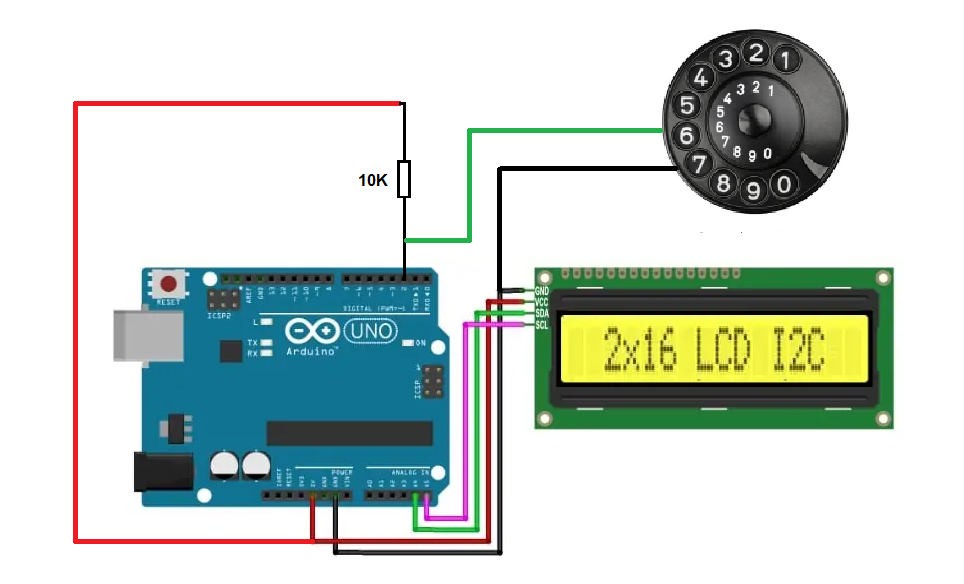
For this test, you need:
Arduino UNO
rotary dial pad (and know what the wires are for the NC switch)
LCD 16x2 with I2C
10K resistor
small breadboard
jumper wires
the code. Only two wires from the dial pad are used, the NC switch.
Connect your Arduino, LCD, and resistor as shown in the image.
Load the following code into your Arduino:
When you have a good install of the code, now you can dial a number and the number appears on the LCD.
This was the inspiration for the Rotary Dial Lock Project.