Rotary Dial Lock Project
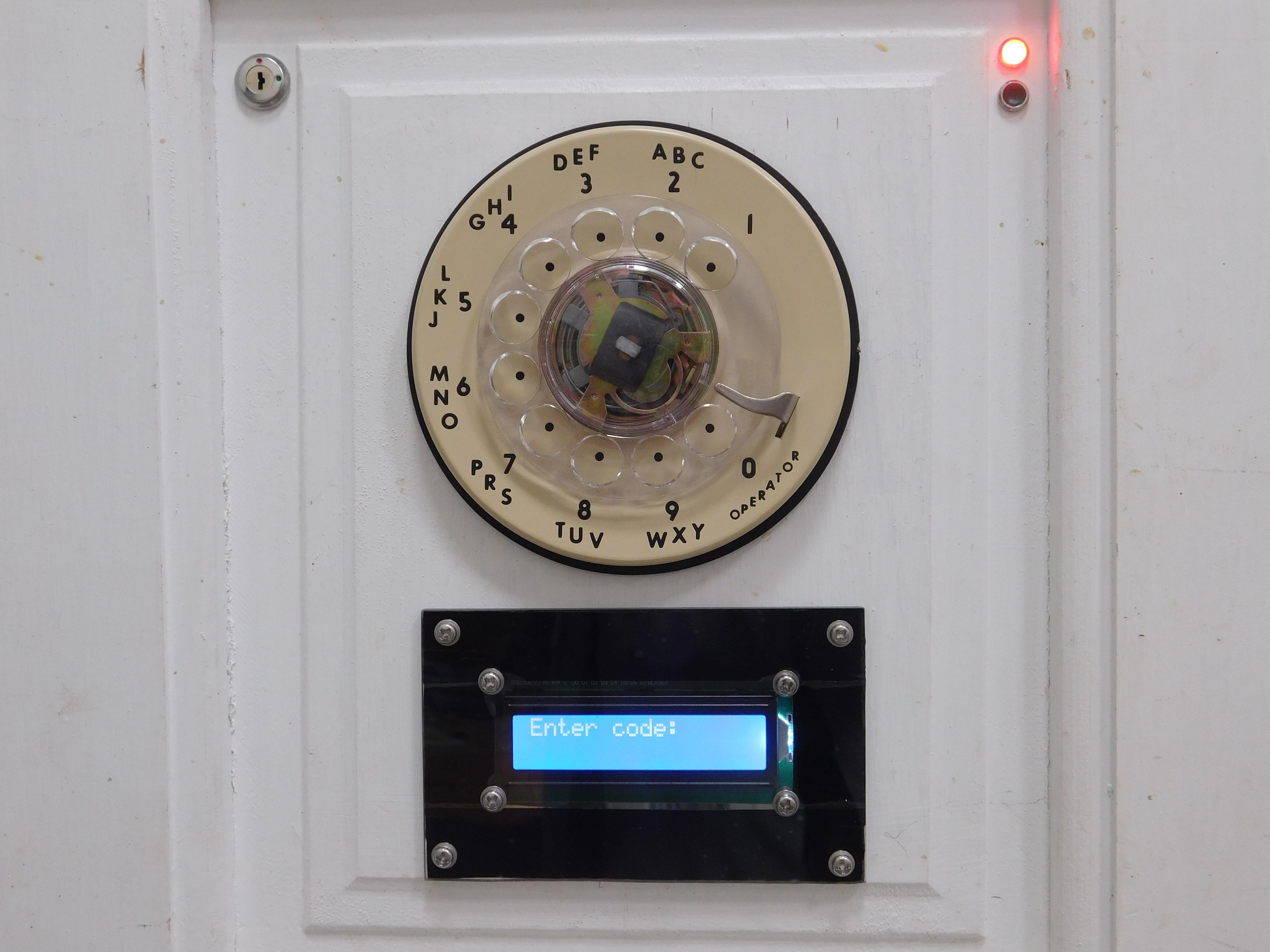
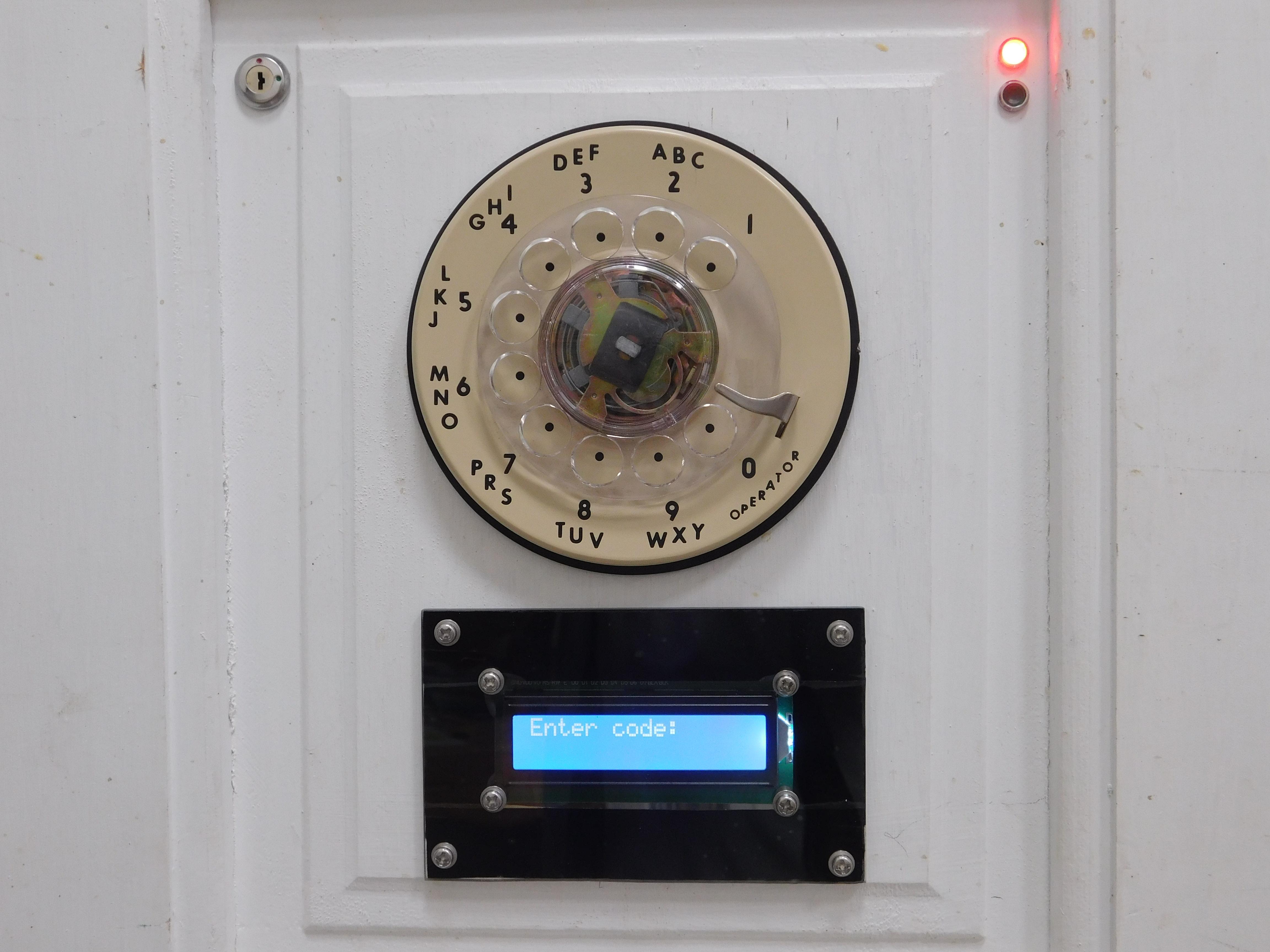
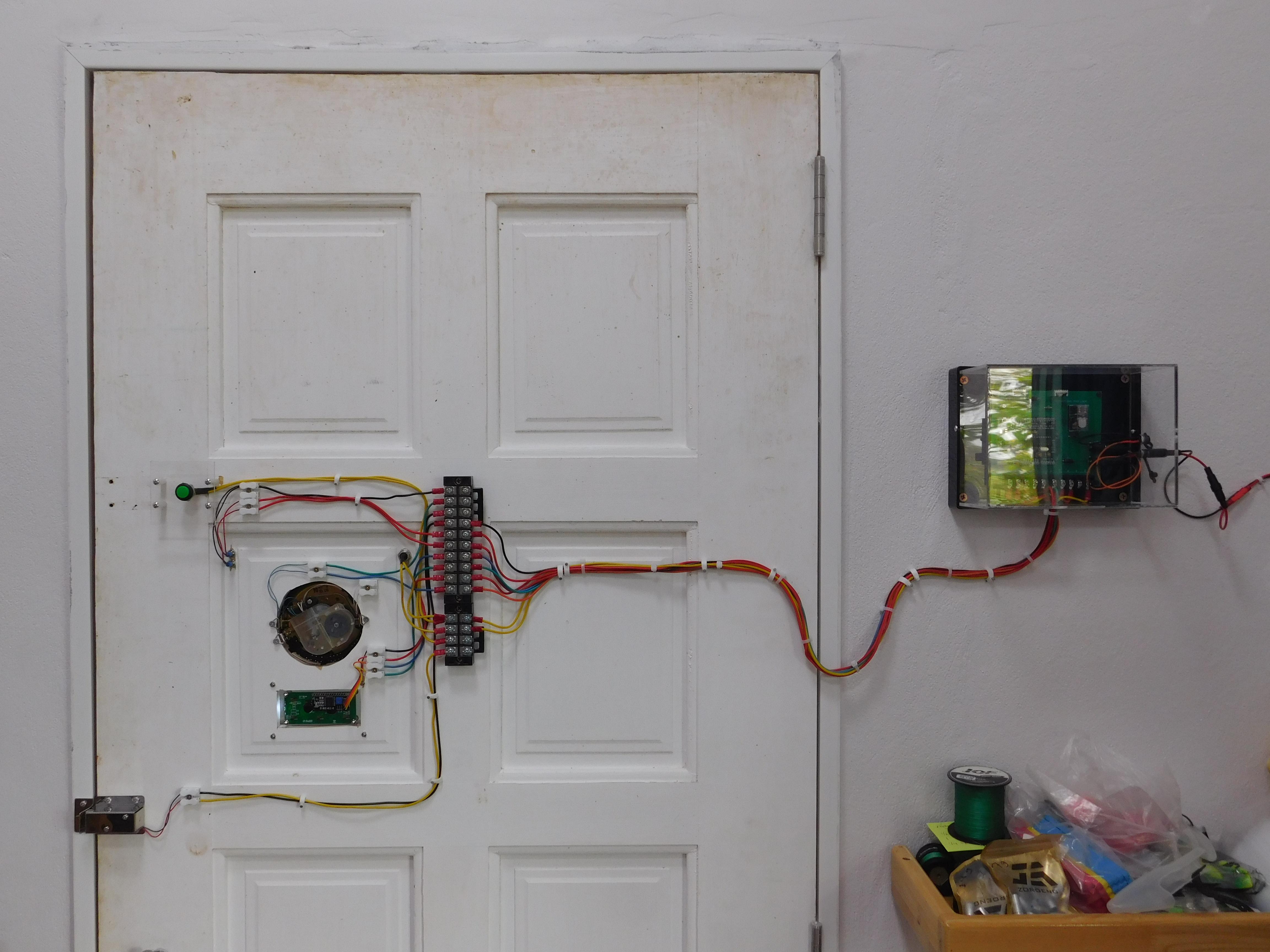
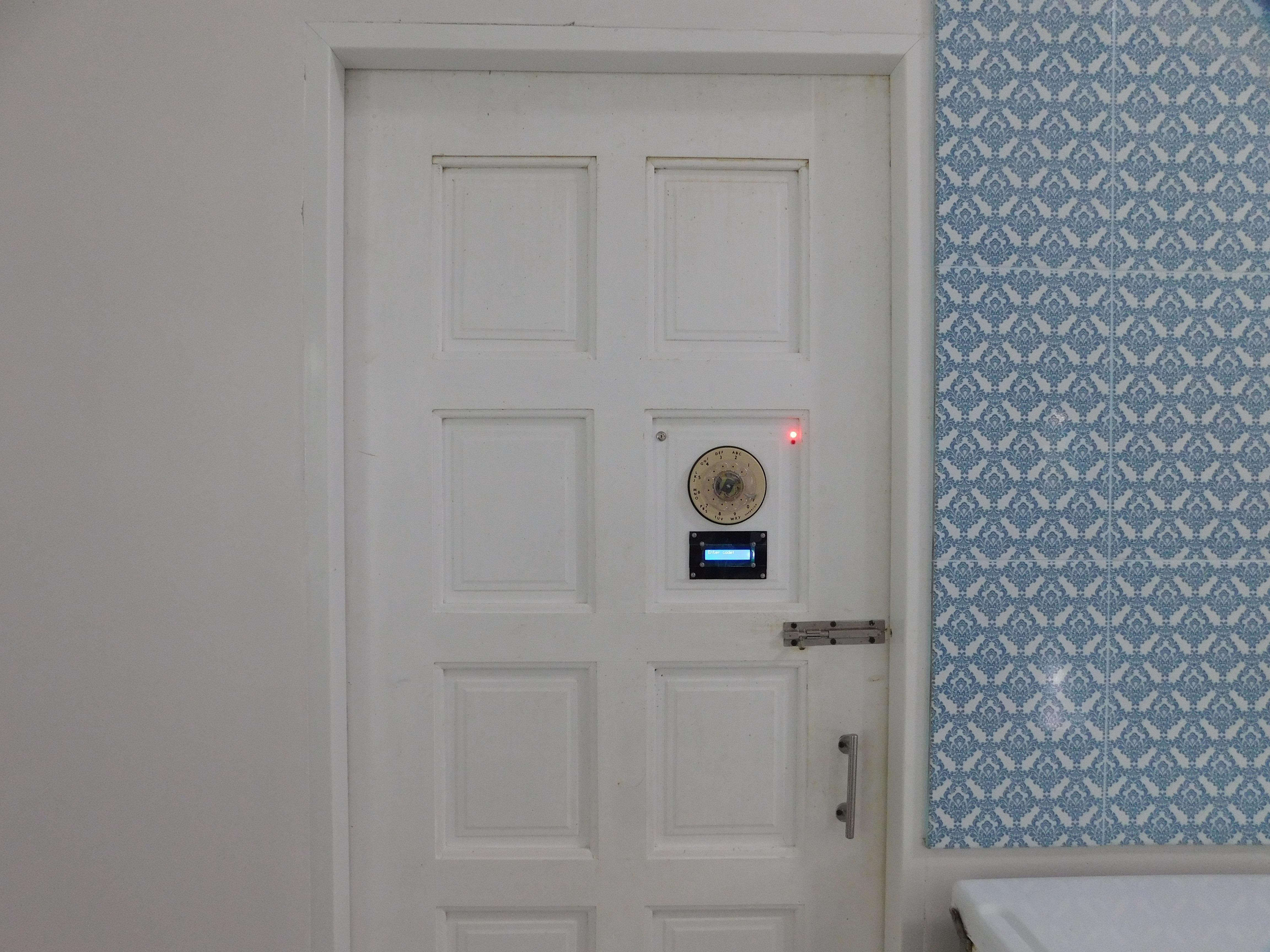
This is a whimsical project and I got the idea from testing a telephone rotary dial to output the dial numbers to numbered LEDs and a 7 segment LED display using two ICs, as well as a 16x2 LED display when using an Arduino. If you would like to see that project, let me know.
So I thought the next step was to use this as a door lock, using the rotary dial as the sensor, where a person wanting to open the door has to dial the access code, just like dialing a rotary telephone. I am retired, so I have a lot of time on my hands.
This project will have several major steps, the PCB will be the Control Panel, which will have the Arduino, power distribution, and the relay to fire a solenoid. The door will have the rotary dial pad, indicator lights for locked and unlocked, the LCD 16x2 display to show the number code during dialing, the solenoid that locks the door, and finally some terminal boards for power and signal distribution. On the door also featured is a key switch to power the relay if the PCB is not operational as well as an Exit button to fire the solenoid so one can open the door to exit the room. This system uses 15 volts as primary power and has 12 volt backup battery as well.
For this Instructable, you will need basic soldering skills, be able to read schematics, basic handiwork like drilling/cutting holes and mounting hardware as well as basic wire terminations. You need to be creative when mounting some of the parts on the door.
Circuit functions will be explained in the build steps.
NOTE: I am mounting parts directly in a wood door, meaning I will be cutting/drilling holes in the door. If you do not wish to cut holes in a door, you can easily mount the dial pad, indicator LEDS, LCD 2x16 module, and key switch in box and simply mount that to the exterior of the door or on a wall next to the door. The door I am using is my workshop door, no state secrets inside, just a whimsical yet functional way to use it for demonstration.
Supplies
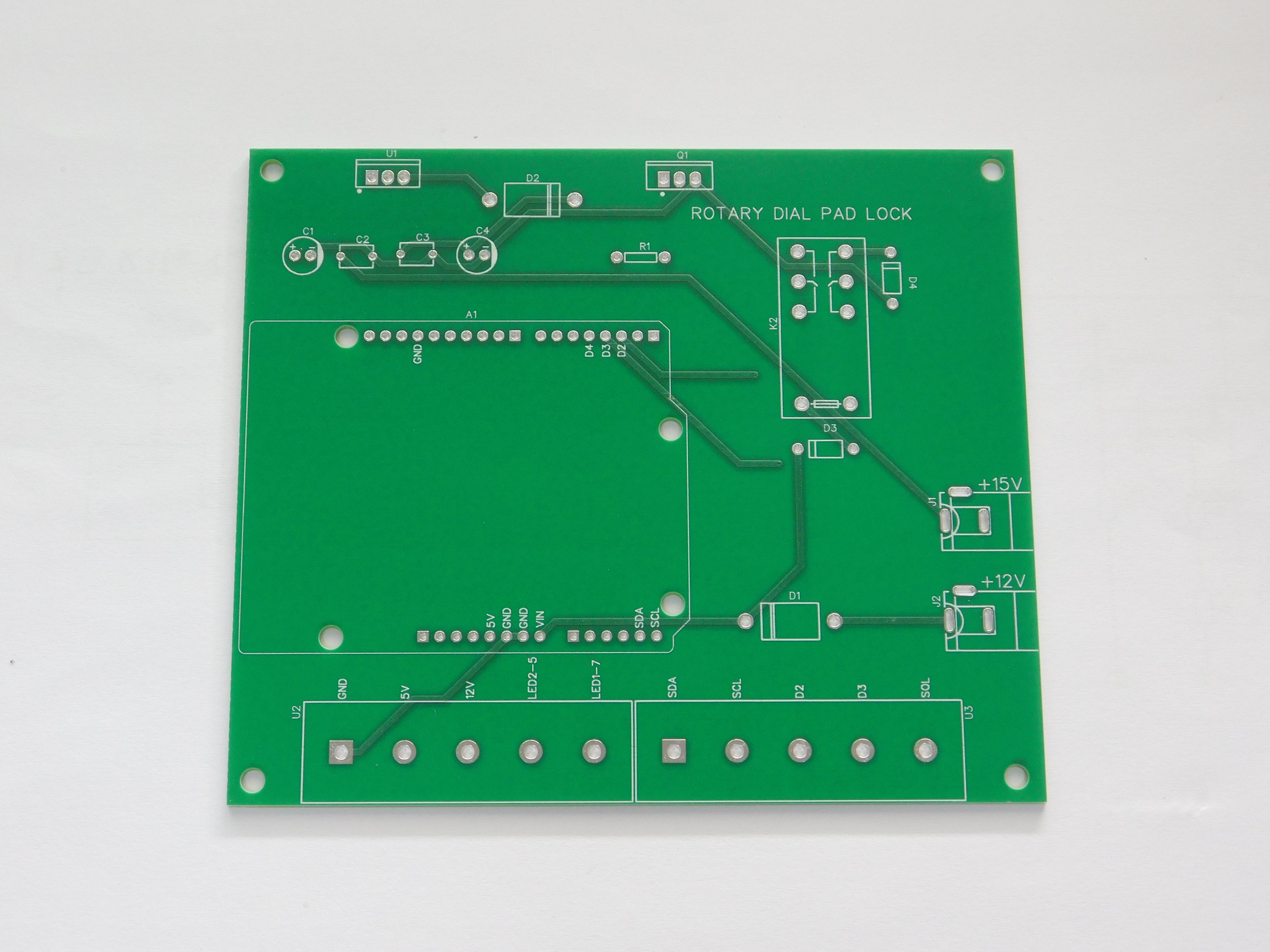
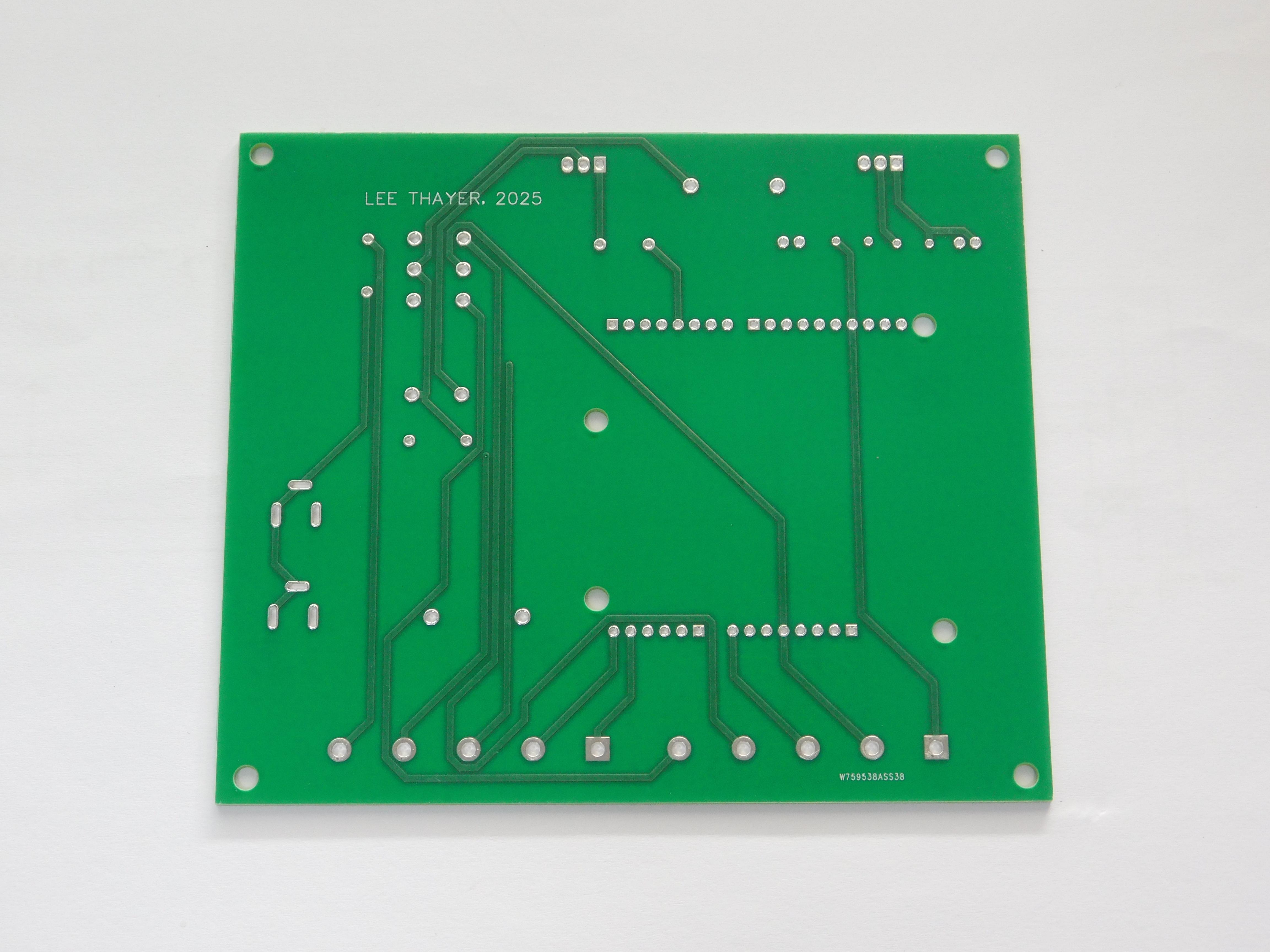
For the Control Board:
PCB Gerber files are available on my Proton Driver here and will be available shortly on PCBWay.
Arduino UNO, x1, I used my custom Arduino board, as you need male header pins on the bottom). My Instrucable for the custom board is here.
OMRON G2R-2-DC12 DPDT relay, x1
resistor, 220, 1/4 watt 5%, x1
SR540 Schottky diode, x2
1N4007 diode, x2
100nF 50v monolithic disc capacitor, x2
100uF 25v electrolytic capacitor, x2
L7812 12v regulator, x1, plus heatsink, thermal pad, washer, and screw
IRLZ44N MOSFET, x1, plus heatsink, thermal pad, washer, and screw
PCB mount barrel jack, x2
PCB mount terminal blocks, HB9500, 5P, x2
female headers, either one 1x40P strip and you cut to size, or one 1x10P, one 1x8P, and two 1x6P
standoffs and screws as needed, I used 3x6mm standoffs and 3mm screws
15 volt 2 amp power supply
12 volt battery, backup power
inline 5x20 fuse holder plus a 1 amp fuse, this is for wiring the positive of the battery to the Control Panel
case, of your choosing for the Control Board, I used a a clear acrylic display case
For the Door:
telephone rotary dial pad, x1, explained in Step 2
green LED indicator, x1, this comes with a holder, LED, and resistor
red LED indicator, x1, this comes with a holder, LED, and resistor
LCD 16x2 module with I2C
12v solenoid, 12 volt, about 500-800 mA is fine, x1, plus the keeper
key switch, x1
pushbutton switch, x1
terminal board, TB2510 10P dual row
terminal board, TB2504 4P dual row
terminal board jumpers, for TB25xx terminal boards, one 4 pole, one 3 pole
16 AWG wire, various colors, lengths as needed
spade or ring terminals
spring or screw terminal blocks
Tools Needed:
soldering iron, and solder as needed
flush cutters
cordless drill
drill bits, for wood, various sizes depending on the diameter of some of the parts
jig saw, with thin wood blade for cutting holes in the door.
wire cutters
crimp tool, for insulated fish tail or ring terminals
screwdriver, PH2
Downloads
Control Board Assembly
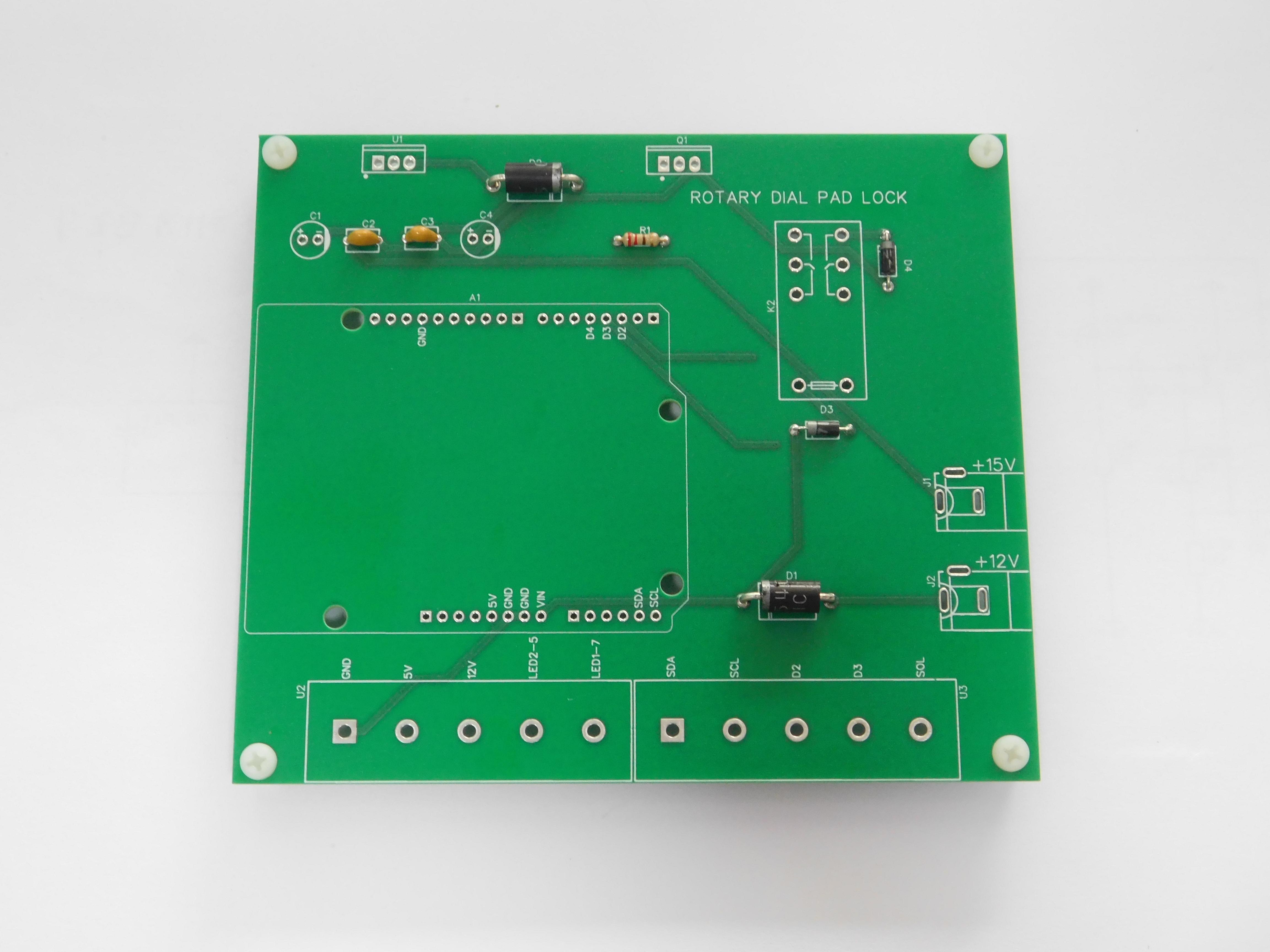
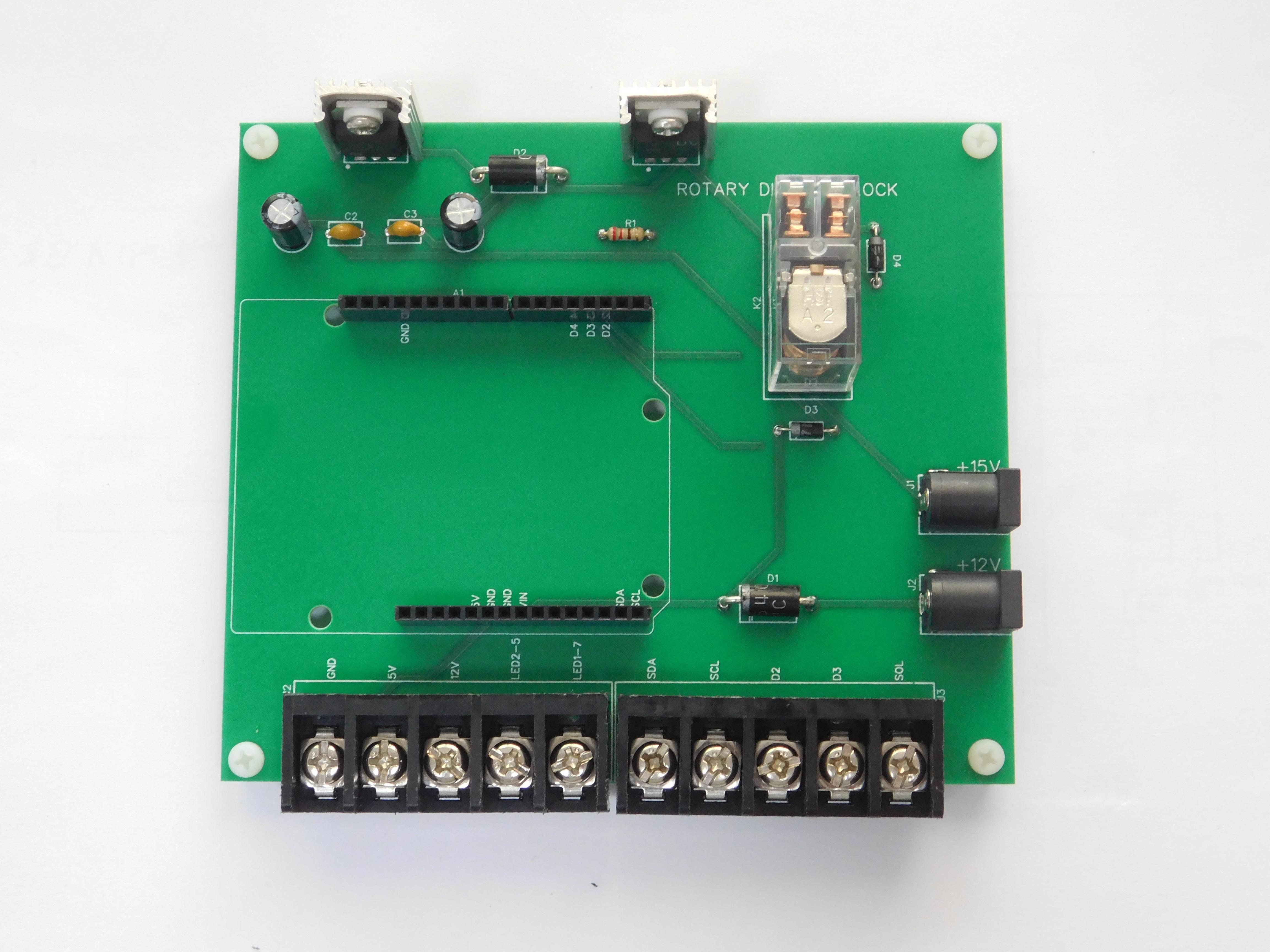
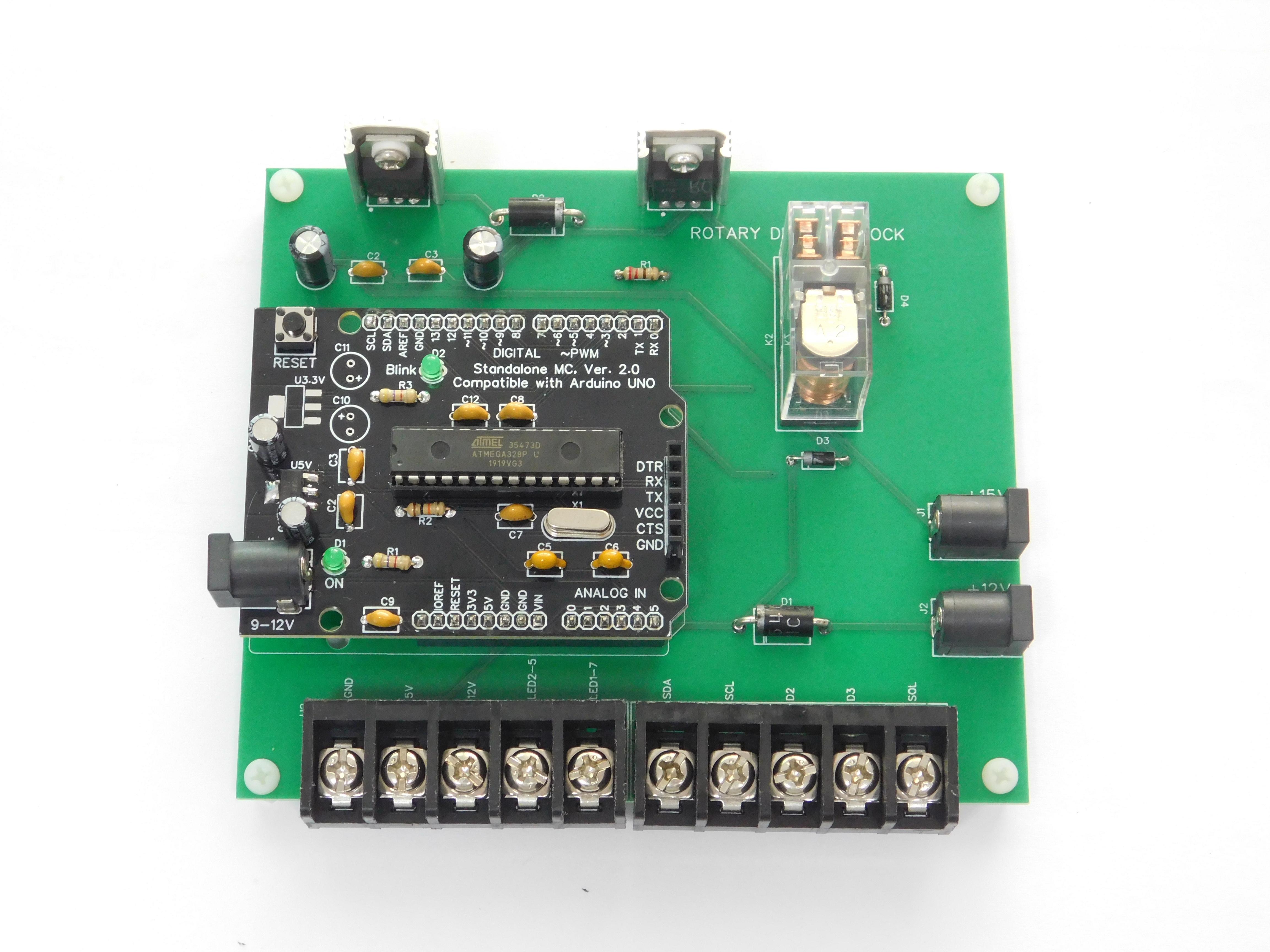
There is only a handful of parts on the Control Board, so this is a really easy build.
Lowest profile parts first.
Form the leads on the resistor and the 4 diodes using round nose pliers. Insert the resistor in its holes, tape in place, solder, remove tape, trim leads. Continue this with the small diodes and lastly with the large diodes, keeping in mind the diodes are polarized so the white band on diodes goes towards the band on the silkscreen.
Insert the disc capacitors in their corresponding holes, tape in place, solder, remove tape, trim leads.
Functions:
R1, current limiting for Q1.
R2, is shown on the schematic, it is NOT on the PCB and I added on the back of the board to connect +5 and D2, which is for rotary dial debounce, however, this part is NOT needed as I have debounce coded into the sketch.
D3, D4, are fly back diodes to prevent a high voltage spike causing an arc across the contacts. D3 is for relay K2, and D4 is for the solenoid (both of which are inductive loads).
D1, D2, are Schottky barrier diodes that make up power separation between the 12 and 15 volt supplies (15 volts is primary and 12 volts is backup). When the system is running on 15 volts, D1 does not conduct and prevents voltage from back feeding into the 12 volt supply and D2 conducts which allows 12 volt supply voltage to flow from regulator U1. When the 15 volts is turned off, D1 conducts and allows 12 volts as supply voltage and D2 does not conduct preventing voltage from back feeding through the 12 volt regulator.
C2, C3, are monolithic disc capacitors. C2 is part of the filtering on 15 volts prior to the 12 volt regulator, and C3 is part of filtering after the 12 volt regulator, and also is part of the filtering after the system switches to the 12 volt supply when 15 volts is turned off.
Higher profile parts:
When installing the taller parts, having objects on your workbench to level the board is great.
Next parts to install are the electrolytic capacitors, pay attention to the markings on the capacitors and the silkscreen, white band (negative) on the capacitors goes to the white stripe (negative) on the board.
Next parts to install are the barrel jacks, just make sure they are straight and aligned, tape in place and solder.
The terminal boards, as you can see from my silkscreen, I was off with the location just a bit, the holes line up, correct part, wrong silkscreen. Install those, prop up the board as you need to make sure they are flat to the board. Mine have think leads so they fit snuggly. Solder them in place.
After the terminal boards go in, next is the voltage regulator (U1) and the MOSFET (Q1). Attach heatsinks to each part, insert in the correct locations, turn the board over and the board should be relatively level. Solder those components in place.
Next is the female header pins. This is very easy to do if you have (and you will need) an Arduino with male header pins on the bottom. I fabricate header pins from 40 pin strips, with female headers, you need to pull out the pin where you want a cut. You will need a 15 pin section, a 10 pin section, and an 8 pin section. Note: For the 15 pin section, you need to pull out the 9th pin when counted from one end, reason for this is an Arduino has two headers on the power and analog side of the Arduino and they are evenly spaced, so instead of cutting two sections, just remove a pin and install as one header.
Place the headers on the bottom of your Arduino and simply place the Arduino into the holes to match the control board. Solder one pin on each end of each section, check to make sure each section is flat to the board, adjust as needed, solder remaining pins.
For the relay, insert that and turn the board over, use items on your bench to ensure the board is level. And just like the headers, solder just one pin in opposite corners, then check to ensure the relay base is flat against the board, then solder remaining pins.
Functions:
C1, C4, are filter capacitors for the incoming voltage, one is prior to the regulator, one is after the regulator.
J1, J2, are the jacks for primary and backup power. J1 is +15 volts from a wall wart and +12 is from a battery in my case.
U1, is a standard L7812 +12 volt linear voltage regulator, this is powered when a +15 volt power supply is used and is bypassed when only a +12 volt power supply is used.
Q1, is a IRLZ44N N-channel MOSFET, since the coil current of relay K2 is 44 mA and is a 12 volt relay, we use Q1 to turn on and off the relay.
U2, U3, are the terminal boards. I went more robust and used proper screw terminals instead of the smaller green terminal blocks. The screws are marked as:
- GND - all components are on the same ground, ground is routed when the door connections are made.
- 5V - goes to the 16x2 LCD display.
- 12V - goes to the key switch and the EXIT pushbutton, routed when door connections are made.
- LED2-5 - is +5 volts from the relay to the OPEN (green) indicator.
- LED1-7 - is +5 volts from the relay to the LOCKED (red) indicator.
- SDA - is Serial Data and is routed to the LCD display.
- SCL - is Serial Clock and is routed to the LCD display.
- D2 - is input from the rotary dial.
- D3 - NOT USED. This was for a reset switch but later I determined this was not needed.
- SOL - this is +12 volts to fire the solenoid, coming from K2.
Header Pins, the pins used by the Arduino are indicated on the silkscreen. The VIN pins carries +12 volts and powers the Arduino.
K2, is a DPDT 12 volt relay. One side switches 5 volts for the open/locked indicator LEDs and the other side switches 12 volts for the firing of the solenoid.
Door Mounted Parts
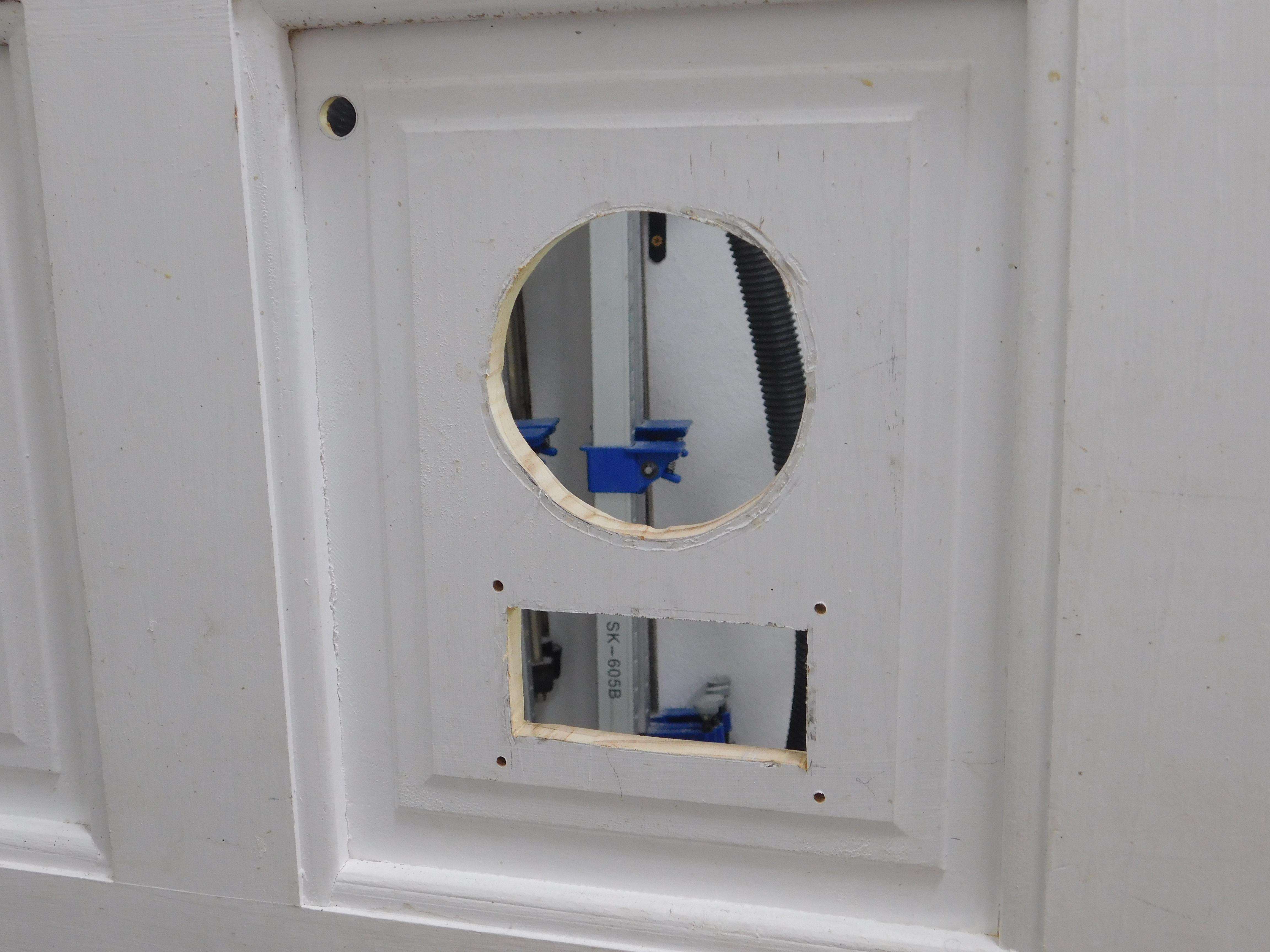
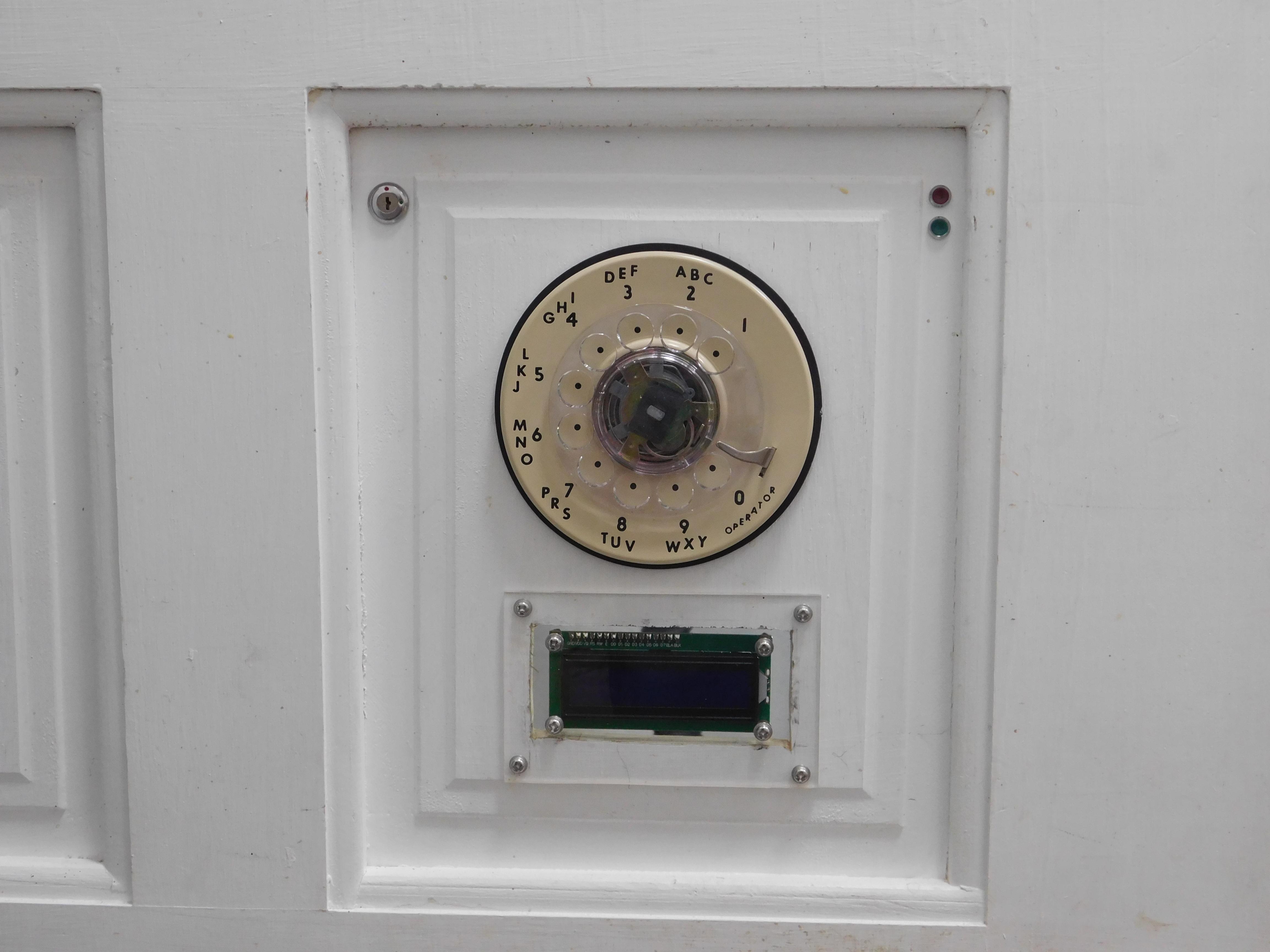
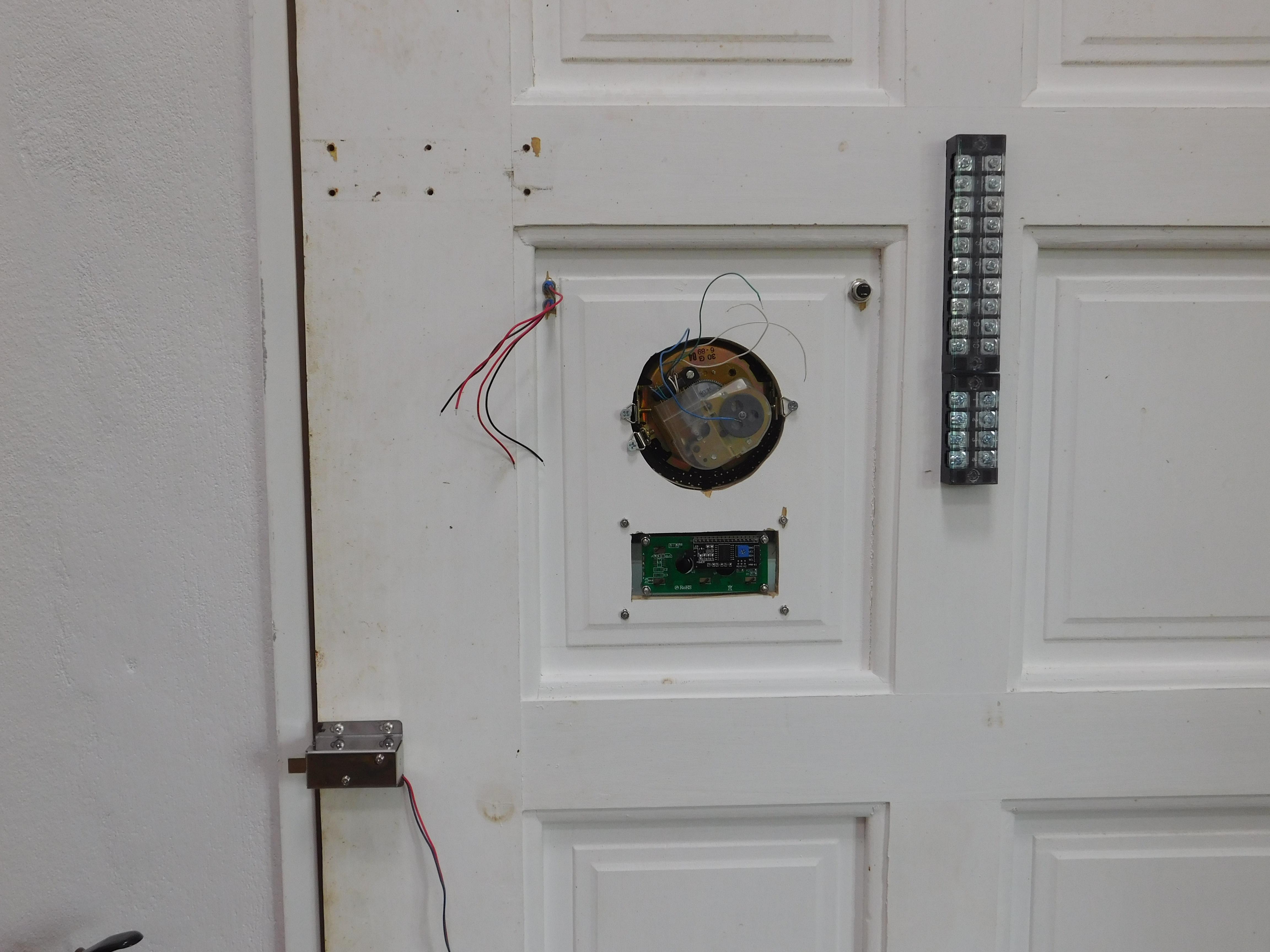
The control board has wires routed to the door, and these are the parts on the door itself that I used.
How you want to mount the parts is totally up to you, I simply used a single panel on the door and placed the exterior parts on that, and for the terminal boards, exit switch, and solenoid, I just mounted them on the interior of the door.
Telephone Rotary Dial, this is an NOS (New Old Stock) item and is a rotary dial pad, ITT 3009-006 Type 30G, made in June 1989, so it is 37 years old. This dial has 4 wires; 2 white, 1 blue, 1 green. The two white wires go to a normally open (NO) switch, and the blue and green go to a normally closed (NC) switch. The NC switch is what is needed, and the NO switch wires can be ignored. For the blue and green wires, green will be ground, and blue goes to D2 on the Arduino. There is 2-3 mounting screws in the frame of the dial, to those I attached 3 triangular picture frame hangers, and there was just enough room to fold them over the inside of the door panel and secure them in place with 3 wood screws.
LCD Display, is a standard 1602 LCD, 16x2 LCD with I2C Adapter, and allows the numbers dialed to be displayed, only 4 wires needed here, VCC, GND, and SDA and SCL which go to A4 and A5 on the Arduino. I mounted the LCD display behind a 3mm piece of acrylic using machine screws, then cut a hole larger than the display and mounted the acrylic to the exterior of door using machine screws.
Indicator LEDs, I used a Green LED and a Red LED, and these come with the series resistors as well so you just connect the grounds, and the +5 volts comes from the relay K2. Red is on when the relay is off, and Green is on when the relay is on. Mounted through the door panel with a nut on the interior to secure in place.
Key Switch, this is a standard 1A 12VAC switch. I added the switch to the door as that has +12 volts on one side and the other side goes to the +12 volt side of the solenoid, so in case the Control Panel circuitry does not work, a turn of the switch will fire the solenoid and the door will open. Mounted through the door panel with a nut on the interior side to secure in place.
Terminal Boards, I used standard size terminal boards TB25xx, with xx being the number of poles. One terminal board is 10 poles (TB2510), and the other is 4 poles (TB2504), this allows the use of standard fish tail crimp on terminals. Two terminal board jumpers are also used, one 4 pole, the other 3 pole.
Exit Button, I used a standard pushbutton rated at 5A 240VAC (it is what I had on hand). The reason for the pushbutton is when you are in the workshop and the door is closed, simply push the button and the solenoid will fire and the door can be opened. This is mounted on a piece of 3mm acrylic and using standoffs, I screwed the acrylic to the interior of the door.
Solenoid, I used a 12 volt solenoid with an angled plunger, so the larger part is against a keeper when the door is closed, which is retracted when it fires, and the angled part, when the solenoid is not energized, allows the door to close, forcing the plunger back until it is in the keeper then the plunger extends fully and the door is locked, much the way a typical door latch works. Mount the solenoid but not mount the keeper yet, ok to mark the holes and drill pilot holes, but do not mount the keeper until everything is verified working first.
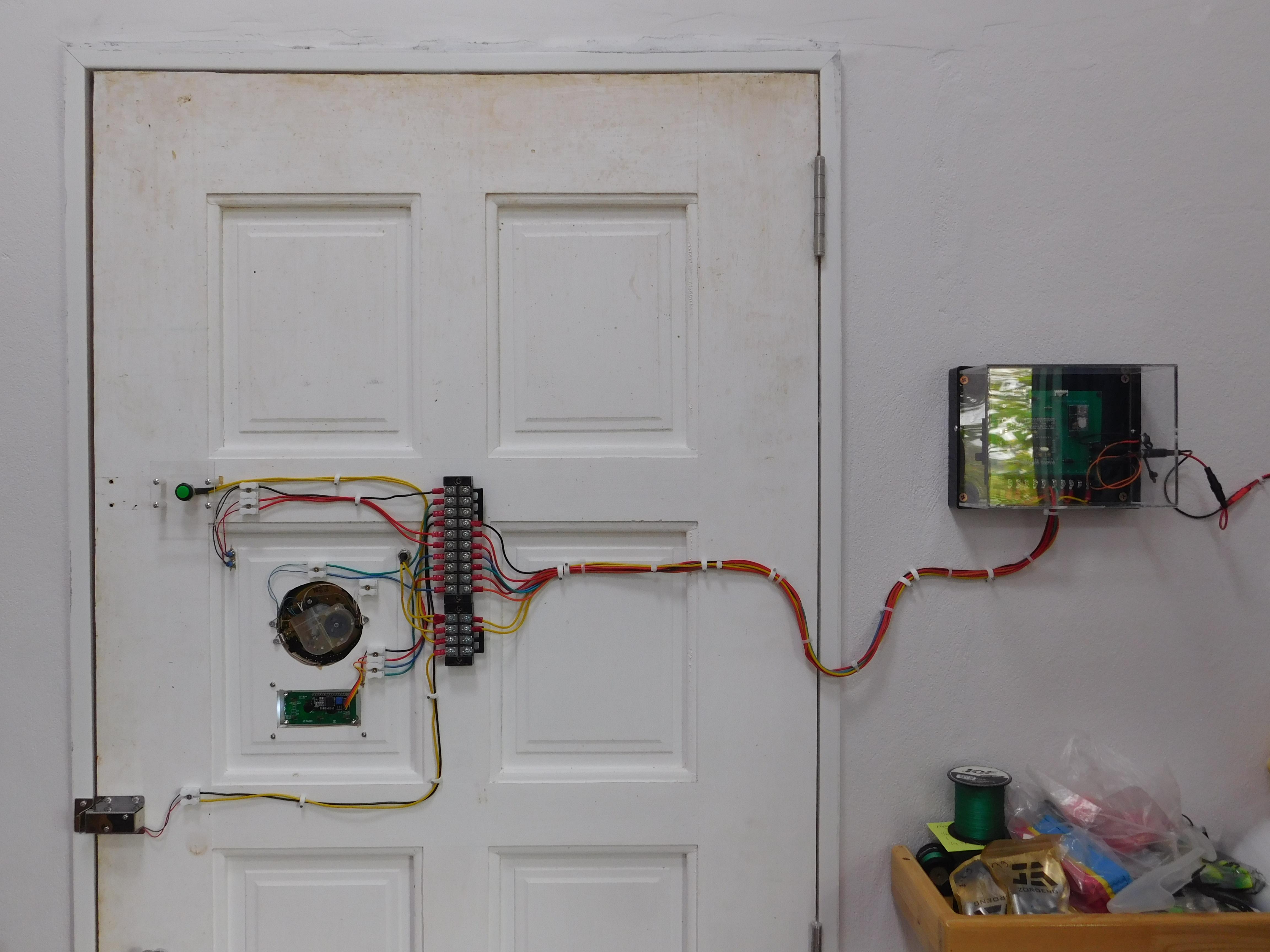
Not on the door but inside the workshop, the 4th photo, is the control board but in an acrylic case, which I mounted on the wall on the hinge side of the door, and far enough away so the door does not open into it, and was in the wiring stage at the time of the photo.
Terminal Block Wiring
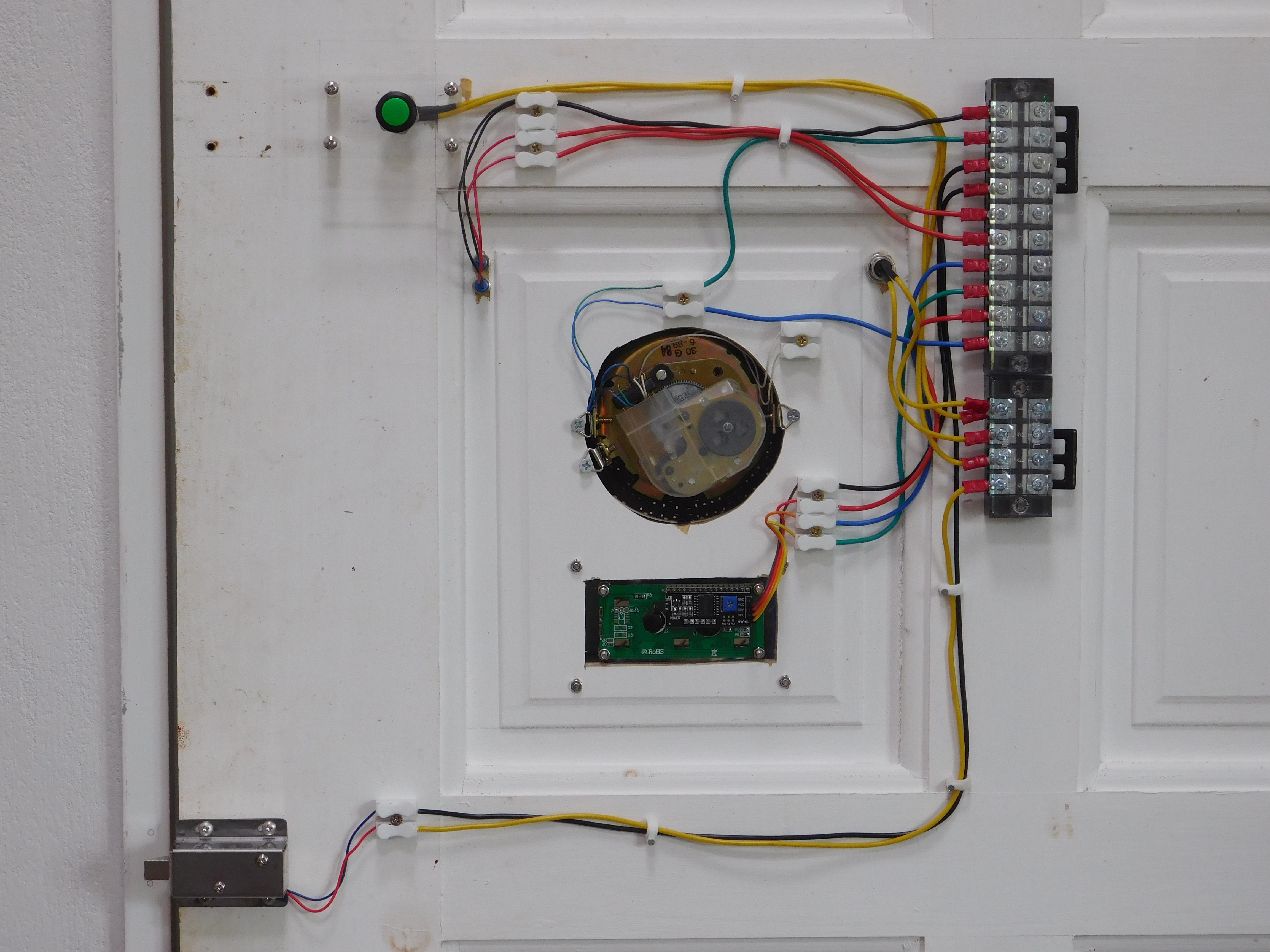
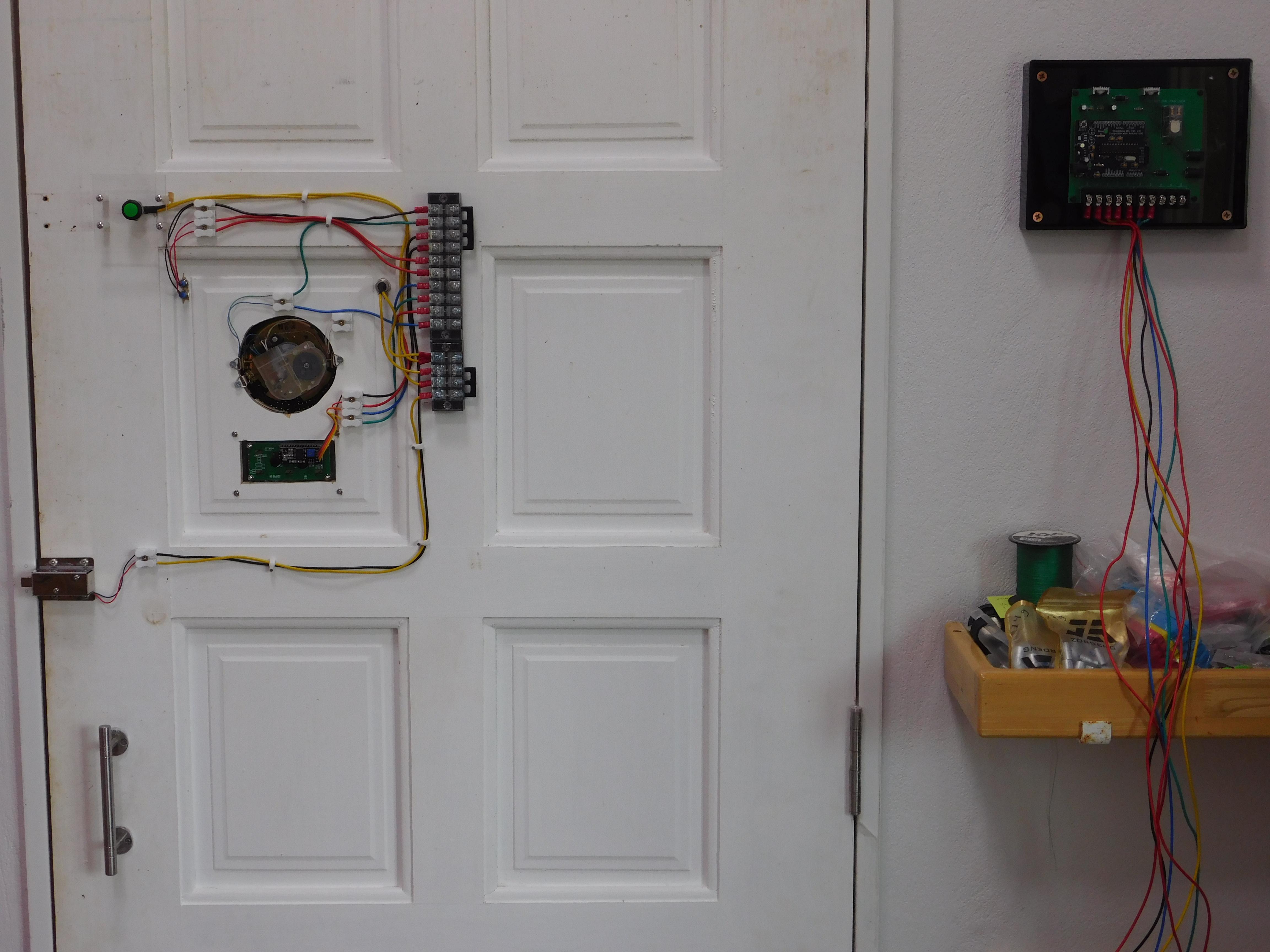
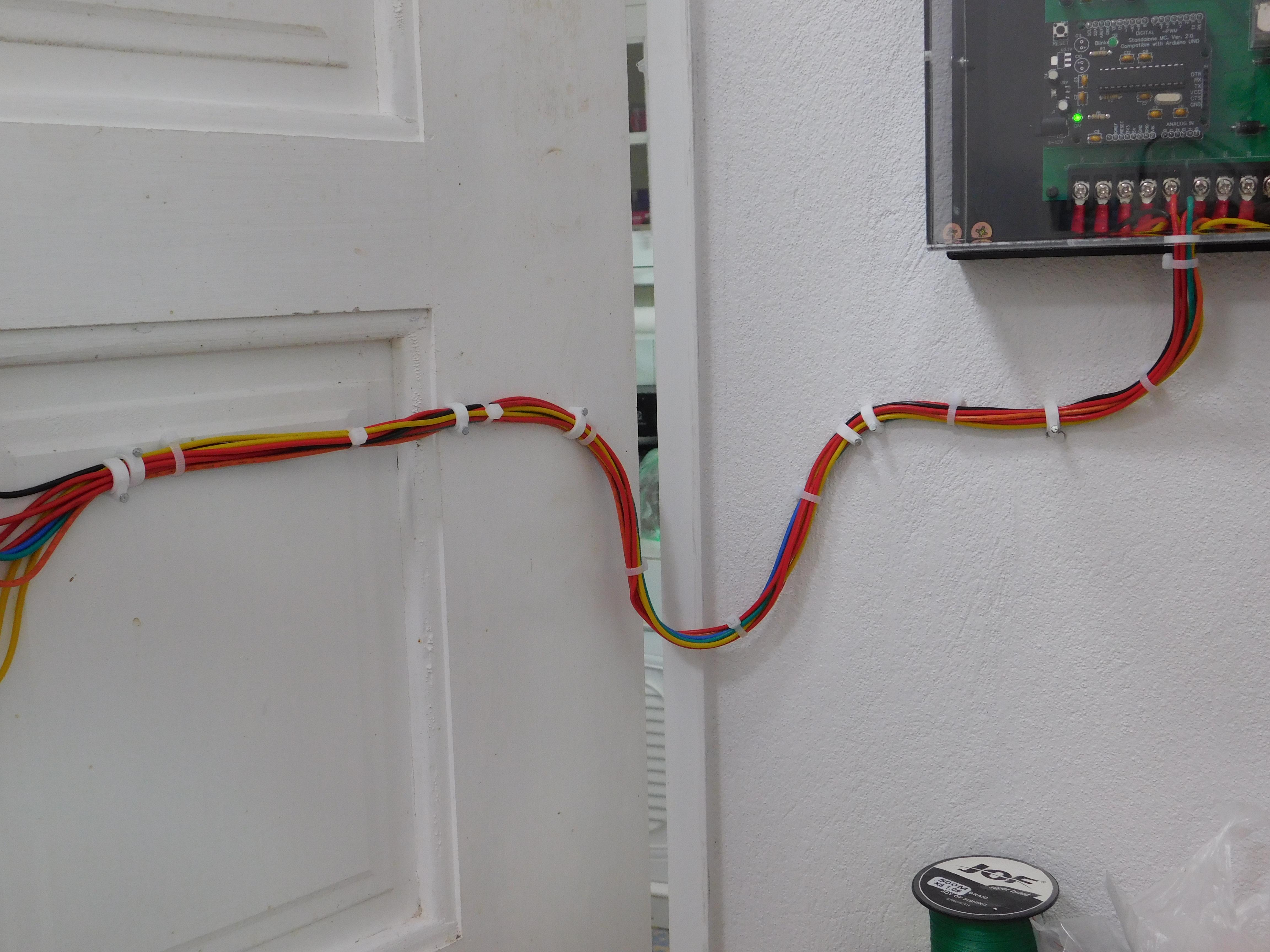
We have to route the control and power lines from the Control Panel to the terminal boards, then from the terminal boards to the various parts on the door.
This is where your wire terminal skills come into play, think of this as building a custom wire harness. Since the door does move, the wire harness from the control panel needs to have a droop when mounting on the door to provide slack and freedom of movement when the door opens. I used crimp on fishtail terminals to make connections to the terminal boards both on the door and on the control panel.
First I wired everything on the door to one side of the terminal boards. I used spring terminal blocks to connect the leads from the indicator LEDs, rotary dial pad, solenoid, and I2C board on the LCD, then used 16 AWG wire from the spring terminals to the terminal blocks. From exit switch and key switch I just used 16 AWG wire to the terminal blocks. 1st photo shows the completed wiring for the door parts to 1 side of the terminal boards. Only 1 screw on the terminal block was doubled up, I could have used a 5P terminal but I had the 4P on hand. Note about the white wires on the rotary dial pad, terminate each wire separately in spring terminals, it keeps them separated and out of the way.
The wiring layout for the terminal boards is listed on the schematics.
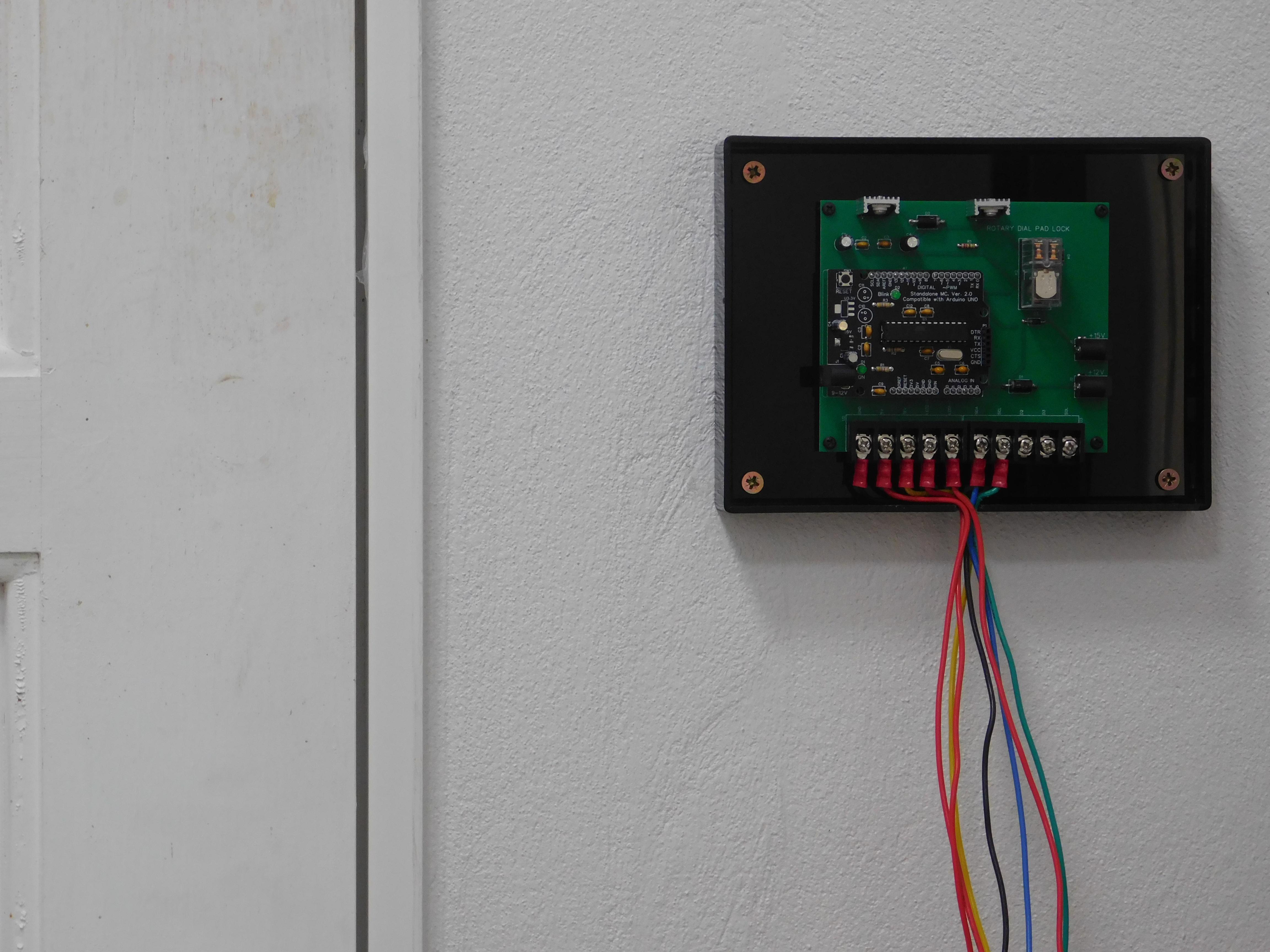
The next part of the wiring is from the control panel, the 2nd photo shows the wires going in on the control panel. 3rd photo shows the wiring complete from the control panel to the other side of the terminal boards.
I connected GND first, then +12 on the terminal board, then powered the control panel and checked the operation of the Exit Switch and the Key Switch, both worked perfectly. Remove power from the control panel and make the rest of the connections on the door terminal board.
The droop, 4th photo shows this, this is needed to provide slack in the harness when the door opens.
Arduino Code
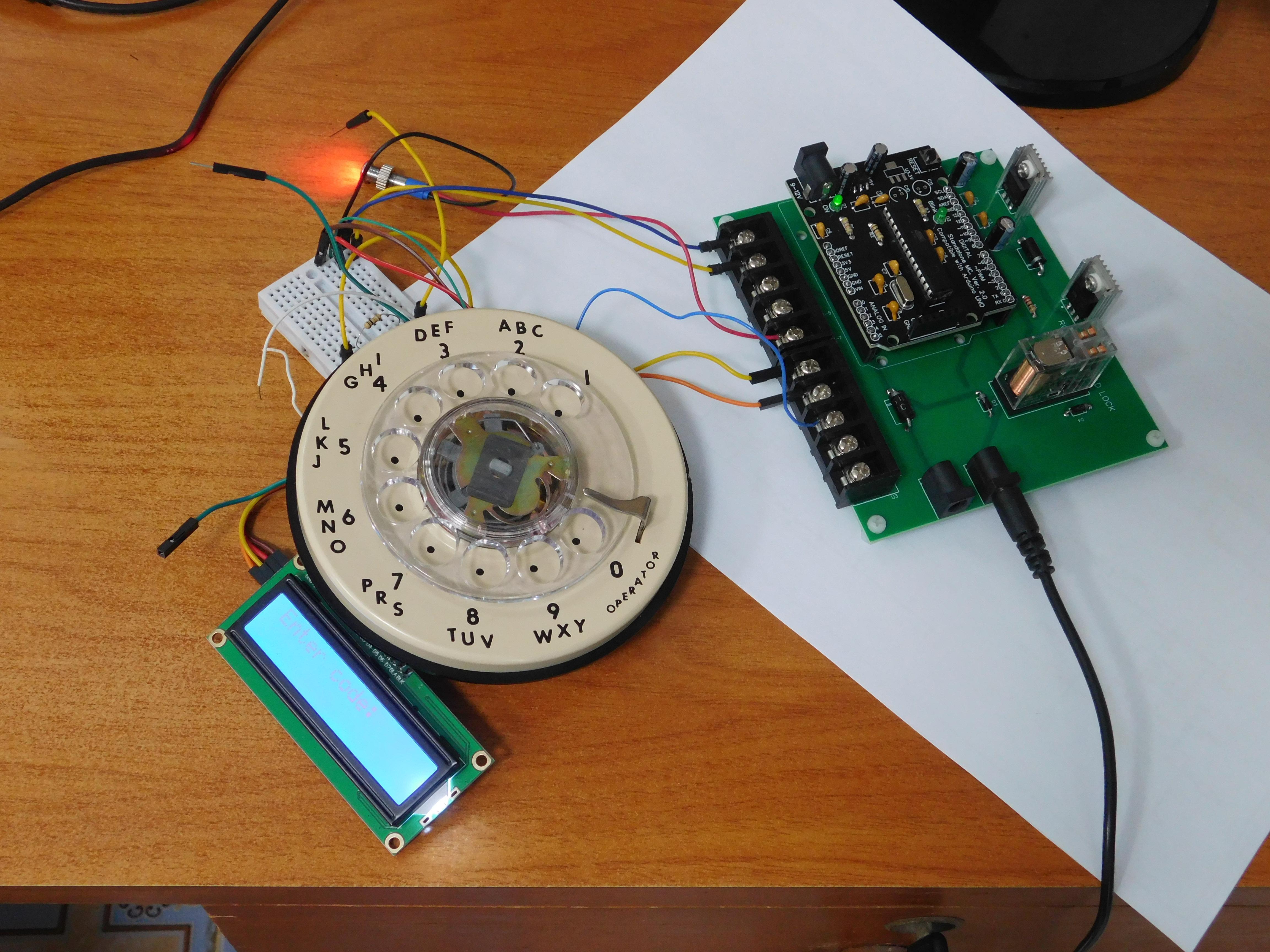
For the code, I used my Proton AI, Lumo, to write this.
First step was to breadboard the rotary dial, control board, and the 16x2 LCD display as shown in the 1st photo. Only one indicator LED was used for this test, red. The indicator lights red when the relay is not energized, indicating the door is "locked", and when the correct code is dialed in, there is a short delay, and the red LED will go out when the relay energizes.
For this code I just went with a fixed password, feel free to modify to your liking if you want a password in EPROM.
The LCD displays "Enter code:" and as you dial the code, each digit will appear in the LCD display, after a short pause, if the code is correct, the relay turns on, the green indicator LED will light, the red LED will go out, LCD displays "Access granted" and the solenoid fires and unlocks the door. The relay turns off after 3 seconds.
If you enter the wrong code, the LCD display will reset to simply "Enter code:" as there is no indication of how many digits are needed.
To change the PIN, use your Arduino IDE, and edit line 21 and load the sketch.
After your code is loaded, go ahead and install the Arduino onto the Control Board.
Downloads
Operation
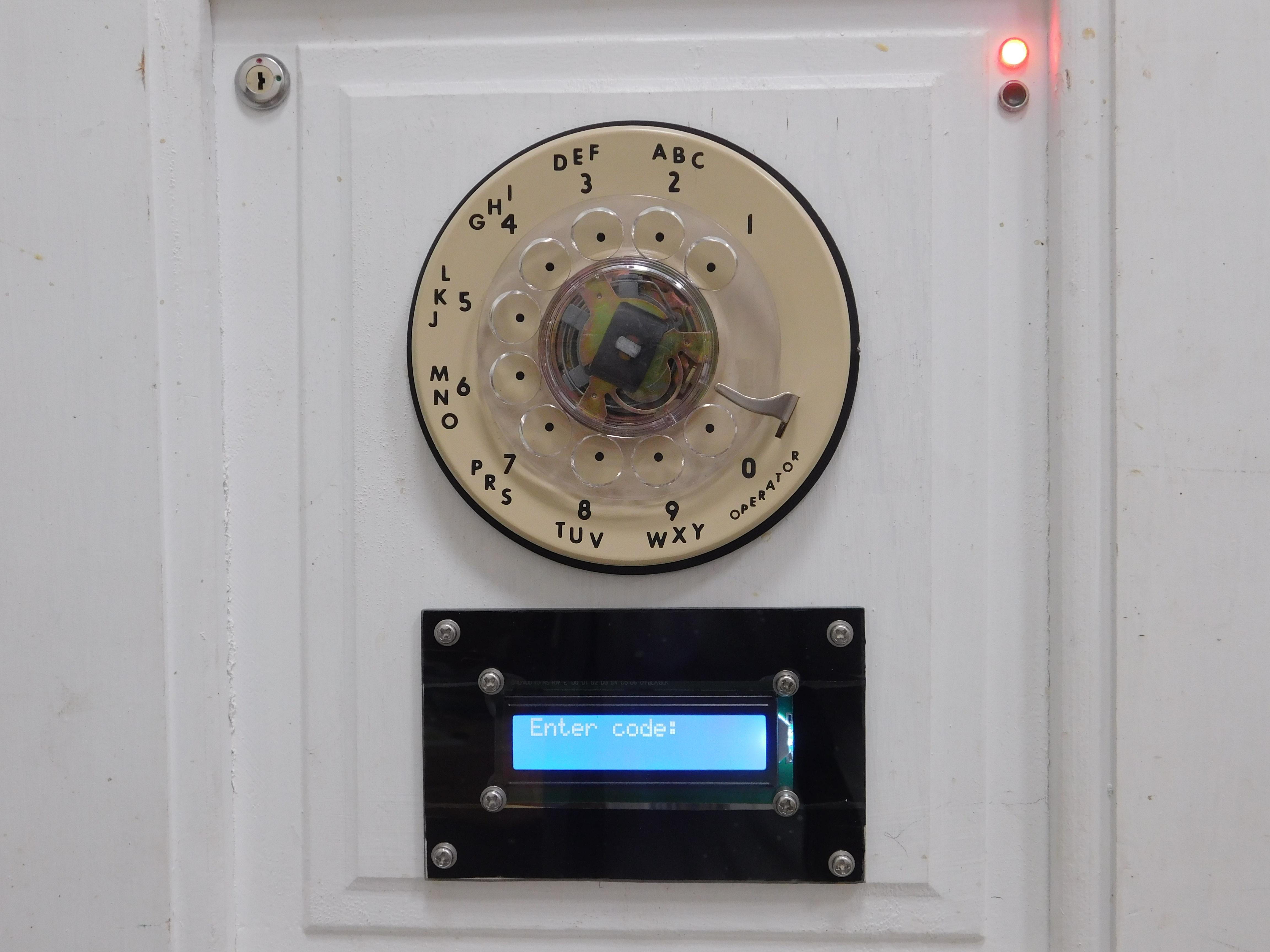
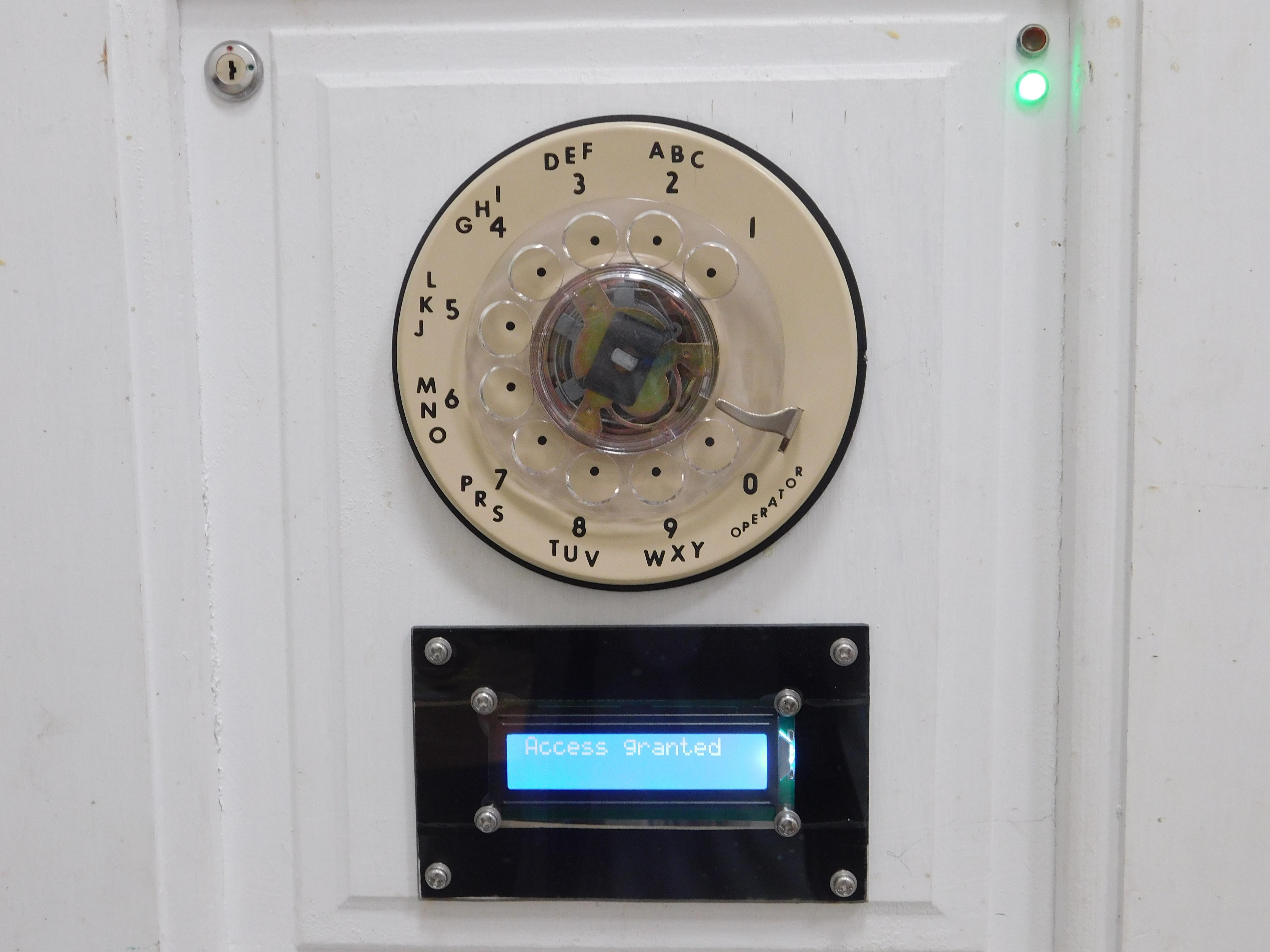
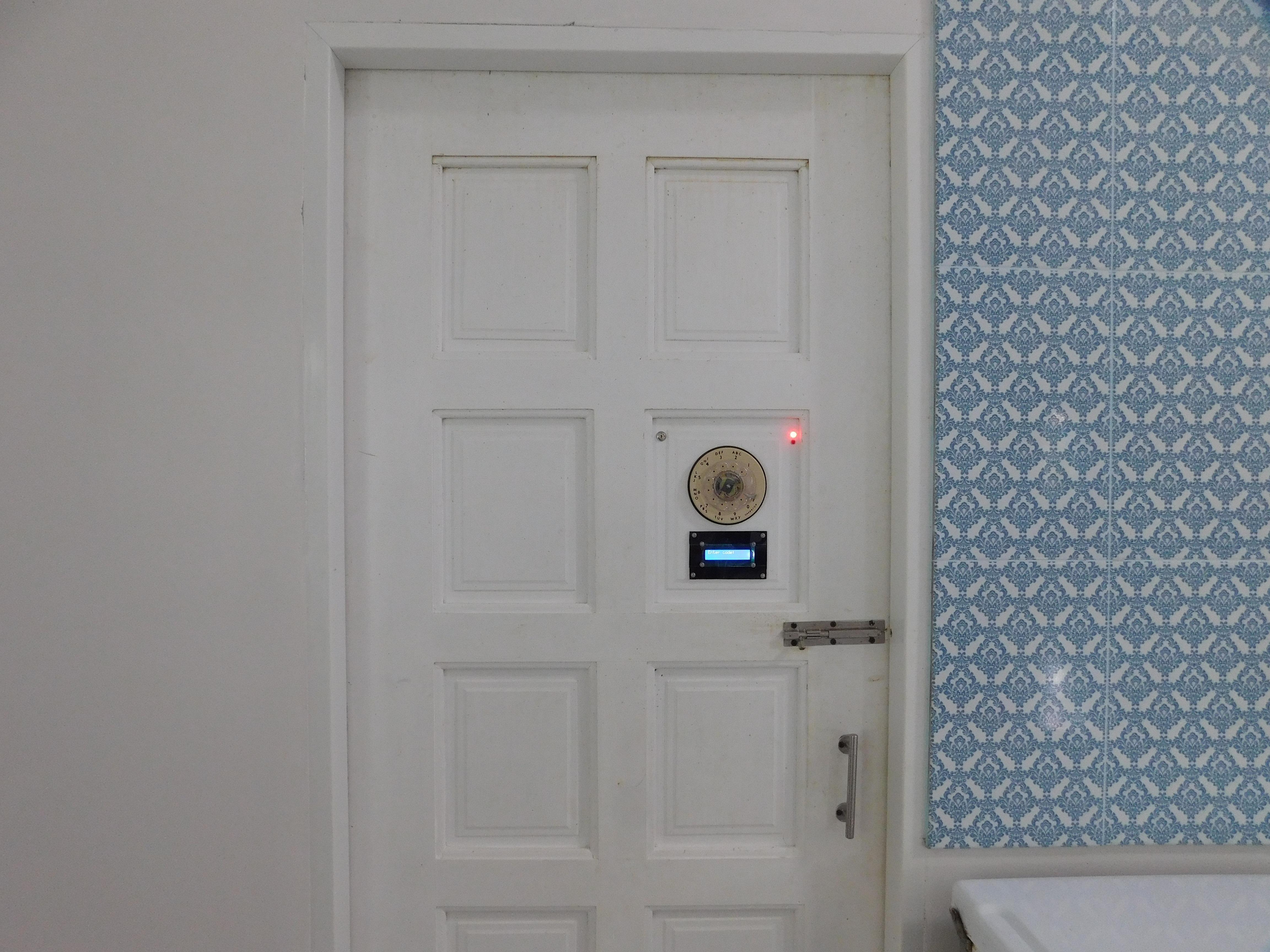
While installing the wiring, hopefully you tested the Exit and Key Switches for proper operation.
With the door open, the control panel powered with +12 and/or +15 volts, the LCD on the exterior of the door should display, "Enter code:" and you should have a red LED lit.
Dial in your code, after a pause, the red LED will go out and the green LED will light, the LCD will display "Access granted" and you should hear the solenoid fire (retract), allowing the door to open.
After 3 seconds the solenoid will turn off, the green LED will go out, the red LED will light, and the solenoid will release to the normal position (which is extended).
To use the key switch, just insert the key and turn to fire the solenoid, this has no impact on the LEDs changing color as the key bypasses the Control Panel.
Once you are in your room and the door is closed and locked, simply press your Exit button to fire the solenoid then pull the door open.