Raspberry Pi 5 NAS
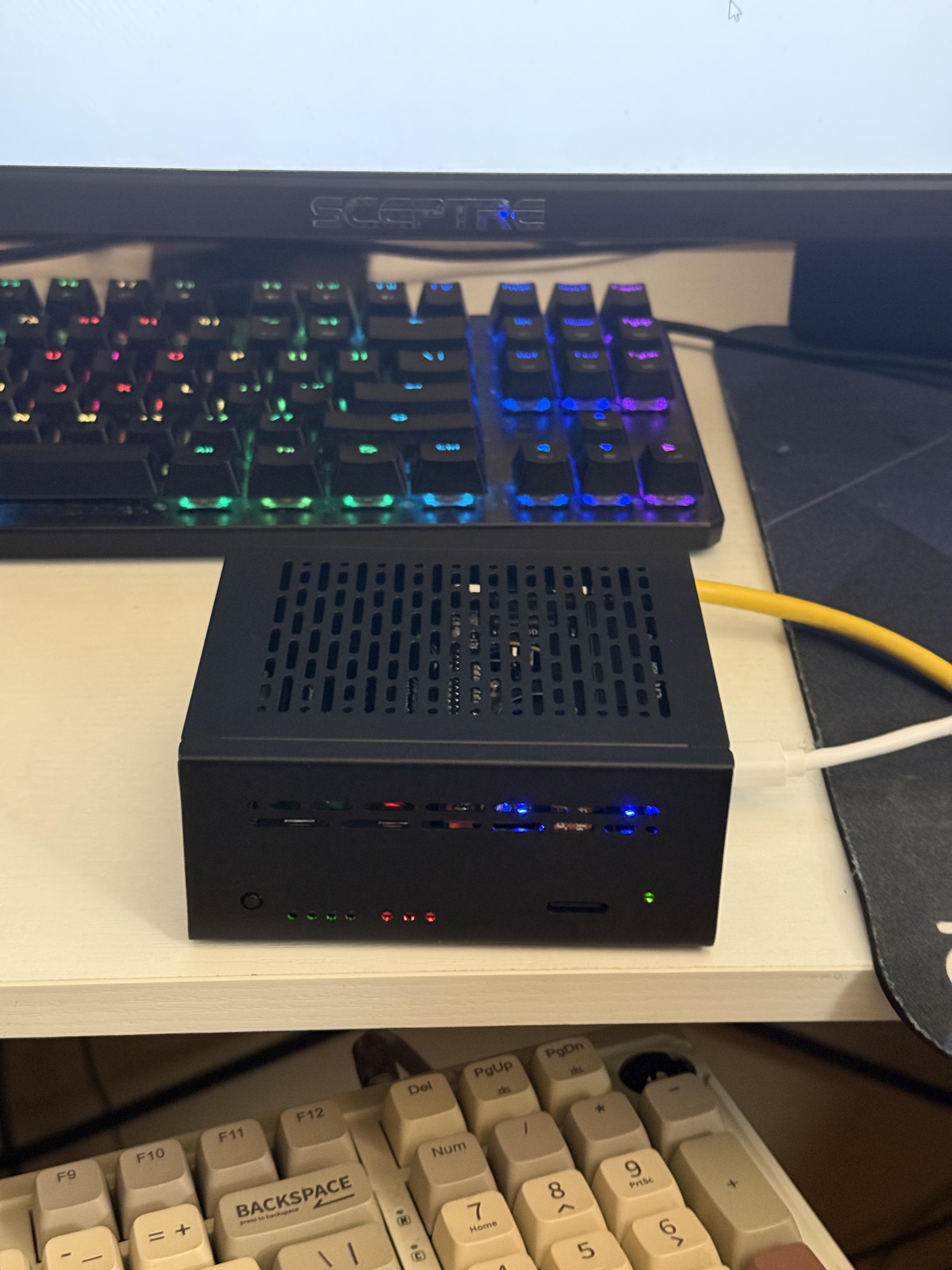
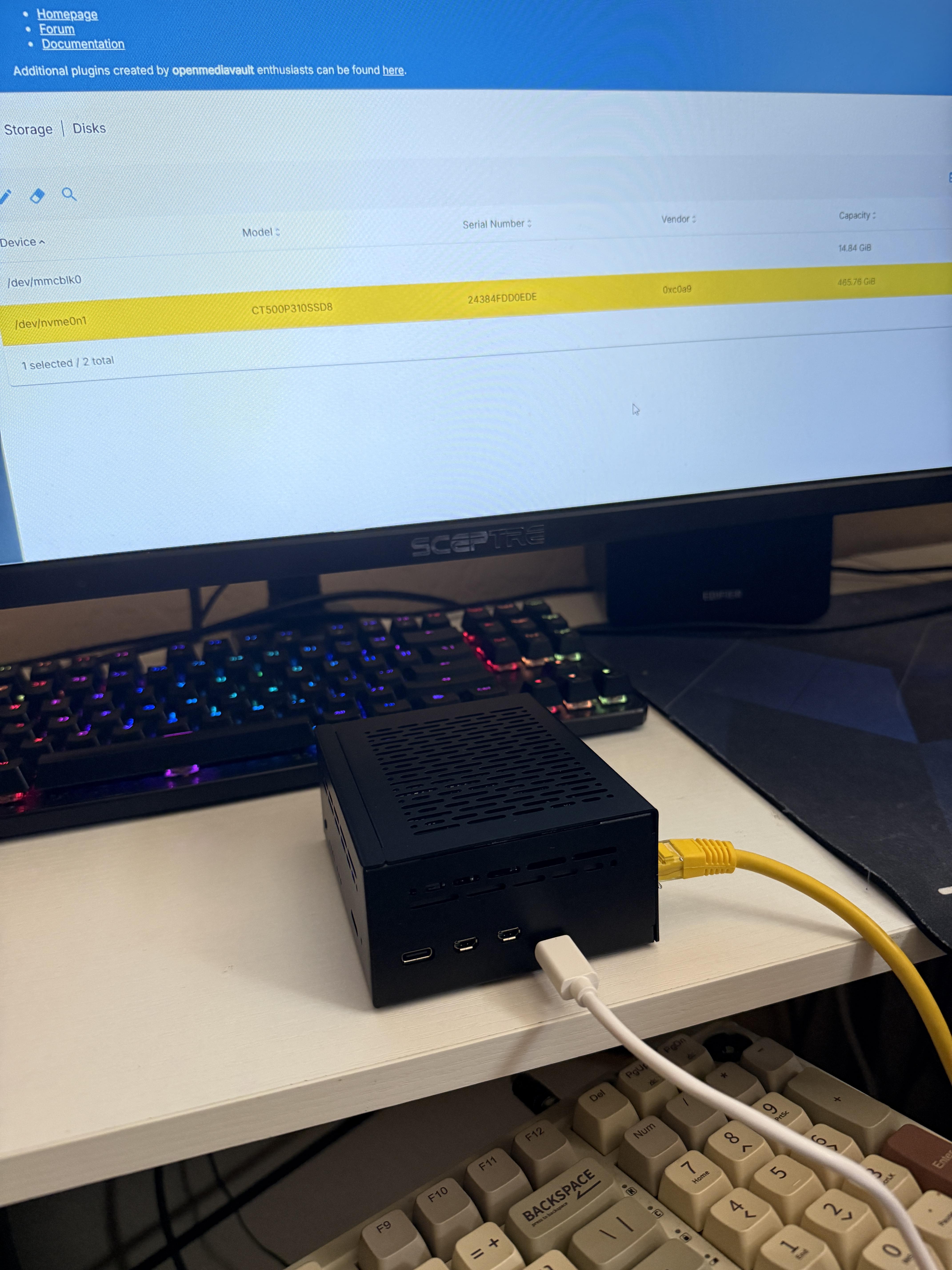
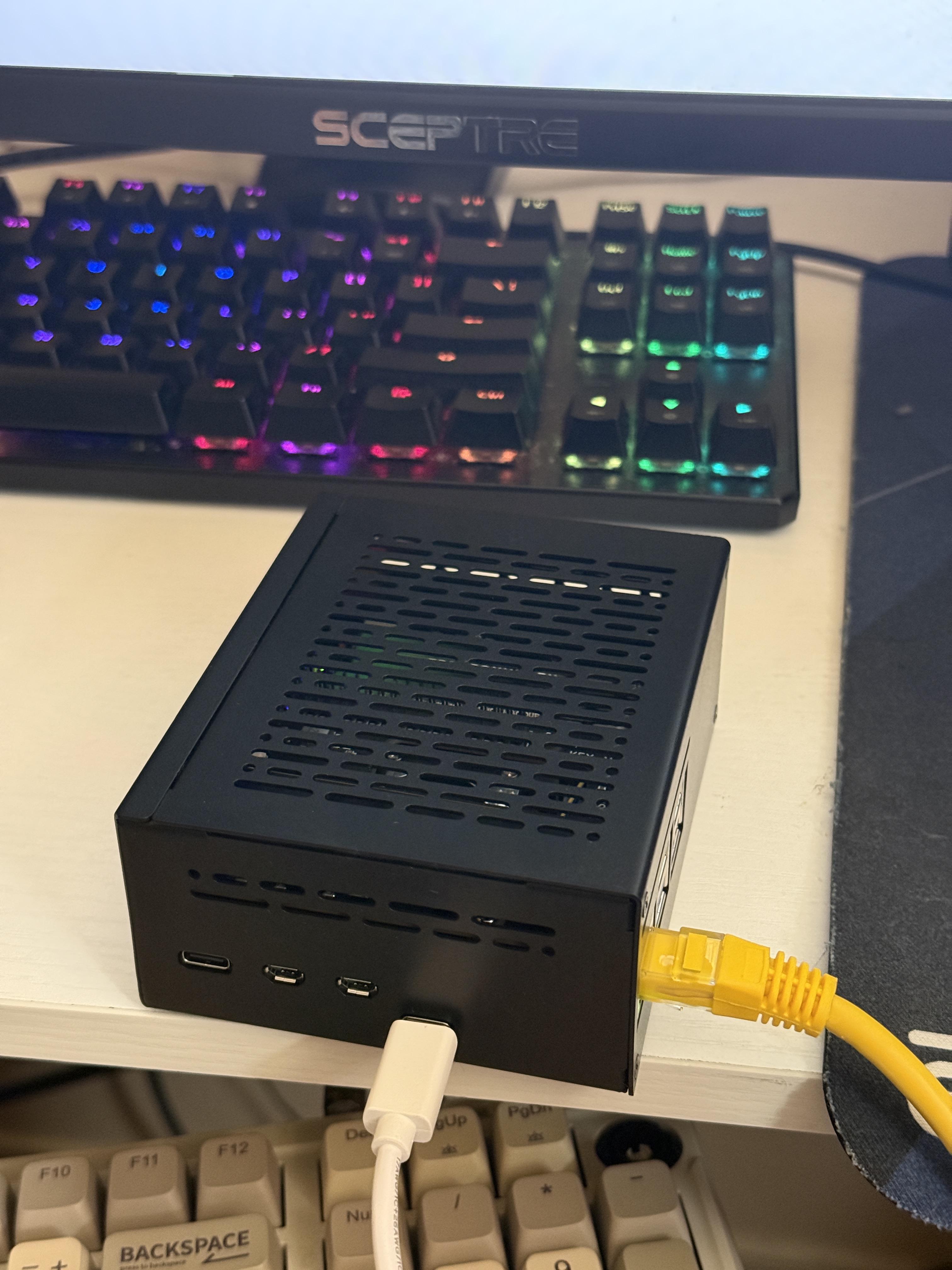
This is my Network Attached Storage (NAS) device. It features a Uninterruptible Power Supply (UPS) expansion board, that way when the wall power goes out, the batteries on board will keep the Raspberry Pi alive. It can hold two M.2 memory cards, as well as external hard drives that can be mounted through the USB ports.
Supplies
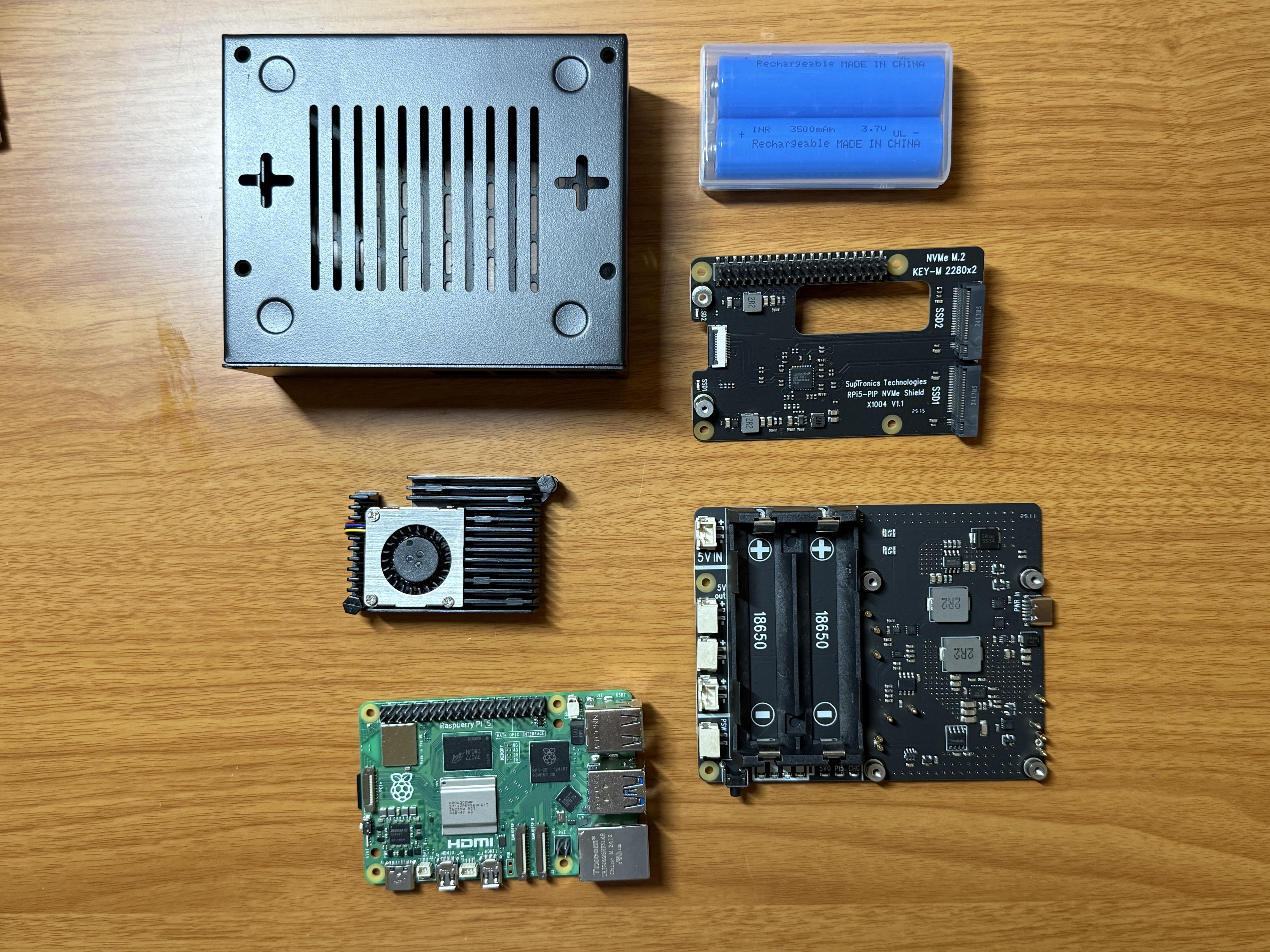
- Device Parts
- Geekworm X1201-C1 Metal Case
- Geekworm X1004 PCIe to Dual M.2 HAT
- Geekworm X1201 Ultra-Thin 5V UPS Shield
- Geekworm H505 Active Cooler
- 18650 Batteries (x2)
- Storage
- 500gb M.2 SSD
- Hard Drive (USB to SATA cable required)
- External SSD (USB to SATA cable required)
- USB flash drive (not recommended)
- Tools/Utility
- USB Keyboard
- Monitor (Requires a miniHDMI cable!)
- MicroSD reader
- Extra computer/laptop
Install Your Active Cooler
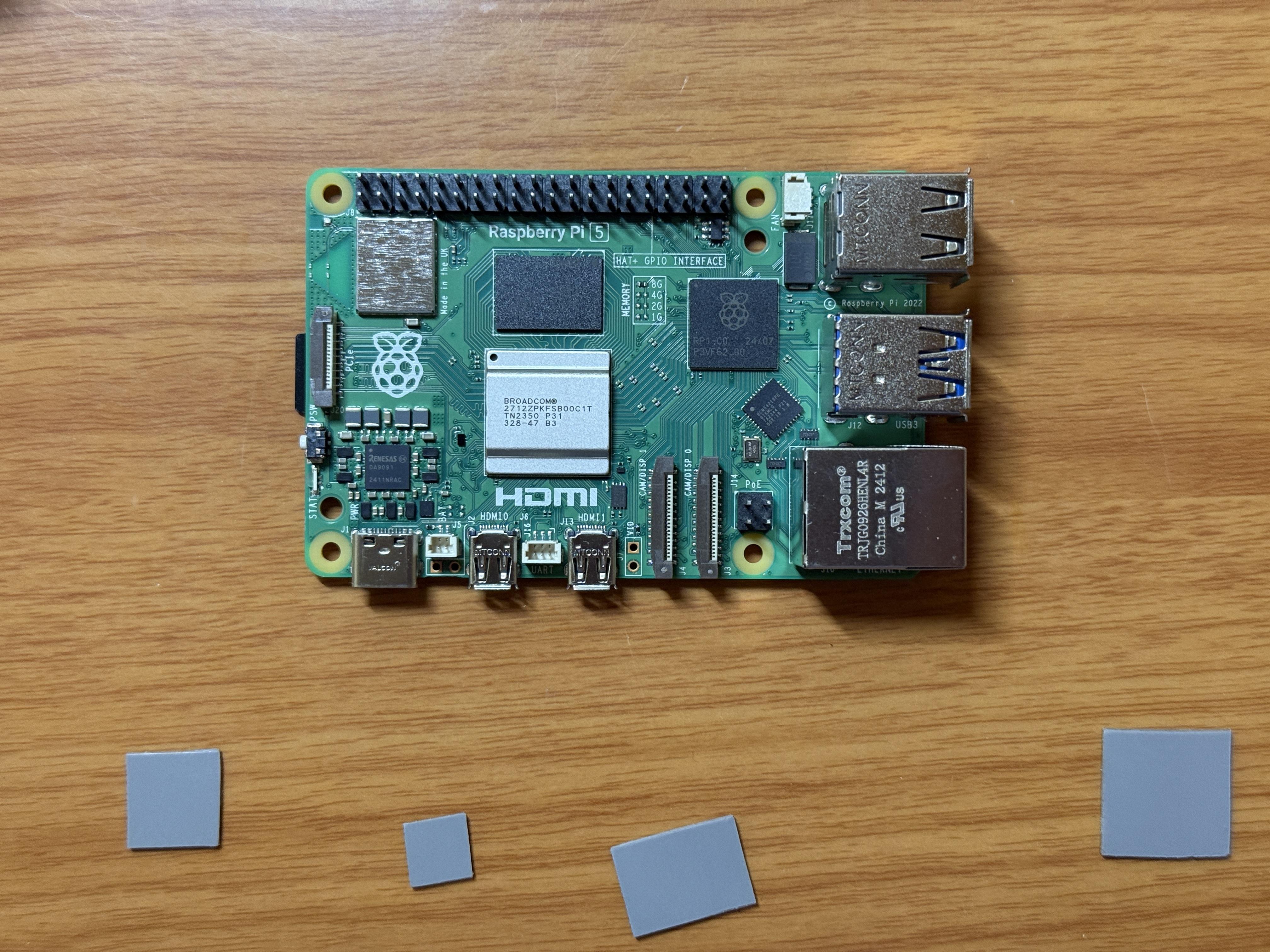
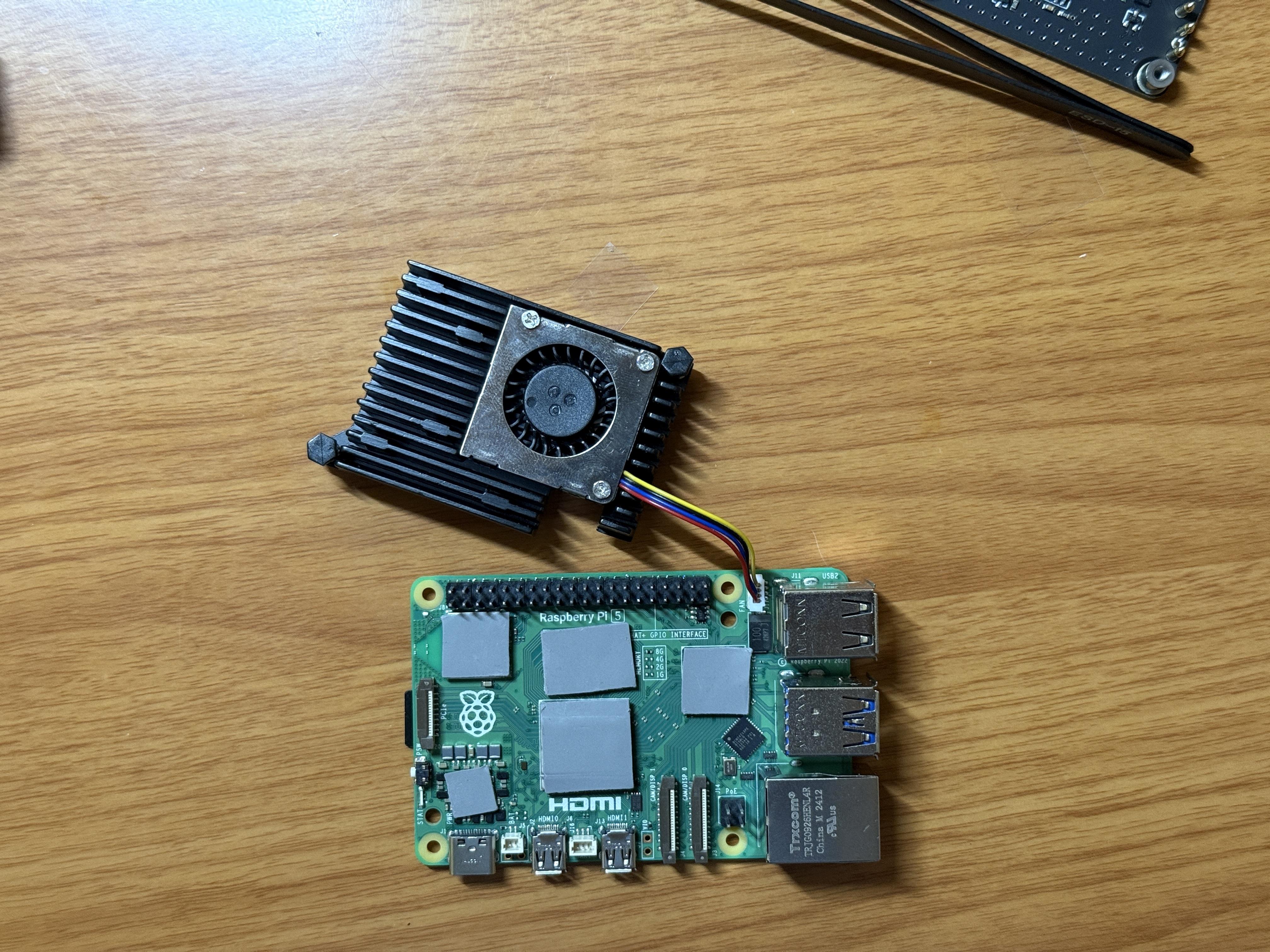
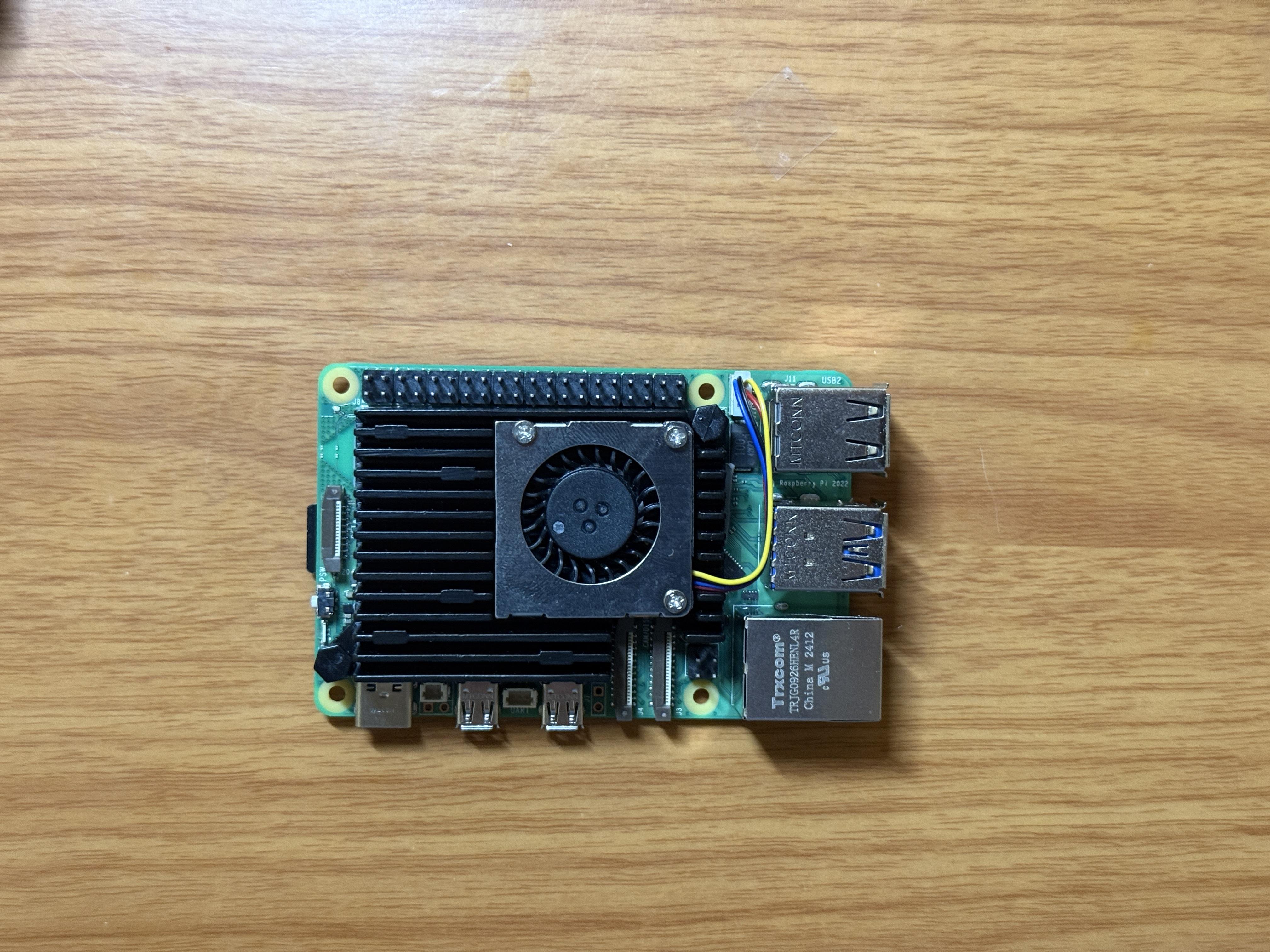
Take your Raspberry Pi 5 and clean the connection points where the cooler will be attached. Next, apply the Thermal pads on top of the chips, then put the cooler on and press down the connection pins.
Install the UPS Shield and PCIE Hat
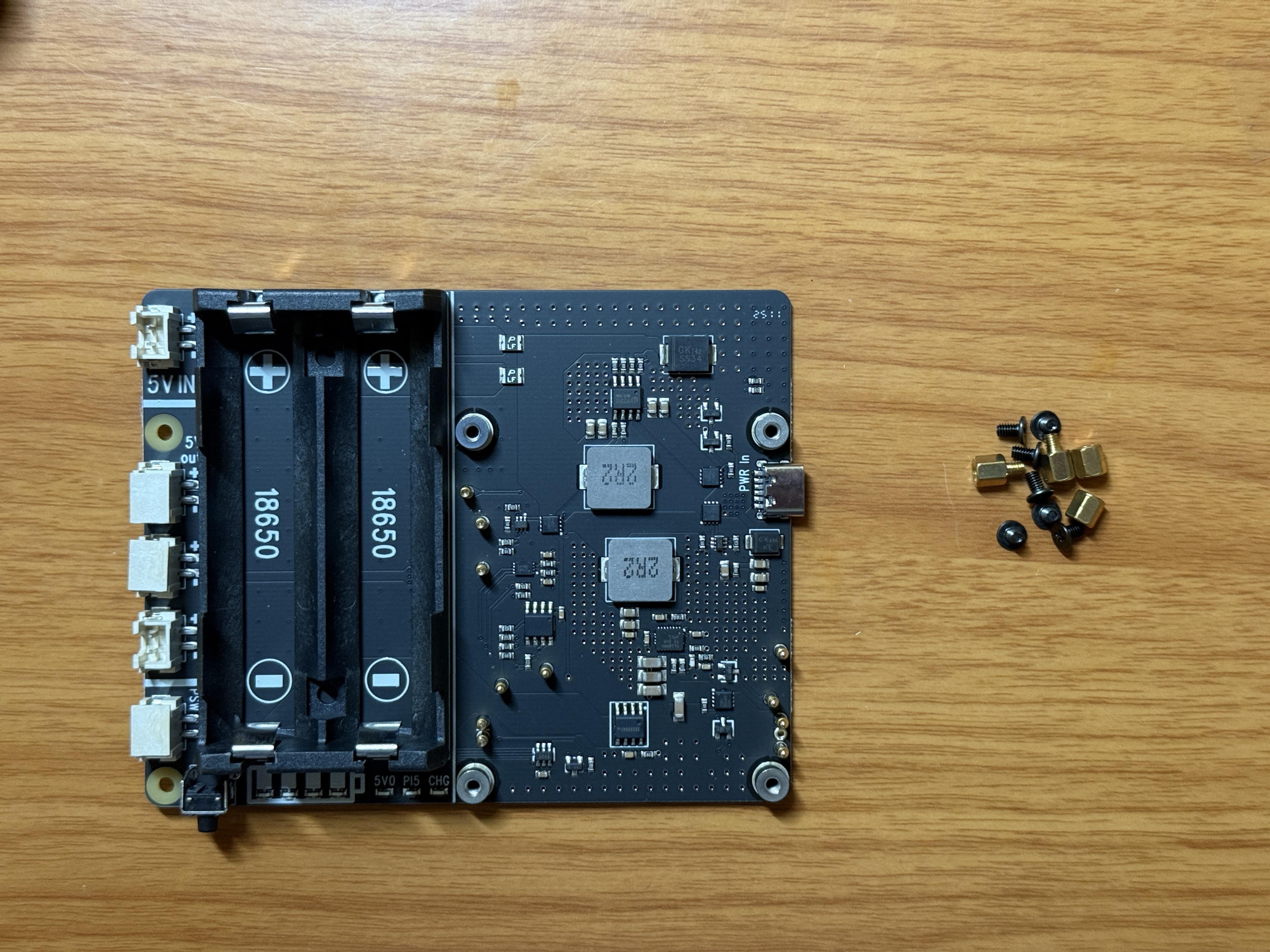
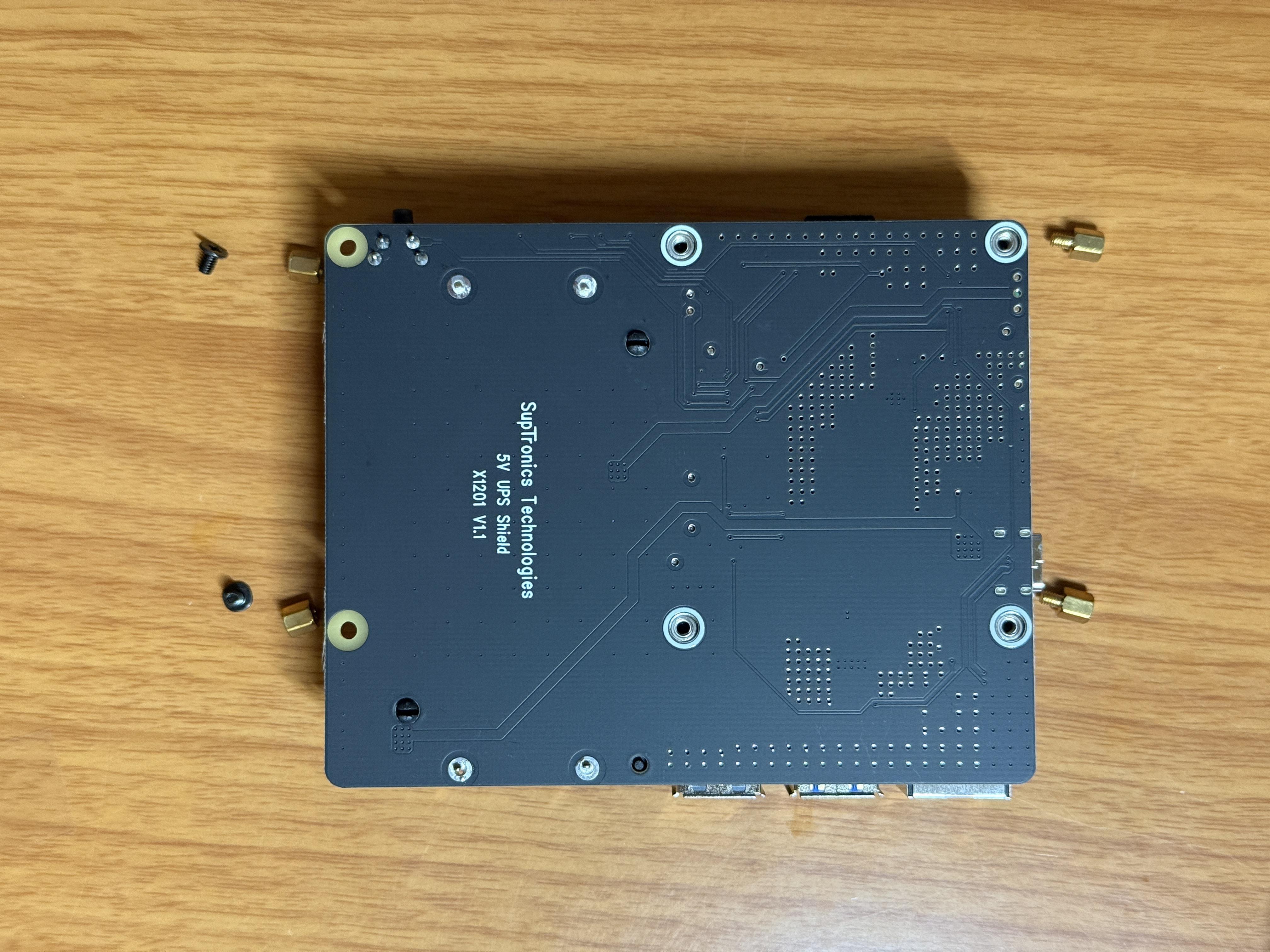
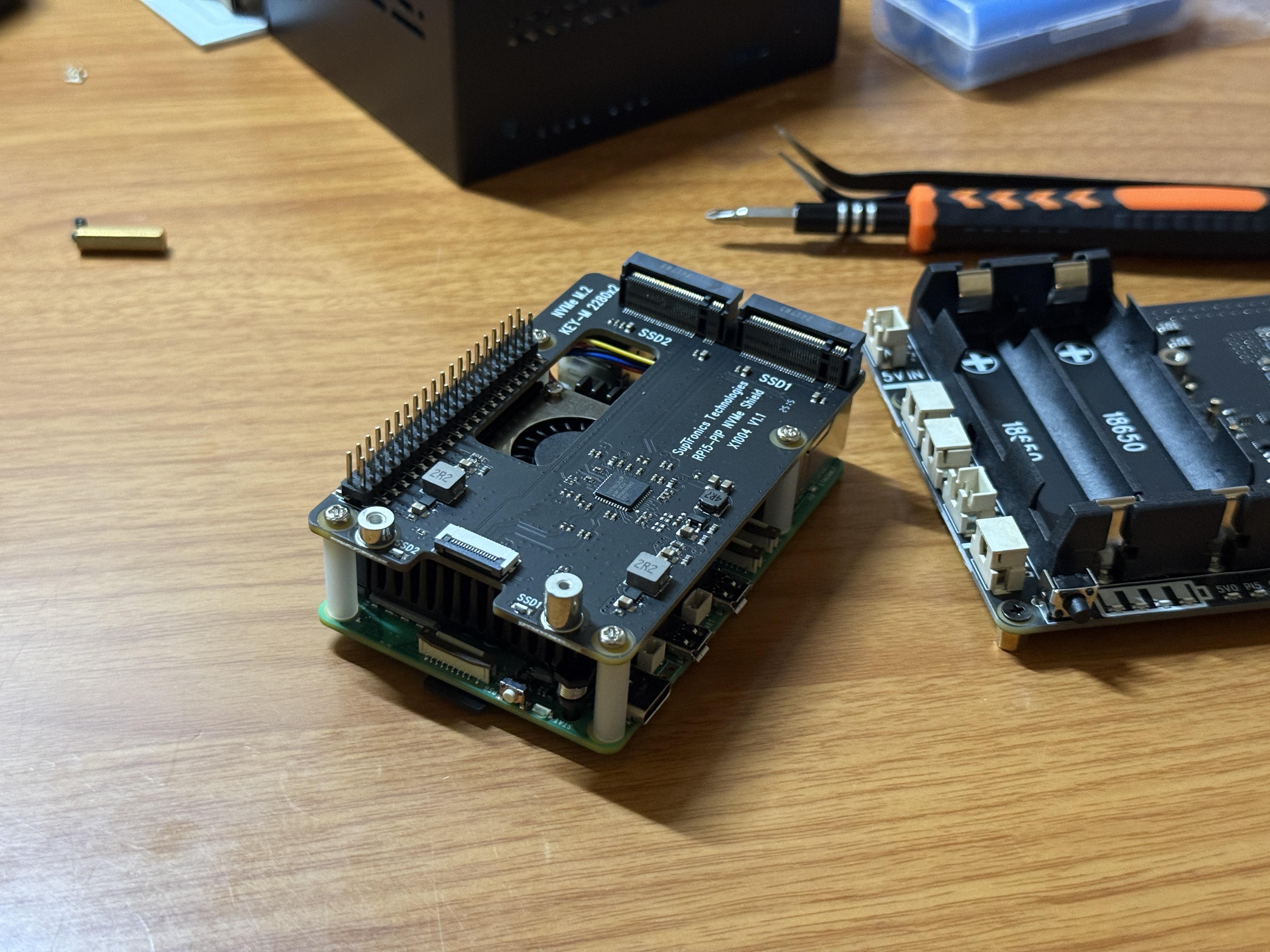
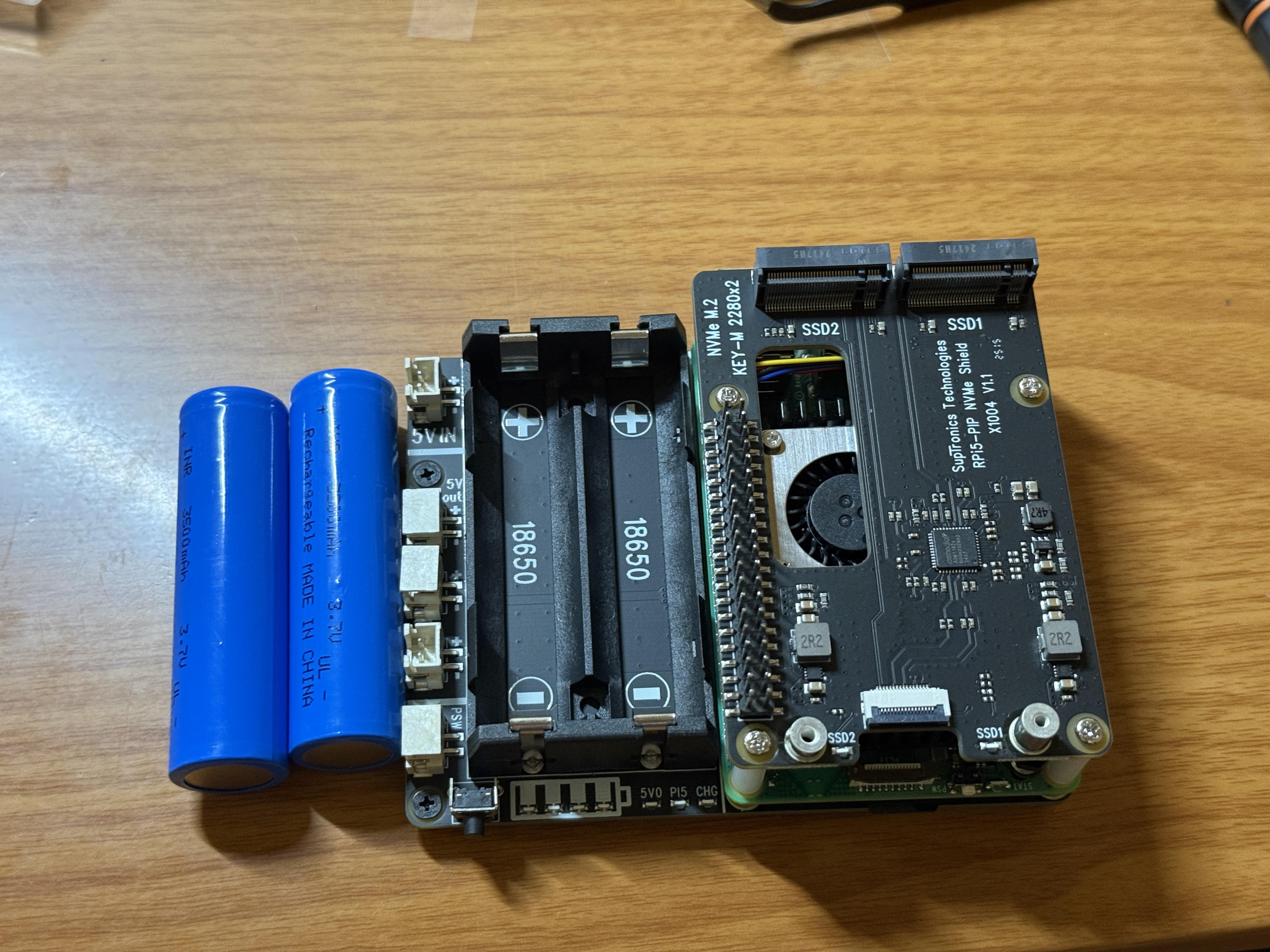
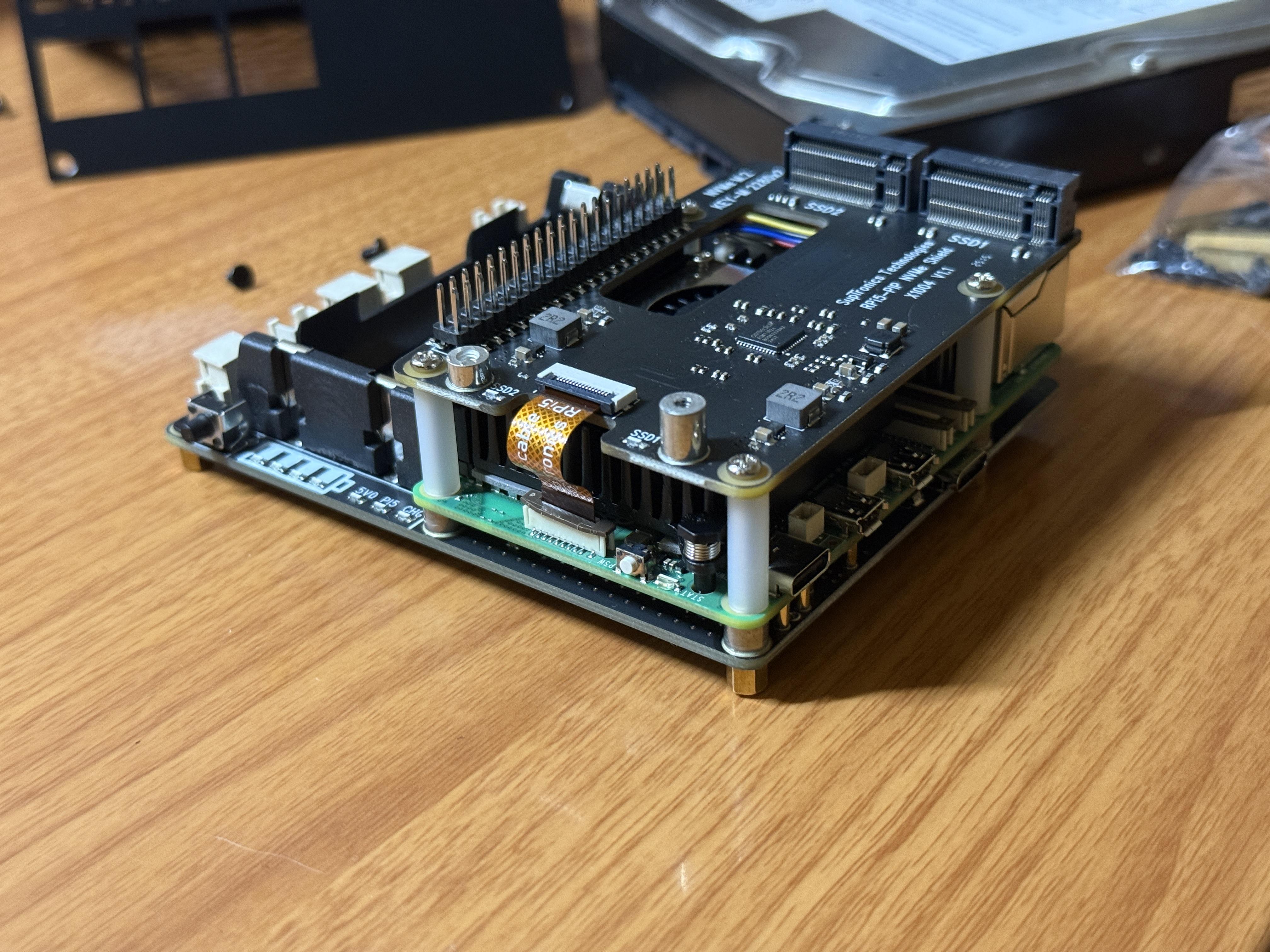
Grab your UPS shield. Now, flip it over and screw in the two spacers WITH the threads onto the side where the Pi will be installed. Next, install the spacers WITHOUT the threads with the included screws onto the side where the batteries will be attached.
Next, grab your PCIE Hat. you will need to install it on top of your Pi along with the spacers. You will get either metal or nylon spacers, I opted to use the nylon spacers. To install, I suggest that you first install the Hat onto the Pi's pins (make sure it is pushed down as far as it can go). Then, place the long screws into the hole while feeding it through the spacers. Then, screw down the whole piece onto the UPS shield.
Feed the ribbon cables into the connectors. You will need to flip up the lock on the connection in order to feed it in.
You can now place your 18650 batteries into the slots. These batteries will power your Pi if in case your device suddenly loses power.
Place Your Device Into the Case
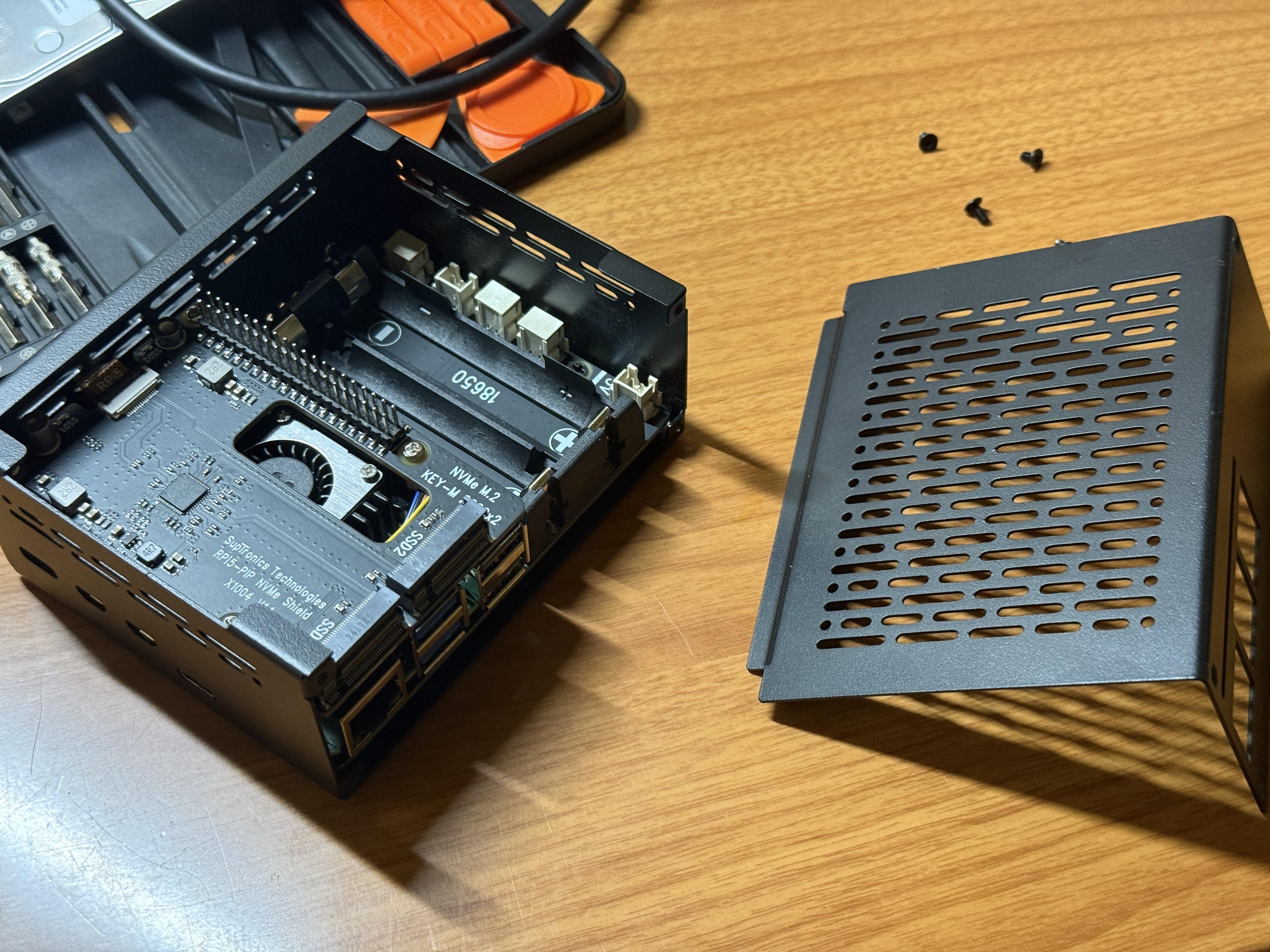
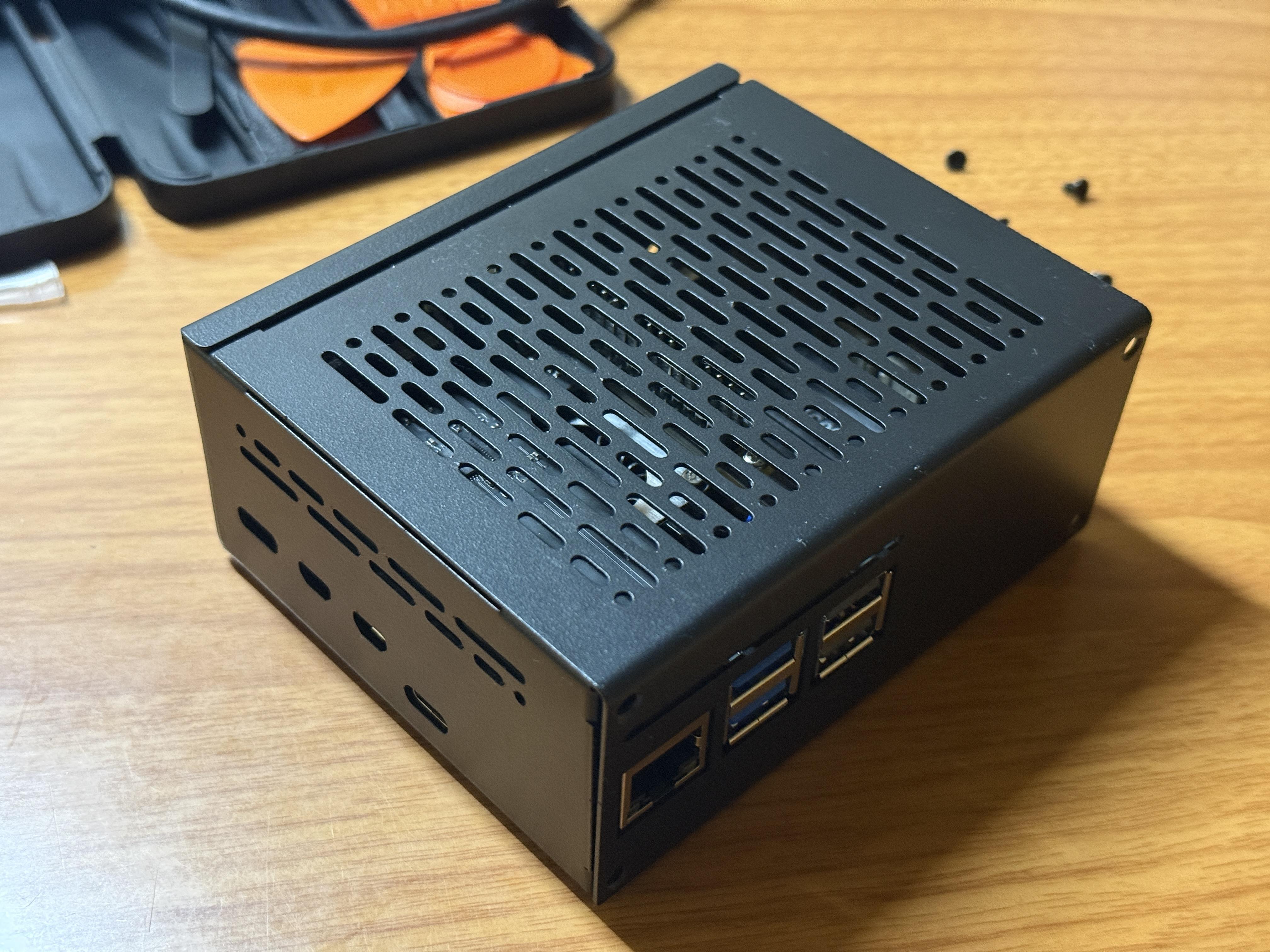
Unscrew the face of the case. You can now slide the cover off. With some finesse you will now be able to fit your Pi into the case. Flipping the case upside-down will give you screw holes to secure your Pi to the case. You can also install the rubber feet onto the bottom.
Close your case by sliding the plate back in, and then screwing it back in. Make sure to install your memory before you close it!
Installing Storage
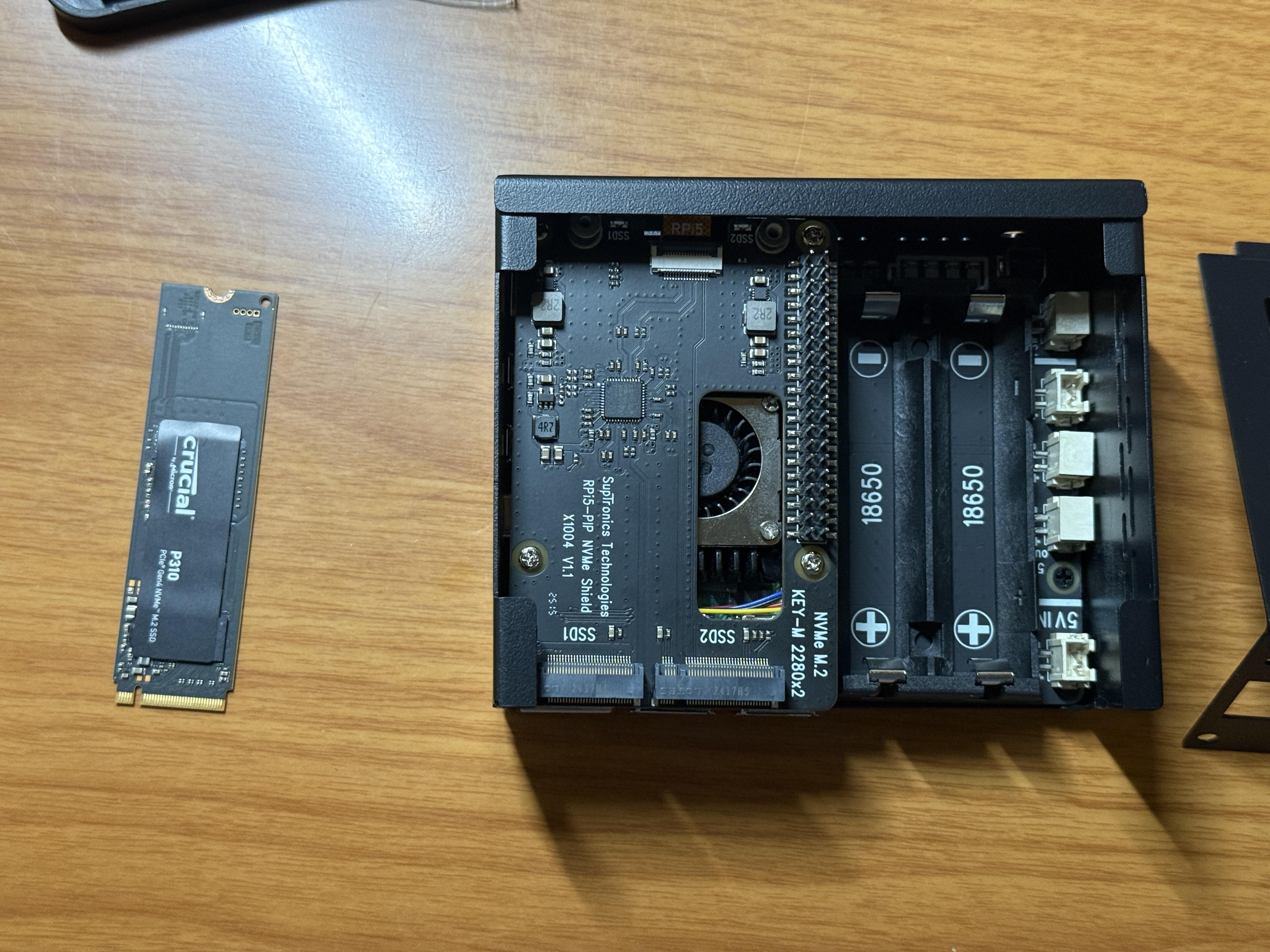
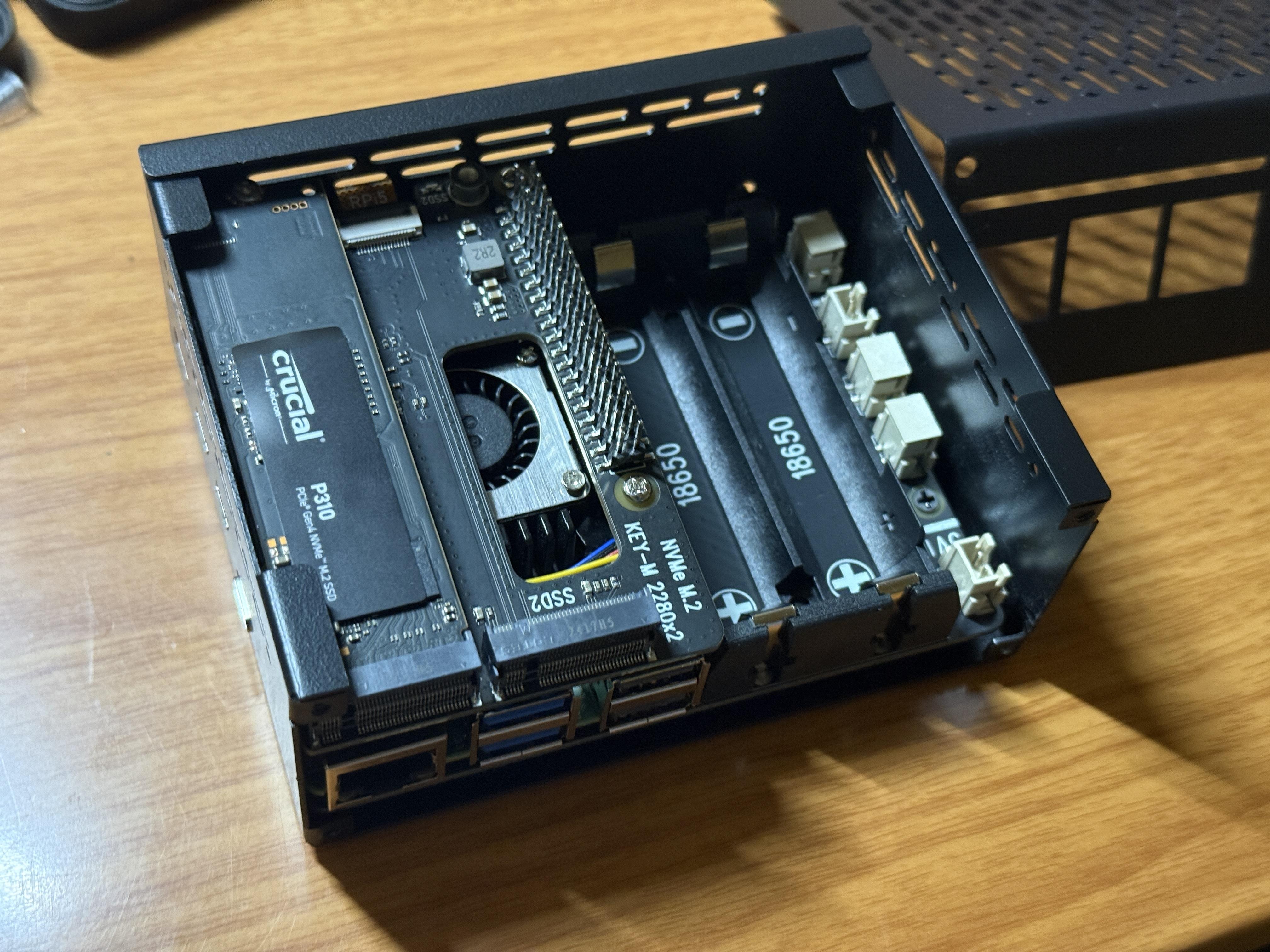
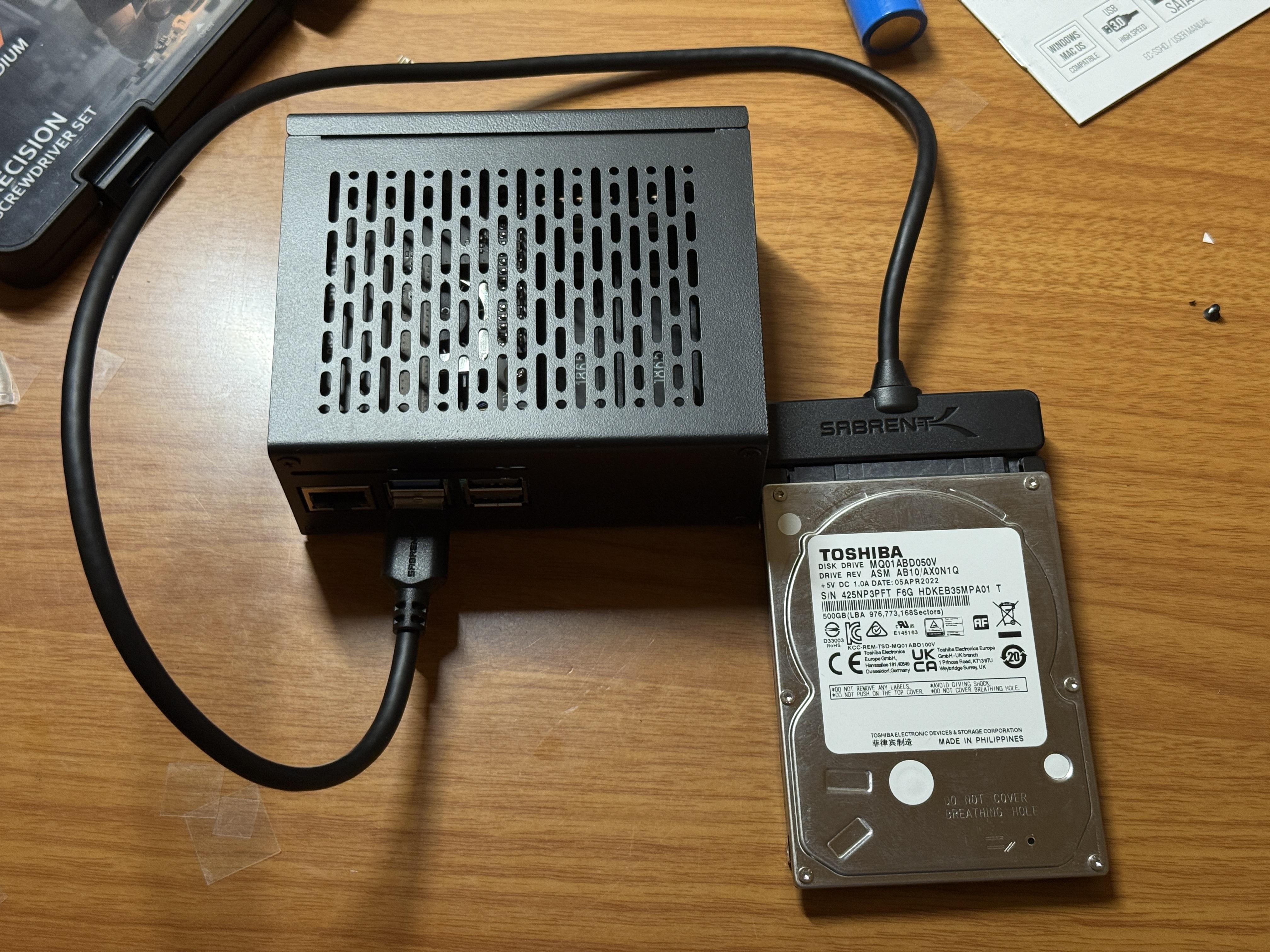
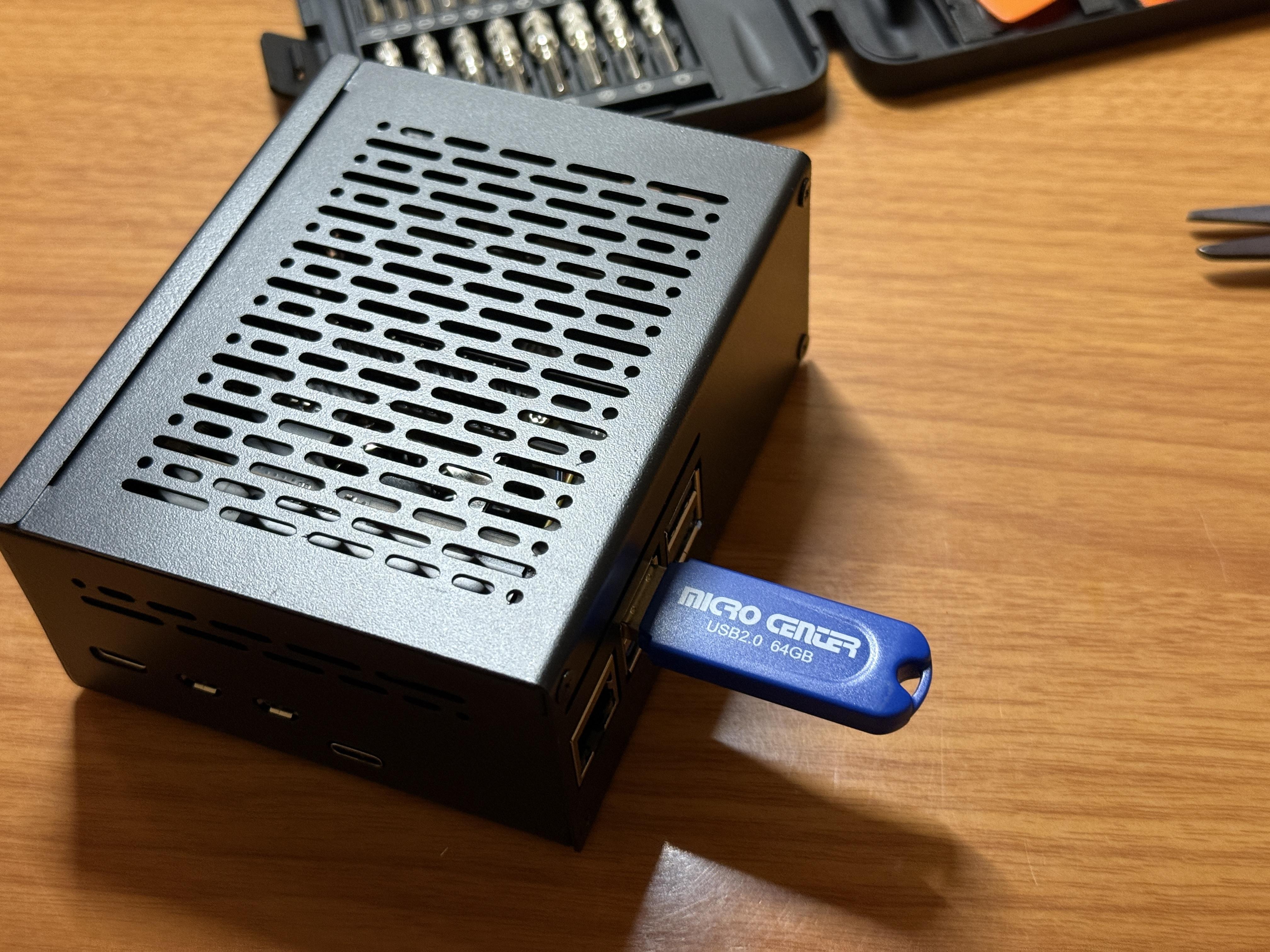
There are multiple ways to add storage onto the NAS. All of these can work simultaneously with each other. I highly suggest using an M.2 card, as we installed the Hat for it.
- M.2:
- Slide the card into the labeled slot 1 (SDD1) and screw down card (do not overtighten).
- You can also add a second M.2 into slot 2 (SDD2).
- Solid State Drive or Hard Drive:
- You will have to use an external connection. Connect the storage device through USB.
- USB drive:
- Simply plug into one of the USB slots.
Installing Software
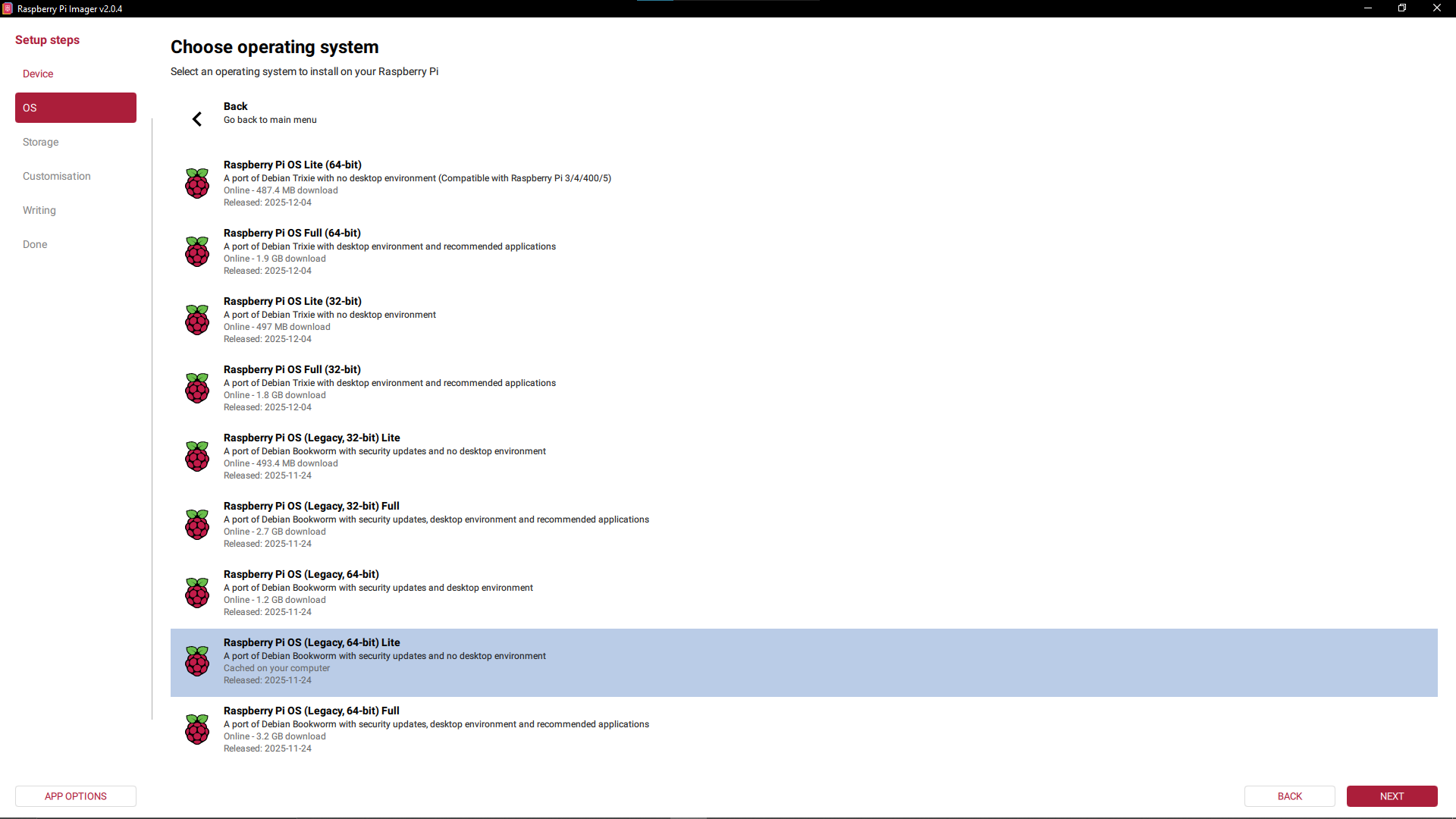
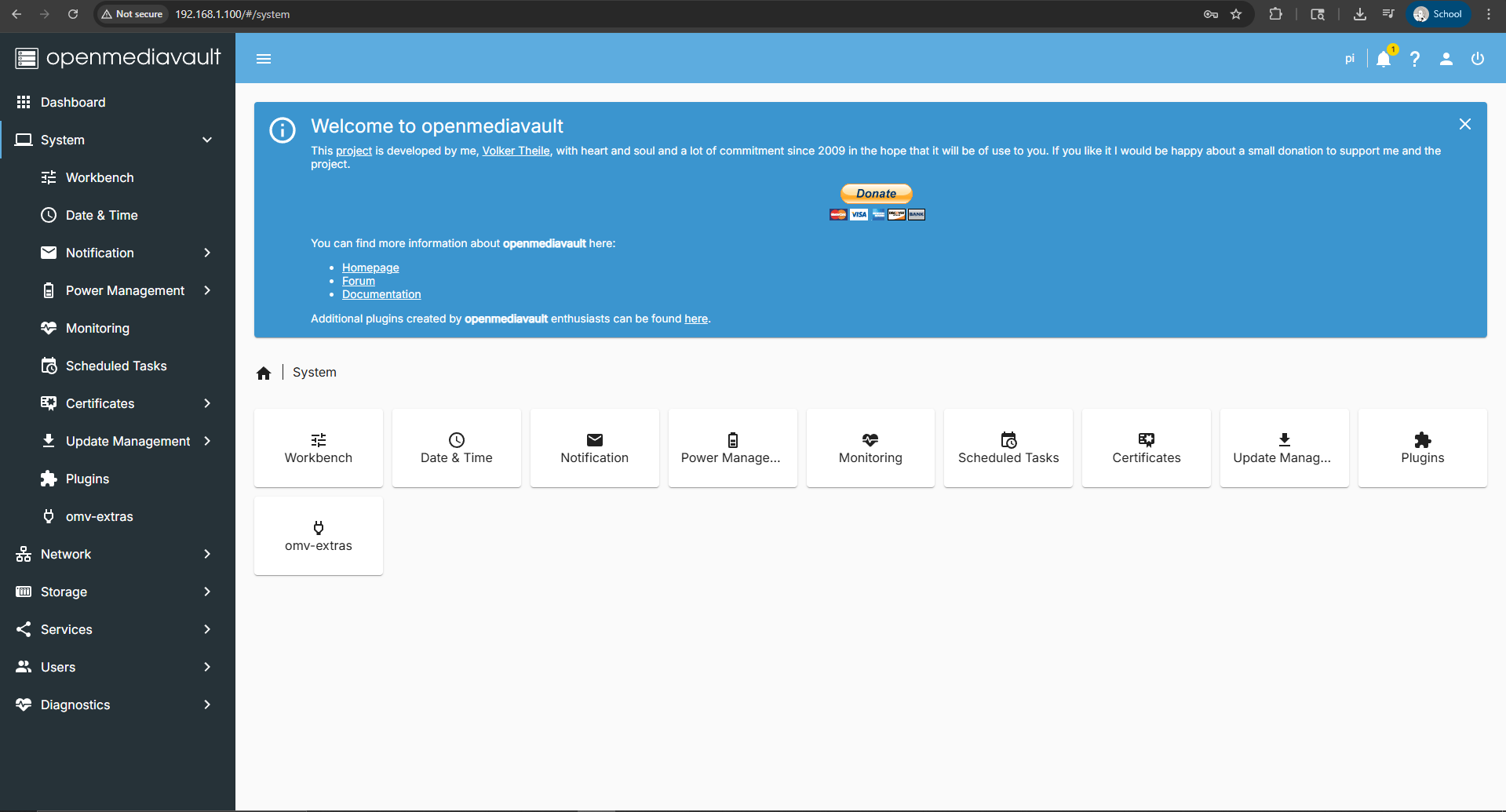
For my NAS I've opted to use Debian Bookworm with Open Media Vault (OMV) Installed onto the Pi. I can then use a separate computer to control the pi through SSH, or plug in a monitor and a keyboard.
- Flash the microSD card with Debian Bookworm
- Insert the microSD card into the computer. You can use an external reader the one built into your computer if you have one.
- Head over to the Raspberry Pi website and install the Raspberry Pi Imager.
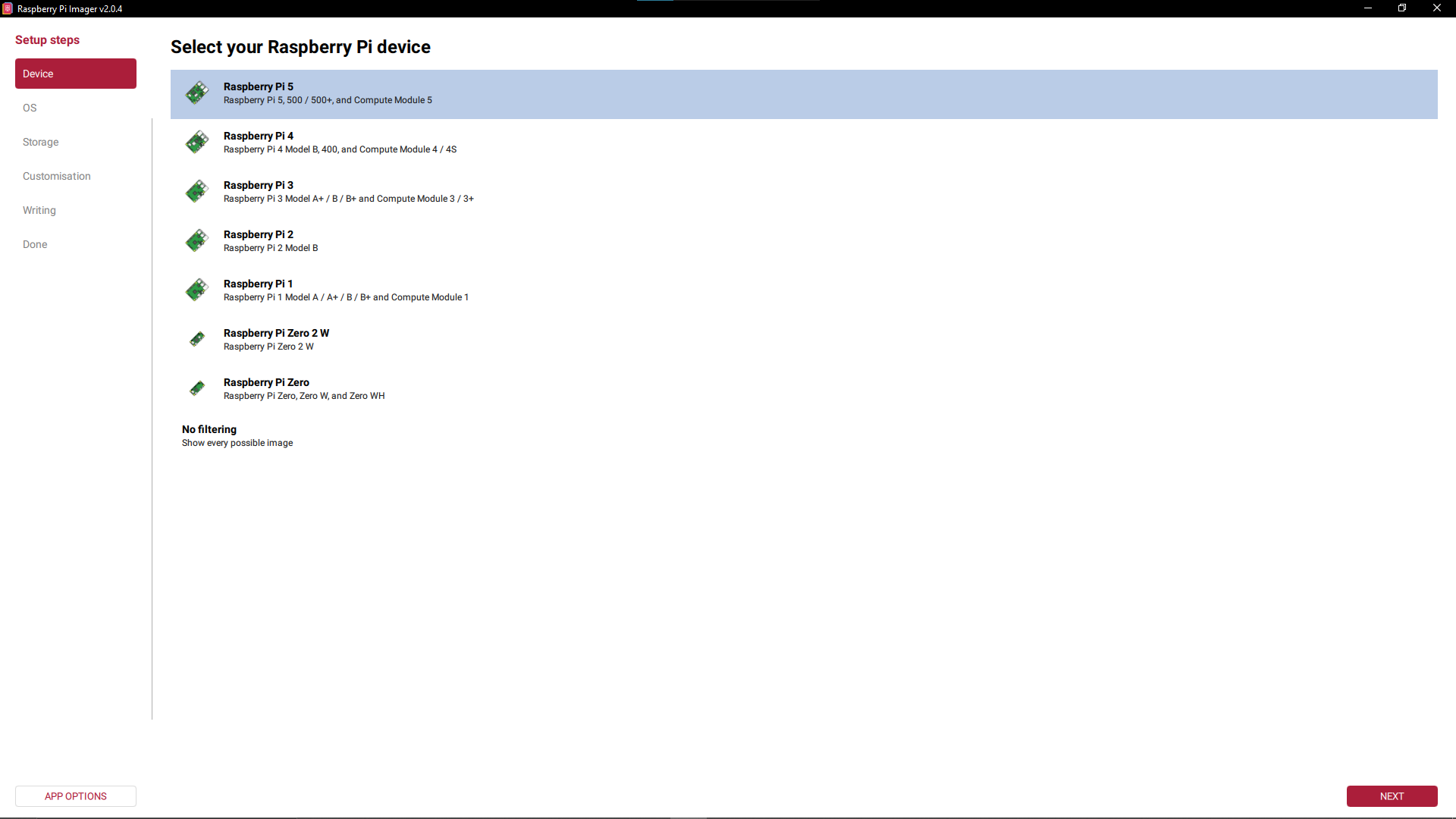
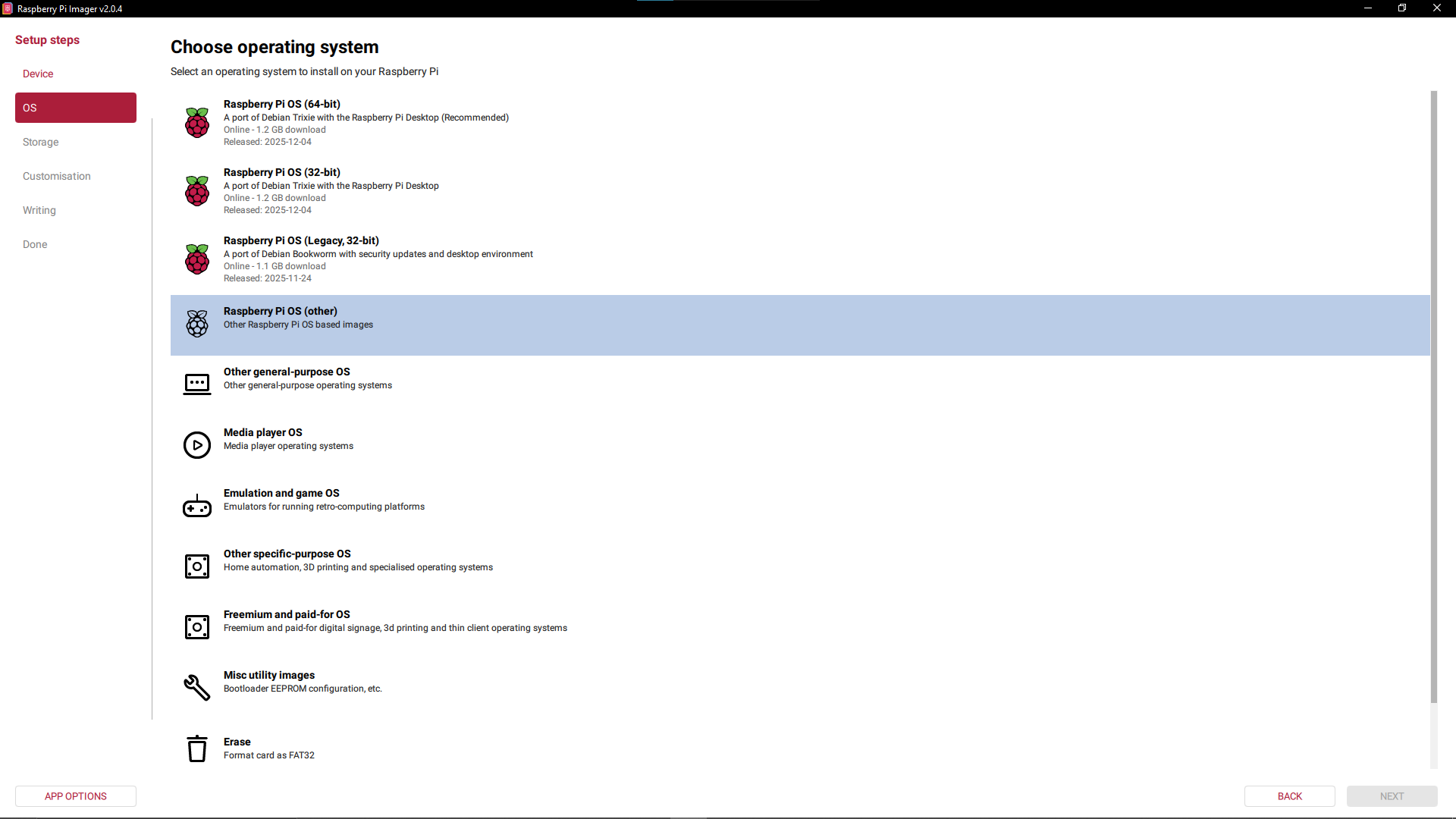
- Once installed, select your device, then go to Raspberry Pi OS (other) and select Raspberry Pi OS (Legacy, 64-bit) Lite. This is the one with Debian Bookworm on it without a desktop environment.
- Select your microSD card as the one you want to flash to. You will have to set up the Pi by giving it a name, setting up the time, setting up user login info, and then configuring it's connection.
- Install Debian onto the microSD card.
- Control the Pi through another computer via SSH (optional, recommended)
- First, if you have a computer with Windows on it, you will need to install Linux on it using WSL. I just used the regular version of Ubuntu as my version of Linux.
- Find the local IP address of your Pi. Make it is connected to your network (ethernet cable), and that you are on the same network as it. You may have to login to the admin page of your network in order to find it. The Pi will also tell you its own IP address when it is turned on and plugged into a monitor.
- On your computer, open WSL. The command used to connect to your Pi is:
- ssh (loginname)@(localip)
- Install Open Media Vault
- Following the guide from the OMV Website is helpful.
- Under the Install OMV section, copy and paste this section into your ssh terminal.
- wget -O - https://github.com/OpenMediaVault-Plugin-Developers/installScript/raw/master/install | sudo bash
- OMV should now start installing onto your Pi.
You can access the OMV web GUI by typing your Pi's IP address into the search bar. in my case it was 192.168.1.100. The default login and password is admin and password.
You can now use your Raspberry Pi 5 as a NAS!