Rain Module Sensor System
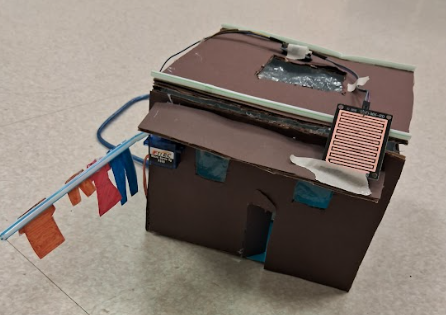

The purpose of the project is to design and construct an automated rain sensing system that protects clothes from unexpected rainfall using Arduino Uno. The system continuously monitors environmental conditions through a rain module sensor that detects moisture via changes in conductivity. When rain is detected, the Arduino processes the analog input and activates a servo motor to simulate pulling clothes under a sheltered area. Once the imminent threat has passed, the servo motor will move the clothes from the sheltered area back to their original places. An RGB LED provides real time visual feedback, blinking blue during rainfall and remaining solid blue when the weather is clear. This project demonstrates how sensors, actuators, and microcontrollers can work together to create an efficient automated solution. It also highlights the use of hardware and software logic with precise motor control in embedded systems. The invention addresses a real world household problem by reducing the need for constant human supervision. Overall, the project showcases practical applications of Arduino based automation and smart home technology management as well as usage.
Supplies


Not Counting Tax or Shipping Charges:
- Breadboard [Circuit] - $10.65
- Arduino [Circuit] - $16.99
- All types of Wires [Circuit] - $17.07
- 1 330 Ohms Resistor [Circuit] - $10.53
- RGB LED [Circuit] - $9.12
- Rain Module Sensor [Circuit] - $19.31
- Servo Motor [Circuit] - $16.99
- PC [Code + Power] - $139.99
- Straws [Exterior] - $3.97
- Cardboard [Exterior] - $2.27
- Paper [Exterior] - $7.98
- Exacto Knife [Materials] - $18.81
- Scissors [Materials] - $8.77
- Markers [Materials] - $29.49
- Wire Strippers [Materials] - $13.99
- Ziploc Bag [Exterior] - $8.27
- Glue Gun [Materials] - $4.99
- Glue Gun Sticks [Materials] - $4.27
- Tape [Materials] - $3.23
Paper and Cardboard Dimensions


Cut cardboard pieces and paper pieces same dimensions:
- Front Portion = 20cm x 14 cm w/ 2 3cm x 3cm windows & 1 6cm x 2.5 cm door
- Back Portion = 20cm x 14 cm w/ 1 2cm x 2cm hole
- Right Side Portion = 18cm x 14 cm
- Left Side Portion = 18cm x 14 cm
- Bottom Portion = 20cm x 18 cm
- Top Portion = 20cm x 18 cm w/ 1 7cm x 7cm hole
- Canopy = 3.5 cm x 18 cm
Choose any colour you want for all these sections as this project offers versatility and limitless creativity. I chose brown for mainly everything and glued that coloured paper on one side of everything to avoid paper wastage. I also used blue paper for only the bottom part as when the RGB LED would light up, it would light up blue and this base would compliment it's colour, making it shine way more than usual.
Gluing the Structural Base Together
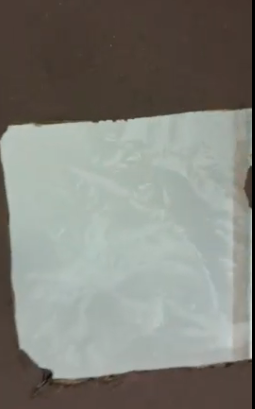

In this step, I began assembling the main structural components of the house using strong adhesive. Each cardboard and paper piece was aligned carefully before gluing to ensure the walls were straight and structurally sound. Even pressure was applied while the glue set to prevent warping or weak joints. This stage was critical because the structure needed to support electronic components without shifting or collapsing. A stable base ensured accurate positioning of mechanical and electrical elements later in the build. Proper construction at this stage improved both durability and visual quality.
Assembling the House Frame and Installing Guide Straws


Next, I assembled the main body of the house by gluing all walls together while intentionally leaving the top section open. This allowed easy access for installing internal components such as the breadboard and RGB LED. Two straws were then glued horizontally across the front and back near the top of the house. These straws were placed for not just aesthetic reasons but also to apply a spot where the Rain Module Sensor can lie titled as opposed to being completely flat. Care was taken to keep the straws level and parallel to allow smooth motion. This step combined structural design with mechanical planning.
Mounting the Servo Motor and Attaching the Straw
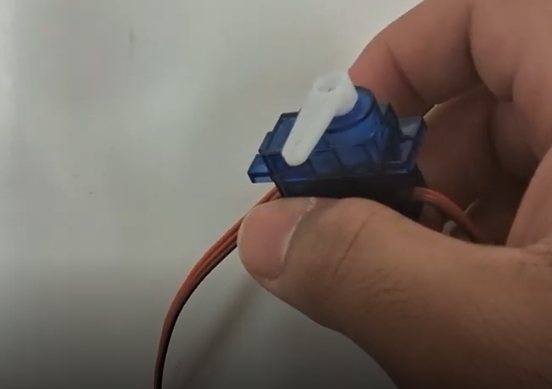
In this step, the servo motor was securely glued to the front side of the house near the roof and window. The motor was positioned so its rotational axis aligned with the movement of the clothesline. A straw was then attached directly to the servo horn, acting as a mechanical arm. This conversion of rotational motion into linear movement is a key mechanical principle. Proper alignment endured smooth rotation without obstruction. This step transformed the project from a static model into an active mechanical system.
Creating and Installing the Clothes
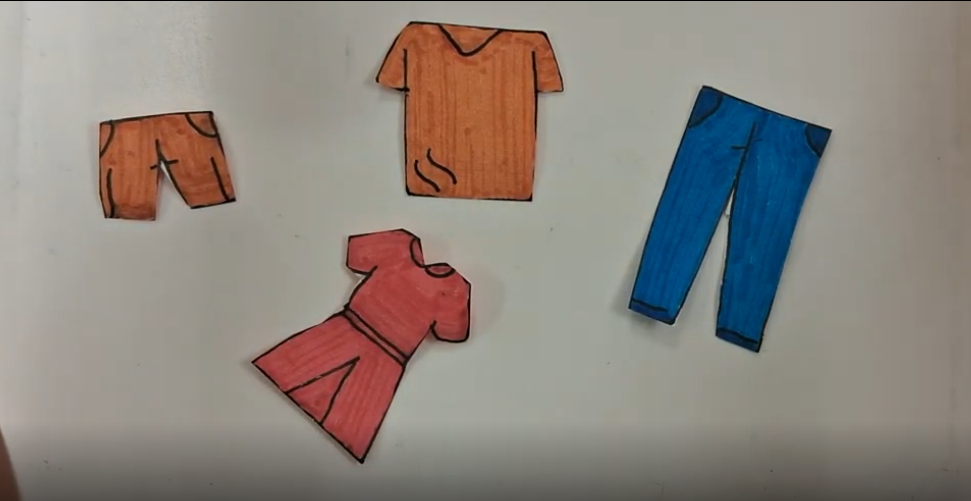
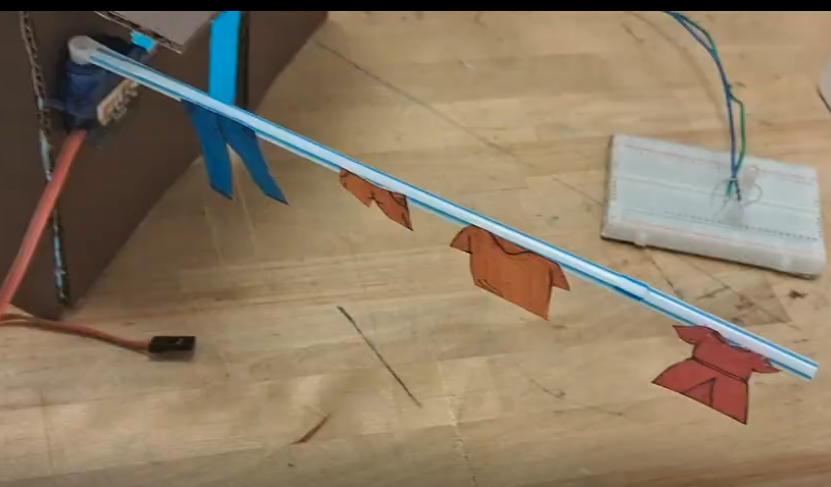
I then created miniature clothes. By cutting small shapes out of paper to represent garments. These pieces were colored using markers to make the system more visually engaging and realistic. Once completed, the clothes were glued evenly along the straw attached to the servo motor. This ensured balanced weight distribution during the motion as well as the clothes fitting under the roof perfectly. The clothes moved as a single unit when the servo rotated. This step helped visually demonstrate how the system responds to environmental conditions.
Mounting the Arduino Uno

At this stage, the Arduino Uno was taped securely to the side of the house structure. The placement was chosen to allow easy access to digital and analog pins while keeping the board visible. Taping rather than gluing allowed adjustment if rewiring was needed. The USB port was kept accessible for programming and power delivery. This mounting step integrated the microcontroller directly into the physical design. The Arduino now served as the system’s central processing unit.
Building the Breadboard Circuit
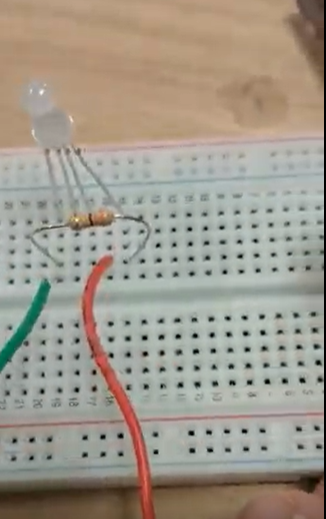
Next, I assembled the circuit on a breadboard to allow for safe, solder free prototyping. Power and ground rails were established first to ensure stable voltage distribution. Normal wires were used to connect components according to the image schematic. This modular setup makes troubleshooting easier and prevents permanent mistakes. The breadboard acted as the electrical hub of the project. Neat wiring was maintained to reduce the risk of short circuits, as well as the applied 330 Ohms resistor.
Connecting the RGB LED to the Arduino
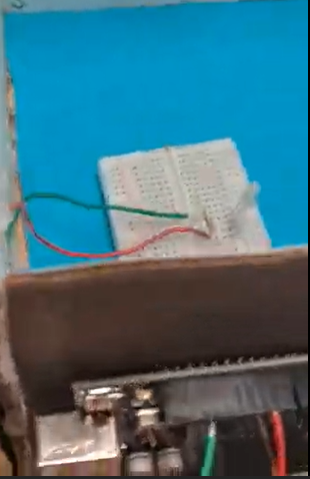
In this step, the RGB LED was connected to the Arduino to provide visual feedback. The blue pin of the LED was connected to digital pin 9 on the Arduino using a normal stripped wire. The common ground pin of the LED was connected to the Arduino’s GND pin. This setup allows the Arduino to control brightness using PWM signals. The led indicates system status during operation. Proper polarity was essential to avoid damaging the LED. This LED was attached to the breadboard inside the house, with the wirings going through a small hole.
Connecting the Servo Motor to the Arduino
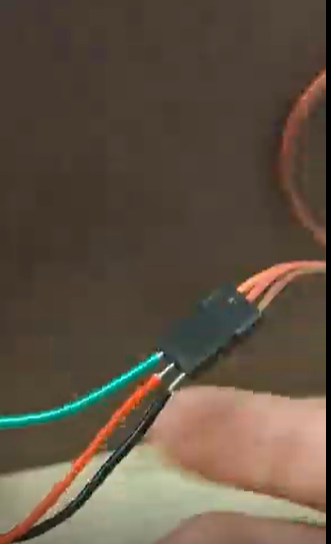

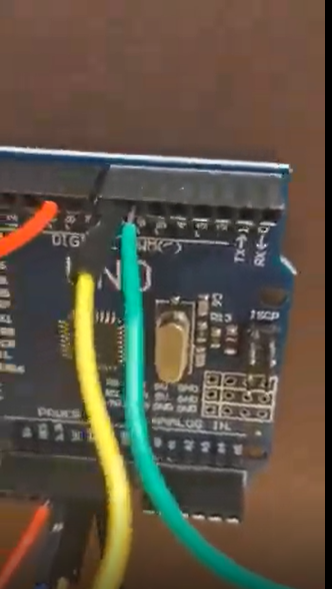
The servo motor was then electrically connected to the Arduino. The signal wire was connected to digital pin 6 , allowing the Arduino to control the servo’s angle. The power wire was connected to the 5V pin, while the ground wire was connected to GND. These connections allow precise angular control using PWM signals. Proper power delivery ensured smooth and jitter free motion. This step completed the actuator control portion of the system.
Connecting the Rain Module Sensor
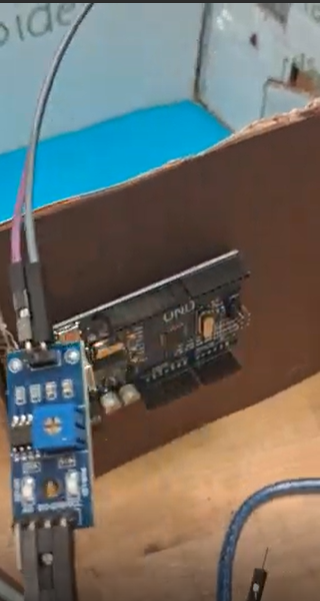
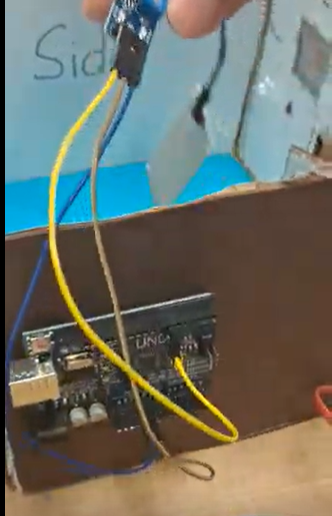
Next, the rain module sensor was connected to the Arduino to provide environmental input. The digital output pin of the sensor was connected to digital pin 7 on the Arduino. Power and ground pins were connected to the 5V and GND rails respectively. This sensor detects rain droplets through conductivity changes when water contacts the sensing plate. The Arduino reads this signal as a digital value. This step enabled automatic decision making based on the variable of weather conditions.
Final Assembly and Cable Management

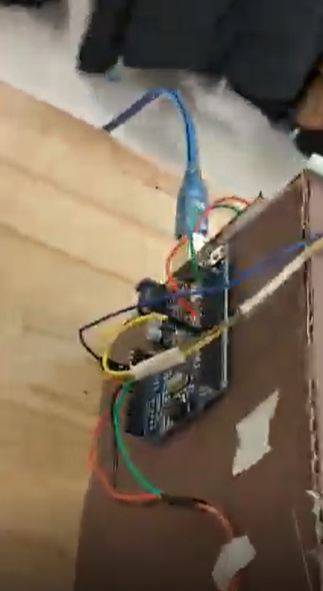
Once all components were connected, the top of the house was glued into place to complete the structure. All wires were taped down securely to prevent accidental disconnections. Cable management was carefully done to improve reliability and appearance. This step ensured that moving parts did not interfere with wiring. The system was now mechanically and electrically stable. The project was ready for final testing.
Running the Code and Texting the System

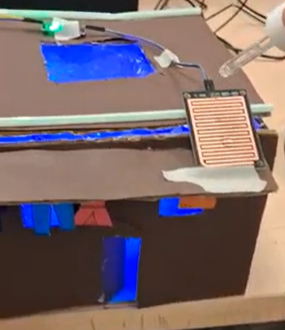
In the final step, the Arduino code was uploaded to the board using a USB connection. The system was powered on, supplying voltage, and the Serial Monitor was used to verify sensor readings. A small water droplet was placed onto the rain sensor to simulate rainfall. When rain was detected, the co servo motor rotated and moved the clothes under the proof. The LED provided visual confirmation that the system was active. This successful test demonstrated that the circuit, code, and mechanical design worked together perfectly in sync as intended.
The Code
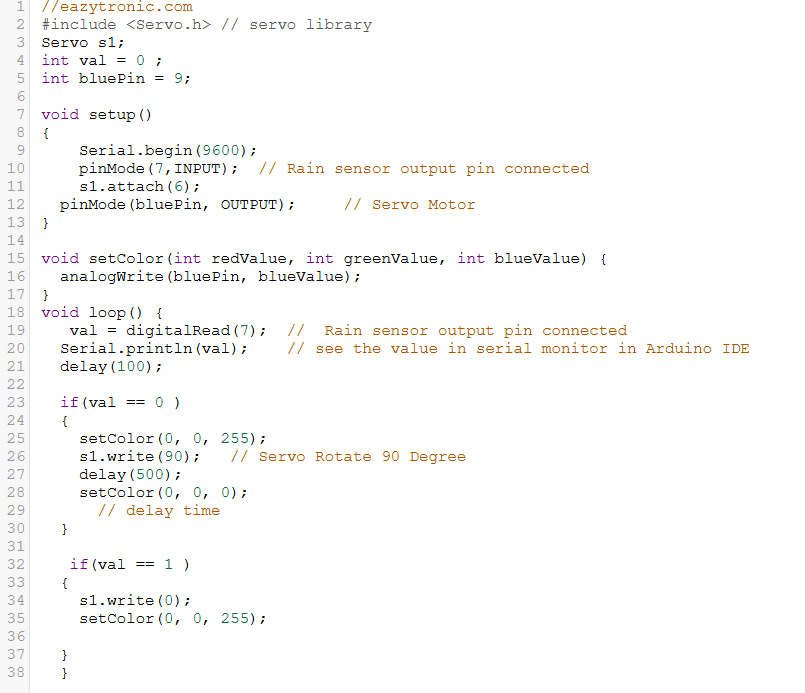
This Arduino program is structured to clearly separate initialization, control logic, and hardware interaction, making it efficient and easy to understand. The setup() function initializes serial communication, configures all input and output pins, and attaches the servo motor, ensuring all hardware components are prepared before the program runs. Pin constants are declared at the top of the code, which follows proper coding conventions and allows easy modification or expansion of the system. The setColor() function is a user defined function that controls the RGB LED using PWM signals, reducing code repetition and improving readability. In the loop() function, the rain sensor continuously sends digital input values to the Arduino, allowing real time environmental monitoring. Conditional statements process this input and determine whether rain is detected or if the weather is clear. When rain is detected, the servo motor is activated to rotate to a specific angle, simulating the movement of clothes under a roof. The arduino continuously reads the rain sensor’s digital output and stores the value in the variable val. When rain is detected (val == 0 ), the servo motor rotates 90 degrees to simulate clothes under the roof, while the LED turns on and off repetitively to indicate rainfall. When no rain is detected (val == 1), the servo returns to its default positions, representing clear weather conditions. Simultaneously, the RGB LED provides visual feedback, reinforcing system status through color output. Although the logic is straightforward, the code controls multiple components at once, demonstrating coordinated behavior between sensors and actuators This combination of modular functions, conditional logic, and hardware control reflects the balance between technical complexity and a clean, beginner friendly design.
Common Mistakes

Common mistakes many people make whilst doing this project is firstly choosing dysfunctional components. When they have everything done correctly and glued, they may realise for example the rain module sensor isn't working which is why the entire circuit is not acting the way it is suppose to. Another common mistake people make is when trying to add onto this simple yet complex code when they are trying to add additional hardware parts such as a buzzer. What people forget to do is typically announce the pins, which can be the biggest problems to any line of code. The last common mistake I have seen people do with this project is messing up the measurements. Despite it not being a big issue, it can create problems if you don't face the problem with patience and a clear mind as having a wall higher than another can truly make one perplex when they both should be the same measurements. However, to address all these common problems, there is one solution, and that solution is to tackle the problem with calmness, a active mindset, and always taking things slow, step by step.