RFID-Based Security System Using PIN Verification
by 1041085 in Circuits > Arduino
52 Views, 3 Favorites, 0 Comments
RFID-Based Security System Using PIN Verification
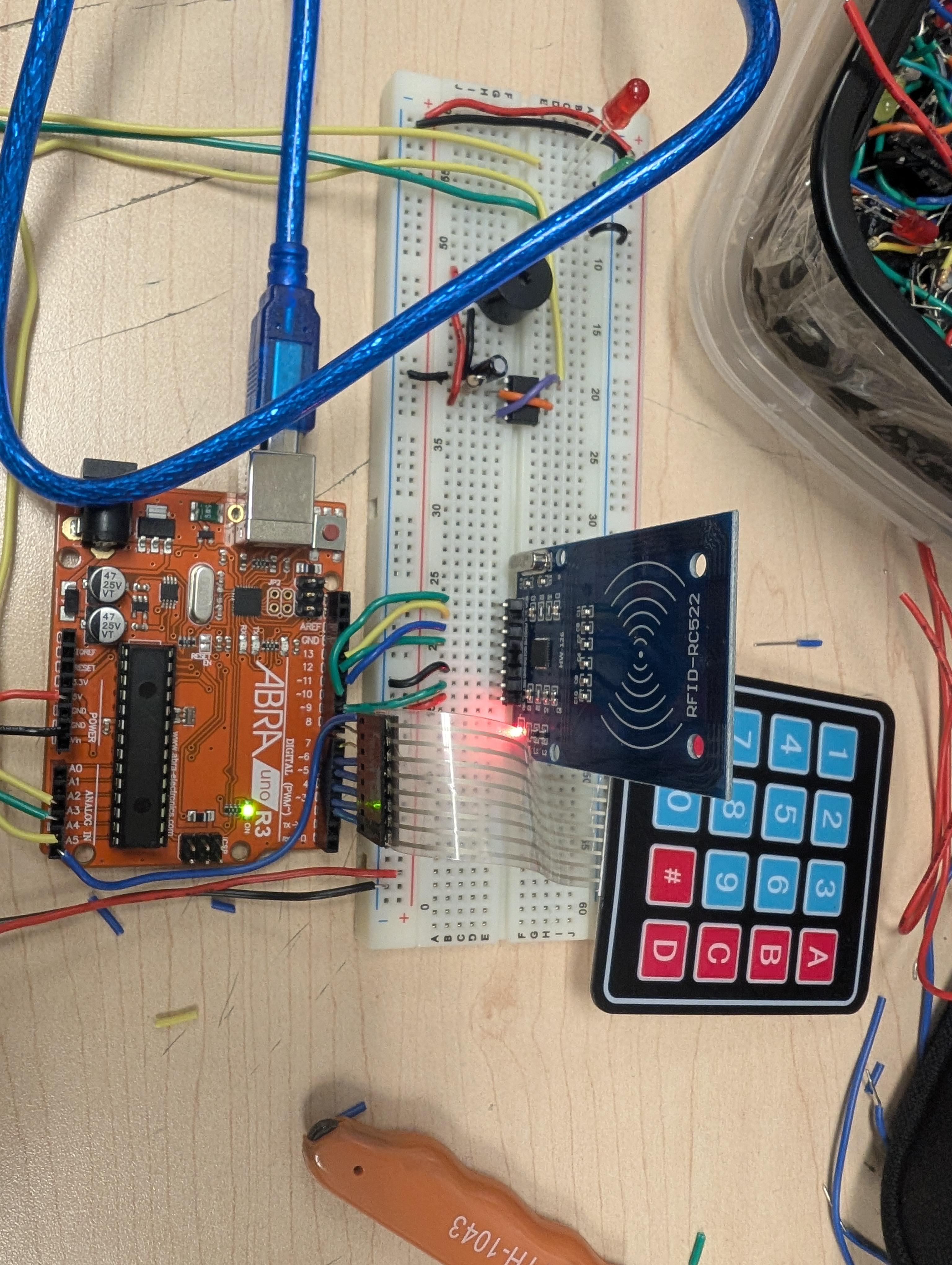
This project is an RFID-based access control system that uses both an RFID card and a keypad for authentication. The system allows users to add RFID cards, assign each card a 4-digit PIN, access the system using a registered card and correct PIN, and remove cards when needed. A keypad is used to navigate the menu and enter PINs, while LEDs and a buzzer provide feedback for user actions such as successful access, denied access, or errors.
When a card is scanned, the system checks if the card is already stored. If it is, the user is prompted to enter the correct PIN. If the PIN matches, access is granted and a green LED turns on. If the PIN is incorrect or the card is not registered, access is denied and a red LED and buzzer are activated. The system can store multiple cards and allows cards to be added or removed directly through the keypad without needing to reprogram the Arduino.
Follow the instructions below to create your own RFID based access control system!
Supplies

Arduino UNO board × 1
MFRC522 RFID reader module × 1
4×4 Matrix Keypad × 1
Breadboard × 1
Jumper wires (male-to-male) × 1 set
555 Timer IC × 1
Electrolytic capacitor (10 µF) × 1
Green LED × 1
Red LED × 1
Resistors (220 Ω) × 2
Passive buzzer × 1
Wiring the Circuit to the Arduino

Step 1: Adding the Arduino and Breadboard
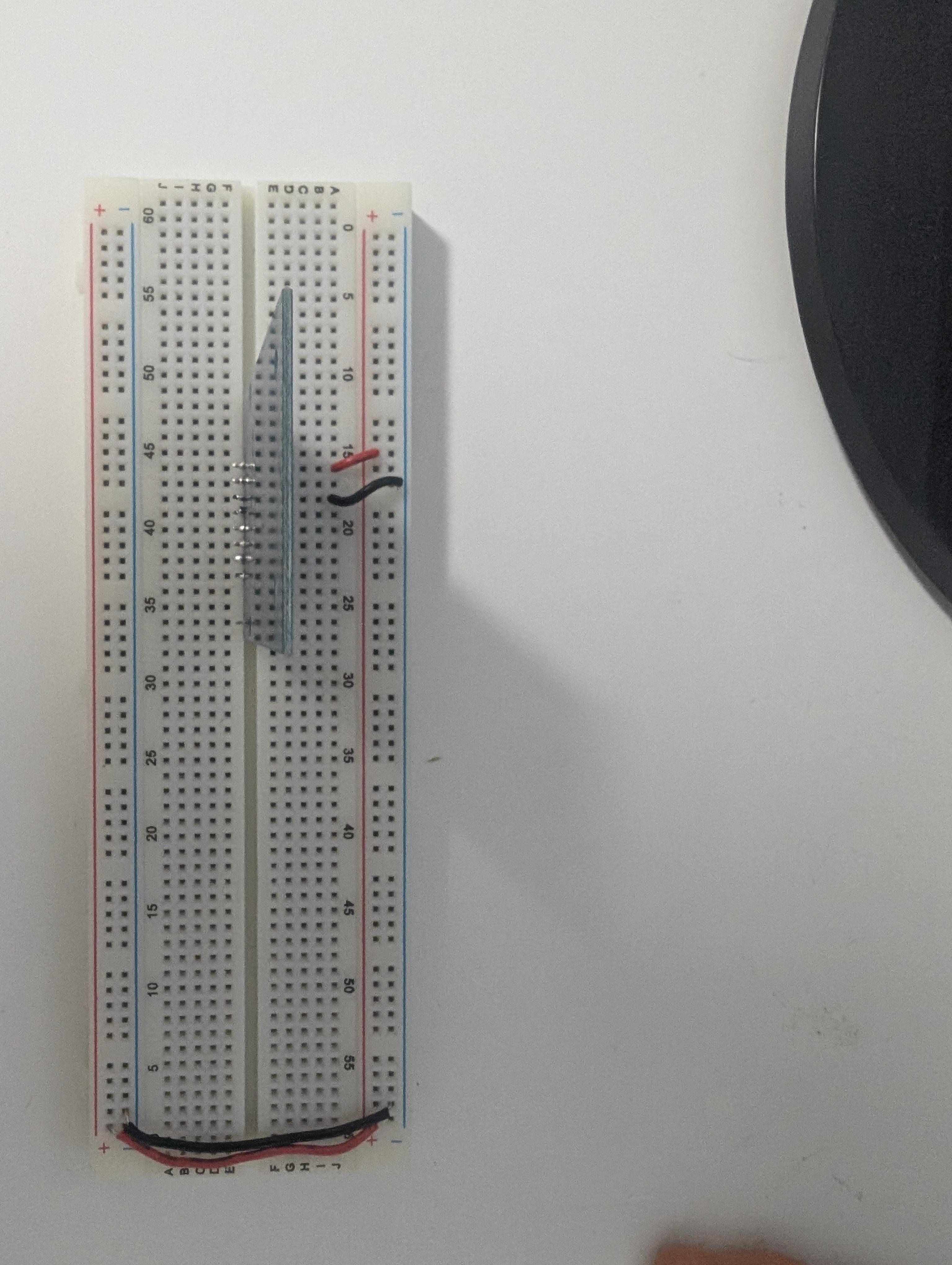
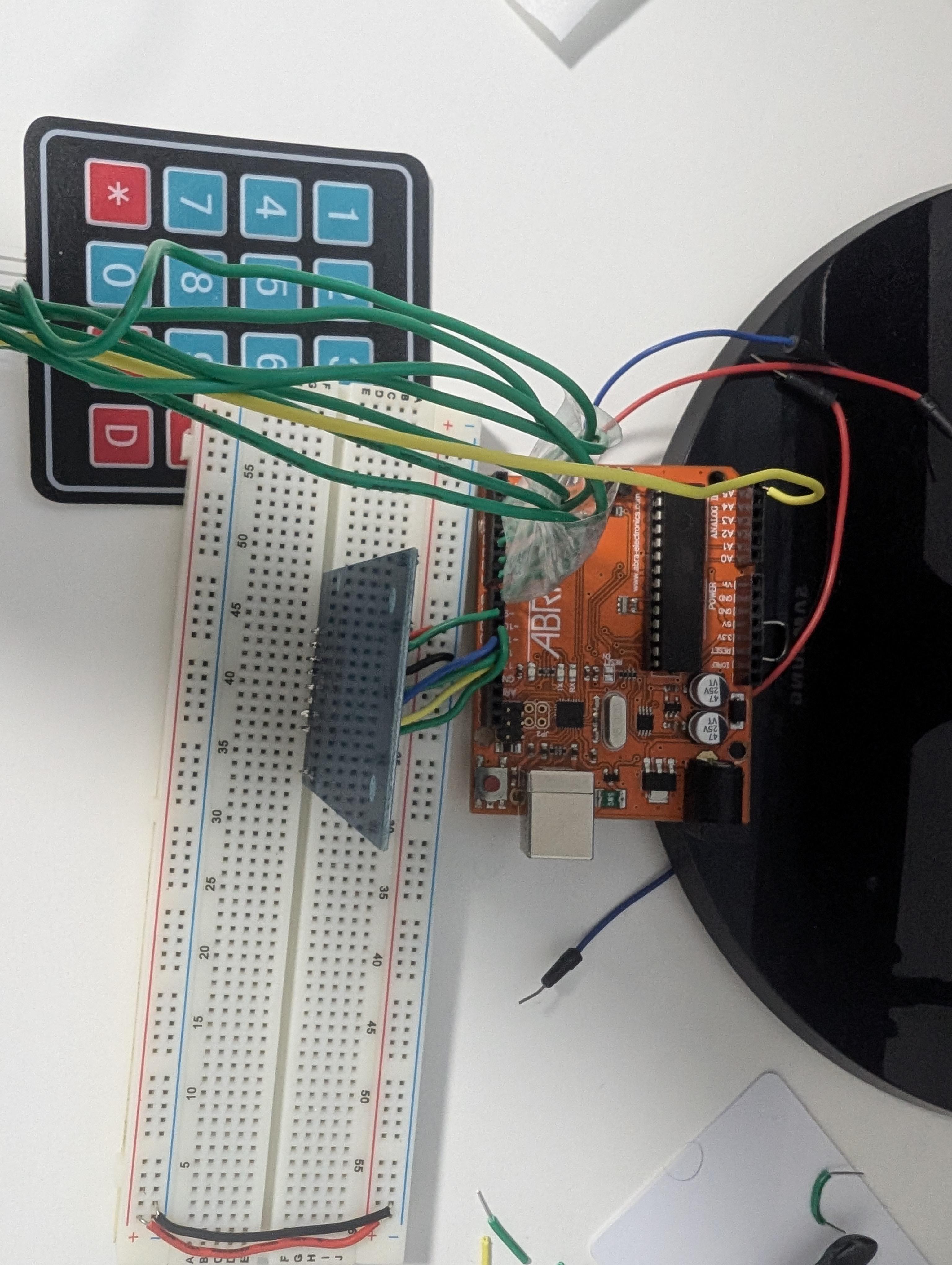
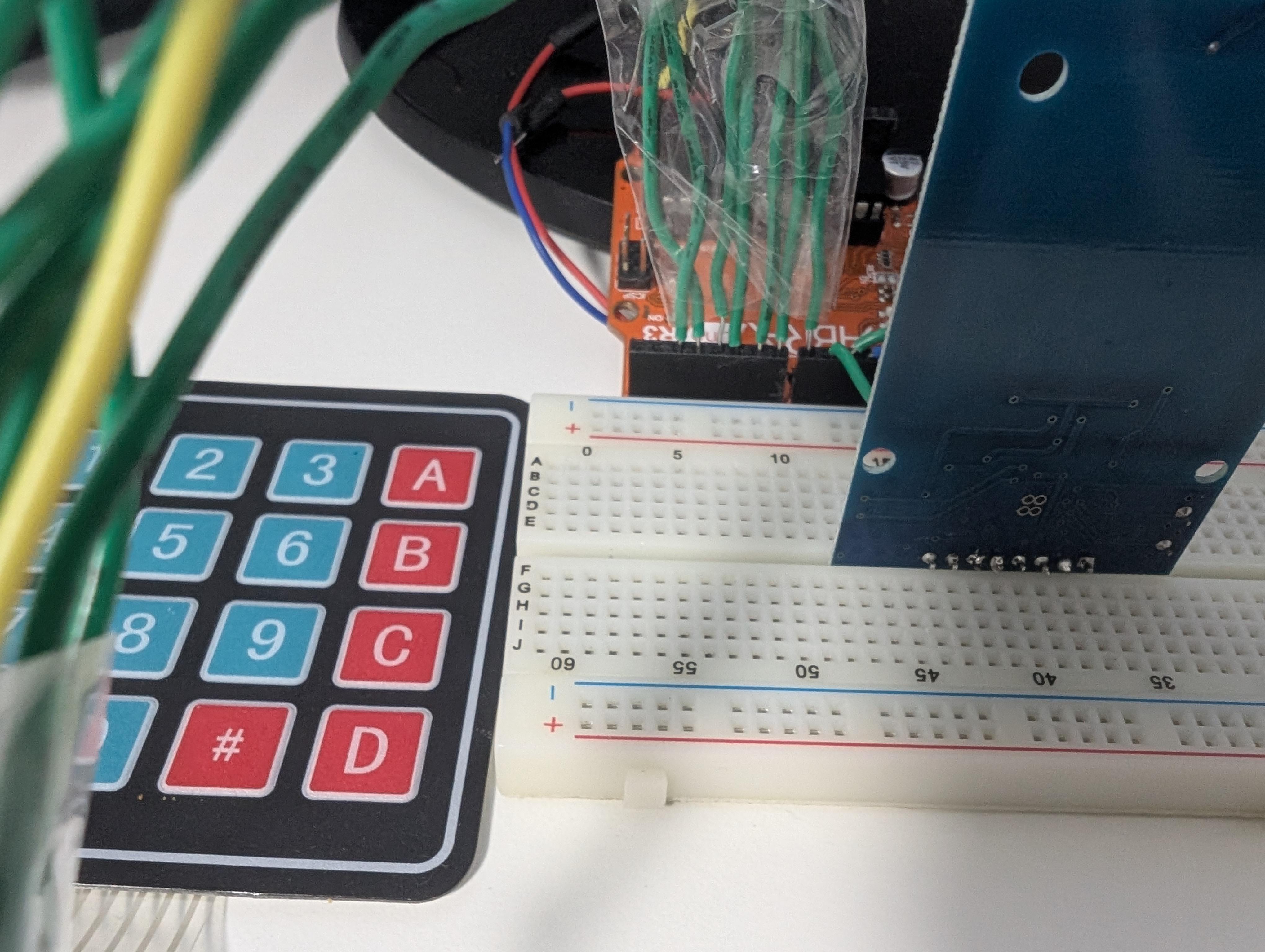
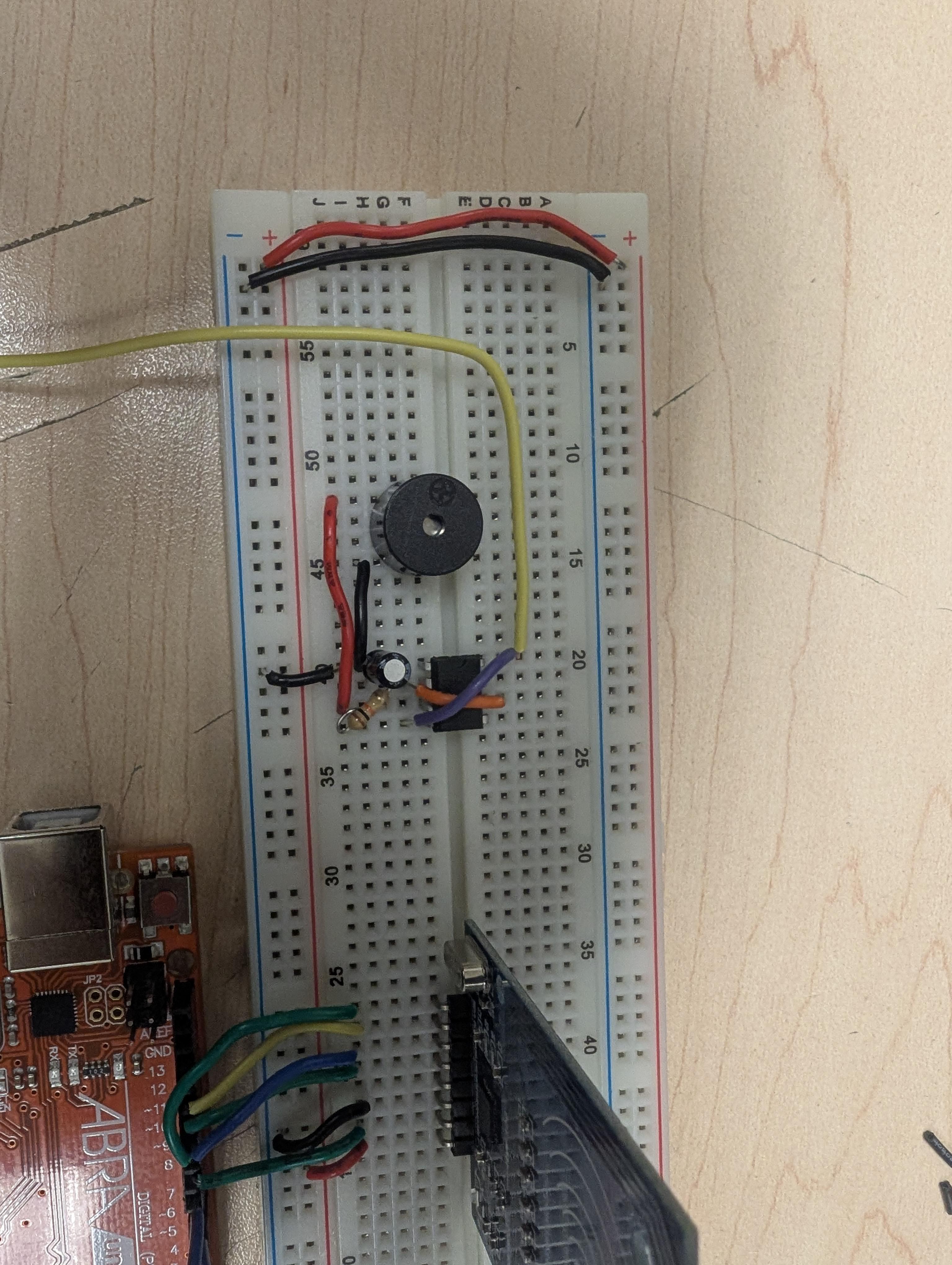
Begin by setting the Arduino UNO on your work area. Put the breadboard next to the board, so that you can easily get at its power rails. Attach the 5V and GND of the Arduino to either side rail, providing access to power. After powering up the Arduino, attach the MFRC522 RFID reader on the breadboard as shown in picture.
Step 2 – MFRC522 RFID Reader wiring
Up next, we have to wire the MFRC522 RFID reader.
Place the RFID module on the breadboard and connect its pins to the Arduino (Connect them straight away this time, no resistor needed). SDA (SS) is connected to digital pin 10, SCK to 13, MOSI to 11 and MISO to 12. # RST pin is attached to digital pin 9. Power control module connections Connect the 3.3V of the supply to the input of LDO and connect GND to G pin. This is the way the RFID reader and Arduino CN be talked to over SPI.
Step 3 - Connecting the Wires to the Keypad.
Position the 4×4 matrix keypad immediately beside the Arduino so the ribbon cable can be easily connected to the Arduino digital pins. Connect the four row pins of the keypad to the digital pins of the Arduino labeled 6, 7, 8, and A5 respectively. Next, connect the four column pins of the keypad to the digital pins of the Arduino labeled 5, 4, 3, and 2 respectively. There are no unused connections on the keypad, its eight pins being utilized in the above manner according to the keypad pin connections established in the program.
Step 4- Wiring the Buzzers and the 555 Timer
Start by placing the 555 timer IC onto the breadboard, making sure it sits across the center gap so all eight pins are accessible. Next, place the buzzer beside the 555 timer so the connections between them are short and easy to manage. Using jumper wires, connect pin 2 (TRIG) and pin 6 (THRESH) of the 555 timer together, since these pins work together to control the timing cycle. Then connect pin 4 (RESET) to pin 8 (VCC) of the 555 timer so the timer stays active and does not reset unexpectedly.
Now connect pin 3 (OUT) of the 555 timer to the positive terminal of the buzzer, which will allow the output signal to drive the buzzer. Connect the negative terminal of the buzzer to pin 1 (GND) of the 555 timer. After that, connect pin 1 of the 555 timer to ground on the breadboard. Connect pin 8 of the 555 timer to Arduino analog pin A4, which supplies power to the timer only when the Arduino sets it HIGH.
Next, place the 10 µF electrolytic capacitor on the breadboard. Connect the negative leg of the capacitor to pin 1 (GND) of the 555 timer and the positive leg to pin 2 of the 555 timer. Finally, take the 220 Ω resistor and connect it between pin 2 and pin 3 of the 555 timer. This resistor and capacitor together control the charging and discharging cycle, creating the intermittent beep instead of a continuous tone.
Once these connections are complete, the 555 timer will generate short pulses whenever power is applied, causing the buzzer to beep in intervals rather than producing a constant sound.
Coding the Circuit
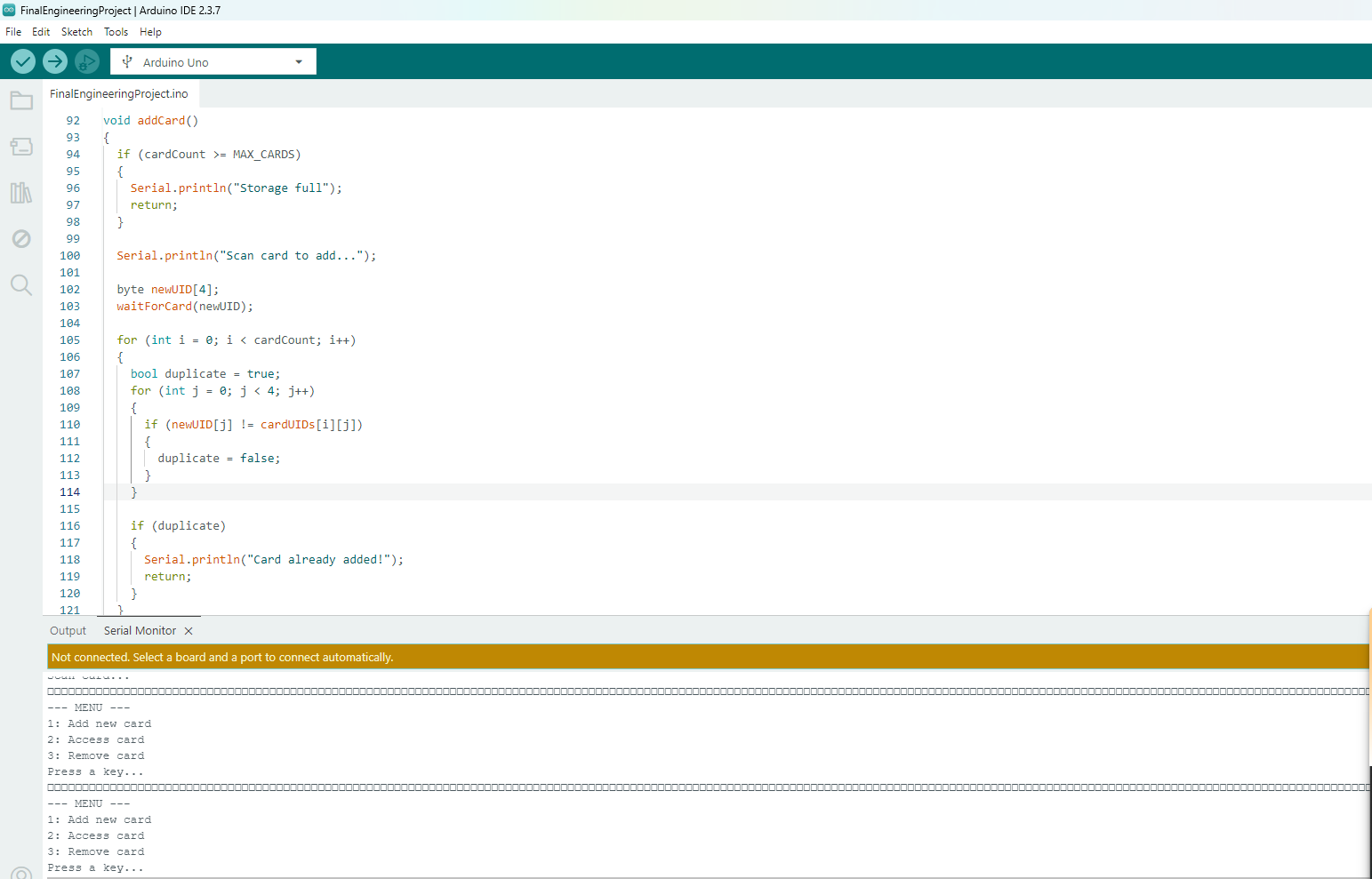
The code starts with the necessary libraries, i.e., SPI.h, MFRC522.h, and Keypad.h. It is these libraries that do all the heavy lifting. The SPI library enables the Arduino to interact with the RFID reader, the MFRC522 library offers conveniently ready-to-use operations to read RFID cards and the Keypad library makes it easy to detect key presses on the 4X4 keypad. The project would be much more time intensive and needlessly complex without these libraries.
Then the RFID reader is defined and initialized by the code. The RFID module pins have been reconfigured to ensure that the Arduino understands what pins the chip select and chip reset will be. This is followed by the creation of an MFRC522 object which serves as the primary connection point between the Arduino and the RFID reader. This object is then later utilized to track a card presence and read its unique identifier.
The keypad is installed after that. The code specifies the number of rows and columns that the keypad consists of and outlines the characters in each key. This map is what is required to tell the Arduino which character is linked to which physical button. The wiring is then wired to the row and column pins assigned to specific Arduino pins. This information is used to create a Keypad object and enable the Arduino to monitor the act of pressing a key without the need of scanning all the pins.
Storage of RFID cards and PINs is done in the next section. There is also a maximum number of cards that is set to restrict the number of cards that can be stored simultaneously. Each UID of the cards and their PIN are stored in an array and a counter is used to monitor the number of cards that is currently stored. This configuration permits the system to add, delete and authenticate cards without any external memory.
Output devices are then given. Each of the buzzer, green LED and red LED occupies a pin. The user is given feedback in these outputs. To signify success, the green LED is used, and to signify errors or refusal of access, the red LED and the buzzer are used, with audible feedback, the buzzer through the 555 timer circuit.
All the output pins are set in the setup() function, and the buzzer is set to start-off to avoid noise. Serial communication is also initiated to get the messages displayed in the Serial Monitor. Initiating the SPI bus and RFID reader puts the system in a state where it is capable of detecting RFID cards. Lastly, the menu is printed to the Serial Monitor in order to inform the user of what the menu has to offer.
The loop () call is in charge of receiving user input on the keypad. It continuously looks out to a key press and leaves the loop unchanged in case of the absence of a key press. Upon the detection of a key that has been generated and released, the applicable code checks the option chosen. The program will add a new card, or will also make an attempt to access a card or will remove a card depending on what key is pressed. Once the action of choice has been carried out the menu is presented once more.
The showMenu() method merely displays a blank menu in the Serial Monitor. It informs the user of the keypad numbers that are applicable to adding a card, accessing a card or removing a card. This makes the system user-friendly without the display.
The addCard() method addresses the process of the storage of a new RFID card. It also verifies whether the storage limit is exceeded or not. Otherwise, the system will wait until a card is scanned and reads its UID. The code then verifies the existence of the card to avoid duplication. In case of a new card, the UID is stored and a user is requested to enter 4-digit PIN with the help of the keypad and the UID and PIN are stored. A green LED will be an indication that the card has been successfully added.
Authentication is done by the accessCard() function. It waits until a card is scanned and verifies whether the card is stored or not. In case it does, the user is made to input the PIN. In case the PIN typed in corresponds to the one that was stored, the user can access the device and the green LED is on. In case of an incorrect PIN, no entry is allowed and the red LED and the buzzer are turned on to signal failure.
The deleteCard() method enables one to delete a card in the system. Once scanning a card and making sure that it is valid, the user is required to input the appropriate PIN. In case the PIN is valid, the data of the card gets removed by moving the rest of the stored cards in a queue. In case of a wrong PIN, the system will reject the request and indicate the mistake with the help of the buzzer and the red LED.
The waitForCard() is a continuous waiting function whereby it monitors whether there is an RFID card. Upon detection of a card, its UID is read and placed in an array. The RFID reader is then put to a stop correctly so that it does not read the same card again. This role is applied in cases where it is necessary to scan a new card in the system.
The waitForExistingCard() method is also similar except that it also verifies the availability of the scanned card in the storage. By the time a similar UID has been found, the matching card would be returned by the function. In case there is no match, the system notifies the user and requests her to re-enter the search. This operation plays a very important role in accessing as well as debiting cards.
The printUID () function displays the UID of a scanned card on the Serial Monitor in hexadecimal. It is primarily applied in debugging and confirmation in testing.
Lastly is readPIN which takes care of PIN entry. It receives four numeric key presses of the keypad. Every key press enters a digit to the PIN with an asterisk shown rather than the actual character which resembles a real keypad process. After four digits are typed in, a PIN is sent back to ensure that it is verified.
A copy of the final code is attached below:
Downloads
Combine Everything Together
After completing the wiring and finishing the code, connect the Arduino UNO to your computer using a USB cable. Open the Arduino IDE and make sure the correct board and port are selected under the Tools menu. Double-check that the entire code is pasted correctly and that there are no syntax errors before compiling.
Next, click the Verify button to compile the code. If any errors appear, review the error messages carefully and correct them before proceeding. Once the code compiles successfully, click Upload to send the program to the Arduino. The onboard LEDs will blink briefly, indicating that the upload is in progress.
Before powering the circuit fully, take a moment to carefully inspect all wiring connections. Make sure the RFID reader, keypad, LEDs, buzzer, and 555 timer are connected to the correct pins and that no wires are loose or misplaced. Confirm that the RFID module is powered with the correct voltage and that all ground connections are common.
After verifying the wiring, power the system and open the Serial Monitor. The menu should appear, indicating that the program is running correctly. Test each feature step by step by adding a card, entering a PIN using the keypad, and attempting access. Observe the LEDs and buzzer to ensure they respond as expected.
Once everything is functioning properly, the project is complete. The system should now be able to store RFID cards, verify PINs, and provide visual and audio feedback. At this point, the project can be demonstrated, expanded, or modified further if desired.
Enjoy your brand new RFID based card system