POV Display With Bluetooth
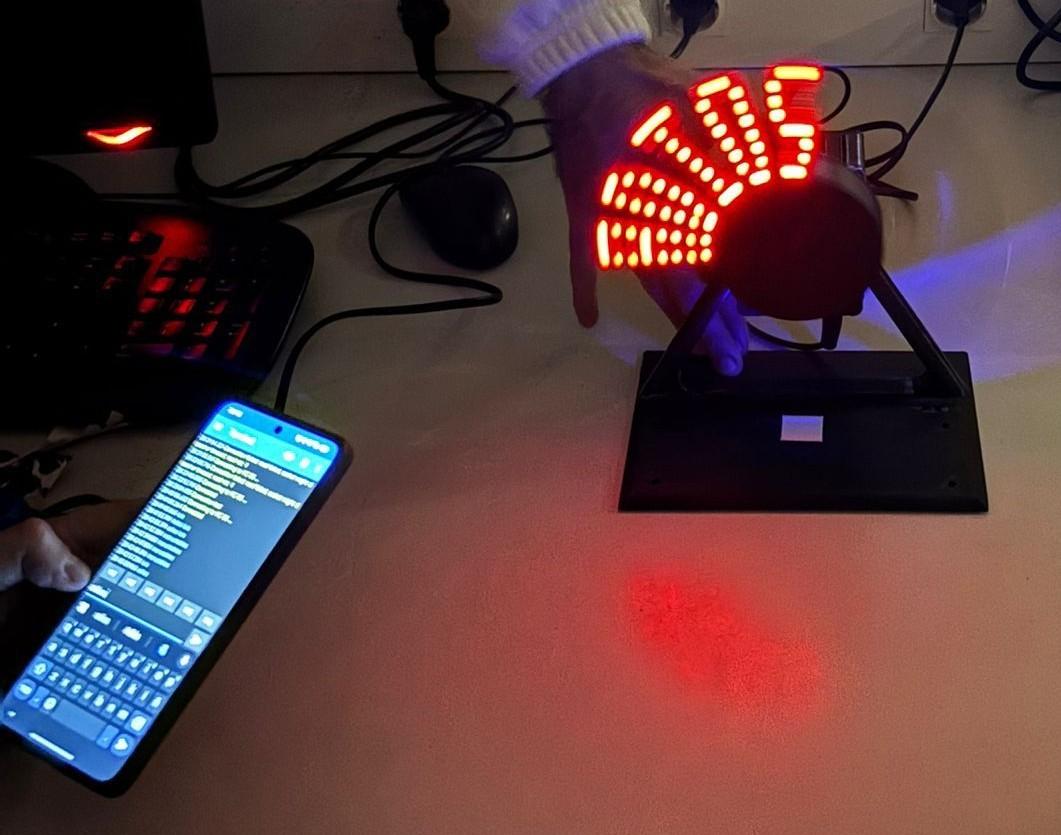
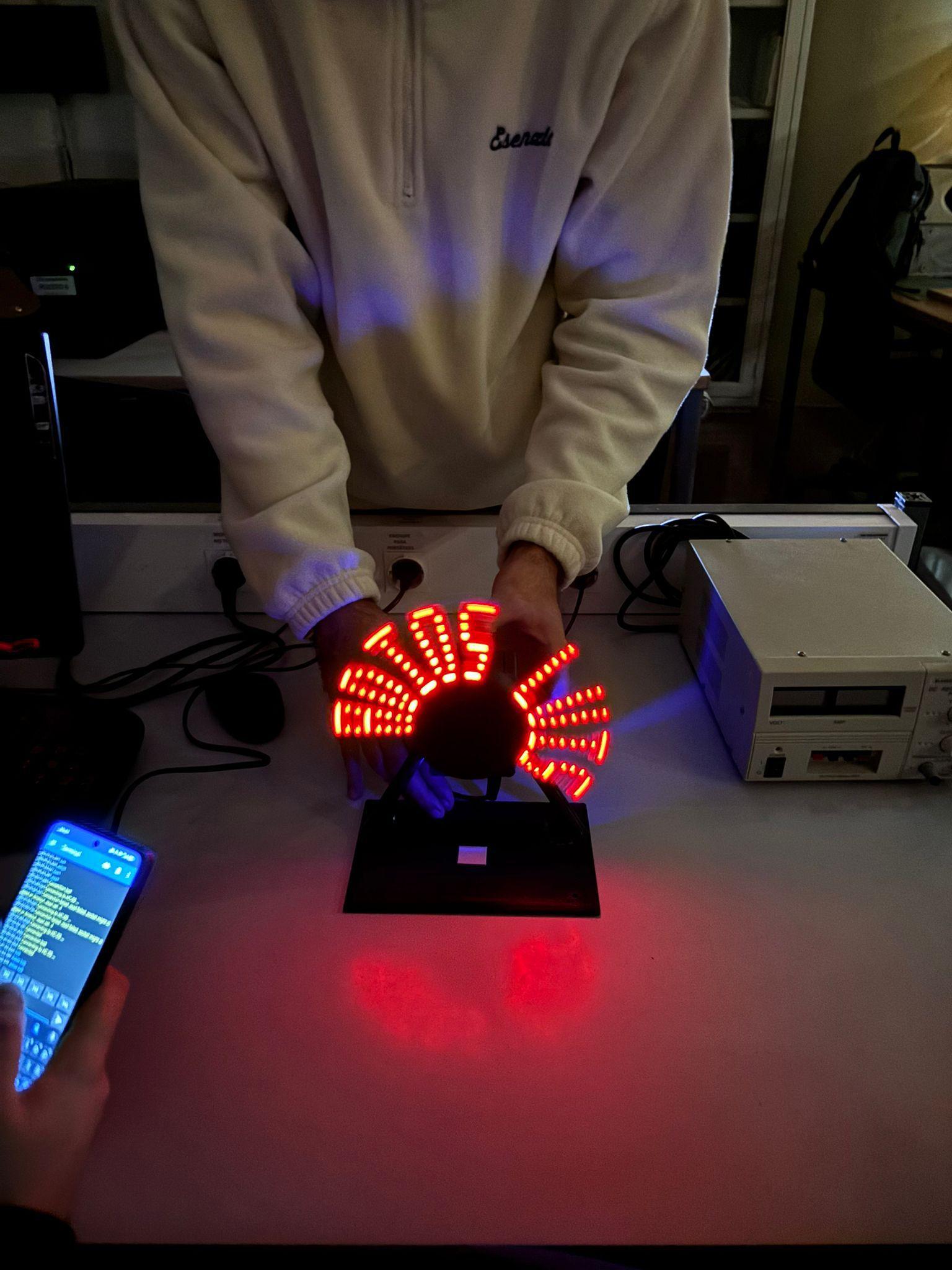
This project was developed as part of the course “Creative Electronics”, Beng Electronics Engineering module at the University of Málaga, School of Telecommunications.
The project was designed and implemented by students Esteban Domínguez Ramos and Ángel Valenzuela Estévez.
This project is based on the instructable “Persistence of Vision (PoV) Display Using Arduino” developed by theSTEMpedia, where you can view his work here.
A POV display (Persistence of Vision) works by taking advantage of a characteristic of the human eye: persistence of vision, which causes an image to remain briefly on the retina.
In this project, a series of LEDs mounted on a moving part rotates at high speed. The LEDs turn on and off at very precise moments, controlled by a microcontroller. Although the LEDs are in different physical positions, the brain integrates these successive flashes and perceives them as a fixed image or text in space.
Thanks to this technique, it is possible to create displays that appear “in the air” using very few LEDs and a simple mechanical system.
Supplies
Hardware
- 1 x Arduino Nano
- 8 x Red LED
- 1 x IR Sensor
- 1 x HC-05 Bluetooth module
- 8 x 220 Ω Resistors
- Wires
- Glue Gun
- M3 screws
- 3d printer
- PLA filament (~150 g)
- 8 x Magnets (5 mm)
- 1 x AC motor
- 1 x Power cable
- 1 x General Purpose Board
- 2 x CR2032 3V or 1 x 3.7 V Lipo battery
- 1 x CR2032 support
- Soldering iron
- Smartphone (Android)
Software
- Arduino IDE
- Serial Bluetooth Terminal (APP Android)
Printing the 3D Printed Part
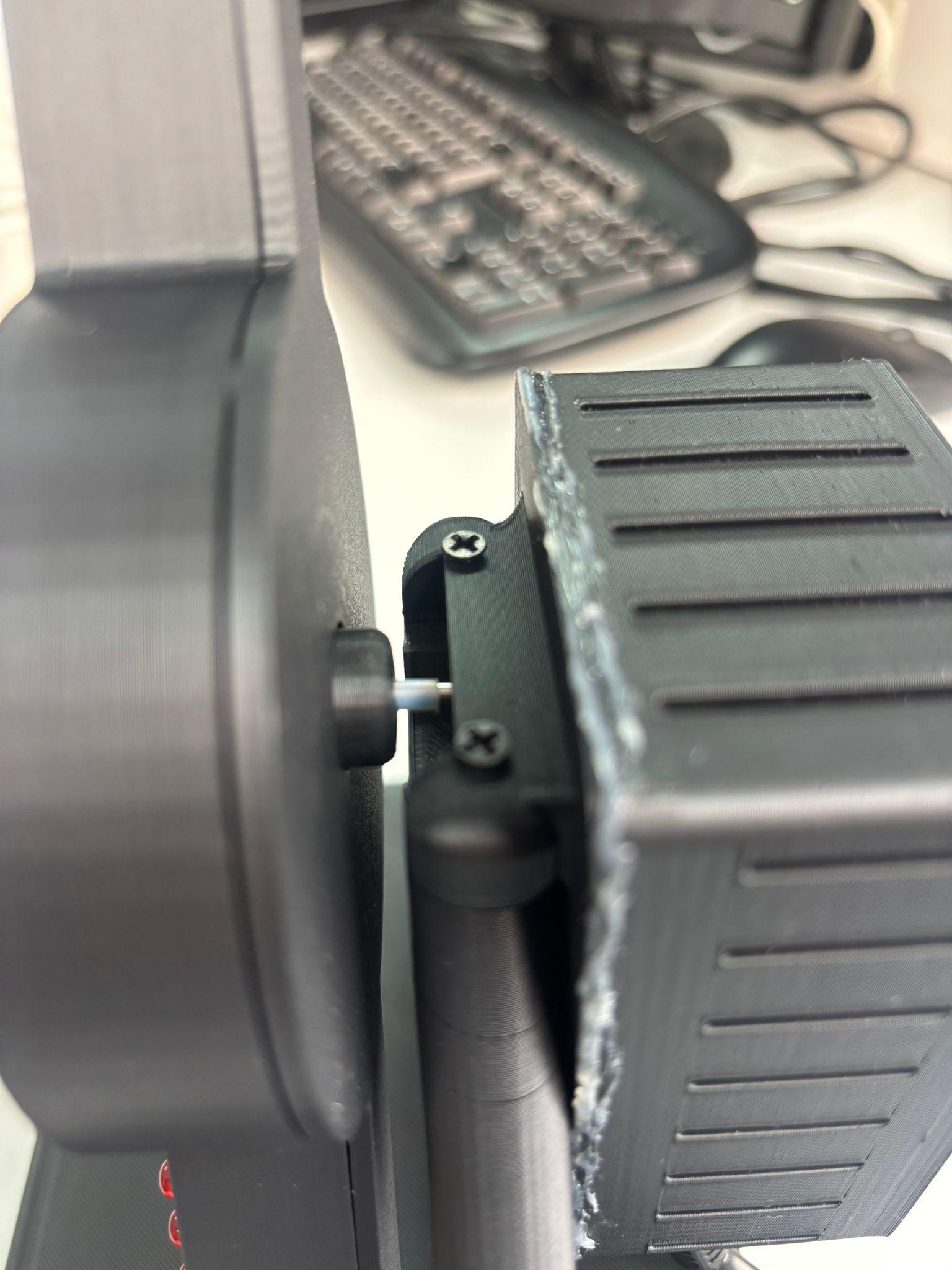
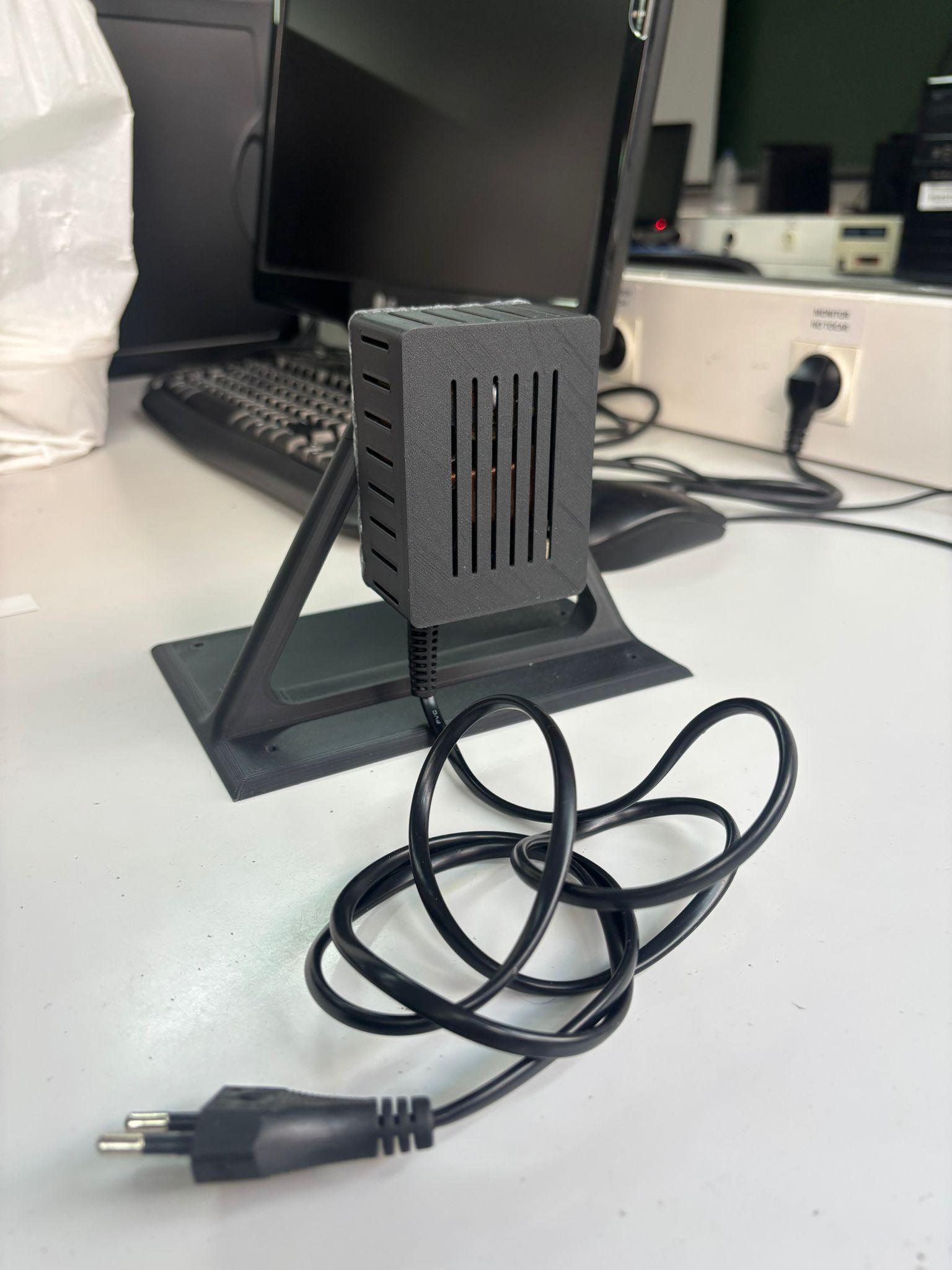
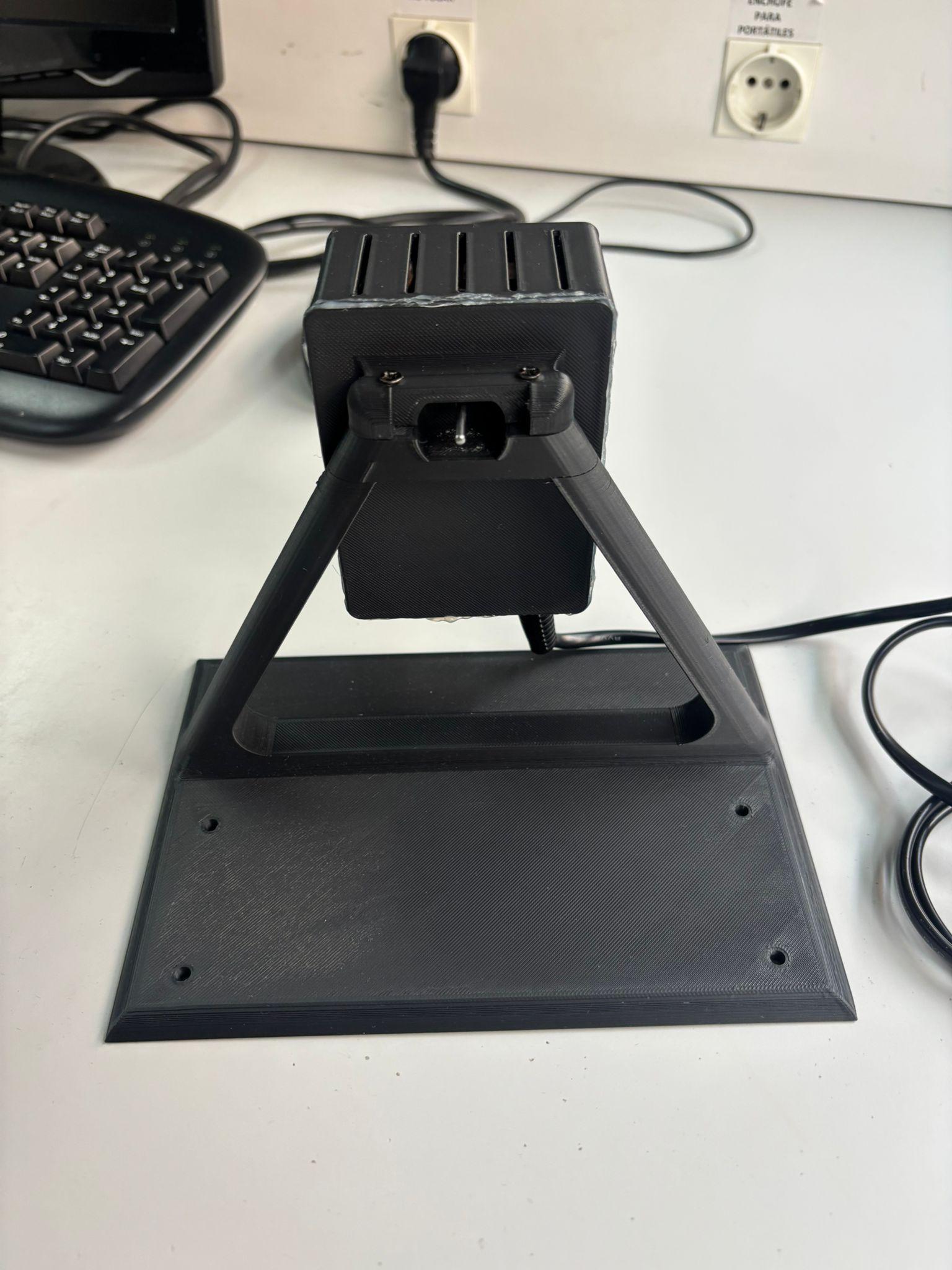
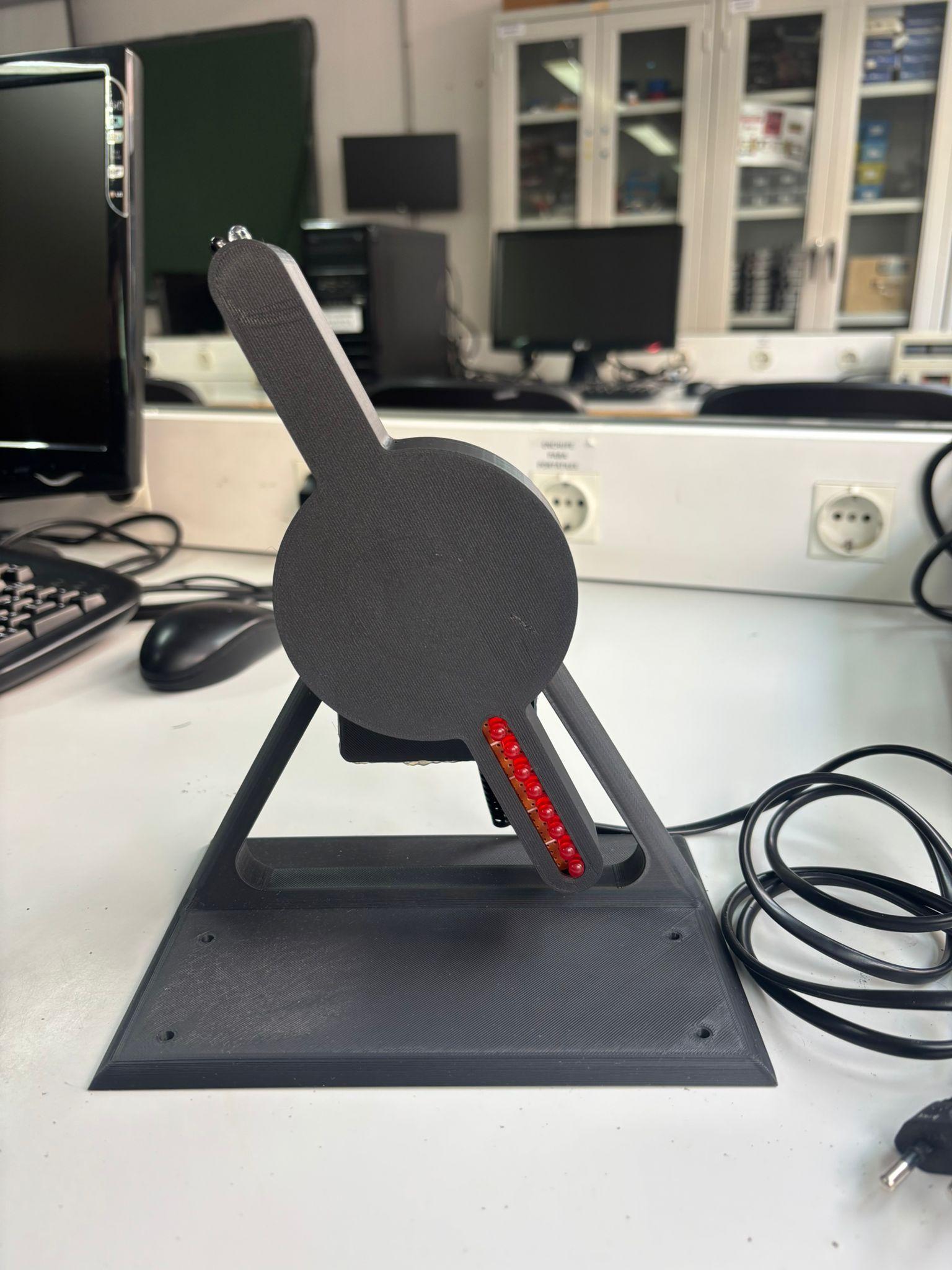
Here we are going to 3D print the parts that make up the project. You can download the parts below:
The parts consist of:
- A base.
- A box for the motor along with a cover that attaches to the base.
- The rotor part where the entire circuit is mounted.
- A cover designed to hold magnets so that the circuit enclosure can be closed.
Assembling AC Motor
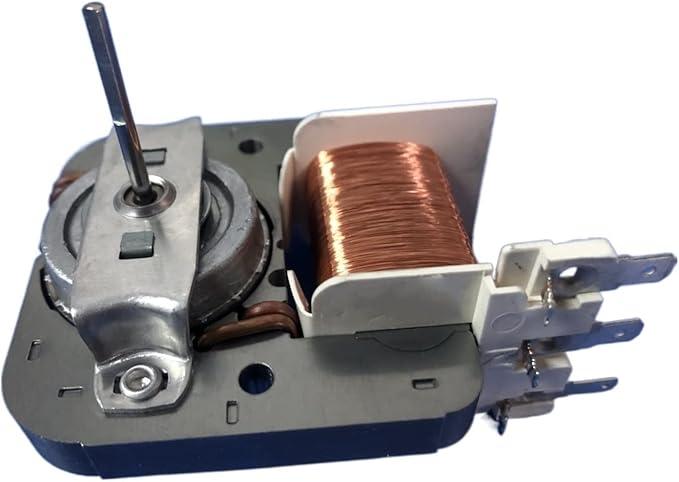
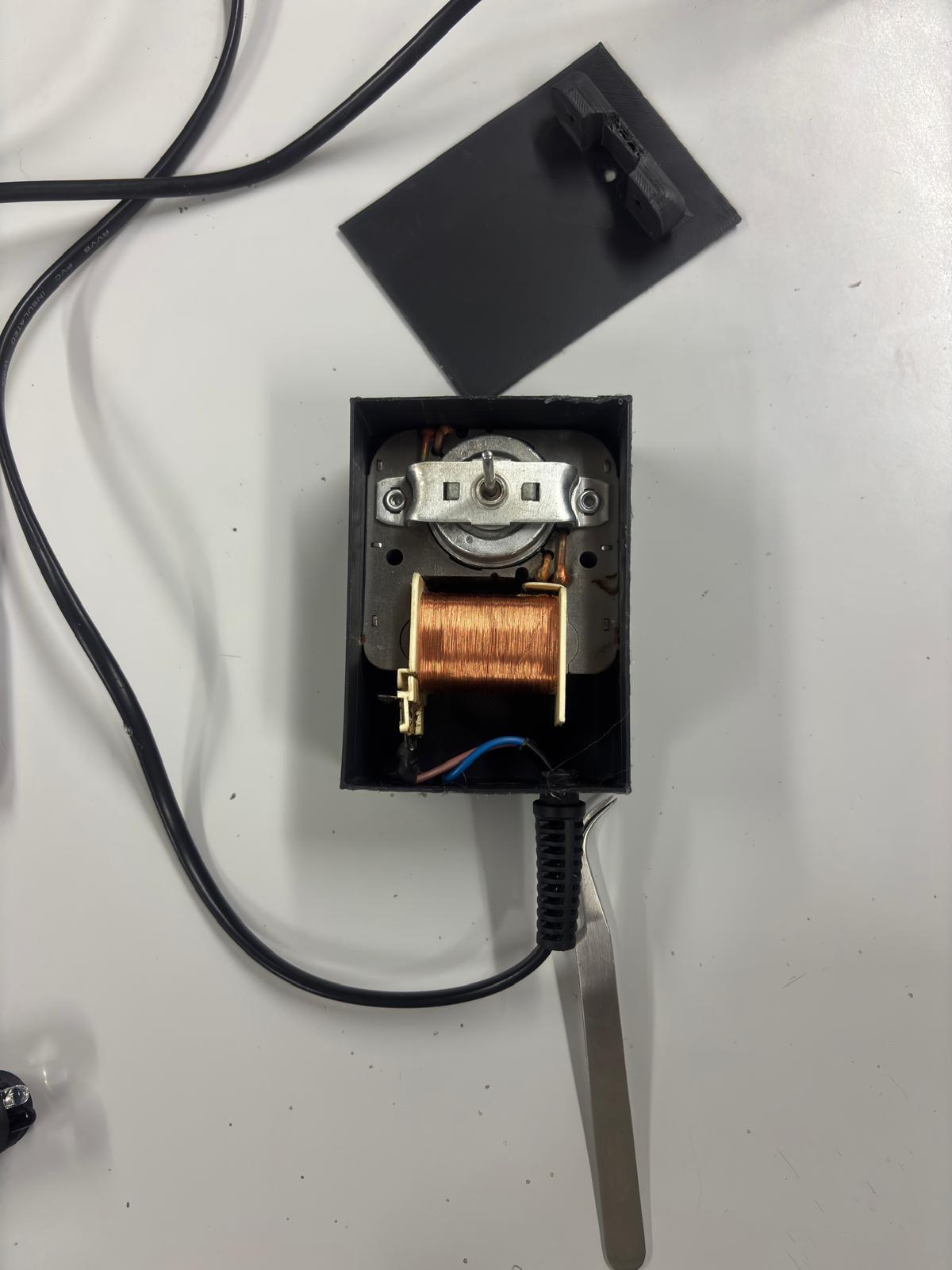
In our case, the AC motor we used was recycled from an old microwave oven.
Once you have 3D printed the motor cage, you can proceed to solder the power cable to the AC motor on the positive and negative pins.
Assembling the LEDs
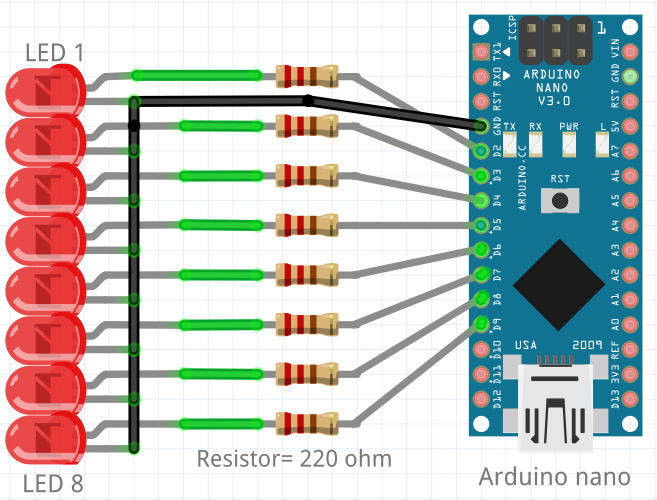
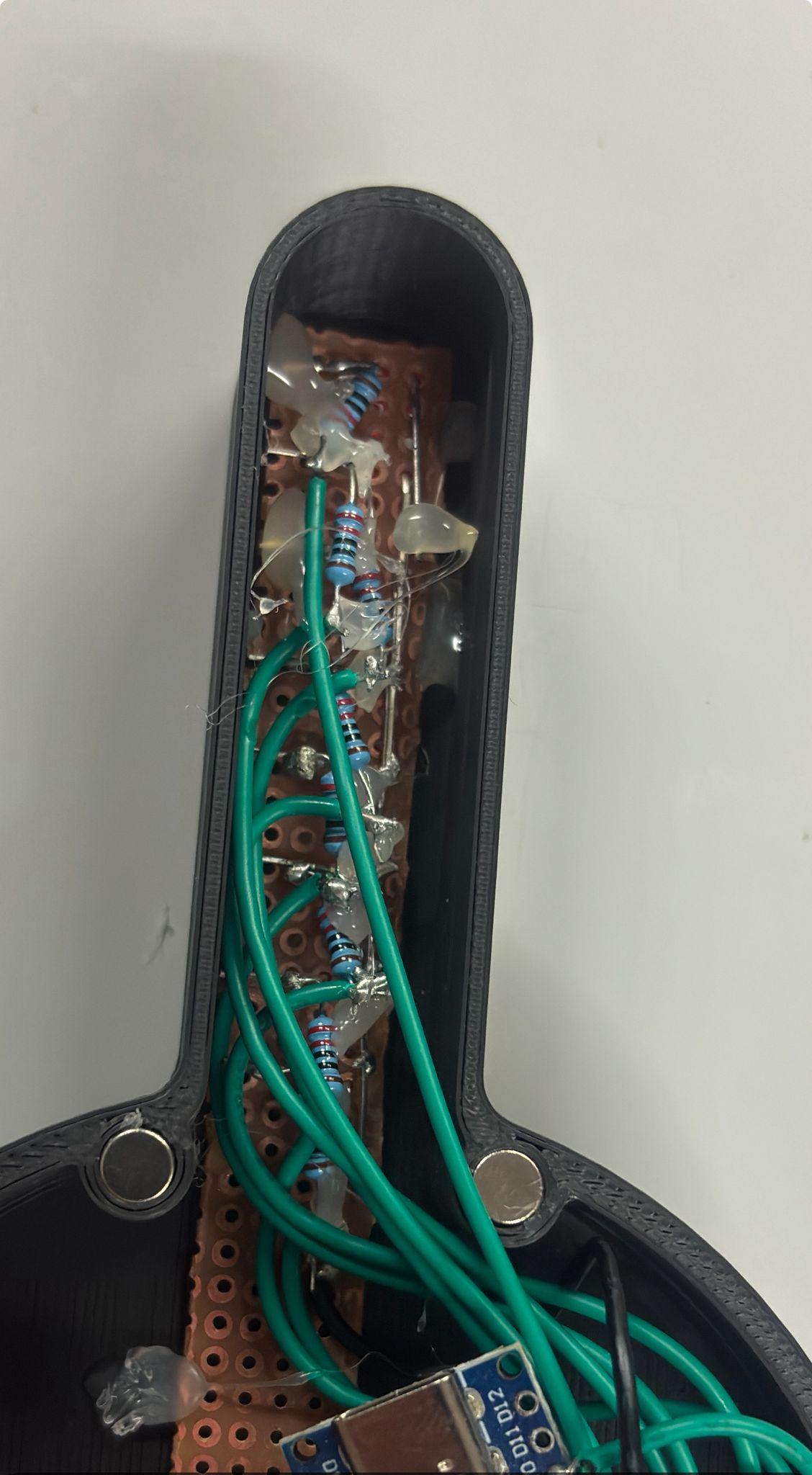
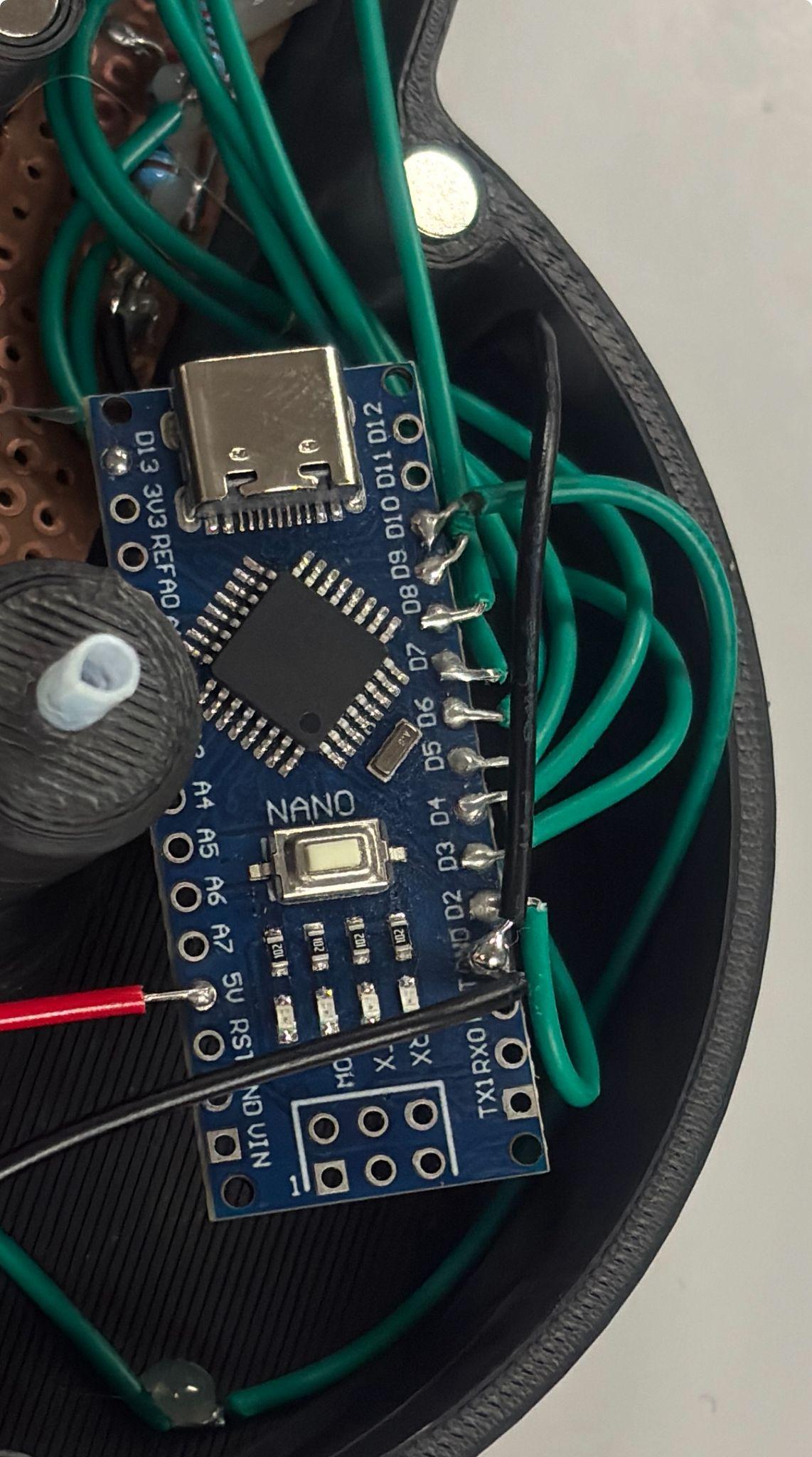
Once the rest of the parts have been printed, you can begin mounting the LEDs on the general purpose board along with their 220 Ω resistors.
Take the General Purpose Board and cut it in the size that fits the Rotating part.
Once done, its time to add the LEDs.
Short the cathode terminal of all the LEDs by soldering them on the general purpose board.
Add the resistors to protect the LEDs from blowing up due to high voltage supply (5V). We have used the 220 Ω resistors. Solder one end of each resistor to the anode terminal.
Solder a wire to the second leg of each resistor.
The LEDs must be connected to the Arduino Nano pins in the following order:
- LED1 -> D2
- LED2 -> D3
- LED3 -> D4
- LED4 -> D5
- LED5 -> D6
- LED6 -> D7
- LED7 -> D8
- LED8 -> D9
D2 is the bottom LED (center of fan), D9 is the top LED (outside edge).
And the wire that connects to the common cathode of all the LEDs is connected to the nearest GND pin on the Arduino.
Assembling the IR Sensor, HC-05 Bluetooth Module and Battery
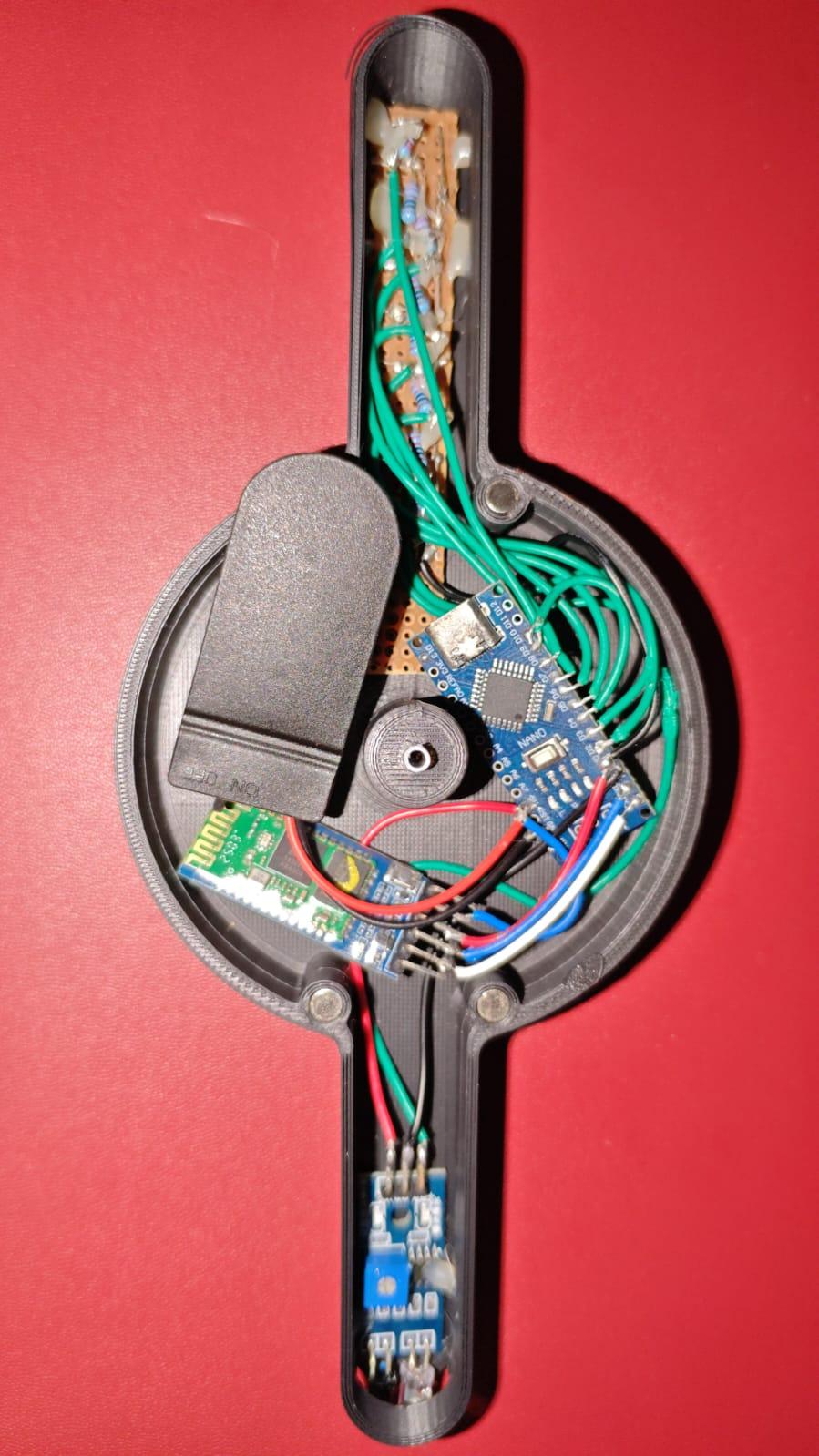
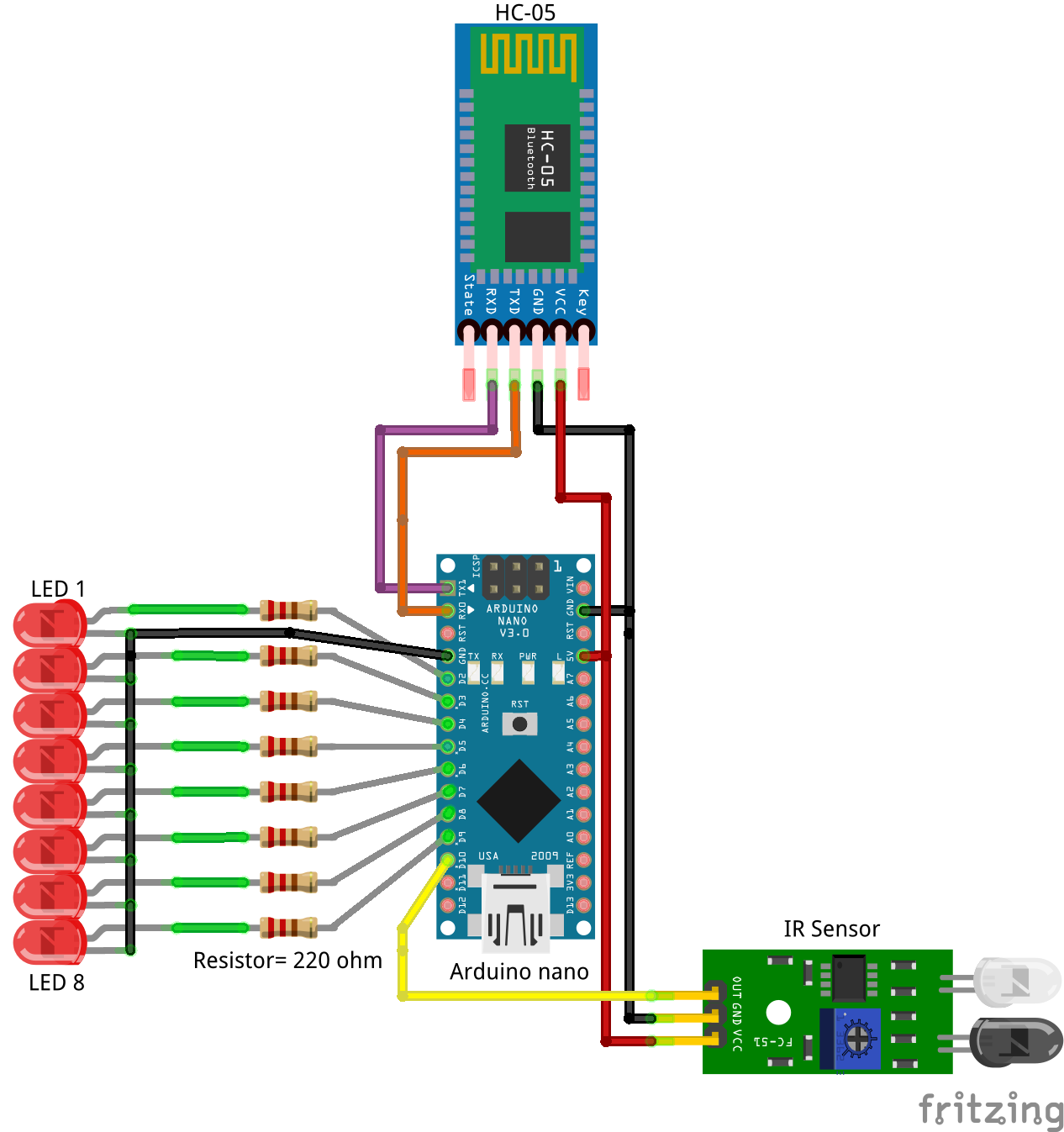
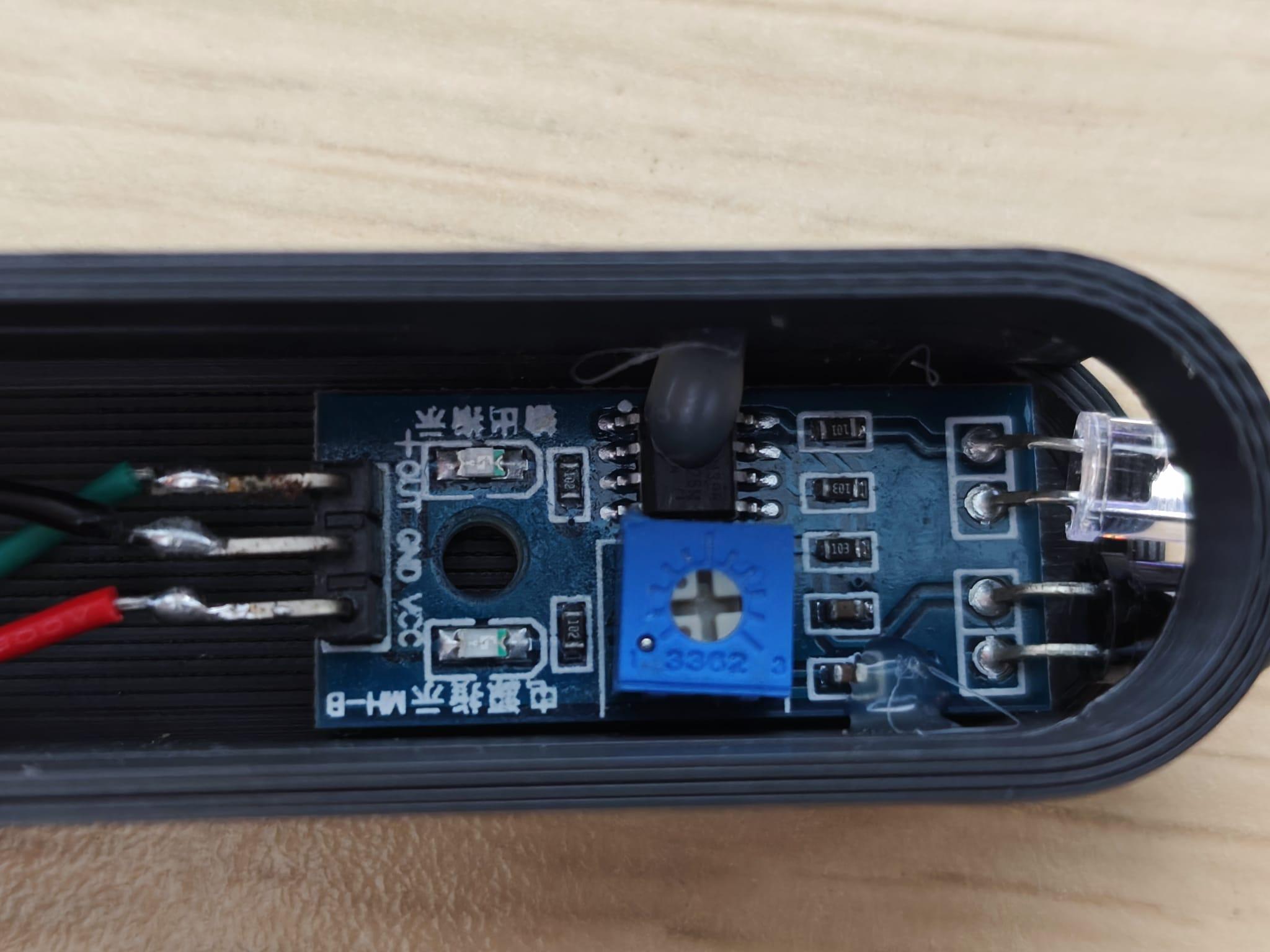
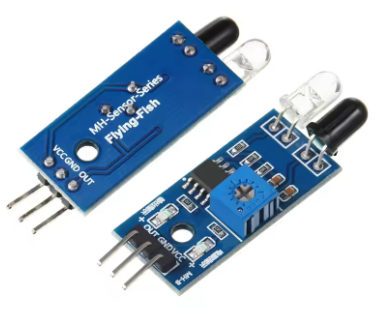
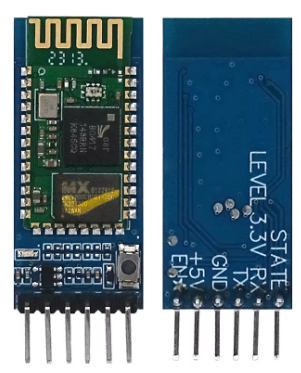
Now we will move on to connecting the IR sensor and the HC-05 Bluetooth module to the Arduino Nano.
For the IR sensor, we will need to solder a wire to each of its pins: the VCC pin will be connected to the Arduino’s 5V pin, the GND pin to one of the Arduino’s GND pins (whichever is most convenient), and the OUT pin to the Arduino’s D10 pin.
IR Sensor -> Arduino Nano
- VCC -> 5 V
- GND -> GND
- OUT -> D10
Before soldering the HC-05 module, it is important to keep in mind that in order to upload code to the Arduino, the module must be disconnected. Therefore, you can either use breadboard jumper wires so it can be disconnected whenever you want to update the code, or solder it only if you are sure that the code is final. Once this is clear, we continue.
For the HC-05 Bluetooth module, also solder a wire to the TX, RX, VCC, and GND pins, and then connect them to the Arduino’s 5V, GND (whichever is most convenient), TX, and RX pins. For the RX and TX connections, the TX pin of the HC-05 module must be connected to the RX pin of the Arduino, and the RX pin of the HC-05 must be connected to the TX pin of the Arduino.
HC-05 -> Arduino Nano
- VCC -> 5 V
- GND -> GND
- TX -> RX
- RX -> TX
Finally, connect the positive wire of the battery to the Arduino’s 5V pin and the negative wire to GND, in order to power the entire circuit.
Code
A POV (Persistence of Vision) display is basically a trick on your eyes. The motor spins so fast that your brain "photoshopped" the blinking LEDs into a solid image.
Writing code for this is tricky because we can't use normal X/Y coordinates like on a screen. We have to think in angles and timing.
Here is the logic behind my code:
- Slicing the Alphabet: I converted every letter (A-Z) into small arrays of 0s and 1s. The code reads these vertical slices one by one.
- The "Anchor" Point: This is crucial. Without the sensor on Pin 10, the text would drift around the room. The code waits for that specific signal (IR sensor) to say "GO" and draw the frame.
- Speed vs. Time: The Arduino doesn't know how fast your motor is. We use delayMicroseconds to control the width of the letters. If your text looks skinny, we increase the delay. If it looks fat, we decrease it.
The Code (v2.0)
We wrote a new version of the code specifically for this Instructable.
Why v2.0?
Most tutorials use Serial.readString(), which is "blocking." That means every time you send a text from your phone, the motor stops or stutters because the Arduino pauses to listen.
Our code is non-blocking. It grabs data on the fly, so the text updates instantly without ruining the image stability.
You can view the code at the following GitHub link.