PC Build

Today we're building a PC. Though you could just buy a pre-built, they tend to be more expensive, and occasionally harder to modify or come pre-installed with added bloatware.
PCs usually include a few major components:
Motherboard
CPU
Power Supply
Storage (Hard Drive)
Supplies
Screwdriver
Case of choice
Motherboard
CPU
CPU Cooler
Thermal Paste
At least 1 stick of RAM
Power Supply
Anti-Static Mat & Wrist Strap (Unnecessary, but recommended)
Prepare the Area
Make sure you place every component on the anti-static mat and wear your anti-static wrist strap before messing with the components. This is to avoid any short-circuits that could render a part useless.
The Case
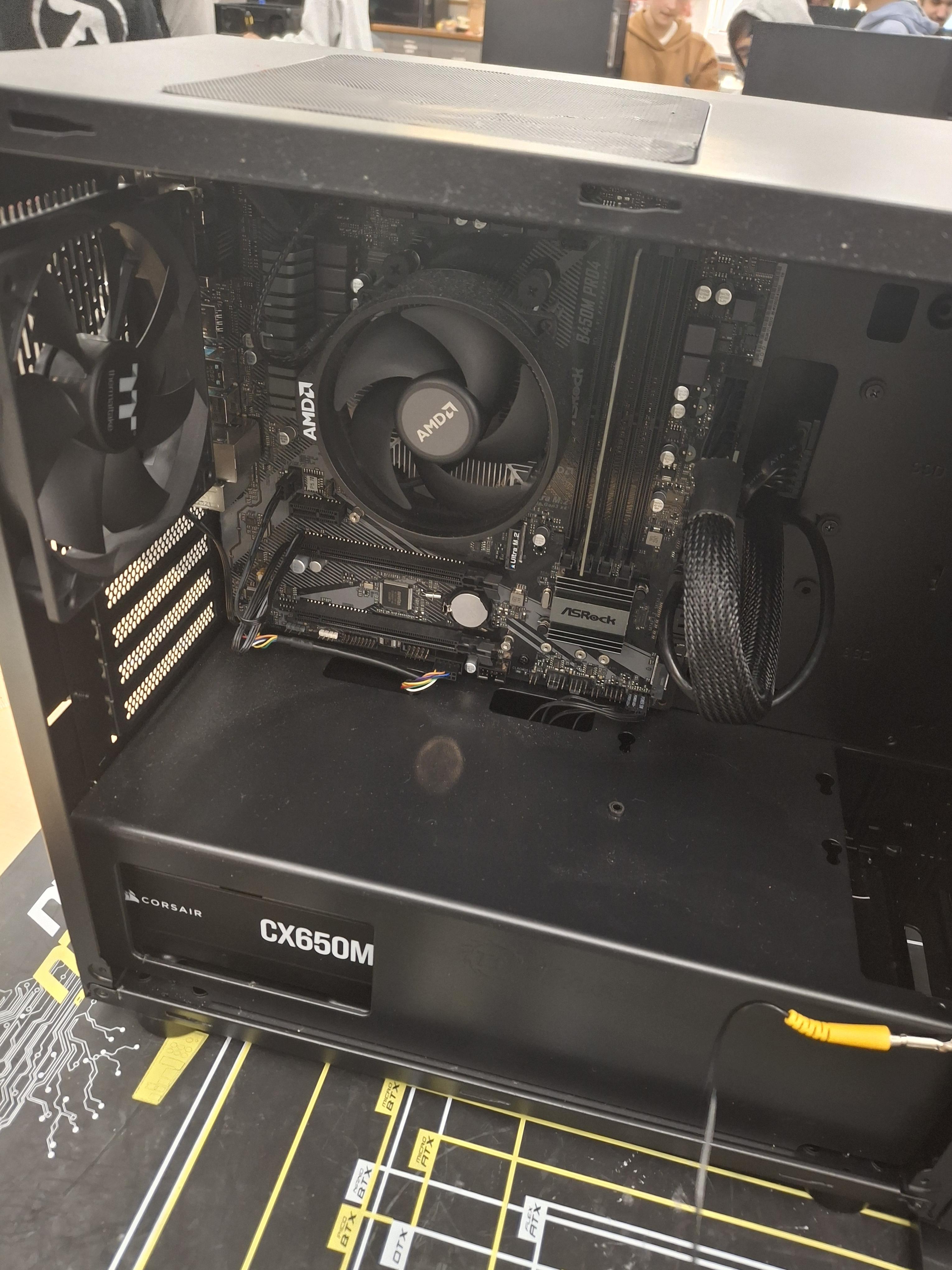
Place down your case and remove the side panel. This step will vary based on the case you chose but it usually involves undoing a few screws on the back of the pc connecting the side panel to the main chassis.
Power Supply
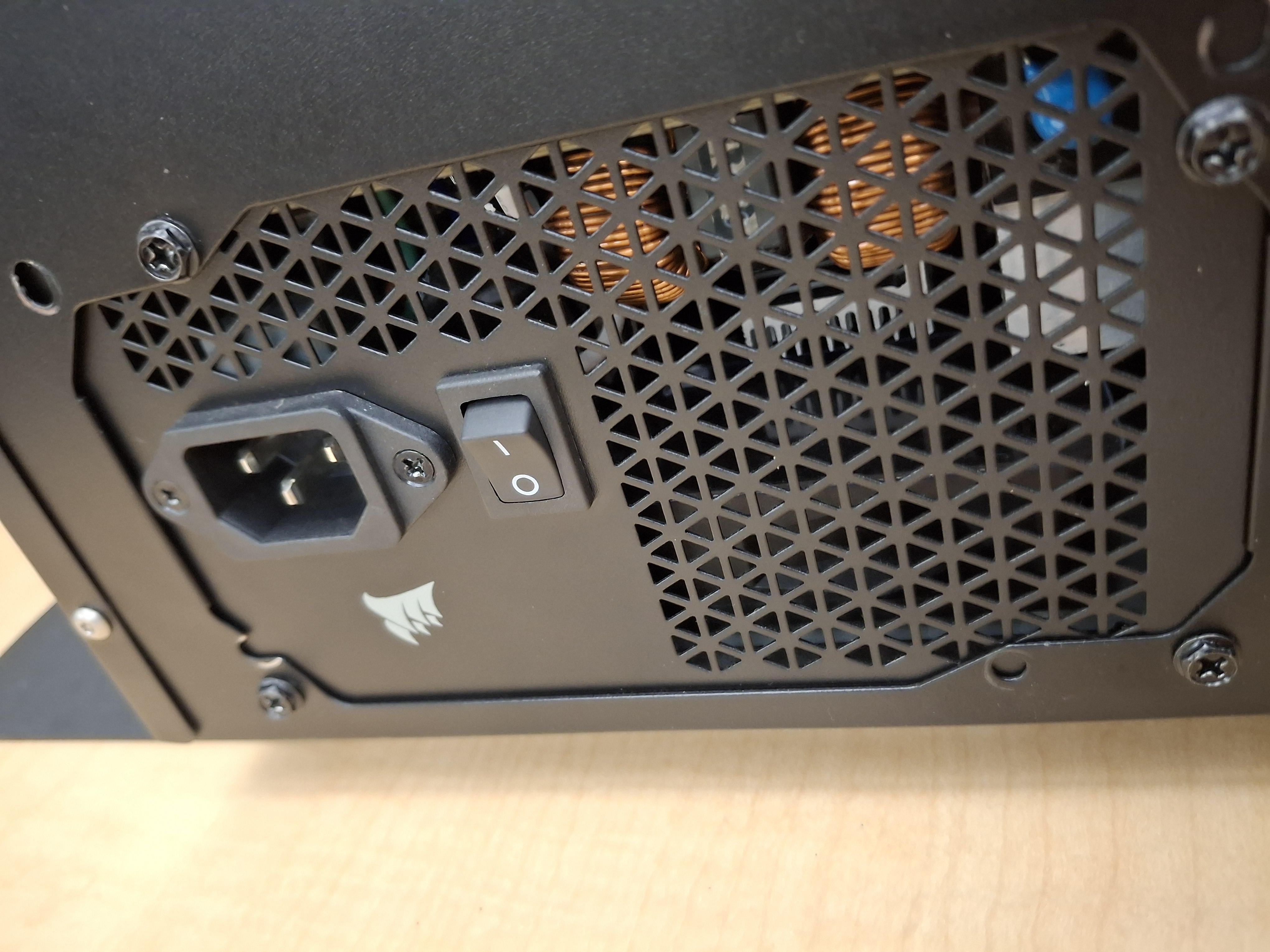
Insert the power supply so that the power input and rocker switch (on/off) are facing outside the case. We'll come back to the power supply later.
The Motherboard
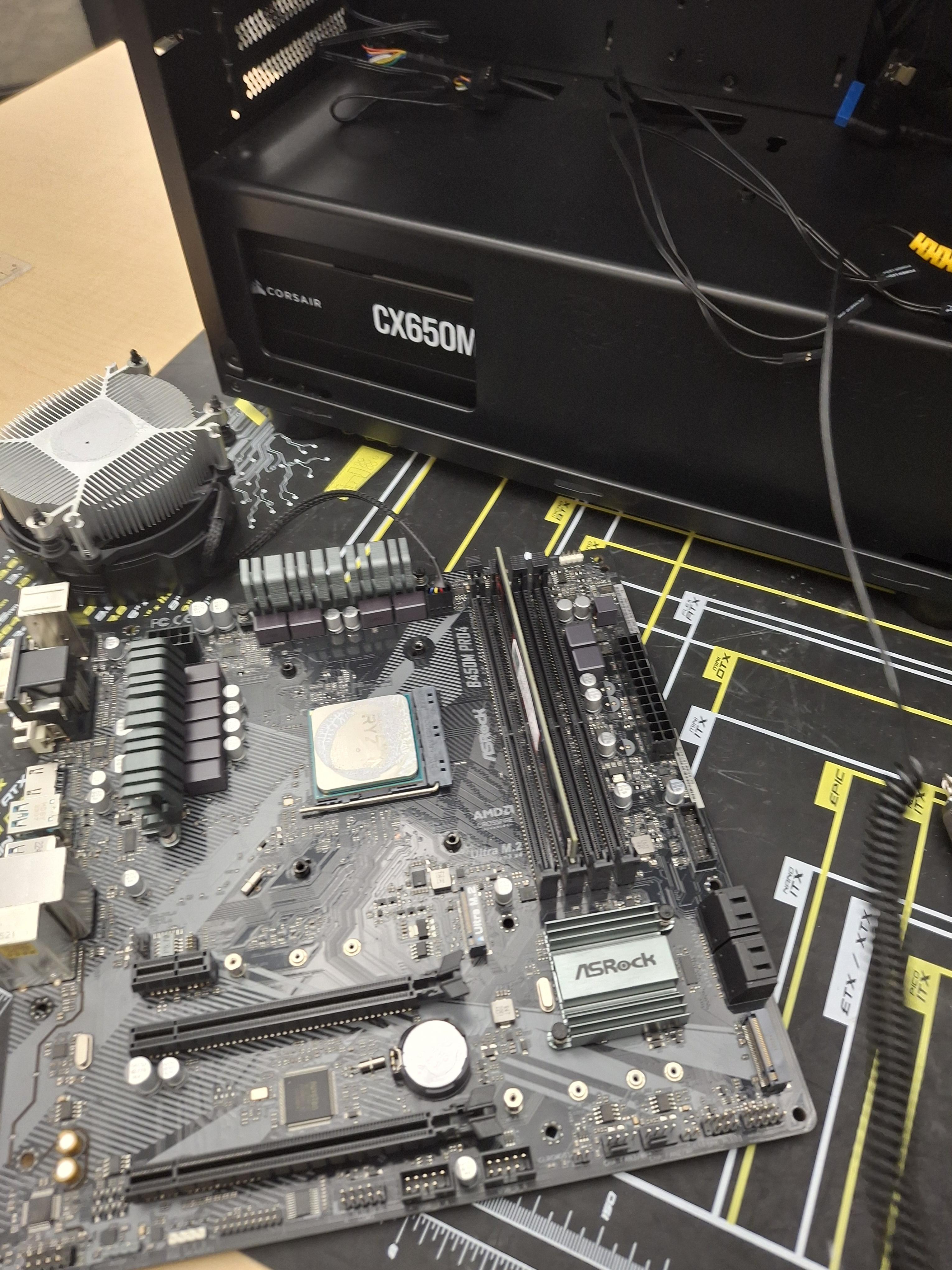
Place the motherboard down on the anti-static mat, ensure its free of debris before continuing onto the components of the motherboard.
The CPU
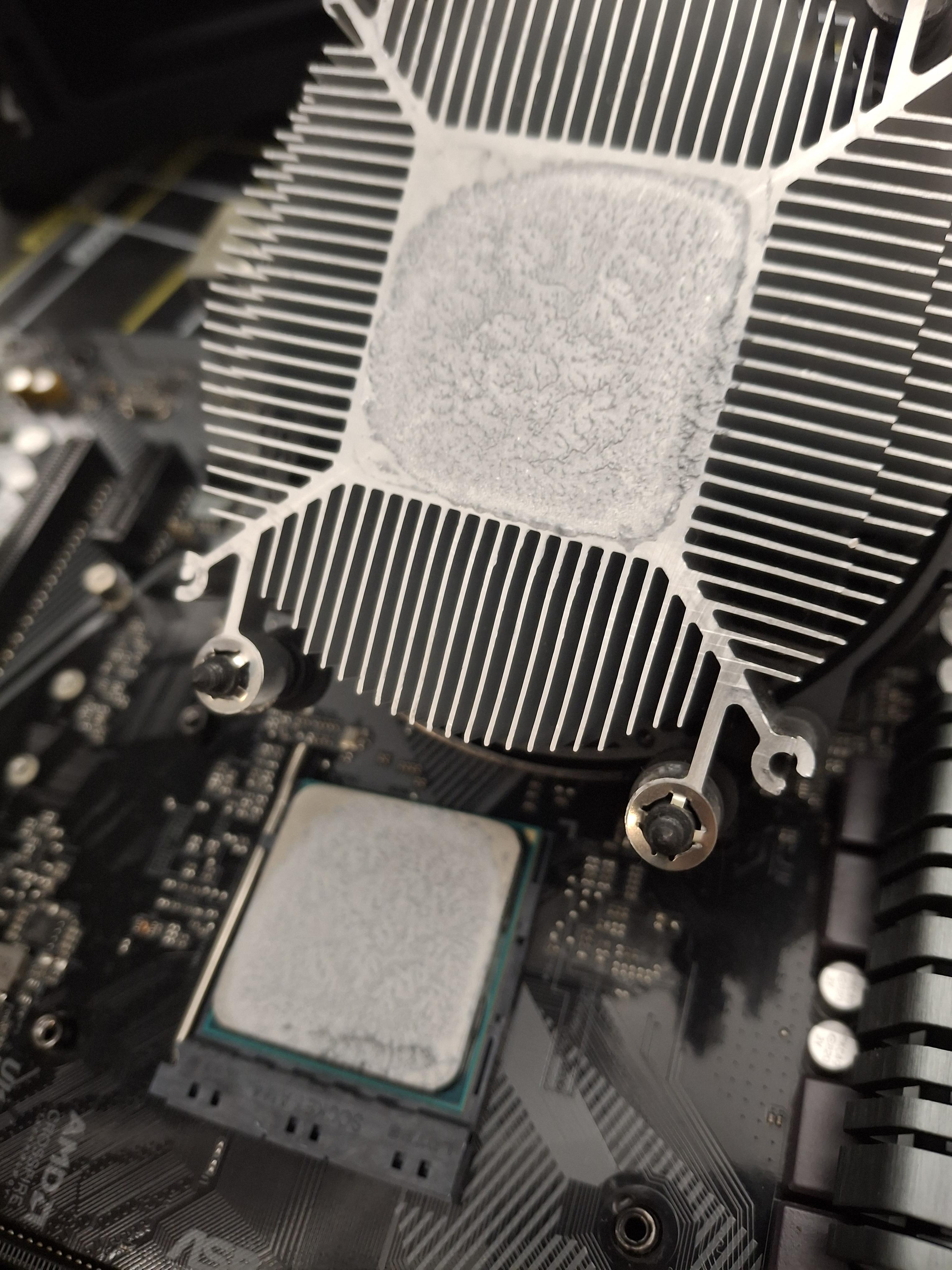
Place the CPU on the motherboard's CPU slot. Make sure the CPU is properly seated (there is usually a small triangle indicator on the corner of both the CPU and CPU Slot that must be matched), then lower the CPU bracket to keep it in place.
Thermal Paste and the CPU Fan
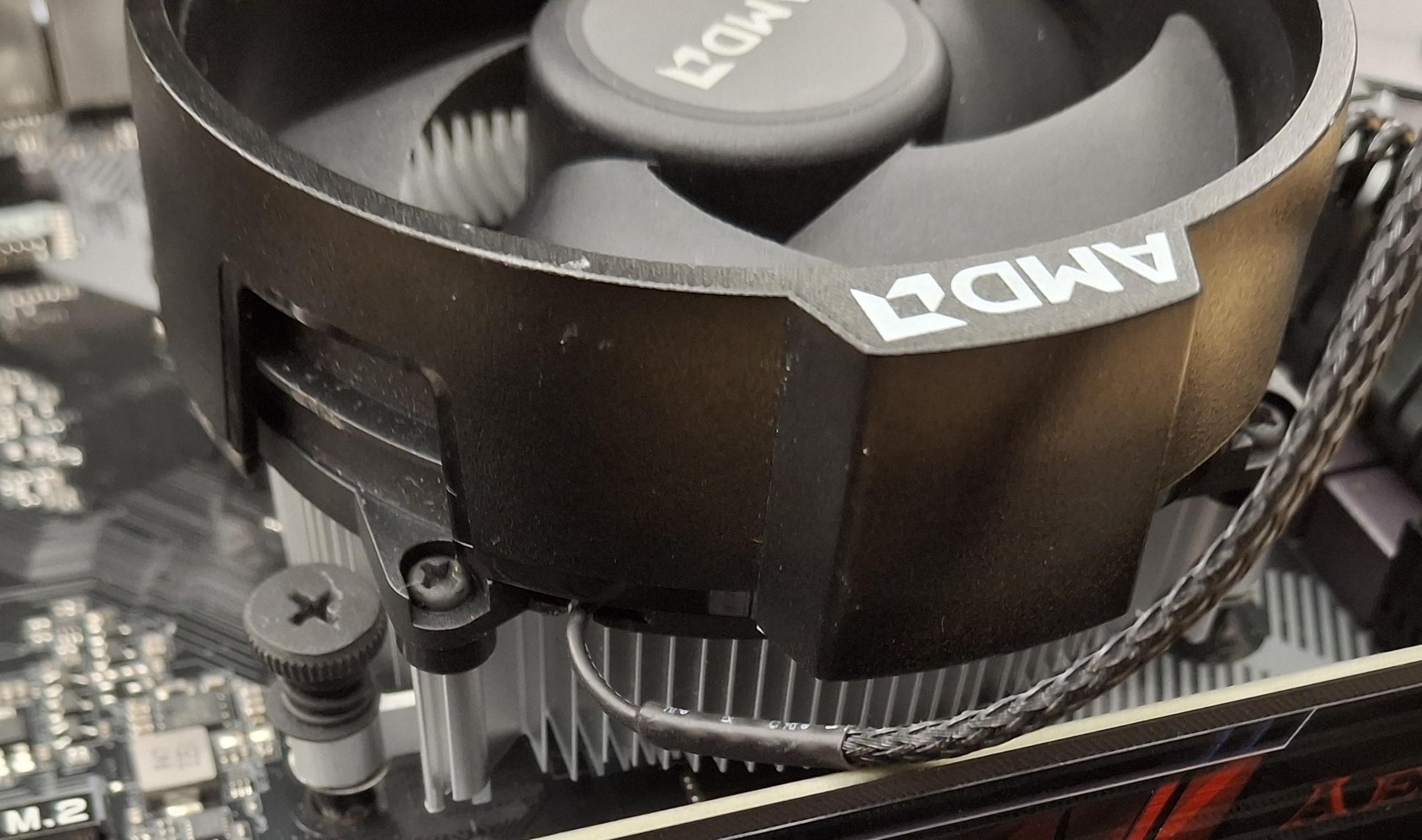
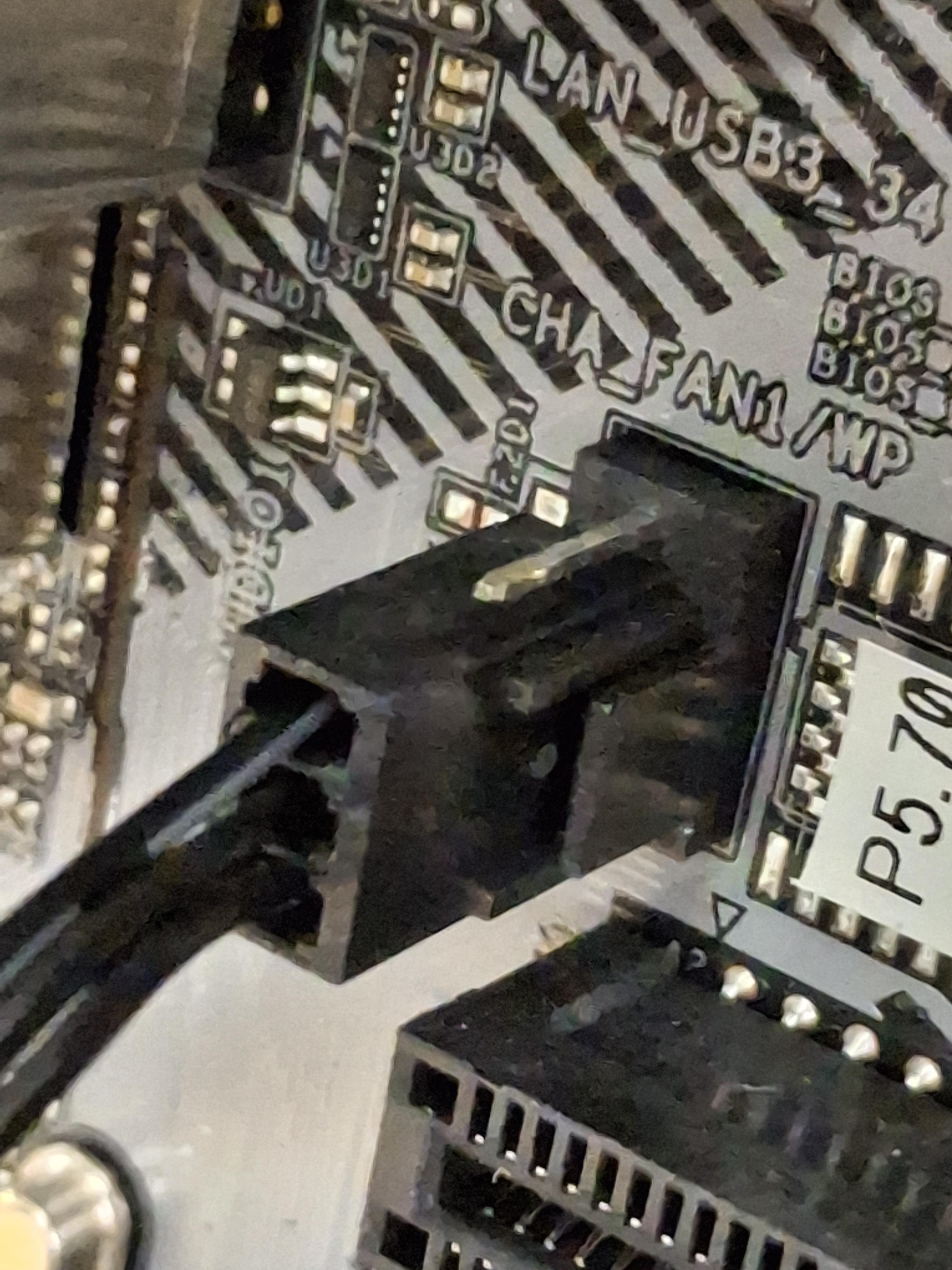
Apply a pea-sized dab of thermal paste to the CPU, and lower the CPU fan onto it. Make sure the CPU fan's screw holes align with the motherboard, and then screw the CPU fan on. Plug the CPU fan into the designated slot on the motherboard.
RAM
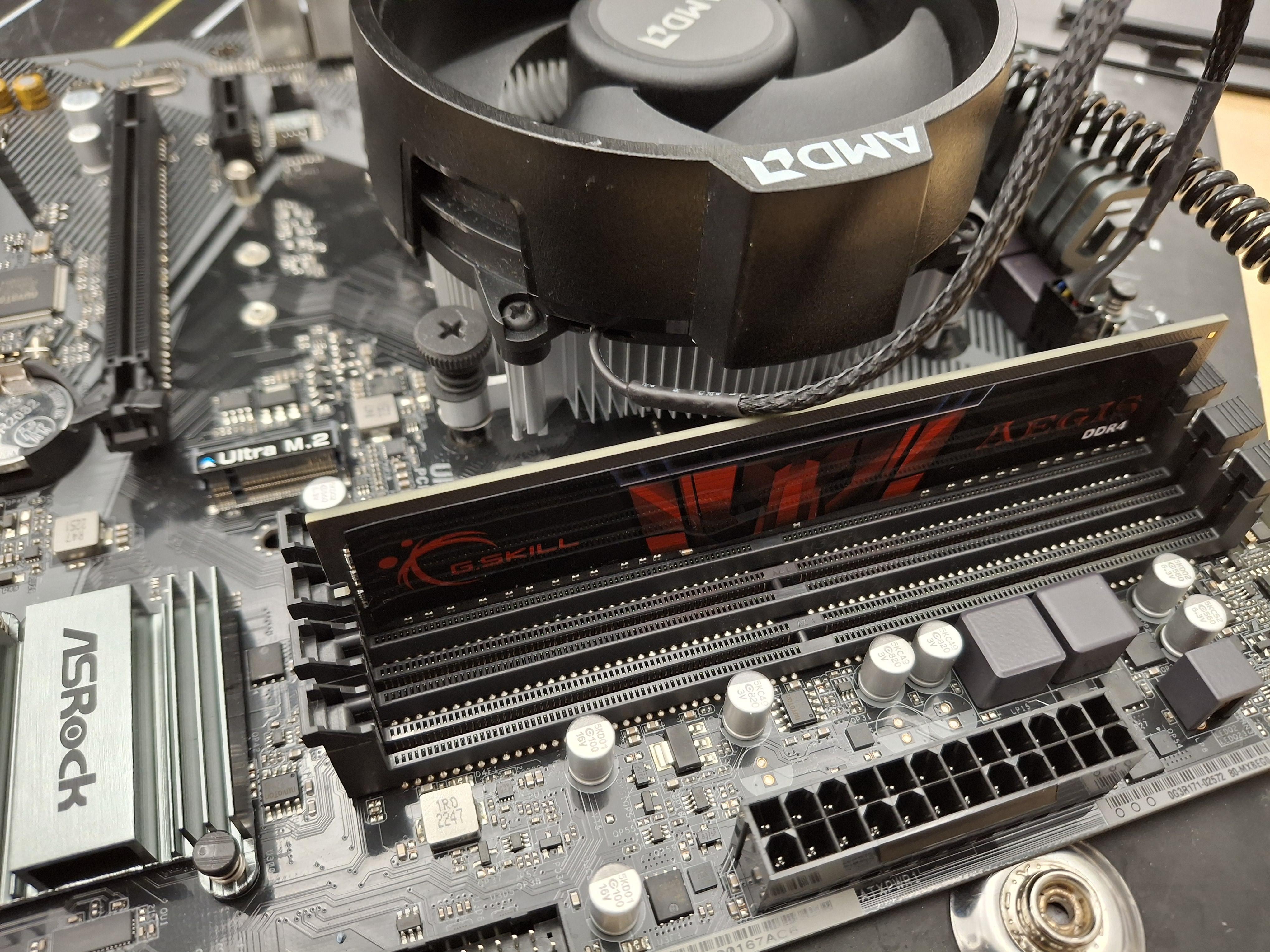
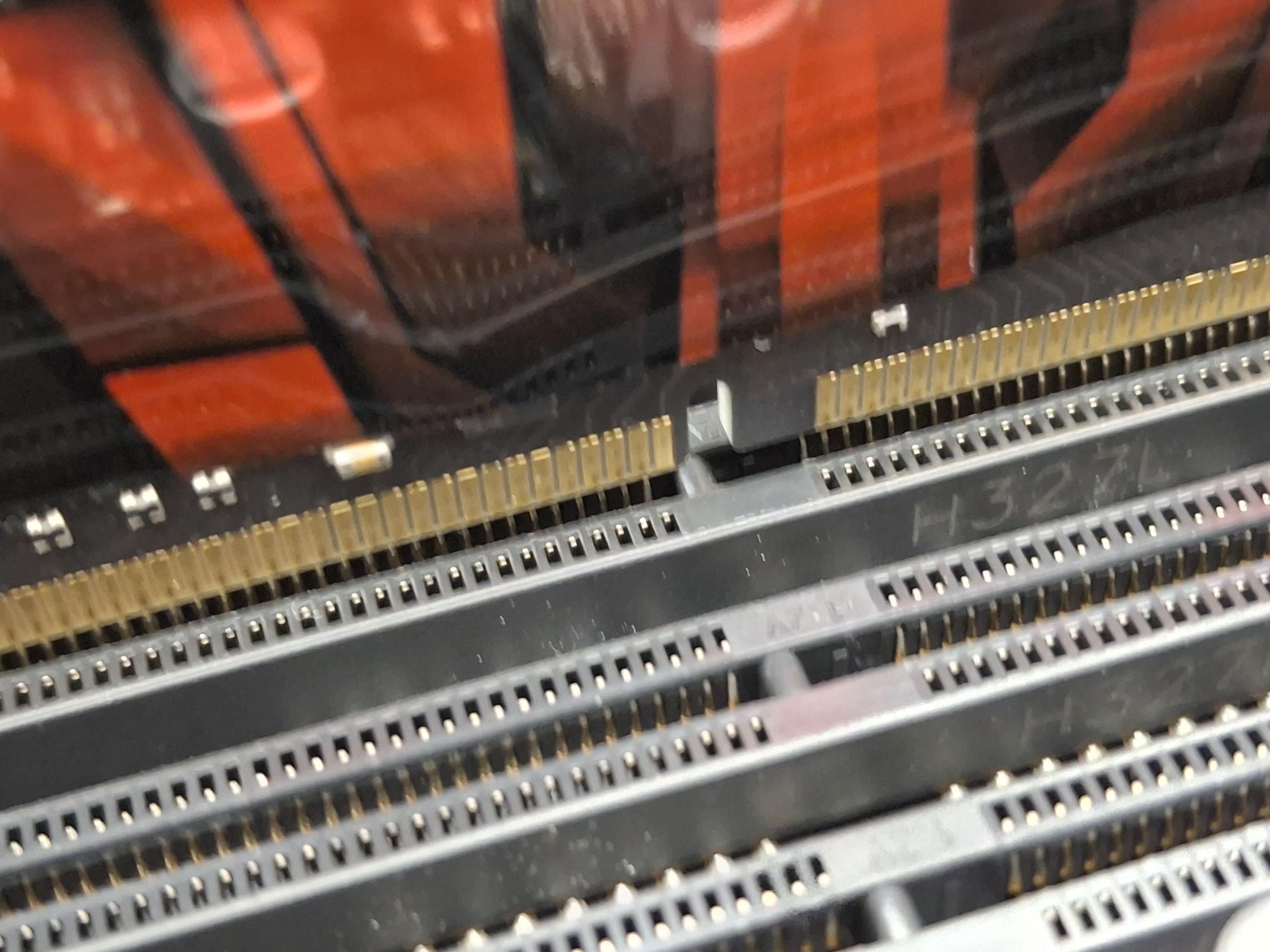
Seat the stick(s) of RAM in the RAM slots. Ensure that the notch in the slot matches the notch in the stick (refer to image 2). Apply firm pressure until it clicks into place.
Install Motherboard to the Case


Place the motherboard inside the case, lining up the standoff holes (little holes in the motherboard) with the screw holes in the case, and placing the PCIe ports into the I/O Shield in the case. Screw the motherboard in, careful not to break anything by making the screws too tight.
Connect PSU to the Motherboard
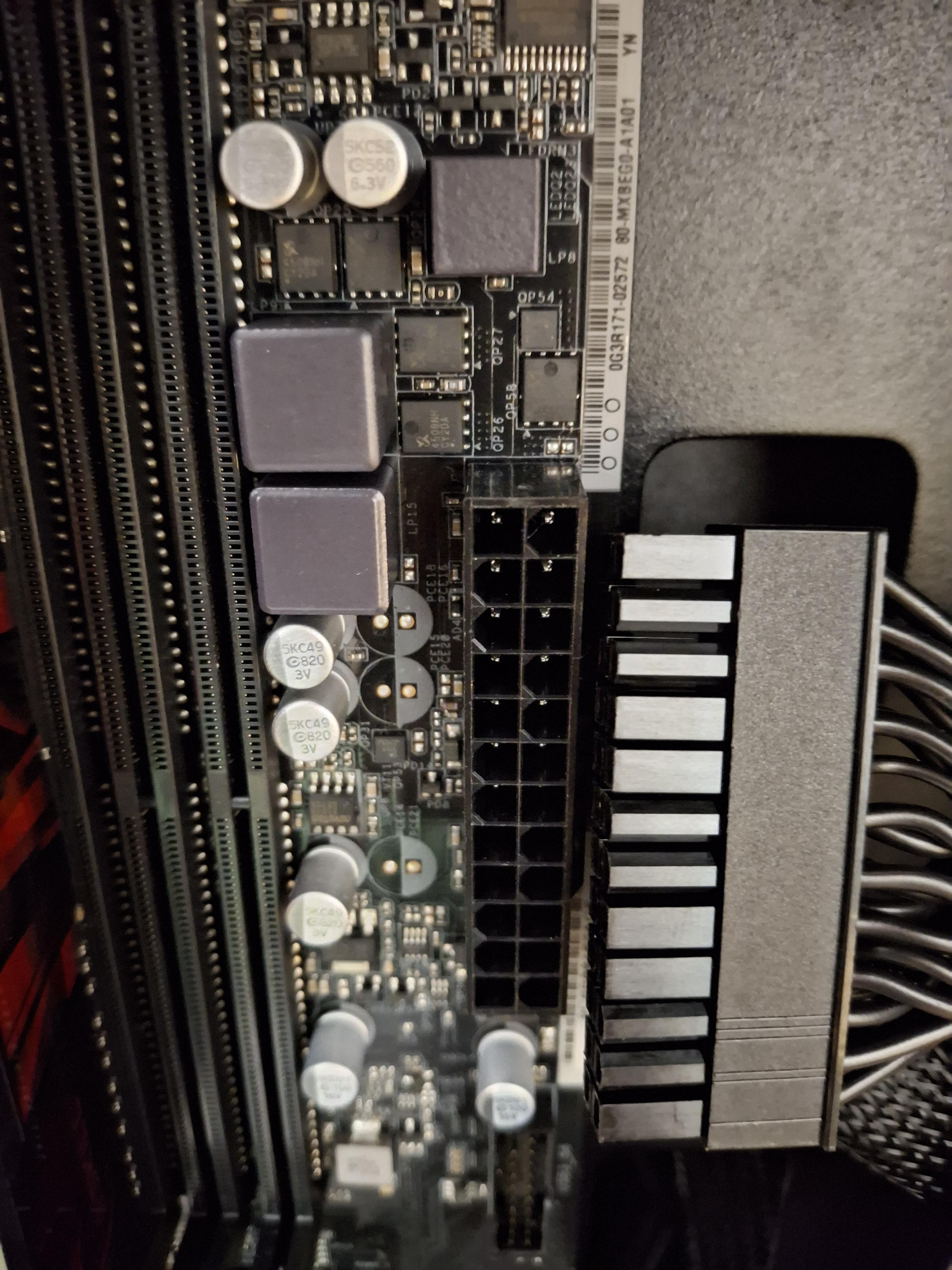
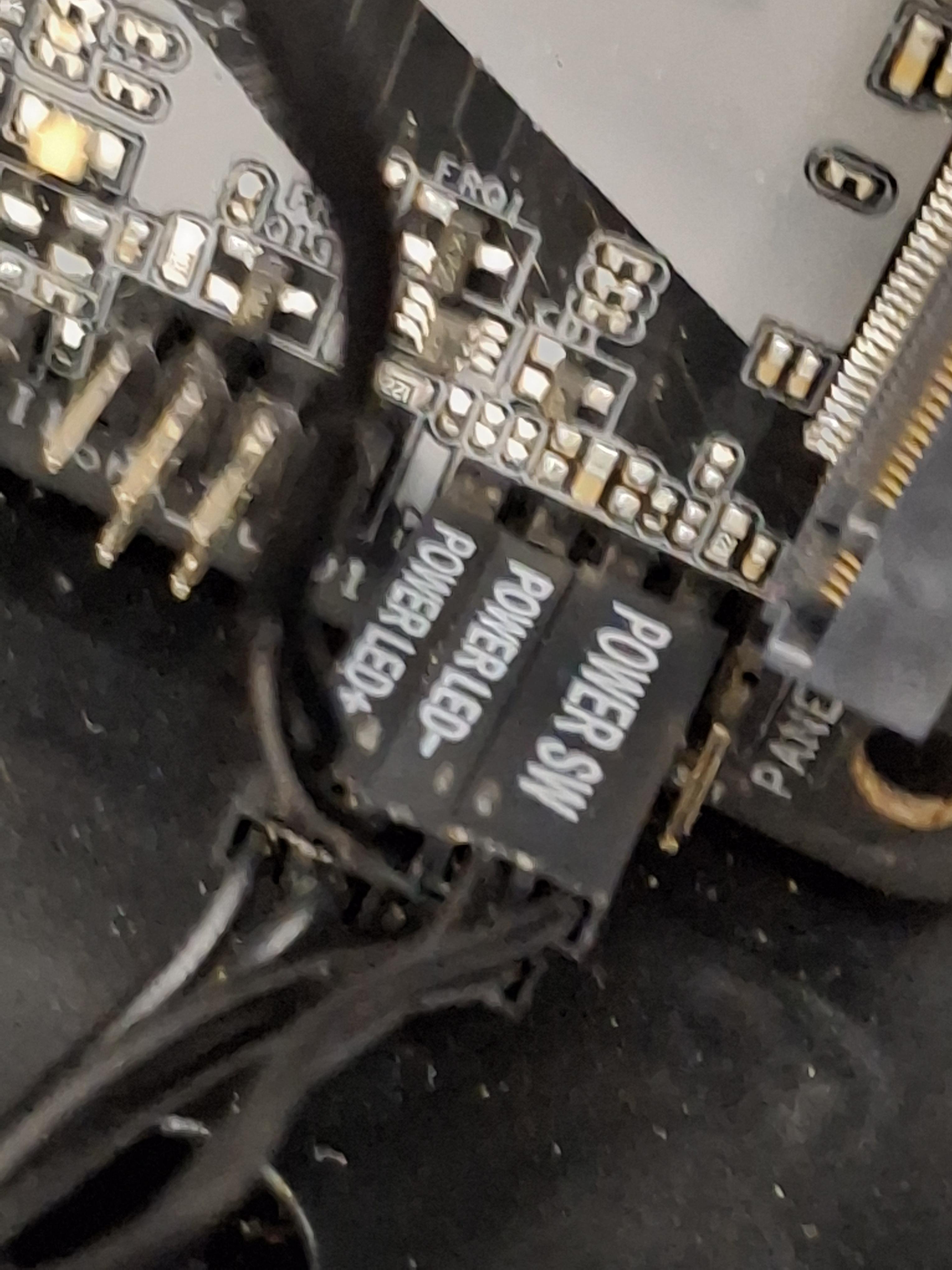
Plug the 24 pin connector from the PSU into the motherboard, and then plug in the front panel connectors from the case into the motherboard. Use the markings below the front panel connectors to determine where each connection should be placed.
Boot the PC
Screw the side panel of the case back on, plug in the power supply to the wall, and ensure that the rocker switch on the PSU is set to "on". Plug your computer into a monitor via your choice of display cable (VGA, DVI, HDMI, DP, Etc.) and turn your computer on. It should perform POST and successfully boot into the BIOS. That's as far as this tutorial will come, but if you find the computer failing to start, the most common issues will include incorrectly placed front-panel connectors, unseated ram, and a misconfigured PSU (check the rocker switch and voltage switch).