The 'One Small Step' App: Making a Simple Private 'Face Your Fears' App.
by steve-gibbs5 in Circuits > Assistive Tech
21 Views, 0 Favorites, 0 Comments
The 'One Small Step' App: Making a Simple Private 'Face Your Fears' App.
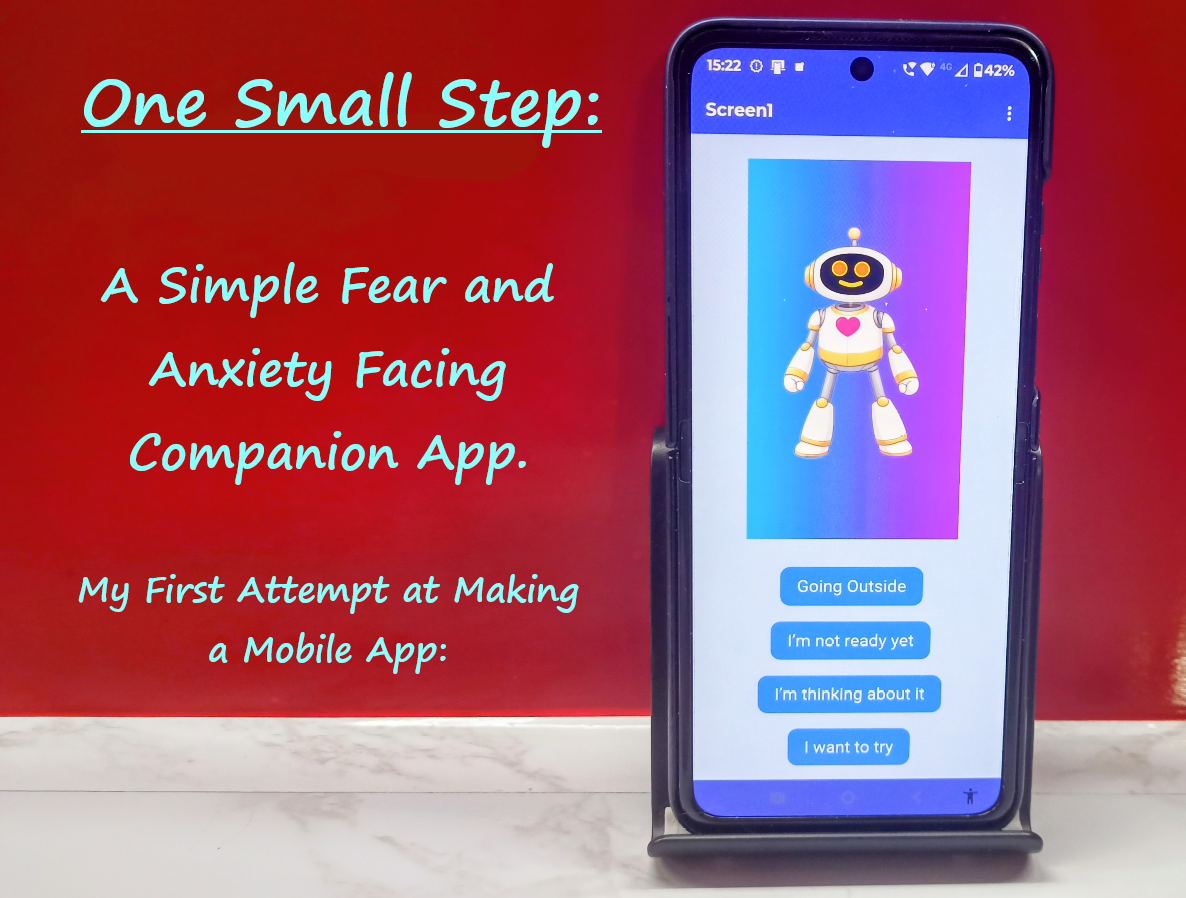

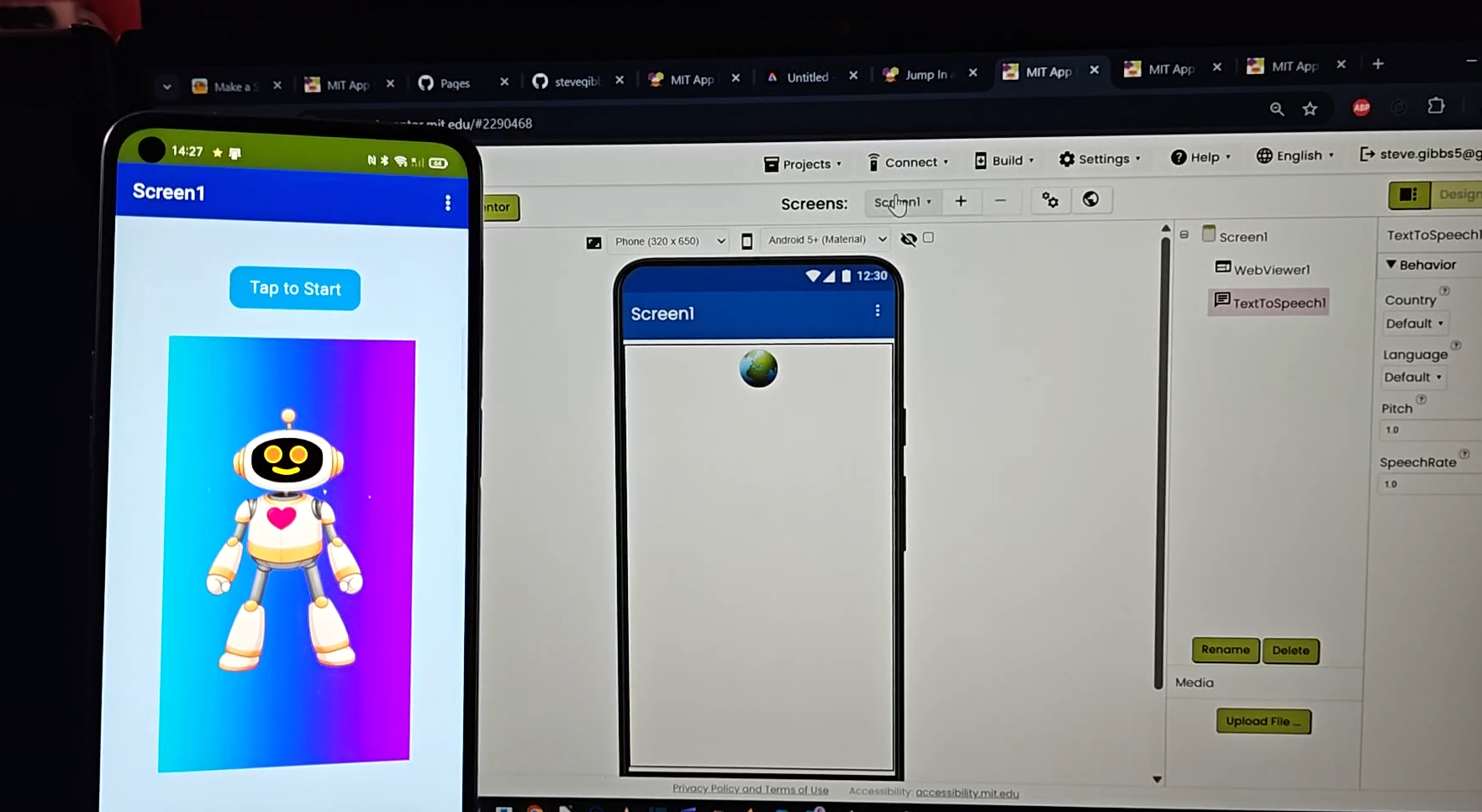
Welcome to this Instructable, where I show you how I made my Fear Facing Companion app, my first ever app, and one that pushed me well outside my comfort zone, but I hope it encourages others to try something new aswell.
Facing fears isn’t easy, whether it’s speaking up, trying something unfamiliar, or tackling personal challenges. This app helps users face their fears and anxieties in small, manageable steps and runs entirely on your phone, with no app stores or accounts required. Making it was also a challenge for me, and by embracing the uncertainty of if I could even do this, I created something simple, flexible, and personal. I have made a video demo and visual build diary accompany this Instructable to also help guide you through the process.
The Project
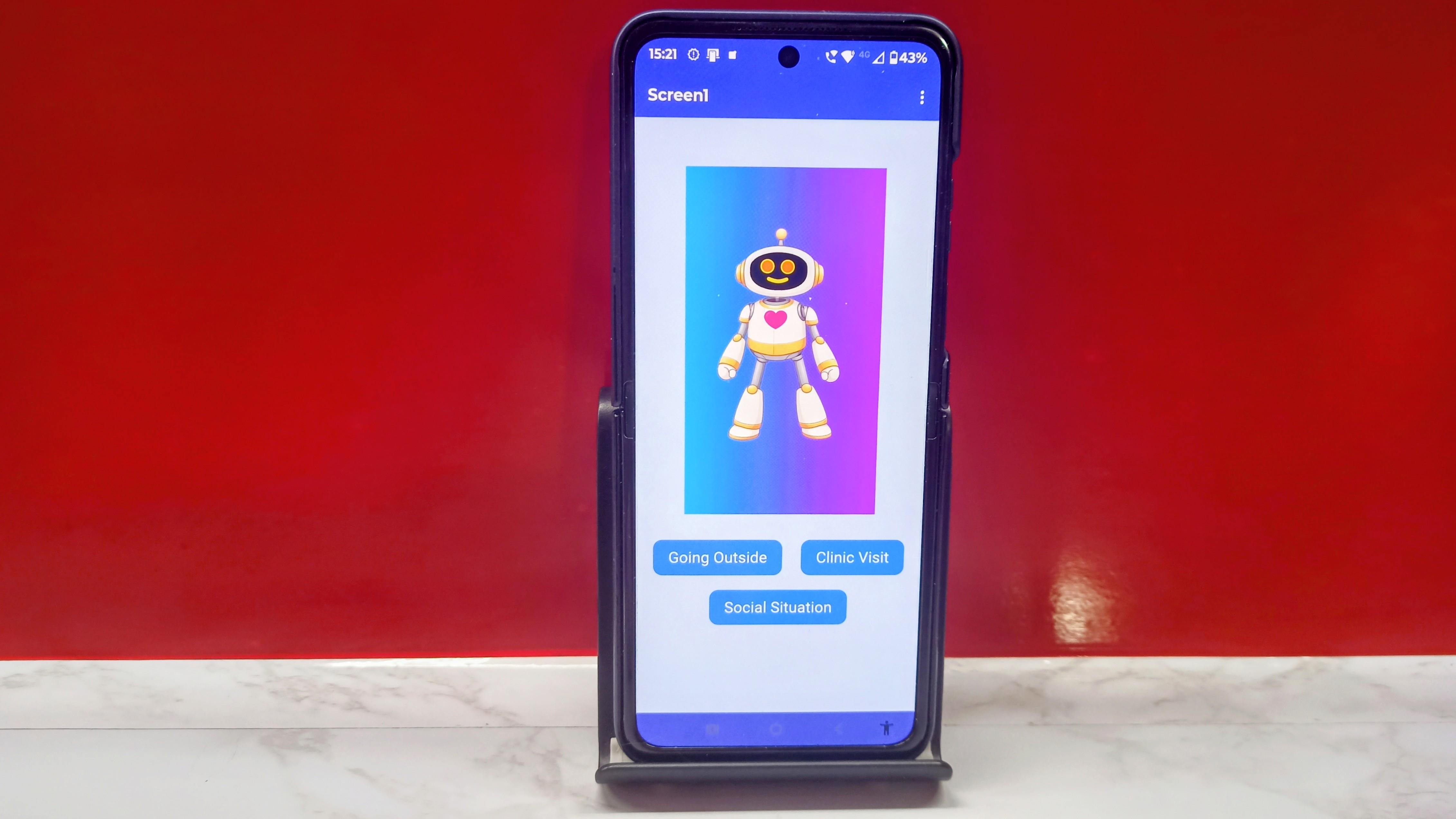
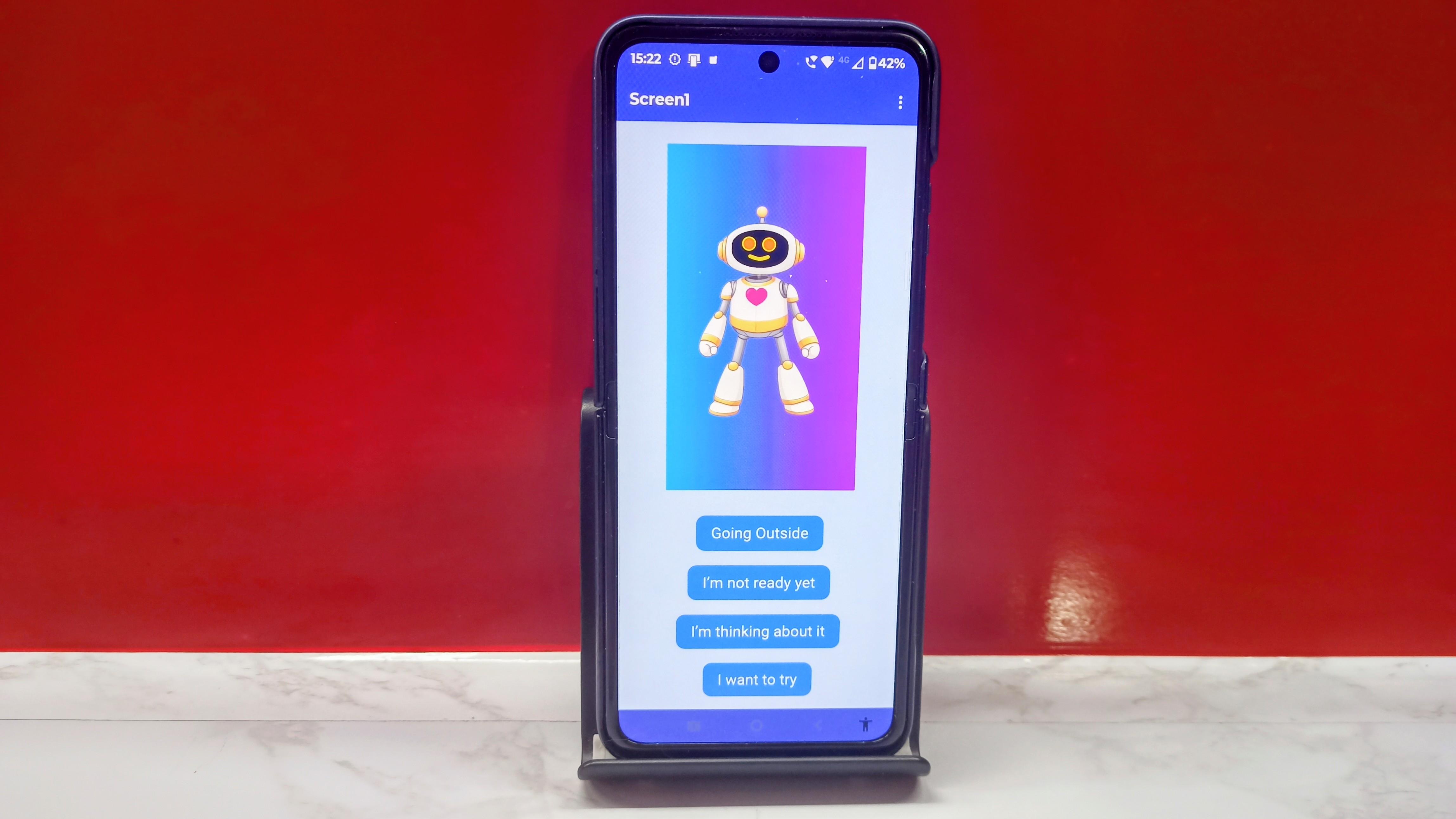
The app is intentionally simple, 15 buttons, an animated character, text-to-speech, and custom phrases. You tap “start when ready” choose a fear from three main buttons, then work through a three-step “Fear Ladder”. Each step triggers a supportive friendly talking character with a spoken phrase, with options to hear another thought or return to the main menu. That’s the core experience. This app gently guides users through facing fears one step at a time. It can be customised for anything from public speaking, confidence building, or being afraid of the dark, and because it runs only on your phone, there are no ads, in app purchases, or accounts. Building this took me about a month, but it works, it’s effective, and it was genuinely rewarding to have my first very own home made app on my phone.
The Inspiration
The idea came from the belief that small steps make big fears more manageable. At the same time, I wanted to challenge myself creatively and technically. The result is an app that’s both practical and symbolic, a reminder that facing fears is a skill worth practicing.
What’s Involved
You’ll need a computer, a phone, a free GitHub account, and an MIT App Inventor account with the companion app. No coding experience is initially required as I have provided a working code set, and only minimal block based coding is used. Optional graphics, sounds, or characters can be added to personalise the app. By the end, you’ll have a fully functional app on your phone that you can adapt and expand as you like.
Supplies
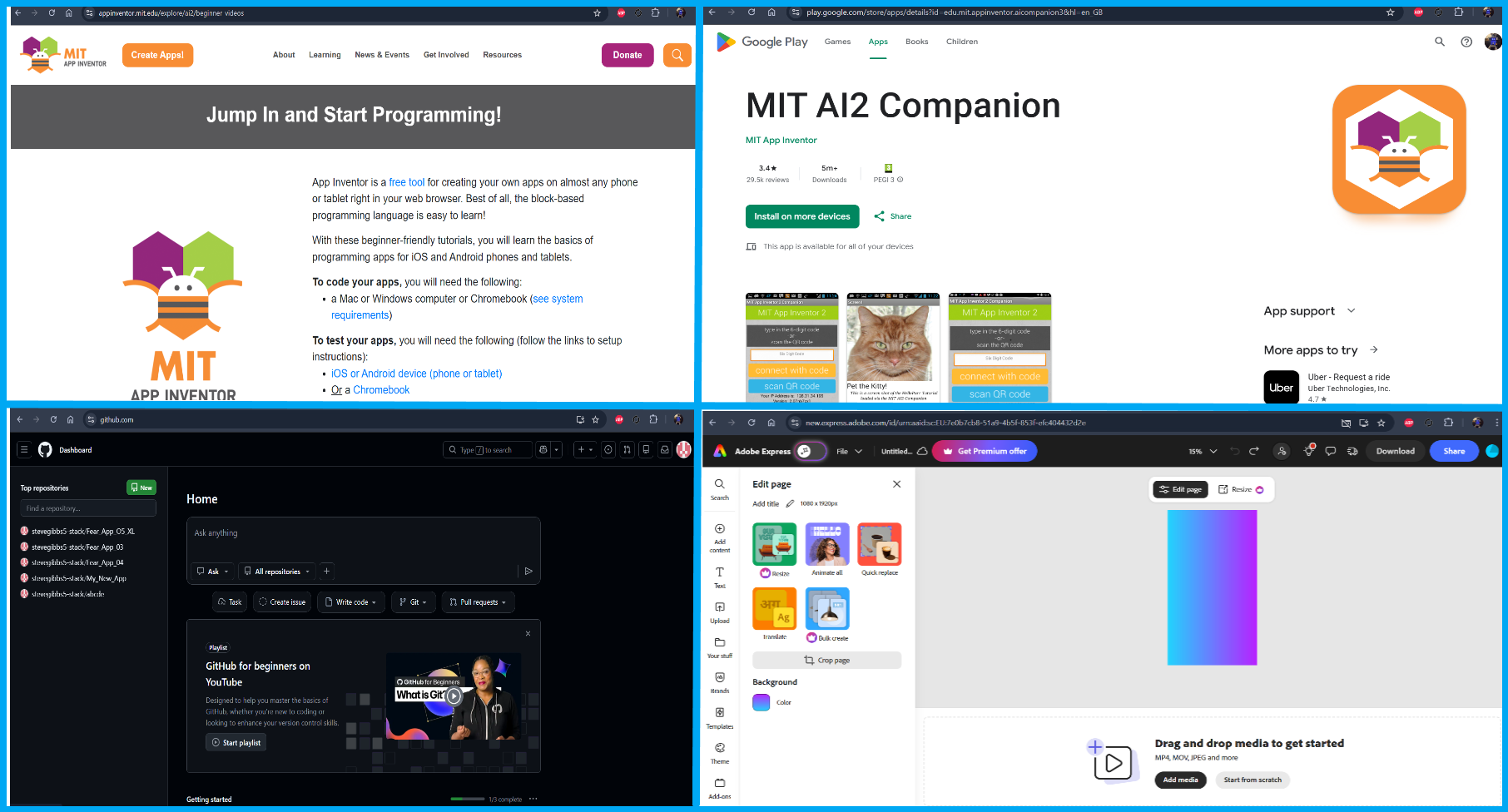
Creating this app doesn’t require a background in programming as I will supply a working code set which you can make copies of, and use them as a baseline to build on and learn from. Here’s what you will need:
- MIT App Inventor – the PC platform used to build and run the app on mobile devices
- GitHub website - to host your code and animated avatars (GIFs)
- MIT AI2 Companion app - for the phone
- A draw/paint program to make the avatar
- Adobe Express to give the avatar simple animations
- A computer
- A phone or tablet (I used my every day Android phone to run the app to run on)
- HTML, CSS, and JavaScript – simple scripts for animations, buttons, and text-to-speech phrases.
- GIFs or images – for idle, talking, and waving animations
- Text-to-Speech – your phone actually handles this
- Your own fear categories and phrases – the app can be customized for any personal challenges or situations
Helpful sources and tutorials...
Design Overview: Planning the App
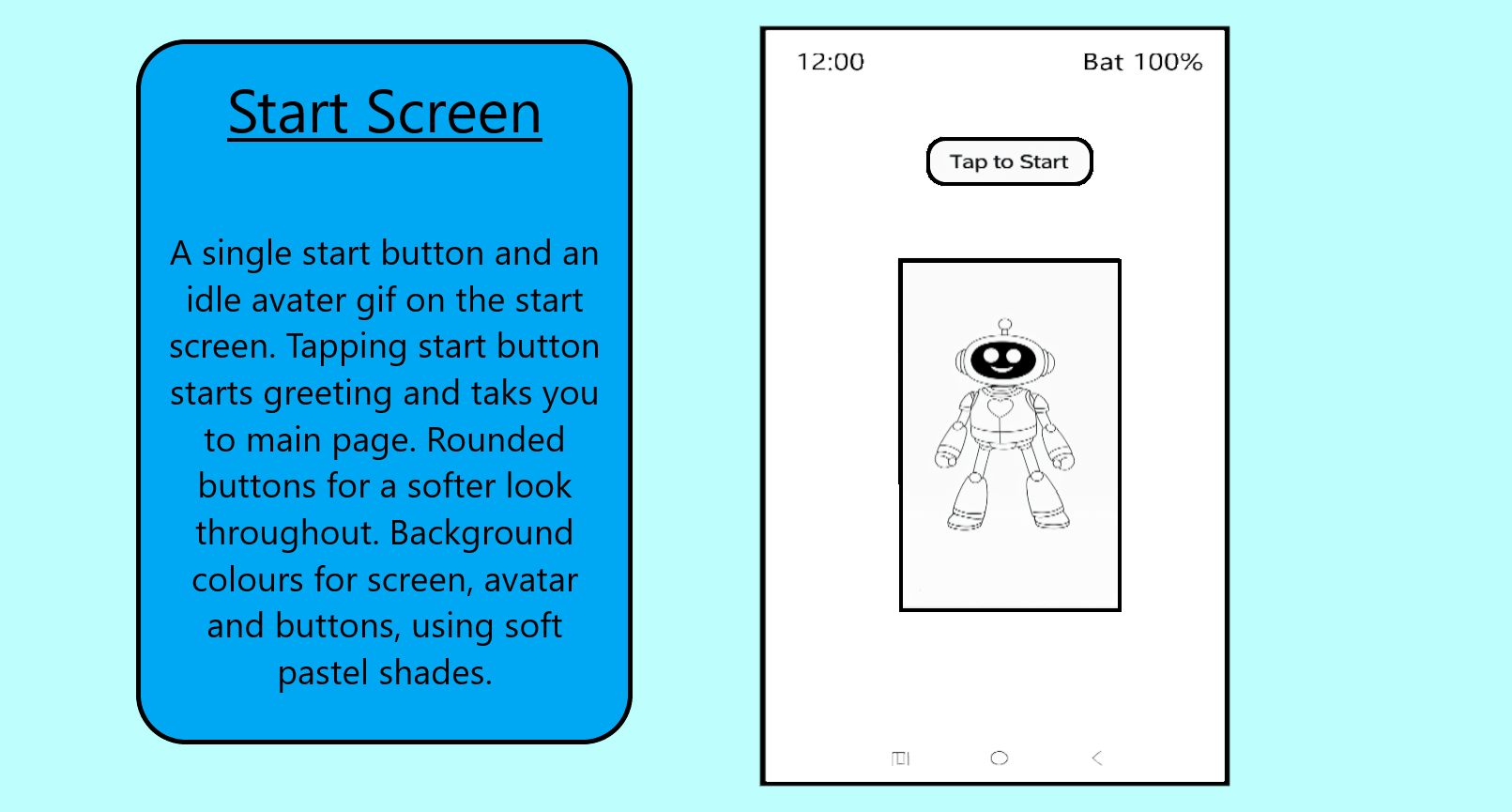
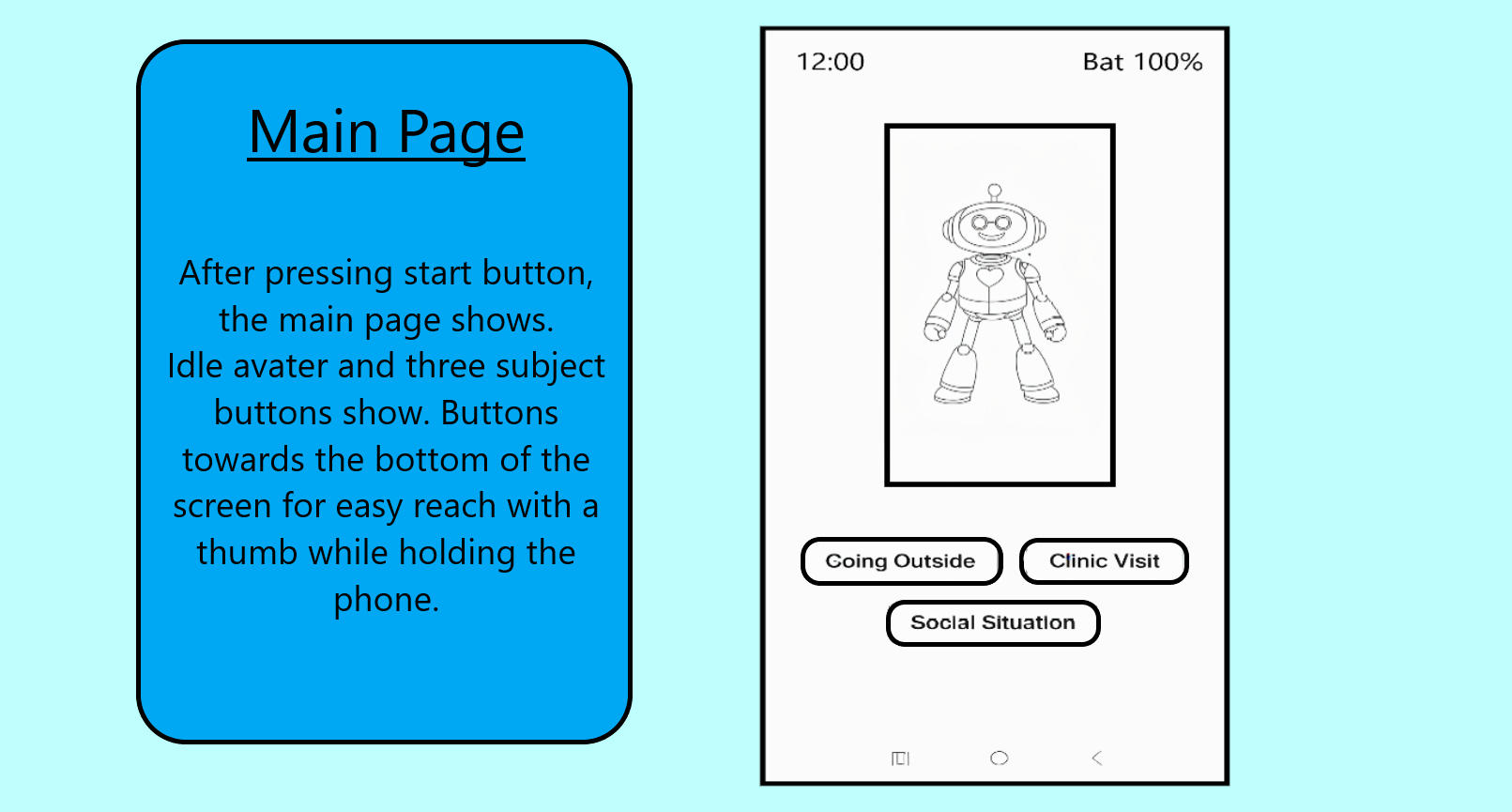
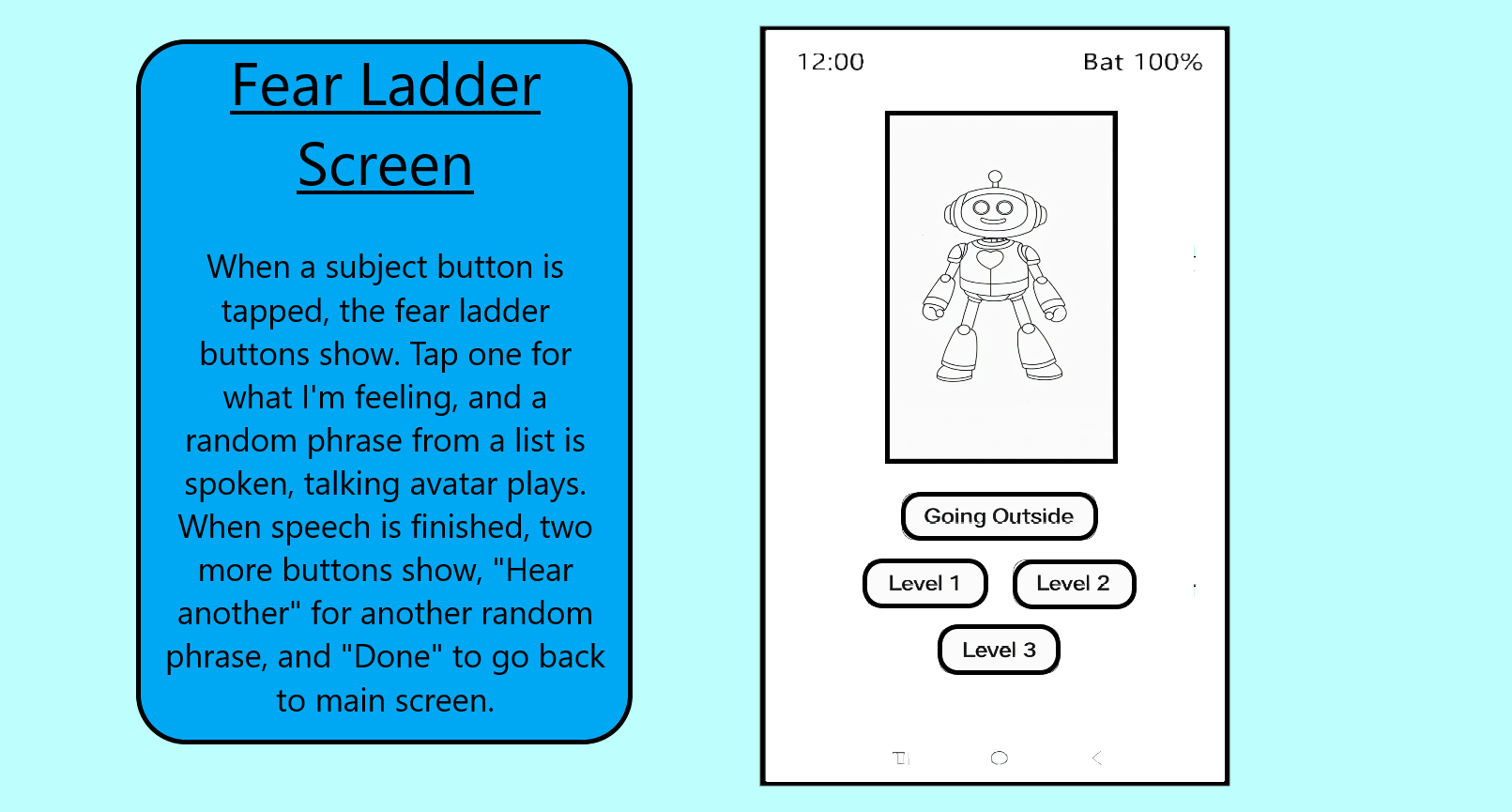
Before writing any code, this project begins with design decisions. Keeping the app simple, personal, and not intimidating was just as important as making it functional. This step explains my thinking behind the layout, flow, and overall user experience.
A Personal, Private Experience:
The app lives entirely on your phone. There are no accounts, no app store listings, and no intrusive ads. This keeps it private and pressure-free, allowing it to be used quietly and at your own pace - your own friendly pocket companion to help with your fears and anxieties.
Simple, Calm Interface:
The visual design is intentionally minimal:
- Soft background colours to avoid sensory overload
- Easy-to-tap buttons with rounded corners for a softer look
- Clear spacing so nothing feels rushed or cluttered
The aim is to reduce friction and anxiety before the user even interacts with the app.
A Friendly Guide, Not an Authority:
At the centre of the app is a simple animated character. It's not there to instruct or judge, but to accompany. Gentle animation and spoken phrases create a sense of presence without feeling overwhelming. I chose to draw and animate a robot because that's what I like, but the character can be who or whatever you like, and it doens't have to be animated either.
One Action at a Time:
The app flow is deliberately linear:
- One tap to begin
- One choice at a time
- One supportive message at a time
Buttons only appear when needed, avoiding decision fatigue and keeping the experience focused.
Designed to Be Adaptable:
While the example app uses specific fears as prompts, the structure is fully reusable. Text, themes, companion character, and phrases can be replaced to suit any personal challenge, mental, emotional, creative, or practical.
Choosing a Friendly Character:
Including a character was a key design choice. For an app about facing fear, a character helps soften the experience and adds a sense of quiet company. It doesn’t need to be complex, it can be animated or still, human or abstract, detailed or simple. What matters is that it feels friendly and non judgmental.
As mentioned, I chose a friendly robot, something I’ve always liked. That familiarity made the app feel more personal and less intimidating, both as the maker and the user. Designing something I already enjoyed removed another layer of fear from the process. This element is easily adapted or removed entirely, depending on what feels most comforting to you.
Designing for Beginners (Including the Maker):
This project was designed with beginners in mind, like myself. Usefulness mattered more than flashy features, looks or complex code. If something felt confusing, it was simplified, if it felt fragile, it was made more robust. I think this approach keeps the app achievable for non-coders and approachable for first-time makers.
Order of Operation:
My process followed this sequence:
- Draw the robot
- Animate it and save as GIFs
- Write meaningful spoken phrases
- Create the HTML, CSS, and JavaScript files and store everything in one folder
- Upload the files to GitHub
- Set up the project in MIT App Inventor
- Load the app onto the phone and use it
Avatar Draw and Animate
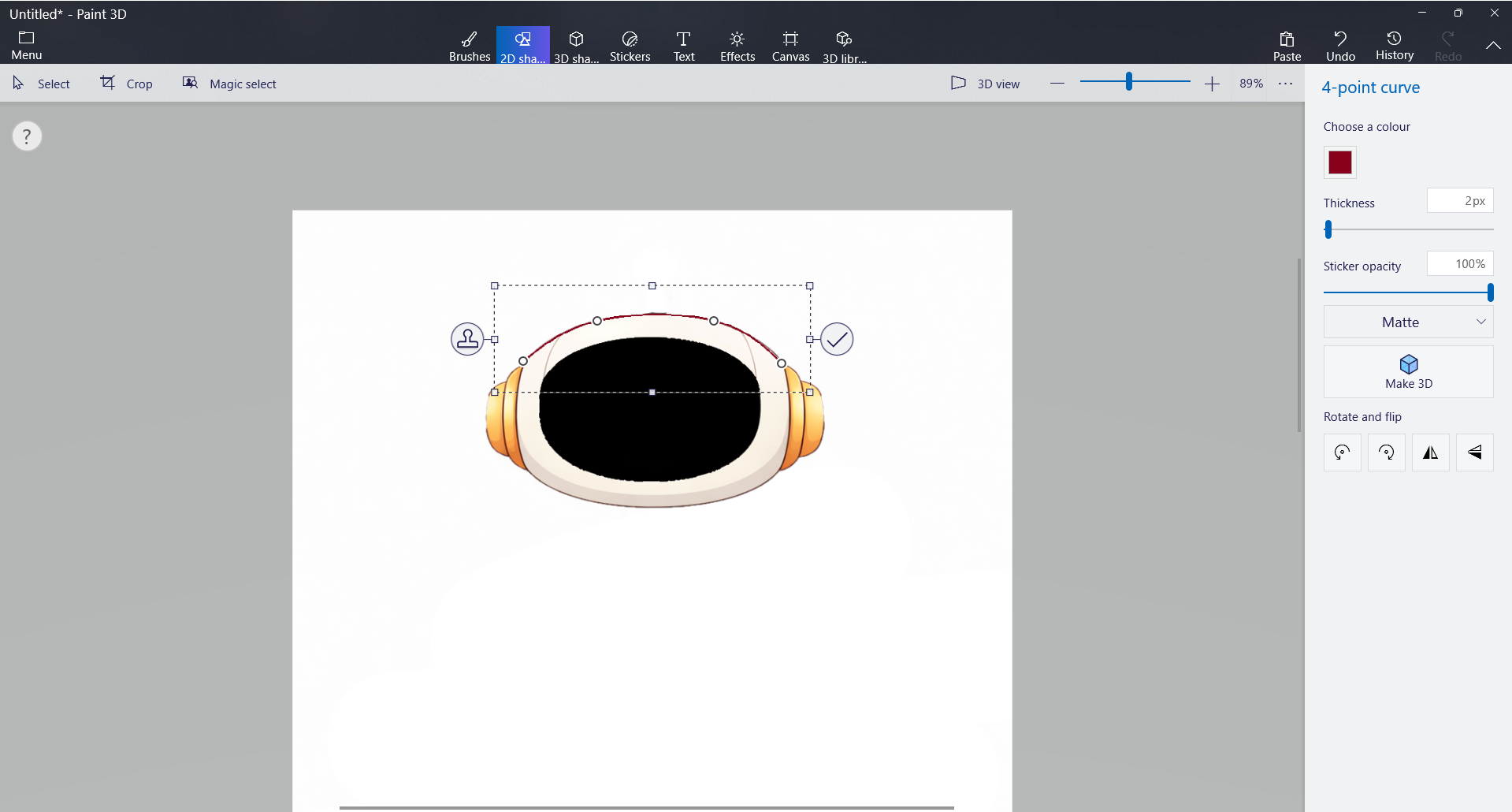
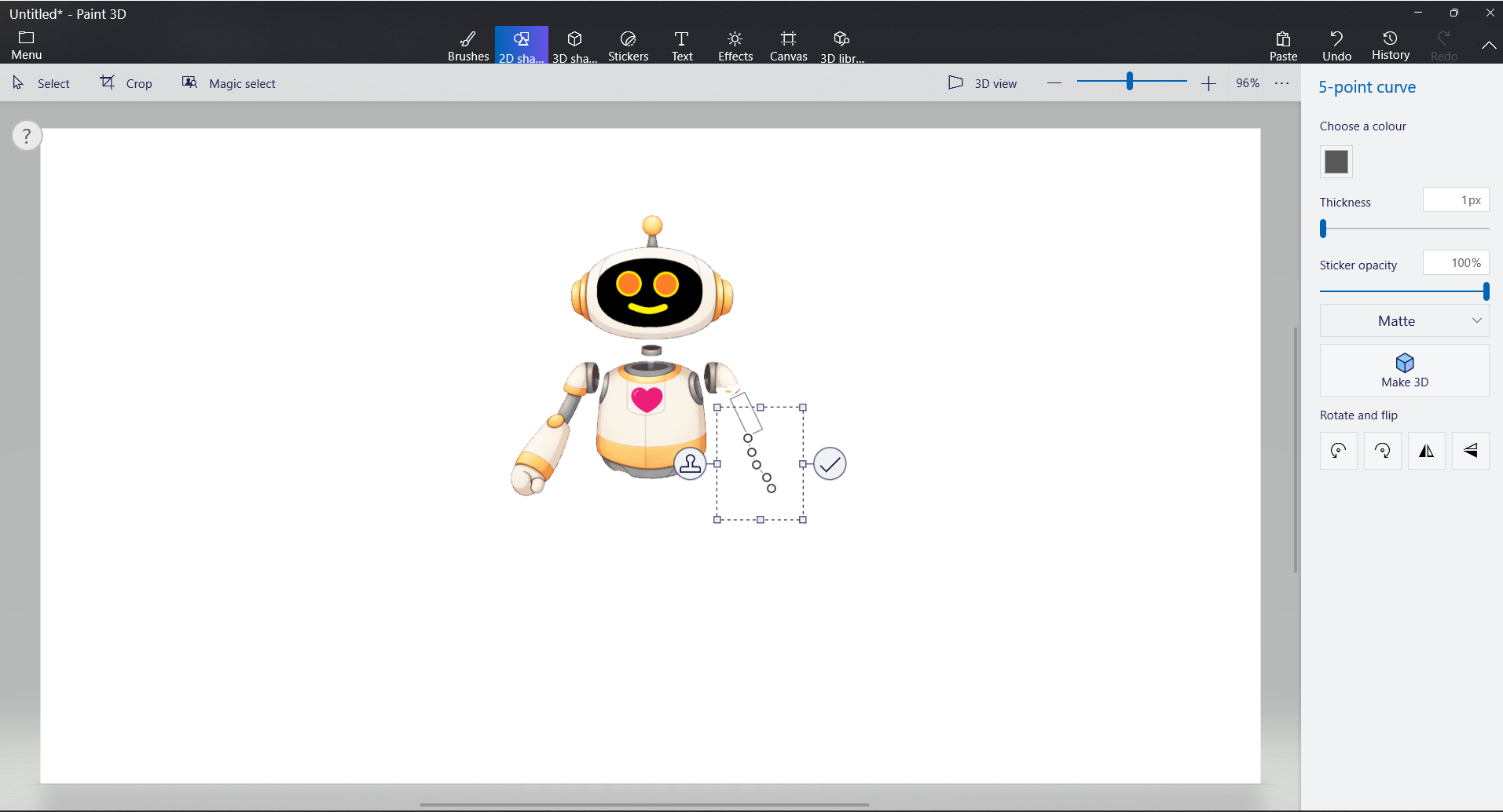
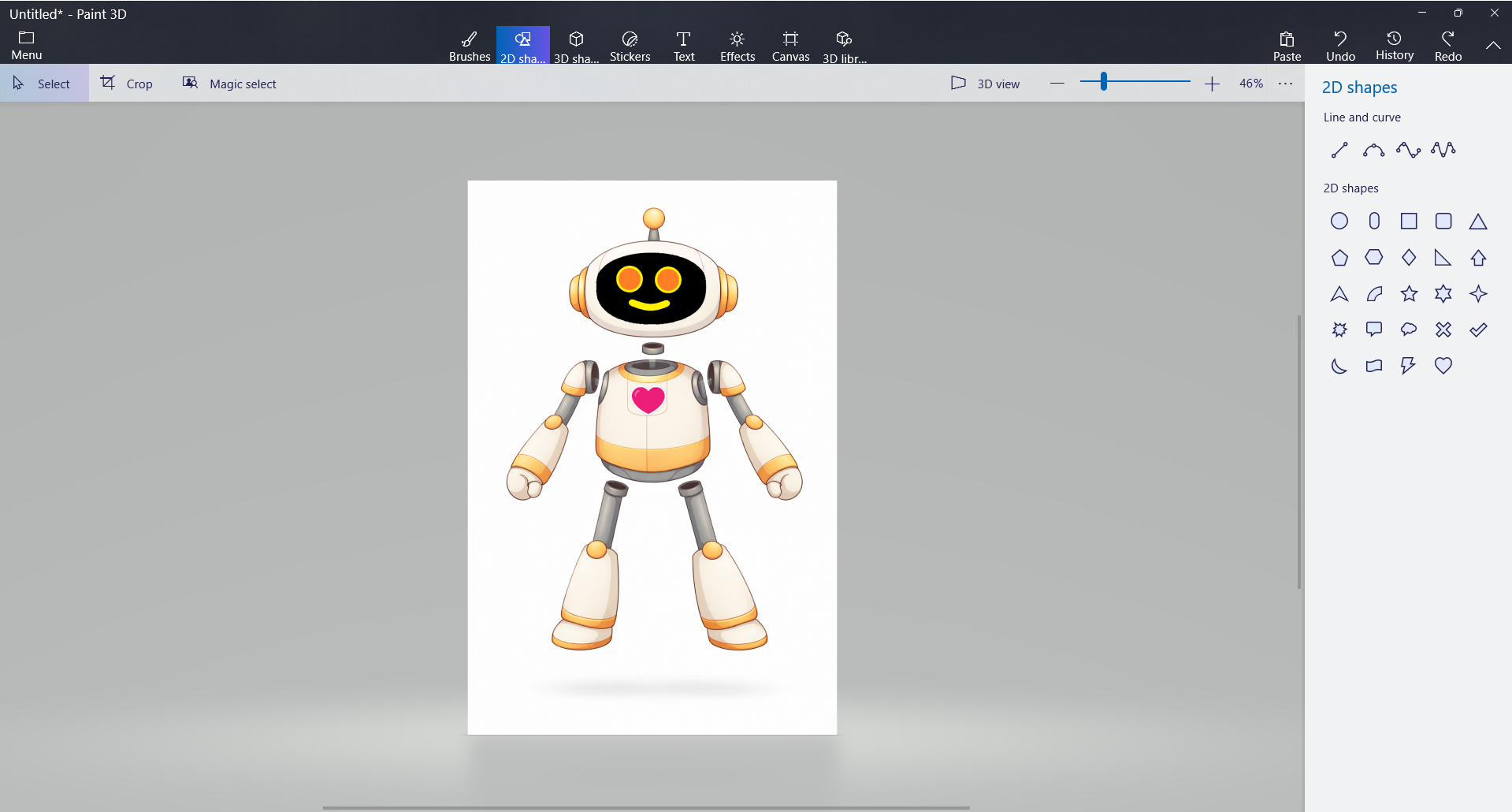
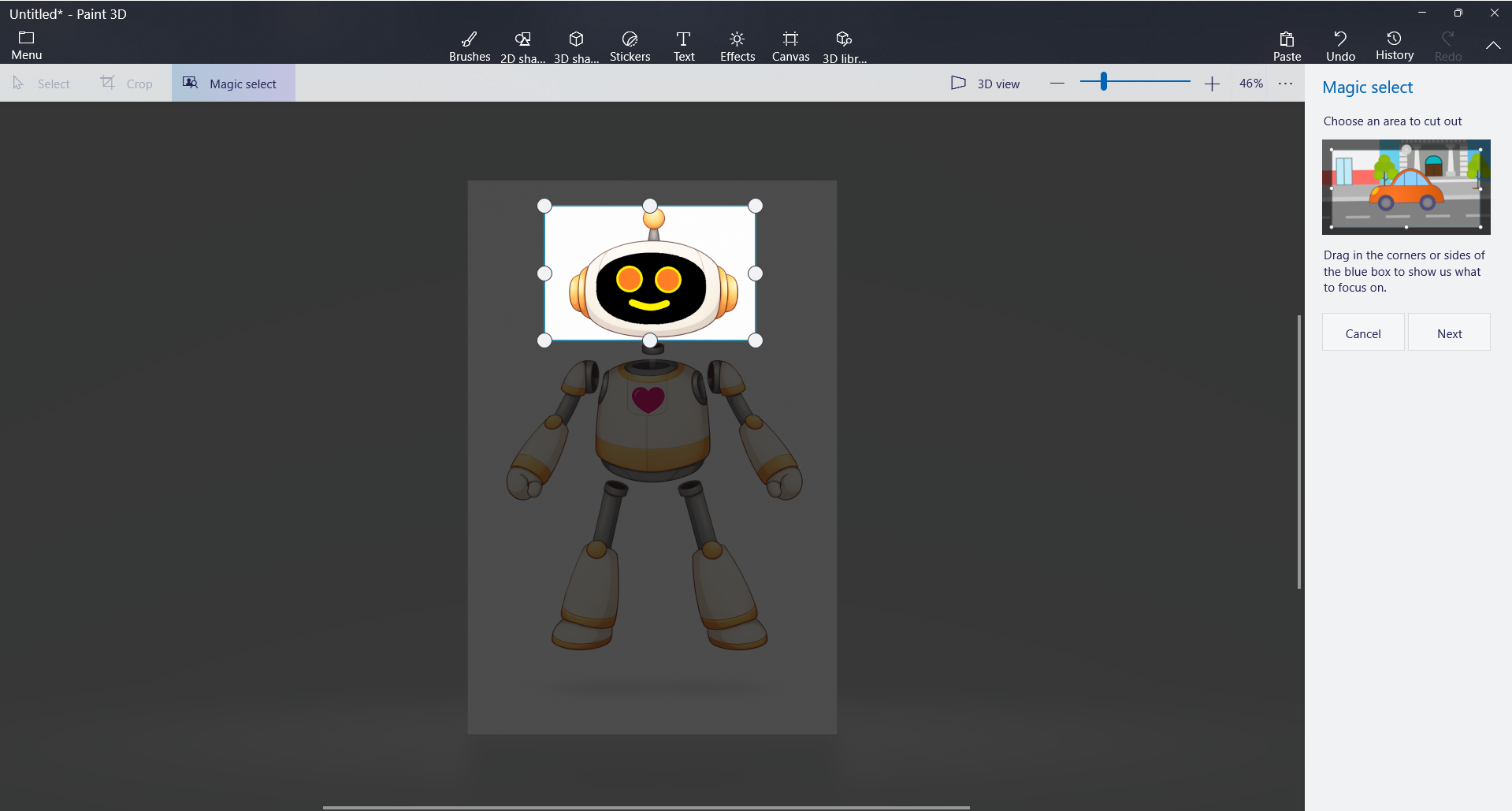
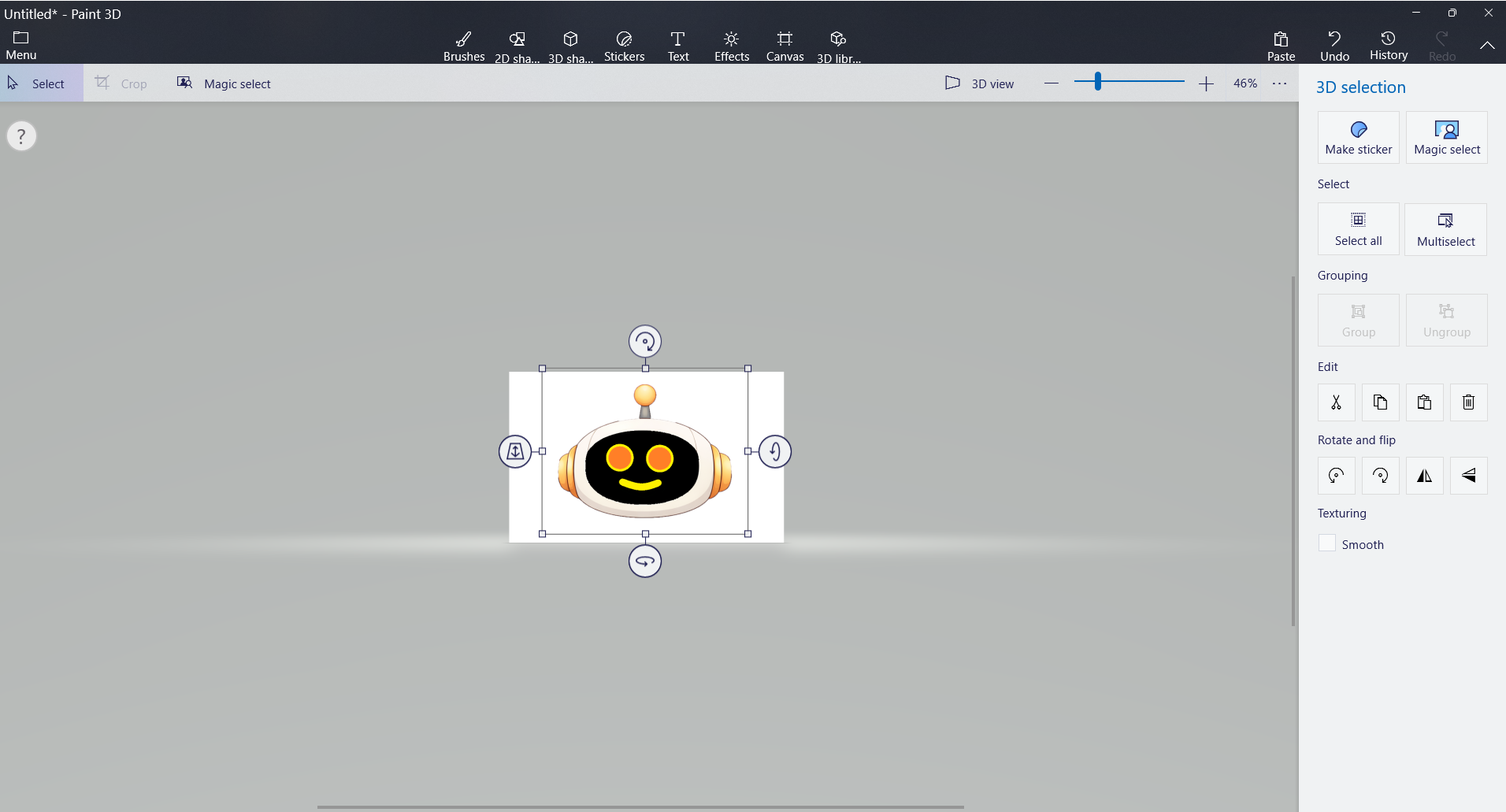
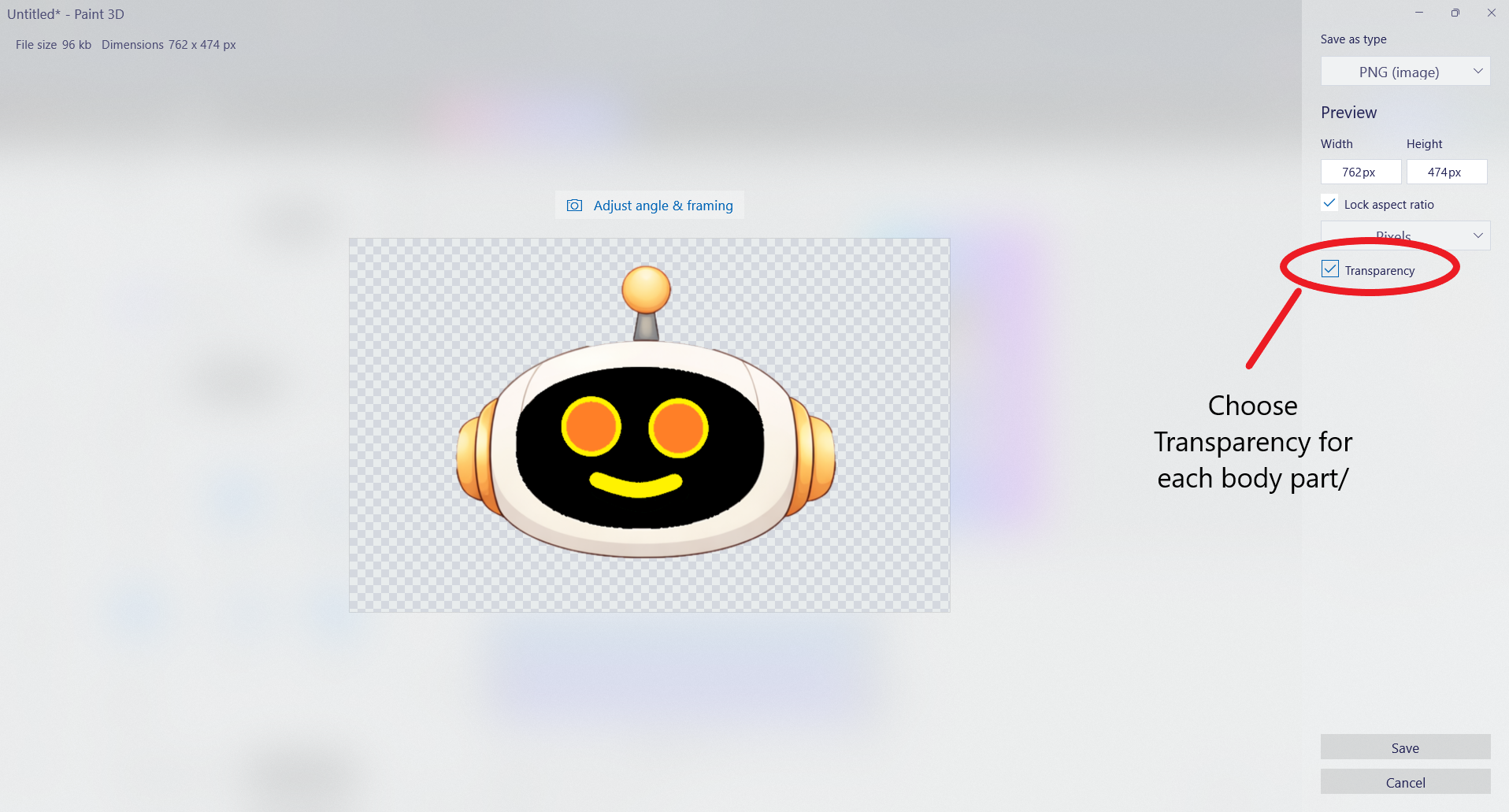
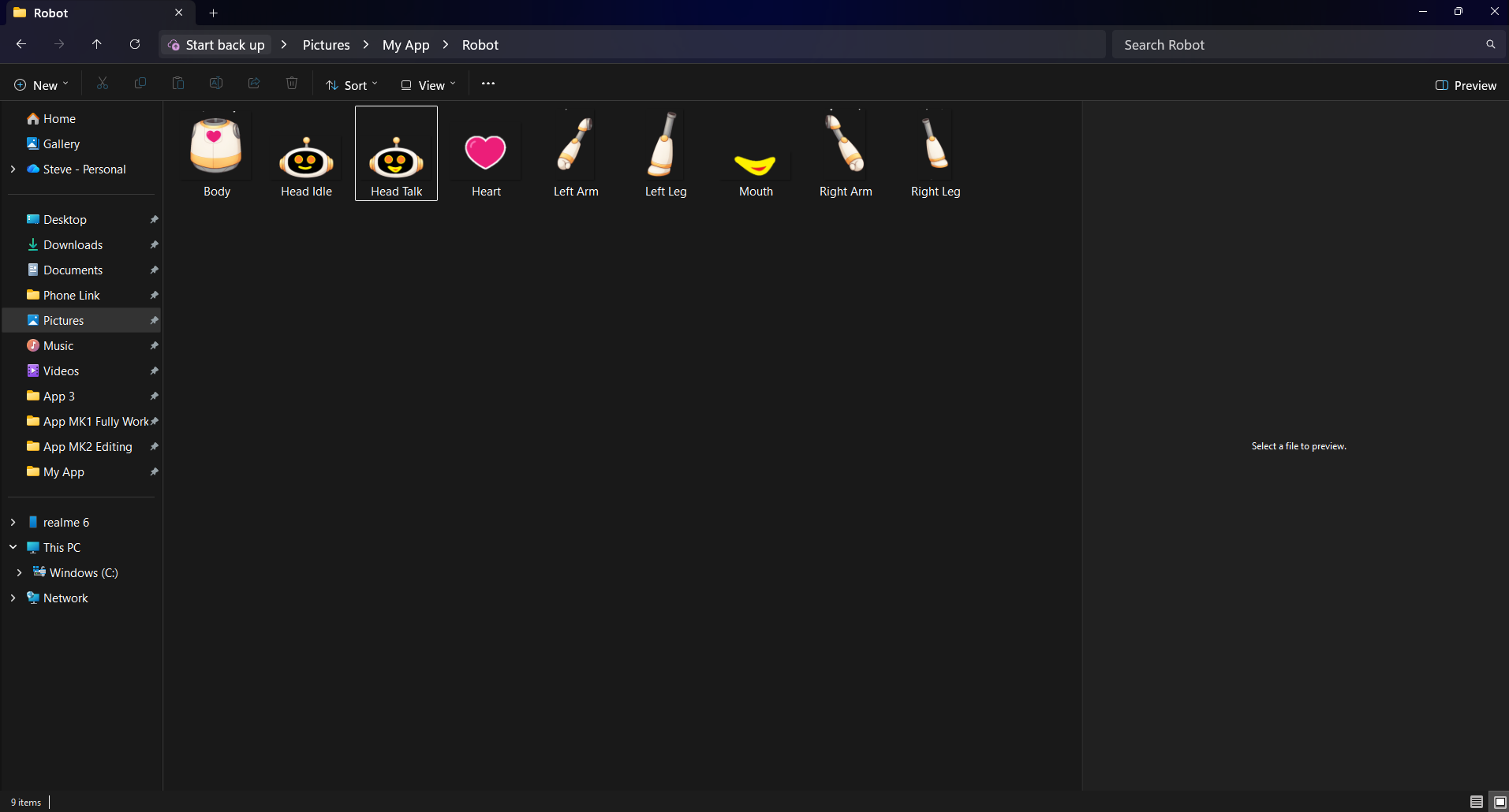
Before anything, make an empty folder on your computer, in 'Pictures' or 'Documents', wherever you want it, then name it something like "My New App", or whatever you like. This is where we will store the robot GIFs and the HTML, CSS and JS files.
Drawing:
To start off, choose a friendly character (visual comfort matters), because I think the app works best when it feels comfortable/safe to open. You can use...
- A still image
- A simple animated GIF
- A hand-drawn character
- A robot, animal, mascot, or abstract figure, it's for you so it's your choice.
As I previously mentioned, I chose to draw and animate a friendly robot because it’s what I like, something I personally find comforting, and familiar. So pick something you like, because this isn’t about what looks impressive, it’s about what you're comfortable with.
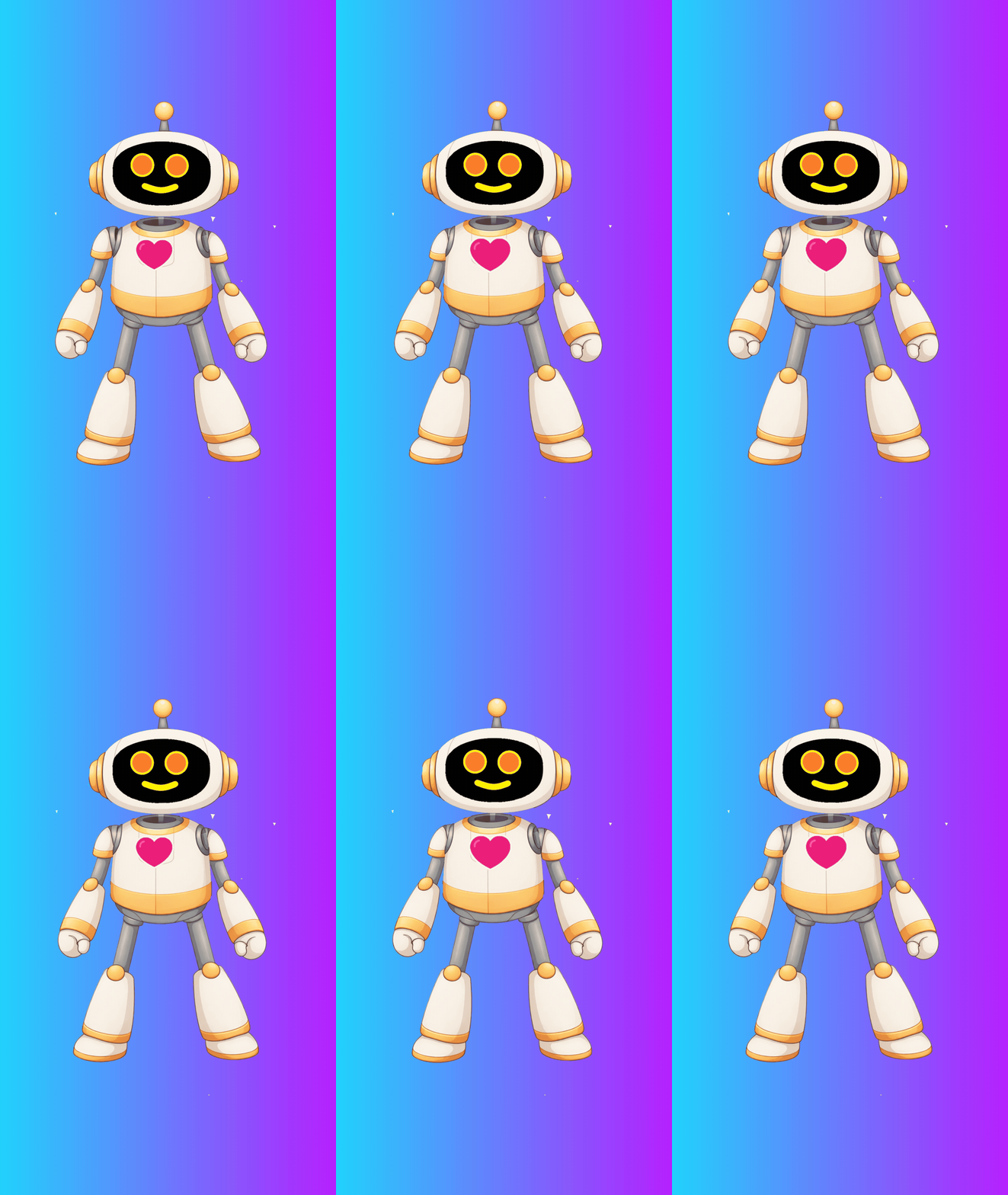
So using a PC paint program, I played around with a few ideas until I came up with something I like, a simple design, yet it makes me smile. Because I was going to give it some animations, waving with an talking mouth to greet me, idling (subtle movements) while it waits for a button to be pressed, and speaking (same movements as idling), with a moving mouth. I drew the robot so the head, mouth open, both arms and both legs were separated from the body (see the screenshot above) so they were all separate elements. I saved all of these elements as separate transparent PNG files stored in a "robot" folder on my laptop.
Animating:
The next step was to rebuild the robot and animate it. I used the free web version of Adobe Express because I wasn't after full on walking, running, jumping animation, just mainly subtle movements.
- Open Adobe Express > click the blue ‘Go to Adobe Express’ button > ‘Start from your content’ > double click on your robot head image to upload it > Click ‘Edit original image’ > resize the robot head if needed and drag it towards the top of the canvas > click on the ‘Background Colour’ icon (the plain square icon which should be set to default white) and choose the colour you want.
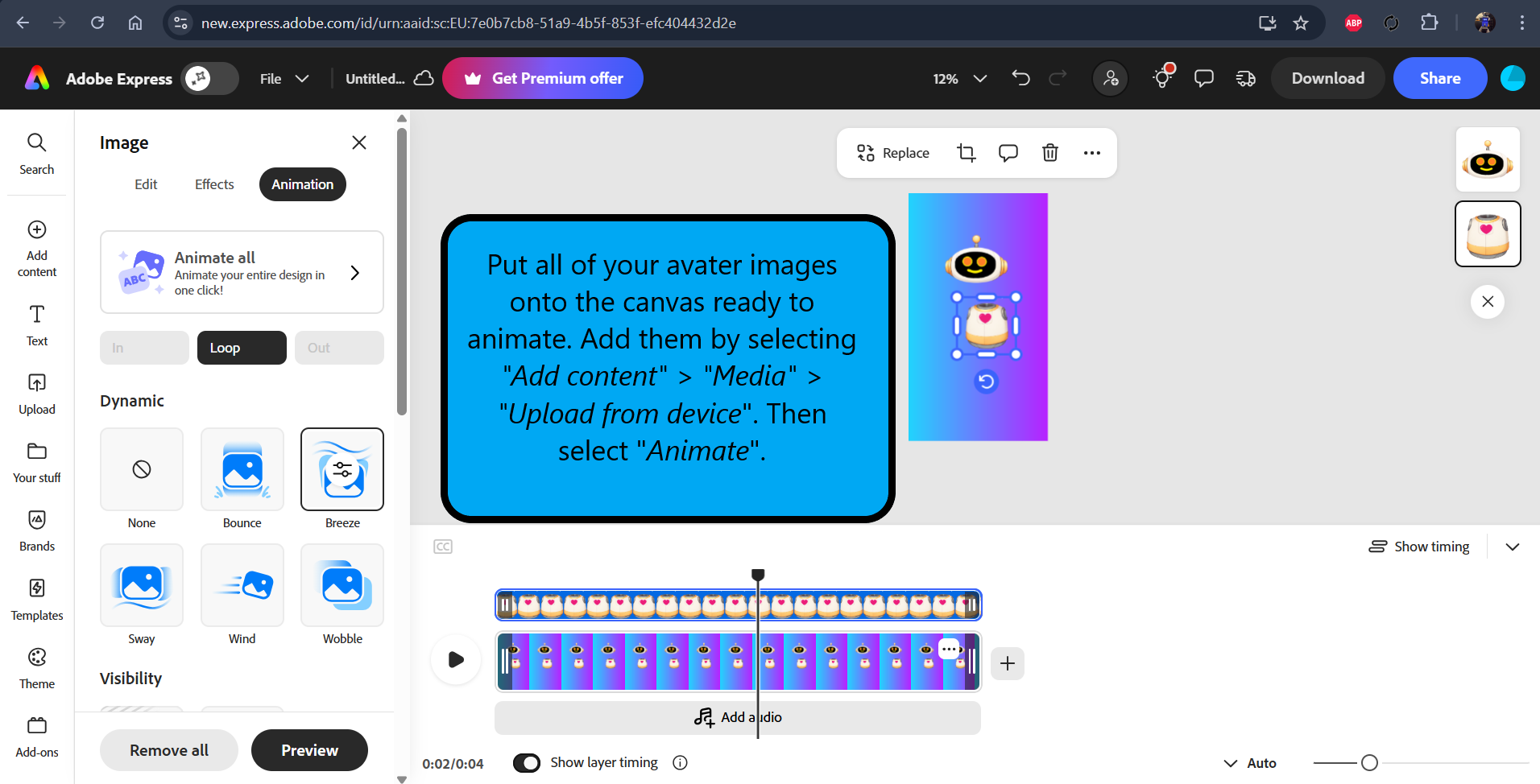
- We will start with the 'idle' animation. Now tap 'Add content' > 'Media' > 'Upload from device' and choose the robot body. Resize if needed and drag it to under the head. Repeat the process until all of the body parts are in place, except the mouth for now.
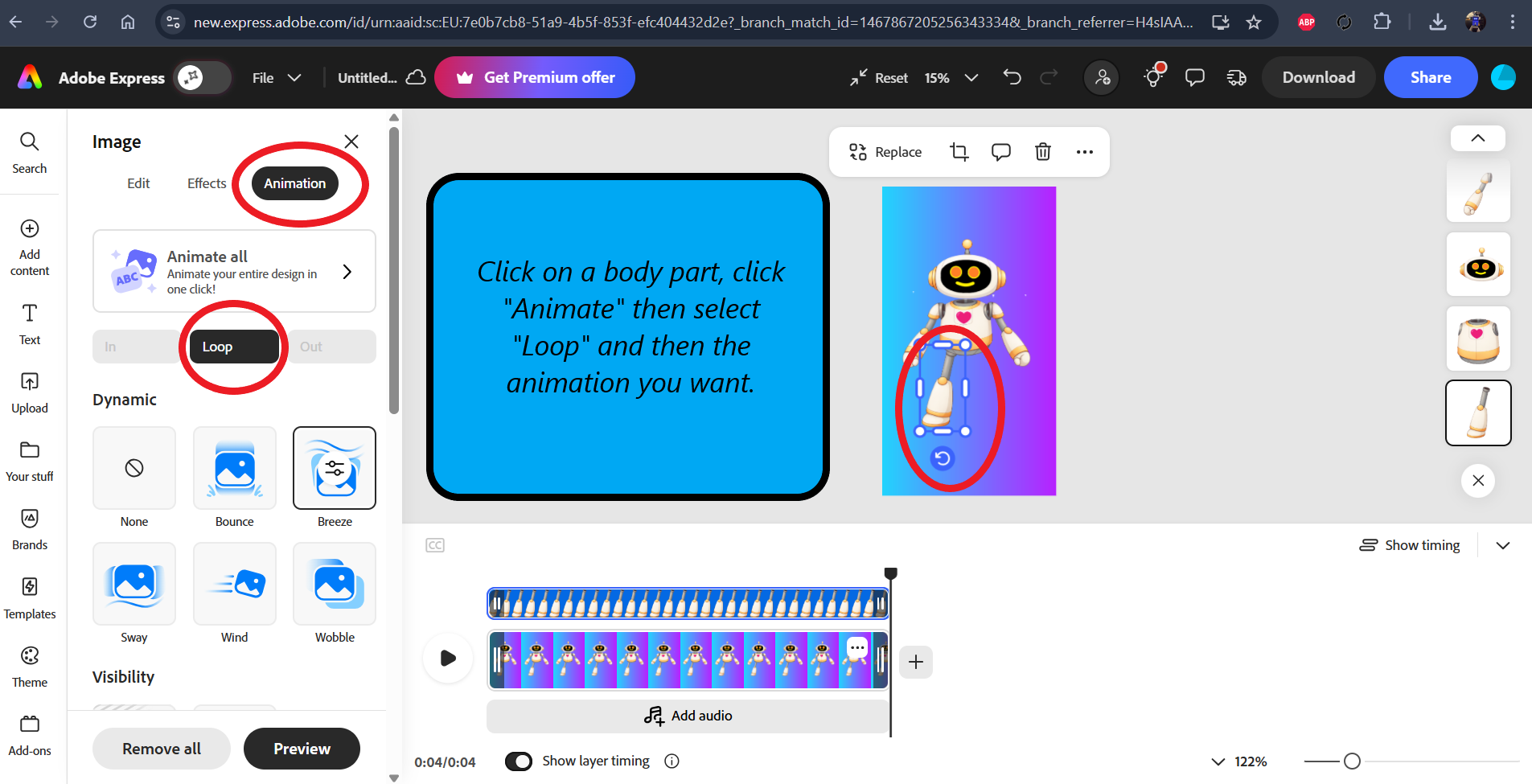
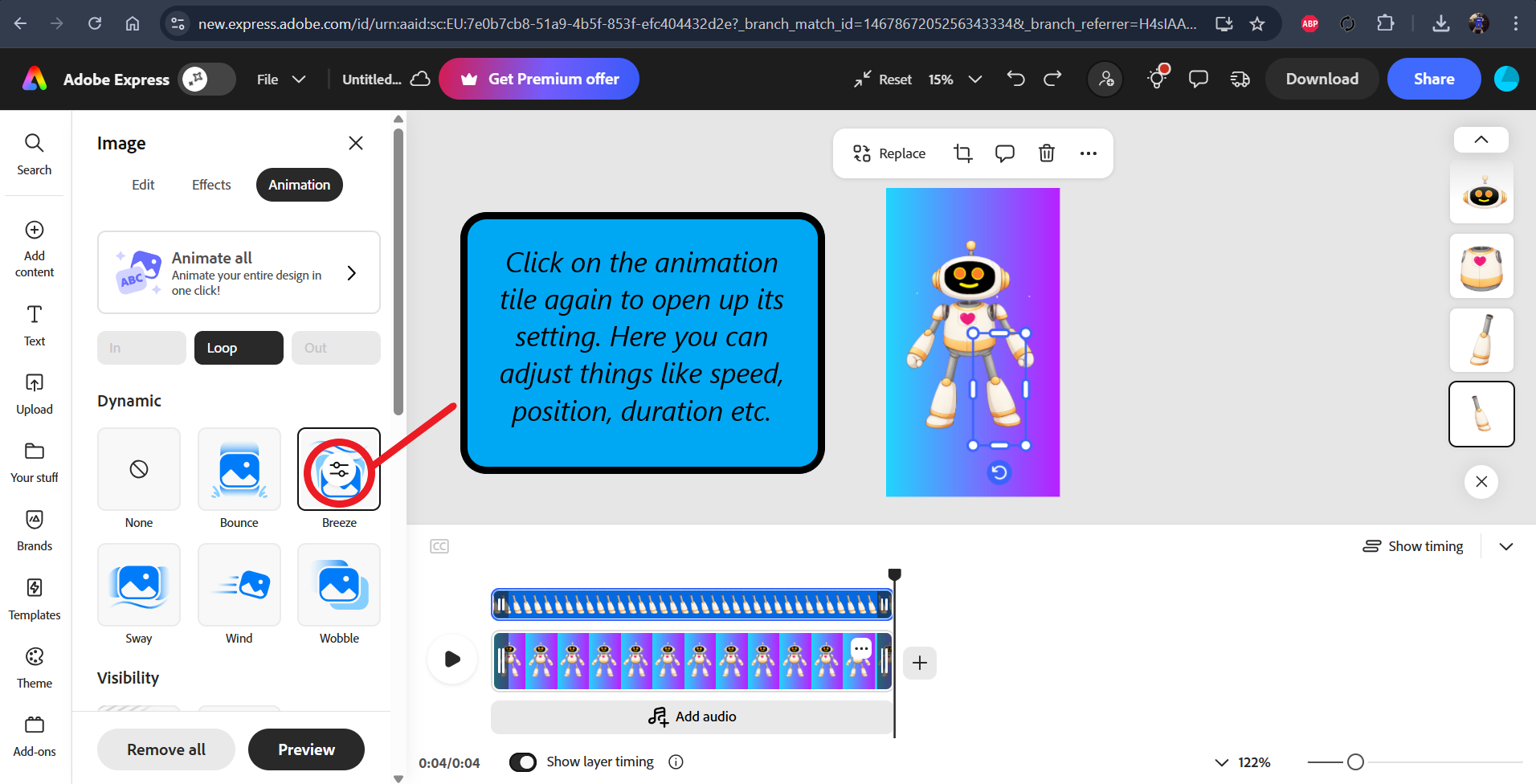
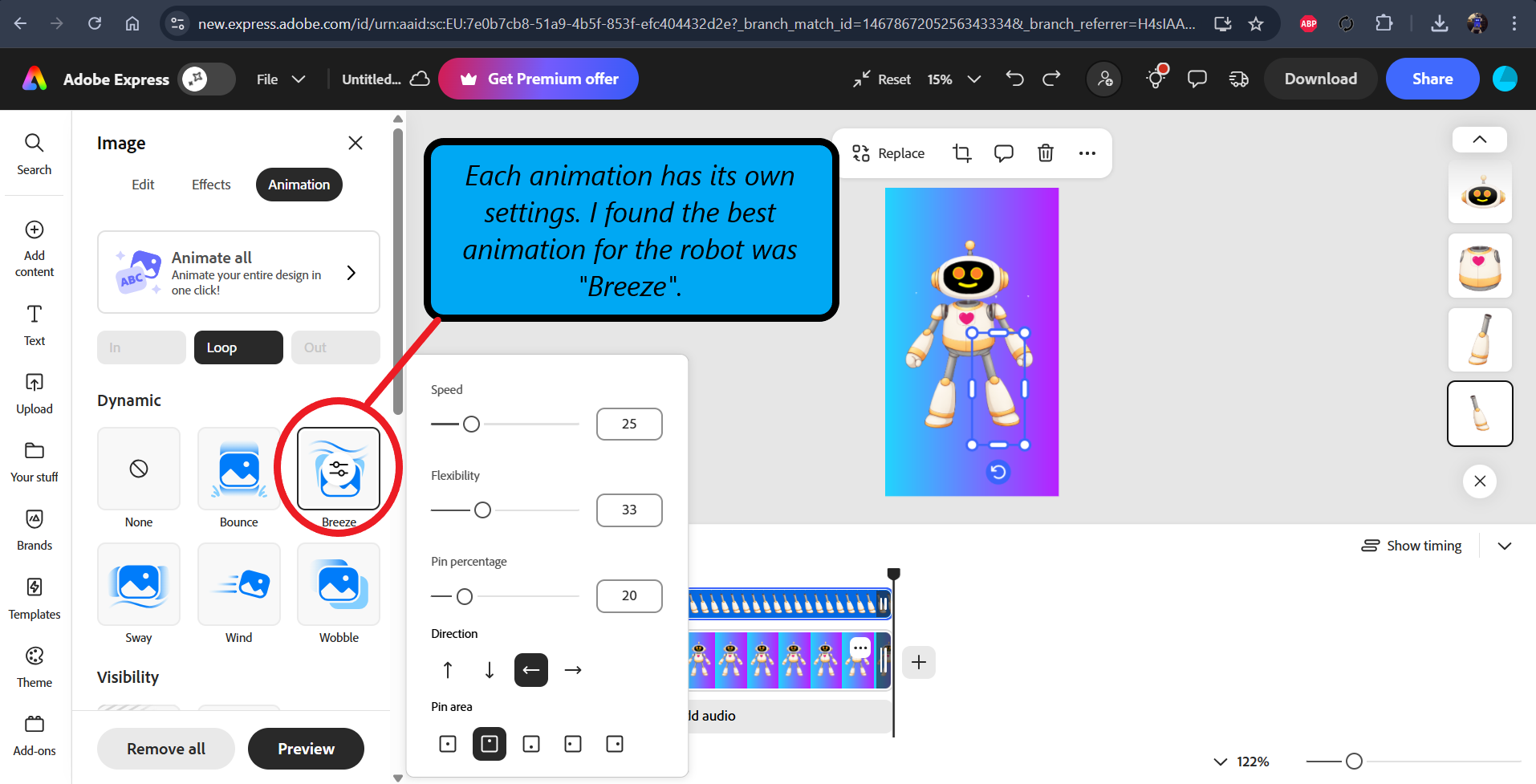
- Now click on the head > click ‘Animation’ > tap 'Loop' > tap the animation you want. I used 'Breeze' as this was the best one for most of the body parts. Click on 'Breeze' again which opens up the animation settings, then play around with the setting options, speed, positions etc. to get the movements you want.
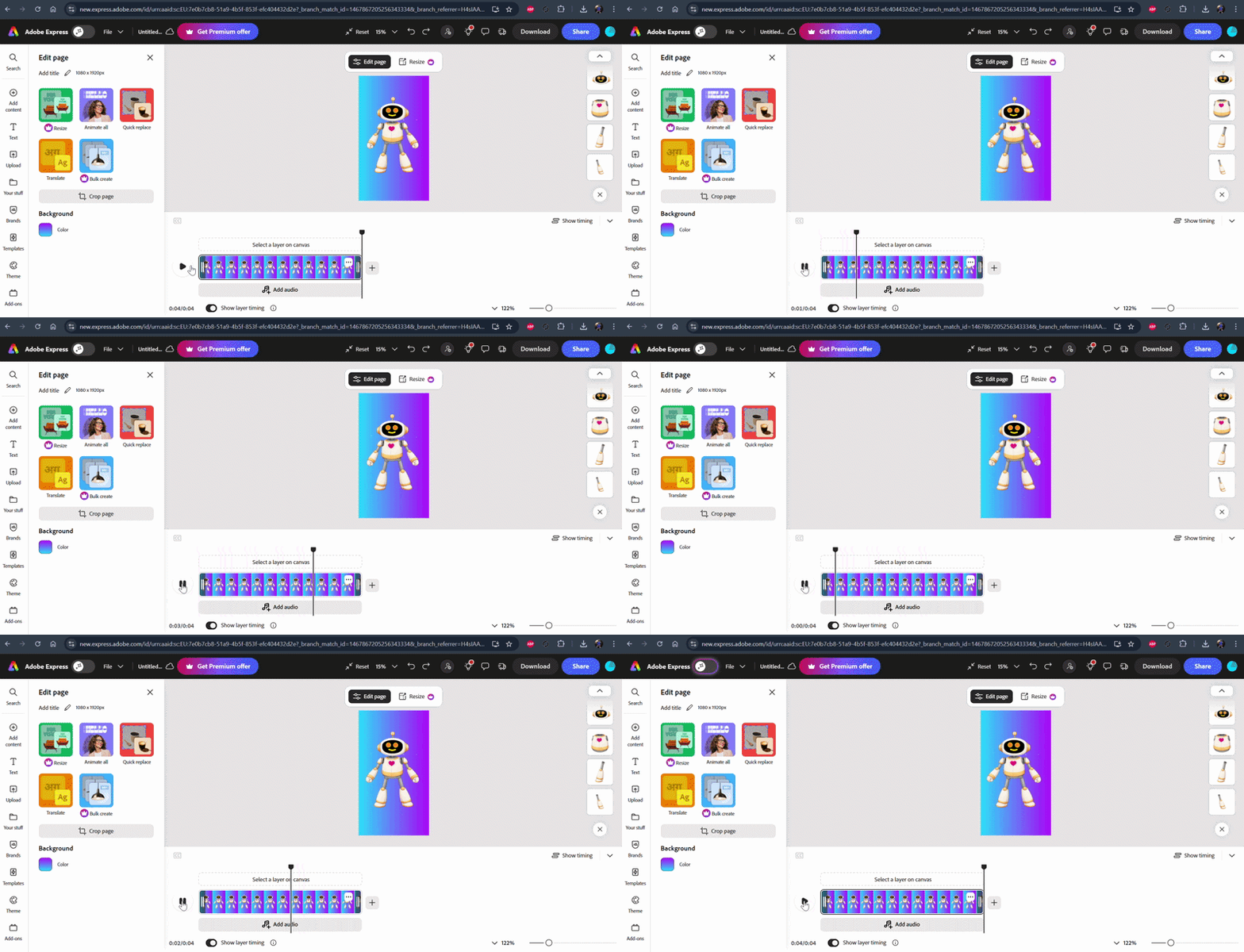
- Because we are using multiple moving images, follow stages 2 and 3 above for each image/layer, making subtle setting changes, but keeping the speed the same, to the animations. making any changes subtle well help the GIF loop seamlessly. You can press the play button on the timeline to test the animation, and also drag the timeline to to make the animation/GIF longer or shorter and to get a seamless loop.
- Then click the ‘Download’ button (top right corner) > change the file format to 'GIF' > and select the quality to 'High quality'. Your idle GIF is done.
- For the talking GIF, follow the above steps to add the mouth to the canvas > place it over the closed mouth on the head (make the open mouth a little bigger than the closed one) > click the 'Flicker' animation twice > and I found that setting both the speed and intensity sliders set to 100% worked best for the talking effect. When happy, export as best quality GIF.
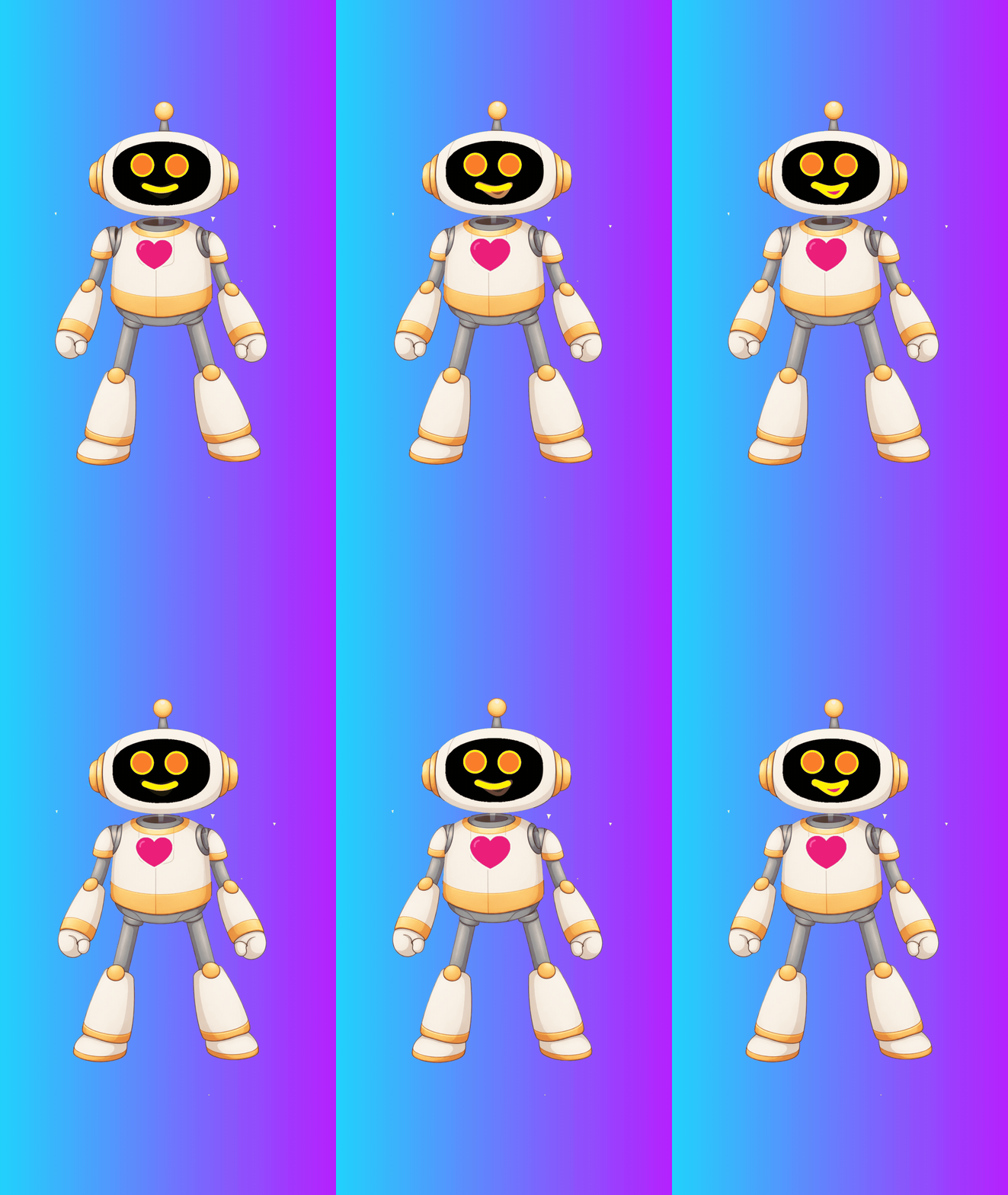
- And for the talking/waving, click the left arm > use the rotate tool to turn the arm upside down > drag to reposition it > then set speed to 71, flexibility to 22, pin percentage 20, direction left, and pin area set to bottom. This gave me a decent waving effect while the robot was talking. Drag the timeline so the waving arm position is the same for the start and the end so it loops well. Export as best quality GIF, and we are done with animating.
TIP: On the right hand side of the canvas, you will see your body part layers. To help tie in the connected body parts with movement, drag the arms and legs below the body, then you can hide the ends of these 'behind' the body so the look attached, and not floating 'over' the body.
NOTE: I found this helpful while writing the code later on, when I saved the waving, idling, speaking files, I named the files all starting with lowercase letters because I found that coding is mainly written in lowercase, and using upper and lower case is the difference between working and none working code if you get it wrong (Idle.gif vs idle.gif), as it is case sensitive... with the exception of text that is to be displayed on a screen, or spoken with text to speech.
Build the Interface (HTML - HyperText Markup Language)
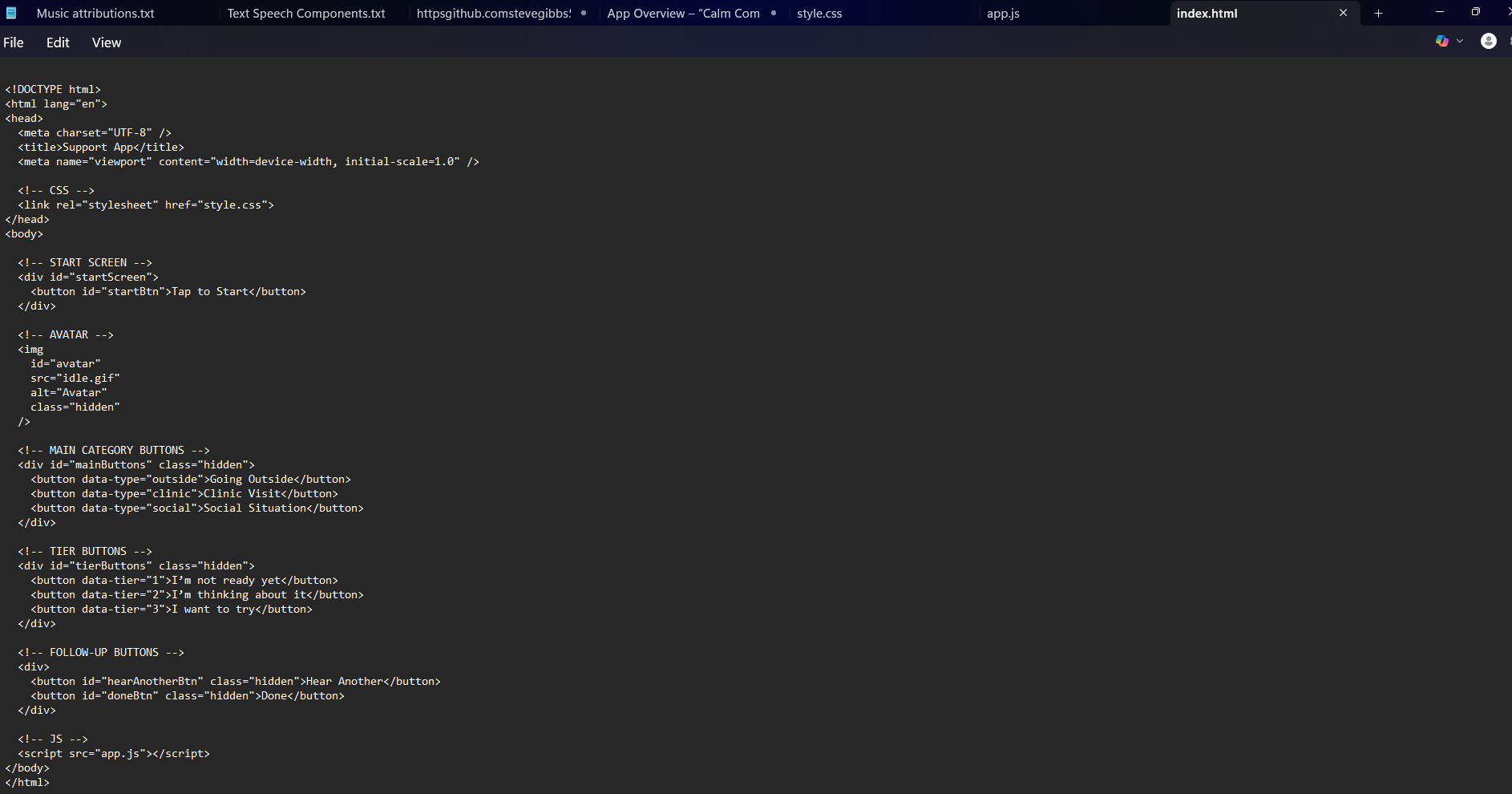
Now we start with the coding bit, the part I feared the most. This is about how the app looks and feels, not how it behaves. No logic, no speech, no animations switching yet. Just structure, layout, and visual comfort. The goal here is to create a screen that feels...
- Friendly
- Uncluttered
- Easy to understand at a glance
- Comfortable to tap on a phone
If this step is done well, the app already feels prepared before it ever speaks.
Keep the Interface Intentionally Simple:
This app is not trying to do a lot on screen at once. In fact, the less it does visually, the better. The basic layout consists of...
One large “Start” button: This is the first thing the user should notice. It needs to be...
- Clearly tappable
- Centred
- Large enough for shaky or hesitant hands
- There should be no confusion about what to press first.
A central character image:
- This sits above or near the middle of the screen and becomes the emotional anchor of the app.
- At this stage, it’s just an image or animation placed on the page.
- No swapping states yet, just making sure it’s sized correctly and centred.
A small number of clear buttons: I mentioned at the start that I have 15 buttons, but most are hidden until revealed...
- These will later become the choice buttons, but for now they’re just placeholders.
- Limiting the number of buttons reduces decision pressure and visual noise.
Soft colours and readable text:
- Choose colours that feel calm and non-threatening.
- Avoid harsh contrasts, pure black backgrounds, or aggressive reds.
- The text should be large enough to read without squinting, high contrast, but not stark, plain and simple in wording.
Laying Out the Screen:
Using HTML, we define where things live on the screen:
- The character is centred horizontally
- Buttons are stacked vertically, not scattered
- There’s breathing room between elements
- Nothing feels cramped or rushed
Spacing matters more than decoration here.
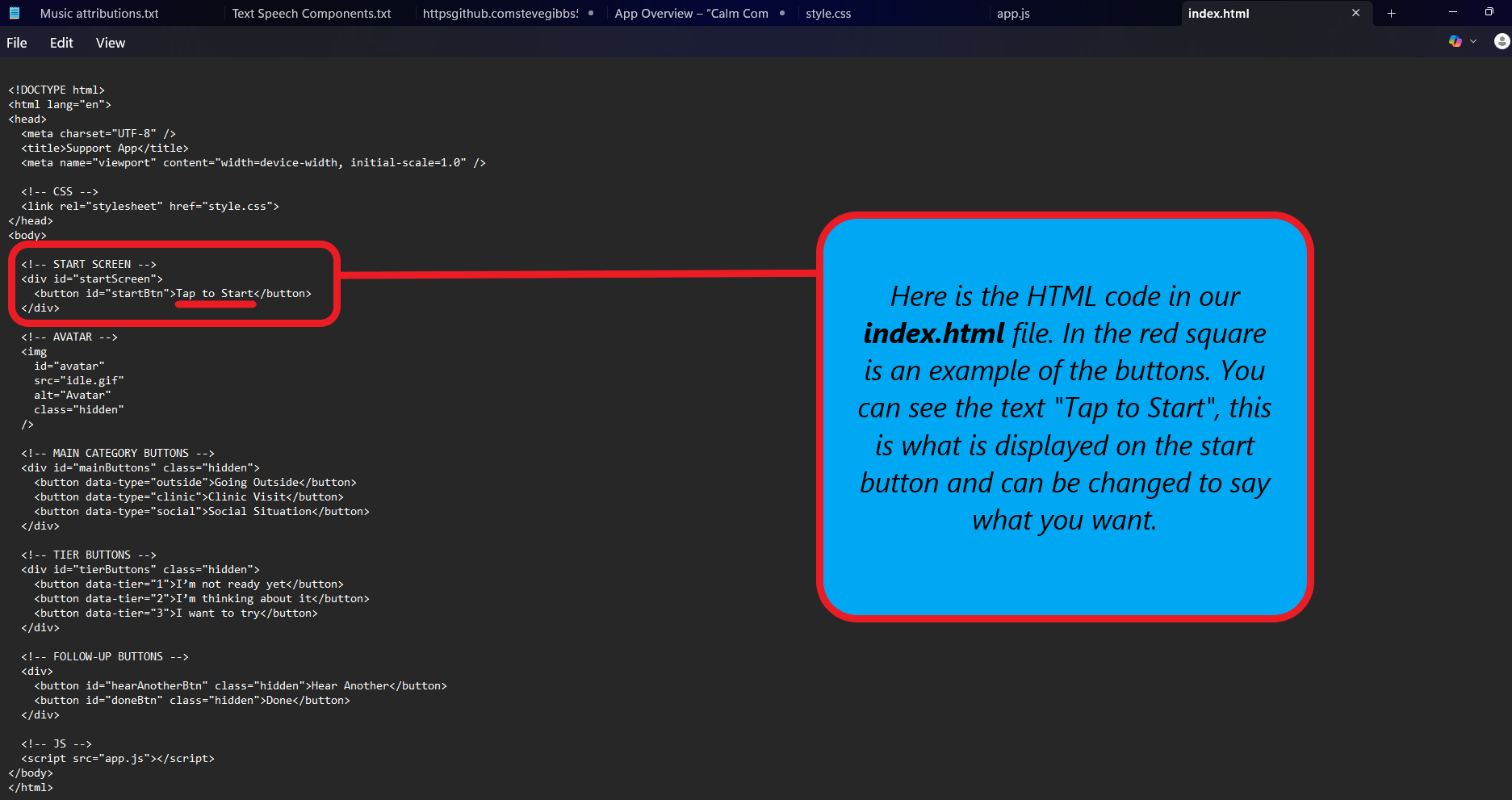
Below is the HTML code I wrote for my app. You will need something like Windows Notepad to paste the code in to, then save it in your 'My New App' folder. Name it (exactly as written)... index.html
If you want to edit or try writing your own code, Notepad++ (different from the standard Windows Notepad) is a free Windows code editor, but there are many other options available.
Build the Interface (CSS - Cascading Style Sheets)
Styling with CSS:
CSS is where you gently shape the experience. At this stage we...
- Increase padding so buttons are easy to tap
- Choose a background colour that supports a calm mood
- Ensure text contrasts clearly with the background
Designing for Mobile First:
This app is meant to live on a phone, so mobile comes first. When testing the interface later on, we will...
- View it the computer to make sure it works
- Check that buttons aren’t too close together
- Make sure nothing is cut off or requires scrolling
- Confirm everything can be used with one thumb
- Then test it again on the phone using MIT App Inventor
Nothing Moves Yet, For Now:
At this point:
- Buttons don't do anything
- No images change
- No speech plays
- No speech timers exist
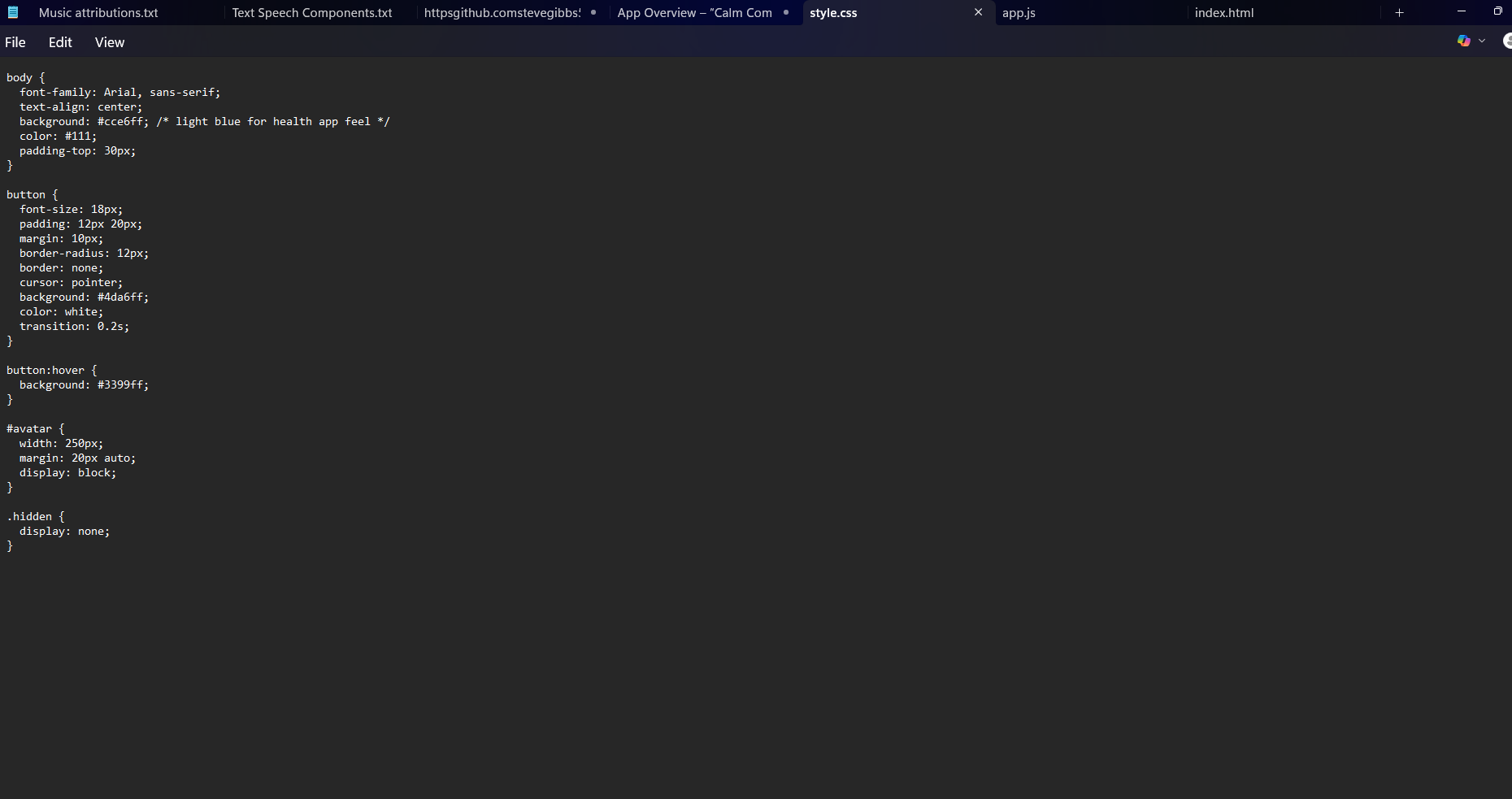
That’s where we need to be, this step is about structure and appearance only. By separating layout from behaviour, you make the project easier to understand, easier to debug, and far less stressful to build. Below is the CS code needed...
Save this in the 'My New App' folder and name it exactly as follows... style.css
Add Speech and Timing Logic (JS - JavaScript)
This is where the app becomes functional. Now the larger body of code below may look horrifying, but when you look at it, you will see that a lot of it is the face you own fear phrases, with the rest being how the app works. This took me a few attempts, and research to get this right. From what I have learned, JavaScript controls when things happen and in what order. For this app, it would be...
- A spoken greeting when the Start button is pressed
- Character state changes, switching between idle and talking
- Automatic progression when speech finishes, no extra taps needed
- Buttons appearing and disappearing only when they are relevant
- Random supportive phrases, each played one at a time with simple timers
A Quick Word On Swapping between GIFs and Text To Speech (TTS):
Before we move on, I wanted to mention something about something I wanted to do, and what I ended up doing. I wanted a way so the Idle GIF plays > button is pressed and Talking GIF plays along with TTS to say a phrase > and when TTS stops speaking, the Talking GIF automatically stops and switches back to Idle GIF. Trying to do this ended up like banging my head against a wall, after many attempts, I had an almost working app with this logic, but it broke other aspects of the app.
I could not get the app to full function, so after a week of trying, I decided to bench that idea for now and use timers instead... not ideal, but it worked ever time.
Why Timing Matters:
Each phrase, including the greeting, has its own timer (look for "duration *****"), this timer starts when TTS starts and the talking GIF shows. The timer last for as long it takes TTS to speak the phrases so when the speech stops, the idle Gif starts playing.
Pro... it works for what we need, it works every time.
Con... it takes trial and error to get the timing right for each phrase. And it is also dependent on the sample rate on the used TTS voice
So it was not the way I wanted to go and not a perfect solution, but it works without breaking the rest of the app... which made me happy. I did search and ask for help, was told that the utterance.onend was unreliable on Android (I don't know how reliable that response was), and as a last ditch effort I asked ChatGPT to generate a full working code... big mistake as that just made things worse. So with the correct text in the buttons, avatar showing properly, and the whole app functioning correctly with the timer solution, the result is an app that feels calm, predictable, and reassuring, exactly what’s needed when dealing with fear and anxiety.
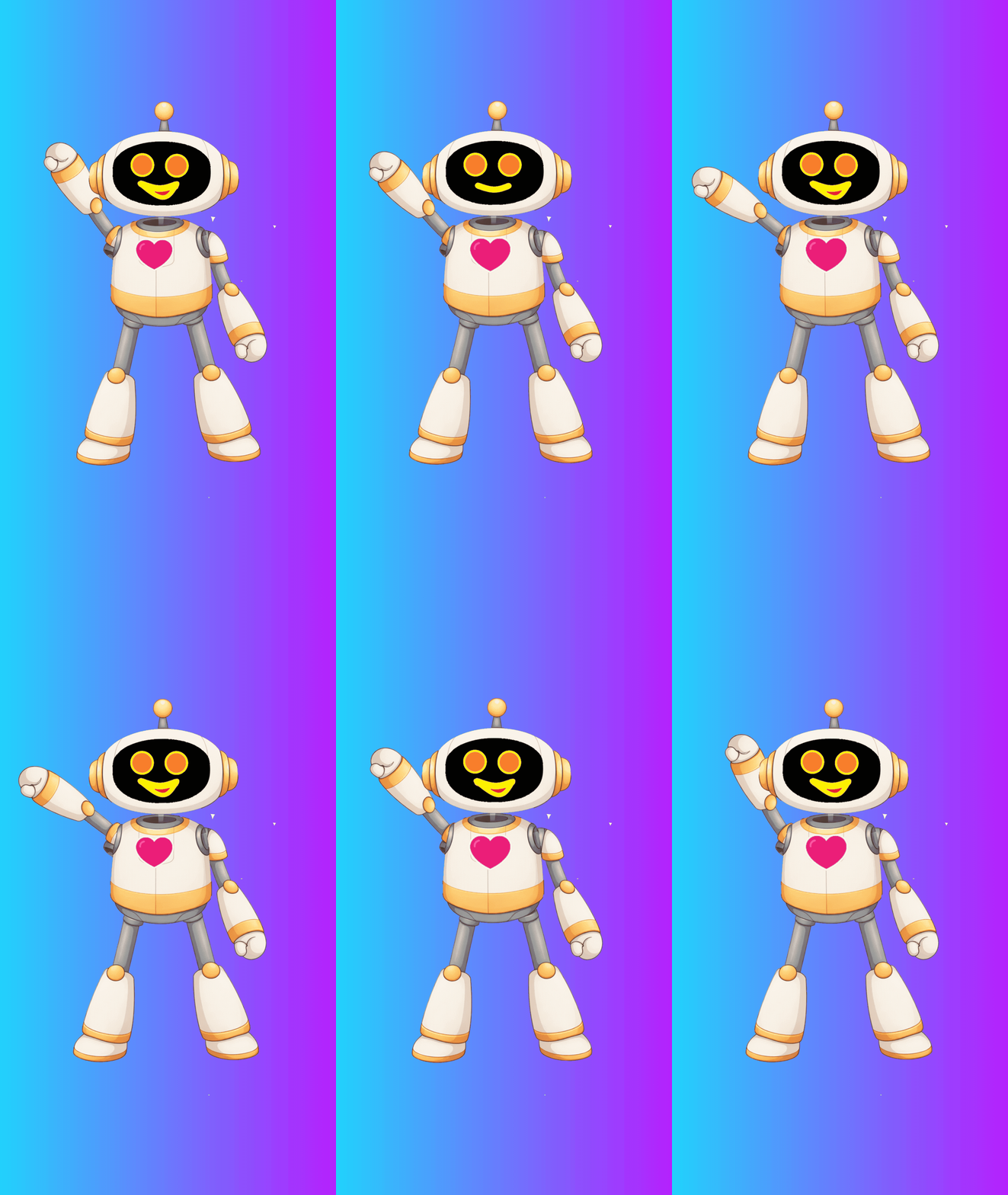
So the following is the full JavaScript code needed...
Save this in your new app folder, and mane it exactly as follows... app.js
Now we can test the whole thing. Open up your 'My New App' folder and open up the index.html file. Your app should open up in a web browser showing the avatar and the Tap to Start button. click the button and the three subject buttons should show. Click one and the three ladder buttons should now show. Click one and the talking GIF should start along with the TTS that speaks a randomly picked phrase (the TTS will use your computers TTS voice). When the speech stops, the idle GIF should start and the "Hear Another Thought" and Back button will show. Try these, and if they work, you have a successfully tested app. Next, we will set it up to play on your phone, the final testing.
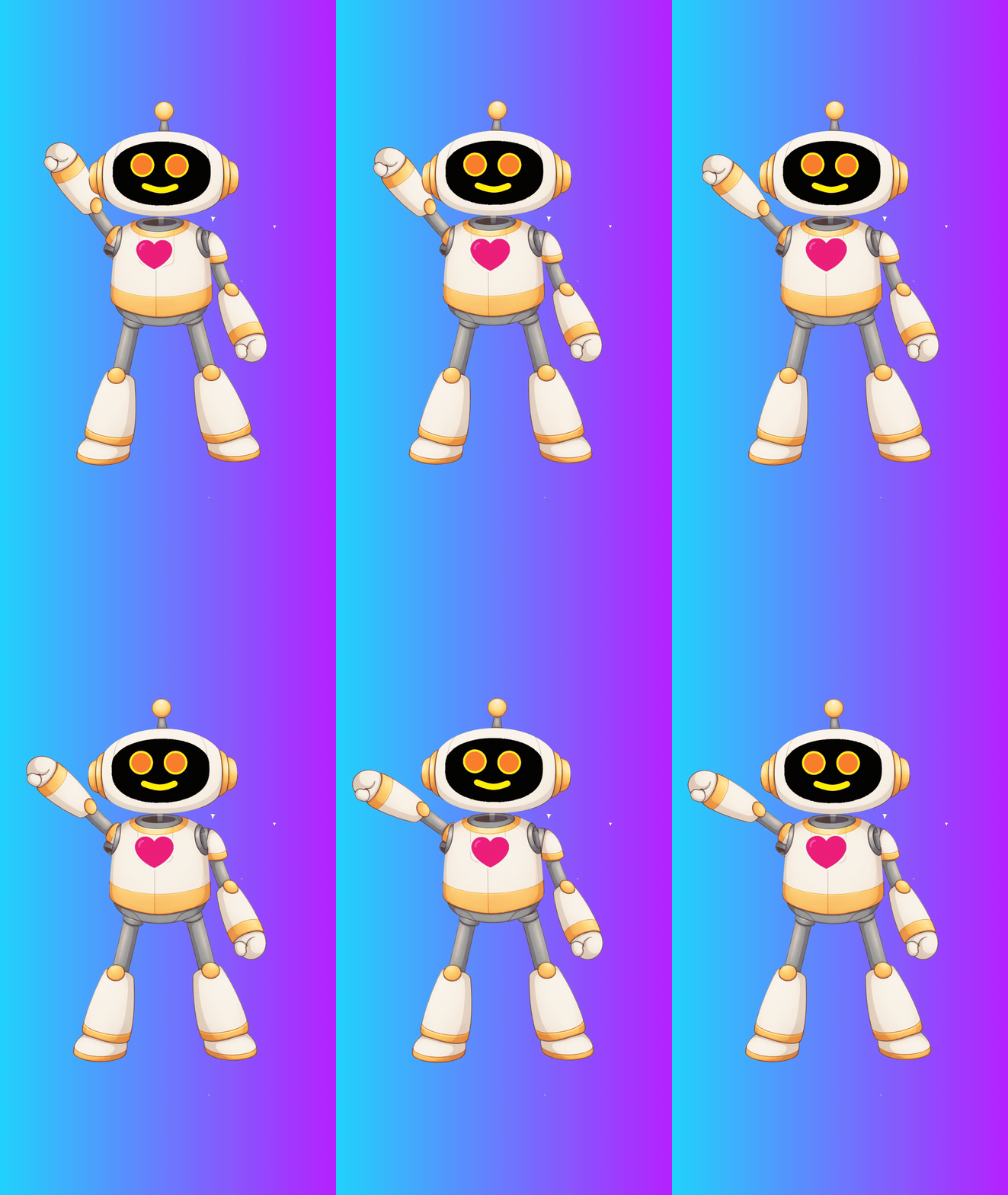
I have attached the robot GIFs if you would like to use them, just make sure they are correctly named talking.gif, idle.gif, waving.gif, all lowercase because they wont work with the above code set otherwise.
Moving Your Files to GitHub for Mobile Setup
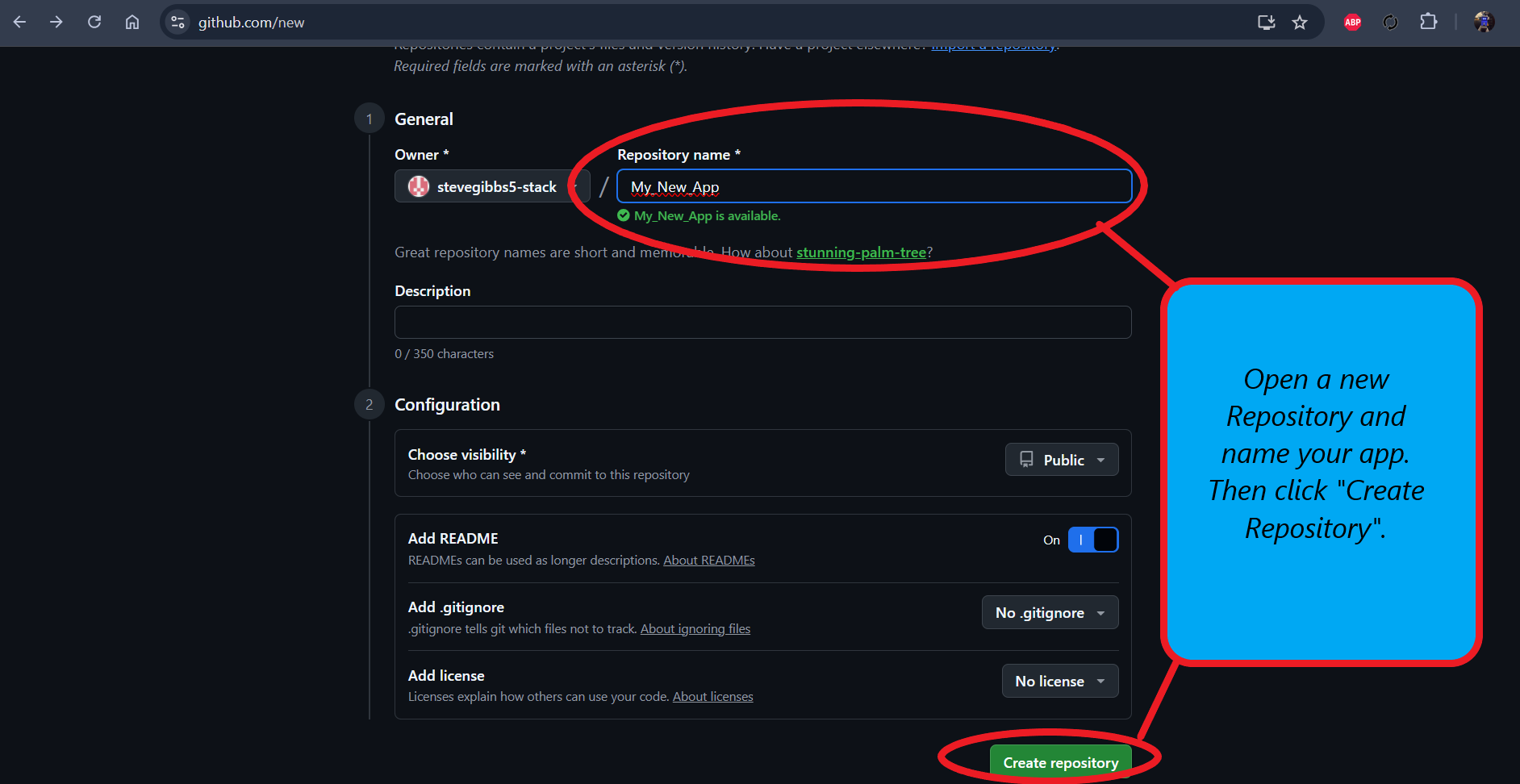
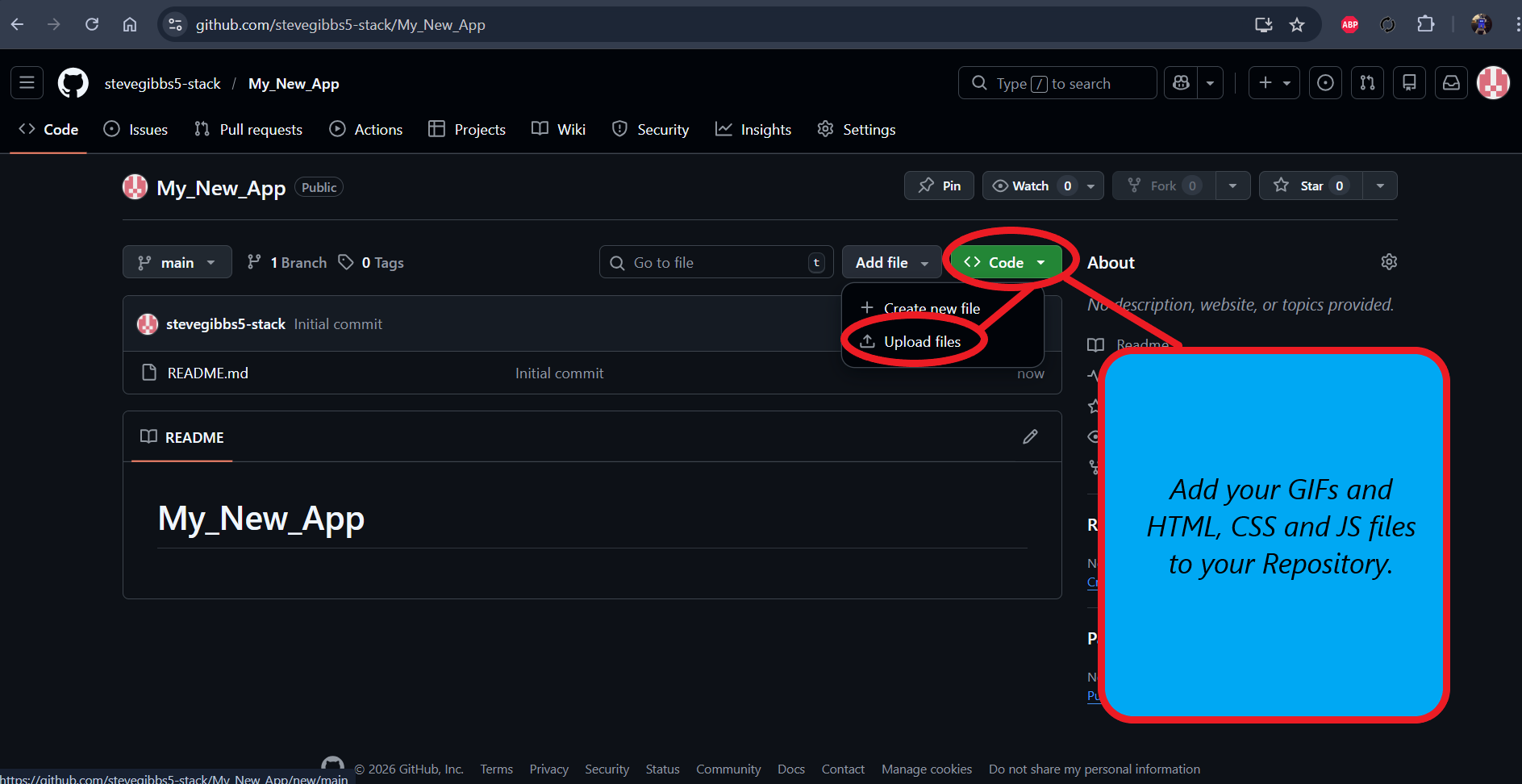
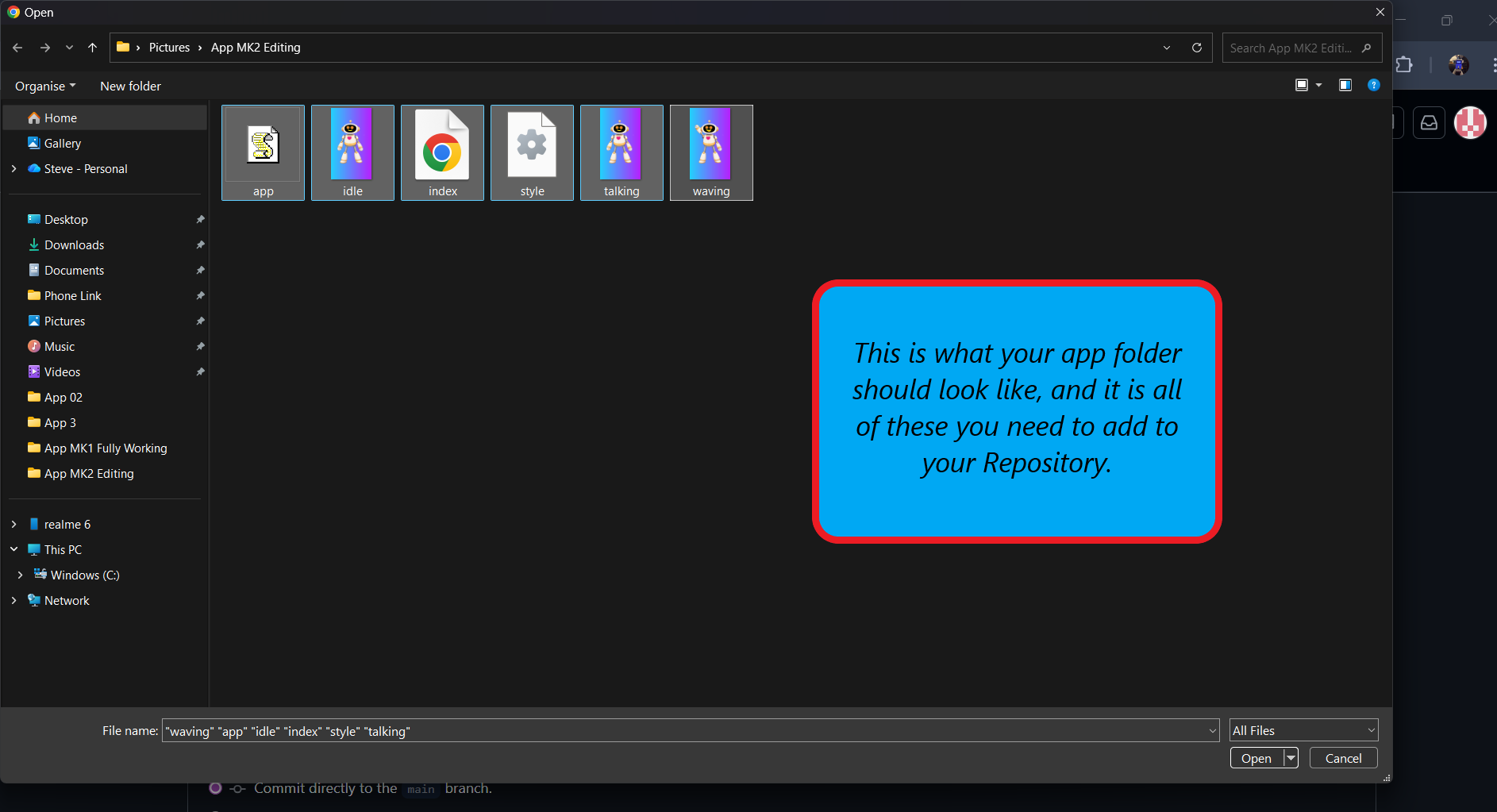
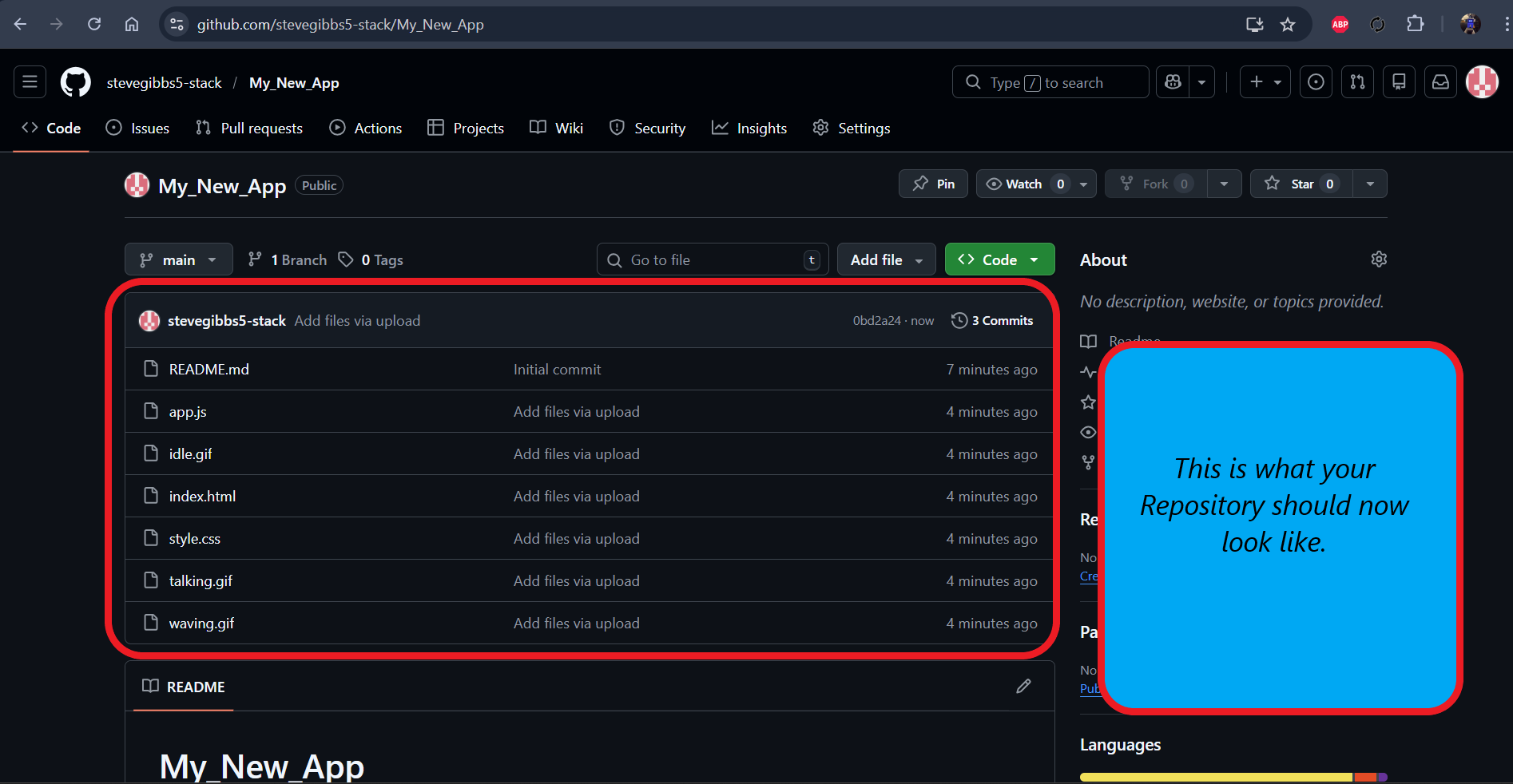
We now need to move our code and GIF files over to GitHub which is where the files will be retrieved from. One thing to mention, one of the main reasons for using GitHub is for using GIFs reliably. While there is an option to play GIFs using MIT App Inventor, there is a known issue that when I GIF is executed, it won't play and you end up with a static image, and was told that using something called WebViewer was a reliable way to get around this. This does however mean that the app needs to run properly on a connected device (a phone using a Wi-Fi or cell/mobile signal). So with that said, here is the GitHub setup.
- Search for GitHub on your computer browser and set up a free account. Once done, click your profile image (top right corner) and click Repository. This is where your projects will be stored, like our app.
- Click New > enter a Repository Name > click on the add README box > scroll to the bottom and click Create Repository.
- Now click on Add file > Upload files > then select all of the code and GIF files in you 'My New App' folder, then Open. When they finish loading, click Commit changes.
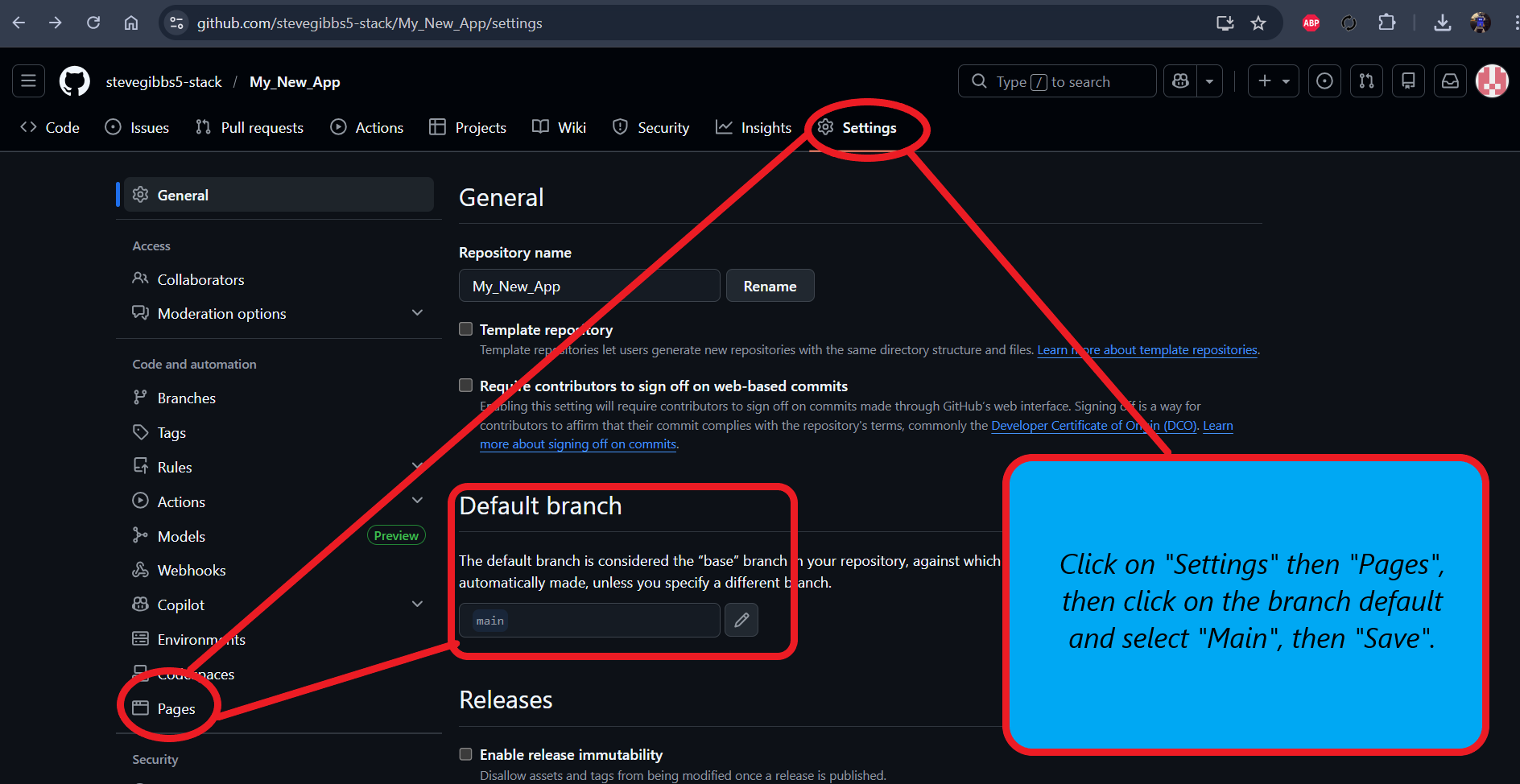
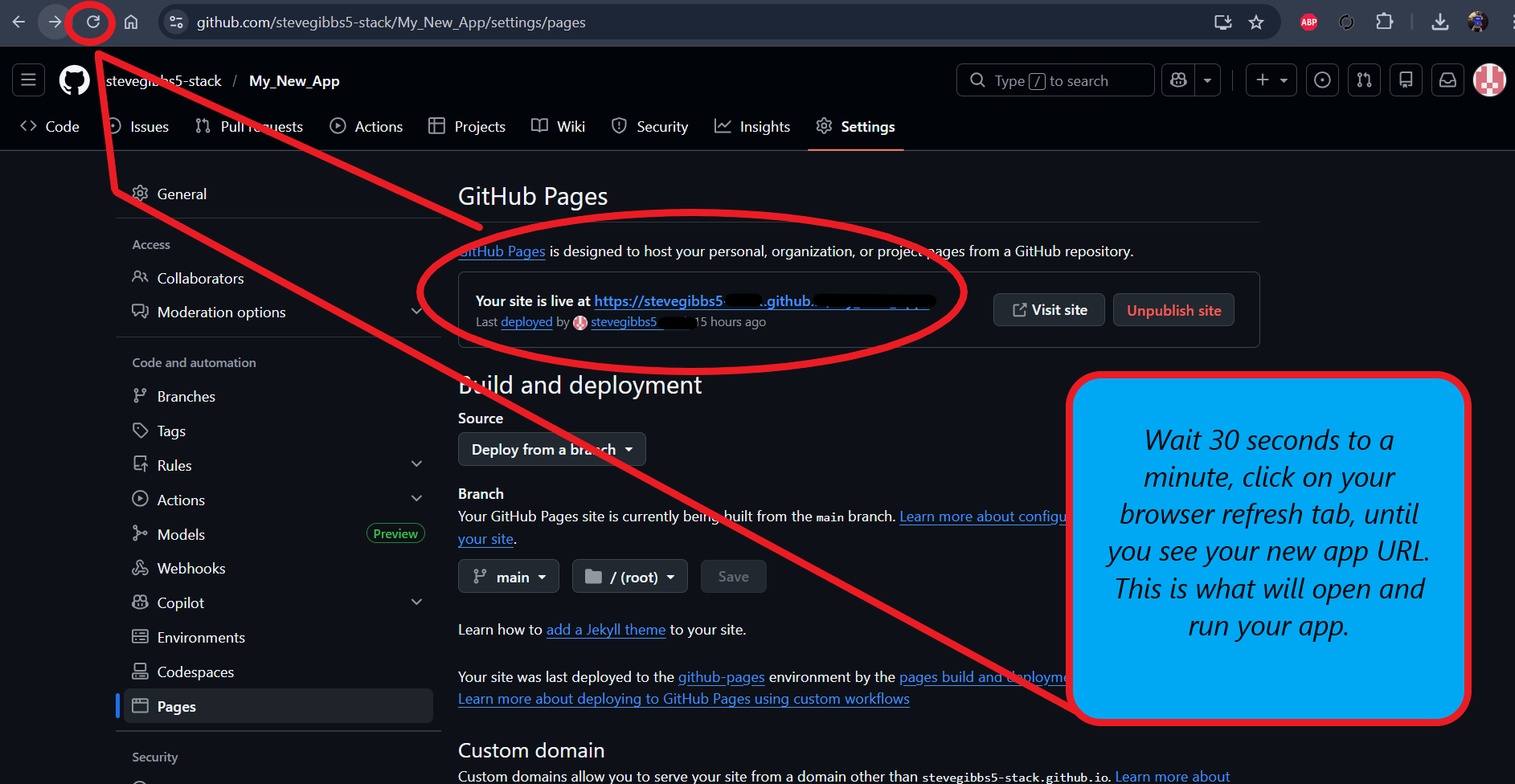
- Next, click Settings > Pages > then under Branch, click on None and select Main and Save. Wait for around 30 seconds to a minute and click on your browser refresh tab. What you want to see near the top of the page is "Your site is now live at" and a "URL" which is a link to your app. This URL is what we will need to add into MIT App Inventor, which is the next step.
You can either copy and paste your new URL somewhere, or leave this page open for now.
MIT App Inventor Setup
I mentioned earlier on that there are two ways to make this app, using code like we are doing here, or using the Blocks in app Inventor to make the entire app, as that is what MIT App Inventor is for. And although we are using code, we will use some App Inventor blocks here to get the app on our phone. The first thing we need to do is install the MIT AI2 Companion app on to our phone.
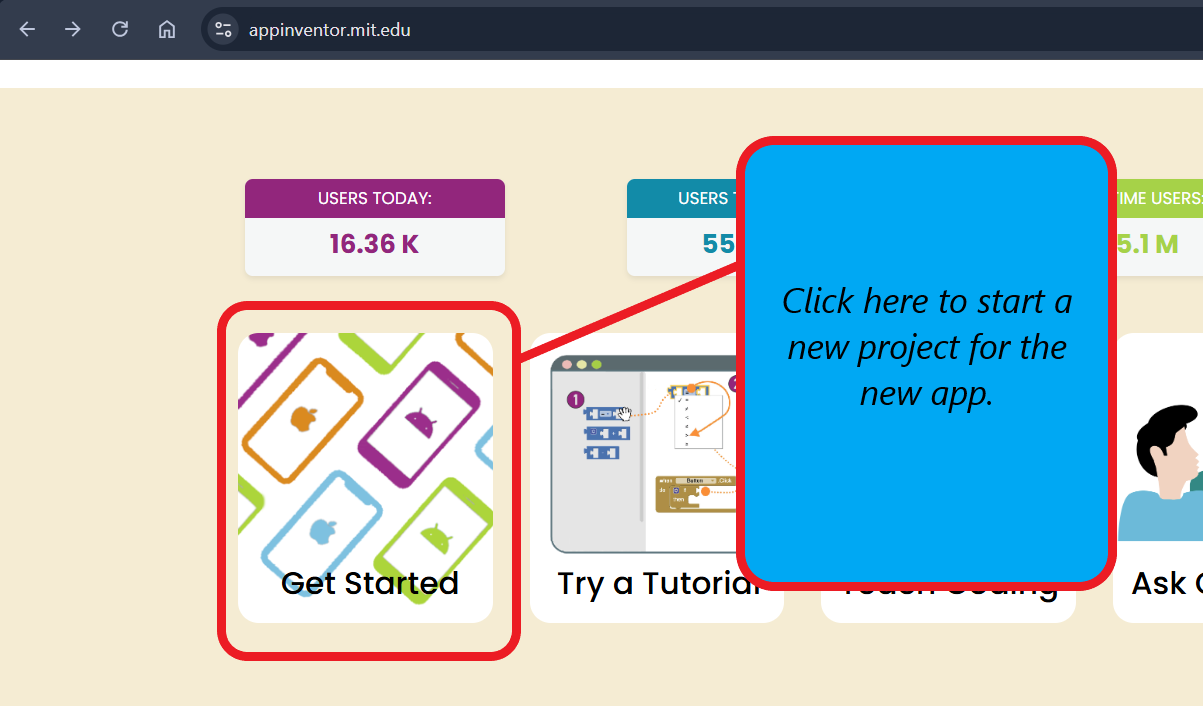
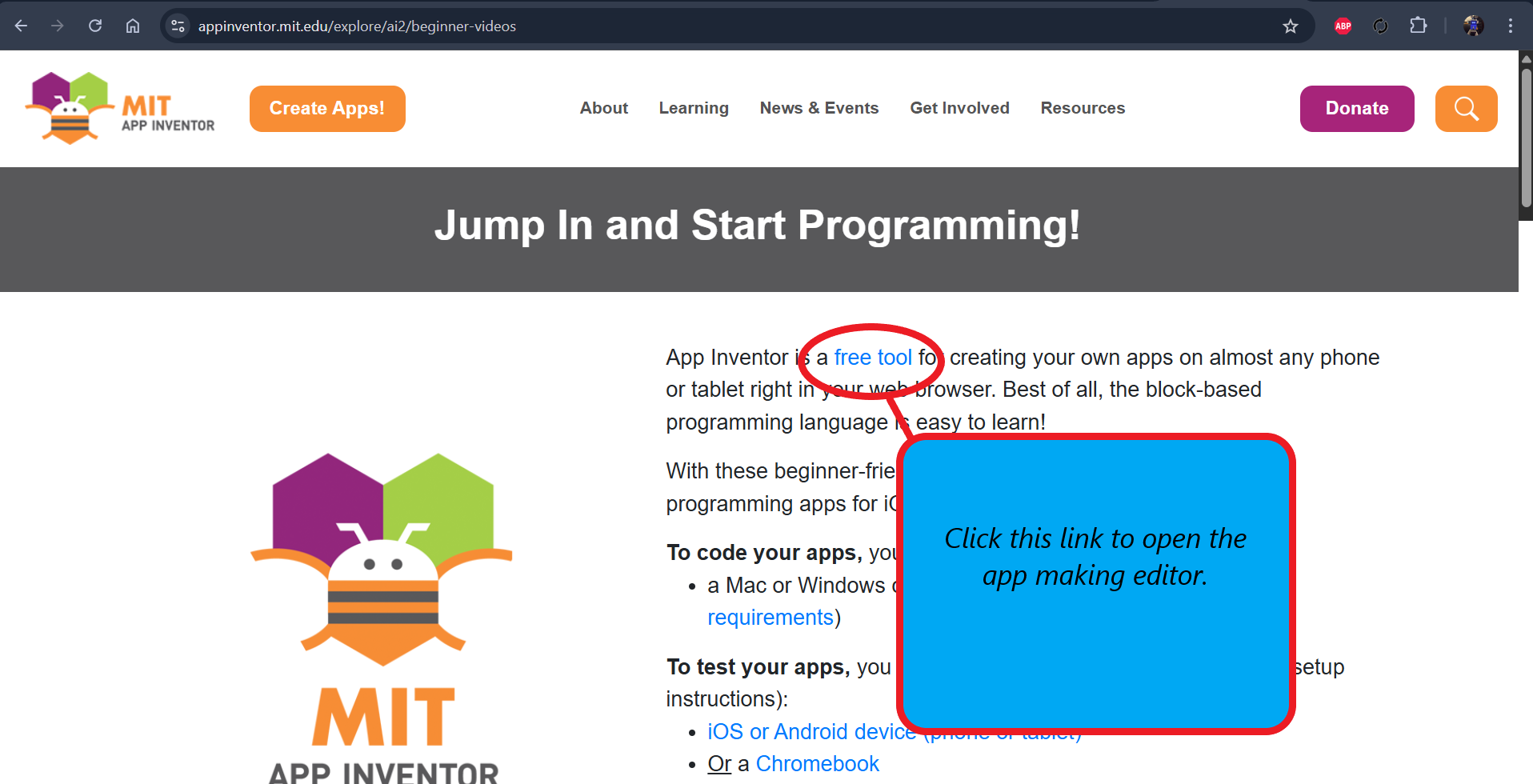
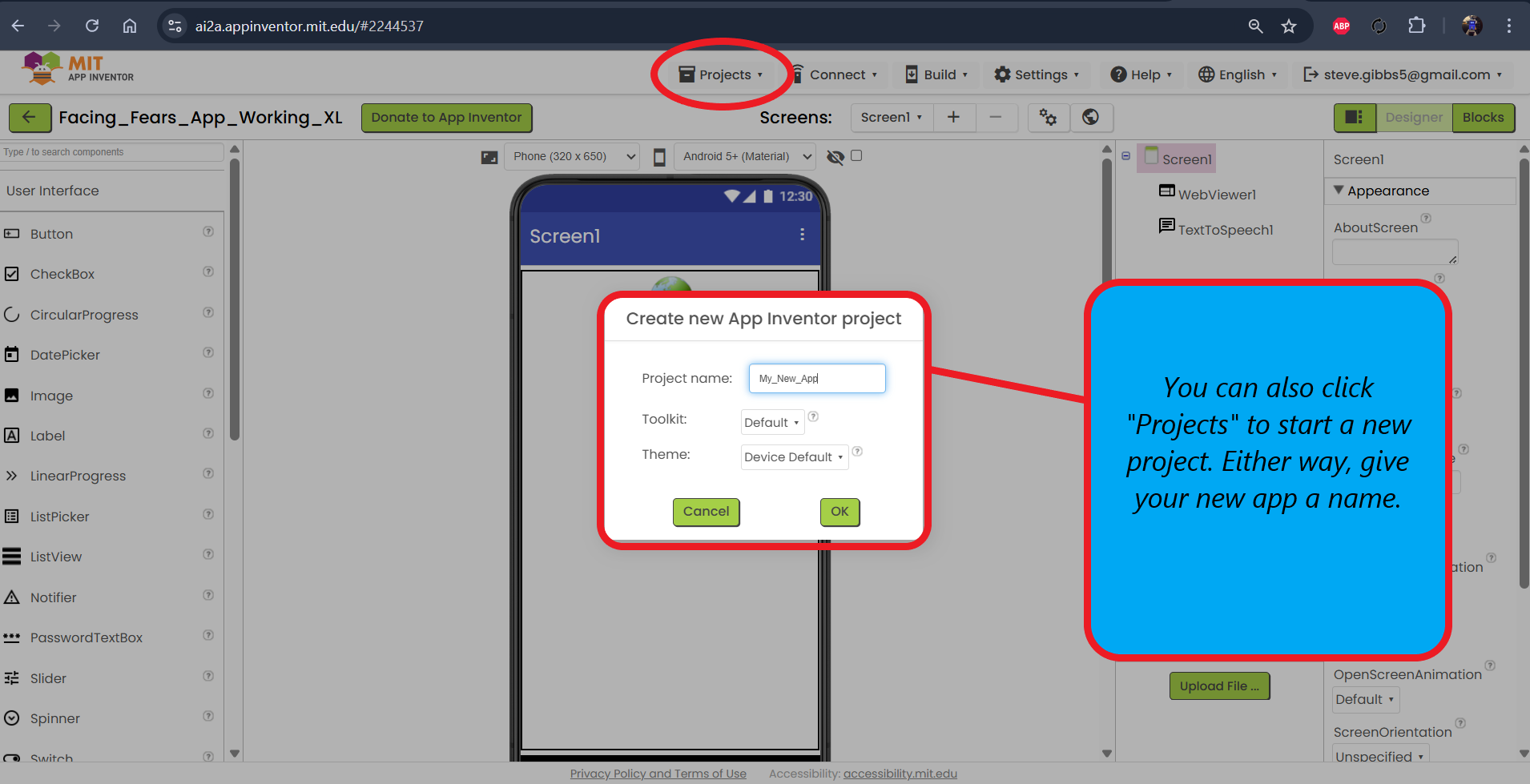
- Now open another web browser tab on your computer, and open MIT App Inventor and set up a free account. Once done, you should see a page with a Get Started tab. Click on that then look for a link in the first paragraph saying free tool. Click on this to open up the app creator.
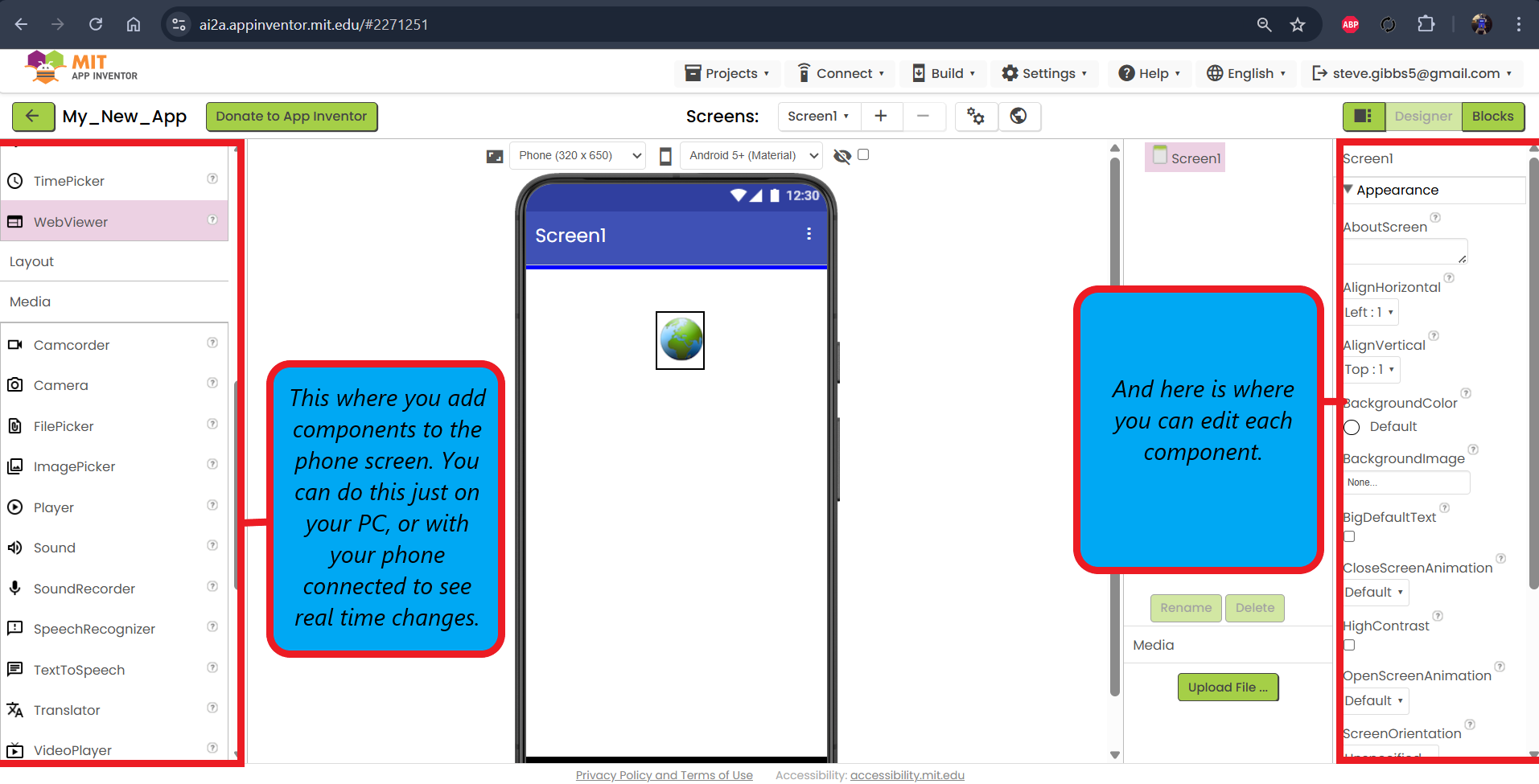
- Click on Start new project, and give it a name and click OK. You should now see an image of a phone with a list on your left, and some editing options on your right. To start, scroll down the left list and look for WebViewer, then drag it onto the phone screen. You should see a little Earth image. Now on the right hand side, the editor will now show options for the WebViewer asset. Look for HomeURL and paste in your app URL from GitHub.
- In the left hand list, click on Media, then scroll down to TextToSpeech and drag that onto the phone screen. This is an invisible image so you won't see anything on the phone screen when you release your mouse button/touchpad. That is all we need here.
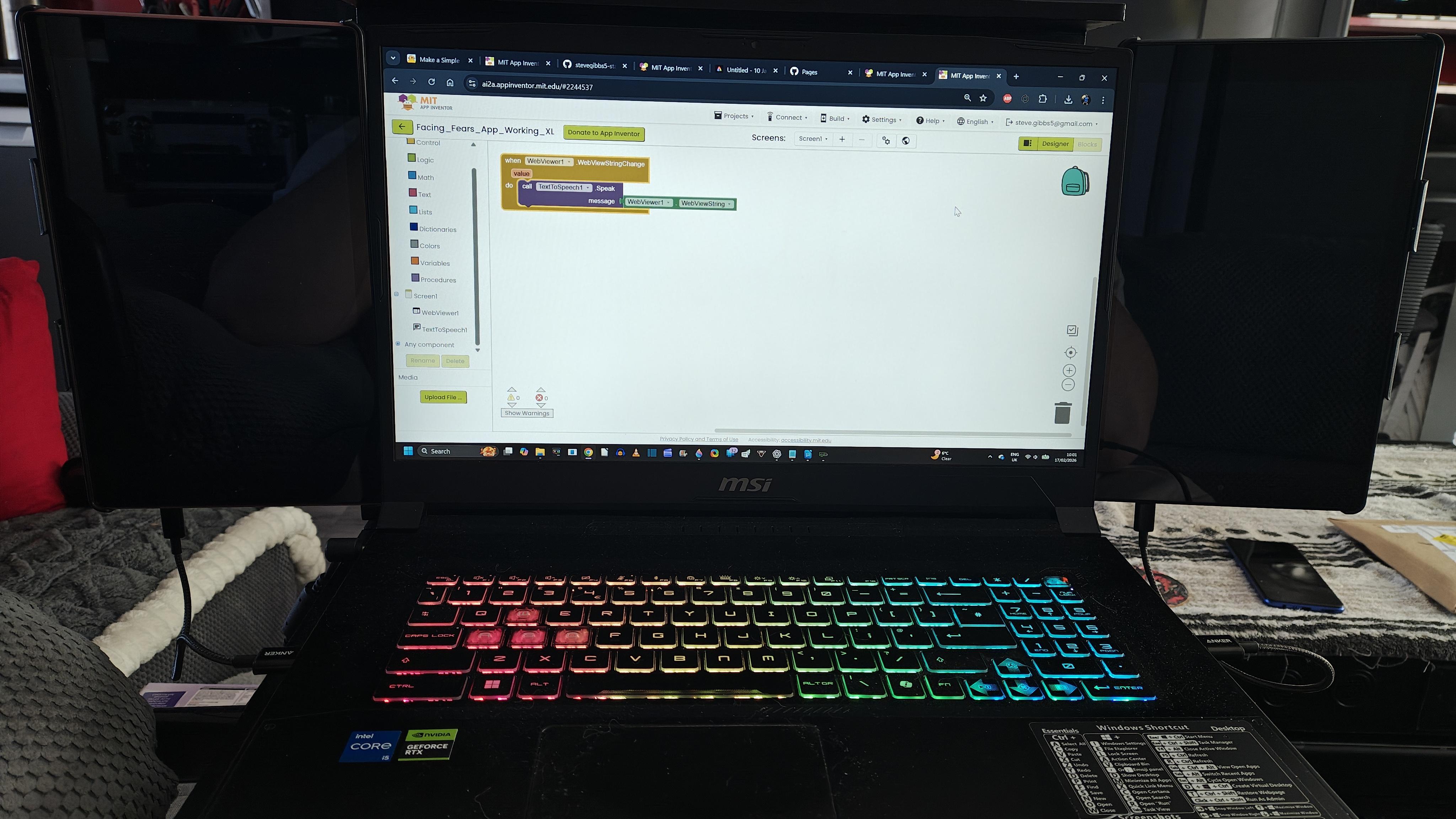
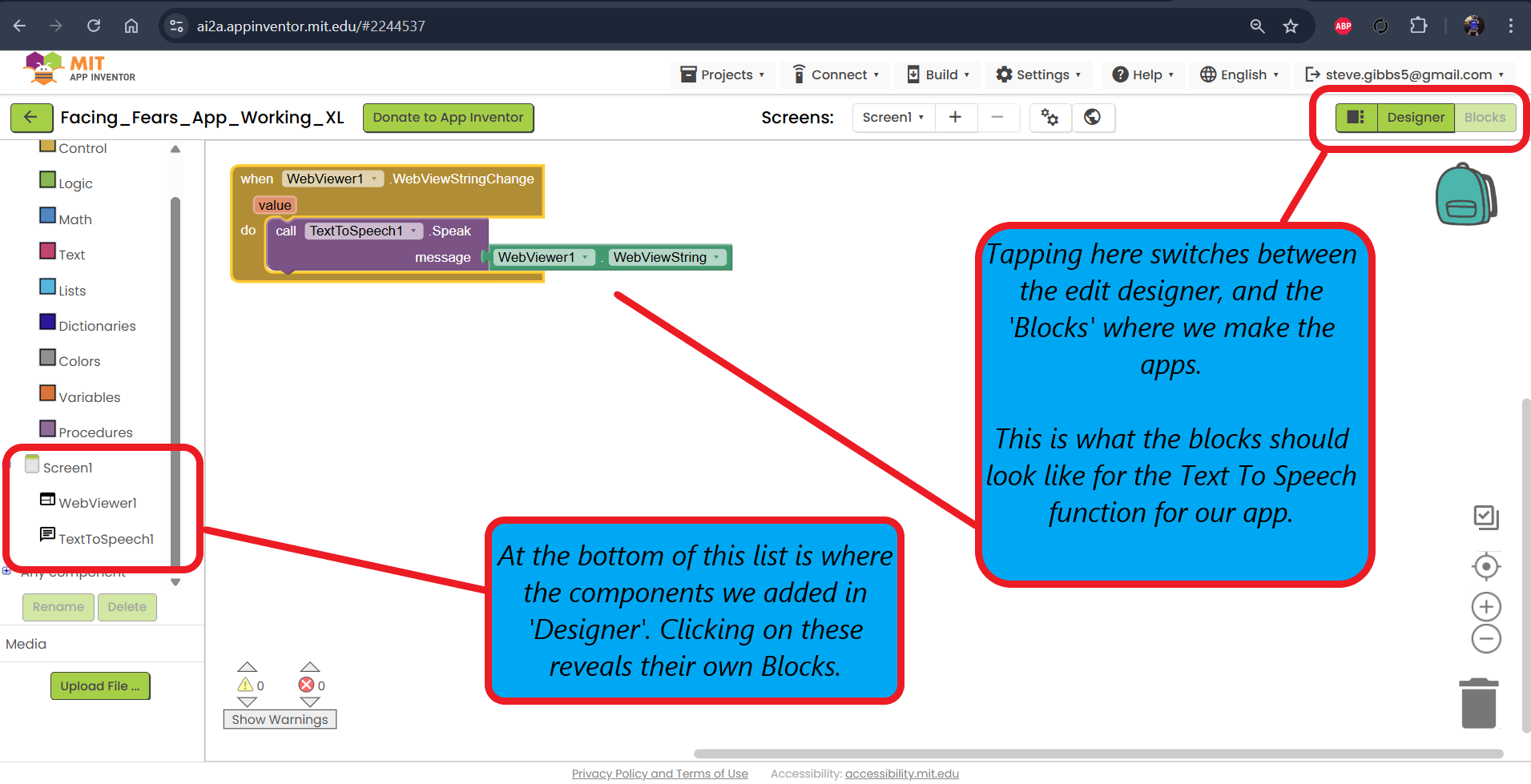
- So now click on Blocks (top right corner) where you will see a blank canvas with a list on the left which is where the blocks are. Scroll down the list and click on WebViewer1 (this is what you added earlier), then click and drag the when WebViewer1 .WebViewStringChange block on to the canvas.
- Click on the TextToSpeech1 from the list, then click and drag the call TextToSpeech .speak message block onto the canvas and place it inside of the when WebViewer1 .WebViewStringChange block. It might not look like it will fit inside, but the block will change size so it does fit.
- Now click the WebViewer1 asset from the list again, but this time click and drag the WebView1 WebViewString block so it clicks onto the end of the text to speech block.
- And that is all the blocks we need. Now for the final test. Open the AI2 companion app on your phone, then on the computer click on the Connect dropdown, then AI Companion and you will see a QR code and a numeric code. Tap either Use code or Scan QR Code on the phone app and enter the number code or scan the QR code. Wait for it to load and you will now see your app on your phone. Follow the testing we did earlier on the computer when we used the index.html file, but this time the Text to Speech now relies on your phones built-in TTS voices. If its all looking and working as it should, there is one final job... top install our new app on our phone.
- Click on the Build dropdown, then select Android App (.apk) wait a few seconds and you will see a QR code. Now, scan the QR code with a QR code reader or your phones camera app if it supports QR code reading, but don't use the AI2 app companion. Click to download the app on your phone, then once downloaded, click install. Your new app is now on your phone ready to use whenever you feel like you need to.
An important note, you may need to grant permissions on your phone to download apps from unknown sources. It could be Settings > Apps > Special app access > Install unknown apps, or Security > Unknown Source Installations > 'your browser' (Chrome etc.), it depends on your phone/Android version. Check online for your device and Android version if you're unsure. You may also get a message asking for Android to scan the app. Click yes or OK to install the app.
And something to note, once you start working in App Builder, you can connect you phone and see any changes you make in Inventor, in real time on you phone.
Adapt the App for Other Fears
Although this app was built around specific fears, I built the structure itself to be deliberately neutral. The same flow can be adapted to support any situation where reassurance, pacing, and gentle encouragement are helpful. At its core, the app always does the same thing...
- It speaks calmly
- It shows a friendly visual response
- It waits before moving on
- It never pressures the user
What changes is the content, not the behaviour.
What’s Safe to Change:
Have two versions of the app, a working one, and a practice one. With some patience, and a copy of the app that you can break and not worry about because you can delete it, make another working copy and start again, you should be able to customise the app without breaking its flow by changing...
- The categories or “subjects” (for example: uncertainty, starting something new, making phone calls, meeting new people, trying unfamiliar places)
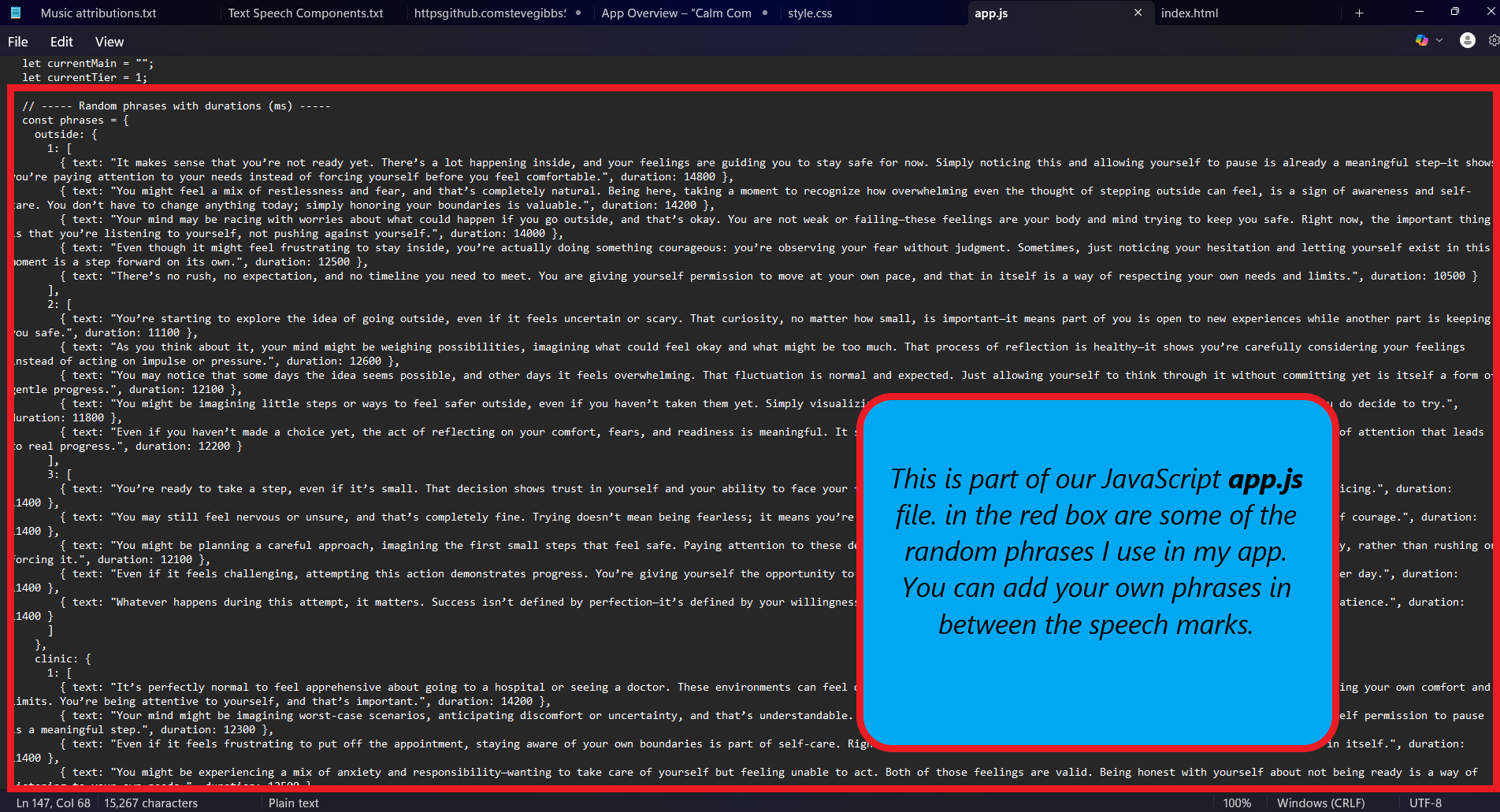
- The supportive phrases themselves
- The tone of the language (more practical, more emotional, more neutral)
- The pacing, by slightly adjusting how long each phrase is given, before the app continues
- The amount of random phrases stored (I have five for each ladder, but more or less can be used)
- The character’s appearance or style (human, animal, robot, static image, animation)
Because the app uses a calm, timed flow, each phrase is allowed to finish before the next step appears. This makes it especially suitable for fears where overthinking or anticipation is the difficult part.
What to Keep the Same:
Some elements are best left untouched:
- One action at a time
- Clear visual states (listening vs waiting)
- Automatic progression after speech
- No requirement for fast decisions
These design choices are what make the app feel supportive rather than demanding.
Why This Works for Different People:
I think fears are personal, but supportive structure is universal. By separating how the app behaves from what it says, the same design can be reused again and again for different fears, different users, or even different moments in someone’s life. In that sense, the app isn’t just about facing one fear. It’s about creating a calm space where facing different fears feels possible.
Conclusion
I have done some coding in the past using Basic and C++ coding language for my past robot builds, but they are few and far between, and I don't really retain what I learned and I soon forget most of it. So using HTML, CSS and JavaScript language was a new and daunting task I took on, and although the app is basic and simple, I am really please with the way it came out for my first attempt.
This project started as a way to help myself manage fear and anxiety, but along the way, it became something more personal. I didn’t just build an app about facing fears, I had to face my own while doing it...
- my fear of failure
- embarrassment
- making mistakes
- getting frustrated
- Fear of being judged
- my project not being good enough
- and fear of wasting time or effort and ending up with nothing
Although I have made user interfaces for mobile devices and computers, I had never made an actual app before. I didn’t know if I could make it work, if it would look right, or if I’d even understand the tools well enough to finish it. There was a real fear of wasting time, getting stuck, frustrated, sharing something people might not like, or ending up with something that didn’t reflect what I had in mind, if ending up with anything at all.
But I persevered after much trial and error and kept going, one small step at a time (partly the reason for the name of my app), using the same principles the app itself is built on. That’s what this project represents to me... not forcing progress, not rushing outcomes, just creating a calm space where it’s okay to try. The app doesn’t try to 'fix' fear, it doesn’t tell anyone what they "should" do. Instead, it listens, responds gently, and waits. That alone can make a difficult moment feel more manageable.
Because it runs entirely on 'your' phone and can be adapted to any situation, this project isn’t limited to the examples I’ve used. Anyone following this Instructable can tailor it to their own fears, their own words, and their own pace. In the end, this really is a two-for-one project... an app designed to help face fears, and a reminder that making something new, even when you’re unsure how it will turn out, can be a powerful way of facing your own.
If this helps even one person pause, breathe, and feel a little less alone in a difficult moment, then it’s done exactly what I wanted it to do. If you do decide to try and make your own app, I'd love to hear about it.
Thanks for reading, and happy making.