Must-known Ways to Transfer Contacts From IPhone to Samsung
by Miss PhoneTransfer in Design > Software
104 Views, 0 Favorites, 0 Comments
Must-known Ways to Transfer Contacts From IPhone to Samsung
)
When you get a new phone, how do you move your phone contacts to another one? In the eventuality that you are switching to a new Samsung Galaxy S7 edge from an old iPhone 5S, and now you are struggling to transfer contacts from iPhone to Android. Since that iPhone is equipped with iOS system while Samsung Galaxy is Android system, it's kind of a hassle to transfer data between them. Then which way will be your priority to adopt? Your answers would be much welcome below.
This Instructables will basically tell you three solutions to accomplish your contacts transferring between two phones of completely different kinds of system.
ICloud&Gmail-- Move Contacts From IPhone to Android
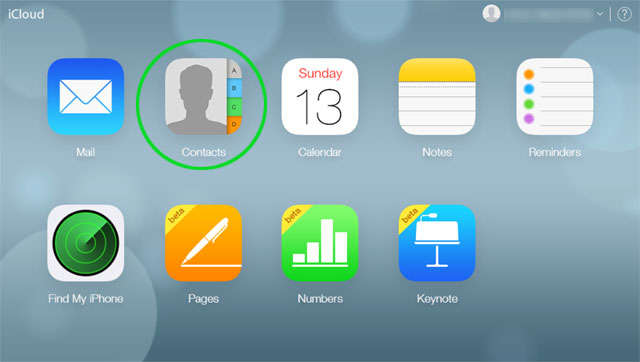
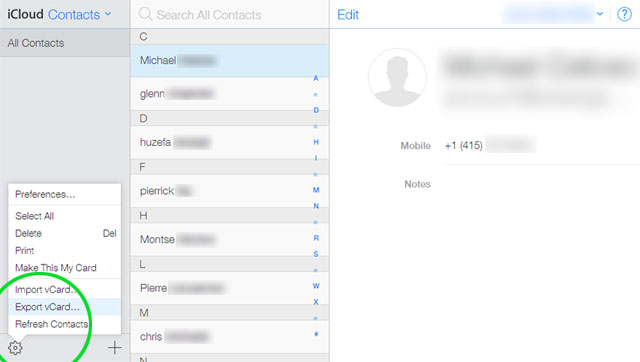
1. Go to iCloud.com via PC and log in your iCloud account
2. Select the Contacts you wan to export from iPhone 5S
3. Click the gear at the bottom left corner and select Export VCard to download VCF file
4. Connect your Samsung Galaxy S7 edge to the PC and import contacts from VCF file to the storage of the Samsung Galaxy phone. (OR skip to 5)
5. a. Sign in to your Google account. Click the Gmail logo at the top left corner of your dashboard.
b. Select contacts and click “More” from drop-down menu in Contacts, then select Import. c. When your Samsung Galaxy device is connected to this account, the contacts will be automatically synced there.
Gihosoft Phone Transfer-- Copy Contacts From IPhone to Android
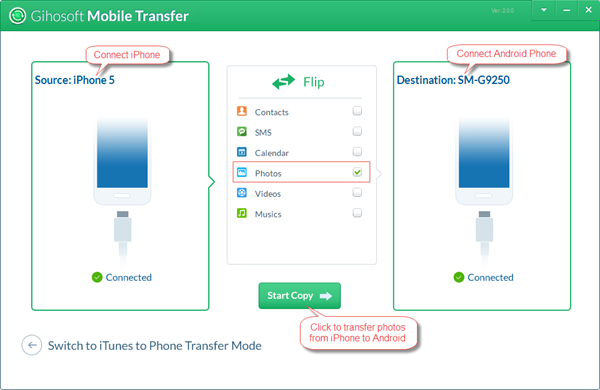
Gihosoft Phone to Phone Transfer software is a user-friendly and versatile software designed to provide users with a solution that transfers phone files with few minimalist steps.When transferring your importantly private contacts and text messages as well as other essential data like photos, music and video, it would be securely capable of meeting your all demands without information leaking.
1. Download and launch the Mobile Transfer software
2. Connect iPhone and your Samsung Galaxy devices to the PC
3. Tick the particular file Contacts
4. Click "Start Copy" to transfer your contacts from iPhone to Samsung Galaxy S7 edge.
Note: the transferring process usually ends in few minutes which actually depends on how large your file is.
ITunes: Transfer Contacts From IPhone to Android
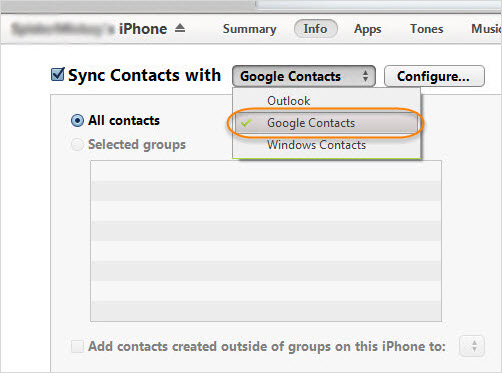
1. Install the latest iTunes on PC
2. Connect iPhone to the computer via USB cable, and open summary settings in iTunes.
3. Go to “Info" tab, tick Sync Contacts with and choose Google from the drop-down list.
4. Enter your Gmail username and password to sync contacts to Gmail
5. Add the Google account(Settings> Accounts) in your Samsung Galaxy S7 edge to sync the contacts
You may need these: