Mr. Pepper PC Build

Why build a PC by yourself? The main benefit is that you can optimize your build for your specific tasks (like gaming, video editing, or programming) and avoid paying for parts you don't need.
Supplies
Before you start, make sure you have all your parts. It's helpful to lay them all out.
Case: The chassis that holds everything.
Power Supply Unit (PSU): Converts wall power to power for your components.
Motherboard: The main circuit board that everything connects to.
Central Processing Unit (CPU): The "brain" of the computer.
CPU Cooler/Heatsink: Cools the CPU (often comes with the CPU, but "aftermarket" coolers are better). Includes Thermal Paste (often pre-applied to the cooler).
RAM (Random Access Memory): Short-term memory for active programs.
Storage (Hard Drive or SSD): Long-term storage for your operating system and files (SSDs are much faster).
Prepare Accordingly
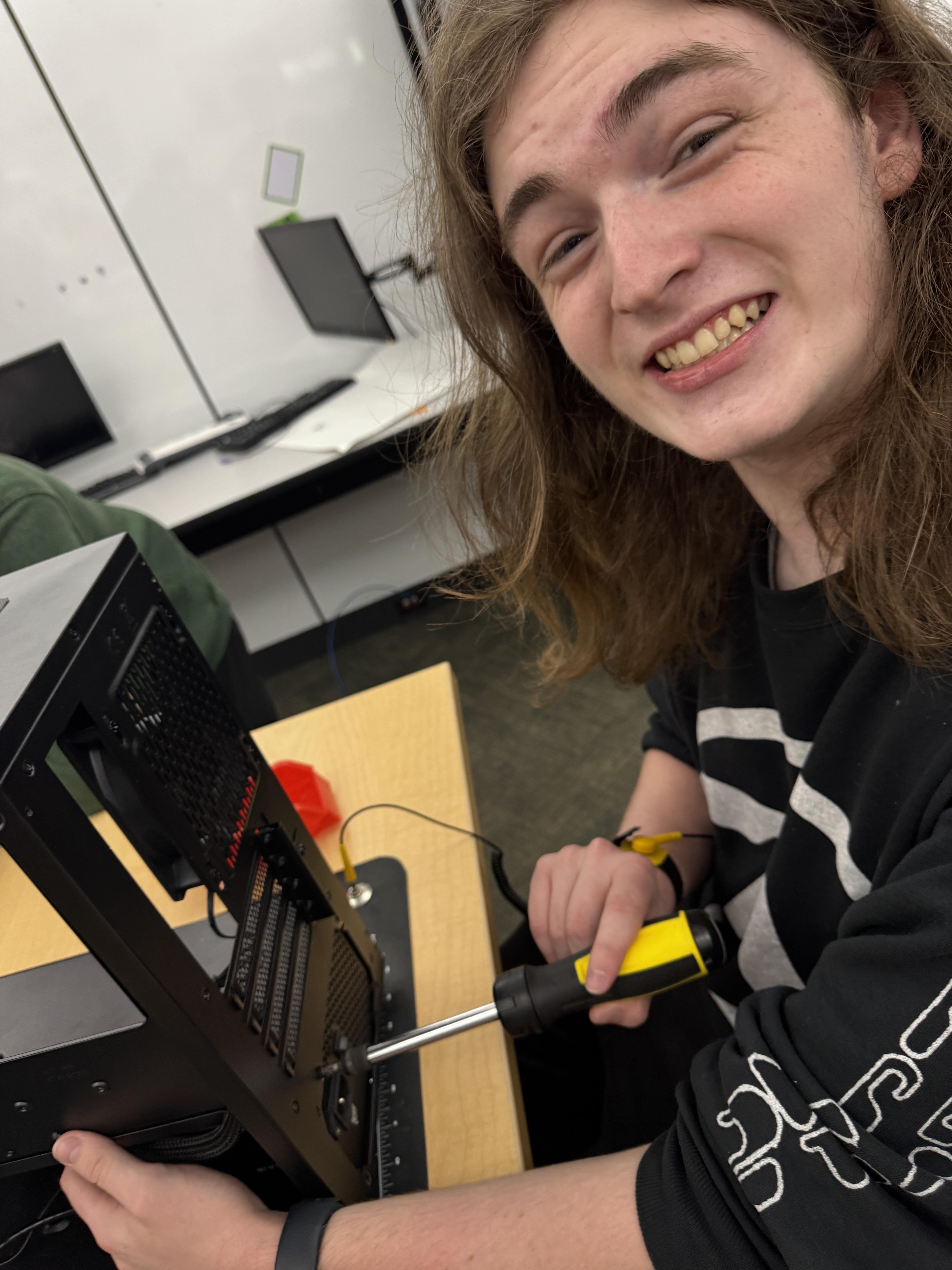
Make sure you have all necessary components and safety materials. Put on a grounded ESD wristband.
Insert RAM

Take the RAM sticks and install them by unclipping the slot and pushing down carefully but firmly. Ensure the notch on the slot is lined up with the RAM.
Insert the CPU
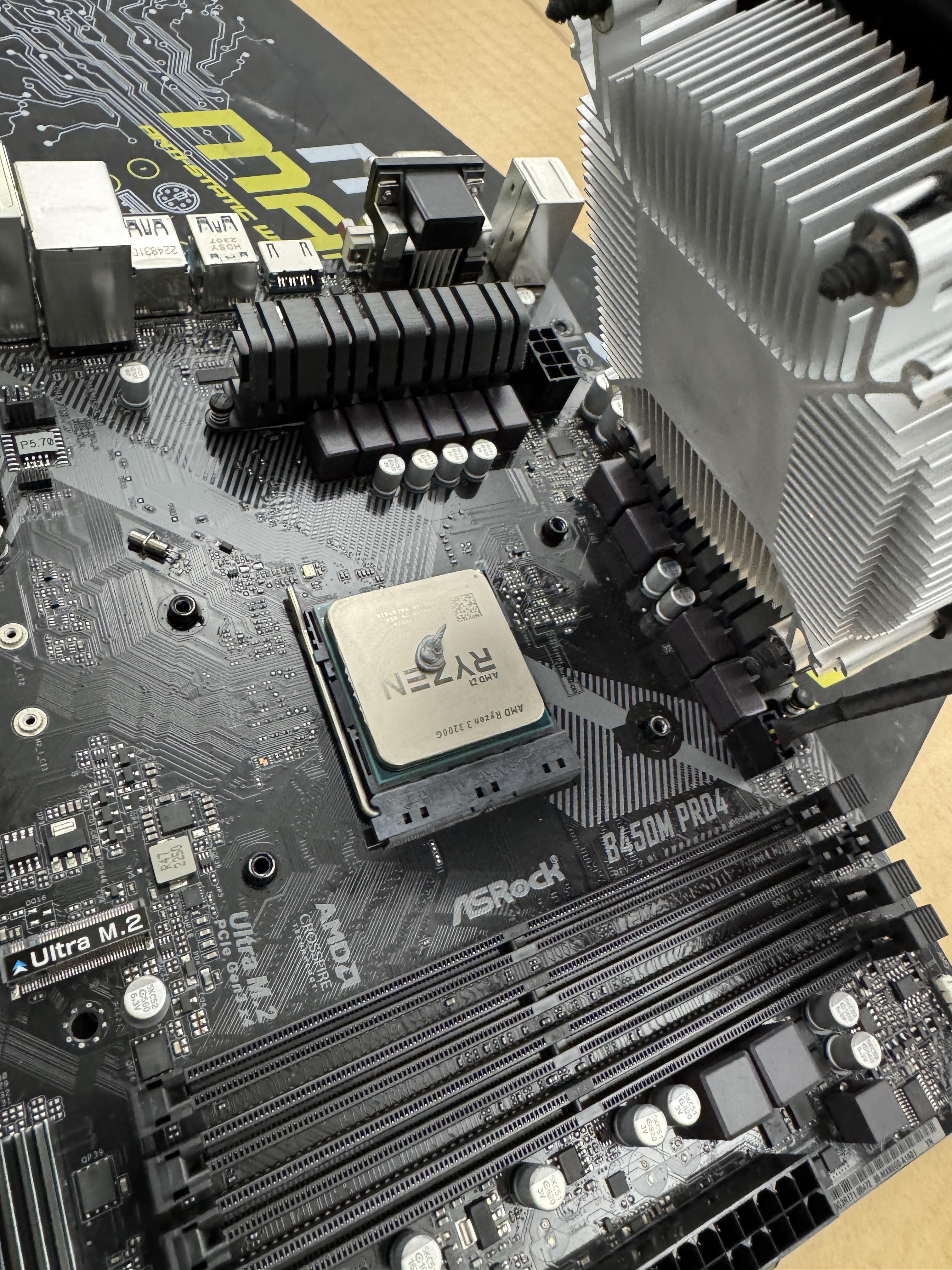
Line up the golden triangle on the CPU and use the clamp to install it. (DO NOT PUSH DOWN ON THE CPU) Apply a pea sized amount of thermal grease to the CPU.
Attach Cooler
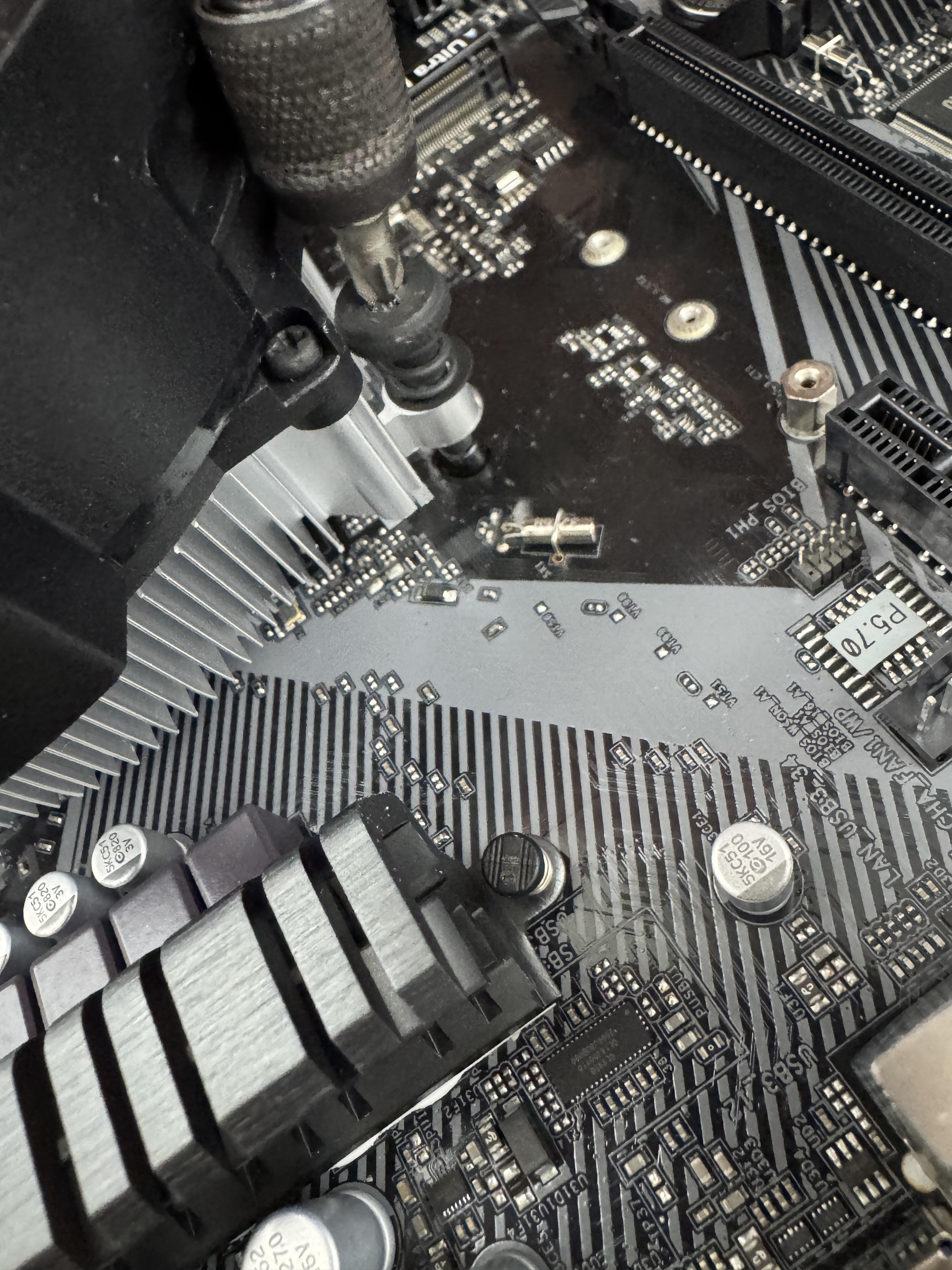
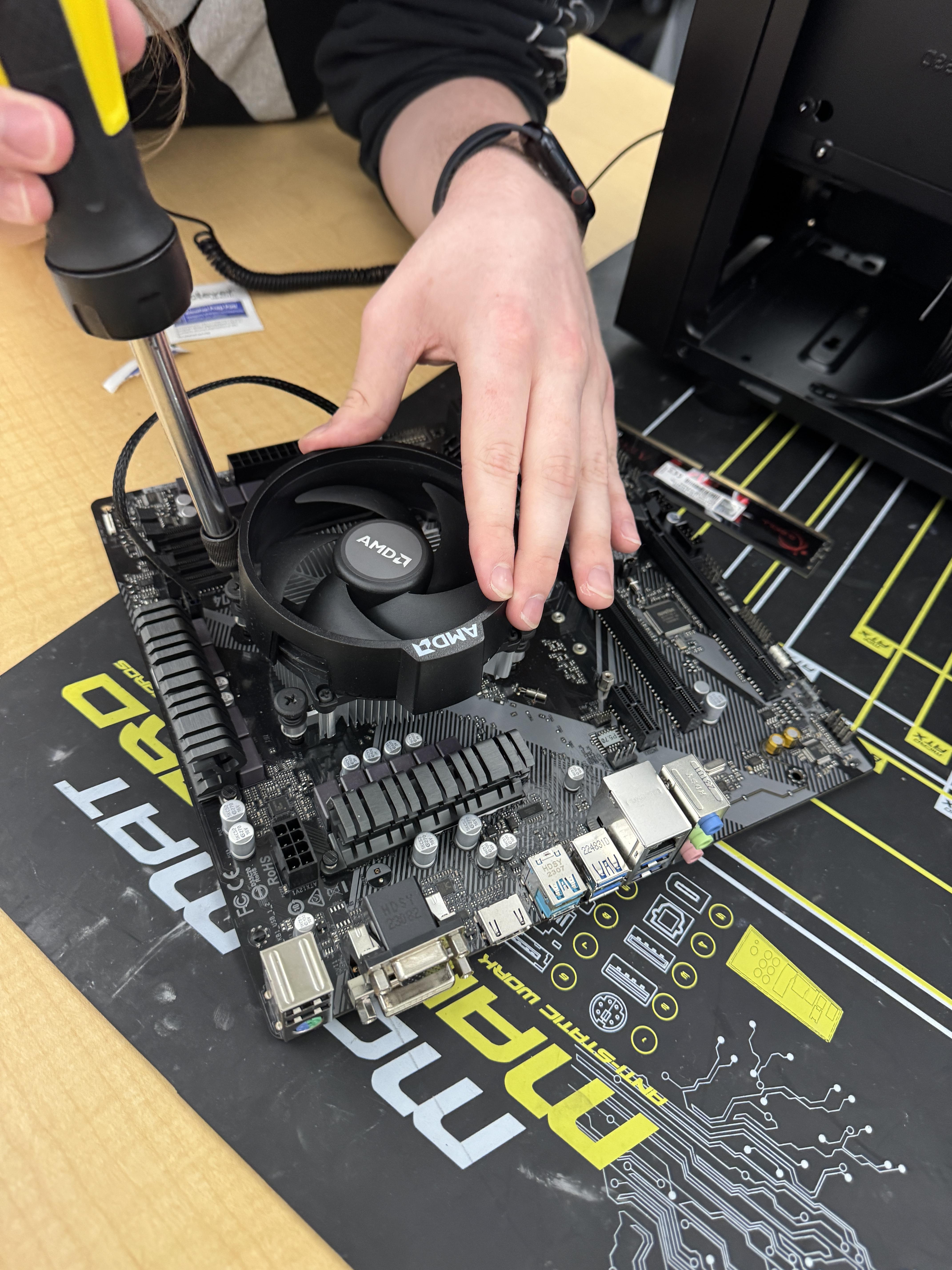
There are many types of coolers, this one in particular has springs. Line up the screws with the holes in the mount, and screw in the top right and bottom left screws first (to ensure even distribution of pressure).
IO
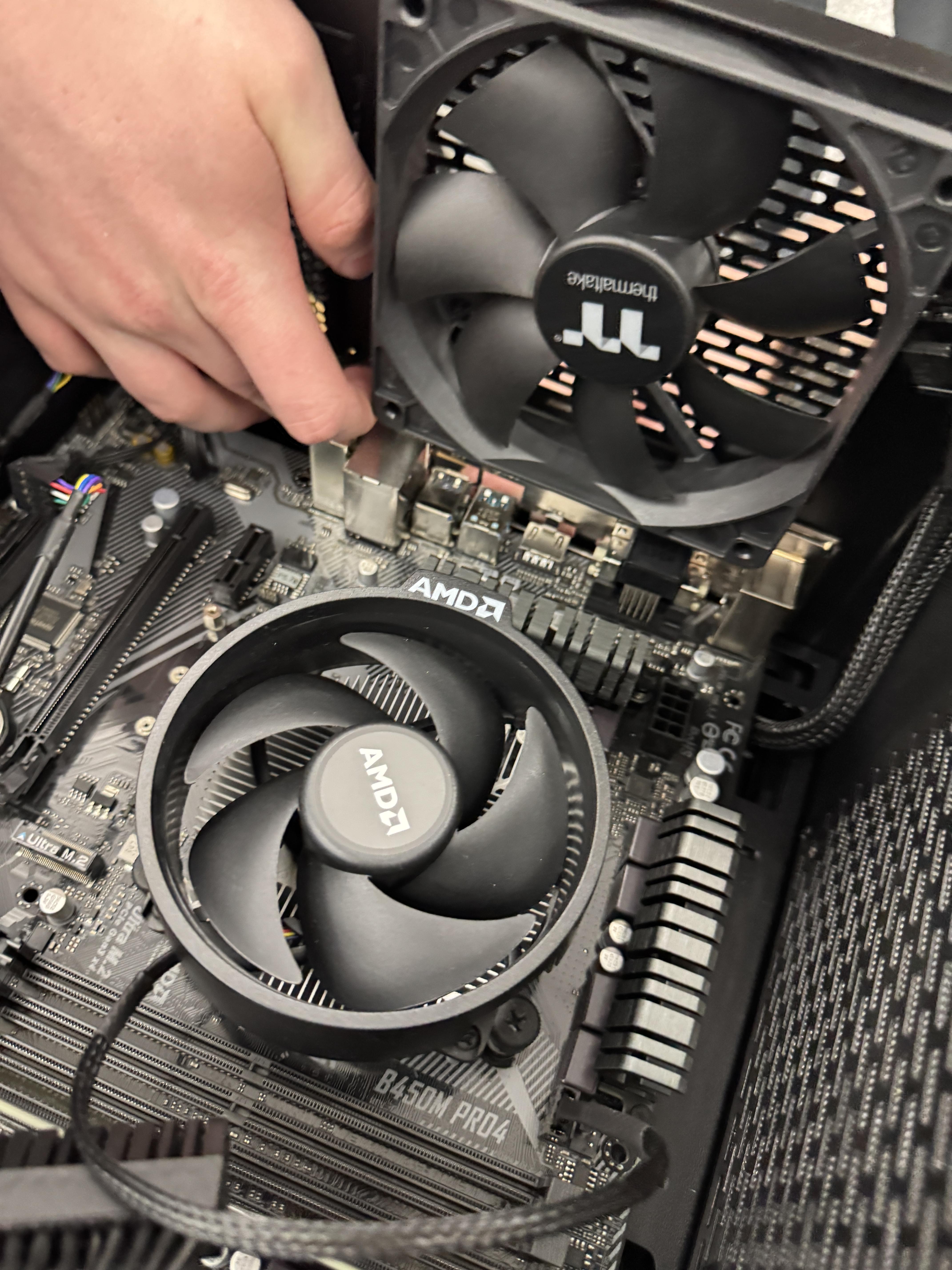
Put the IO Shield on the back of the PC and the front panel (with correct connections) in the front. Snap it into the case before the motherboard.
Insert the Motherboard
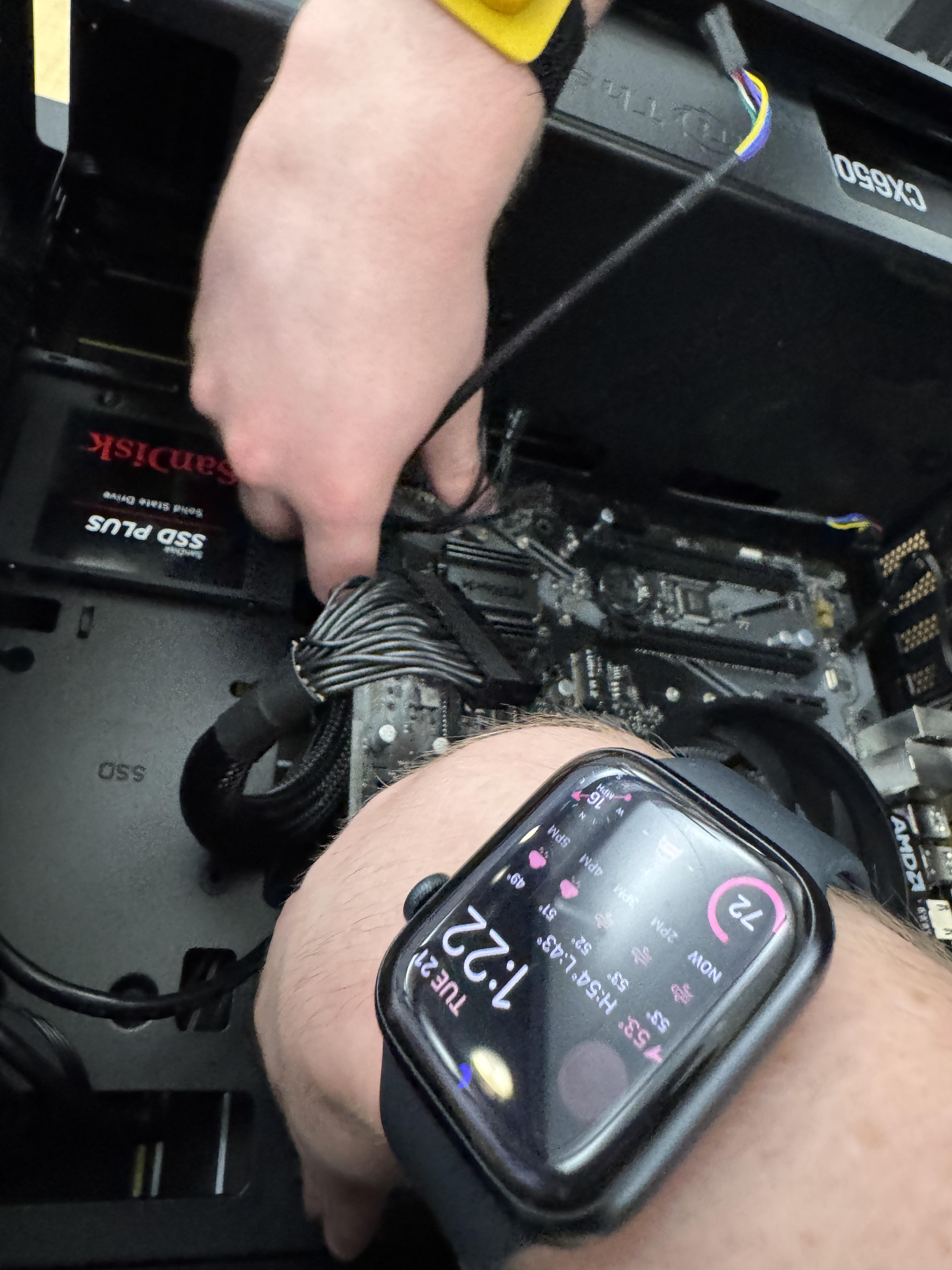
Put in all the standoff screws. Open the case with a screwdriver and insert the motherboard into it's place.
Attach PSU
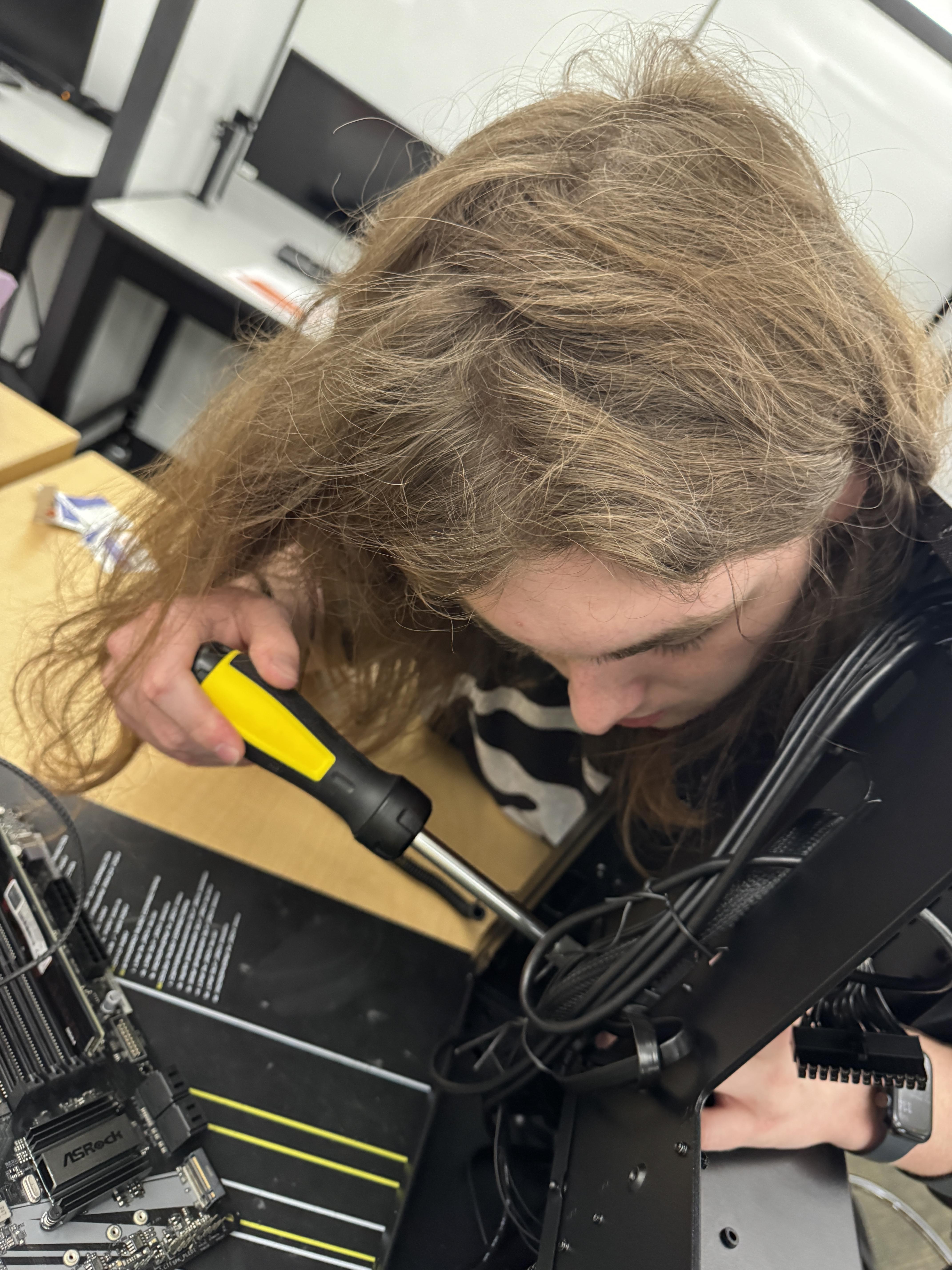
Open the back panel and insert the PSU. Screw it into the holes to secure it in place.
Attach and Connect SSD
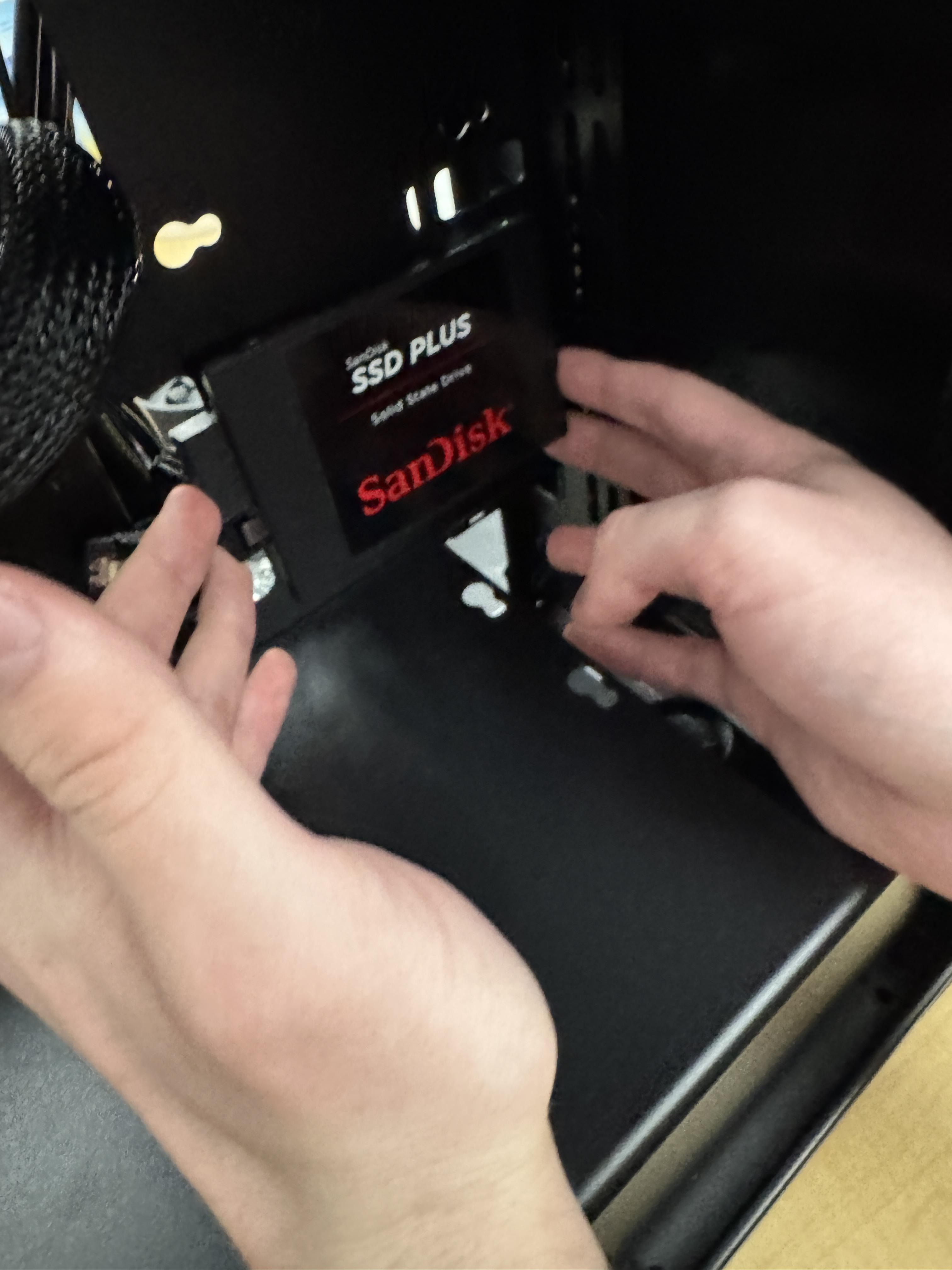
Screw in the SSD and connect the SATA cables to the PSU and the motherboard.
Connect the Cables
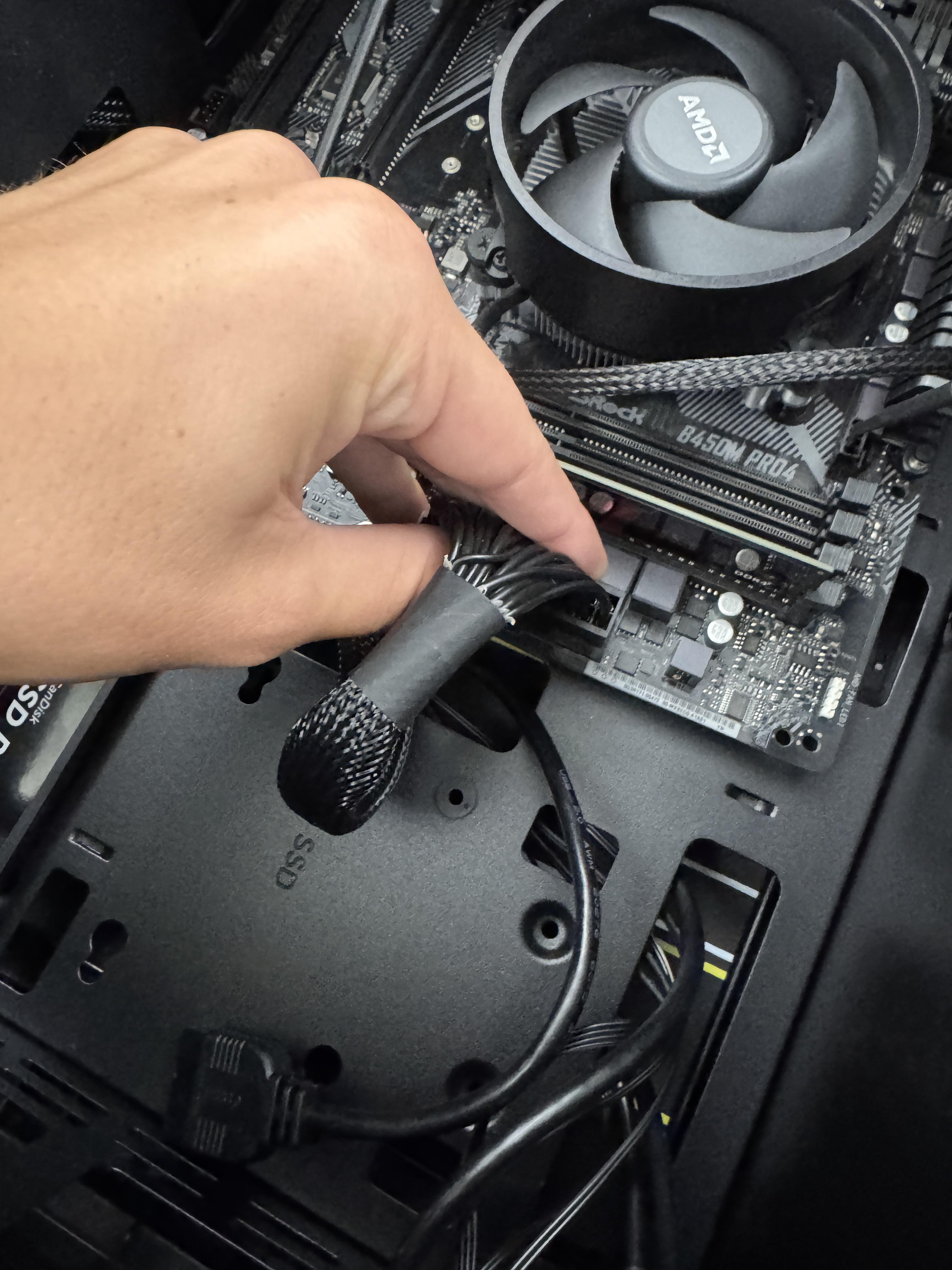
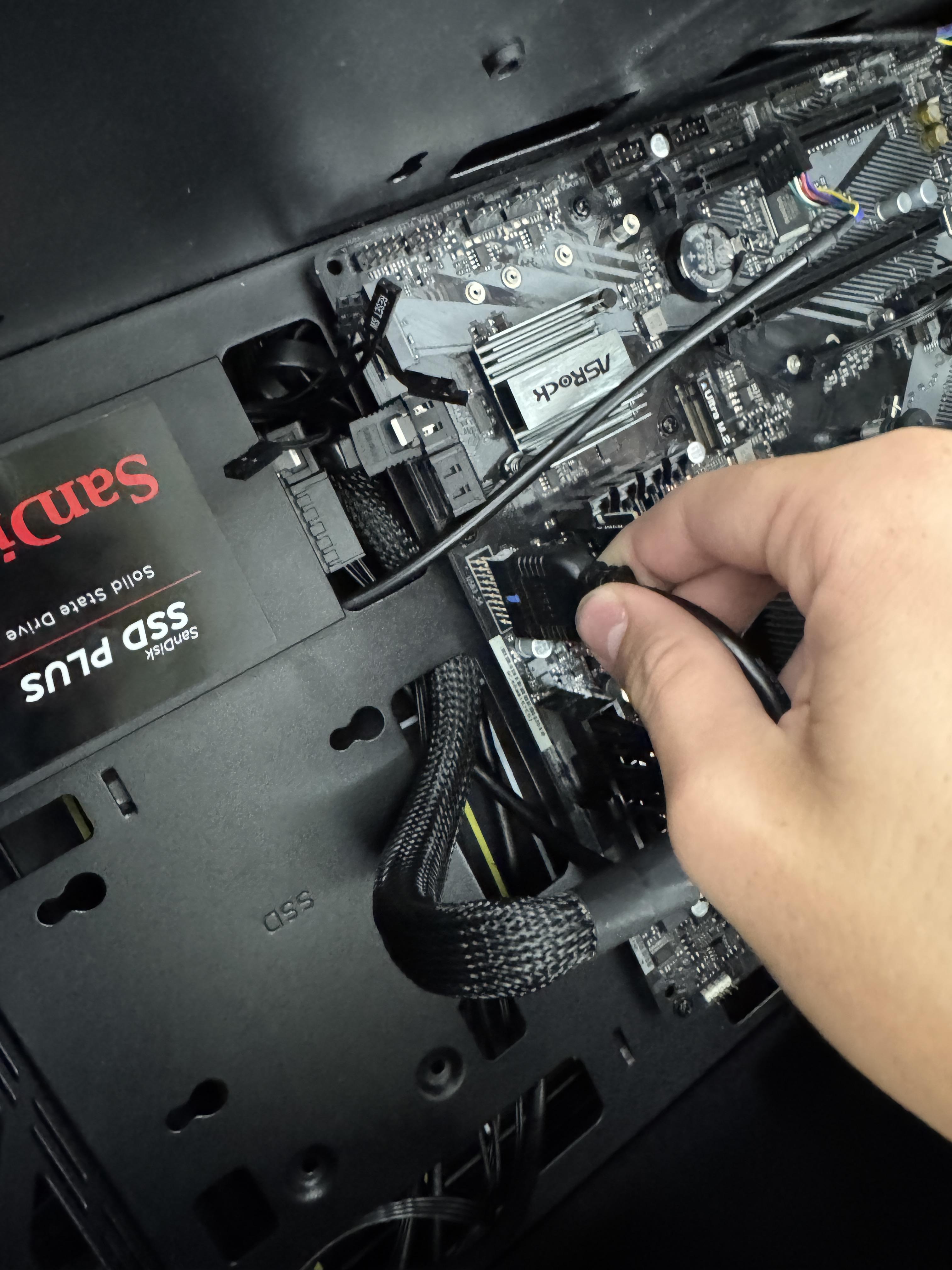
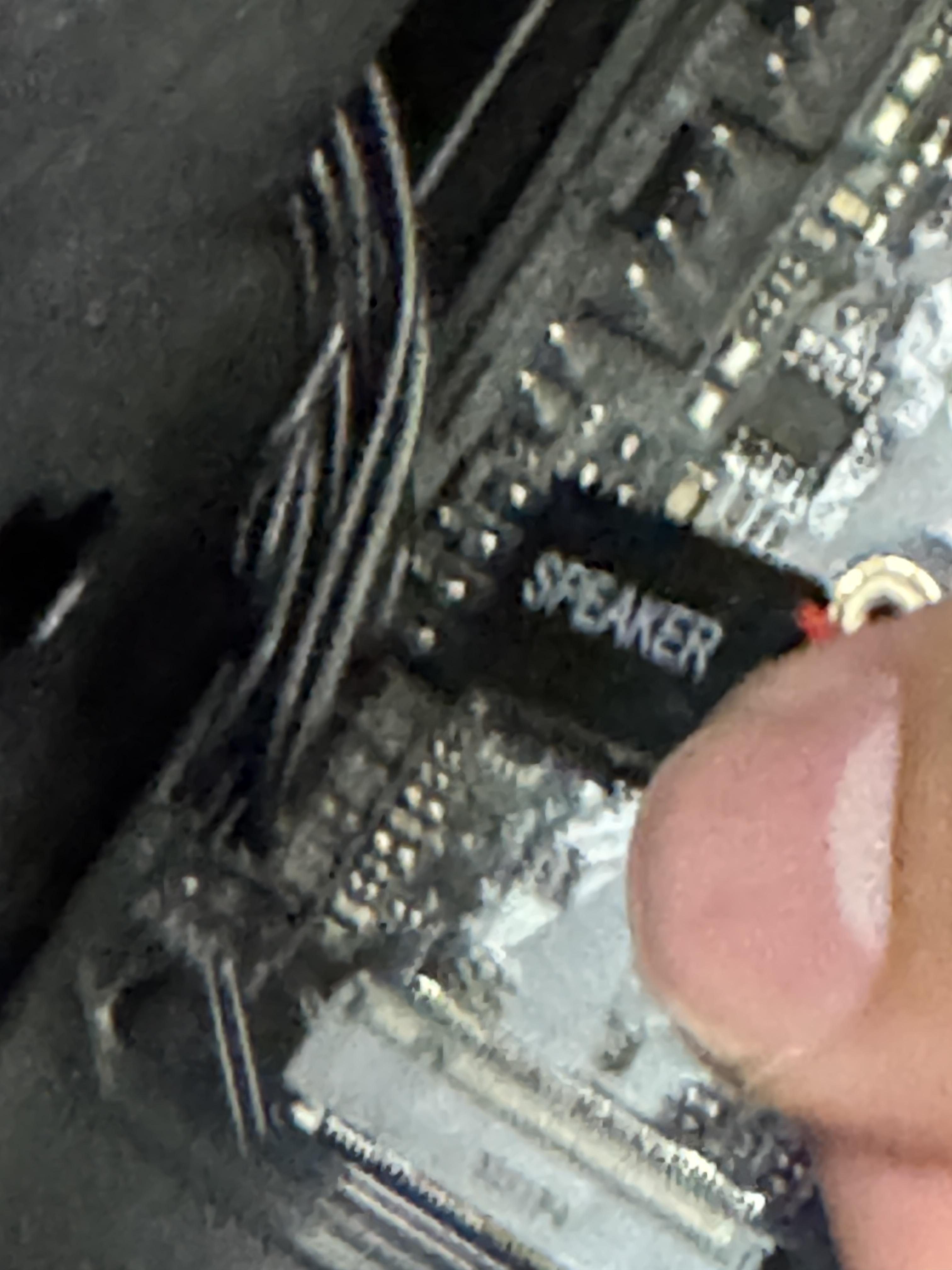
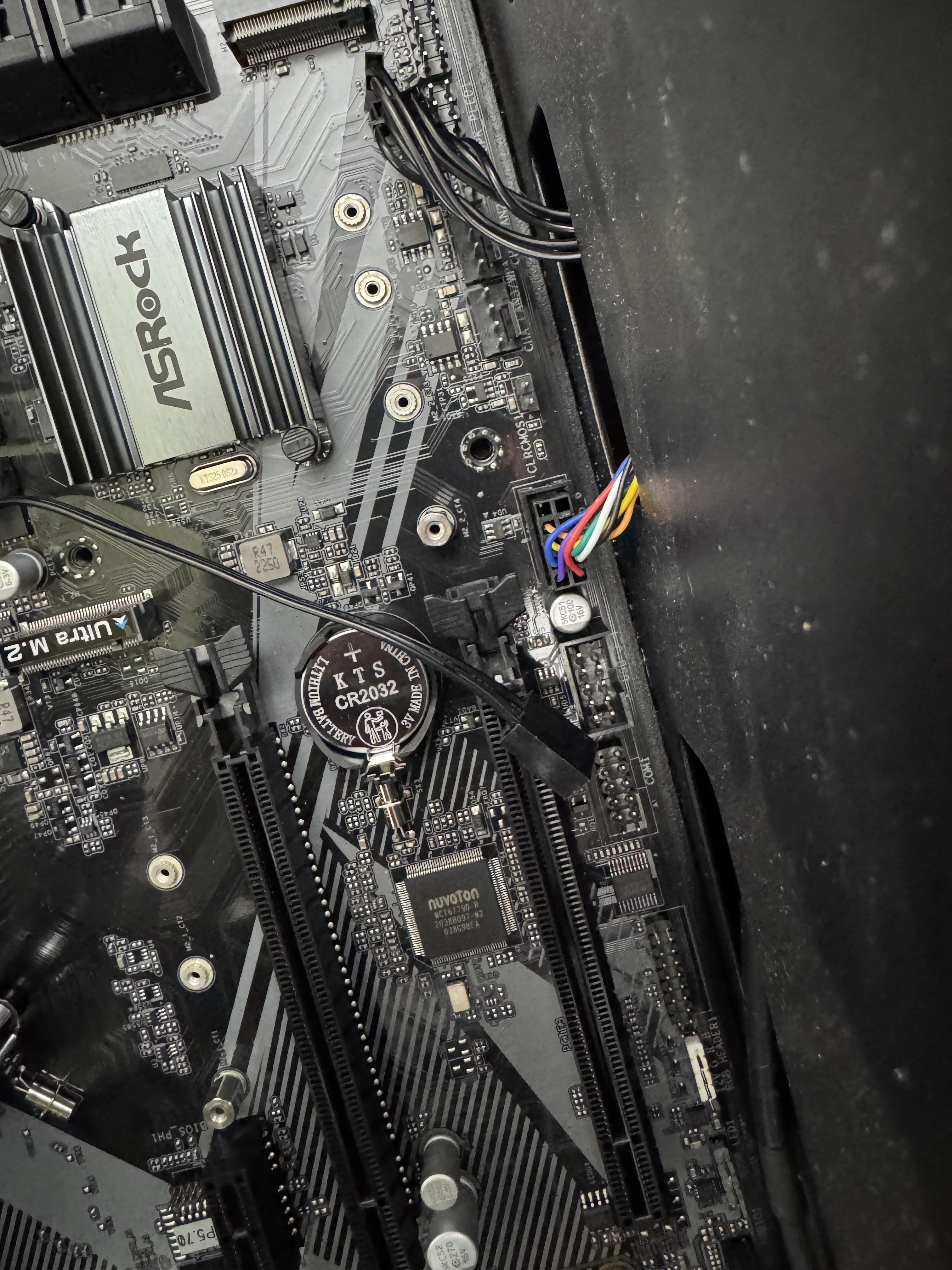
There are many connections to the motherboard. Use the manual of your motherboard to find where the connections should go.
24-Pin Motherboard Power: Find the largest cable from your PSU. Plug it into the 24-pin connector on the motherboard.
8-Pin (4+4) CPU Power: Find the cable labeled "CPU." Plug it into the 8-pin socket located near the CPU at the top of the motherboard.
SATA Data: Plug one end of the thin SATA cable into your SSD/HDD and the other end into a SATA port on your motherboard.
SATA Power: Find the flat, L-shaped power cable from your PSU. Plug it into your SSD/HDD.
Look at your motherboard manual to find the "Front Panel Header" (often labeled F_PANEL). The manual will show you exactly which pins correspond to "POWER SW," "RESET SW," "HDD LED," etc. Carefully connect them one by one.
Done!

Now make sure you can POST (meaning show a screen with your motherboard logo) and enter into the BIOS.