Mini Piano Circuit With an Anti-Theft Feature
by LS811456 in Circuits > Arduino
32 Views, 2 Favorites, 0 Comments
Mini Piano Circuit With an Anti-Theft Feature

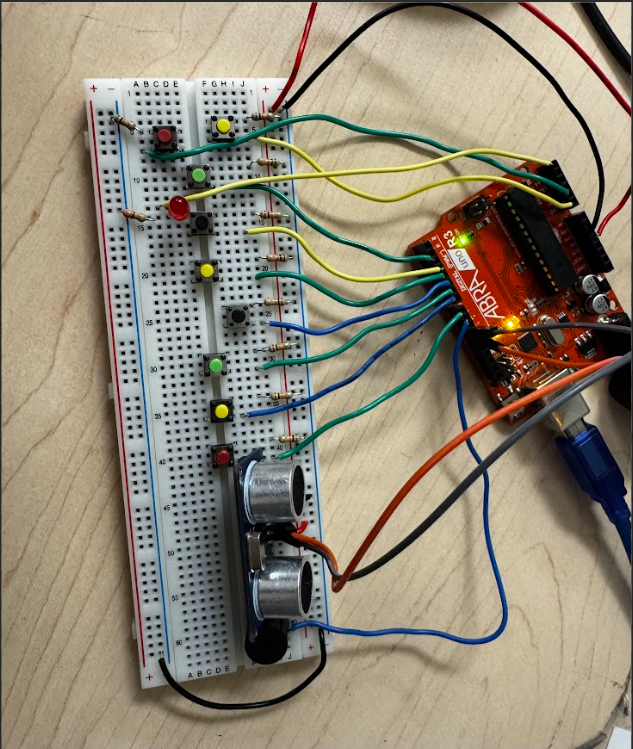
Play the piano without needing to buy one for thousands of dollars for paying for one. It has an anti-theft mode that is activated when pressing a push button. When pressed, the distance sensor will turn on and detect whether people are close, and if they are, the buzzer will create a loud sound to notify all individuals in the area, similar to a car alarm. The LED will turn on, indicating that the theft detection measure is in place.
Supplies
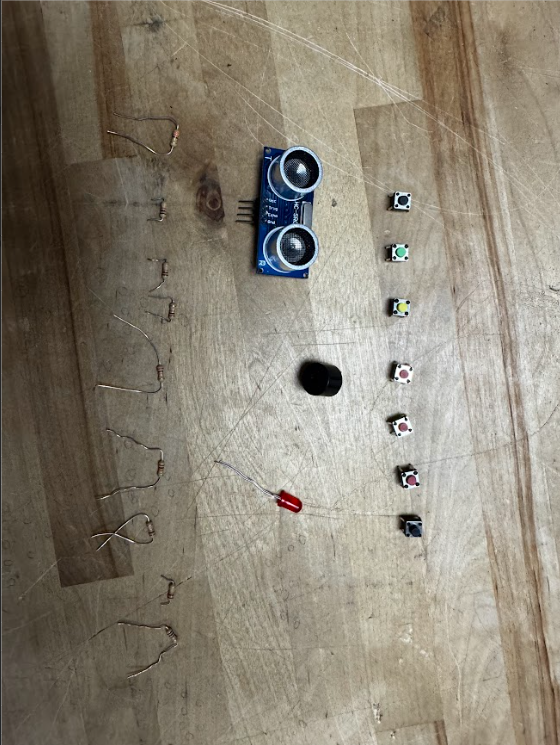
10 resistors --> nine 10k ohm resistors and one 330 ohm resistor
9 mini push button switches
1 solderless breadboard
5 mm red LED
1 piezo buzzer
1 Arduino UNO R3
1 HC-SR04 Ultrasonic Distance Sensor
16 jumper wires(male/male connectors work just fine as well)
Pushing Down the Push Buttons
Place 7 pushbuttons on the breadboard, preferably in the middle, to conserve space.
Jumper and Resistors

Place a jumper wire on one terminal of each push-button, and place a 10k ohm resistor to ground for each push-button. Place a buzzer on the far right, ground the negative leg and place a jumper wire for the positive leg. The reason why each resistor needs a 10k resistor is that the resistance stops "floating" inputs. This is done as Arduino input pins are high-impedance, meaning they have slow current but high voltage. If nothing sets these pins to HIGH(push button being pressed) or LOW(push button not being pressed), they randomly read HIGH or LOW, rapidly switching values and not causing the project to work. It also prevents short circuits as the added resistor protects the input pin. The jumper wires are obviously needed to connect the components to the Arduino.
Connecting to Arduino
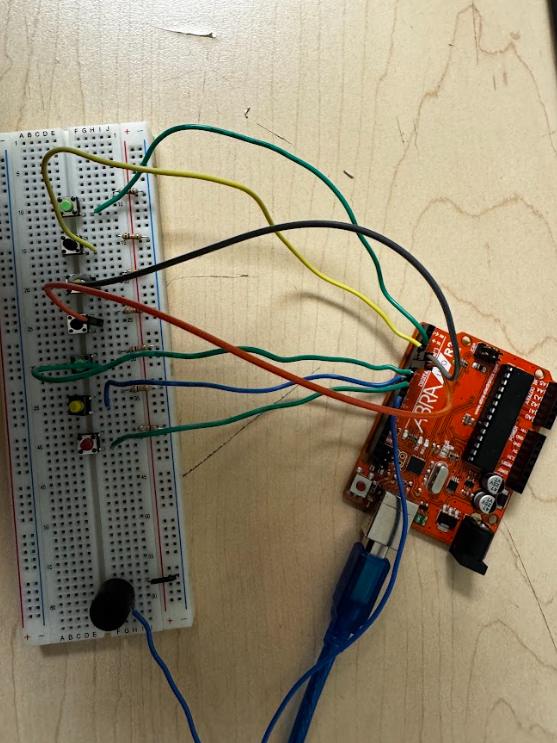
Then, wire the push buttons to the closest pins → Push buttons go from 2-8, and the buzzer goes to 9. These specific pins are chosen to make wiring look easy to follow.
Distancing

Add a distance sensor, and wire its trigger to pin 11 and echo to 12. (I moved the middle push button a little up because that spot on the breadboard is not working, which I verified using a voltmeter and found that the spot on the breadboard is not receiving voltage). The trigger needs to be connected to a PWM(Power Width Module) pin(11), as it needs to read multiple values as TIME CHANGES CONTINUOUSLY, whereas a normal pin is static. In the IDE, this pin can use analogWrite/Read, whereas a normal pin can only use digitalWrite/Read.
Threat Detection Buttons
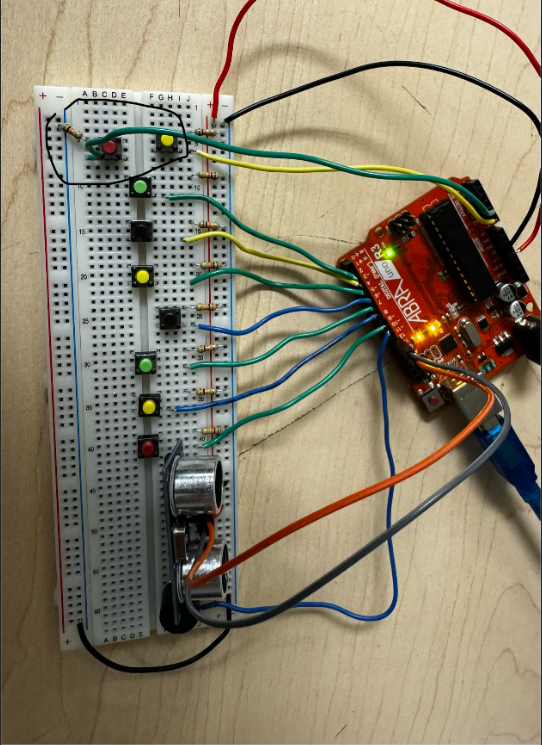
Add two push buttons, wire one to A0 and the other to A1 and add 10k resistors to ground for both.
Red LED Indicator
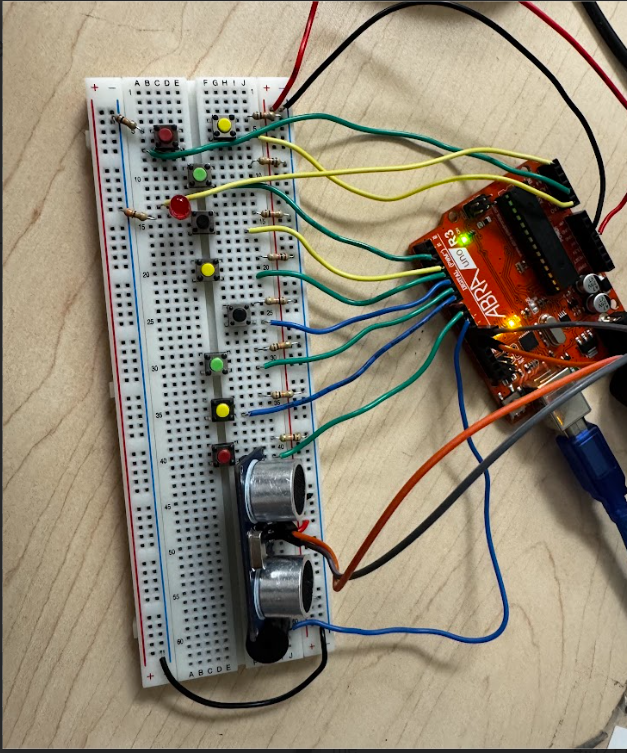
Add a red LED to pin A5 and connect the cathode(shorter leg of the LED or the side with the thicker bulb) to a 330 ohm resistor straight to ground. The reason why a resistor is necessary for the LED is so that it does not blow up, literally. The LED is not a resistor, so it will happily take as much current as it gets, so the resistors help limit the current so that the LED can handle it. With these red LEDs, they can usually handle up to 20 milliamps, so a 330 resistor will be fine.
Coding
After ensuring all components are connected properly, copy the code below into the Arduino IDE. If it does not come with the tone library, download from the Arduino website and include it in the code at the top of where the integer variables are declared(#include<tone.h>):
const int buzzerPin = 9;
const int trig = 11; // the reason why it's connected to a PWM pin
const int echo = 12;
const int buttonOn = A1;
const int buttonOff = A0;
const int led = A5;
bool theftDetection = false;
// Button pins (7 keys)
const int buttonPins[7] = {2, 3, 4, 5, 6, 7, 8};
// notes
const int notes[7] =
{ 262, // C
294, // D
330, // E
349, // F
392, // G
440, // A
494 // B
};
void setup() {
pinMode(buzzerPin, OUTPUT);
pinMode(trig, OUTPUT);
pinMode(echo, INPUT);
pinMode(buttonOn, INPUT_PULLUP); // the reason why INPUT_PULLUP is being used is to further prevent // floating integers and prevent the chance of a short circuit, even though it is unlikely.
pinMode(buttonOff, INPUT_PULLUP);
// buttons wired from pin 2-8 are set as inputs
for (int i = 0; i < 7; i++)
{
pinMode(buttonPins[i], INPUT_PULLUP);
}
Serial.begin(9600);
}
void piano()
{
long duration, inches; // the long variable is needed so that they can store bigger numbers
digitalWrite(trig, LOW);
delayMicroseconds(2);
digitalWrite(trig, HIGH);
delayMicroseconds(10);
digitalWrite(trig, LOW);
duration = pulseIn(echo, HIGH); // measures how long a signal stays high or low, in this case its the inches.
inches = duration / 74 / 2; // formula for converting the value into inches
delay(100);
Serial.println(inches); //print those values in the serial monitor
bool notePlaying = false;
if (digitalRead(buttonOn) == LOW)
{
theftDetection = true;
digitalWrite(led, HIGH);
}
if (digitalRead(buttonOff) == LOW)
{
theftDetection = false;
digitalWrite(led,LOW);
}
if (theftDetection && inches < 6) //when theftDetection is true and the inches measured are less than 6
{
notePlaying = true;
tone(buzzerPin, notes[1]); //play the second note in the array(computers start at 0, which is why its second)
}
// Scan all 7 keys
for (int i = 0; i < 7; i++)
{
if (digitalRead(buttonPins[i]) == LOW) // Button pressed, when using INPUT_PULLUP, LOW and HIGH are //inverted
{
tone(buzzerPin, notes[i]); //play noise corresponding to button pressed
notePlaying = true;
break; // Only play one note at a time
}
}
// Stop sound if no button is pressed
if (!notePlaying) {
noTone(buzzerPin);
}
}
void loop()
{
piano(); //constantly run the piano code above
}
Finishing Touches
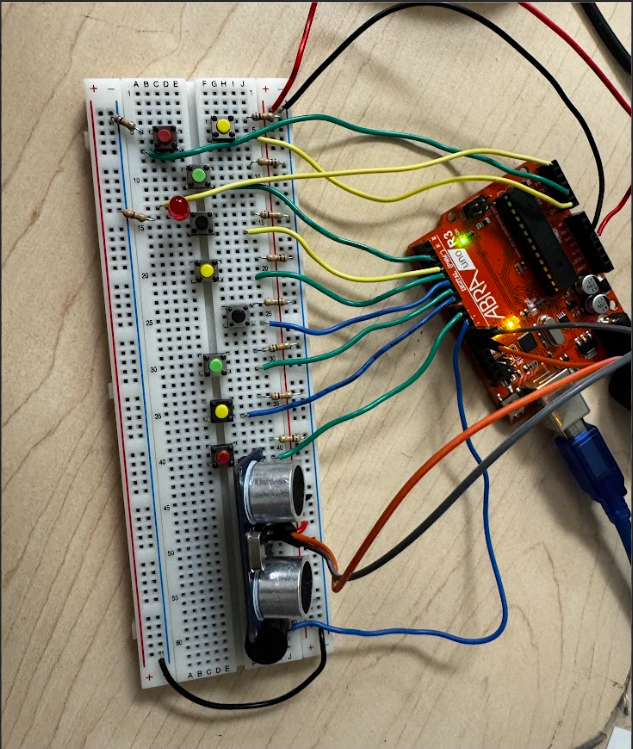
After ensuring everything works, trim down all wires to make it look neat and easy to read. After that, you will be finished and will be able to play the piano!