Logic Gate Detector

Sick of constantly using the incorrect logic gate, or woefully finishing wiring your entire project, only for it to come down to your gate being fried? build this quick, simple gadget to help you know exactly what you're getting your hands on.
A logic gate is an electronic switch or "decision maker" that takes electric signals (1s and 0s, or in other words, ON's and OFF's) and applies a simple rule, giving you an output. For example, an AND gate will output a true (an ON) when both inputs are 1, because as the name suggests, one switch AND the other switch must be enabled.
The logic gate gets its information from the two switches on the board, and the LCD screen gives you simple instructions on what to do with them. Again, 0 means OFF, 1 means ON. The red LED will stay lit until a logic gate is properly identified, which will then enable the green LED. Once you wish to test a new gate, replace the one already in the breadboard, put your finger over the LDR (photoresistor), and run the same simple test. You will have to repeat the test if you place a NOR gate in the breadboard, as they have a separate layout from typical logic gates and function differently.
Supplies
- Jumper wires $0.67
- Slide Switch [2x] $0.99
- 330 Ohm Resistor [2x] $0.99
- LCD I2C (any dimensions) [1x] $3.92
- Arduino Uno [1x] $12.41
- Your logic gates (often under $1.00 each)
- Breadboard [1x] This and the next 5 parts are a part of the same $5.00 kit
- Red LED [1x]
- Green LED [1x]
- 10k Ohm Resistor [5x]
- Photoresistor [1x]
Wire Your Breadboard
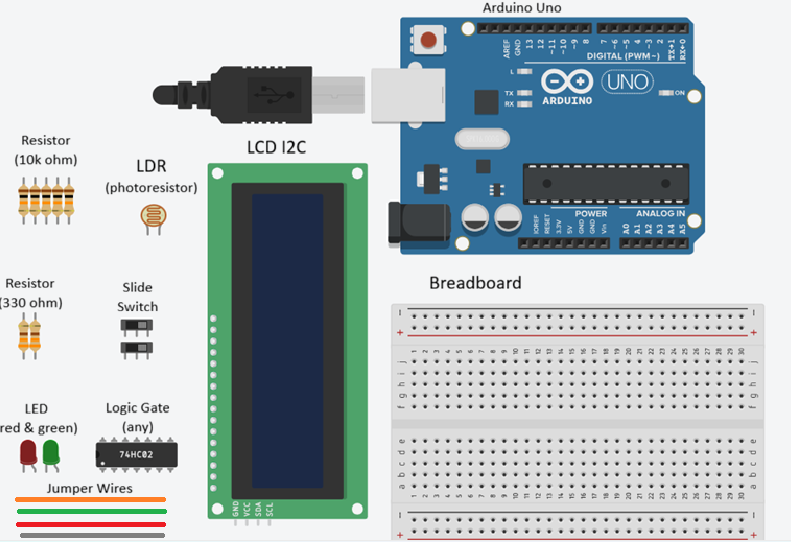
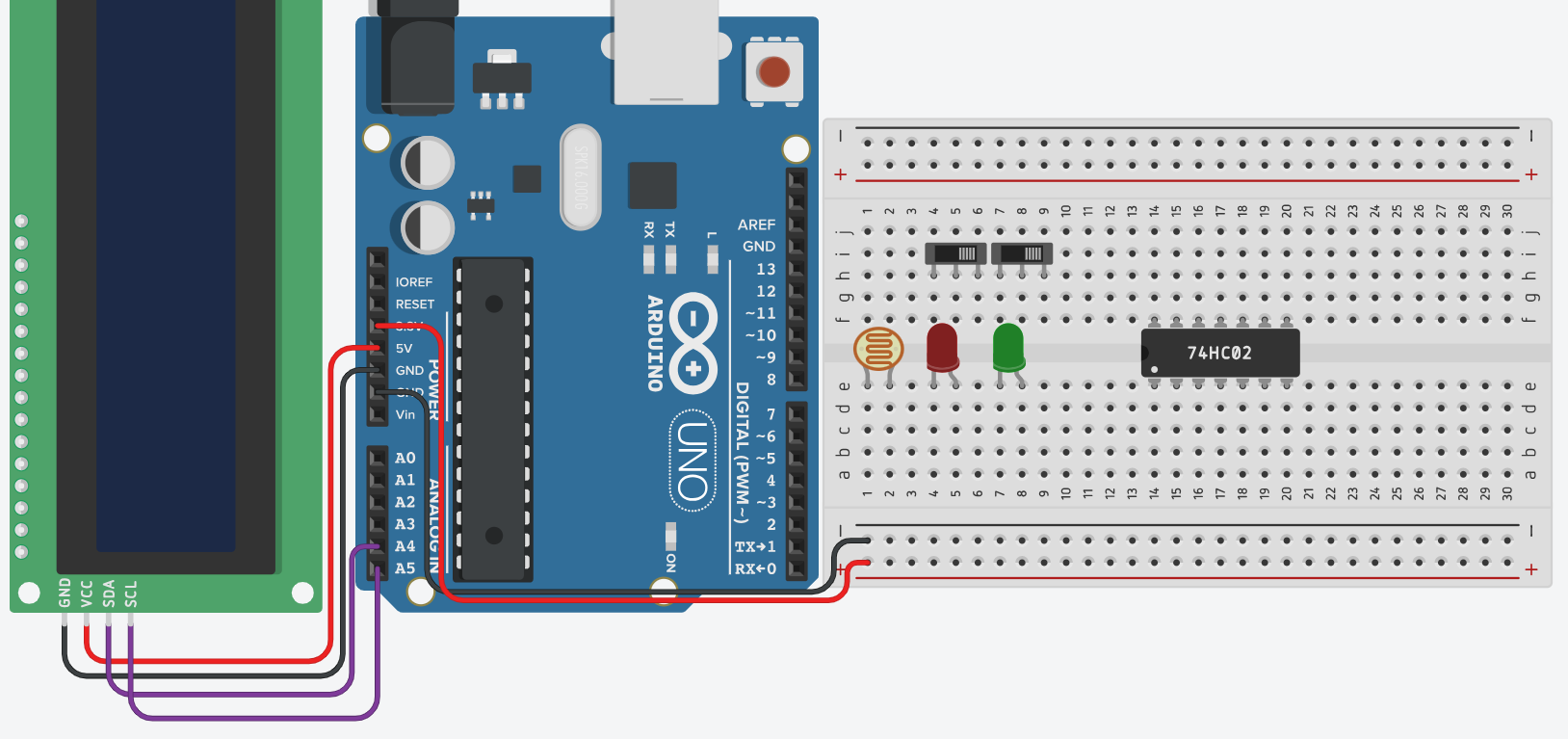
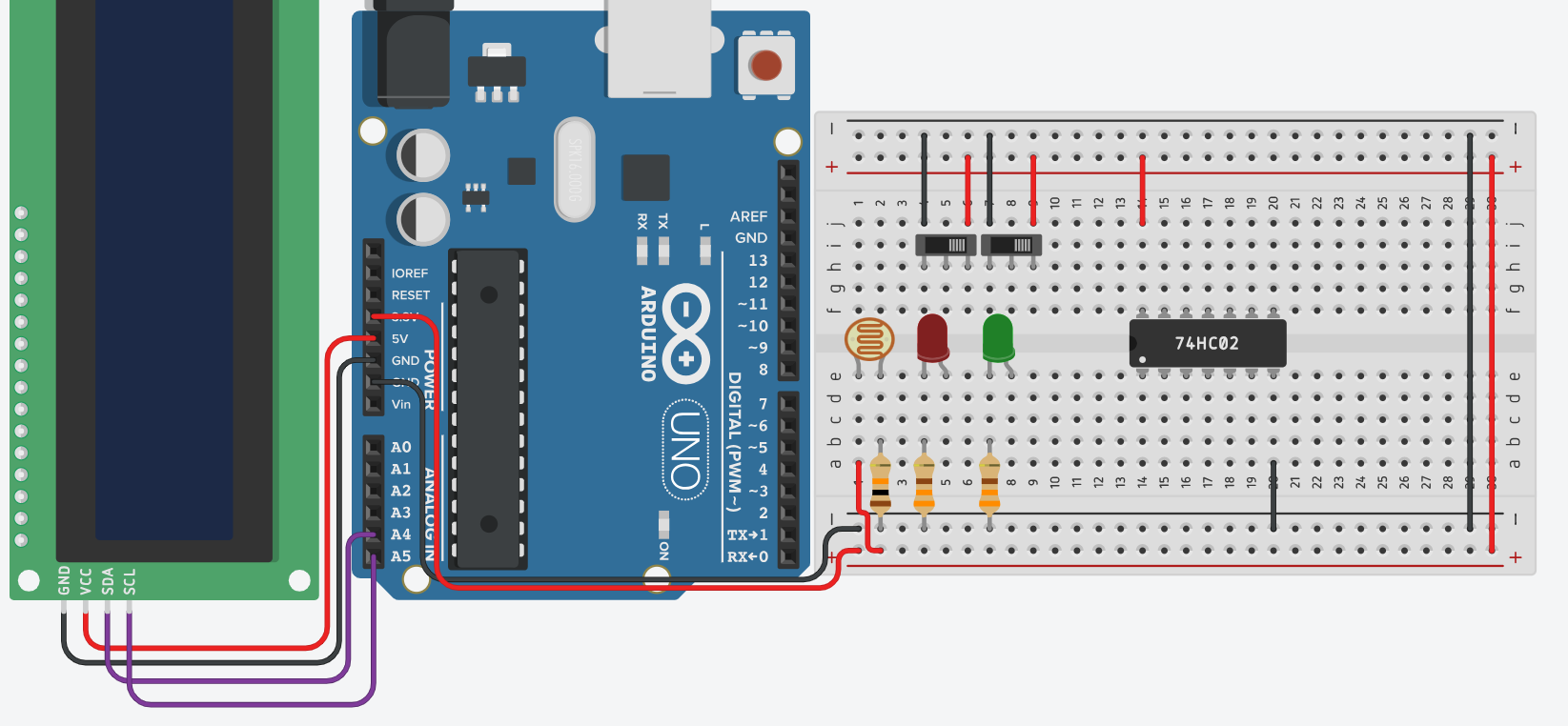
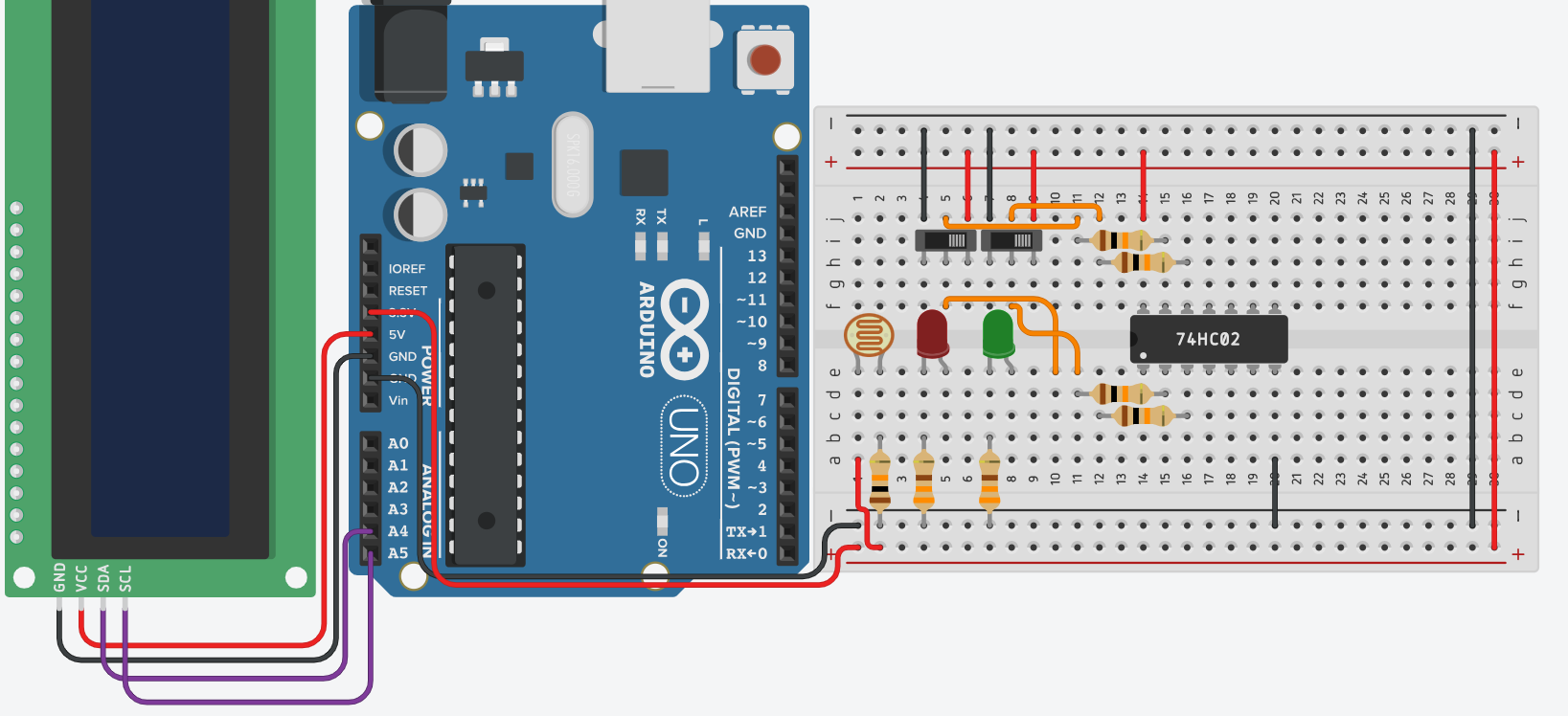
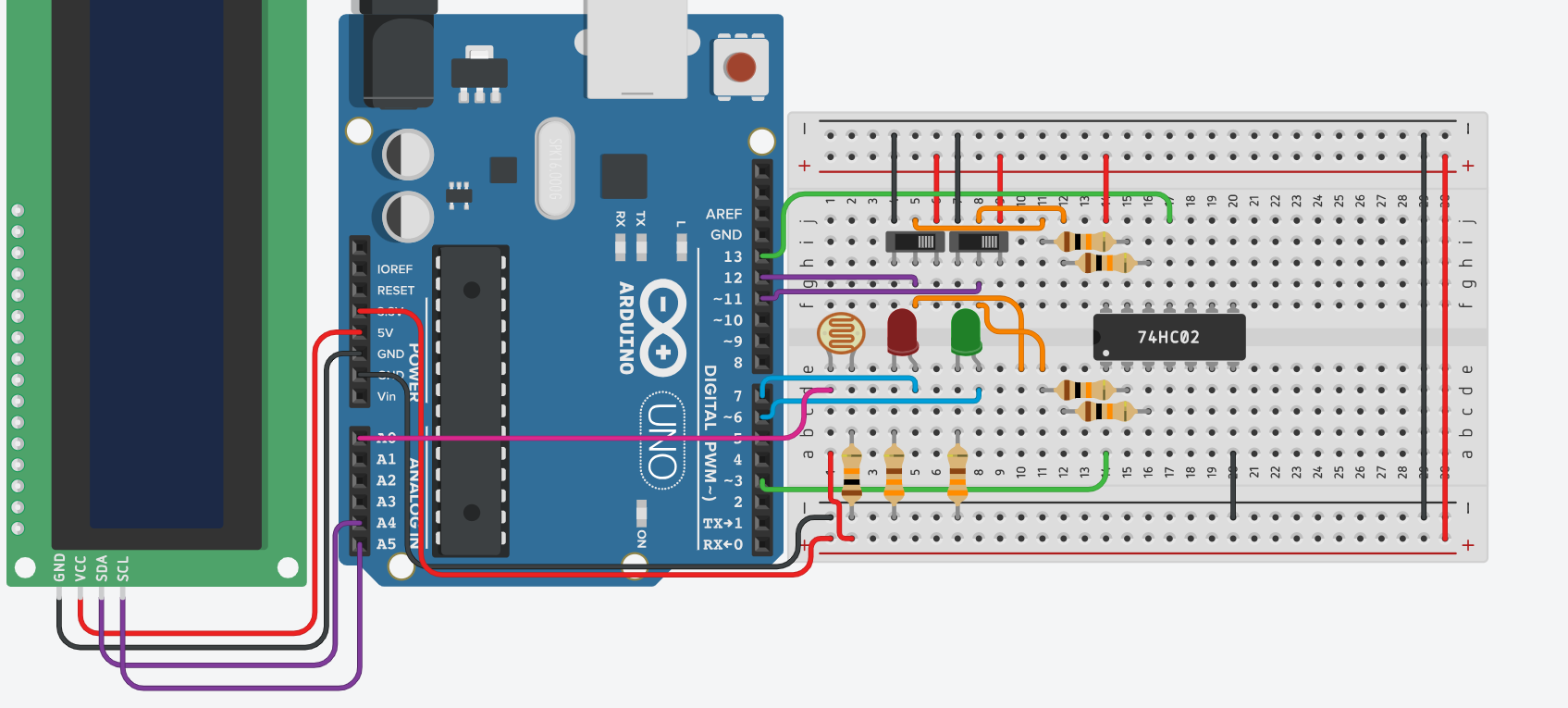
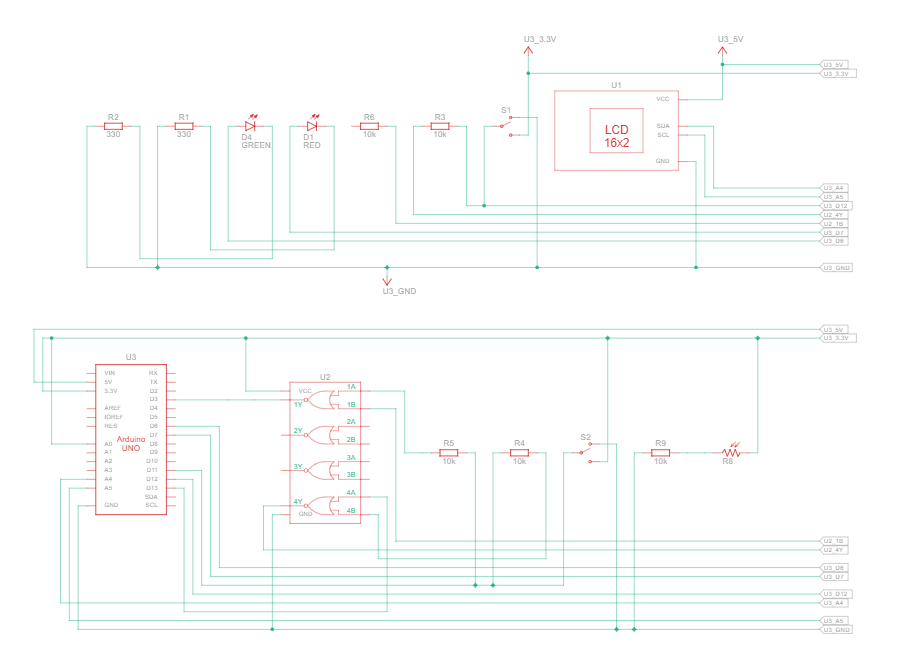
Wire your breadboard as shown in the image, while your arduino is unplugged. use 3.3V for the breadboard power rail, not 5V. MAKE SURE your LCD is connected to power and ground separately from the breadboard, otherwise your logic gate will overheat and burn.
The LED's use 330 ohm resistors, the rest of the resistors used are 10k ohms. Remember how breadboard rails work; make sure two things that aren't meant to be connected remain disconnected, otherwise you'll have a short circuit and may risk damaging components.
Check the back of your LCD, and locate a set of 4 pins, they should say GND, VCC, SDA, SCL (order may vary). GND goes to GND, VCC goes to 5V, SDA goes to A4, and SCL goes to A5. You must use these specific arduino slots for the pins respectively.
Insert Code
Download Arduino IDE if you haven't already. Next, install the libraries provided, then go to file explorer, navigate to documents > arduino > libraries, and paste or drag and drop the installed libraries into there. If your arduino location does not include a folder called libraries, right click and insert a new folder, and rename it to libraries.
You may copy and paste the code from Step 3, but before you do this, make sure you know the address and dimensions of your LCD. Had you forgotten the dimensions, they should be written on the packaging, and make sure you set them at the top of the code where instructed.
The typical address for your LCD I2C would either be 0x27 or 0x3F, the code provided uses 0x3F. If that does not work, try replacing it with 0x27, and if that doesn't work either, google "I2C Scanner Sketch" and paste the code provided into your arduino IDE to find your LCD's address.
Paste Code
Test Out Your New Gadget
Simply place any logic gate exactly where it is placed in the screenshot from Step 1, and watch the tool do its magic.
Possible errors:
- My LED's won't light up // Make sure they are not fried and are wired correctly. The short leg (cathode) should be connected to ground by the 330 ohm resistor, and the long leg (anode) should be wired to the arduino.
- My switches are behaving erratically // Ensure the ground wire is on the left, the power wire is on the right, and the arduino wire is in the center. Whichever side the power wire is on will be the "ON" for the switch, and whichever side is ground will be the "OFF".
- My LDR (photoresistor) isn't doing anything // Make sure one of the legs are going to ground through a 10k ohm resistor, and the other goes to the breadboards power rail. Orientation does not matter, as LDR's are not polarized. On top of this, on the same side as the power leg for the LDR, there should be a wire connecting it to A0 on your arduino. If it is wired correctly, you may adjust the LDR threshold in the code right after pin definitions; the lower it is, the darker it must be for it to trigger.
- The device is instantly resetting after identifying the logic gate // This may happen sometimes the first time you test, but afterwards it should not be doing this again. If it continues more than once, there is an issue with your LDR.
- My LCD won't display anything // Check and make sure everything is wired exactly where it needs to be. Ensure it is getting 5V, SDA is connected to A4, and SCL is connected to A5. Otherwise, use a small screwdriver or anything flat to tune the potentiometer on the back of the LCD (try both directions) and see if the text is any clearer. If that doesn't work, use an I2C Scanner Sketch from online to ensure the address matches up to the code, and if all else fails, try a separate, smaller piece of code to ensure anything is able to print to the LCD at all.