Job Aid: How to Scan, Name, and Save Office Documents Correctly With ScanSnap
by emizimm in Design > Digital Graphics
182 Views, 2 Favorites, 0 Comments
Job Aid: How to Scan, Name, and Save Office Documents Correctly With ScanSnap
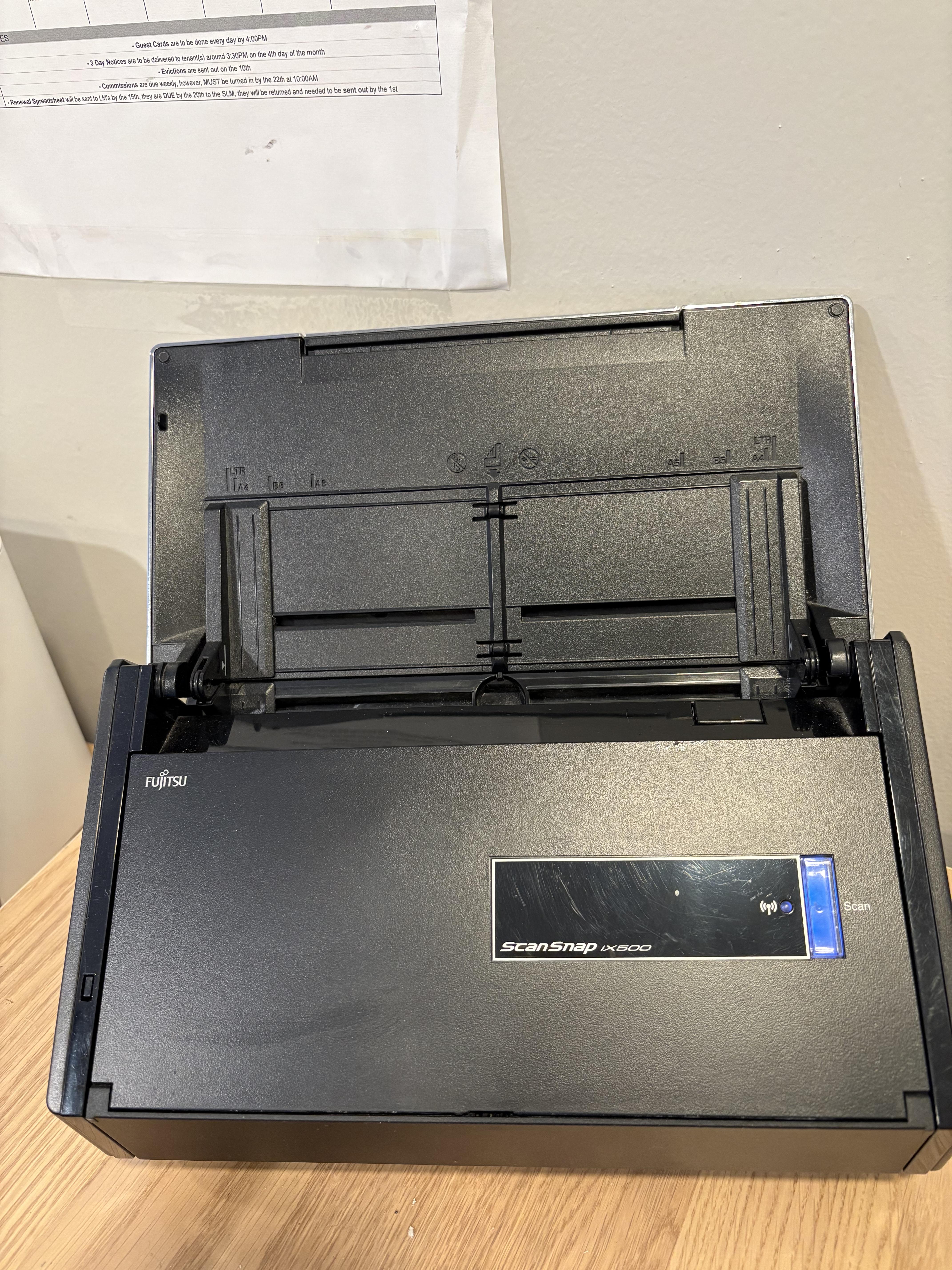
Welcome! This job aid will guide you through the proper procedure for scanning, naming, and saving office documents correctly with ScanSnap. Following these steps ensures that documents are clear, organized, and easy to locate in the future. Consistent file naming and proper storage are essential for maintaining accurate records and supporting office operations. By using this guide, you will help prevent lost files, duplication, and confusion within the shared filing system.
Audience: New Office or Administrative Assistant
Purpose: To ensure documents are scanned clearly, named consistently, and saved in the correct location.
Supplies
- ScanSnap Scanner
- Laptop or Desktop
- Document
- Staple Remover
DISCLAIMER: This job aid is intended for general instructional purposes only. Scanning equipment and document management systems may vary by organization. Always follow your company’s specific policies and procedures when handling, storing, or transmitting documents. Do not scan or save confidential or sensitive materials unless you are authorized to do so.
Prepare the Document
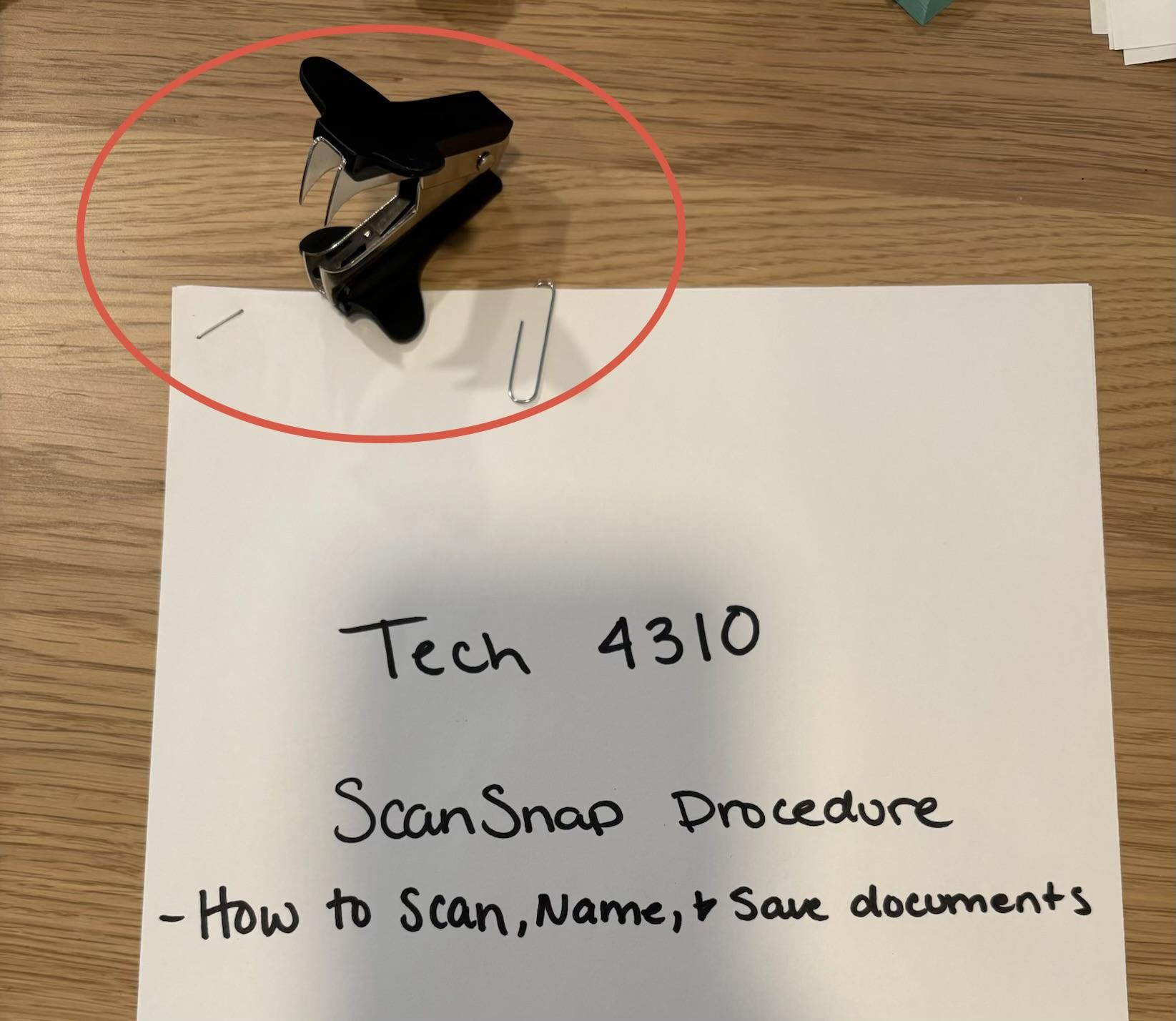
Remove staples, paper clips and ensure pages are in the correct order before scanning.
Power on & Plug In
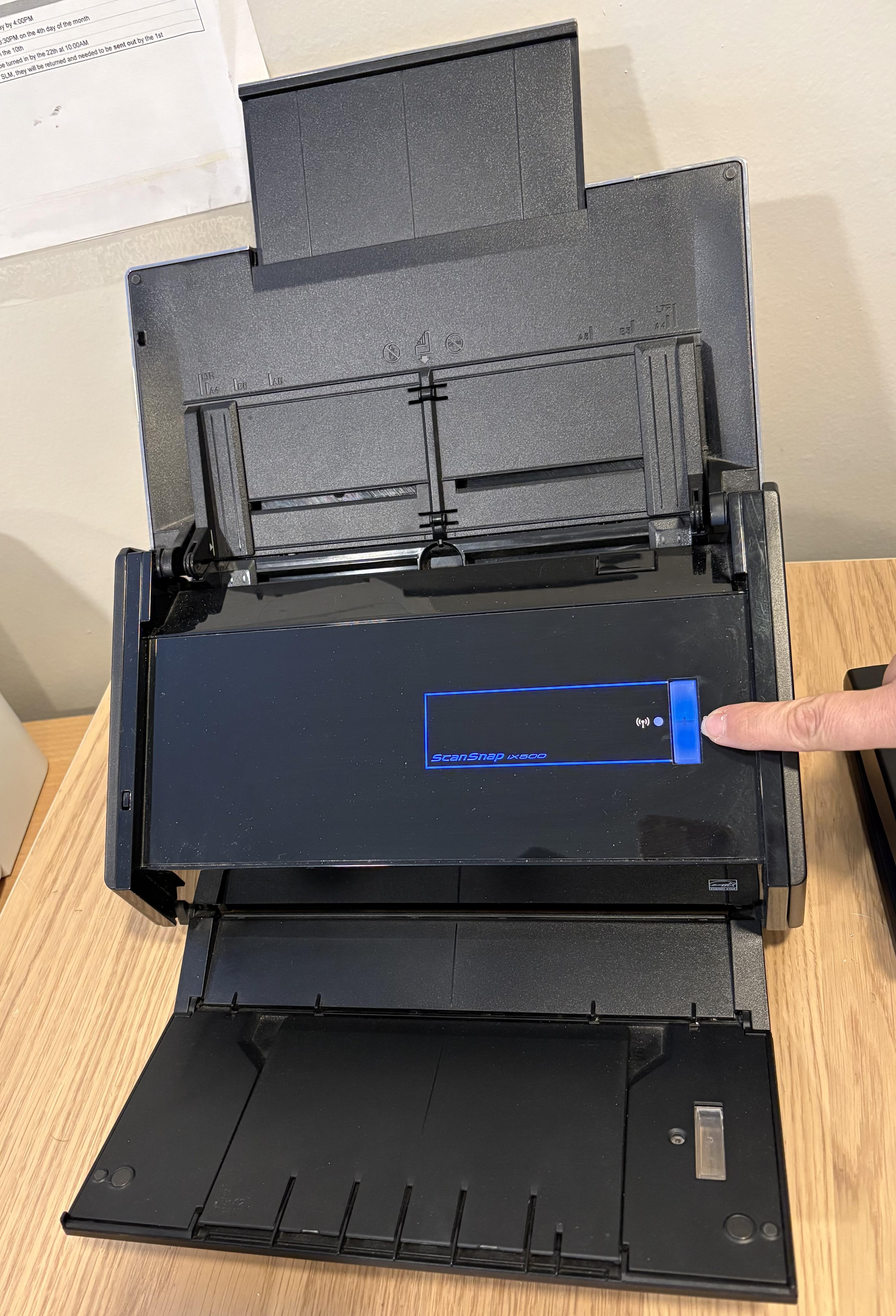
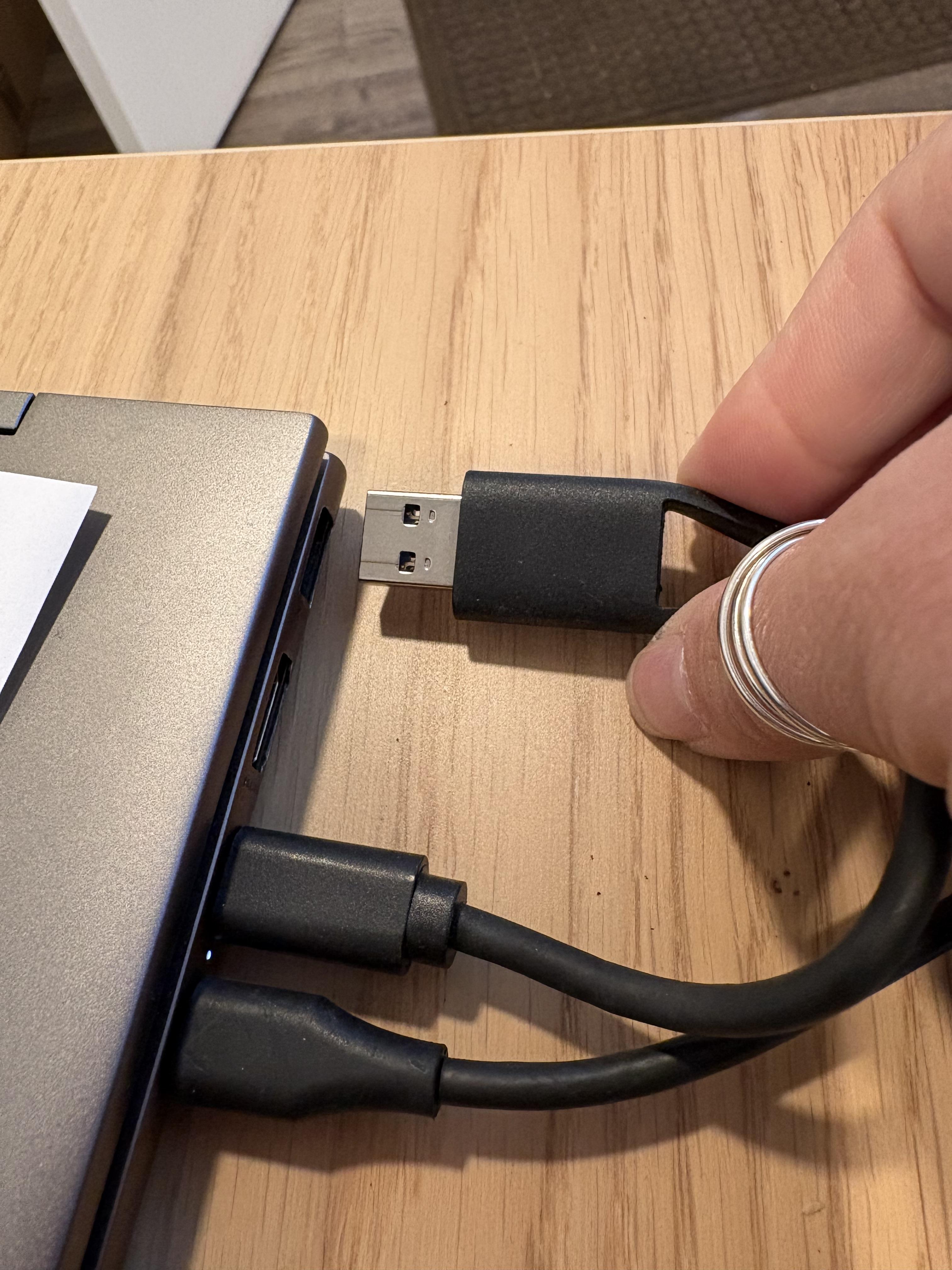
Turn on the scanner using the blue button and connect the USB into your laptop or desktop
Place the Document in the Scanner
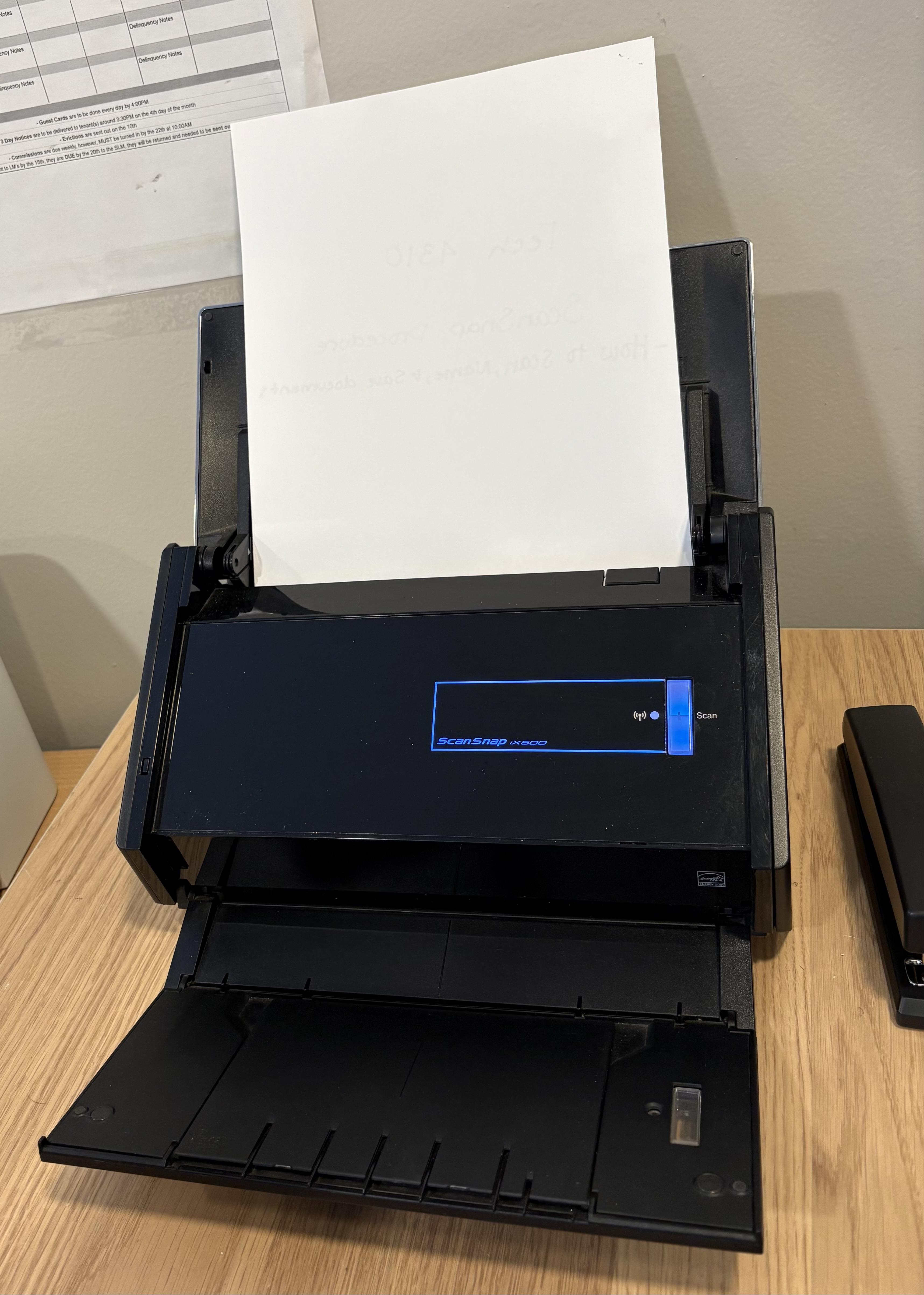
Place the document face down into the document feeder.
Scan the Document
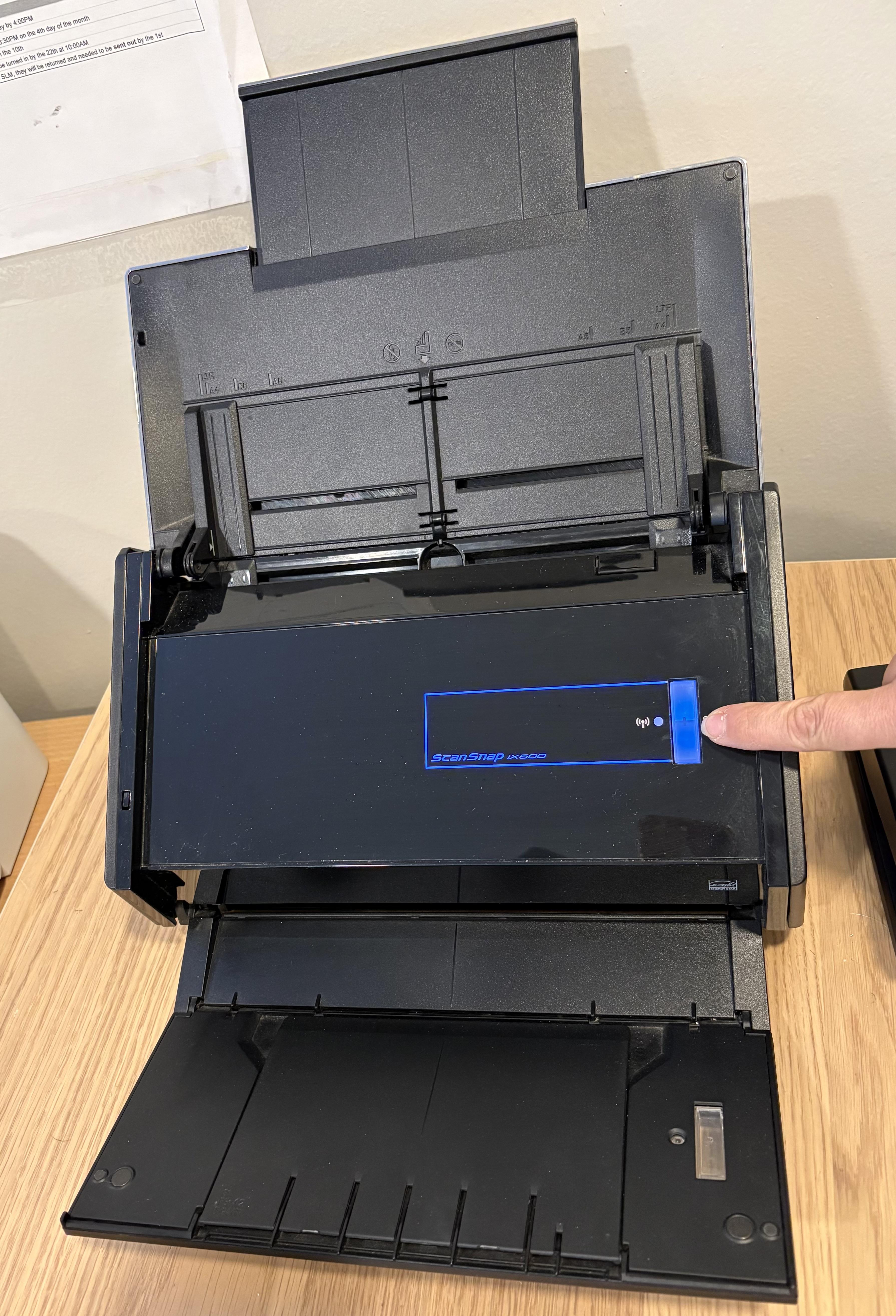
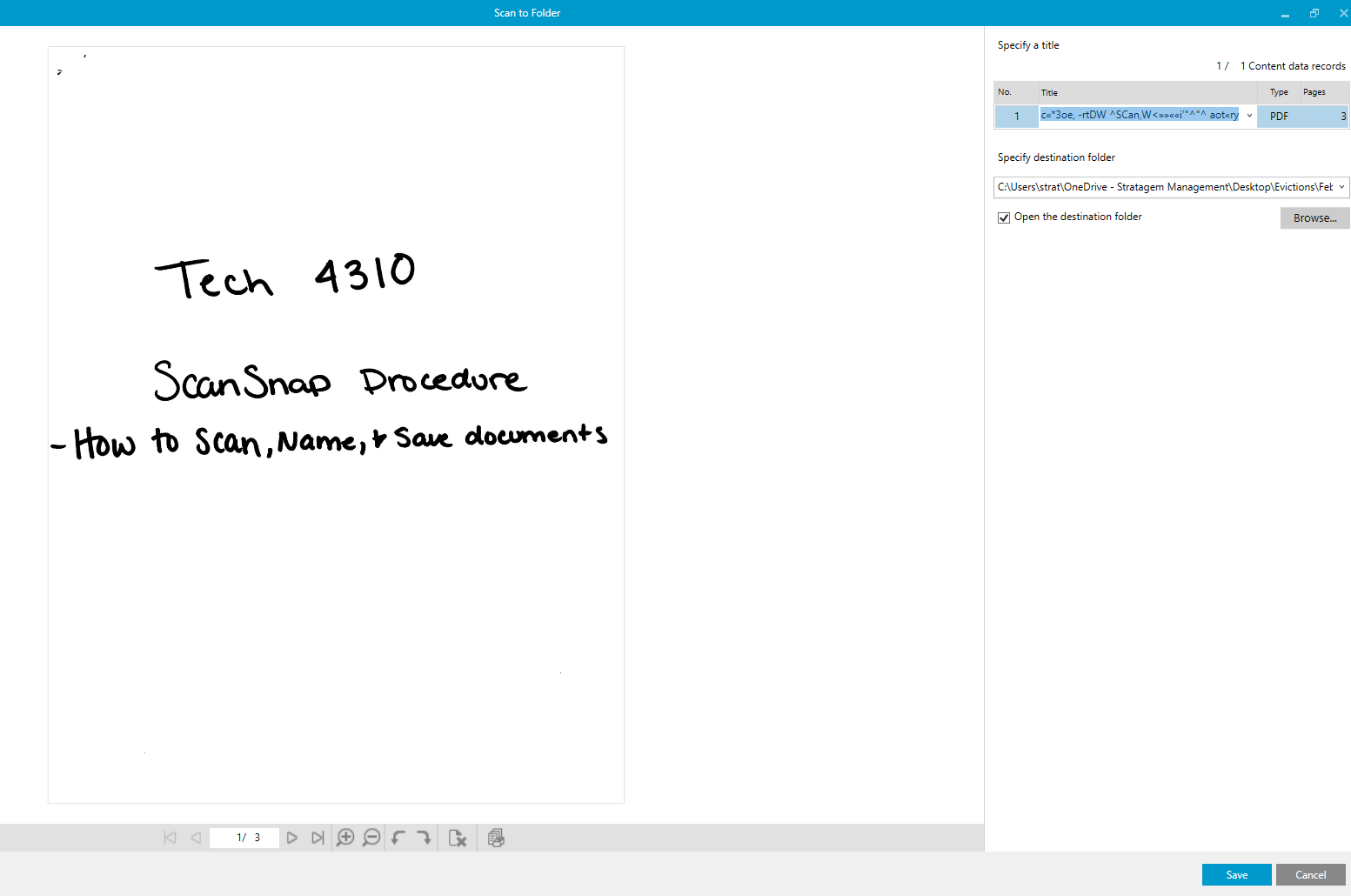
Press the blue button again and wait for the document to fully upload to the computer.
Review the Scanned File
.png)
.png)
Open the document and ensure the following:
- All pages are scanned
- Text is readable
- No pages are cut off or missing
Rename the File
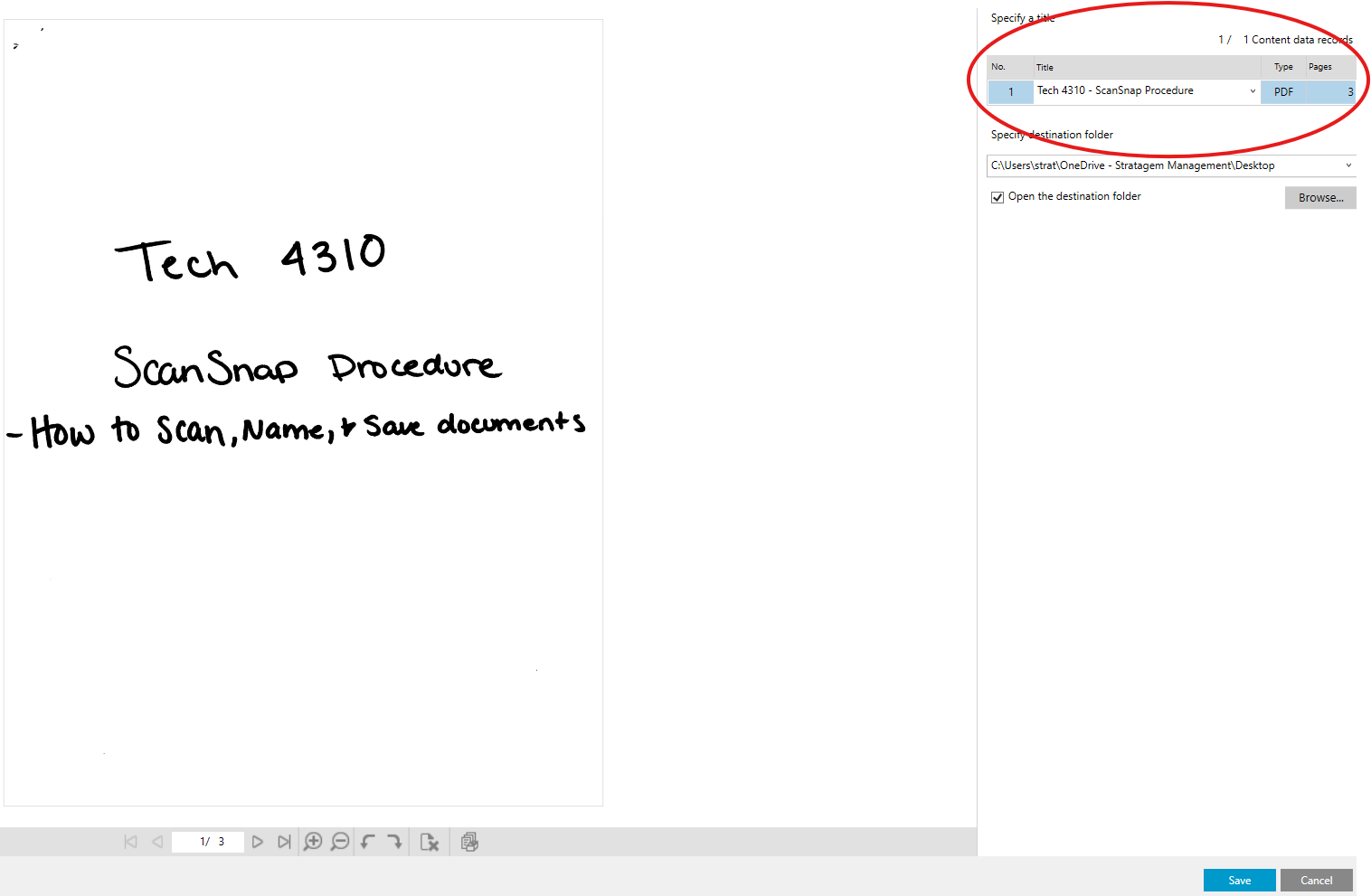
Rename the file using the correct format (Ex. Company Name-Document Description)
Save the File to the Correct Folder & Confirm Location
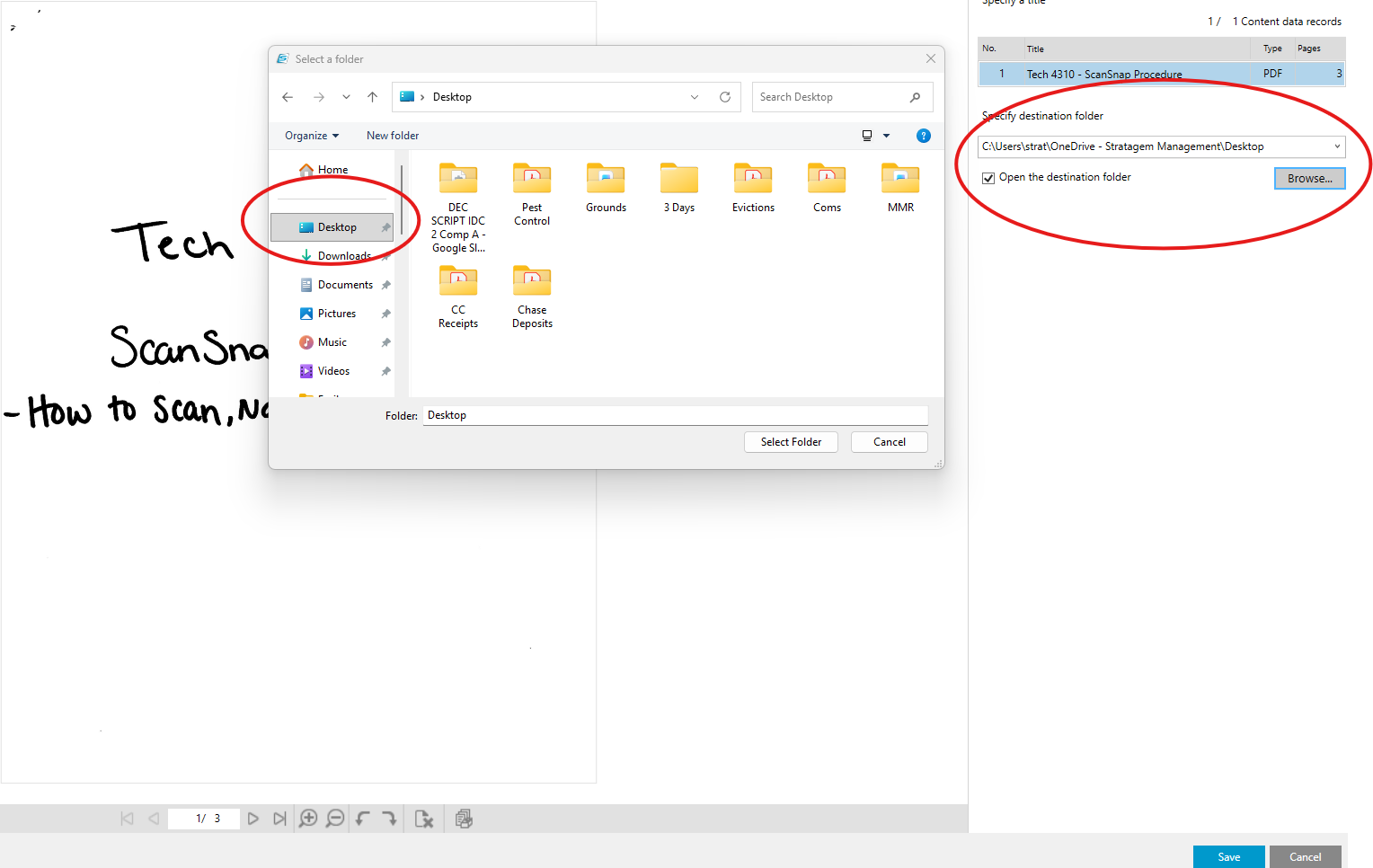
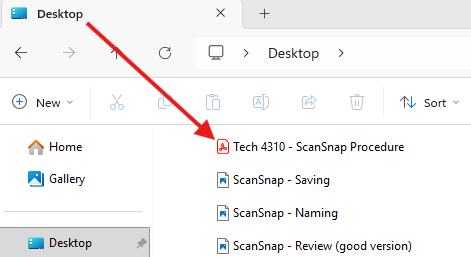
Navigate to the appropriate shared or local folder and save the file. Confirm that the file is in the folder.
(For this job aid we will be saving to the desktop)
Complete & Close
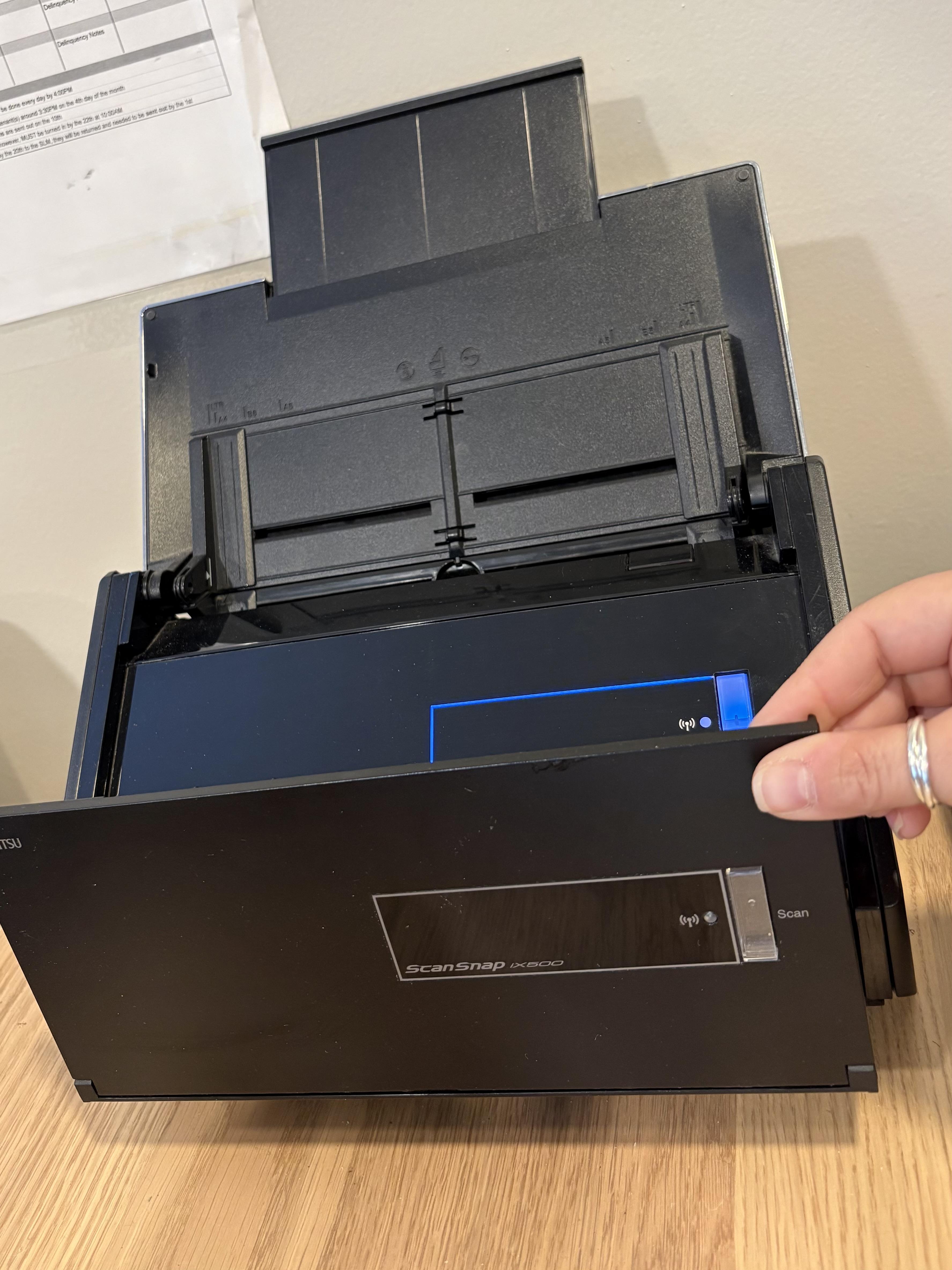
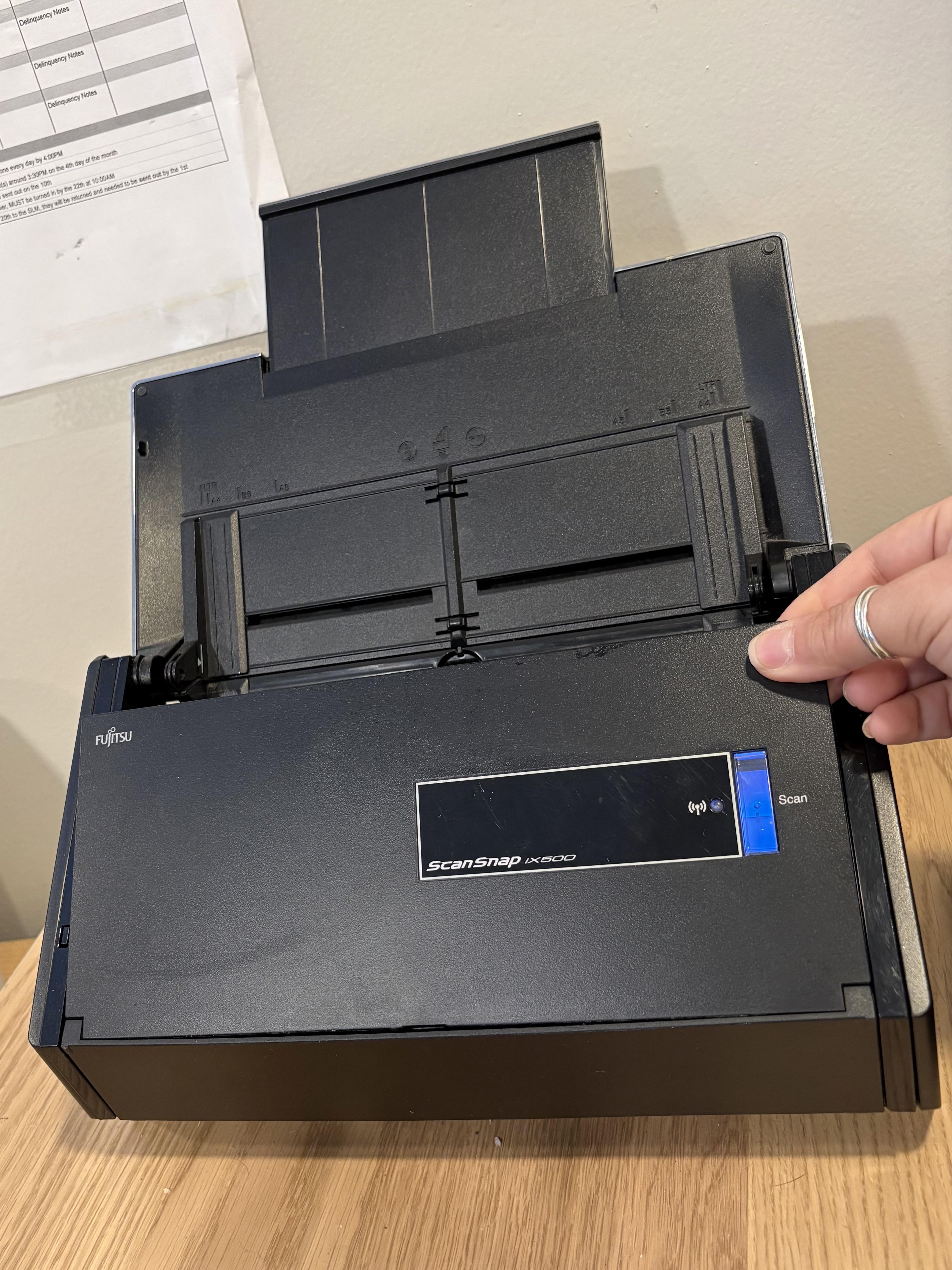
Verify that everything is complete and close the scanner software.
By following these steps you can ensure that office documents are scanned clearly, saved in the correct locations and named properly. Maintaining scanned documents helps to support workflow, reduce errors and makes the documents easier to find when needed.