Instrucable Into Pc Building
Have you ever wanted to know how to build/rebuild a pc? Well then here you go with these few simple steps.
Supplies
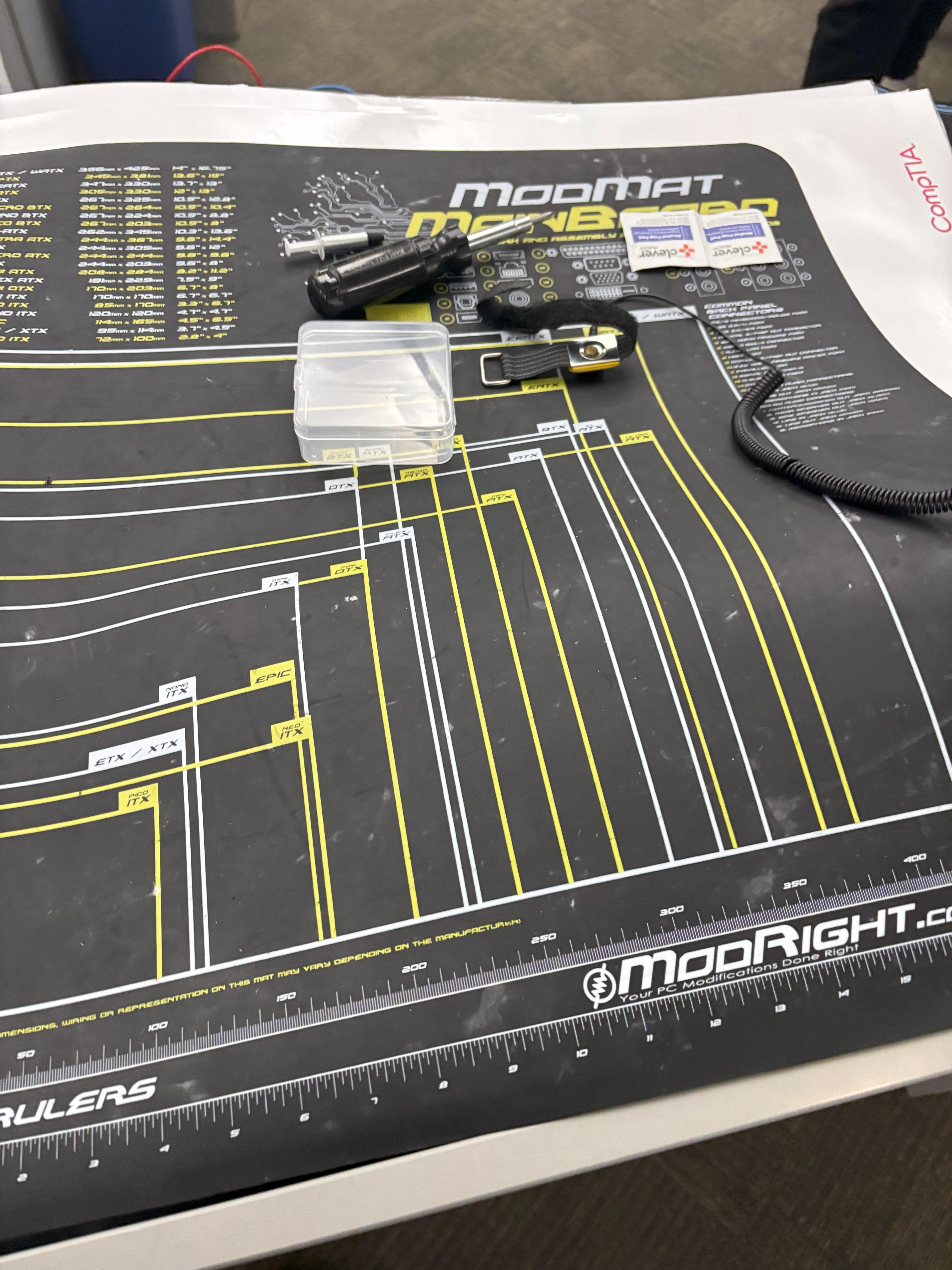
First make sure you have a ESD strap and a antistatic map. Then, your ESD strap must connected to somewhere other than the power supply in the pc. You need Thermal Paste, Wipes (to clean off the cpu), and a screwdriver.
You Need the Computer with everything in it or out of it. And everything from above.
Preping the Motherboard
Put the Anti-static Wrist Strap and clip it to anywhere outside the pc case.(We do this to prevent ESD Electrostatic Discharge, which can destroy components and the computer.
Now, unplug all connections (if you have any) and then take out all of the screws from the stand off from the mother board.
Cpu Cooler and Thermal Paste
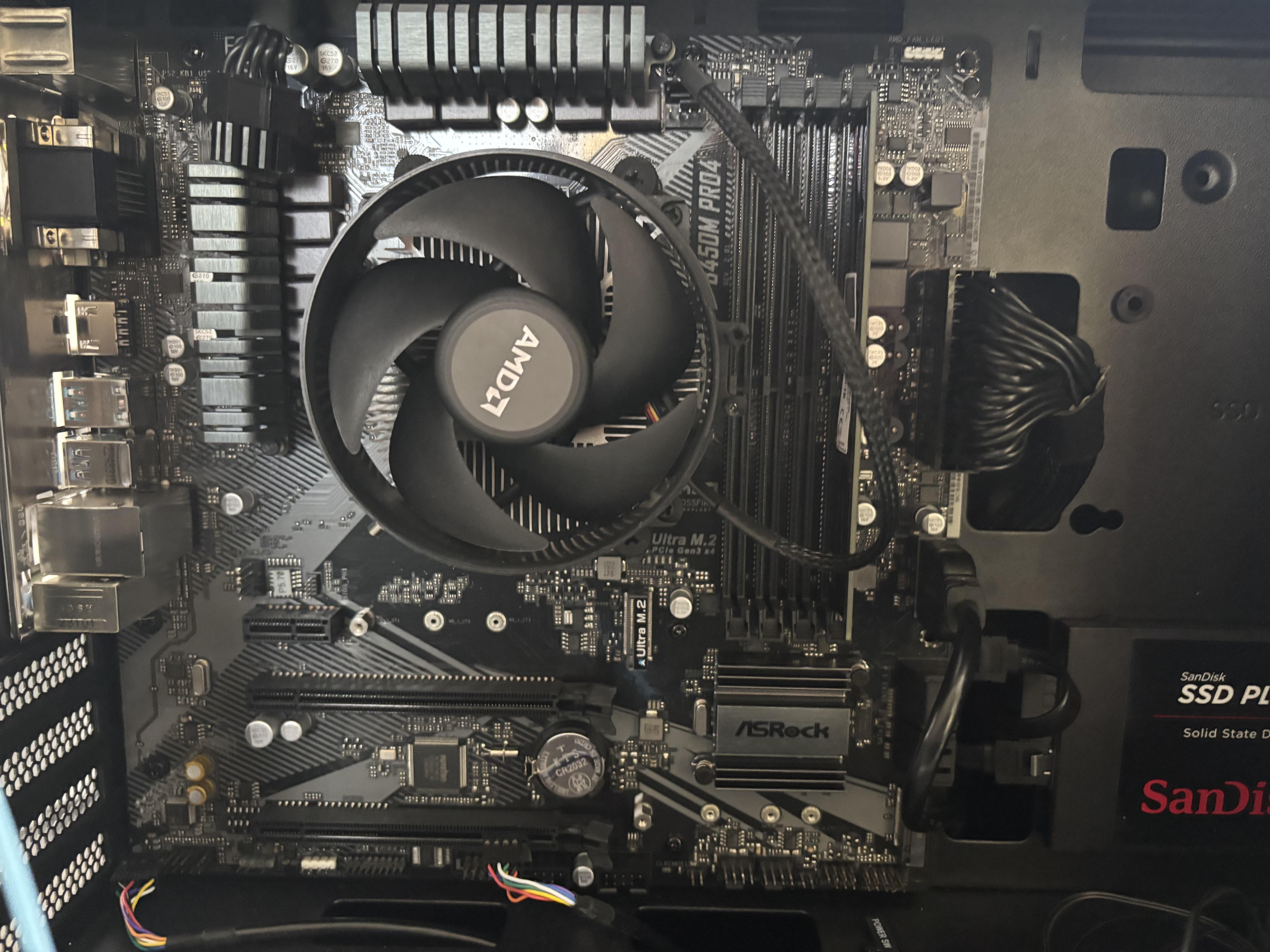
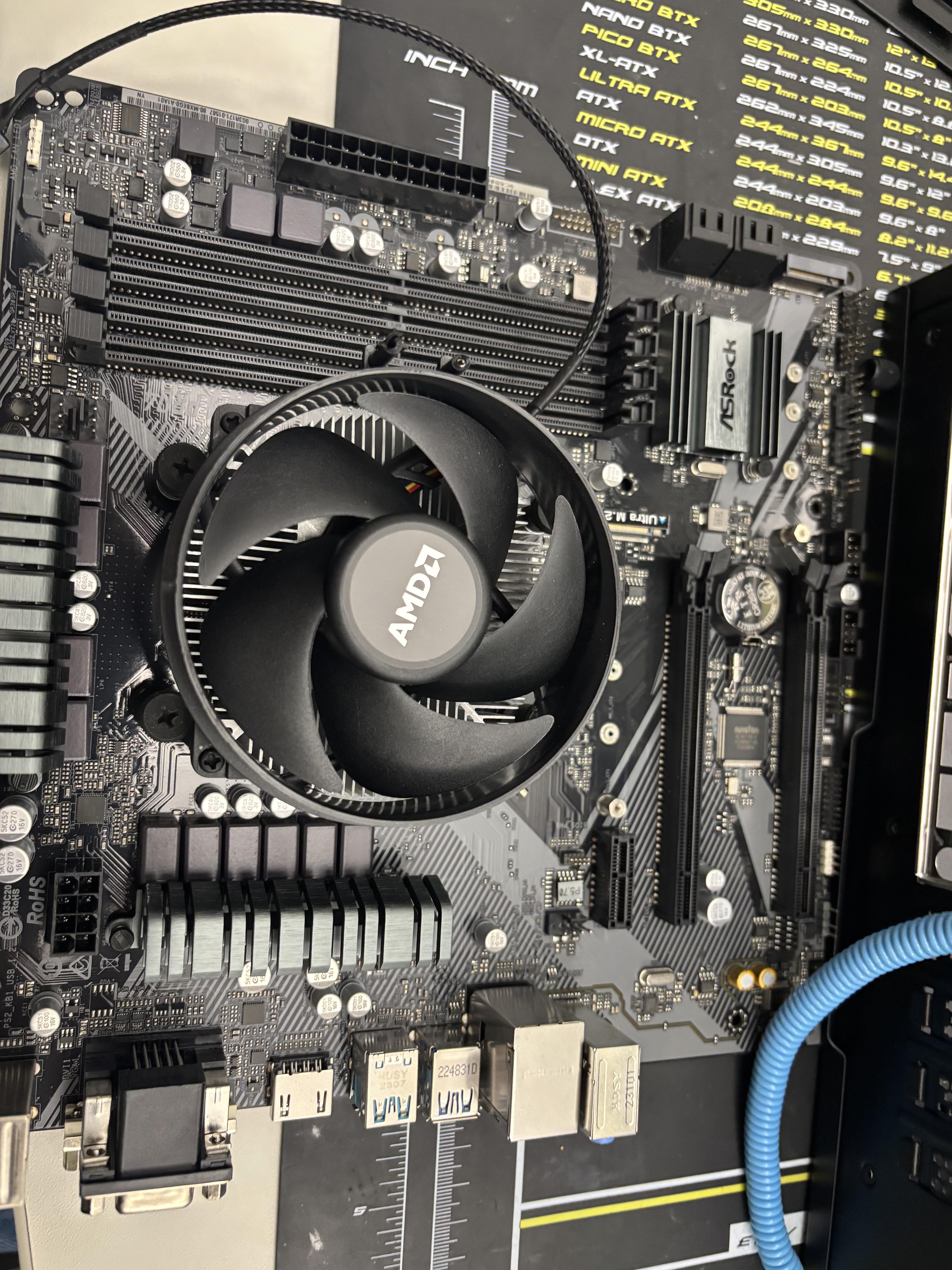
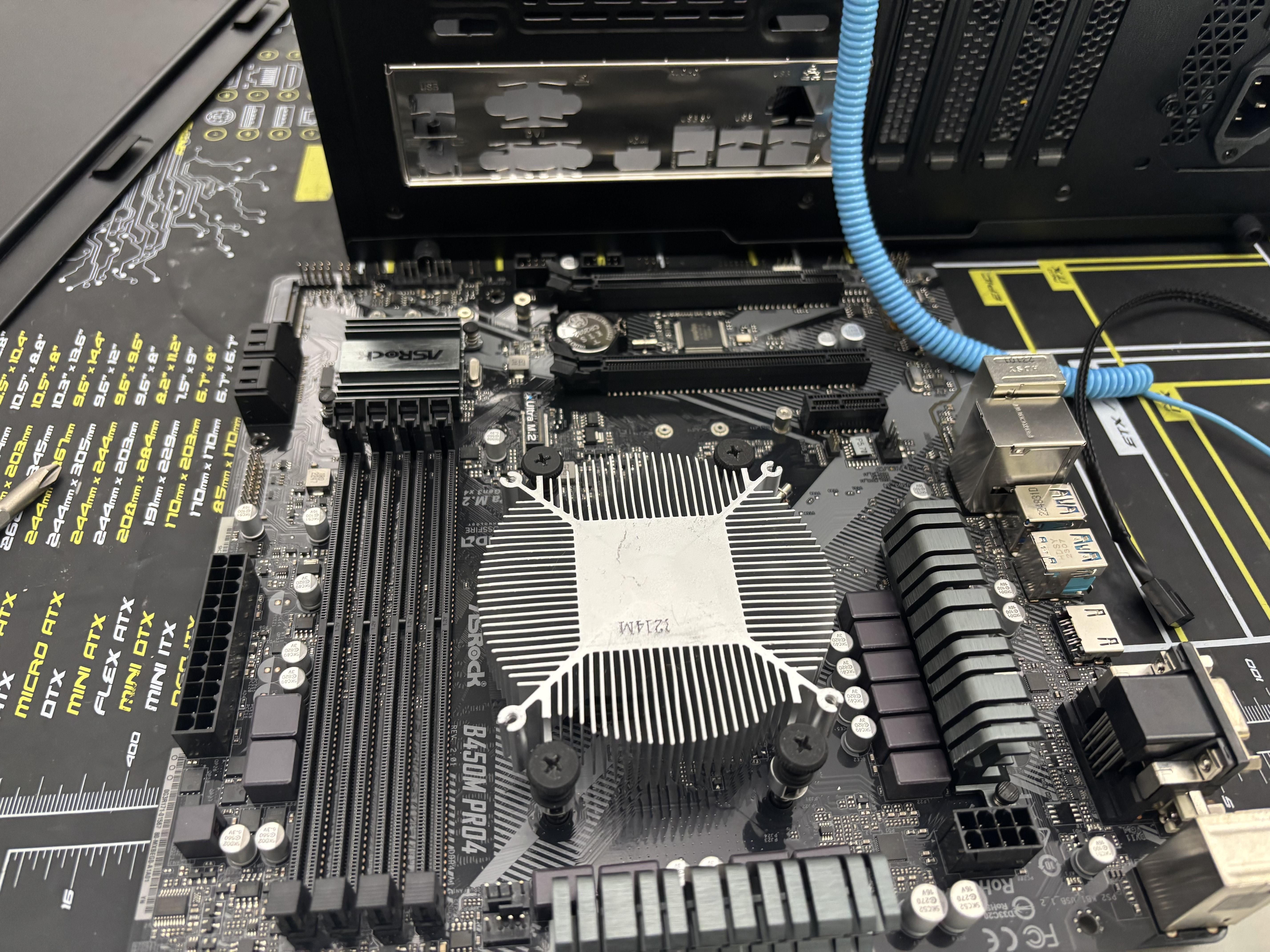
Unscrew The heatsink on the motherboard to get to the CPU. Once you have access to the CPU, Open the CPU socket lever and life the retention plate up.
Now, if you need to, clean off the CPU and then add a small, pea-sized dot of thermal paste to the center of the CPU. Then re-mount the heatsink, and also plug the CPU fan into the CPU_FAN connector on the motherboard.
Ram and Motherboard
.jpeg)
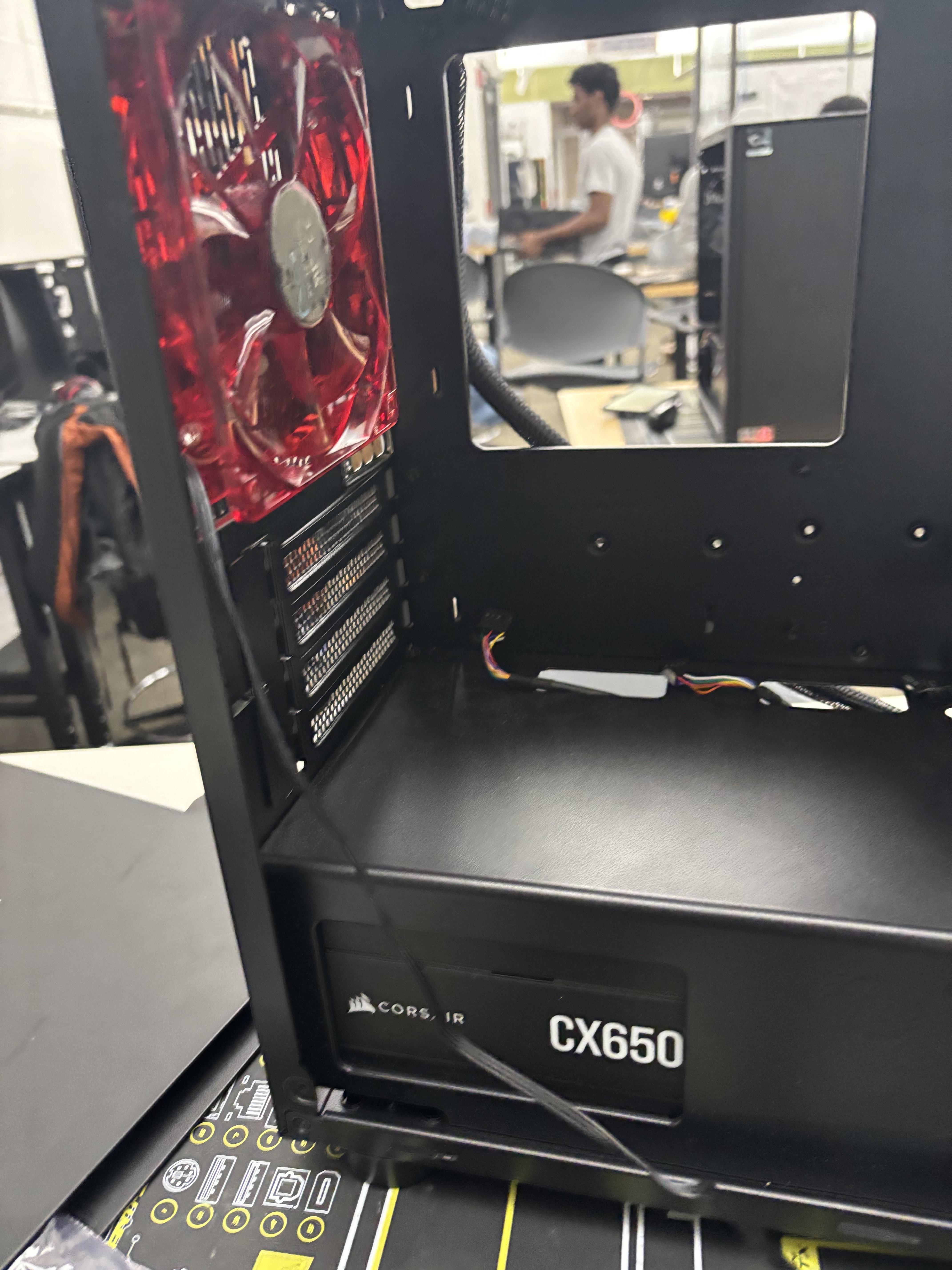
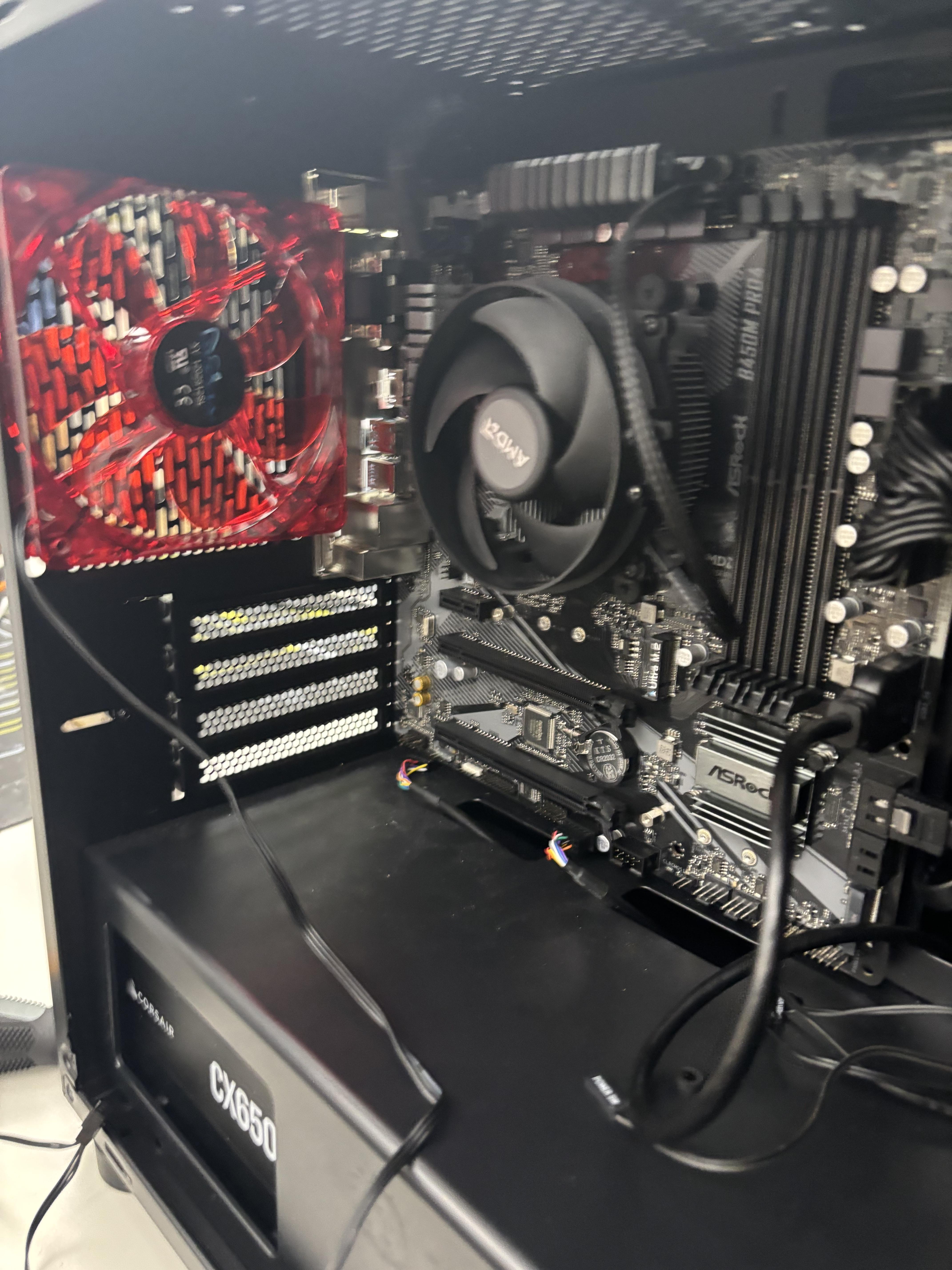
On the motherboard, Open the clips on the RAM slots. Align the notch's on the RAM stick and on the motherboard Ram slot.
Then push down firmly and evenly on both ends of the RAM stick until the clips snap back into place with an audible click.
Carefully lower the motherboard into the case, aligning the motherboard with the stand-off screws.
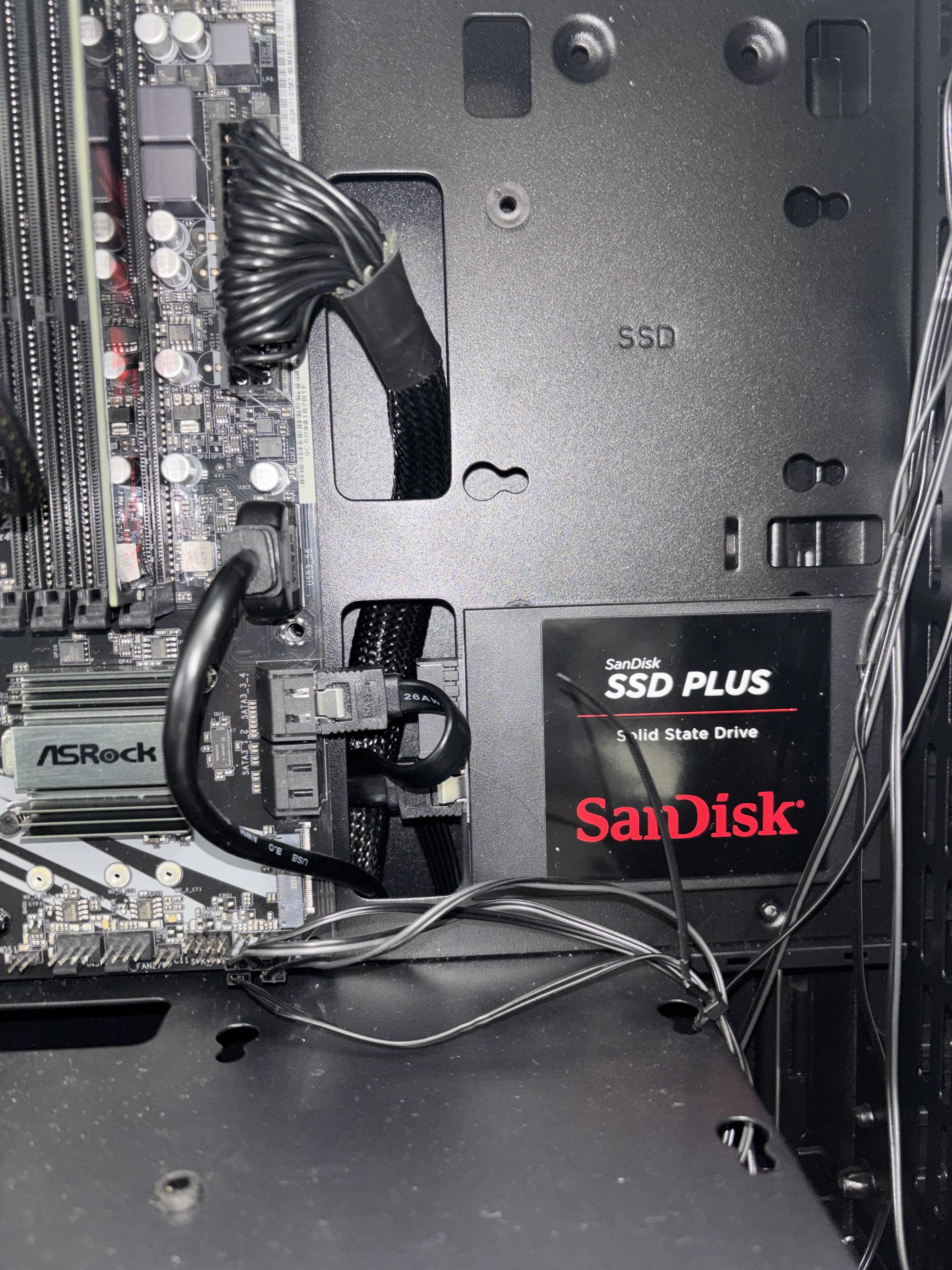
Then Load your SSD/HDD into the correct drive bays and plug them in correctly (if needed).
Graphics Card(optional)
If you need to install a Graphics card then here is what to do.
Locate the PCIe slot and remove the metal brackets covering the slot or loosen them.
Insert the CPU, wait until it clicks and is secure in the slot with the brackets.
Cable Management and Power Connections
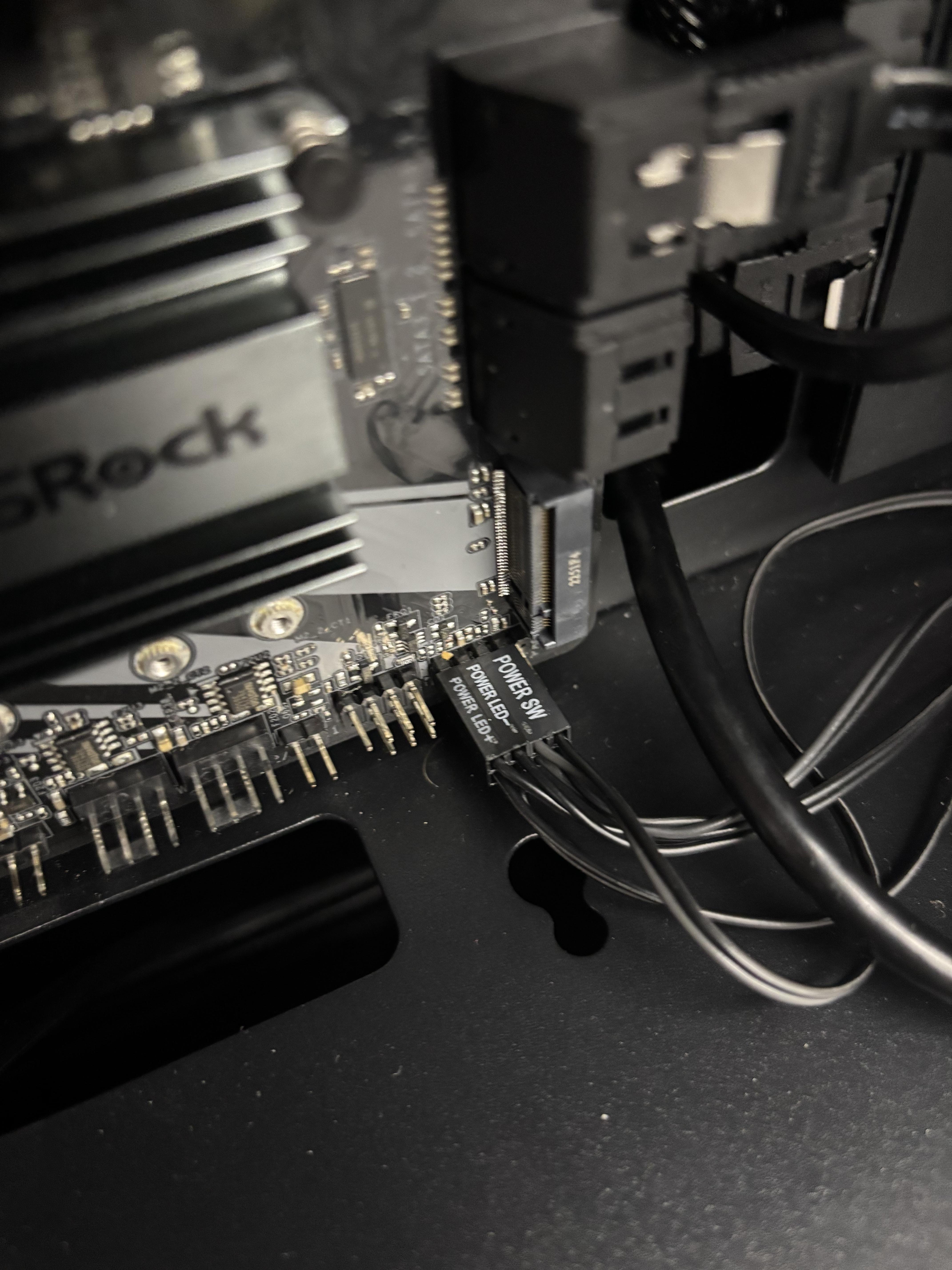
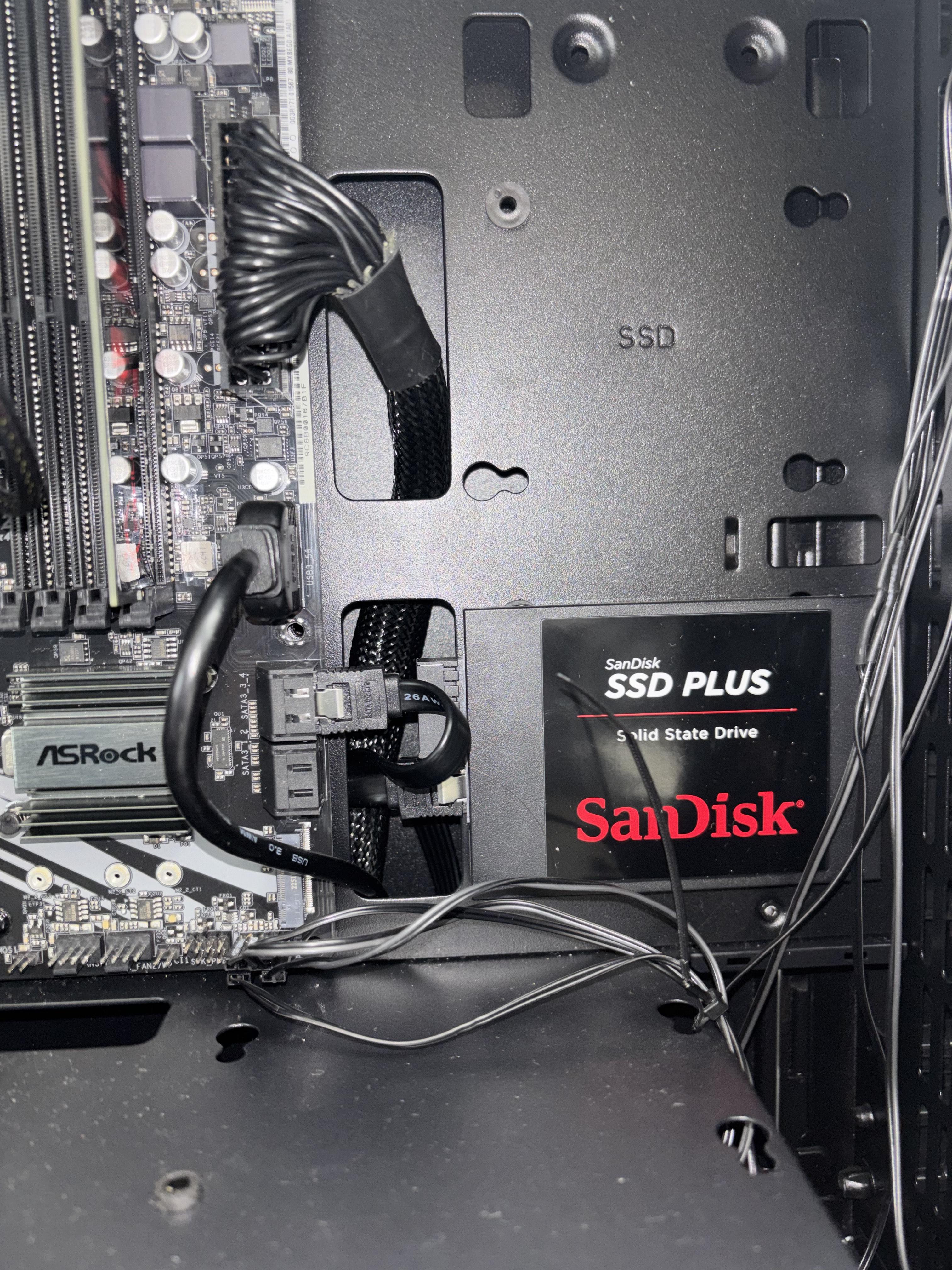
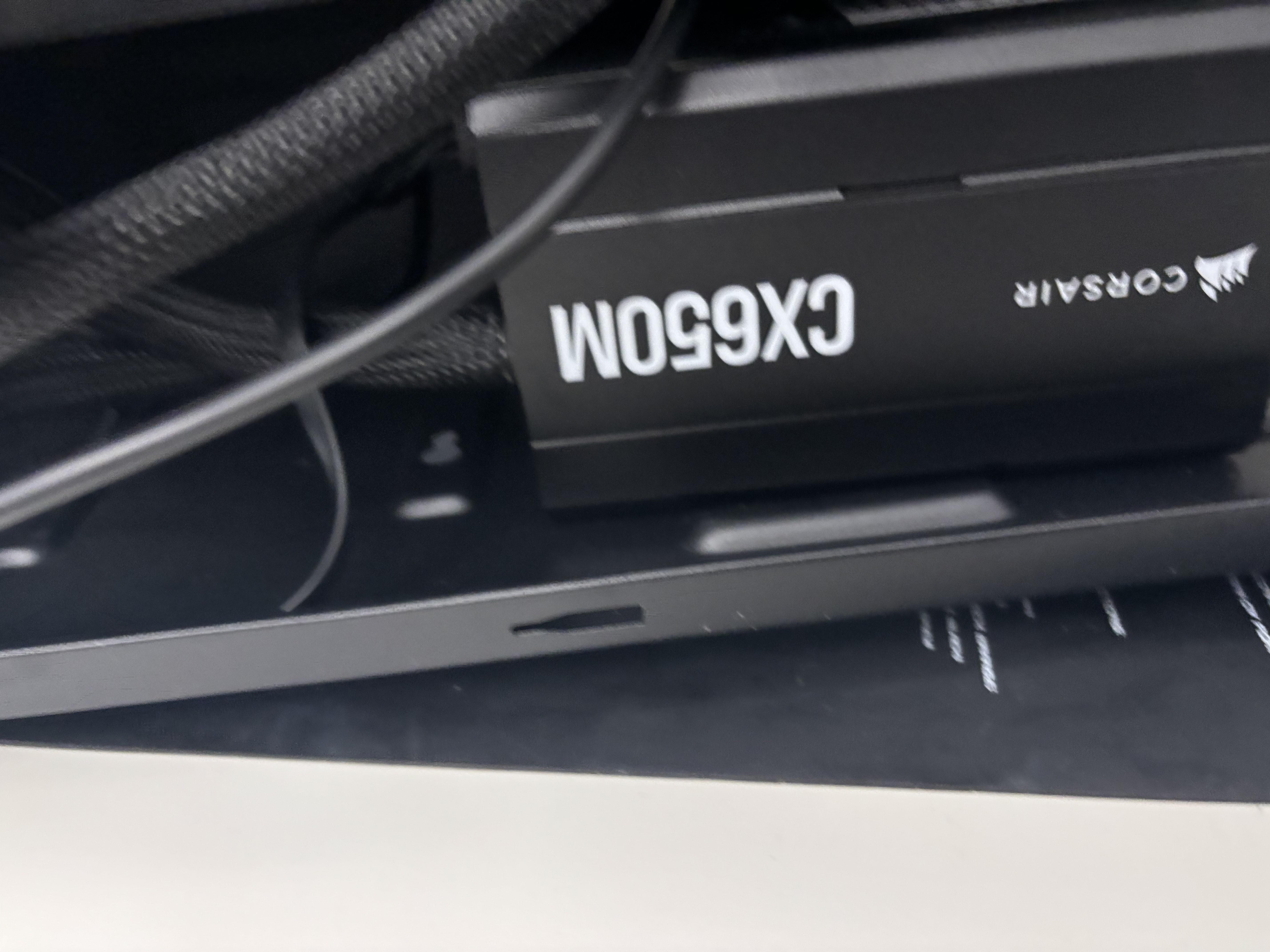
Connect the PSU power cables to the 20/24 pin connecter, and the 4/8 pin CPU power, then the PCIe power to the GPU (if needed).
Connect all of the remaining cords to the corresponding connectors.
If needed, make sure all of the wires are not loose and are routed through the back of the case. Use zip ties or Velcro straps to tidy the wires away from the main components. (Good cable management improves airflow and aesthetics!)
Then put the case together of the computer!
POST, BIOS, and OS
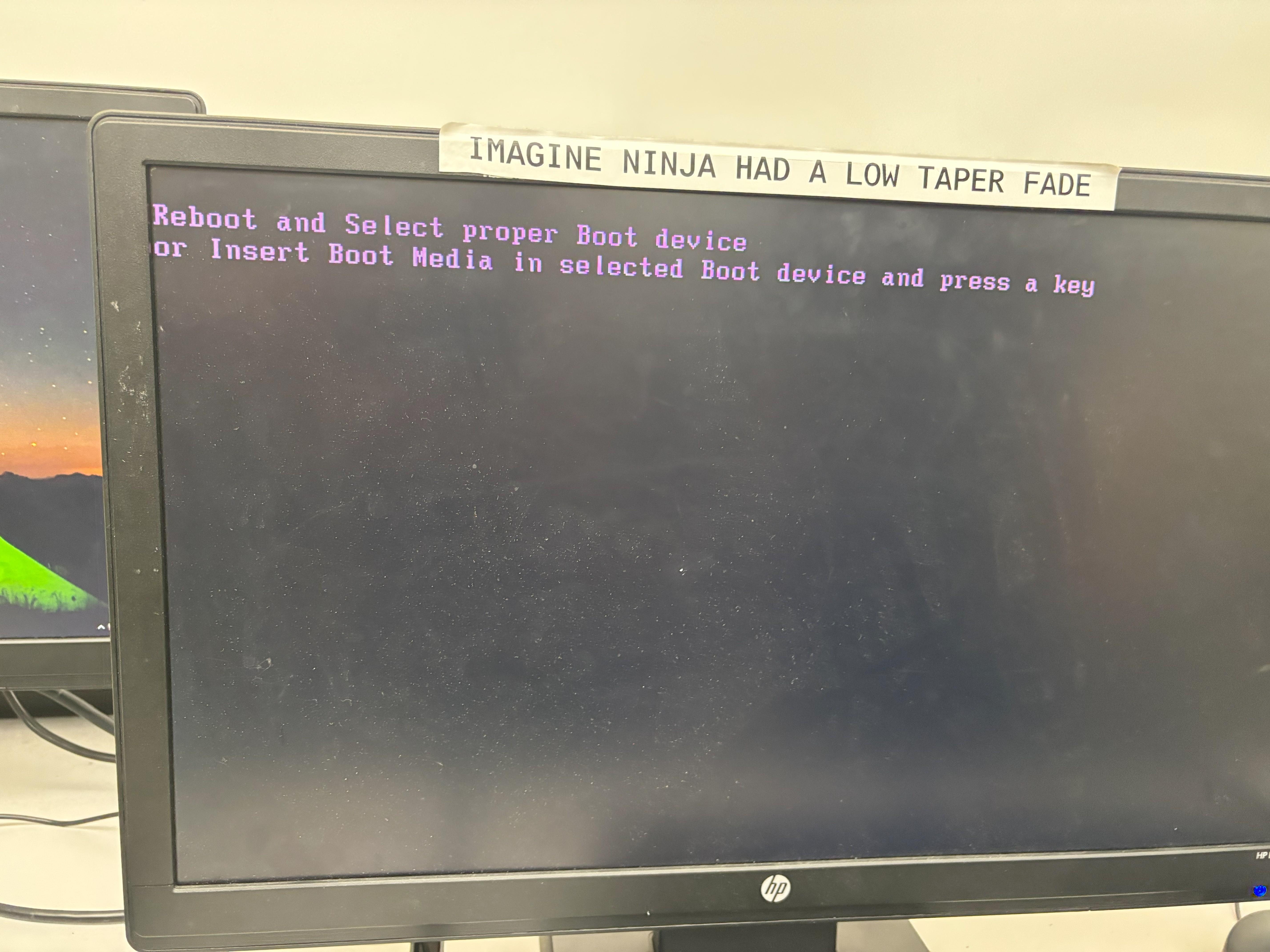
Connect your peripherals (monitor, keyboard) and power up the PC.
The system should run the Power-On Self-Test (POST). Immediately press the required key (e.g., F2, DEL) to enter the BIOS/UEFI and verify all components are recognized.
If the screen is blank but the PC is on, listen for Beep Codes (e.g., three beeps often means RAM issues). These guide you to the problem component.
Boot Menu: Exit the BIOS and use the Boot Menu to select your OS installation media (USB/DVD). Install the operating system.
Then wait for the OS to install, then your done!