I Made a ESP32 GTFS-Based Bus Tracker for the M15 NYC Bus Line
by sorenagilkeyjohnson in Circuits > LEDs
47 Views, 0 Favorites, 0 Comments
I Made a ESP32 GTFS-Based Bus Tracker for the M15 NYC Bus Line
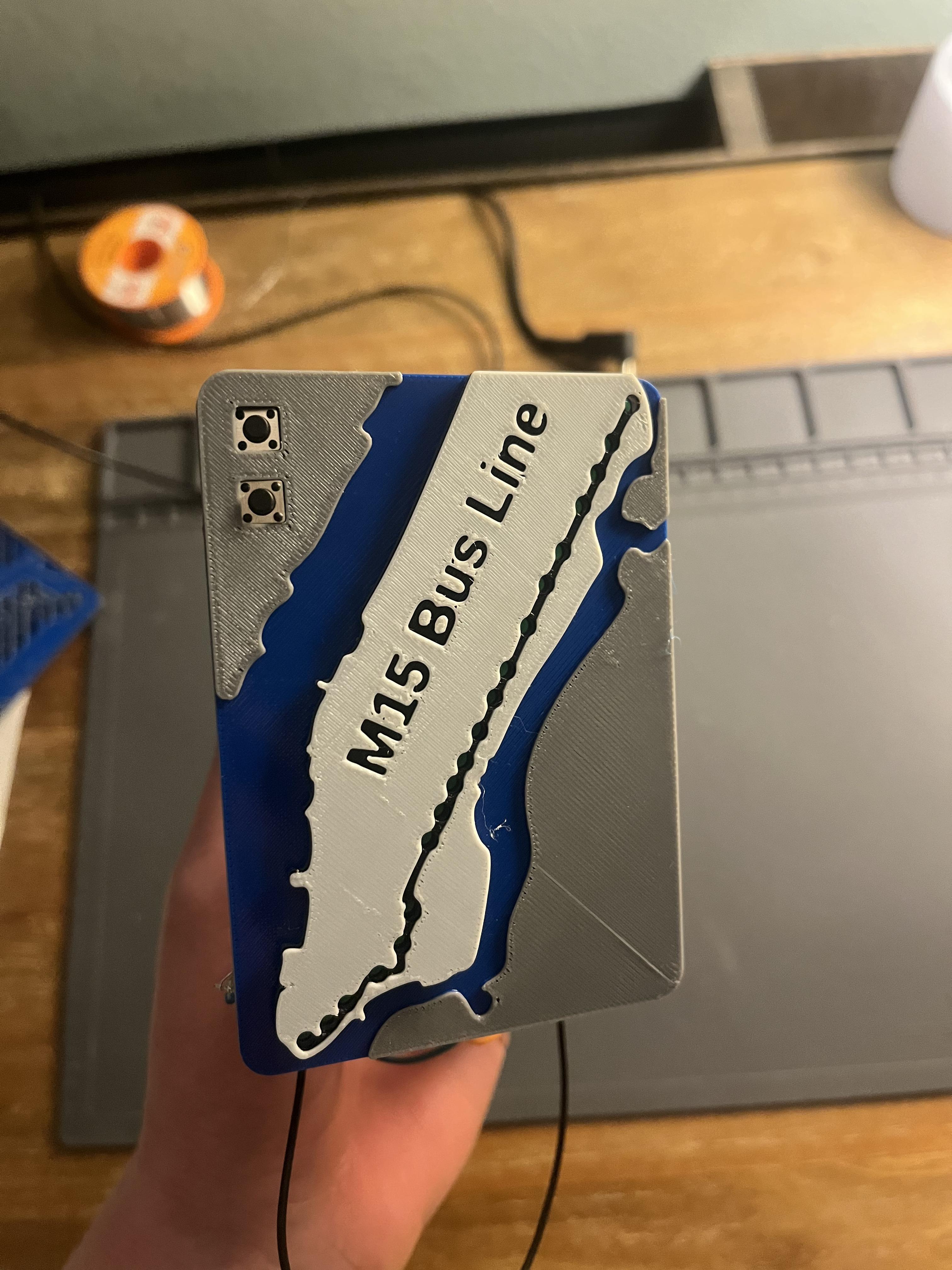
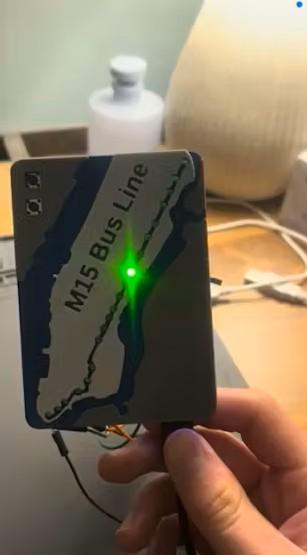
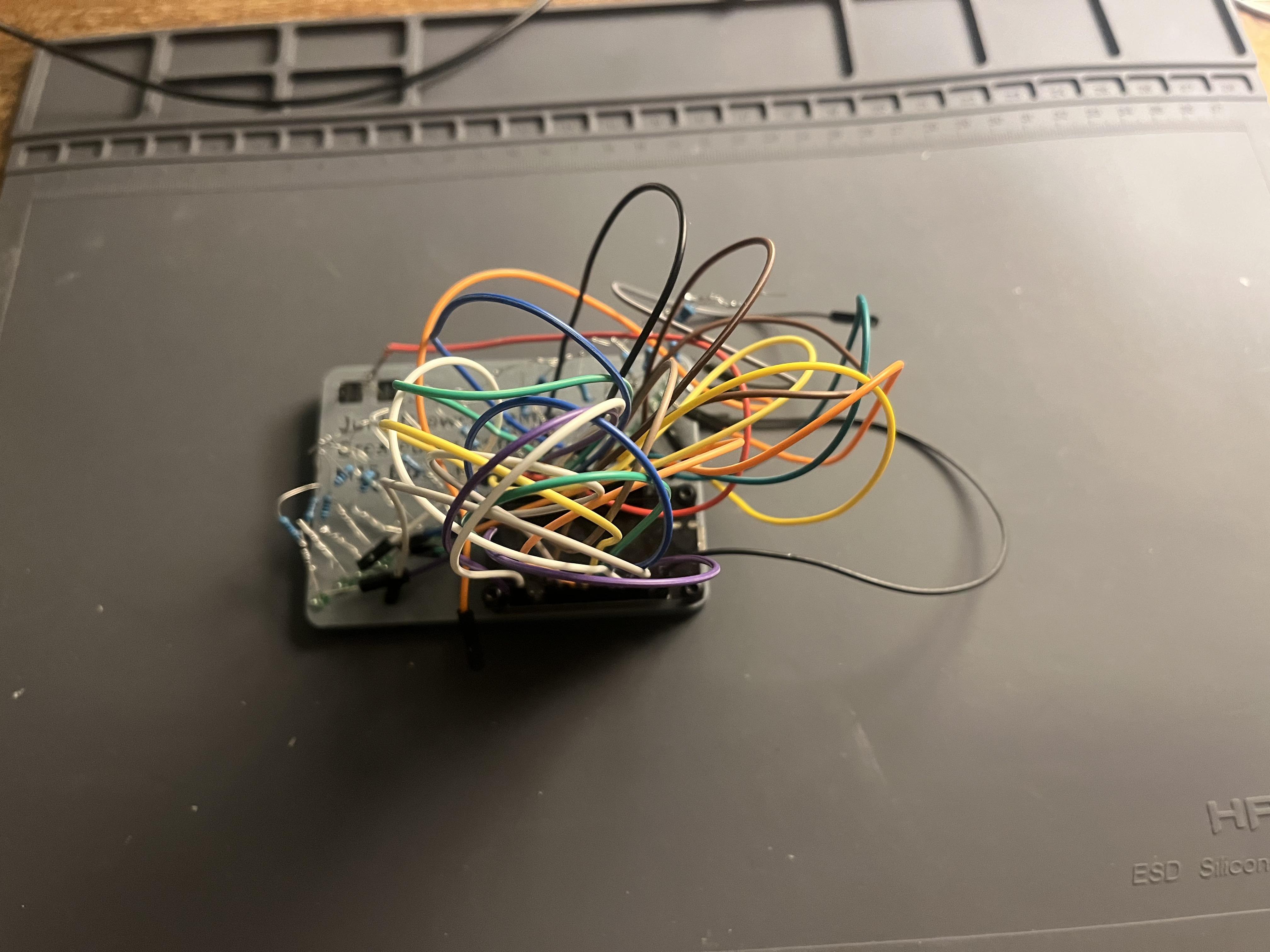
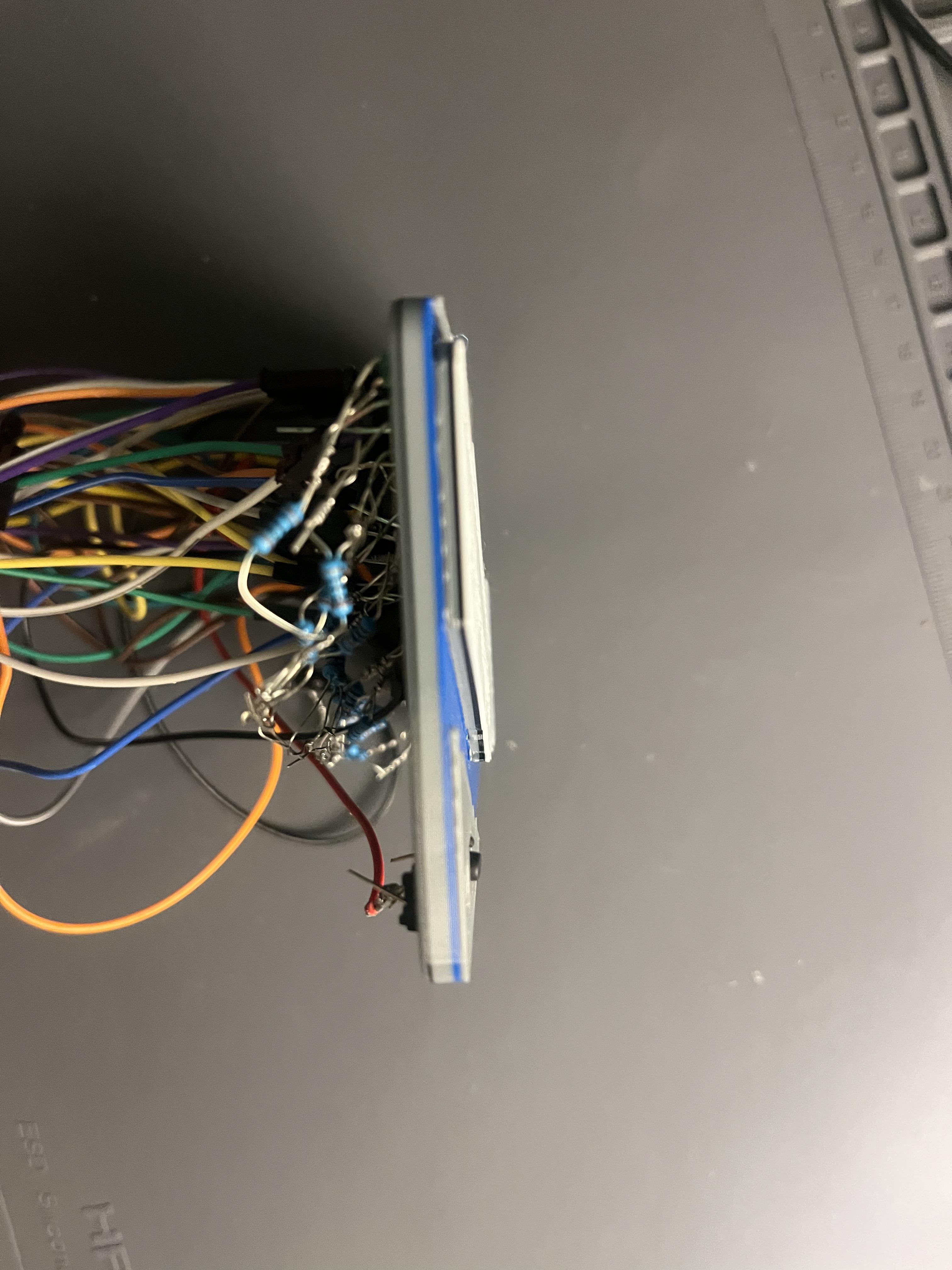
This year I started taking the M15 bus line to my classes at least every day. I wanted to make a real time tracker of the bus that is easy to view. I initially considered creating a PCB for this, and I might someday, but I decided that it would be better to make this project with components I already had. The project came together very quickly, but the code was the most frustrating part, a common theme for all of my projects. I tried to make it compatible with other bus systems, so if someone wanted to emulate this project, they could have it track a different bus. The greatest flaw of this project was the use of DuPont cables connecting to LED pins. This is because they have a tendency to fall off, and can be quite finicky, as well as creating quite the rats nest of wires! Ultimately, this was a fun and quick project that used items I already had, which was a refresher from doing CAD all day, while waiting for orders to ship.
Supplies
Tools:
-Any 3D printer (I used the Bambu Labs A1 Mini)
-Solder iron (alternative you could use a breadboard or DuPont cables, but this would be insecure)
Parts in the project:
-3mm LED (any color
-ESP32-Dev Board (I used the ESP32-32D, but any ESP32 will probably work)
-Resistor (Corresponds to the LED value, use the output voltage of the ESP32 as a reference, typically 100-300 Ohms)
-6x6mm normally-open switch (Optional)
The Build
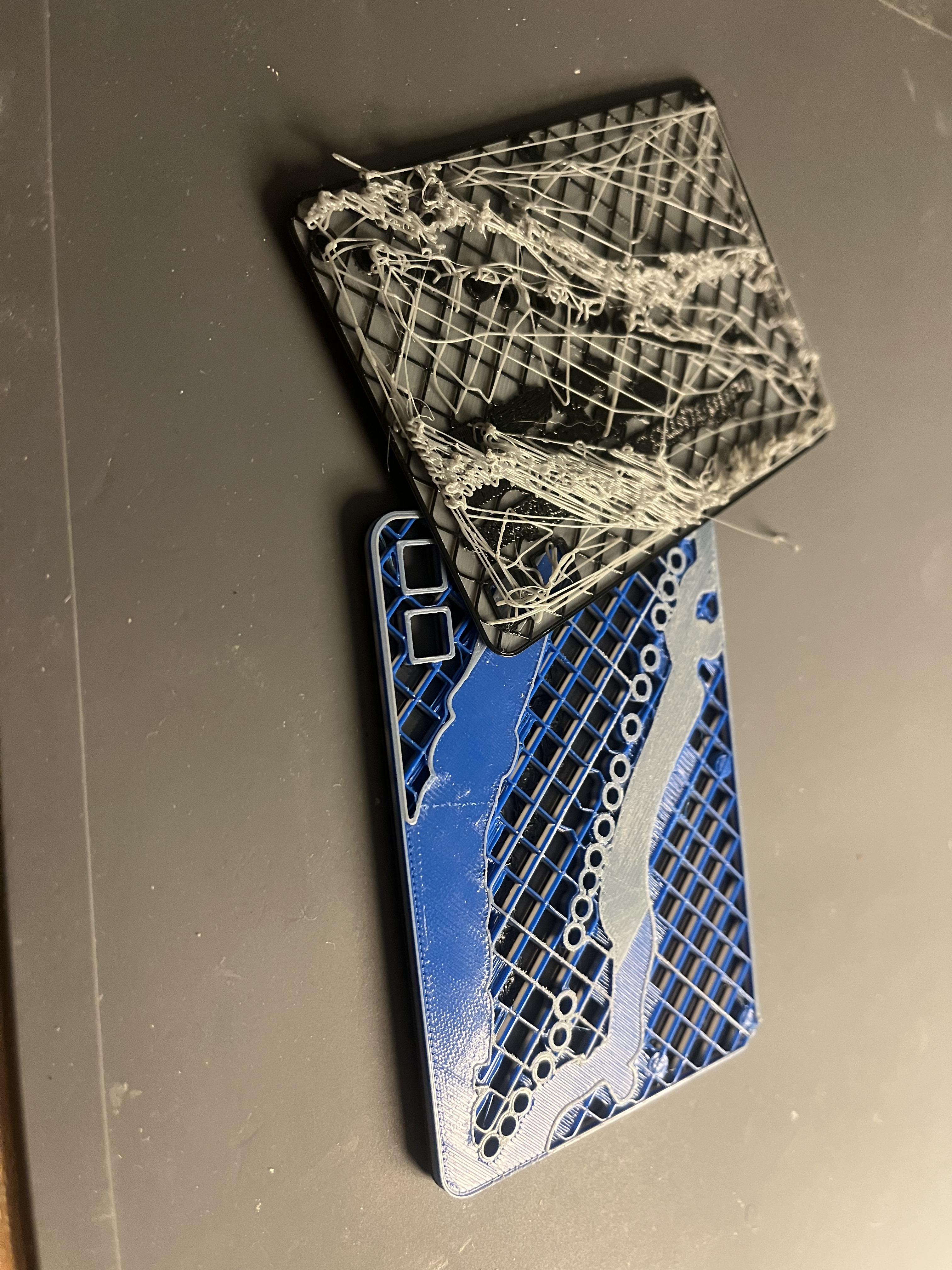
I 3D printed the map on the Bambu Labs A1 mini, and I was very happy with the results. While I don't have a AMS, it is still possible to print multi-color prints by manually swapping the colors. This is very time consuming, however, and it increases the chance of parts failing, which happened to me twice, as shown in the picture. I did eventually get the print to work, however.
After this it is time to head into the electrical assembly.
start by insuring the two buttons and the LED's. After this, use Ohm's law to calculate the required resistors to drive the LED's from the supply voltage. Once you have done these two things it is time to start soldering! I have found the best method is to make a "chain" where each resistor latches onto the one in front of it. After you have done this insert the ESP32 using M3 screws. I would recommend using DuPont connectors to attach the LED's to the ESP32 so you can remove them later, although you can solder them. Attach the buttons, one side to ground, and than you are done with the assembly! Make sure to keep critical pins like TX/RX or EN on the ESP32 clear, but the positions for these vary based on the dev-board.
The Code
The code written for the ESP32 development board must be compiled using ESP-IDF. To install it, follow the instructions on the official ESP-IDF website. Then move the project source code into the downloaded folder.
Open the code in the main folder and edit the #define variables (the ones with comments) to your own. Follow the comments, which will guide you, and help you setup WIFI.
In addition to this you must include the files that are required for Protobuf decoding. Protobuf if the file format that the GTFS API (the bus tracker) downloads data in, and you must use a files compiled on your own computer to parse them. The goal end result of this is for two files named gtfs-realtime.pb.cc and gtfs-realtime.pb.h. Once you have these files, put them in a new folder named "components", and exit out of that folder. There are guides online for how to do this, and that will be the easiest approach.
Make sure to include the Cmake files, but these will be slightly different for each computer. For advice go to the ESP-IDF documentation. Generally, if you see an error for a unknown file this is the problem.
Open the ESP-IDF v5.5 terminal, and use the cd command to navigate to the project folder. Make sure your ESP device is plugged in via a USB port on your computer. There is usually a power LED indicating power. After this, run:
You should now see the ESP working. If it does not try running:
Then run the first command again. The board should than start running whatever code is in your main folder!