How to Use the Infrared Switch Sensor With Arduino - Lesson #15
by lucascreator in Circuits > Arduino
76 Views, 1 Favorites, 0 Comments
How to Use the Infrared Switch Sensor With Arduino - Lesson #15
(1).png)
What if your Arduino could notice someone getting close without touching anything at all?
No buttons, no pressure sensors, no physical contact - just light. That idea might sound a little bit like magic at first, but it's actually a very common and very practical technique used in electronics.
That's exactly what we'll learn in this tutorial.
This is lesson 15 of my 24-part series called Arduino for Beginners. In this lesson, we're going to explore how an infrared switch sensor works, how to connect it to an Arduino, and how to use it to build a simple but realistic alarm system.
Infrared sensors are one of those components that often look intimidating when you first see them. They're usually larger than basic sensors, and they don't give you nice distance values like ultrasonic sensors do. But once you understand the idea behind them, they become incredibly simple and useful.
So let's break it down step by step and turn theory into something that actually does something.
Supplies
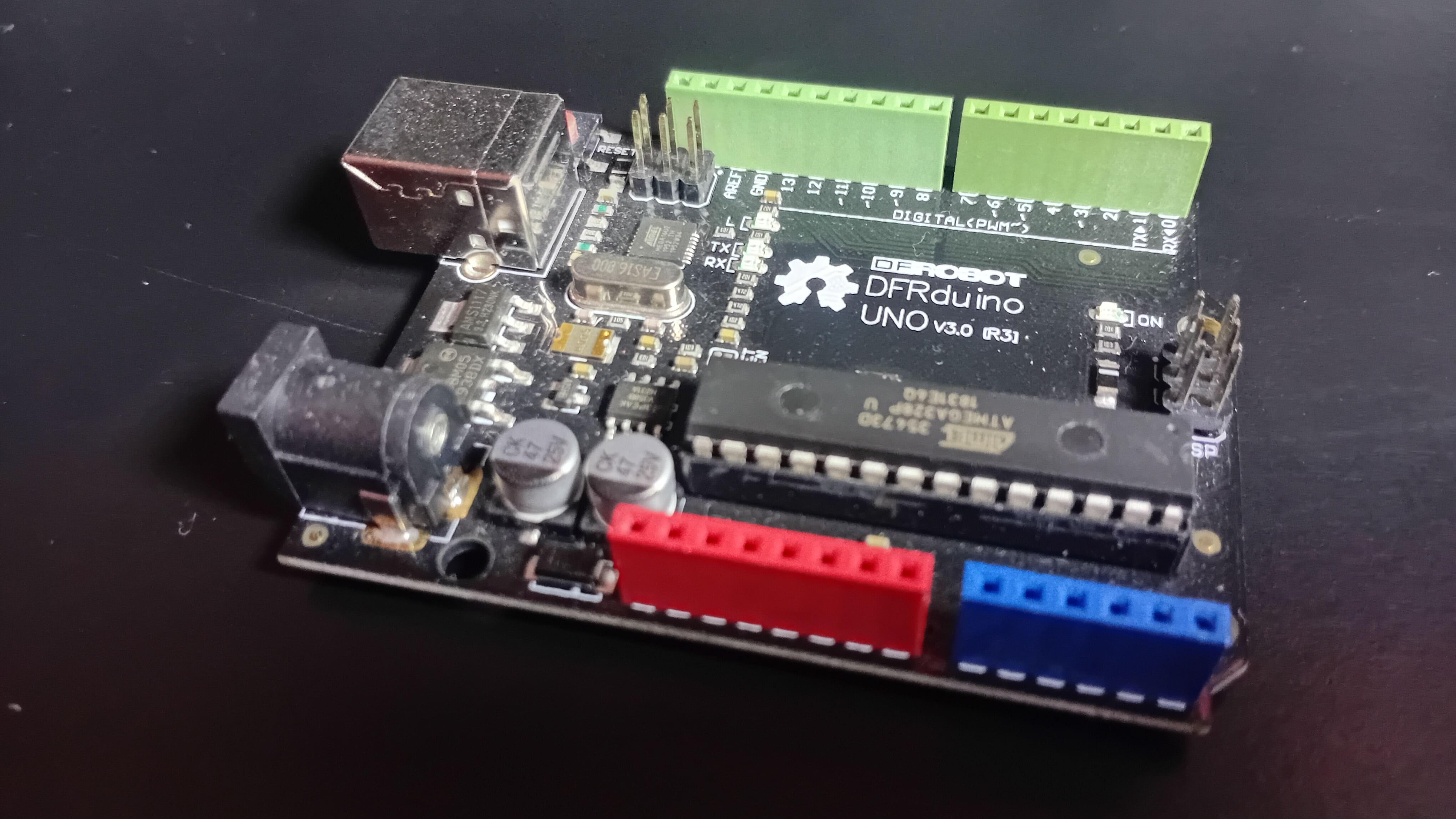
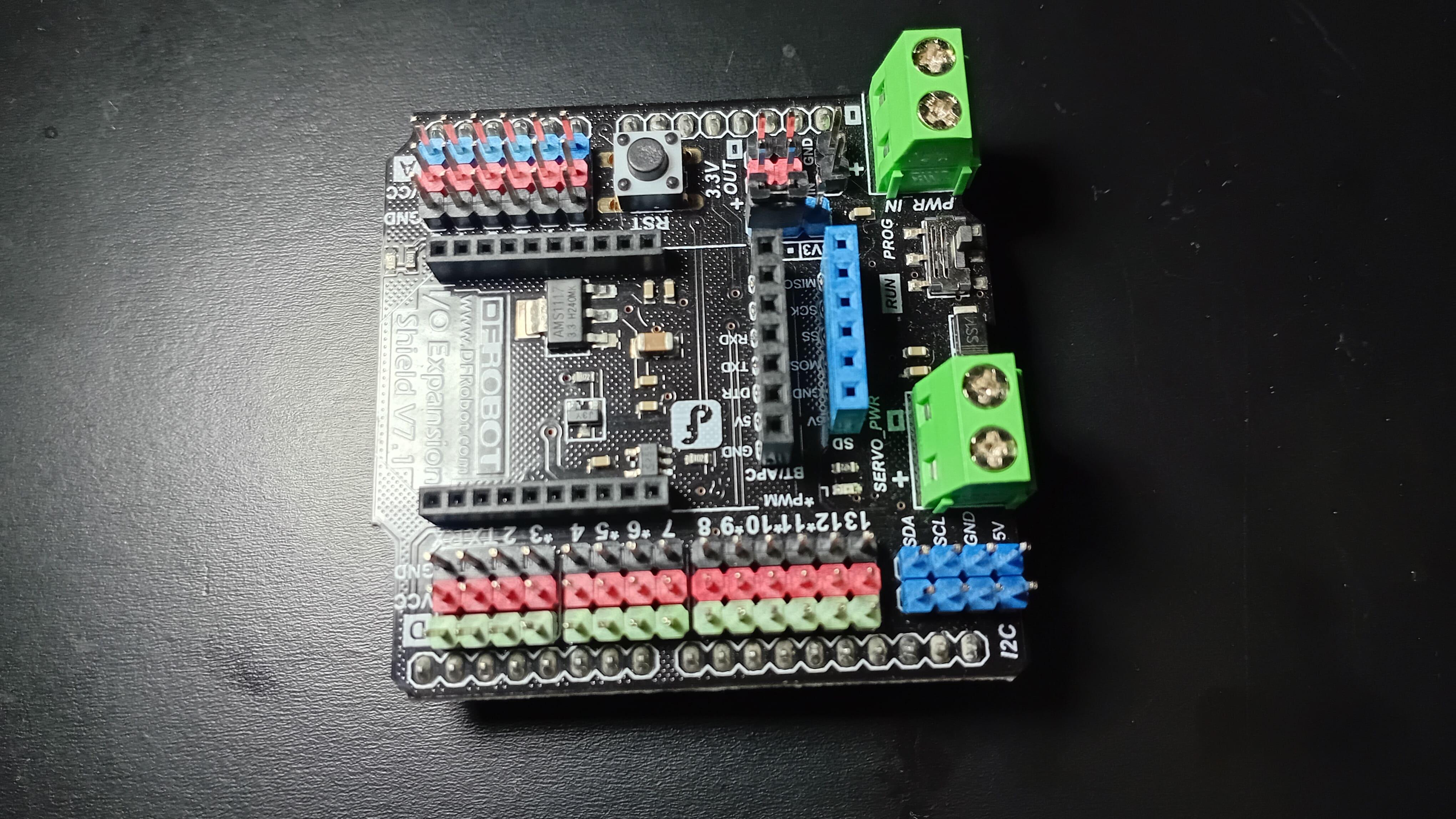
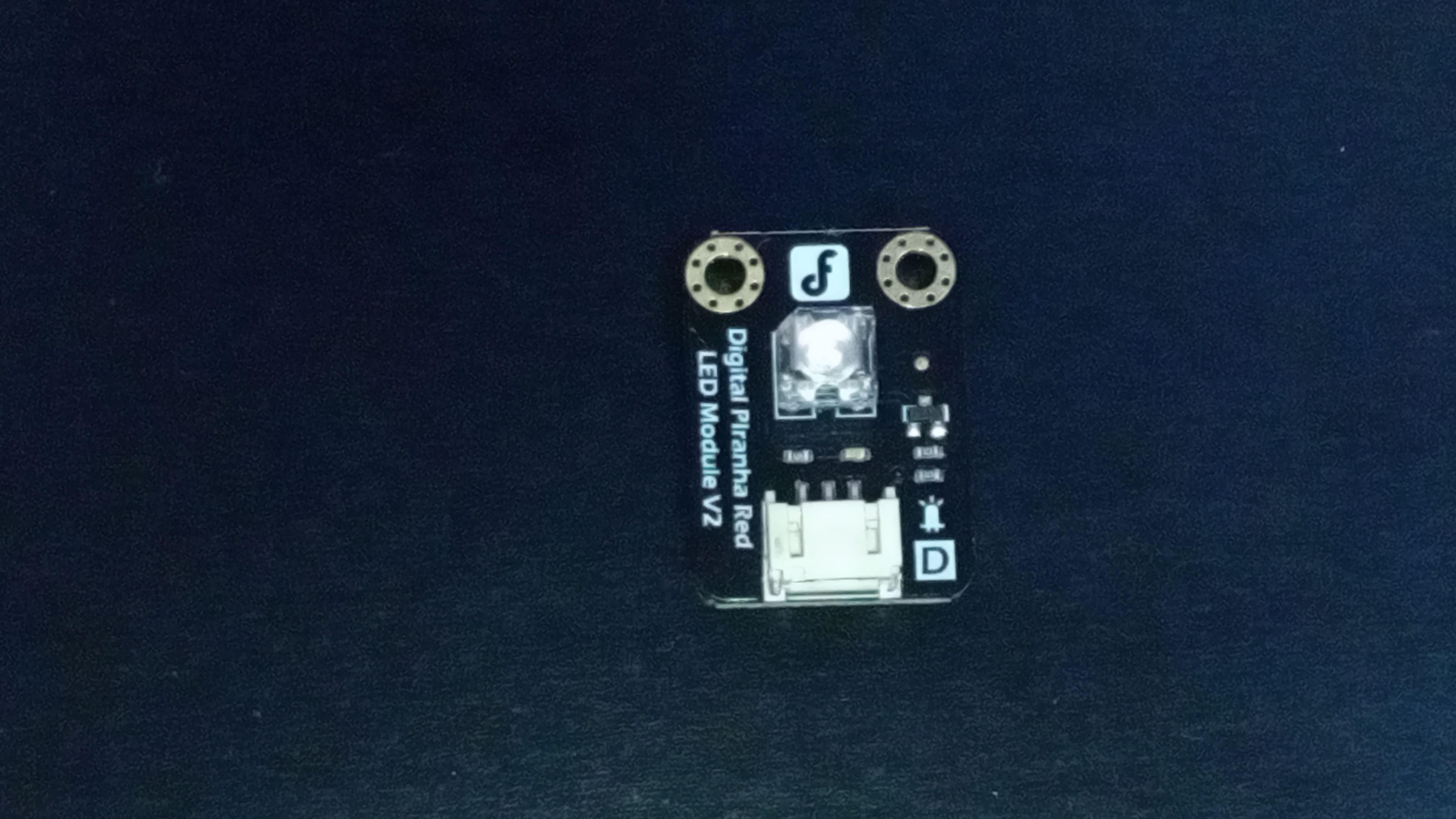
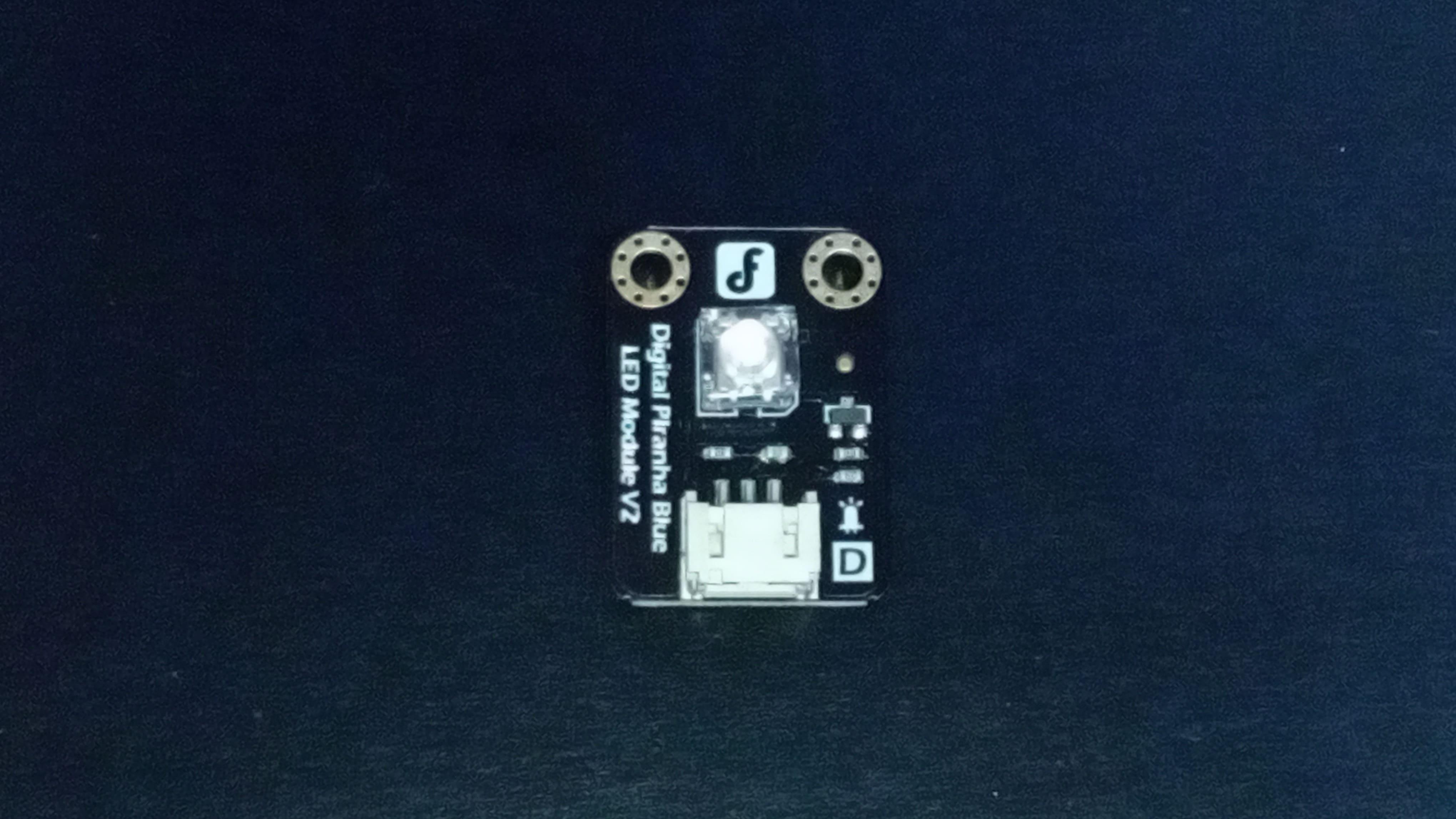

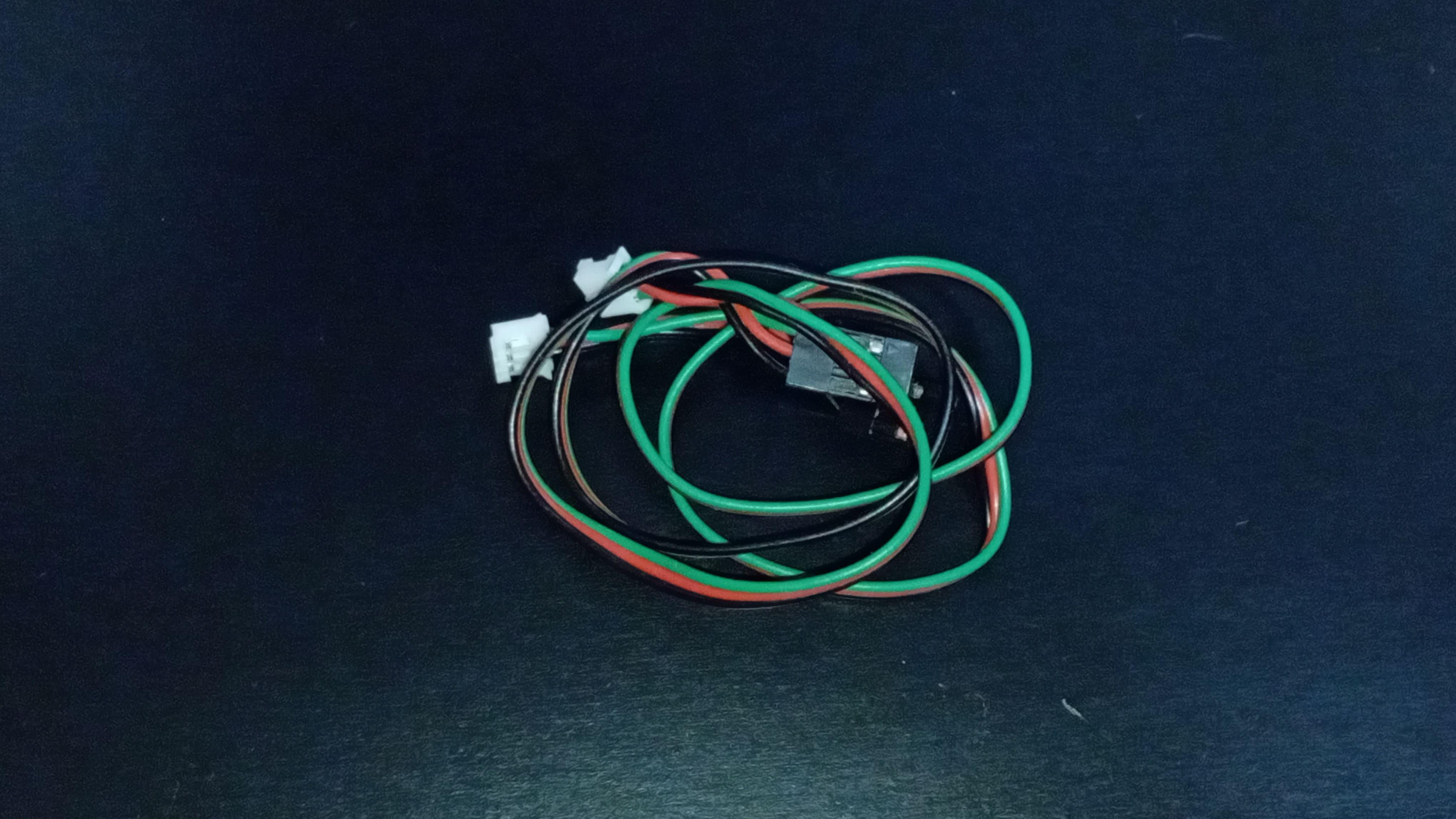
1 x Arduino UNO
1 x I/O expansion shield
1 x Digital red LED module
1 x Digital blue LED module
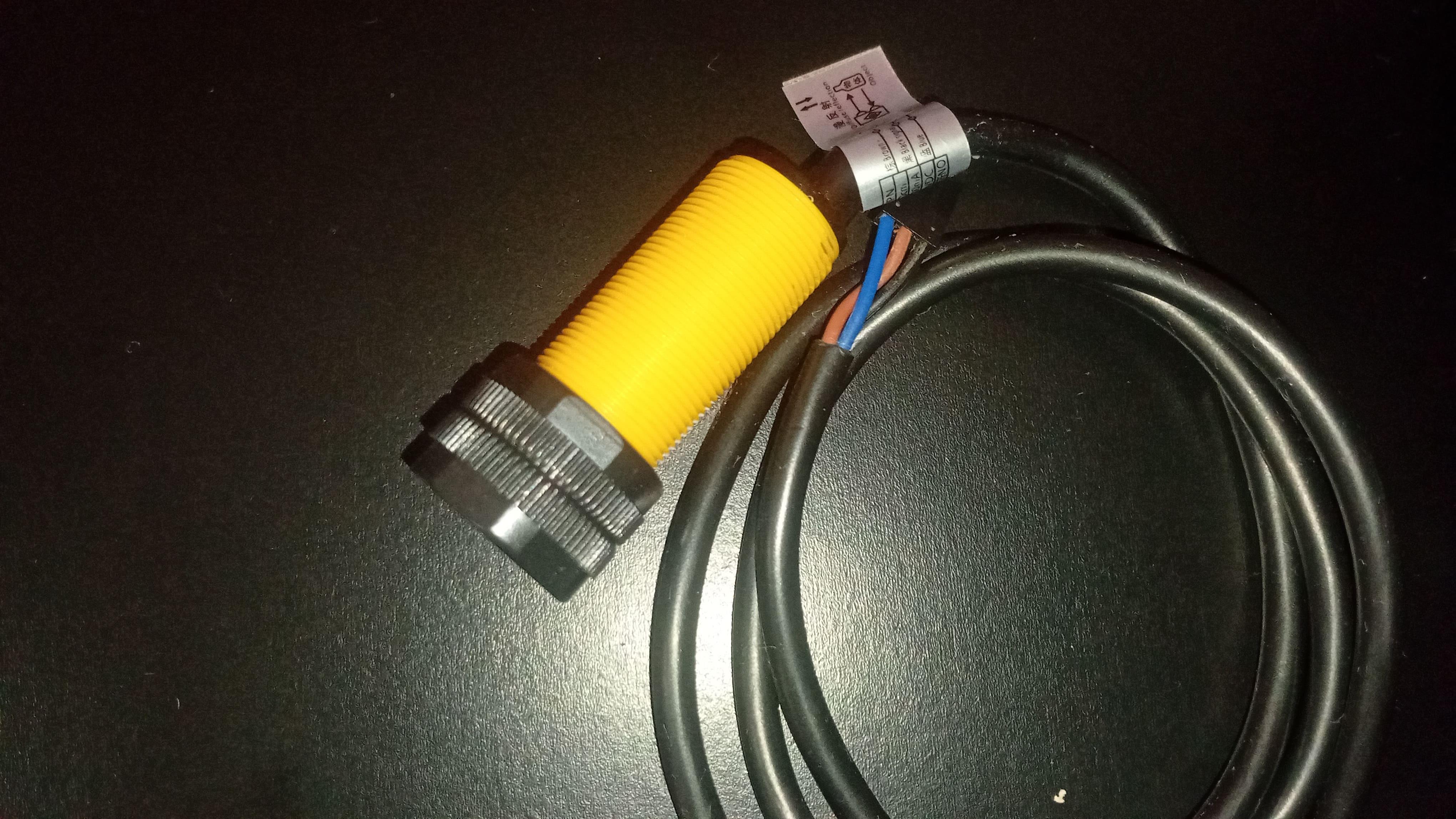
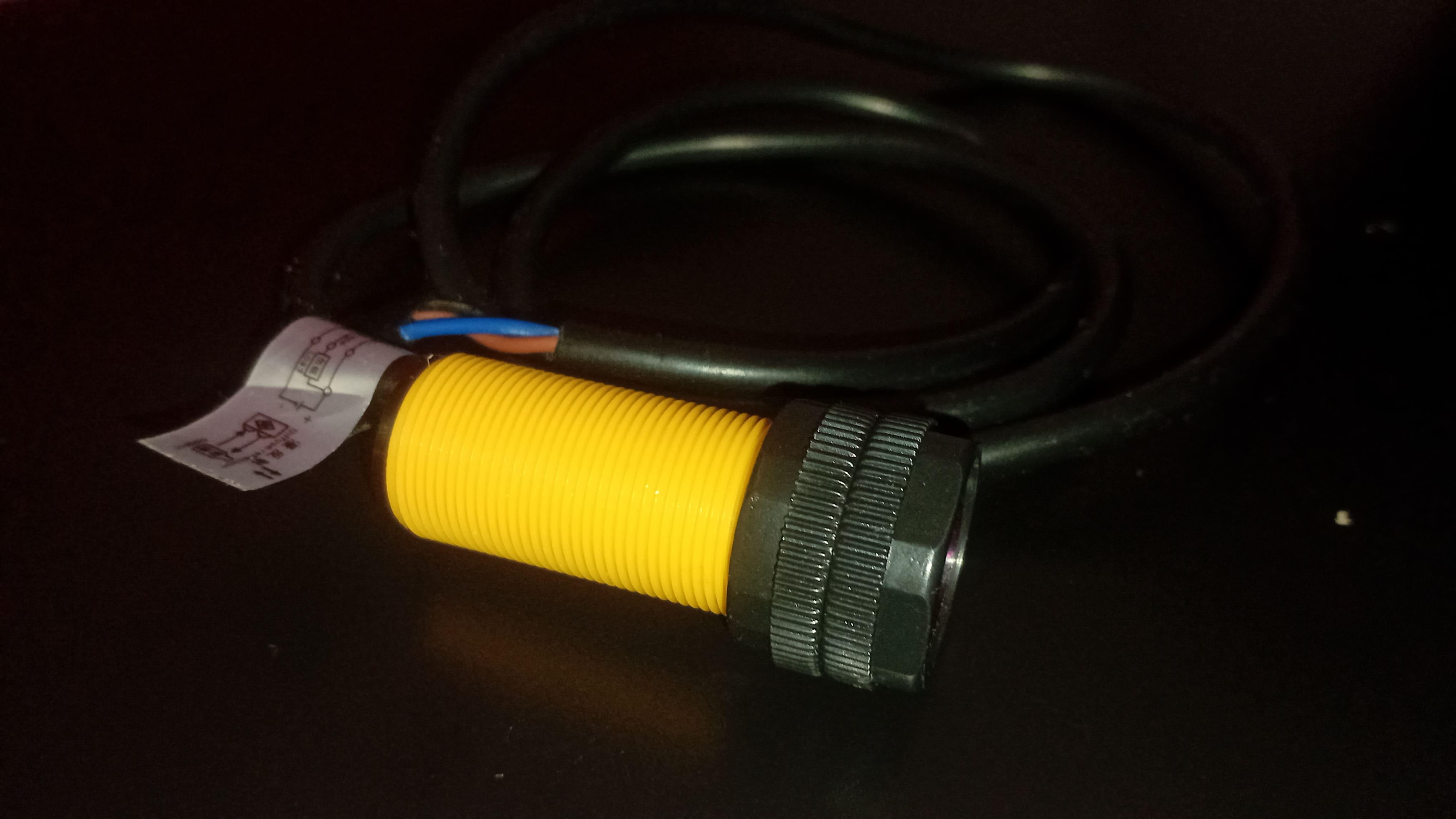
1 x Infrared switch sensor
A few connecting wires
YouTube
![Infrared Switch With Arduino [COMPLETE GUIDE] - Lesson #15](/proxy/?url=https://content.instructables.com/FFV/L1UF/ML1YVOHB/FFVL1UFML1YVOHB.jpg&filename=Infrared Switch With Arduino [COMPLETE GUIDE] - Lesson #15)
I've recently posted a tutorial about this project on YouTube explaining everything you can read on this article. You can watch it right above.
Explanation
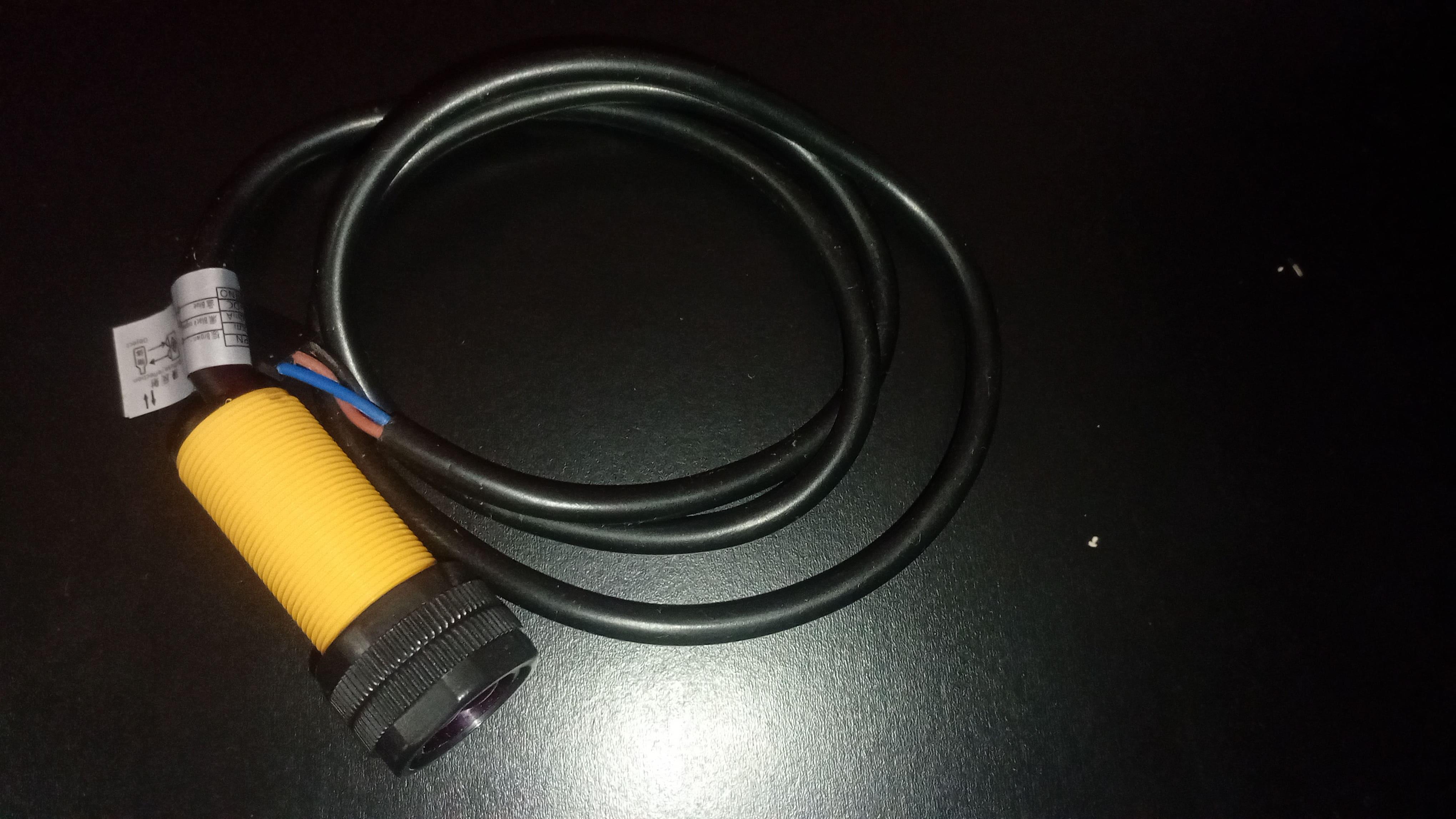
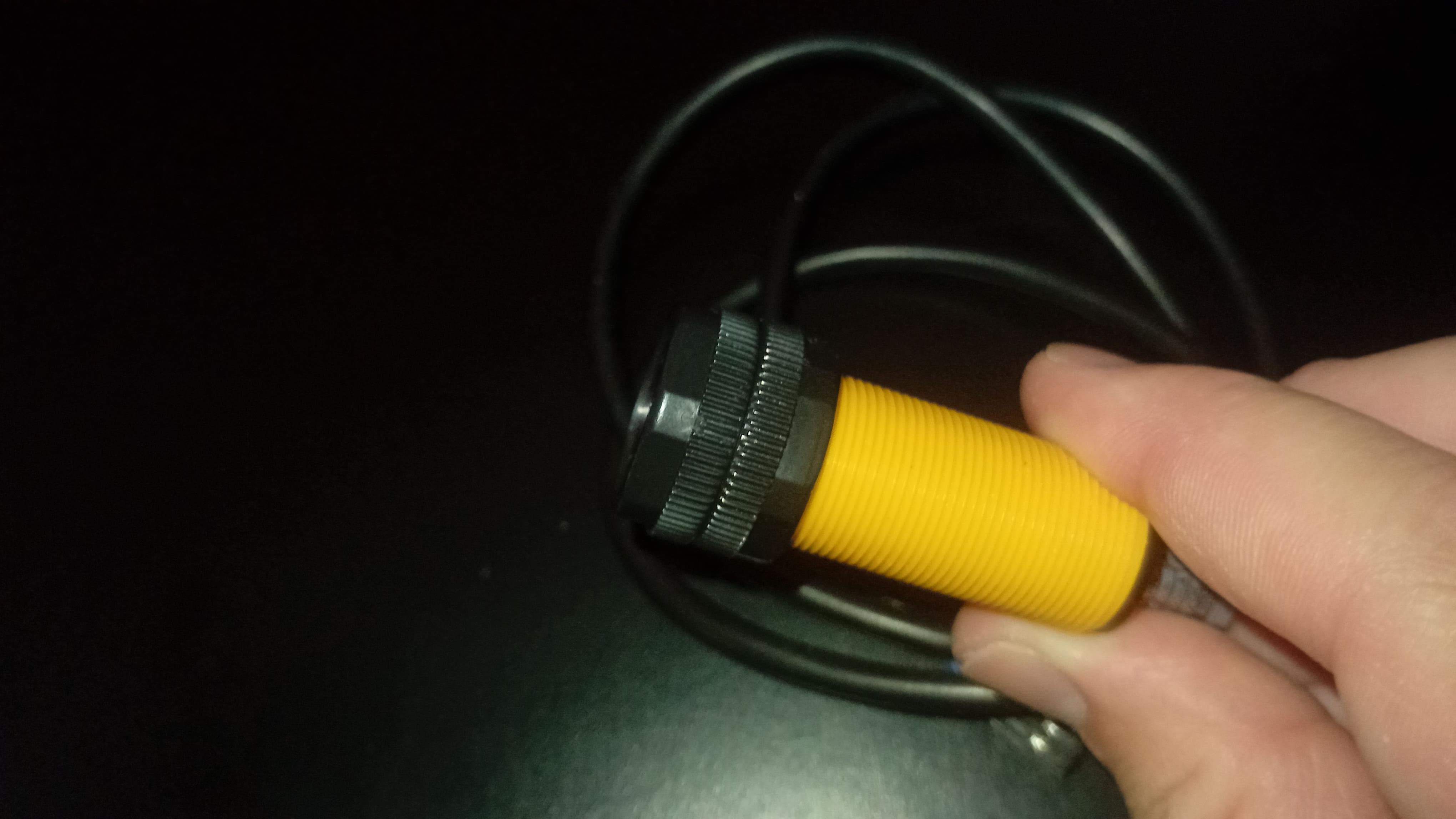
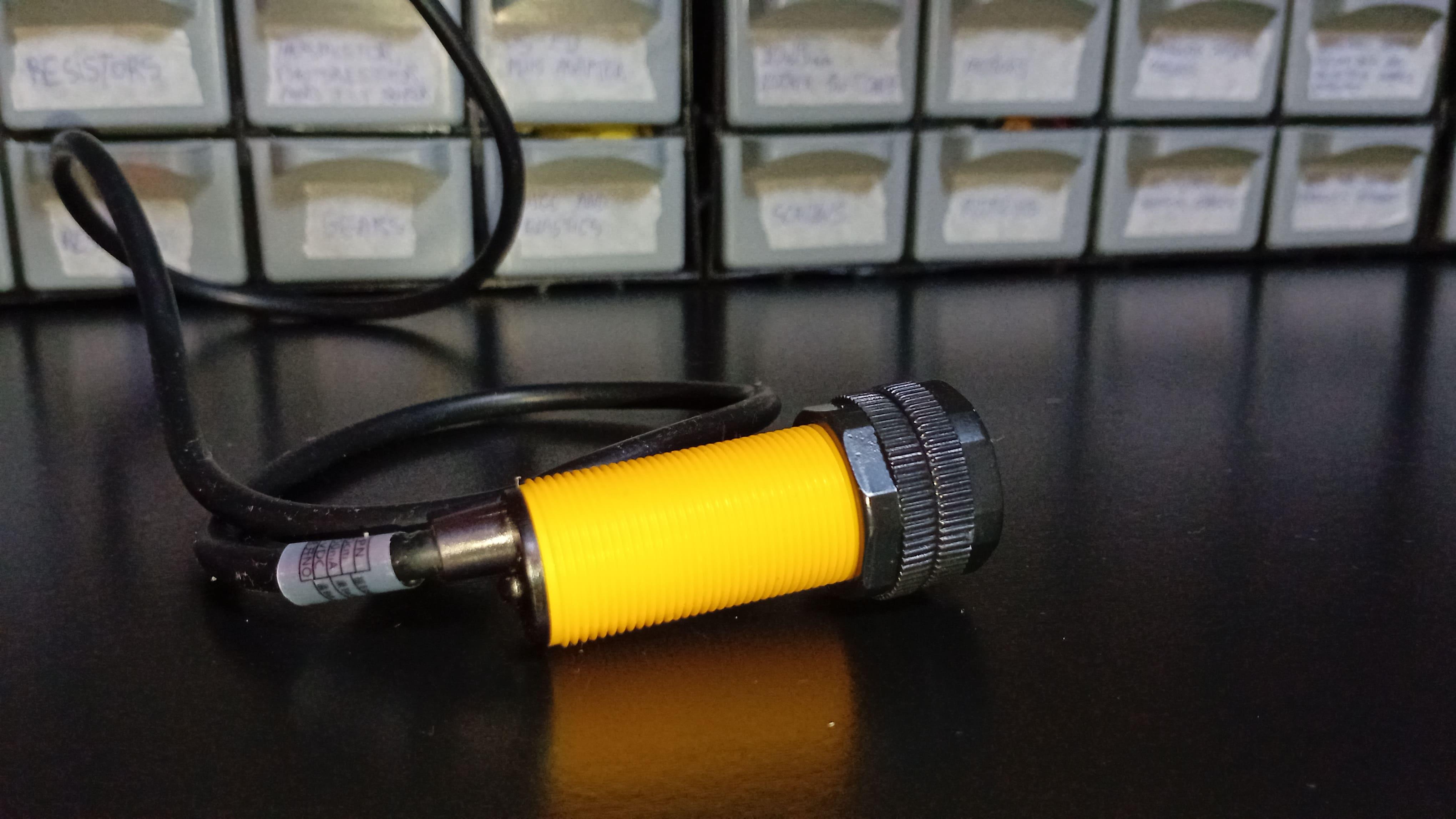
Let's start by taking a closer look at the infrared switch sensor itself.
At first glance, you might notice that this sensor module is a bit bigger than some of the ones we've used in earlier lessons.
That can be slightly discouraging for beginners, but here's the important thing to remember: bigger does not mean more complex. In fact, conceptually speaking, this sensor is simpler than many others.
This module uses only three wires:
- The brown wire is the power supply and should be connected to the Arduino's 5V pin.
- The blue wire goes to ground.
- The black wire is the signal output, which connects directly to one of the Arduino's digital pins.
That's it. There are no extra resistors, no calibration routines, no libraries to install, and no complicated setup steps.
According to the official documentation, the recommended detection range of this sensor is between 10 and 80 centimeters.
In real-world conditions, though, the range can vary slightly. Depending on the environment and the object being detected, you might see detection happening a bit closer or a bit farther, roughly anywhere between 3 and 90 centimeters. Factors like ambient light, surface reflectivity, and object size all play a role here.
To really understand how this sensor works, we need to look inside it conceptually.
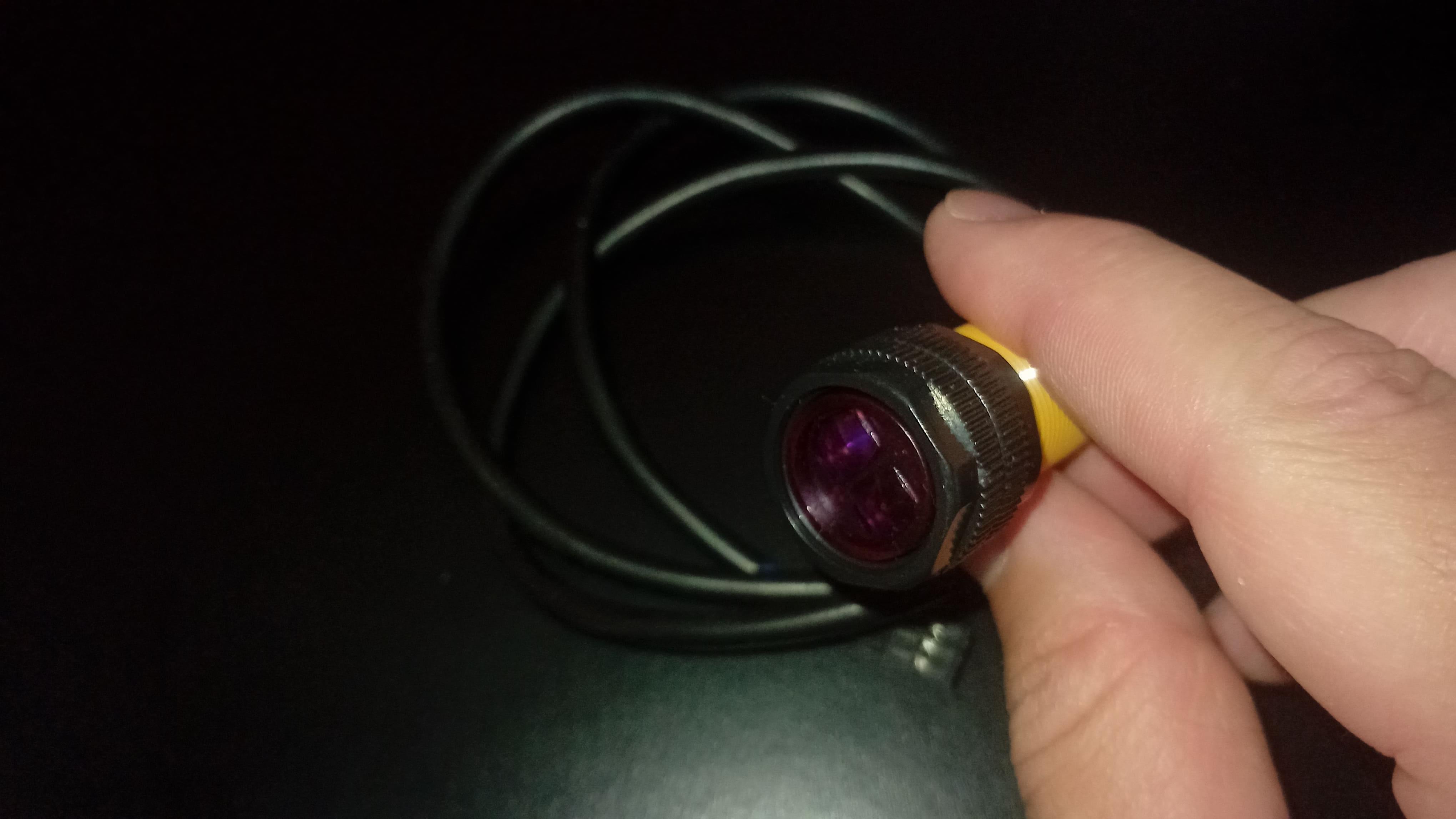
Inside the module, there are two main components working together. One is an infrared transmitter, and the other is an infrared receiver.
The transmitter continuously emits infrared light. This is light that we can't see with our eyes, but it behaves very similarly to visible light in terms of reflection and absorption.
When there is no object in front of the sensor, the infrared light simply travels forward and never comes back. Nothing special happens.
But when an object enters the detection zone, part of that infrared light reflects off the surface of the object and bounces back toward the sensor. That reflected light is then picked up by the infrared receiver.
The amount of reflected light depends on several things. The distance to the object matters, as does the color of the object and the type of surface it has. A white, flat surface will reflect more infrared light than a dark or uneven one.
However - and this is extremely important - the sensor does not measure distance.
It doesn't matter how much infrared light comes back. As long as some infrared light is detected, the sensor considers that an object is present. Because of this, the sensor behaves like a simple digital switch rather than a measuring device.
Electrically, this is what happens. When no object is detected, the signal output stays HIGH, which is around 4 volts. When an object is detected, the signal drops to LOW, or zero volts. From the Arduino's perspective, this is just a digital input changing its state.
Because of this behavior, infrared switch sensors are ideal for things like obstacle detection in robots, simple alarm systems, automatic counters, and basic presence detection.
On the other hand, they are not suitable if you need accurate distance measurements. We'll solve that limitation in the next lesson when we talk about ultrasonic sensors, which are designed specifically for measuring distance.
For now, this is more than enough theory. Let's put this sensor to work.
Sponsor

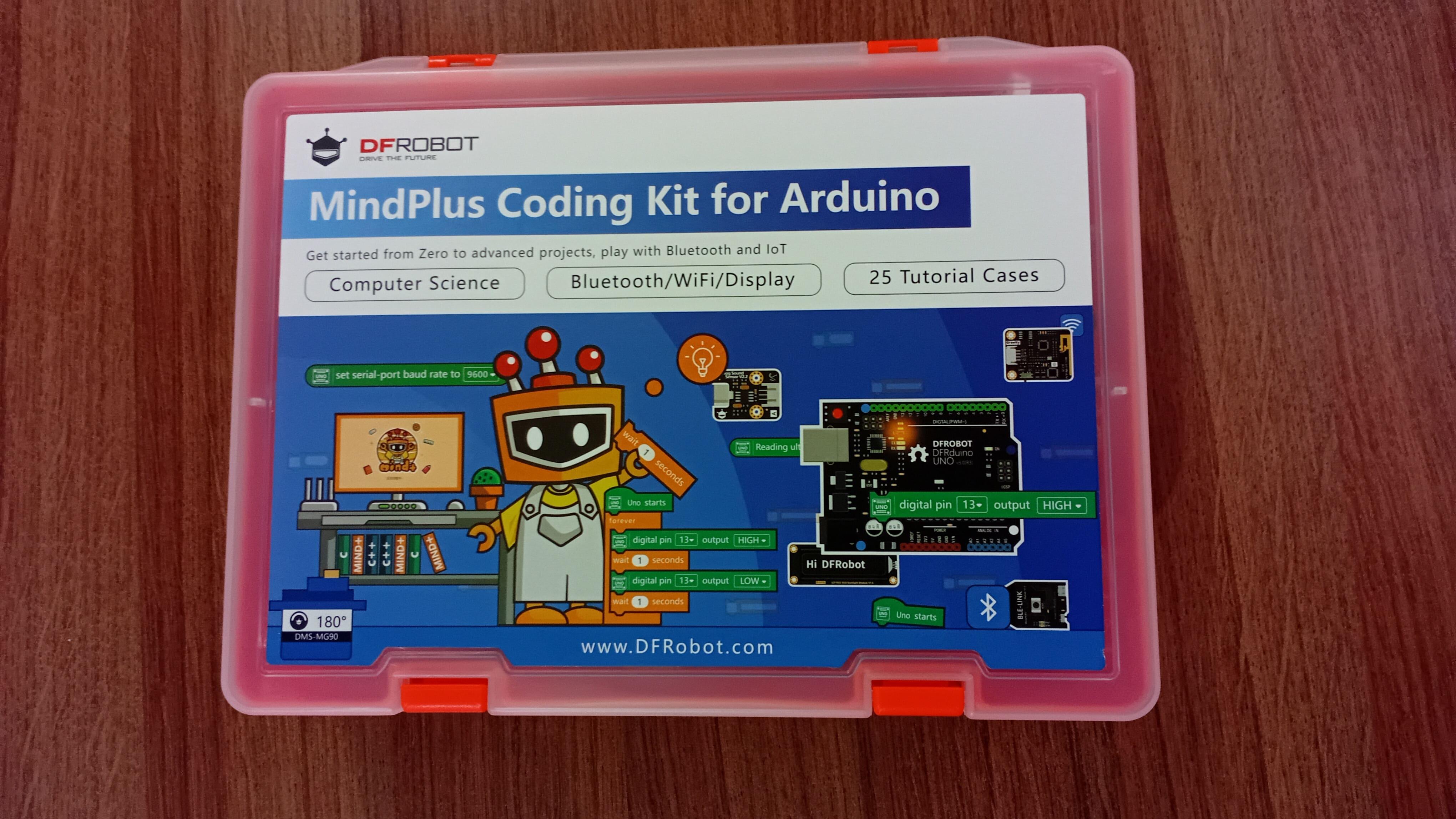
Before we build the project, I'd like to take a moment to thank today's sponsor: DFRobot.
DFRobot is one of the leading global providers of open-source hardware for makers, students, and engineers. With more than 15 years of experience, they've developed a wide range of high-quality products designed specifically for learning, experimenting, and prototyping.
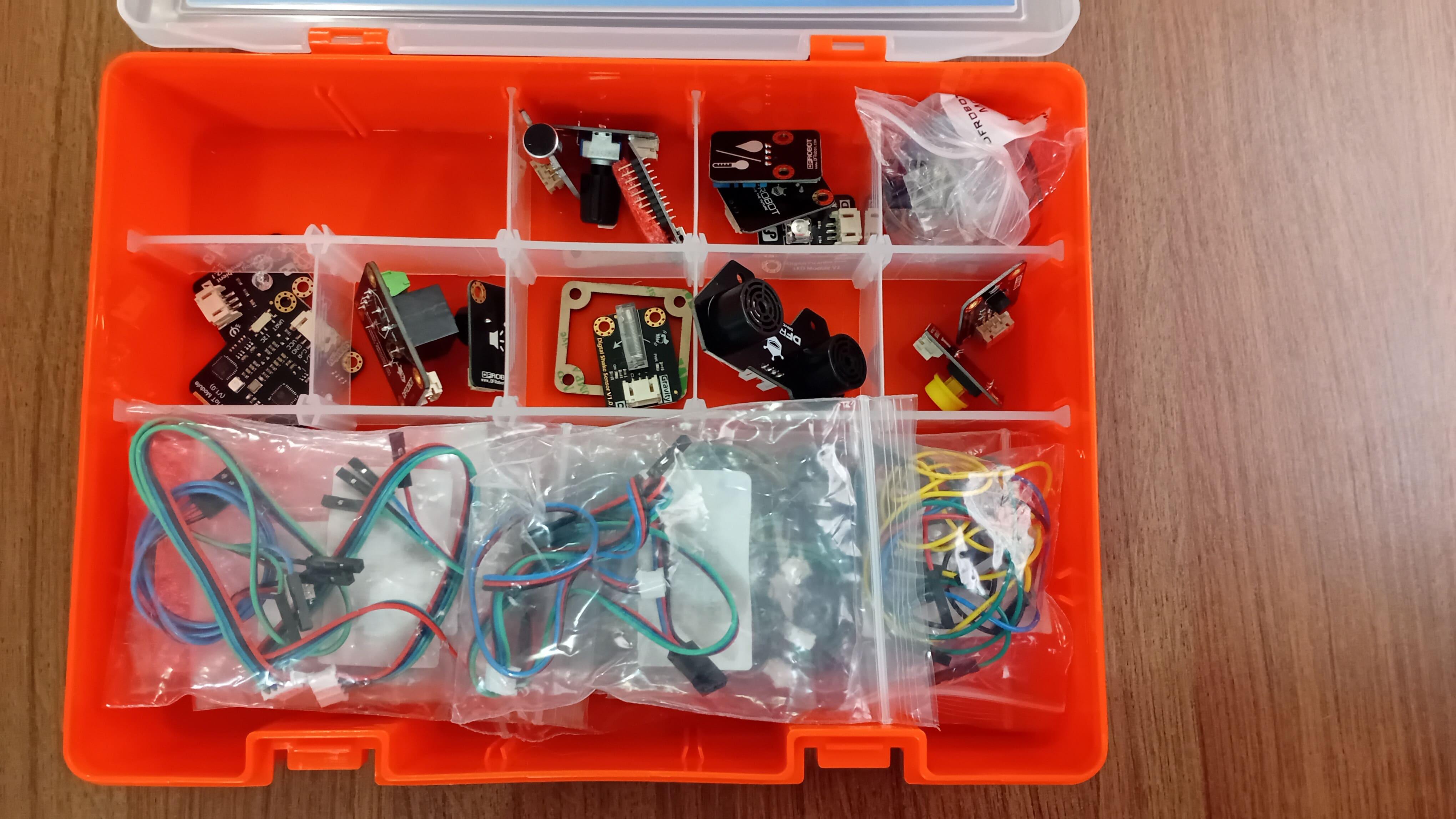
Throughout this entire Arduino for Beginners series, I'm using the MindPlus Arduino Coding Kit. This kit includes an Arduino board, sensors, modules, and accessories needed to follow along with every lesson in the series.
One of the main reasons I like this kit so much is that it removes friction for beginners. Instead of worrying about compatibility issues or missing components, you can focus entirely on what actually matters: understanding how electronics work and how to build things with them.
If you want to follow this series more easily and get the most out of each lesson, I highly recommend checking out a kit like this one.
Thank you again to DFRobot for sponsoring this project and helping make STEM education more accessible to everyone.
Project
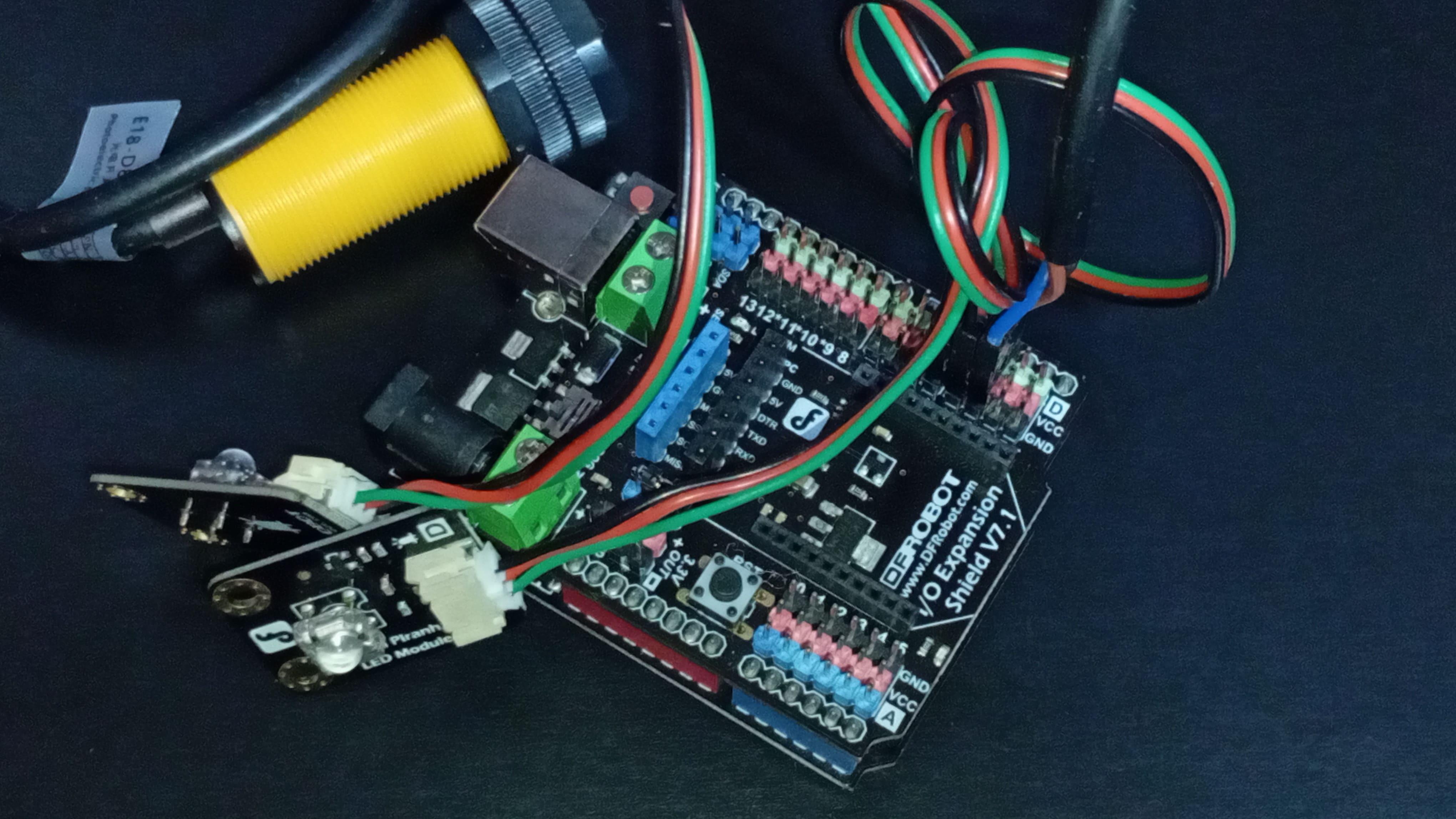
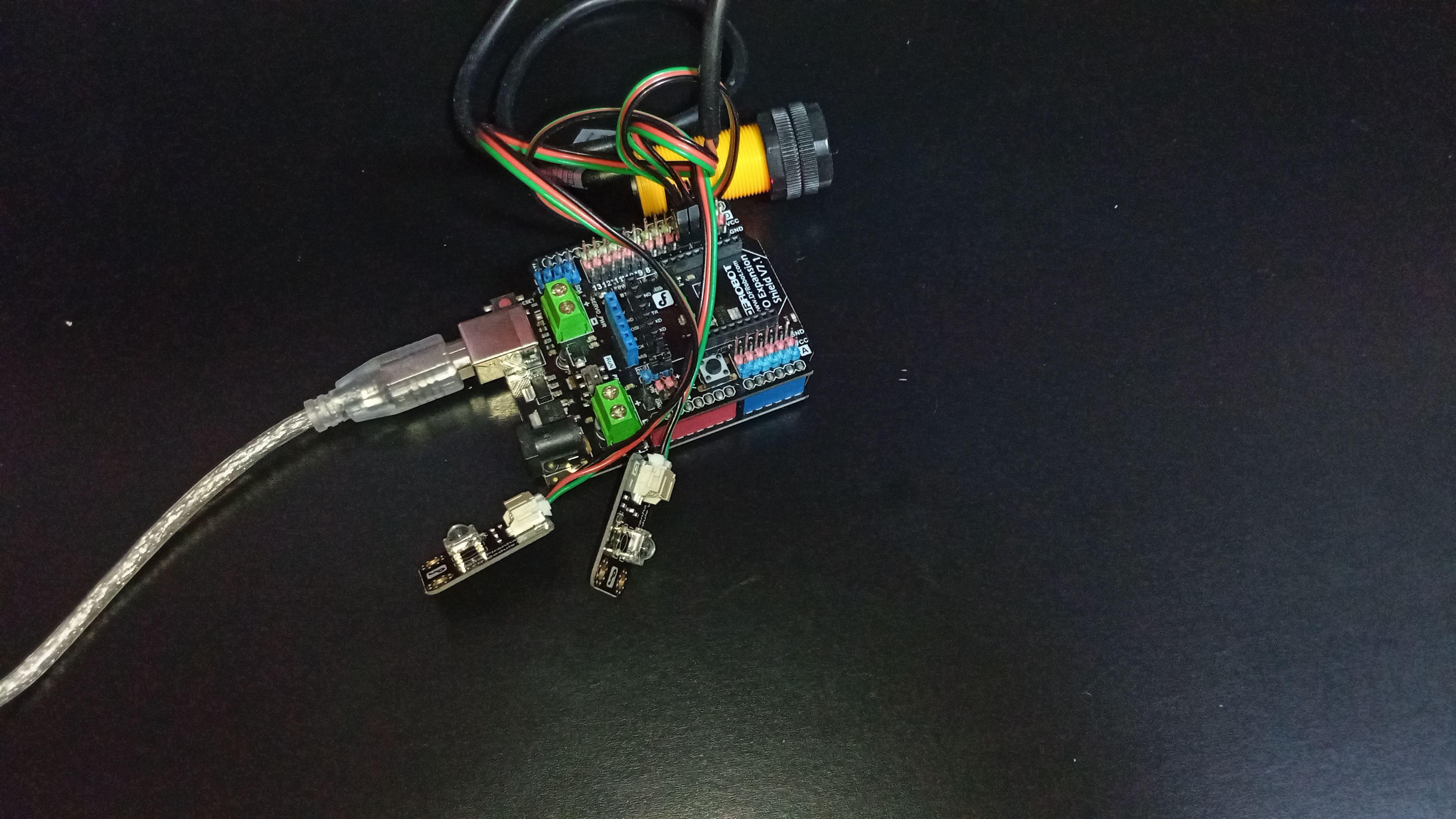
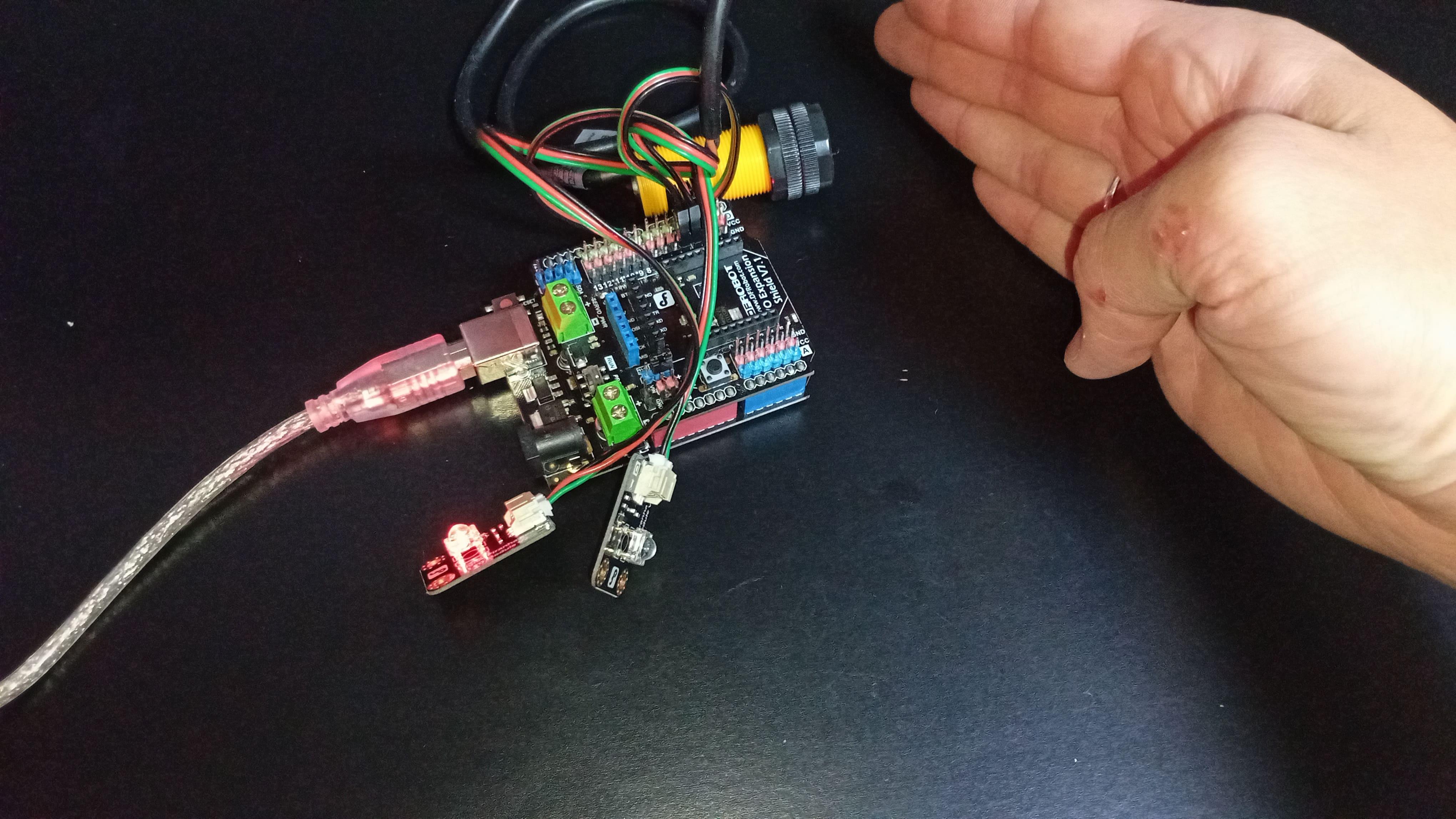
Today's project is a simple alarm system based on proximity detection.
Whenever something gets close to the infrared sensor, the system triggers an alarm sequence using LEDs. This is a very realistic example of how this type of sensor is used in real-world applications, even if the output here is visual instead of audible.
The hardware setup is intentionally simple. You'll need:
- Arduino UNO
- I/O expansion shield
- Digital red LED module
- Digital blue LED module
- Infrared switch sensor
- A few connecting wires
Start by attaching the I/O expansion shield on top of the Arduino board. This makes wiring much cleaner and reduces the chance of mistakes, especially if you're still getting comfortable with pin connections.
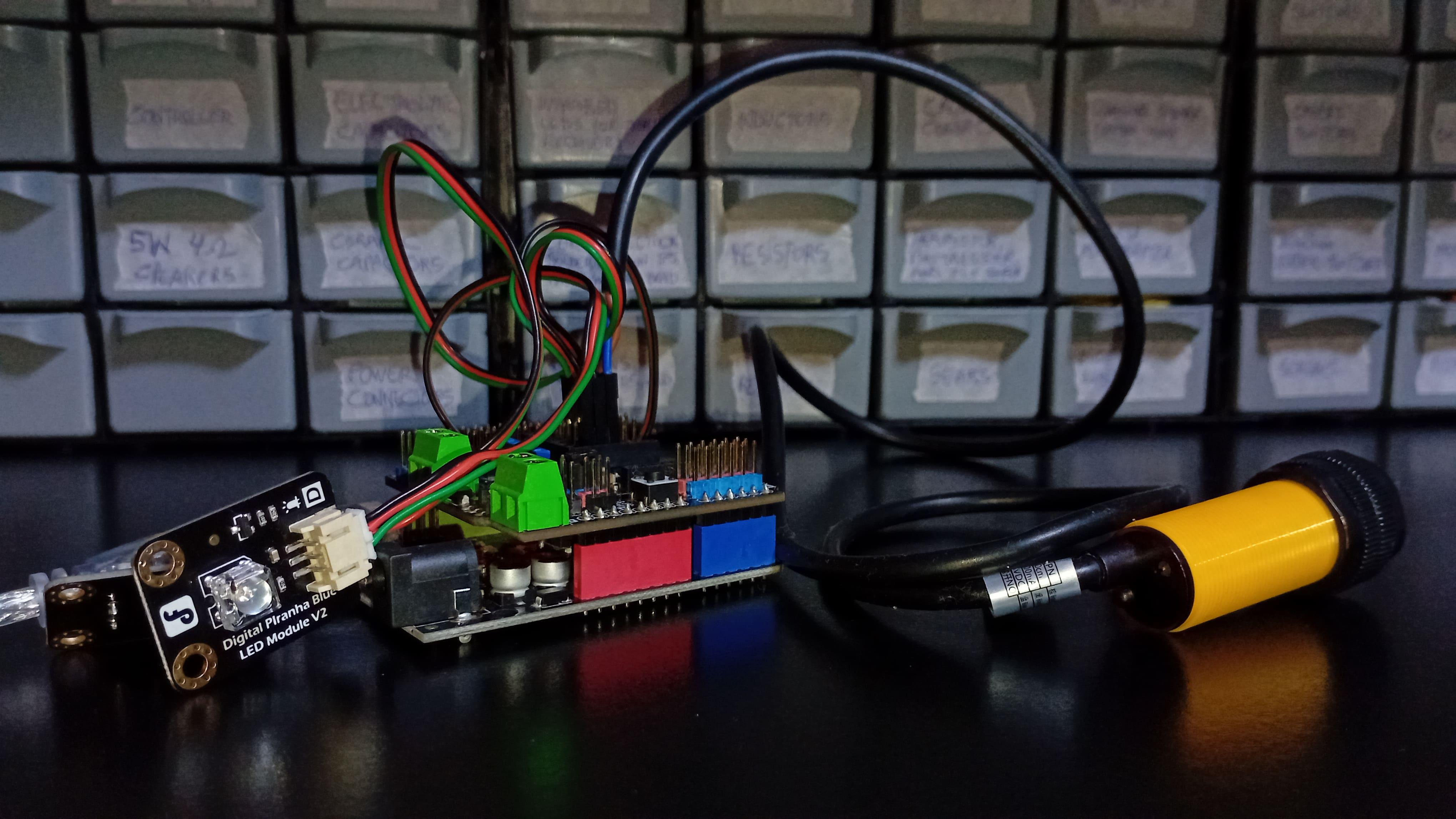
Next, connect the infrared sensor to digital port 2 on the expansion shield. Then connect the red LED to digital port 3 and the blue LED to digital port 4. Once those connections are done, the hardware side of the project is complete.
Now head over to the GitHub repository for this series. Inside the folder for lesson 15, you'll find a file called infrared-alarm-system.ino. Copy that code, paste it into the Arduino IDE, and upload it to your board.
Once the program is running, observe the behavior. When nothing is near the sensor, the system stays idle. As soon as an object enters the detection zone, the alarm sequence is triggered.
The red and blue LEDs blink alternately during four seconds, after which the system automatically resets and starts monitoring again.
This is a simple project, but it already demonstrates how powerful even a basic digital sensor can be.
Code
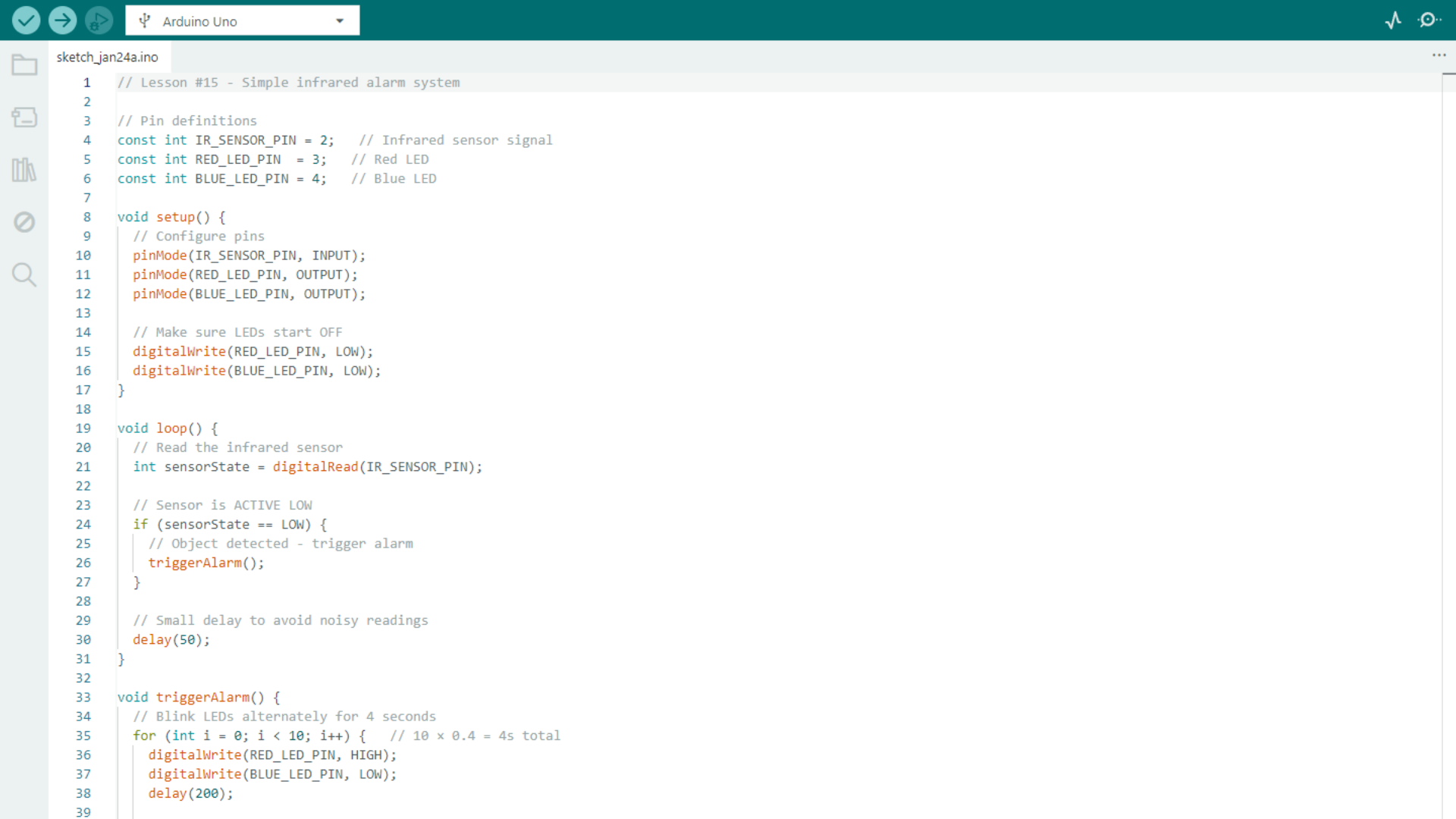
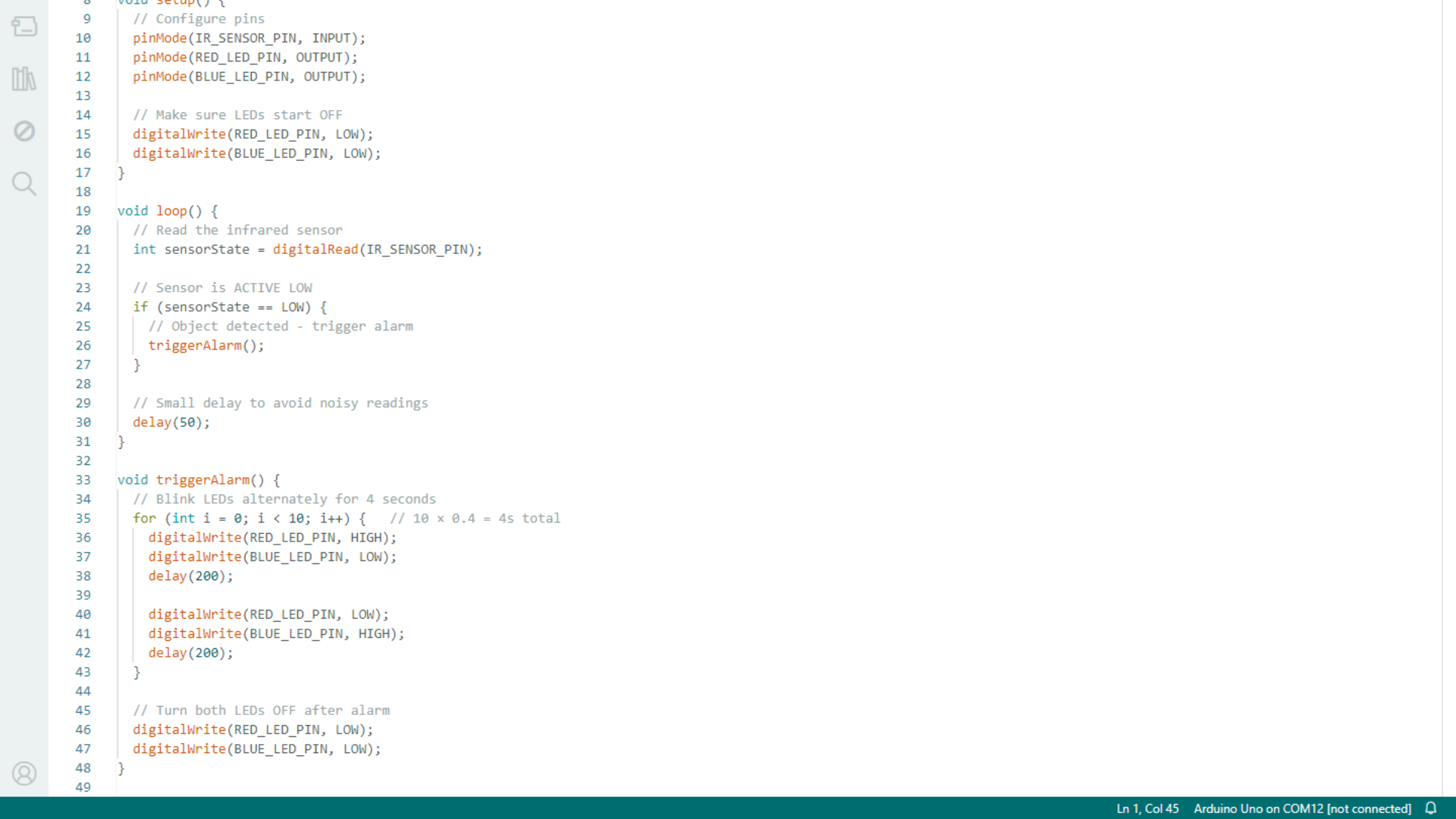
Now let's walk through the code and understand what's happening behind the scenes.
At the beginning of the sketch, we define a few variables to store the pin numbers for the sensor and the LEDs. This might seem like a small detail, but it makes the code much easier to read and much easier to modify later if you want to change the wiring.
Inside the setup() function, we configure the sensor pin as an input and the LED pins as outputs. This tells the Arduino which pins it should read signals from and which pins it should control.
Inside the loop() function, the Arduino continuously checks the state of the sensor using digitalRead(). The key idea here is simple. If the sensor output is LOW, that means an object has been detected.
When that happens, the code calls a function named triggerAlarm(). This function contains a loop that turns the red and blue LEDs on and off alternately for about two seconds. Using a separate function here is intentional. It keeps the main loop clean and makes the alarm behavior easy to modify or expand later.
After the alarm sequence finishes, both LEDs are turned off, and the program naturally returns to monitoring the sensor again.
A good exercise at this point is to think about how you could extend this project.
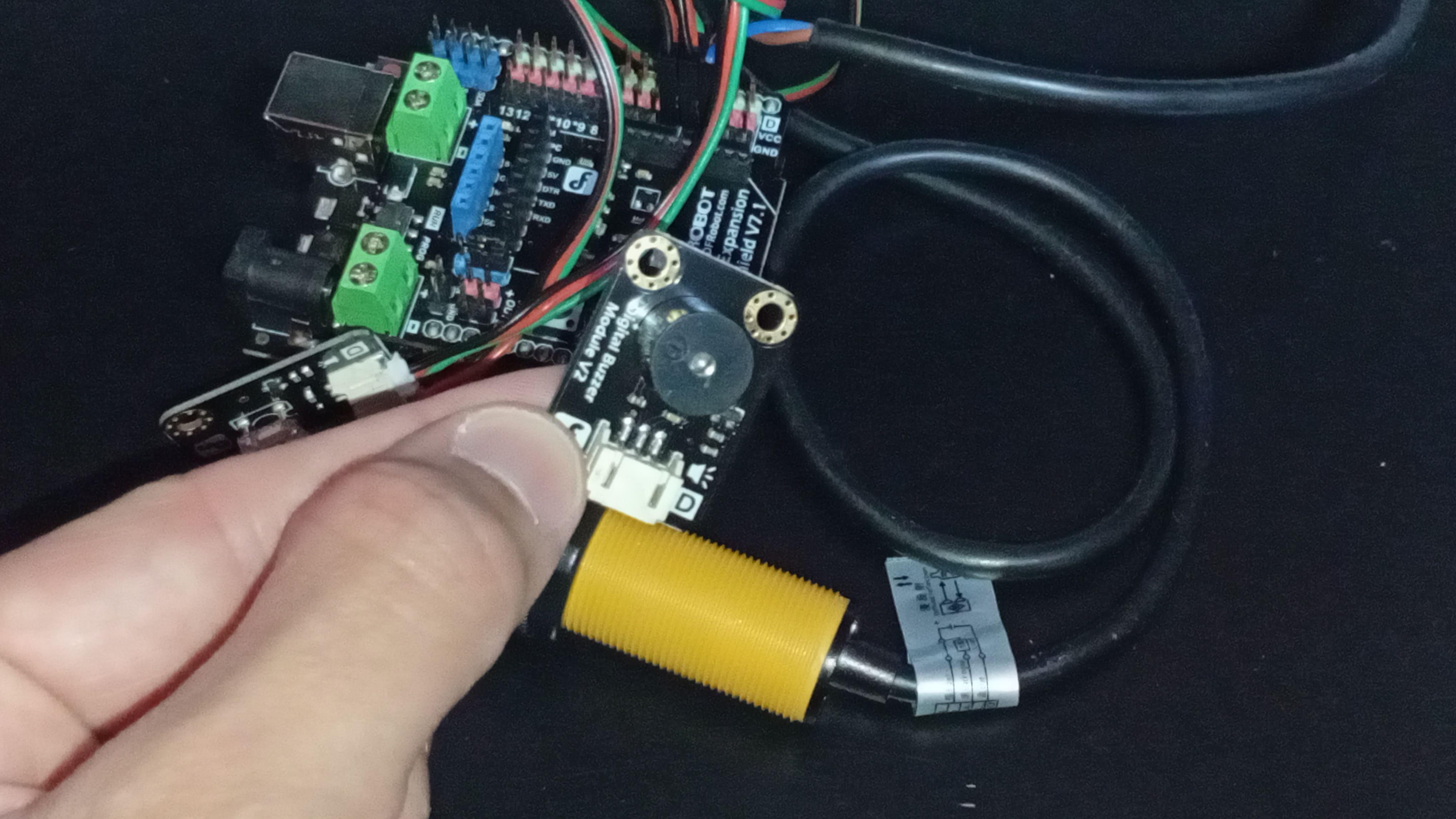
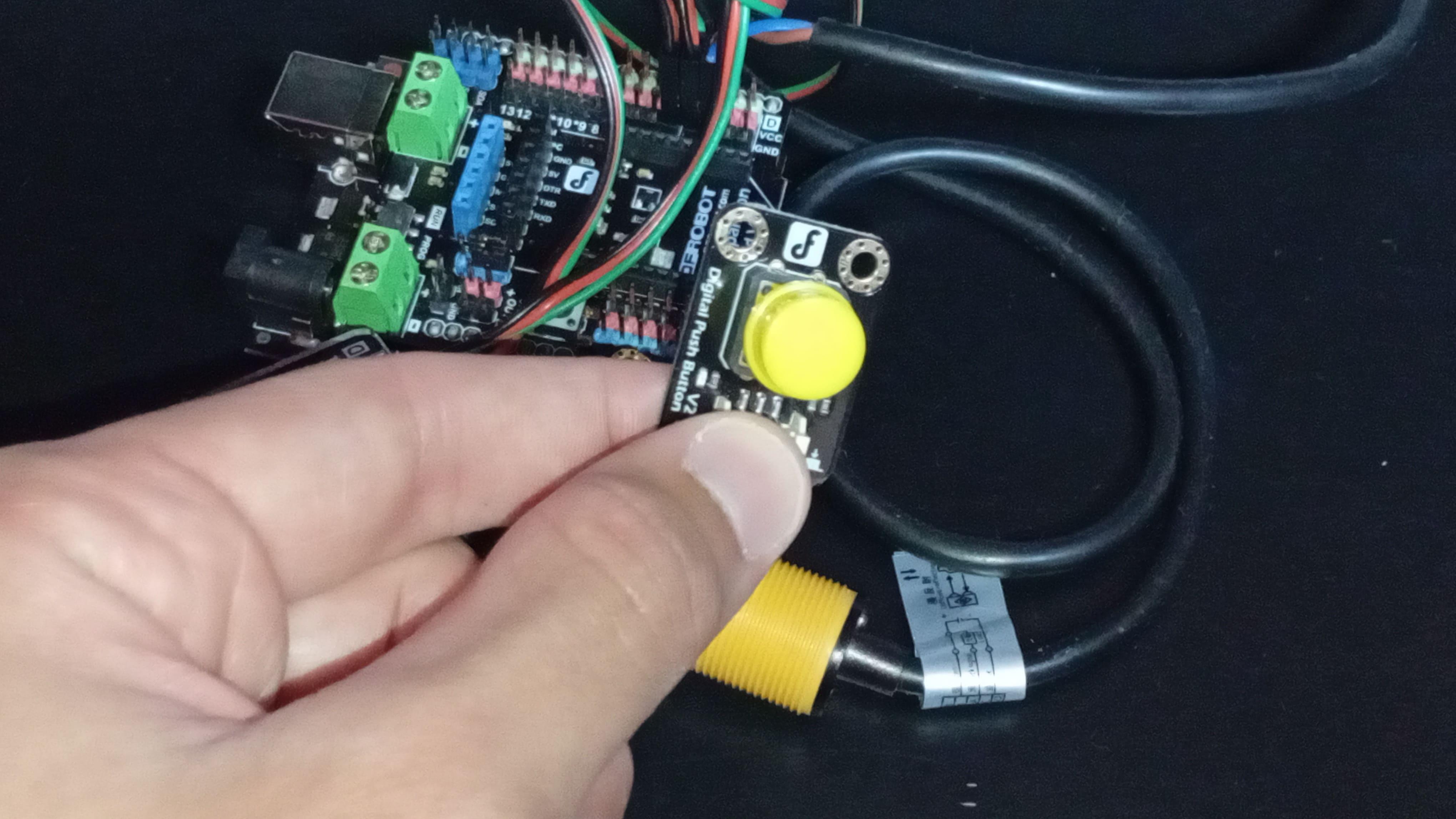
You could add a buzzer for sound, add a button to manually reset the alarm, or change the blinking pattern. Since we've already worked with these components in previous lessons, this is a perfect opportunity to experiment.
Think of it as homework.
Conclusion
And that's it for this lesson.
You now understand how an infrared switch sensor works, when to use it, and just as importantly, when not to use it. You've seen how a simple digital signal can be turned into a functional alarm system with just a few lines of code.
If you enjoyed this project, feel free to explore other lessons in the series.
And if you have ideas for improvements or extensions, I strongly encourage you to try them out yourself - that's how real learning happens.
Thanks a lot for following along, and I'll see you in the next lesson.