How to Use Move to IOS App
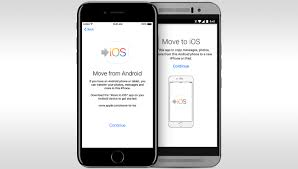
To help Android users switch to iPhone more conveniently, Apple has introduced a free app named Move to iOS, which can securely transfer various files like contacts, messages, camera photos and videos, web bookmarks, mail accounts, and calendar from Android devices to a new iPhone, iPad or iPod touch. And here is a step-by-step guide on how to use it.
Set Up Your IPhone
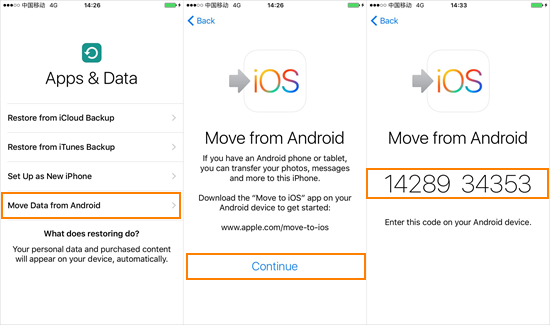
Set up your iPhone as following guide until you see the screen titled “Apps & Data”. Then choose the “Move Data from Android” option. Click “Continue” on the screen of “Move from Android”, and then wait for a ten-digit code to appear.
Run the Move to IOS App on Your Old Android Phone.
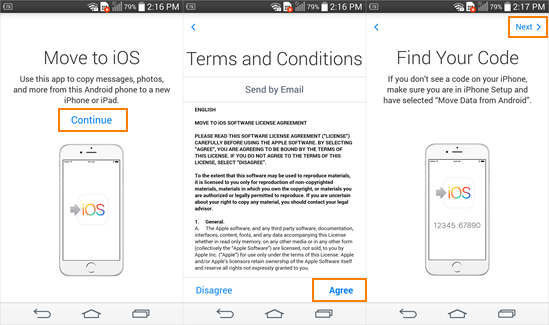
Download the Move to iOS app from Google Play Store and open it on your Android phone. Then tap “Continue”, read the terms and conditions that appear and tap “Agree”. Then tap “Next” in the top-right corner of the “Find Your Code” screen.
Transfer Data From Android to IPhone
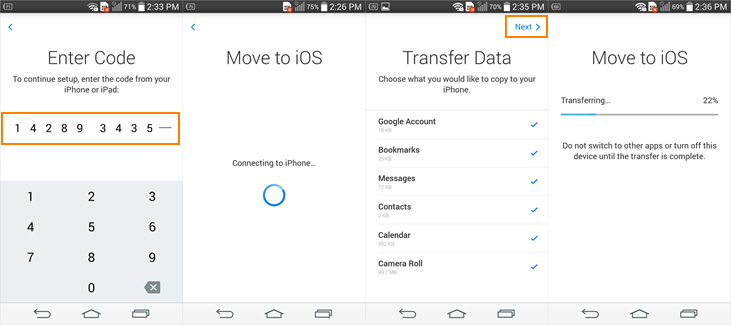
Enter the code from your iPhone on your Android phone, and then the two device will be connected over a Wi-Fi Direct connection.Then select the content you’d like to transfer on android and tap “Next”. The app will transfer the selected data over to the iPhone automatically.
Finish Setting Up Your IPhone
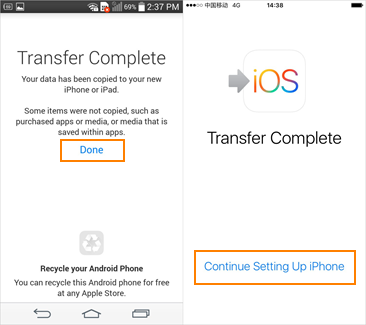
Leave both devices along until the transfer completed. After that, tap “Done” on your Android phone, then tap “Continue” on your iPhone and follow the onscreen steps to finish setting it up.
Note
If you meet the problem that the Move to iOS doesn't work, this guide can provide you with some useful suggestions: How to Use Move to iOS App