How to Test Your Keyboard Keys Before Repair (Step-by-Step Guide)
by Computer Guide Online in Workshop > Tools
8 Views, 0 Favorites, 0 Comments
How to Test Your Keyboard Keys Before Repair (Step-by-Step Guide)
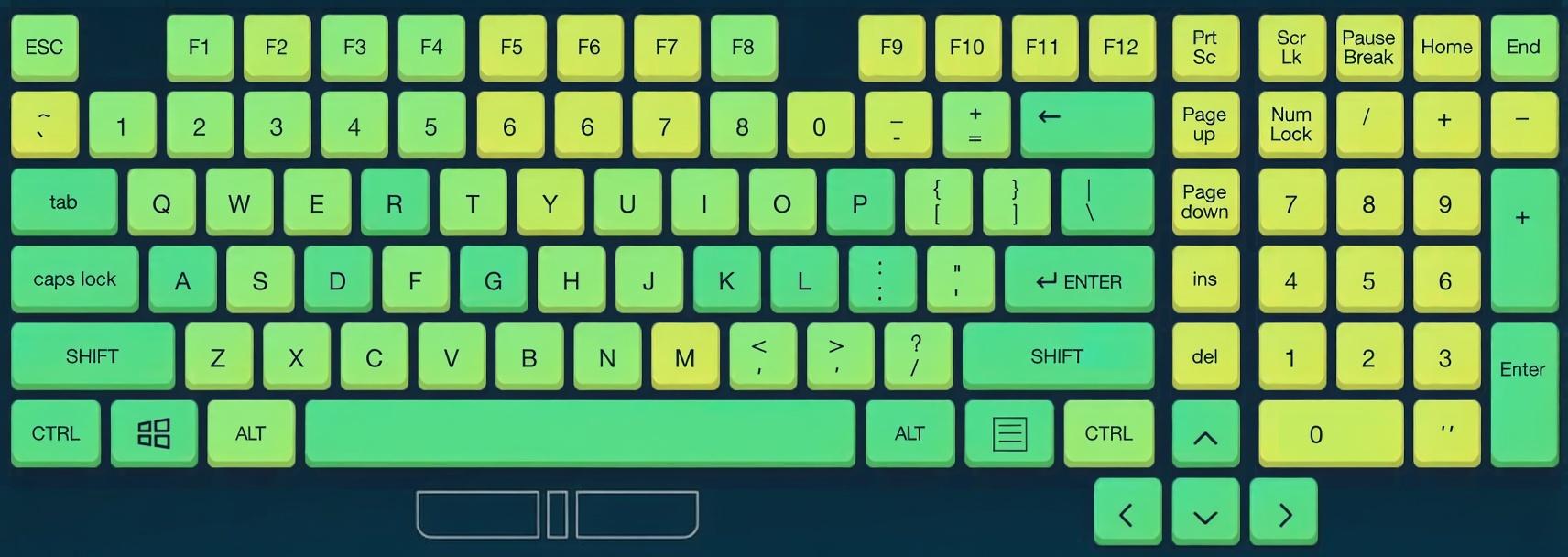
I created a simple keyboard testing setup to check each key before attempting any repairs. This helps me quickly find broken or stuck keys, saving time and avoiding unnecessary fixes. Below is a photo of my finished setup showing the keyboard connected and ready for testing.
Supplies
- Your keyboard (mechanical or membrane).
- A computer or laptop with a USB connection.
- A free tool to check your keyboard keys online before repair.
- Optional: a small brush or compressed air to clean dust from keys

Connect Your Keyboard to the Computer
Before testing your keyboard keys, the first step is to properly connect your keyboard to your computer or laptop. Use the USB cable or wireless connection, depending on your keyboard type. Make sure the connection is secure so that all keys can be detected correctly. If your keyboard is wireless, ensure it is fully charged or has fresh batteries. After connecting, your computer will usually detect the keyboard right away.
This setup ensures that the online keyboard tester can accurately detect each key you press in the next steps. Take a moment to place your keyboard on a flat and stable surface for comfortable testing.

Open the Online Keyboard Tester
Once your keyboard is connected, the next step is to open the online keyboard tester tool. This tool will detect every key you press and show if it’s working correctly. Open your preferred browser and go to the online keyboard tester. Make sure the tester page loads fully before starting.
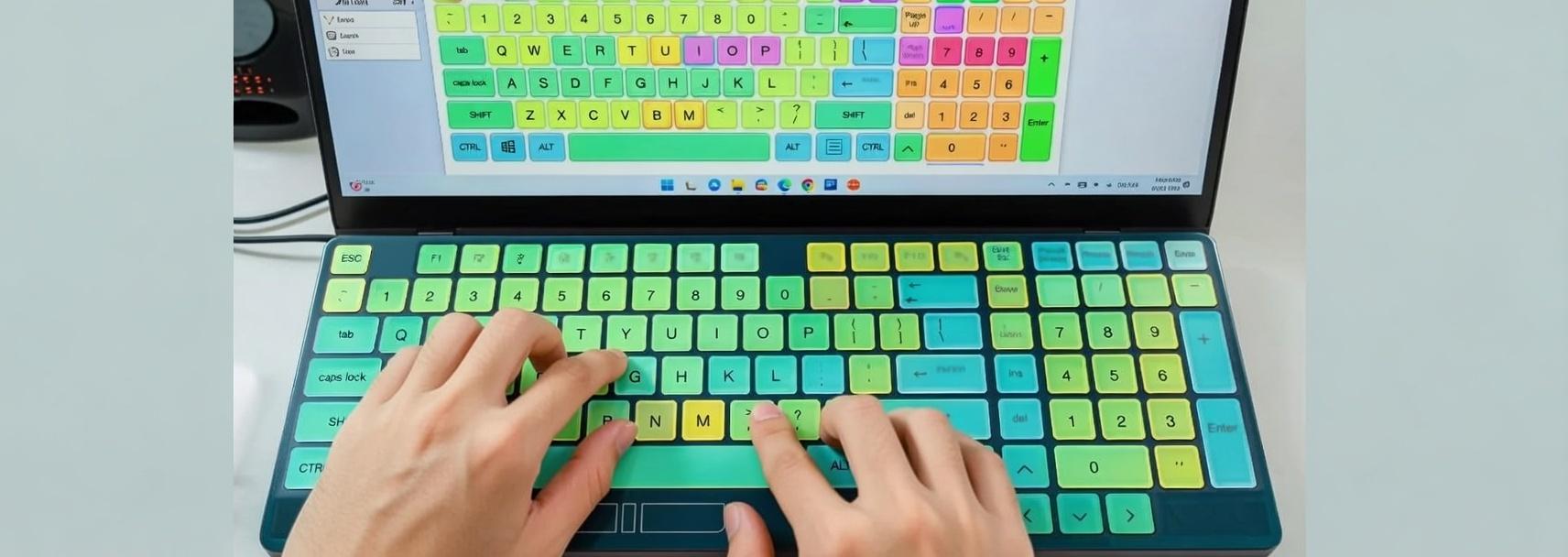
Most online testers display a visual layout of a keyboard. When you press a key, it should highlight on the screen. This makes it easy to identify unresponsive or faulty keys. Keep your keyboard on a stable surface and be ready to press each key one by one in the next step.
Test Each Key
Now it’s time to test every key on your keyboard. Press each key one by one and watch the online keyboard tester interface. When a key works correctly, it will highlight or respond on the screen.
Pay attention to:
- Keys that don’t highlight at all
- Keys that respond slowly or inconsistently
- Any keys that register multiple presses when pressed once
This step helps you accurately identify which keys are faulty before attempting any repair. Take your time and go systematically from left to right, top to bottom, so no key is missed.
Identify Faulty Keys
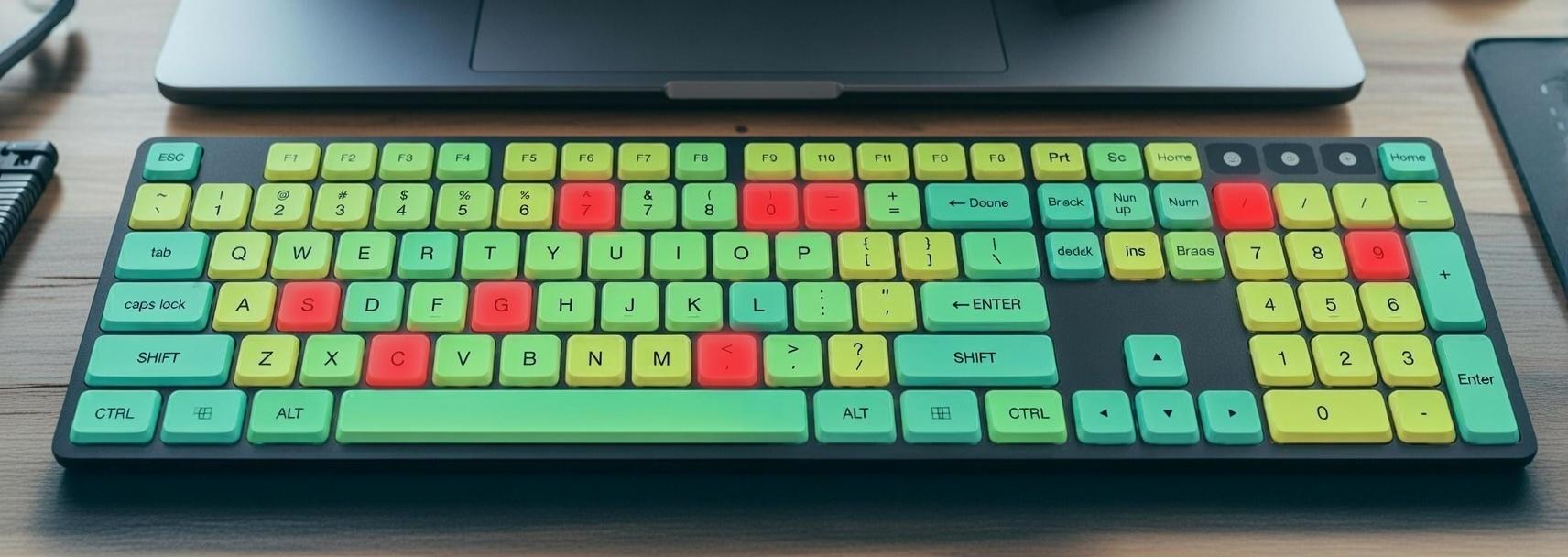
After testing all the keys, it’s time to identify the faulty ones. Look at the online keyboard tester results carefully:
- Keys that did not respond at all
- Keys that responded slowly or inconsistently
- Keys that registered multiple presses when pressed once
Make a list of these problem keys. This will help you decide whether you need to repair, clean, or replace the keyboard.
By knowing exactly which keys are faulty, you can avoid unnecessary repairs and save time.
Clean or Maintain Keys
If you found some keys are sticky or not responding properly, sometimes cleaning the keyboard can help before doing any major repair.
- Turn off or unplug your keyboard first.
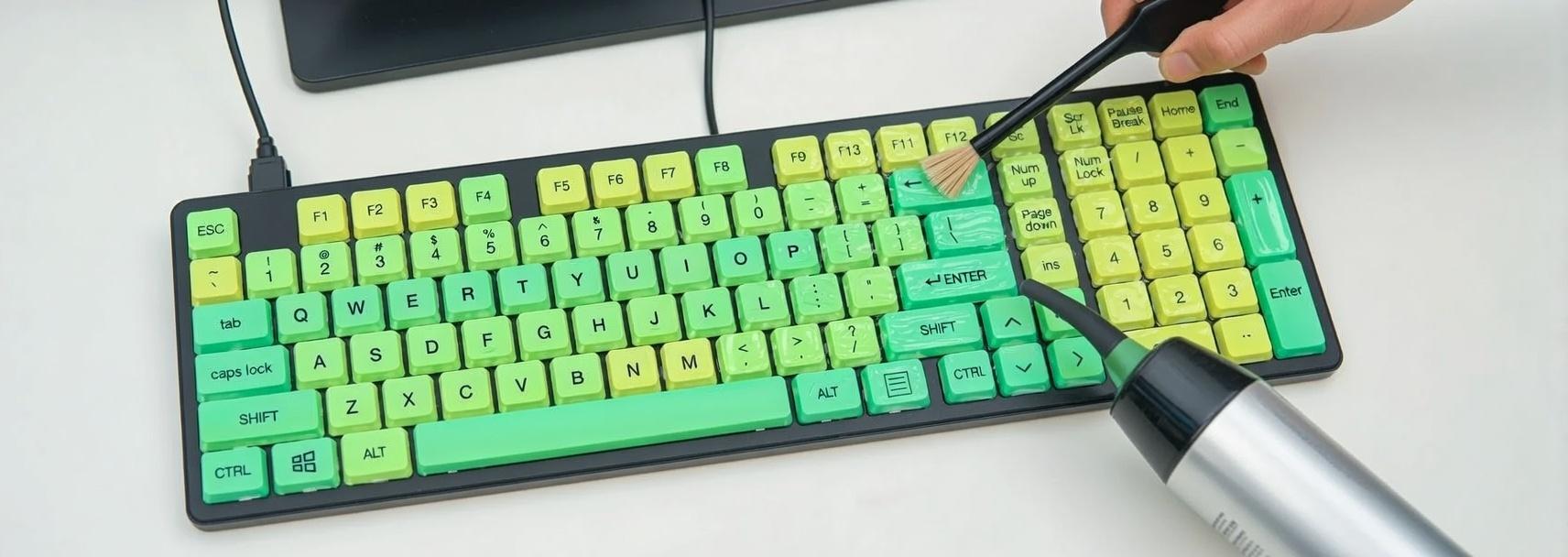
- Use a small brush or compressed air to remove dust and debris from between the keys.
- Wipe the key surfaces gently with a soft, slightly damp cloth.
- After cleaning, reconnect the keyboard and retest the keys using the online keyboard tester.
This step can often fix minor issues, improve key responsiveness, and extend the life of your keyboard.