How to Repair a Damaged SD Card
by PrachiS28 in Circuits > Cameras
162 Views, 0 Favorites, 0 Comments
How to Repair a Damaged SD Card
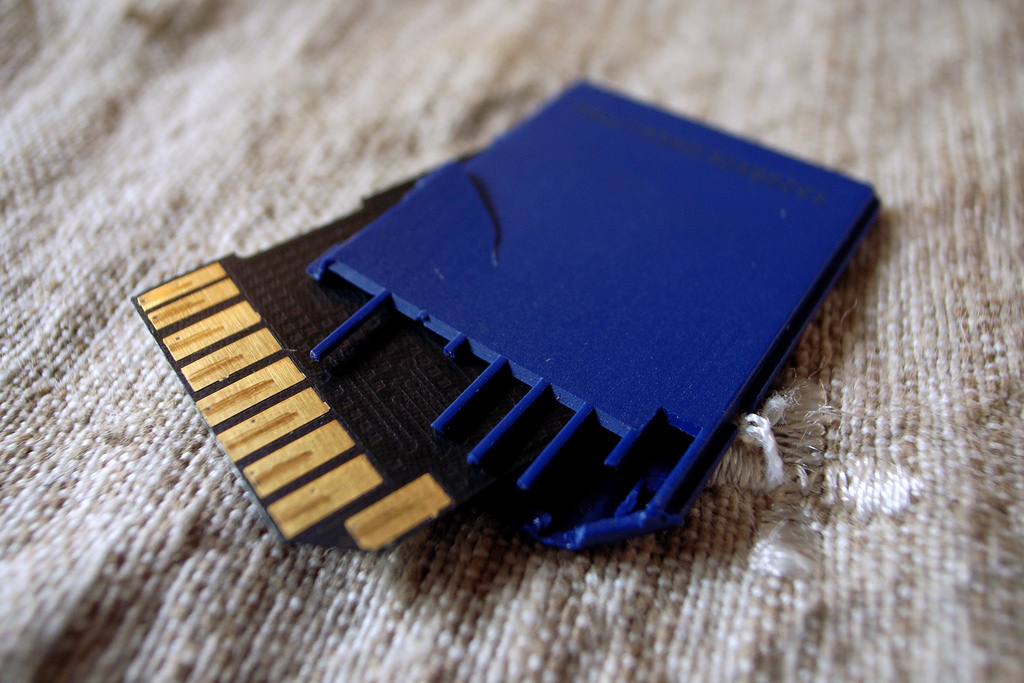
Is your SD card damaged? Are you unable to access photos and videos stored on it? Or the media files are missing from the storage card? Here’ what you should do immediately!
- Stop using the corrupt card
- Inspect the situation of files lost
- Repair SD card & recover your lost media files
SD cards can get damaged or corrupt, irrespective of the brand, Class, and capacity you are using. If you have had stored your important photos and video files on it, it becomes crucial to recover them from damaged SD card.
Read on this post further to know the best approach to repair SD card and recover lost media files from it.How to repair damaged SD card.
Whenever your SD card is damaged or corrupt, usually you will confront either of the following situation:
Situation 1: You cannot access the SD card as it gives some error like below while trying to open it.
‘SD card is damaged, Try reformatting it’
Situation 2: You can access the SD card but your saved photos and videos on it are missing.
Based on your situation, apply the below solutions to fix the problem and recover the media files from the damaged SD card.
Situation 1: You cannot access the SD card on your PC
If your computer or any other device (camera or mobile phone etc.) can recognize the SD card, it means the media is not yet physically damaged. However, it may have logical errors due to which you are unable to access it on PC. Apply any of the following solutions as per your case.
Solutions:
- Perform chkdsk (if SD card asks to format)
- Assign a drive letter (if SD card drive letter not visible)
- Reinstall the drivers (if you can access the SD card on other devices but not on your computer)
Perform Chkdsk
When you get the error that asks you to
format SD card to open it, perform the chkdsk command process. The chkdsk command checks for SD card logical errors and fixes them.
Steps to perform Chkdsk:
- · Press Windows + R keys to open the Run dialog box
- ·Type cmd and press Enter
- ·Right-click cmd and select Run as Administrator
- ·Type command line chkdsk > SD card drive letter>:/r/f (e.g., , where E is the SD card drive letter). This repairs the file system errors and scans for bad sectors as well.
- · Press Enter
- ·Once process finishes, restart your computer.
Assign a New Drive Letter to an Unreadable SD Card
When you connect an SD
card to the PC, a drive letter is automatically assigned to it. However, sometimes you do not find the drive letter in the list of connected Devices and Drives.
You might also get the message ‘Please insert the disk into drive E:’ indicating that the PC isn’t reading the SD card.
In such cases, manually assign a drive letter to your SD card.
Steps to assign drive letter to an unreadable SD card
- · Connect the SD card to PC
- · Open the Run dialogue box
- · Type compmgmt.msc and press Enter
- · Under Storage select Disk Management
- · Right-click the SD card you want to assign a letter and choose Change Drive Letter and Paths
- · In the dialog box click on Change
- · Check in Assign following drive letter
- · Choose the letter from the drop box and click OK
Reinstall the Driver
Is your SD card accessible on other
devices such as camera, mobile phone, or another computer but not on your PC? This means the SD card is fine, but the PC you are using does not have updated drivers. Outdated PC drivers do not detect connected storage media. Uninstall and reinstall the drivers to fix the problem.
Steps to uninstall/reinstall the driver:
- · Right click on This PC or My Computer
- · Click Manage > Device Manager
- · Double-click Disk Drives in the list
- · Right click on the name of your removable SD card. Click Uninstall
- · Click OK
- · Under Device Manager, click the Action menu
- · Click Scan for hardware changes
- You may receive a message that Windows has to install driver software for your unknown device. Click Locate and install driver software. OR
- You may get a message that a hardware device is being installed and that the uninstalled device is now present in Device Manager.
If you do not receive either of the message do the following:
- · Go to Settings of your PC and follow Update & Security > Windows Update
- · Click Check for Updates
- · Click View available updates to see whether updated drivers are available. Select the driver and click Install
Situation 2: You can access SD card but the photos, videos, and other files are missing on it.
Solution: Recover lost media files with an SD card recovery software
A third-party recovery software is your best bet when you lose photos, videos and audio files from a damaged SD card.
Corruption, bad sectors, formatting, or accidental deletion leads to loss of stored media files on SD card. Choose a software that works in all cases of loss. It should be secure enough to restore without affecting the original quality of multimedia files. There are users’ experiences who found their videos and photos were corrupt when recovered. Thus, always be careful while choosing a recovery software for damaged SD card. The software should support multimedia files recovery and give accurate results.
An efficient software would work on all kinds damaged SD cards used in DSLR, camcorder, CCTV, drone, or mobile phone etc. One such recommended software is Stellar Photo Recovery. The software is fast to recover photos and videos of any file format with their original name, date, and timestamp. Its retrieves from formatted, virus infected, and damaged SD cards of all brands and capacities. It efficiently works on FAT32, ExFAT, NTFS, HFS+ and Linux file system. Even those with least technical skills can use Stellar SD card recovery software.
Wrapping Up
Suddenly realising that you have lost valuable photos and videos can make you panic. But the bitter fact is files are prone to loss when stored in SD cards due to the vulnerability of media.
However, it is advisable to stay calm and assess the situation - whether the damaged SD card is accessible or it is not readable at all by the computer. Based on the situation, you can use chkdsk command, assign drive letter, reinstall your PC drivers, format the SD card or use a recovery software.