How to Remove Censored Parts From Photos Without Photoshop
by JocelynPhoto in Design > Digital Graphics
34 Views, 0 Favorites, 0 Comments
How to Remove Censored Parts From Photos Without Photoshop

You may notice a censored photo or video many times on the Television or Internet. The purpose to censor these media is blocking an objectionable part or restricting nudity. Normally, photos or videos are censored in two ways, including a black colored patch on the objectionable area or pixelating the objectionable area. And the last one lowers the image resolution of that particular area which causes an unreadable or blurry image.
Many people wonder whether there is a way to remove censored parts from photo. The answer is absolutely YES! In this tutorial, we will show you 4 methods to fix a censored image. Let us see these easy methods in detail:
Jihosoft has launched an amazing Photo Eraser tool which is loaded with many interesting photo editing features. It is mostly used to erase unwanted objects from photos and duplicate an object in the photos without spoiling the quality of the image. This computer-based software is user-friendly and can be used effectively by even those who are not photo editing experts.
The Jihosoft Photo Eraser comes with a wide array of Selection, Masking, Cloning, and other tools which not only help you erase undesired sections of an image but also help you remove any minor blemishes in the image. You simply need to paint those unwanted parts which you need to wipe out from the image. Now let us see how to use this application to remove a censored part from a photo through a step-by-step process:
Supplies
Jihosoft Photo Eraser
Select Censored Area
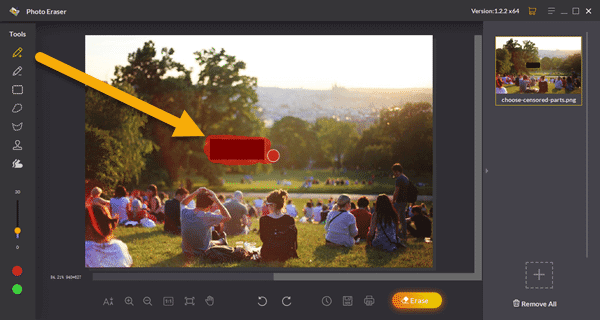
There is a red mask option in the bottom left toolbox, which allows you to use the Selection Brush or other selection tools to mask one or multiple areas on the image at once. Then use a selection tool to select the censored part of the image which needs to be uncensored.
Make the Selection Precise
Once you have selected the part that needs to be erased, see to it that the part is fully masked or painted. You can make use of the Zoom Out and Zoom In options to paint or mask the part carefully even if it is a small area in a photo.
Start Erasing
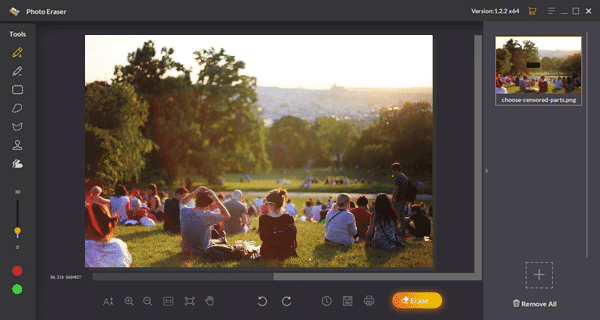
After selecting the areas carefully, click on the ‘Erase’ button which is located on the bottom right side of the application. Now, the censored or pixelated part will be erased automatically from the picture.
Repeat the Move Until Erase All Censored Parts
It is advisable to erase one area or part of the image at a time so as to remove all the uncensored parts perfectively and effectively.