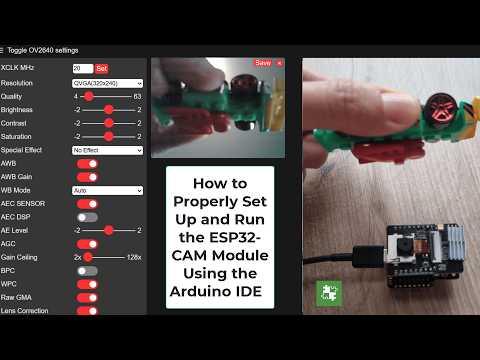
How to Properly Set Up and Run the ESP32-CAM Module Using the Arduino IDE
by sss2022 in Circuits > Cameras
166 Views, 5 Favorites, 0 Comments
How to Properly Set Up and Run the ESP32-CAM Module Using the Arduino IDE
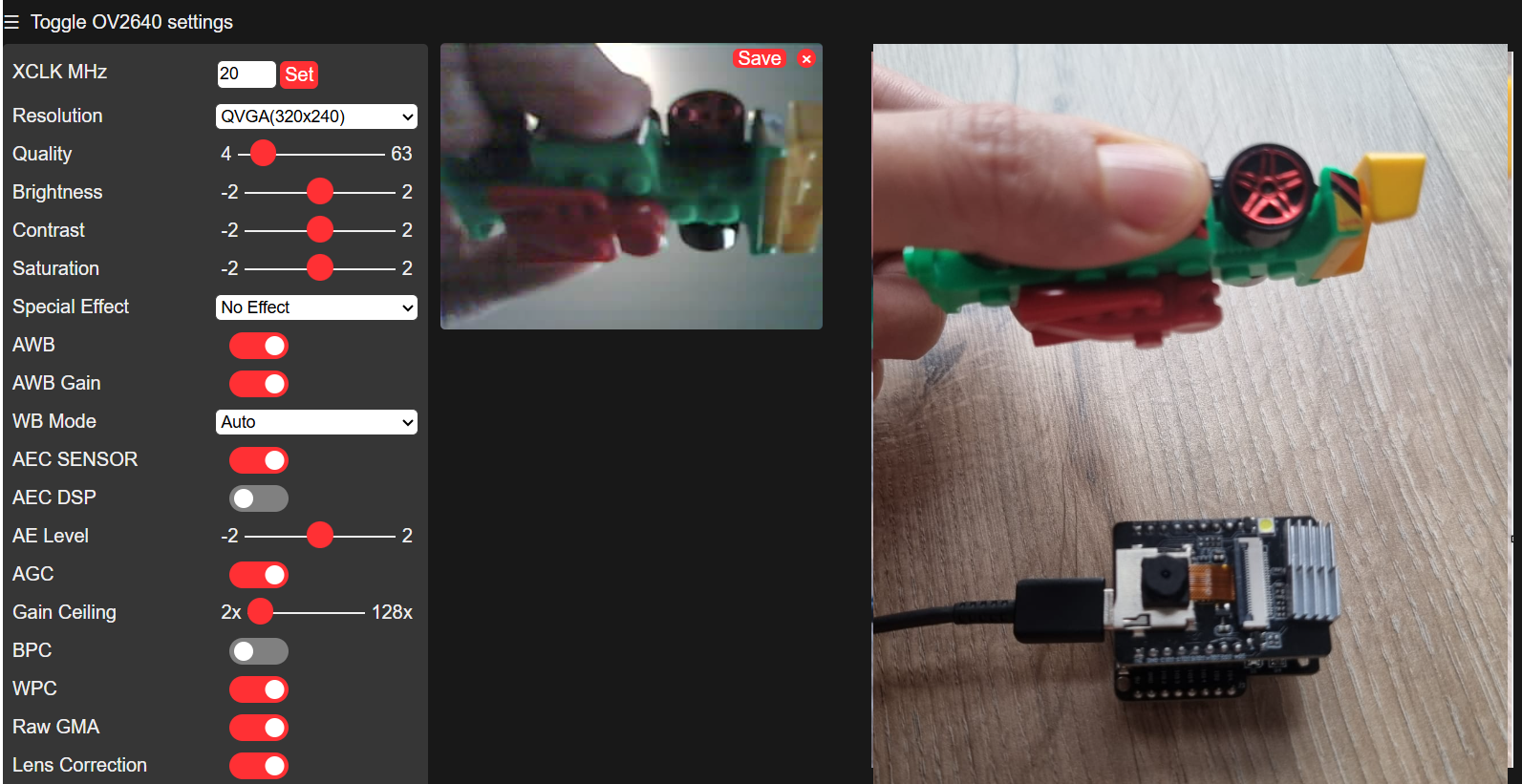
In this project, the main objective is to properly configure and run the ESP32-CAM module using the Arduino IDE.
You will learn how to use the ESP32-CAM (AI Thinker) module to stream live video directly to a web browser, without any additional software.
By using the official CameraWebServer example provided by Espressif, the ESP32-CAM can easily be turned into a Wi-Fi camera accessible from any device on the same network.
Supplies
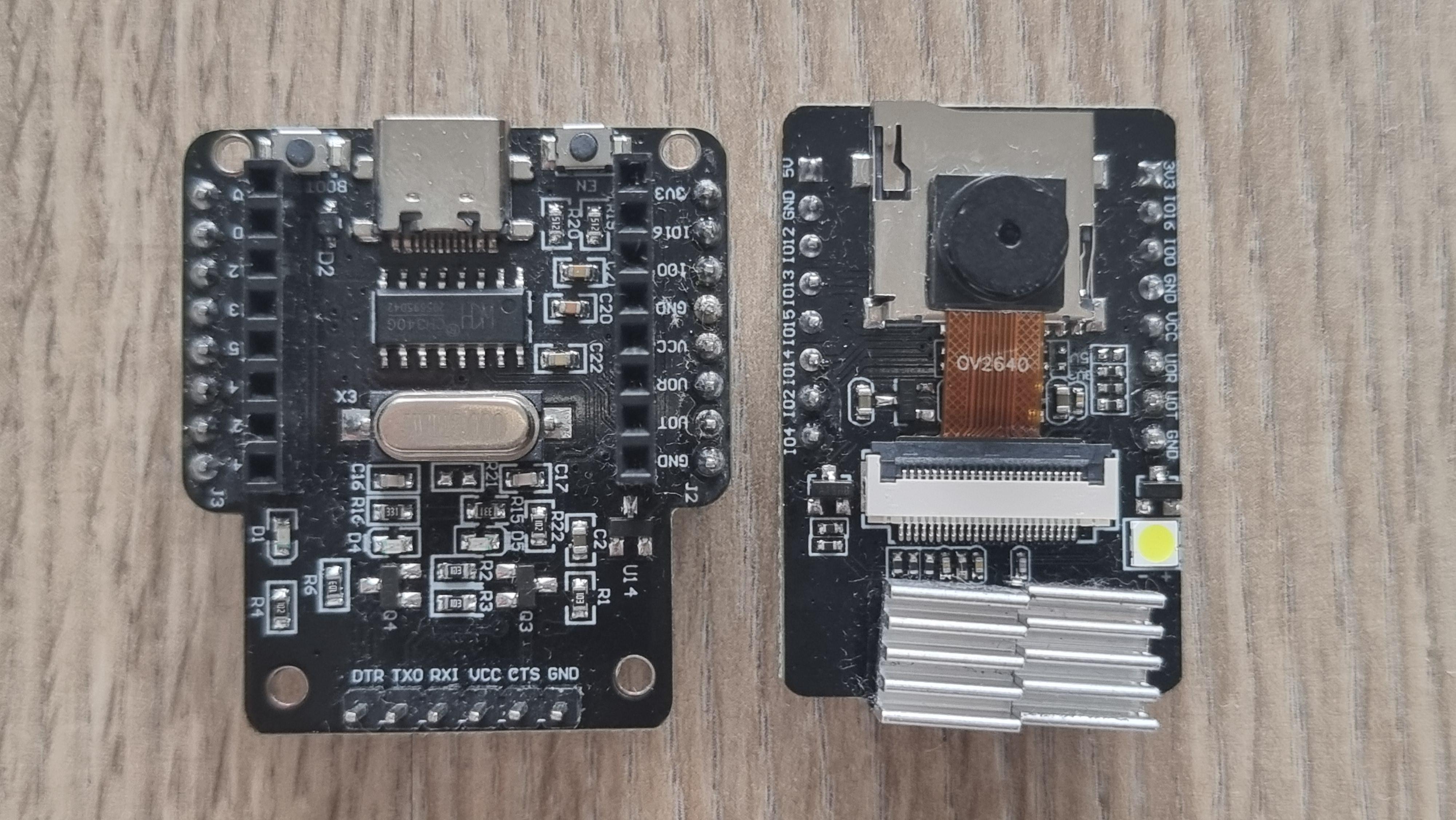
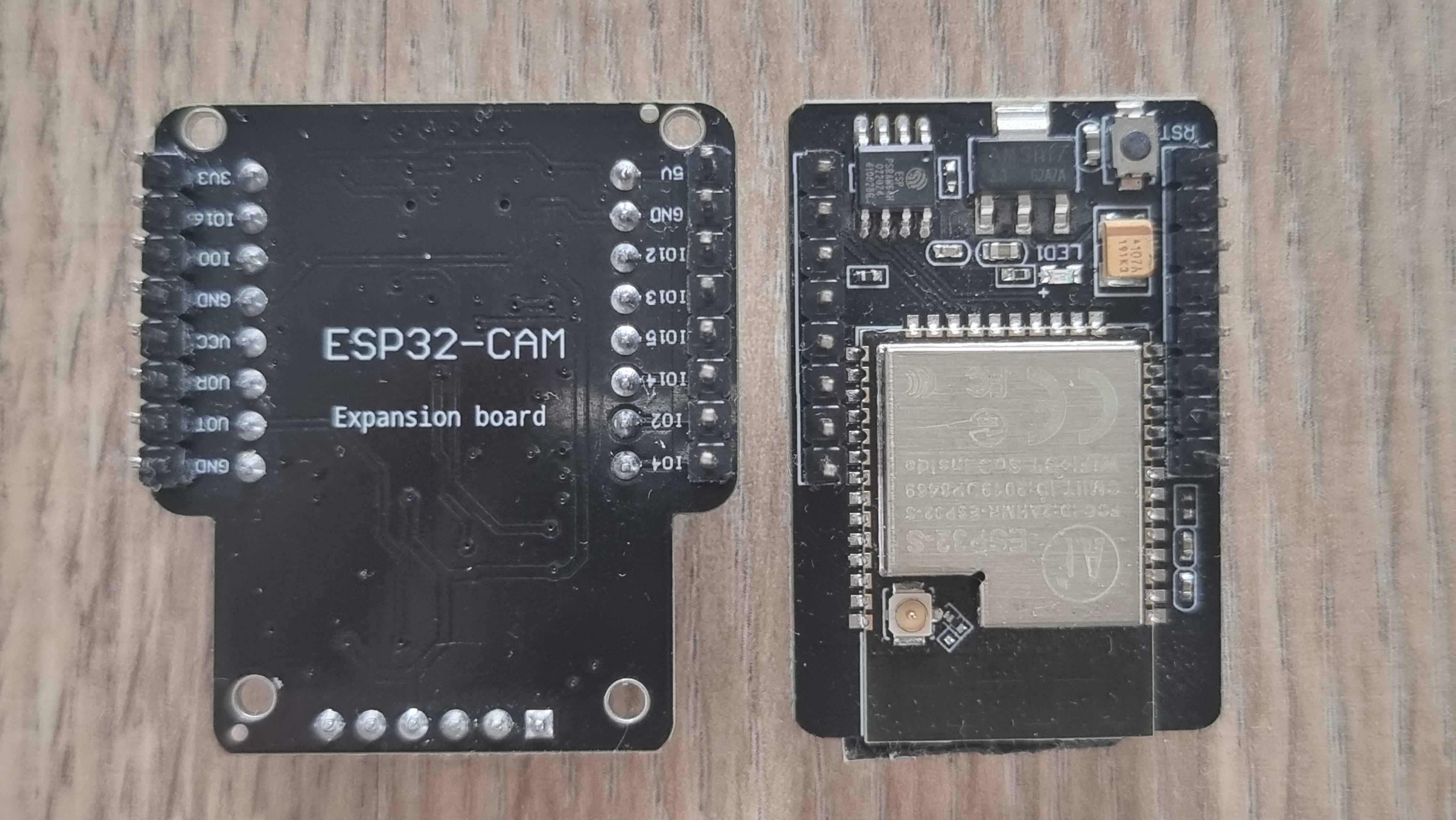
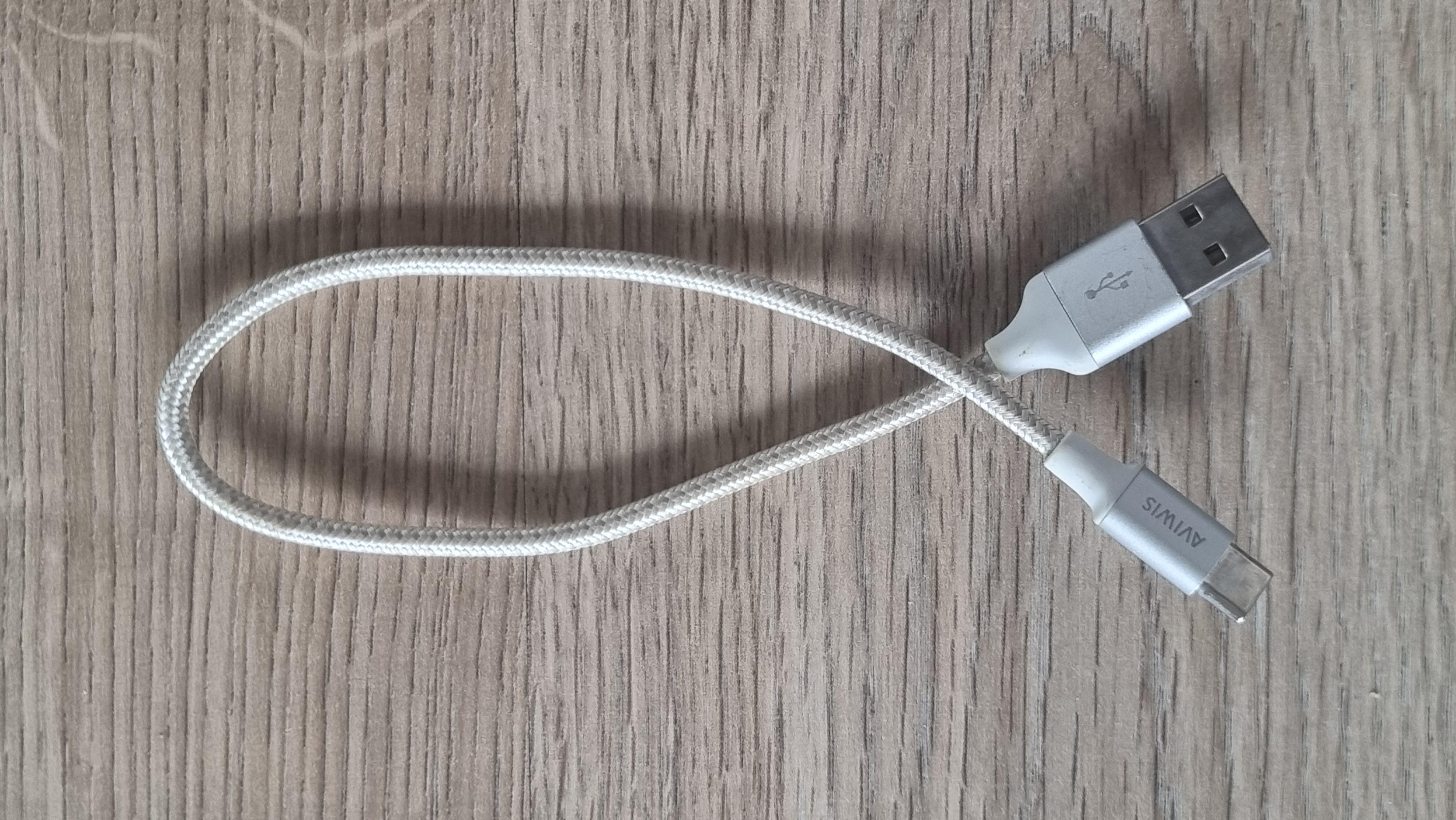
To complete this project, you will need the following components:
- ESP32-CAM (module with OV2640 camera)
- ESP32-CAM Expansion Board (to simplify power supply and programming)
- USB-A to USB-C cable (good quality, capable of providing stable power)
- or USB-C to USB-C cable
⚠️ A poor-quality USB cable may prevent the WiFi and camera from working properly.
Installing ESP32 in Arduino IDE
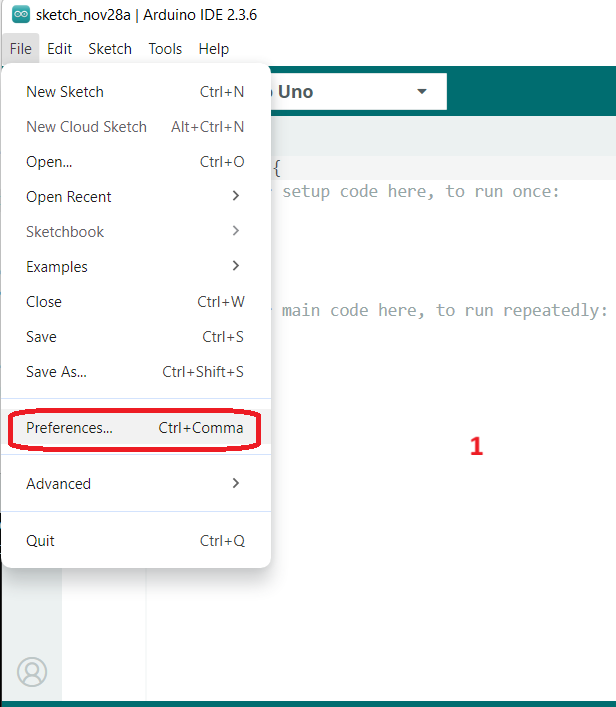
1- Open Arduino IDE, then go to File> Preferences
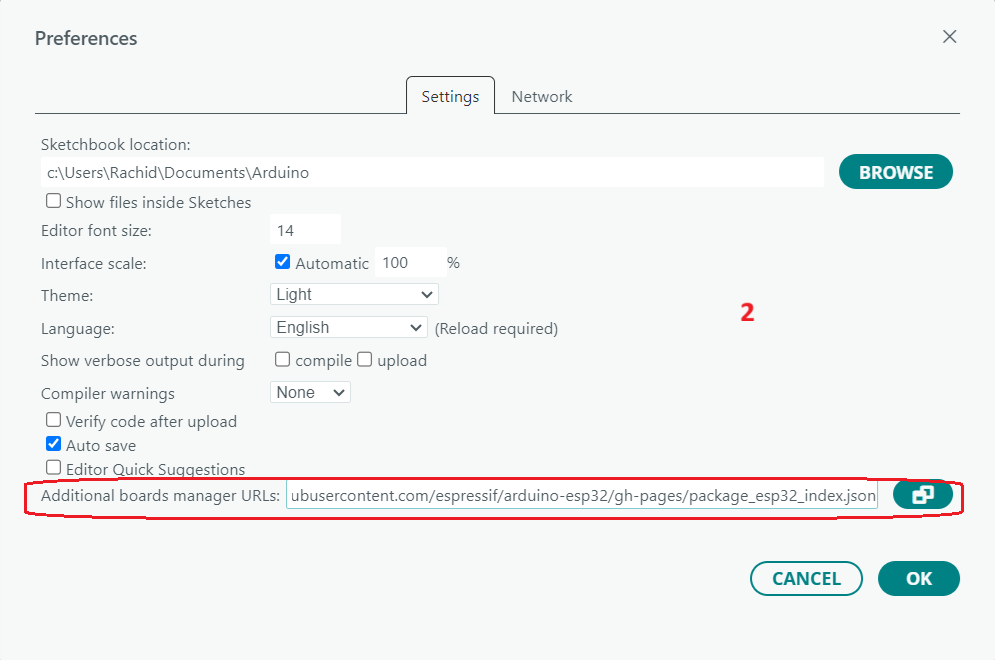
2- Enter the following into the “Additional Board Manager URLs” field:
https://raw.githubusercontent.com/espressif/arduino-esp32/gh-pages/package_esp32_index.json
Then, click the “OK” button.
Guide to Set Up ESP32-CAM With Arduino IDE
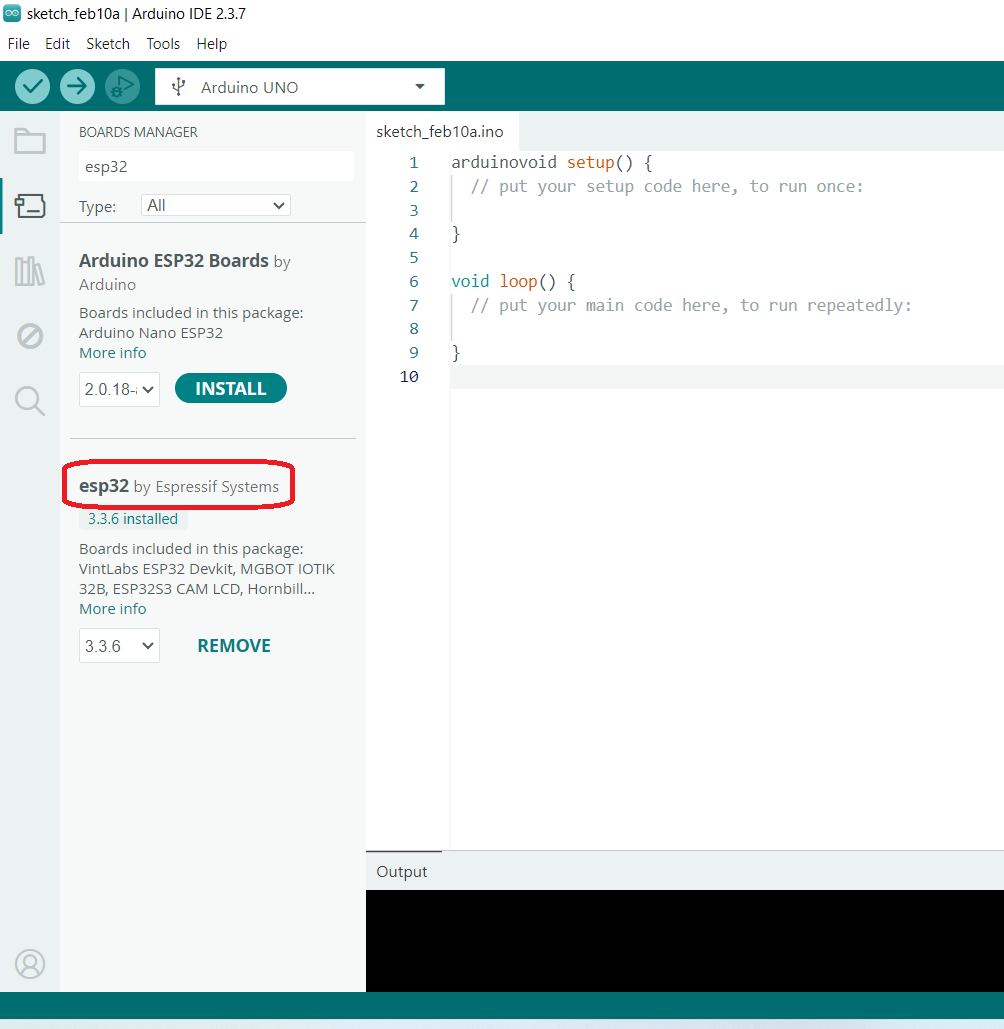
1- Install the ESP32 Board Package
- Open Arduino IDE.
- Go to Board Manager: In the search bar, type ESP32 and install “ESP32 by Espressif Systems”.
2- Select a Board to Access Camera Examples
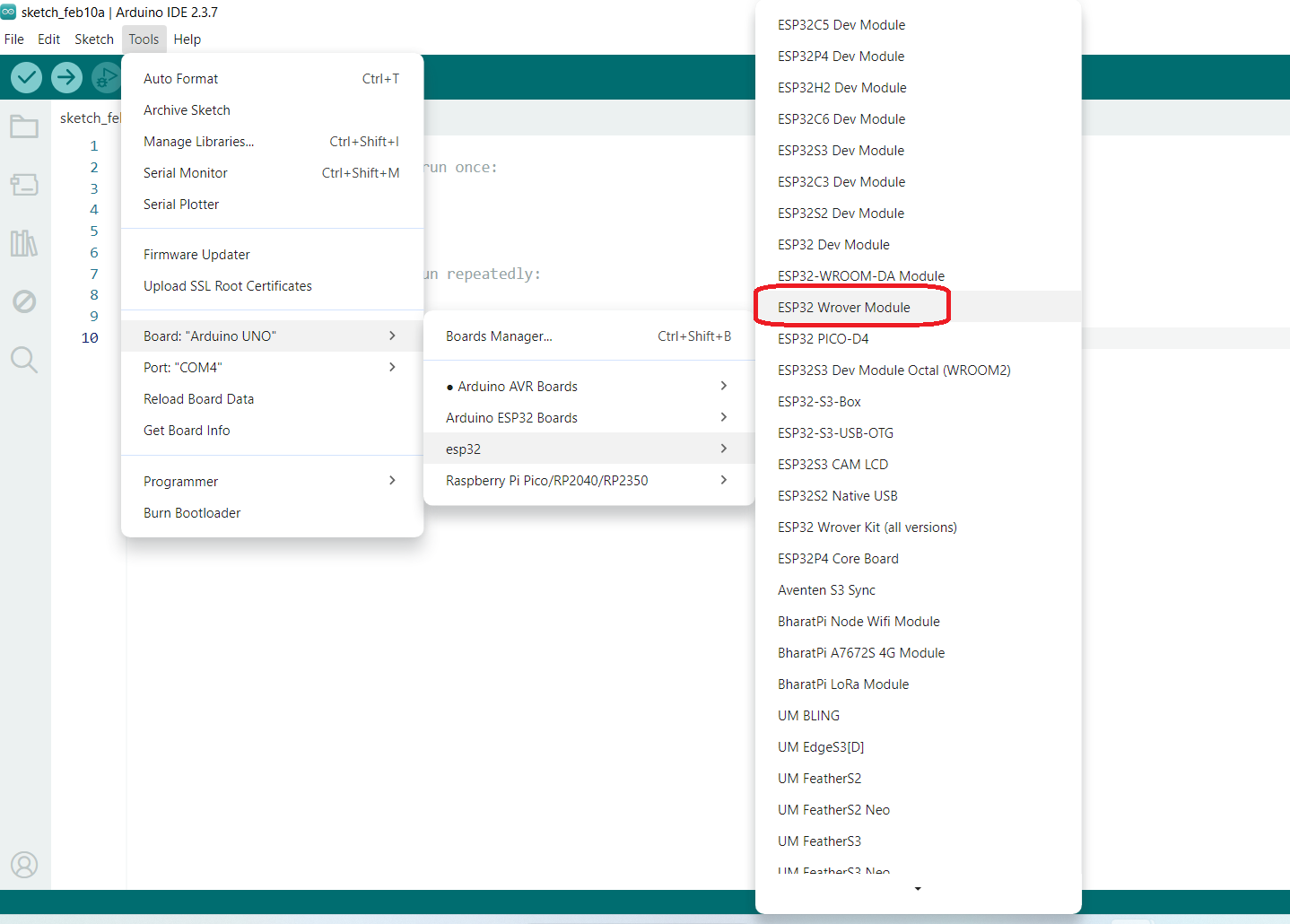
- After installation, go to Tools > Board > ESP32 and select ESP32 Wrover Module.
- This board selection allows access to the ESP32 camera examples.
3- Open the CameraWebServer Example
- Navigate to File > Examples > ESP32 > Camera > CameraWebServer.
- Click to open the example.
- Important: Camera examples are only visible if an ESP32 board (like Wrover Module) is selected.
4- Change the Board to Match Your Hardware
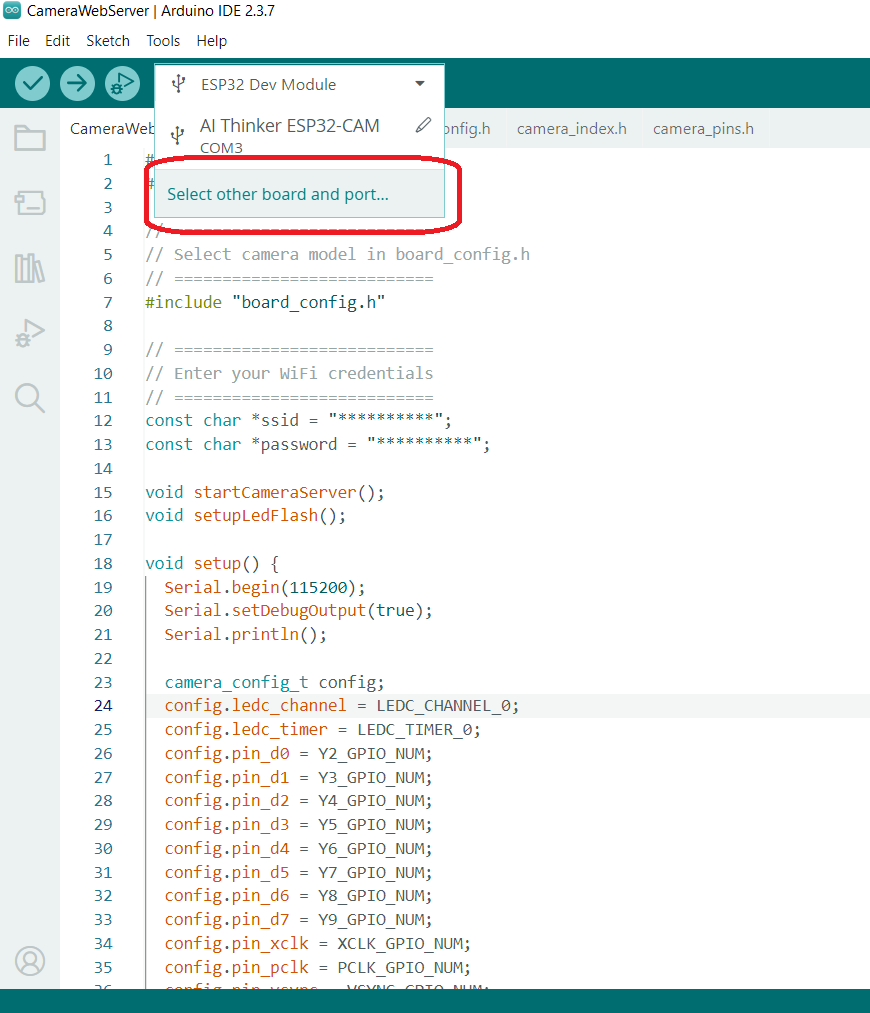
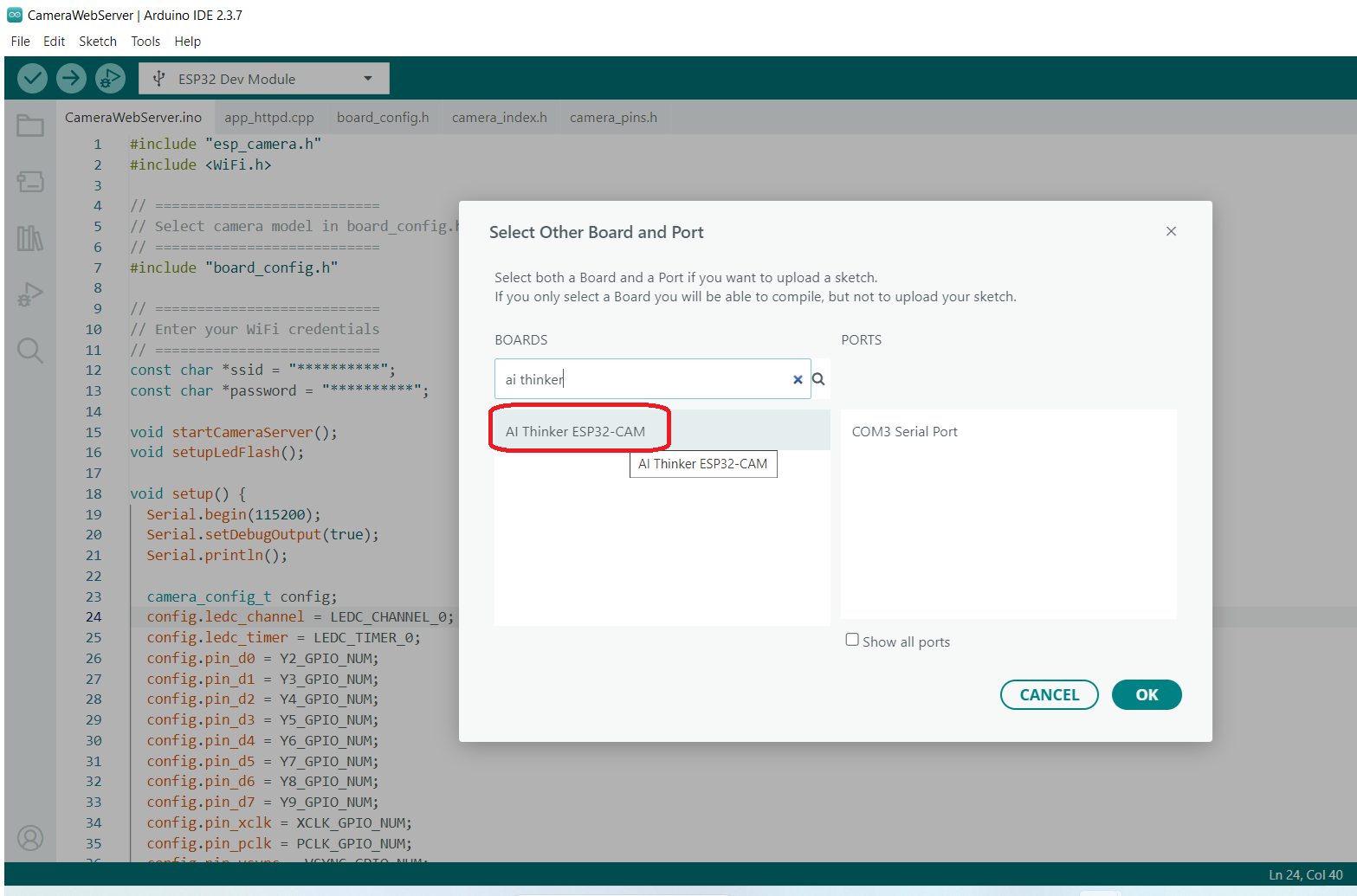
- Go to ESP32 Wrover Module > Select Other Board and Port.
- Type AI Thinker in the search bar and select AI Thinker ESP32-CAM.
- This step is crucial:
- ESP32 Wrover Module → allows opening the CameraWebServer example.
- AI Thinker ESP32-CAM → ensures the correct pin configuration for your actual module.
Adjust Settings in Tools for ESP32-CAM

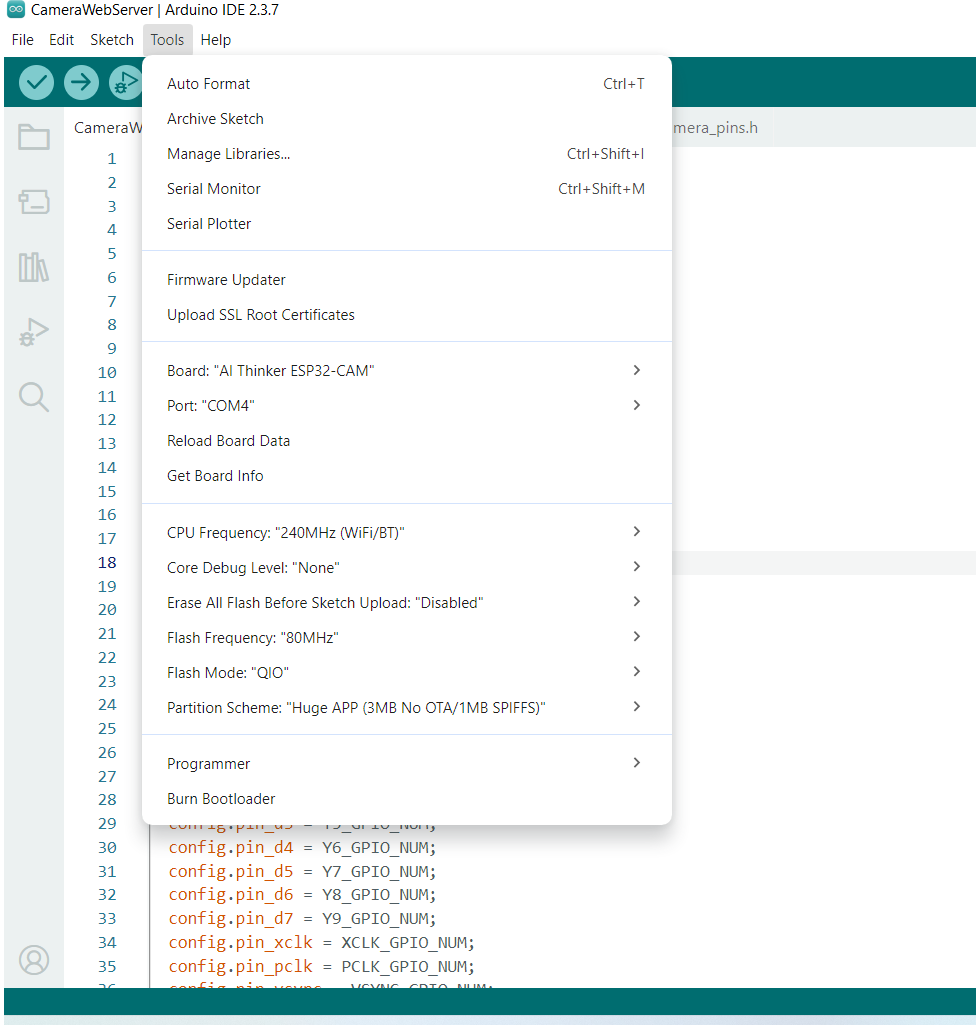
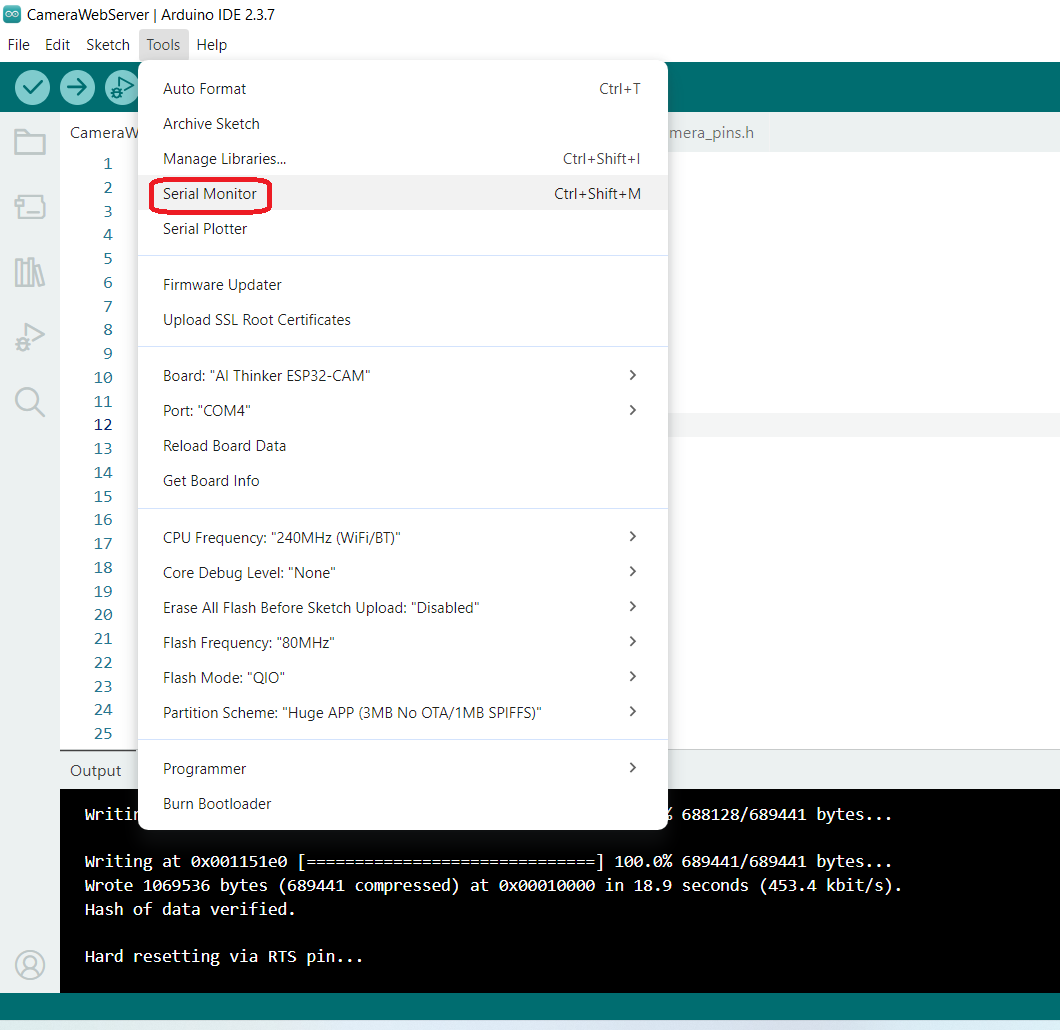
1- Select the Board and Port
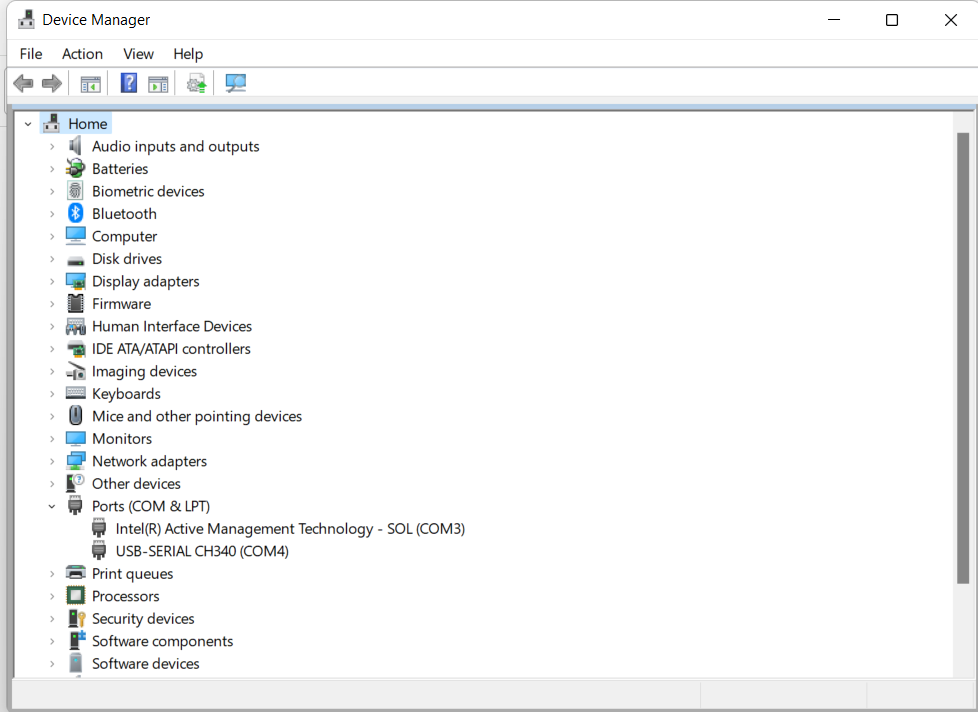
- On your computer, open the Device Manager to check which COM port your ESP32-CAM board is connected to.
- In the Arduino IDE, select the correct Port (e.g., COM4) where your ESP32-CAM is connected.
- Make sure Board is set to AI Thinker ESP32-CAM (as shown in your screenshot).
2- Adjust CPU and Flash Settings (optional but recommended)
- CPU Frequency: 240MHz (WiFi/BT) → leave as default.
- Flash Frequency: 80MHz → leave as default.
- Flash Mode: QIO → leave as default.
- Partition Scheme: “Huge APP (3MB No OTA / 1MB SPIFFS)” → good for CameraWebServer.
3- Other Useful Options
- Erase All Flash Before Sketch Upload: Disabled (can enable if you want a full clean flash).
Program Changes in CameraWebServer
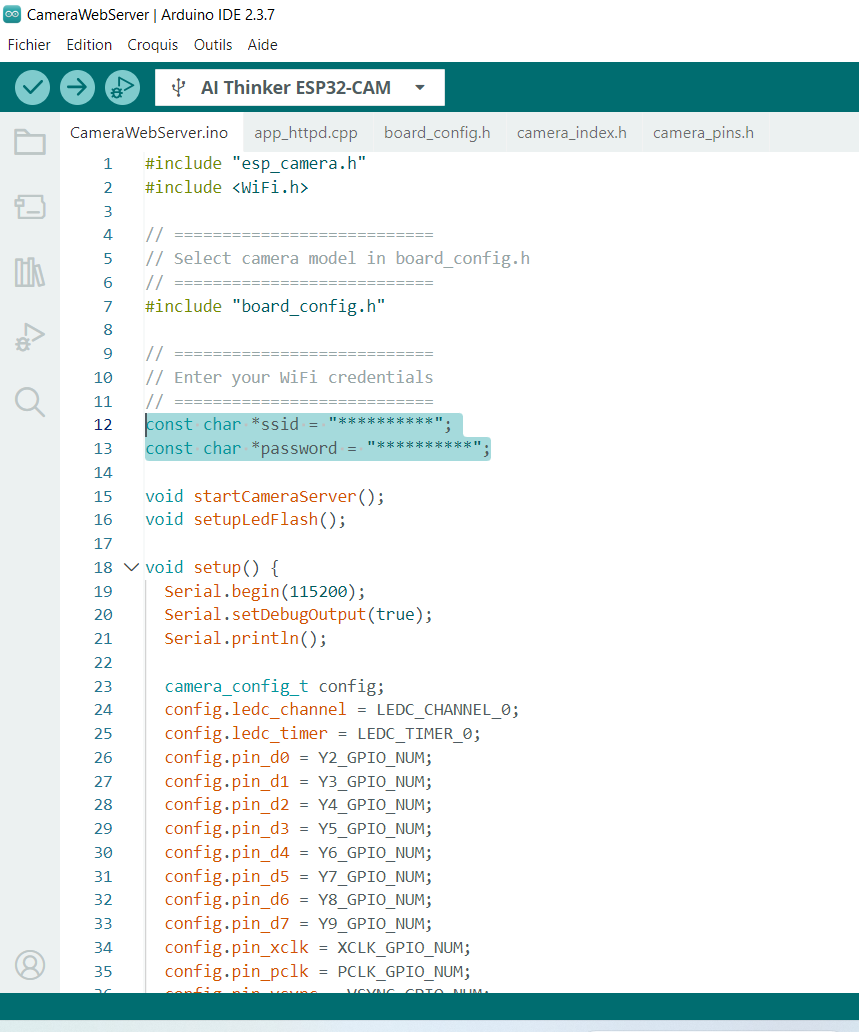
1- Enter Your Wi-Fi Credentials
- Open the CameraWebServer sketch.
- Locate the section for Wi-Fi configuration.
- Replace the asterisks with your network info:
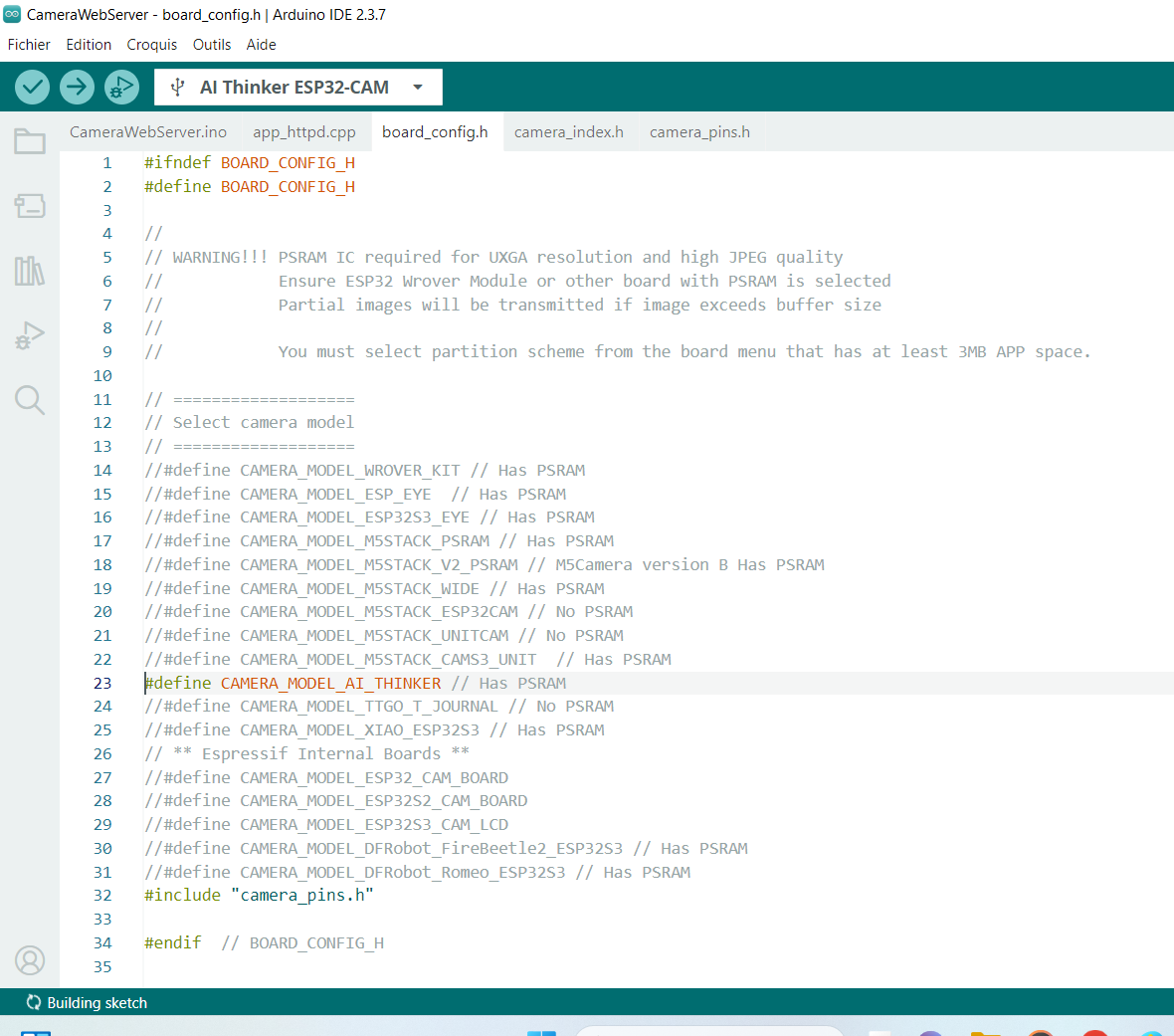
2- Select the Correct Camera Model
- Open the board configuration file (usually board_config.h).
- Find the camera model definitions.
- Comment out the wrong model and uncomment the one for your module:
- This ensures that the code uses the correct pin configuration for your AI Thinker ESP32-CAM.
- Skipping this step can lead to camera not detected errors during compilation or upload.
Upload the Program and Access the Camera Stream
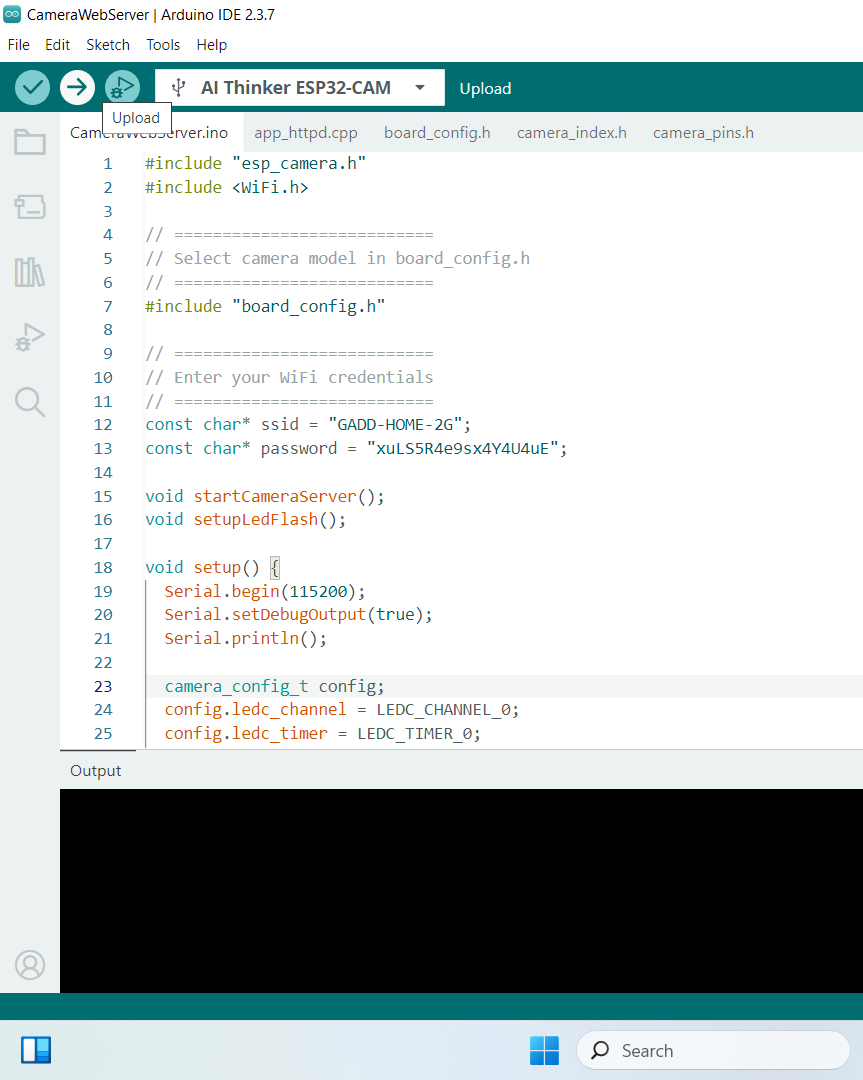
1- Upload the Program
- Click on the Upload button in Arduino IDE to upload the sketch to the ESP32-CAM.
2- Open the Serial Monitor
- Go to Tools > Serial Monitor.
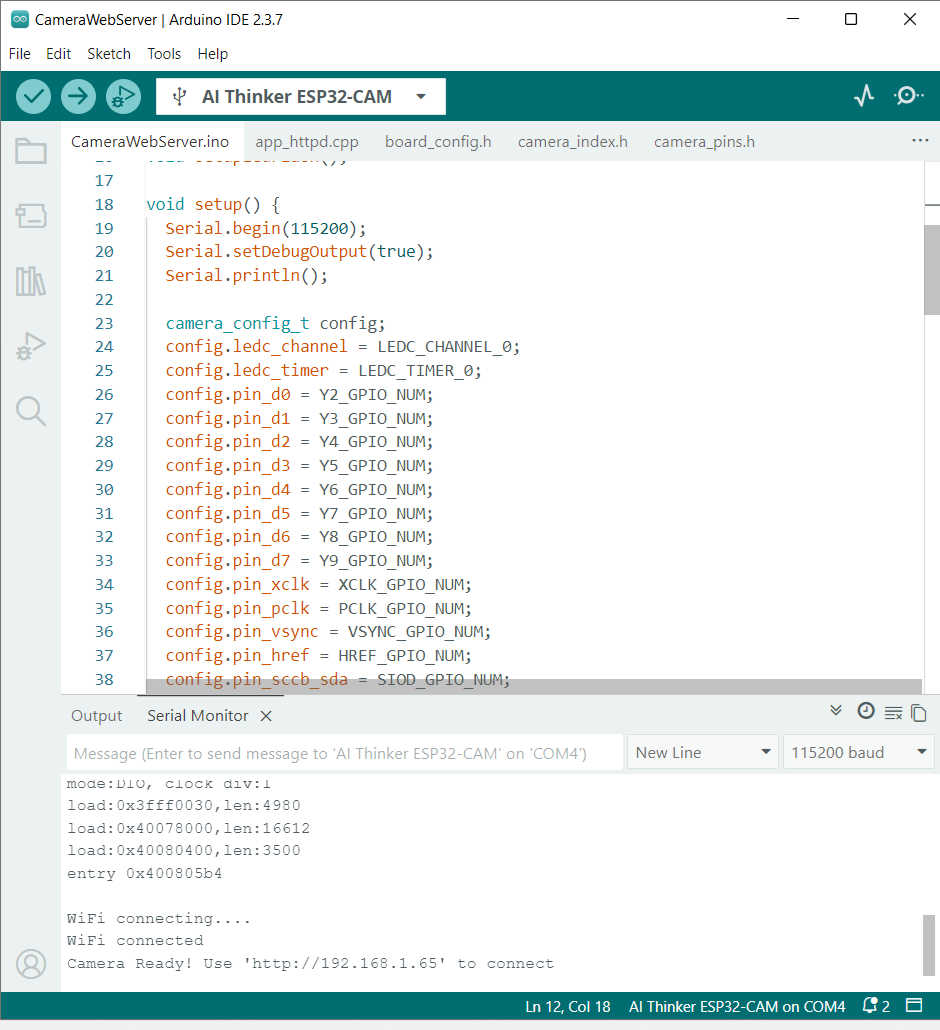
- Set the baud rate to 115200.
3- Connect to Wi-Fi
- Press the EN button on your ESP32-CAM several times until the board successfully connects to your Wi-Fi network.
- In the Serial Monitor, wait until an IP address is displayed.
4- Copy the IP Address
- You will see a message like: 'http://192.168.1.65'
- Copy this URL (your IP address may be different).
5- Open the Camera Web Interface
- Open a web browser (Chrome, Firefox, etc.).
- Paste the copied URL and press Enter.
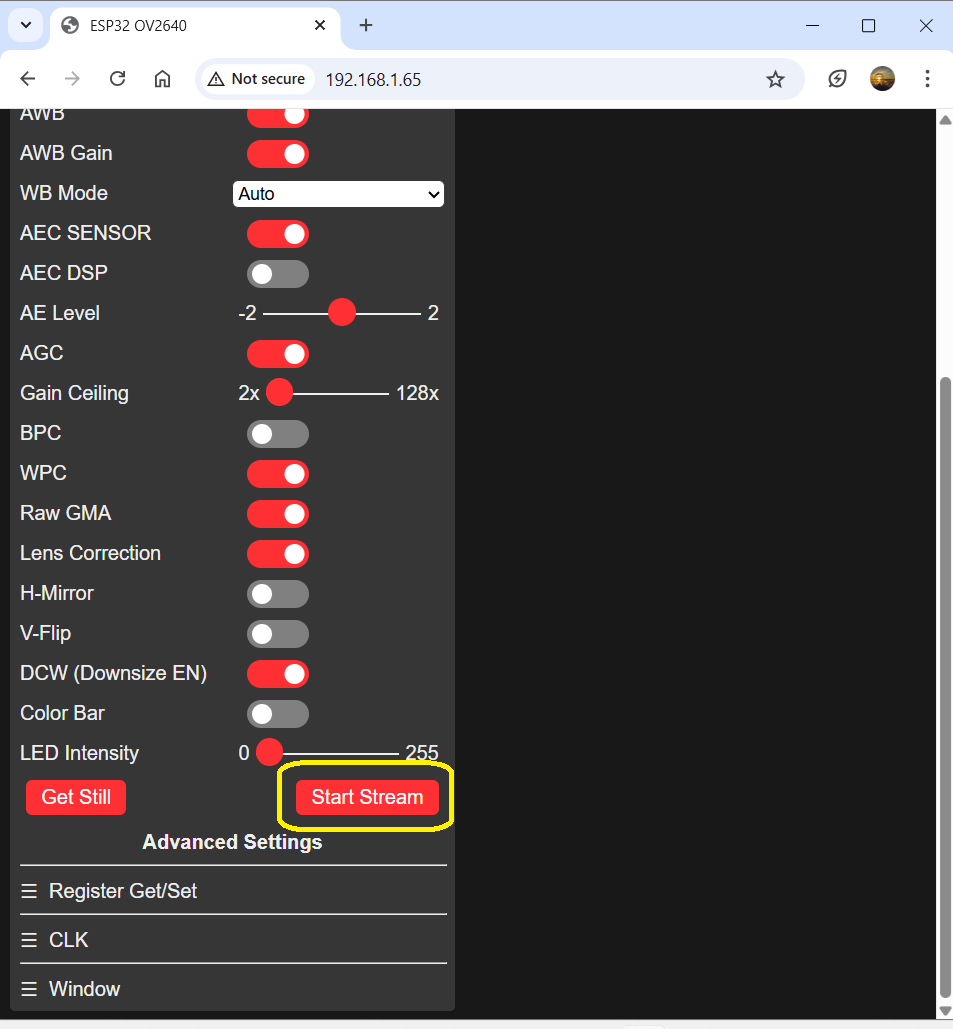
6- Start the Video Stream
- Click on the Start Stream button.
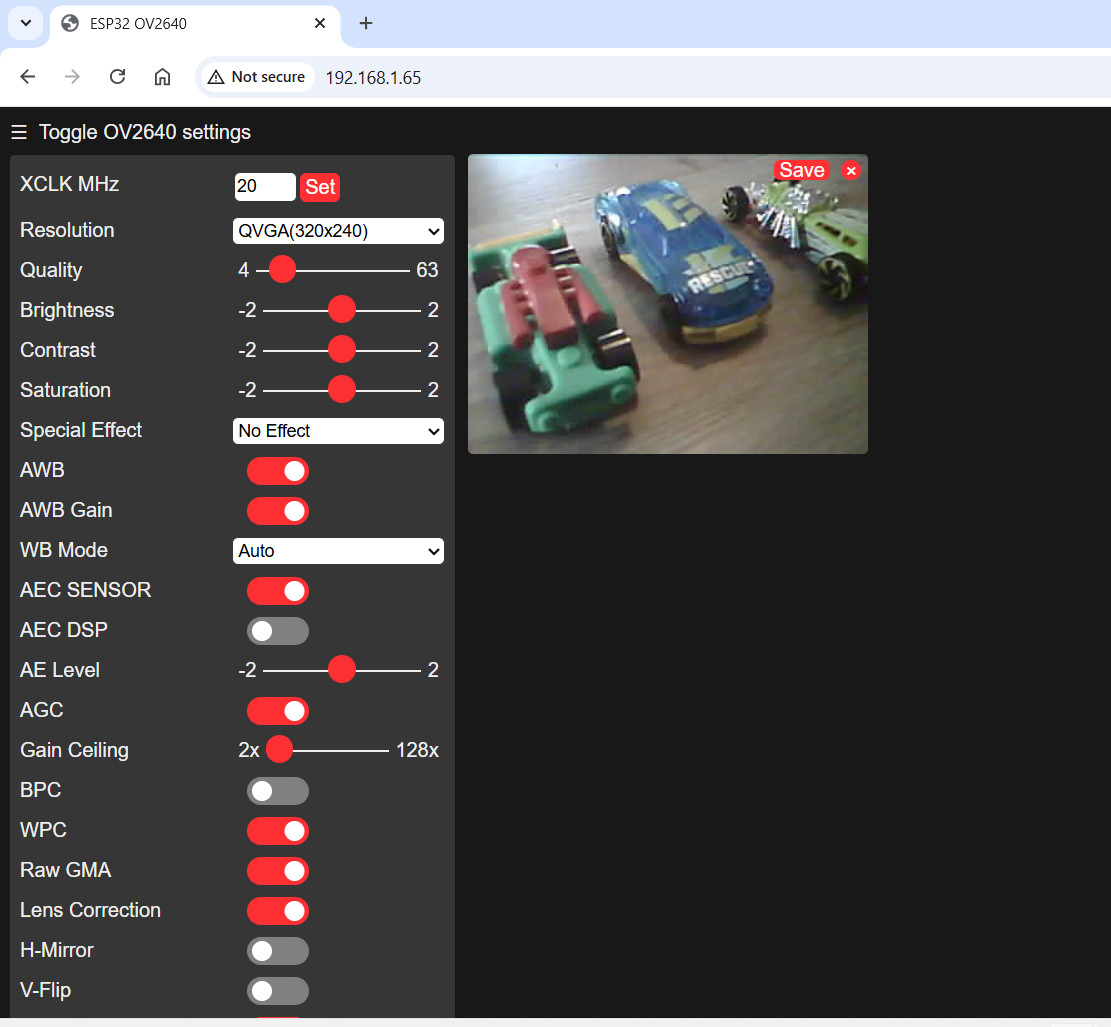
- At the top of the page, a small window will appear showing live video from your ESP32-CAM.
Video