How to Mirror the Desktop of RPI OS on Any St7789 Spi Display on a Raspberry Pi
by quitox in Circuits > Raspberry Pi
61 Views, 1 Favorites, 0 Comments
How to Mirror the Desktop of RPI OS on Any St7789 Spi Display on a Raspberry Pi
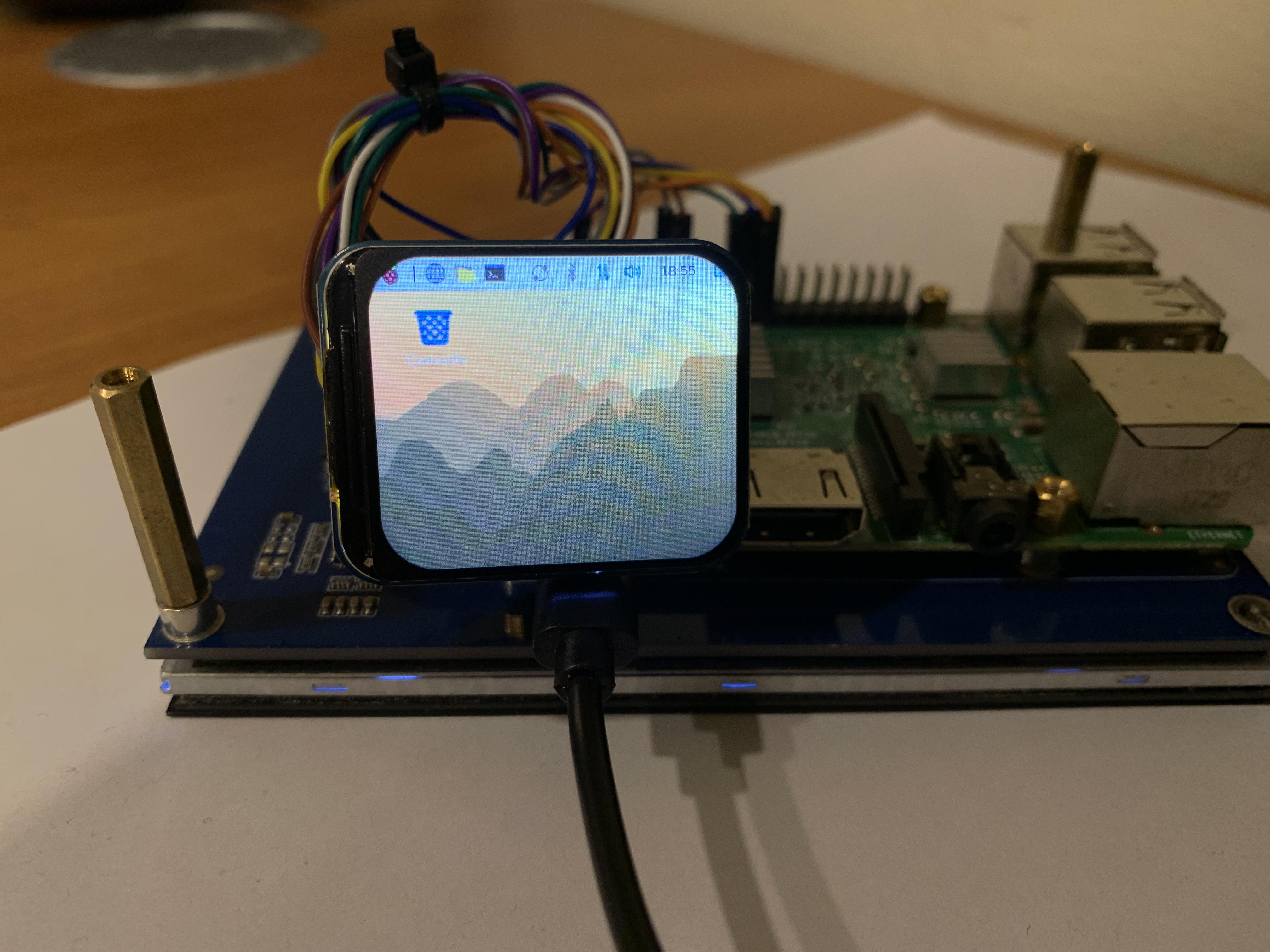
In this instructables, I'm going to show you how to mirror/copy the desktop from Raspberry pi OS (64bit) to any st7789 spi display (other drivers not tested). We are going to use the Raspberry-Pi-Installer-Scripts. Let's begin!
Supplies
- Raspberry pi, I'm using a pi3
- Any st7789 SPI screen, I'm using this one
- Some cables
Enable SSH

.gif)
First, you need to have a fresh install of Raspberry pi OS 64 bit Desktop. We are going to use SSH, to activate it go to preferences --> interfaces --> SSH.
After this, check your IP adress to connect to the raspberry pi via SSH
Connect to SSH
.gif)
Now you can connect to your Raspberry pi, to do it, I'm using Putty.
To use this software, after you installed it, enter the IP adress previously get, click open. A window appear, click accept.
Now you are connected to the Raspberry pi
- Enter your Username --> click enter
- Enter your password (for security, no letter appear) --> click enter
Connect Your Spi Screen to the Rapsberry Pi

Screen connection:
- Reset is not connected
- CS -> CE0 (GPIO 7)
- SCLK (or CLK) -> SCLK (GPIO 11)
- MOSI (or DIN) -> MOSI (GPIO 10)
- BLK (or BL) -> GPIO 22 (can be configured in the config.txt)
- DC -> GPIO 25 (can be configured)
- VCC -> 3.3V
- GND -> GND
Update
First, we need to update and upgrade the raspberry pi:
Then REBOOT:
Install Some "Prepare Your System" Stuff
Give you the root access and Create a new folder for our project in the root folder:
Install python3-pip:
Because we need pip command, we'll going to use virtual environment (venv) since you can't install libraries directly into the system version of Python for RPI OS Bookworm.
Go in this folder and create the "venv" environment and start it:
Now we can install some dependencies:
Then Desactivate the "venv" environment:
Get the Adafruit Installer Scripts
Clone the reppo of adafruit
Install the Drivers + Mirroring
Adafruit give us several script for diffferent components, we are going to use python3 adafruit-pitft script:
Now when the script execute, it give you several choice for your display we are going to use the 7th option (ST7789V 2.0" no touch (320x240)):
- tap "7"+enter
Select the rotation of your screen, for me 90 degrees so 1st option:
- tap "1"+enter
Then , the most important option, do you want to:
- copy/mirror the desktop (HDMI output) on your screen
- execute the console (exactly like putty) on your scrren
- Or only install the st7789 driver (nothing will happen on your screen if you don't give it any programm)
Cause this instructables is for mirroring the desktop we are going to use the 1st option:
- tap "1"+enter
Configure Your Screen
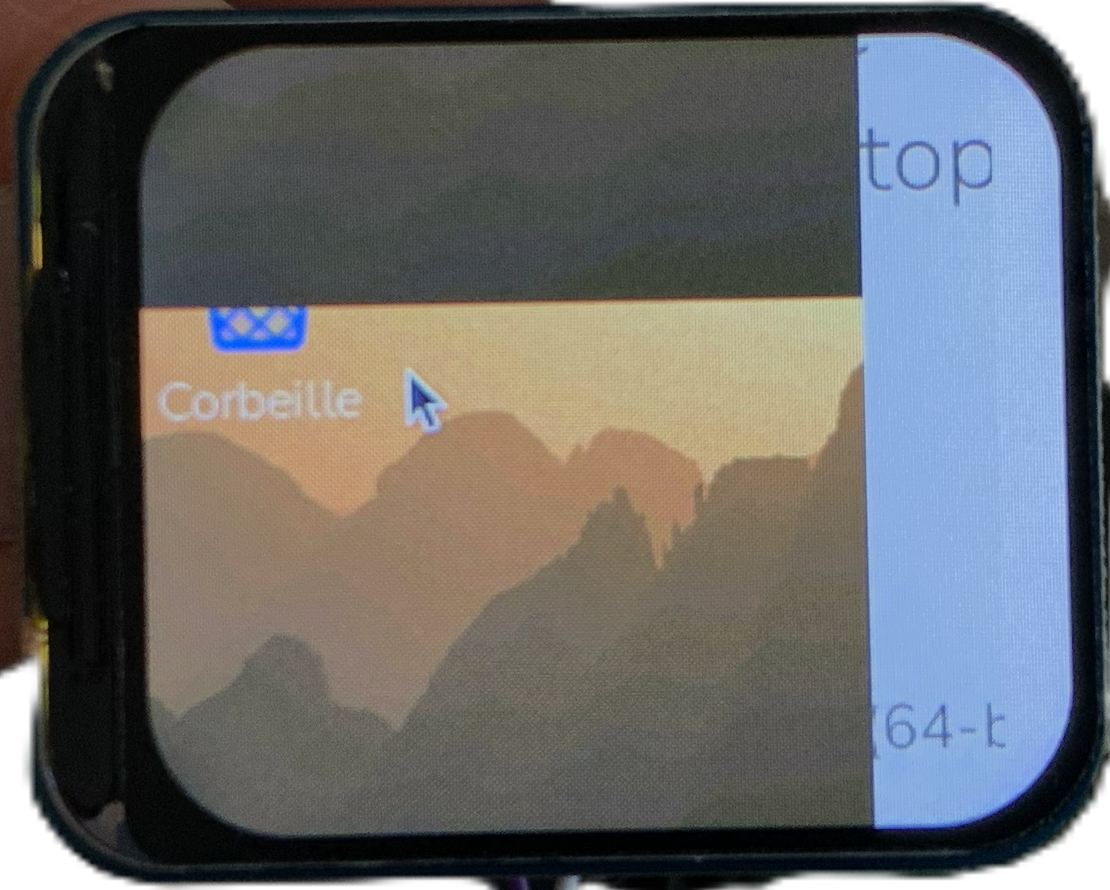

As you can see on the picture, after rebooting, the display seems broken. That's totally normal, in fact, since this script was created for Adafruit screen, the resolution is almost never exactly right for our display. To correct that, we are going to edit the config.txt file of your raspberry pi OS:
Scroll down until you see something like this:
You need to edit this line by replacing 240 and 320 by the resolution of your display:
Save your modification (ctrl+"v" + enter)
And reboot:
Well done, it should work properly!
If your screen do weird thing try to swap the XXX an YYY resolution, if it doesn’t get better follow the next step
Issue With the Screen
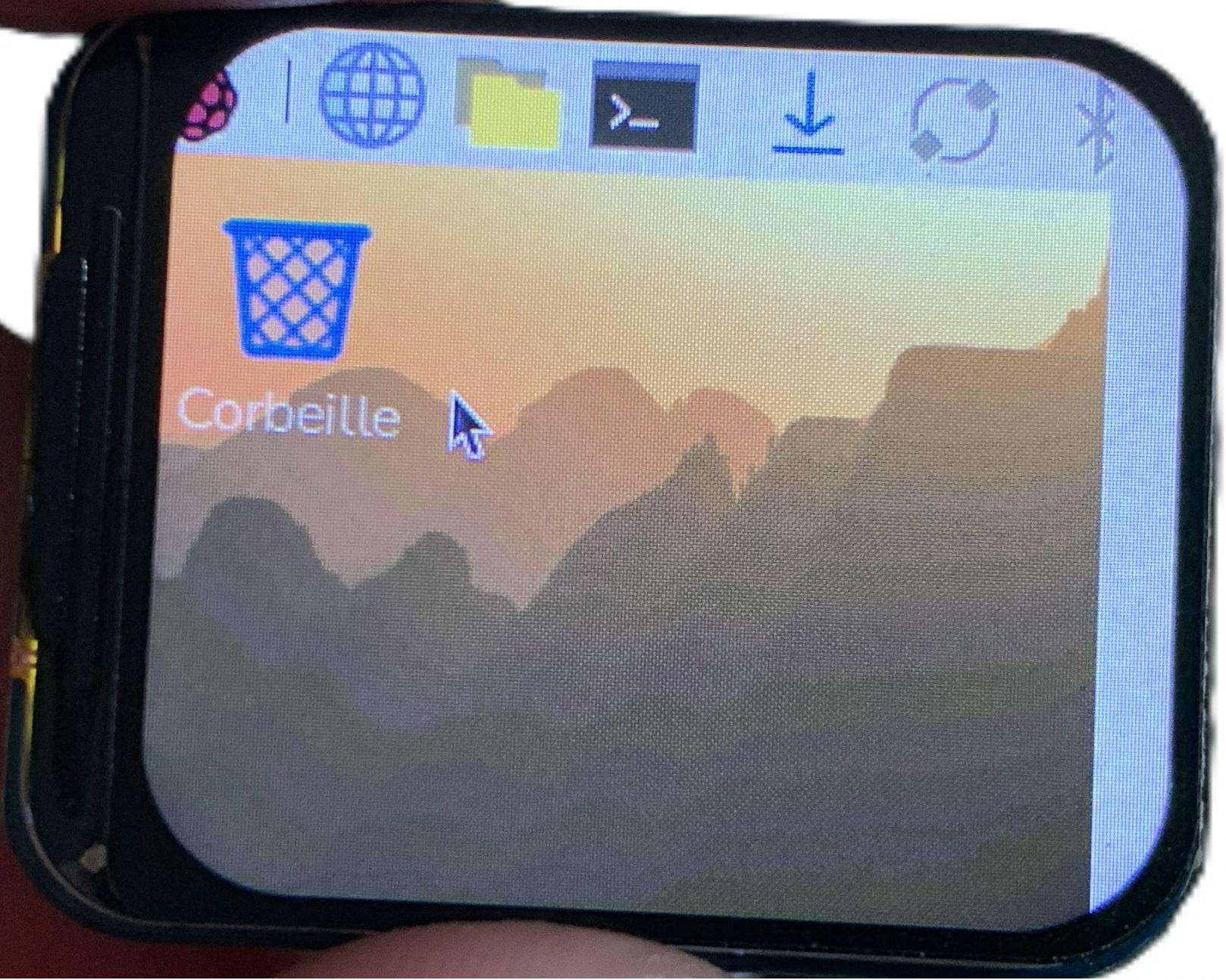
In my case, I was a little bit disappointed after searching on the internet to rectify the offset I had.
So I searched in the script file and I noticed this command:
Amazing! We just need to add the x-offset and y-offset to the config.txt:
Re-Edit the previous line and add your offsets:
Reboot
And it should work properly.
For Another Driver Than ST7789
I don't have others displays than an st7789 driver, but if you search in the script file you can found other drivers that will certainly work.
BTW here are my sources:
https://github.com/adafruit/Raspberry-Pi-Installer-Scripts