How to Make a DIY Arduino Obstacle Avoiding Car & WiFi Controlled
by robox in Circuits > Arduino
1632 Views, 14 Favorites, 0 Comments
How to Make a DIY Arduino Obstacle Avoiding Car & WiFi Controlled
From Your PC to the Real World: Command a Robot via WiFi
Ever dreamed of controlling a physical robot from the comfort of your computer keyboard? Imagine a small, agile rover zipping around your desk, responding to your every command through a seamless WiFi connection—no bulky remote controls needed. This isn’t futuristic tech; it’s a project you can build in an afternoon using an Arduino-compatible board, some simple components, and the power of the RoboX visual development platform.
This tutorial will guide you through building a WiFi-enabled robot car and creating its “brain” using RoboX’s intuitive flowchart system. By the end, you’ll have a fully functional bot you can control from your local network or internet from all over the world. Let’s bridge the gap between code and motion!
Supplies
Here’s everything you need to build the robot. Click on the links (AliExpress examples) to source the components.
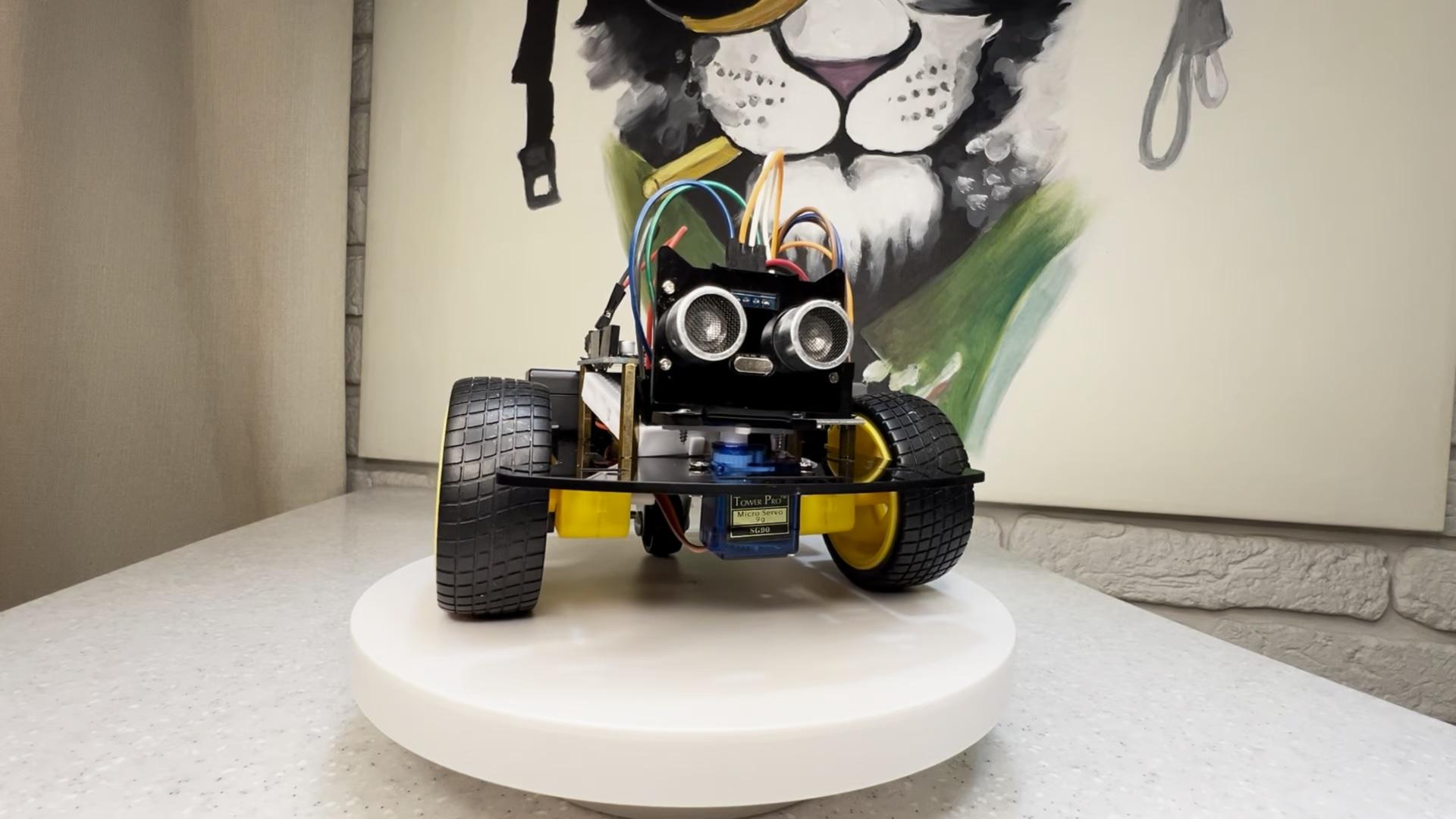
The Finished Project

Caption: The completed WiFi Robot Car, ready to receive commands from a PC or laptop and ready to avoid obstacles automatically.
Wiring Diagram
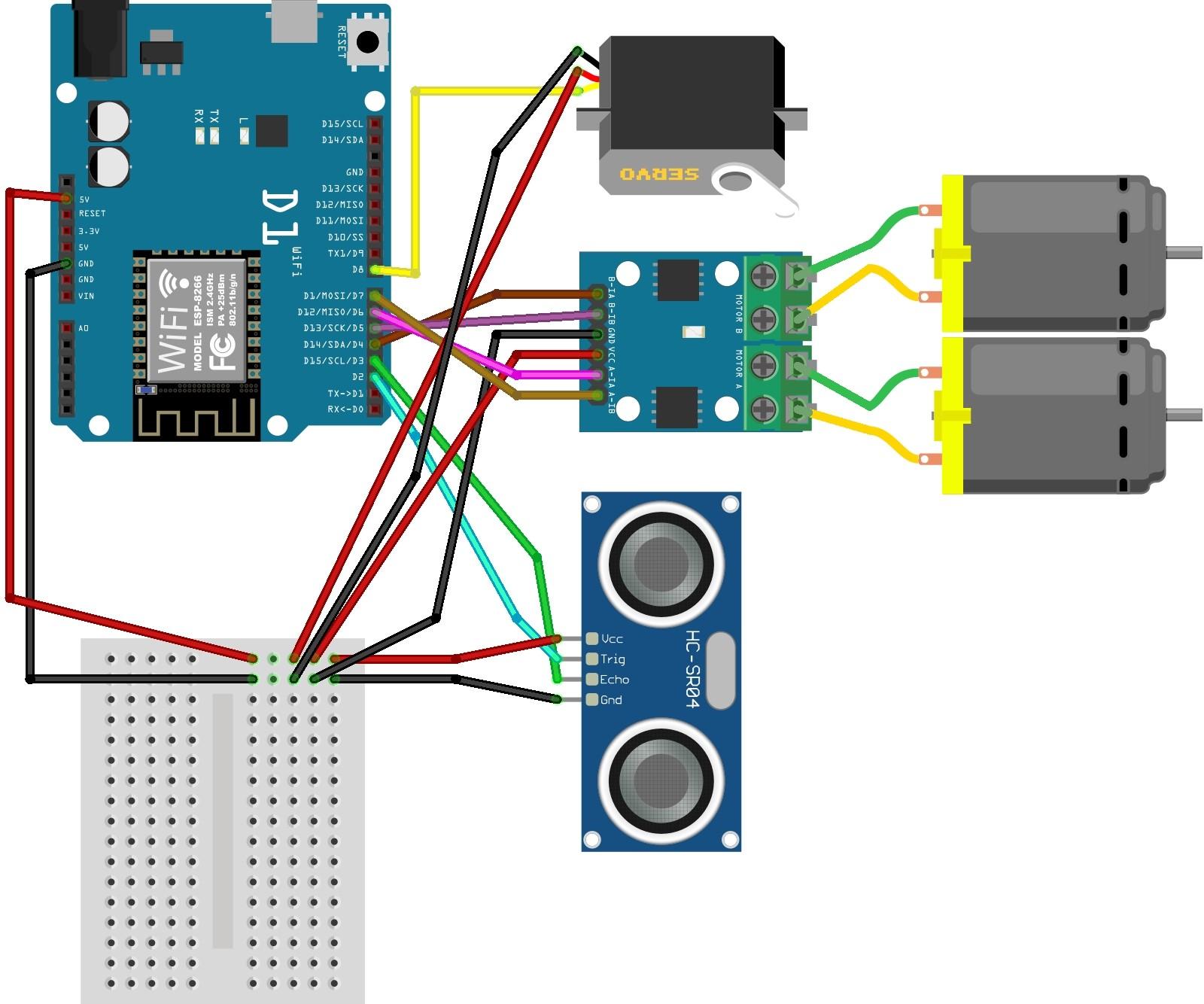
Connecting everything correctly is crucial. Follow this diagram to wire your robot.
Connecting Robot to Your PC
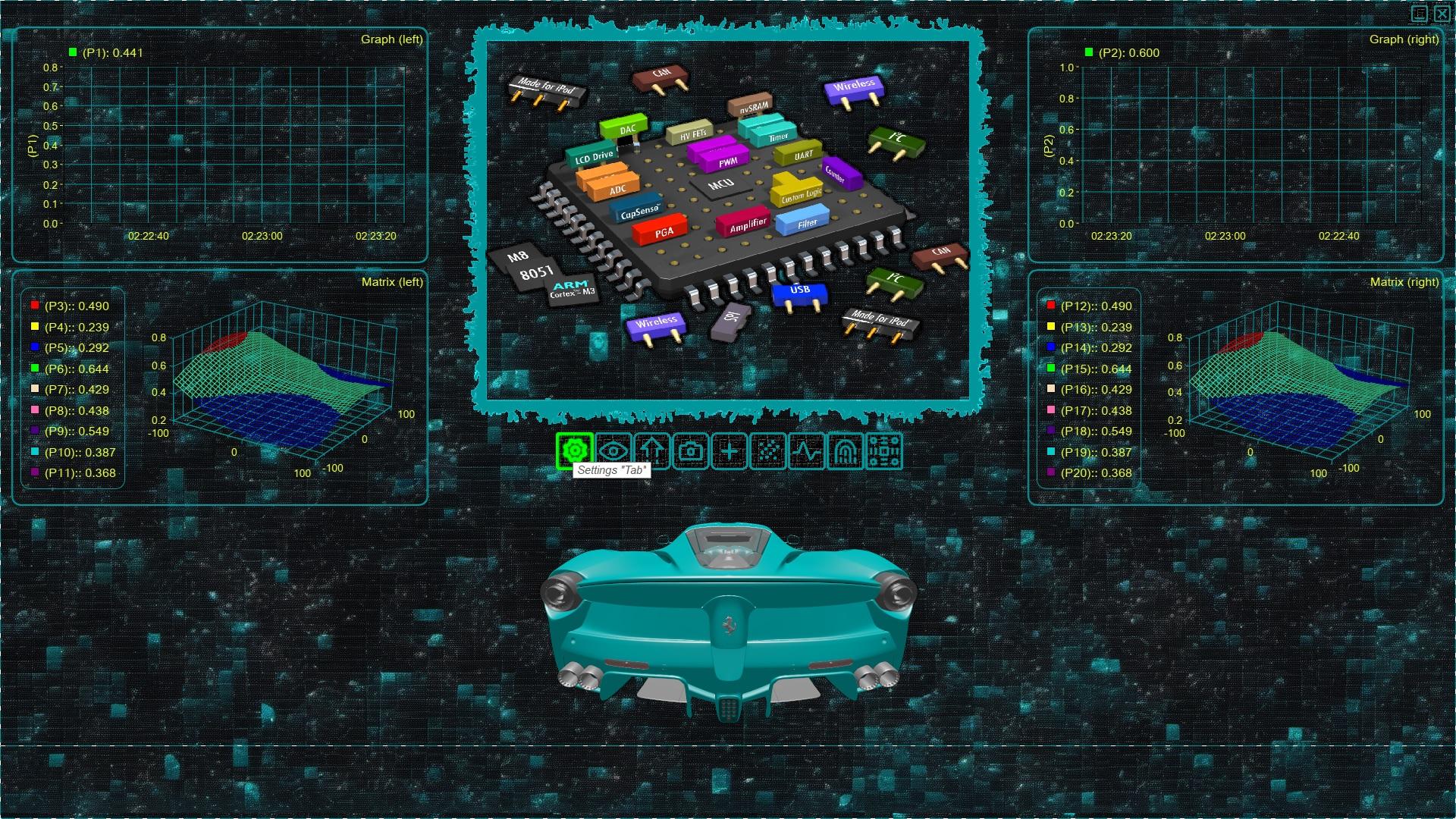
Now for the software magic. We'll use RoboX to create the robot's control logic without writing traditional code.
- Assemble the robot chassis and connect all wires as per the diagram.
- Connect your WeMos D1 to your computer via a Micro USB cable.
- Launch RoboX. It will automatically scan for connected devices. Your WeMos should appear in the "Devices" panel, likely as a COM port (e.g., COM3, COM4).
- Go to the settings tab as shown on picture.
Choosing a Project Template
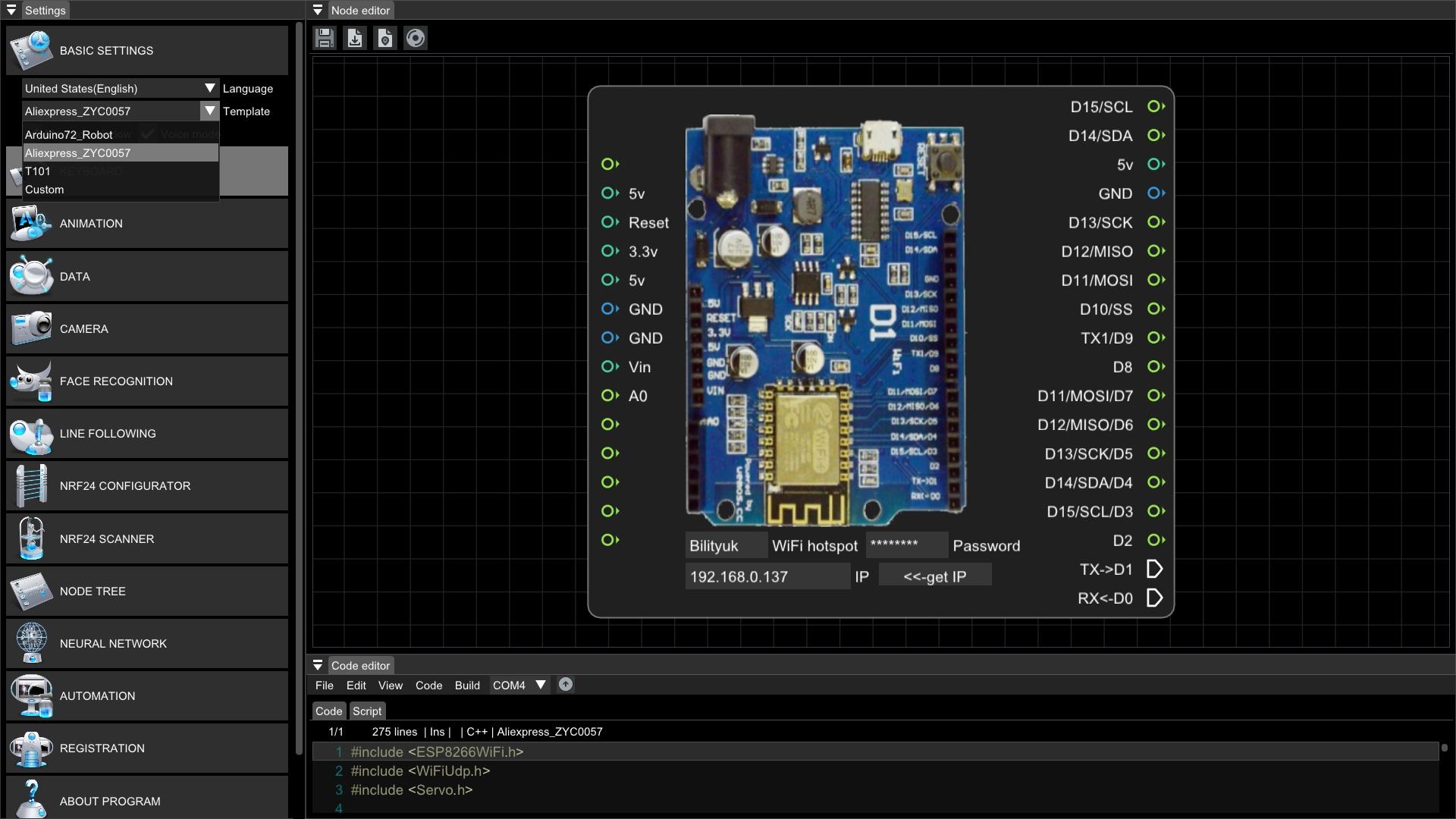
- Click on "BASIC SETTINGS".
- In the template combobox select the "Aliexpress_ZIC0057" template. This template comes pre-configured with the necessary control logic and blocks. If a specific template isn't available, choose a "Custom" template— and configure it from the ground up.
Loading the Wiring Diagram
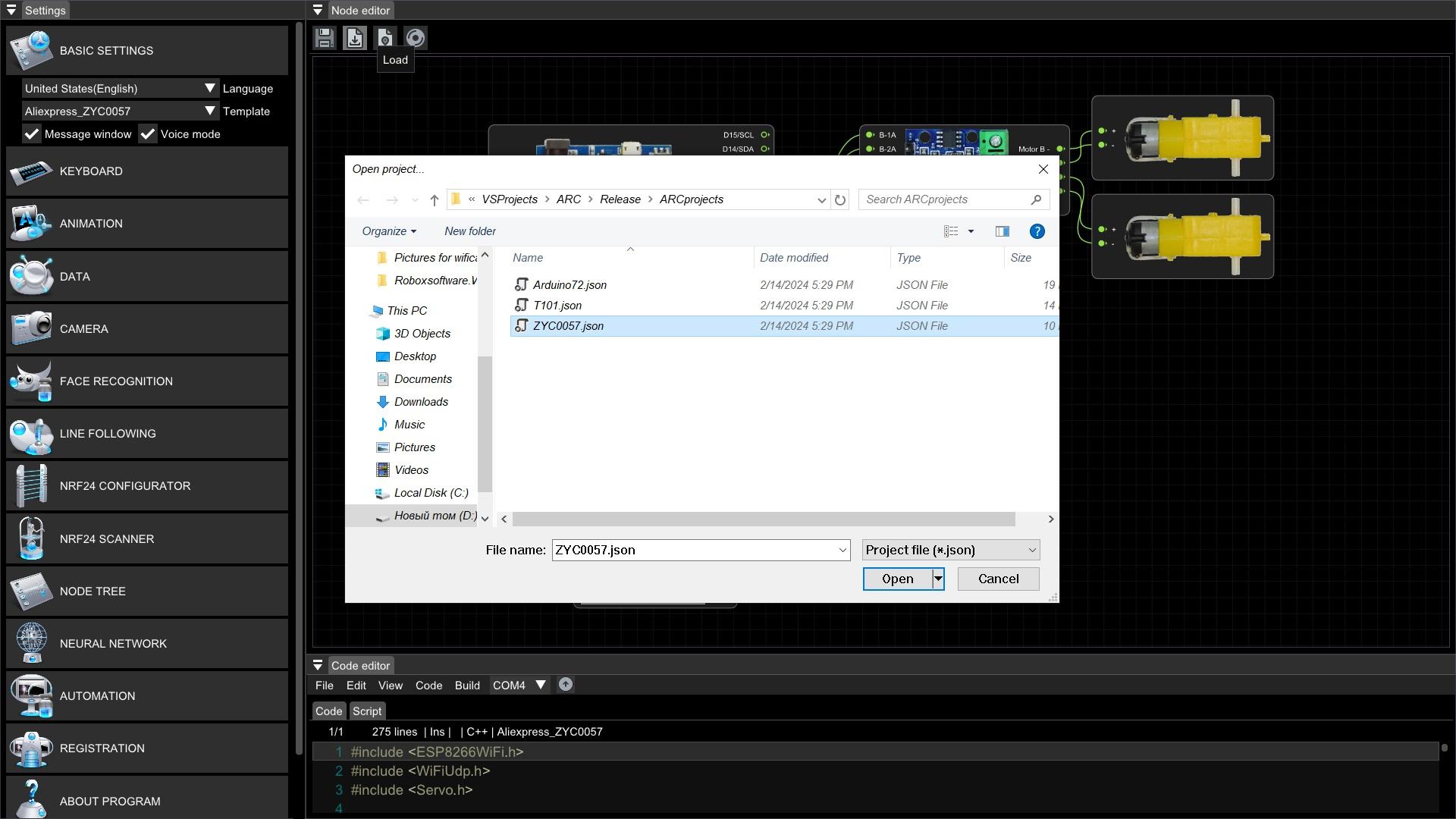
RoboX allows you to define your hardware layout visually.
- In the Node Editor workspace, find the "Load" button.
- Select the "ZYC0057.json" ready template.
- Or manually add components by clicking the right mouse button and connect pins exactly as you did physically according to wiring diagram from step 2. For example, drag a link from WeMos.D1 to L9110S.IN1 and so on. This visual mapping tells RoboX how your code logic connects to the real pins.
Build the Arduino Project Code
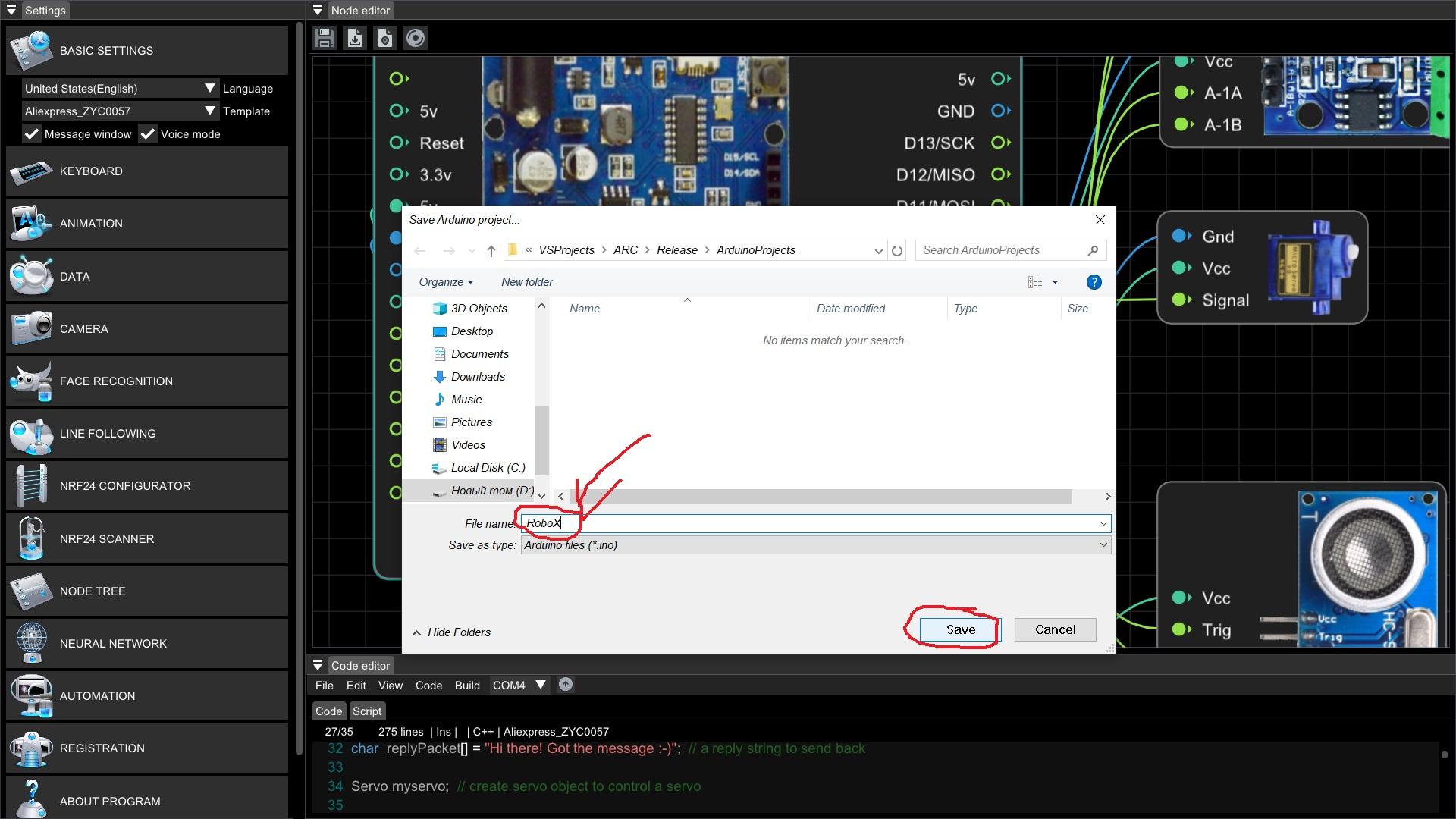
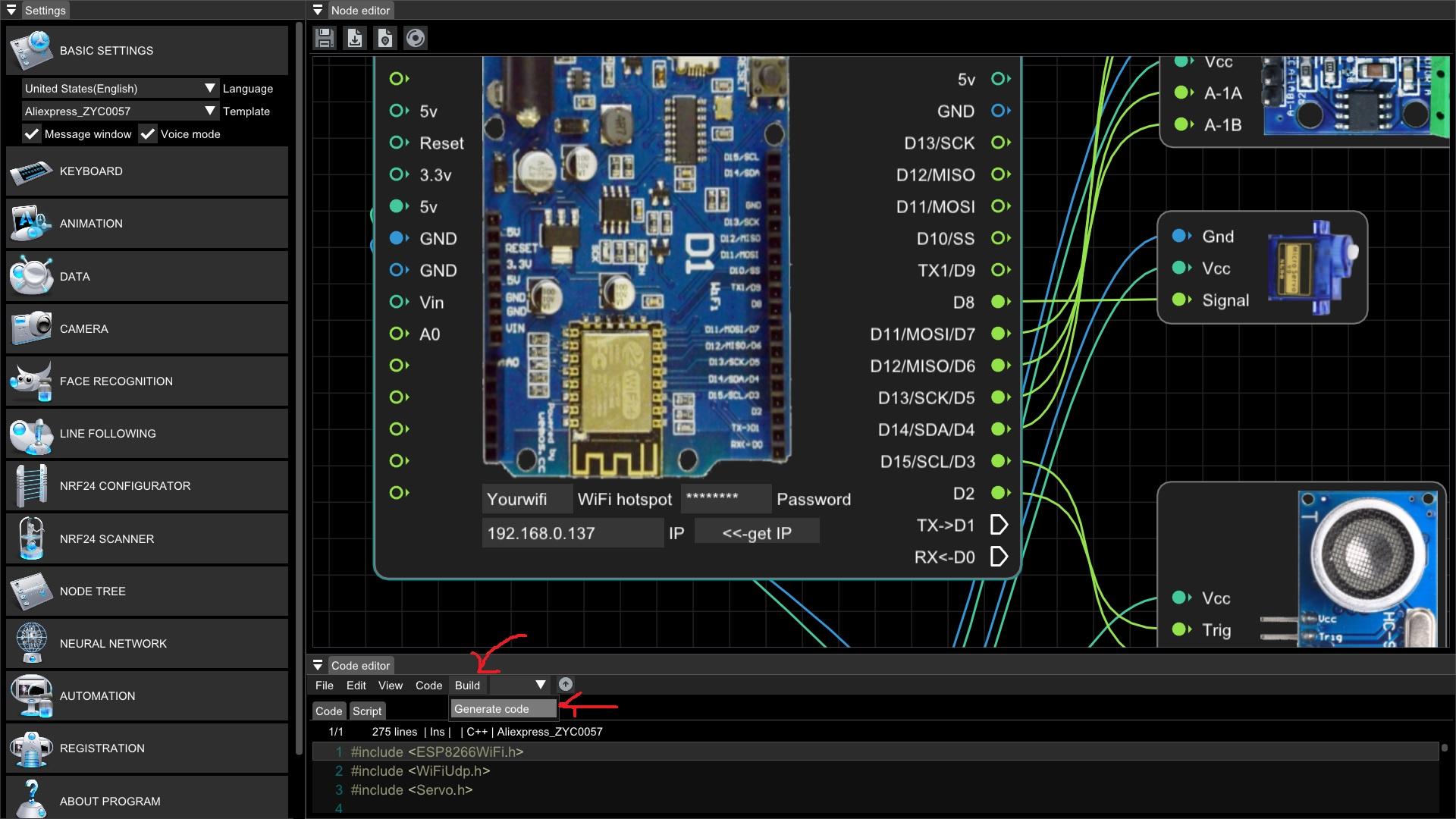
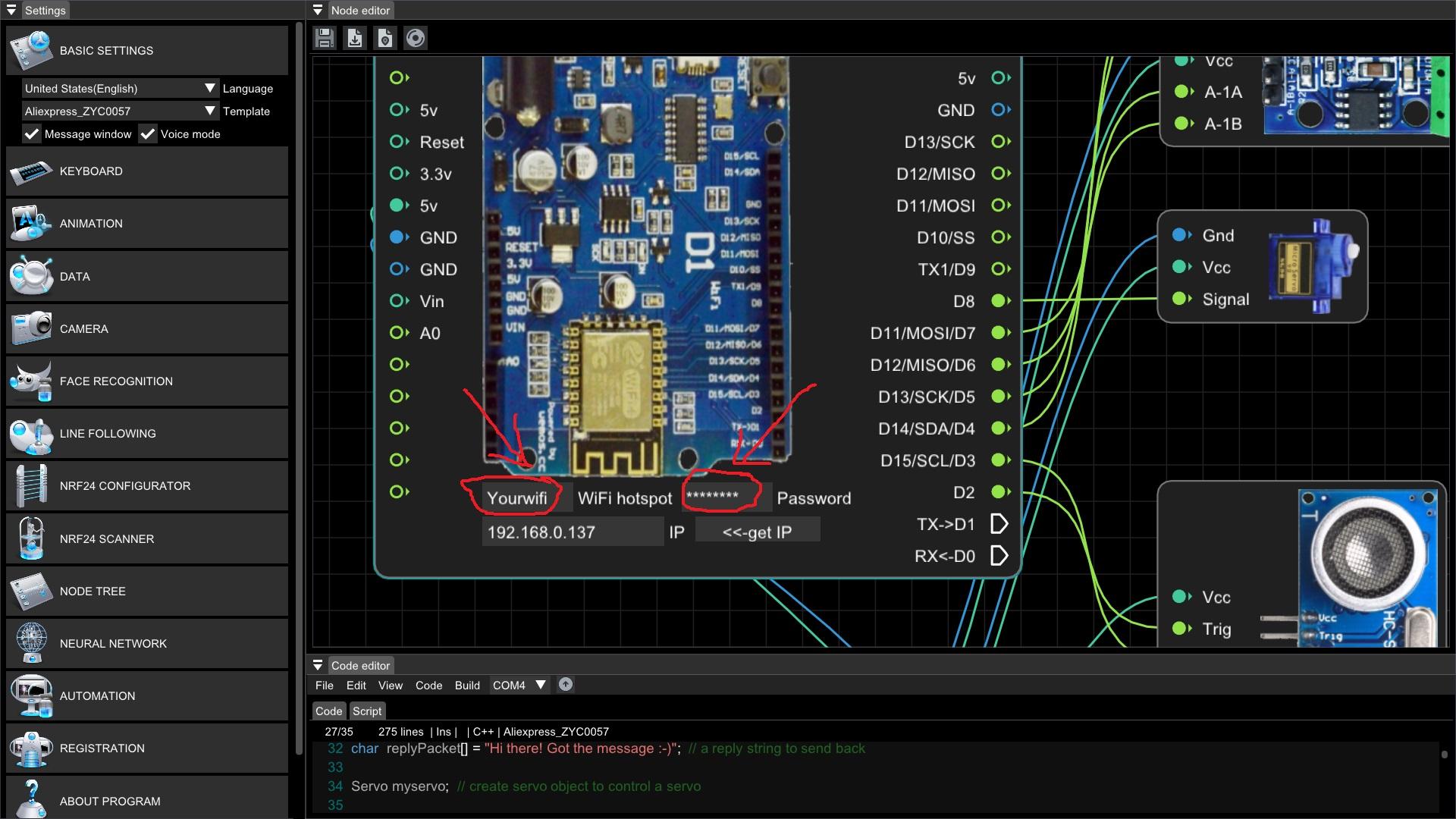
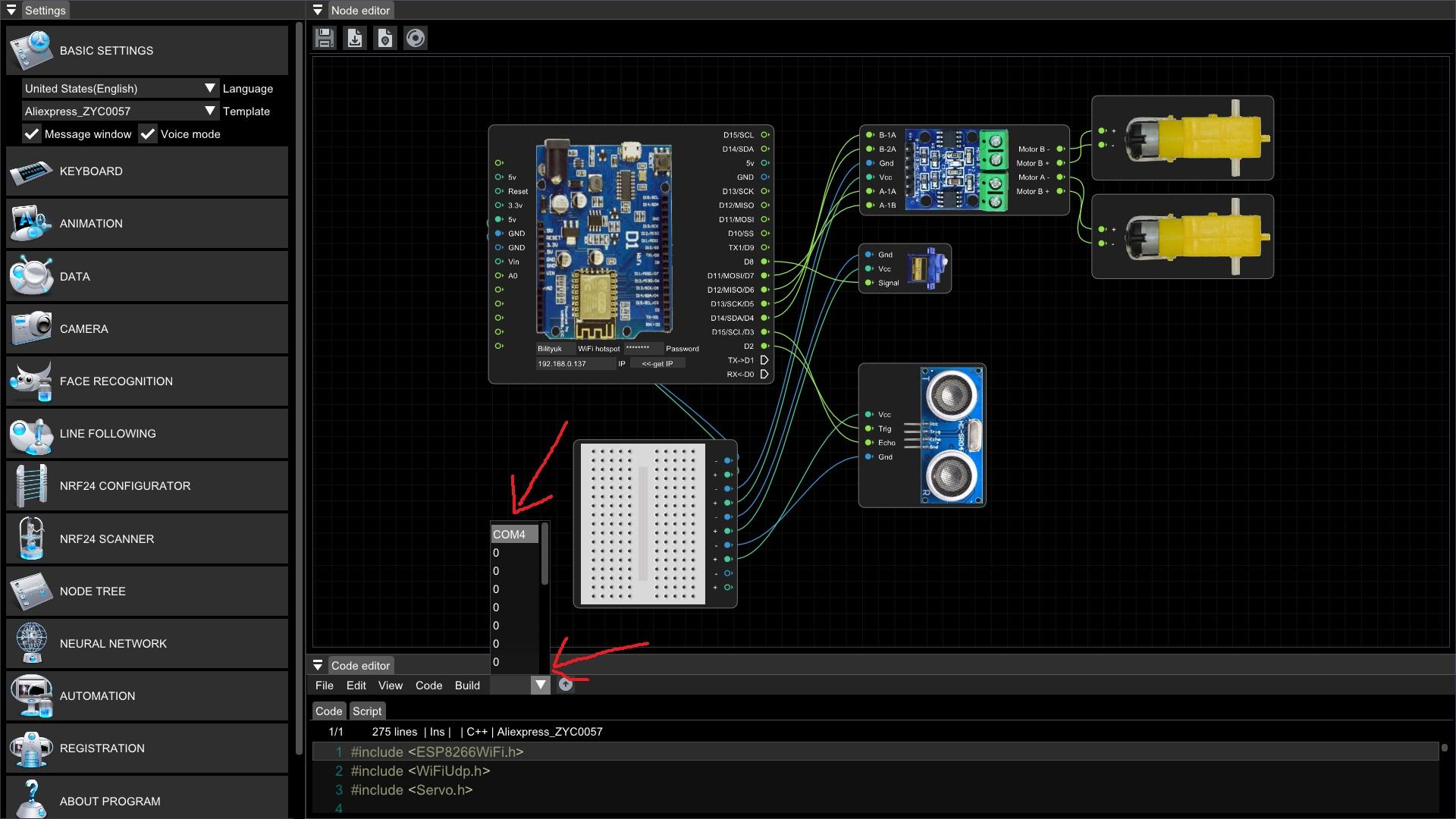
This is where we build the program flow.
- Select the COM port from dropdown combobox as shown below, you may have different COM port number (for example COM3, COM12...etc).
2. Configure your WiFi network SSID and password.
3. Generate the arduino project code by selecting the Build -> Generate code in code editor menu.
4. Name as you wish and save the generated arduino project code.
Uploading the Code to the Robot
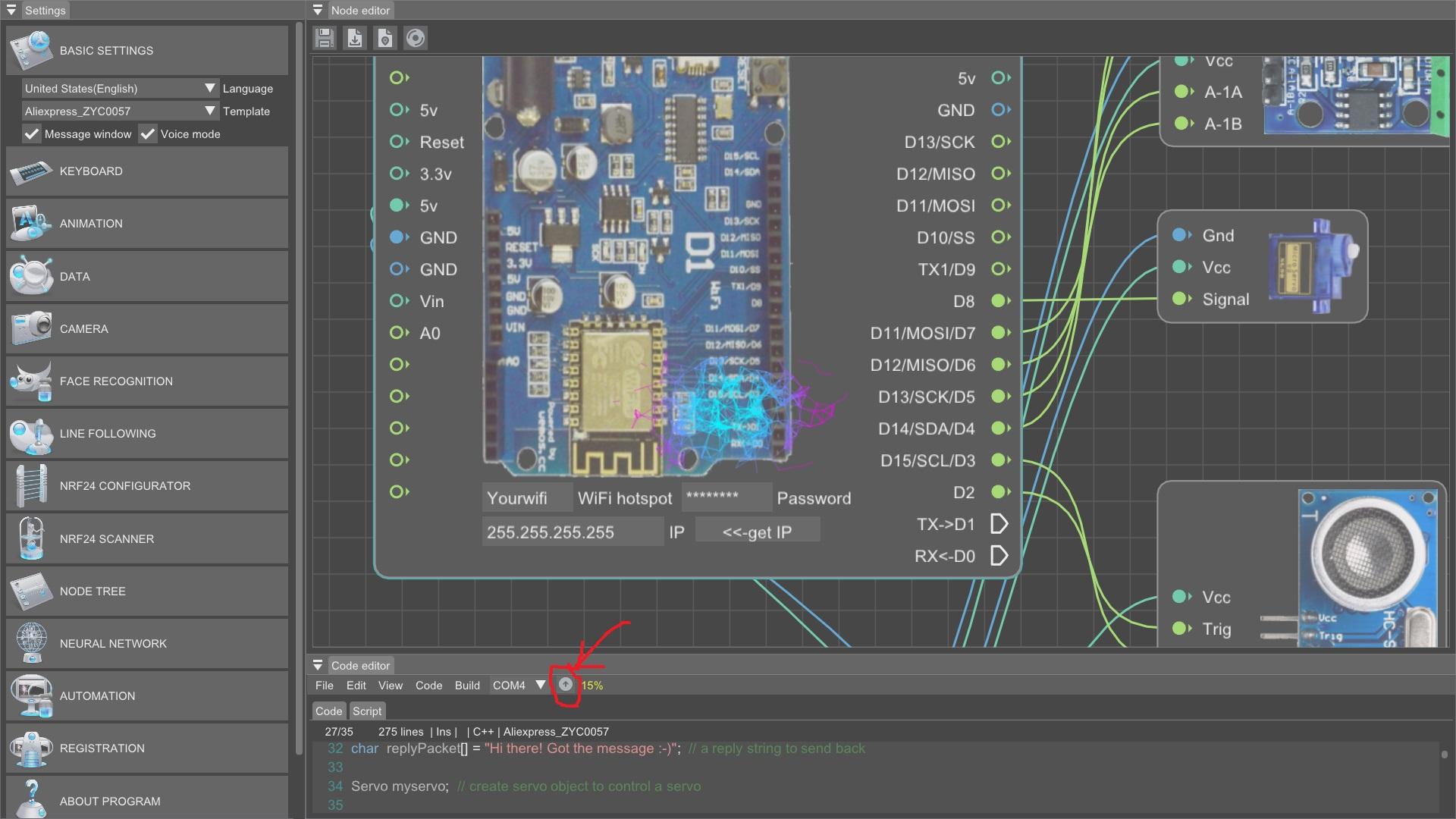
- Ensure your WeMos is still connected via USB.
- Click the small "Upload" buttom with arrow.
- The software will compile the flowchart into Arduino (C++) code and start uploading process with animation directly to your board. Watch the output log for "Upload complete".
Getting the Robot's IP Address
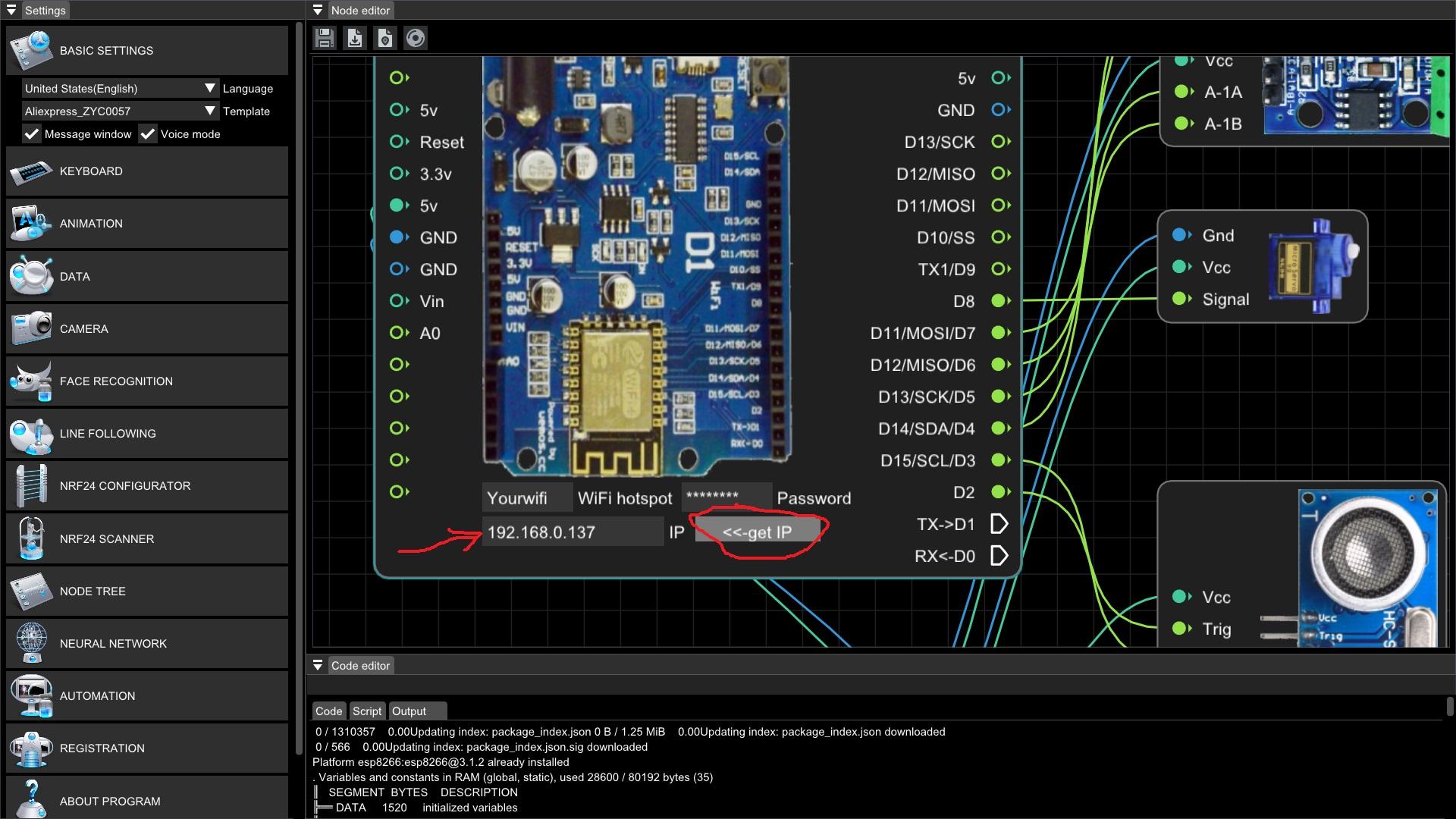
- After upload, wait some time (aprox. 30 seconds) when your robot is connected to the home wifi and push the "<<-get IP" button as shown below.
- After some time (approx 1 minute) you will get a robot IP to textbox opposite the button.
Launching Control
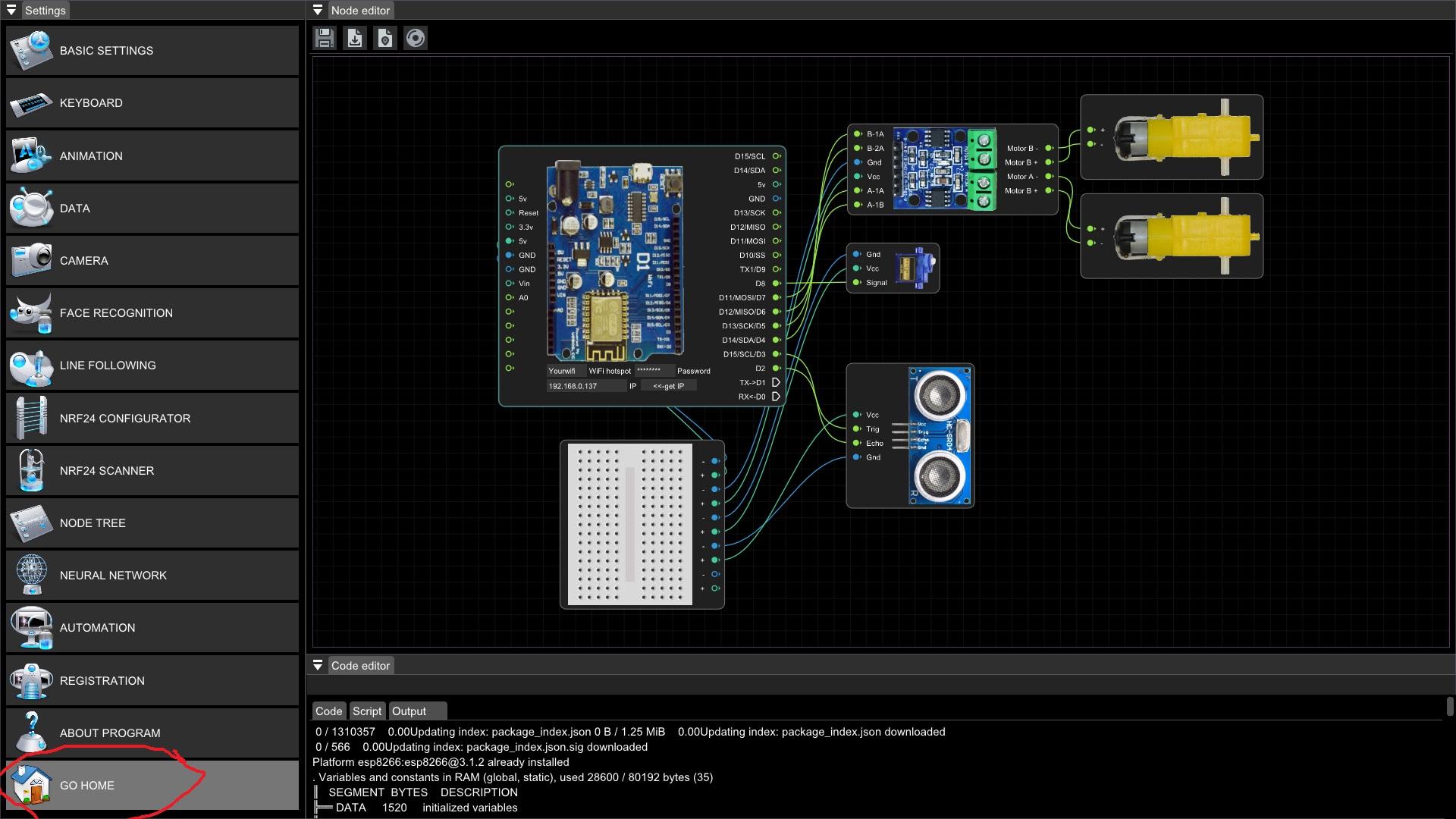
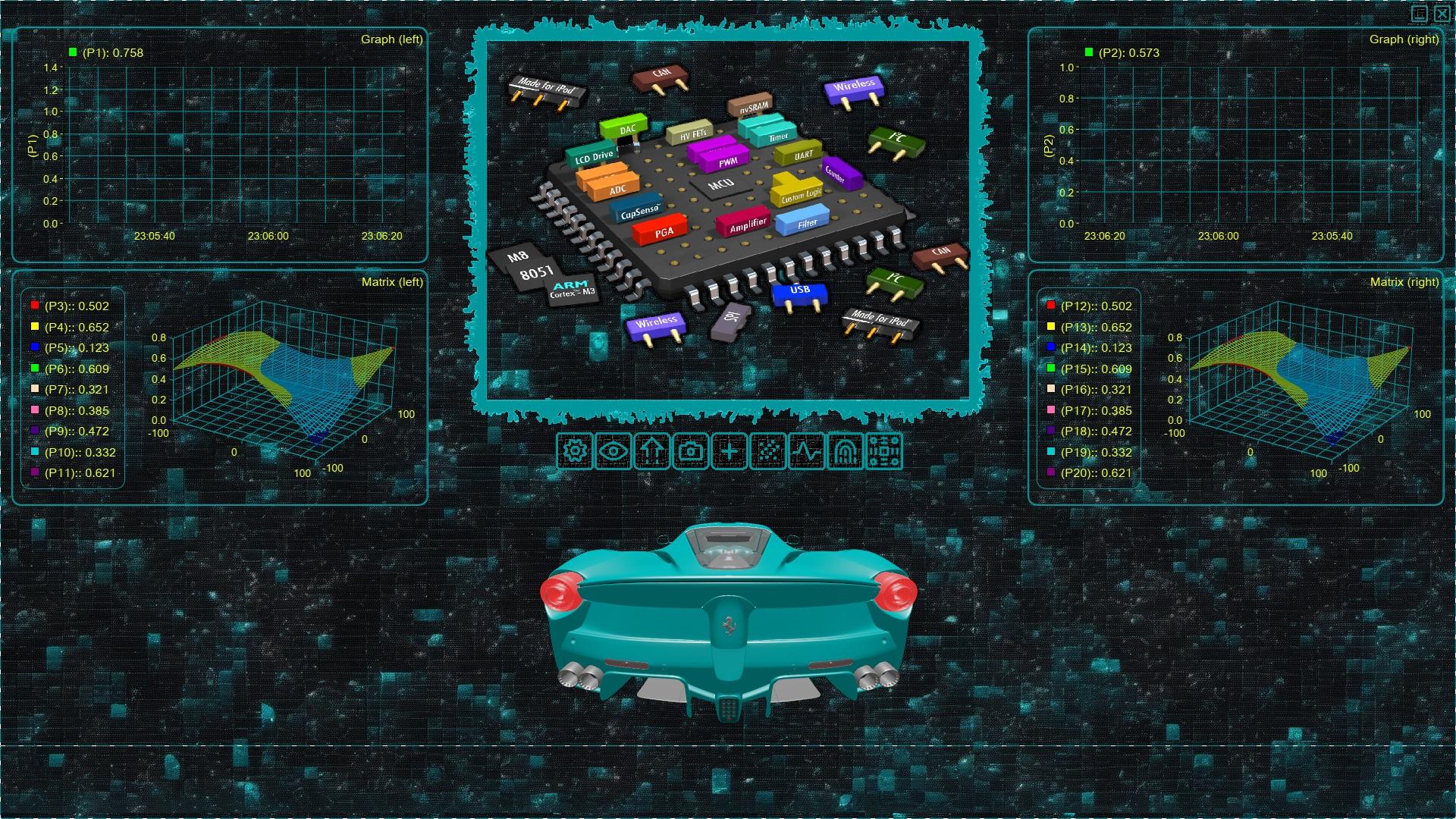
Now we are almost ready to control the robot, you can go back to the main RoboX page, push GO HOME button in the buttom left corner of settings dialog.
Finall Steps
- Disconnect the USB cable. The robot should now be running on battery power.
- Your PC or laptop on that you are runnung RoboX should be connected to the same home wifi network as your robot connected to.
- Now you can control your robot from the keyboard arrow buttons on your computer or laptop PC.
- To run the obstacle avoidance mode push the "3" button on the keyboard, push the "1" button to go back to manual control mode.
Conclusion: Your Gateway to Robotic Projects
Congratulations! You've successfully built a bridge between the digital and physical worlds. You now have a programmable WiFi robot and, more importantly, the knowledge of how to use RoboX to visually develop and deploy complex logic onto microcontroller boards.
This project is just the starting point. With RoboX, you can easily add sensors (line followers, accelerometers, pressure, temperature ans so on), servos, or cameras. The modular, flowchart-based approach makes prototyping incredibly fast. What will you command your robot to do next?
Build. Code visually with RoboX. Control. Share your creations and modifications in the comments below!
Here is project code if you need it, but you don't really need the code becase RoboX generates it automatically for you.