How to Format Mac Hard Drive on El Capitan Using Disk Utility
by VishalC24 in Circuits > Computers
355 Views, 3 Favorites, 0 Comments
How to Format Mac Hard Drive on El Capitan Using Disk Utility
If you are looking for some helpful ways to format Mac hard drive or Startup disk on OS X El Capitan then you have landed on the right place. With this ‘How to Instructable', I will share best ways to format hard disk drive with the help of Disk Utility. This Instructable applies to all Macs including MacBook Pro, MacBook Air, iMacs, Mac Mini and Mac Pro that are running OS X El Capitan 10.11.
Benefits of formatting Mac Startup Disk on OS X El Capitan
- Formatting Mac will create new sectors on the hard drive. This will help improve the OS X performance with the fresh installation
- Helps erase all the data that you may no longer require
- Maps out bad sectors on the hard drive
- Helps remove fragmentations
- Allows you to repartition the hard drive as per your desire
Caution: Formatting a Mac hard drive will erase all the installed applications, data and files. There is no point of formatting a hard drive unless until the HD or the SSD is properly backed up. If you have decided to format the hard drive then I recommend you to clone Mac hard drive before erasing all the hard drives content.
Go Into Recovery Mode

You cannot format the Mac hard drive from which you have booted the Mac. To format Mac startup disk, please use a bootable USB to start Mac OS X and then target the OS X disk for formatting. If you have a clone hard drive then you can use it to boot the Mac and proceed with the formatting of the startup drive.
To format a non startup disk on Mac, please restart OS X El Capitan and press Command + R key before the Apple logo and progress bar window. Pressing the mentioned keys will launch Recovery Mode. A Windows will show up labeled as “OS X Utilities”. This Window will present you with 4 options:
- Restore from Time Machine Backup
- Reinstall OS X
- Get Help Online
- Disk Utility
Please select Disk Utility and press Continue.
Select Mac Hard Drive in Disk Utility
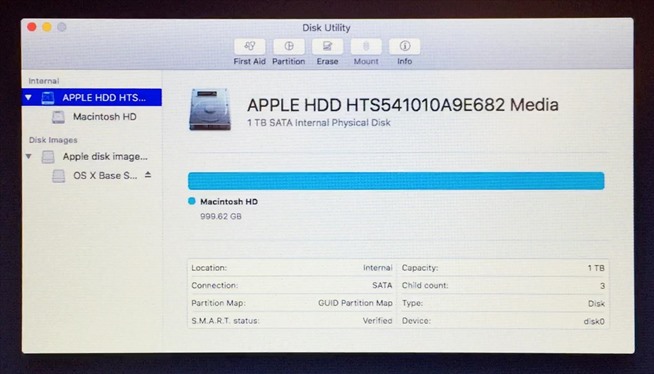
From the left hand side, please select the Mac hard drive. If you have more partitions installed with OS X, then you can choose the one you want to erase. However, on selecting a partition you may find that the Erase button is inactive. This means that the system is using this drive and you cannot format it unless booted from another media.
As mentioned above, use a USB boot disk to start Mac OS X and erase the startup disk using Disk Utility.
Define Format and a Name for the Drive
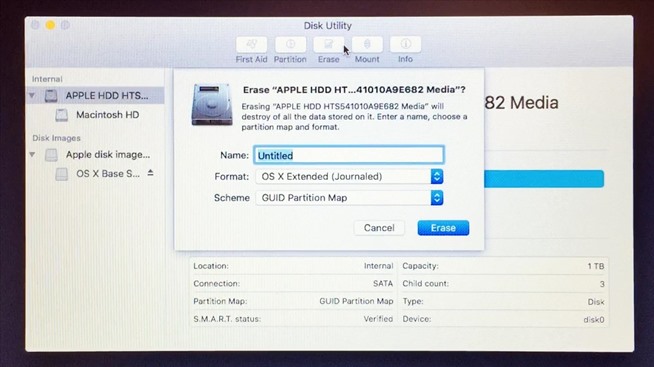
1) Insert a Name for the hard drive
2) Define a Format for the hard drive. Under Format, you will find 5 file systems through which you can format the selected hard drive. Select an appropriate file system for formatting your hard drive.
- OS X Extended (Journaled)
- OS X Extended (Case-sensitive, Journaled)
- OS X Extended (Journaled, Encrypted)
- OS X Extended (Case-sensitive , Journaled, Encrypted)
- MS-DOS (FAT)
- ExFAT
3) Under Scheme option, you will find 3 options to choose from.
- GUID Partition Map
- Master Boot Record
- Apple Partition Map
Since your Mac running OS X El Capitan is an Intel based machine, you need to select GUID Partition Map for formatting. Master Boot Record is for Windows and Apple Partition Map for PowerPC Mac. You can ignore the rest two Scheme options.
Erase the Mac Hard Drive
Once all the options have been selected wisely, you may now click on the Erase button to format the Mac hard disk drive. The Disk Utility will format the Mac hard drive in some time and mount it on your Mac desktop.