How to Edit Your First Video Using CapCut (Beginner Guide)
by mariammujeeb2002 in Design > Video Editing
66 Views, 0 Favorites, 0 Comments
How to Edit Your First Video Using CapCut (Beginner Guide)

This guide provides step-by-step instructions for editing a basic video using CapCut. It is designed for beginners with no prior video editing experience. By following these steps, users will be able to import video clips, trim and arrange footage, add simple transitions and text, and export a finished video ready for sharing.
Intended Audience
This guide is intended for:
- Beginners with little or no video editing experience
- Students or casual users
- Anyone using CapCut for the first time
No prior technical knowledge is required.
Key Terms
- Timeline: The area where video clips are arranged and edited.
- Clip: A single video or audio file.
- Trim: Cutting unwanted parts from a clip.
- Transition: A visual effect between two clips.
- Aspect Ratio: The width-to-height ratio of a video.
- Export: Saving the finished video as a file.
Safety and Best Practices
- Save your project frequently to prevent data loss.
- Do not delete original video files while editing.
- Preview your video before exporting.
- Verify export settings before sharing publicly.
Supplies
Before beginning, ensure you have the following:
- A smartphone or computer
- CapCut installed (free)
- 2–5 short video clips saved on your device
- Optional: headphones for audio preview
Open CapCut and Create a New Project
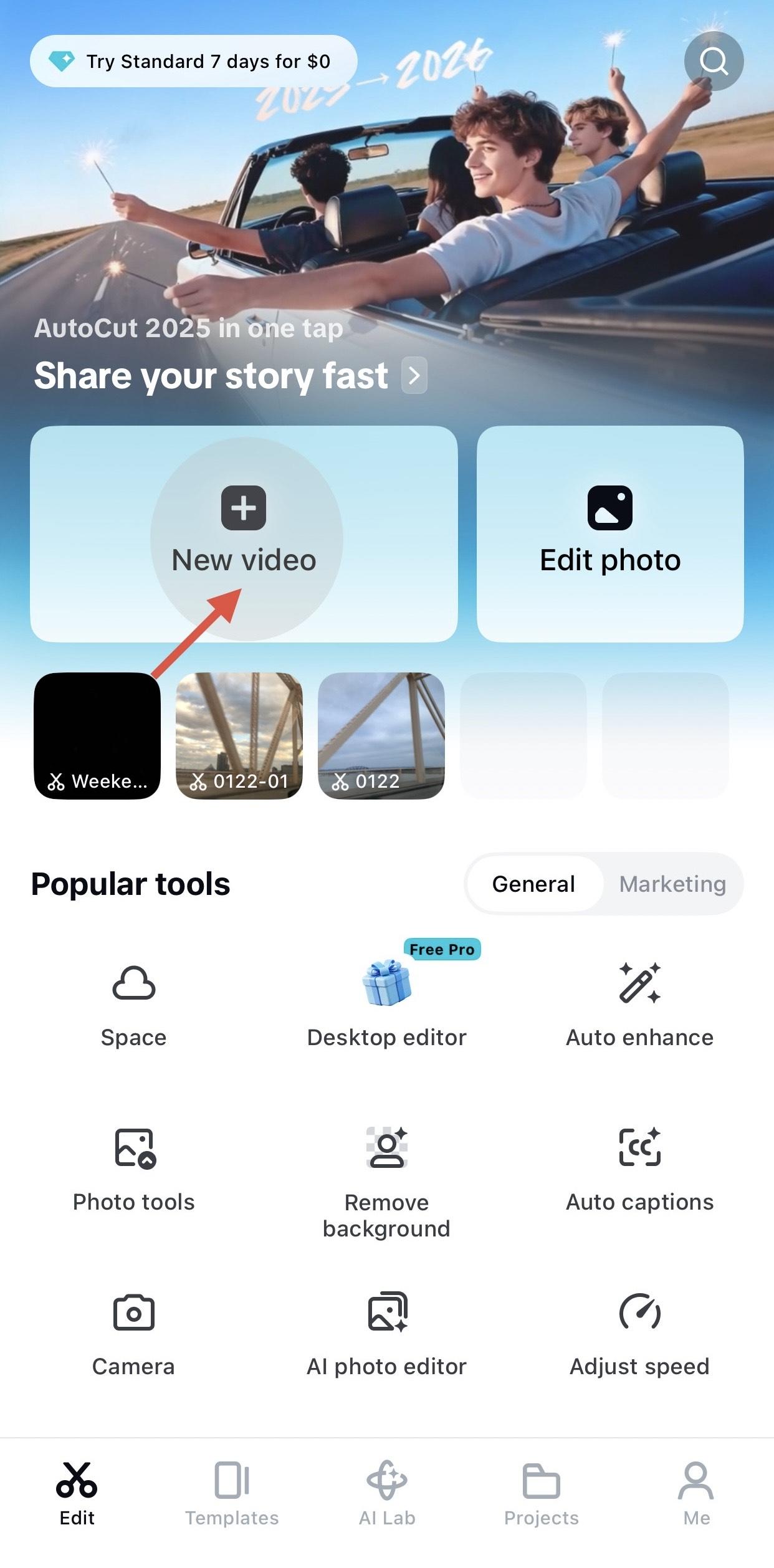
- Open the CapCut application.
- Select New Project/ New Video
- Choose 2–5 video clips from your device.
- Tap Add to import them into the timeline.
Outcome:
Your selected clips will appear in the timeline in the order chosen.
Review the Timeline
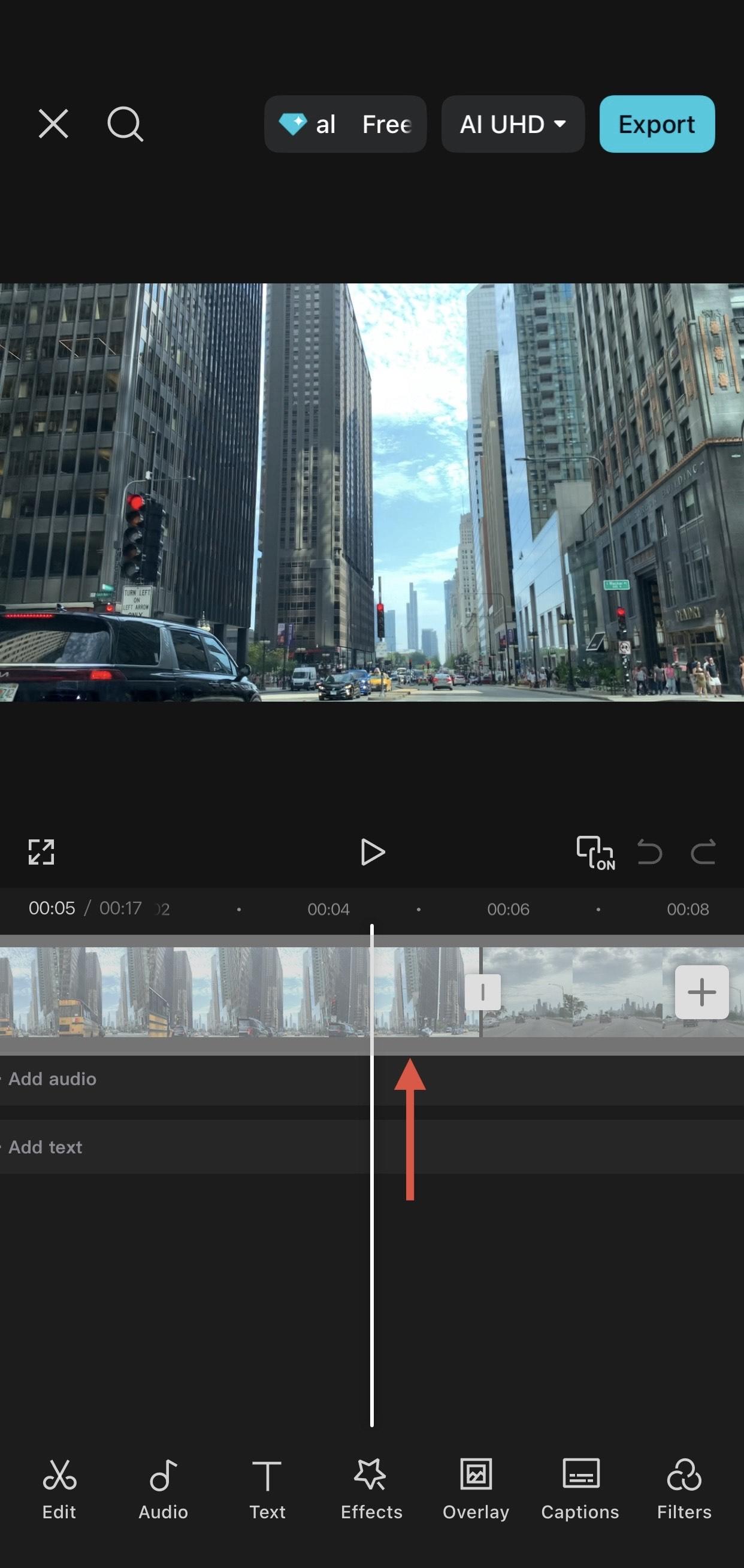
- Look at the timeline at the bottom of the screen.
- Press the Play button to preview the video.
Outcome:
You will see how your clips currently play together before editing.
Trim Video Clips
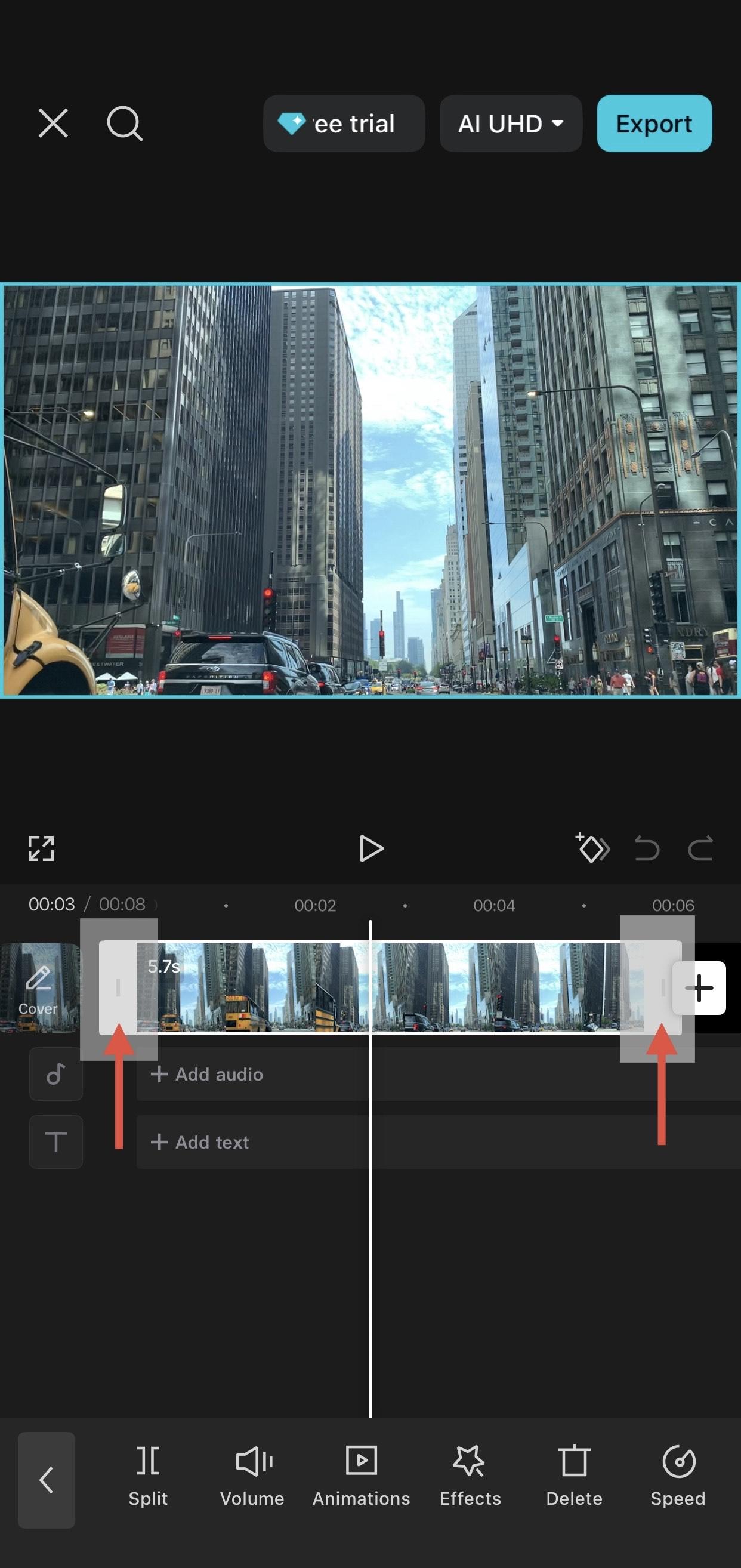
- Tap a clip in the timeline to select it.
- Drag the white handles at the beginning or end of the clip inward.
- Release when the unwanted portion is removed.
Outcome:
The clip is shortened and contains only the desired footage.
Rearrange Clips
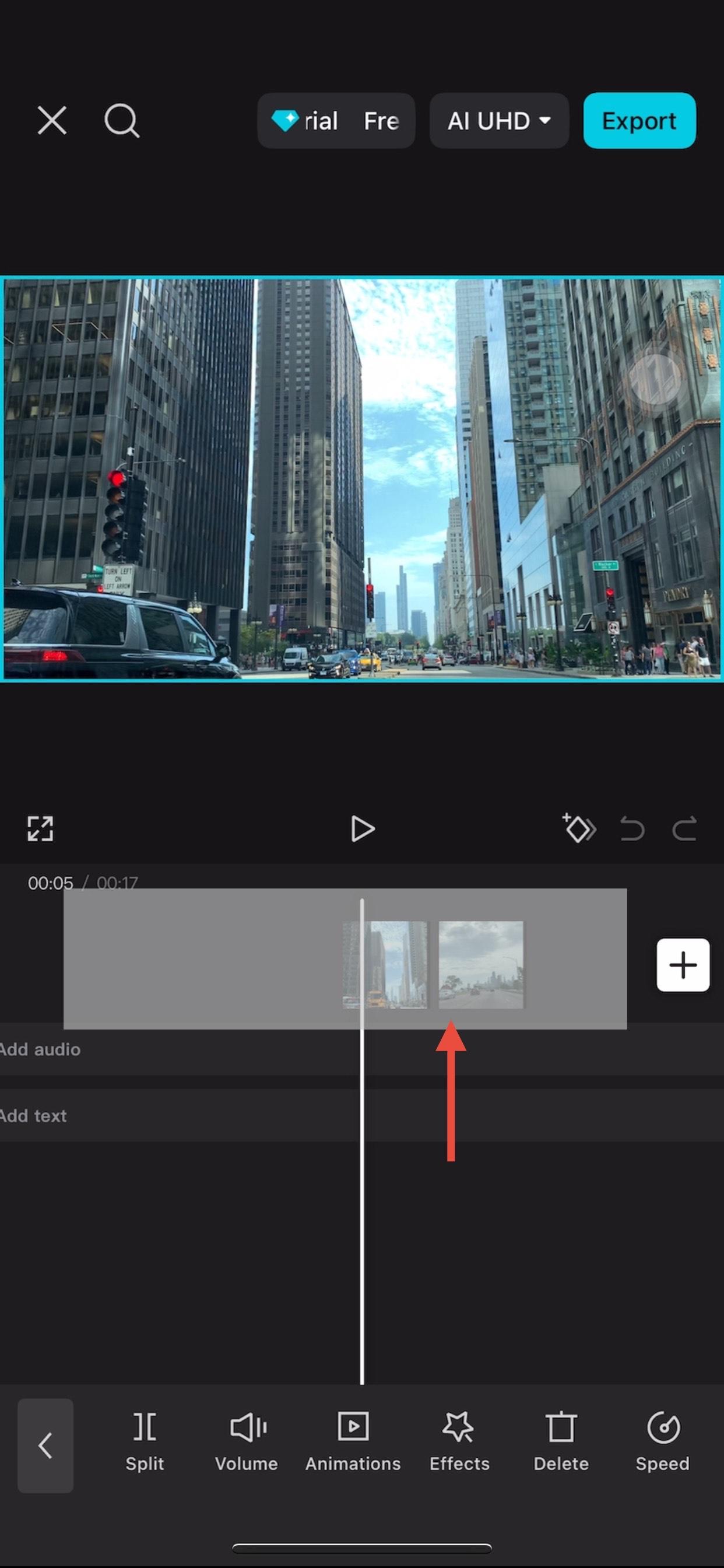
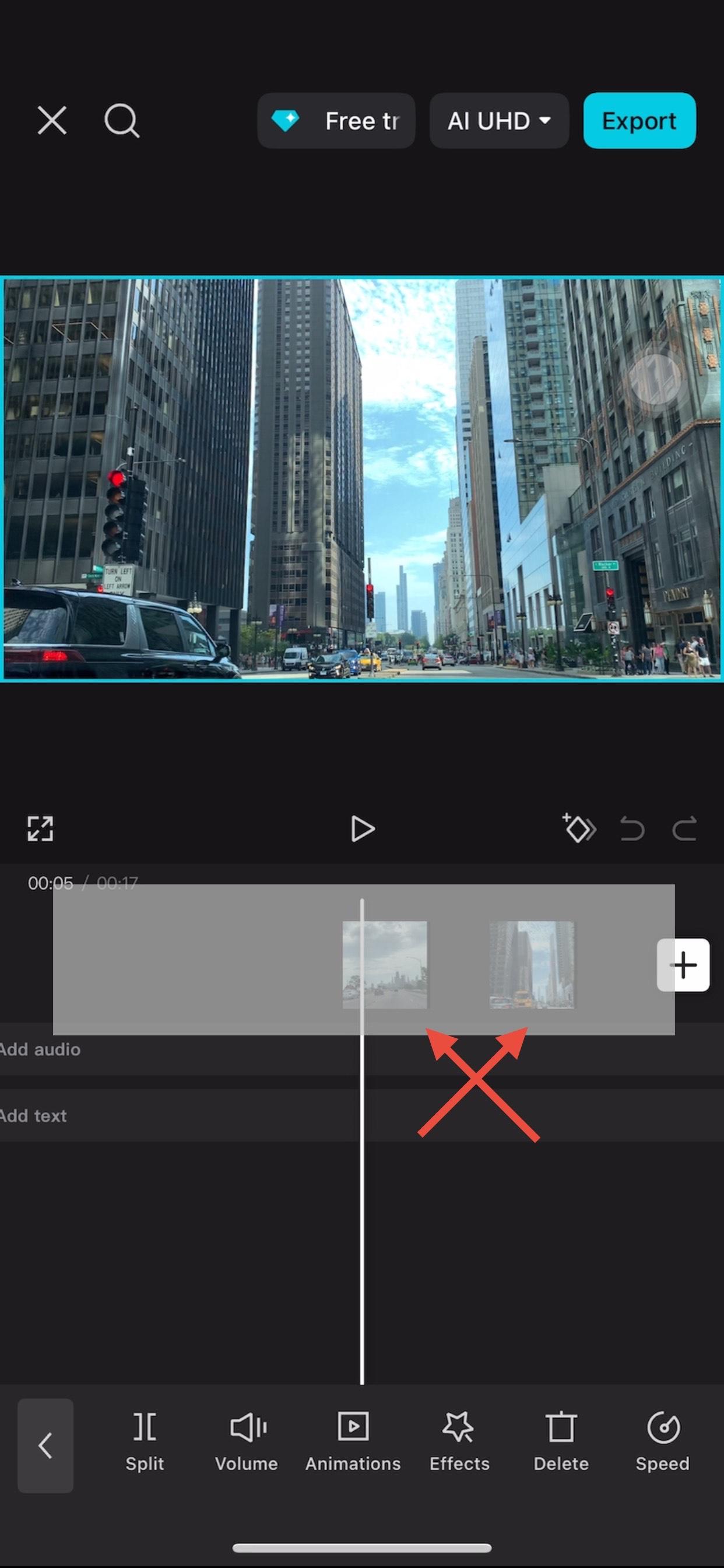
- Tap and hold a clip in the timeline.
- Drag it left or right to change its position.
- Release to place it in the new order.
Outcome:
Clips play in the new sequence you selected.
Add Transitions Between Clips
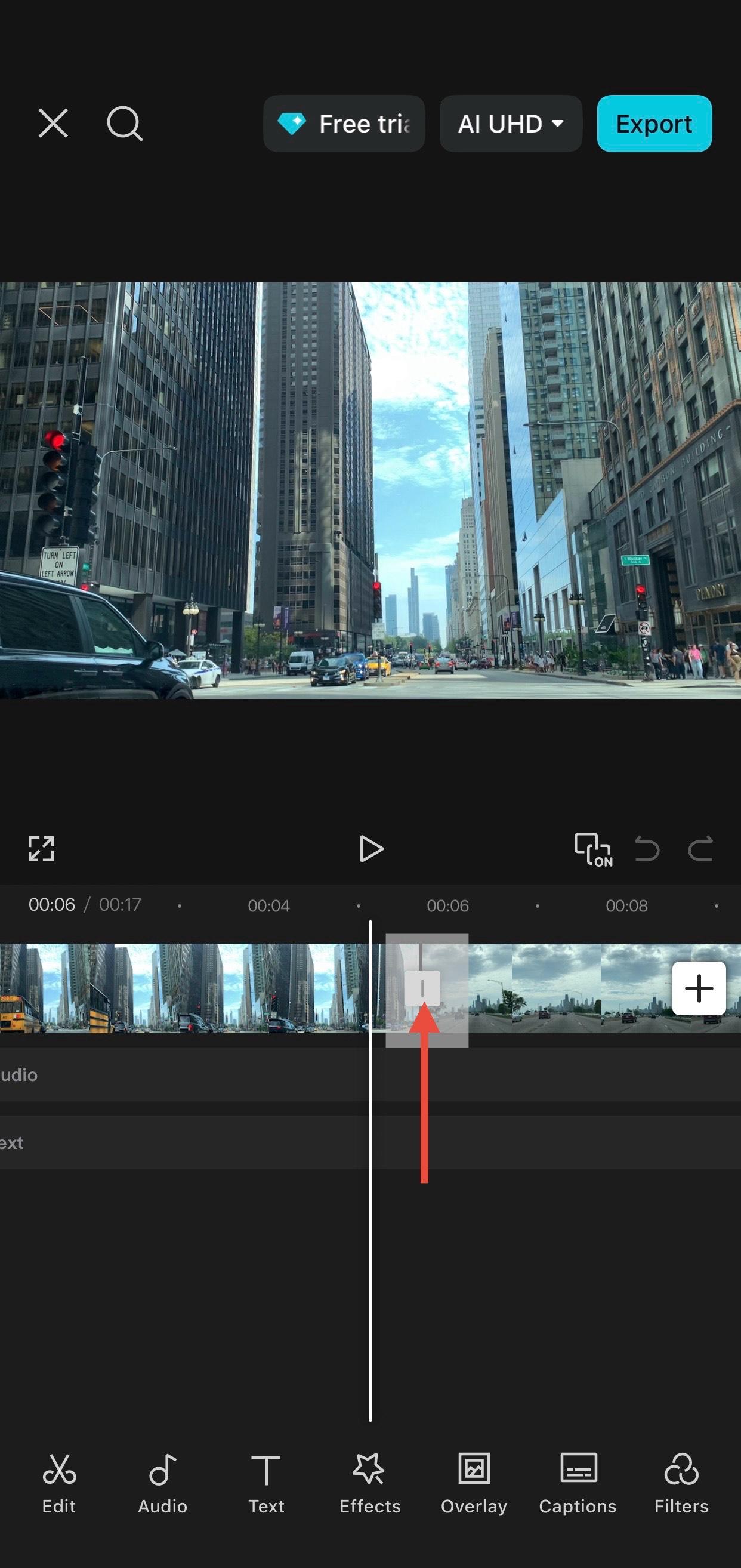
- Tap the small white box between two clips.
- Choose a transition style.
- Adjust the duration if needed.
- Tap the checkmark to apply.
Outcome:
A smooth visual transition appears between the two clips.
Add Text or Titles
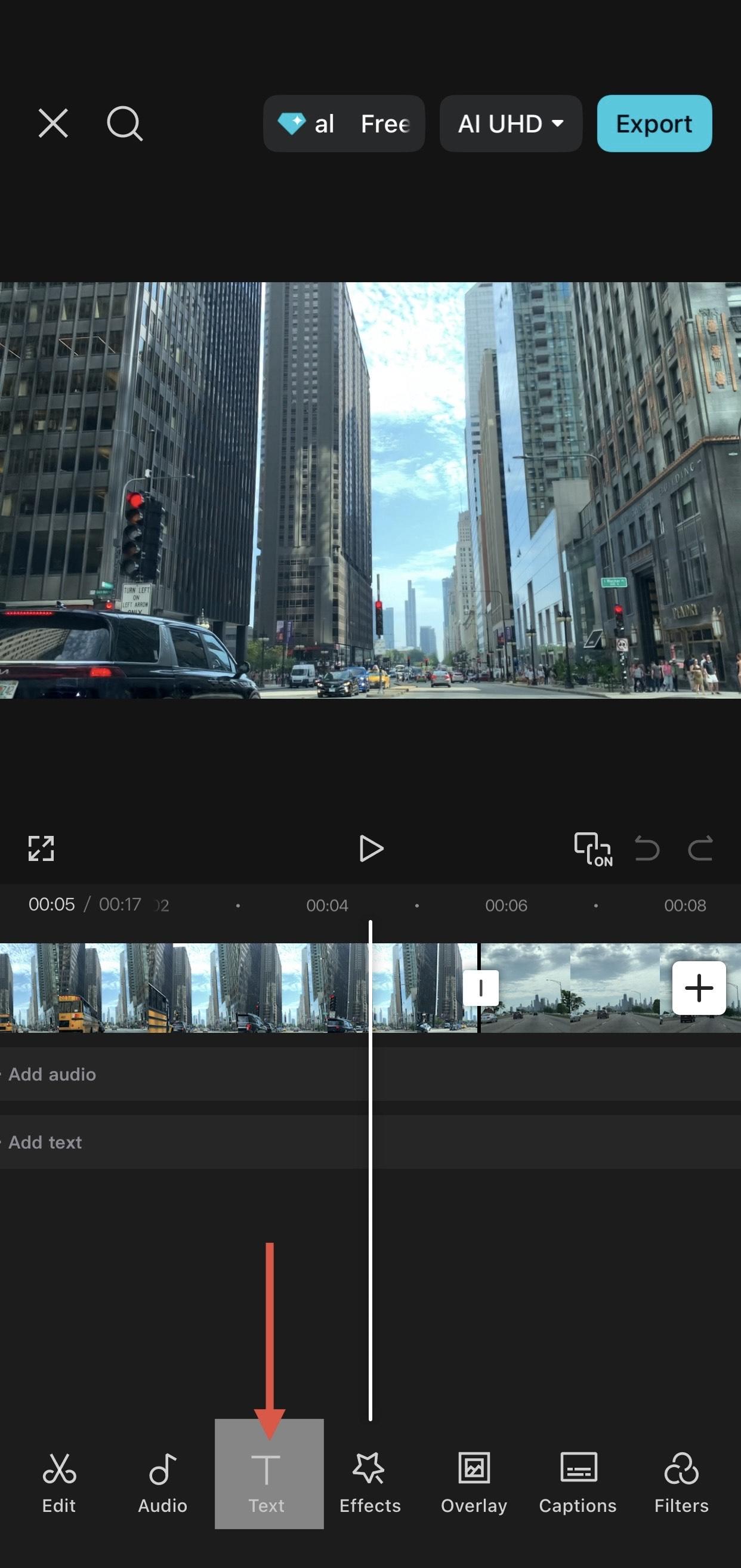
- Tap Text from the toolbar.
- Select Add Text.
- Type your desired text.
- Adjust font, size, and position.
- Set how long the text appears in the timeline.
Outcome:
Text appears on screen during the selected portion of the video.
Add Audio
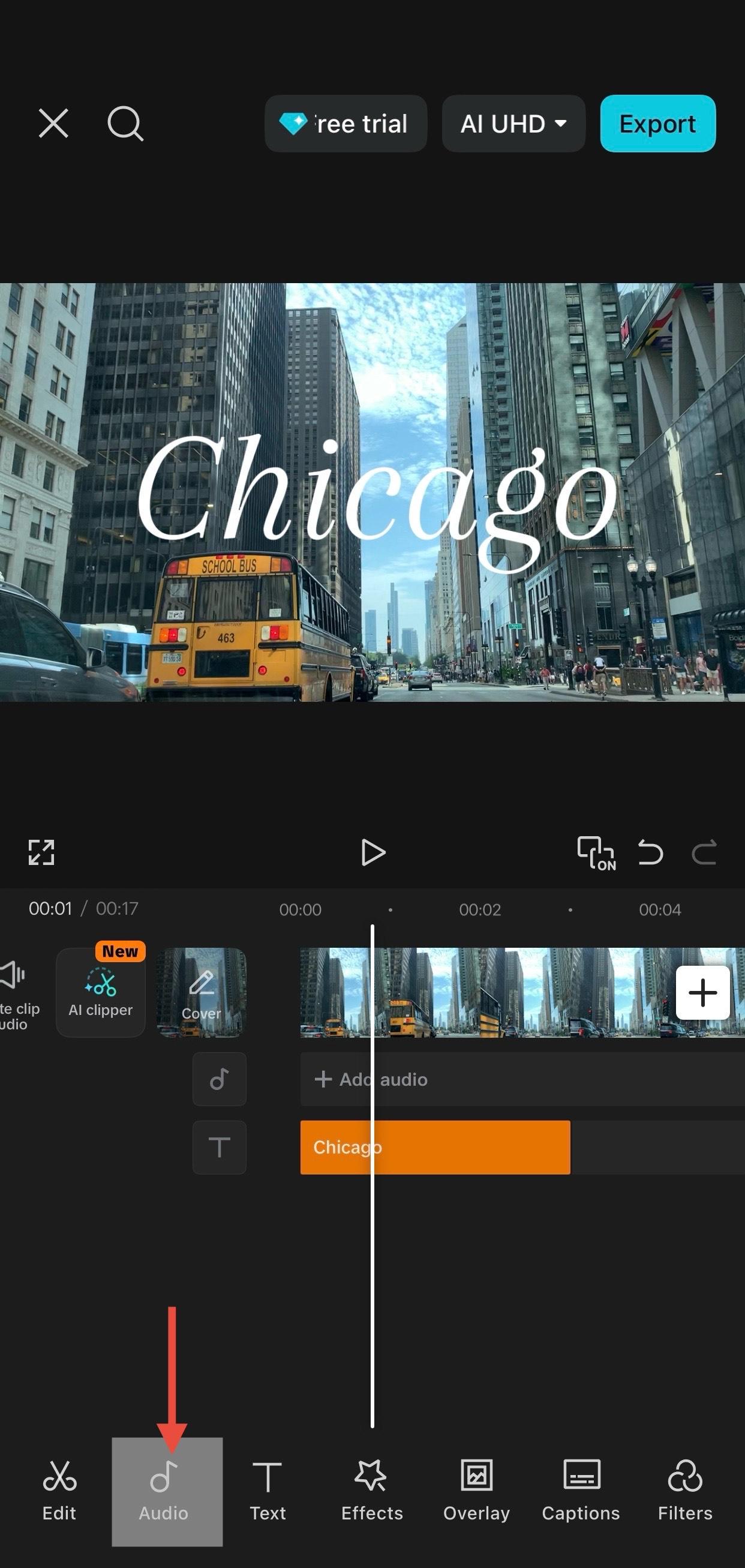
- Tap Audio from the toolbar.
- Select Sounds.
- Choose your desired sound.
- Adjust volume, size, and position.
- Set how long the audio appears in the timeline.
- Preview the sound using headphones if available.
Outcome:
Audio plays on screen during the selected portion of the video.
Preview the Entire Video
- Press Play to watch the full video.
- Check for timing, transitions, and audio balance.
- Make any necessary adjustments.
Outcome:
The video is finalized and ready for export.
Export the Video
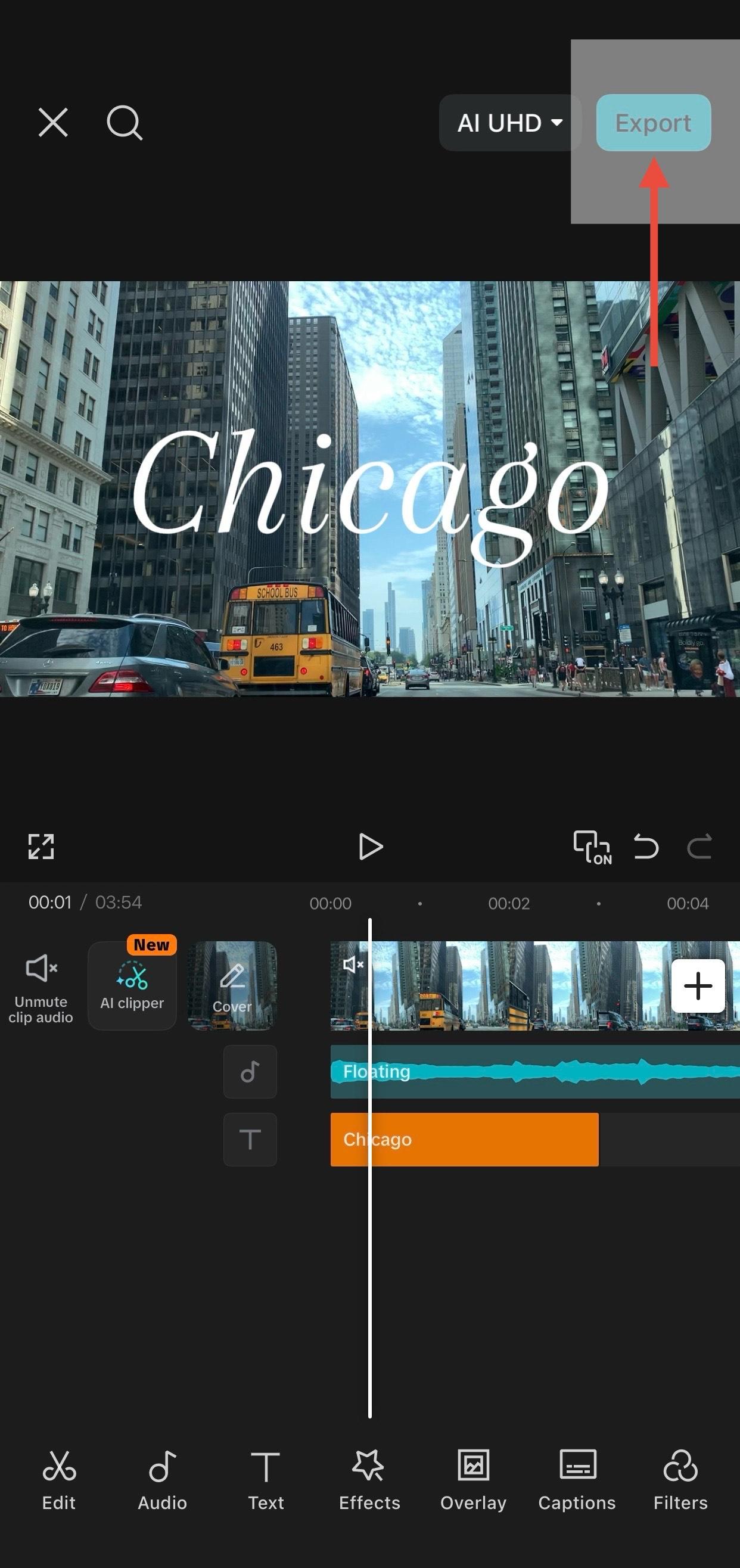
- Tap the Export button (top right).
- Choose a resolution (1080p recommended).
- Select a frame rate (30fps is standard).
- Tap Export again.
Outcome:
Your video is saved to your device and ready to share.
Common Mistakes and Troubleshooting
- Video has black bars: Check aspect ratio settings.
- Audio is too loud or quiet: Adjust clip volume.
Export fails: Ensure enough storage space is available.
Final Outcome
By completing this guide, users will have successfully edited and exported their first video using CapCut. They will understand basic editing tools and be prepared to explore more advanced features.