How to Design and Make a Cricut Card From Scratch
64 Views, 0 Favorites, 0 Comments
How to Design and Make a Cricut Card From Scratch
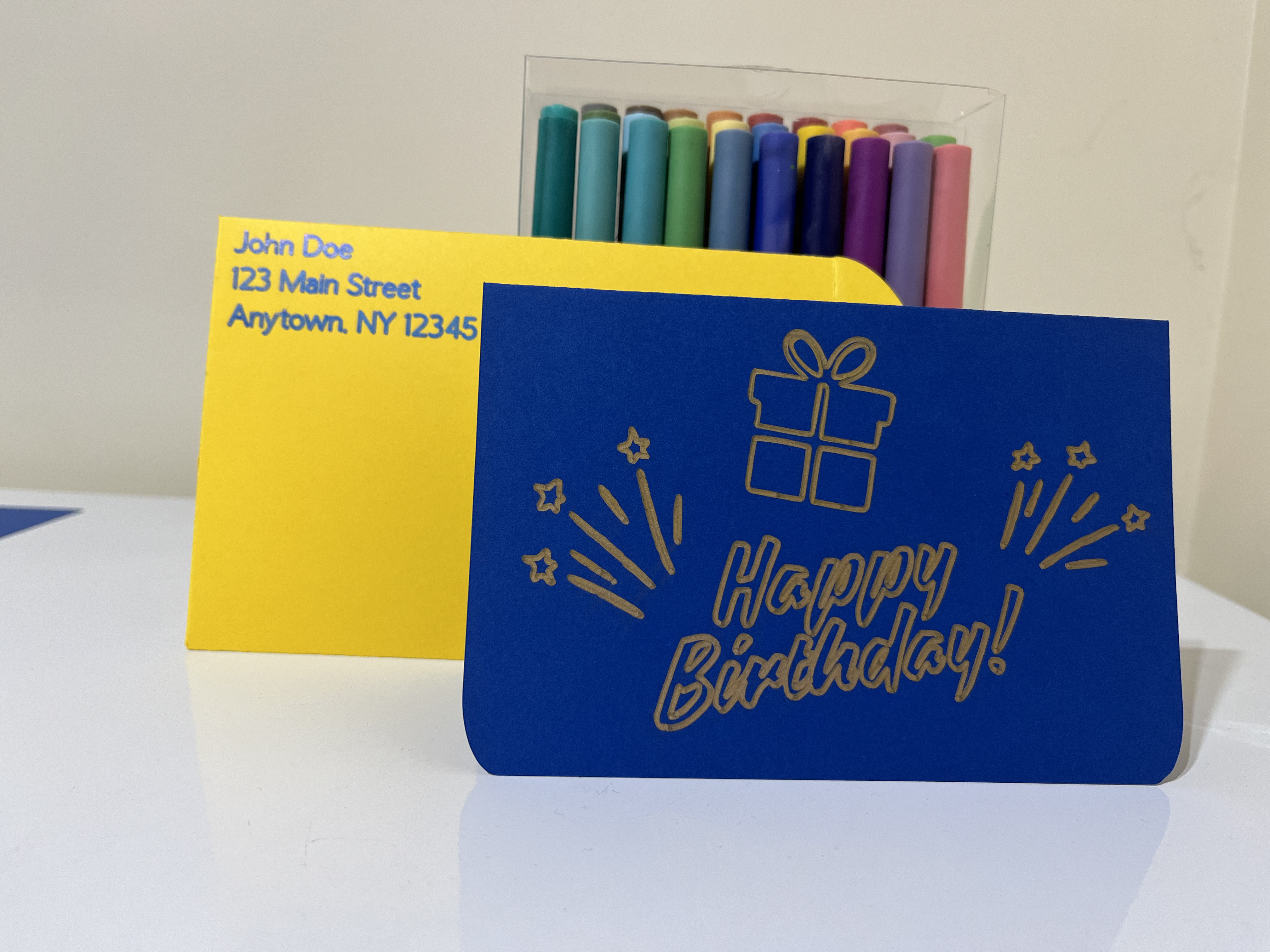

Four years ago, I received a Cricut machine as a gift. Since then, I have made many creations. I have explored all of the features the device has to offer, but the one thing I just keep making are cards. The cards I make on my Cricut always come out feeling very premium and have my own little touch to them. In this tutorial, you will learn how to design a card from scratch and how to print it with your Cricut. That way, you can add your own touches to your cards, while feeling comfortable about the design process. I will also include instructions for those who have premade cards (which work great on the Cricut Joy, too) at the very end. If you would like to use or change my design, you can find it here.
Supplies

For this project, you will need:
- Cricut design space
- Optional account on Canva or other free design space
- Cricut mats - I recommend using the most strength that will not ruin your project. In this case, that is a strong grip mat.
- Fine-point blade
- Scoring-wheel - If you don't have one of these, then I recommend ordering a scoring stylus for the $5 sale price it is always at since it is so helpful.
- Basic crafting supplies (ruler, scissors, etc.)
- Cardstock with colors that go well together or pre-cut cards from Cricut
- Markers that fit in your Cricut (I recommend ones with larger tips, for this I will use metallic colors because they show up on any surface)
- Double-sided sticky tape
Before you get started, you will also want to get a blank canvas ready for this project.
Create a Card Cut-Out

To make your card, you will first want to drag out a rectangle from the free premade shapes. Both the one with rounded corners and normal corners work. It really just depends on what you like. Next, you will have to stretch it to a nice size. You can do this by grabbing the sides, but I recommend just unlocking the aspect ratio and then typing in exact numbers. I made my card 6x8. That makes the card fold up and down instead of like a book, which is what I will be doing for this project, but you can choose your own method. If you cannot see the menu for typing in the measurements at the top of the screen, make sure all side windows are closed. Now, with your card outline, you just need to add a scoring line. This is easily done by dragging one out and making it a little wider than your card is. Then use the align tools to align it with the cutout and it is done. I then recommend adding some color. Once that is complete, attach the card and the score line to ensure that they do not come apart.
Creating an Envelope Cut Out


The next obvious step is to create an envelope. This is easily done by dragging out two rectangles and one half circle. Then, size one rectangle to be just a little bit bigger than one half of the card. You can do this by eye, by I recommend just doing some division and addition to get a nice, even number since it will be needed. Now, take the other rectangle and size it to the same width and give it a height a little bit more than half of the large rectangle. This allows for overlap that lets you glue the pieces together. Now, duplicate it and center them horizontally. To finish with the rectangles, put one on the top and one on the bottom like pictured. Since there is no automatic align feature for that positioning, zooming in as much as possible helps. With the half circle, give it the height of the large rectangle and stretch the width to be something that looks nice. You can then duplicate and reverse the half circle and position it on the card the same way as you did for the rectangles. Ensure that all sides are touching, then put the card together by pressing the combine button in the layers tab at the bottom (open the layers tab if needed). Lastly, add score lines from the side menu while rotating and stretching them to go on each side and attach everything. Note that while Cricut Design space may say that a score is as 90 degrees, there may still be a decimal place and your line may not be perfectly straight.
Add Graphics to Everything


For the card, I wanted to put a simple but nice happy birthday graphic. Instead of paying for a Cricut subscription and using premade images, I designed something in Canva. This allows for more control over the final product. I simply took out some images as well as some text and gave them a nice arrangement. You can do the same to make anything you want. If you have a Canva subscription, you can export the image without a background, but if not, I recommend using a website like remove.bg after exporting. I have found that Cricut's free, built in background removal services often leave rough edges, which is why I suggest you take this route. If you don't want to design your own image, you can also find plenty of free ones online that will look great. Once you have your image, upload it to to your design. Since the background is already removed, you can skip to the end and select single layer. From there, position the image on your design in a way you like. If you want to add text somewhere (like I did with the envelope), then click the big T button on the left. Write what you want, then if you want the text to not be bubble letters, switch the font style to writing. Not all fonts support this, but many do. Once you have placed everything on your card, make sure switch them all pen and attach everything.
Printing Everything
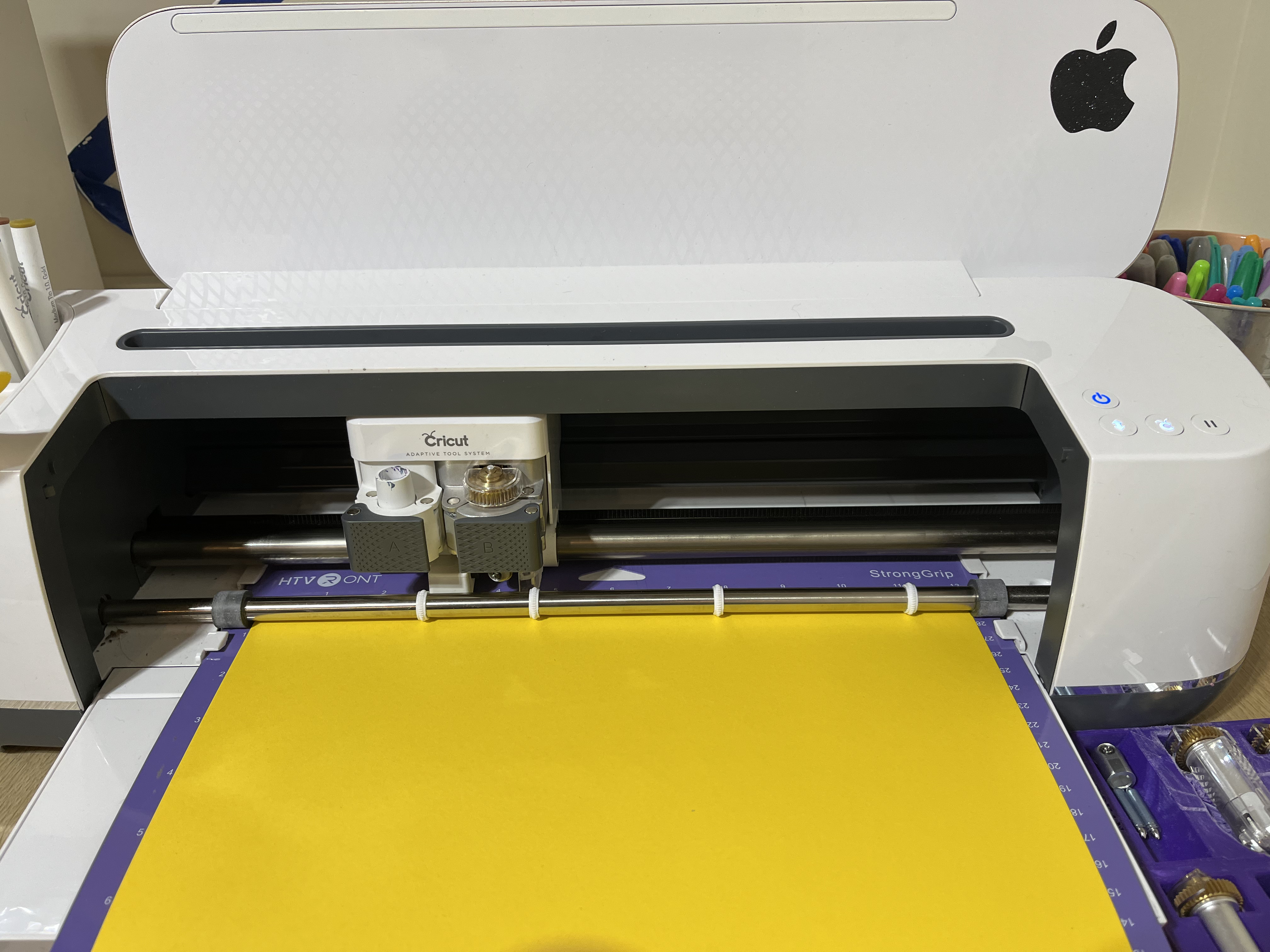
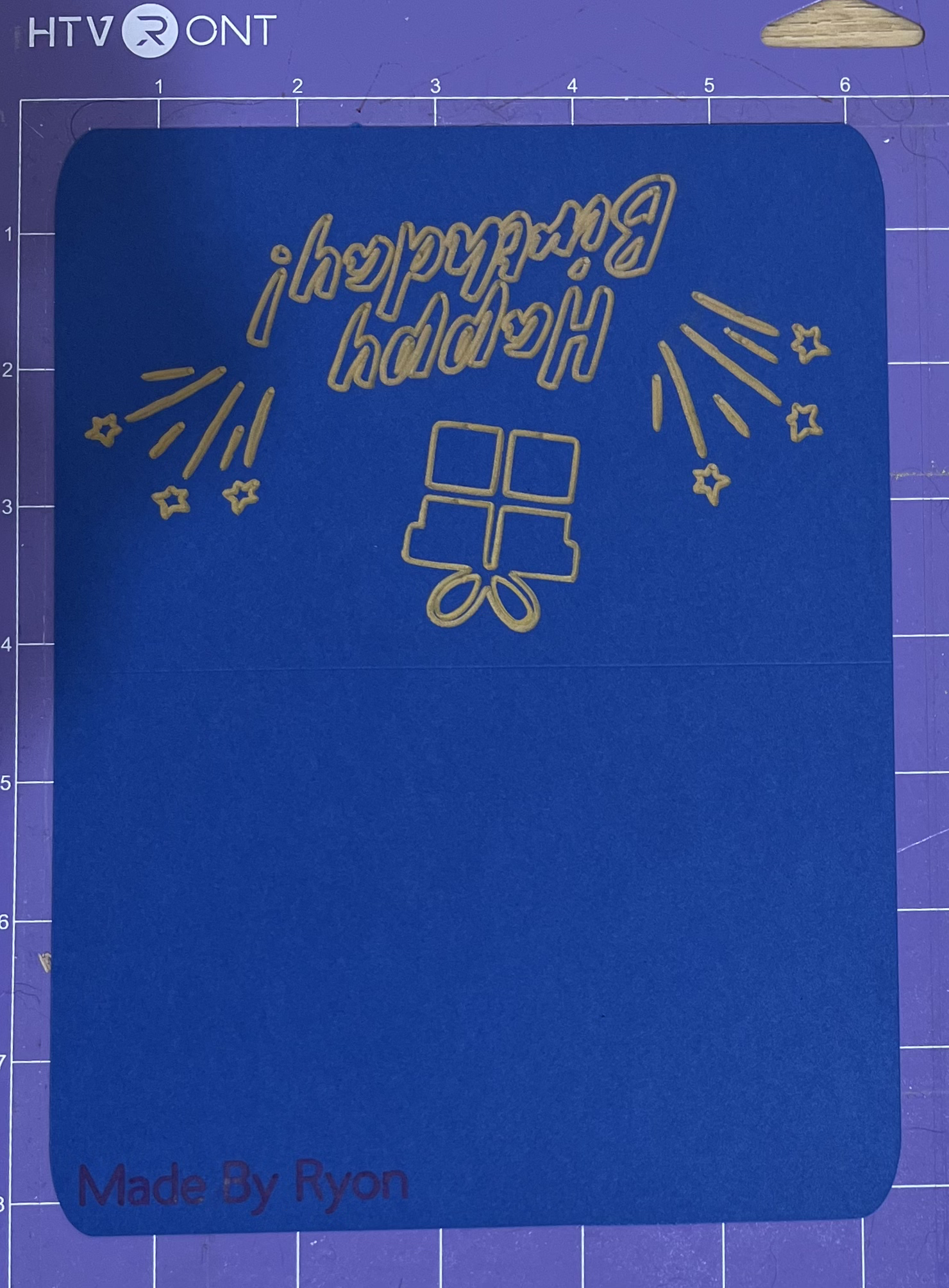
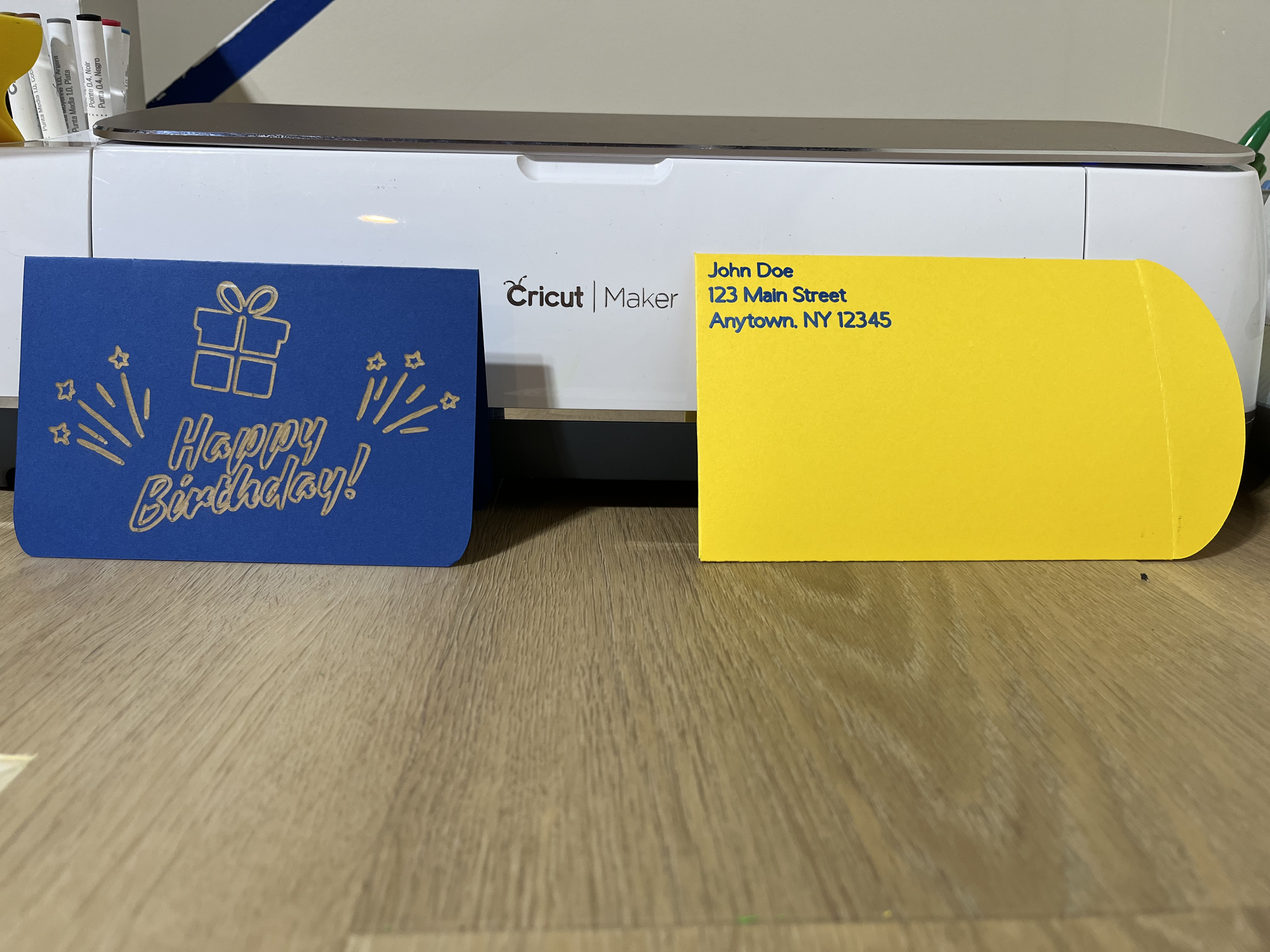
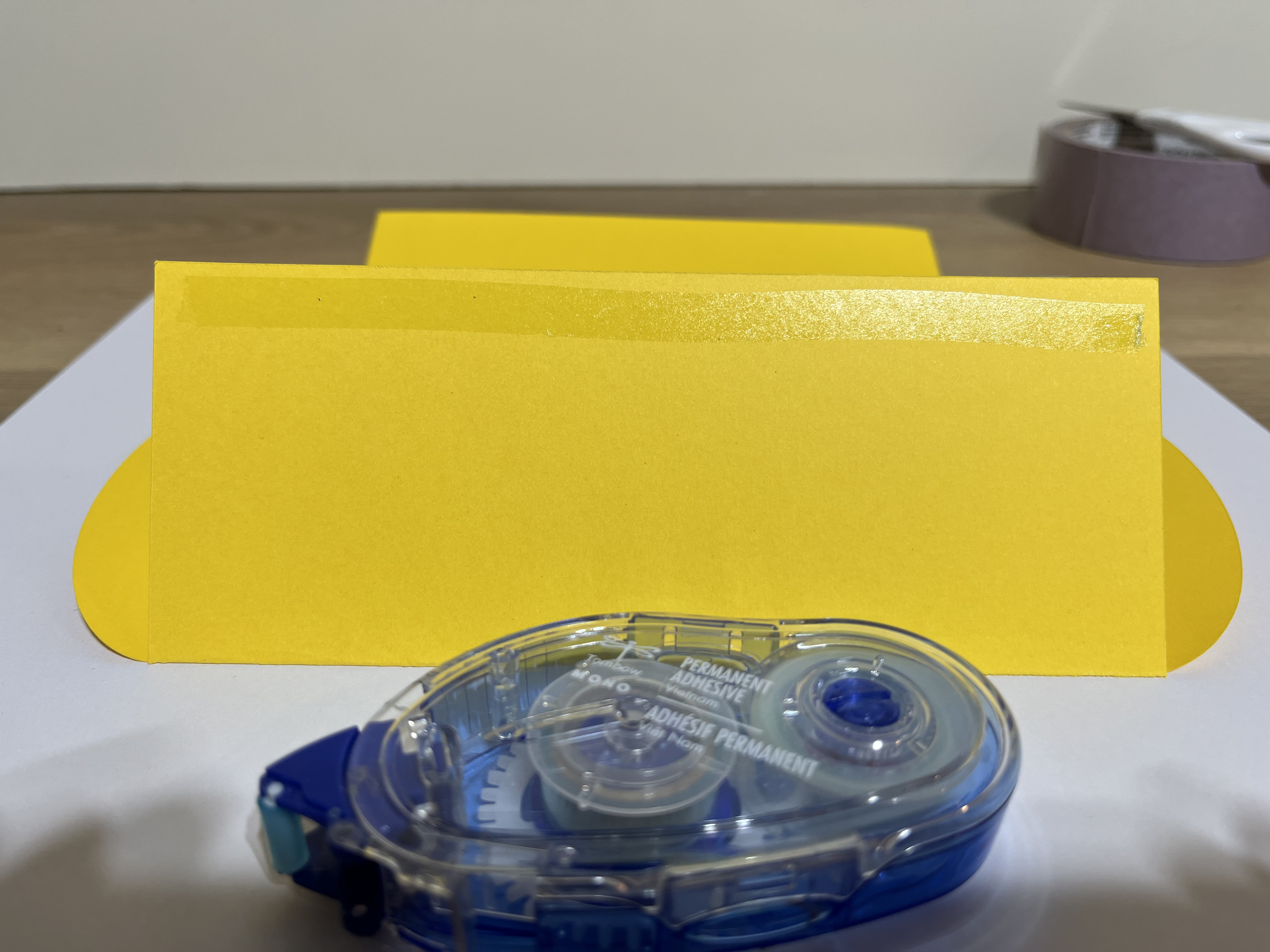
There is not much to say here, but make sure you follow the prompts that your computer gives you. The one thing is that for the card, you can use 8x11 cardstock if you want, but the envelope requires 12x12 to fit it properly. Once your prints are finished, carefully peel them off and fold along the score lines. When taping the envelope together, it is best to use strong, double-sided sticky tape for looks, but normal tape works well too. With that, a card that you made yourself is done! You are also left with a nice template for future card designs.
Using This for Precut Cards

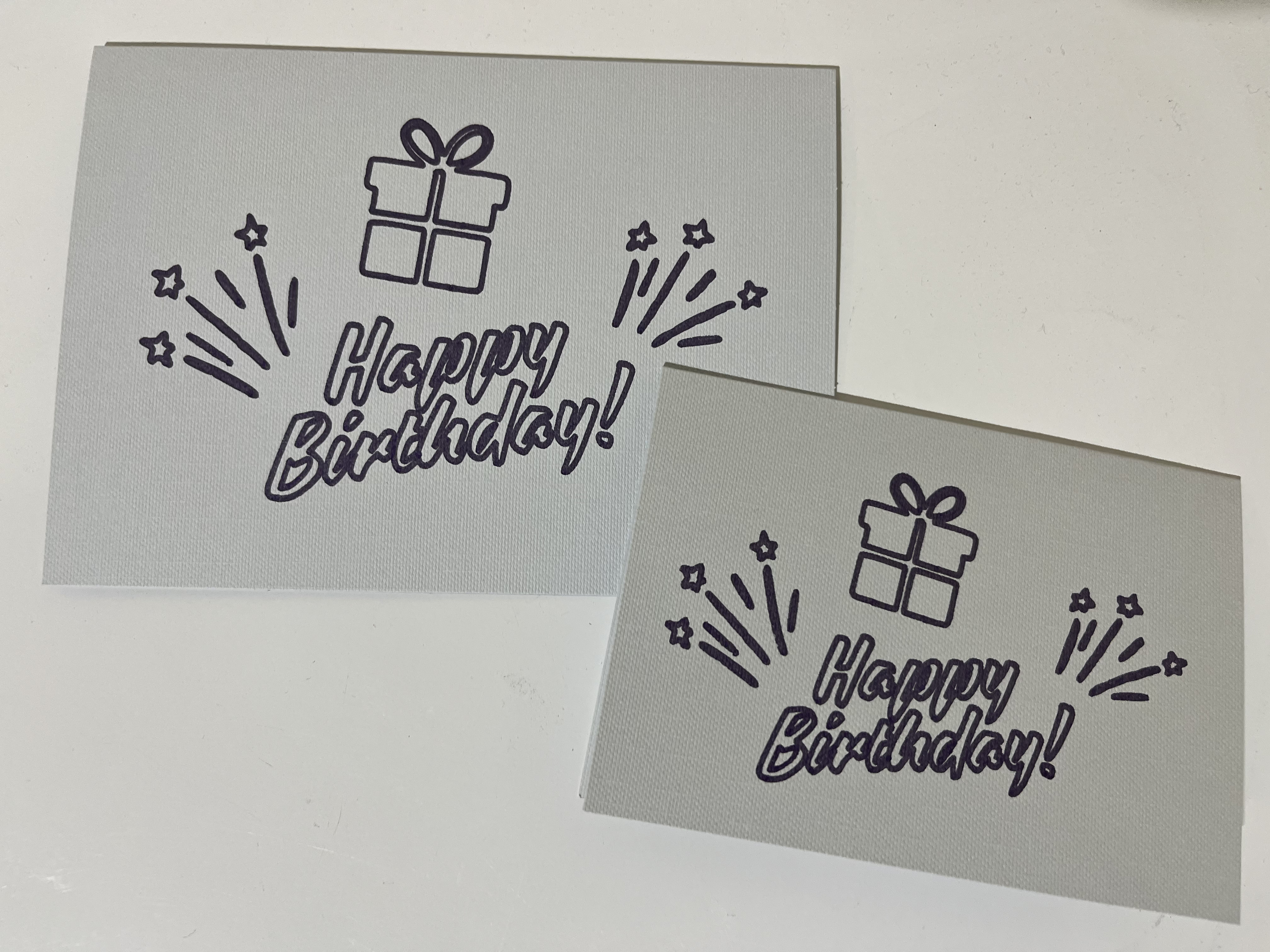
Although this design is great for those who have the supplies, you may have a smaller Cricut or only precut cards. That's fine! The only difference is that all you need on the software end is a graphic design. All you have to do is import your design, change it to a drawing, then do some strategic positioning on your mat to allow for proper alignment. To do this alignment, I usually just put my card in the very center of my mat so it is easy to find in the software. Cricut does have a "SnapMat" feature where the alignment is supposed to be done for you, but I have never successfully used it. Once your card has printed, you have created a card with just your computer, your Cricut, and a marker for tools.