How to Create and Manage Packages in Oracle Integration Cloud (OIC) – With NexInfo
by Suryajaya999 in Design > Software
11 Views, 0 Favorites, 0 Comments
How to Create and Manage Packages in Oracle Integration Cloud (OIC) – With NexInfo
.jpg)
Oracle Integration Cloud (OIC) has become one of the most powerful and user-friendly platforms for building connected, automated business processes across modern enterprise applications. Whether you are integrating ERP, HCM, SCM, CX, or third-party systems, OIC provides a complete visual environment for designing, deploying, and managing secure and scalable integrations. This step-by-step guide demonstrates how to work with packages, import/export bundles, and create new integrations inside OIC—exactly the workflow followed by professional integration teams at NexInfo, a global leader in Oracle consulting and cloud implementation services.
In this tutorial, you will learn how OIC organizes integrations using packages, how to view active and inactive integrations, how to assign or create new package names, how to migrate packaged integrations between environments, and how to begin building a brand-new integration from scratch. Each screenshot captures a real system step—from opening the Packages dashboard to configuring a new integration canvas—making this guide easy to follow even for beginners.
This content is designed not only to help new users understand how OIC works but also to highlight industry-standard best practices. NexInfo’s integration experts apply structured naming conventions, clean package governance, version control, and environment-specific migration strategies to deliver reliable digital transformation. By following the same methods demonstrated in this tutorial, you’ll be able to maintain cleaner environments, avoid migration issues, and build scalable integration solutions that align with enterprise requirements.
Whether you're preparing for an Oracle implementation project, managing integrations for a business team, or simply learning how OIC operates, this guide will give you a clear, practical understanding of the OIC design workspace and package management cycle. Let’s dive into the steps and explore how to create, organize, import, and manage integrations the professional way.
Supplies
Oracle Integration Cloud (OIC) environment access
Valid Oracle Cloud login credentials
Integration Developer / Administrator role
Existing OIC packages (.par files) for import
Laptop or desktop system
Stable internet connection
Access to required application connections (ERP, HCM, SCM, etc.)
API documentation or endpoint URLs
Required authentication credentials (OAuth, Basic Auth, Tokens)
Project naming standards and versioning guidelines
Browser (Chrome recommended)
Notepad or documentation tool for notes
NexInfo naming conventions (optional but recommended)
Navigating to the Packages Section in Oracle Integration Cloud (OIC)
.png)
The first step in organizing your integrations within Oracle Integration Cloud (OIC) begins by navigating to the Packages section under the Design menu. In the screenshot displayed, you can see the left-side navigation panel where core modules such as Integrations, Connections, Lookups, Libraries, and Agents are listed. The Packages option plays a crucial role in keeping your integration ecosystem structured, especially when working in enterprise environments managed by NexInfo’s expert integration teams.
When you click on Packages, OIC loads a list of all available packages in the environment. Each package acts as a logical container that groups related integrations together. This becomes extremely important when working on large transformation projects where multiple business modules—Finance, SCM, HCM, CRM, or EPM—are connected through a network of integrations. Grouping them into packages ensures clarity, governance, and easy tracking.
In the image, we see a single package named oic.test, classified as Developed, with 2 integrations inside it. This means the package was created manually during development, and it stores two active integration flows. NexInfo consultants typically use naming standards to maintain order across environments. For example, packages might follow patterns such as oic.finance, oic.scm, oic.hcm, or client-specific prefixes to support global enterprise deployments.
The presence of the Import button at the top-right corner also highlights another important capability—package migration. Teams can export and import packages across DEV, TEST, and PROD environments, ensuring seamless lifecycle management. NexInfo relies heavily on this process to maintain consistency during deployment cycles.
This screen ultimately serves as the starting point for creating, organizing, and auditing integrations. By reviewing package names, types, and integration counts, you can understand how well your environment is structured and whether improvements or cleanup are needed. For any OIC implementation project, maintaining clear package architecture is a best practice that avoids confusion and ensures long-term maintainability.
Viewing Active Integrations Inside the Selected Package
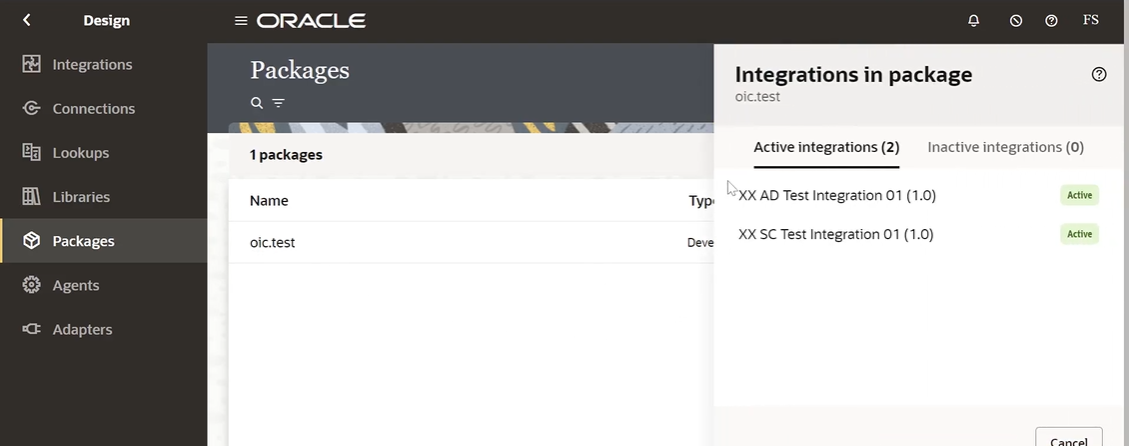
Once you click on the package oic.test, Oracle Integration Cloud displays a detailed slide-out panel showing all integrations associated with that package. This view provides critical visibility into how your integrations are grouped and the current operational status of each one. For enterprise teams like NexInfo, maintaining clear visibility into active integrations is essential for supporting smooth operations and managing integration lifecycles.
In the screenshot, you can see that the package oic.test contains 2 Active Integrations. These integrations are listed with their names, versions, and real-time status indicators. Each integration name follows a standardized naming convention such as XX AD Test Integration 01 (1.0) and XX SC Test Integration 01 (1.0). NexInfo follows naming best practices that reflect module ownership—“AD” for Application Development and “SC” for Supply Chain—ensuring teams can quickly identify which business function each integration supports.
Next to each integration name, you will see a green badge labeled Active, clearly indicating that both integrations are currently deployed and running in the environment. This real-time status check is extremely valuable during monitoring, troubleshooting, and deployment validation. For example, before promoting an integration to a package or exporting it for migration, NexInfo consultants verify whether the integration is active, inactive, or configured but undeployed. This helps prevent lifecycle issues when moving integrations between environments such as DEV, TEST, and PROD.
The panel also contains tabs for switching between Active integrations and Inactive integrations, even though there are no inactive ones in this case. This separation provides clarity when managing environments that contain dozens—or sometimes hundreds—of integrations. NexInfo teams often use this feature to evaluate which integrations should be retired, optimized, or migrated.
Overall, this step allows you to confirm how many integrations the package contains, their current status, and whether they are ready for deployment or modification. This is a crucial best practice to ensure clean governance and well-structured integration architecture within OIC.
Accessing and Managing Integrations From the OIC Integrations Dashboard
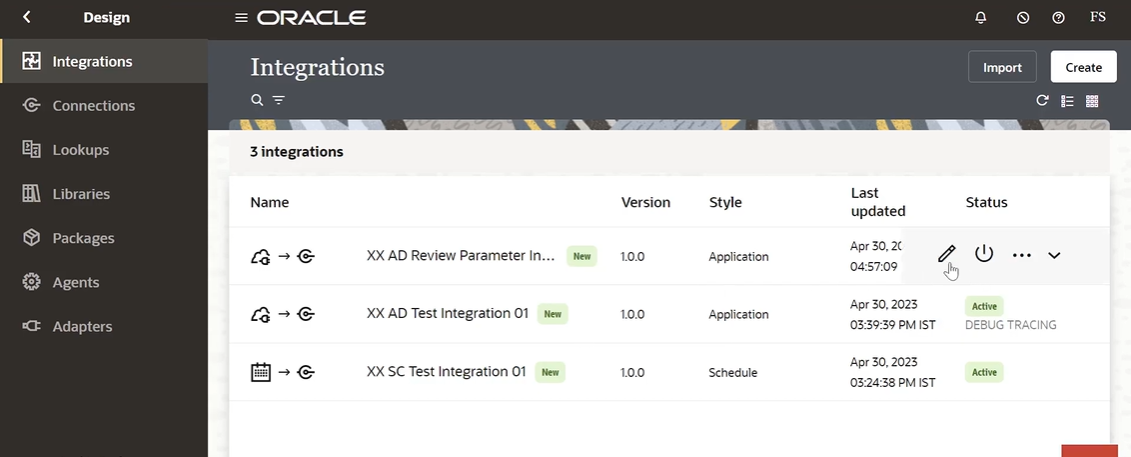
In this step, you are taken to the primary Integrations Dashboard inside Oracle Integration Cloud, one of the most important areas for developers, administrators, and support teams. This dashboard provides a complete overview of all integrations created within the current OIC environment. For organizations like NexInfo that handle large-scale enterprise integrations, this centralized view is essential for monitoring, debugging, and lifecycle governance.
In the screenshot, the Integrations panel lists three integrations, each with crucial metadata such as version, style, last updated timestamp, and current status. This structured view allows teams to instantly identify the operational state of each integration and respond accordingly.
The three integrations displayed are:
- XX AD Review Parameter Integration 01
- Version: 1.0.0
- Style: Application
- This integration is shown as newly created, indicated by the New label.
- The pencil icon allows you to edit the flow, enabling NexInfo developers to adjust logic, mappings, or connections as required.
- XX AD Test Integration 01
- Version: 1.0.0
- Style: Application
- The green Active label indicates that this integration is currently deployed and functional.
- The additional “Debug Tracing” message signals that debug mode is enabled, allowing for deeper visibility into runtime behavior—something NexInfo often activates during troubleshooting.
- XX SC Test Integration 01
- Version: 1.0.0
- Style: Schedule
- This integration runs on a scheduled basis instead of in real time. The Active status confirms it is currently enabled and ready for execution based on its defined schedule triggers.
At the top-right corner of the dashboard, the Import and Create buttons provide options for bringing in new integrations or building fresh ones from scratch. NexInfo teams commonly use the Import function when testing integrations across multiple environments like DEV → TEST → PROD.
This dashboard acts as the control center for all integration activities. It not only provides visibility but also the tools required to edit, activate, deactivate, or delete integrations. Before moving to package assignment or deployment, NexInfo consultants always review this dashboard to ensure the correct versions are active and properly configured.
Opening the Integration Flow to Review Its Components
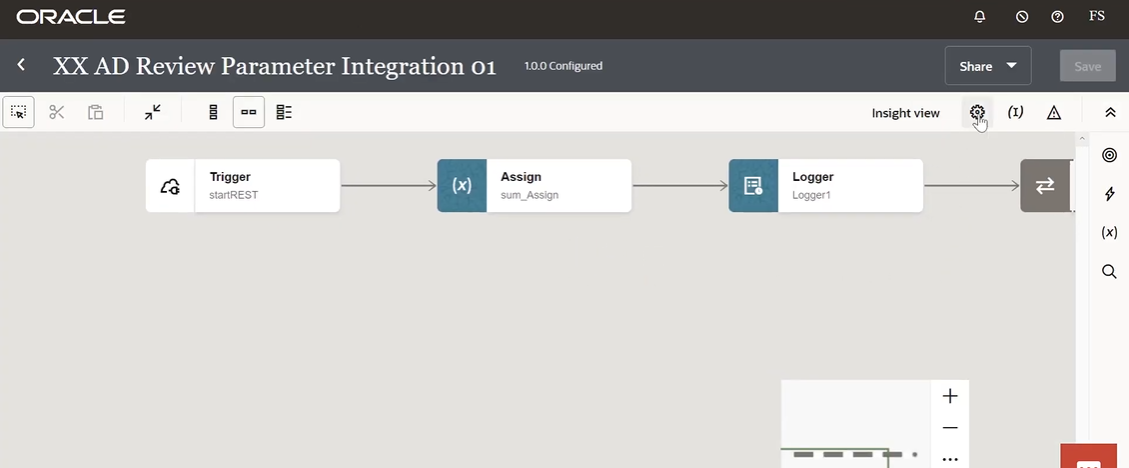
In this step, you open the specific integration—XX AD Review Parameter Integration 01—to view and analyze its internal components. This is the detailed Design Canvas where Oracle Integration Cloud (OIC) visually represents each action, transformation, and system interaction that occurs within the integration. For NexInfo consultants, this canvas is the core workspace where logic is built, optimized, and validated before deployment.
The displayed flow begins with a REST Trigger named startREST, indicating that the integration is initiated through an API-style invocation. This type of trigger is commonly used when external applications, mobile apps, or ERP systems call the integration directly. It also means the integration can respond with data, making it suitable for synchronous use cases such as validation, real-time processing, or immediate data retrieval—key functions that NexInfo configures for modern, API-driven architectures.
Following the Trigger is an Assign activity labeled sum_Assign. The Assign activity is used to initialize variables, manipulate incoming payloads, or prepare specific values required later in the process. NexInfo developers use Assign heavily when shaping data structures before routing them to external systems or services. It ensures that integration logic remains clean, modular, and easy to troubleshoot.
Next in the sequence is the Logger activity, which is essential for capturing both debug-level and operational logs. The logger named Logger1 is strategically placed to track intermediate steps or payload contents. NexInfo teams depend on such logging to maintain transparency during testing, identify issues quickly, and ensure smooth deployment across environments. Proper logging is a hallmark of high-quality integration design, enabling both proactive monitoring and efficient troubleshooting.
To the far right, you see the final outbound activity, which likely represents the response or completion step of the integration. This ensures that the flow terminates properly and returns the appropriate output to the calling system.
The top toolbar offers additional features such as visual layout adjustments, code view, trace settings, and importantly, the Insight View button, which is highlighted in this step. Insight View provides business-friendly dashboards that allow users to monitor KPIs and track real-time integration performance—something NexInfo configures for clients needing operational visibility.
By inspecting the flow at this stage, developers verify the structure, logic, and completeness of the integration before assigning it to a package or migrating it to other environments.
Selecting an Existing Package for the Integration
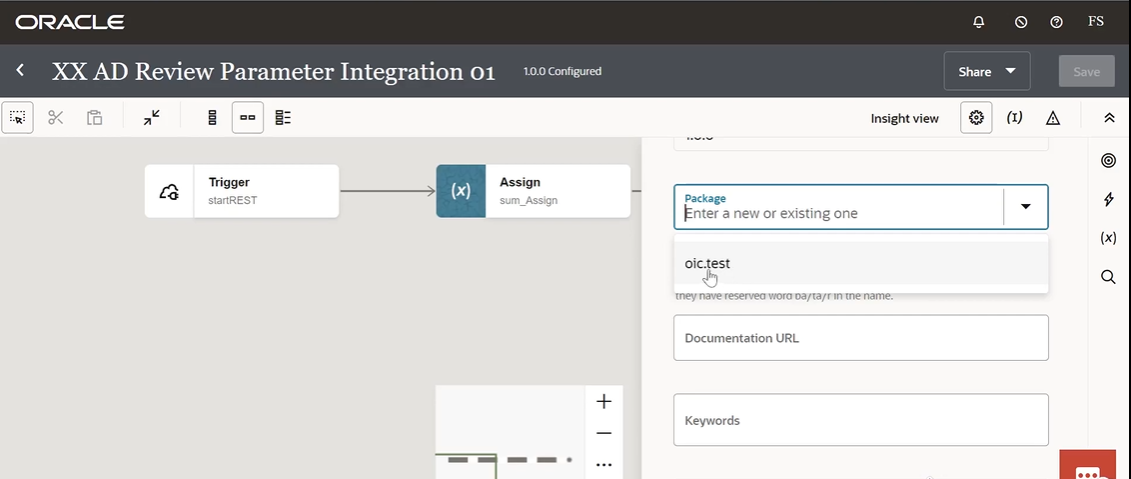
In this step, you begin the process of assigning your integration to a specific package. Packaging is one of the most critical organizational features in Oracle Integration Cloud (OIC), especially for large enterprise implementations managed by NexInfo. Assigning integrations to a package ensures that related flows remain grouped, migration-ready, and easy to maintain across environments like DEV, TEST, and PROD.
In the screenshot, we see the configuration panel opened on the right side of the canvas. This panel becomes visible when you click the Integration Properties or Settings icon. Within this panel, one of the primary fields displayed is the Package field—this is the section where you can select an existing package or create a new one.
The package dropdown currently shows an existing package named oic.test. This is one of the predefined packages in the environment, as you saw earlier in Step 1. By selecting this package, you are linking the currently open integration—XX AD Review Parameter Integration 01—to the package which already contains other related integrations. NexInfo consultants follow a standardized naming structure for such packages, ensuring that package names clearly indicate their functional grouping or module association.
Assigning an integration to a package delivers several benefits:
1. Better Organization & Governance
All related integrations are grouped logically, making it easier for administrators to locate, modify, or migrate them during development cycles.
2. Seamless Migration
Packages act as exportable units. When NexInfo migrates integrations between environments, exporting and importing a package ensures all relevant flows move together in a consistent bundle.
3. Enhanced Visibility
Teams can instantly see how many integrations are tied to a package and monitor their status from the Packages dashboard.
4. Improved Maintainability
Grouping integrations keeps the environment tidy and prevents confusion when working with large-scale deployments involving 50, 100, or even 500 integrations.
In this step, by selecting oic.test, the system will automatically associate the integration with that package. Once you finalize this selection and click Save, the integration becomes part of the package and will appear in the package overview screen.
This step highlights the importance of maintaining package discipline within OIC—a standard best practice followed consistently by NexInfo for every client project.
Creating and Assigning a New Package for the Integration
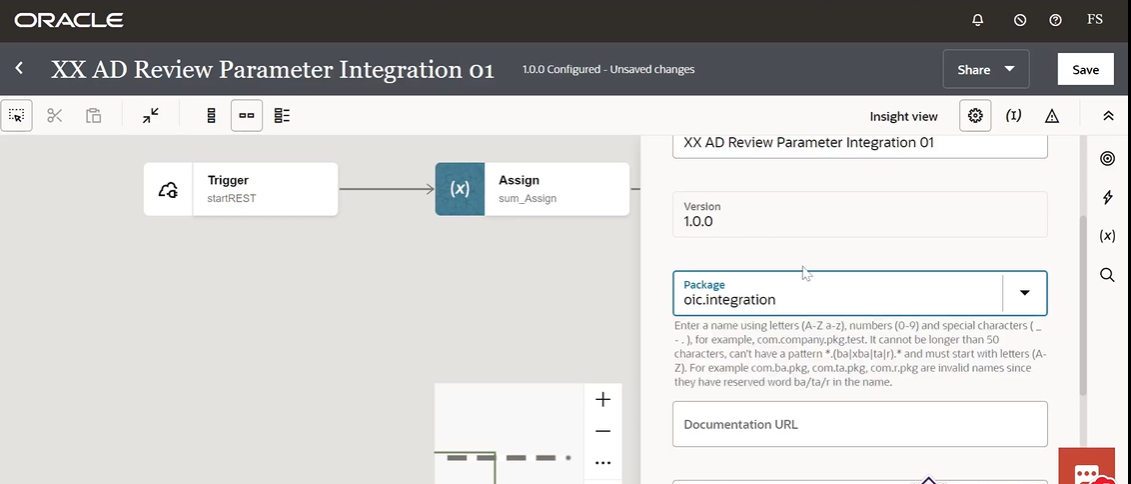
In this step, you are not just selecting an existing package but creating a new package name to categorize your integration more effectively. This is an important structural decision in Oracle Integration Cloud (OIC), especially for organizations focused on maintaining scalable, governed, and migration-ready integration architectures—exactly the type of discipline NexInfo follows in all enterprise implementations.
The screenshot shows the right-side configuration panel where the integration properties are displayed. Under the Package field, instead of selecting the previously existing package (oic.test), you have now entered a new package name: oic.integration. This indicates that you are reorganizing or restructuring how integrations are grouped within the environment.
Why Create a New Package?
There are several reasons consultants and developers create new packages instead of using existing ones:
1. Better Module/Project Separation
By creating a package like oic.integration, you can group a set of integrations belonging to a specific business area, project, or integration wave. NexInfo often organizes packages based on functional domains like:
- oic.finance
- oic.scm
- oic.hcm
- oic.reports
This makes it easier to audit and migrate.
2. Cleaner Environment Governance
As the number of integrations grows, using well-defined package names helps ensure the environment remains neat and manageable. New package creation avoids overloaded folders and prevents unrelated integrations from being mixed together.
3. Easier Migration Across Environments
Packages serve as exportable bundles. When migrating from DEV → TEST → PROD, NexInfo always recommends grouping project-related integrations within a fresh package so the entire set can be transported consistently.
Naming Rules Explained
Below the package field, Oracle provides important rules for naming packages:
- Only letters (A–Z, a–z), numbers (0–9), periods (.), and underscores (_) are allowed.
- Names must begin with a letter.
- The name cannot exceed 50 characters.
- Certain reserved patterns are not allowed (e.g., ba, ta, or r in specific combinations).
These rules ensure your package name remains compatible across systems and environments. Following such naming standards is considered a best practice, and NexInfo aligns with these guidelines on every project to avoid deployment issues.
Saving the Changes
After entering oic.integration, clicking Save at the top right ensures that this integration is now officially assigned to the new package. This instantly updates the environment and allows you to see this integration listed under the new package in the Packages section.
By completing this step, you are effectively grouping the integration under a newly created structure—enhancing organization, improving deployment readiness, and aligning with professional integration lifecycle management standards.
Verifying the Newly Created Package in the Packages Dashboard
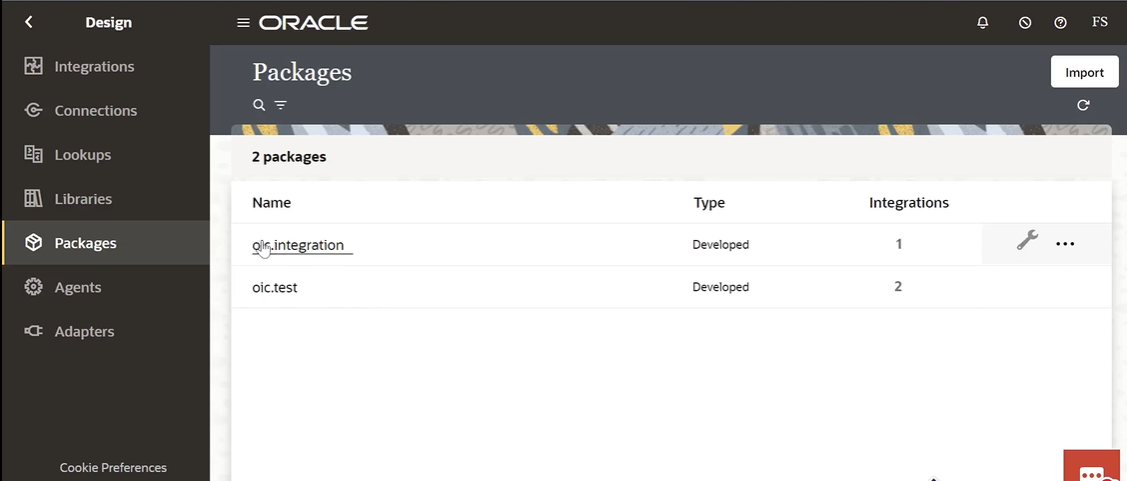
After creating and assigning your integration to a new package, the next essential step is to validate that your package has been successfully added to Oracle Integration Cloud (OIC). This step confirms that your changes were saved correctly and that the environment now reflects your updated package structure. For NexInfo consultants, verification is a standard part of every deployment cycle to maintain accuracy and avoid migration issues later.
In the screenshot, you are inside the Packages section of the Design workspace. Here, the screen now displays 2 packages instead of one:
1. oic.integration – 1 Integration (Newly Created)
This package was created in the previous step when you manually typed and saved the package name. It now contains 1 integration, which means your assigned integration—XX AD Review Parameter Integration 01—has been successfully moved under this package.
The fact that it shows exactly one integration confirms that the assignment was applied correctly. This is critical because NexInfo teams always verify package contents before migration to ensure that all related integrations are included.
2. oic.test – 2 Integrations (Previously Existing Package)
This is your original package, which continues to contain two active integrations, as seen in earlier steps. Nothing has changed here, which is good because it shows the new assignment did not affect other packages.
Why Validation Is Important?
NexInfo follows a strict validation protocol because:
Ensures Proper Organization
Organizations may have dozens of packages and hundreds of integrations. Confirming the correct package structure prevents long-term confusion and helps keep the integration catalog clean and navigable.
Prevents Migration Errors
When exporting packages for migration, missing integrations can cause failures or incomplete deployments. Verifying packages avoids such problems before exporting to TEST or PROD environments.
Confirms Naming Standard Compliance
Correct naming helps avoid conflicts and ensures that the package can be deployed across different Oracle environments without restrictions.
Ensures Governance & Auditability
Packages serve as the governance layer for integration grouping. NexInfo teams regularly review package contents during governance audits to ensure every integration is in the right place.
Tools and Icons in the Screenshot
The right-side of the oic.integration row contains tool icons (such as the wrench and more options menu). These allow you to:
- View integrations inside the package
- Export or import package
- Edit or rename package (if needed)
- Perform package-level actions
These features are frequently used during client migration cycles managed by NexInfo.
With this verification step complete, your new package structure is officially created and active within OIC.
Reviewing Active and Inactive Integrations Inside the New Package
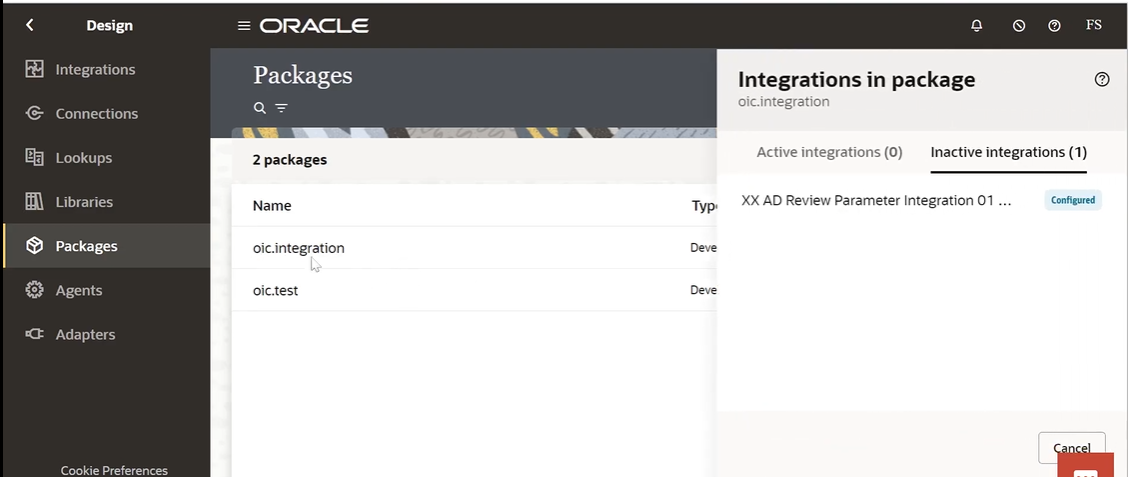
After assigning your integration to the newly created package (oic.integration), the next important step is to inspect what’s inside the package. This ensures that the integration has been correctly placed, and confirms whether it is currently active, inactive, or still in configured status. These checks are crucial for maintaining control over integration lifecycle management—something NexInfo teams rigorously practice across all Oracle Integration Cloud implementations.
In the screenshot, after clicking on oic.integration, a slide-out panel appears displaying two tabs:
1. Active Integrations (0)
This tab shows no active integrations under this package. An active integration is one that has been deployed and is currently running. Since the integration you moved is not yet activated, it will not appear here.
For NexInfo consultants, this is a quick indicator that:
- The integration has been assigned to the package
- But has not been deployed yet
- And therefore won’t be callable or schedulable until activation
This is entirely normal during development or configuration phases.
2. Inactive Integrations (1)
Under this tab, you see a single integration listed:
XX AD Review Parameter Integration 01 — Configured
This indicates the integration has been successfully assigned to the package, but currently exists in a configured (undeployed) state. “Configured” means:
- The design and logic are ready
- The integration is correctly set up
- But deployment hasn't been performed yet
Inactive integrations are often stored in a package when preparing for:
- Migration
- Testing
- Debugging
- Batch activation
- Version creation
NexInfo uses this approach when preparing multiple integrations for migration from DEV → TEST or TEST → PROD. Keeping them inactive allows the team to review, adjust, or finalize configurations without affecting runtime environments.
Why This Validation Matters
Ensures Correct Package Assignment
You can visually confirm that the integration now lives inside the correct package.
Confirms Deployment Status
You immediately know if the integration is ready to run (active) or not (inactive).
Useful for Governance and Migration
NexInfo teams always validate integration status before exporting packages to avoid exporting incomplete or active flows unintentionally.
Helps Manage Version Control
Inactive status signals the integration may be under development or awaiting final approval.
This validation completes the organizational workflow—your integration has successfully been moved and categorized inside its new OIC package.
Creating a New Integration Inside Oracle Integration Cloud (OIC)
.png)
In this step, you begin the process of creating an entirely new integration within Oracle Integration Cloud (OIC). This is one of the most fundamental tasks for any integration developer, and it marks the starting point of building a fresh integration flow that can connect applications, transform data, or trigger automated business processes. NexInfo relies heavily on proper setup during integration creation to ensure long-term scalability, maintainability, and governance across enterprise ecosystems.
In the screenshot, you are on the Integrations page, where all existing integrations are listed. On the right side, the Create Integration panel has appeared because you clicked the Create button. This panel is where you define the foundational metadata for your new integration.
Key Fields Explained in Detail
1. Name
The first field shows “XX Test 01” as the integration name.
This is an important naming standard used in most enterprise environments:
- XX prefix indicates a custom (non-standard) integration.
- The following text describes the purpose (Test).
- A version number or sequence at the end (01) helps track multiple test or production-ready flows.
NexInfo follows strict naming conventions for all client integrations to ensure clarity, governance, and searchability across environments.
2. Identifier
The identifier automatically converts your name into a system-friendly ID:
XX_TEST_01
Identifiers must follow system rules—uppercase letters, underscores, and no spaces. They serve as the technical reference for the integration internally within OIC and across APIs.
This ID cannot be changed later, making proper naming extremely important.
3. Version
The default version appears as 01.00.0000.
This versioning structure is crucial for lifecycle management:
- 01 → Major version
- 00 → Minor updates
- 0000 → Patch or small fixes
NexInfo uses this format to manage multiple integration releases, rollback points, and controlled upgrades.
Why This Step Is Important?
Establishes the Foundation
The integration name, identifier, and version become the core identity of the integration throughout its lifecycle.
Ensures Consistency Across Environments
Whether deploying in DEV, QA, UAT, or PROD, consistent naming ensures easy tracking and governance.
Enables Better Observability and Documentation
The clean naming approach helps business analysts, testers, and developers understand the purpose and structure of each integration at a glance.
Supports Future Migration & Packaging
Correct initialization ensures smooth inclusion in packages and migration bundles handled by NexInfo consultants.
Next Action
After filling these fields, you would click Create to proceed to the actual design canvas, where you can add triggers, connections, mappings, and logic.
This marks the official starting point of building your custom integration inside OIC.
Confirming Successful Integration Creation in Oracle Integration Cloud (OIC)
.png)
After defining the name, identifier, and version for your new integration, Oracle Integration Cloud (OIC) generates the integration canvas and displays a confirmation message to verify that the integration has been successfully created. This confirmation step is an essential part of the development lifecycle, ensuring your foundation is correctly saved before you begin designing the integration logic. NexInfo consultants rely heavily on these system validations to maintain accuracy and eliminate configuration errors in enterprise environments.
In the screenshot, we can clearly see a notification at the top right:
“Integration XX Test 01 (1.0.0) was saved successfully.”
This message confirms that the integration metadata—including name, identifier, and version—has been stored in the OIC system and is now available as a draft integration in the environment.
Understanding the Integration Canvas
Below the confirmation message, the main OIC design canvas becomes visible. It currently shows a very minimal structure:
- Start
- End
This blank canvas is where developers build the entire integration flow by adding triggers, actions, mappings, assignments, connections, notifications, and logging activities. The sequence will eventually define how data travels between applications and how business logic is executed. NexInfo follows a structured approach to designing integrations, starting with proper flow planning, component placement, and naming conventions before implementing the logic.
Key Toolbar Elements Visible
Across the top of the screen, the toolbar provides several essential options:
- Cut / Copy / Paste Tools
- Undo / Redo History
- Zoom & Fit-to-Screen Options
- Layout Switcher (Horizontal / Vertical)
- Code & Map Views
These tools help developers efficiently design, optimize, and review integrations, especially during complex implementations involving multiple steps.
Why This Step Matters
Confirms Successful Setup
Without this confirmation, you cannot proceed with integration development. It verifies that the system has accepted your metadata.
Establishes a Clean Draft Version
The label 1.0.0 Draft indicates this is the initial version and can be modified freely before activation and deployment.
Ensures a Stable Starting Point
A correctly initialized integration prevents issues later during packaging, testing, and migration.
Part of NexInfo’s Development Governance
NexInfo teams always validate creation success to avoid duplicate integrations, naming conflicts, or incomplete metadata.
Next Action
From this point, the developer can proceed to:
- Add a trigger (REST, SOAP, FTP, Schedule, or Adapter-based)
- Define the integration flow sequence
- Perform mappings and transformations
- Add logging for debugging
- Configure fault-handling patterns
- Activate the integration
This clean canvas represents the beginning of the full integration development process.
Reviewing Package Contents and Verifying Active/Inactive Integrations
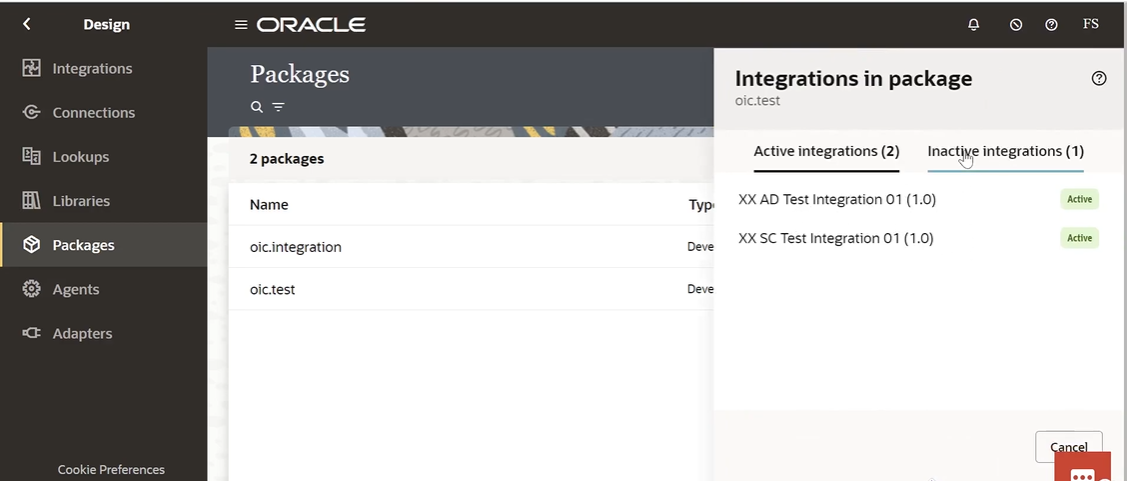
In this step, you return to the Packages section in Oracle Integration Cloud (OIC) to review the status of integrations within the existing package oic.test. This review is an essential governance step that ensures integrations remain organized, deployment-ready, and aligned with enterprise lifecycle standards. NexInfo consultants routinely perform such validations during development, testing, and migration cycles.
The screenshot shows two packages listed:
- oic.integration
- oic.test
You have selected oic.test, and the details panel on the right displays everything inside this package, divided into two categories: Active Integrations and Inactive Integrations.
Active Integrations (2)
The package contains two active integrations:
- XX AD Test Integration 01 (1.0) – Active
- XX SC Test Integration 01 (1.0) – Active
These integrations are live and deployed, meaning they can currently run, process data, and respond to external calls. The green Active status indicates that these integrations are functioning normally with no deployment issues.
For NexInfo teams, this is crucial for:
Monitoring Production Readiness
Active integrations must remain stable and error-free before promoting related packages to higher environments.
Verifying Deployment Consistency
Ensuring all expected integrations are active prevents broken processes during migrations or system upgrades.
Supporting Business Operations
Active flows are often connected to critical business processes like Supply Chain triggers, HR data sync, or finance validations.
Inactive Integrations (1)
There is one integration under the Inactive integrations tab. While the tab name is selected, the content is not visible in the screenshot—but the label clearly shows:
Inactive integrations (1)
This category typically includes integrations that are:
- In draft
- Configured but not deployed
- Disabled intentionally
- Under development or modification
- Awaiting approval for deployment
Inactive integrations do not run and cannot be triggered or scheduled until activation.
NexInfo follows strict version-control and migration standards, so inactive integrations are reviewed to:
Identify items pending deployment
Avoid leaving unused or outdated integrations in the environment
Maintain environment cleanliness and stability
Why This Step Matters in Enterprise OIC Projects
Ensures Proper Package Hygiene
Keeping track of which integrations are active or inactive prevents confusion among development and support teams.
Supports Migration Readiness
Before exporting a package, NexInfo always checks the active/inactive status to avoid deploying incomplete components.
Improves Governance and Auditability
Clear visibility helps auditors and administrators understand what is live versus what is under development.
Prevents Runtime Failures
Inactive integrations mistakenly assumed to be active can cause unexpected failures in connected applications.
Importing a Package Into Oracle Integration Cloud (OIC)
.png)
In this step, you are performing one of the most important actions in Oracle Integration Cloud—importing a package. This is a critical operation during migration cycles, especially when moving integration assets from one environment to another (e.g., DEV → TEST → PROD). NexInfo consultants rely heavily on the Import & Export features to ensure clean, consistent, and controlled transportation of integrations.
The screenshot shows the Packages page with the package oic.integration already available in the environment. On the right side, a panel titled Import package is open, allowing you to upload a .par file (Package Archive). This .par file contains one or more integrations and all their dependent artifacts, making it a self-contained bundle suitable for migration or backup.
Understanding the Import Package Panel
The import panel displays a Drag and Drop area where you can upload your .par package file. Below this, system options like Import, Import and Configure, or Cancel will appear once a file is selected.
The main components include:
1. Drag and Drop Area
This allows you to directly drag a .par package file from your system and drop it into the upload box. You can also click within the box to browse your local computer for the file.
The box displays:
- “Drag and Drop”
- “Select a file or drop one here”
This simple interface supports both manual file uploads and drag-and-drop convenience.
2. Import Options (Shown After File Selection)
After selecting a .par file, you will typically see options such as:
- Import
- Imports the package exactly as it exists, maintaining all configurations.
- Import and Configure
- Allows you to review and adjust configurations such as connections, credentials, or adapters before activating integrations. NexInfo frequently uses this option when migrating between environments with different endpoint URLs or security credentials.
- Cancel
- Closes the panel without performing any import operation.
When and Why Packages Are Imported
Importing packages is a common requirement in enterprise integration lifecycle management. NexInfo consultants import packages for:
Migrating Integrations from DEV → QA/UAT → PROD
This ensures controlled, version-managed movement of integration flows.
Restoring Archived Integrations
Sometimes older or backup versions need to be reimported for further development or rollback.
Cloning Integrations for New Projects
Teams often replicate successful patterns by importing packages into a fresh environment.
Preserving Client Environments During Upgrades
Imports allow seamless reloading of integrations after major system updates or environment refreshes.
Best Practices NexInfo Follows During Package Import
- Always verify that the .par file matches the correct integration version.
- Ensure dependent connections exist or will be reconfigured during import.
- Validate package contents before importing into higher environments.
- Use Import and Configure when environment-specific settings differ (e.g., ERP endpoints, OAuth tokens).
- Maintain change logs for audit and rollback control.
With the Import panel open, the next action will be selecting a .par file to import. Once imported, OIC will automatically extract the package, list its integrations, and prepare them for activation.
Uploading and Preparing the Package File for Import in OIC
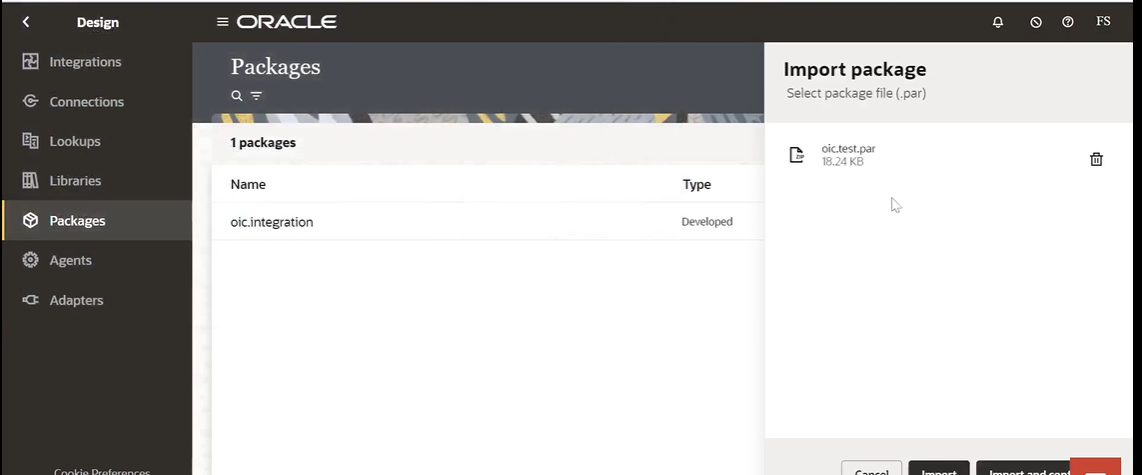
In this step, you have successfully selected a .par file (Package Archive) for import into Oracle Integration Cloud (OIC). This is a key part of the migration and deployment process used across enterprise OIC implementations, especially when moving integrations between environments like DEV → TEST → UAT → PROD. NexInfo relies heavily on this mechanism to maintain standardized deployments across all client environments.
The screenshot shows the right-side import panel where the file oic.test.par (18.24 KB) has been uploaded. This means the package archive is now loaded into OIC and ready for further processing.
Understanding the Uploaded Package File
Once the .par file appears in the panel, it confirms:
The file format is correct
OIC only accepts .par files—these contain all integrations inside a specific package, along with their components and metadata.
The file has been validated for import
The system checks basic compatibility and displays the file details (name and size).
The size (18.24 KB) suggests this package contains a small number of integrations.
You can now proceed with the import operation
After the file is uploaded, action buttons such as Import and Import and configure become available.
Available Actions After Upload
Below the uploaded file (though not fully visible in the screenshot), OIC typically provides these options:
1. Import
This will import the package exactly as it was exported, using the same connections and configurations. This is ideal when the target environment has identical connection details.
2. Import and Configure
This option allows you to adjust configuration details such as:
- Connection endpoints
- Security credentials
- Callback URLs
- Schedules
- Web service endpoints
This is the choice NexInfo often uses during cross-environment migrations where external systems, IPs, or credentials differ between DEV, TEST, and PROD.
3. Delete (Trash Icon)
If you uploaded the wrong file, you can delete it using the trash icon shown on the right side of the file name.
4. Cancel
This exits the import process without saving or importing anything.
Why This Step Matters in Enterprise OIC Workflows
Ensures the Correct Package File Is Selected
Uploading the wrong .par file could lead to incorrect integrations being deployed. This validation step prevents such errors.
Confirms File Integrity
Only valid and complete package files can be loaded, ensuring safe migration.
Allows Final Verification Before Import
NexInfo always cross-checks the file name, version, and content before proceeding with import to avoid overwriting active integrations.
Prepares for Environment-Specific Configuration
In multi-environment setups, "Import and Configure" becomes critical because connections and endpoints cannot be identical across environments.
What Happens Next?
Once you confirm the file is correct, the next step is to click either:
Import
or
Import and Configure
depending on the environment requirements.
OIC will then begin unpacking the .par file, verifying metadata, and loading the integrations into the environment.
Reviewing All Integrations After Importing the Package
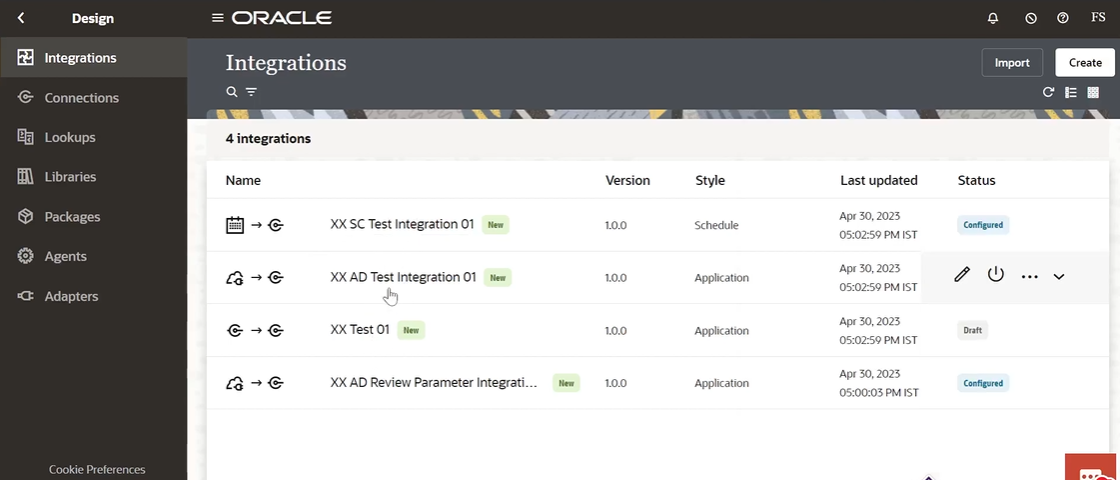
After successfully importing the .par package file into Oracle Integration Cloud (OIC), the next crucial step is to validate whether the imported integrations appear correctly in the Integrations dashboard. This verification ensures that the package import was successful, that no integrations are missing, and that all related components have been loaded properly. NexInfo consultants treat this step as mandatory in every migration cycle to maintain quality, governance, and environment consistency.
The screenshot shows the Integrations page now displaying 4 integrations, which indicates that a new integration (or multiple integrations) from the imported package has been added to your existing list.
List of Integrations Visible After Import
The integrations displayed include:
- XX SC Test Integration 01
- Style: Schedule
- Status: Configured
- This integration is ready for deployment but not yet active.
- XX AD Test Integration 01
- Style: Application
- Status: Active / Editable
- This integration appears ready for further configuration or execution.
- XX Test 01
- Style: Application
- Status: Draft
- This is the integration you created earlier.
- The draft status indicates it hasn’t been activated yet.
- XX AD Review Parameter Integration 01
- Style: Application
- Status: Configured
- This integration remains in a configured, inactive state.
What This Confirmation Tells You
The Imported Package Loaded Successfully
The new integration(s) from the package have now appeared in the list.
No Conflicts or Duplicate Name Errors
If there were naming conflicts or version mismatches, OIC would block the import or ask for overwrite confirmation.
Integration States Are Correct
Each integration retains its original status:
- Active
- Configured
- Draft
NexInfo always reviews statuses post-import to ensure nothing changed unexpectedly.
Versioning Remains Preserved
All integrations show version 1.0.0, confirming that the package import retained version integrity.
Why NexInfo Considers This Step CriticalMigration Integrity Check
Ensures no integrations were skipped or corrupted during the import.
Deployment Planning
Knowing which integrations are in ACTIVE, CONFIGURED, or DRAFT states determines what needs activation next.
Environment Health Verification
Helps avoid situations where an integration is imported but fails silently.
Ensures Smooth End-to-End Flow
Some packages contain dependent integrations—reviewing all ensures none are missing.
Supports Audit & Governance
Maintains compliance with best practices around environment consistency.
What Happens Next?
You can now:
- Activate the newly imported integrations
- Configure connections for environment-specific URLs
- Begin testing the flows
- Move the integrations into the appropriate packages
- Prepare the next migration cycle
This confirms the environment is stable and ready for the next development or deployment step.