How to Build a PC
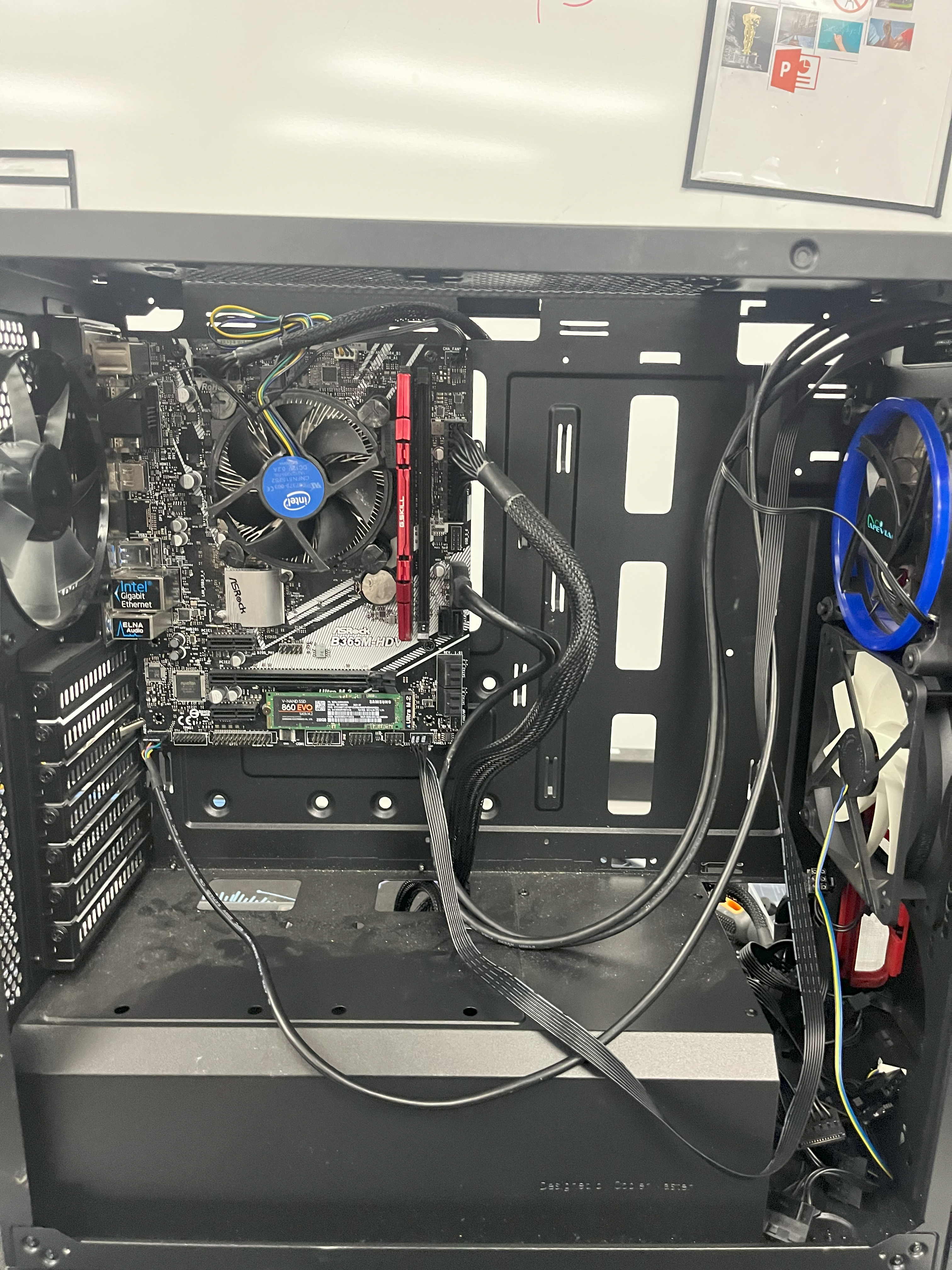
This is a Personal Computer. It is a desktop PC that is good for running software, reading emails, writing novels, watching videos, completing work, playing video games, and more.
Supplies
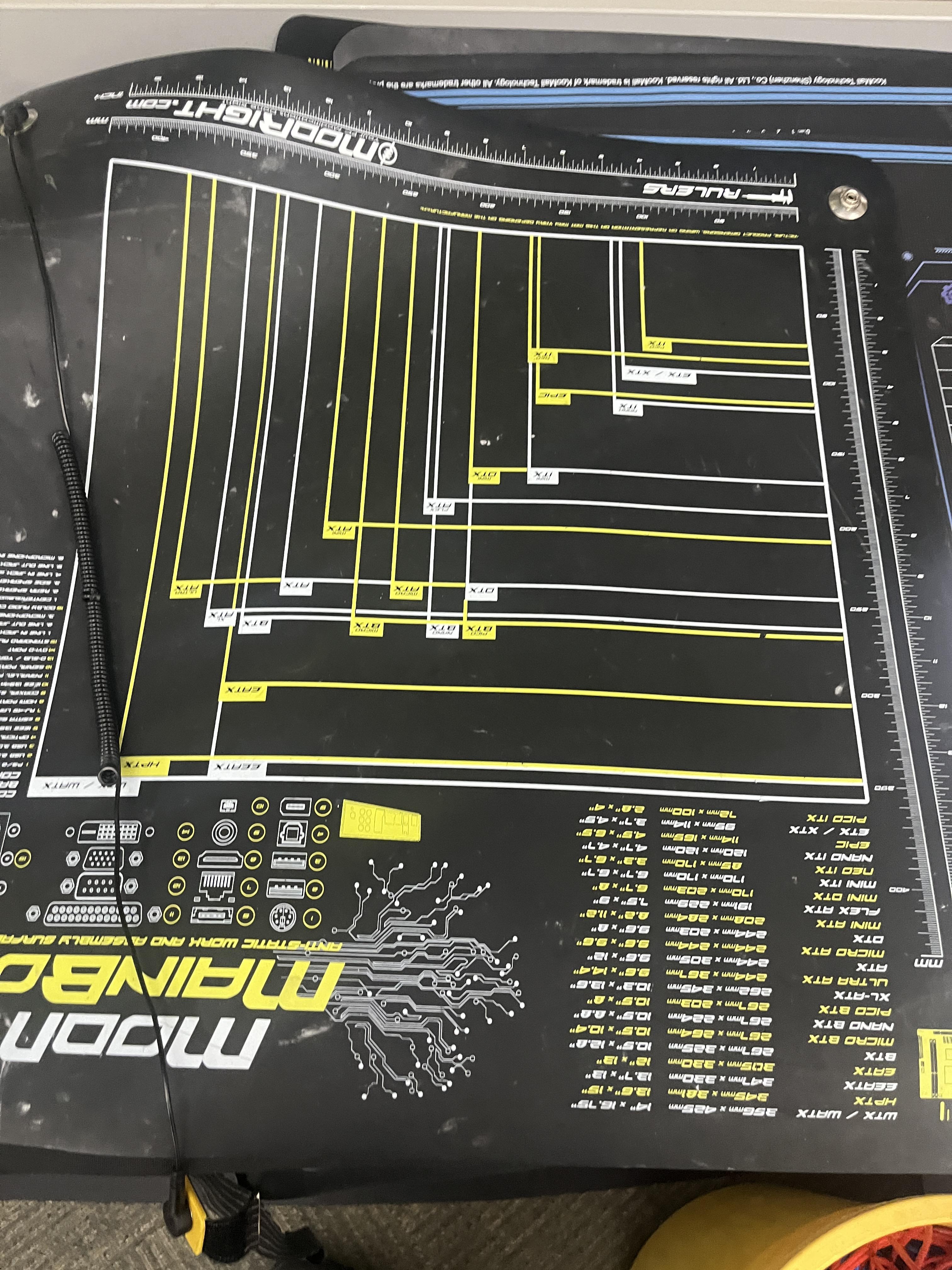
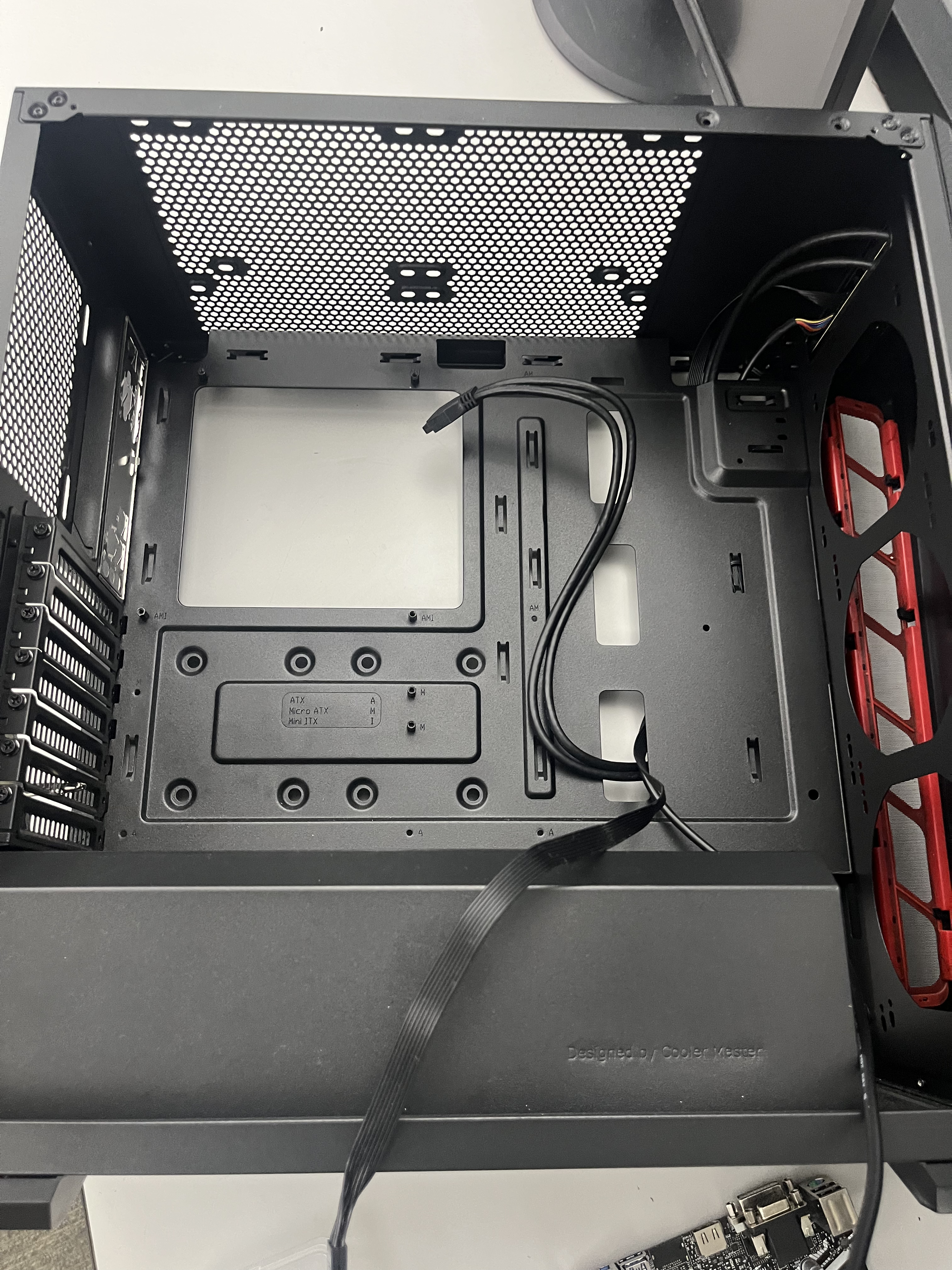

- PC Case
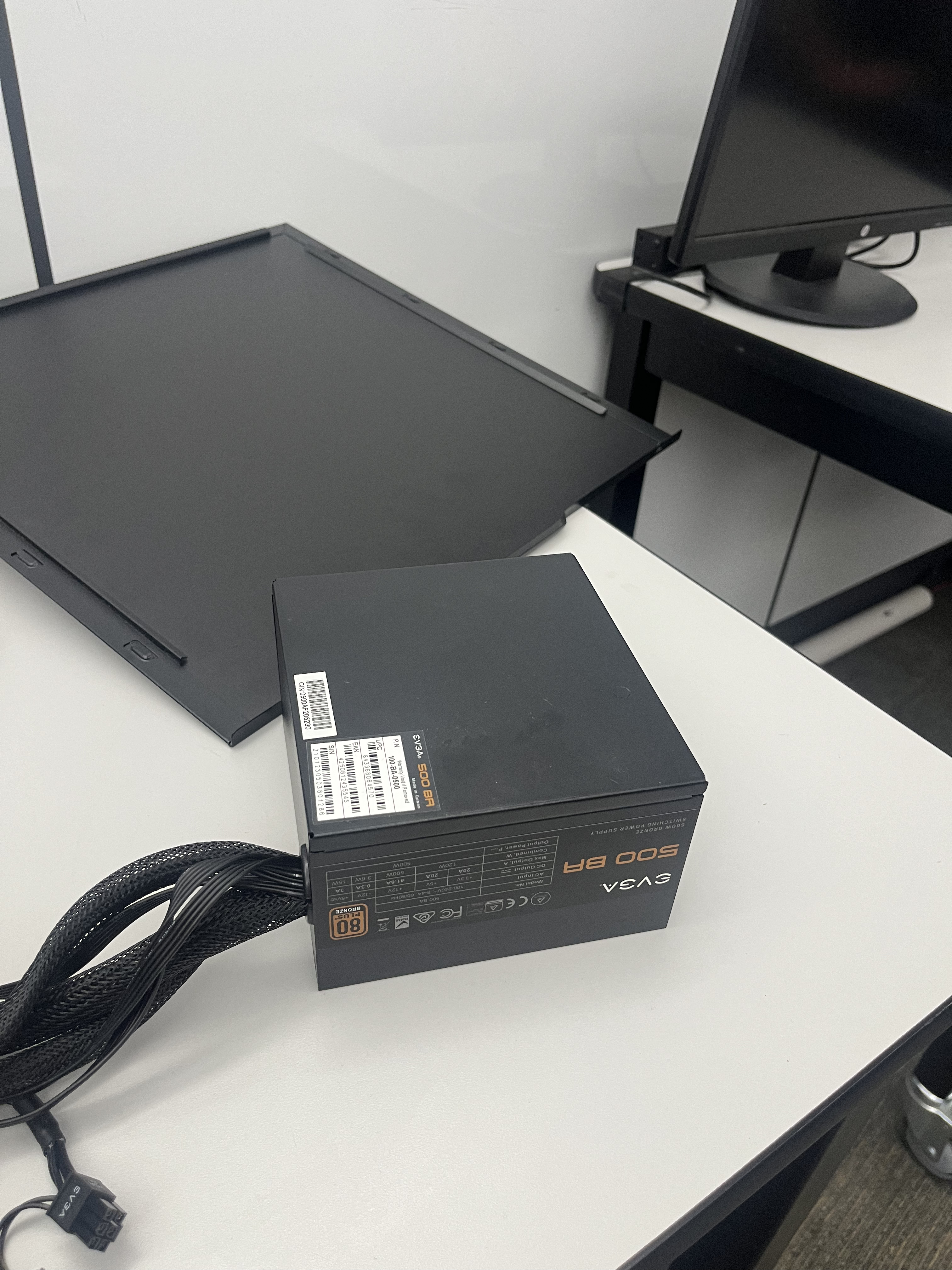
- Power Supply Unit
- Appropriately Sized Motherboard
- Central Processing Unit (CPU)
- CPU Cooler
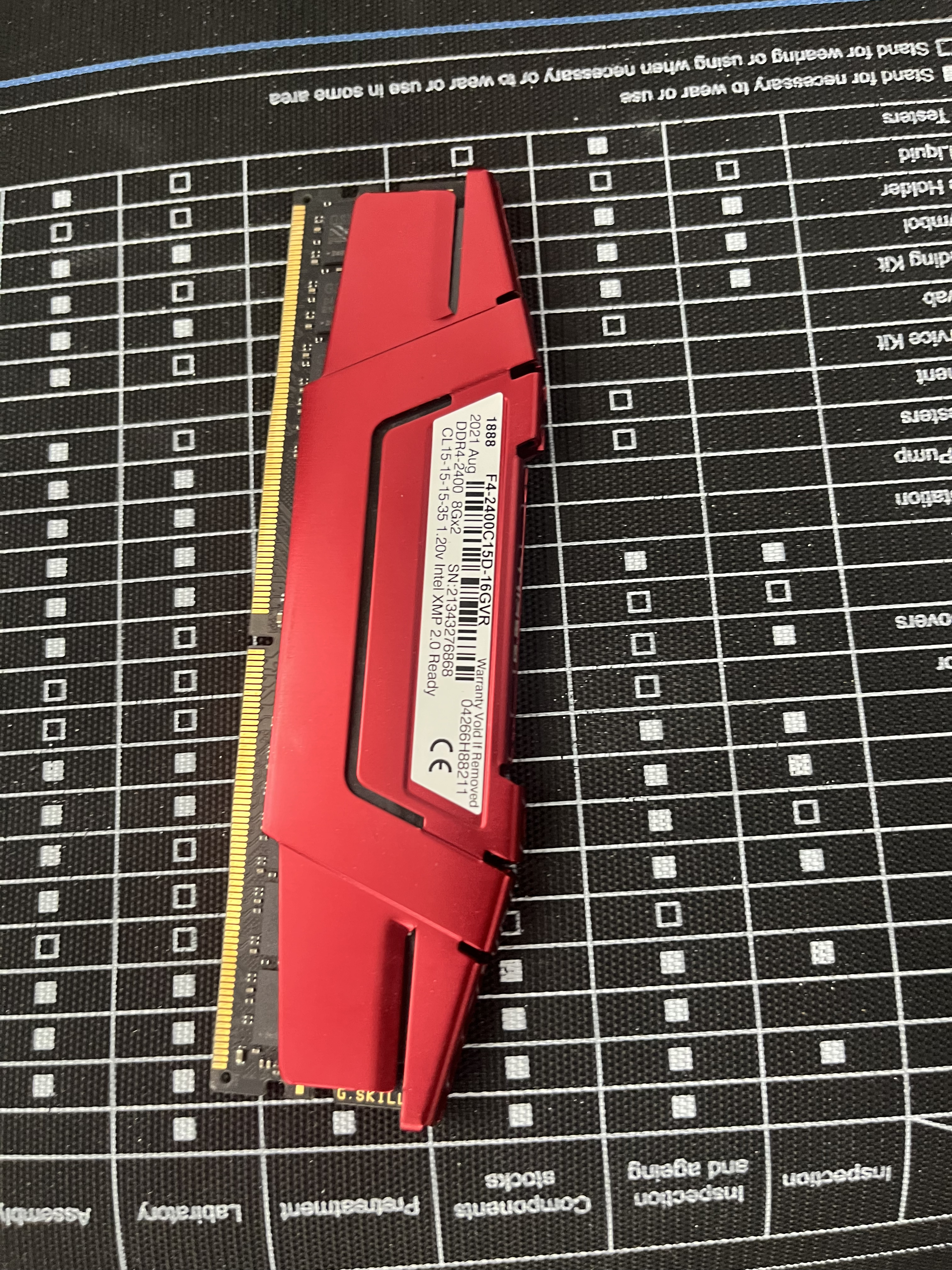
- RAM (random access memory) Sticks
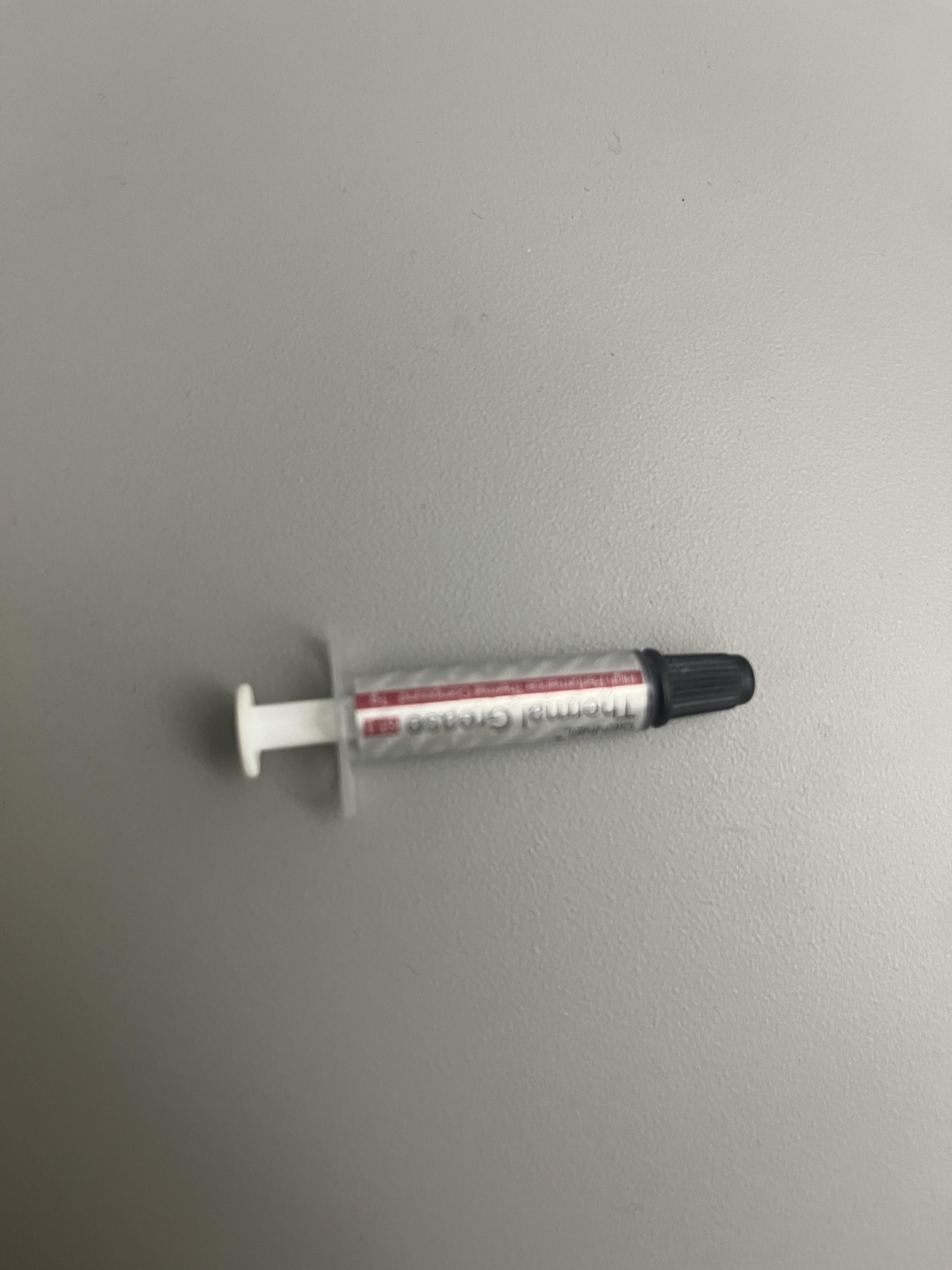
- Thermal Paste + Alcohol Wipes (recommended)
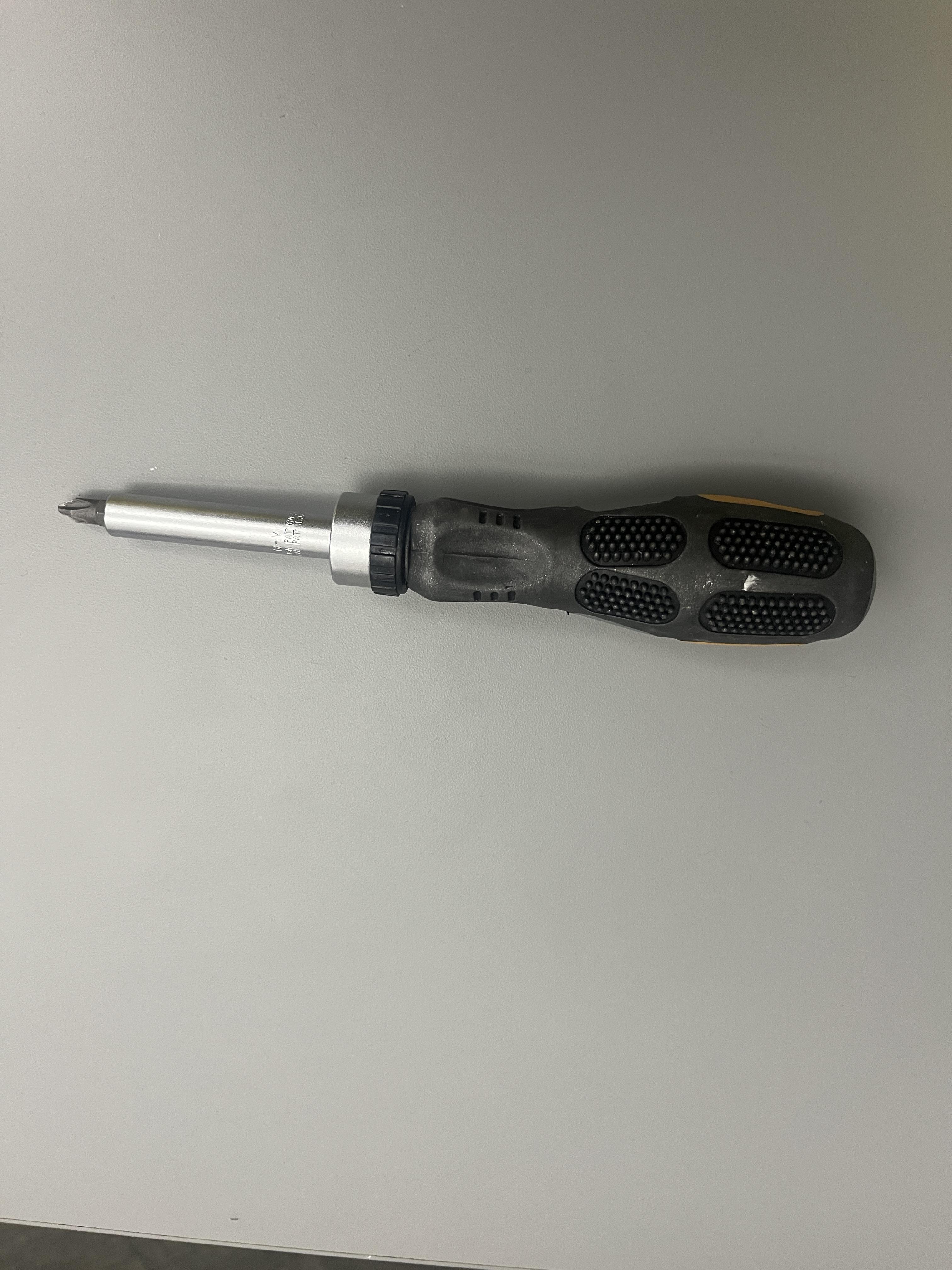
- Screwdriver
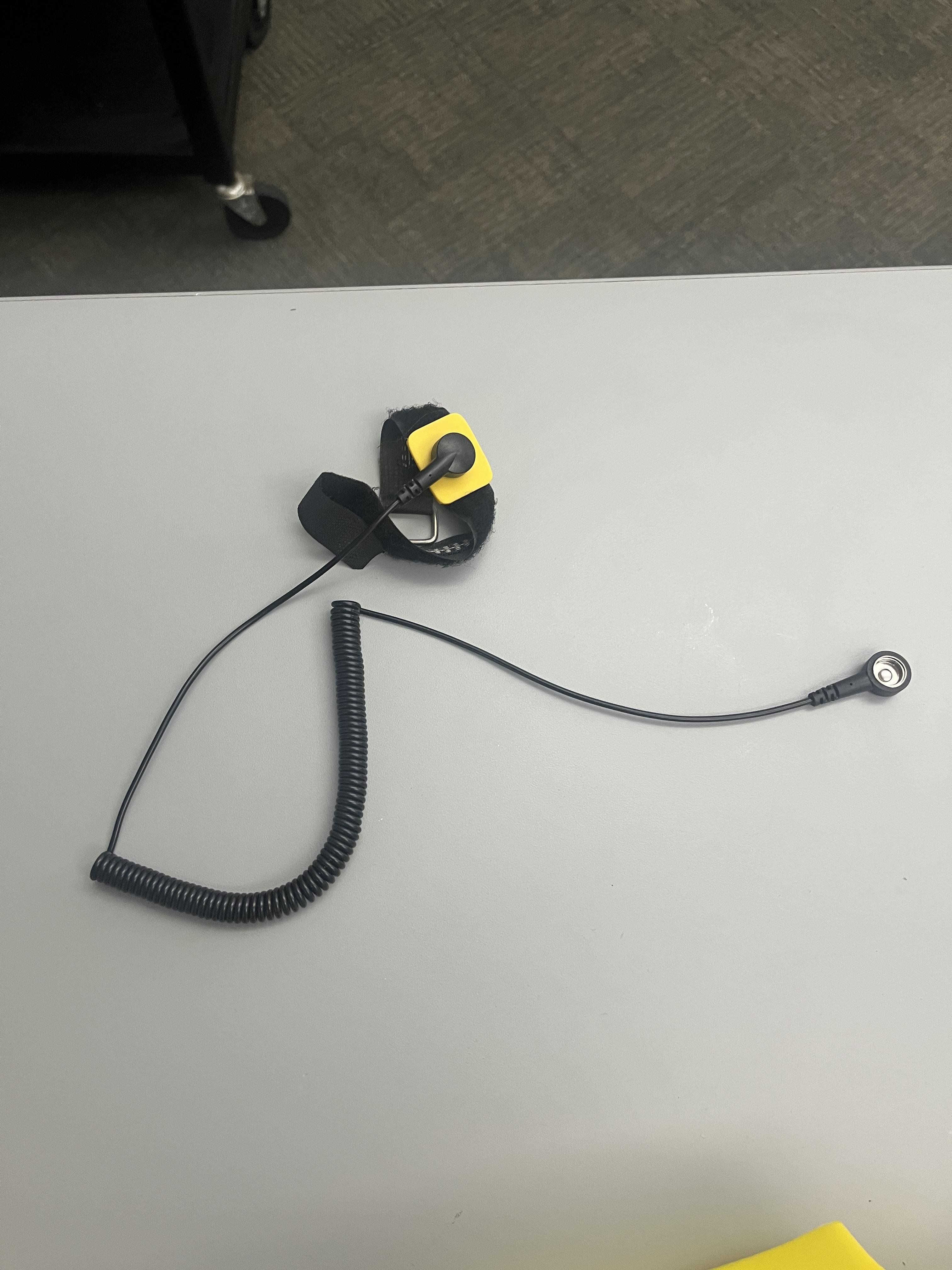
- Anti-Static Mat + Wristband
- Necessary Screws
Arrange Materials
Before you begin building your PC, you should set down your anti-static mat in your workspace and ensure that your anti-static wristband is connected either to the PC or the mat. You do not want to go through all the trouble of building your own computer only to find that four thousand volts of static electricity invisible to the human eye shorted our your motherboard. That would be quite tragic.
Prepare the Motherboard
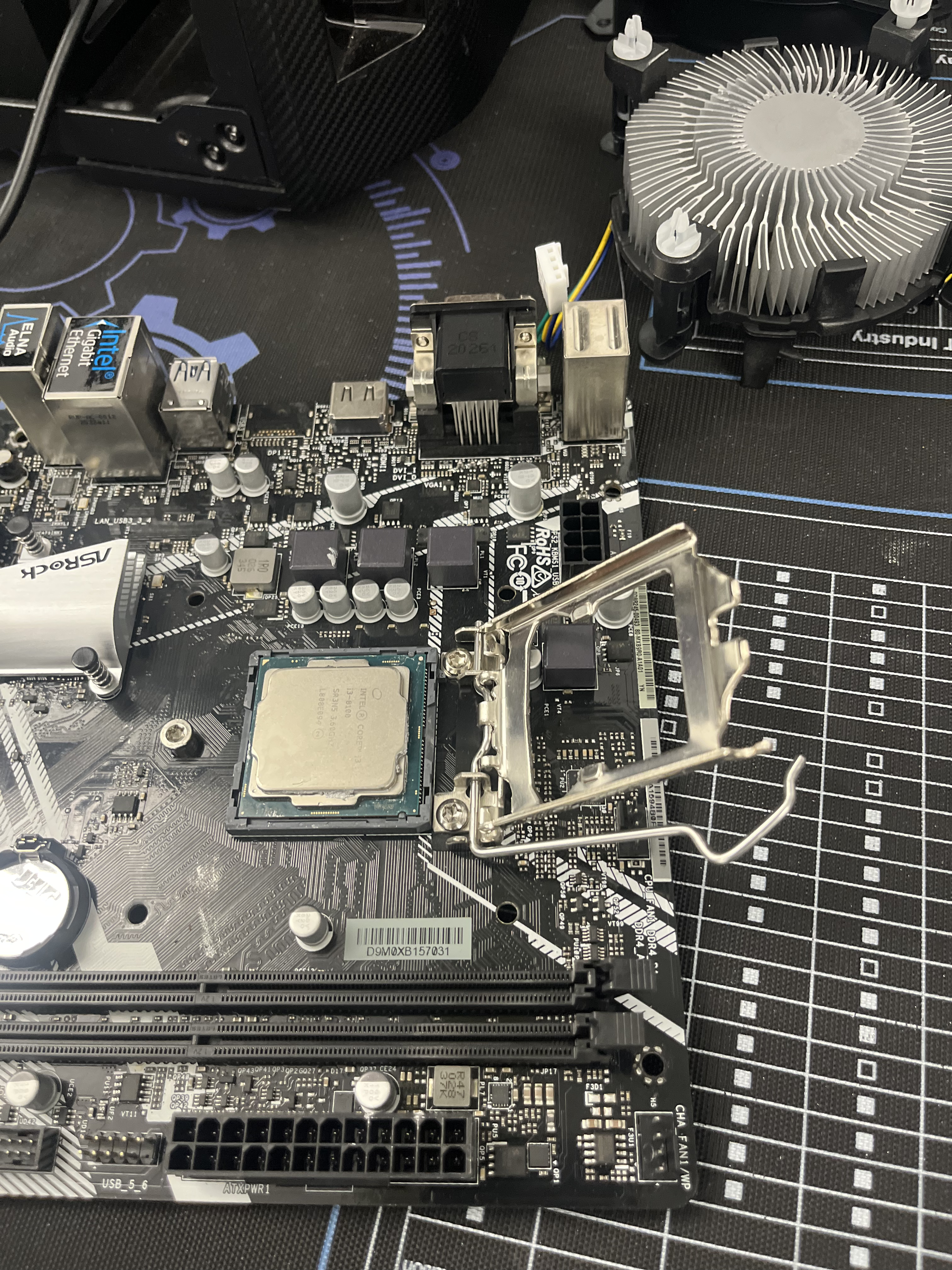
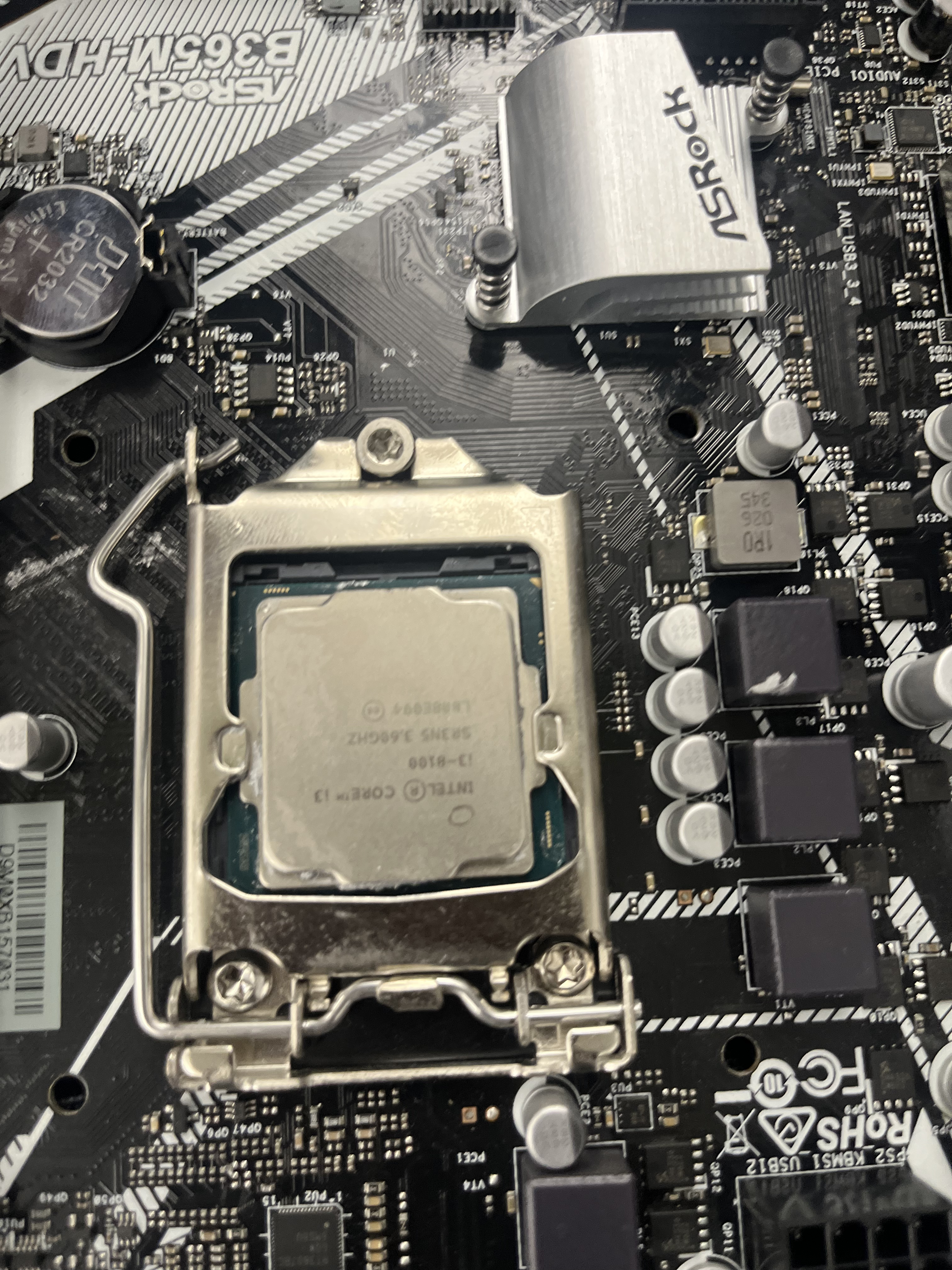
Now that you're set up, it's time to get to work. It's best to prepare the components that belong on your motherboard before you install the motherboard. Those include your RAM, your CPU Cooler, and of course, the CPU. You may also have extras such as a GPU or more fans.
- First, install your CPU. Make sure that the gold triangle in the corner matches up with the triangle on the CPU Socket. Once you're positive that the CPU is properly seated, lock it into place with the bracket.
Prepare the Motherboard Contd.

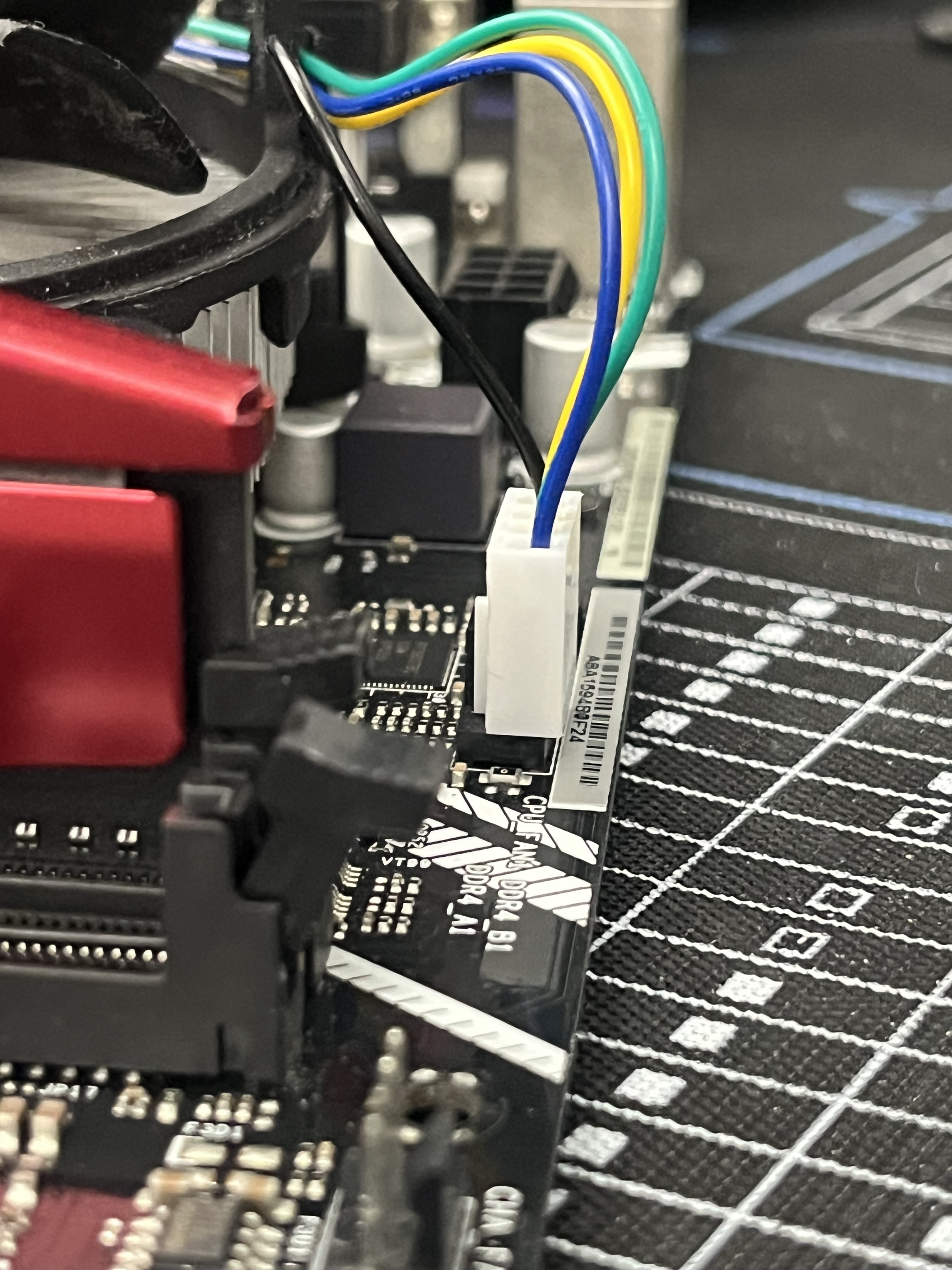
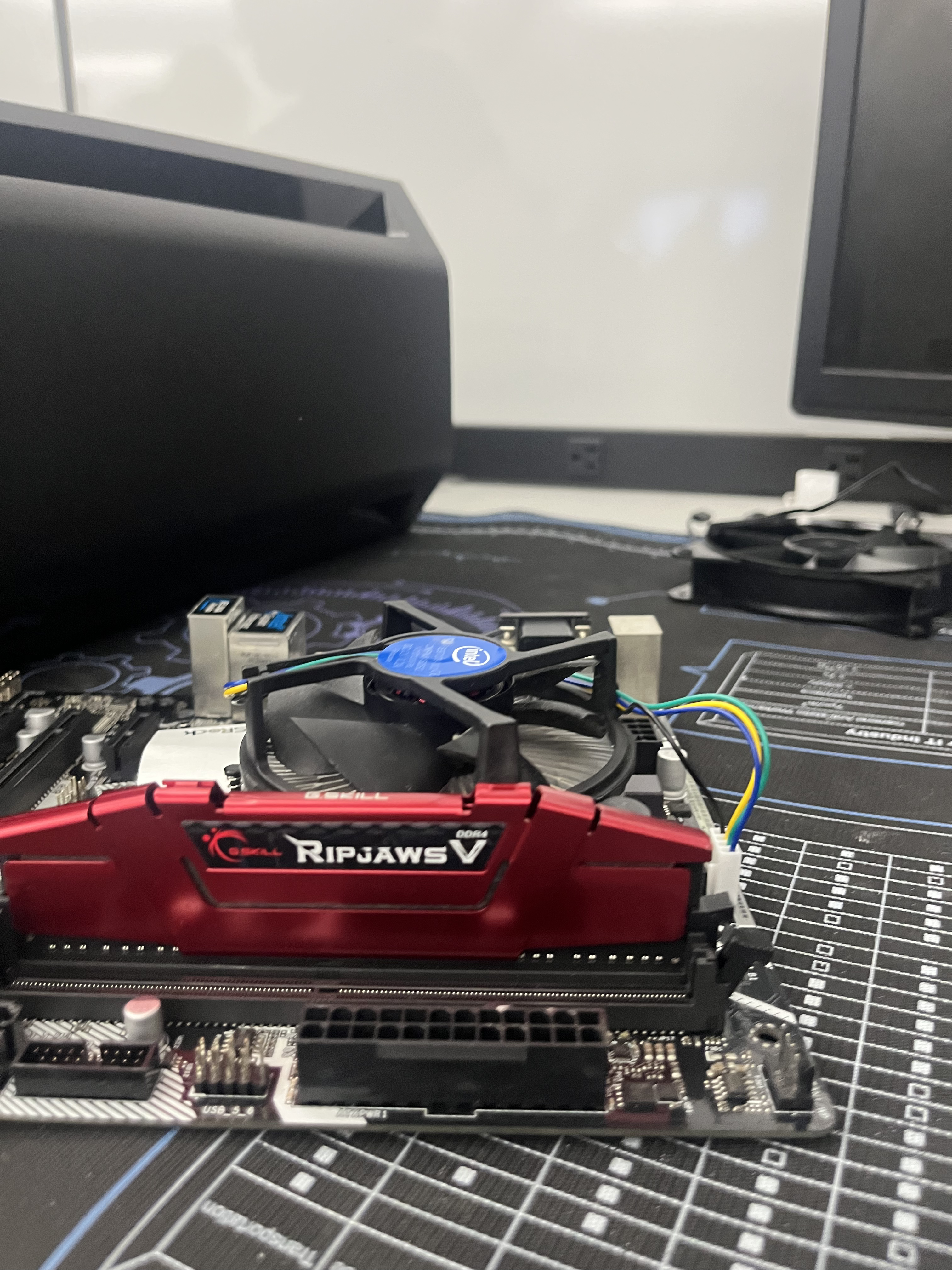
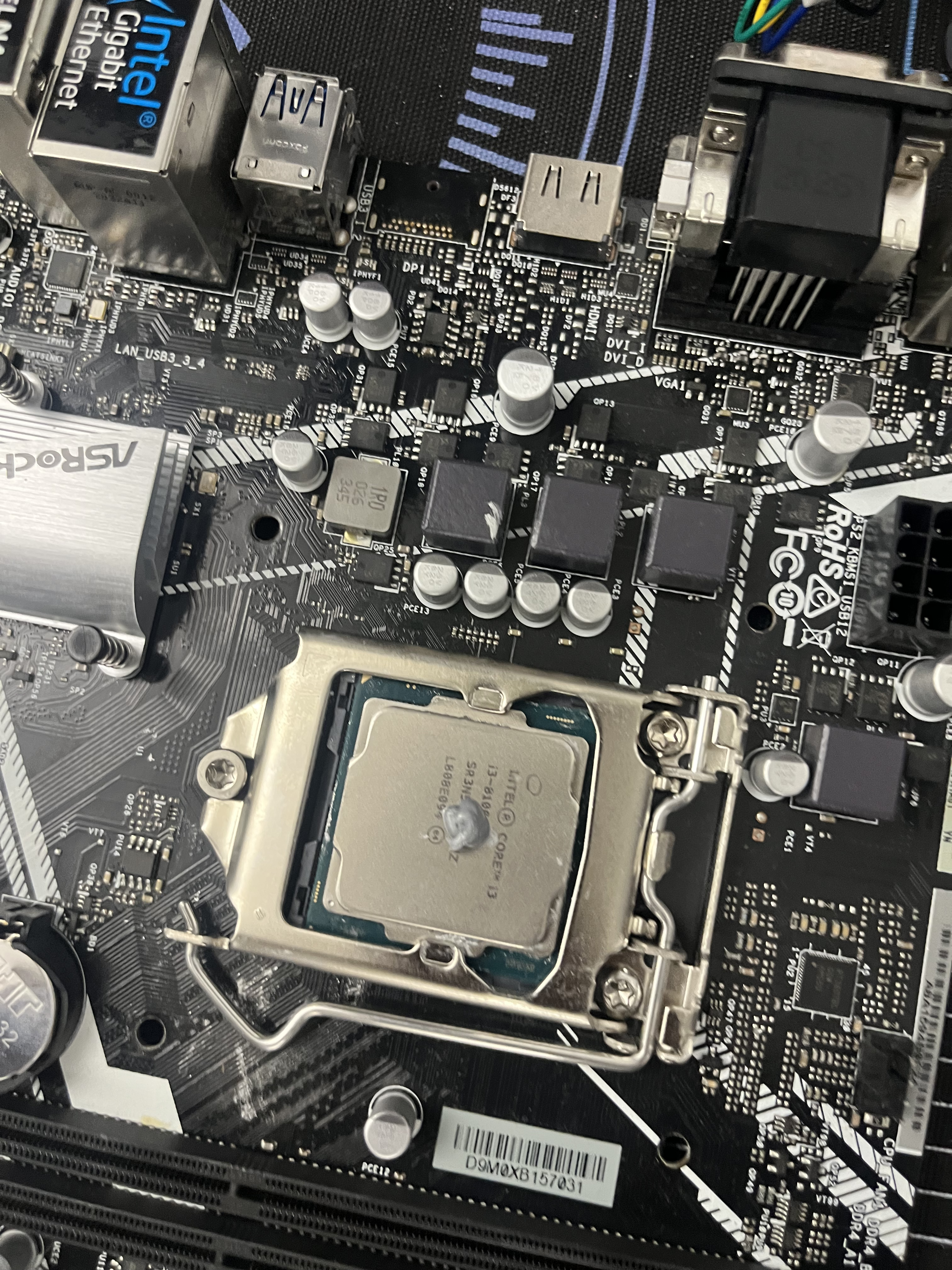
- Apply a pea-sized dot of thermal paste to the center of the CPU. It's time to install the CPU Cooler. In this case, I'm using an Intel Stock Cooler. Ensure that your cooler is properly aligned so that it can be plugged into the motherboard. For the Stock Cooler, I have to rotate the pins 90 degrees and click them into place so that the black parts stick out on the bottom.
- Now, seat your RAM. Because the RAM has a notch in the middle, it is keyed; it can only be installed one way. Open the RAM slot--on some motherboards, both sides come open, but in my case only one does--and seat your RAM. Once properly installed, lock your RAM into place.
Great! You've prepared the motherboard. Good work!
Mount the Motherboard
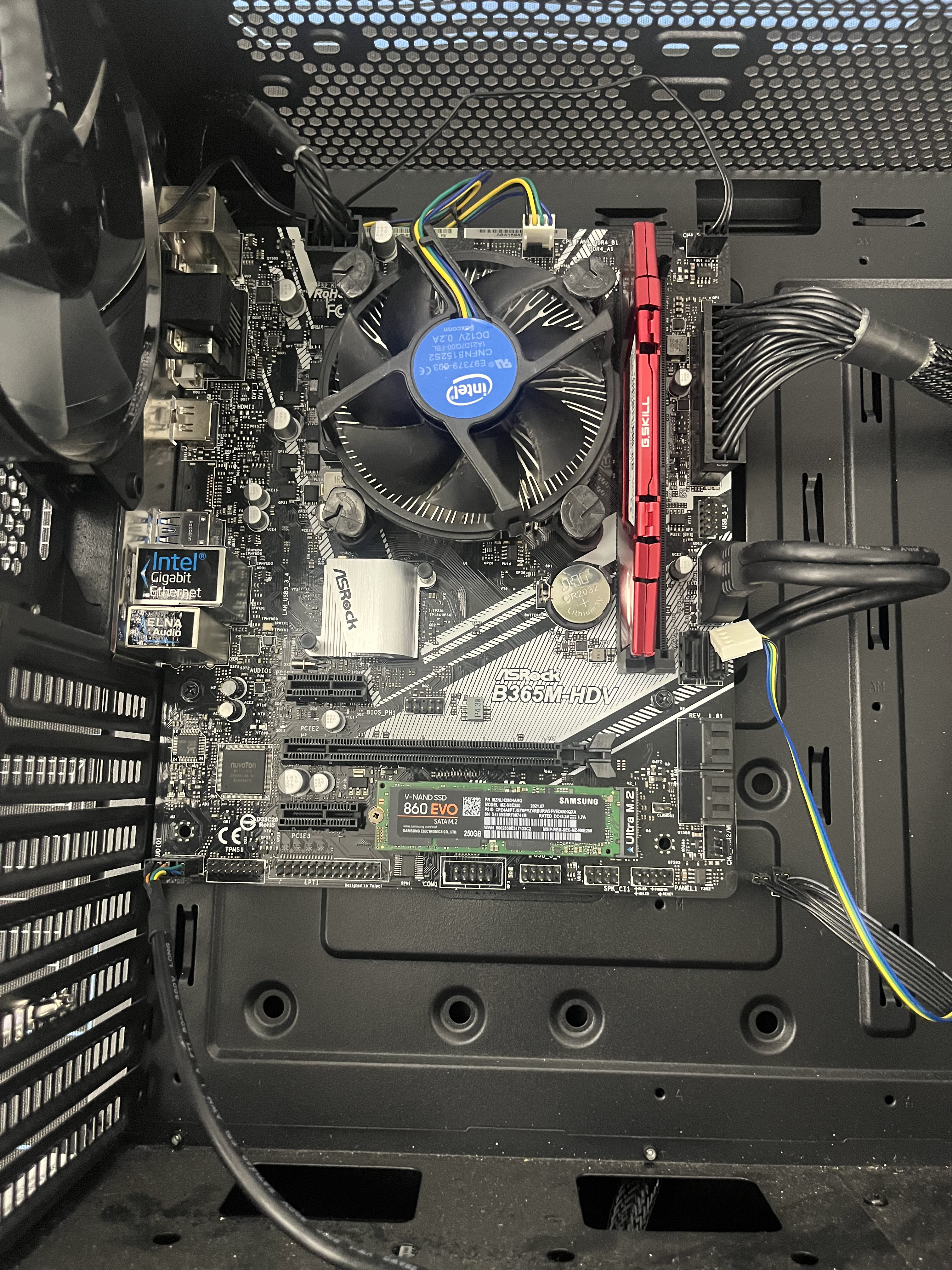
It's time for your prepared motherboard to go into its new home. If you have standoffs preinstalled, make sure that the standoff holes on your motherboard line up with them. If you do not have standoffs preinstalled, install them. The standoffs make sure the board doesn't touch metal, which could (tragically) short it out. After that, screw the motherboard into place. If you have an I/O shield, a sharp, transparent shield that protects the out-facing ports of the motherboard (sound, network, USB, etc), you can install that.
Install PSU
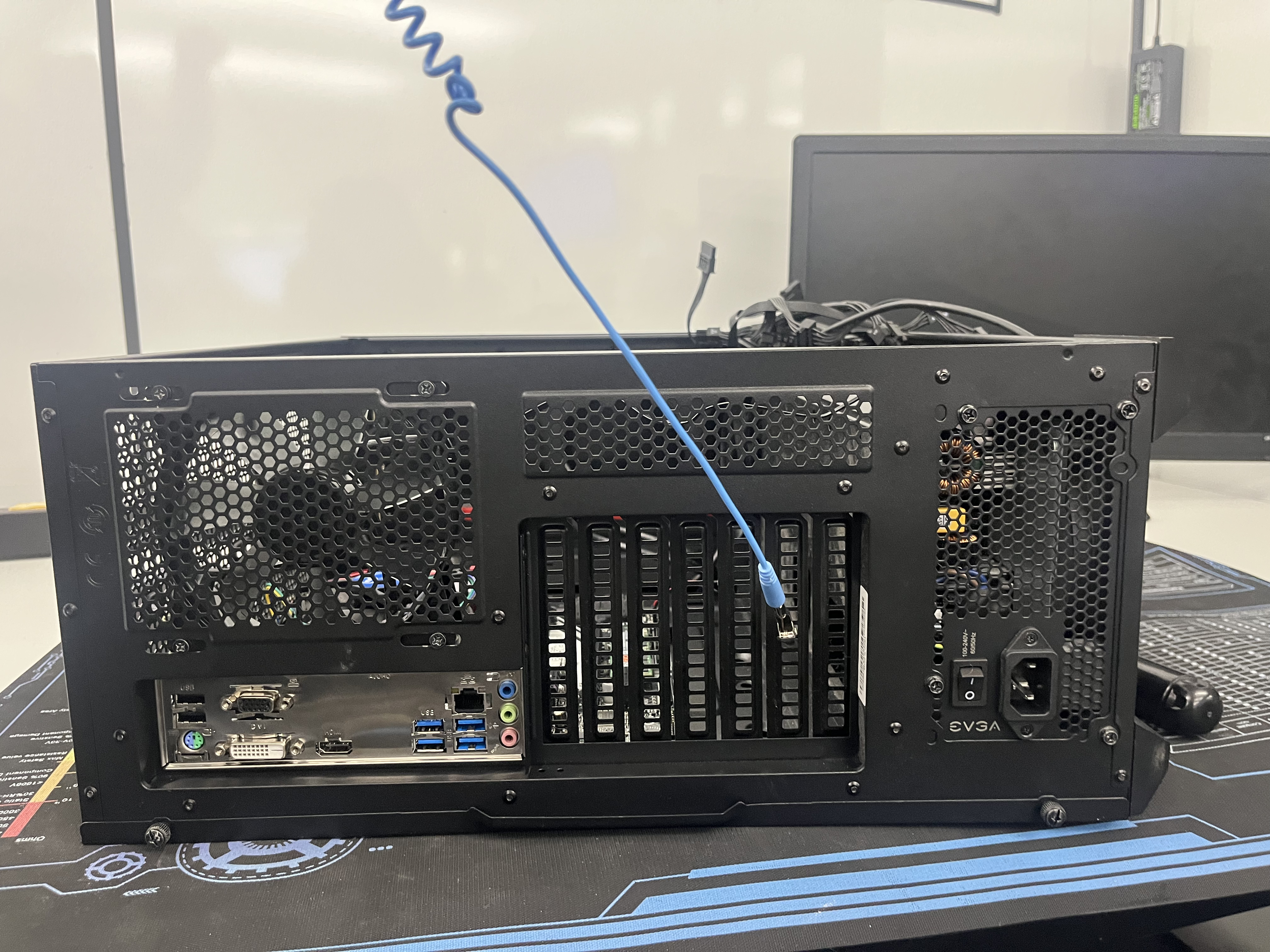
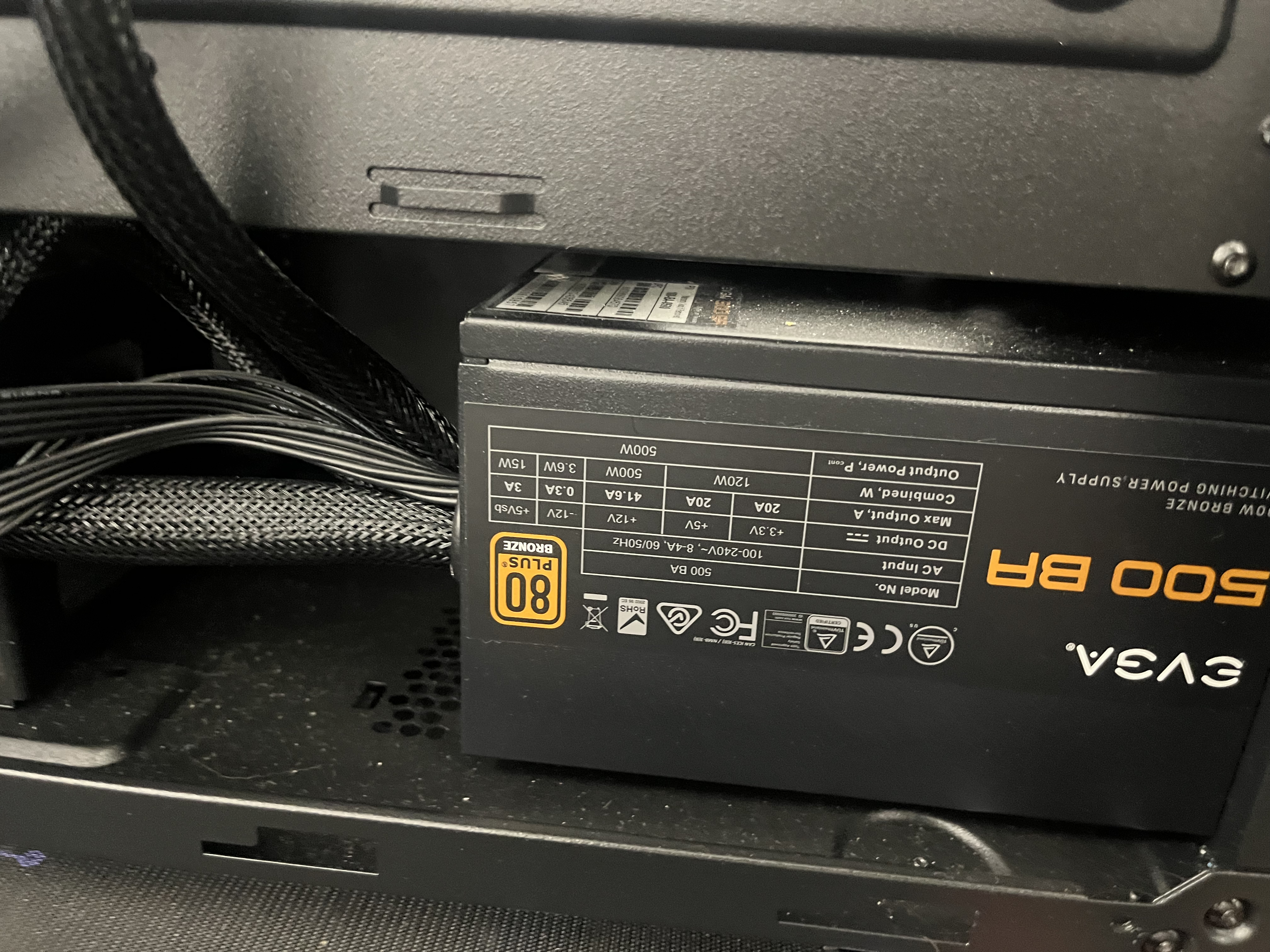
The Power Supply Unit, or PSU, is a very important part of your PC. It powers the motherboard and many parts of it, which in turn powers the PC itself. My EVGA 450W 80 Plus Bronze Power Supply is non-modular--I can't detach any of the cables. However, your PSU may be modular. Anyway, it's time for it to be installed.
- Put your PSU where it belongs in your case. The part containing the rocker switch (the main power switch) should probably stick out. Soon, we will deal with the inordinate amount of cables, but first, put your PSU's screws in the appropriate screw locations and screw it into place.
Plug in the Cables
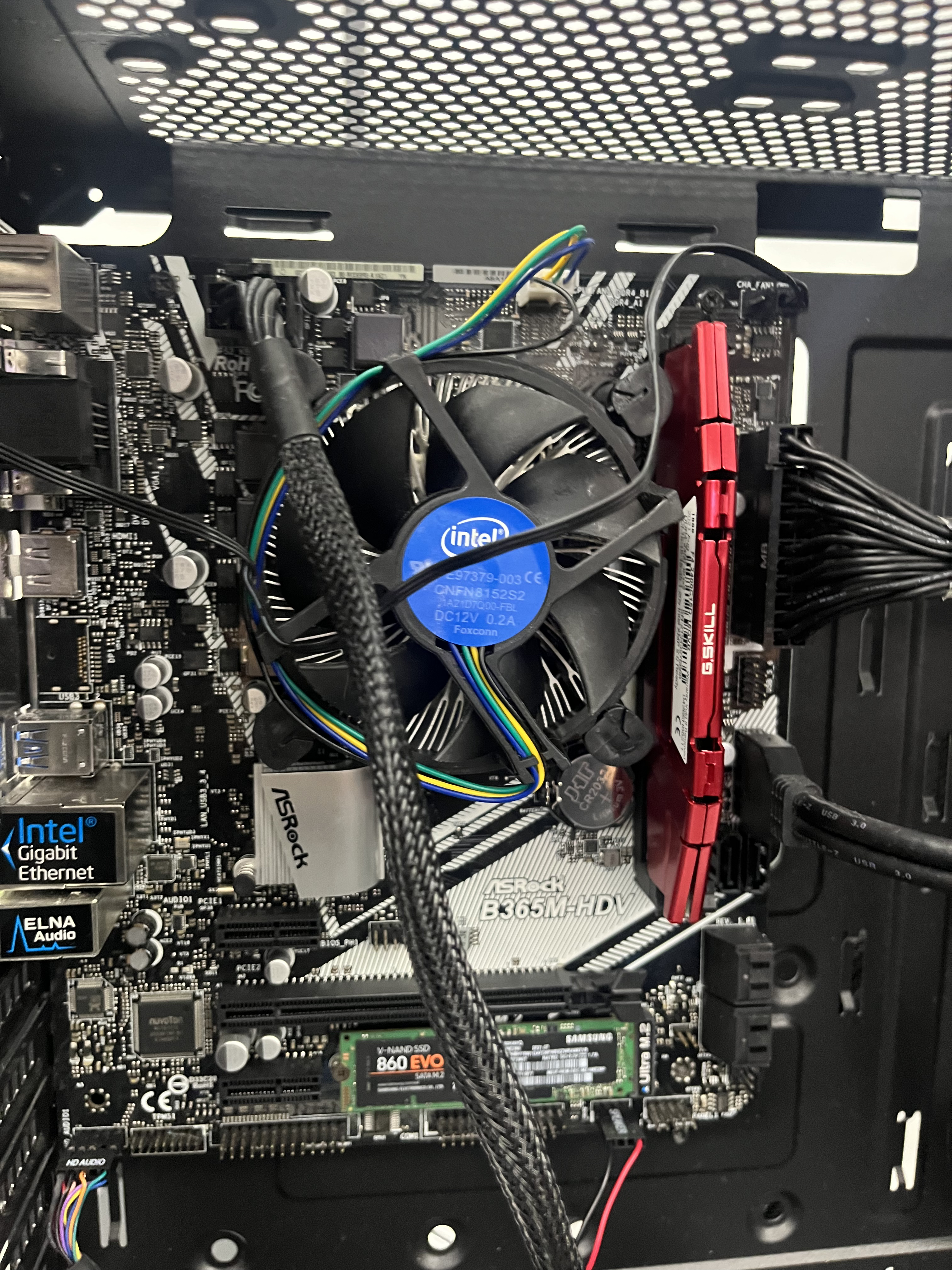
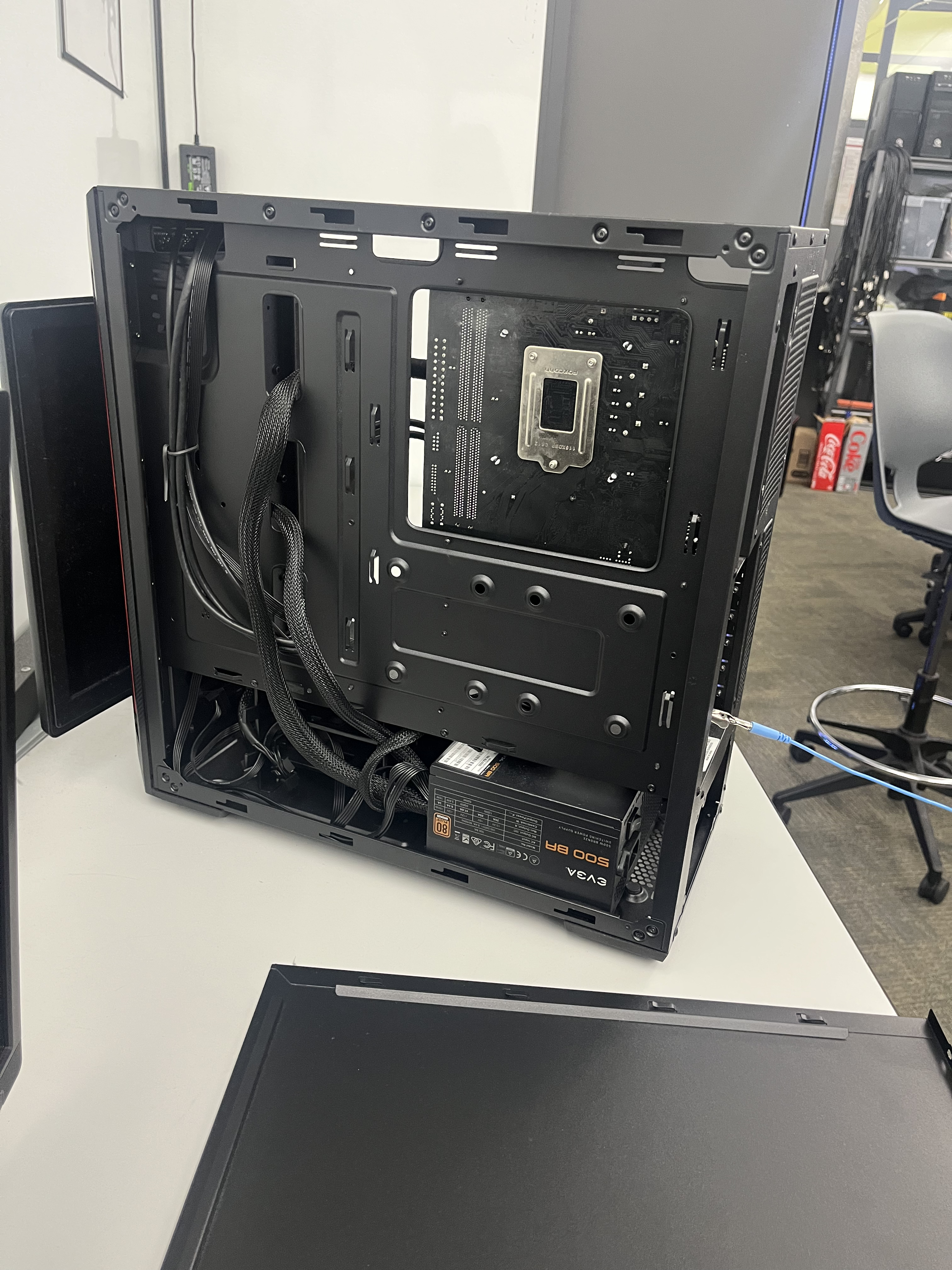
If you have been successful thus far, great! If not, you'll get there. Either way, it is time for a slightly more complicated process: connecting the PSU cables to the motherboard (and anywhere else they go). You should be able to figure out what goes where by reading the labels on both your motherboard and on the cables. Your motherboard's manual, found online and/or in the box it came in, could also potentially be of assistance.
For example, plug in the 24 pin connector, which powers the motherboard itself, the 4/8 pin connector, which here looks very similar to the GPU connector (so ensure you're reading those labels) and powers the CPU, and the system front panel connectors, which have a history of inspiring frustration as they can be very tricky.
Unfortunately, I am unable to provide tips about installing a Hard Disk Drive or a Solid State Drive as I have not yet done it myself.
Case Fans
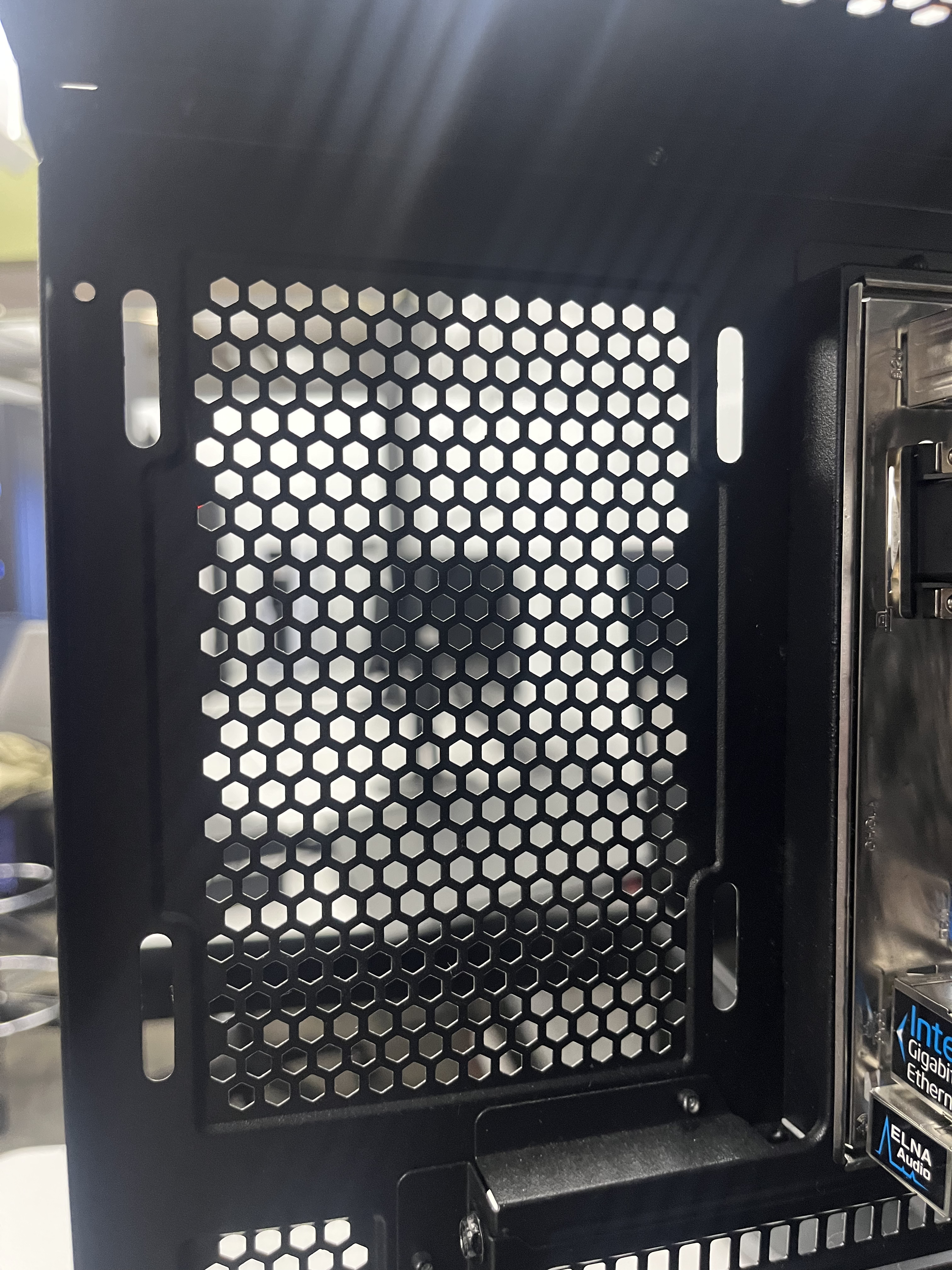
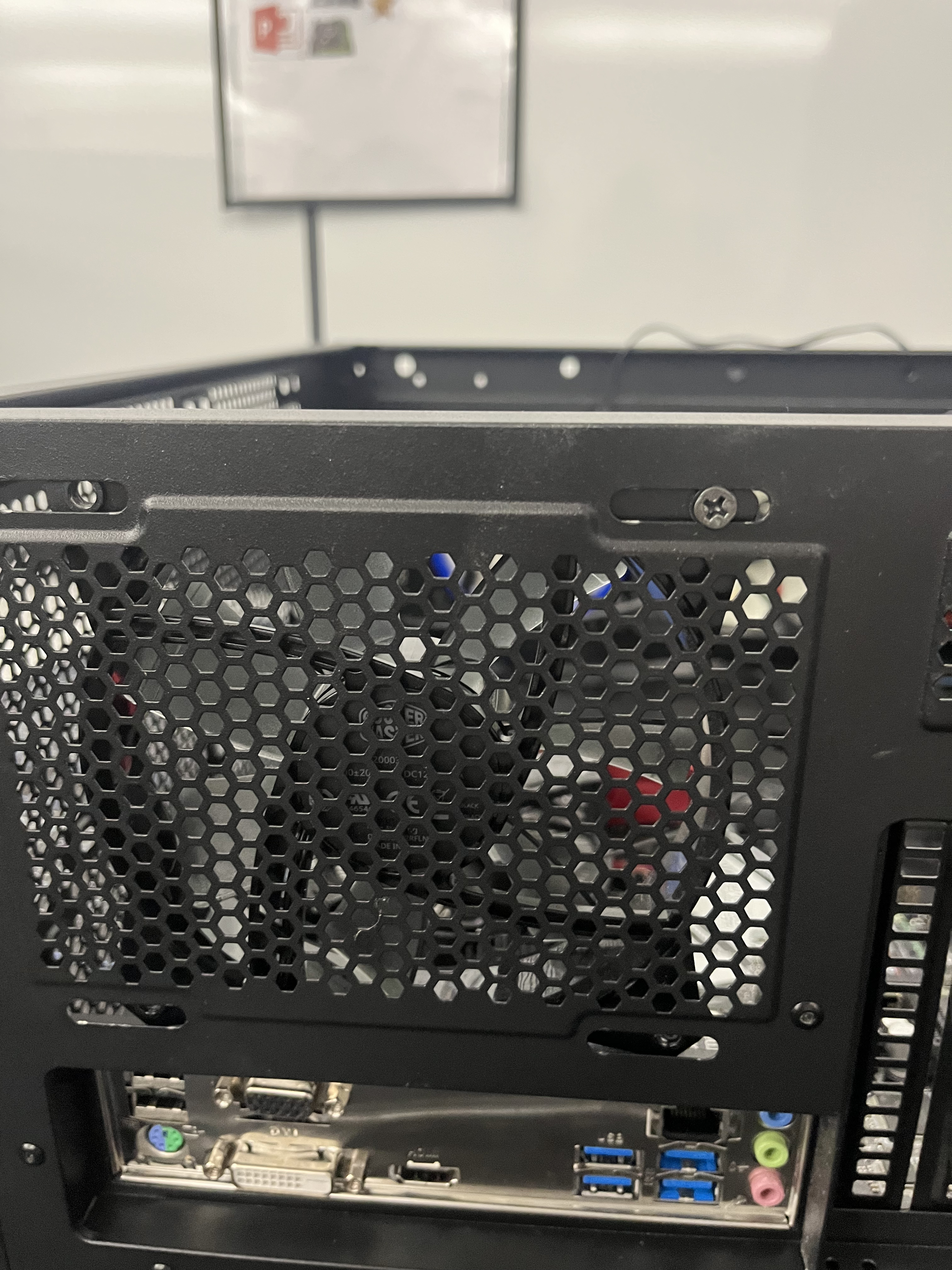

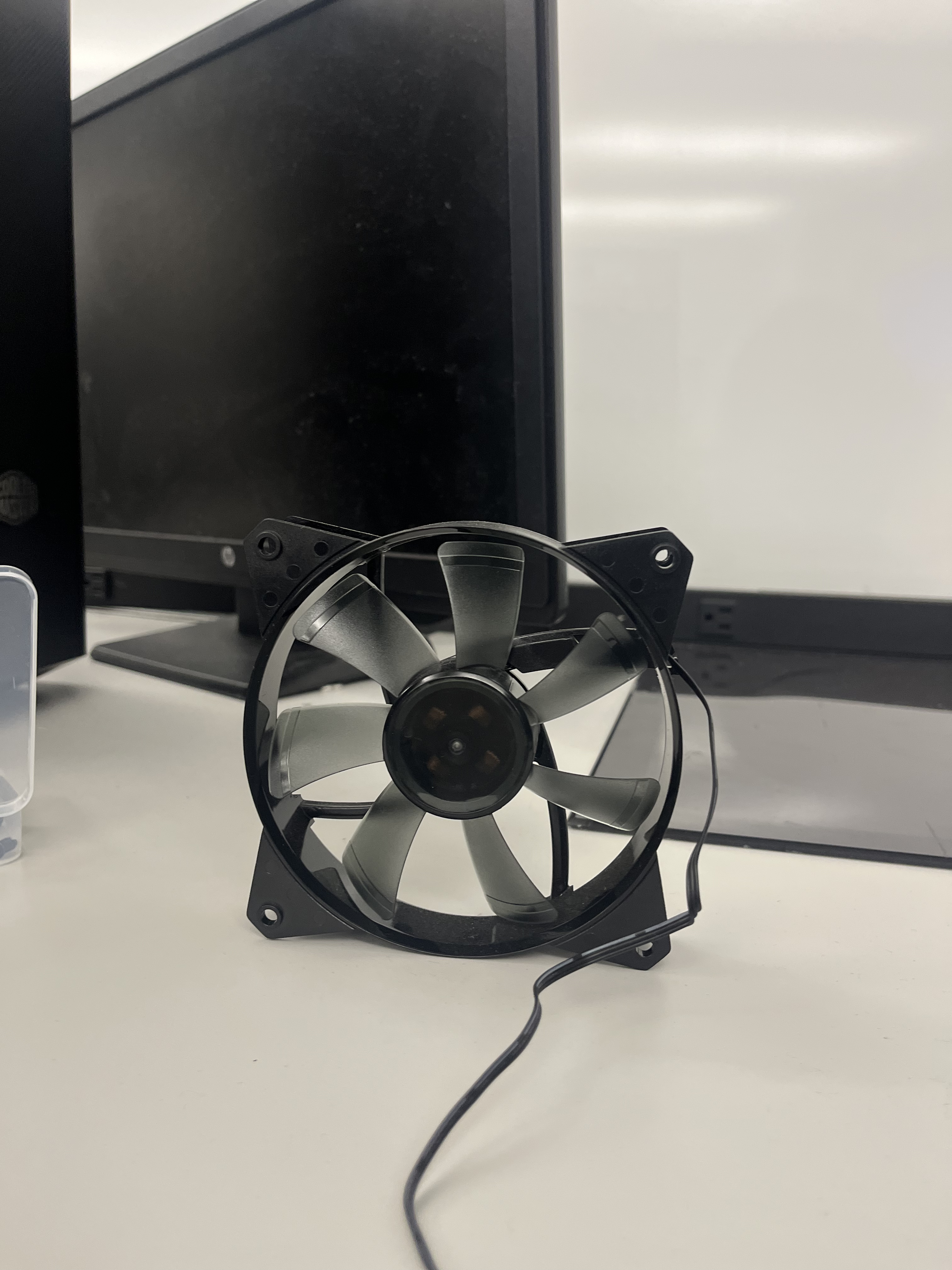
This step may not apply to everyone, but I had three fans that I installed into my PC case. One, which plugged into the motherboard, needed to be screwed in. The other two used these push-pin connectors that weren't too hard to install.
POST Beeps
POST Beeps are sounds a computer's BIOS makes when there are POST (Power-On Self-Test) issues. These can include problems with the installation of the RAM, CPU, etc. One short beep means there aren't issues, and to know what the other beep codes mean, check your motherboard's manual.
Rejoice in Completion and Put the Case Covers Back

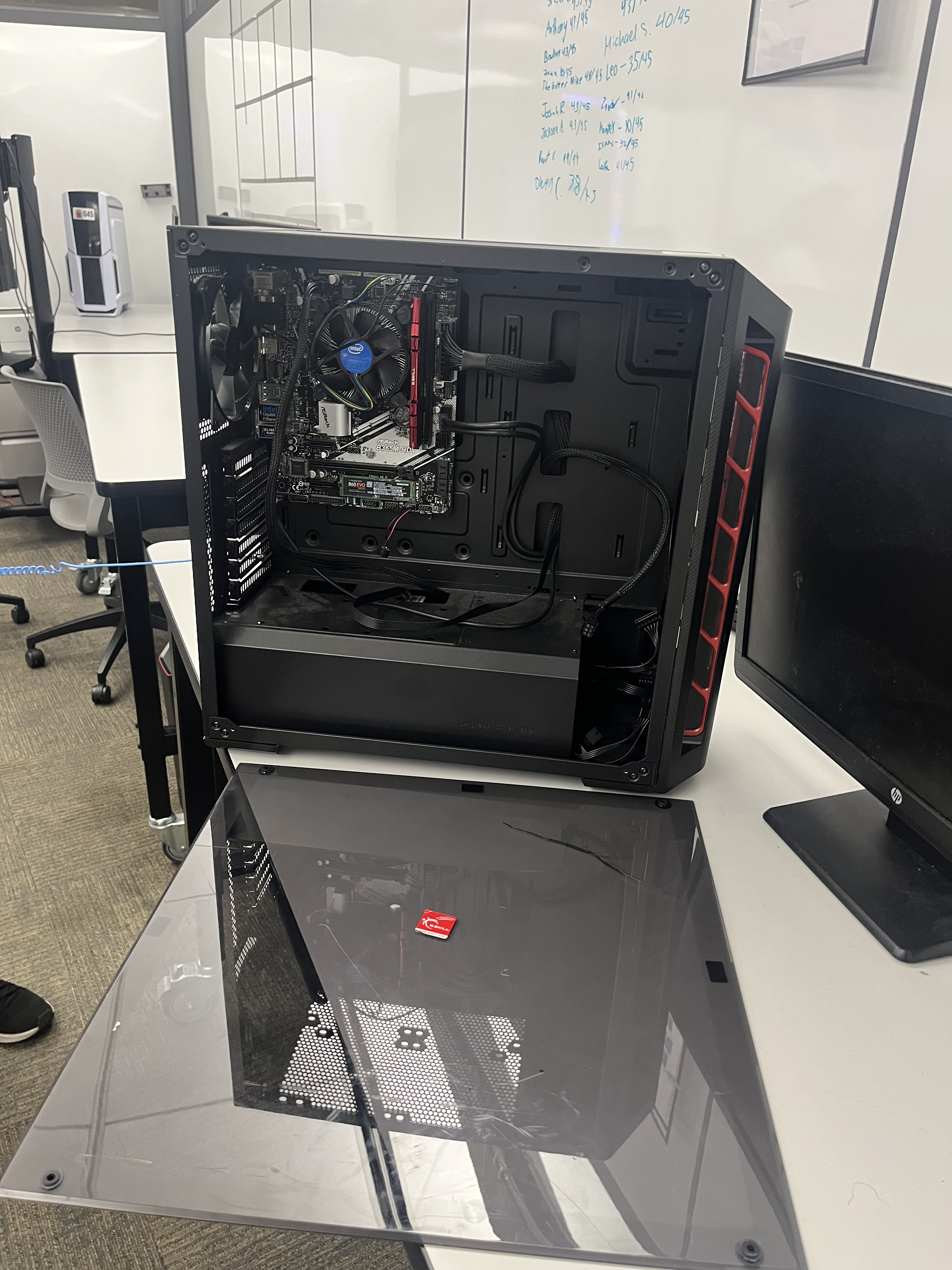
Congratulations! After completing the previous seven-ish steps, you have hopefully fulfilled your goal of assembling a PC. You should be very proud of this accomplishment.