How to Build a Desktop Computer
by Spadeslayer in Circuits > Computers
27 Views, 0 Favorites, 0 Comments
How to Build a Desktop Computer
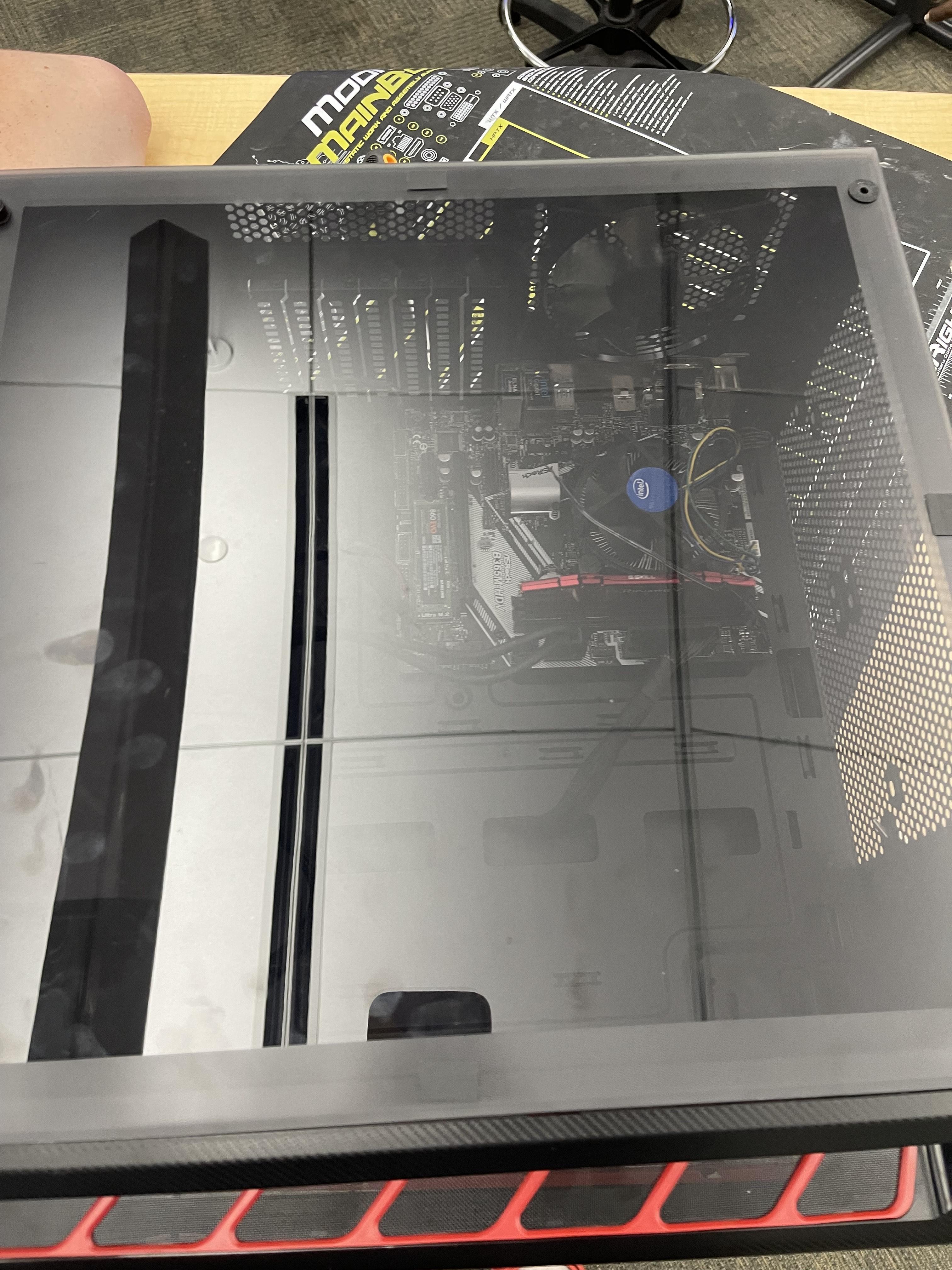
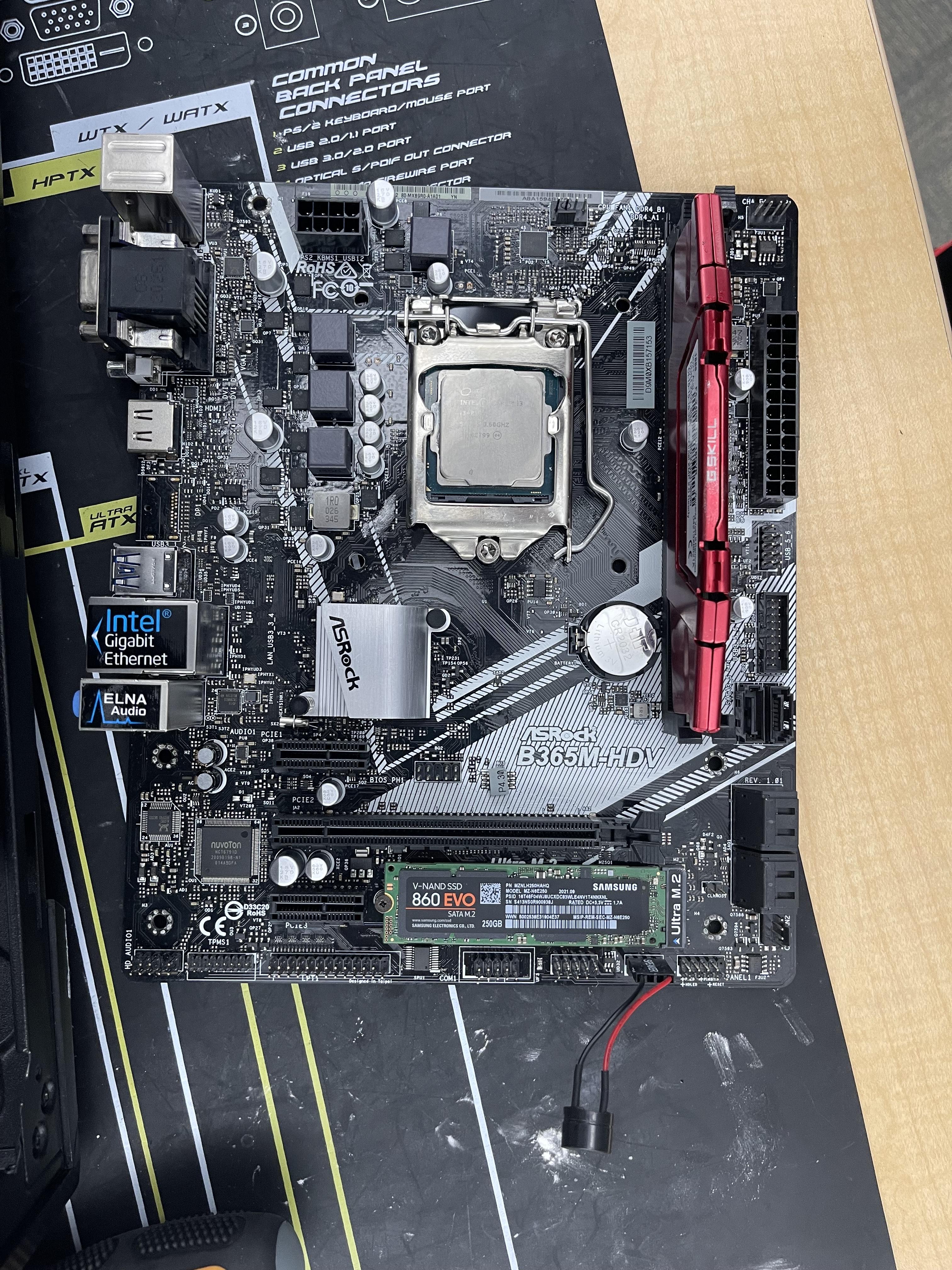
Building a PC is the process of assembling individual hardware components—like the motherboard, CPU, RAM, and storage—into a compatible system housed within a case. This project allows for complete customization of performance and appearance, ultimately requiring careful installation of each part and final connection of power and peripheral cables before installing the operating system.
Supplies
Thermal Paste, Case, RAM Sticks, CPU, Motherboard, Power Supply, CPU fan, Cables.
Inserting the RAM
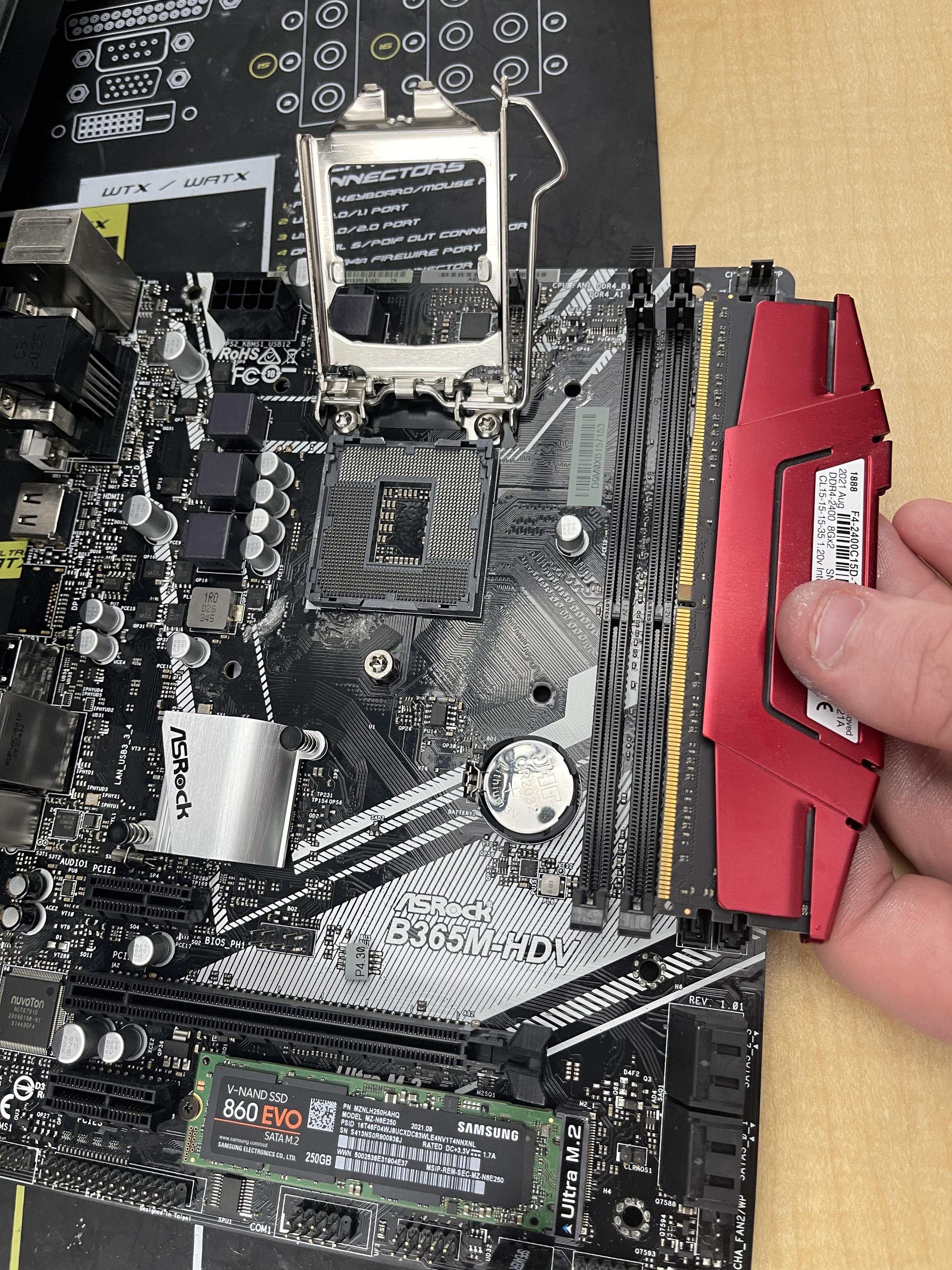
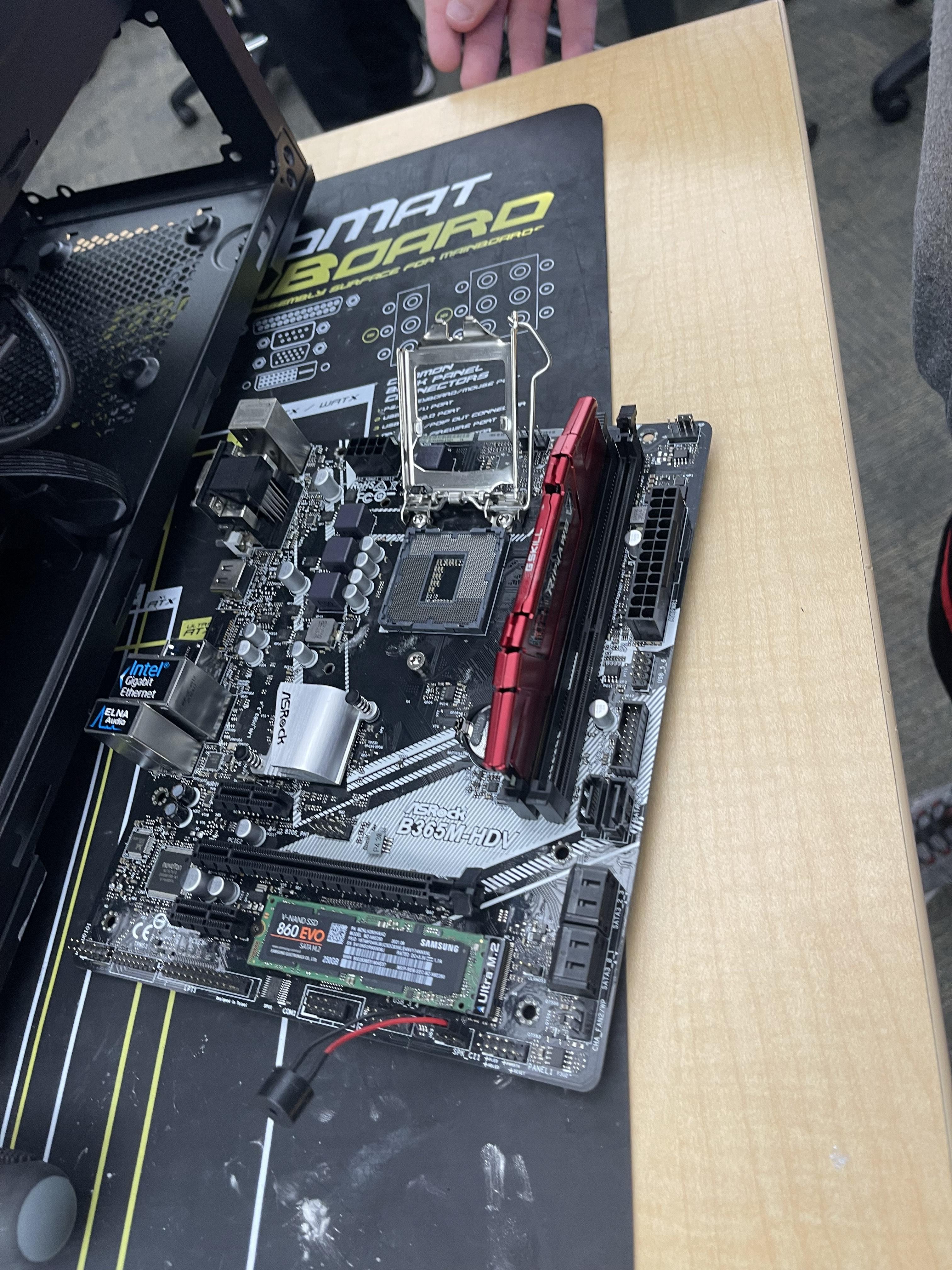
To install the RAM, find the long, thin slots that have a notch near the middle. Then simply pull up the two fins and slide it in. Mine is only one fin, but it still functions the same.
Inserting the CPU
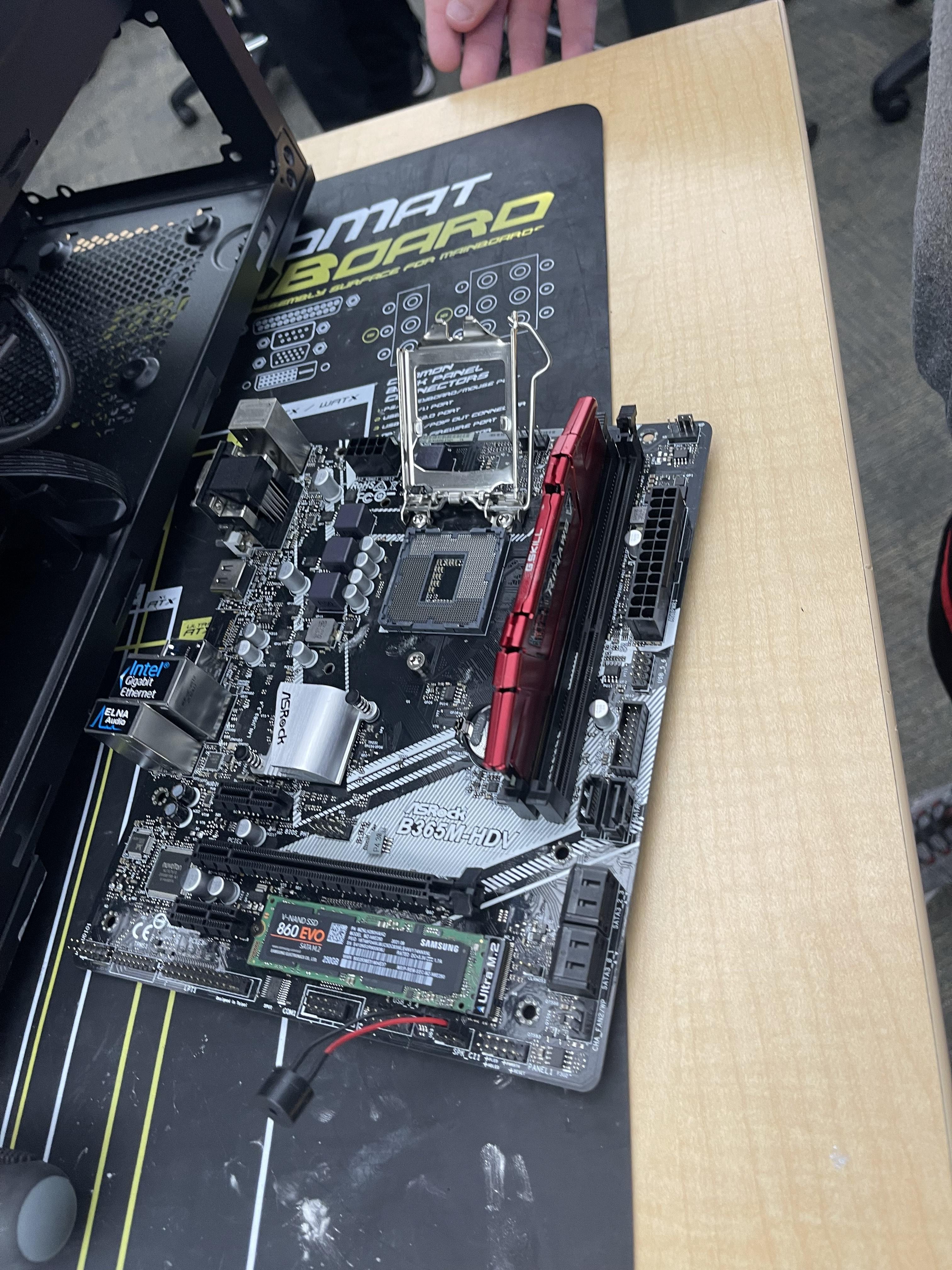
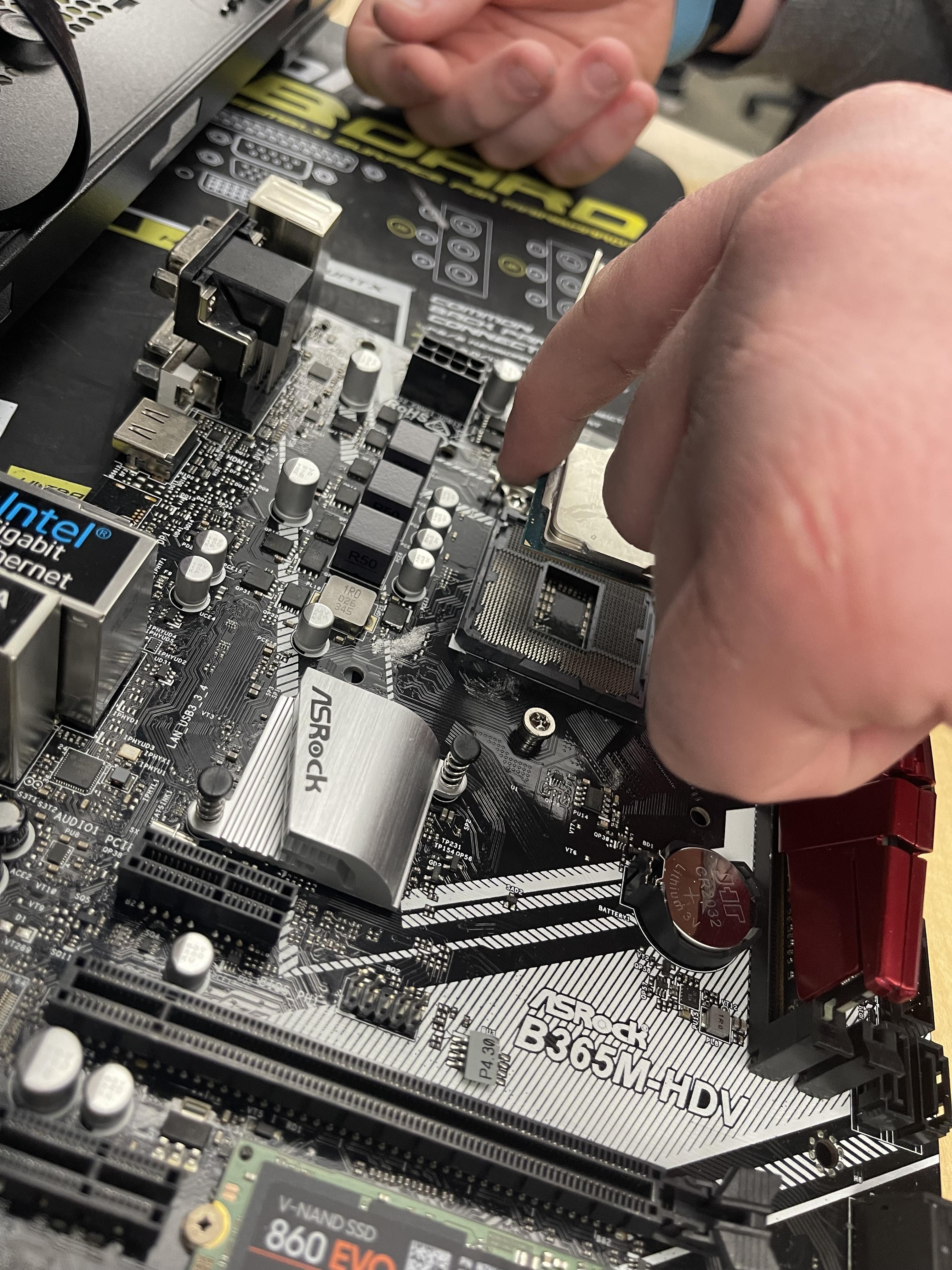
Before inserting, make sure that the arm is lifted and all of the pins are straight. The purpose of the arm is to keep the CPU straight. The CPU should fall right into place if you put the two triangles together, found in one of the corners. Then, place the arm down to secure it in place.
Insert the Motherboard
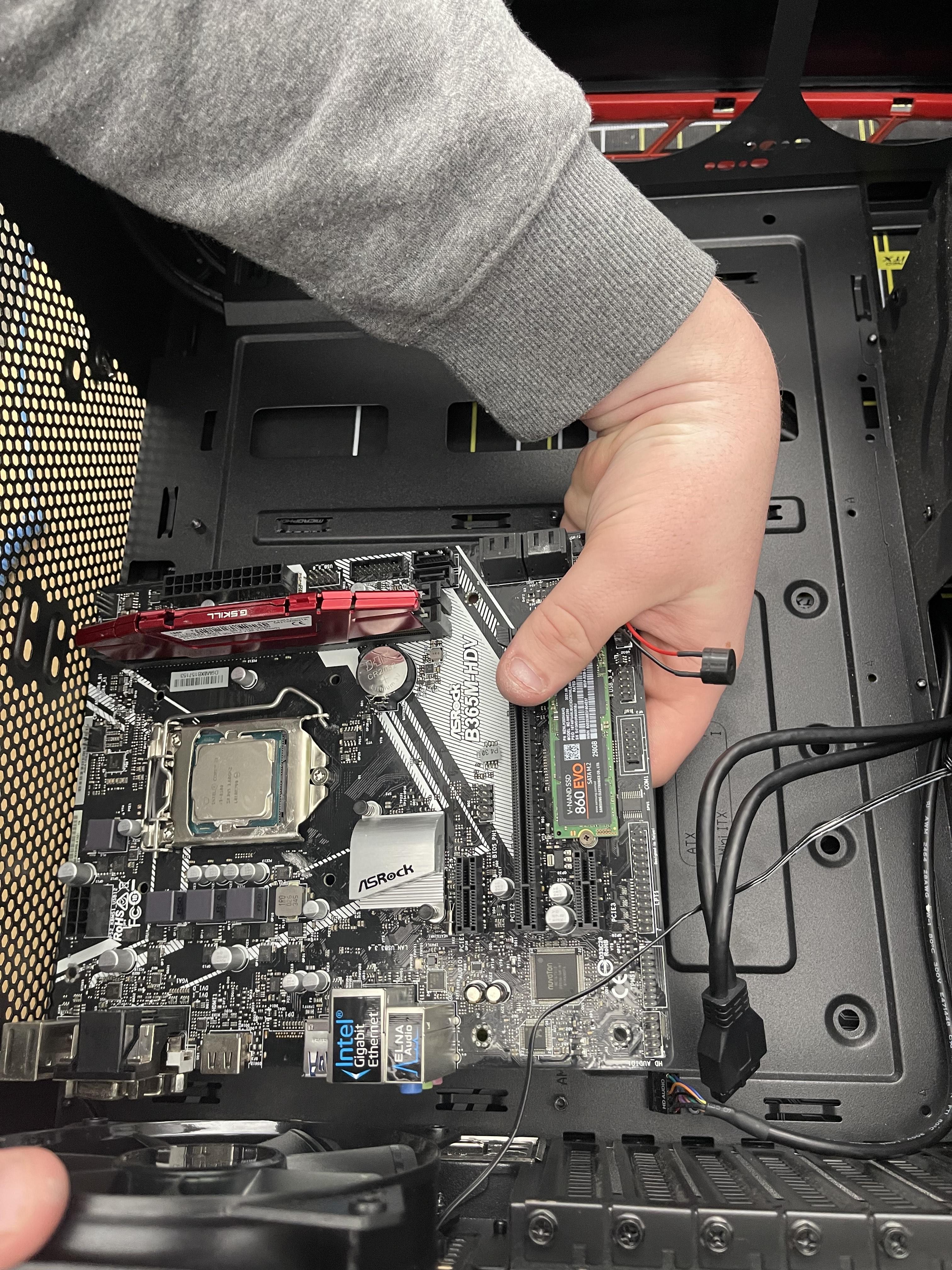
Set the motherboard inside of your case. There should be different holes in the case to match your motherboard.
Screw in Stand-off Screws
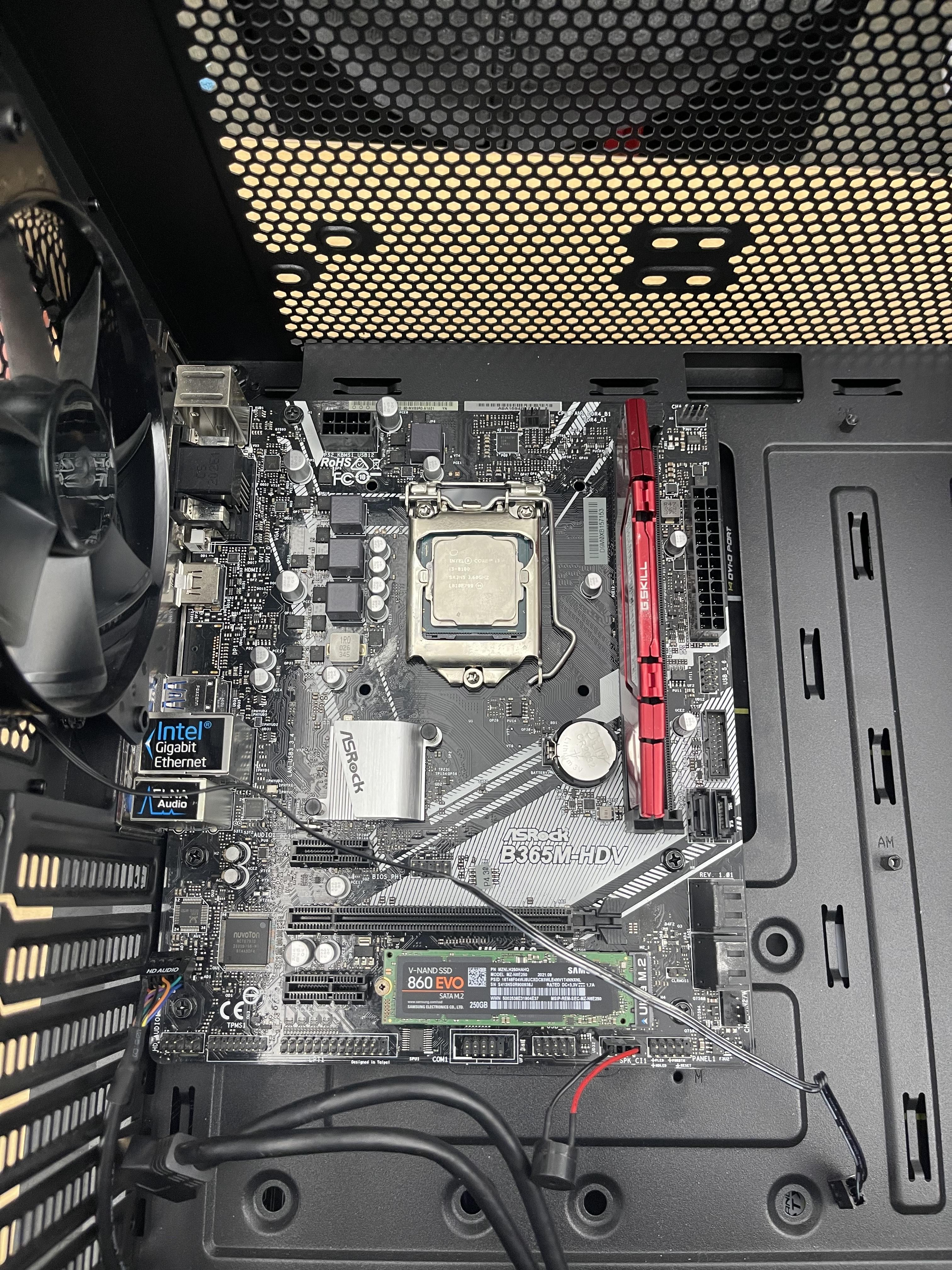
There will be holes in your motherboard for stand-off screws. These allow the motherboard to be elevated off of the case, and not short it out in the process.
Thermal Paste
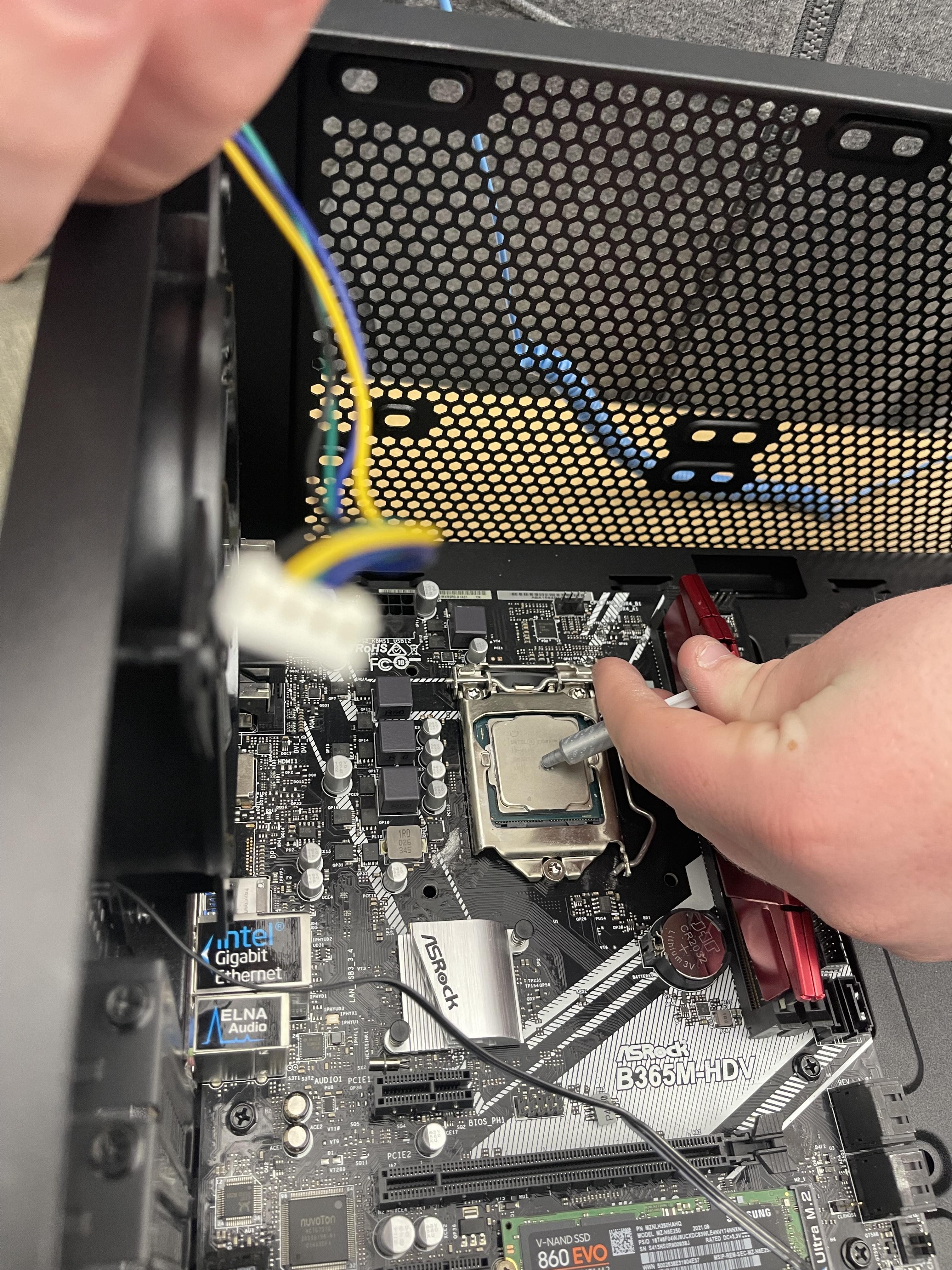
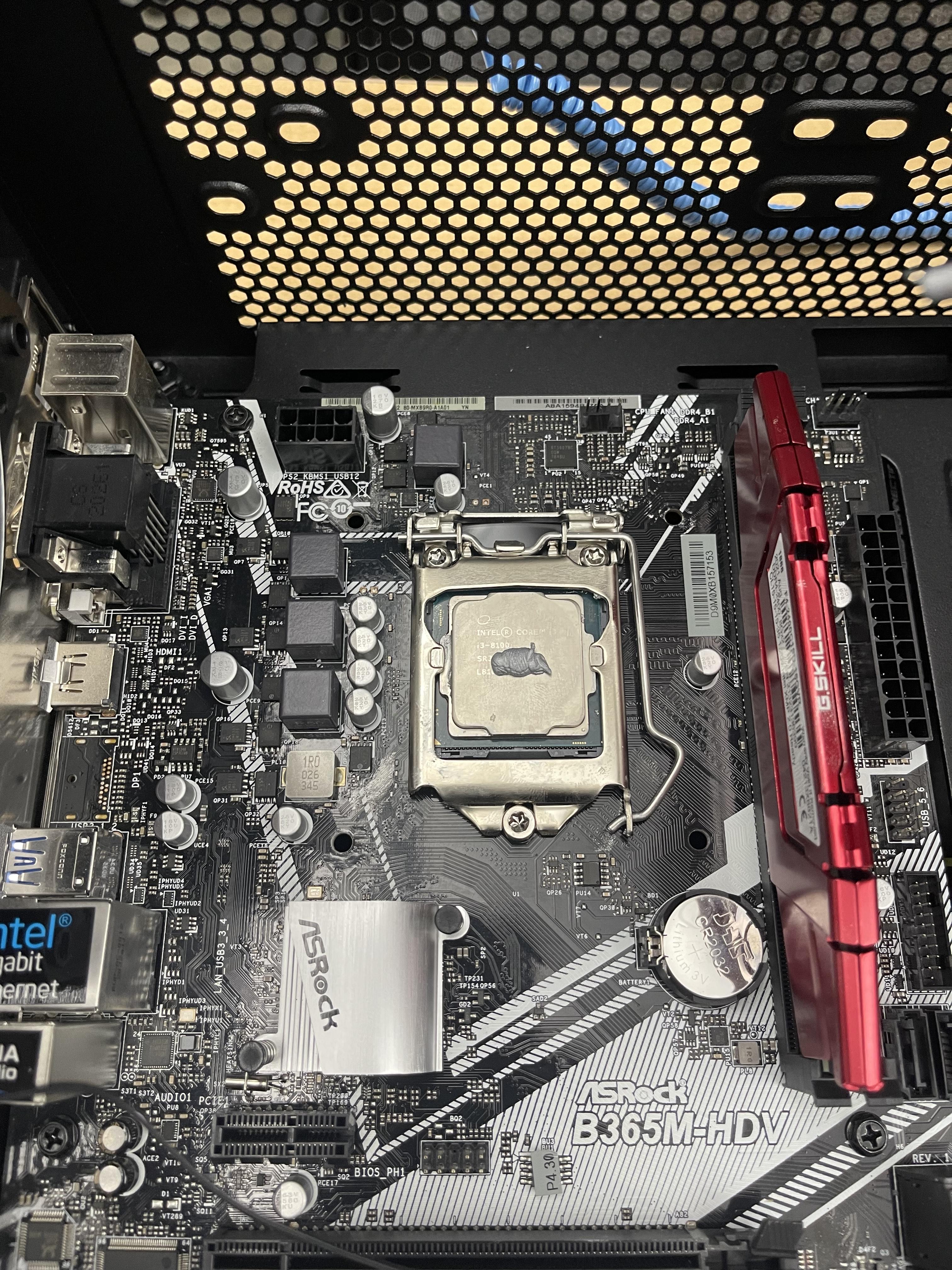
When thermal paste is applied, you don't want to add more than a raindrop size of it.
Place the CPU Fan
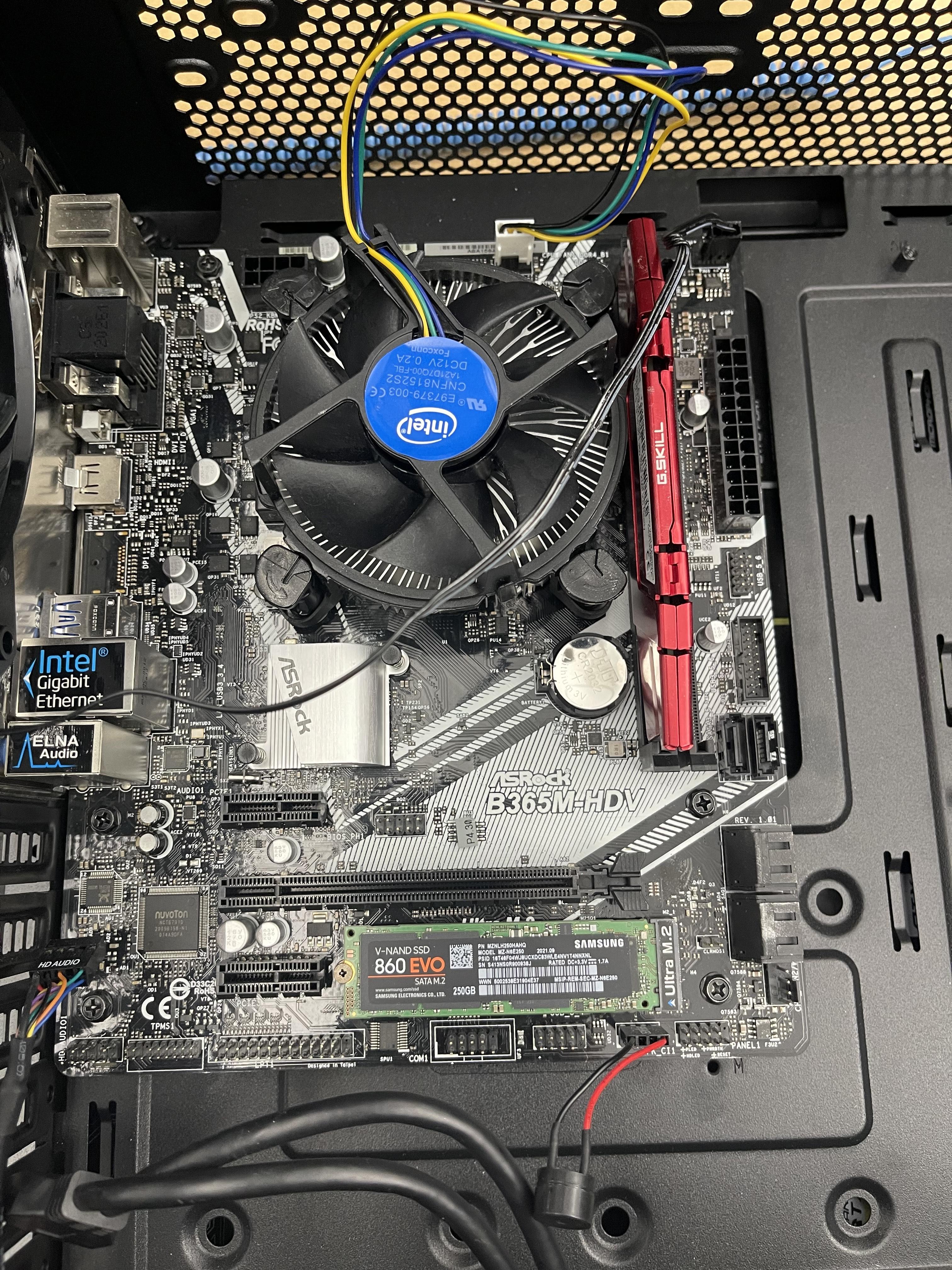
When you put the CPU fan on the CPU, press down lightly. There will be four plastic screws in the corners on the fan. All you have to do is tighten them to by turning them 90 degrees, all in the same direction.
Placing the Power Supply In
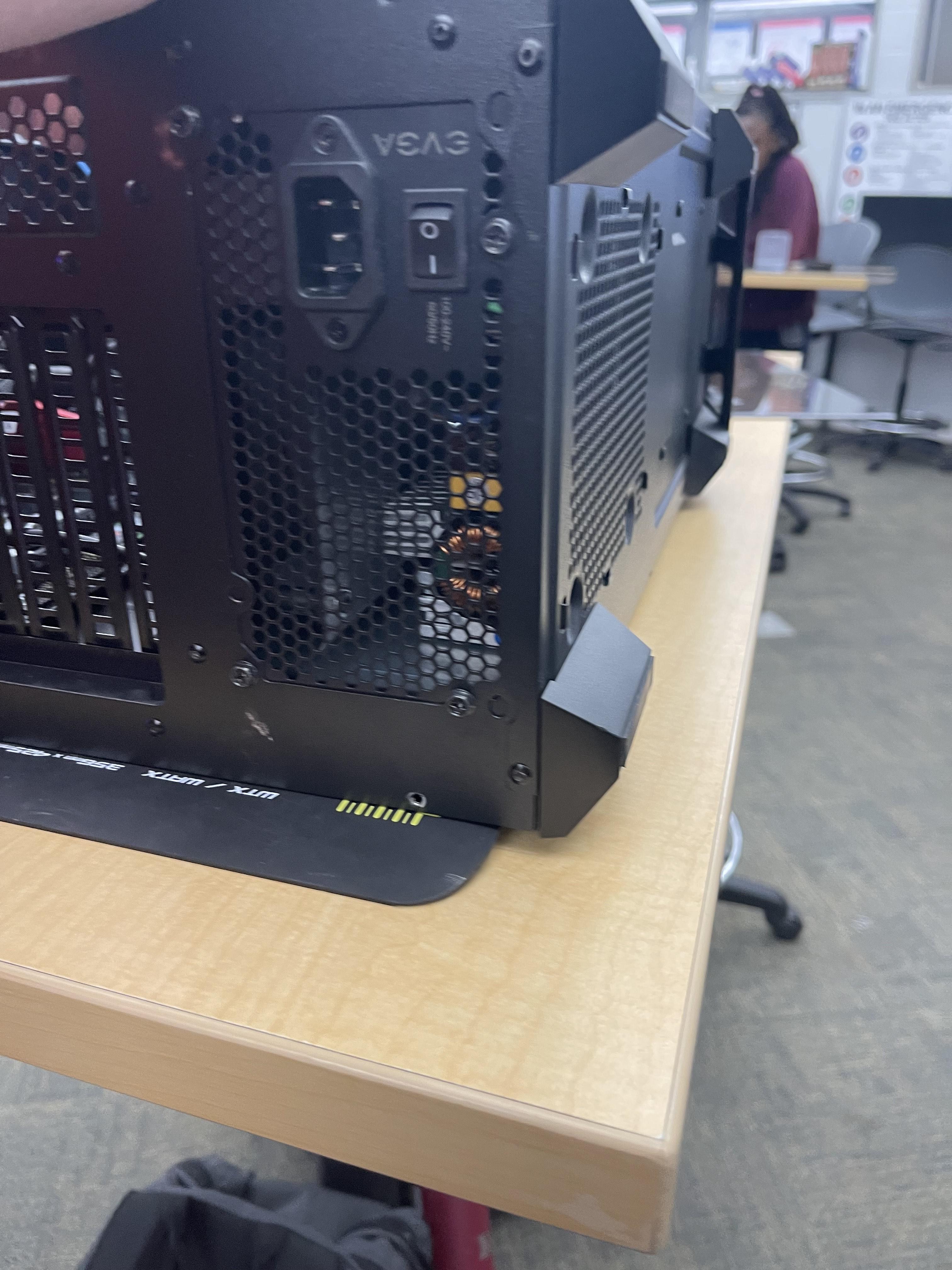
the power supply on mine went in its own separate compartment, and screwed in from the case from there.
Plugging in the Case
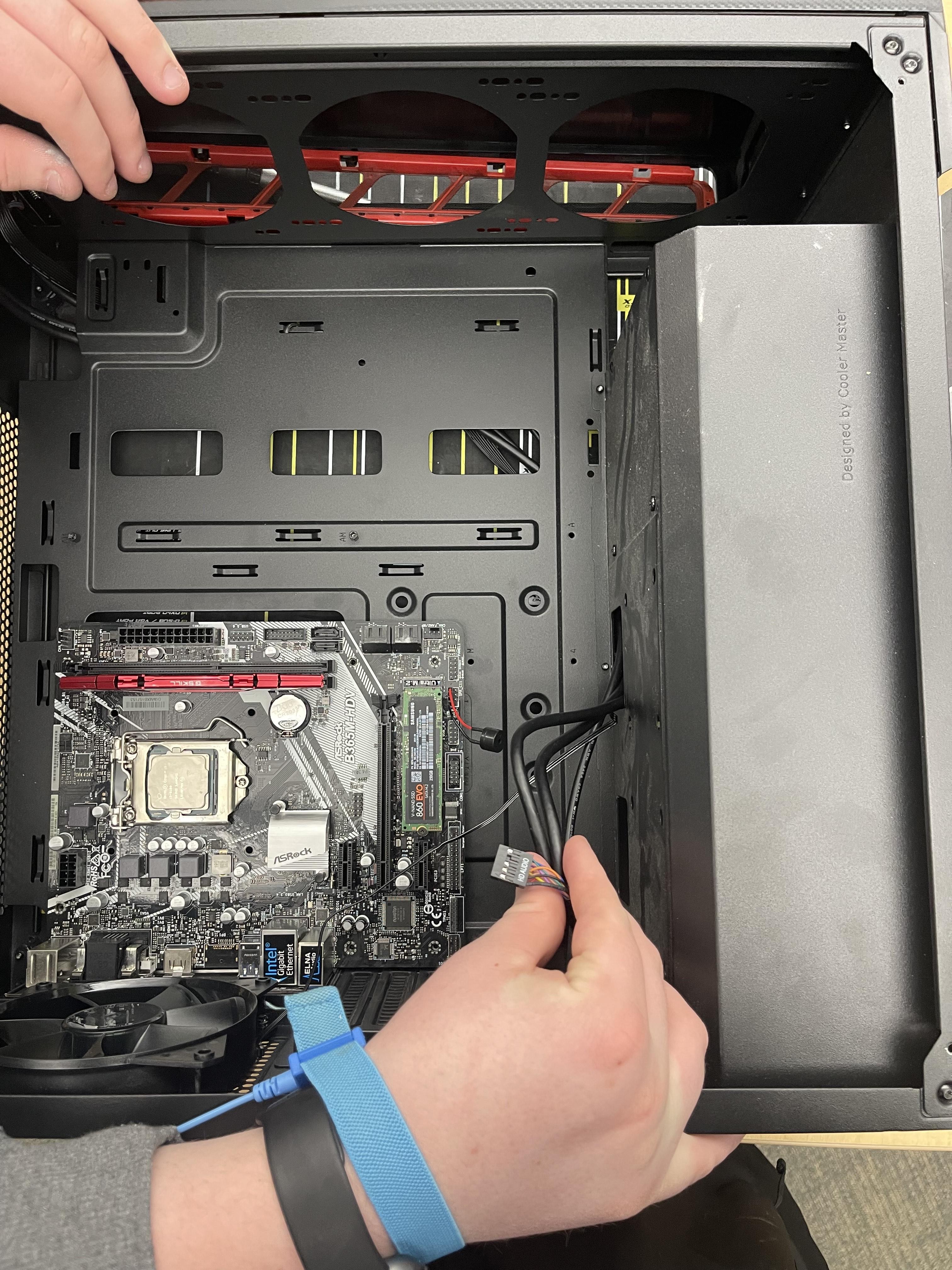
There will be a 10 pin spot where the case plugs in. Mine was by where I screwed in the power supply, near the bottom.
Connecting the Rest of the Cables
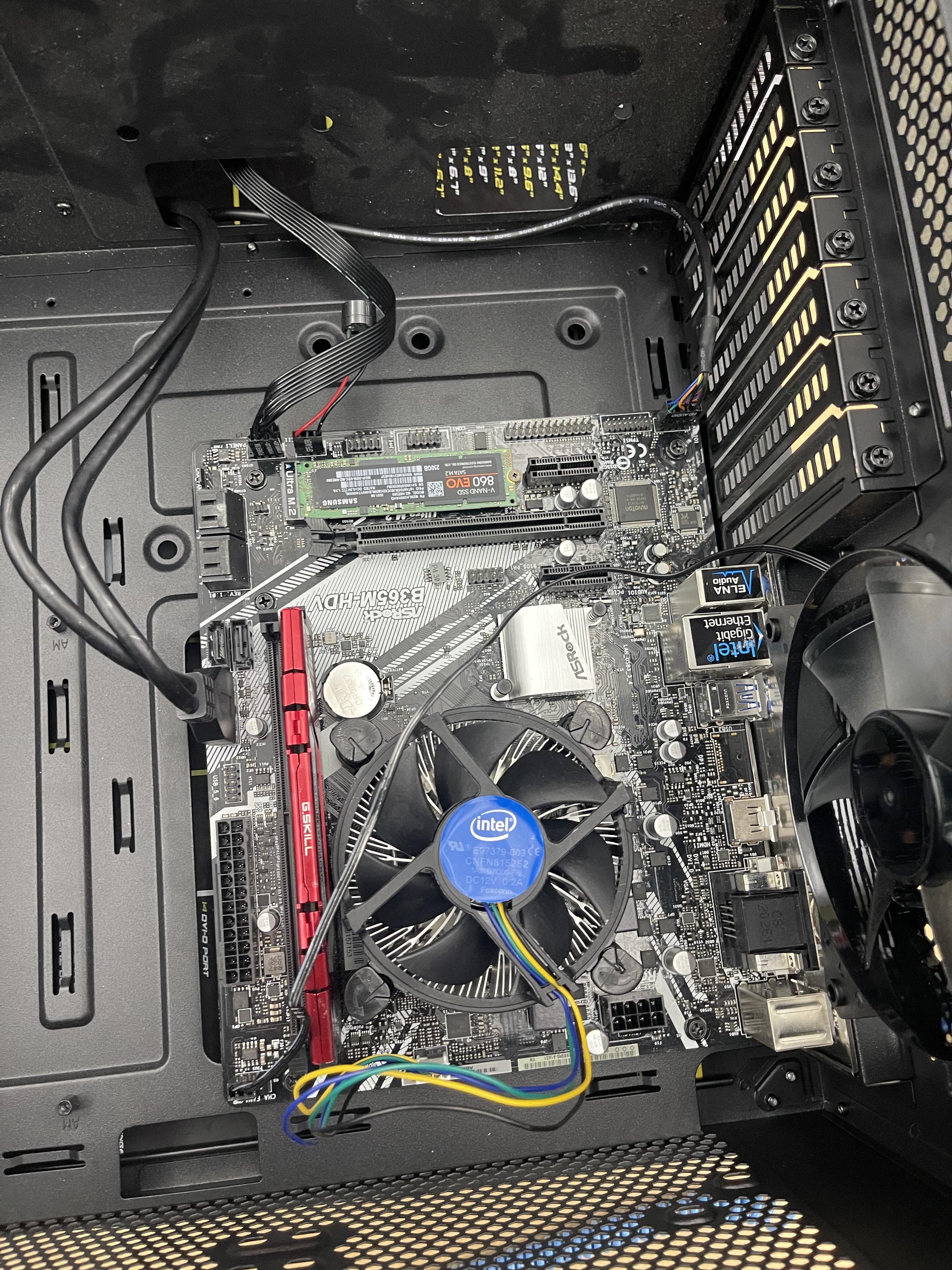
Take the cables from the power supply and pull them through the case. If you want to do cable management, which makes your computer look better and more organized, you are able to do so on this step. Then find the designated spots for each cable on the motherboard.
NOTE: You might not use every connector
Finishing Up
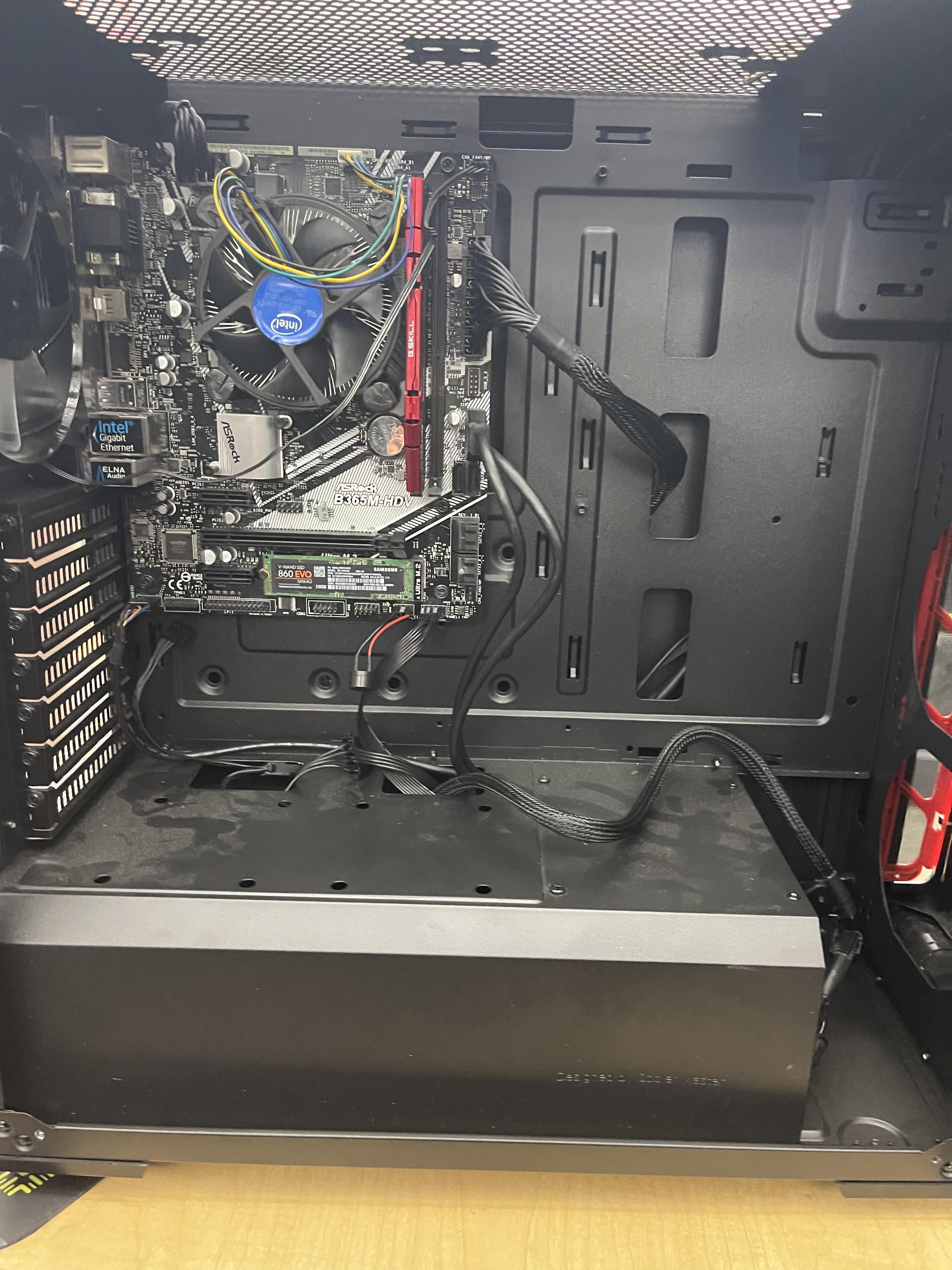

For the final step, close up the case with both of the side panels. You can do so with screws that likely came with the case.