Home Automation 101 (Home Assistant and ESPHome), Your Very First Sensor.
by gubutek in Circuits > Sensors
16 Views, 0 Favorites, 0 Comments
Home Automation 101 (Home Assistant and ESPHome), Your Very First Sensor.
, your very first project. #homeassistant #esphome)
Home automation is a popular topic. Being able to monitor what goes on with your house is very interesting especially when you do it wirelessly.
For beginners, this is a quick presentation about home automation using Home Assistant and ESPHome.
As in the name, we will focus on using ESP, especially ESP32 in home automation project. The purpose is to give you a general idea and help you to create you very first project.
Understand Home Assistant
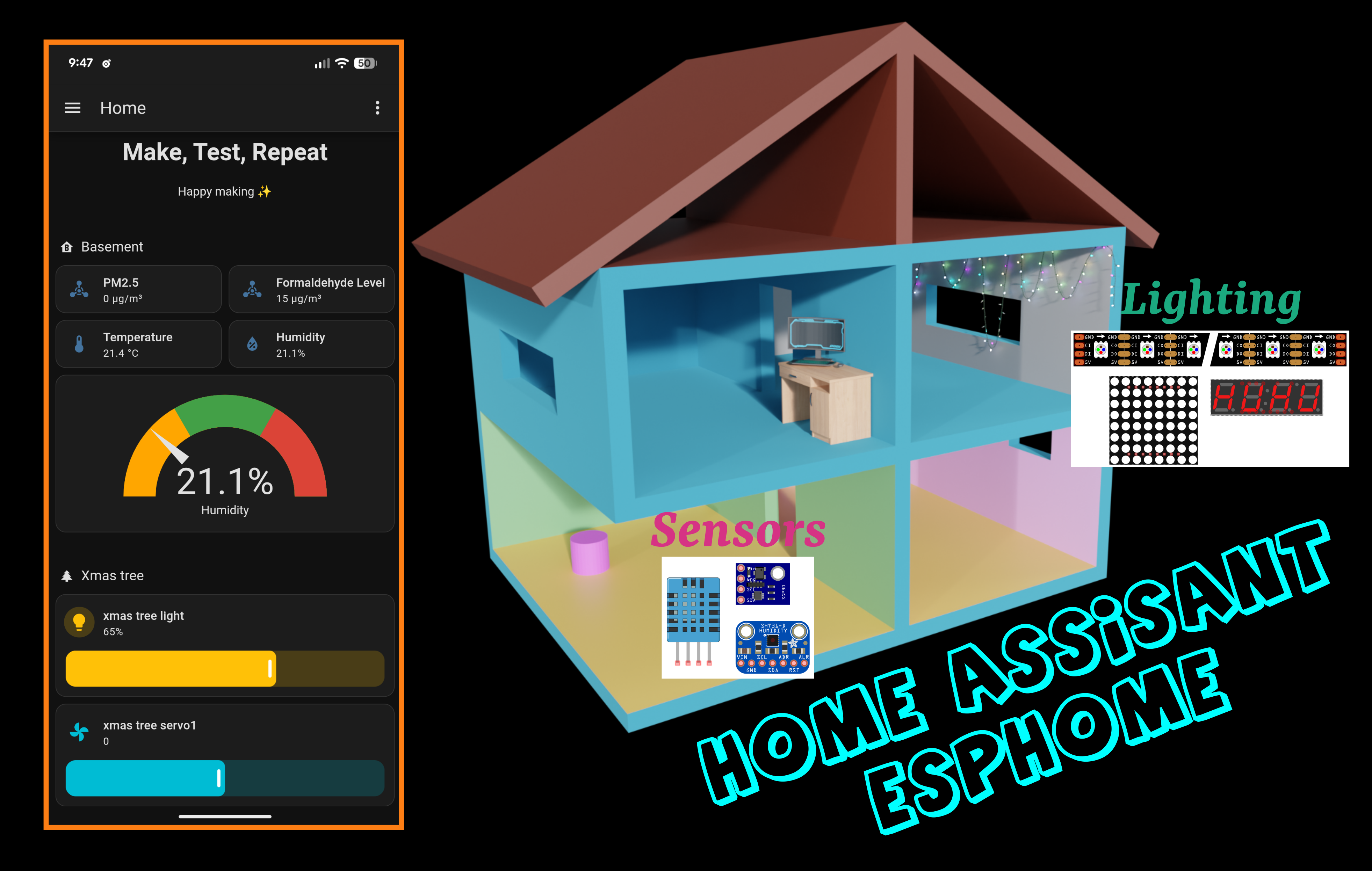
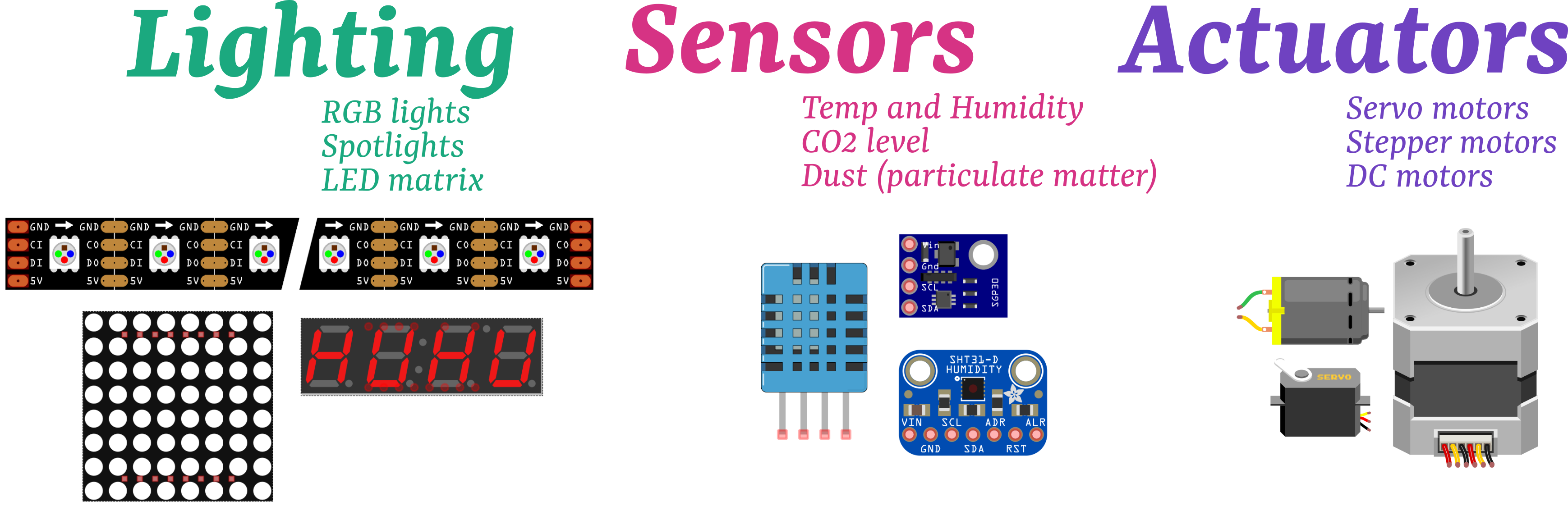
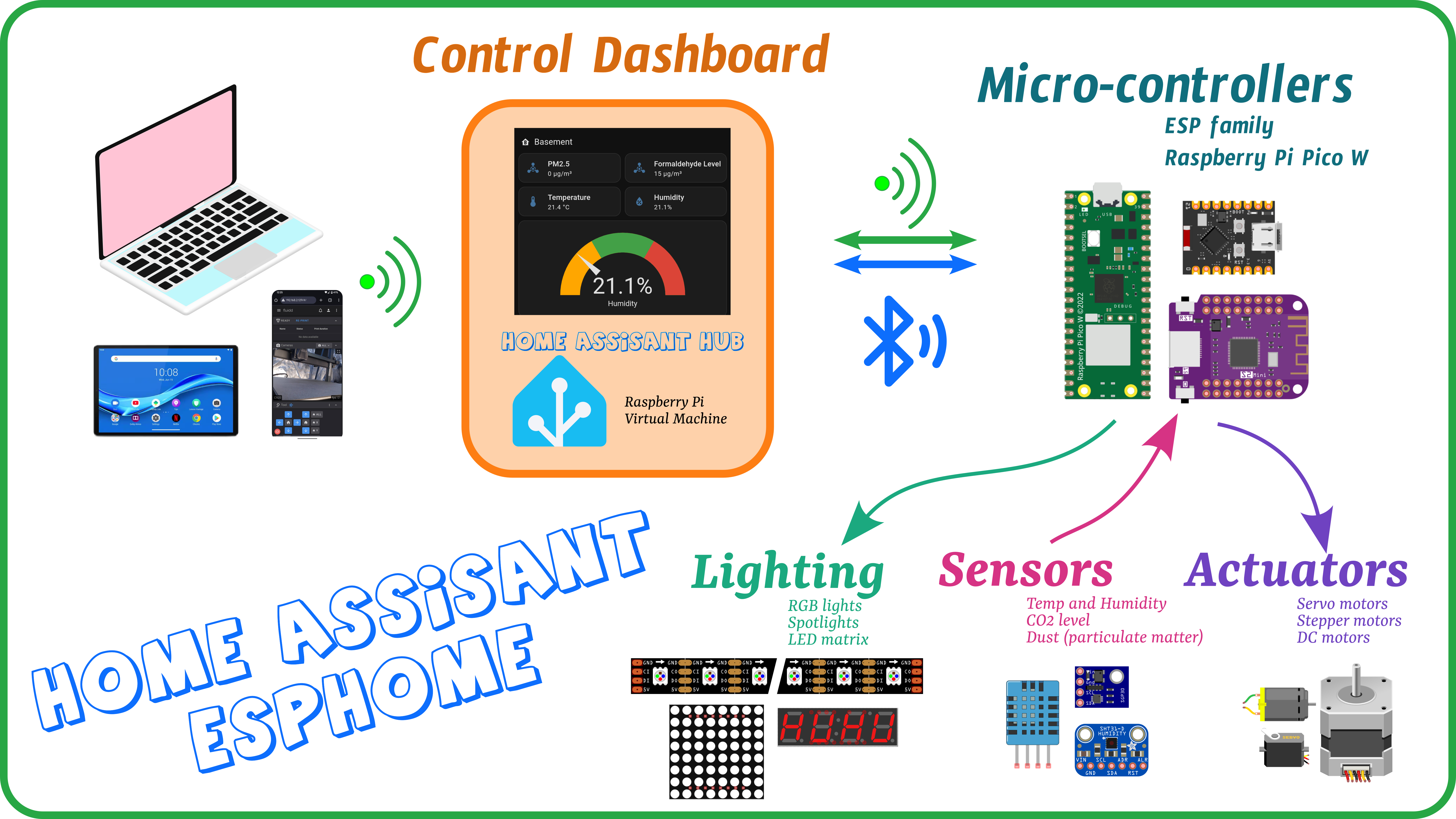
Assume that you decide to put temperature and humidity sensor in the basement and a Xmas light in the second floor. Then, you can come to each room to check on the sensors or the lights whenever you need OR you can remotely control them using Home Assistant (HA).
What HA does, is to collect all the information from all the devices (sensors, lights, actuators) you have to a Hub with HAOS (Home Assistant Operating System) and present it on a dashboard.
This dashboard can be accessed by your phone, tablet or computer through wifi therefore give you the capability to remotely control your devices
Most of the devices don’t talk directly to the HA Hub. To make them to understand each other, we need to add uControllers into the picture.
They are connected to the devices and speak to home assistant hub using Wifi or Bluetooth.
Now you understand how Home Assistant works, we can go into steps to set up a very first project for your home.
Prepare the Hardware
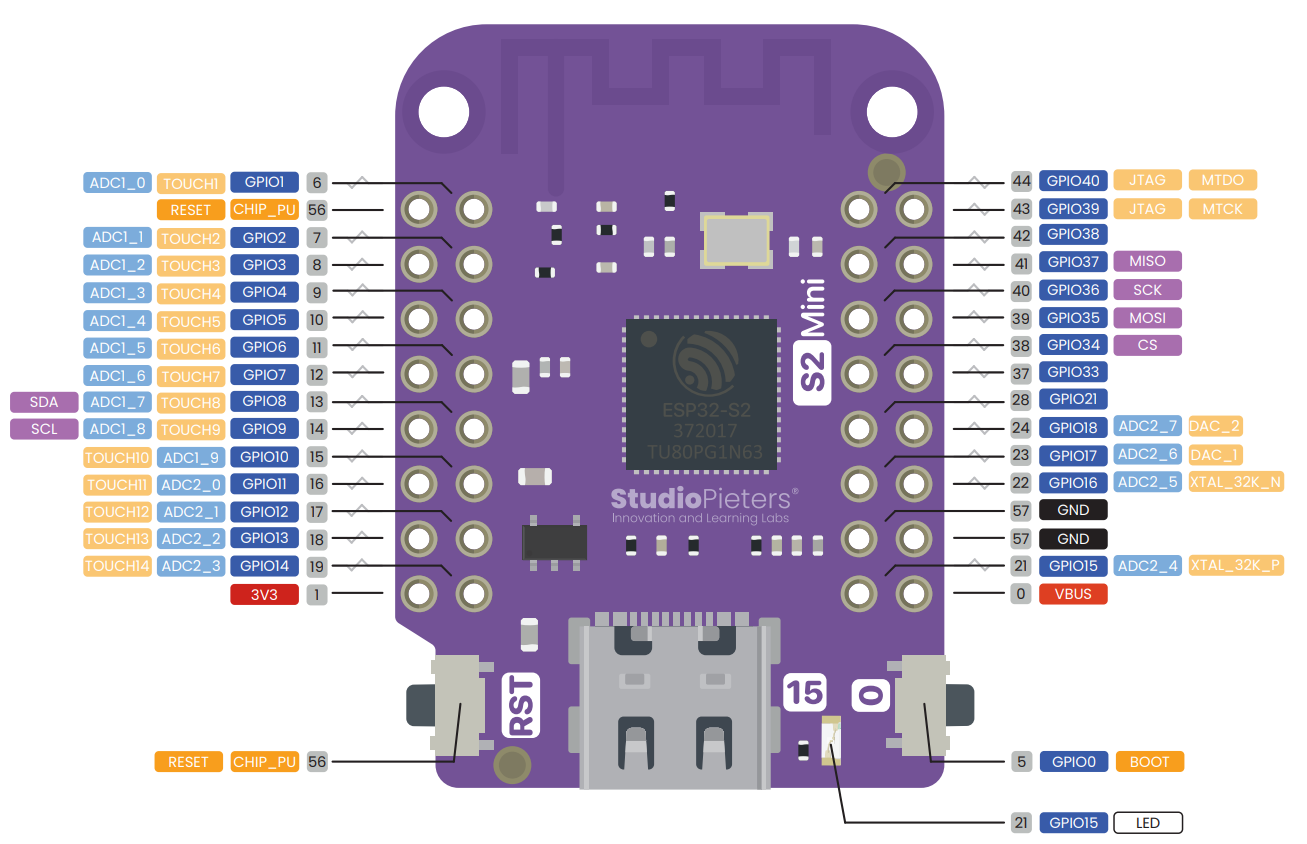

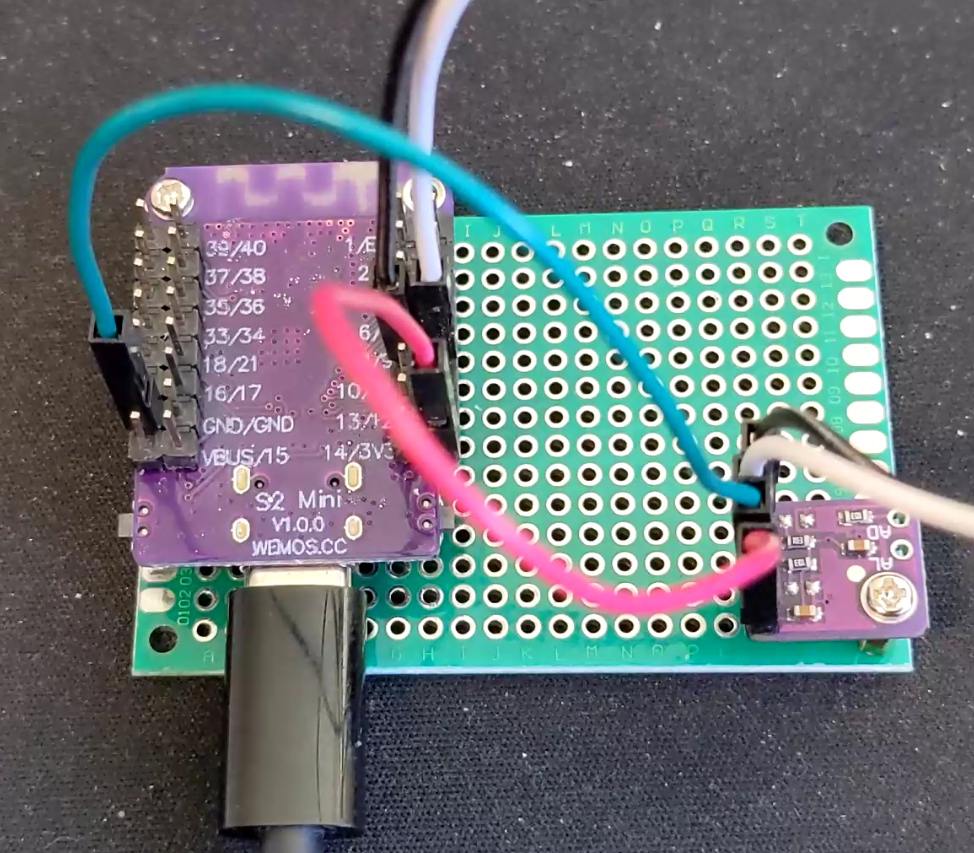
In this example, we will add a temperature and humidity sensor to the house and use Home Assistant to monitor it. You will need
- Sensor: I chose the SHT31, this one has popular I2C bus so you can later work with other sensors or oled screen. You can get it from adafruit or aliexpress for cheaper price
- uController: I chose ESP ones because they are dirt cheap. You can have a bunch of them for everything you wanna test. I will use ESP32 S2 mini because I have many of them in hand
- Breadboard and Dupont cables to connect. You won’t need to solder anything with this example.
After getting them, you can connect the SHT31 and ESP32 S2 mini as shown in the schematic
Install Home Assistant OS and ESPHome


Create a Device in ESPHome Builder


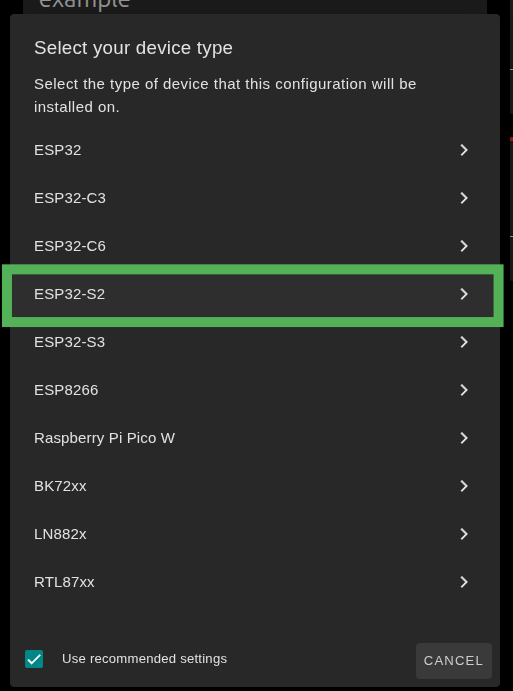


Add a new device in ESPHome Builder, pay attention to the type of micro-controller you use and choose the same one in ESPHome Builder.
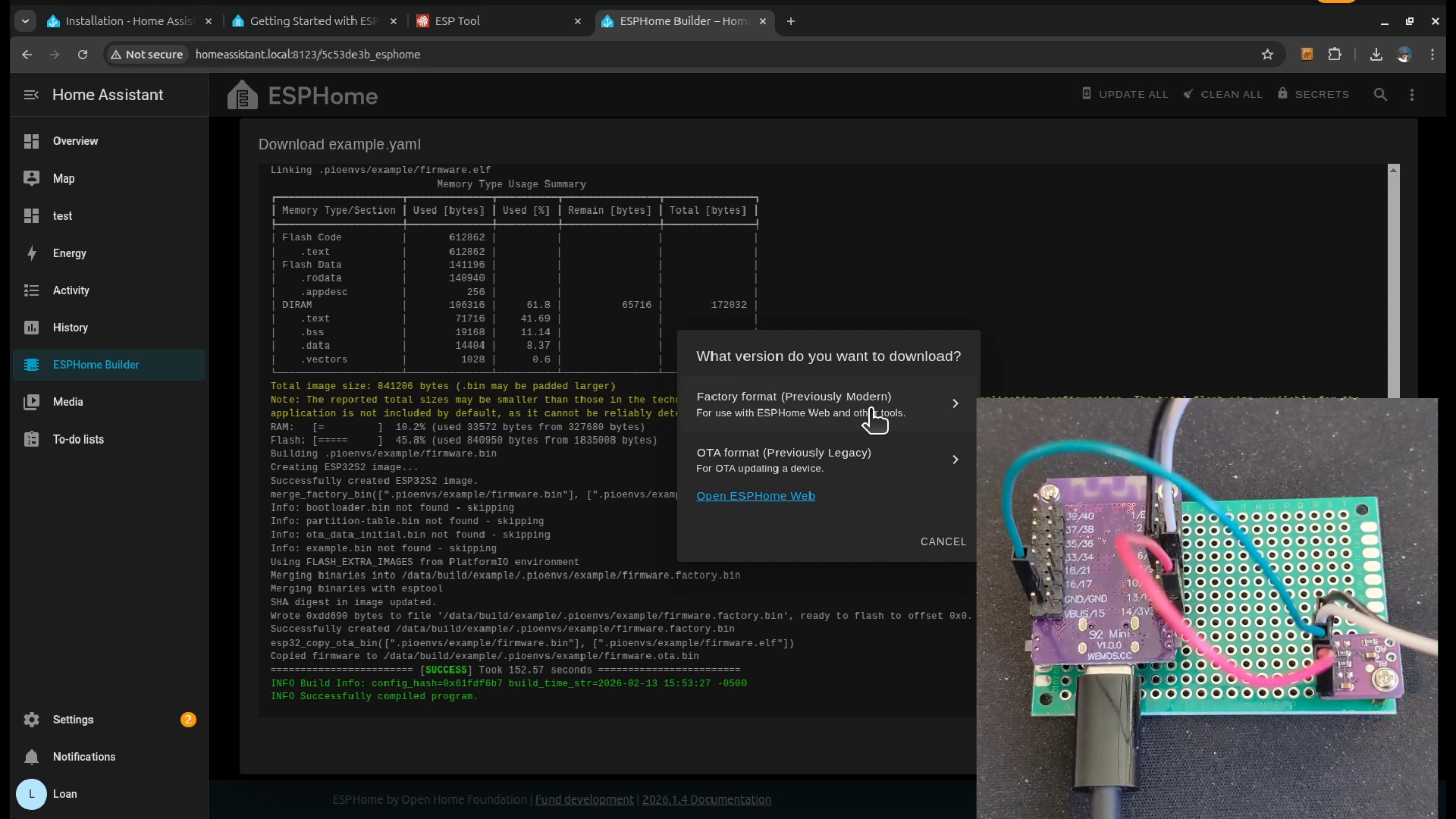
Then you can download the setup file and use it to flash the micro-controller for the very first time.
Flash Micro-Controller With the Firmware.
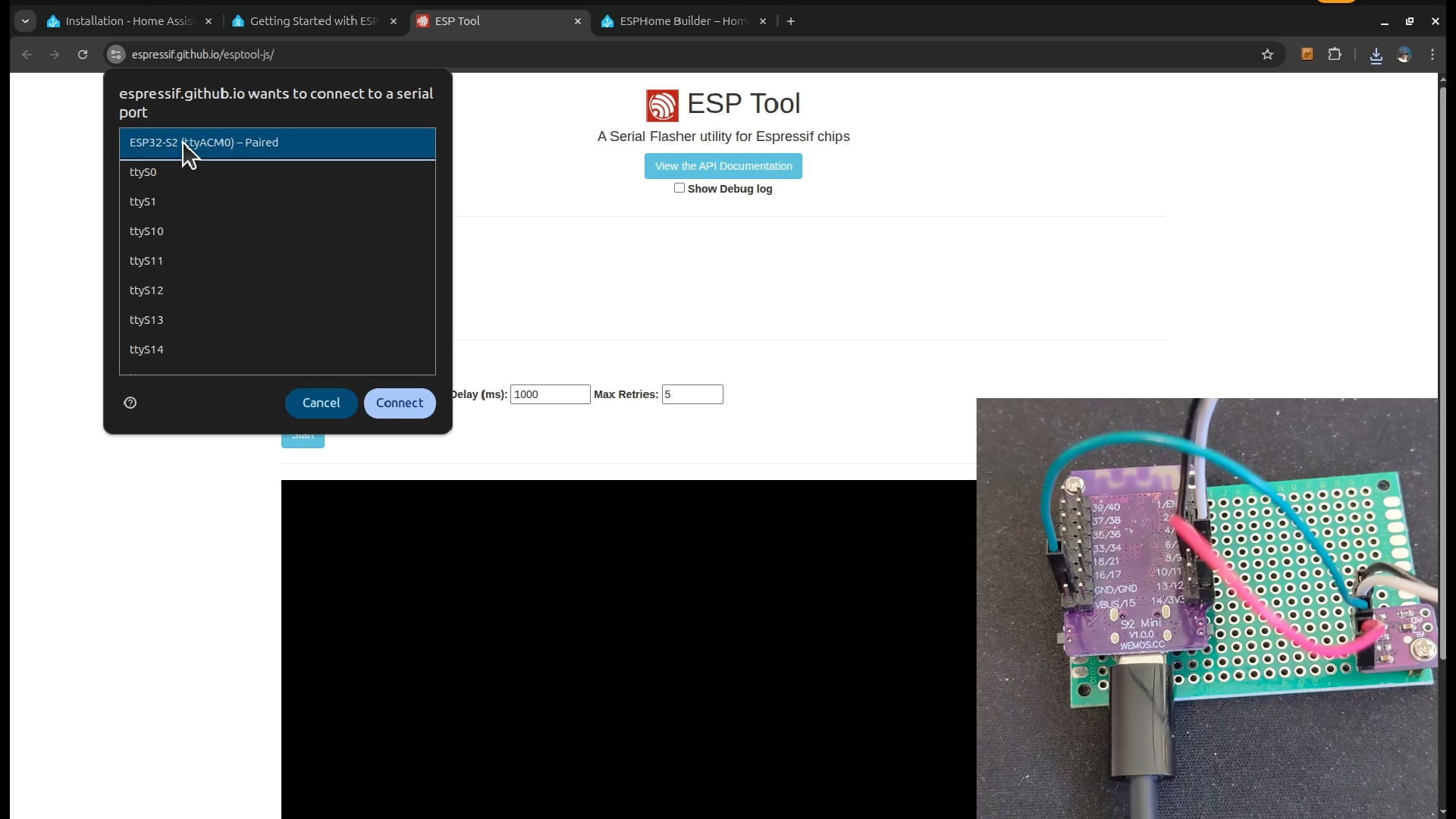
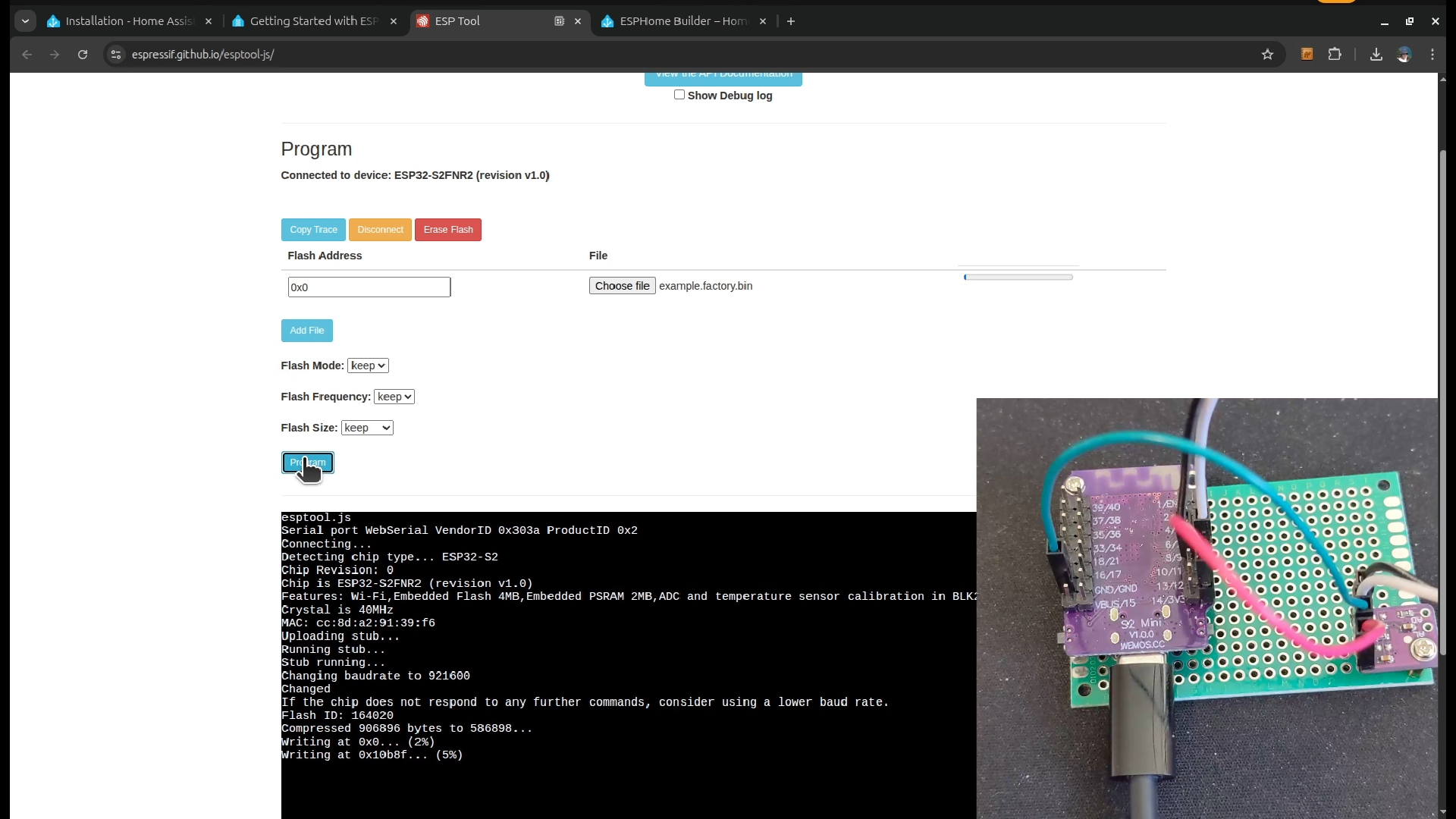
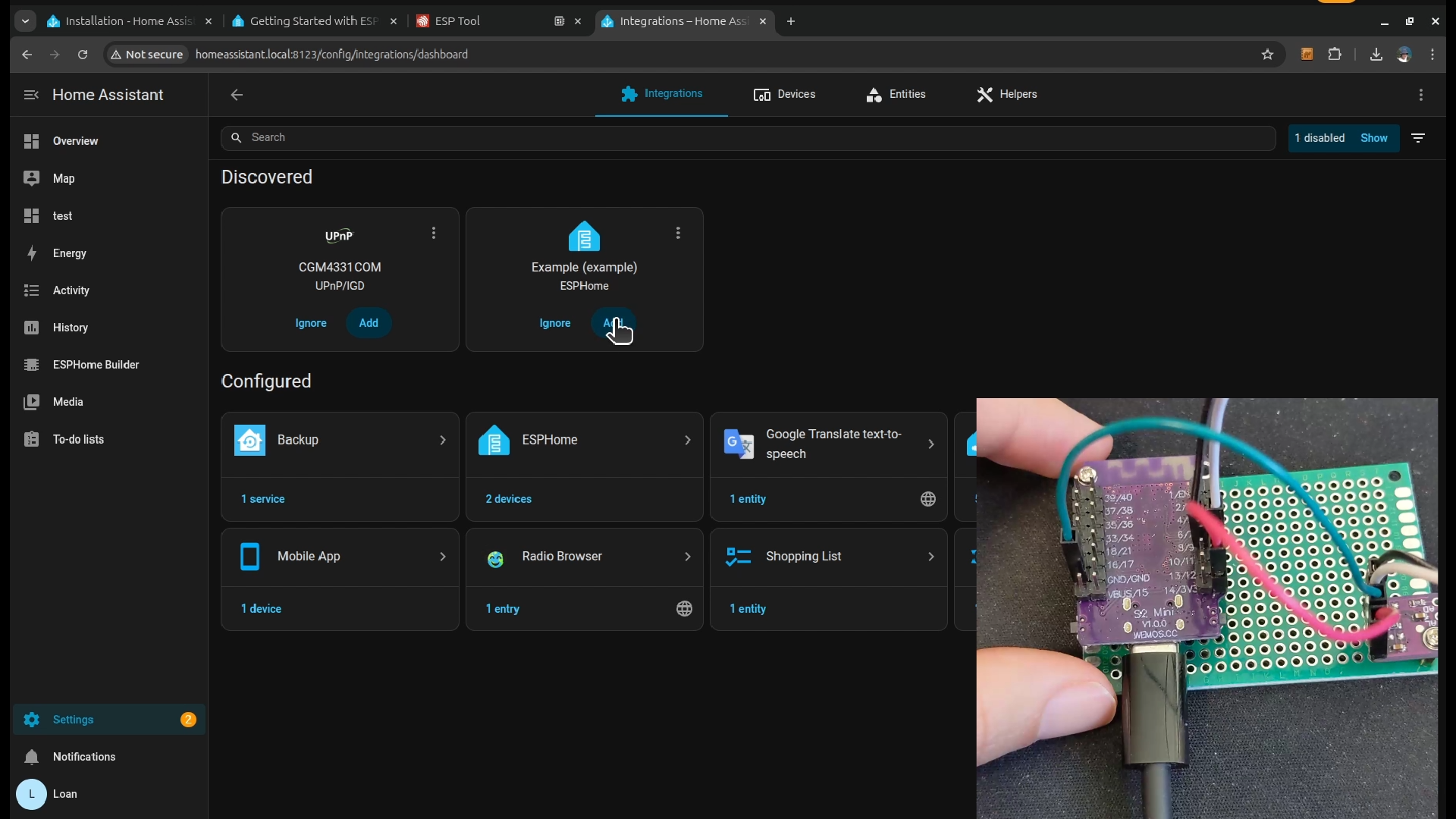
There are different ways to flash the micro-controller. For the simplicity, I used the esptool web version.
If it doesn’t work for you, have a look at this video (sometimes it just does not work)
Setup the Sensor and Programme It With Wifi

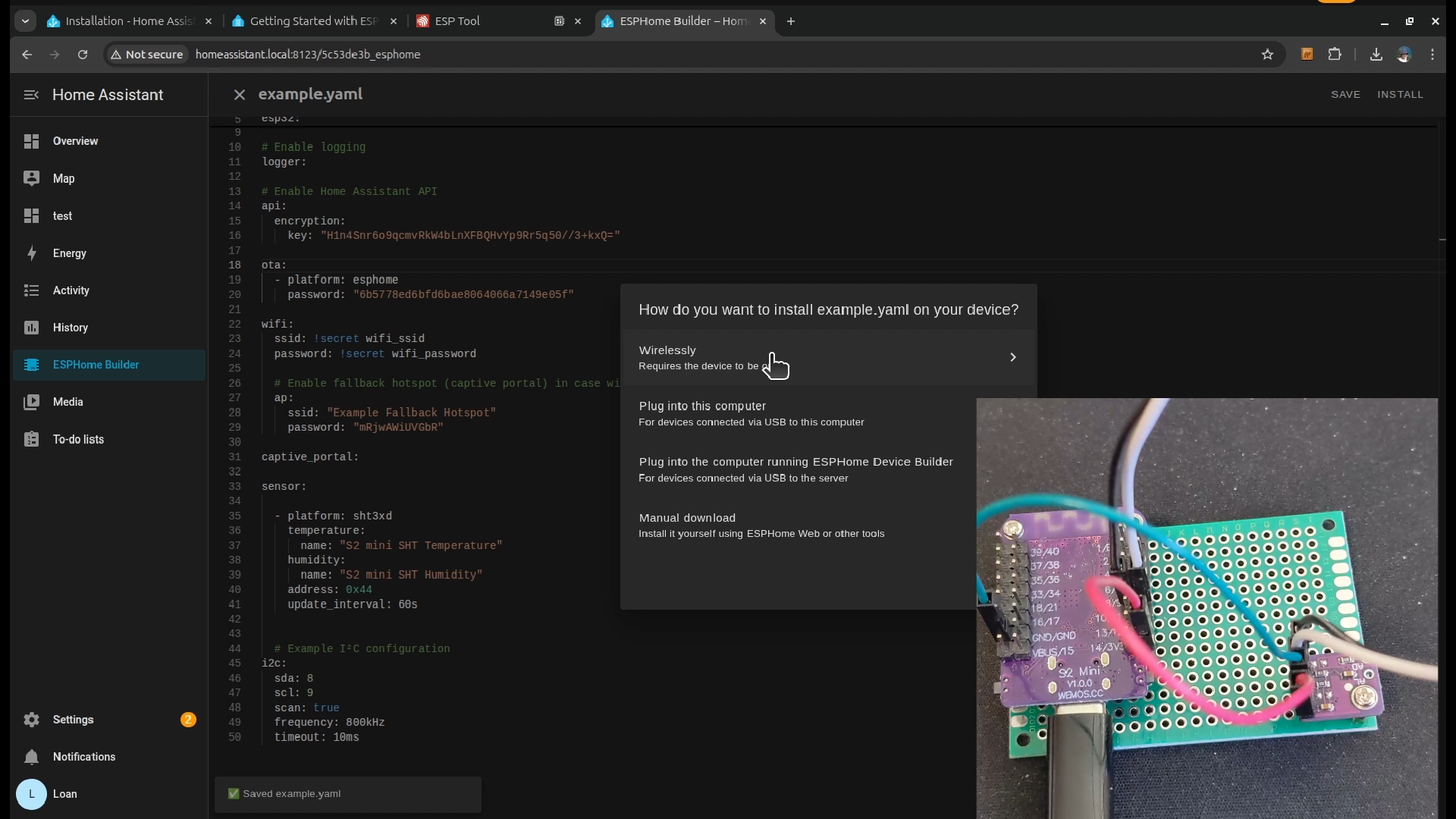
After the first flash, you should be able to program it wirelessly. Let’s edit the yaml file so we can add the sensor infomation. You have to declare a SHT31 sensor and the communication bus (I2C in this case). If you use other uController, check the sda and scl pins
You will need to add this code at the end of the yaml file. Please pay attention to the indentation because it is important here.
After that you can install the new code on the ESP32 S2 mini, wirelessly this time.
Create a New Dashboard to Monitor the Sensor
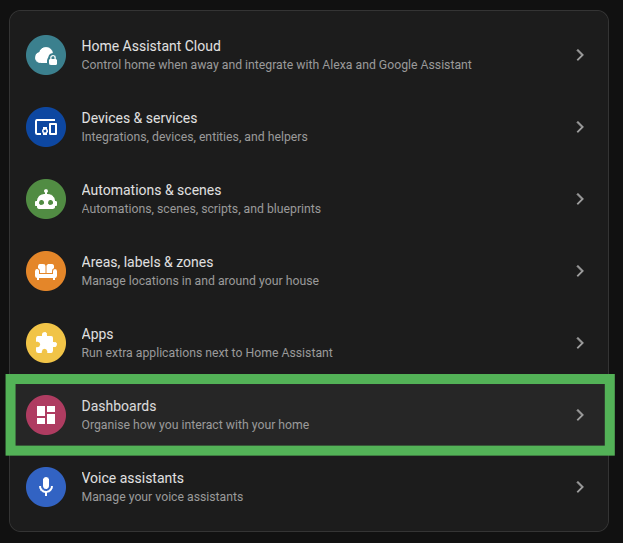
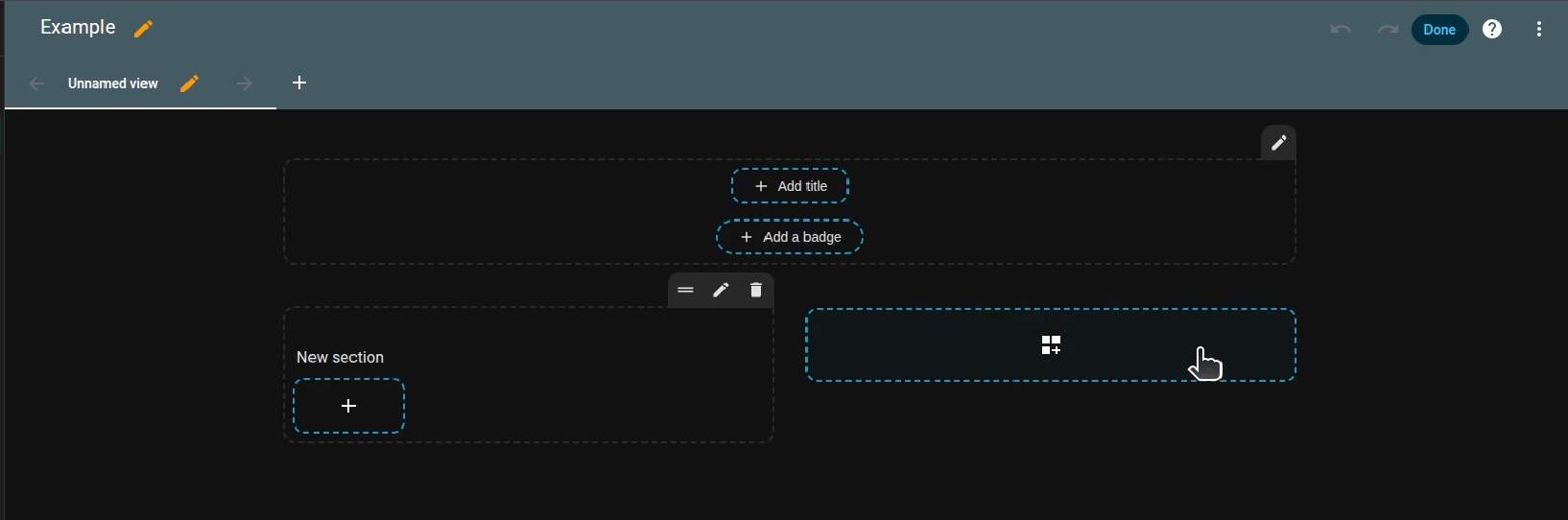
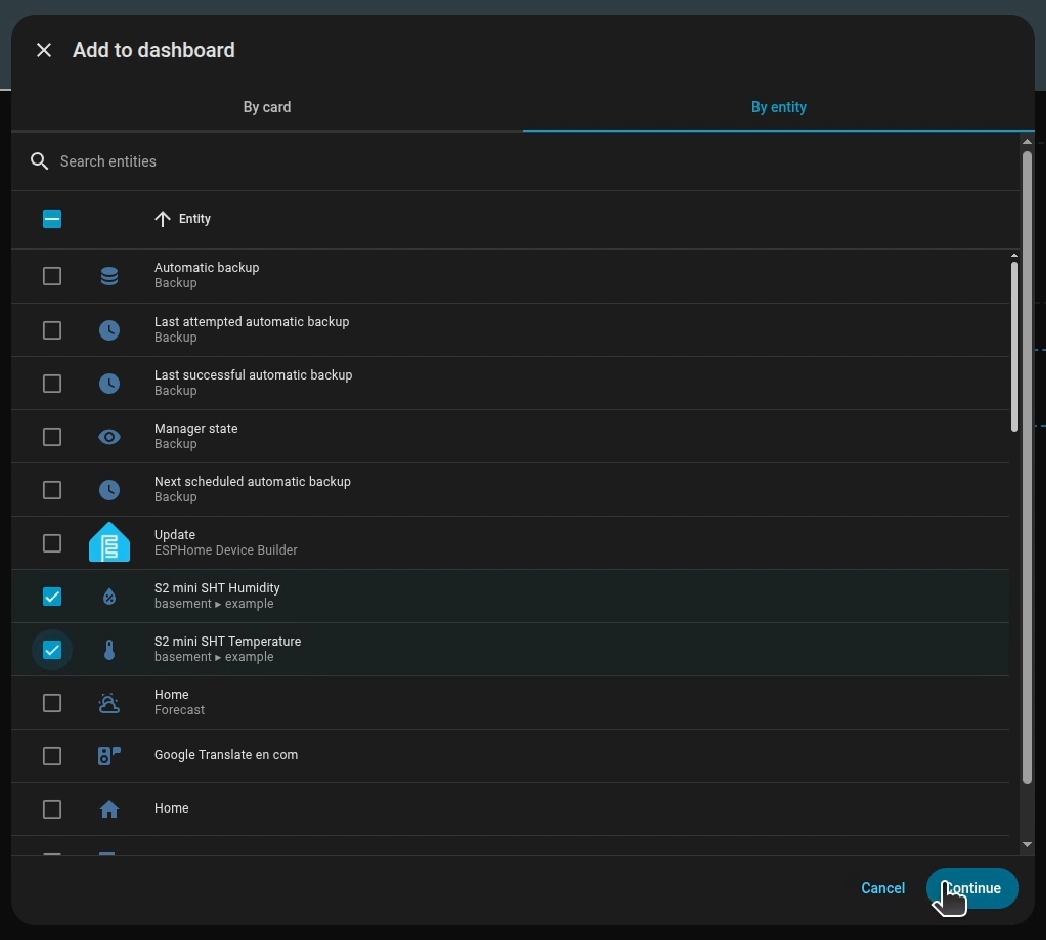
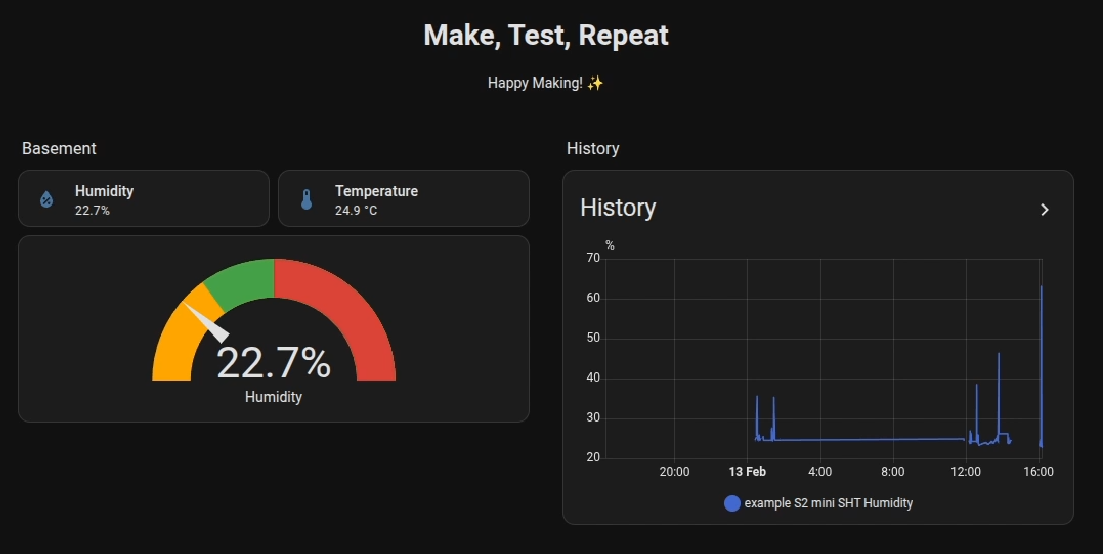
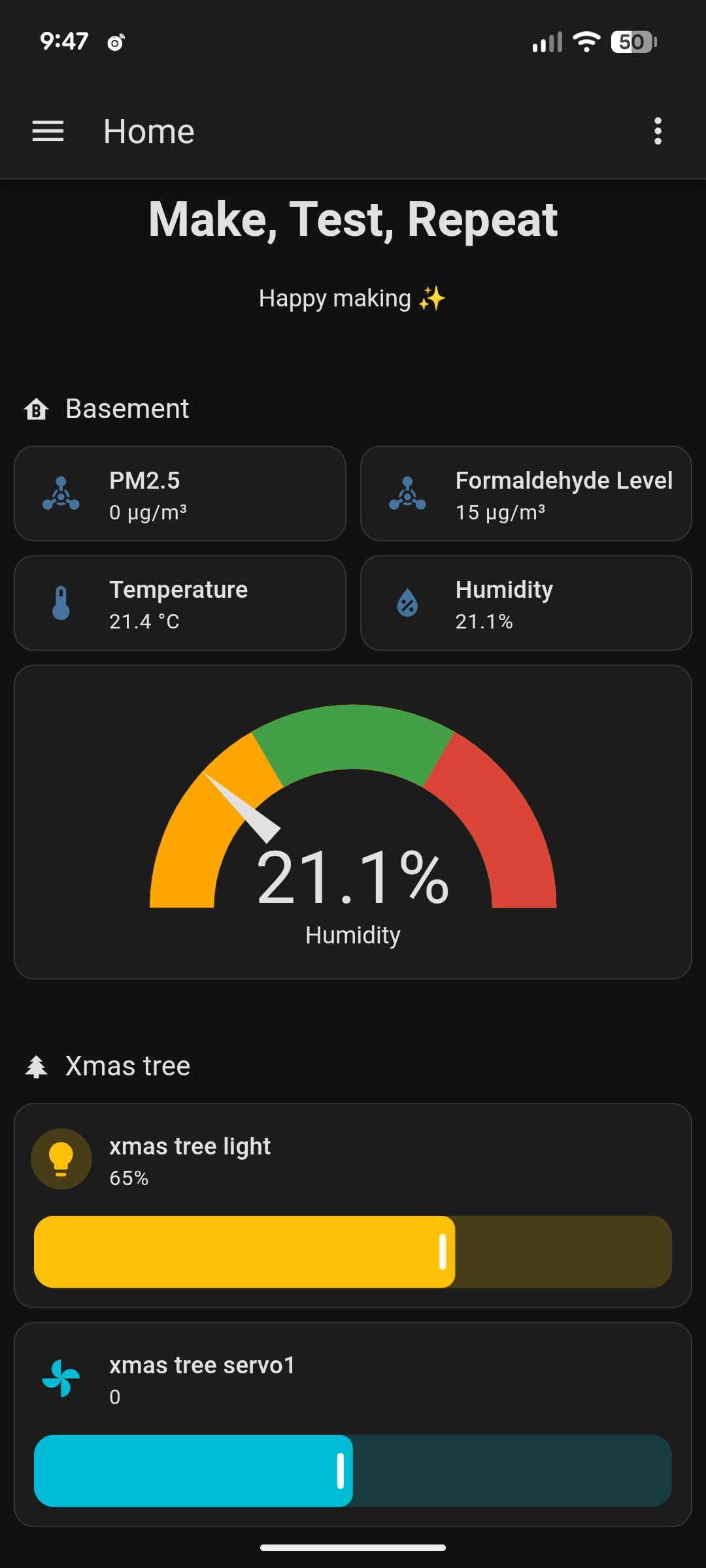
You can add the sensor data (temperature and humidity) to any dashboard. In this case, I created a new one just to demonstrate for beginners.
Then you can sensor data in form of cards or entities to the dashboard. Other graphs and gauges can be added to make it more beautiful.
Explore


Now you know all the steps. You can play with it by adding diffrent types of sensor or uController. Many of them use I2C bus so the code should be simple for you to add. I hope you enjoy this long instructable and able to make something out of it.
Happy making!