HOW TO BUILD a Computer @RILEYTECH
by Laifeshuman in Circuits > Computers
23 Views, 0 Favorites, 0 Comments
HOW TO BUILD a Computer @RILEYTECH
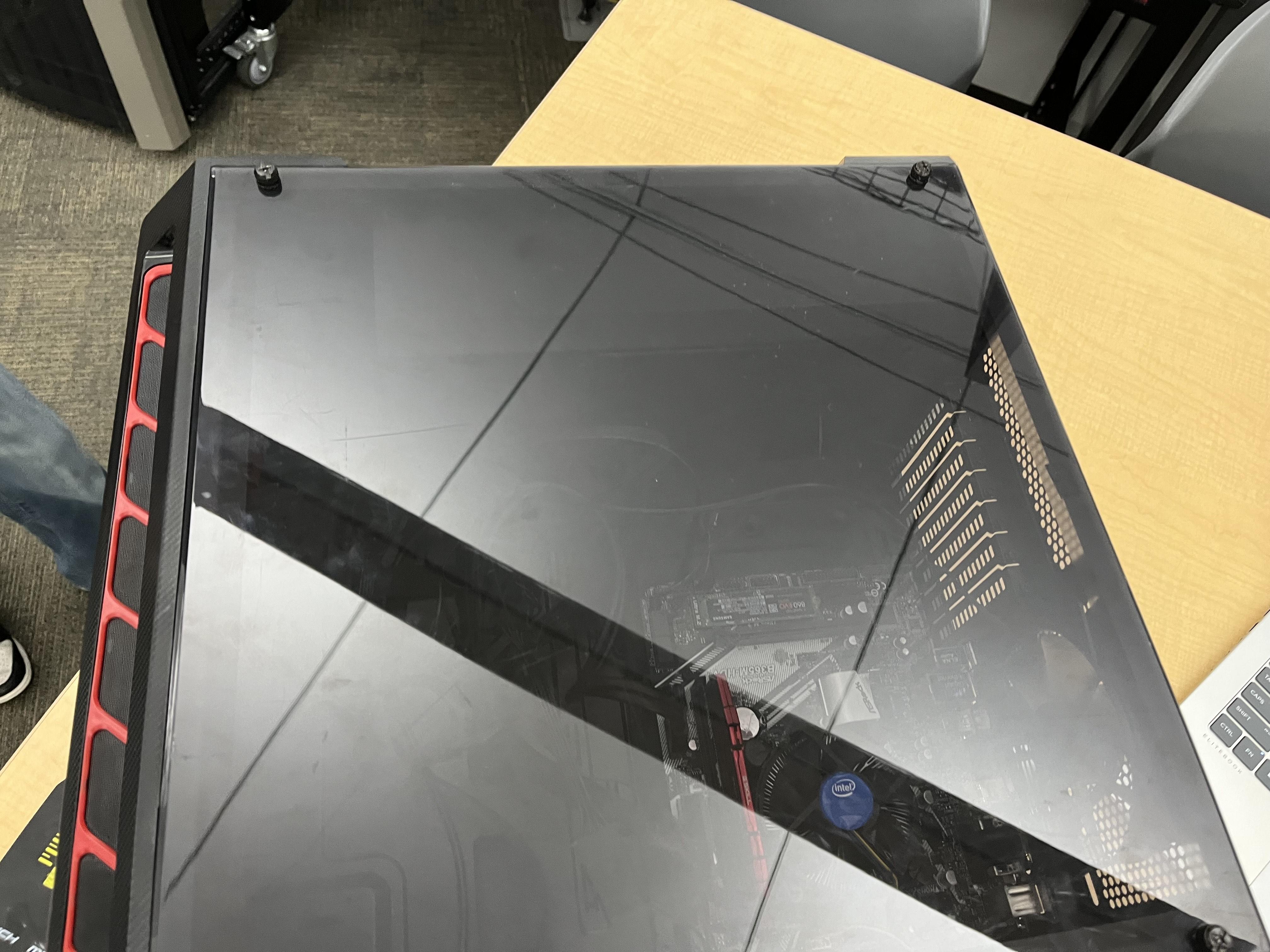
Today you WILL learn how to build a computer.
Supplies
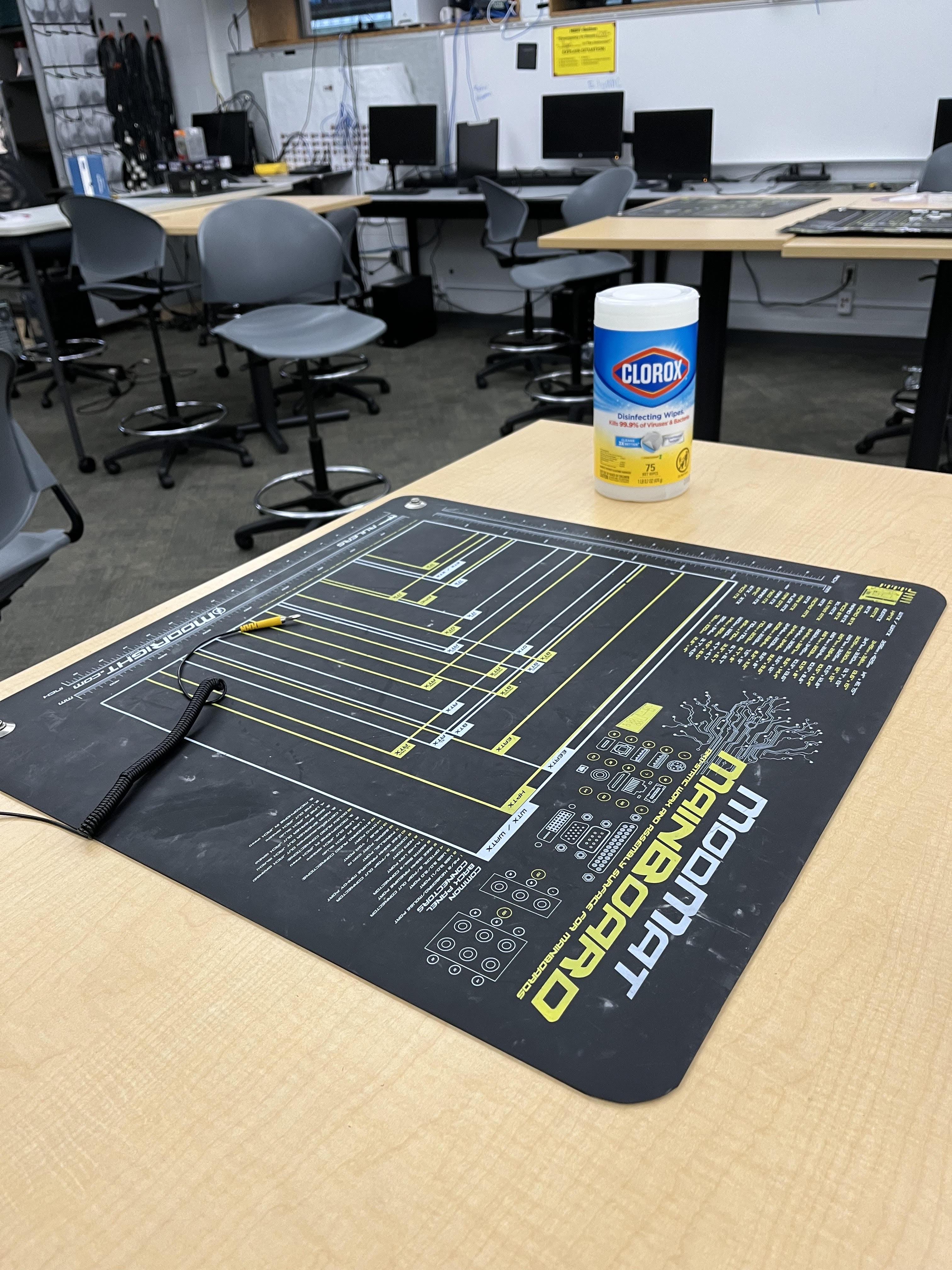
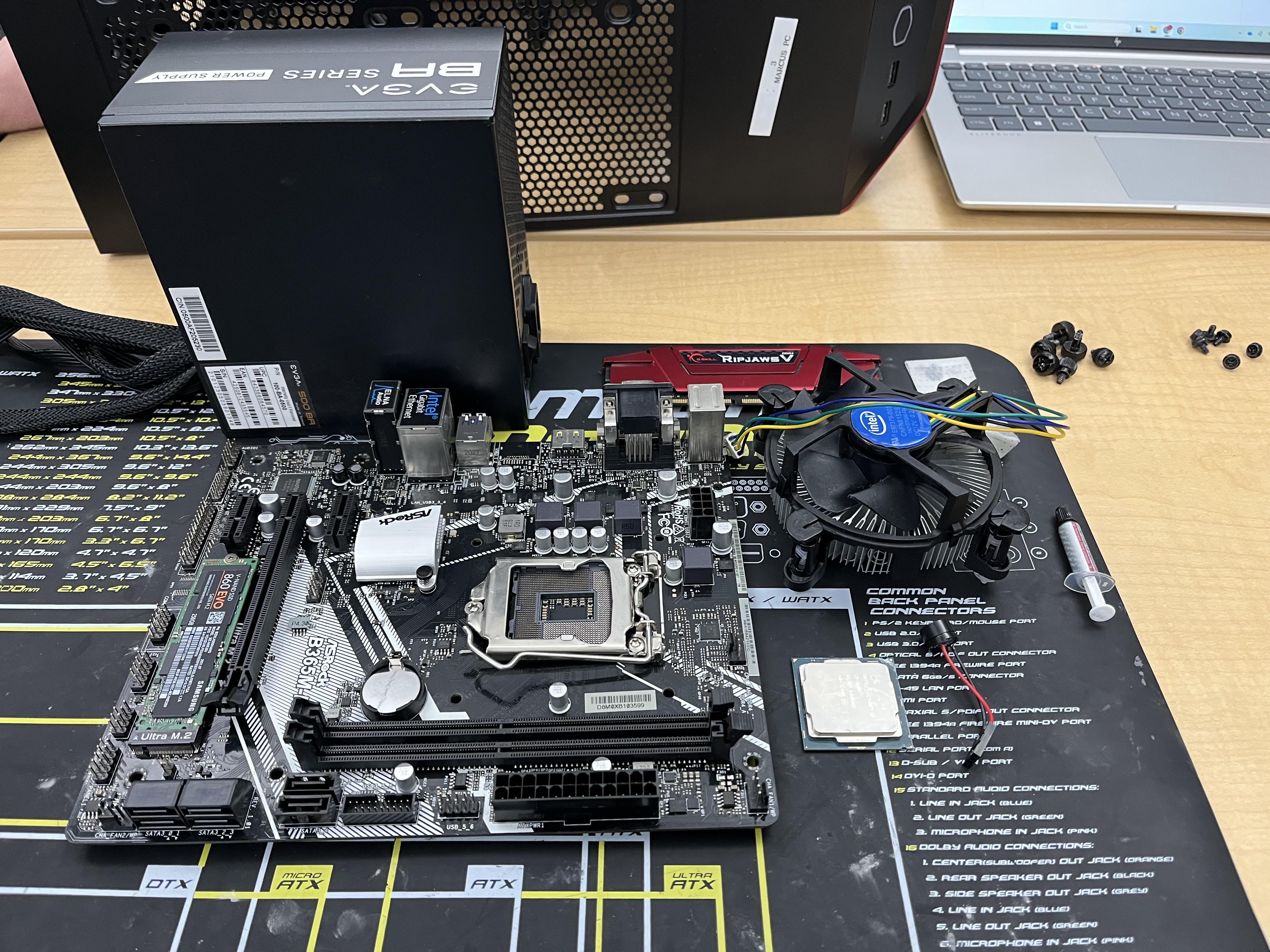
6x case screw's, 6x standoff screw's, RAM stick, thermal paste, speaker, heatsink, motherboard, power supply, computer case, anti static mat, anti static wristband.
Setup
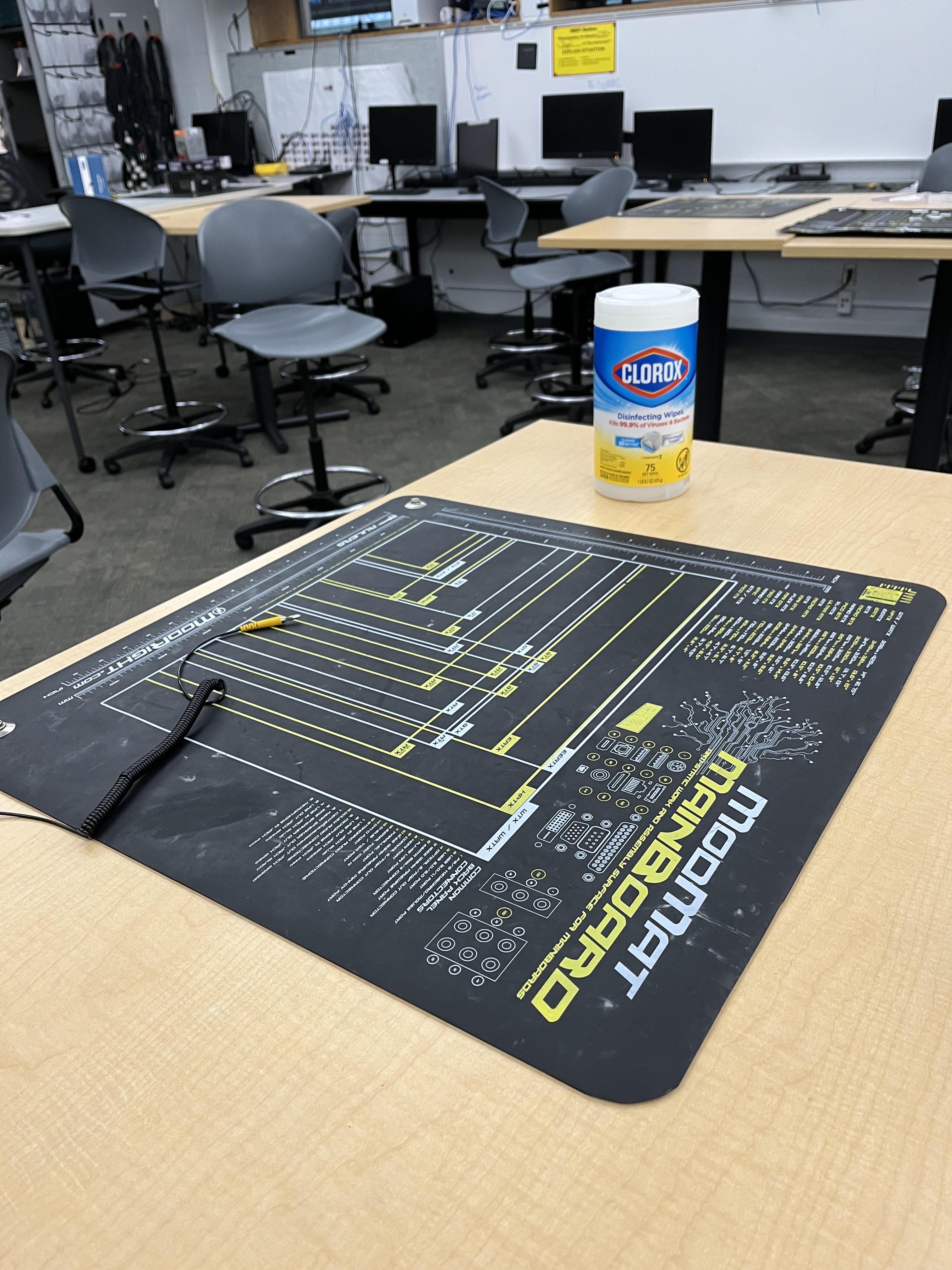
It is important to have a antistatic mat and wristband when putting together your PC build.
CPU Installation
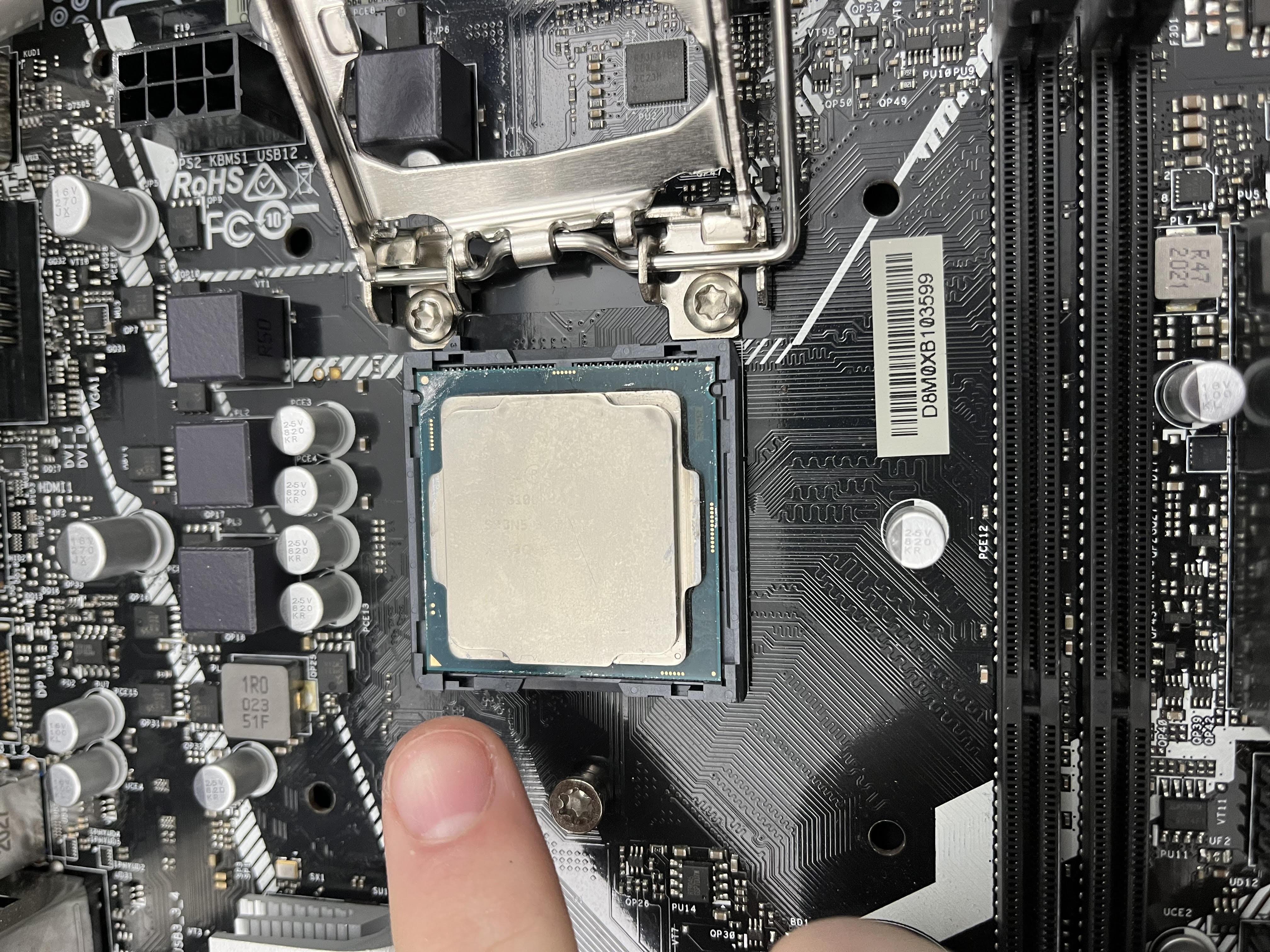
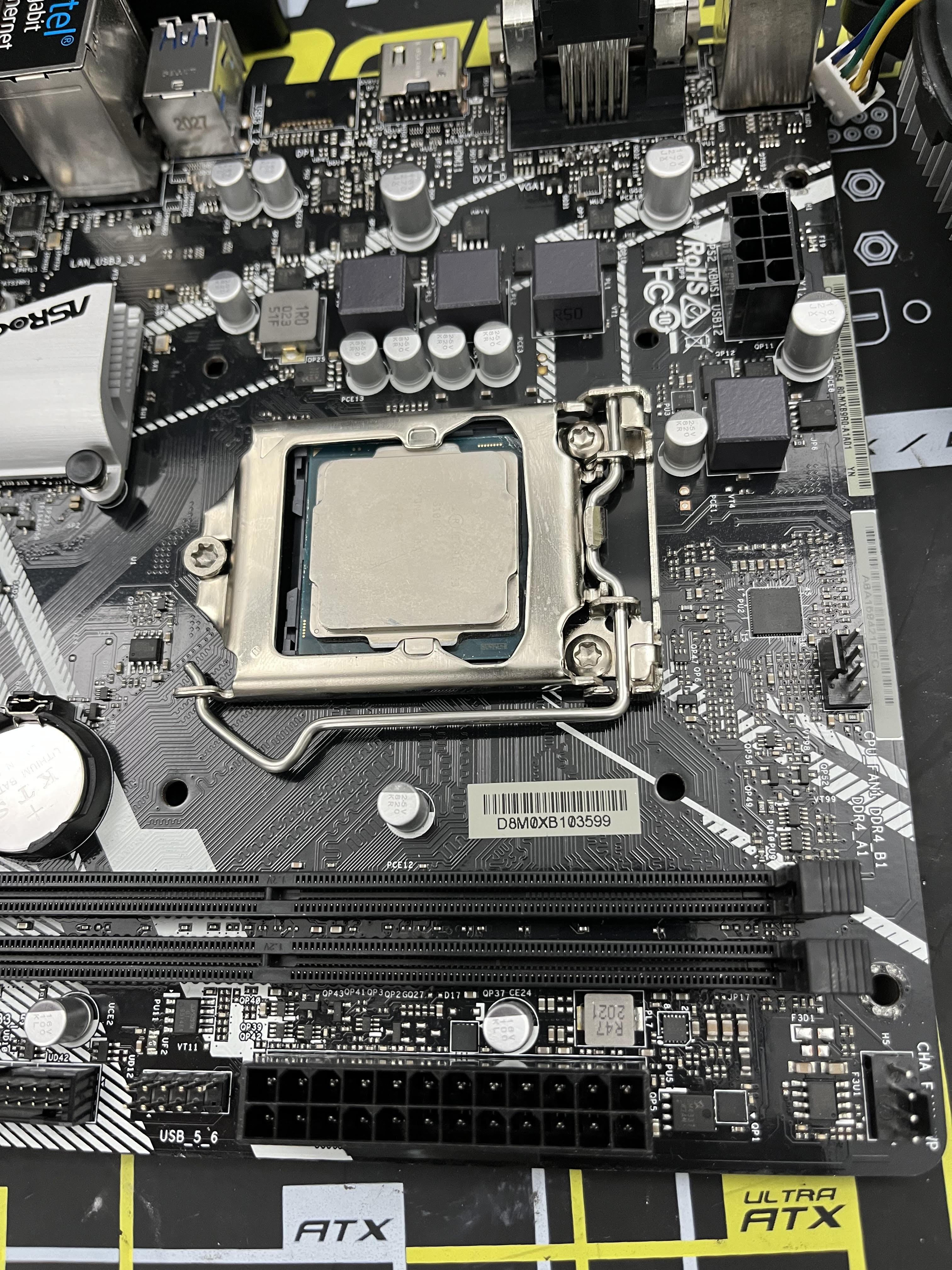
Make sure to align the golden triangle on the CPU with the triangle on the corner of the CPU socket. Put the CPU bracket down to make sure the CPU is secure and in place.
Thermal Paste
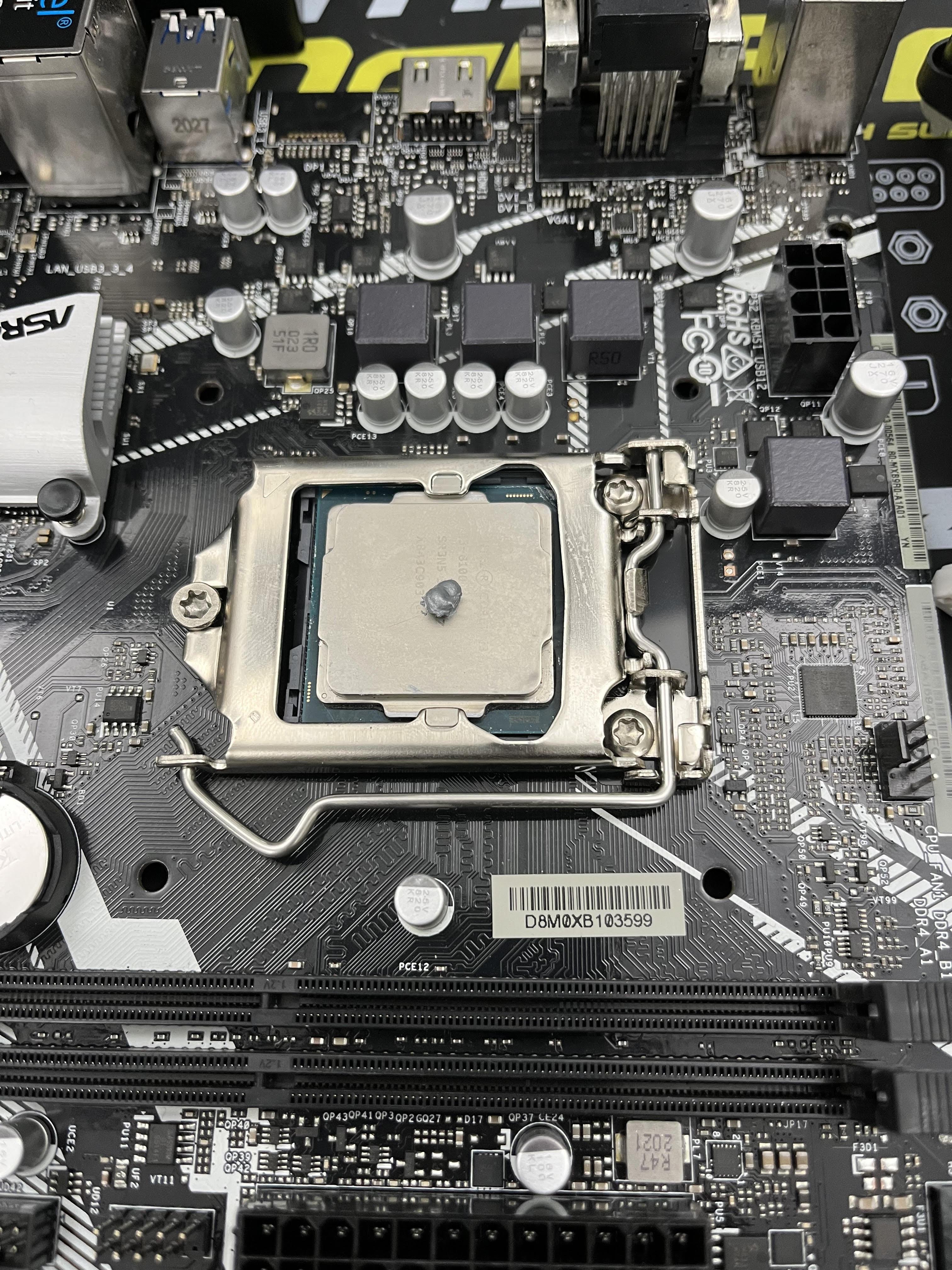
Put a pea sized amount of thermal paste in the center of the CPU.
Mount Heat Sink
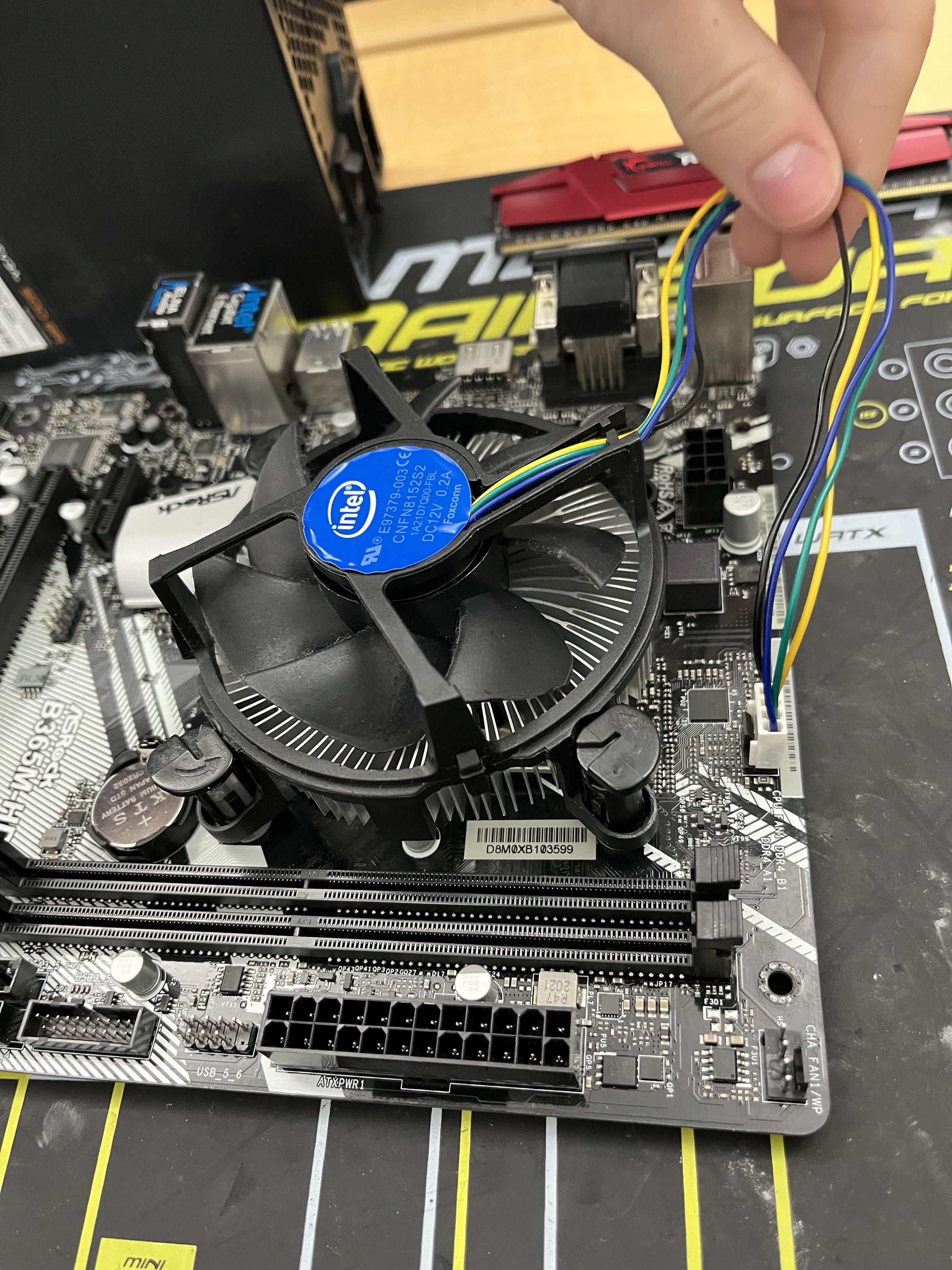
After applying thermal paste, align and lower the heatsink onto the CPU. Press down on the heatsink until the knobs click, then connect the fan cable to the 4-pin CPU fan header on the motherboard.
Seat RAM Sticks
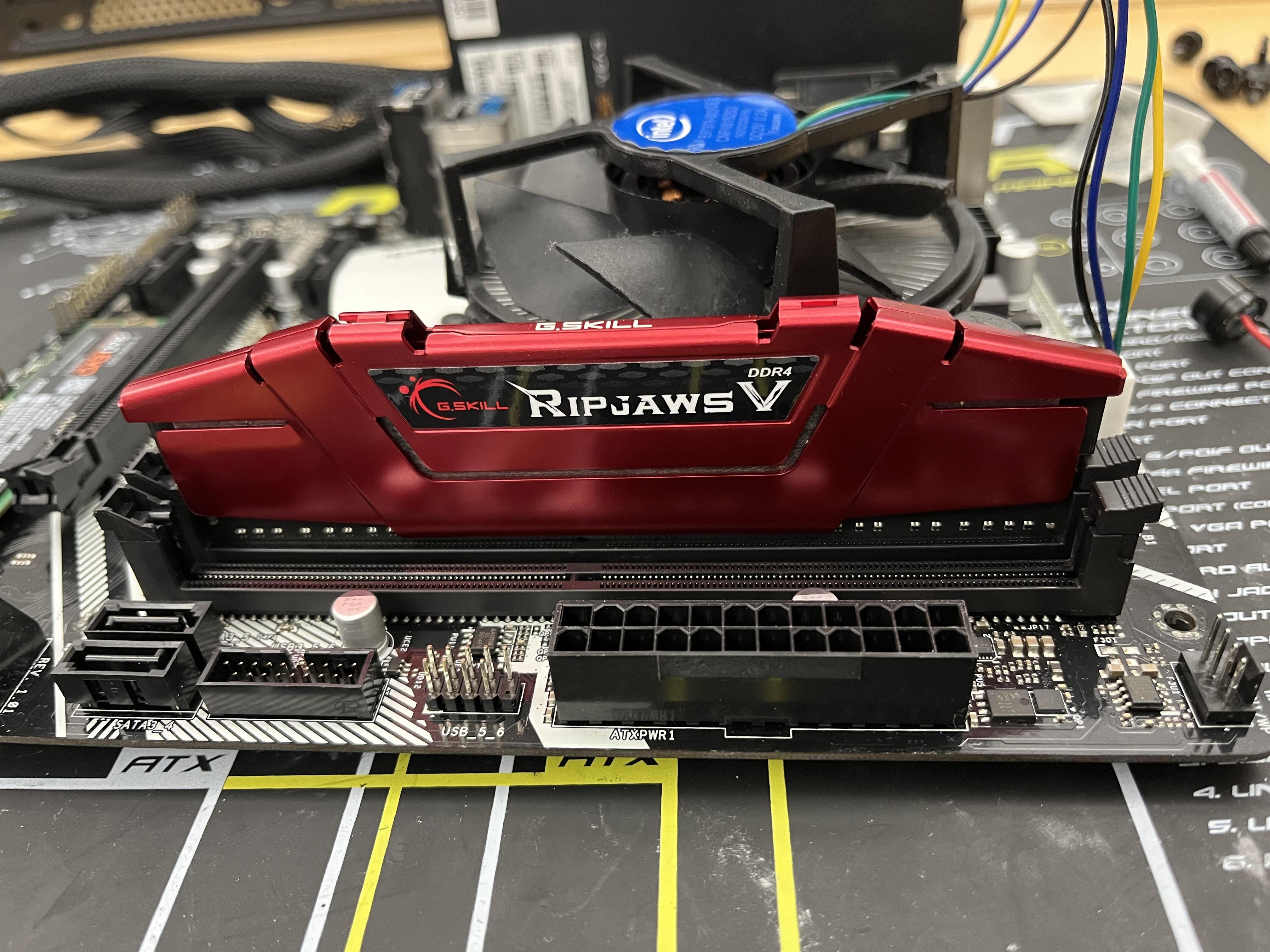
Open the side notches on the RAM slot. Align the notch on the RAM stick with the ridge in the slot, and press down firmly and evenly until the side notches click into place.
Power Supply Installation
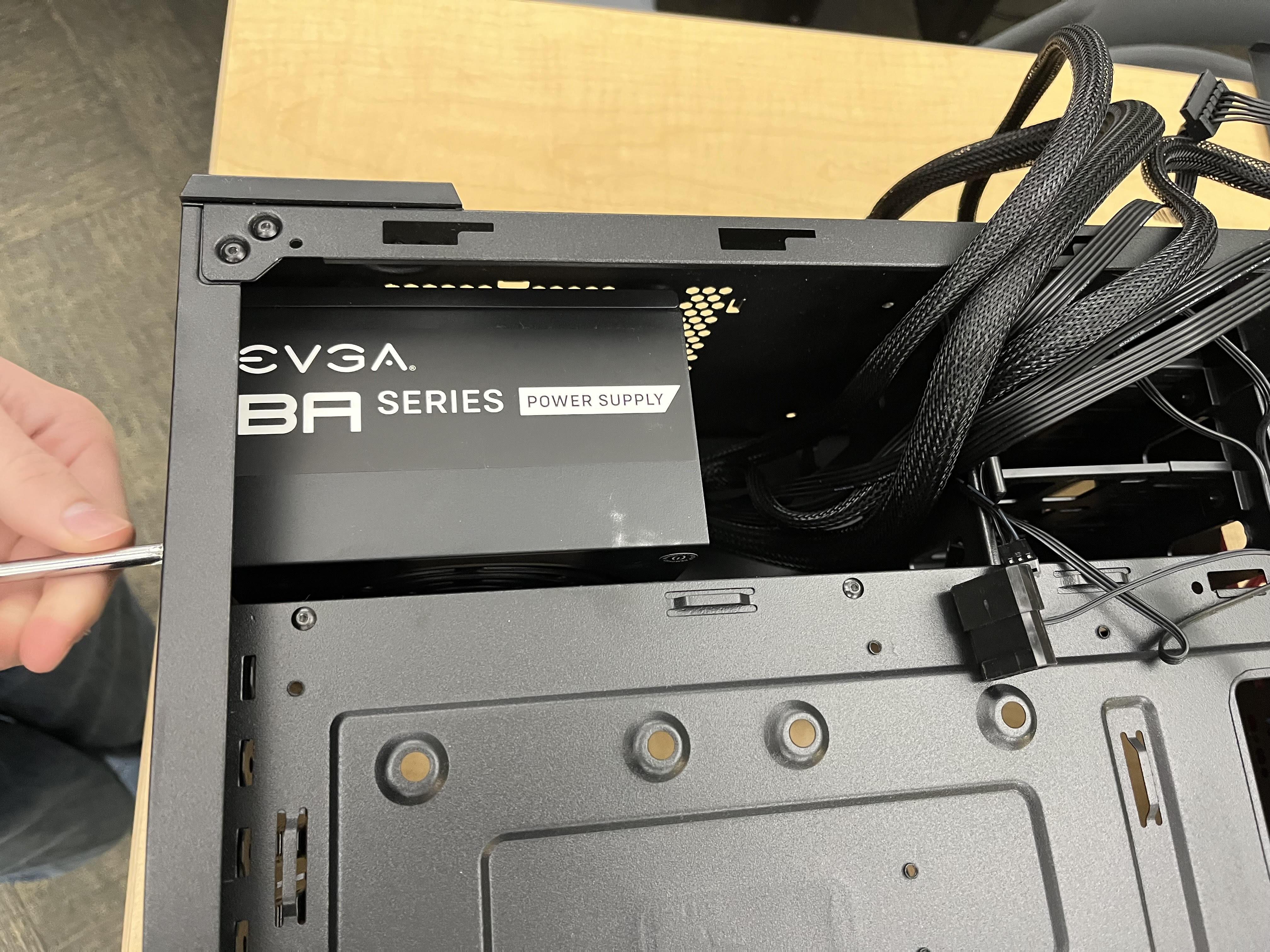
Secure the power supply inside the PC case with all four screws. Then, connect the Berg and Molex connectors, replace the side panel, and flip the case to prepare for the motherboard installation.
Installing Motherboard

Gently position the motherboard so its screw holes align with the case's standoffs, ensuring no direct metal-to-metal contact between the board and the case, then secure it by screwing through the motherboard into each standoff.
Plug in Motherboard

Securely connect the 24-pin power cable from the power supply unit (PSU) to the corresponding socket on the motherboard.
Plug in the CPU

Insert the 4/8 pin EPS connector into the corresponding socket on the motherboard.
Plug in Front Panel Connectors

Connect the Reset Switch and HDD LED to the bottom row of motherboard front panel connectors, and then plug the Power Switch (POWER SW), Power LED (+ and -) into the top row of connectors.
Plug Everything Else In
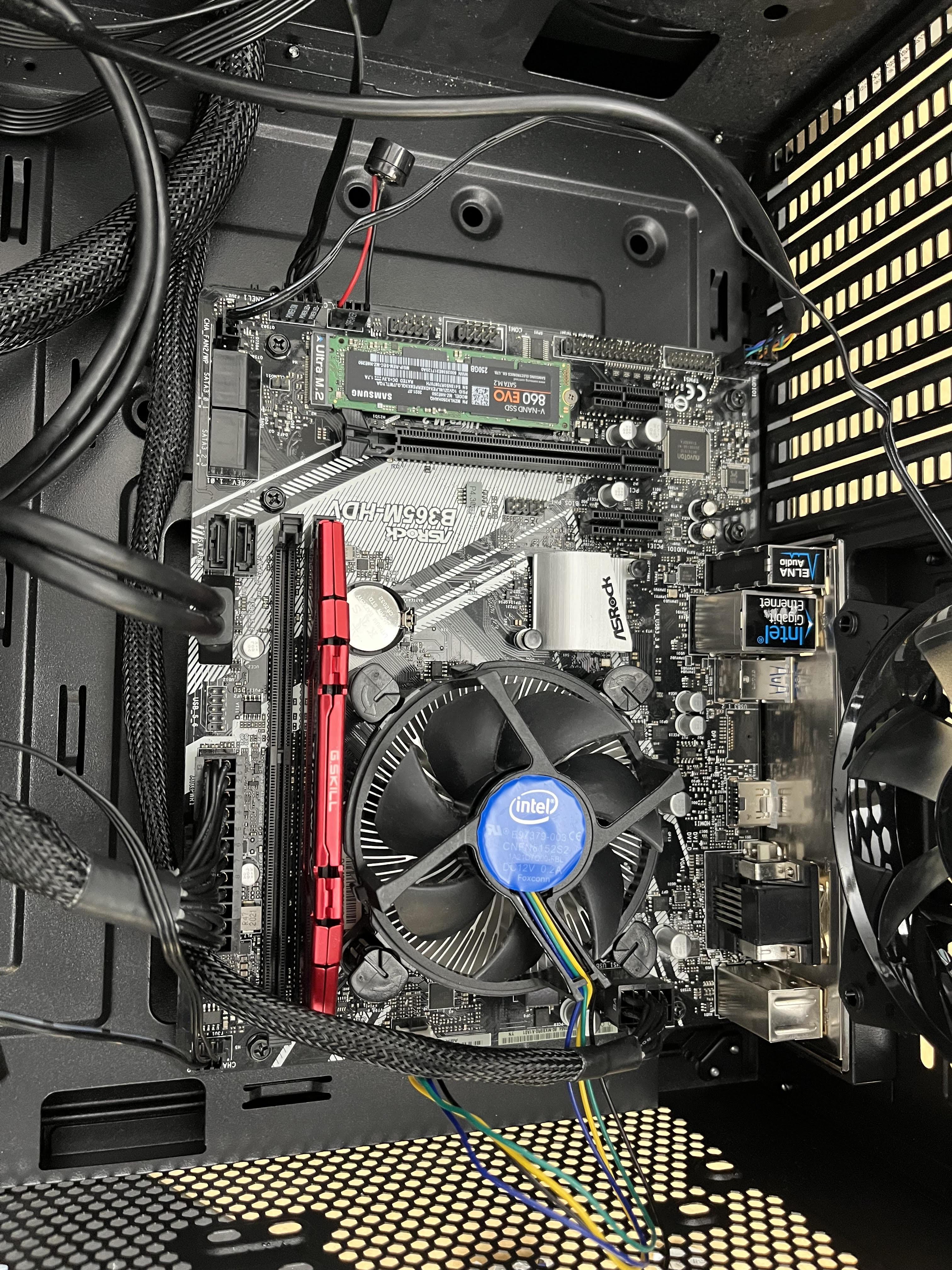
For the SPEAKER, which provides diagnostic beep codes during startup, you will find a 4-pin header within the front panel connector block, typically located at the very bottom edge of the motherboard. The single, small, 4-pin speaker plug from your case needs to be aligned with the pins labeled 'SPK' or 'SPEAKER' on this header and gently pushed into place. Next, for HD AUDIO, locate the Audio Front Panel header (often labeled 'AAFP', 'HD_AUDIO', or 'F_AUDIO') at the bottom-left corner of the motherboard. This is a 9-pin block with one pin missing; simply align the corresponding cutout on your case's HD Audio cable plug with the missing pin on the motherboard header and push firmly to enable your case's headphone and microphone jacks. For your SYSTEM FAN, you will connect it to a chassis fan header (commonly labeled 'CHA_FAN' or 'SYS_FAN'), which can be found in various locations, such as the bottom edge or near the back of the case. These headers, which are typically 3 or 4-pin, are used for non-CPU fans, and it's best to consult your motherboard manual to find the most convenient one for your fan's cable. Finally, to connect your case's USB 3.0 ports, you must locate the distinct, larger 19-pin header, which is typically blue and often situated along the bottom or right-hand edge of the motherboard, positioned between the SATA and USB 2.0 headers. Just like the other connectors, ensure the plug's notch is aligned with the header's plastic cutout to prevent pin damage before connecting the cable from your case
Double Check
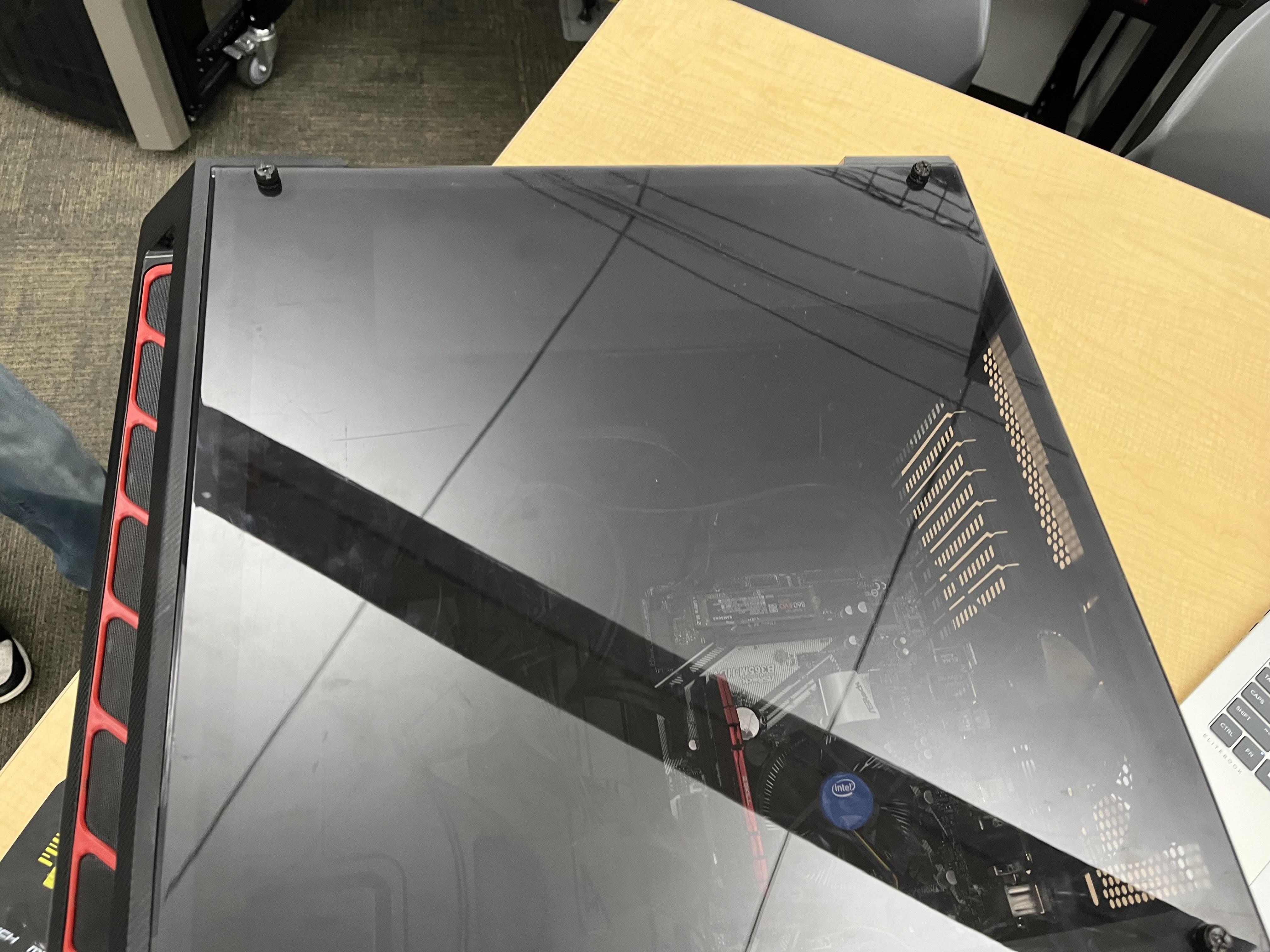
Inspect all motherboard connections to ensure they are correctly and securely seated. Confirm that the power supply, front panel, 24-pin and 4/8-pin, system fan, and USB 3 connectors are all in their proper slots. After verification, secure the panel cover to the case.
Test for POST
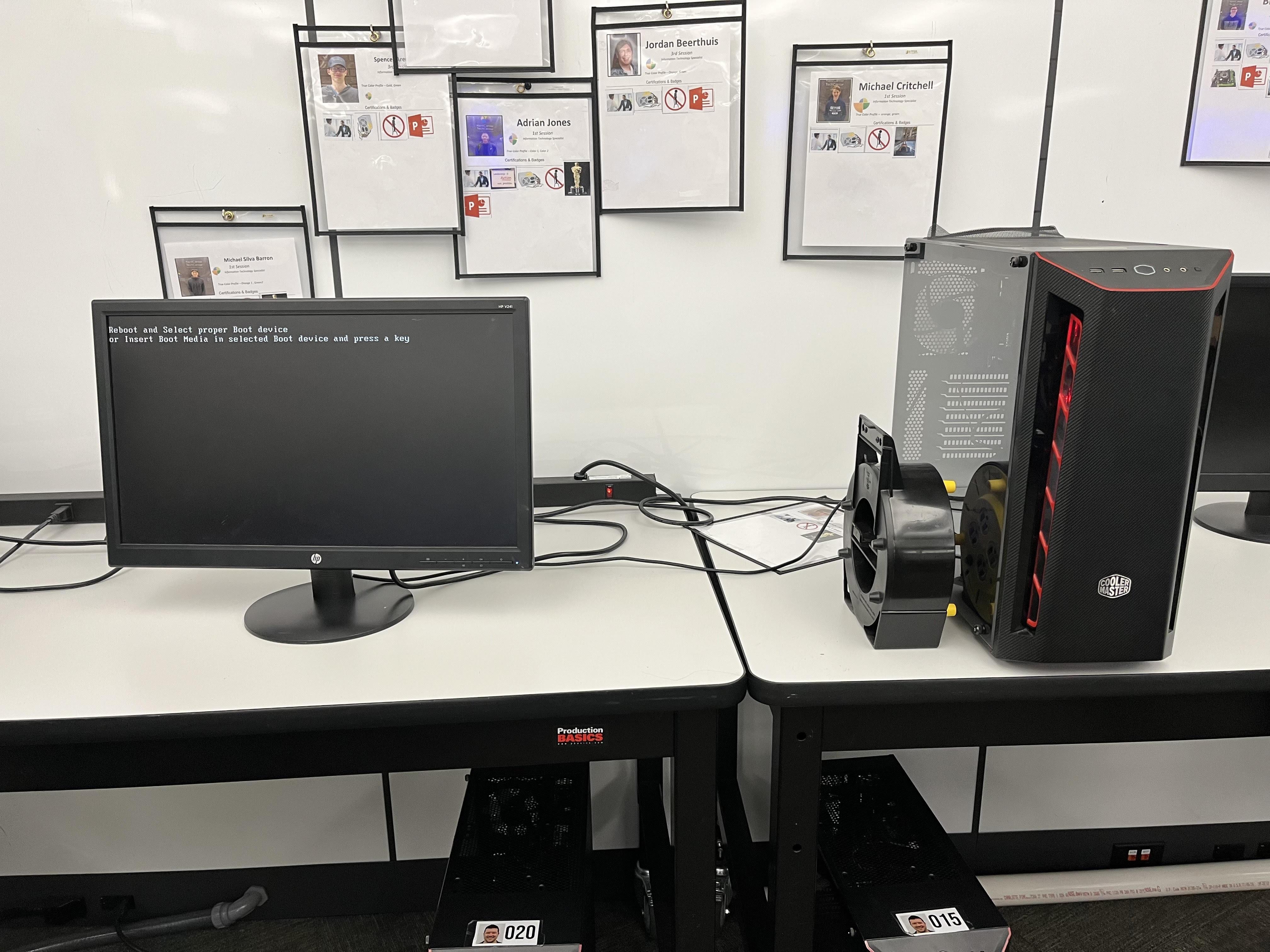
Verify that your computer passes the Power-On Self-Test (POST) to ensure it's fully functional.