Electronic Dice
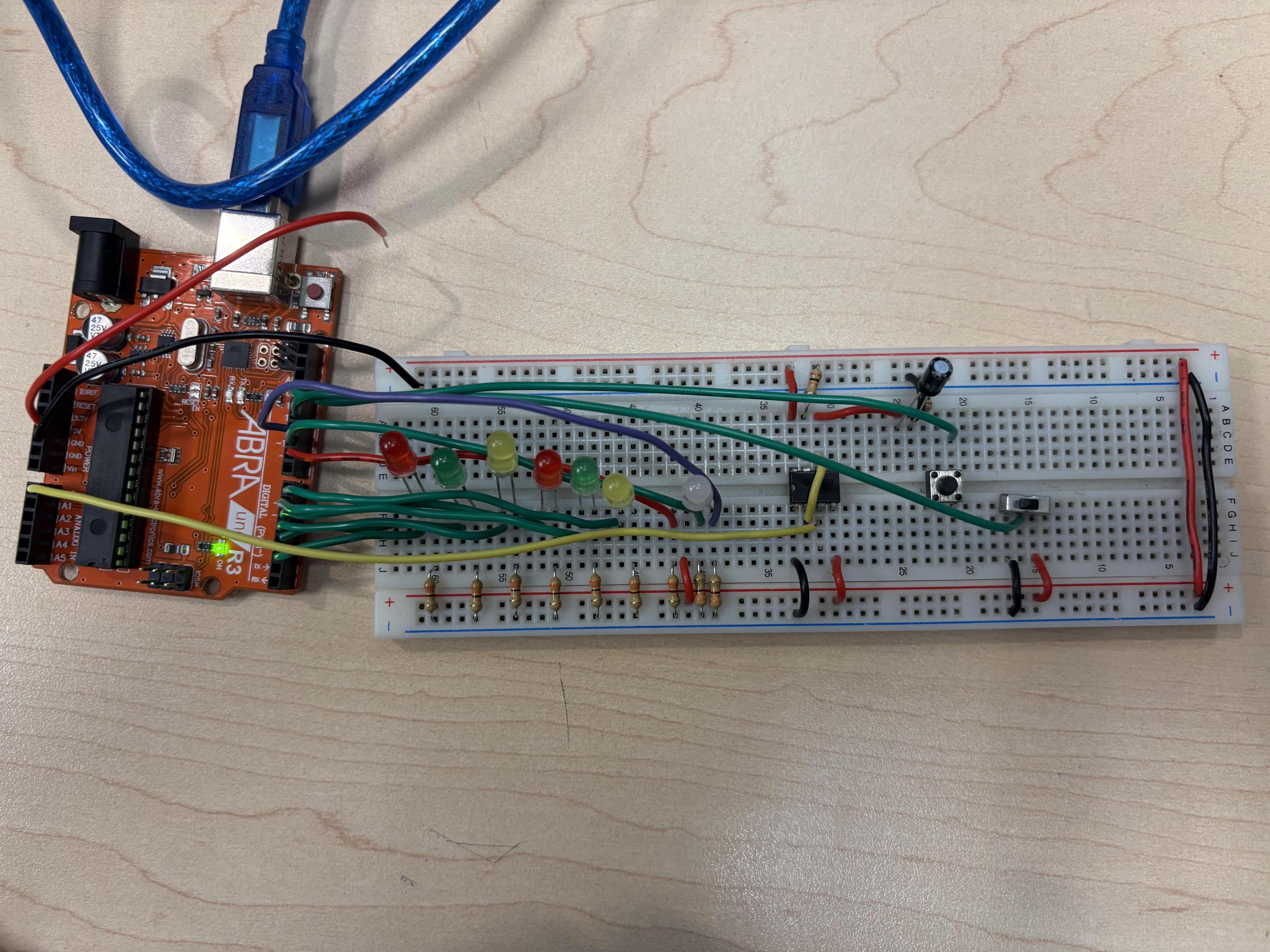
The Electronic Dice System combines the use of a 555 timer's true randomness paired with Arduino's programing to create a tool for games and studying probability. While traditional dice rely on somebody rolling it and waiting for it the land which can cause some imperfections like somebody throwing it to hard it goes missing, this electronic version fixes that issue to generate unpredictable rolls in seconds and even tracking the results and displaying it.
Supplies
Required Components
1x Arduino
1x Breadboard
1x 555 Timer IC
1x Push Button
1x Slide Switch
6x LEDs (can be different colors, but that's optional)
1x RGB LED
Understanding the Circuit Schematic
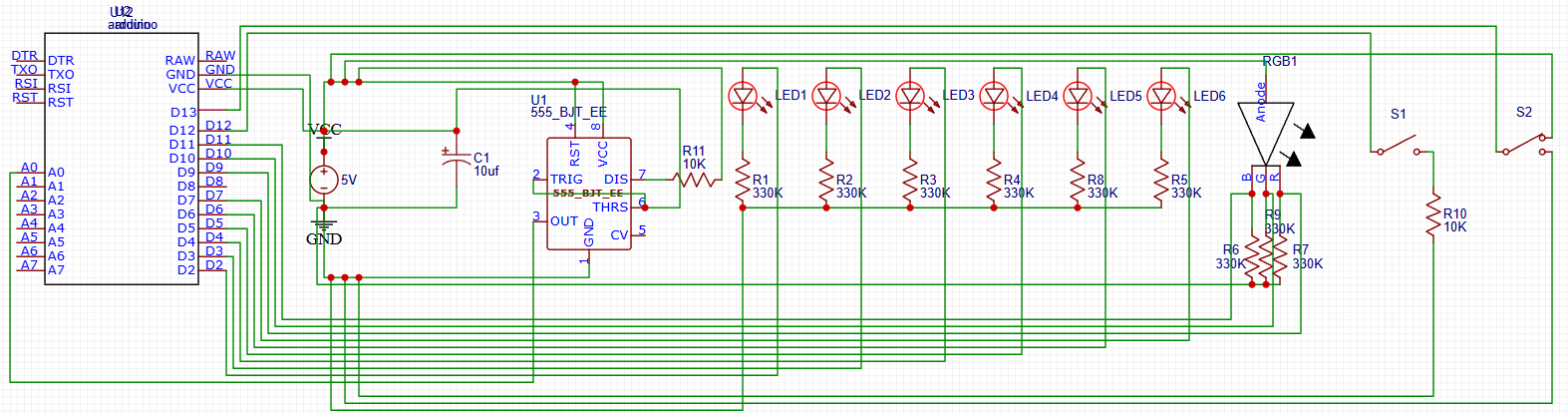
Above is the complete schematic for the Electronic Dice System. This diagram show show all components connect together. While you can rearrange the components on your breadboard, these connections must remain the same for the system to work properly, but if you do plan on rearranging the circuit you should make a schematic first, since you can find any errors before you make the actual circuit itself and without the schematic you wouldn't know where to put connections.
Building the 555 Timer Circuit
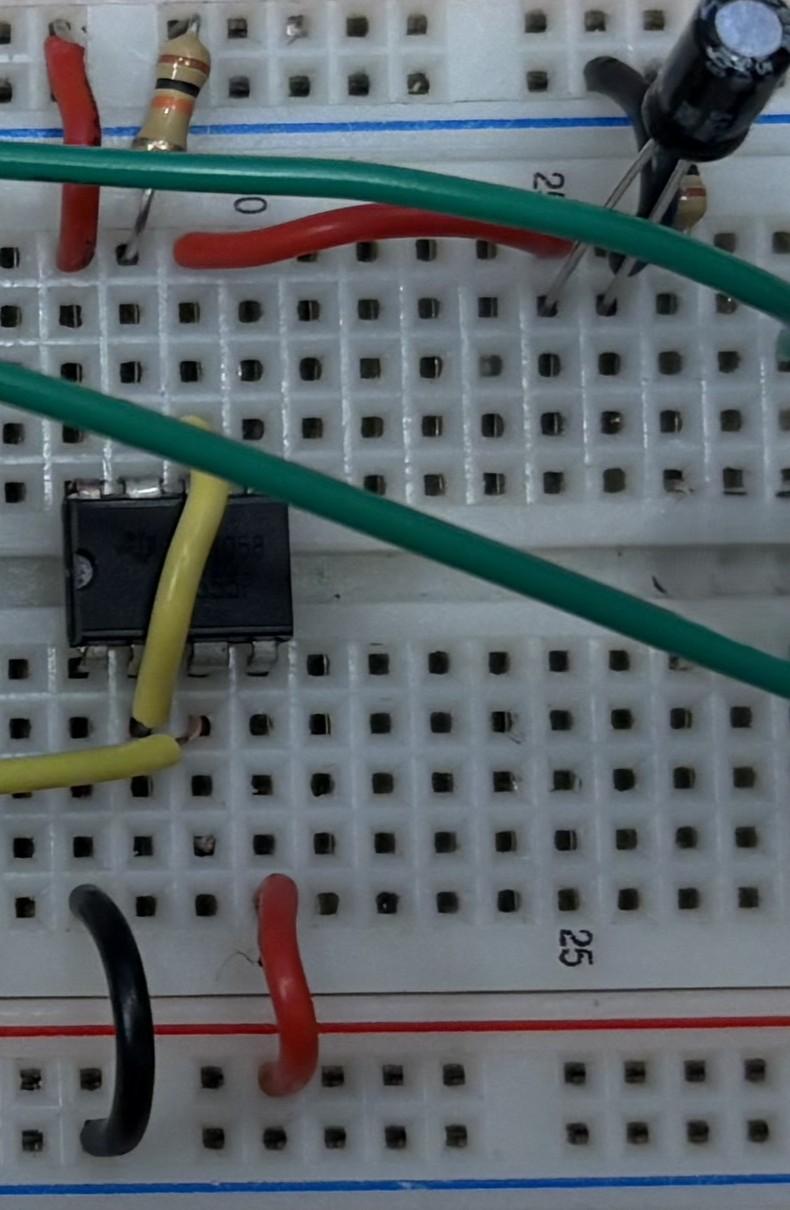
Place the 555 Timer IC on the breadboard in the center from step 1 with the notch facing left. This component provides the randomness for our Electronic Dice.
555 Timer Pins:
- Pin 1 --> GND (Black Wire)
- Pin 2 --> Connect to Pin 6 (Short Yellow Wire)
- Pin 3 --> Arduino A0 (Yellow Wire) - This sends the random signals
- Pin 4 -->+5V (Red Wire)
- Pin 5 --> N/A
- Pin 6 --> 10uF capacitor -> GND
- Pin 7 -- > 10K resistor -> +5V
- Pin 8 --> +5V (Red Wire)
Important: The 10uF capacitors long leg (+) to Pin 6, the short leg (-) to GND.
Setting Up the 6-LED Display
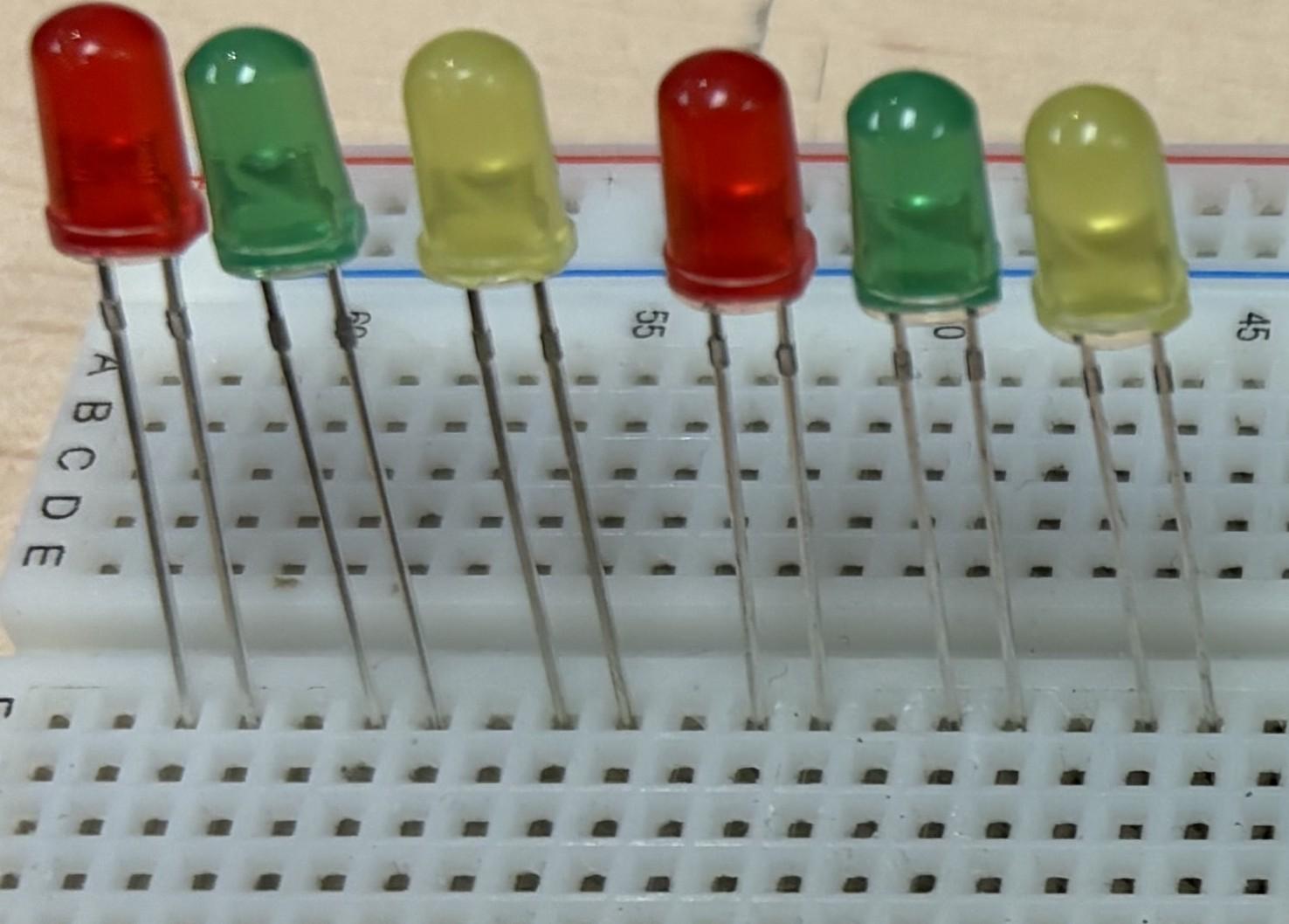
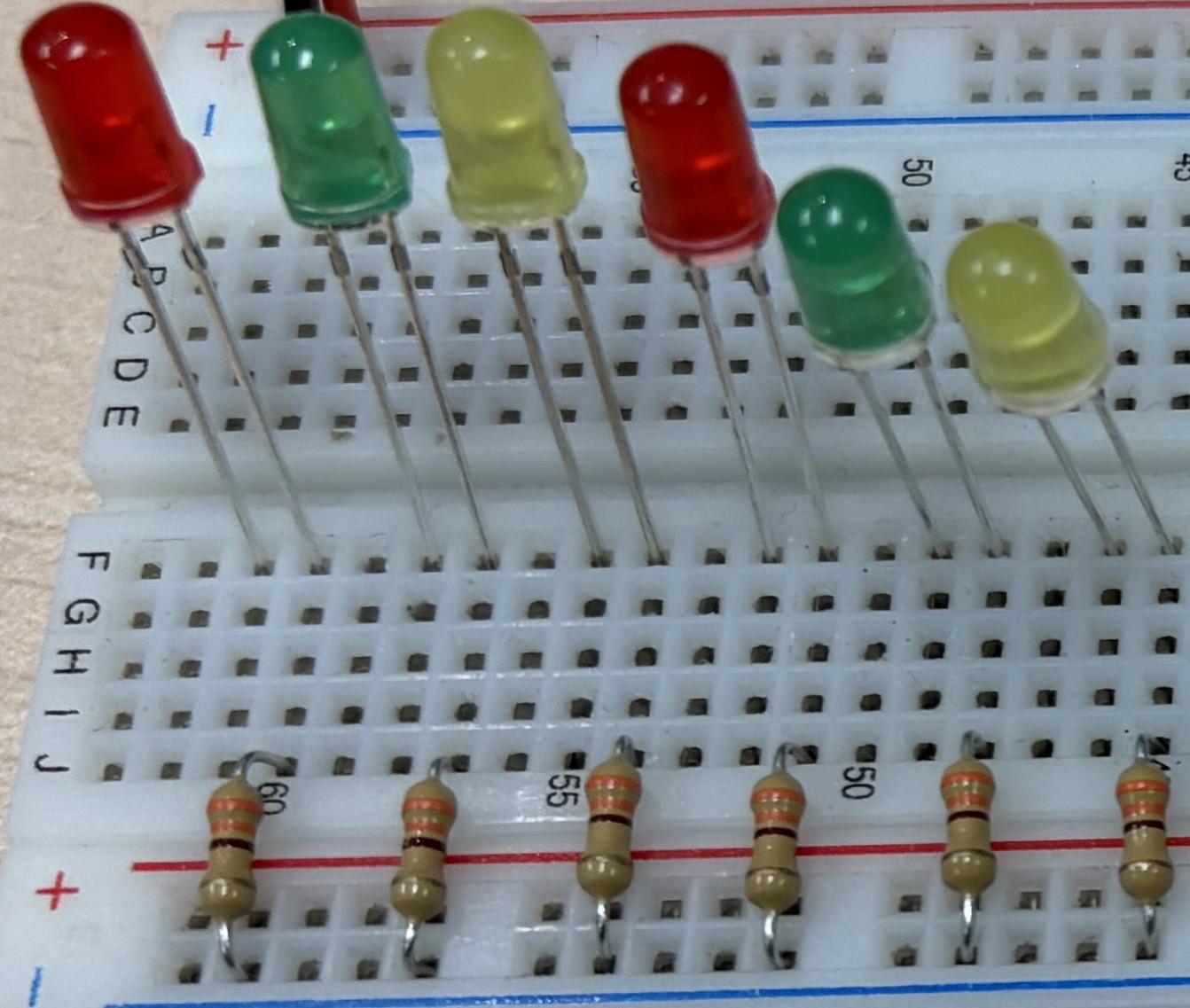
Arrange your 6 LEDs in a straight line across the breadboard. The LEDs can also be different colors if you want it to, I personally did red, green and yellow just so it looks cool.
For Each LED:
Arduino Pins --> LED (+)
330K resistors -- > LED (-)
Specific Connections for Arduino:
This is from left to right
- LED 1 --> Pin 2
- LED 2 --> Pin 3
- LED 3 --> Pin 4
- LED 4 --> Pin 5
- LED 5 -- >Pin 6
- LED 6 --> Pin 7
Pattern System: The Arduino code contains an array that tells which LEDs to light for each dice number from 1-6. For example, number 1 lights only the center LED, while number 6 lights all LEDs.
Adding RGB Status LED
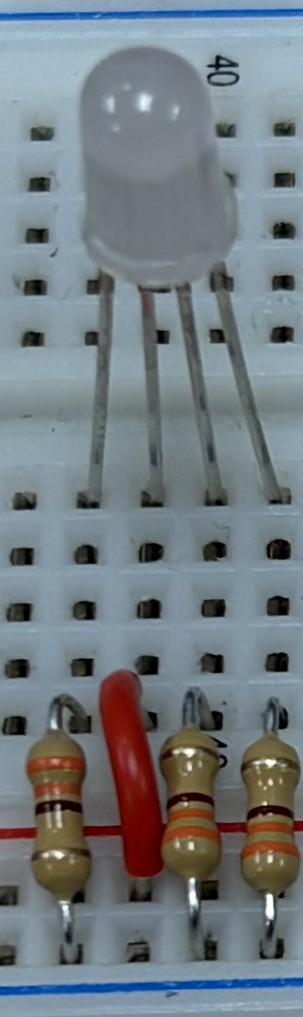
The RGB LED provides a visual notification about the systems state. The RGB LED that I used is common anode so I highly recommend you have a common anode RGB LED.
Connections:
- RGB Long pin (common anode) --> +5V (Red wire)
- RGB Red pin --> 330K resistor -> Arduino pin 9 (Red wire)
- RGB Green pin -->330K resistor -> Arduino pin 10 (Green wire)
- RGB Blue pin --> 300K resistor -> Arduino pin 11 (Blue/Purple wire)
RGB LED Color Meanings:
- Green: Normal mode ready
- Yellow: Lucky mode active
- Blue: Just rolled (brief flash)
Note: Common anode means LEDs turn ON with LOW signal, so the code uses 255 - value for color control.
Connecting Input Controls
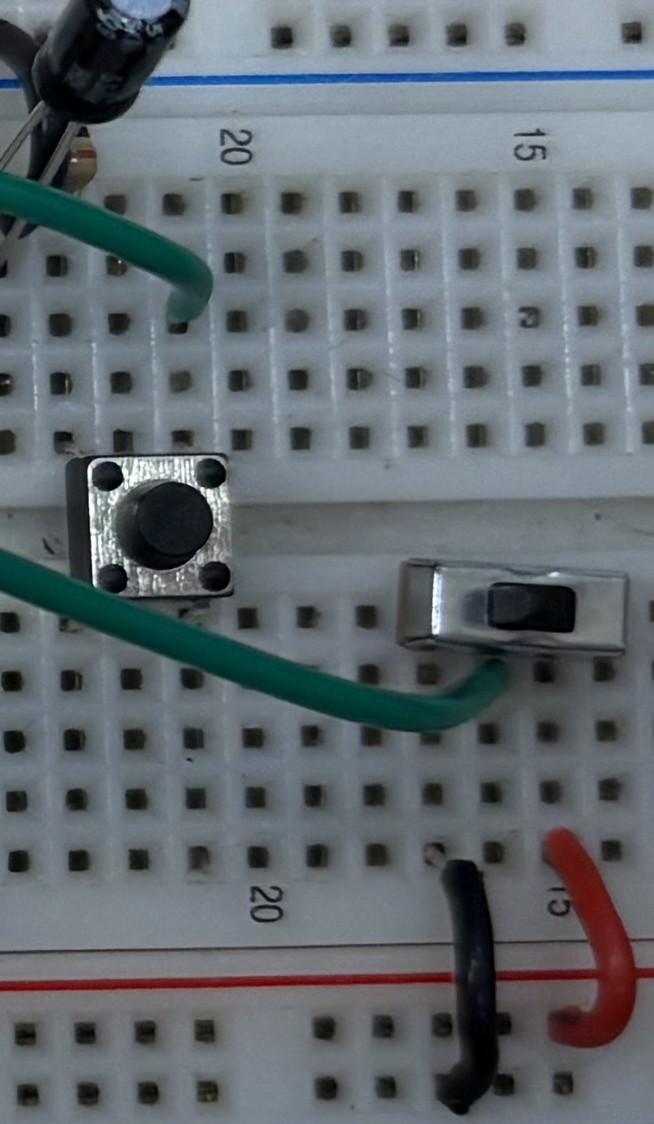
The two input controls we have on this circuit is the push button and slide switch so we will be wiring and connecting these two inputs.
Push Button (Roll Trigger):
- Arduino pin 12 --> Button -> GND (Black wire)
Note: One leg of the push button must be connected to ground and another to the Arduino pin 12 if you are confused.
Slide Switch (Mode Selector):
- Arduino pin 13 --> Switch (middle leg) -> GND (Black wire)
Note: The right leg of the Slide Switch is positive and the left leg is negative.
Power Distribution
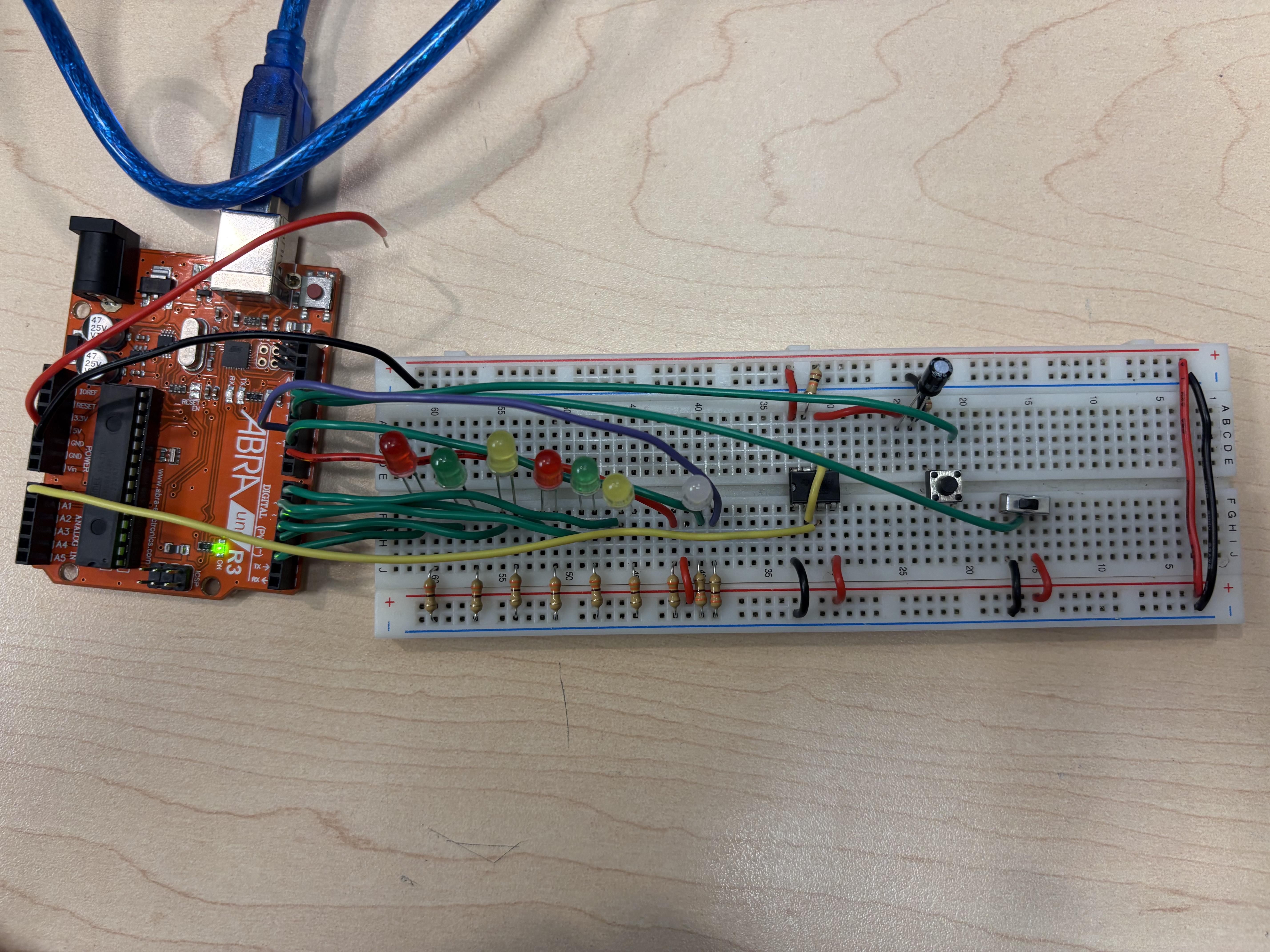
For the final part of the circuit were going to put our basic power and ground connections throughout the entire breadboard since were done wiring components.
Critical Connections:
- Arduino 5V --> Breadboard +5V rail (Red wire)
- Arduino GND --> Breadboard GND Rail (Black wire)
Important: make sure there is a red and black wire connecting both the power and ground rail at the top to the bottom so everything on the circuit is getting power.
Uploading and Testing Code
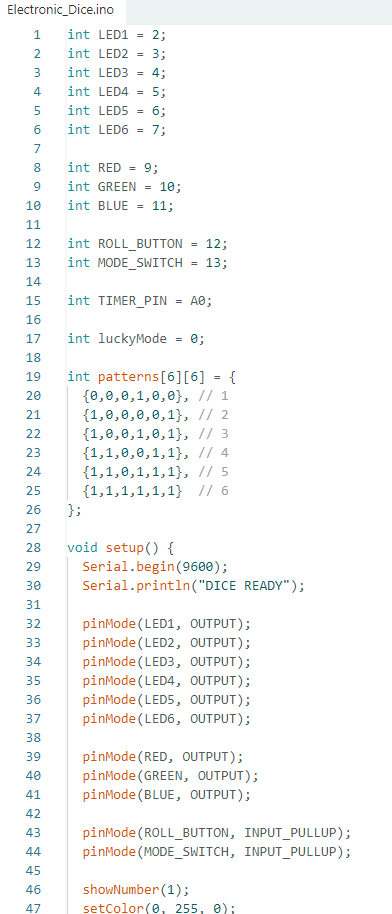
The Arduino code file is attached. Make sure all components are wired to the correct pins as specified in the code. If you change the assigned pins, update the code so nothing is conflicting. Now here's what should happen so you know if there are any problems or if its working correctly. Also when you run the program open the serial monitor.
Start up:
- LED should light
- Serial Monitor should show "DICE READY"
- RGB light should be Green once the dice is ready
Functionality Test:
- Pushing the button --> LEDs flash 3 times, show random number from 1 to 6
- RGB flashes blue briefly --> returns green
- Toggle switch -- > RGB turns Yellow (lucky mode active)
- In lucky mode --> 70% chance of getting the results of 4,5,6
Downloads
Enjoy
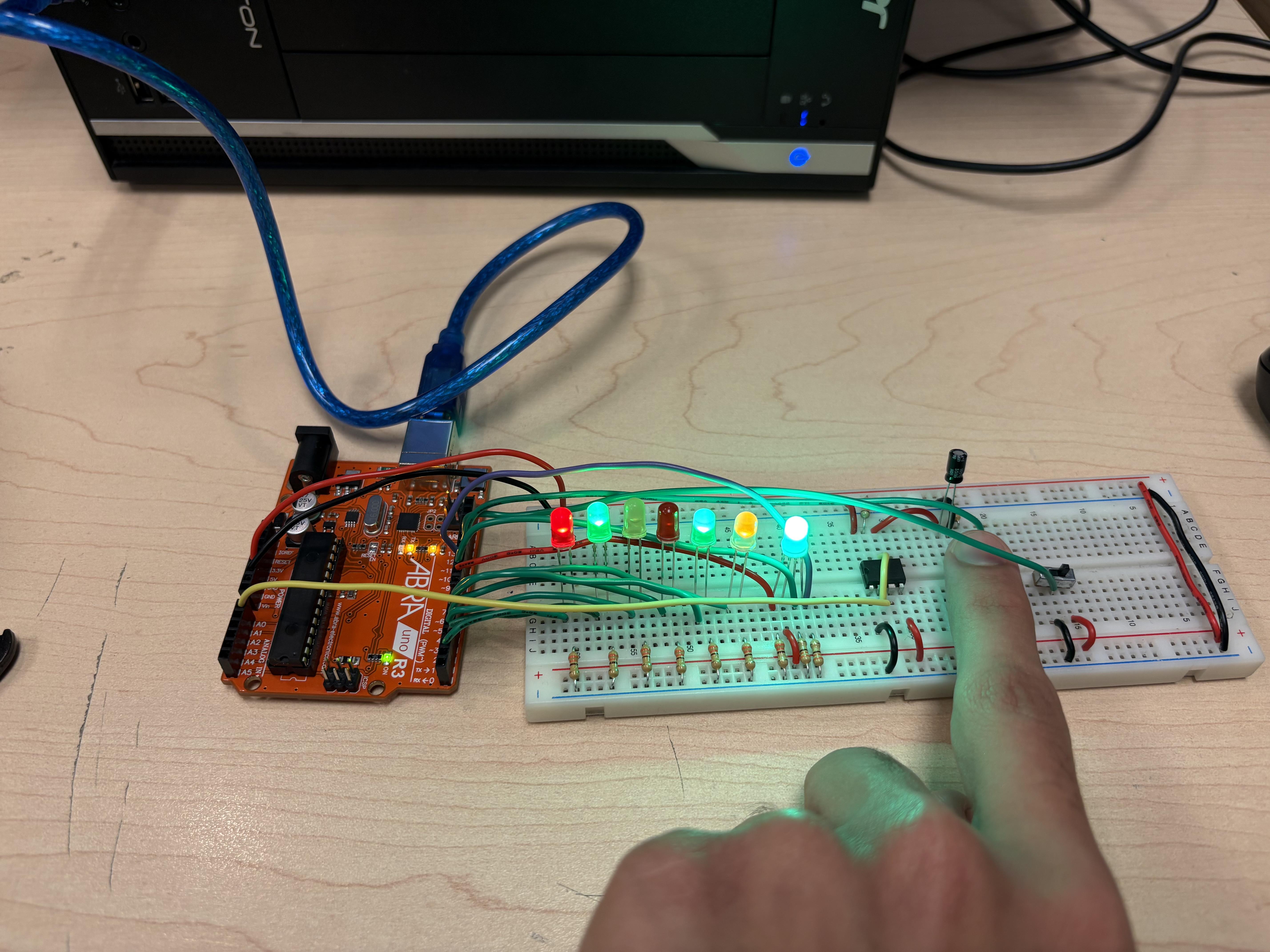
Now that your Electronic Dice is all finished and cleaned up, have fun with it and use it for whatever purposes you desire, enjoy :).