Easy Off-Grid Texting & Tracking With Lilygo T-Deck Plus
by mattcalhoun1 in Circuits > Wireless
84 Views, 2 Favorites, 0 Comments
Easy Off-Grid Texting & Tracking With Lilygo T-Deck Plus
.jpg)
.jpg)

.jpg)
.jpg)
This project shows you how to easily turn 2 or more T-Deck Plus devices into a private off-grid mesh communication cluster (group), which is handy for when your camping, hiking, or just want to be able to send messages and track family/friends without using the grid.
The T-Deck Plus is extremely easy to set up.
After following these instructions, you'll have a set of pocket-sized devices that will let you privately text, share location, and more, completely off-grid. These do not rely on your phones or cell service at all.
If you want to know more about how this works:
- How LoRa and Mesh work for Off-Grid Communication
- How Encrypted Off-Grid Messaging Works (video)
- Using T-Deck for Location & Tracking (video)
- How Off-Grid Mesh Delivery Works (video)
- How frequency hopping is used to enhance security & resist jamming / interference
Supplies
.jpg)
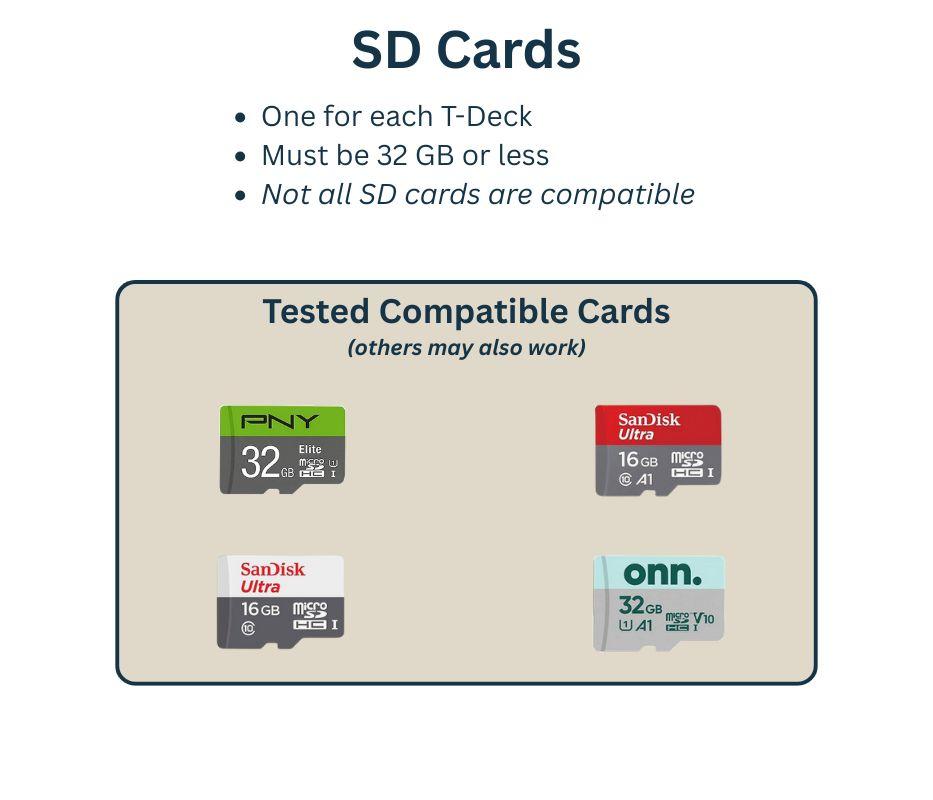
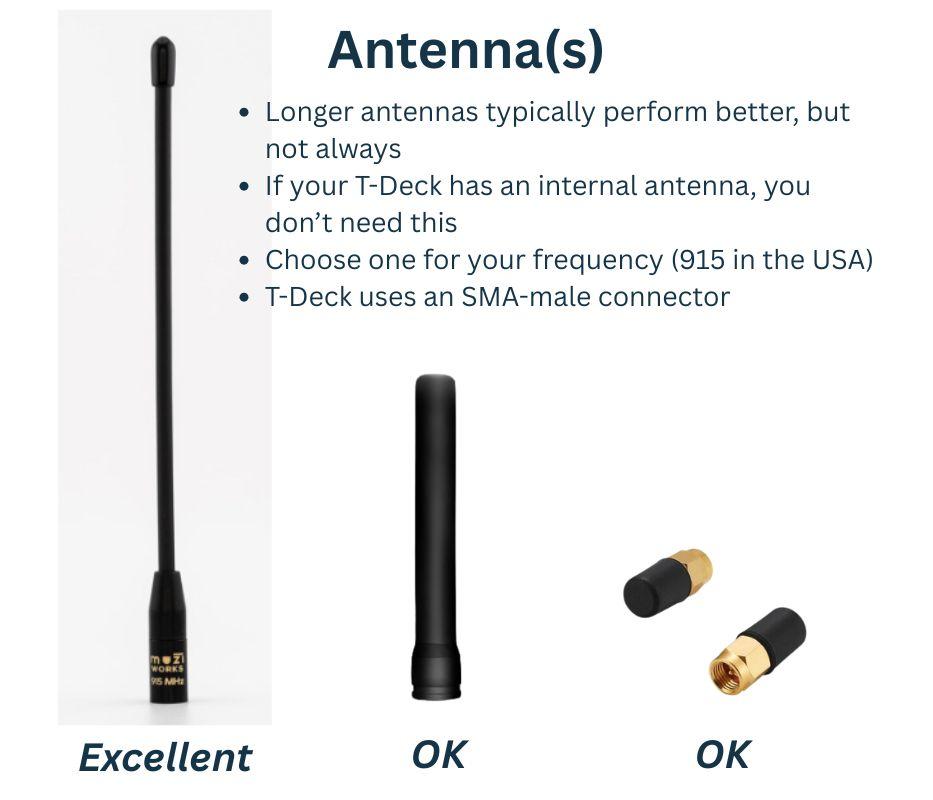
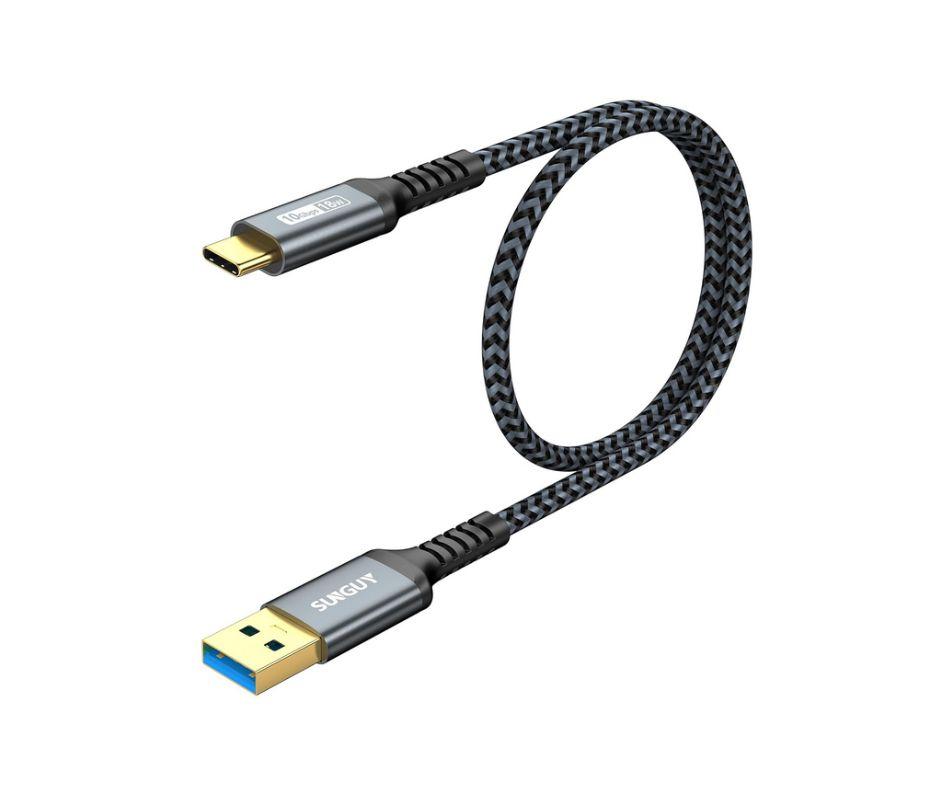
Make sure the T-Deck Plus you choose is for frequency 915 if you are in the USA. Outside the USA, check your regulations to see if you need 915, 868, or 433.
Where to Buy:
Lilygo T-Deck Plus: Amazon, Ali Express, Lilygo, chatters.io
SD Cards: Amazon, Ali Express
Antenna: Amazon, Ali Express, chatters.io
USB C Data Cable: Amazon, Ali Express
You may purchase the Lilygo T-Deck Plus with an internal or external antenna. The internal antenna is more convenient for slipping into your pocket or a backpack, but the range is typically half that of an external antenna.
Attach Your Antenna to the T-Deck
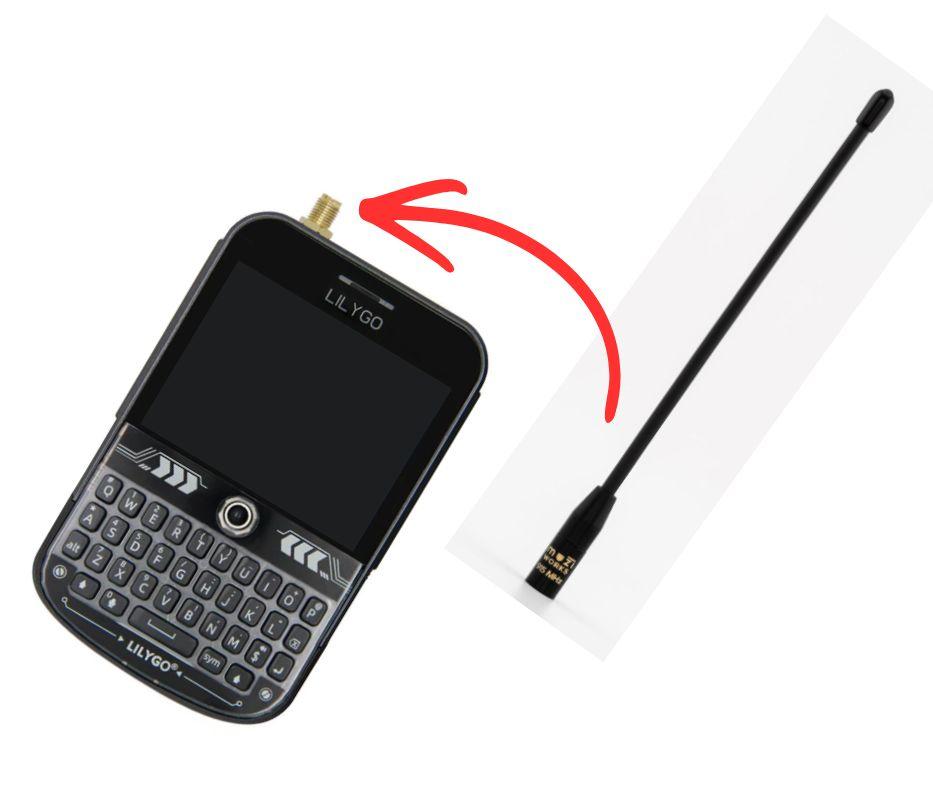
If your T-Deck has an internal antenna (no threaded SMA connector on top), your antenna is built-in and you can skip this part.
An external antenna can definitely give you better range. If you've got an external antenna, screw the antenna onto the T-Deck's SMA connector.
Insert Micro SD Card
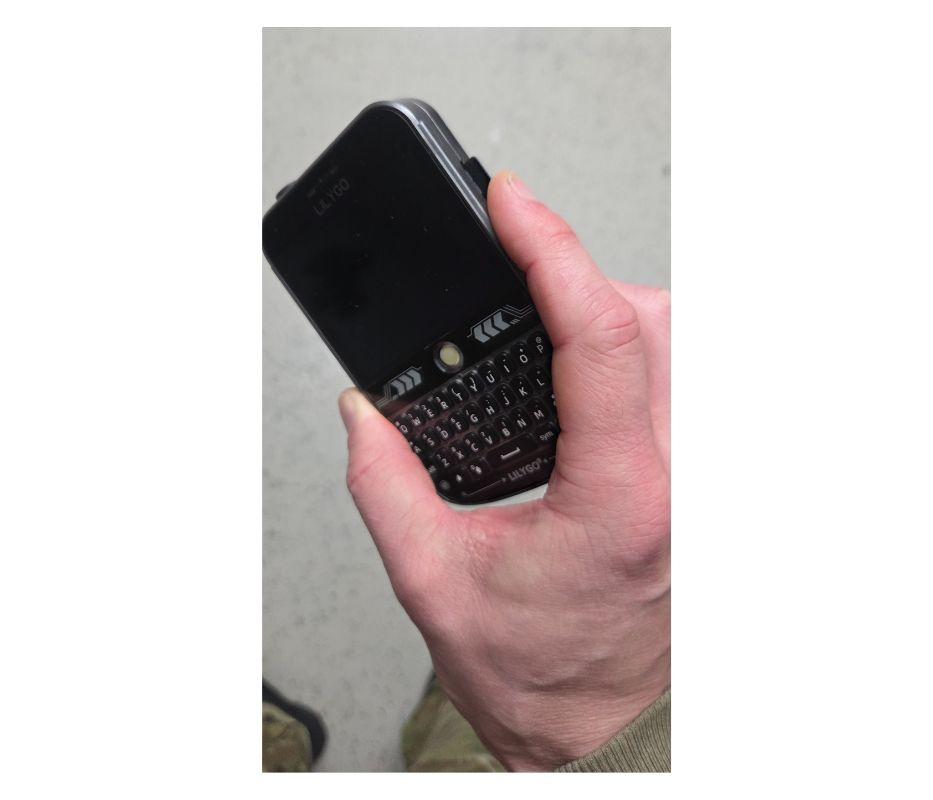
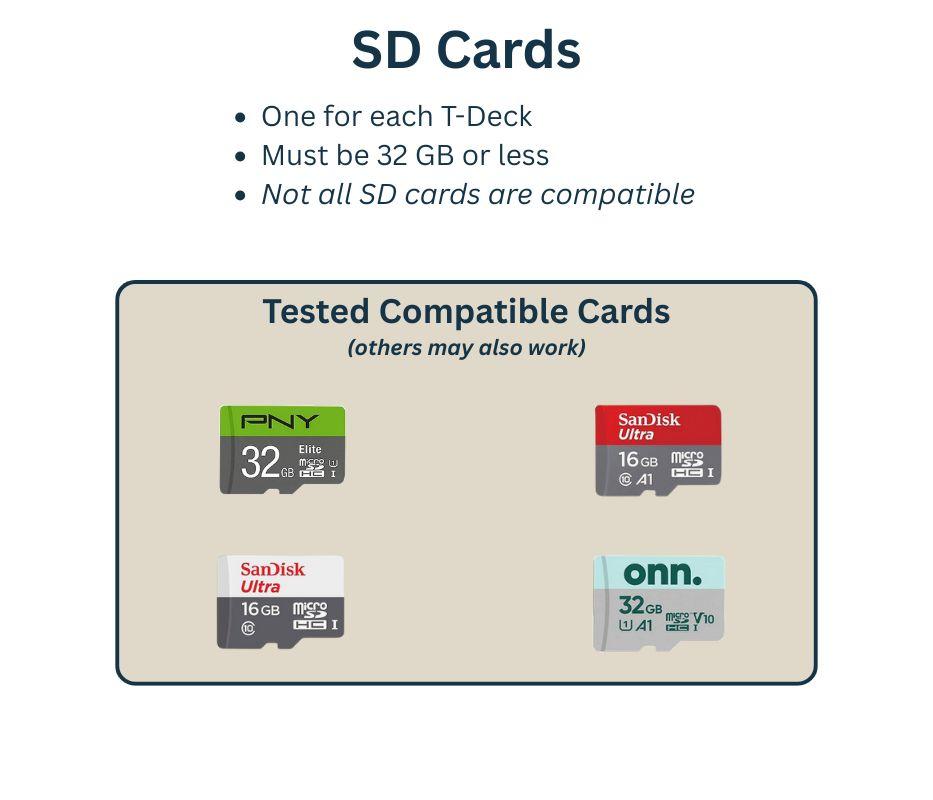
Insert a compatible SD card to the T-Deck. Not all micro SD cards are compatible.
You need a 32 GB or less micro SD card, preferably from the known compatible list.
This PNY card is a good option.
Connect T-Deck to Your Computer
.jpg)
- Use a high quality USB data cable (not just a charging cable)
- If you run into trouble during flashing, try reconnecting or switching to a different cable
Power-On T-Deck in "Boot Mode"
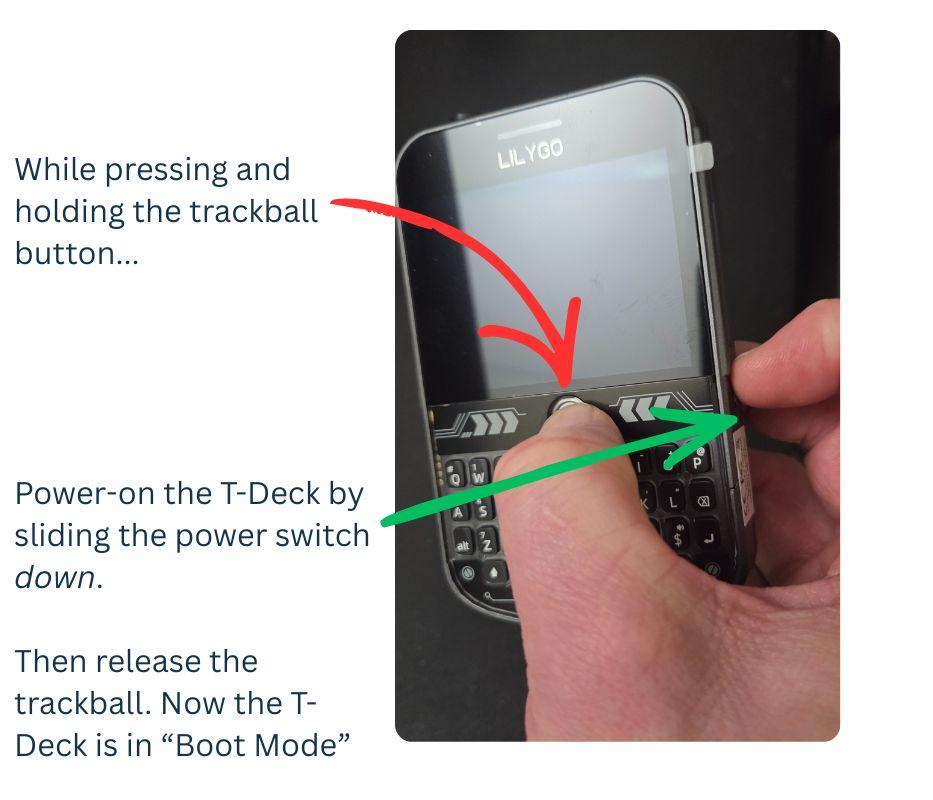
- Press and hold the trackball button
- Power the T-Deck on (slide the power switch down)
- Release the trackball button
The screen of the T-Deck will probably not turn on, that is OK.
Flash Firmware Onto the T-Deck
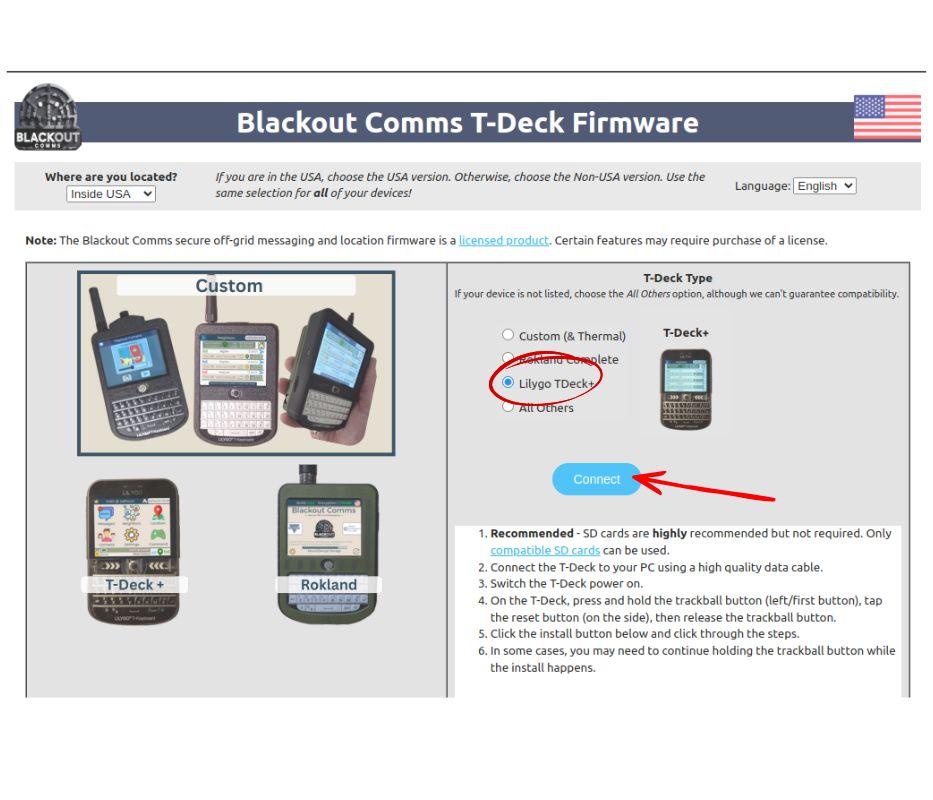
Flashing means installing firmware onto the device. It takes about 30 seconds and is done from your web browser.
With the T-Deck connected, Flash firmware onto the T-Deck by visiting one of the following T-Deck firmware pages:
- Main T-Deck Firmware Site
- Alternate T-Deck Firmware Download Site
- Yet another T-Deck Download Site
Flash instructions are on the T-Deck Firmware page.
Reboot the T-Deck

- Disconnect the T-Deck from your computer
- Power the T-Deck off and then back on
- You should see the startup screen within a few seconds
Getting Current Time from GPS
When the T-Deck first powers on, it will acquire a GPS signal to get the current time. This can take a while.
If your T-Deck gets stuck waiting for GPS, go near a window or outside. It's not looking for location, it's trying to get the current time.
Getting Current Time from a Nearby Device
If you already have another T-Deck running nearby, your new T-Deck will automatically get the time from that other powered-on device within a few minutes.
If you build your own custom T-Deck (instead of T-Deck Plus) you can add a realtime clock, which skips this GPS step on startup, allowing the T-Deck to always start instantly. With a custom T-Deck, you can also add vibrate alerts and other nice options.
Name the T-Deck & Choose Private
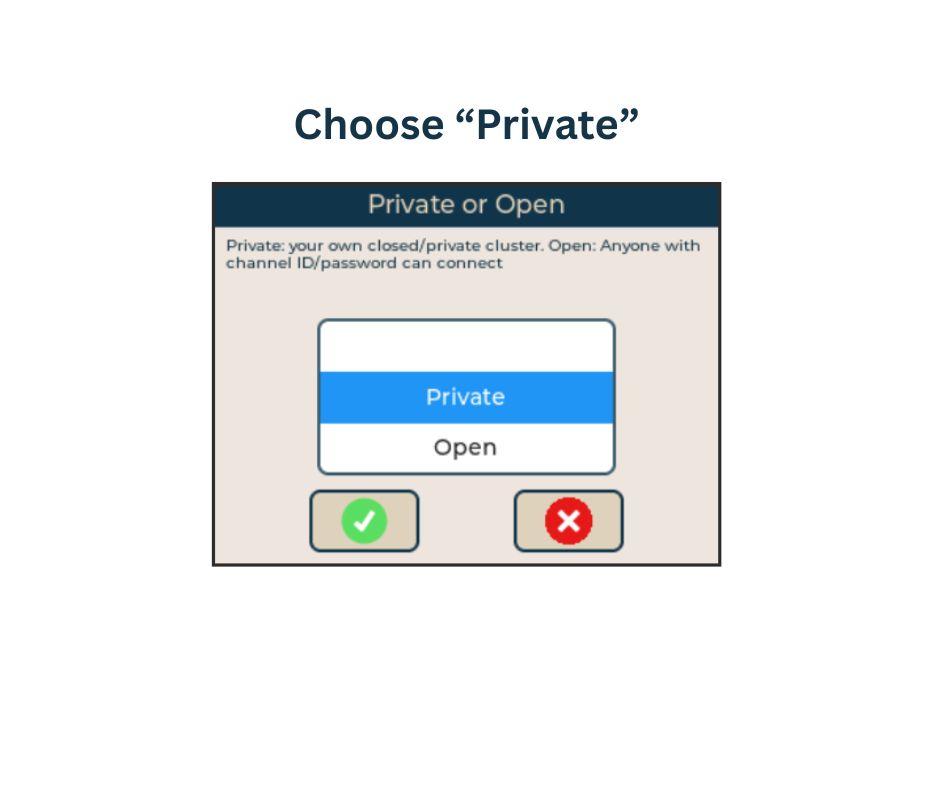
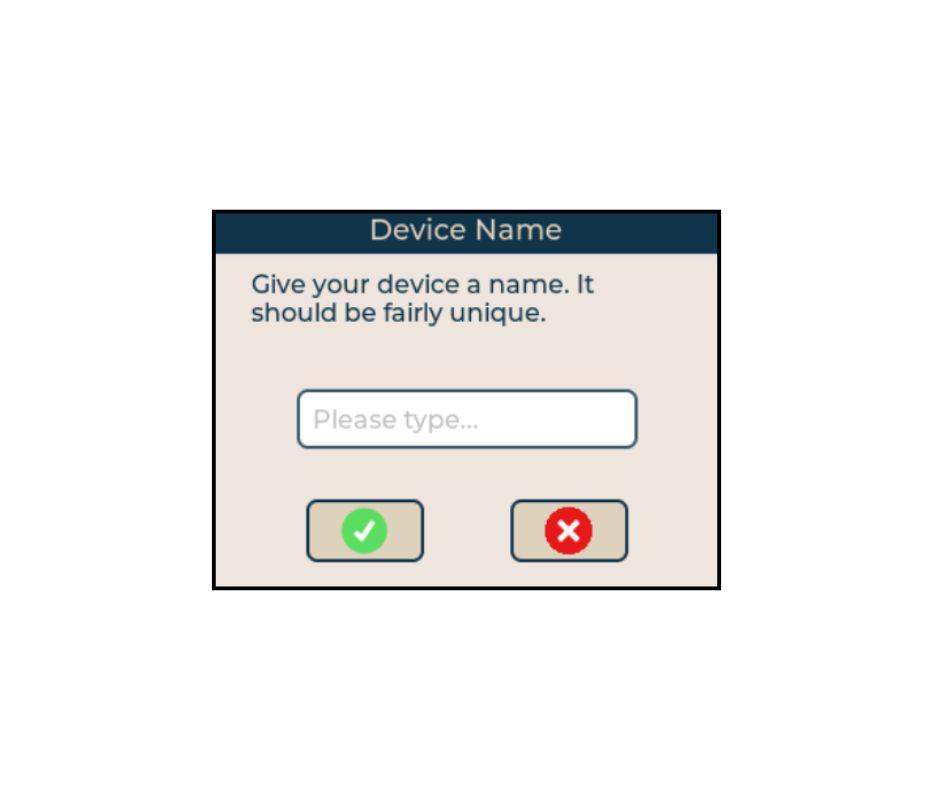
Once booted, you will be prompted for:
- Language - English, Spanish, German, Polish, and French are currently supported
- Device Name - Letters/numbers, like: "Matt", "dad", "bravo1", etc. This is always encrypted, so it does not need to be cryptic
- Time Zone - You can change this later if needed
- Private vs Open - Choose Private
At any time during setup, if you decide to change something, you can just reboot the device to start over. After setup, if you want to change the device name or cluster options, you can clear the SD card and reboot the device.
Choose the Device Type
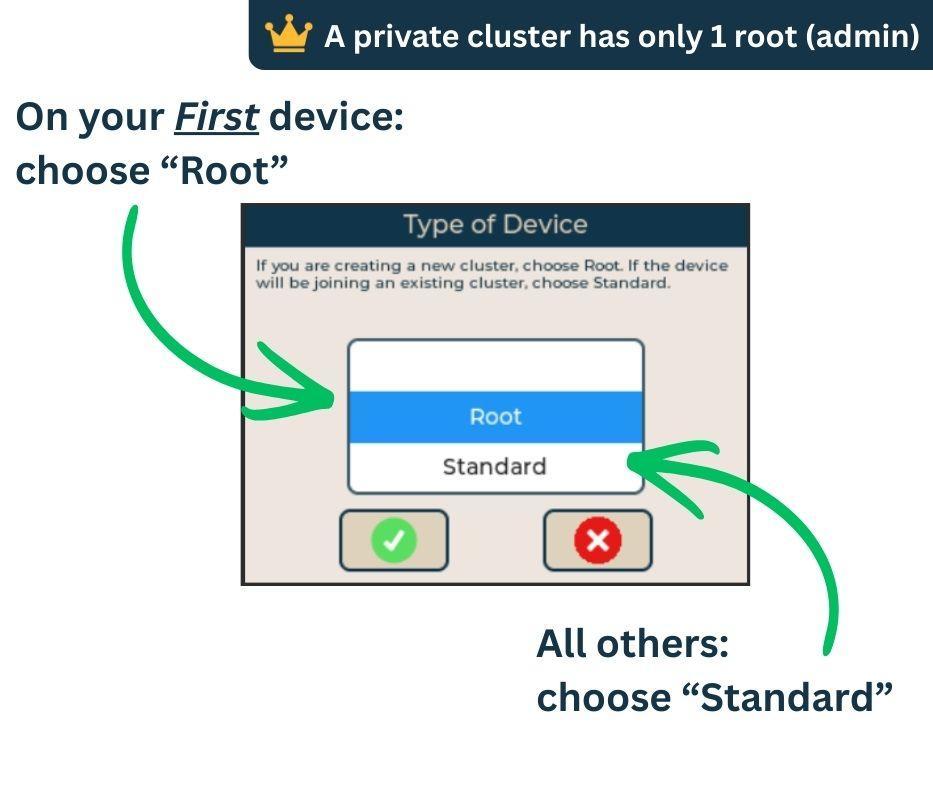
A private group of off-grid mesh communication devices (such as T-Decks) is called a cluster.
If this is your first T-Deck / device, you'll need to make it the root (admin) device for your cluster.
If you already have a root device set up, choose standard for all other devices you set up.
Device Type
Root
- Choose this for your first device only
- The root device will be the "admin" of your cluster.
- Other devices can be added to your cluster only by being onboarded (invited) by the root
- If you choose root, you'll be prompted for more cluster settings next
Standard
- If you choose "standard", you will skip the remaining cluster setup. Instead, your device will get its cluster settings from the root device during onboarding.
- All devices in a cluster are "standard" except for the single root device.
- After setting up one root device, you will choose "standard" for any additional devices.
First T-Deck: Set Up a Cluster
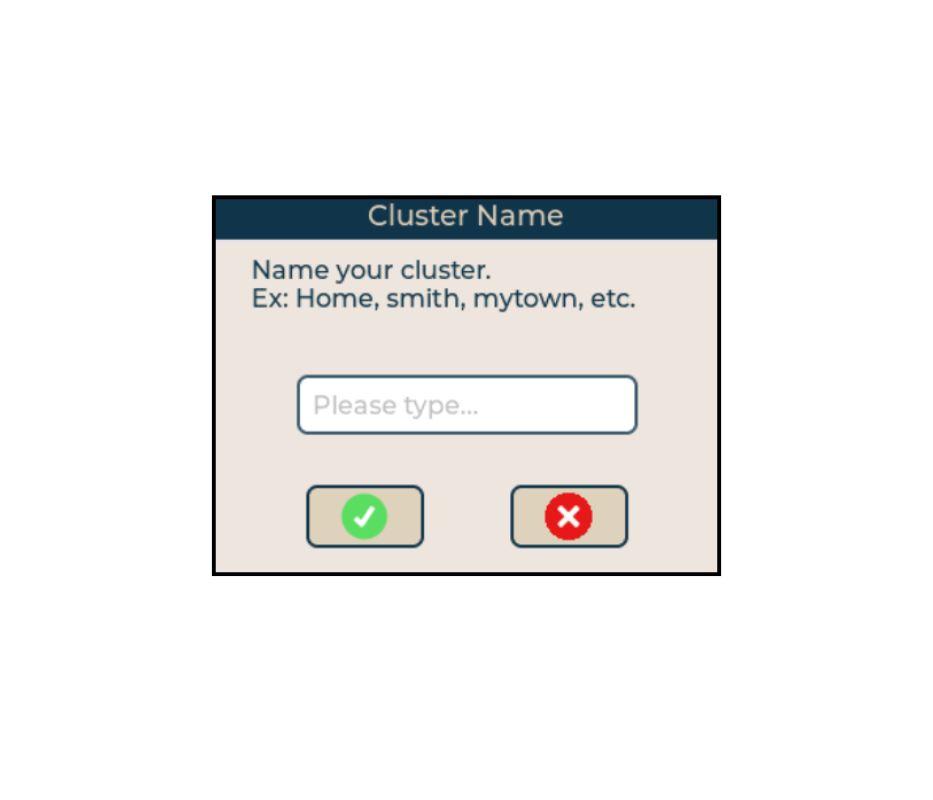
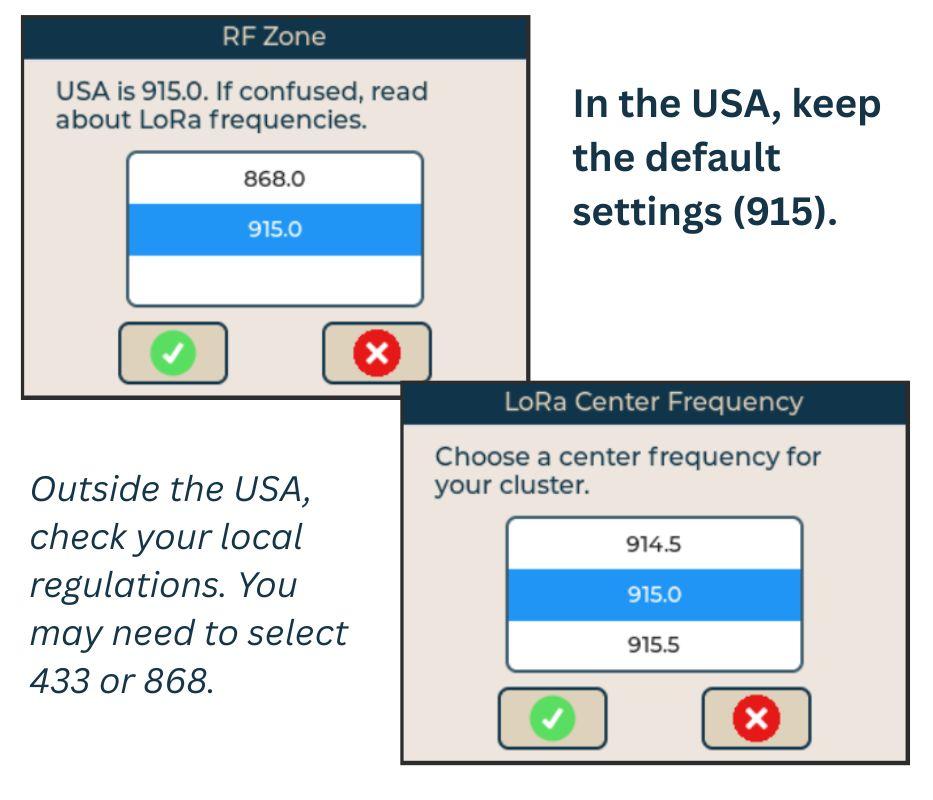
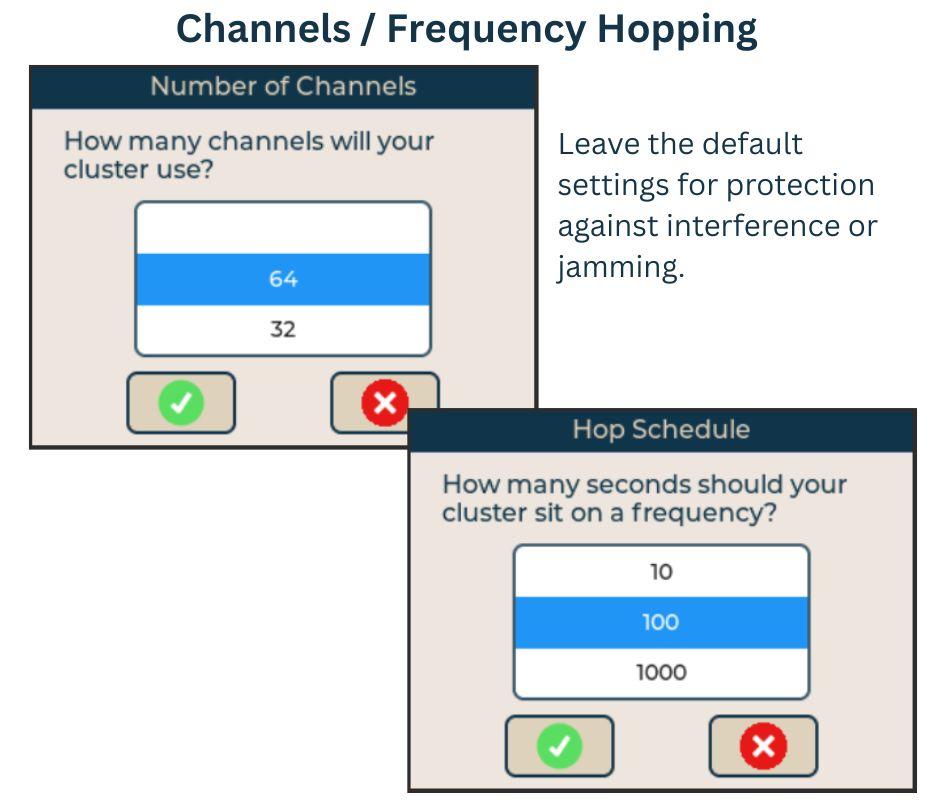
If you already have a cluster or root device, skip this step.
This step only happens if you choose "root" during setup.
Cluster Name
Choose any text/numbers that describes the group. "home", "smith", "MyGroup1" are examples. Choose something that is meaningful for your group.
Your cluster name is always encrypted when transmitted or stored. It is never revealed in the same way a WiFi SSID is, so you don't have to make it something secret if you don't want to.
RF Zone
In the USA, you will choose 915 for the RF zone. In other countries, you may need to choose 868 or 433 (check your regulations).
Center Frequency
The default center frequency (915.0 in the US) is the most tested option. If you understand LoRa & RF, you can adjust this, but typically the default is good.
Number of Channels
Multiple channels and frequency hopping help your mesh cluster resist jamming and interference. It is recommended to leave the number of channels at 64. You may choose to adjust this if you understand the implications, but it's not recommended.
Hop Schedule
Again, the default is recommended here. You are choosing how many seconds your cluster should sit on any frequency before hopping to the next unpredictable frequency. The default (100) is the most tested option and offers a good balance in performance.
Remaining T-Decks: Onboard Each T-Deck
.jpg)
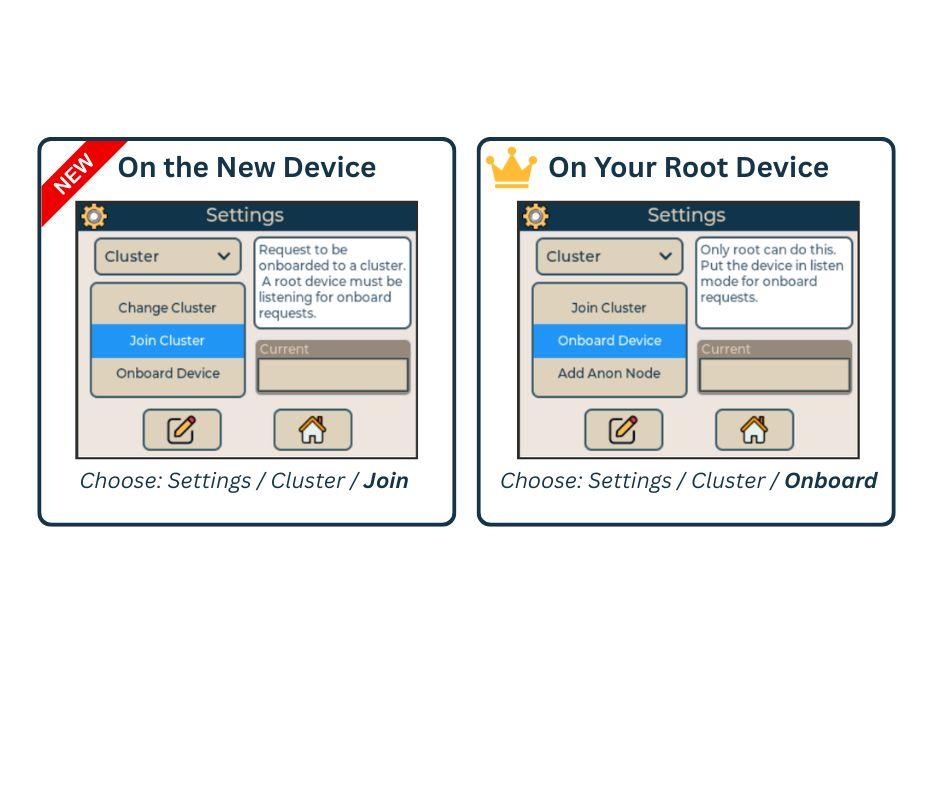
Onboarding is the one-time process of adding a device to your private cluster. Only the root device is allowed to onboard any device to your cluster. You may have up to 90 devices in a private cluster. Learn more
- On your existing root device, choose: Settings / Cluster / Onboard
- On your new device, choose: Settings / Cluster / Join
- The onboard should begin within 10 seconds or so, and the devices will take a minute or two to exchange a lot of information
- Once it's complete, both devices will restart and should see one another (green / good signal).
- You can verify by looking at the "neighbors" screen of each device after reboot.
It is important to only onboard one device at a time! Don't try to onboard multiple devices simultaneously or the onboard could fail.
All other devices in your private cluster will automatically recognize and trust any device onboarded by the root. This "trust" may take a few minutes to propagate, but it happens automatically after onboarding.
Your Device Is Ready to Use!
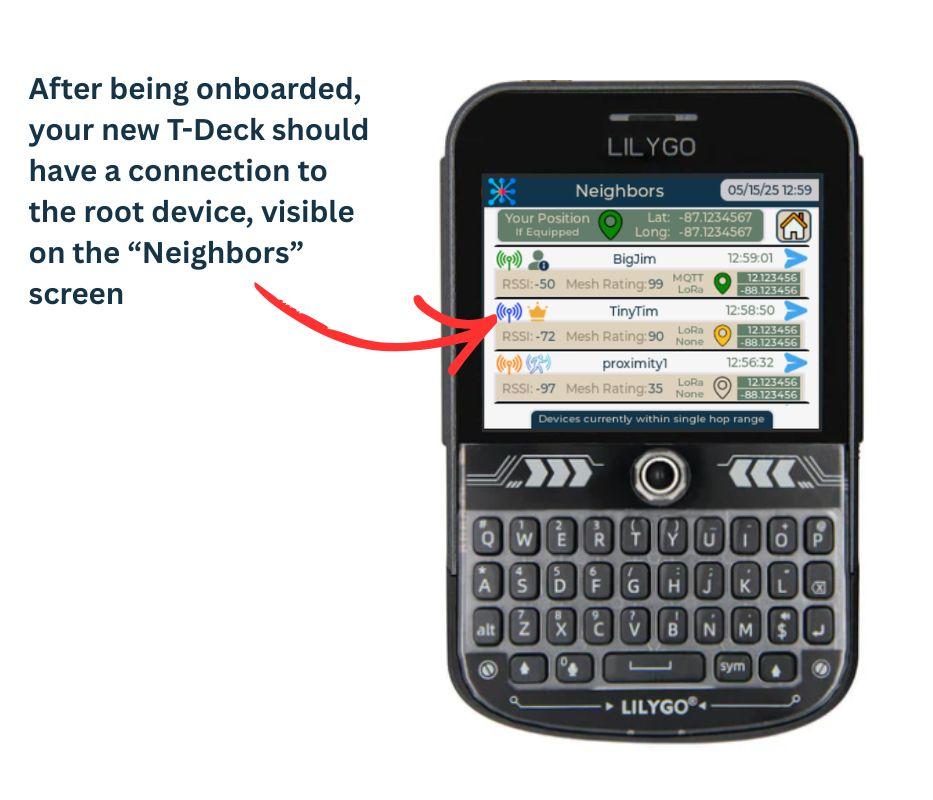
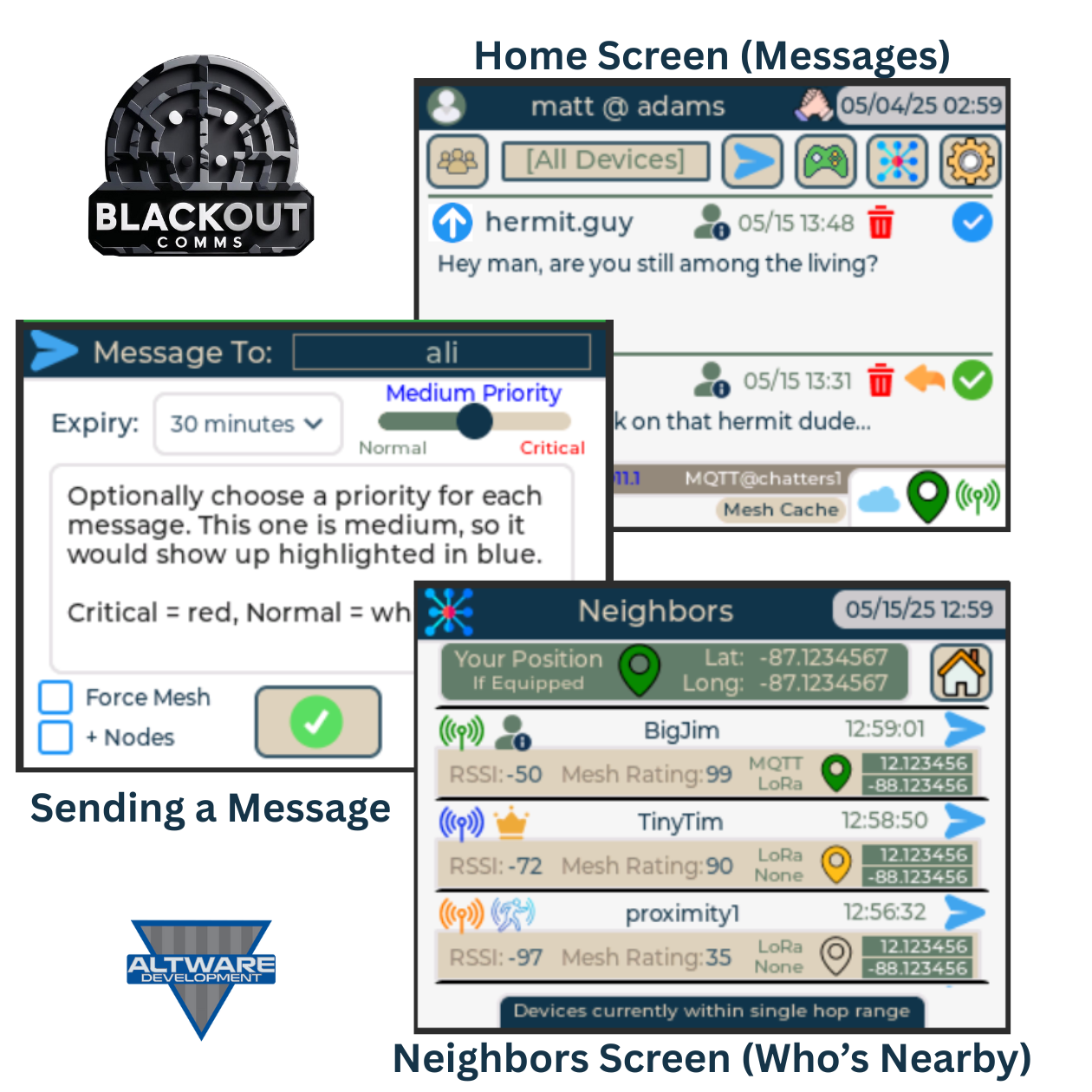
Now your cluster is ready to use! You can add more devices any time.
Your private off-grid mesh cluster is not just limited to these device types. You can add...
Communicators - Use them like an app to text, track, etc
- Heltec v4 Touchscreen
- Lilygo Pagers
- Custom-built T-Decks with vibrate alerts, upgraded battery, and more
Mesh Links / Nodes - Extend the reach & resilience of your cluster
- Lilygo T-Beam Supreme
- Lilygo T-Beam 1W (very powerful)
- Heltec Vision Master e290
Other DIY projects that are compatible with this can be found here.