ESP32-C3 LCD Kit - RGB LED Brightness & Random Color Using Visual Programming
by RonFrtek in Circuits > Arduino
345 Views, 0 Favorites, 0 Comments
ESP32-C3 LCD Kit - RGB LED Brightness & Random Color Using Visual Programming

In this Visuino project, you will learn how to use the ESP32-C3 LCD kit to control an RGB LED’s brightness with a rotary encoder. Turning the encoder adjusts the brightness in steps from 0 to 1 with 0.1 increments, and the current brightness level is shown directly on the LCD display. Pressing the encoder’s button instantly sets a random LED color, making the project both fun and interactive.
This tutorial is perfect for learning how to:
- Configure and Use the rotary encoder on ESP32-C3
- Display live brightness values on the LCD screen
- Randomize LED colors with a simple button press
- Use Visuino Visual Programming to quickly design interactive IoT projects
Bring your ESP32-C3 LCD kit to life with this engaging RGB LED brightness controller!
Watch the Video!
What You Will Need
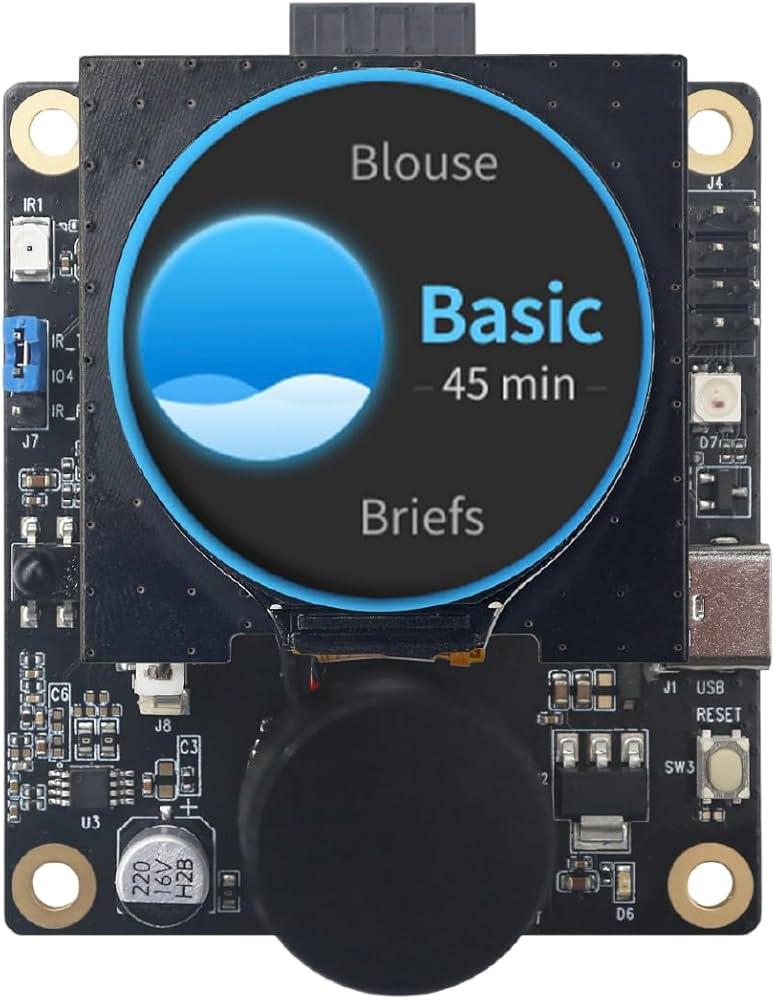
- ESP32-C3 LCD kit
- Visuino program: Download Visuino
Start Visuino, and Select the ESP32-C3 LCD Kit Board Type
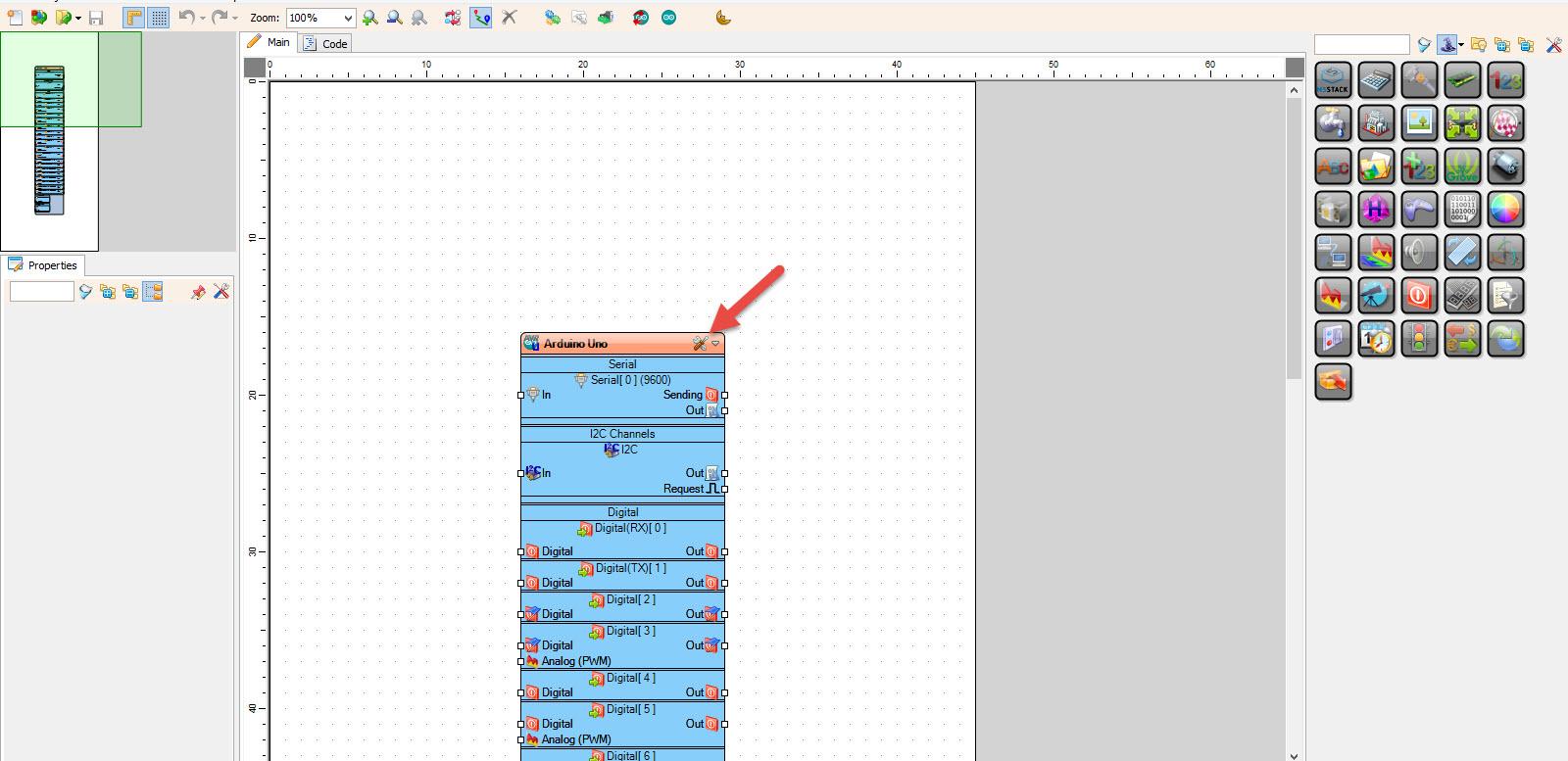

Start Visuino as shown in the first picture Click on the "Tools" button on the Arduino component (Picture 1) in Visuino When the dialog appears, select "ESP32-C3 LCD kit" as shown on Picture 2
In Visuino Add Components
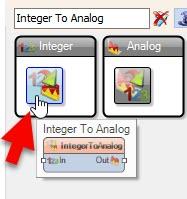
Add Integer To Analog component
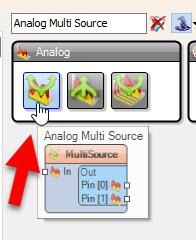
Add Analog Multi Source component
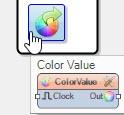
Add Color Value component
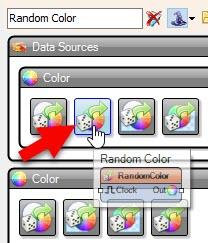
Add Random Color component
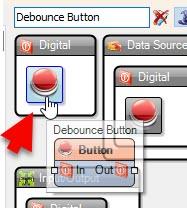
Add Debounce Button component
In Visuino Set Components


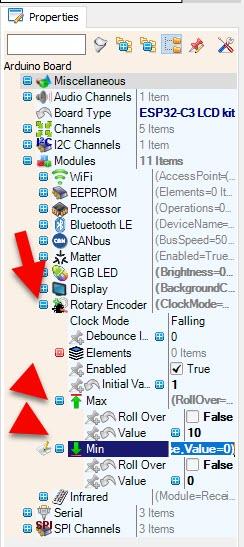
- Select "IntegerToAnalog1" and in the properties set "Scale" to 0.1
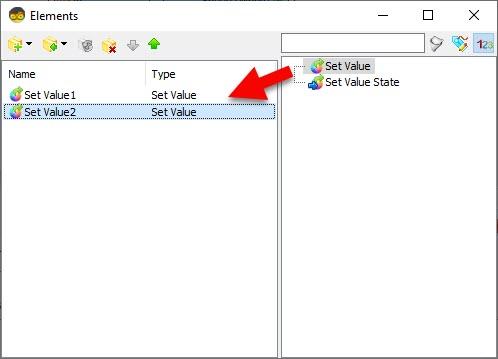
- Double click on the "Color Value" and in the Elements window add:
- Set Value
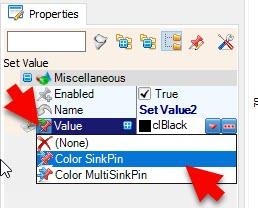
- Add another Set Value and in the properties window select "Color", click on the pin icon and select "Color SinkPin"
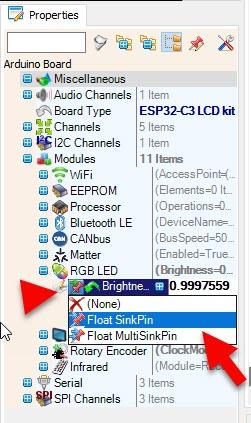
- Select "ESP32-C3 LCD kit" board and in the properties window select "Modules" > "RGB LED" > "Brightness" , click on the pin icon and select "Float SinkPin"
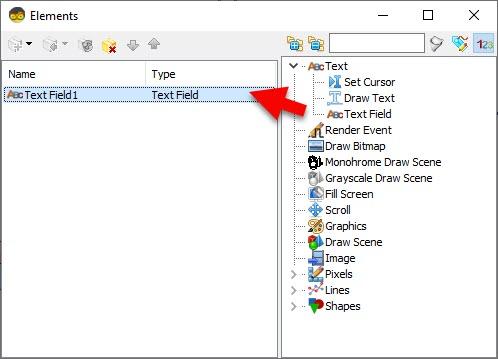
- Select "ESP32-C3 LCD kit" board and in the properties window select "Modules" > "Display" > "Elements" , click on the 3 dots button and in the Elements window drag "Text Field" to the left side and in the properties window set "Size" to 5, "X" to 60 and "Y" to 100
- Select "ESP32-C3 LCD kit" board and in the properties window set "Rotary Encoder" > "Max" > "Value" to 10 and "Roll Over" to False, and "Min" > "Value" to 0 and "Roll Over" to False.
In Visuino Connect Components
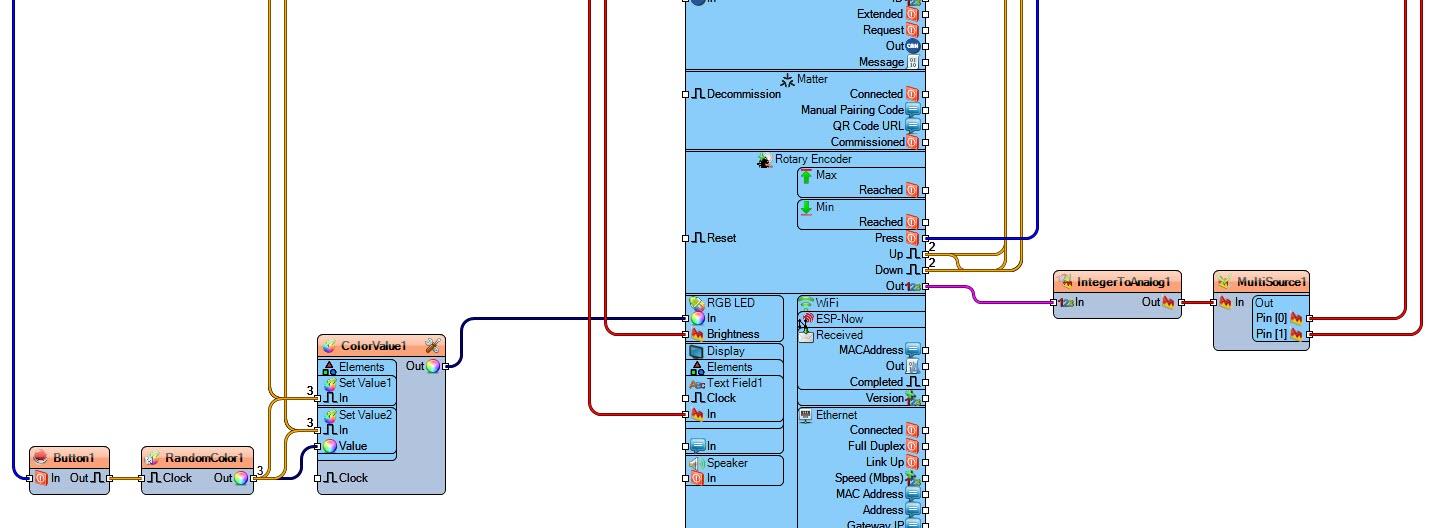

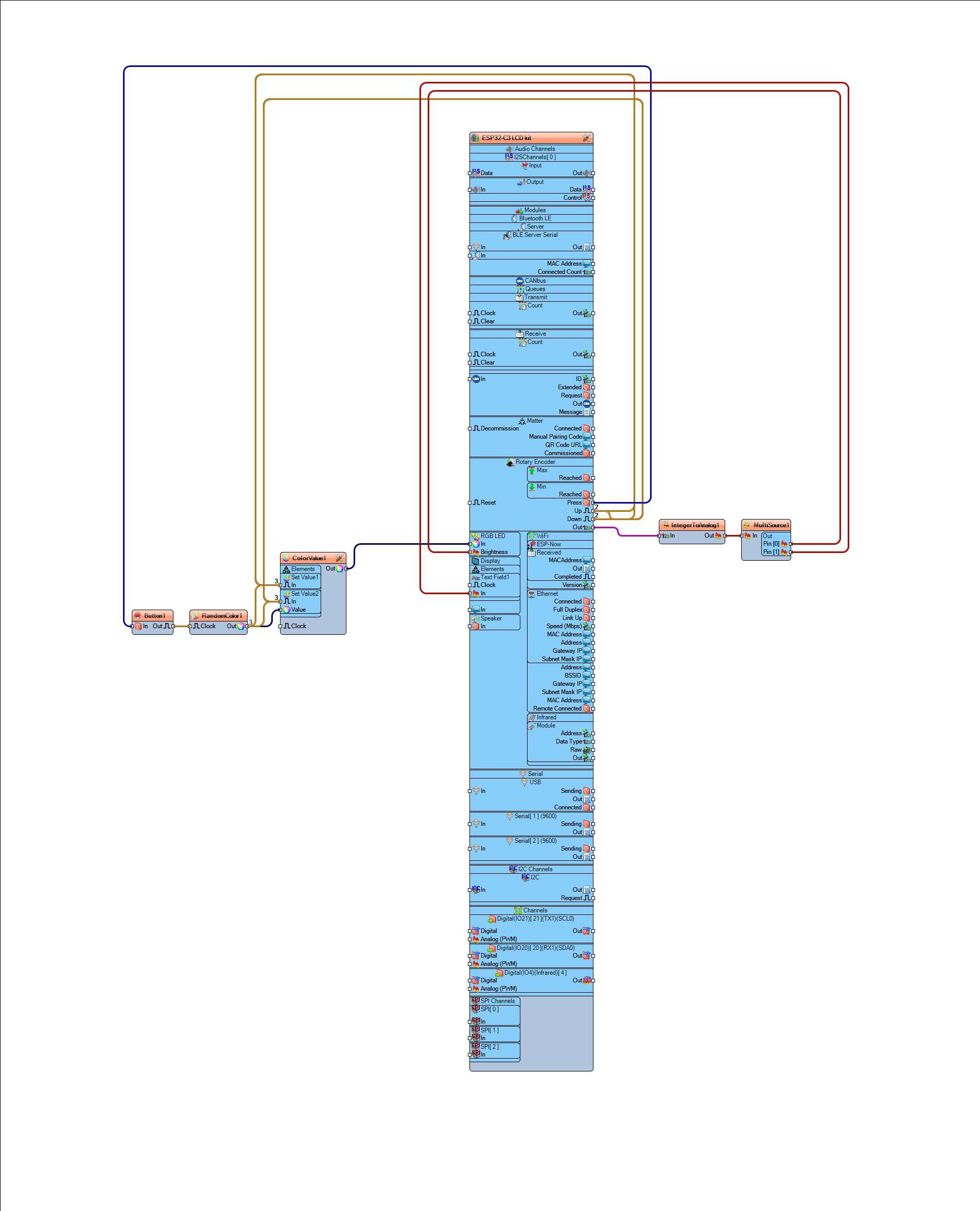
- Connect "ESP32-C3 LCD kit" > "Rotary Encoder" Pin [Out] to "IntegerToAnalog1" Pin [In]
- Connect "IntegerToAnalog1" Pin [Out] to "MultiSource1" Pin [In]
- Connect "MultiSource1" Pin [0] to "ESP32-C3 LCD kit" > "RGB LED" Pin [Brightness]
- Connect "MultiSource1" Pin [0] to "ESP32-C3 LCD kit" > "Display" > "Text Field1" Pin [In]
- Connect "ESP32-C3 LCD kit" > "Rotary Encoder" Pin [Press] to "Button1" Pin [In]
- Connect "Button1" pin [Out] "RandomColor1" Pin [Clock]
- Connect "RandomColor1" Pin [Out] "ColorValue1" > "Set Value2" Pin [Value]
- Connect "RandomColor1" Pin [Out] "ColorValue1" > "Set Value2" Pin [In]
- Connect "RandomColor1" Pin [Out] "ColorValue1" > "Set Value1" Pin [In]
- Connect "ESP32-C3 LCD kit" > "Rotary Encoder" Pin [Up] to "ColorValue1" > "Set Value1" Pin [In]
- Connect "ESP32-C3 LCD kit" > "Rotary Encoder" Pin [Down] to "ColorValue1" > "Set Value1" Pin [In]
- Connect "ESP32-C3 LCD kit" > "Rotary Encoder" Pin [Up] to "ColorValue1" > "Set Value2" Pin [In]
- Connect "ESP32-C3 LCD kit" > "Rotary Encoder" Pin [Down] to "ColorValue1" > "Set Value2" Pin [In]
- Connect "ColorValue1" Pin [Out] to "ESP32-C3 LCD kit" > "RGB LED" Pin [In]
Generate, Compile, and Upload the Code
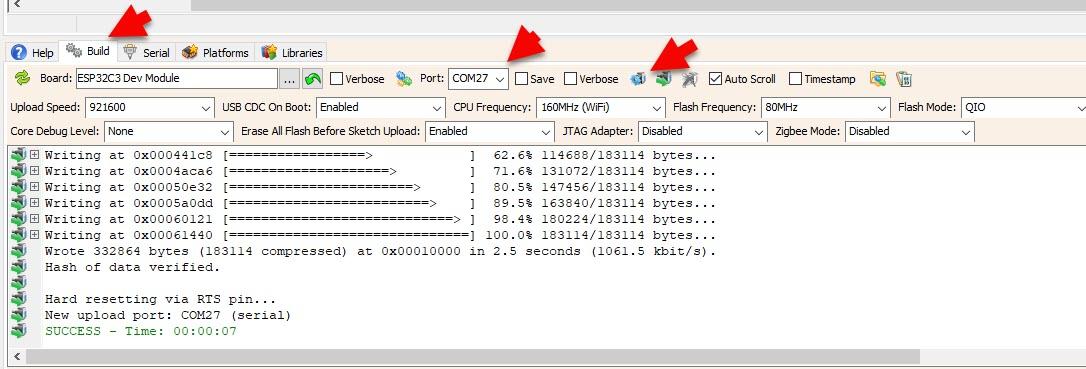
In Visuino, at the bottom click on the "Build" Tab, make sure the correct port is selected, then click on the "Compile/Build and Upload" button.
Play
Congratulations! You have completed your project with Visuino. Also attached is the Visuino project, that I created for this tutorial, you can download it here and open it in Visuino: https://www.visuino.eu