Now open the Arduino IDE, paste this code, and hit that upload button.
NOTE: DON'T FORGET TO ENTER YOUR WIFI NAME AND PASSWORD.
/*
* ============================================
* Desktop Companion Robot
* ~ roboattic Lab ~
* ============================================
*
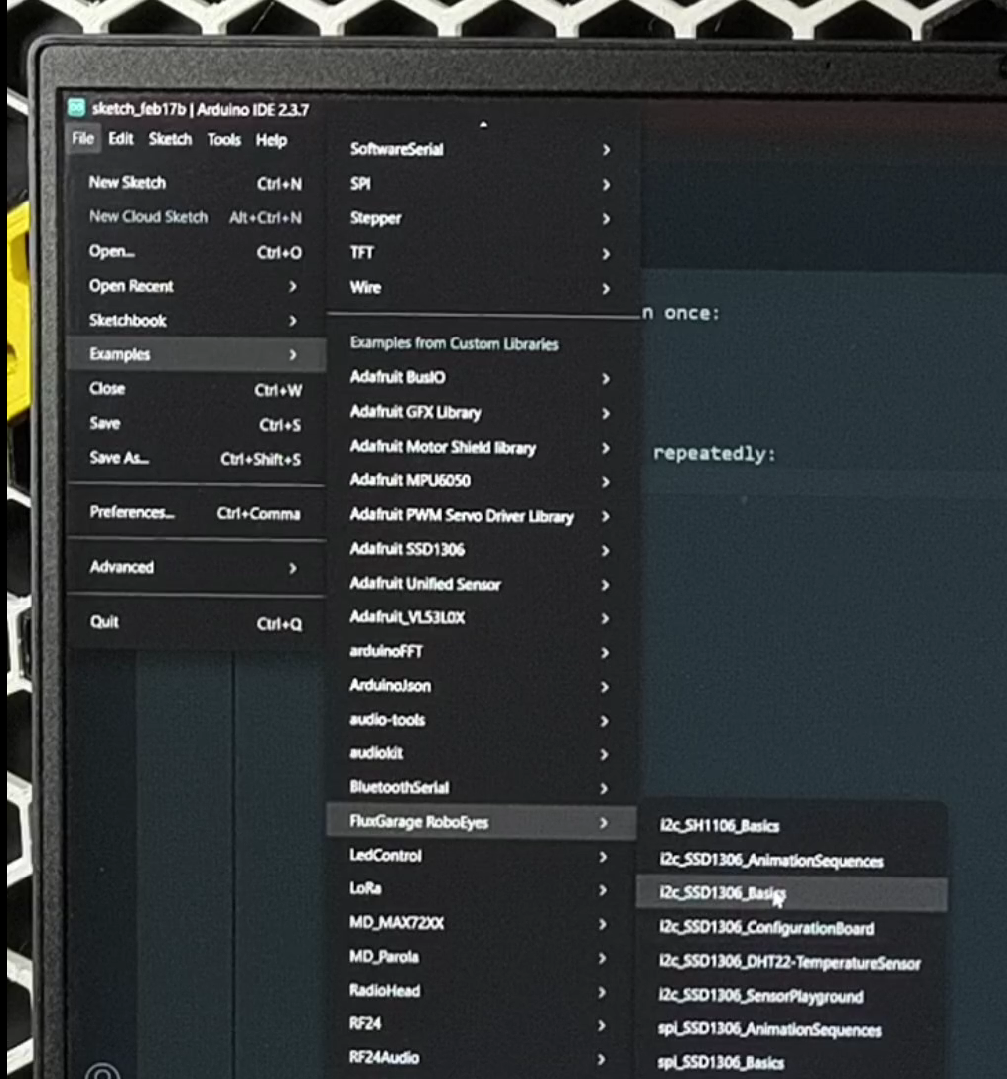
* Libraries (Arduino Library Manager):
* - FluxGarage_RoboEyes
* - Adafruit SSD1306
* - Adafruit GFX Library
* ============================================
*/
#include <WiFi.h>
#include <WebServer.h>
#include <Wire.h>
#include <Adafruit_GFX.h>
#include <Adafruit_SSD1306.h>
#include <FluxGarage_RoboEyes.h>
// ── Wi-Fi Credentials ──────────────────────────
const char* WIFI_SSID = "*************";
const char* WIFI_PASSWORD = "**********";
// ── Display Config ─────────────────────────────
#define SCREEN_WIDTH 128
#define SCREEN_HEIGHT 64
#define OLED_RESET -1
#define OLED_ADDR 0x3C
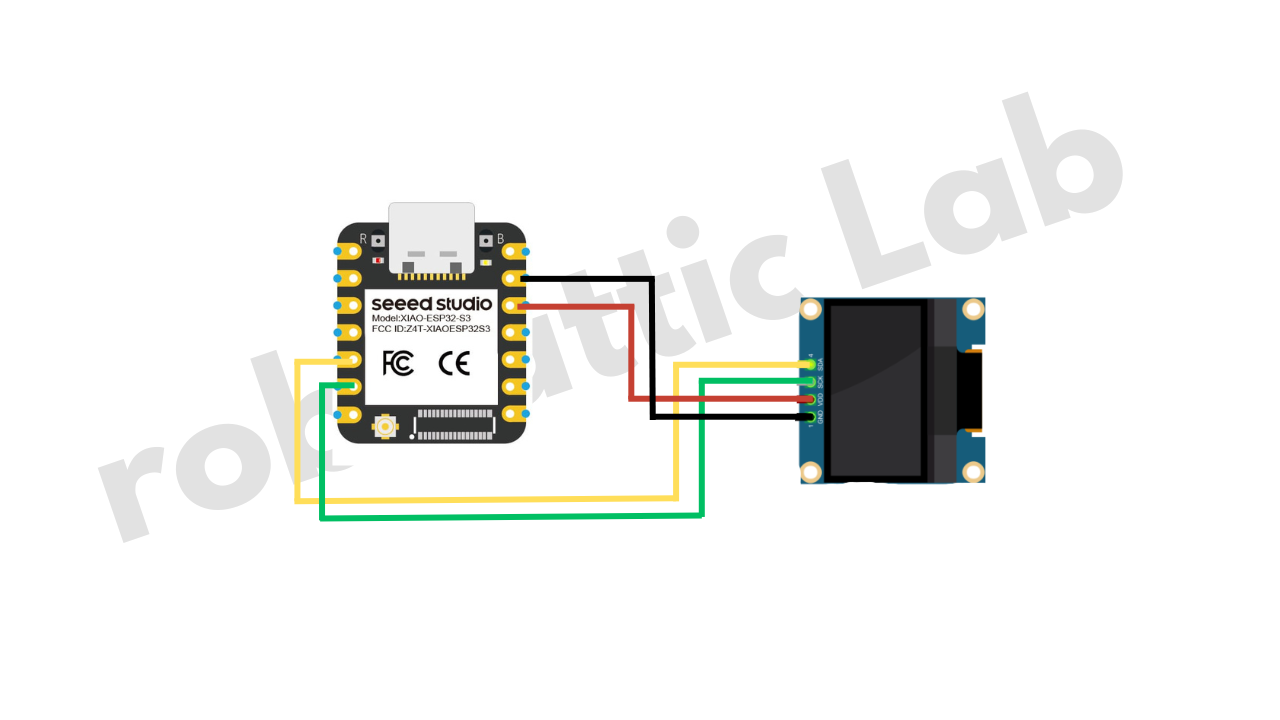
#define SDA_PIN 5
#define SCL_PIN 6
// ── Core Objects ───────────────────────────────
Adafruit_SSD1306 display(SCREEN_WIDTH, SCREEN_HEIGHT, &Wire, OLED_RESET);
RoboEyes<Adafruit_SSD1306> roboEyes(display);
WebServer server(80);
// ── Activity States ────────────────────────────
enum ActivityState {
STATE_IDLE,
STATE_MUSIC,
STATE_TYPING,
STATE_BROWSING,
STATE_GAMING,
STATE_LAUGHING,
STATE_ERROR_STATE,
STATE_WATCHING
};
// ── State Machine ──────────────────────────────
ActivityState currentState = STATE_BROWSING;
ActivityState previousState = STATE_BROWSING;
bool stateJustChanged = false;
bool oneshotPlayed = false;
unsigned long stateChangeTime = 0;
// ── Animation Timers ───────────────────────────
unsigned long lastPosChange = 0;
unsigned long lastMicroAnim = 0;
unsigned long lastWinkTime = 0;
unsigned long lastBeatBounce = 0;
int posIndex = 0;
int beatPhase = 0;
// ── Boot Animation State ───────────────────────
bool bootAnimDone = false;
unsigned long bootAnimStart = 0;
int bootPhase = 0;
bool bootEvent1 = false;
bool bootEvent2 = false;
bool bootEvent3 = false;
bool bootEvent4 = false;
// ────────────────────────────────────────────────
// STATE NAME MAPPING
// ────────────────────────────────────────────────
const char* stateToString(ActivityState s) {
switch (s) {
case STATE_IDLE: return "idle";
case STATE_MUSIC: return "music";
case STATE_TYPING: return "typing";
case STATE_BROWSING: return "browsing";
case STATE_GAMING: return "gaming";
case STATE_LAUGHING: return "laughing";
case STATE_ERROR_STATE: return "error";
case STATE_WATCHING: return "watching";
default: return "unknown";
}
}
ActivityState stringToState(const String& s) {
if (s == "idle") return STATE_IDLE;
if (s == "music") return STATE_MUSIC;
if (s == "typing") return STATE_TYPING;
if (s == "browsing") return STATE_BROWSING;
if (s == "gaming") return STATE_GAMING;
if (s == "laughing") return STATE_LAUGHING;
if (s == "error") return STATE_ERROR_STATE;
if (s == "watching") return STATE_WATCHING;
return STATE_BROWSING;
}
// ────────────────────────────────────────────────
// SIMPLE JSON PARSER (no ArduinoJson needed)
// ────────────────────────────────────────────────
String parseStateFromJson(const String& json) {
int idx = json.indexOf("\"state\"");
if (idx == -1) return "";
idx = json.indexOf(":", idx);
if (idx == -1) return "";
int start = json.indexOf("\"", idx + 1);
if (start == -1) return "";
int end = json.indexOf("\"", start + 1);
if (end == -1) return "";
return json.substring(start + 1, end);
}
// ────────────────────────────────────────────────
// WEB DASHBOARD (Glassmorphism UI)
// ────────────────────────────────────────────────
const char DASHBOARD_HTML[] PROGMEM = R"rawliteral(
<!DOCTYPE html>
<html>
<head>
<meta charset="UTF-8">
<meta name="viewport" content="width=device-width, initial-scale=1.0">
<title>Doodle Eyes</title>
<style>
* { margin:0; padding:0; box-sizing:border-box; }
body {
font-family: 'Segoe UI', system-ui, sans-serif;
background: linear-gradient(135deg, #0f0c29, #302b63, #24243e);
color: #fff; min-height: 100vh;
display: flex; flex-direction: column;
align-items: center; padding: 30px 20px;
}
h1 {
font-size: 2.4em; margin-bottom: 6px;
background: linear-gradient(90deg, #f9d423, #ff4e50);
-webkit-background-clip: text; -webkit-text-fill-color: transparent;
}
.sub { color: #8888aa; margin-bottom: 28px; font-size: 0.9em; letter-spacing: 0.5px; }
.card {
background: rgba(255,255,255,0.06);
backdrop-filter: blur(12px);
border: 1px solid rgba(255,255,255,0.1);
border-radius: 18px; padding: 22px 32px;
margin-bottom: 28px; text-align: center;
min-width: 280px; transition: all 0.3s ease;
}
.card:hover { border-color: rgba(255,255,255,0.2); }
.lbl { color: #7777aa; font-size: 0.75em; text-transform: uppercase; letter-spacing: 2px; }
.val {
font-size: 2em; font-weight: 700; margin-top: 6px;
background: linear-gradient(90deg, #f9d423, #ff4e50);
-webkit-background-clip: text; -webkit-text-fill-color: transparent;
}
.grid {
display: grid;
grid-template-columns: repeat(auto-fit, minmax(130px, 1fr));
gap: 10px; max-width: 580px; width: 100%;
}
.btn {
padding: 14px 8px; border: none; border-radius: 14px;
font-size: 0.95em; font-weight: 600; cursor: pointer;
transition: all 0.25s cubic-bezier(.4,0,.2,1); color: #fff;
position: relative; overflow: hidden;
}
.btn::after {
content: ''; position: absolute; inset: 0;
background: linear-gradient(135deg, rgba(255,255,255,0.15), transparent);
opacity: 0; transition: opacity 0.25s;
}
.btn:hover { transform: translateY(-3px); box-shadow: 0 8px 25px rgba(0,0,0,0.4); }
.btn:hover::after { opacity: 1; }
.btn:active { transform: translateY(-1px); }
.btn.active { box-shadow: 0 0 0 2px #fff, 0 8px 25px rgba(0,0,0,0.4); }
.b1 { background: linear-gradient(135deg, #11998e, #38ef7d); }
.b2 { background: linear-gradient(135deg, #4facfe, #00f2fe); }
.b3 { background: linear-gradient(135deg, #667eea, #764ba2); }
.b4 { background: linear-gradient(135deg, #606c88, #3f4c6b); }
.b5 { background: linear-gradient(135deg, #f12711, #f5af19); }
.b6 { background: linear-gradient(135deg, #f9d423, #ff4e50); }
.b7 { background: linear-gradient(135deg, #cb2d3e, #ef473a); }
.b8 { background: linear-gradient(135deg, #8e2de2, #4a00e0); }
.ft { margin-top: 36px; color: #444; font-size: 0.75em; }
</style>
</head>
<body>
<h1>Doodle Eyes</h1>
<p class="sub">Animated Desk Companion</p>
<div class="card">
<div class="lbl">Current Mood</div>
<div class="val" id="cs">...</div>
</div>
<div class="grid">
<button class="btn b1" onclick="ss('music')" data-s="music">🎵 Music</button>
<button class="btn b2" onclick="ss('typing')" data-s="typing">⌨ Typing</button>
<button class="btn b3" onclick="ss('browsing')" data-s="browsing">👁 Browsing</button>
<button class="btn b4" onclick="ss('idle')" data-s="idle">😴 Idle</button>
<button class="btn b5" onclick="ss('gaming')" data-s="gaming">🎮 Gaming</button>
<button class="btn b6" onclick="ss('laughing')" data-s="laughing">😂 Laughing</button>
<button class="btn b7" onclick="ss('error')" data-s="error">❌ Error</button>
<button class="btn b8" onclick="ss('watching')" data-s="watching">📺 Watching</button>
</div>
<p class="ft">v2.0 · ESP32-S3</p>
<script>
let cur='';
function hl(s){
document.querySelectorAll('.btn').forEach(b=>b.classList.toggle('active',b.dataset.s===s));
}
function ss(s){
fetch('/state',{method:'POST',headers:{'Content-Type':'application/json'},
body:JSON.stringify({state:s})}).then(r=>r.json()).then(d=>{
cur=d.state||s; document.getElementById('cs').textContent=cur; hl(cur);
}).catch(()=>{});
}
function gs(){
fetch('/status').then(r=>r.json()).then(d=>{
cur=d.state||'?'; document.getElementById('cs').textContent=cur; hl(cur);
}).catch(()=>{});
}
gs(); setInterval(gs,3000);
</script>
</body>
</html>
)rawliteral";
// ────────────────────────────────────────────────
// WEB SERVER HANDLERS
// ────────────────────────────────────────────────
void handleRoot() {
server.send(200, "text/html", DASHBOARD_HTML);
}
void handleSetState() {
if (server.hasArg("plain")) {
String body = server.arg("plain");
String stateStr = parseStateFromJson(body);
if (stateStr.length() > 0) {
ActivityState newState = stringToState(stateStr);
if (newState != currentState) {
previousState = currentState;
currentState = newState;
stateChangeTime = millis();
stateJustChanged = true;
oneshotPlayed = false;
posIndex = 0;
beatPhase = 0;
Serial.print("[State] -> ");
Serial.println(stateStr);
}
String response = "{\"state\":\"" + String(stateToString(currentState)) + "\",\"status\":\"ok\"}";
server.send(200, "application/json", response);
} else {
server.send(400, "application/json", "{\"error\":\"bad request\"}");
}
} else {
server.send(400, "application/json", "{\"error\":\"no body\"}");
}
}
void handleGetStatus() {
unsigned long uptime = millis() / 1000;
String response = "{\"state\":\"" + String(stateToString(currentState))
+ "\",\"uptime\":" + String(uptime)
+ ",\"heap\":" + String(ESP.getFreeHeap()) + "}";
server.send(200, "application/json", response);
}
// ────────────────────────────────────────────────
// BOOT SCREEN ANIMATIONS
// ────────────────────────────────────────────────
void displayConnecting(int dots) {
display.clearDisplay();
display.setTextSize(1);
display.setTextColor(SSD1306_WHITE);
// Cute loading bar
int barWidth = 80;
int barX = (SCREEN_WIDTH - barWidth) / 2;
display.drawRoundRect(barX, 40, barWidth, 10, 4, SSD1306_WHITE);
int fill = (dots * 4) % barWidth;
if (fill > 2) display.fillRoundRect(barX + 2, 42, fill - 2, 6, 2, SSD1306_WHITE);
display.setCursor(28, 16);
display.print("Connecting");
for (int i = 0; i < (dots % 4); i++) display.print(".");
display.setCursor((SCREEN_WIDTH - strlen(WIFI_SSID) * 6) / 2, 56);
display.setTextSize(1);
display.print(WIFI_SSID);
display.display();
}
void displayIPAddress(String ip) {
display.clearDisplay();
display.setTextSize(1);
display.setTextColor(SSD1306_WHITE);
// Centered layout
display.setCursor(14, 4);
display.print("~ Doodle Eyes v2 ~");
display.drawLine(10, 15, SCREEN_WIDTH - 10, 15, SSD1306_WHITE);
display.setCursor(28, 22);
display.print("Connected!");
// IP in larger text
display.setTextSize(1);
int ipLen = ip.length() * 6;
display.setCursor((SCREEN_WIDTH - ipLen) / 2, 36);
display.print(ip);
display.setCursor(10, 52);
display.print("Open in browser :)");
display.display();
}
// ── Cute wakeup animation with the eyes ────────
void playBootAnimation() {
unsigned long elapsed = millis() - bootAnimStart;
// Phase 1 (0-800ms): Eyes stay closed, build anticipation
if (elapsed >= 800 && !bootEvent1) {
bootEvent1 = true;
roboEyes.open(); // Slowly open eyes
}
// Phase 2 (2000ms): Look around curiously — "where am I?"
if (elapsed >= 2000 && !bootEvent2) {
bootEvent2 = true;
roboEyes.setCuriosity(ON);
roboEyes.setPosition(E);
}
// Phase 3 (2800ms): Look the other way
if (elapsed >= 2800 && !bootEvent3) {
bootEvent3 = true;
roboEyes.setPosition(W);
}
// Phase 4 (3600ms): Happy! Center + laugh, settle into browsing
if (elapsed >= 3600 && !bootEvent4) {
bootEvent4 = true;
roboEyes.setPosition(DEFAULT);
roboEyes.setCuriosity(OFF);
roboEyes.setMood(HAPPY);
roboEyes.anim_laugh();
}
// Done (4500ms): Transition to normal mode
if (elapsed >= 4500) {
bootAnimDone = true;
roboEyes.setMood(DEFAULT);
roboEyes.setAutoblinker(ON, 3, 2);
roboEyes.setIdleMode(ON, 3, 2);
Serial.println("[Boot] Wakeup animation complete!");
}
}
// ────────────────────────────────────────────────
// CONFIGURE EYE STATE ON TRANSITION
// Called ONCE when state changes — not every frame
// ────────────────────────────────────────────────
void configureEyeState() {
// Reset everything to defaults first (clean slate)
roboEyes.setHFlicker(OFF);
roboEyes.setVFlicker(OFF);
roboEyes.setIdleMode(OFF);
roboEyes.setCuriosity(OFF);
roboEyes.setCyclops(OFF);
roboEyes.setSweat(OFF);
switch (currentState) {
case STATE_MUSIC:
// Happy bouncy eyes — vibing to the beat
roboEyes.setMood(HAPPY);
roboEyes.setAutoblinker(ON, 2, 1);
roboEyes.setWidth(38, 38);
roboEyes.setHeight(38, 38);
roboEyes.setBorderradius(10, 10);
roboEyes.setSpacebetween(8);
roboEyes.setPosition(DEFAULT);
break;
case STATE_TYPING:
// Alert, curious eyes — watching you type
roboEyes.setMood(DEFAULT);
roboEyes.setCuriosity(ON);
roboEyes.setAutoblinker(ON, 4, 2);
roboEyes.setWidth(34, 34);
roboEyes.setHeight(36, 36);
roboEyes.setBorderradius(6, 6);
roboEyes.setSpacebetween(10);
roboEyes.setPosition(S);
break;
case STATE_BROWSING:
// Relaxed, gently wandering eyes
roboEyes.setMood(DEFAULT);
roboEyes.setIdleMode(ON, 3, 3);
roboEyes.setAutoblinker(ON, 4, 3);
roboEyes.setWidth(36, 36);
roboEyes.setHeight(36, 36);
roboEyes.setBorderradius(8, 8);
roboEyes.setSpacebetween(10);
break;
case STATE_IDLE:
// Sleepy droopy eyes — barely awake
roboEyes.setMood(TIRED);
roboEyes.setAutoblinker(ON, 2, 1);
roboEyes.setWidth(38, 38);
roboEyes.setHeight(24, 24);
roboEyes.setBorderradius(12, 12);
roboEyes.setSpacebetween(8);
roboEyes.setPosition(S);
break;
case STATE_GAMING:
roboEyes.setMood(ANGRY);
roboEyes.setHFlicker(ON, 1);
roboEyes.setAutoblinker(ON, 6, 3);
roboEyes.setWidth(40, 40);
roboEyes.setHeight(28, 28);
roboEyes.setBorderradius(4, 4);
roboEyes.setSpacebetween(6);
roboEyes.setPosition(DEFAULT);
break;
case STATE_LAUGHING:
// Happy & bouncy — full joy
roboEyes.setMood(HAPPY);
roboEyes.setAutoblinker(OFF);
roboEyes.setWidth(36, 36);
roboEyes.setHeight(36, 36);
roboEyes.setBorderradius(10, 10);
roboEyes.setSpacebetween(10);
roboEyes.setPosition(DEFAULT);
break;
case STATE_ERROR_STATE:
// Confused with sweat drops — "uh oh"
roboEyes.setMood(DEFAULT);
roboEyes.setSweat(ON);
roboEyes.setAutoblinker(ON, 2, 1);
roboEyes.setWidth(36, 36);
roboEyes.setHeight(36, 36);
roboEyes.setBorderradius(8, 8);
roboEyes.setSpacebetween(10);
roboEyes.setPosition(DEFAULT);
break;
case STATE_WATCHING:
roboEyes.setMood(DEFAULT);
roboEyes.setAutoblinker(ON, 6, 4);
roboEyes.setWidth(42, 42);
roboEyes.setHeight(42, 42);
roboEyes.setBorderradius(14, 14);
roboEyes.setSpacebetween(4);
roboEyes.setPosition(DEFAULT);
break;
}
stateJustChanged = false;
}
// ────────────────────────────────────────────────
// PER-FRAME DYNAMIC BEHAVIORS
// Lightweight animations that run every loop
// ────────────────────────────────────────────────
void updateDynamicBehavior() {
unsigned long now = millis();
unsigned long inState = now - stateChangeTime;
switch (currentState) {
case STATE_MUSIC: {
unsigned long beatInterval = 600;
if (now - lastBeatBounce > beatInterval) {
lastBeatBounce = now;
beatPhase = (beatPhase + 1) % 6;
switch (beatPhase) {
case 0: roboEyes.setPosition(E); break;
case 1: roboEyes.setPosition(DEFAULT); break;
case 2: roboEyes.setPosition(W); break;
case 3: roboEyes.setPosition(DEFAULT); break;
case 4: roboEyes.setPosition(SE); break;
case 5: roboEyes.setPosition(SW); break;
}
}
if (now - lastWinkTime > 8000) {
lastWinkTime = now;
roboEyes.blink(true, false);
}
break;
}
case STATE_TYPING: {
if (now - lastPosChange > 1200) {
lastPosChange = now;
posIndex = (posIndex + 1) % 8;
switch (posIndex) {
case 0: roboEyes.setPosition(S); break;
case 1: roboEyes.setPosition(S); break;
case 2: roboEyes.setPosition(SE); break;
case 3: roboEyes.setPosition(S); break;
case 4: roboEyes.setPosition(S); break;
case 5: roboEyes.setPosition(SW); break;
case 6: roboEyes.setPosition(N); break;
case 7: roboEyes.setPosition(S); break;
}
}
break;
}
case STATE_BROWSING:
if (now - lastWinkTime > 15000) {
lastWinkTime = now;
int r = random(3);
if (r == 0) roboEyes.blink(true, false);
else if (r == 1) roboEyes.blink(false, true);
}
break;
case STATE_IDLE: {
if (inState > 10000) {
if (now - lastMicroAnim > 6000) {
lastMicroAnim = now;
int r = random(4);
if (r == 0) {
roboEyes.open();
}
}
if (now - lastPosChange > 3000) {
lastPosChange = now;
roboEyes.close();
}
} else {
if (now - lastPosChange > 3000) {
lastPosChange = now;
int r = random(3);
if (r == 0) roboEyes.setPosition(SW);
else if (r == 1) roboEyes.setPosition(S);
else roboEyes.setPosition(SE);
}
}
break;
}
case STATE_GAMING:
if (now - lastMicroAnim > 5000) {
lastMicroAnim = now;
int r = random(3);
if (r == 0) {
roboEyes.setPosition(E);
} else if (r == 1) {
roboEyes.setPosition(W);
}
}
if (now - lastMicroAnim > 400 && now - lastMicroAnim < 500) {
roboEyes.setPosition(DEFAULT);
}
break;
case STATE_LAUGHING:
if (!oneshotPlayed) {
roboEyes.anim_laugh();
oneshotPlayed = true;
lastMicroAnim = now;
}
if (oneshotPlayed && (now - lastMicroAnim > 1500)) {
lastMicroAnim = now;
roboEyes.anim_laugh();
}
break;
case STATE_ERROR_STATE:
if (!oneshotPlayed) {
roboEyes.anim_confused();
oneshotPlayed = true;
lastMicroAnim = now;
}
if (oneshotPlayed && (now - lastPosChange > 2000)) {
lastPosChange = now;
posIndex = (posIndex + 1) % 4;
switch (posIndex) {
case 0: roboEyes.setPosition(NE); break;
case 1: roboEyes.setPosition(SW); break;
case 2: roboEyes.setPosition(NW); break;
case 3: roboEyes.setPosition(SE); break;
}
if (random(3) == 0) {
roboEyes.anim_confused();
}
}
break;
case STATE_WATCHING:
if (now - lastPosChange > 8000) {
lastPosChange = now;
int r = random(5);
if (r == 0) roboEyes.setPosition(E);
else roboEyes.setPosition(DEFAULT);
}
break;
}
}
void setup() {
Serial.begin(115200);
delay(500);
Serial.println("\n╔══════════════════════════════════╗");
Serial.println("║ DOODLE EYES v2.0 — Starting... ║");
Serial.println("╚══════════════════════════════════╝");
// ── Initialize I2C & OLED ──
Wire.begin(SDA_PIN, SCL_PIN);
if (!display.begin(SSD1306_SWITCHCAPVCC, OLED_ADDR)) {
Serial.println("[ERROR] SSD1306 not found!");
for(;;);
}
Serial.println("[OK] OLED initialized");
display.clearDisplay();
display.display();
// ── Connect to Wi-Fi ──
Serial.printf("[WiFi] Connecting to %s", WIFI_SSID);
WiFi.mode(WIFI_STA);
WiFi.begin(WIFI_SSID, WIFI_PASSWORD);
int dots = 0;
while (WiFi.status() != WL_CONNECTED) {
displayConnecting(dots++);
delay(500);
Serial.print(".");
}
Serial.printf("\n[WiFi] Connected! IP: %s\n", WiFi.localIP().toString().c_str());
// Show IP on screen
displayIPAddress(WiFi.localIP().toString());
delay(4000);
// ── Initialize RoboEyes ──
roboEyes.begin(SCREEN_WIDTH, SCREEN_HEIGHT, 100);
roboEyes.close();
// Set pleasant defaults
roboEyes.setWidth(36, 36);
roboEyes.setHeight(36, 36);
roboEyes.setBorderradius(8, 8);
roboEyes.setSpacebetween(10);
// Start boot animation
bootAnimStart = millis();
Serial.println("[Boot] Playing wakeup animation...");
// ── Setup Web Server ──
server.on("/", HTTP_GET, handleRoot);
server.on("/state", HTTP_POST, handleSetState);
server.on("/status", HTTP_GET, handleGetStatus);
server.on("/state", HTTP_OPTIONS, []() {
server.sendHeader("Access-Control-Allow-Origin", "*");
server.sendHeader("Access-Control-Allow-Methods", "POST, GET, OPTIONS");
server.sendHeader("Access-Control-Allow-Headers", "Content-Type");
server.send(204);
});
server.enableCORS(true);
server.begin();
Serial.printf("[Server] Running at http://%s\n", WiFi.localIP().toString().c_str());
stateChangeTime = millis();
lastWinkTime = millis();
lastMicroAnim = millis();
}
// ────────────────────────────────────────────────
// MAIN LOOP — keep it clean, no delay()!
// ────────────────────────────────────────────────
void loop() {
server.handleClient();
if (!bootAnimDone) {
playBootAnimation();
} else {
if (stateJustChanged) {
configureEyeState();
}
updateDynamicBehavior();
}
roboEyes.update();
}
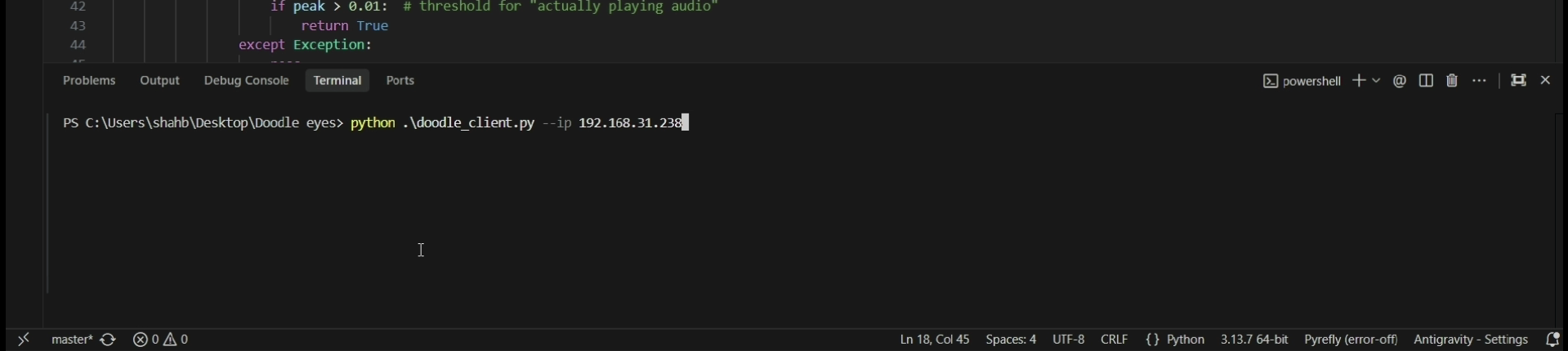
Now open the serial monitor and get the IP address. After that, open VS Code, create a new desktop_companion_client.py file, and paste the code from the attached file.
This will install all the Python libraries.
NOTE: "192.168.1.100" IS THE IP ADDRESS GIVEN BY MY XIAO ESP32 S3 BOARD. IN YOUR CASE THIS WILL BE DIFFERENT.
.png)
.png)
.png)
.png)
.png)
.png)
.png)
.png)
.png)
.png)
.png)
.png)
.png)
.png)
.png)
.png)
.png)
.png)
.png)
.png)
.png)
.png)
.png)
.png)
.png)
.png)
.png)