DIY Speaking Clock – an Open Source Talking Clock for Visually Impaired Users
56 Views, 0 Favorites, 0 Comments
DIY Speaking Clock – an Open Source Talking Clock for Visually Impaired Users
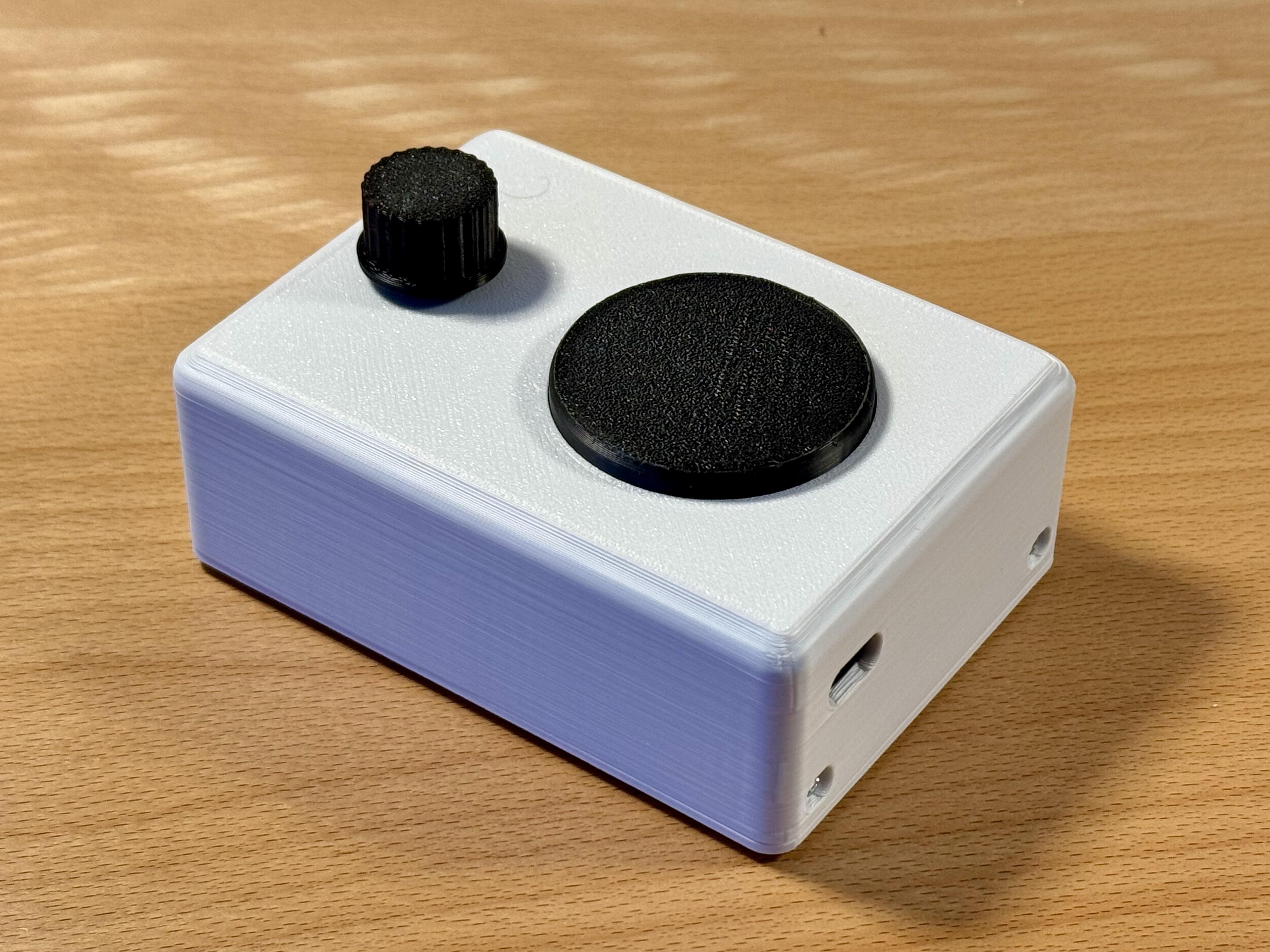
In this project, I built a simple, battery-powered speaking clock designed for visually impaired and elderly users. The clock announces the current time at the press of a single button, and with a second press it also announces the date. The user interface is intentionally minimal, so it can be operated easily without looking at it.
The device works completely offline and is optimized for very low power consumption, allowing it to run for years on standard AA batteries. It is based on an ESP32 microcontroller, uses a real-time clock for accurate timekeeping, and plays pre-recorded voice messages through a small speaker. The electronics are built from inexpensive breakout modules on a custom PCB and are housed in a 3D-printed case.
I created this project to build an accessible, reliable, and easy-to-use everyday device — and I’m sharing it as an open-source project so others can build it, adapt it, or improve it.
Design Goals and Requirements
Before starting with the hardware and software, it’s important to define what this project is supposed to achieve.
The main goal was to build a simple and accessible speaking clock for visually impaired and elderly users. The device should be easy to use without looking at it and without having to navigate menus or displays. For this reason, the user interface is reduced to a single large button.
Another important requirement was stand-alone operation. The clock should work completely offline, without any internet connection or external services. Timekeeping is handled by a real-time clock module, so the device keeps accurate time even when it is switched off.
Low power consumption was also a key design goal. The clock is only used for short moments when the time is announced, so it makes sense to switch off the entire system when it is idle. This allows the device to run for years on standard AA batteries.
The clock should also be easy to configure. Setting the time or changing the language should be possible using a smartphone, without requiring a computer or special software.
Finally, the project should be easy and inexpensive to build. That’s why it is based on widely available breakout modules, a simple custom PCB, and a 3D-printed case. All design files and source code are open source, so the project can be adapted and improved by others.
Functional Blocks Overview
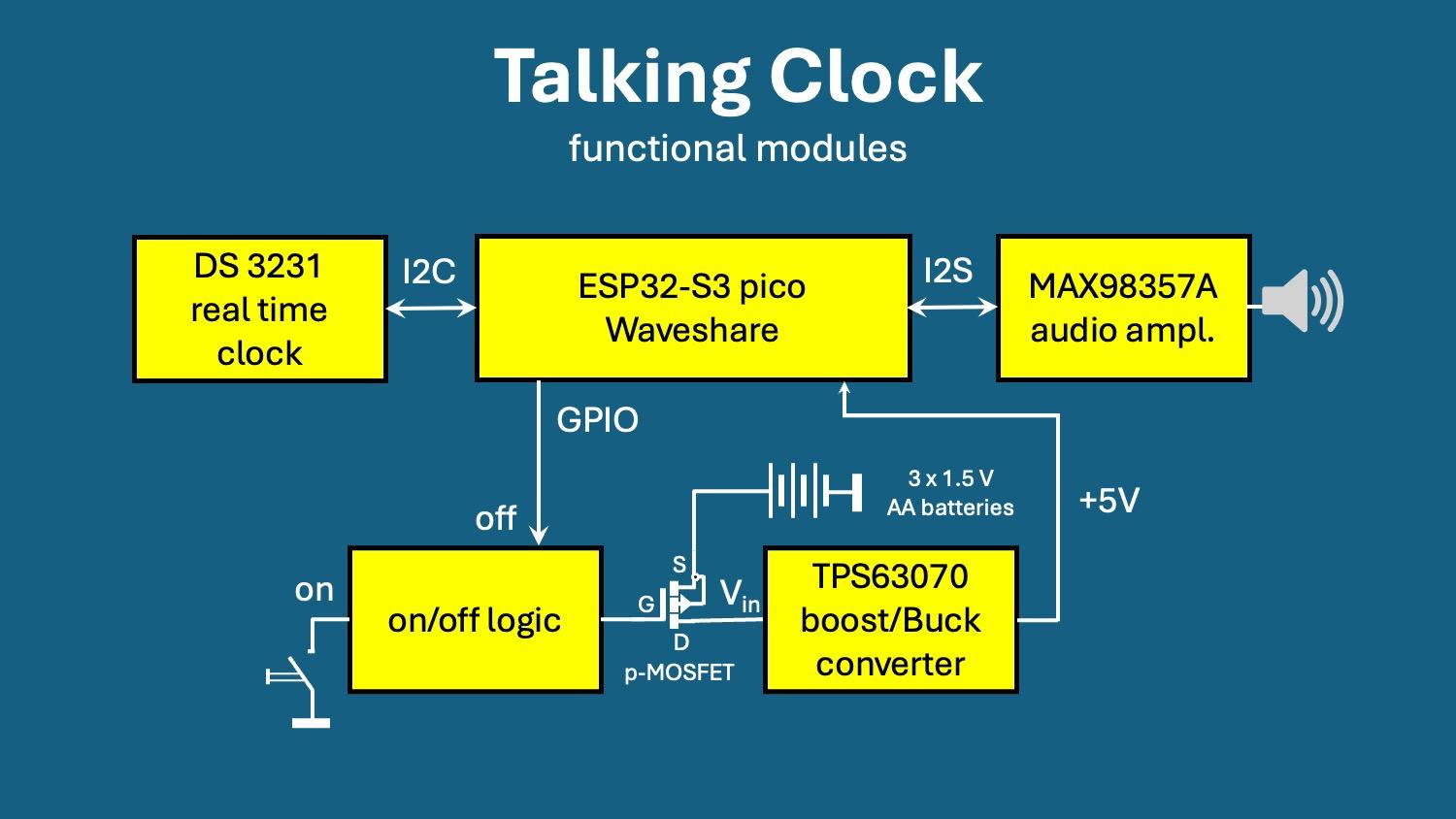
Before we start building the hardware, let’s take a look at the main functional blocks of the speaking clock and how they work together.
At the center of the system is an ESP32-S3 Pico module. It controls the whole device, reads the current time, selects the correct audio files, and plays them back through the audio output.
The current time is provided by a DS3231 real-time clock module. This RTC has its own backup battery, so it keeps accurate time even when the main device is completely powered off.
The spoken messages are stored as MP3 files in the flash memory of the microcontroller. For audio output, the ESP32 sends the data via I2S to a MAX98357A audio amplifier, which drives a small speaker.
A key part of the design is the power management. To achieve extremely low standby power consumption, the entire system is normally switched off. A p-channel MOSFET disconnects the battery when the device is idle.
When the user presses the button, an on/off logic circuit turns the power on. The ESP32 starts up, announces the time (and optionally the date), and then switches the power off again using one of its GPIO pins.
The device is powered by three AA batteries. Their voltage is converted to a stable 5 V using a TPS63070 boost/buck converter, which ensures reliable operation over a wide battery voltage range.
This block diagram gives you a good overview of the system. In the next steps, we’ll look at how these blocks are implemented in real hardware.
Building the Core Electronics Module
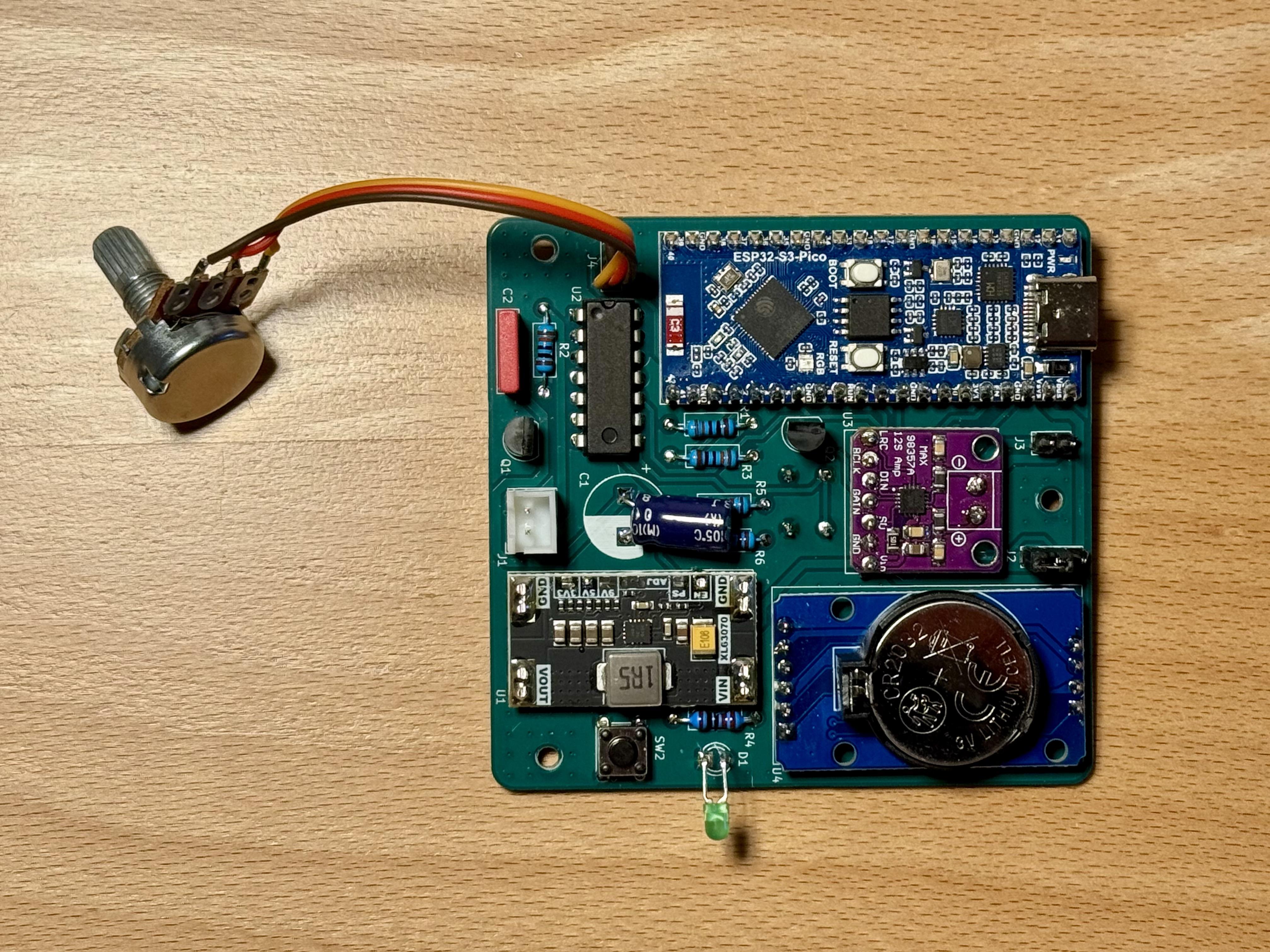
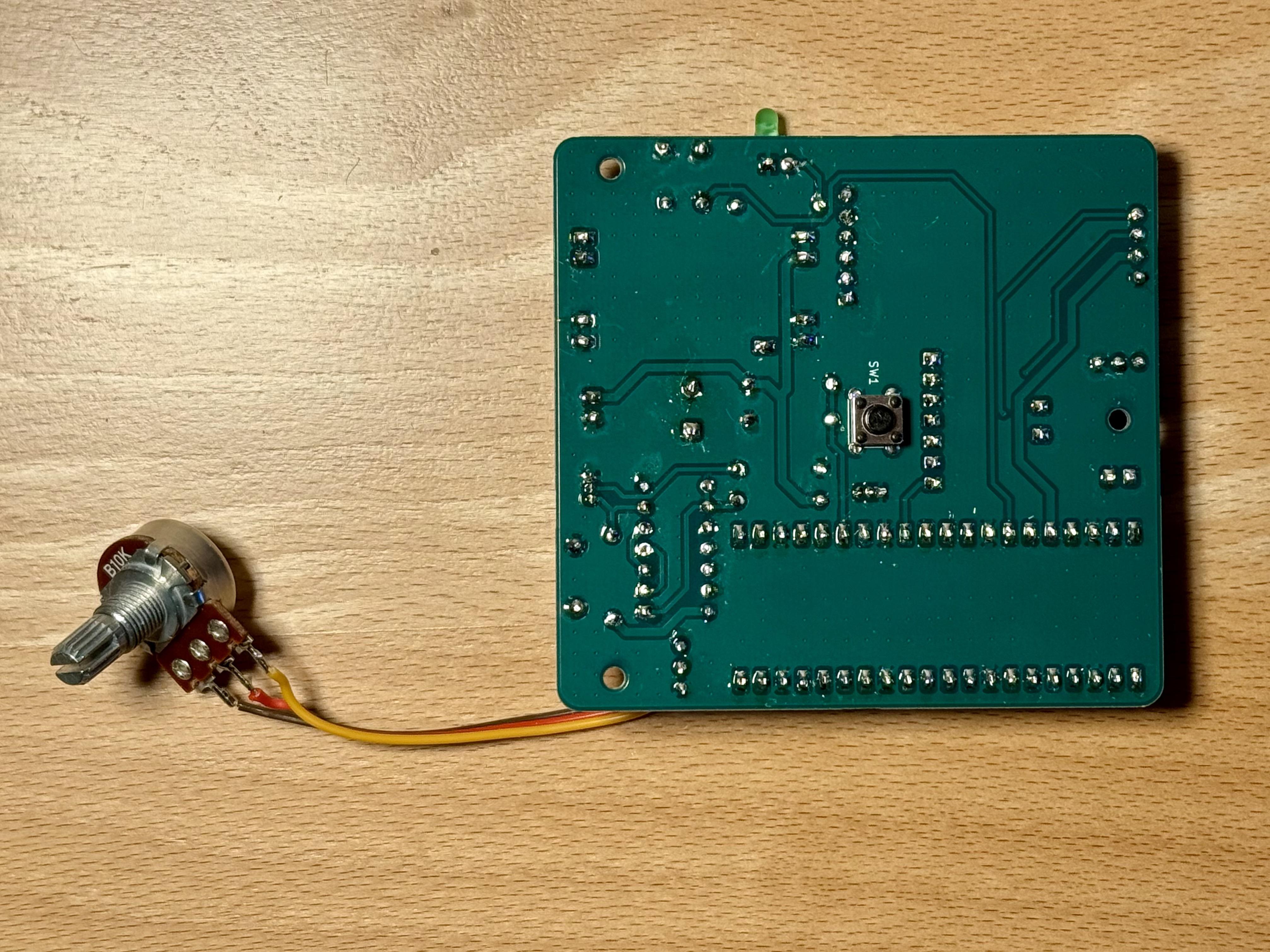
In this step, we assemble the main electronics module on the custom PCB. The design files for the custom PCB are available in the GitHub repository, so you can have the board manufactured by almost any PCB manufacturer. The board is designed so that most parts are easy to solder, even with basic tools.
It’s best to start with the SMD MOSFET, while the board is still completely free and easy to access. This is the only surface-mount part on the board, and soldering it first makes the job much easier.
Next, solder the through-hole components: the resistors, capacitors, the DIL-14 IC, and the two 2N7000 transistors. Take your time here and double-check the orientation of the polarized parts before soldering.
Once the discrete components are in place, you can move on to the breakout boards. These are mounted using standard 2.54 mm pin headers and then soldered to the PCB. This makes the assembly straightforward and also keeps the modules replaceable if needed.
After this step, the complete core electronics module is finished and ready to be installed into the case in the next steps.
Printing the 3D-Printed Parts

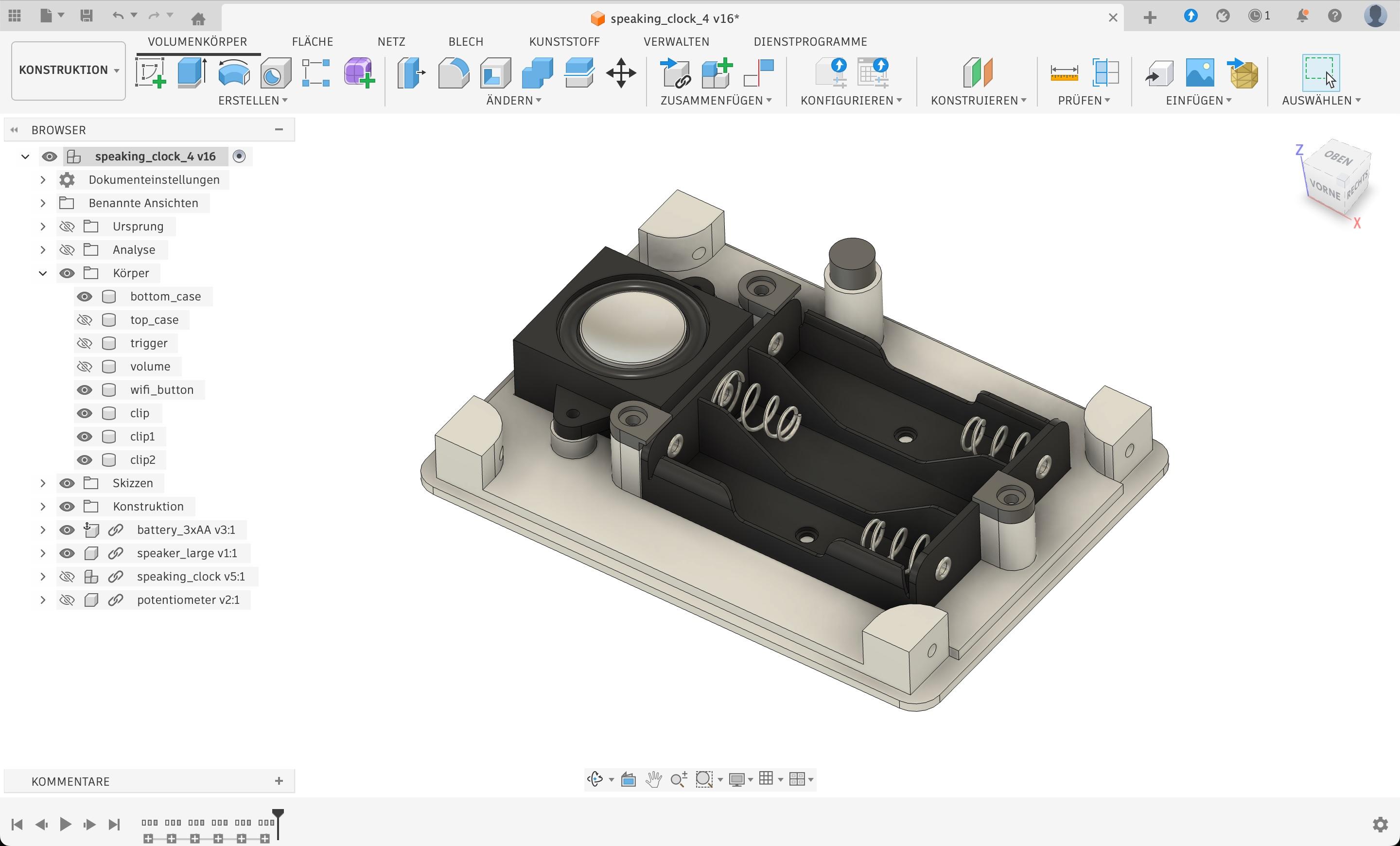
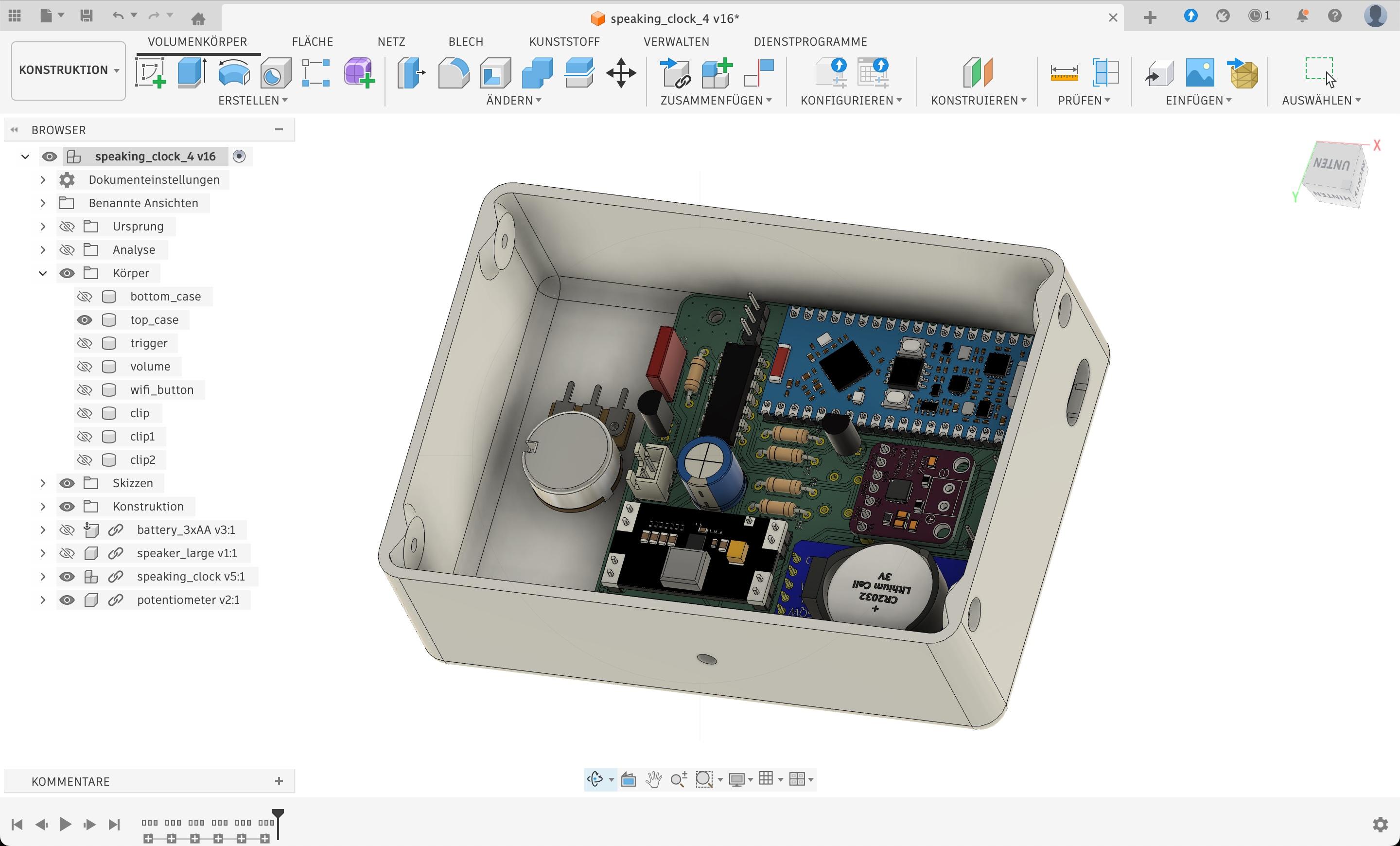
The enclosure and mechanical parts of the speaking clock are 3D printed. All STL files are available in the GitHub repository, so you can print the parts yourself or have them printed by a service.
When preparing the prints in your slicer, it’s important to add pauses at the correct layers. These pauses are needed so you can insert the M2 nuts into the printed parts. This makes the final assembly much easier and allows the case to be screwed together securely.
For printing, you can use almost any material. PLA is perfectly sufficient for this project and works well for the enclosure and the button parts.
After printing, make sure the nuts are properly embedded and the parts fit together before moving on to the final assembly.
Assembling the Device
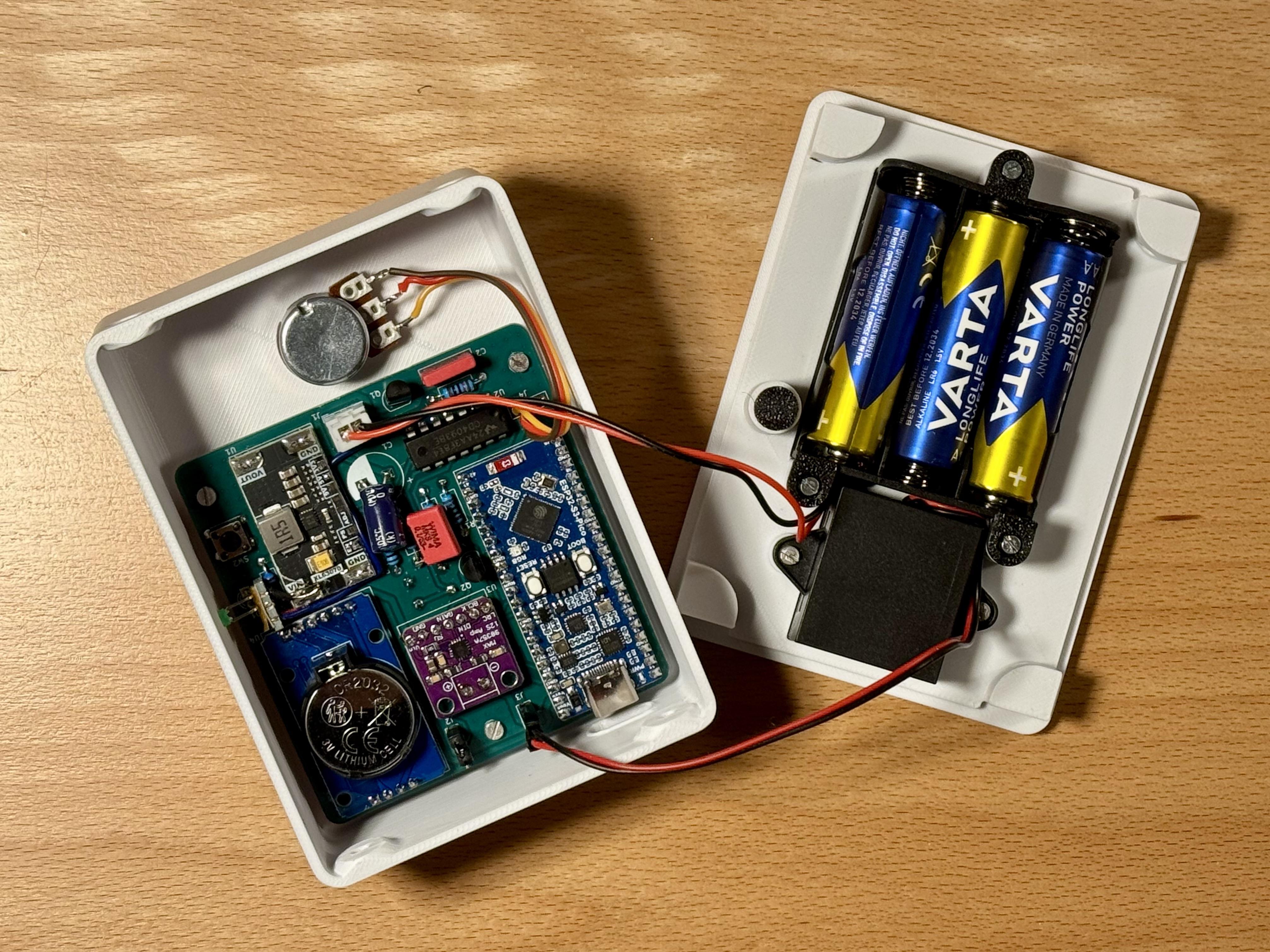
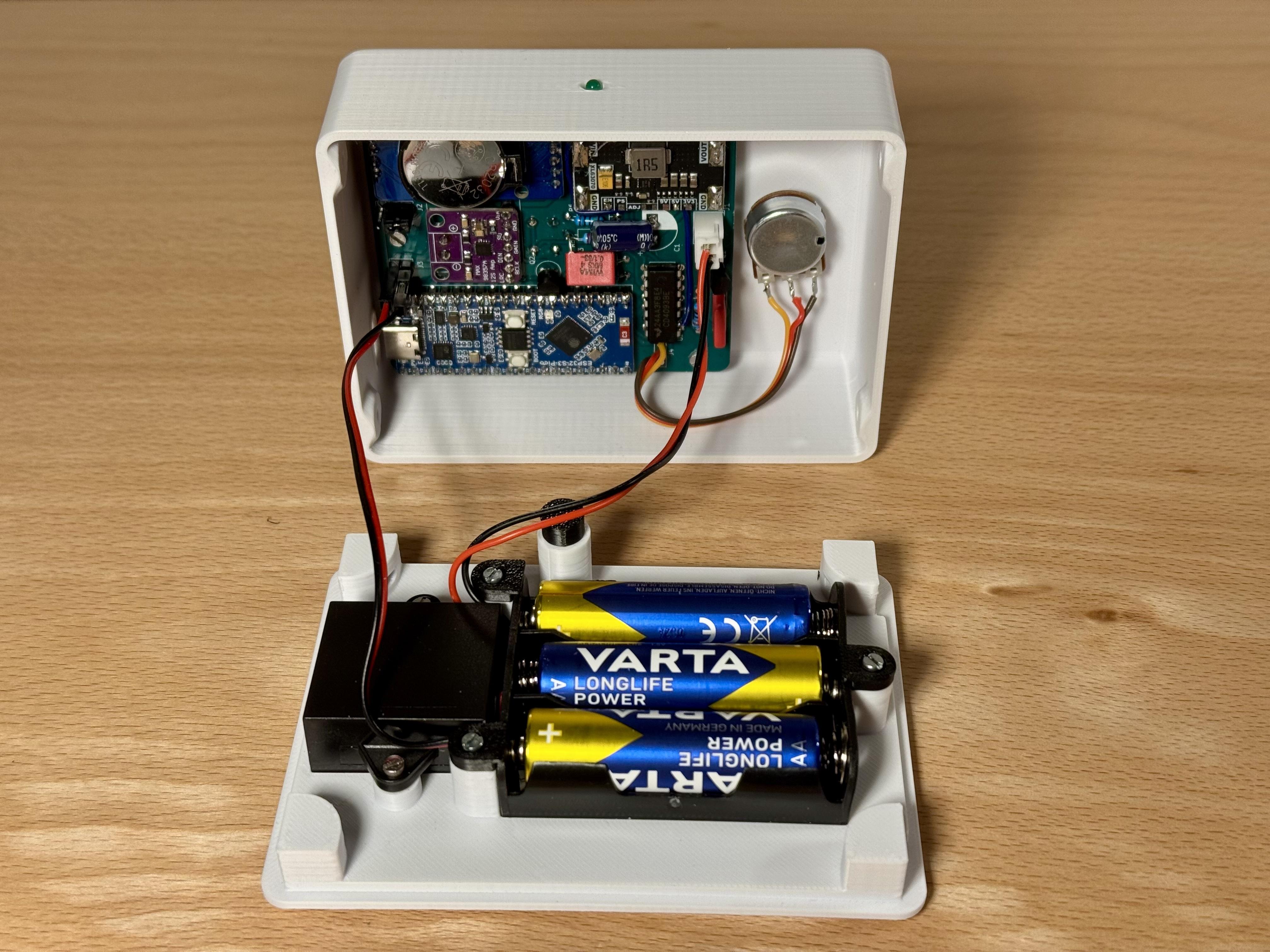
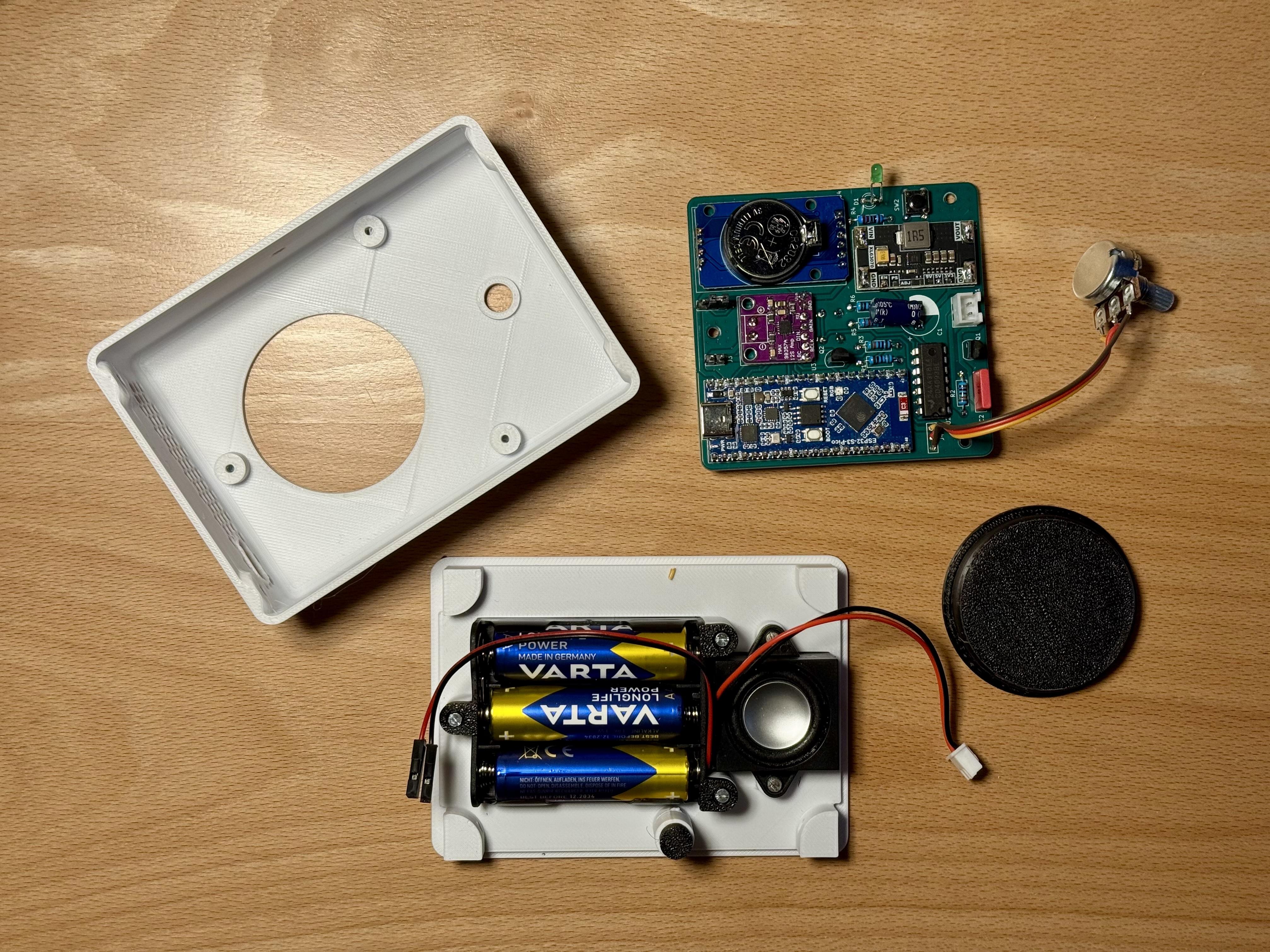
Now it’s time to put everything together.
First, mount the electronics module into the 3D-printed case using the M2 screws. Make sure the board is seated properly and aligned with the openings in the enclosure.
Next, connect the speaker and the battery holder to the electronics module. Mind the correct polarity, when assembling the cables..
Once everything is connected, place the parts neatly inside the case and close the enclosure.
At this point, the hardware assembly is complete and the device is ready for the software.
Uploading the Software
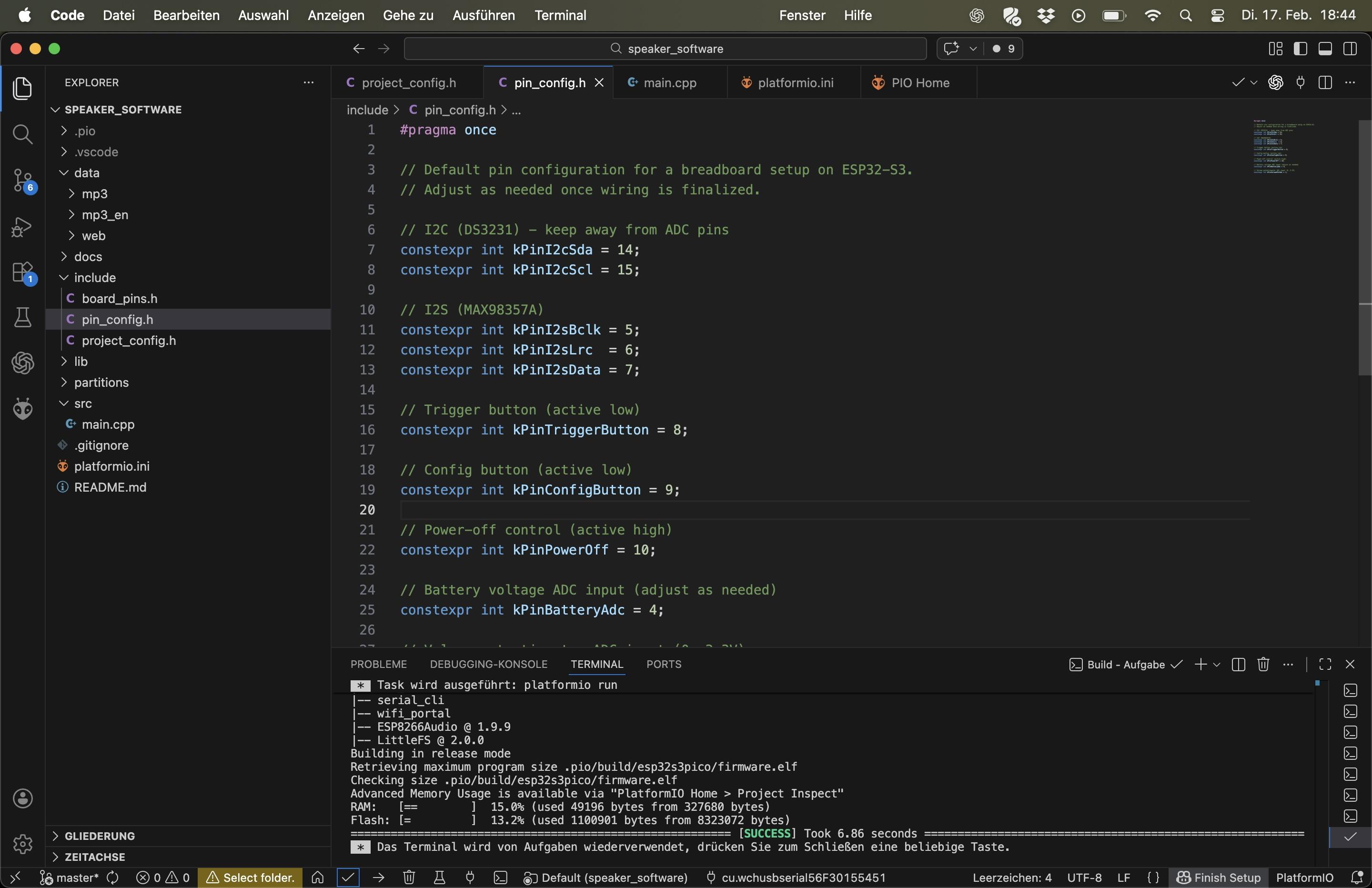
The firmware for the speaking clock was developed using Visual Studio Code with PlatformIO.
To upload the software, start VS Code and open the folder /speaker_software. PlatformIO will automatically download and install all required libraries.
Now connect the clock to your computer using a USB cable. The device does not need to be switched on, because it is powered directly from the USB port during programming.
In VS Code, click the right arrow (Upload) button. This will compile the project and upload the firmware to the ESP32-S3 microcontroller.
After the firmware is installed, you also need to upload the MP3 audio files to the device. To do this, click on the PlatformIO icon on the left side. In the project tree, go to:
PROJECT TASKS → esp32s3pico → Platform → Build Filesystem Image
and then:
PROJECT TASKS → esp32s3pico → Platform → Upload Filesystem Image
This will build and upload the filesystem image containing the MP3 files.
Once both the firmware and the filesystem are uploaded, the device is ready and only needs to be configured in the next step.
Wi-Fi Setup and Configuration
The clock only needs to be configured once, and after that it can be used for months without any further setup.
To enter configuration mode, press and hold the button on the bottom of the device, and then press the start button. The clock will confirm this by announcing “Wi-Fi on”. The device will now create its own Wi-Fi access point with the SSID “SpeakingClock”.
Using your phone or another device, connect to this Wi-Fi network. A moment later, a captive portal will open automatically and show the configuration page.
First, synchronize the real-time clock with the current time of your browser by pressing the “Set RTC” button. This copies the current time to the clock.
Next, select the desired language for the announcements. You can choose between English and German.
The configuration page also shows the battery voltage, which can be used as an indicator of the battery condition.
To leave configuration mode, simply press the start button once. After the time announcement, the device will switch itself off.
Conclusions
- You now have a fully working speaking clock that is simple to use, fully offline, and optimized for very low power consumption.
- The project shows how accessible devices can be built using low-cost hardware, a custom PCB, and 3D-printed parts.
- Because everything is open source, you can adapt the design, improve the software, or customize the case for your own needs.
- The same concept can also be used for other assistive devices or low-power, battery-operated projects.
- If you build your own version or improve the design, consider sharing your results with the community.