DIY Smart Hotplate Powered by STM32 & USB-C Power Delivery
by Markus24152 in Circuits > Electronics
1436 Views, 23 Favorites, 0 Comments
DIY Smart Hotplate Powered by STM32 & USB-C Power Delivery

.jpeg)
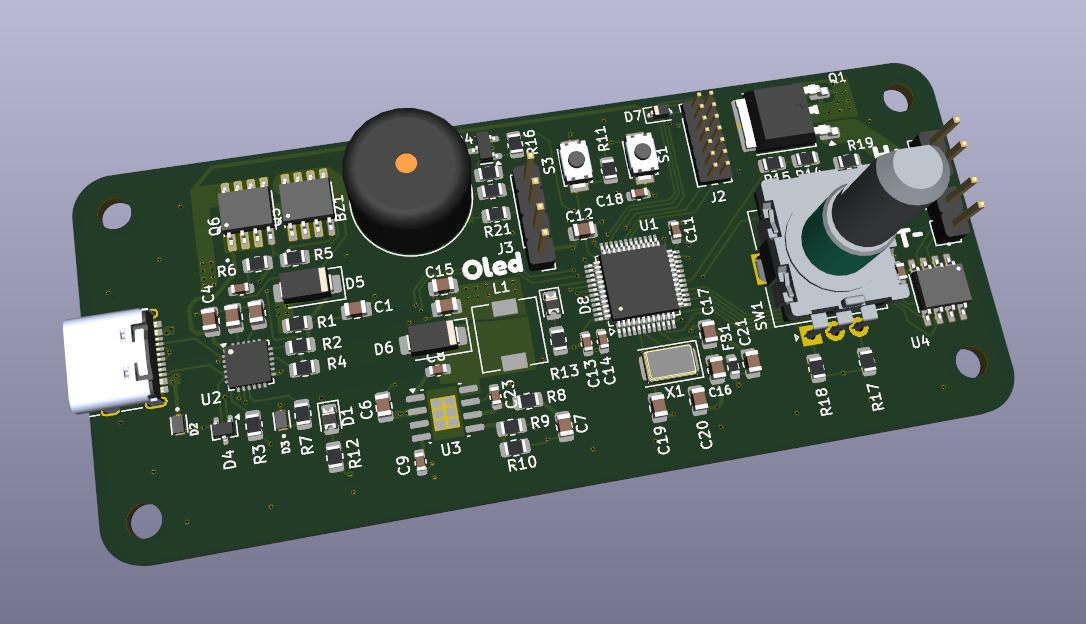
If you have ever tried soldering tiny SMD components with a handheld iron, you know the struggle. It’s tedious, shaky, and often frustrating. Commercial reflow ovens are bulky, and professional hotplates can be prohibitively expensive for a hobbyist workbench.
I wanted a better solution: Compact, Smart, and Powerful.
So, I designed and built my own Mini Reflow Hotplate. But I didn't want another device with a clunky 12V power brick. My goal was modern portability. This hotplate is powered entirely by USB-C Power Delivery (PD). This means you can run it off the same high-power charger you use for your laptop, negotiating up to 20V for rapid heating.
What makes this project special?
- True USB-C PD: Utilizes the STUSB4500 controller to negotiate power directly from USB-C sources.
- Smart Control: Powered by an STM32 microcontroller, offering precise temperature stability via a PID loop.
- Pro Interface: Features an OLED screen, a rotary encoder for intuitive menu navigation, and status LEDs/Buzzer for feedback.
- Precision Sensing: Uses a MAX6675 chip with a K-Type thermocouple to read temperatures accurately up to reflow levels (and beyond).
- Custom Design: Housed in a sleek 3D-printed enclosure with custom PCBs.
Supplies
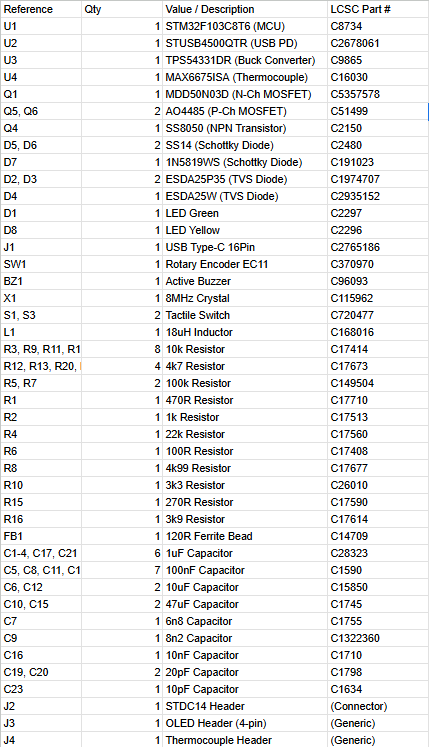
To build this hotplate, you need a mix of custom PCBs, parts, and 3D prints.
1. The PCBs (Manufactured by JLCPCB)
- Mainboard: FR4 PCB (I used the SMT Assembly service for the small parts).
- Heater: Aluminum Core PCB (Essential for heat!).
- Manufacturing Files (here)
2. Electronics
- BOM File: See the attached .csv for all SMD parts (STM32, STUSB4500, etc.).
- 0.96" OLED Display (I2C).
- EC11 Rotary Encoder.
3. Hardware
- Filament: PETG or ASA (PLA will melt!).
- M3 Screws & M3 Standoffs (to isolate the heater).
- Thermal Paste.
- Thermocouple K-Type
4. Power
- USB-C PD Charger (100W recommended for speed, 45W min).
- USB-C Cable (5A rated).
Downloads
The Heater Design (Why Aluminum?)


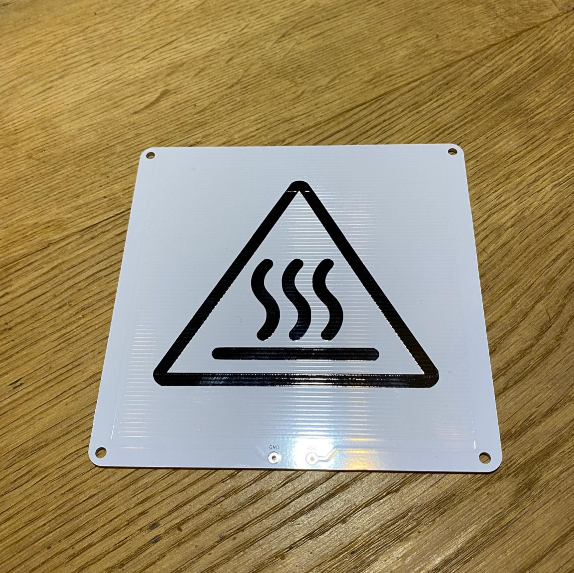
The heart of this project is the hotplate itself. Unlike commercial units that might use a ceramic heating element glued to a metal plate, I decided to turn the PCB itself into the heater.
1. The Physics: How a PCB becomes a Heater
It’s based on Joule Heating. Every wire has some internal resistance. Usually, in PCB design, we want to minimize resistance to avoid heat. Here, we do the exact opposite.
I designed a long, thin copper trace that winds back and forth across the board. This trace acts as a giant resistor. When we push current through it, that electrical energy is converted directly into heat.
2. The Math: Calculating the Trace
To get the right temperature, I had to calculate the specific resistance of the copper trace using Ohm's Law and the Power Law.
- Target: I wanted around 100W of heating power at 20V (USB-C PD voltage).
- Formula: R = V^2 / P
- Calculation: 20V^2 / 100W = 4R
So, I needed a copper trace with a total resistance of about 4 Ohms. In KiCad, I adjusted the trace width and length until the calculated resistance matched this target. If the trace is too wide, resistance is too low (current is too high = short circuit). If it's too thin, it might burn out.
3. Why Aluminum Core (MCPCB)?
You cannot use a standard green FR4 PCB for this!
- FR4 (Fiberglass): Is a thermal insulator (bad for spreading heat) and the epoxy resin starts to burn and delaminate around 130°C–140°C.
- Aluminum Core: I chose an Aluminum PCB from JLCPCB. The base is solid metal, which spreads the heat instantly and evenly across the surface. It can easily withstand soldering temperatures (250°C+) without degrading.
The Circuit Design (Schematic Breakdown)


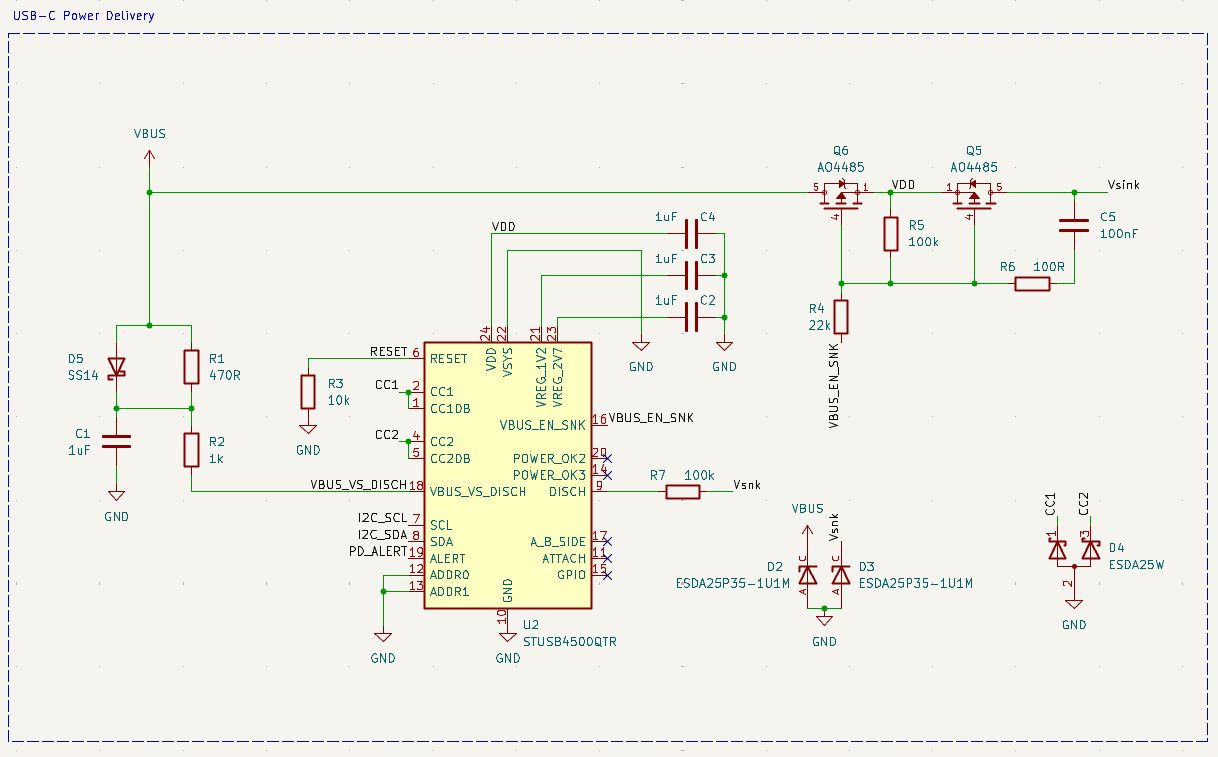

The Mainboard is the brain of the operation. I designed the schematic in KiCad. It handles the power negotiation, reads the sensors, and controls the heater. Let’s break down the key sections of the schematic so you understand how it works.
1. USB-C Power Delivery (The STUSB4500)
Reference: U2, Q5, Q6 This is the most critical part. Instead of using a "dumb" resistor hack, I used the STUSB4500QTR.
- Function: This chip communicates directly with the USB-C charger via the CC lines. It is configured to request 20V (Power Delivery Profile).
- Protection: It controls two P-Channel MOSFETs (AO4485) to only turn on the main power rail (VBUS) once the negotiation is successful and the voltage is stable. This protects the rest of the circuit from undefined voltage states.
2. Power Regulation (20V to 3.3V)
Reference: U3 (TPS54331) Since the input voltage can be up to 20V, a standard linear regulator (like an AMS1117) would get dangerously hot dropping it down to 3.3V for the microcontroller.
- Solution: I used the TPS54331, a high-efficiency Step-Down (Buck) Converter. It efficiently converts the high voltage down to 3.3V logic level without generating excess heat.
3. The Brain (STM32)
Reference: U1 (STM32F103C8T6) I chose the STM32 because it’s fast, affordable, and has plenty of I/O. It runs the PID algorithm to keep the temperature stable.
- Debug/Flash: The SWD pins are broken out to a header so we can program it using an ST-LINK programmer.
4. Temperature Sensing (MAX6675)
Reference: U4 To measure temperatures up to 250°C+ accurately, analog sensors like thermistors aren't precise enough.
- Solution: I used the MAX6675ISA. This chip reads a K-Type Thermocouple digitally via SPI. It filters out noise and provides a precise temperature reading to the STM32.
5. Heater Control & User Interface
- Heater Driver (Q1): The STM32 controls the heating plate using a powerful N-Channel MOSFET (MDD50N03D). We use PWM (Pulse Width Modulation) to pulse the power, allowing for smooth temperature curves instead of just "On/Off".
- Interface: An I2C OLED display shows the data, and a Rotary Encoder (SW1) allows you to navigate menu. A buzzer (BZ1) provides audible feedback when the reflow process is done.
Ordering the PCBs With JLCPCB

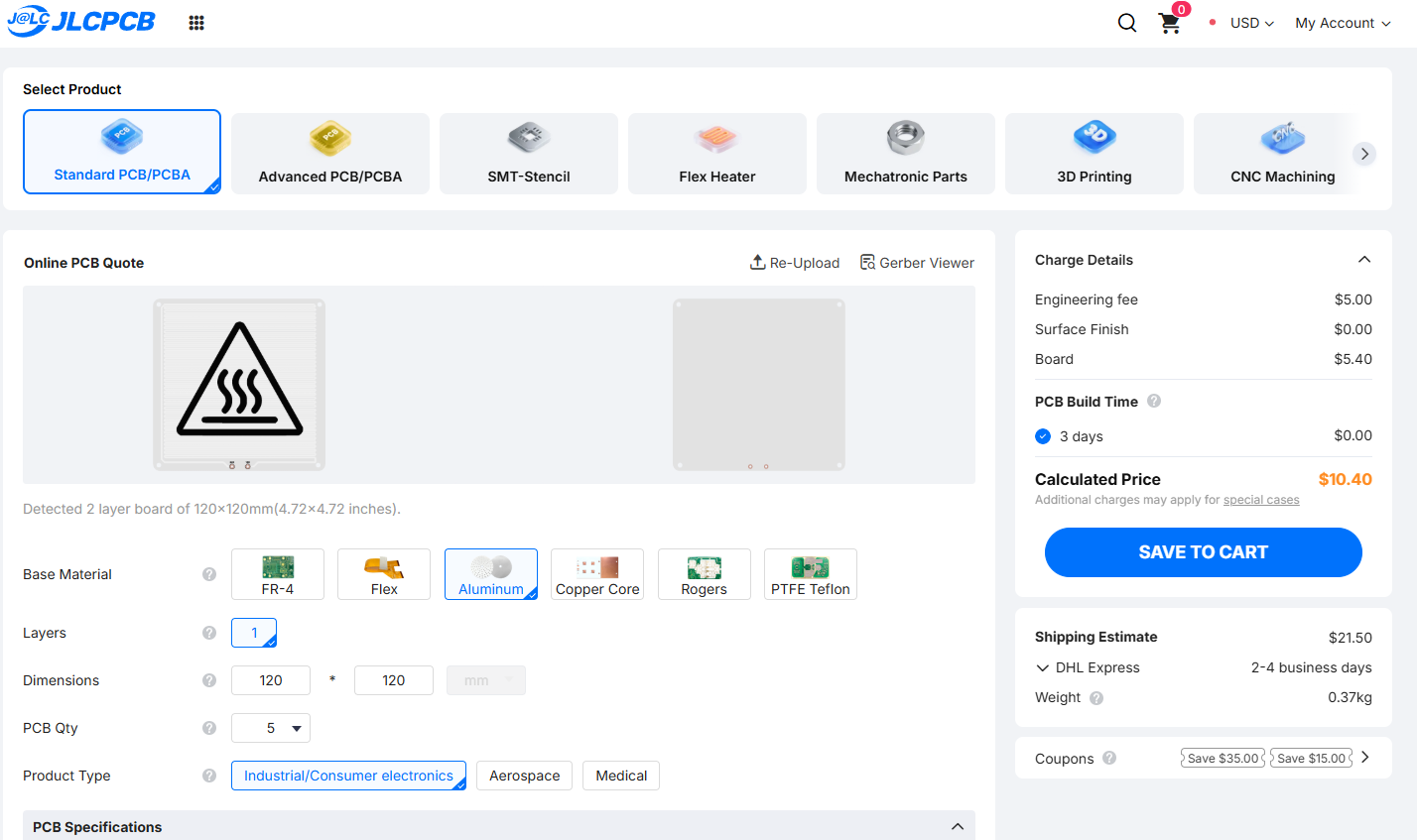

Since this project involves fine pitch SMD components and high-power heating, I highly recommend getting the boards professionally manufactured. JLCPCB sponsored this project, and their service makes this step incredibly easy. Here are files what you need.
Here is how to order the two different boards you need:
1. The Mainboard (Logic)
This board holds the STM32 and the tiny USB-C controller. To save yourself from soldering tricky components by hand, use their SMT Assembly Service.
- Go to the JLCPCB website and upload the HotPlateGerber.zip file.
- Settings: Leave everything as default (FR-4, 1.6mm thickness, 4 layers).
- Crucial Step: Scroll down and toggle "PCB Assembly" to ON.
- Click "Confirm". On the next page, upload the BOM.csv and CPL.csv (Pick & Place) files provided in this guide.
- The system will show you a preview of the parts placed on the board. Review it and proceed to checkout. They will solder the difficult parts (STM32, USB Chip, Buck Converter) for you!
2. The Heating Plate (Heater)
Warning: This is the most critical order setting! Do not order this as a standard board.
- Upload the Hotplate_Gerber.zip file.
- Base Material: Change this from "FR-4" to "Aluminum".
- Layer: 1 Layer.
- Solder Mask: Black (or White) looks best, but make sure it covers the traces well.
- Do not select assembly for this one; it’s just the bare board acting as the heater.
Once you receive the package, you will have a fully assembled mainboard controller and a robust aluminum heating element ready for the final build!
3D Printing
.jpeg)
.jpeg)
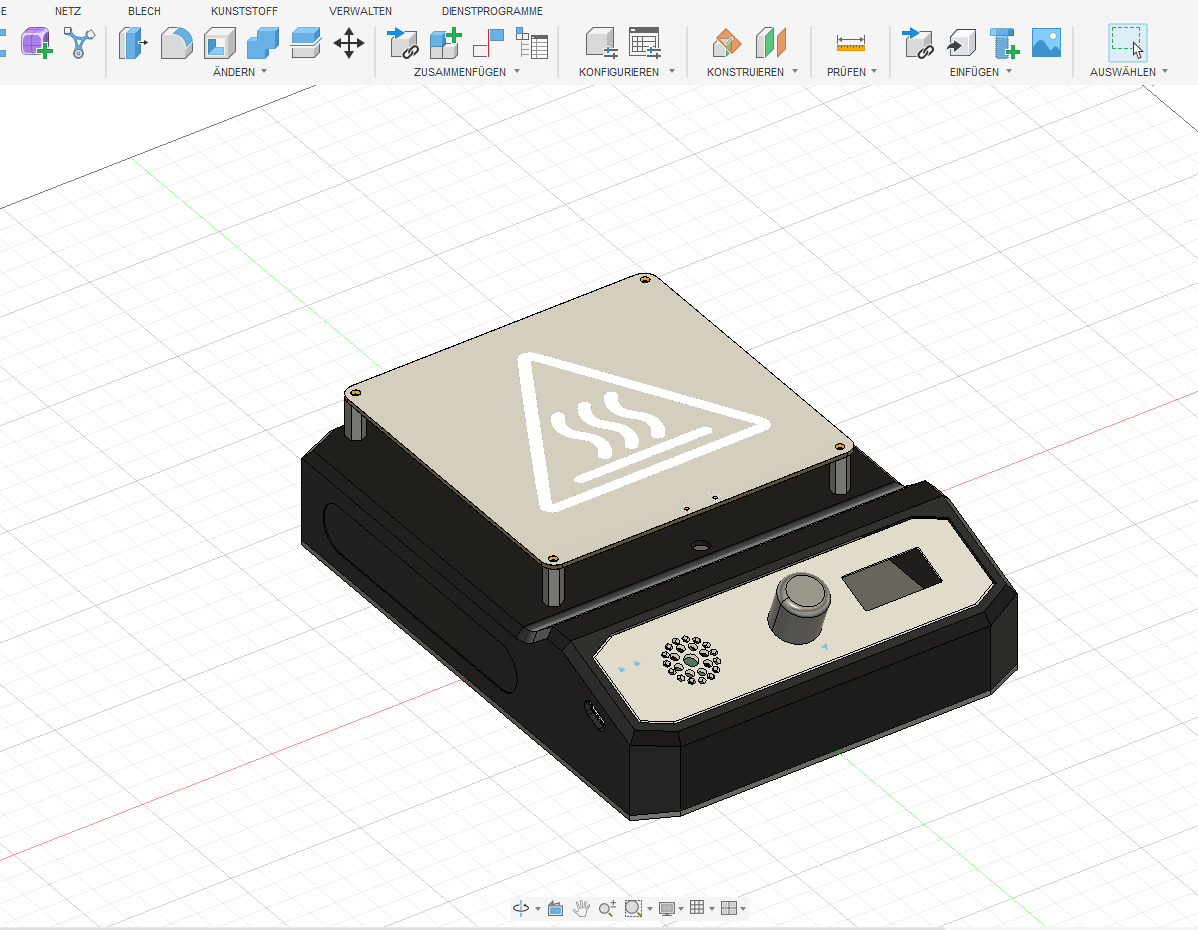
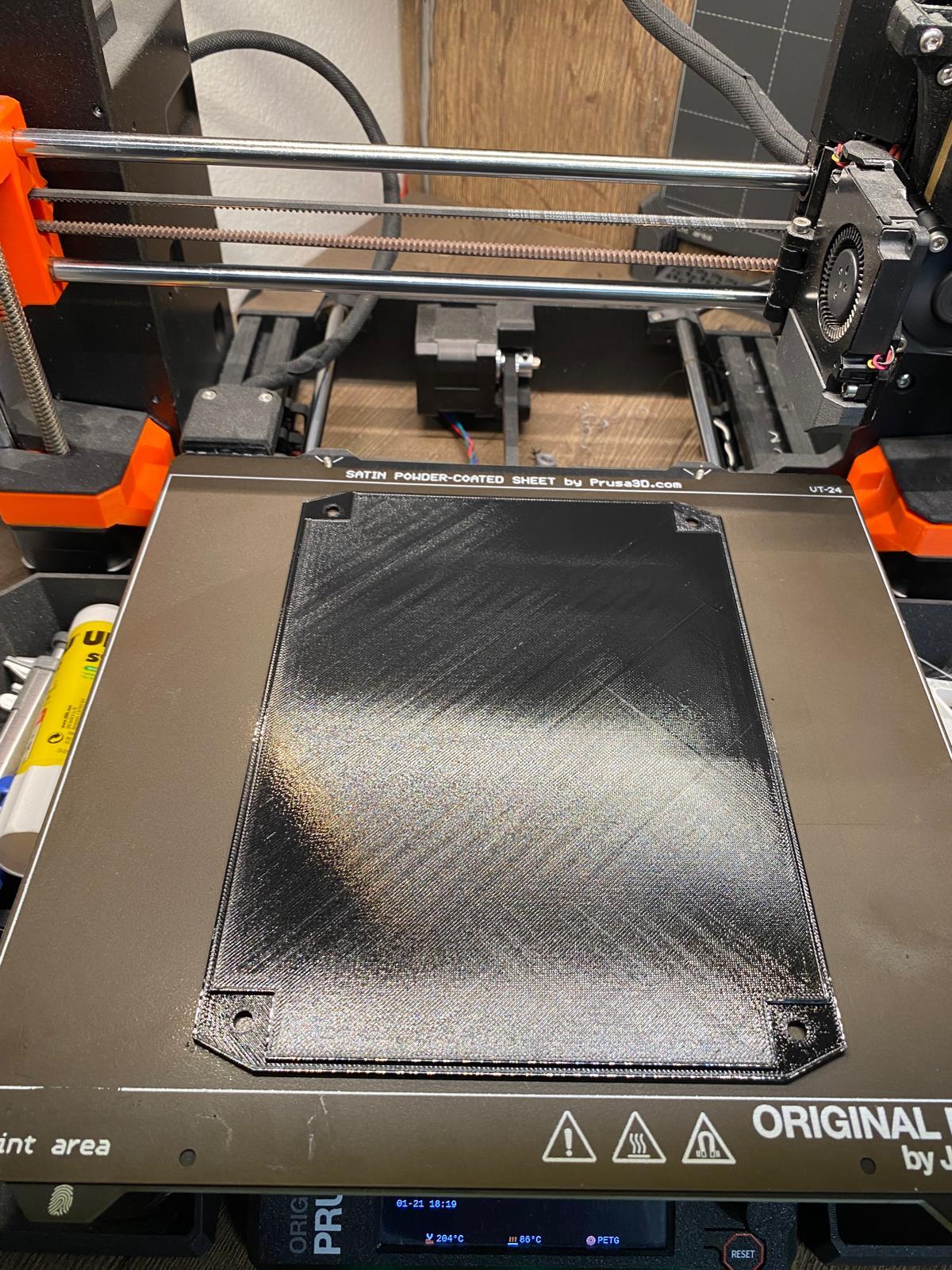
With the electronics ready, we need a robust enclosure. I designed a custom case that snaps together cleanly and looks professional in Fusion 360.
1. Download the STL Files
To ensure you get the latest version of the 3D models, I have uploaded them to Printables.
[ > CLICK HERE TO DOWNLOAD STL FILES (Printables) < ]
2. Printing Settings (Important!)
- Material: You MUST use PETG, ASA, or ABS.
- Warning: Do not use PLA. The radiant heat from the hotplate will cause PLA to soften and deform, potentially ruining your device.
- Infill: 20% to 30% (Grid or Gyroid pattern recommended).
- Parts to print:
- Case_Bottom.stl
- Case_Top.stl
- FrontPlate.stl
- Knob.stl
Assembling the Heating Element
.jpeg)
.jpeg)
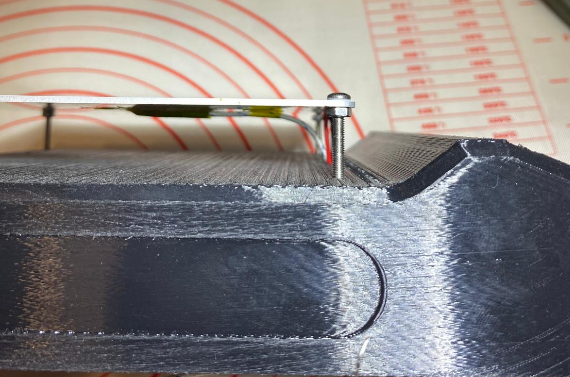
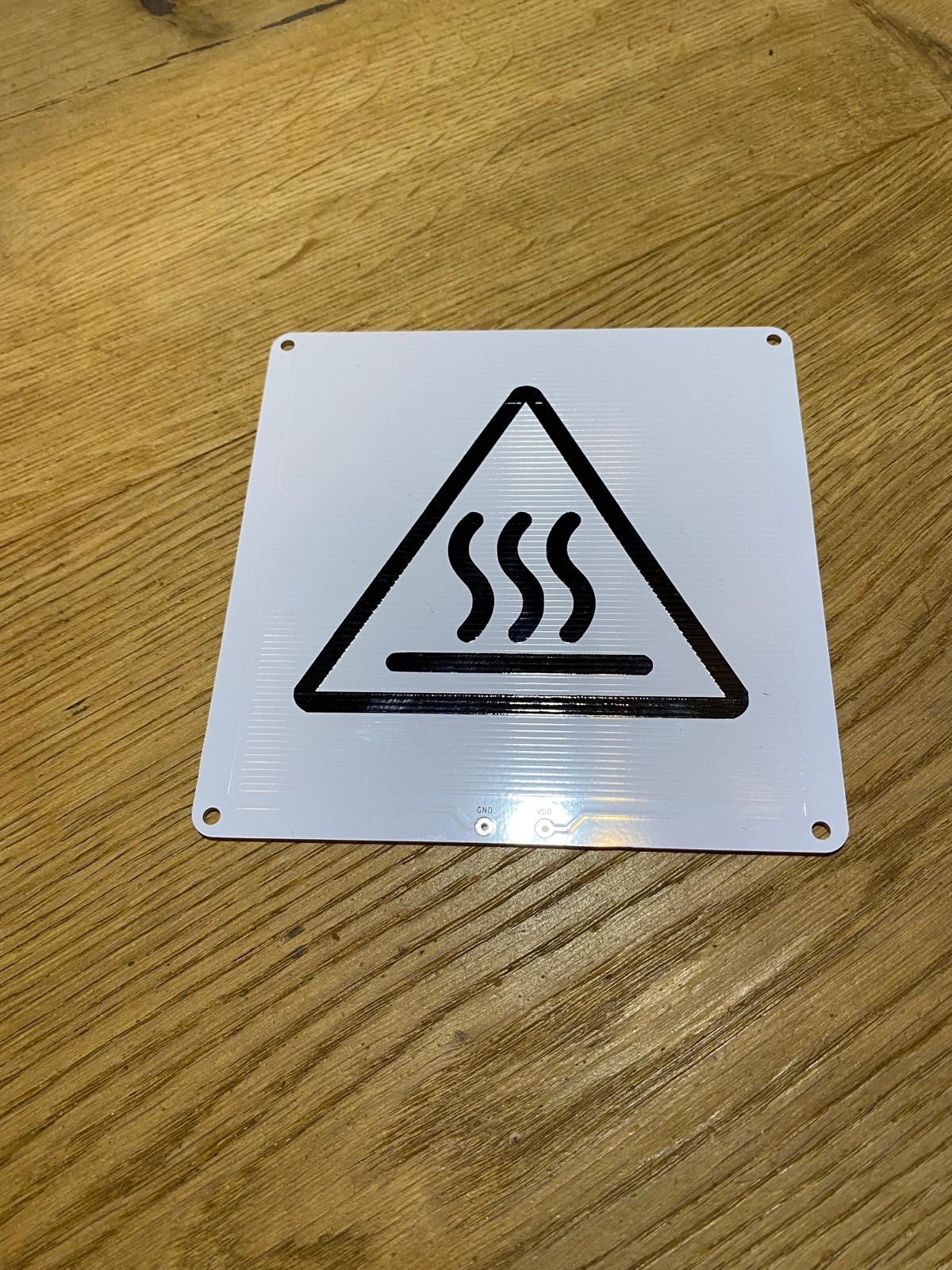
Now we move on to the core of the build: The Aluminum Heating Plate. Since this part gets extremely hot, we need to assemble it carefully to protect the plastic case.
1. Wiring the Plate
The aluminum core sucks away heat very quickly, so you need a powerful soldering iron (or a high temperature setting) for this step.
- Tin the two large pads on the Aluminum PCB.
- Solder two thick silicone wires (capable of handling 3-5A) to the pads. One for VDD and one for GND.
2. Attaching the Sensor
We need to measure the temperature exactly where the heat is generated.
- Take your K-Type Thermocouple sensor.
- Place the sensor tip firmly against the center of the underside of the aluminum plate.
- Secure it tightly with Kapton Tape (Polyamide Tape).
- Note: Regular electrical tape will melt! Only use Kapton tape as it withstands high temperatures.
3. Mounting to the Case
Now we attach the plate to the 3D printed housing.
- Cable Routing: Feed the power wires and the sensor cable through the central hole in the top of the 3D printed case.
- The "Air Gap" (Crucial): We must not let the hot aluminum touch the plastic directly.
- Insert long M3 screws through the holes in the aluminum plate.
- Thread a nut onto each screw underneath the plate. This nut acts as a spacer/standoff to create an air gap between the heater and the plastic.
- Fastening: Screw the M3 screws directly into the threads of the 3D printed case (or heat-set inserts if you used them). Tighten them until the plate is secure but "floating" above the plastic.
Wiring, Assembly & Flashing
.jpeg)
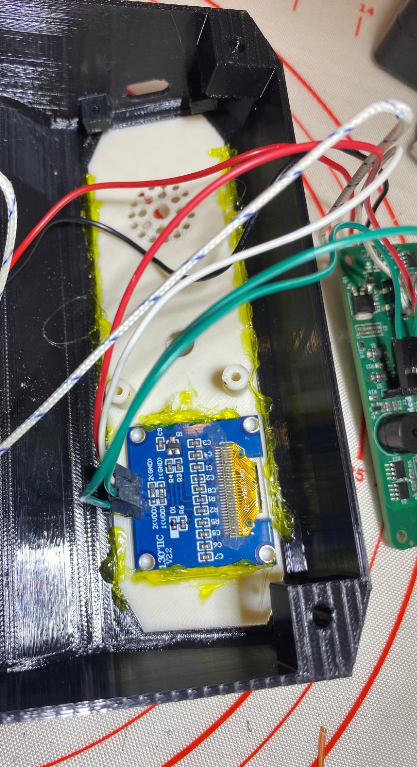
Now that the mechanical parts are in place, let's connect the brain and close up the case.
1. Wiring the Mainboard
Grab your soldering iron again.
- Heater Connection: Solder the two thick silicone wires from the Hotplate to the pads marked H+ and H- on the mainboard. (Since it's a resistive heater, polarity doesn't strictly matter here, but consistency is good).
- Sensor Connection: Connect the thermocouple wires to T+ and T-.
- Important: Polarity matters here! If the temperature goes down when you heat it up, swap these two wires.
- Display: Connect the OLED display to the I2C header (VCC, GND, SCL, SDA). Since I used pin headers, I just plugged it in directly.
2. Front Panel Assembly
- Mounting: Place the OLED screen and the printed front faceplate into the corresponding cutout in the housing.
- Fixing: Use a dab of Hot Glue on the inside to secure the display and the faceplate firmly in place. This prevents them from being pushed in when you press buttons.
3. Flashing the Firmware
The STM32 needs its software to run. You can find the latest firmware file in the GitHub repository (here)
How to connect the Programmer (ST-LINK): The board is designed to be programmed via the SWD interface. You have two options:
- The "Pro" Way: I designed a footprint for a 1.27mm 2x7 Pin Header. If you solder this connector on, you can plug an official ST-LINK V3 Mini ribbon cable directly into the board for flashing.
- The DIY Way: If you don't have that connector, simply solder 4 wires temporarily to the programming pads:
- 3V3 to 3.3V
- GND to GND
- SWDIO to SWDIO
- SWCLK to SWCLK
Upload Process:
- Connect your ST-LINK to the PC.
- Open STM32CubeProgrammer.
- Connect to the chip, select the downloaded Firmware file, and hit "Program".
Once successful, disconnect the programmer.
Final Assembly

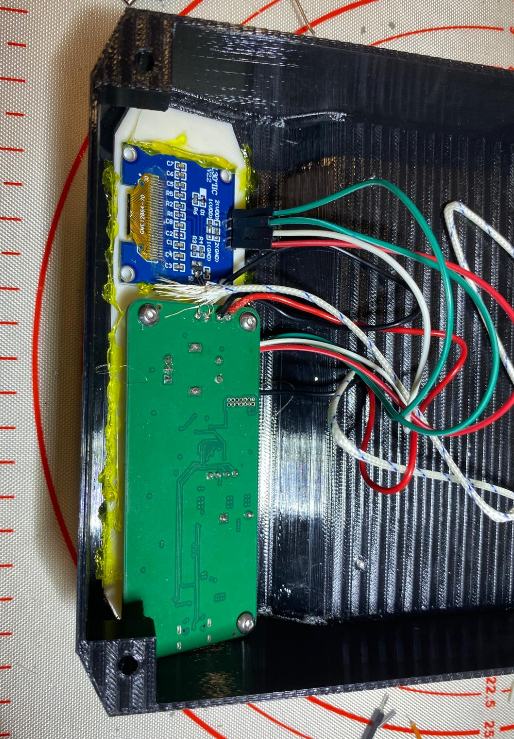
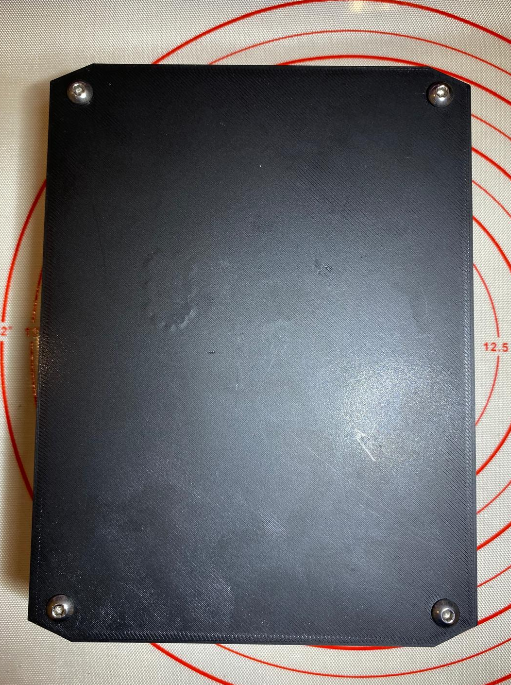
.jpeg)
We are almost there! The last step is to safely enclose the electronics.
1. Securing the Mainboard
- Make sure the printed circuit board (PCB) sits flat in the bottom of the case.
- Align the USB-C connector with the opening in the case.
- Use M3 screws to fasten the PCB tightly to the bottom of the housing.
2. Closing the Case
- Carefully arrange the wires inside so they don't get pinched or block the airflow.
- Place the Top Lid (Deckel) onto the bottom assembly. It should slide or snap into place cleanly.
3. Bolting it Shut
- To give the device a rugged, industrial finish and hold it securely, use M5 screws.
- Insert the M5 screws into the corner holes of the lid and tighten them down.
Congratulations! Your DIY USB-C PD Reflow Hotplate is now fully built.
Conclusion & Lessons Learned
We have built a sleek, portable, and fully functional USB-C soldering tool. It looks fantastic and works great for quick repairs or small batch assembly. However, every project is a learning experience, and there are some physical limitations we need to address honestly.
The Reality of 100W
While 100W sounds like a lot of power, distributing it over a solid aluminum plate of this size creates a massive thermal load.
- Temperature Limit: Realistically, this specific design struggles to reach temperatures above 300°C. The surface area simply dissipates heat faster than the 100W input can supply it at those high ranges.
- The Physics of Resistance: There is one factor I underestimated during the design phase: The Positive Temperature Coefficient. As the copper traces inside the PCB get hot, their electrical resistance increases.
- Since we are working with a fixed voltage (20V), an increase in resistance means a decrease in currentand therefore a drop in power.
- Basically: The hotter the plate gets, the less power it draws. This makes the last few degrees the hardest to reach.
How to get the best results
Knowing these limitations, here is how I recommend using this hotplate:
- Use Low-Temp Solder Paste: I highly recommend using Sn42Bi58 (Bismuth-Tin) paste. It melts at around 138°C. This hotplate handles that temperature range effortlessly and quickly.
- Hot Air Assist: If you strictly need to use high-temperature lead-free paste (SAC305, melting ~217°C), the plate might plateau just before full reflow. In this case, simply use a hot air gun for 10 seconds from above to give it that final thermal push.