DIY Custom ZeeVee Hydra DIN Cables
by bm_00 in Circuits > Electronics
65 Views, 0 Favorites, 0 Comments
DIY Custom ZeeVee Hydra DIN Cables
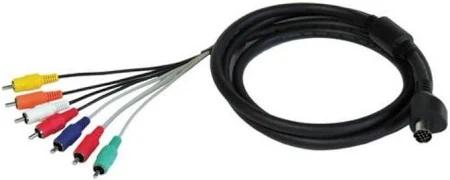
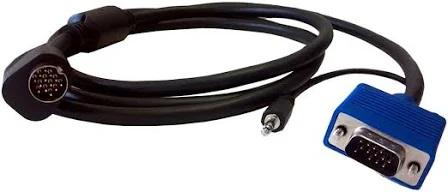
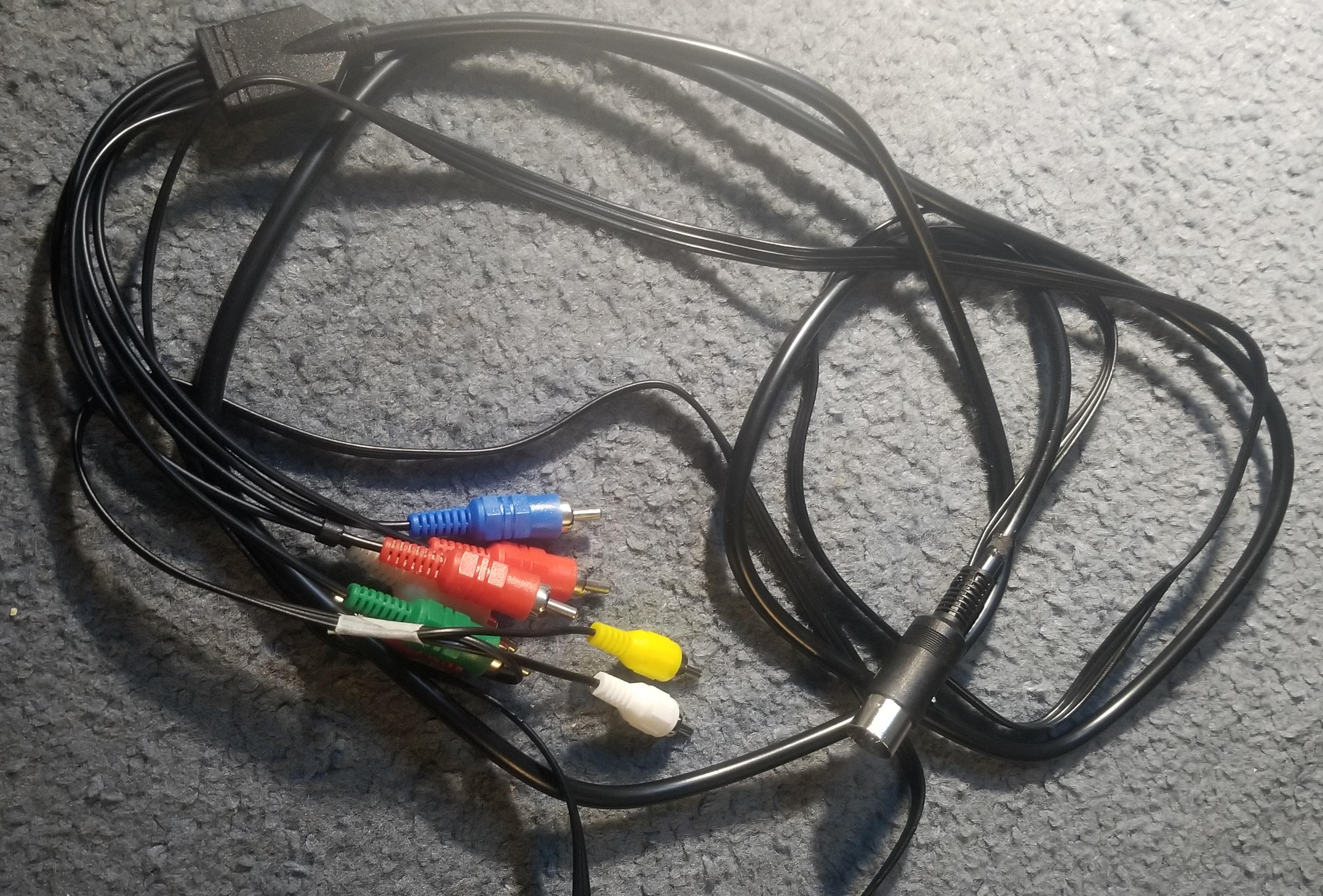
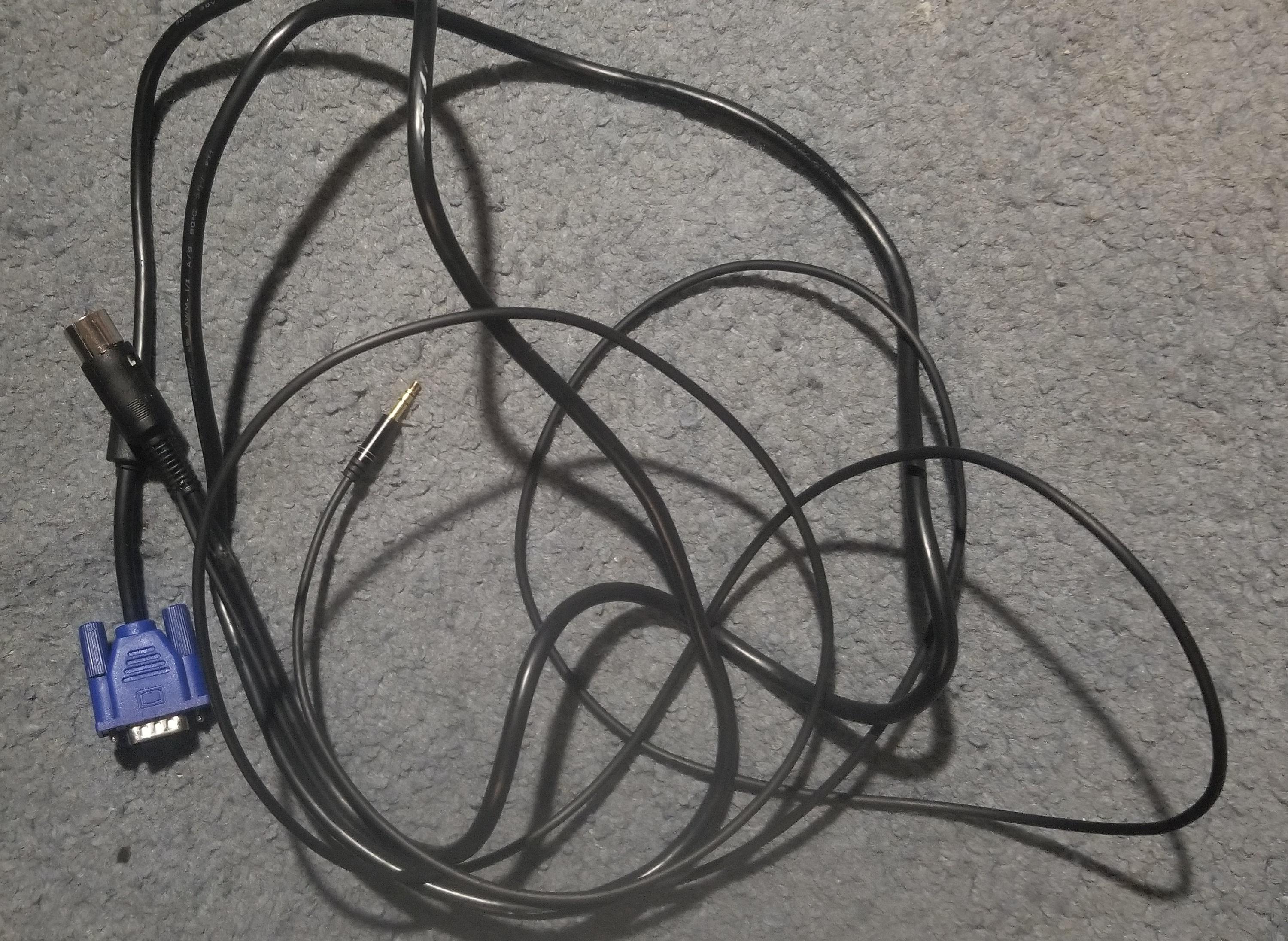
The official ZeeVee Hydra Cables can be expensive with a single can often being over $50. This is fine for a professional/commercial environment but not so great for home use or debugging purposes.
This guide will show you the ZeeVee Hydra's 13 pin DIN connector pinout and how to make your own cables for a fraction of the cost. It will cover both the VGA & Component Cables.
Supplies
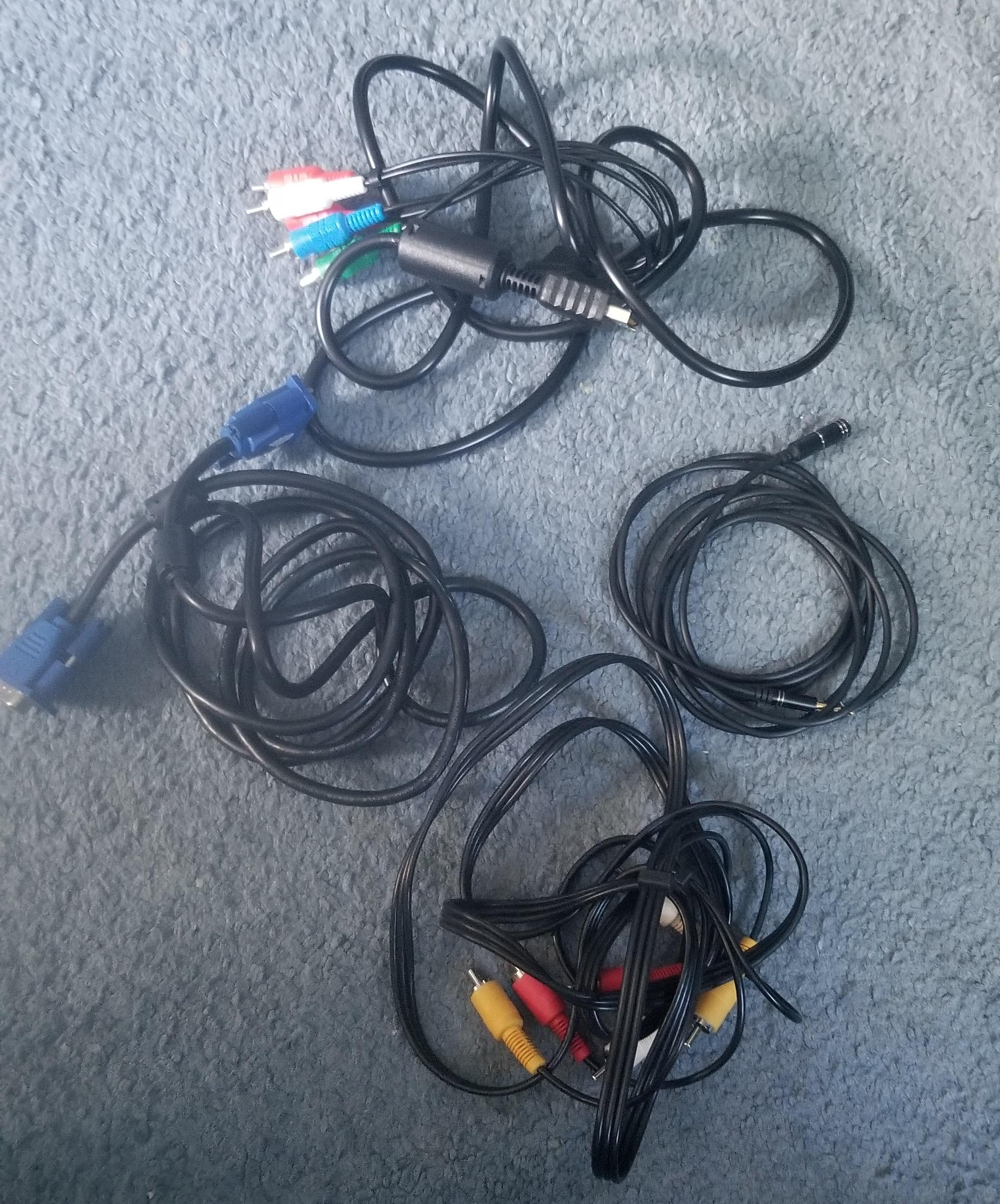
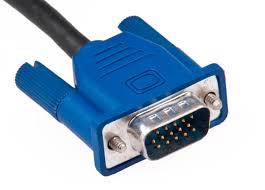
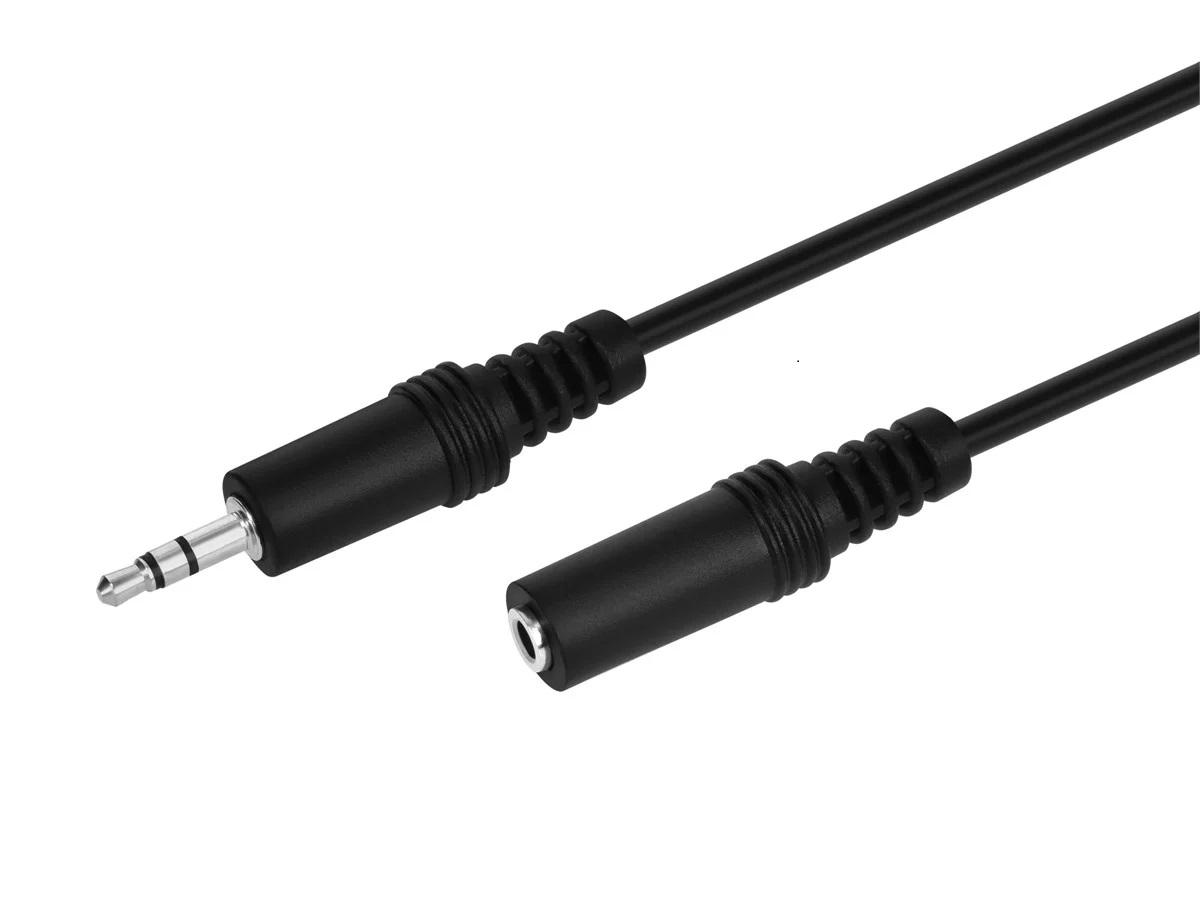
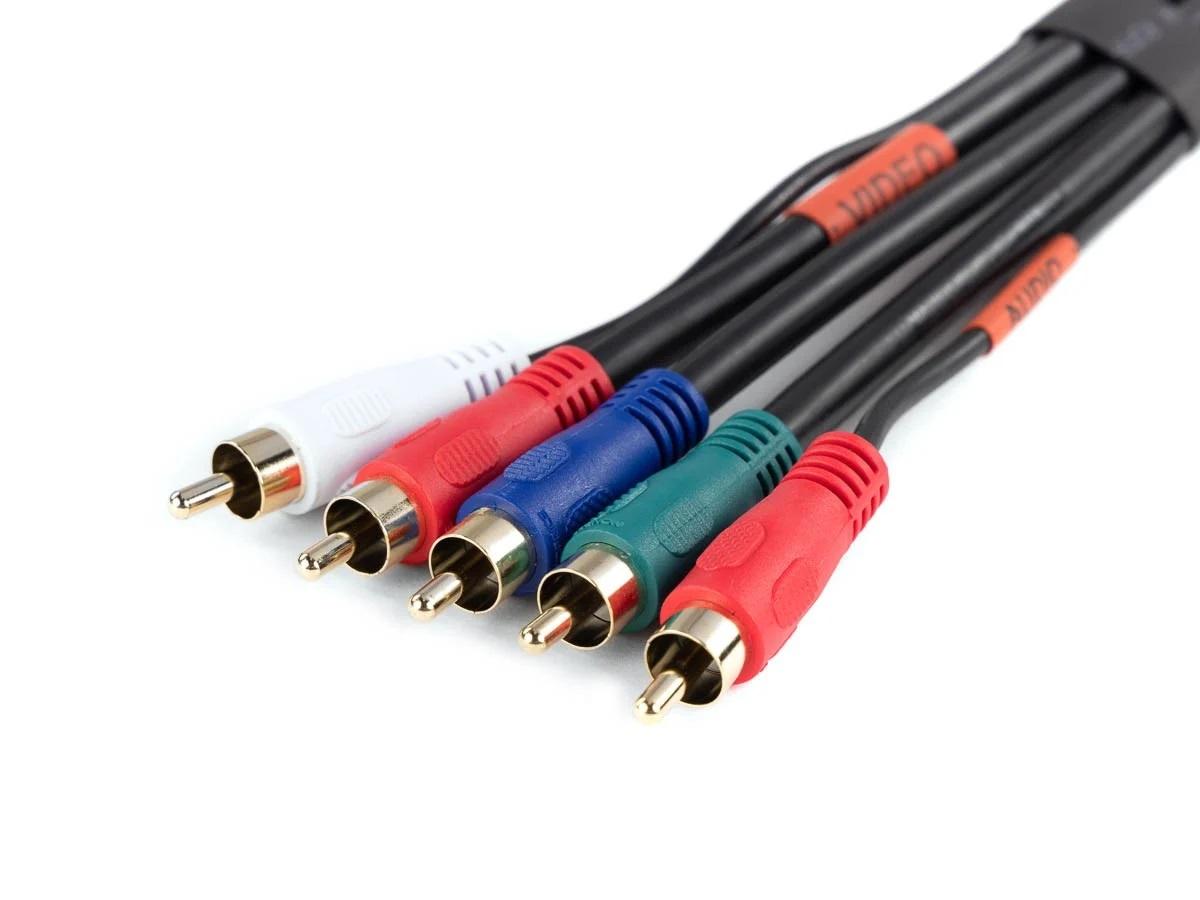
Materials for VGA Cord:
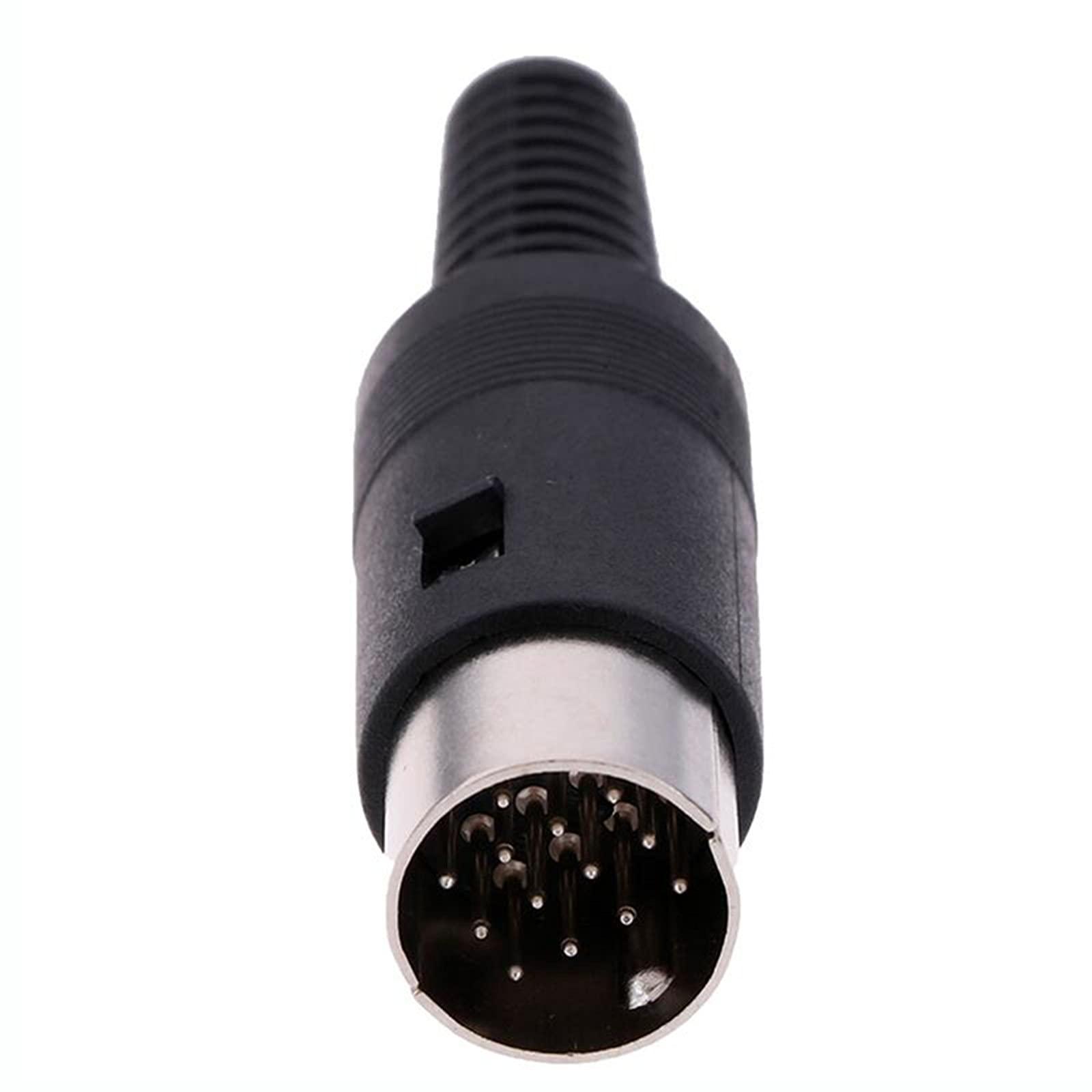
13- pin DIN connector
VGA Cable
3.5mm TRS Audio Cable
Any VGA cord will work. Any wire with a male 3.5mm TRS jack will work. Old headphones work great.
I used a male to male VGA cord & a 3.5mm Audio extension cable(male to female).
Materials for Component Cord:
13- pin DIN connector
Component Cable
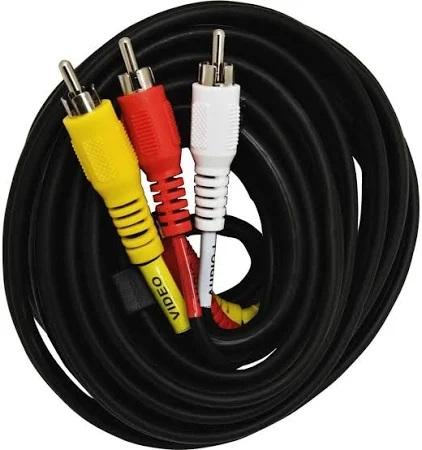
RCA/Composite Cable
Any component cord will work as long as it has Green, Blue, Red video RCA ends and the White & Red audio RCA ends (5 plugs on an end).
Any RCA/Composite cable will work. A higher end S/PDIF cable is recommended. (Can just cut in half). You need two male RCA ends.
I used a PlayStation 2(PS2) Component cord & a standard 3 RCA connector cord for my RCA/Composite cable. Only 2 plugs are needed on the RCA cord so I removed one. I kept the yellow & white, removed the red.
Make sure to use a round 13-pin DIN connector! Other pin counts will not work. The DIN connector is the same as that used for an Atari ST.
Tools:
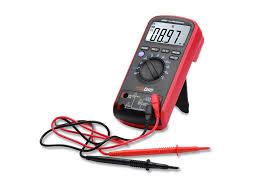
Multimeter
Wire Strippers/Scissors
Pliers
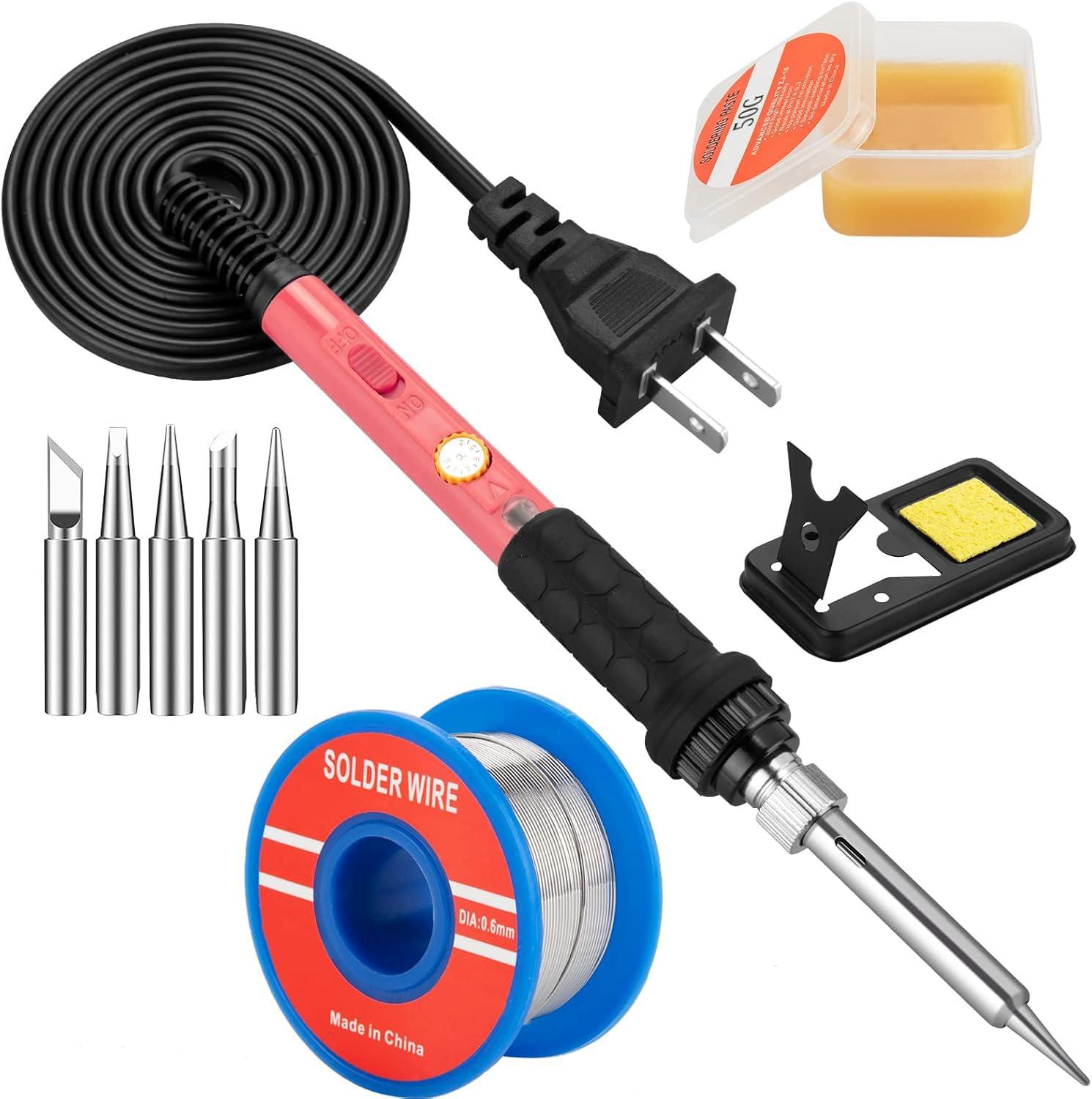
Solder Iron
Solder
You will need to be confident in soldering small objects in tight areas. It took me a few tries, if unsure buy a few 13 pin DIN ends just in case.
Prepare Your Cords
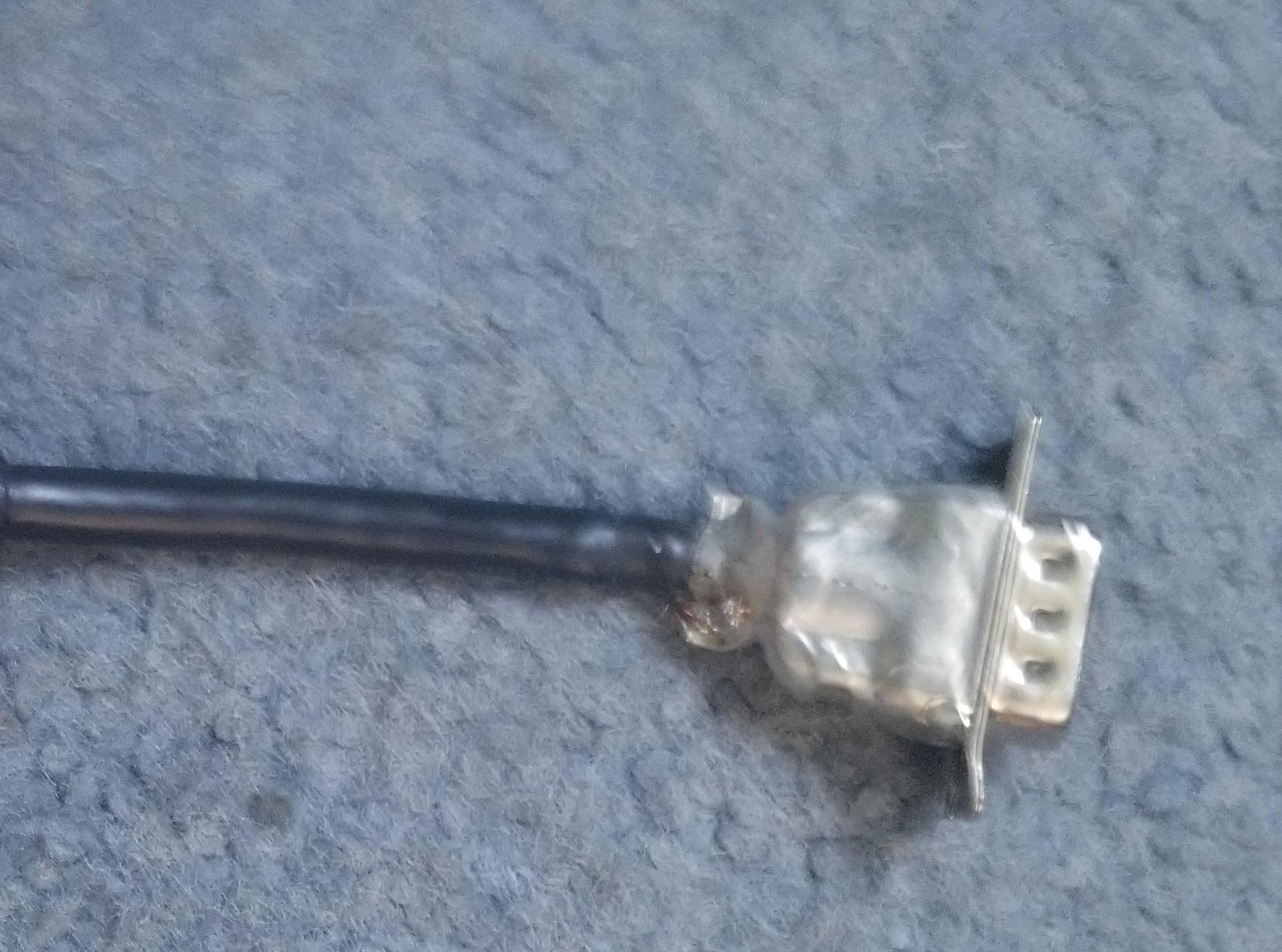
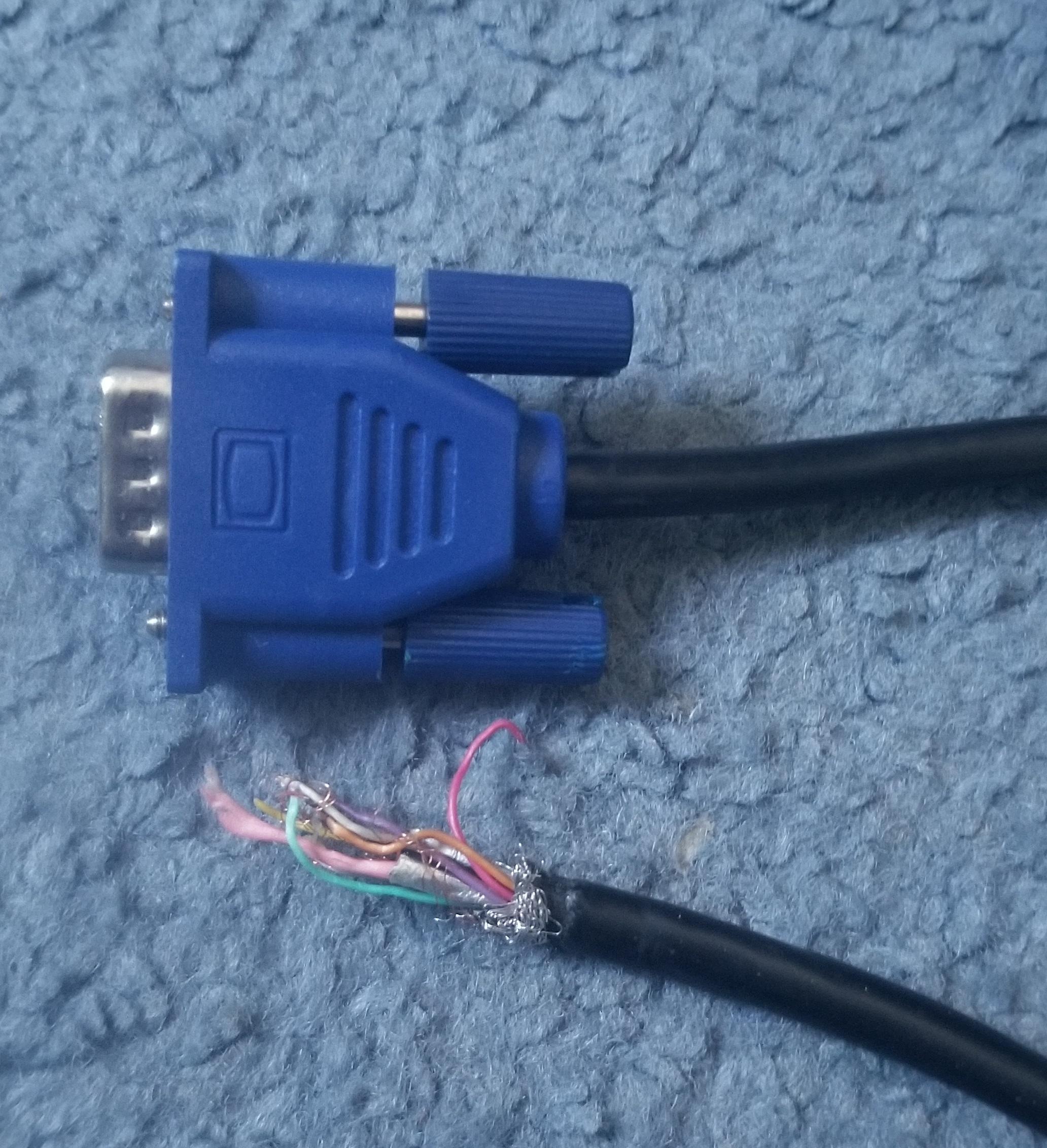
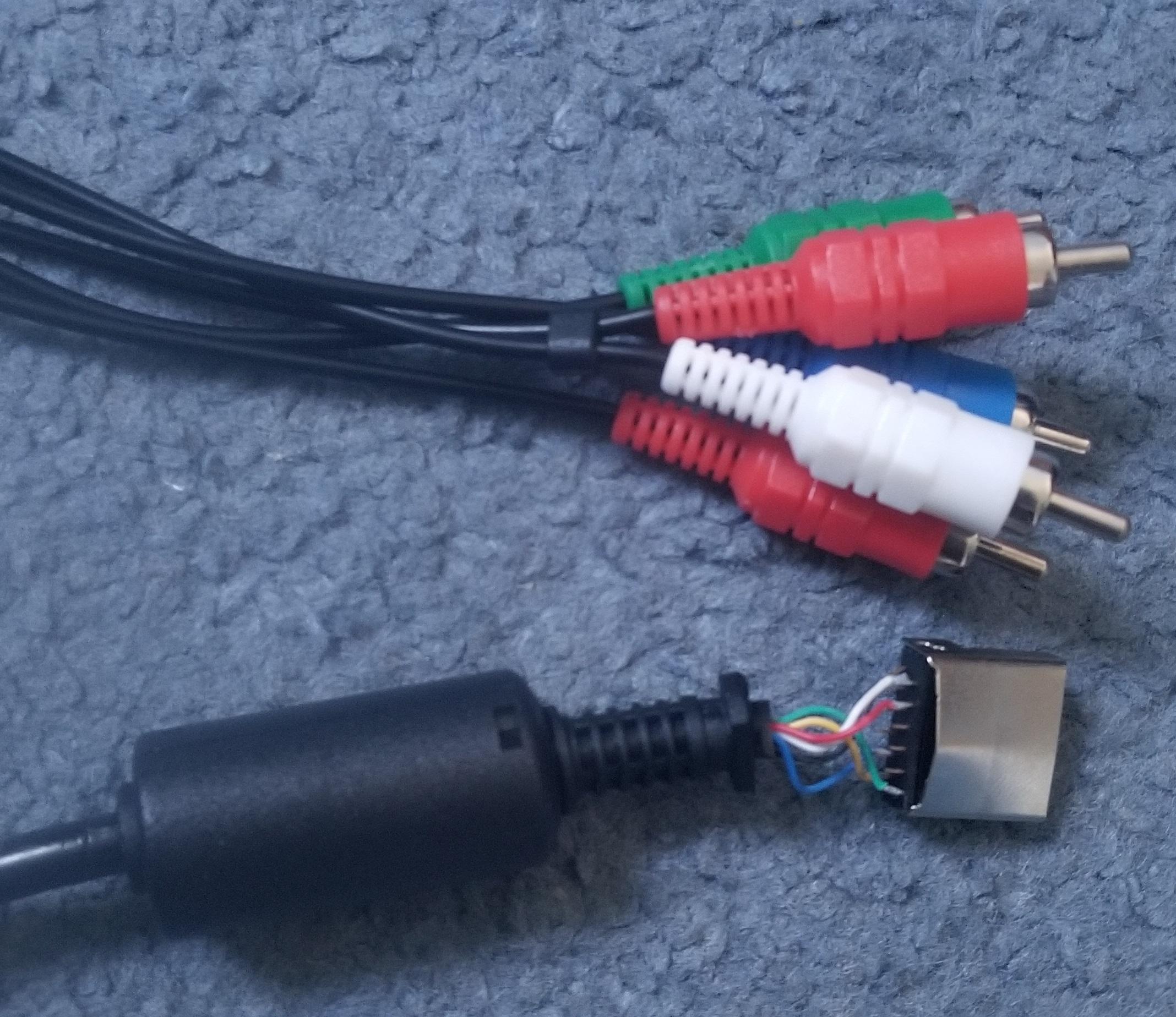
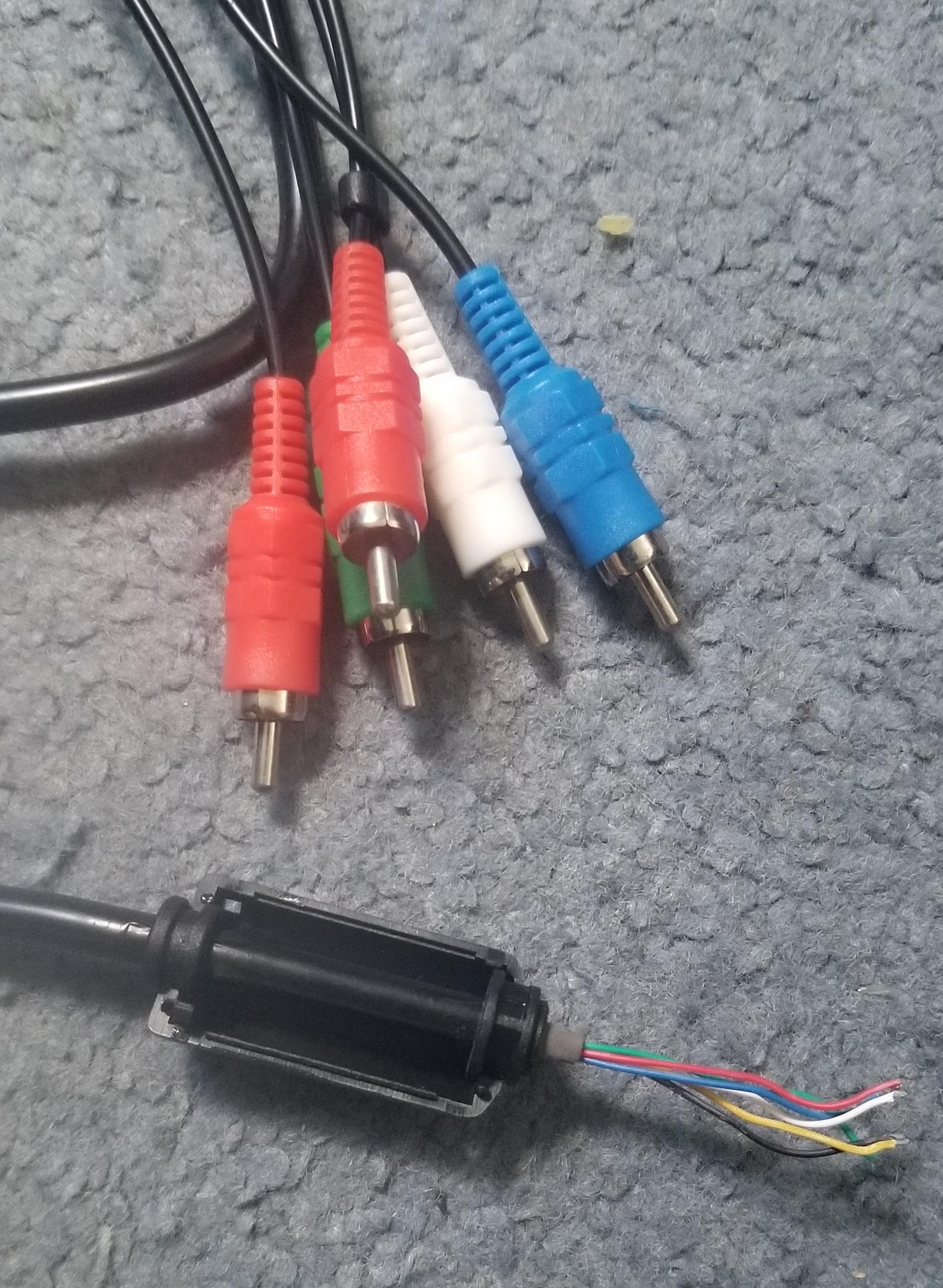
These steps will vary depending upon what cables you chose. All cables require removing one end to start.
VGA Cord:
VGA: Cut off one of the ends so you still have a male end on the cord.
3.5mm: Cut off one of the ends so you still have a male end on the cord.
You should be left with a cord with a male VGA end(pins) & a cord with a male 3.5mm jack.
Component Cord:
Component: Cut off the ends of one side of the cord. In my instance the PS2 side.
RCA: Cut off the ends on none side of the cord.
You should be left with a cord with a Red, Green, Blue, White, & Red RCA plugs and a cord with Yellow & White RCA plugs.
After you cut off the ends strip each individual wire back about a quarter inch.
ZeeVee Pinout

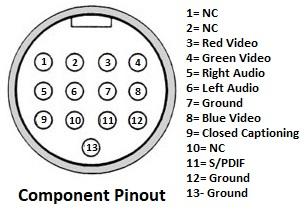
Attached is the pinout of the 13-Pin DIN connector on the ZeeVee modulators & Hydra Cables.
The pinouts are the view looking into the connector on the ZvPro unit. This is the same view as if you plug your 13 pin DIN connector into the ZvPro and look where the wires get soldered to the pins. Its a 1:1 matchup when soldering.
All the grounds are internally shared on a ZvPro.
Find Your Cable Pinout
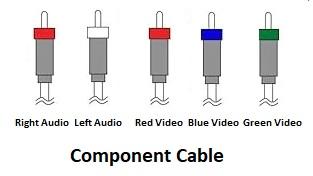
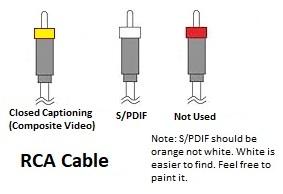
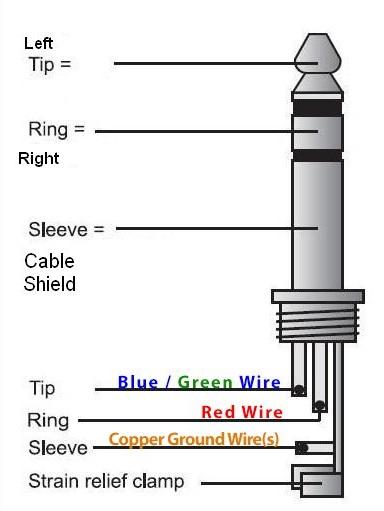
VGA Cord:
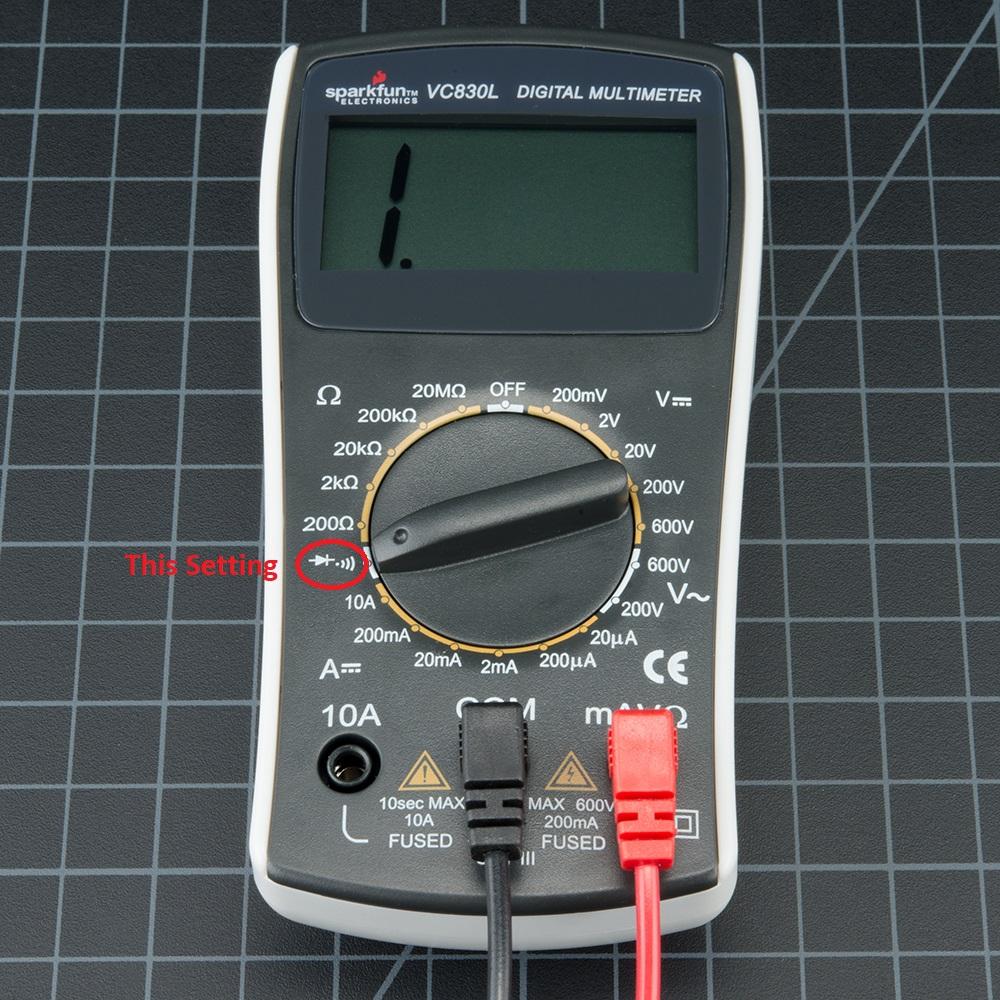
1) Put Multimeter into diode/ohms/continuity mode.
2) Connect one meter probe to any of the wires that you stripped in step #1
3) Using the other meter probe touch it against each of the pins in the VGA connector until the meter beeps
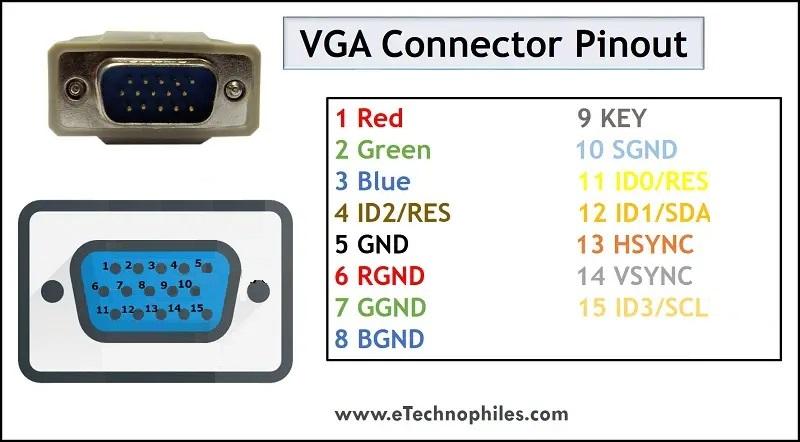
4) When meter beeps take note of what color wire & which pin correspond. Write these down. The VGA pin numbers can be determined from a diagram or they may be printed inside the connector near each pin.
5) Some wires may connect multiple pins. Make sure to check them all.
6) Once all the wires are matched to a pin write down the corresponding function of each pin/wire set. Use the above diagram to help.
7) Repeat the process for the 3.5mm plug.
8) Once everything is written down you are ready to move on
Note: There may be some pins on your VGA connector that have no match on the 13-Pin din connector. This is okay, they are not used in this instance. VGA Pins 4, 9, 11 are examples.
Component Cord:
1) Put Multimeter into diode/ohms/continuity mode.
2) Connect one meter probe to any of the wires that you stripped in step #1
3) Using the other meter probe touch it against the center pin of each RCA connector until the meter beeps
4) When meter beeps take note of what color wire & which pin/connector correspond. Write these down.
5) Do the same for each shield/ground on each RCA connector.
6) Some wires may connect multiple pins. Make sure to check them all.
7) Once all the wires are matched to a pin write down the corresponding function of each pin/wire set. Use the above diagrams to help.
8) Repeat the process for the RCA cable.
9) Once everything is written down you are ready to move on
Note: There maybe some extra grounds. These grounds can be soldered to any ground pin. Sharing is okay.
My Pinouts
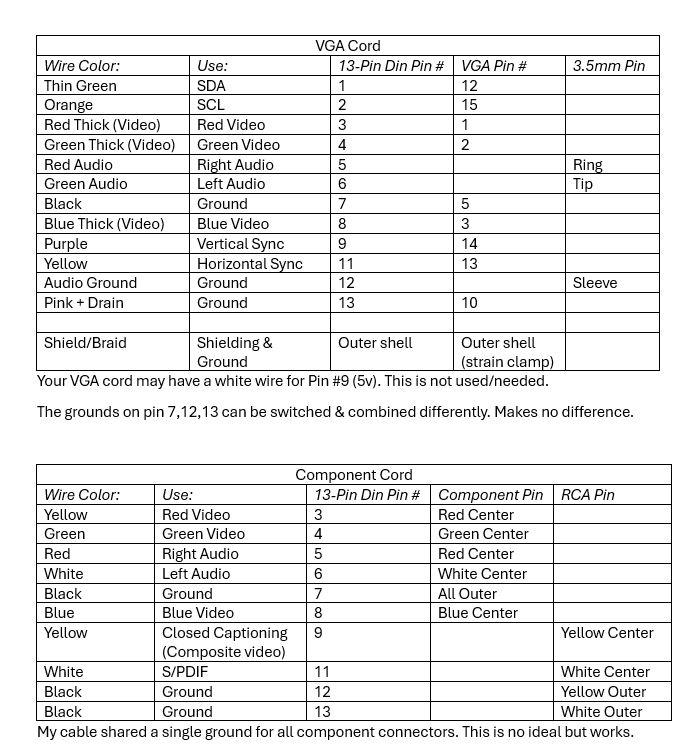
The following pinout colors are what my cables used. Your pinout & colors will likely vary depending upon cable manufacture/type. You will need to determine your own pinout using your multimeter.
Prep the End
1) Make sure to slide the black cover for the 13-pin DIN connector over the wires before soldering. It is easy to forget!
2) Place the cables in the strain relief clamp, and figure out how much wire( length) is needed to solder onto the pins. It is less then you may think. Too much wire and the end will not sit right and wires may pull off.
3) Once it is determined how much wire is needed trim each individual wire to the appropriate length. Make sure the end of each individual wire is stripped.
Solder It Up

Place the 13-Pin din connector into a clamp or vice. Be mindful to only clamp by the black plastic part not the pins. The pins will break off!! The shorter pins(rear) should be facing up/towards you. These are the pins you solder to.
Solder each wire to the corresponding pin. I had best luck soldering down in columns. Pins: (1,5,9) (2,6,10) (3,7,11) (4,8,12) (13). Your experience may vary, do it however you find best.
The pins are extremely small and close together. It takes practice. You can do it!
Put the End Together
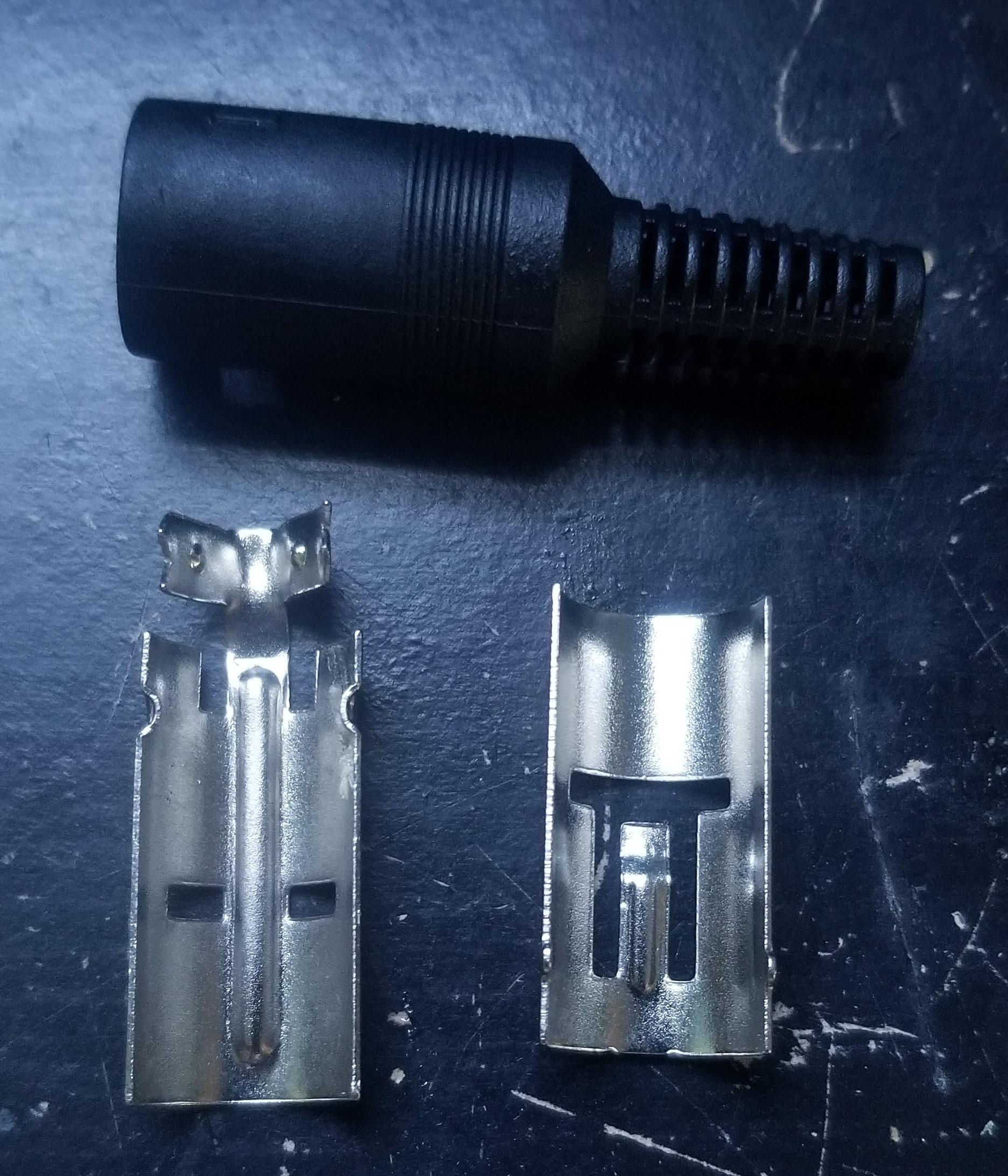
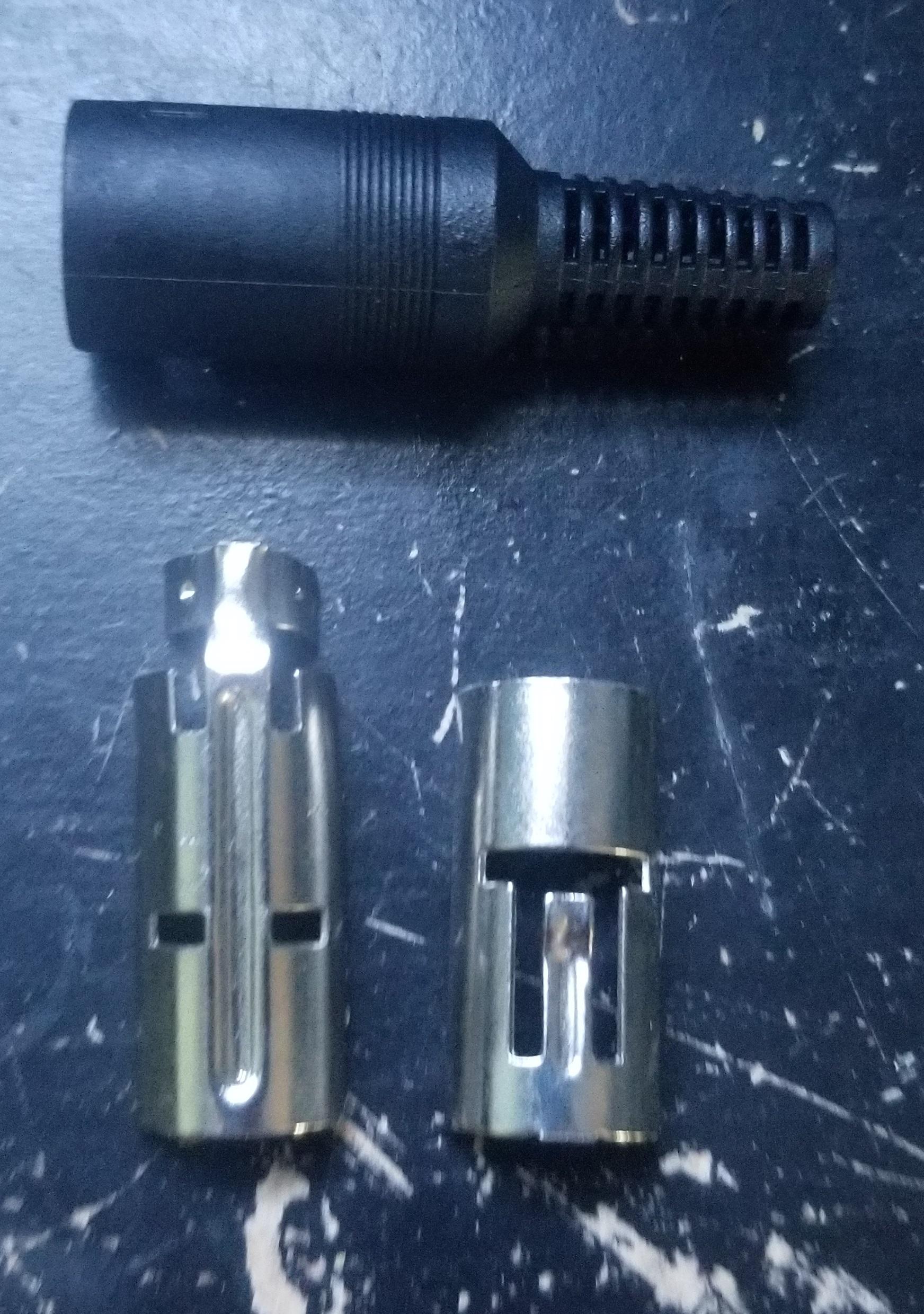
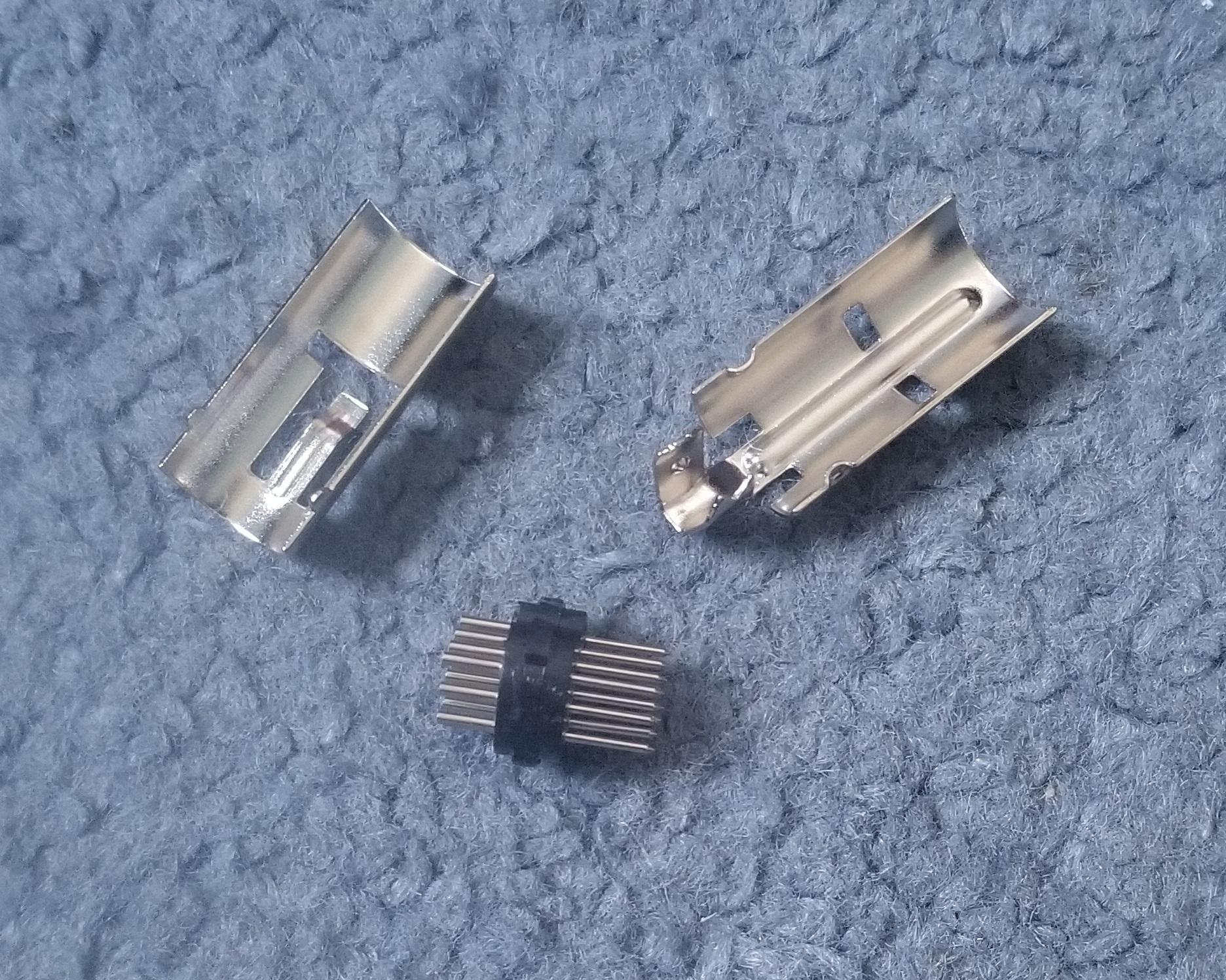
There should be 2 metal pieces that make up the outer shell of the 13-pin DIN connector. One metal piece has the strain relief clamp and 2 separated notches(side 1). The other metal piece will have a long notch in it (side 2).
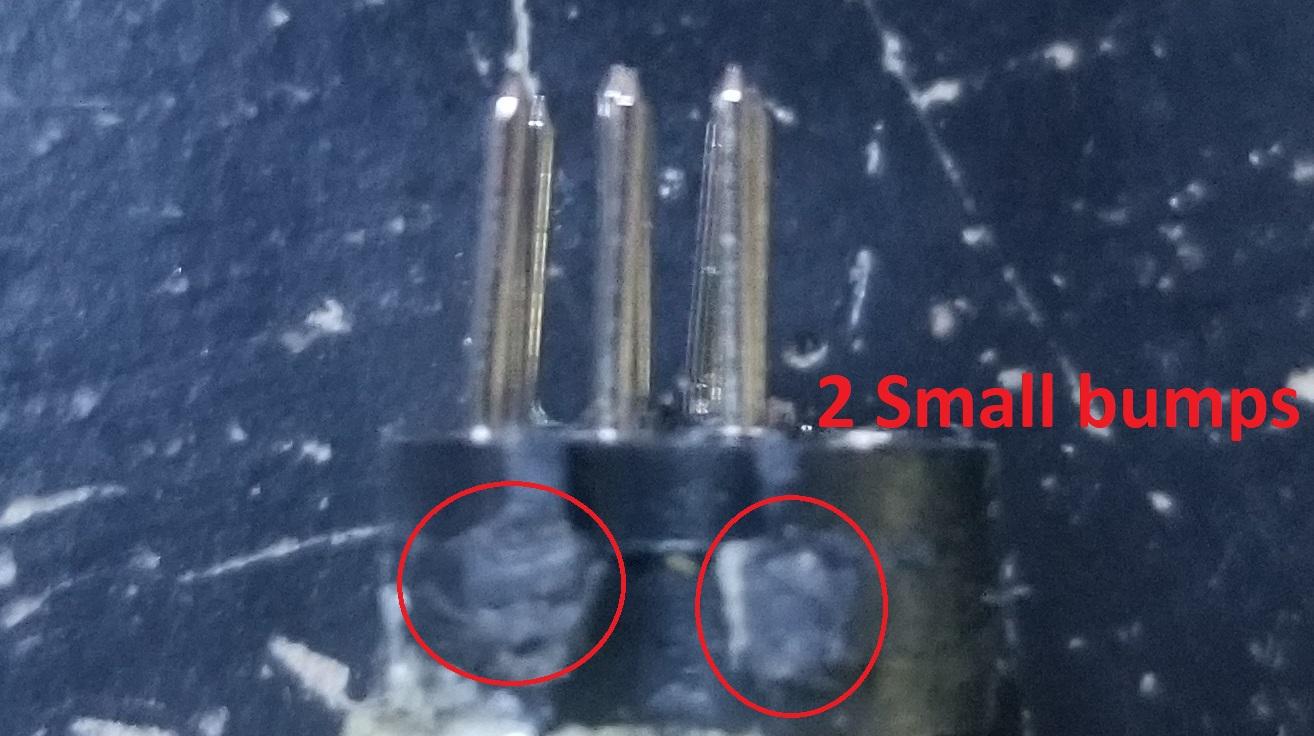
The black plastic part with the pins will have 2 sets of bumps. One set is comprised of 2 bumps with a gap in middle & the other a solid bump.
1) Feed the wires through the strain relief clamp.
2) Line up the notches and bumps. Side 1 & 2 should "snap" together.
3) Wrap a thin piece of tape around the two halves to hold them together.
4) Crimp the strain relief connector using pliers.
5) Slide the plastic end cover back up the wires and over the pins. There is a small notch on the top side that keeps it in place
Congrats!
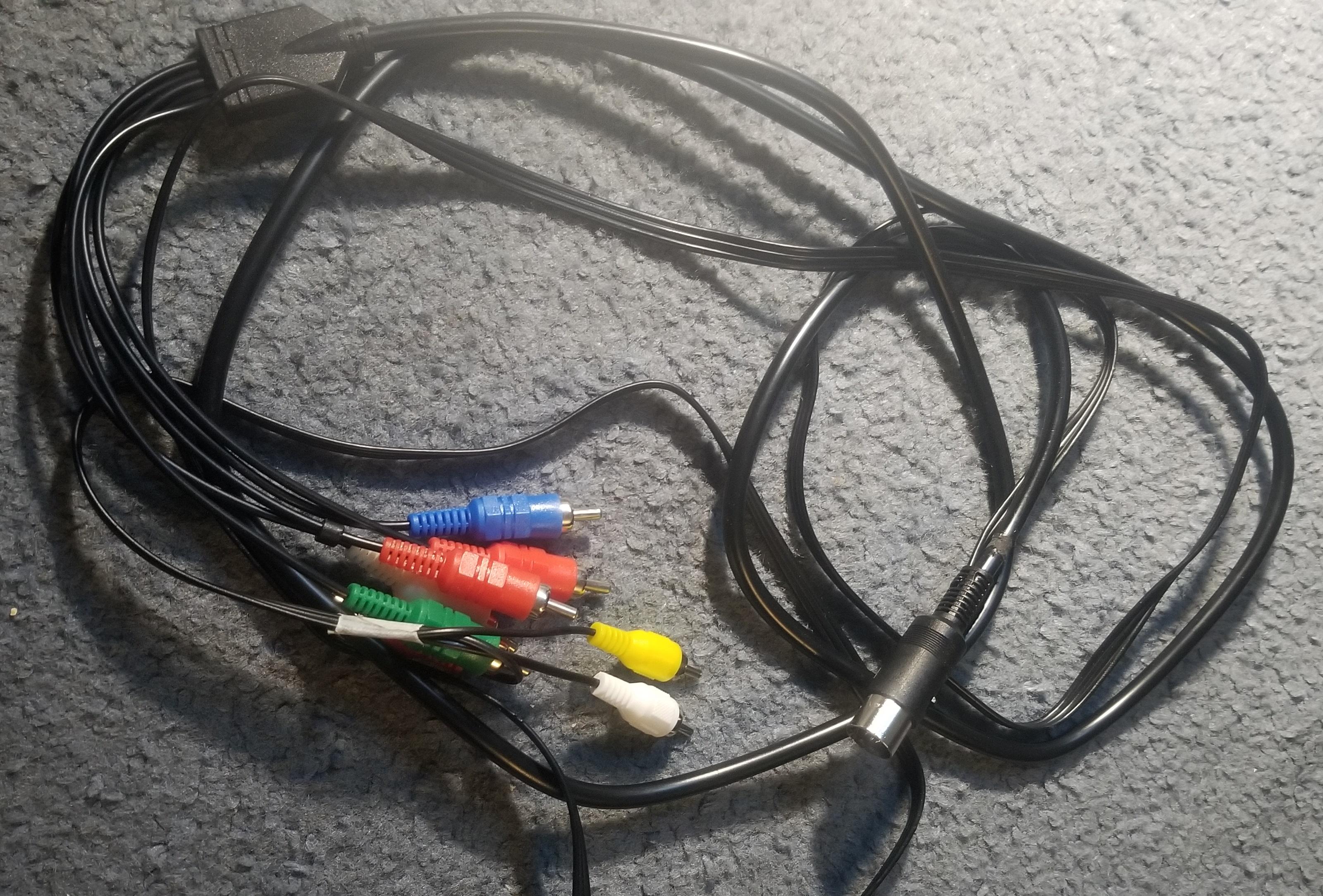
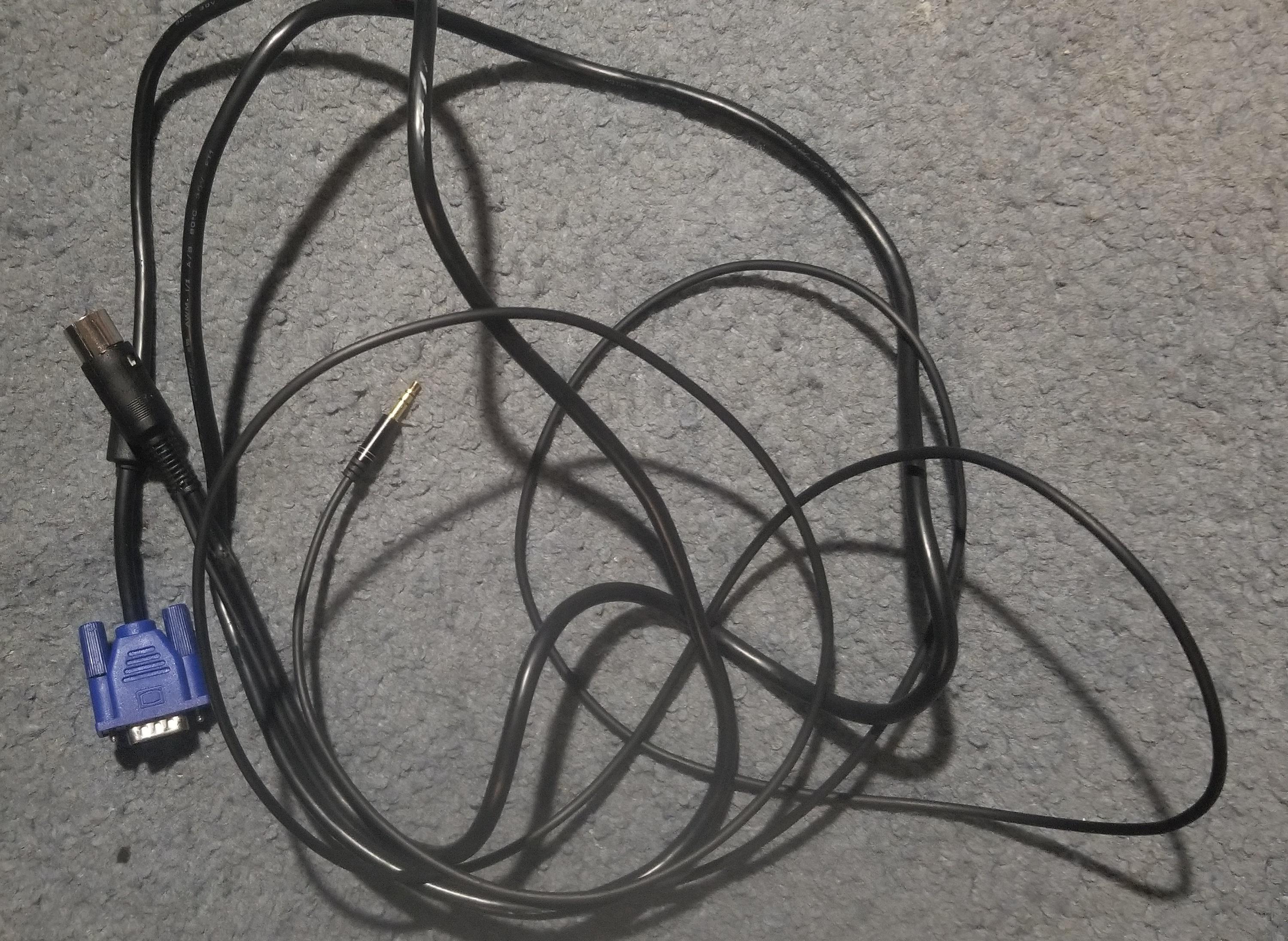
Plug in your cable and give it a try! Hopefully everything went well. if not see troubleshooting and/or drop a comment below and I will try to help out.
Troubleshooting
Cable Does Not Work:
- Make sure the ZvPro is configured for the correct cable type. Auto detect does not always work.
- Is the 13-pin din connector plugged all the way into the ZvPro?
- Check all your wiring. You may have mixed up some pins. Some pins may be bridged in the connector. Some may have fallen off. Use your multimeter.
- Check the refresh rate on device. Needs to be 60hz!
Weird picture:
- Check all wiring, some wires may be reversed.
- The Picture can be adjusted in the ZvPro control interface. May need to change input resolution and calibrate.
- ZvPro is set to wrong mode. Make sure is set to VGA for VGA and Component for Component
Picture Cut-off
- The Picture can be adjusted in the ZvPro control interface. May need to change input resolution and calibrate.
- Picture may need to be adjusted on TV. Look for zoom & over scan settings
Extras
- ZeeVee sells a cable to connect certain DIRECTV receivers to their ZvPro modulators. The provided ZvPro modulator pinouts should help you make your own DIRECTV receiver cable.
- I used a ZvPro 610 for this tutorial. Pinouts should be the same on all devices with the 13 pin DIN connector.
- I have not had stability with a 1920 x 1080 resolution over VGA. It works sometimes. I am not sure if it is my modulator or cable. All supported lower resolutions always work fine.
Thanks To
The pinouts for this guide were discovered completely on own. There was no help from ZeeVee or any 3rd party source. They were discovered without even purchasing a Hydra Cable.
ZeeVee Hydra Component Cable:
https://encrypted-tbn3.gstatic.com/shopping q=tbn:ANd9GcTRgeJv5xhtzFgNP03viQrVE42EMvDacfXrA7LgrWNoRQ 4A7B67IsjE47ZzDJlSn-p750GMhZZogBxGt_FWrSBCeImUS2aBg6dTzucK7M-uBzUMo8azNIl1
ZeeVee Hydra VGA Cable:
https://encrypted-tbn1.gstatic.com/shopping?q=tbn:ANd9GcSZ2TCPhgC4eMRQd3qg_0bZx-egyUOzquKbPwSEukY wYFi3OeY7DWaHhyA_O1ert3GNZUtzI-nu4UyTtnHTFMxX5XumBopzMO7S6uCbNDZDmC72EMdtmHHzzg
13Pin Din Connector:
https://forums.raspberrypi.com/viewtopic.php?t=115624
VGA Pinout:
https://www.etechnophiles.com/wp-content/uploads/2022/11/VGA-connector-Pinout.jpg
Multimeter:
https://cdn.sparkfun.com/assets/learn_tutorials/1/01_Multimeter_Tutorial-09.jpg
Component Pinout:
https://www.retrofixes.com/cdn/shop/files/6183o5836-L._AC_SX569.jpg?v=1717784243&width=1445
Multimeter:
https://www.ic-components.com/upfile/images/32/20240904095421969.jpg
VGA end:
https://upload.wikimedia.org/wikipedia/commons/8/81/Vga-cable.jpg
3.5mm Cord:
https://images.monoprice.com/productlargeimages/6501.jpg
Component Cord:
https://images.monoprice.com/productlargeimages/3201.jpg
3.5mm Pinout:
https://d29rinwu2hi5i3.cloudfront.net/article_media/376a839a-cca1-4f35-ad66-df9847943ad0/trs-wire-connections.jpg
RCA Cord:
https://encrypted-tbn3.gstatic.com/shopping?q=tbn:ANd9GcT3tHIU6KNefeuTV3-_gIqpHaUpiZ8fsQw3gBpH3f8l82Im7C fcAWmtcm-LRe5l7aTnMgQKkRDflh2iPhwEfKWnuGSozcoAjTe dQCCoJcLeuBNoGtjXzOz
Solder iron:
https://m.media-amazon.com/images/I/71t5X8FgRrL.jpg
13-Pin Din Connector:
https://m.media-amazon.com/images/I/51VpvpMvaZS.jpg