DIY Automated Water Pump: a Beginner’s Guide
by pouyan-asgharian in Circuits > Arduino
48 Views, 0 Favorites, 0 Comments
DIY Automated Water Pump: a Beginner’s Guide
In this tutorial, I am going to show you how to build a powerful water dispenser using simple components. With a controller (in our case, an Arduino Uno), we can control a water pump to transfer water from a source to another location. Depending on the pump’s capabilities, this setup can be used for various applications, such as automatic plant watering or even creating a sensor-based water dispenser.
To reduce costs, you can replace the Arduino with a potentiometer, which I will explain later in this tutorial.
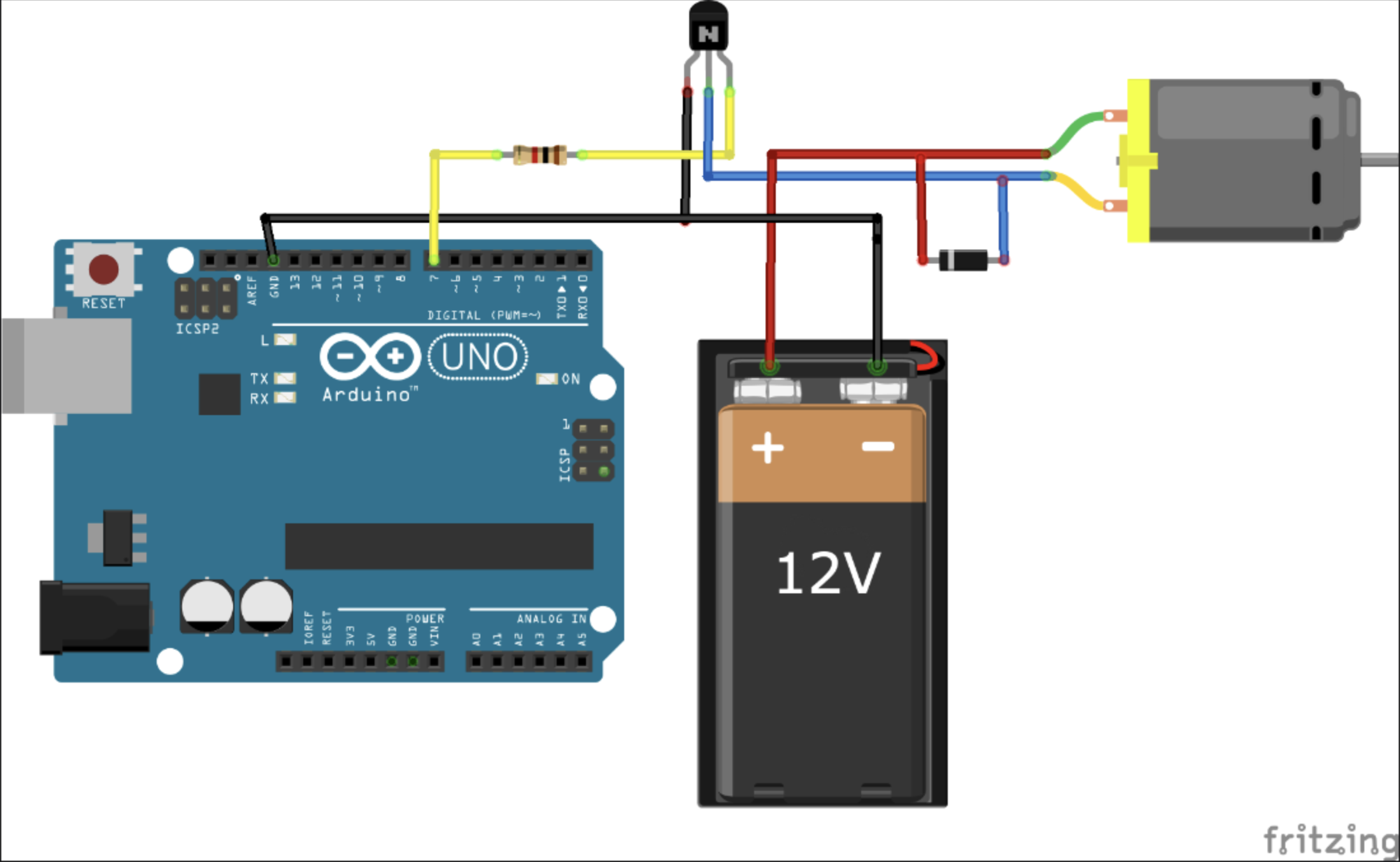
Before building the circuit, let’s first understand its working principle. In simple terms, the Arduino sends a command signal to a transistor, which acts as a switch. When activated, the transistor allows current to flow to the water pump, turning it on. See the simple simulated circuit.
You might be wondering, how does a transistor work as a switch? Well, a transistor has three pins:
- Base (B) – The control pin, where the Arduino sends the signal.
- Collector (C) – The input, where the pump is connected.
- Emitter (E) – The output, connected to the power source.
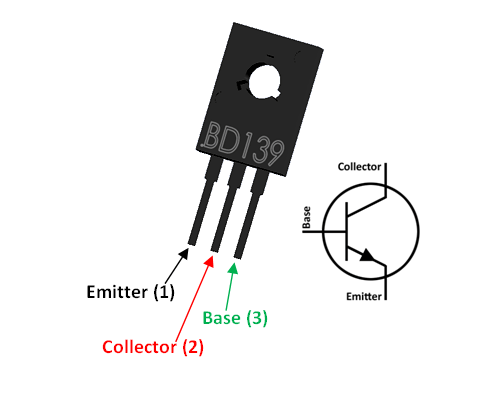
To identify the B, C, and E pins on your transistor, refer to its datasheet. There are two types of transistors: NPN and PNP. In our circuit, we use an NPN transistor, which means:
- When a high signal (5V) is sent to the base, the collector and emitter become connected, allowing current to flow and turning the pump ON.
- When the signal is low (0V), the connection breaks, turning the pump OFF.
If you’re not familiar with how transistors work, I highly recommend watching the following video:
Transistor Video
To build this circuit, generally we should follow these steps:
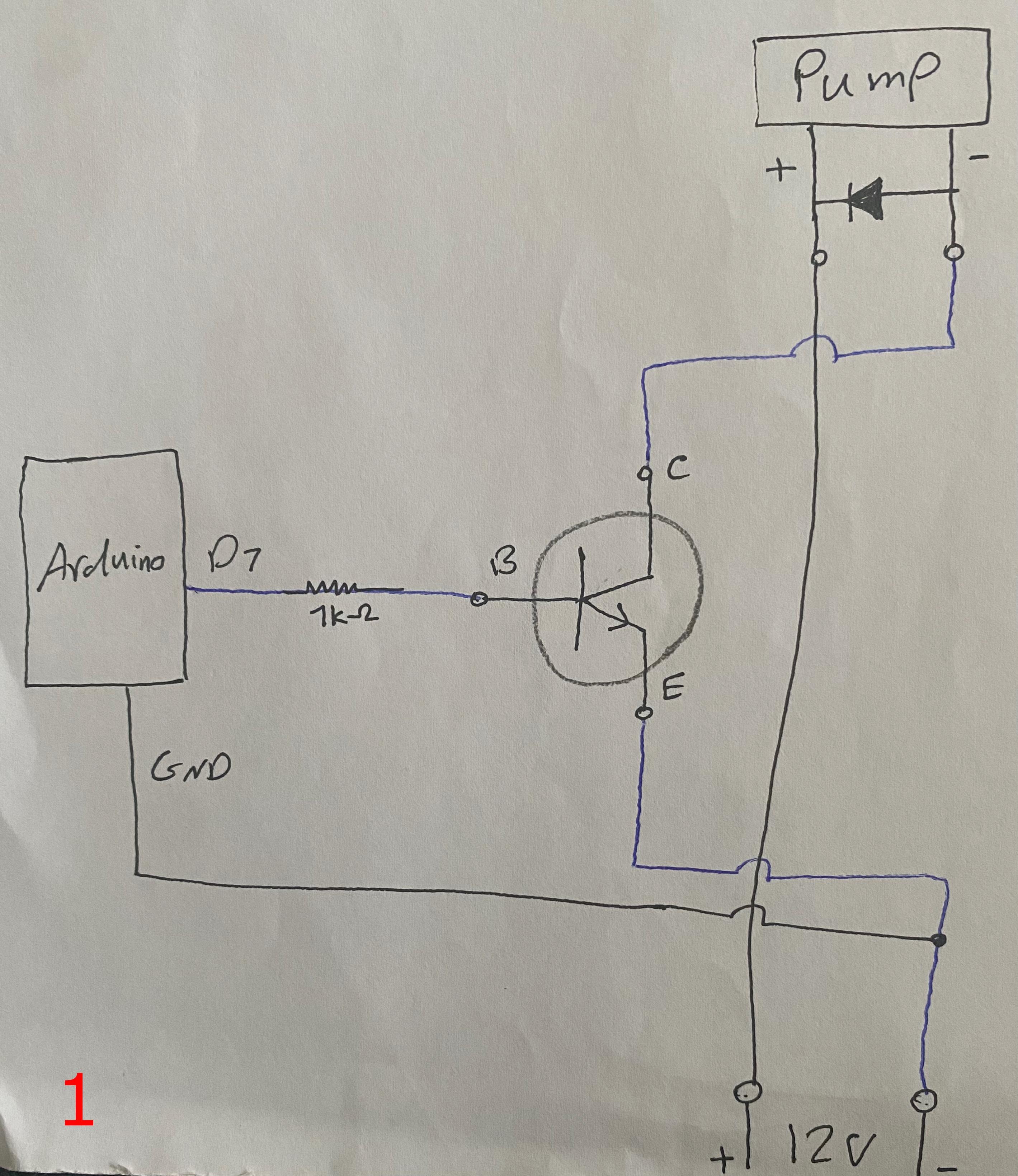
- Connect the base of the transistor to an Arduino digital pin (via a resistor, which is good practice).
- Connect the collector to the negative terminal of the pump.
- Connect the emitter to the negative terminal of the power source.
- The positive terminal of both the pump and the power source should be directly connected.
The hand-drawn diagram 1 illustrates exactly how the circuit works [see 1].
Alternatively, you can also use a MOSFET instead of a bipolar junction transistor (BJT). The general concept of MOSFETs and BJTs is similar—they both act as switches—but they have different applications and characteristics.
To keep this tutorial brief, I recommend watching the following video to understand how a MOSFET works:
MOSFET Video
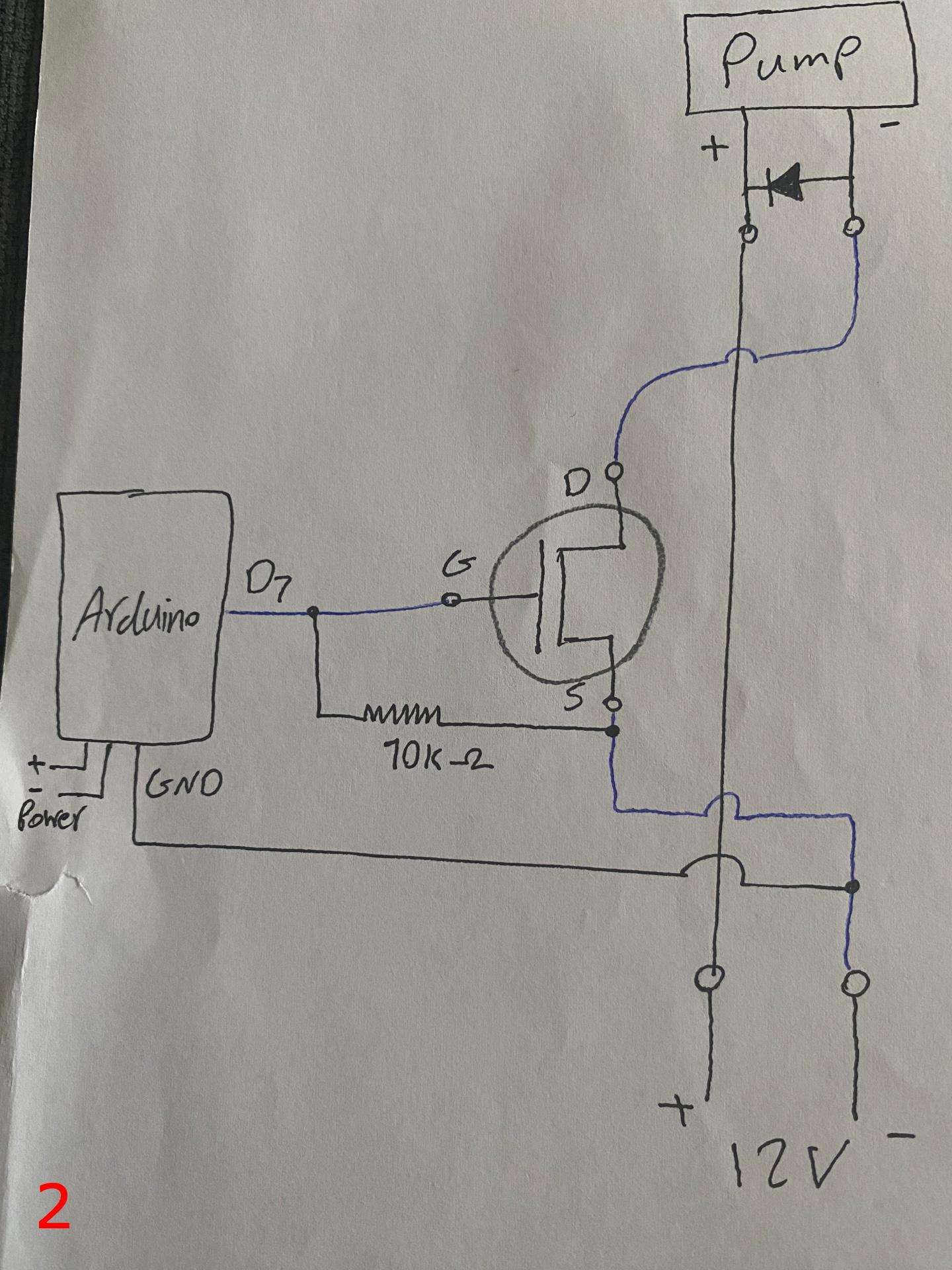
The sketch number 2 illustrates how a MOSFET circuit should be connected. Unlike BJTs, which are current-controlled, MOSFETs are voltage-controlled, meaning they require minimal current from the Arduino to switch ON and OFF. Depending on your specific requirements (e.g., power efficiency, switching speed, or load capacity), you may choose a MOSFET instead of a transistor [see 2].
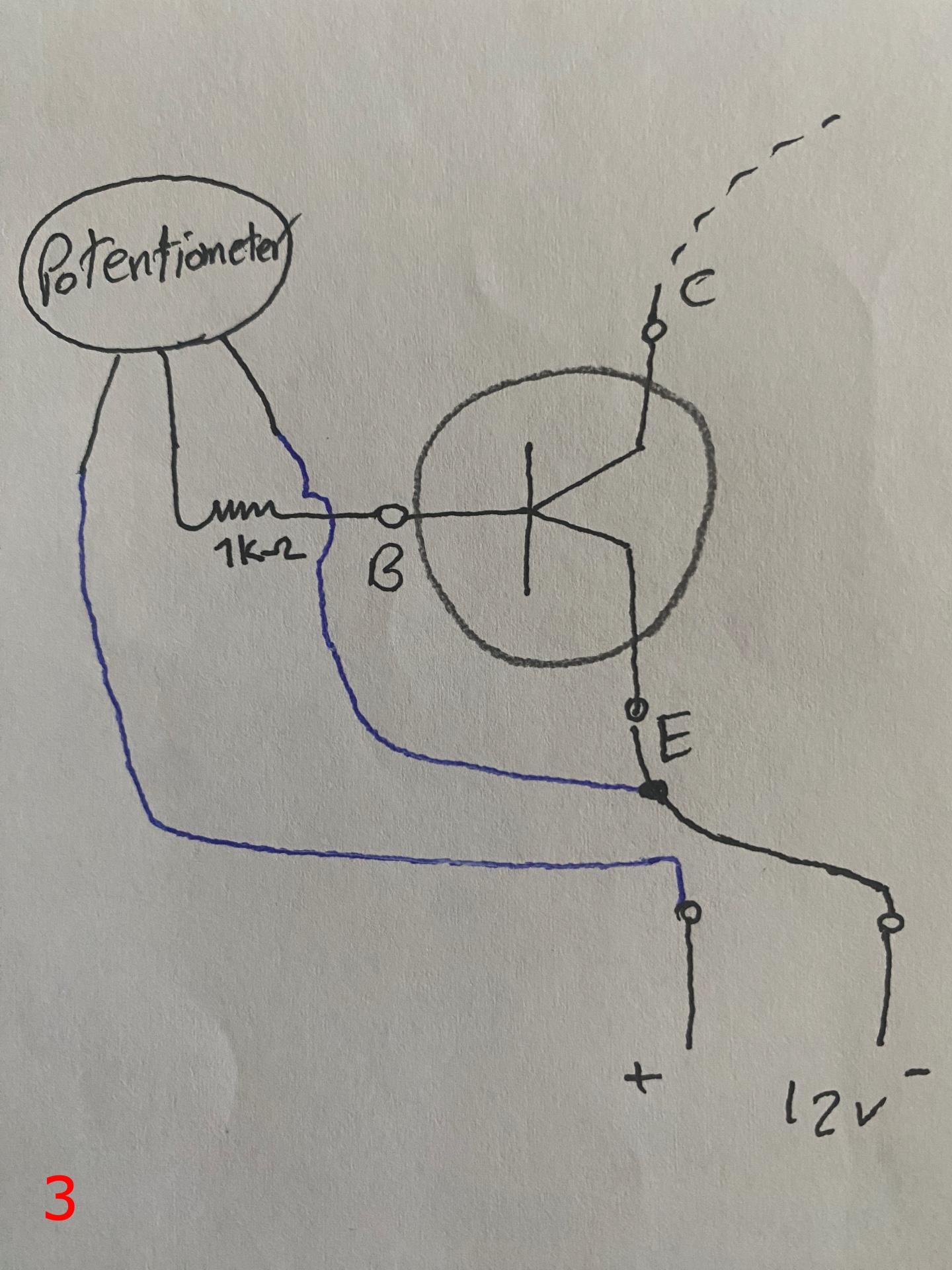
Last but not least, if you don’t have an Arduino or want an even cheaper circuit, you can use a potentiometer instead. To make this tutorial complete, I have also sketched the potentiometer circuit, which works exactly like the Arduino in this setup. The key difference is that with a potentiometer, you manually adjust the signal rather than using a programmed controller. By turning the potentiometer knob, you can control the voltage going to the transistor (or MOSFET), which in turn regulates the pump’s operation [see 3].
Potentiometer Video
Supplies
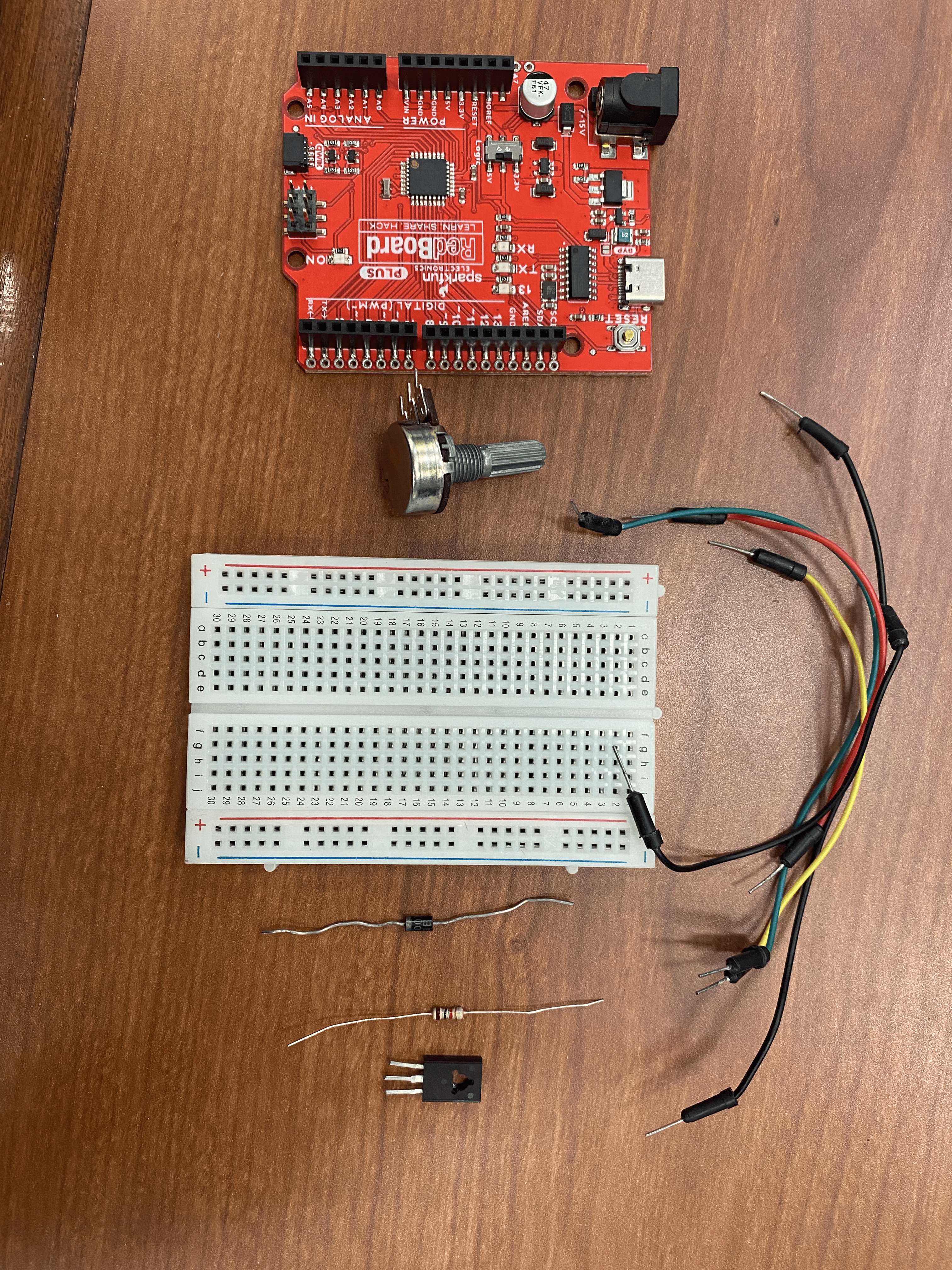
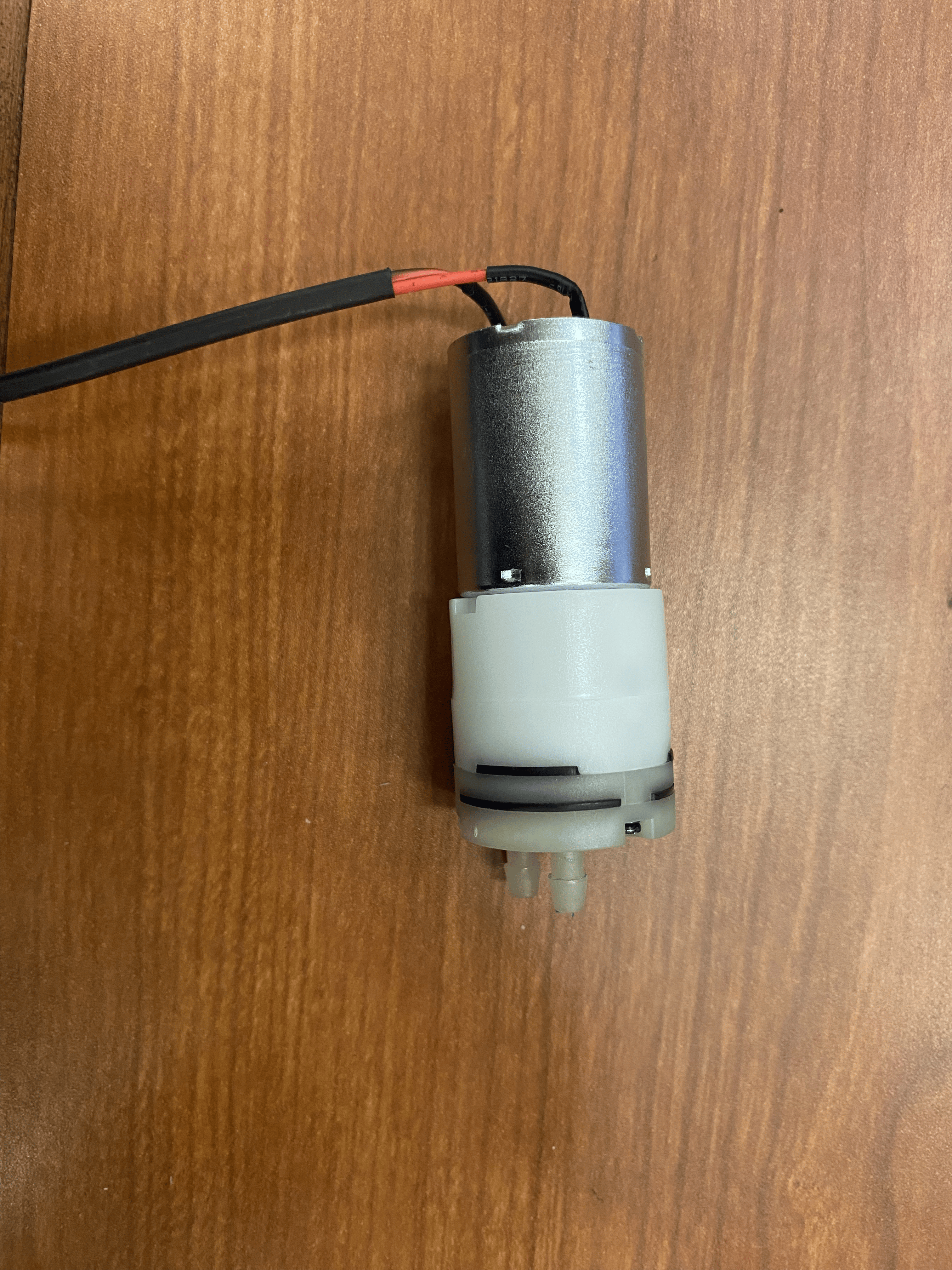
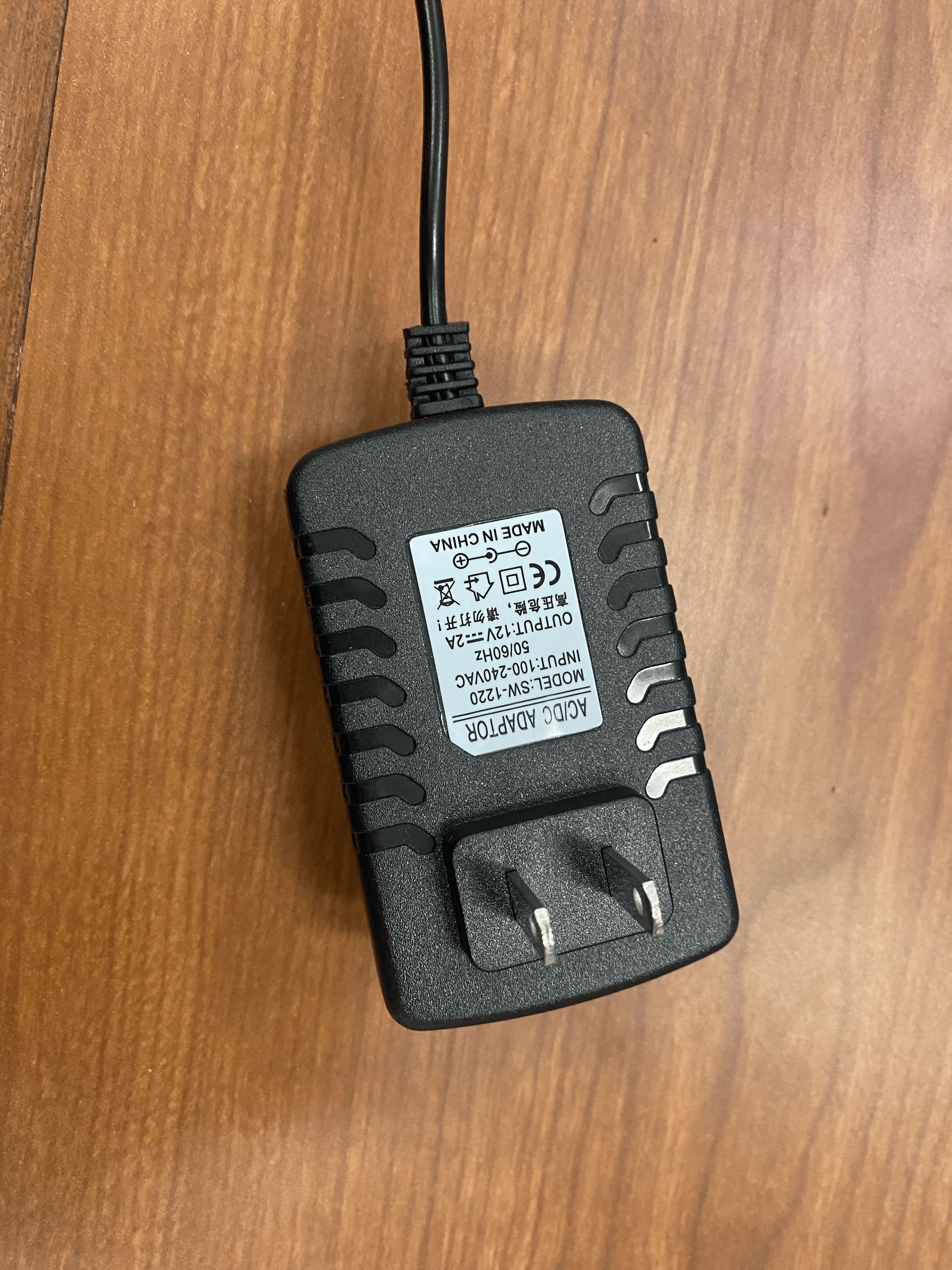
The electronic components we will use are as follows:
- Arduino Uno or potentiometer
- BD139 NPN transistor
- 1kΩ resistor
- DC diaphragm water pump (5V or 12V depending on your pump)
- Diode (e.g., 1N4007 for flyback protection)
- 12V adapter power supply
- Jumper wires (male-to-male)
- Breadboard
Make sure to buy a suitable power adapter for your DC water pump. In my case, the pump operates between 3V to 24V, so I used a 12V adapter. Additionally, if you prefer not to power the Arduino through your laptop’s USB port, you can either use a separate 5V adapter or a voltage regulator to supply 5V to the Arduino from the same 12V source.
In this tutorial, I am using a breadboard for prototyping, but once you finalize the design, you can solder the components onto a PCB (printed circuit board) for a more permanent setup.
Note: Make sure to connect the transistor pins in the correct order, as shown in the image. Incorrect pin connections (Base, Collector, Emitter) may cause the circuit to malfunction or damage components.
Circuit
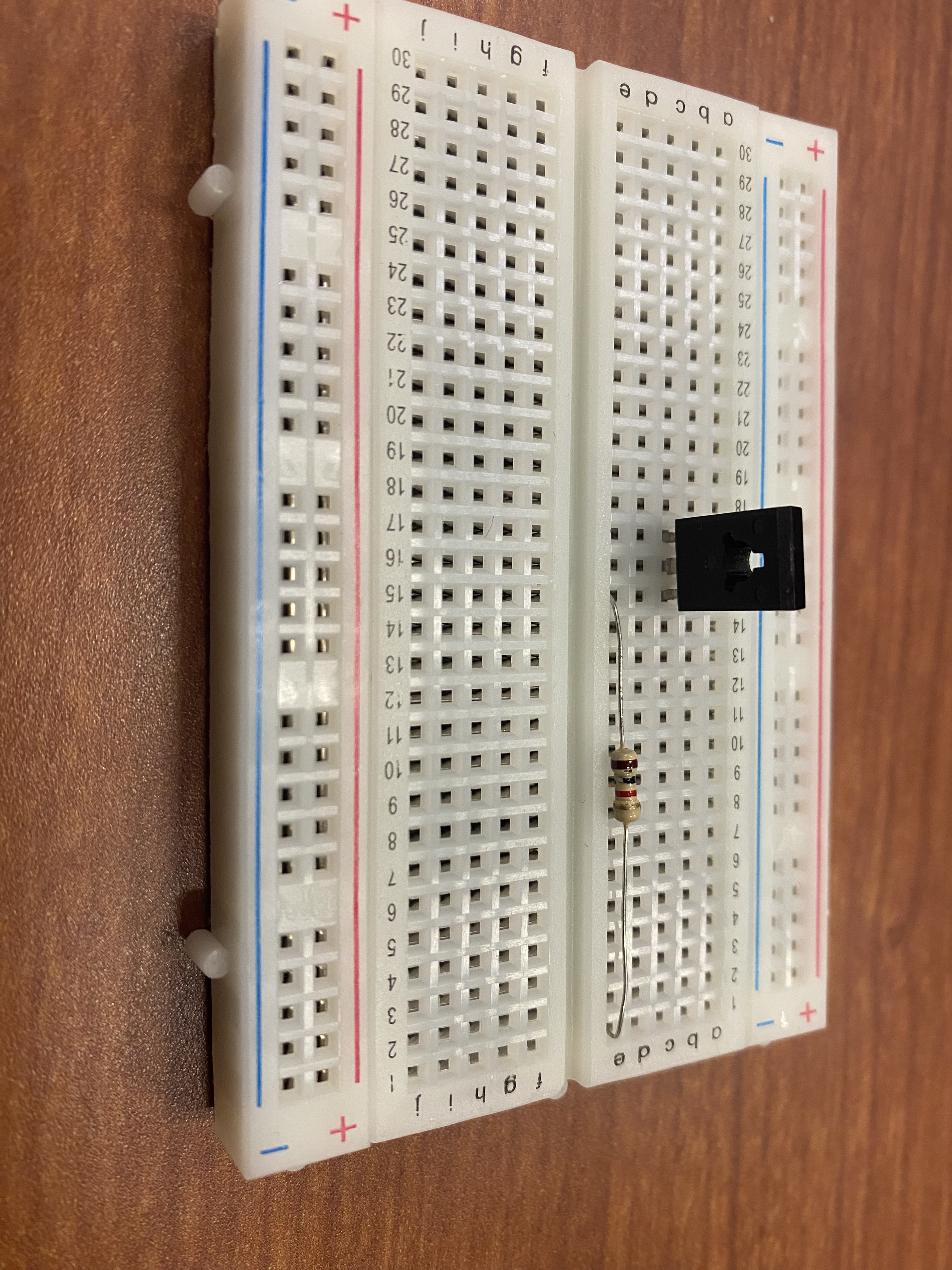
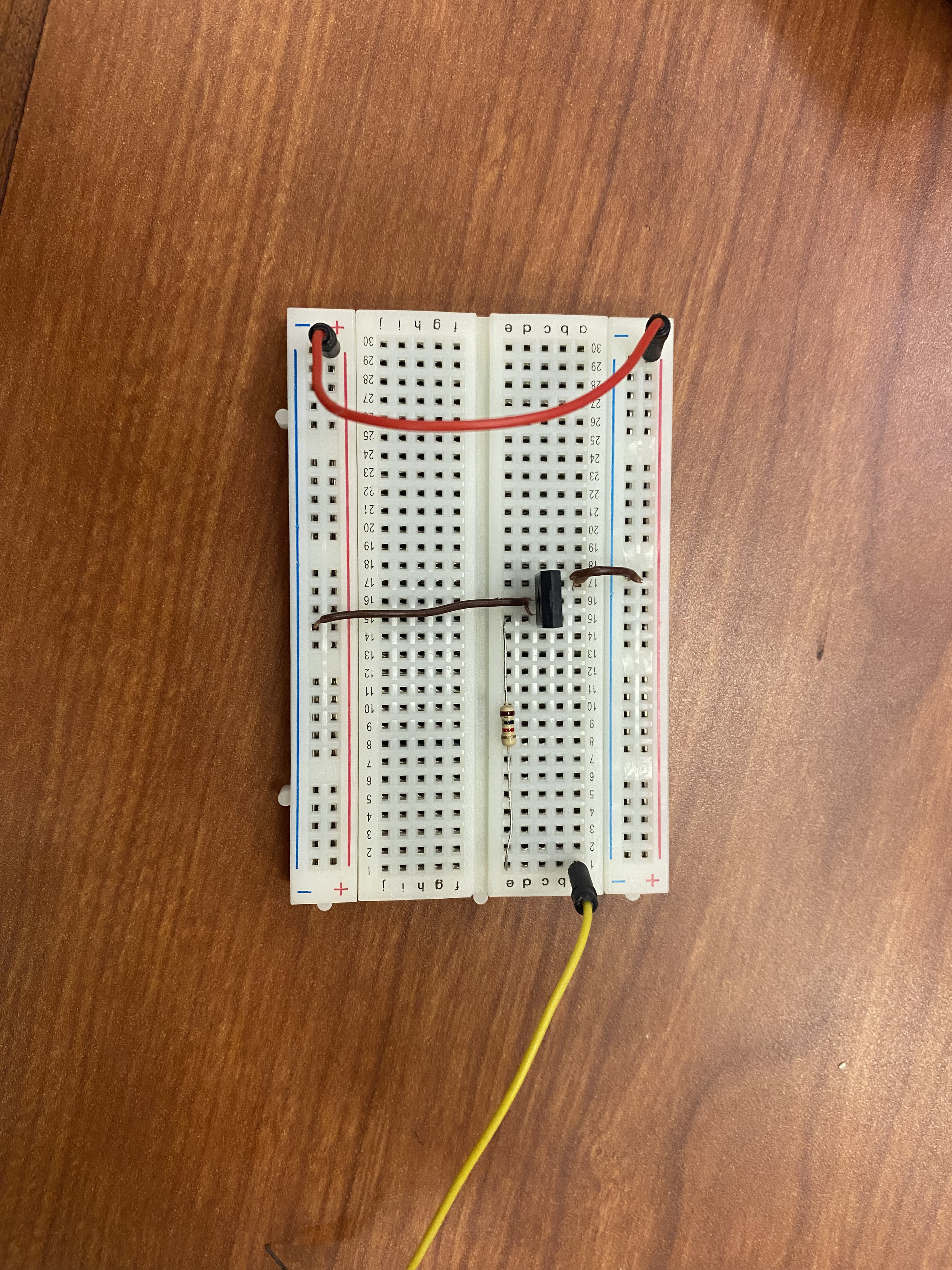
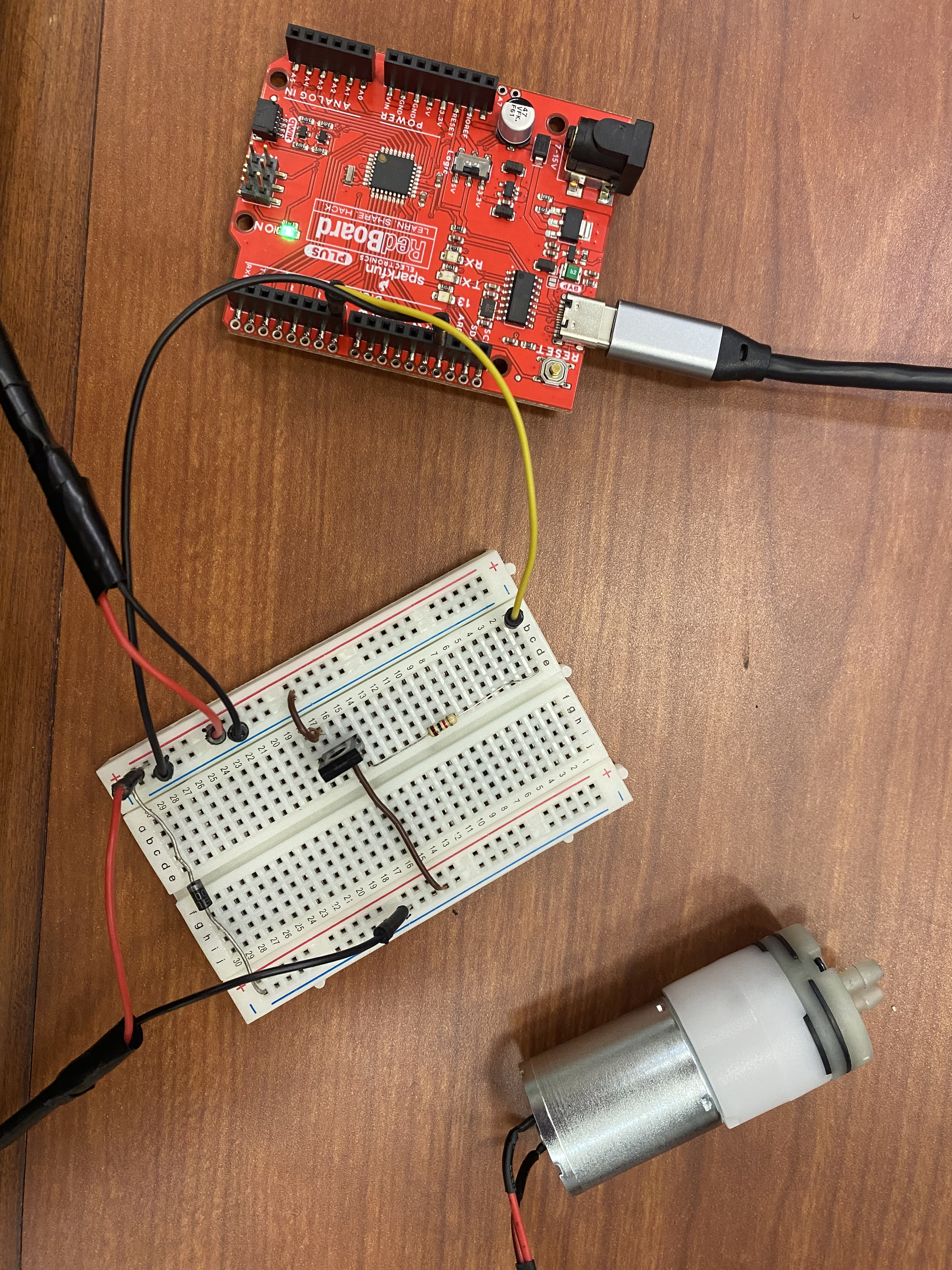
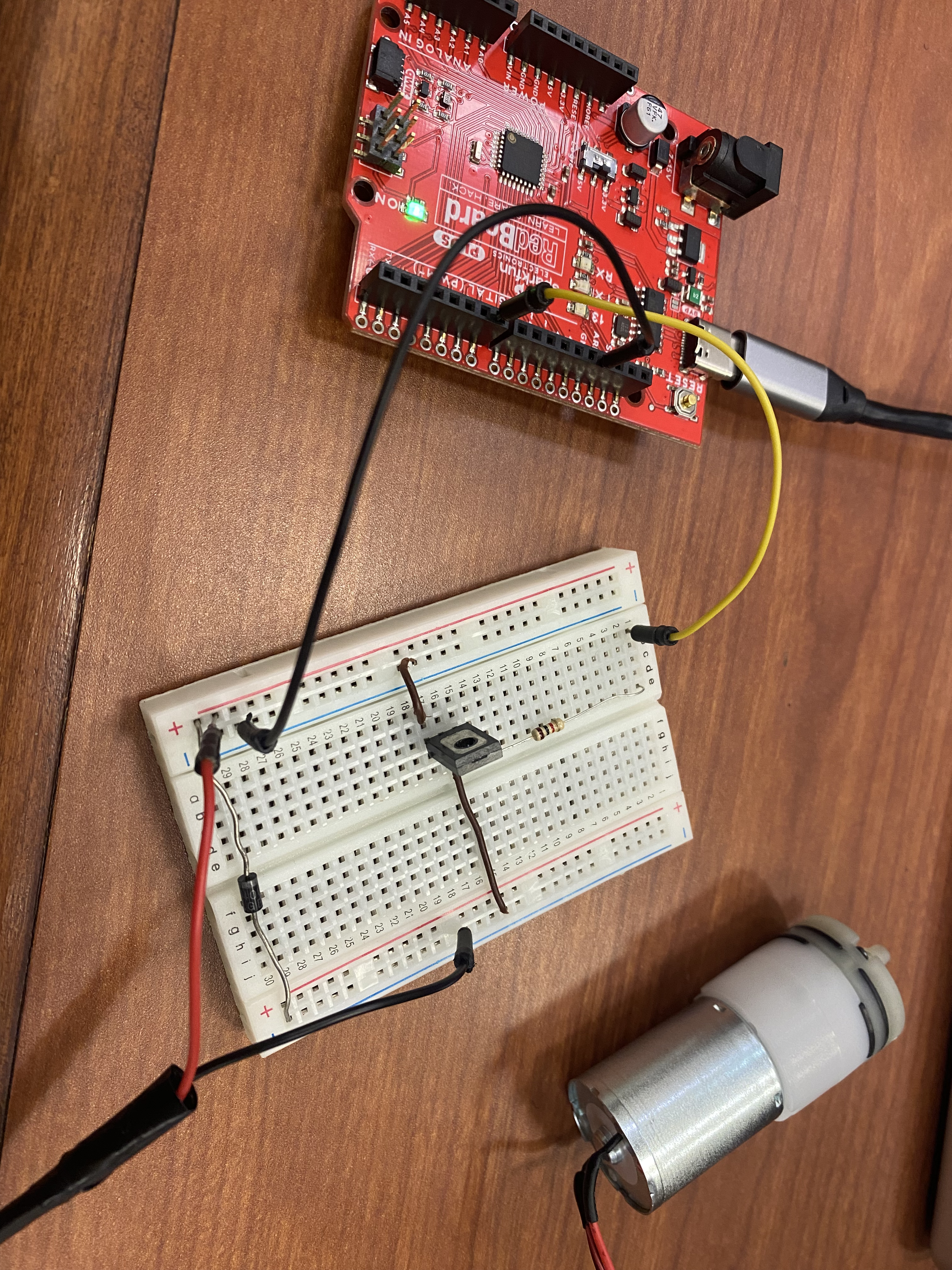
To keep this tutorial short, I explain the entire circuit wiring in one step. You can also refer to the pictures for a clearer understanding.
1. First, connect the 1kΩ resistor to the base pin of the transistor, which is located on the left side (assuming your transistor is oriented as shown in the image).
2. Next, connect the emitter (E) and collector (C) pins to two separate negative lines:
- The emitter should go to the negative terminal of the battery (power supply).
- The collector should connect to the negative terminal of the water pump.
3. Then, connect the positive terminal of the water pump directly to the positive terminal of the battery.
Before powering up the circuit, make sure that Arduino pin D7 is connected to the other side of the resistor (going into the transistor’s base) and that the Arduino is powered on.
That’s it! Your circuit is now ready to run. In the next step, I will show you the simple Arduino code needed to control the pump.
Code
Note: If you are using the potentiometer instead of the Arduino, you can skip this step, as the potentiometer circuit is already explained in the introduction section. By turning the potentiometer knob, you will manually start and stop the pump.
To upload the code, you will need to install the Arduino IDE. Since I don’t know which operating system you are using, I’m providing the official download link below. Choose the version that matches your system (Windows, Linux, or macOS):
For a step-by-step guide on how to connect your Arduino and upload your code, follow this official tutorial:
🔗 How to Upload a Sketch in Arduino IDE
The simple code below turns the pump ON for 20 seconds and then OFF for 10 seconds. The D7 pin sends a HIGH signal to the transistor’s base, switching the transistor ON and allowing current to flow to the pump. After 20 seconds, the pin goes LOW, turning the transistor OFF and stopping the pump.
Of course, this code is basic and can be easily modified. For example, you could control the pump using a Python script or even integrate it into a ROS node—but that’s beyond the scope of this tutorial!
Video
