DIY Arduino Game Controller Using Arduino Uno R4
by ElectroScope Archive in Circuits > Arduino
34 Views, 0 Favorites, 0 Comments
DIY Arduino Game Controller Using Arduino Uno R4
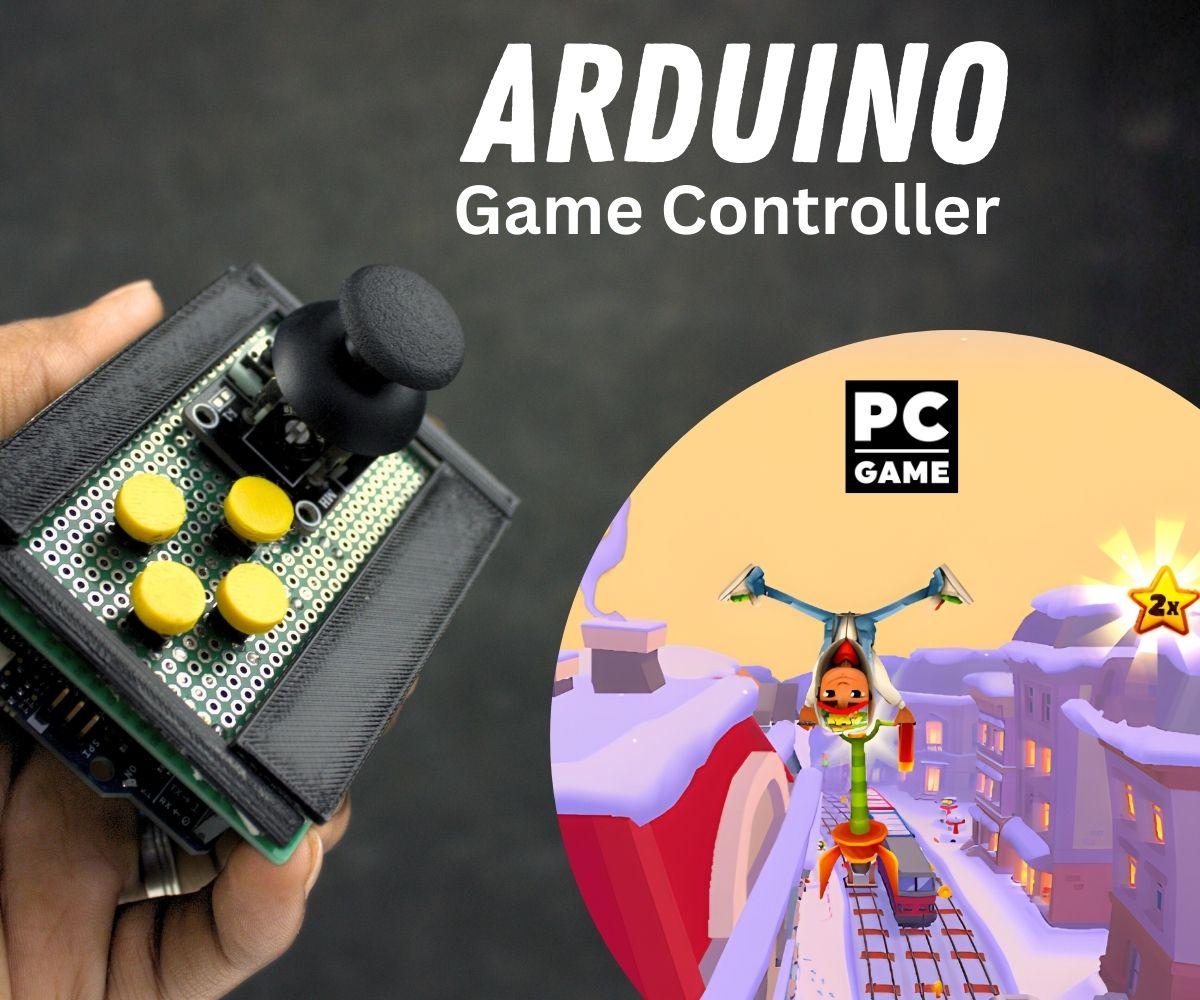
This guide walks you through building a simple USB game controller using an Arduino Uno R4, one analog joystick, and four push buttons. When you plug it into your computer, it behaves like a keyboard. The joystick sends arrow keys and the buttons send WASD. No drivers. No extra software.
If you follow this step by step, you should end up with a solid, usable controller you can actually play games with.
Supplies
Here’s everything I used. Nothing fancy.
- Arduino Uno R4
- Analog joystick module
- 4 push buttons
- Veroboard
- Jumper wires
- USB cable
- Soldering iron and solder
- Drill or cutter for mounting holes
Optional but helpful:
- Small enclosure
- Hot glue or spacers
- Multimeter
Circuit Overview
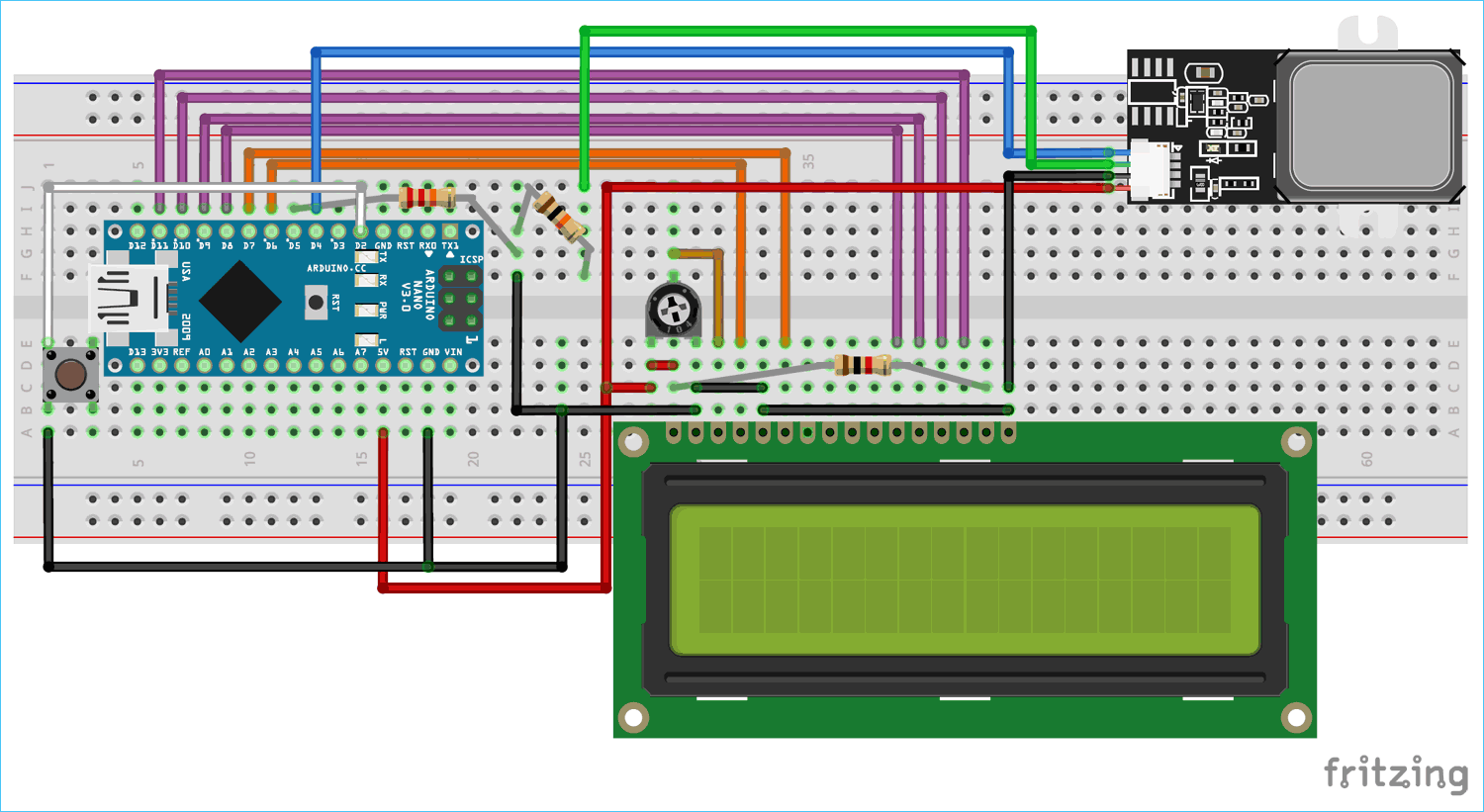
Before wiring anything, look at the circuit diagram once so you know what’s going where.
The joystick uses two analog pins. Each button goes to its own digital pin and shares ground. Internal pullups are used so no resistors are needed.
Pin Connections
This is the exact pin mapping I used. You can change it later in code if you want, but stick to this for now.
Joystick
- VCC → 5V
- GND → GND
- VRx → A0
- VRy → A1
Buttons
- Button 1 → D2
- Button 2 → D3
- Button 3 → D4
- Button 4 → D5
- Other leg of all buttons → GND
That’s it. Simple and clean.
Mount the Components
I started by placing everything on the veroboard before soldering anything.
- Position the joystick where your thumb will naturally rest
- Place the buttons in a comfortable layout
- Leave space for the Arduino headers or mounting screws
Once you’re happy with the layout, mark the holes and mount everything. If you’re using an enclosure, do a dry fit first. It saves time later.
Wiring the Joystick
The joystick is the easiest part.
- Solder VCC to a 5V rail
- Solder GND to ground
- Run a wire from VRx to A0
- Run a wire from VRy to A1
Keep the wires short and neat. Long analog wires pick up noise and cause jitter.
Wiring the Buttons
Each button has two legs. Orientation doesn’t matter.
For every button:
- One leg goes to its digital pin
- The other leg goes to ground
All grounds can be tied together on a single ground strip.
Because we’re using INPUT_PULLUP, the buttons are active LOW. That means pressing the button connects the pin to ground.
Final Checks Before Power
Before plugging anything in:
- Check for solder bridges
- Tug lightly on each wire
- Verify ground continuity with a multimeter
- Make sure no 5V line touches ground
Once that’s done, connect the Arduino to your PC with USB.
Upload the Code
This sketch makes the Arduino behave like a keyboard.
Only boards with native USB work for this. The Uno R4 does.
Core Code Snippet
Setup
The delay is important. It gives your computer time to detect the USB device before keyboard input starts.
Joystick Handling Logic
Make sure you also release keys when the joystick returns to center. Otherwise keys will get stuck.
First Test
Before opening a game, test it in a text editor.
- Open Notepad
- Move the joystick
- You should see arrow keys repeating
- Press buttons and confirm WASD appears
If that works, the hardware and code are good.
Hardware Setup Reference
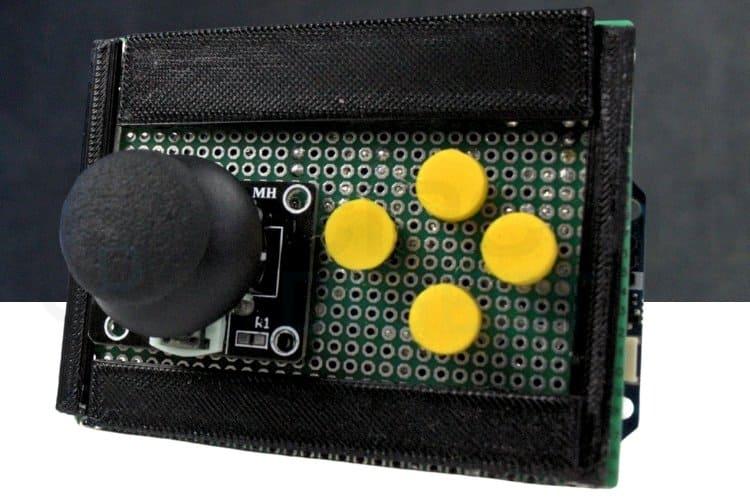
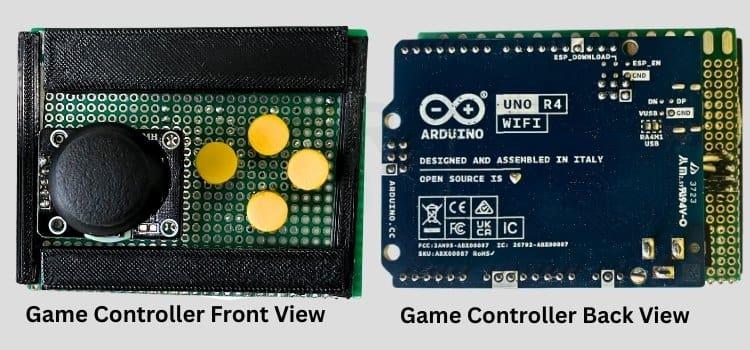
Here’s what the assembled setup looks like.
And the full wired system.
Using It in a Game
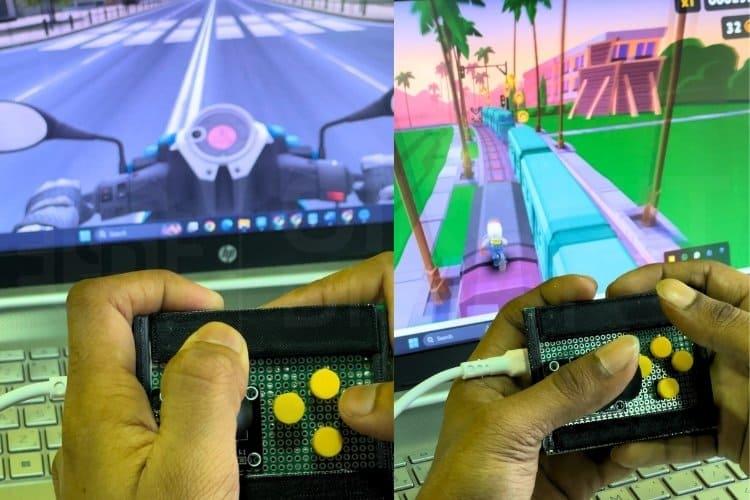
Most PC games already support keyboard input.
- Open the game settings
- Map movement to arrow keys
- Map actions to W A S D
- Save and start playing
Retro games, platformers, and emulators work especially well.
Common Problems and Fixes
Arduino not detected as a keyboard
- Make sure Uno R4 is selected
- Do not remove the startup delay
- Replug USB after flashing
Joystick moves on its own
- Increase the dead zone values
- Check for loose analog wires
- Make sure joystick is centered mechanically
Buttons trigger randomly
- Confirm one leg goes to ground
- Verify INPUT_PULLUP is set
- Check for floating wires
Keys get stuck
- Ensure every Keyboard.press() has a matching release
- Add a small delay in the loop
- Avoid blocking code
Game does not respond
- Remap keys inside the game
- Test in a text editor first
- Confirm the game supports keyboard input
Final Notes
This Arduino Game Controller works because it pretends to be a keyboard. That makes it compatible with almost everything. It’s not analog like a console gamepad, but for a lot of games, it feels solid and responsive.
Once this is working, you can expand it with:
- More buttons
- LEDs
- Different key mappings
- Wireless modules
But even as-is, this is a complete, usable build.
Plug it in. Open a game. Play.
That’s it.